
Содержание
- Содержание: скрывать
- 1 Беспроводные наушники Beats Flex
- 2 Настройте и используйте наушники Beats Flex после
- 3 Включите и зарядите
- 3.1 Подключите
- 3.2 Используйте свой Beats
- 3.3 Сбросьте настройки
- Популярные вопросы
- 5 Документация
Беспроводные наушники Beats Flex

Информация о продукте
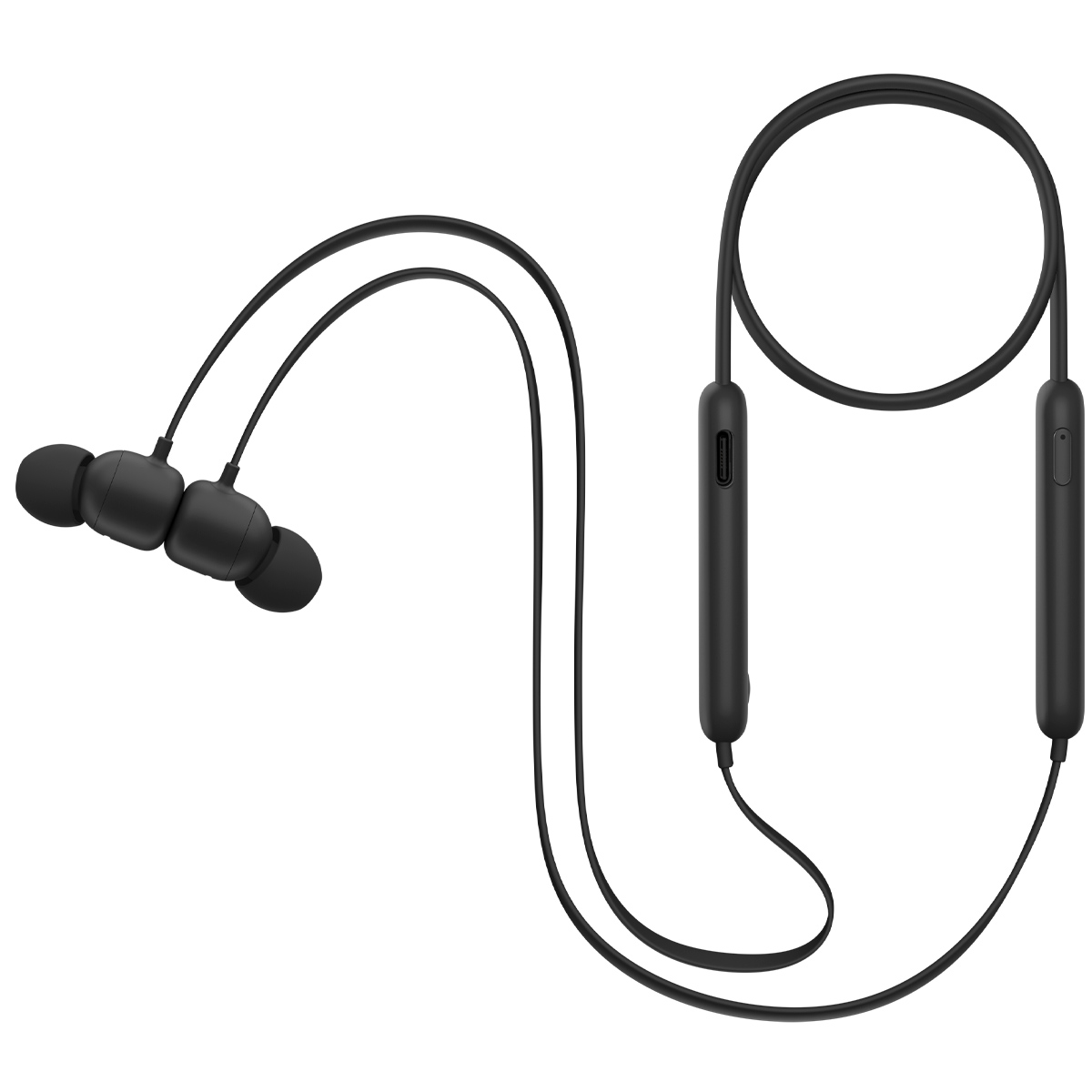
Наушники Beats Flex — это беспроводные наушники, которые обеспечивают до 12 часов воспроизведения на одном заряде. Они оснащены кнопкой питания на правом модуле управления и светодиодными индикаторами, которые показывают уровень заряда батареи.
Характеристики
-
Срок службы батареи: до 12 часов
-
Порт зарядки: USB-C
-
Версия Bluetooth: Bluetooth 5.0
Зарядка
Чтобы включить и зарядить наушники Beats Flex:
-
Найдите кнопку питания на правом модуле управления.
-
Нажмите и удерживайте кнопку питания в течение 1 секунды, чтобы включить или выключить наушники.
-
Подключите наушники к источнику питания с помощью прилагаемого кабеля USB-C для зарядки.
-
Светодиодный индикатор на кнопке питания покажет состояние батареи:
-
Белый свет: более часа до разрядки
-
Красный свет: менее часа до разрядки
-
Мигает красным: требуется зарядка.
-
Настройте и используйте наушники Beats Flex после
Узнайте, как заряжать, подключать и использовать наушники Beats Flex.
Использование зарядного устройства и сброс настроек.
Включите и зарядите Beats Flex
Кнопка питания расположена на правом модуле управления. Нажмите и удерживайте её в течение 1 секунды, чтобы включить или выключить наушники.
-

Для зарядки подключите наушники к источнику питания с помощью прилагаемого кабеля USB-C. Полностью заряженные наушники обеспечивают до 12 часов воспроизведения.
Когда наушники включены и готовы к использованию, светодиодный индикатор на кнопке питания отображает оставшееся время работы:
-
Белый свет: более часа до разрядки
-
Красный свет: менее часа до разрядки
-
Мигающий красный: требуется зарядка.
-

Подключите Beats Flex
Узнайте, как выполнить сопряжение наушников с вашим устройством.
Сопряжение с iPhone, iPad или iPod touch:
-
Убедитесь, что Bluetooth включен на вашем iPhone, iPad или iPod touch.
-
Держите наушники рядом с разблокированным устройством iOS.
-
Нажмите и удерживайте кнопку питания на наушниках. Когда индикатор начнёт мигать, ваши наушники будут готовы для сопряжения.
-
Следуйте инструкциям на экране вашего устройства iOS.
Если возникли проблемы с подключением, узнайте, что делать в этом случае.
Сопряжение с Mac, устройством Android или другим устройством
-
Убедитесь, что Bluetooth включен на вашем Mac, устройстве Android или другом устройстве. Держите наушники рядом с разблокированным устройством.
Нажмите и удерживайте кнопку питания на наушниках. Когда индикатор начнёт мигать, это означает, что ваши наушники доступны для обнаружения.
Откройте меню Bluetooth на вашем Mac, устройстве Android или другом устройстве. Например, на Mac выберите меню Apple () > «Системные настройки», затем нажмите «Bluetooth».
В списке доступных устройств Bluetooth найдите и выберите ваши наушники.
Также узнайте, как подключить наушники с помощью приложения Beats для Android.
Используйте свой Beats Flex
Узнайте, как управлять воспроизведением музыки, регулировать громкость и отвечать на звонки с помощью кнопок на левом модуле управления.

Воспроизводить музыку
Для управления воспроизведением звука используйте центральную кнопку на левом модуле управления:
-
Нажмите один раз, чтобы воспроизвести или приостановить воспроизведение.
-
Нажмите дважды, чтобы перейти к следующему треку.
-
Нажмите трижды, чтобы вернуться к предыдущему треку.
-
Нажмите дважды и удерживайте второе нажатие, чтобы перемотать трек вперед.
-
Нажмите трижды и удерживайте третье нажатие, чтобы перемотать трек назад.
Вы также можете приостановить воспроизведение, подключив наушники, и возобновить его, отсоединив их.
Изменить громкость
Для регулировки громкости воспроизведения используйте кнопки громкости на левом модуле управления. Для контроля громкости звонков используйте регуляторы громкости на вашем телефоне.
-
Нажмите и отпустите кнопку увеличения громкости или удерживайте её для постепенного повышения громкости.
-
Нажмите и отпустите кнопку уменьшения громкости или удерживайте её для постепенного снижения громкости.
Отвечать на звонки
Для управления телефонными звонками используйте центральную кнопку на левом модуле управления:
-
Нажмите один раз, чтобы ответить на вызов или завершить разговор.
-
Нажмите один раз, чтобы ответить на второй входящий вызов, при этом первый вызов будет удержан. Когда оба вызова активны, вы можете переключаться между ними.
-
Нажмите и удерживайте кнопку примерно одну секунду, чтобы отклонить входящий вызов.
-
Дважды нажмите, чтобы завершить прослушивание через наушники и перенаправить вызов на ваш телефон.
Спросите Siri
-
Для активации Siri нажмите и удерживайте центральную кнопку на левом модуле управления до появления звукового сигнала, затем озвучьте свой запрос. Если Siri не работает, узнайте, что делать. Обратите внимание, что функции Siri могут различаться в зависимости от страны или региона.
Для активации голосовой помощи на других устройствах также нажмите и удерживайте центральную кнопку на левом модуле управления.
Сбросьте настройки Beats Flex
- Нажмите и удерживайте одновременно кнопку питания и кнопку уменьшения громкости в течение 15 секунд. Когда светодиод начнёт мигать, отпустите кнопки. Ваши наушники сброшены и готовы к повторной настройке с вашими устройствами.
Популярные вопросы
1. Как подключить Beats Flex к iPhone?
Ответ:
- Включите Bluetooth в настройках iPhone.
- Нажмите и удерживайте кнопку питания на правом модуле Beats Flex, пока индикатор не начнет мигать (режим сопряжения).
- На экране iPhone появится запрос на подключение — подтвердите его.
- Готово! Наушники автоматически подключатся к iPhone при следующем включении.
2. Сколько времени работают Beats Flex от одного заряда?
Ответ:
Beats Flex обеспечивают до 12 часов непрерывного воспроизведения при полной зарядке.
🔋 Индикация заряда:
- Белый свет — осталось больше часа.
- Красный свет — меньше часа.
- Мигает красным — требуется зарядка.
3. Как управлять музыкой и звонками в Beats Flex?
Ответ:
Управление осуществляется через левый модуль:
▶️ Музыка:
- 1 нажатие — пауза/воспроизведение.
- 2 нажатия — следующий трек.
- 3 нажатия — предыдущий трек.
📞 Звонки: - 1 нажатие — ответ/завершение вызова.
- Удержание — отклонить вызов.
- 2 нажатия — переключить звонок на телефон.
🔊 Громкость: - Кнопки «+» и «–» регулируют уровень звука.
4. Как сбросить настройки Beats Flex, если они не подключаются?
Ответ:
- Нажмите и удерживайте кнопку питания + кнопку уменьшения громкости 15 секунд.
- Дождитесь, пока индикатор начнет мигать.
- Отпустите кнопки — наушники сбросятся и перейдут в режим сопряжения.
- Повторно подключите их к устройству через Bluetooth.
5. Как заряжать Beats Flex и какой кабель использовать?
Ответ:
- Используйте кабель USB-C (входит в комплект).
- Подключите его к правому модулю наушников и к адаптеру питания или USB-порту.
⚡ Время зарядки: около 1,5 часа до полного заряда.
🔌 Автоматическое отключение при соединении магнитов (если не используются).
- June 16, 2024
- BEATS
Table of Contents
- Beats Flex Wireless Earphones
- Set up and use your Beats Flex earphones after a
- Turn on and charge your Beats Flex
- Pair your Beats Flex
- Use your Beats Flex
- Reset your Beats Flex
- References
- Read User Manual Online (PDF format)
- Download This Manual (PDF format)
Beats Flex Wireless Earphones

Product Information
The Beats Flex earphones are wireless earphones that provide up to 12 hours of
playback from a full charge. They feature a power button on the right control
module and have LED indicator lights to display the battery status.
Specifications
- Battery Life: Up to 12 hours
- Charging Port: USB-C
- Bluetooth Version: Bluetooth 5.0
Charge
To turn on and charge your Beats Flex earphones:
- Locate the power button on the right control module.
- Press and hold the power button for 1 second to turn the earphones on or off.
- Plug your earphones into a power source using the included USB-C cable to charge.
- The LED indicator light on the power button will show the battery status:
- White: more than an hour of listening time remaining
- Red: less than an hour of listening time remaining
- Blinking red: needs to be charged
Set up and use your Beats Flex earphones after a
Find out how to charge, pair and use your Beats Flex.
Charge Pair Use Reset
Turn on and charge your Beats Flex
The power button is on the right control module. Press and hold the button for
1 second to turn your earphones on or off.
-

To charge, plug your earphones in to a power source using the included USB-C cable. Your earphones provide up to 12 hours of playback from a full charge.
- When your earphones are turned on and set up, the LED indicator light on the power button shows how much listening time is left:
- White: more than an hour left
- Red: less than an hour left
- Blinking red: needs to be charged

Pair your Beats Flex
Find out how to pair your earphones with your device.
Pair with iPhone, iPad or iPod touch
- Make sure that you’ve turned on Bluetooth on your iPhone, iPad or iPod touch.
- Hold your earphones next to your unlocked iOS device.
- Press and hold the power button on your earphones. When the indicator light flashes, your earphones are discoverable.
- Follow the instructions that appear on your iOS device.
If you can’t connect to your device, learn what to do.
Pair with a Mac, an Android device or another device
- Make sure that you’ve turned on Bluetooth on your Mac, Android device or other device.
- Hold your earphones next to your unlocked device.
- Press and hold the power button on your earphones. When the indicator light flashes, your earphones are discoverable.
- Open the Bluetooth menu on your Mac, Android device or other device. For example, on your Mac, choose Apple ( ) menu > System Preferences, then click Bluetooth.
- In the list of discovered Bluetooth devices, tap or click your earphones.
Find out how to connect using the Beats app for Android.
Use your Beats Flex
Find out how to play music, change the volume and answer calls using the
buttons on the left control module. \

Play music
To control audio playback, use the centre button on the left control module:
- Press once to play or pause audio playback.
- Press twice to skip to the next track. Press three times to skip backwards.
- Press twice and hold on the second press to scan forwards through a track. Press three times and hold on the third press to scan backwards through a track.
You can also pause audio by clipping your earphones together and resume it by
unclipping them.
Change the volume
To control playback volume, use the volume buttons on the left control module.
To control call volume, use the volume controls on your phone.
- Press and release the volume up button, or press and hold to increase volume continuously.
- Press and release the volume down button, or press and hold to decrease volume continuously.
Answer calls
To control phone calls, use the centre button on the left control module:
- Press once to answer or end a call.
- Press once to answer a second incoming call and put the first call on hold. When two calls are active, this switches between calls.
- Press and hold for about a second to reject an incoming call.
- Press twice to stop listening through your earphones and send the call to your phone.
Ask Siri
- To activate Siri, press and hold the centre button on the left control module until you hear a chime. Then say what you need. Find out what to do if Siri isn’t working.
- Siri features might vary by country or region.
- To activate the voice assistance feature for other devices, you can press and hold the centre button on the left control module.
Reset your Beats Flex
- Press and hold both the power button and the volume down button for 15 seconds.
- When the LED indicator light flashes, release the buttons. Your earphones have been reset and are now ready to be set up with your devices again.
References
- Set up and use your Beats Flex earphones after a service — Apple Support (IN)
- Set up and use your Beats Flex earphones after a service — Apple Support (IN)
- Set up and use your Beats Flex earphones after a service — Apple Support (IN)
- Set up and use your Beats Flex earphones after a service — Apple Support (IN)
- If you can’t connect to your wireless Beats product — Apple Support
- If Siri isn’t working on your iPhone — Apple Support
- Use the Beats app for Android — Apple Support
Read User Manual Online (PDF format)
Read User Manual Online (PDF format) >>
Download This Manual (PDF format)
Download this manual >>
Set up and use your Beats Flex earphones
after service
Learn how to charge, pair, and use your Beats Flex.
Turn on and charge your Beats Flex
The power button is on the right control module. Press and hold the button for 1 second to turn
your earphones on or off.
To charge, plug your earphones into a power source using the included USB-C cable. Your
earphones provide up to 12 hours of playback from a full charge.
When your earphones are turned on and set up, the LED indicator light on the power button
shows how much listening time is left:
White: more than an hour left
Red: less than an hour left
Blinking red: needs to charge
Set up and use
Learn how to charge and use your Beats Flex, pair with your device, and more.
Set up and use
Learn how to charge and use your Beats Flex, pair with your device, and more.
Set up and use
Learn how to charge and use your Beats Flex, pair with your device, and more.
Audio Sharing
Learn how you and a friend can both listen to audio from your iPhone or iPad with your Beats wireless earbuds.
Audio Sharing
Learn how you and a friend can both listen to audio from your iPhone or iPad with your Beats wireless earbuds.
Audio Sharing
Learn how you and a friend can both listen to audio from your iPhone or iPad with your Beats wireless earbuds.
Clean and care
Learn how to clean, store, and care for your Beats earbuds.
Learn how to clean, store, and care for your Beats earbuds.
Learn how to clean, store, and care for your Beats earbuds.
Learn how to clean your beats
Find your serial number
Learn where to look for the serial number on your Beats.
Learn where to look for the serial number on your Beats.
Learn where to look for the serial number on your Beats.
Find serial number
Service and warranty
Learn more about what’s covered under your warranty, service options, and repair pricing.
Learn more about what’s covered under your warranty, service options, and repair pricing.
Learn more about what’s covered under your warranty, service options, and repair pricing.
View Service and warranty
Get support for your Beats
About Beats
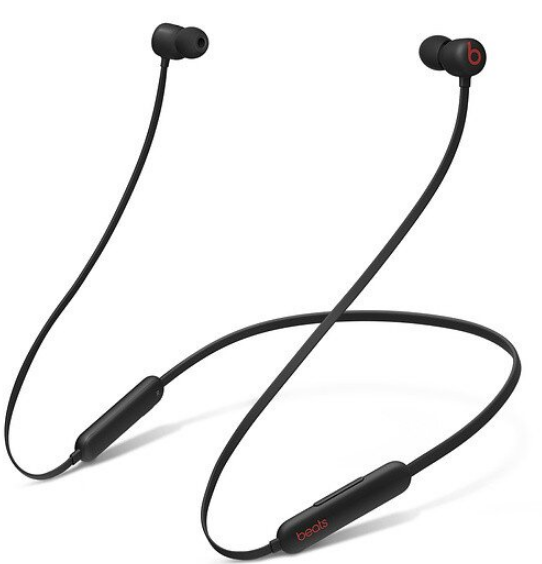
Jimmy Iovine and Dr. Dre launched the well-known music company Beats by Dr. Dre (Beats) in 2006. Beats has opened the eyes of a whole new generation to the possibilities of high-end audio enjoyment with its line of luxury consumer headphones, earphones, and speakers.
The brand’s ongoing success contributes to music enthusiasts all over the world experiencing the same intensity, passion, and thrill of playback in the recording studio. In July of 2014, Apple Inc. purchased Beats.
Turn on and charge your Beats Flex
The power button is on the right control module. Press and hold the button for 1 second to turn your earphones on or off.
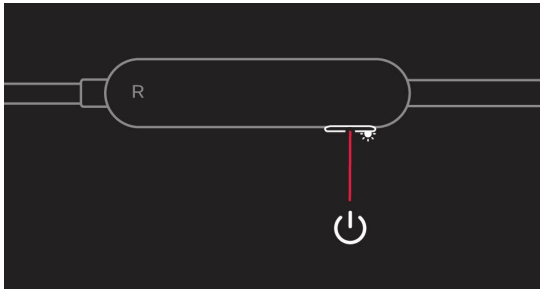
To charge, plug your earphones into a power source using the included USB-C cable. Your earphones provide up to 12 hours of playback from a full charge. When your earphones are turned on and set up, the LED indicator light on the power button shows how much listening time is left:
- White: more than an hour left
- Red: less than an hour left
- Blinking red: needs to charge
Pair your Beats Flex
Learn how to pair your earphones with your device.
Pair with an iPhone, iPad, or iPod touch
- Make sure that you turn on Bluetooth on your iPhone, iPad, or iPod touch.
- Hold your earphones next to your unlocked iOS device.
- Press and hold the power button on your earphones. When the indicator light flashes, your earphones are discoverable.
- Follow the instructions that appear on your iOS device.
If you can’t connect to your device, learn what to do.
Pair with a Mac, an Android device, or another device
- Make sure that you turn on Bluetooth on your Mac, Android device, or other device.
- Hold your earphones next to your unlocked device.
- Press and hold the power button on your earphones. When the indicator light flashes, your earphones are discoverable.
- Open the Bluetooth menu on your Mac, Android device, or other device. For example, on your Mac, choose Apple ( ) menu > System Preferences, then click Bluetooth.
- In the list of discovered Bluetooth devices, tap or click your earphones.
Use your Beats Flex
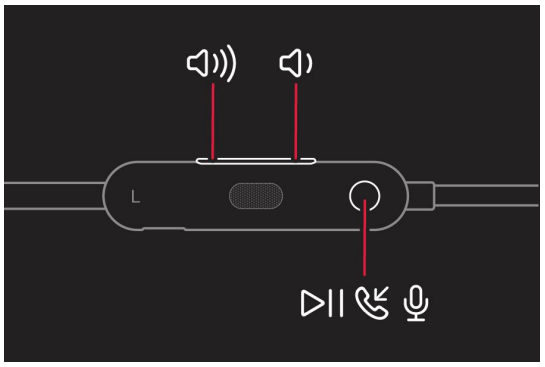
Learn how to play music, change the volume, and answer calls using the buttons on the left control module.
Play Music
To control audio playback, use the center button on the left control module:
- Press once to play or pause audio playback.
- Press twice to skip to the next track. Press three times to skip backward.
- Press twice and hold on to the second press to scan forward through a track. Press three times and hold on to the third press to scan backward through a track.
You can also pause audio by clipping your earphones together, and resume it by unclipping them.
Change the volume
To control playback volume, use the volume buttons on the left control module. To control call volume, use the volume controls on your phone.
- Press and release the volume up button, or press and hold to increase volume continuously.
- Press and release the volume down button, or press and hold to decrease volume continuously.
Answer calls
To control phone calls, use the center button on the left control module:
- Press once to answer or end a call.
- Press once to answer a second incoming call and put the first call on hold. When two calls are active, this switches between calls.
- Press and hold for about a second to reject an incoming call.
- Press twice to stop listening through your earphones and send the call to your phone.
Ask Siri
To activate Siri, press and hold the center button on the left control module until you hear a chime. Then say what you need. Learn what to do if Siri isn’t working. Siri features might vary by country or region. To activate the voice assistance feature for other devices, you can press and hold the center button on the left control module.
Reset your Beats Flex
- Press and hold both the power button and the volume down button for 15 seconds.
- When the LED indicator light flashes, release the buttons. Your earphones are now reset and ready to be set up with your devices again.
FAQs About Beats Flex Wireless Earbuds
Does Beats Flex work with Android devices?
Connect to a Mac, an Android smartphone, or another device. Verify that your Mac, Android handset or other device has Bluetooth enabled. Place your earbuds close to the device that has been unlocked. On your earphones, press and hold the power button. An indicator light flashing indicates that your earbuds are detectable.
How is Beats Flex operated?
Beats essential specifications for Flex When magnetic earbuds are in your ears, they immediately start playing music; when they’re around your neck, they pause.
How long ought Beats Flex to endure?
For all-day use, Beats Flex promises up to 12 hours of listening time. When the battery is running low, a 10-minute Fast Fuel charge provides 1.5 hours of playback.
Are wireless Beats Flex earphones suitable for jogging?
The Beats Flex Wireless are the best wireless earphones for jogging that we’ve tested on a budget. They aren’t as sturdy in-ear and lack ear hooks as the Skullcandy Push Active True Wireless, but they do have a neck cable design that allows you to wear them around your neck while not in use.
Can two devices be connected to a Beats Flex?
There is no true Bluetooth multipoint support for the Beats Flex, thus you cannot connect to two devices simultaneously. Nevertheless, it contains Apple’s W1 chip. Thus, provided that all of your Apple devices are linked to the same iCloud account, you may effortlessly switch between them, just like you could with the original AirPods and BeatsX.
Can I use the Beats Flex in the rain?
Avoid taking a bath or swimming while wearing your Beats wireless earphones. Avoid subjecting your Beats wireless earphones to high-velocity or pressurized water when taking a shower, wakeboarding, water skiing, surfing, or jet skiing. Use of your Beats wireless earphones in a steam room or sauna is not advised.
Does Beats Flex require a power source?
Switch off your headphones. A light that shows the remaining battery life on the Power button will appear if the headphones are activated. A blinking red light indicates that your Beats Flex needs to be charged; a white light indicates that you have more than an hour left; and a red light indicates that you have less than an hour left.
Can Beats Flex answer the phone?
Although the Beats Flex’s call quality is still inferior to that of all Powerbeats versions and the BeatsX, Beats’ updated mic array does offer better voice calling.
Is Beats Flex trackable?
Use Find My5 to show your headphones on a map or make a sound to find them when they’re close to one of your Apple devices. The Find My app can assist you in locating your lost or missing Beats Flex by utilizing the extensive and worldwide Find My network, which consists of hundreds of millions of Apple devices.
Is ANC present in Beats Flex?
For use in the office, the Beats Flex Wireless is passable. With an 11-hour continuous battery life, they are comfy and will endure the entire workday. Even without active noise canceling (ANC), they nevertheless effectively reduce background noise that isn’t directly in your face.
Is there a Beats Flex app?
Get features that place you at the center of your music like never before by downloading the Beats app. You can now use the app to operate your Beats product in a variety of ways.
What materials make Beats Flex?
The Flex-Form cable is incredibly lightweight and almost undetectable when worn around your neck because it is made of sturdy Nitinol material.
What materials make Beats Flex?
The Flex-Form cable is incredibly lightweight and almost undetectable when worn around your neck because it is made of sturdy Nitinol material.
Is Beats Flex leaking audio?
Audio quality Because of its snug fit, the device creates an acoustic seal that blocks out background noise and keeps your music within. The part of the gadget that generates sound is the driving unit.
How is Beats Flex cleaned?
Make your beats clean. Dust and grease can be removed with a dry cleaning cloth. Avoid using solvents, abrasives, and aerosol sprays. To clean the sliders and cushions on headbands, use a moist cloth soaked in soap. Use a dry cleaning cloth on the ear cups or ear cup mesh rather than a moist one.
For More Manuals by Beats, Visit Latest Manuals
- TaoTronics TT-BH053 SoundLiberty 53 Wireless Headphones User Guide
- JBL Vibe Beam True Wireless Headphones Quick Start Guide
- Beats Powerbeats Pro Wireless Earbuds User Manual
- SoundCore Life Q30 Wireless HeadPhone User Guide
- Acoustics Research AWSBT7 Portable Wireless Speaker Installation Manual