
fx-82MS
fx-85MS
fx—220 PLUS
fx—300MS
RU
fx—350MS
(2-я редакция / S-V.P.A.M.)
ИНСТРУКЦИЯ ПО
ЭКСПЛУАТАЦИИ
Всемирный образовательный сайт «Касио»
https://edu.casio.com
Инструкции по эксплуатации доступны на нескольких языках на сайте
https://world.casio.com/manual/calc/
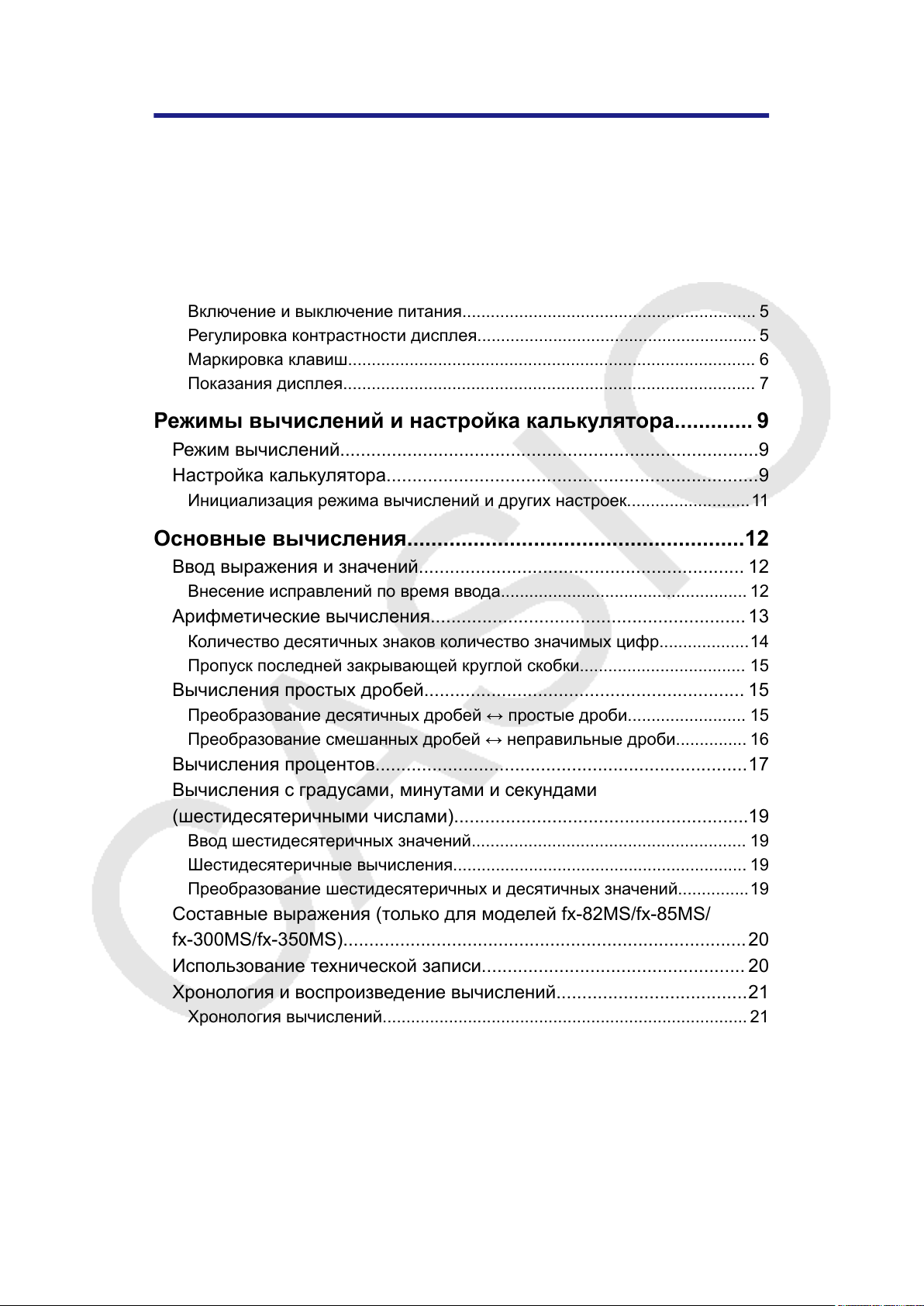
Содержание
Перед использованием калькулятора…………………………..3
О настоящем руководстве……………………………………………………………3
Инициализация калькулятора………………………………………………………3
Предупреждения…………………………………………………………………………4
Начало работы……………………………………………………………………………5
Снятие футляра…………………………………………………………………………………5
Включение и выключение питания…………………………………………………….. 5
Регулировка контрастности дисплея………………………………………………….. 5
Маркировка клавиш………………………………………………………………………….. 6
Показания дисплея…………………………………………………………………………… 7
Режимы вычислений и настройка калькулятора…………. 9
Режим вычислений………………………………………………………………………9
Настройка калькулятора………………………………………………………………9
Инициализация режима вычислений и других настроек……………………..11
Основные вычисления………………………………………………..12
Ввод выражения и значений……………………………………………………… 12
Внесение исправлений по время ввода…………………………………………….12
Арифметические вычисления…………………………………………………….13
Количество десятичных знаков количество значимых цифр……………….14
Пропуск последней закрывающей круглой скобки…………………………….. 15
Вычисления простых дробей…………………………………………………….. 15
Преобразование десятичных дробей ↔ простые дроби……………………. 15
Преобразование смешанных дробей ↔ неправильные дроби…………… 16
Вычисления процентов………………………………………………………………17
Вычисления с градусами, минутами и секундами
(шестидесятеричными числами)…………………………………………………19
Ввод шестидесятеричных значений…………………………………………………. 19
Шестидесятеричные вычисления…………………………………………………….. 19
Преобразование шестидесятеричных и десятичных значений……………19
Составные выражения (только для моделей fx-82MS/fx-85MS/
fx-300MS/fx-350MS)……………………………………………………………………20
Использование технической записи…………………………………………… 20
Хронология и воспроизведение вычислений……………………………….21
Хронология вычислений………………………………………………………………….. 21
Повторное воспроизведение…………………………………………………………….21
Использование функций памяти…………………………………………………22
Память результатов (Ans)…………………………………………………………………22
Переменные (A, B, C, D, E, F, M, X, Y) (только для моделей fx-82MS/
fx-85MS/fx-300MS/fx-350MS)……………………………………………………………..23
Независимая память (М)…………………………………………………………………..23
Очистка содержимого всех блоков памяти……………………………………….. 24
1
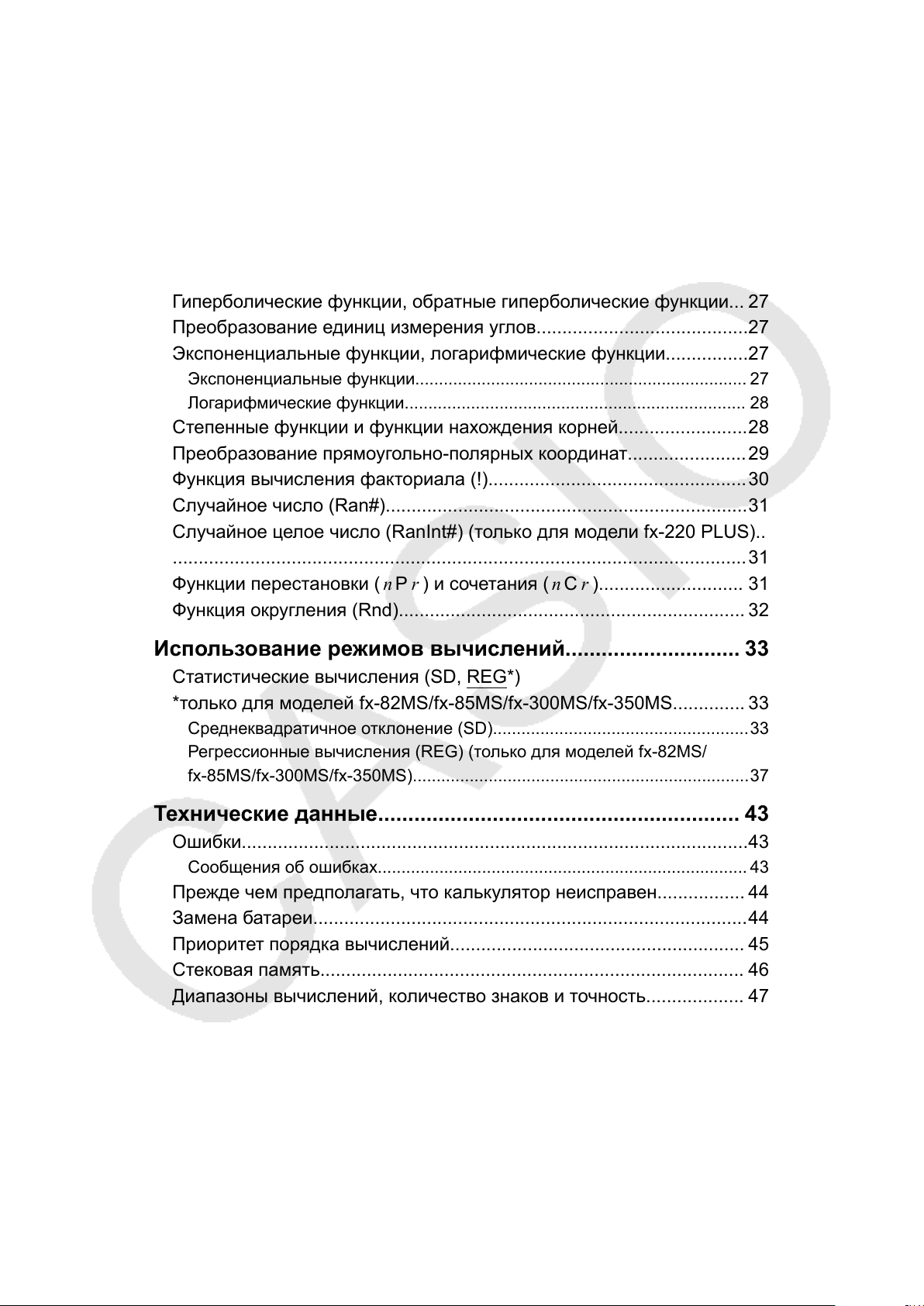
Вычисление функций…………………………………………………. 25
π ), натуральный логарифм по основанию e …………………………..25
Pi (
)……………………………………………………………………………………………….25
π
Pi (
Натуральный логарифм по основанию
fx-85MS/fx-300MS/fx-350MS)……………………………………………………………..25
Тригонометрический функции, обратные тригонометрические
функции…………………………………………………………………………………….26
Тригонометрические функции………………………………………………………….. 26
Обратные тригонометрические функции……………………………………………26
Гиперболические функции, обратные гиперболические функции… 27
Преобразование единиц измерения углов…………………………………..27
Экспоненциальные функции, логарифмические функции…………….27
Экспоненциальные функции……………………………………………………………. 27
Логарифмические функции……………………………………………………………… 28
Степенные функции и функции нахождения корней…………………….28
Преобразование прямоугольно-полярных координат…………………..29
Функция вычисления факториала (!)…………………………………………..30
Случайное число (Ran#)…………………………………………………………….31
Случайное целое число (RanInt#) (только для модели fx-220 PLUS)..
…………………………………………………………………………………………………31
Функции перестановки (
n P r ) и сочетания (n C r )………………………. 31
Функция округления (Rnd)…………………………………………………………. 32
e (только для моделей fx-82MS/
Использование режимов вычислений……………………….. 33
Статистические вычисления (SD,
*только для моделей fx-82MS/fx-85MS/fx-300MS/fx-350MS………….. 33
Среднеквадратичное отклонение (SD)………………………………………………33
Регрессионные вычисления (REG) (только для моделей fx-82MS/
fx-85MS/fx-300MS/fx-350MS)……………………………………………………………..37
REG*)
Технические данные…………………………………………………… 43
Ошибки……………………………………………………………………………………..43
Сообщения об ошибках…………………………………………………………………… 43
Прежде чем предполагать, что калькулятор неисправен…………….. 44
Замена батареи…………………………………………………………………………44
Приоритет порядка вычислений………………………………………………… 45
Стековая память………………………………………………………………………. 46
Диапазоны вычислений, количество знаков и точность………………. 47
Диапазон вычисления и точность……………………………………………………..47
Диапазоны ввода и точность вычисления функций…………………………… 48
Технические характеристики………………………………………………………50
2
Перед использованием
калькулятора
О настоящем руководстве
• Компания CASIO Computer Co., Ltd. ни при каких обстоятельствах
не несет ответственности за прямые, побочные, случайные или
косвенные убытки в связи с приобретением или использованием
настоящего изделия и поставляемых с ним принадлежностей.
• Кроме того, компания CASIO Computer Co., Ltd. не принимает
никакие претензии других сторон, возникающих вследствие
использования настоящего изделия и поставляемых с ним
принадлежностей.
• Если не указано особо, предполагается, что все приведенные в
настоящем руководстве примеры вычислений даны, когда
калькулятор имеет первоначальные настройки по умолчанию.
Используйте процедуру под заголовком «Инициализация
калькулятора», чтобы вернуться к первоначальным настройкам по
умолчанию.
• Сведения, содержащиеся в настоящем руководстве, могут
изменяться без предварительного уведомления.
• Отображение данных на экране и рисунках (например маркировка
клавиш), показанных в настоящем руководстве, приводится только
для пояснений и может несколько отличаться от фактического.
• Наименования компаний и изделий, используемые в настоящем
руководстве, могут быть зарегистрированными товарными знаками
или товарными знаками их владельцев.
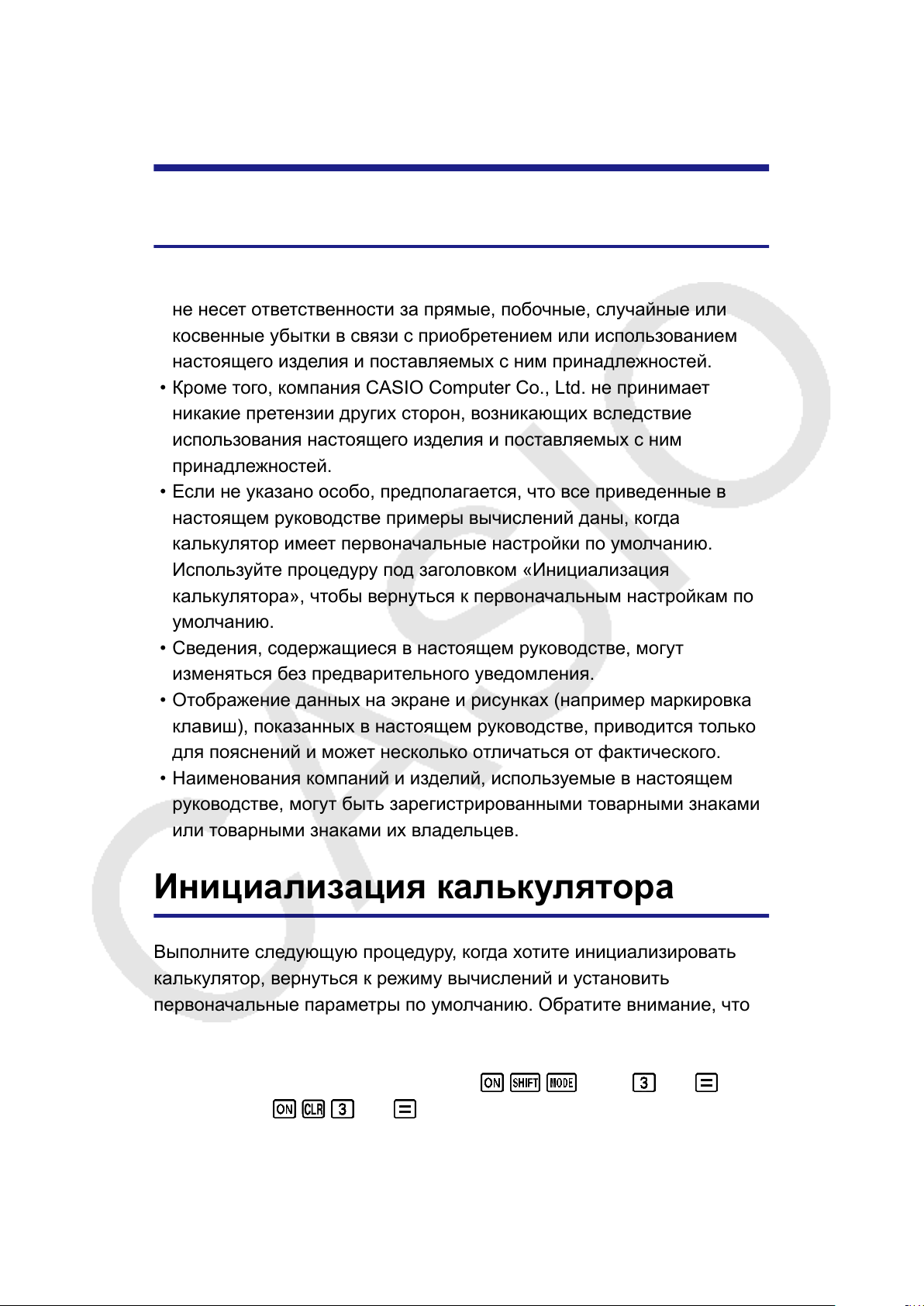
Инициализация калькулятора
Выполните следующую процедуру, когда хотите инициализировать
калькулятор, вернуться к режиму вычислений и установить
первоначальные параметры по умолчанию. Обратите внимание, что
настоящая операция также сбрасывает все данные из памяти
калькулятора.
fx-82MS/fx-85MS/fx-300MS/fx-350MS:
fx-220 PLUS: (All)
3
(CLR) (All)
Предупреждения
Перед использованием калькулятора обязательно изучите
приведенные ниже предупреждения.
Меры безопасности
Батарея
• Храните батареи в недоступном для маленьких детей месте.
• Используйте батареи только того типа, который указан в
настоящем руководстве.
Меры предосторожности при обращении с
калькулятором
• Даже если калькулятор работает нормально, заменяйте батареи
согласно приведенному ниже графику. Дальнейшее использование
после указанного срока эксплуатации может привести к нарушению
работоспособности. Замените батарею сразу после того, как
выводимые на экране цифры потускнеют.
fx-82MS/fx-220 PLUS: Каждые два года
fx-85MS/fx-300MS/fx-350MS: Каждые три года
• Полностью разряженная батарея может протечь, вызвав
повреждения и сбои в работе калькулятора. Никогда не оставляйте
в калькуляторе полностью разряженную батарею.
• Батарея, которая поставляется с калькулятором,
предназначена для заводских испытаний и немного
разряжается во время транспортировки и хранения. В связи с
этим срок службы батареи может быть меньше нормального.
• Не используйте в настоящем изделии батареи на основе никелевых
элементов. Несовместимость между такими батареями и
техническими характеристиками изделия может уменьшить срок
действия батареи и вызвать отказ изделия.
Избегайте использование и хранение калькулятора в местах с
•
экстремальными значениями температуры и большим количеством
влаги и пыли.
Не подвергайте калькулятор чрезмерной ударной нагрузке, сжатию
•
и изгибу.
• Никогда не пытайтесь разбирать калькулятор.
• Используйте мягкую сухую ткань для очистки внешних
поверхностей калькулятора.
При утилизации калькулятора или батарей обязательно соблюдайте
•
требования местных нормативов и законодательства.
4
Начало работы
Снятие футляра
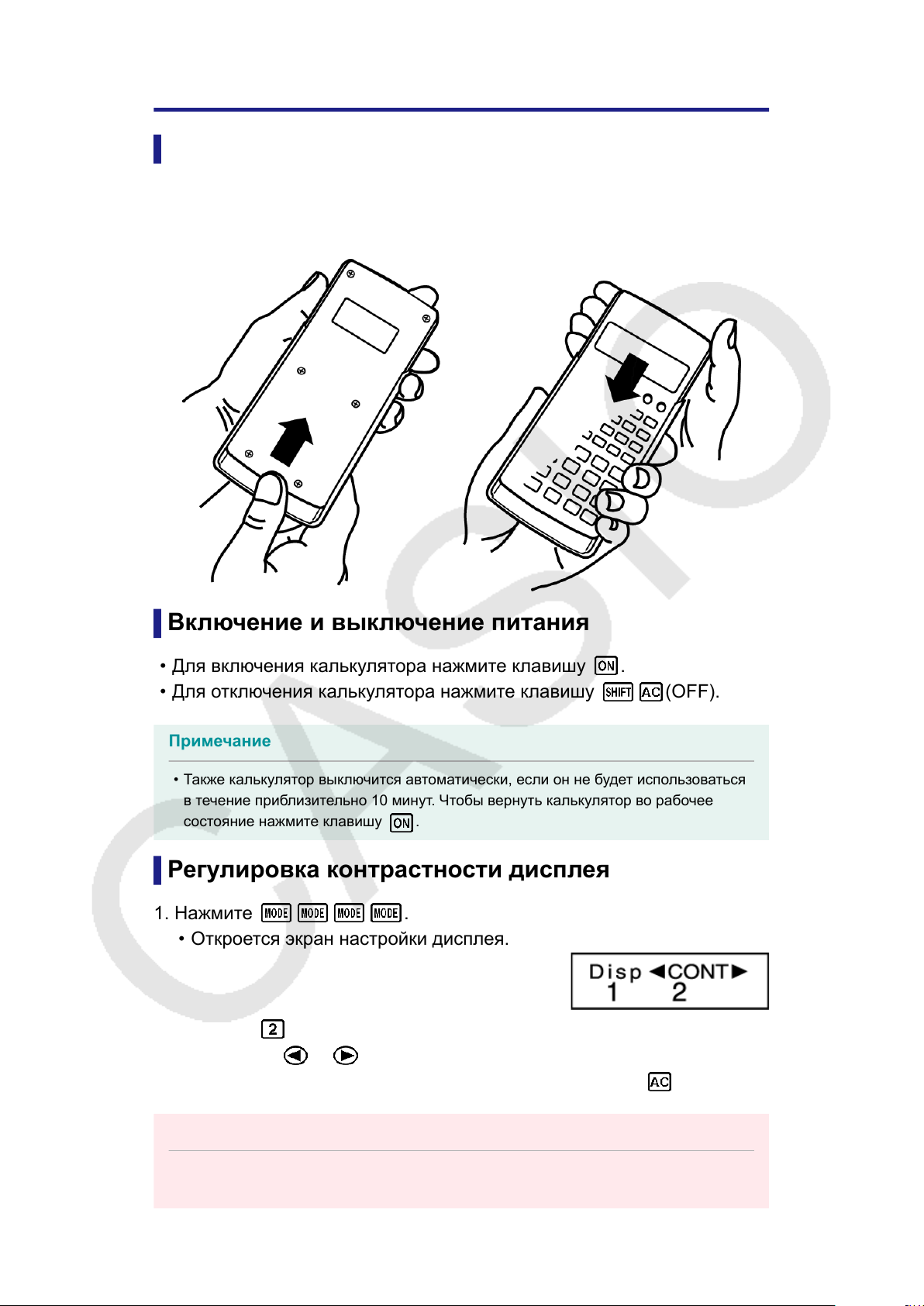
Перед использованием калькулятора сдвиньте футляр вниз, чтобы
снять его, а затем прикрепите футляр к тыльной стороне
калькулятора, как показано на рисунке ниже.
Включение и выключение питания
• Для включения калькулятора нажмите клавишу .
• Для отключения калькулятора нажмите клавишу (OFF).
Примечание
• Также калькулятор выключится автоматически, если он не будет использоваться
в течение приблизительно 10 минут. Чтобы вернуть калькулятор во рабочее
состояние нажмите клавишу .
Регулировка контрастности дисплея
1. Нажмите
• Откроется экран настройки дисплея.
2. Нажмите .
3. С помощью и отрегулируйте контрастность дисплея.
4. После достижения желаемой контрастности нажмите .
.
Важно!
•
Если регулировка контрастности дисплея не улучшит читаемость, возможно,
разрядилась батарея. Замените батарею.
5
fx-82MS/fx-85MS/fx-300MS/
fx-350MS:
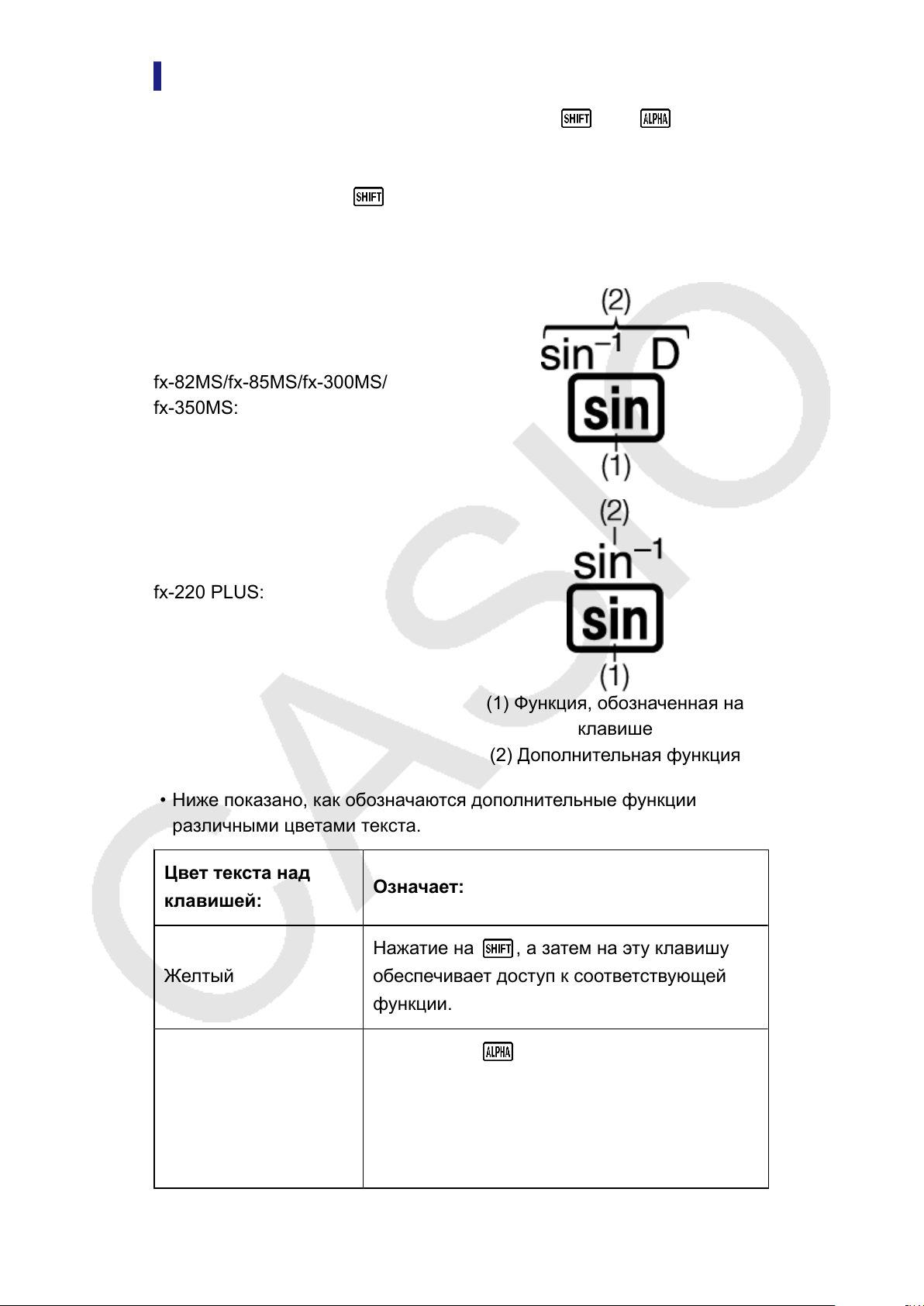
(1) Функция, обозначенная на
клавише
(2) Дополнительная функция
fx-220 PLUS:
Маркировка клавиш
fx-82MS/fx-85MS/fx-300MS/fx-350MS: Нажатие
последующим нажатием второй клавиши выполняет дополнительную
функцию, присвоенную второй клавише.
fx-220 PLUS: Нажатие с последующим нажатием второй клавиши
выполняет дополнительную функцию, присвоенную второй клавише.
Дополнительная функция показана текстом, который нанесен над
клавишей.
или с
• Ниже показано, как обозначаются дополнительные функции
различными цветами текста.
Цвет текста над
клавишей:
Желтый
Красный
Означает:
Нажатие на , а затем на эту клавишу
обеспечивает доступ к соответствующей
функции.
Нажатие на , а затем на эту клавишу
позволяет ввести соответствующую
переменную, константу, функцию или
символ. (только для моделей fx-82MS/
fx-85MS/fx-300MS/fx-350MS)
6
Цвет текста над
клавишей:
Означает:
Обеспечивает вход в режим SD и режим
Синий (или в синих
скобках)
• Ниже приведен пример того, как в настоящем руководстве
описывается работа с дополнительной функцией.
Пример: (sin-1)* 1
* Указывает функцию, доступ к которой осуществляется с
предварительным нажатием клавиши ( ). Обратите
внимание, что данное действие не является частью фактически
выполняемой клавишной операции.
• Ниже приведен пример того, как в настоящем руководстве
описываются действия с клавишами для выбора пункта экранного
меню.
Пример: (COMP)
* Указывает на пункт меню, который выбран нажатием на
цифровые клавиши с предварительным нажатием на клавишу
( ). Обратите внимание, что данное действие не является
частью фактически выполняемой клавишной операции.
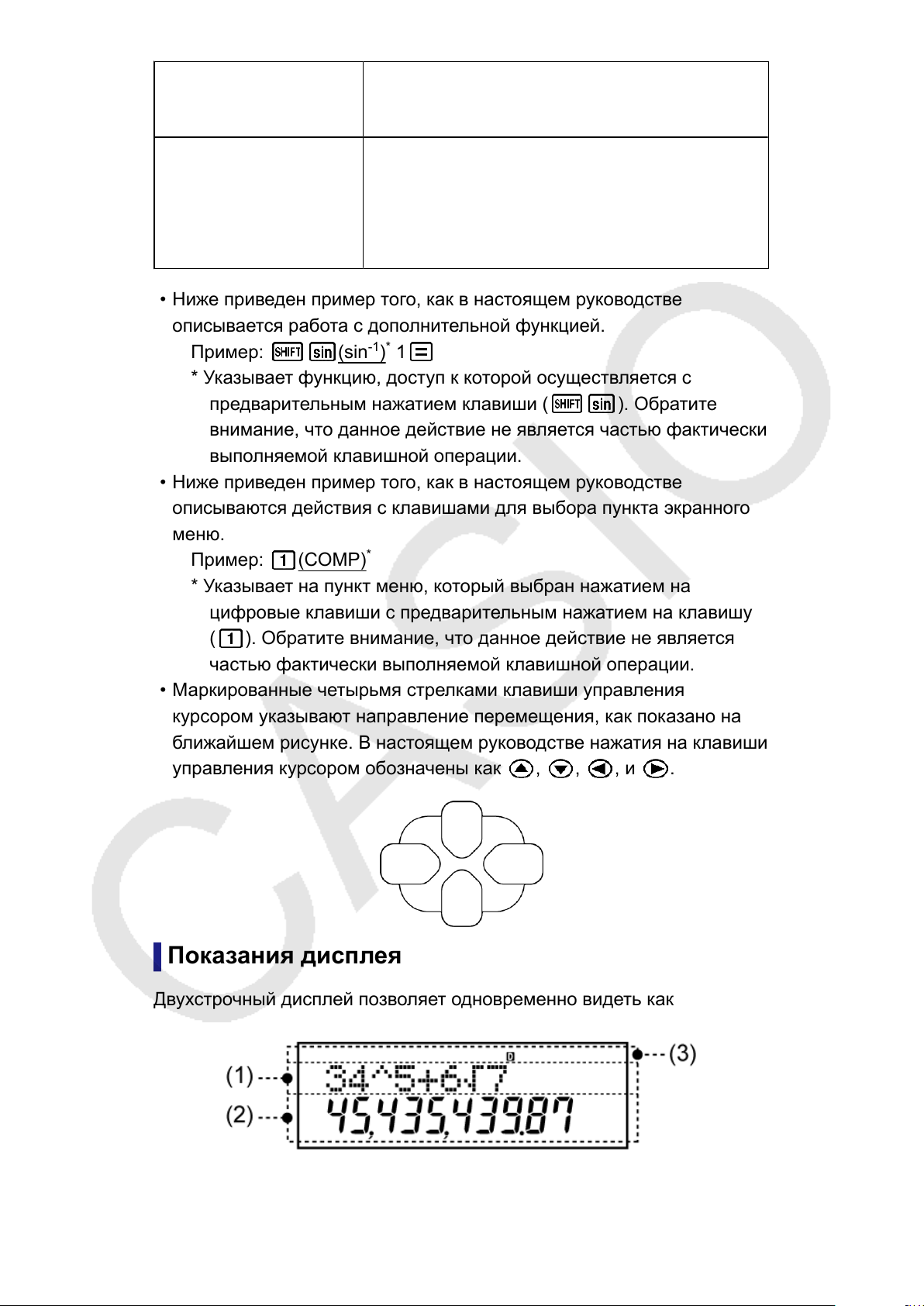
• Маркированные четырьмя стрелками клавиши управления
курсором указывают направление перемещения, как показано на
ближайшем рисунке. В настоящем руководстве нажатия на клавиши
управления курсором обозначены как , , , и .
REG для доступа к функции. (только для
моделей fx-82MS/fx-85MS/fx-300MS/
fx-350MS)
*
Показания дисплея
Двухстрочный дисплей позволяет одновременно видеть как
расчетную формулу, так и результат вычисления.
7
(1) Расчетная формула
(2) Результат вычисления
(3) Индикаторы
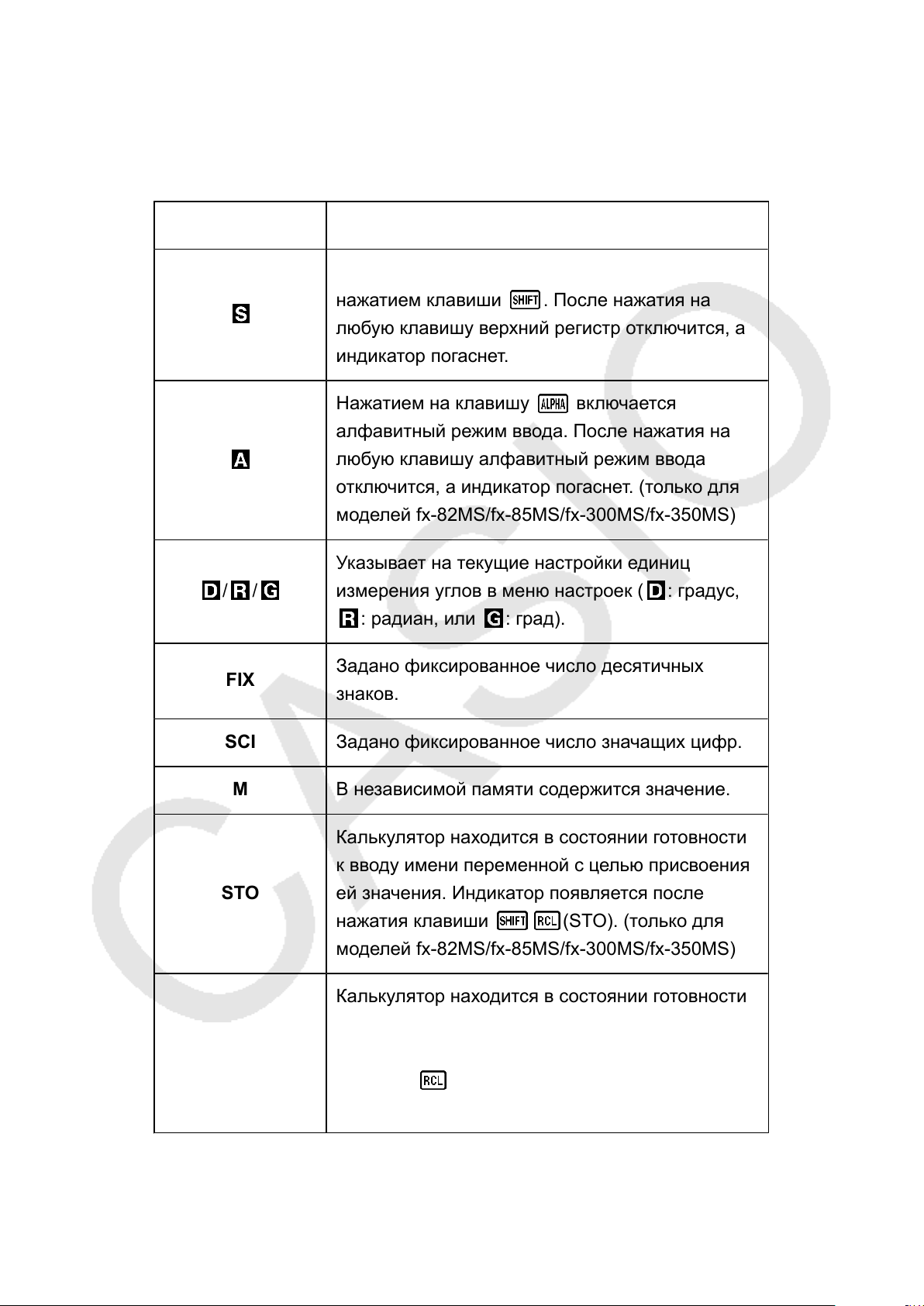
• В приведенной ниже таблице описаны некоторые типичные
индикаторы, которые отображаются в верхней части экрана (3).
Индикатор: Обозначает:
Клавиатура переключена на верхний регистр
нажатием клавиши . После нажатия на
любую клавишу верхний регистр отключится, а
индикатор погаснет.
Нажатием на клавишу включается
алфавитный режим ввода. После нажатия на
любую клавишу алфавитный режим ввода
отключится, а индикатор погаснет. (только для
моделей fx-82MS/fx-85MS/fx-300MS/fx-350MS)
Указывает на текущие настройки единиц
/ /
FIX
SCI Задано фиксированное число значащих цифр.
М В независимой памяти содержится значение.
STO
измерения углов в меню настроек ( : градус,
: радиан, или : град).
Задано фиксированное число десятичных
знаков.
Калькулятор находится в состоянии готовности
к вводу имени переменной с целью присвоения
ей значения. Индикатор появляется после
нажатия клавиши (STO). (только для
моделей fx-82MS/fx-85MS/fx-300MS/fx-350MS)
Калькулятор находится в состоянии готовности
RCL
к вводу имени переменной с целью вызова ее
значения. Индикатор появляется после нажатия
клавиши . (только для моделей fx-82MS/
fx-85MS/fx-300MS/fx-350MS)
8
Режимы вычислений и
настройка калькулятора
Режим вычислений
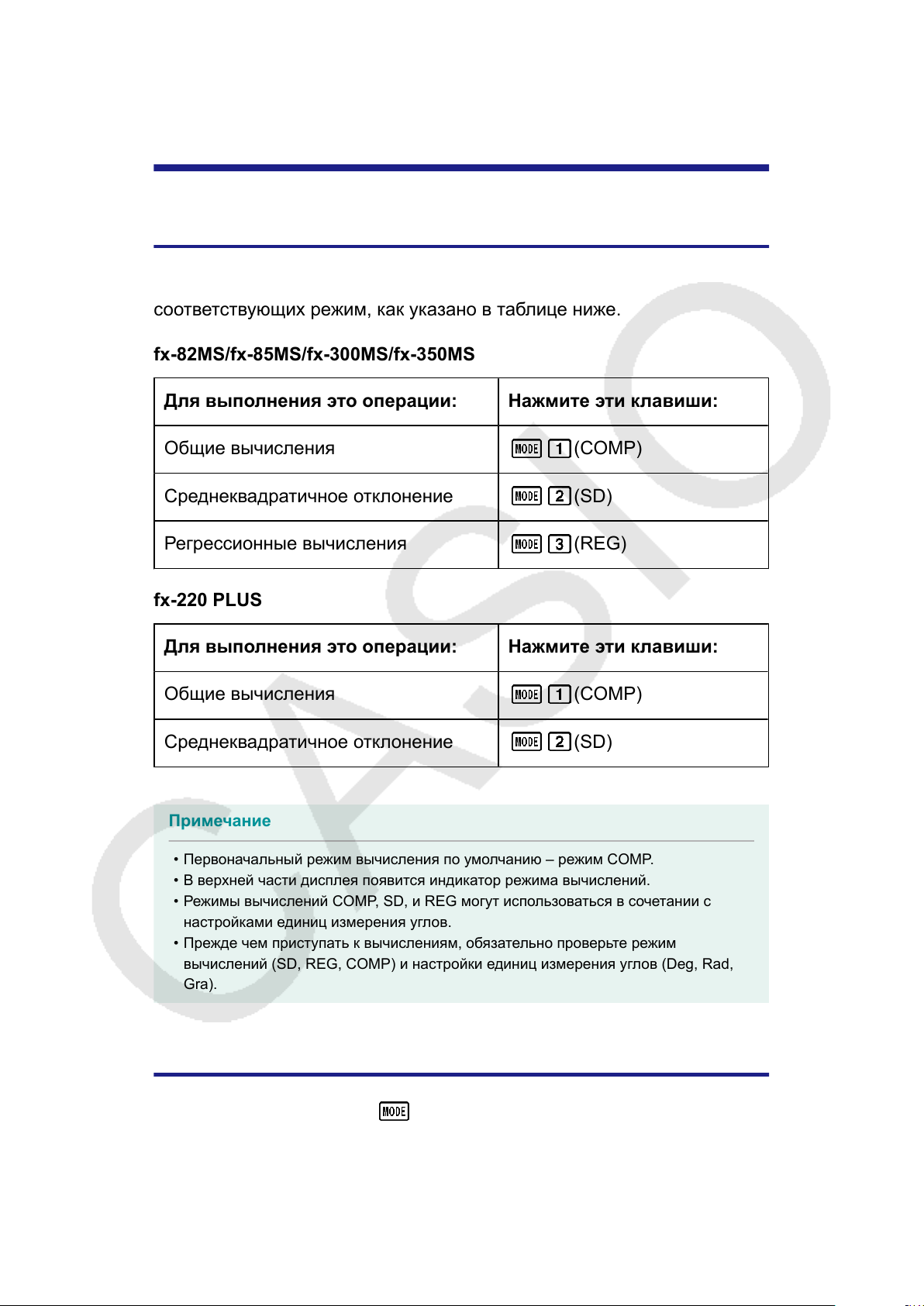
Прежде чем приступать к вычислениям, следует перейти в
соответствующих режим, как указано в таблице ниже.
fx-82MS/fx-85MS/fx-300MS/fx-350MS
Для выполнения это операции: Нажмите эти клавиши:
Общие вычисления (COMP)
Среднеквадратичное отклонение (SD)
Регрессионные вычисления (REG)
fx-220 PLUS
Для выполнения это операции: Нажмите эти клавиши:
Общие вычисления (COMP)
Среднеквадратичное отклонение (SD)
Примечание
• Первоначальный режим вычисления по умолчанию – режим COMP.
• В верхней части дисплея появится индикатор режима вычислений.
•
Режимы вычислений COMP, SD, и REG могут использоваться в сочетании с
настройками единиц измерения углов.
•
Прежде чем приступать к вычислениям, обязательно проверьте режим
вычислений (SD, REG, COMP) и настройки единиц измерения углов (Deg, Rad,
Gra).
Настройка калькулятора
При нажатие на клавишу
экраны дополнительных настроек.
Подчеркнутые ( ___ ) настройки являются первоначальными по
умолчанию.
более одного раза отображаются
9
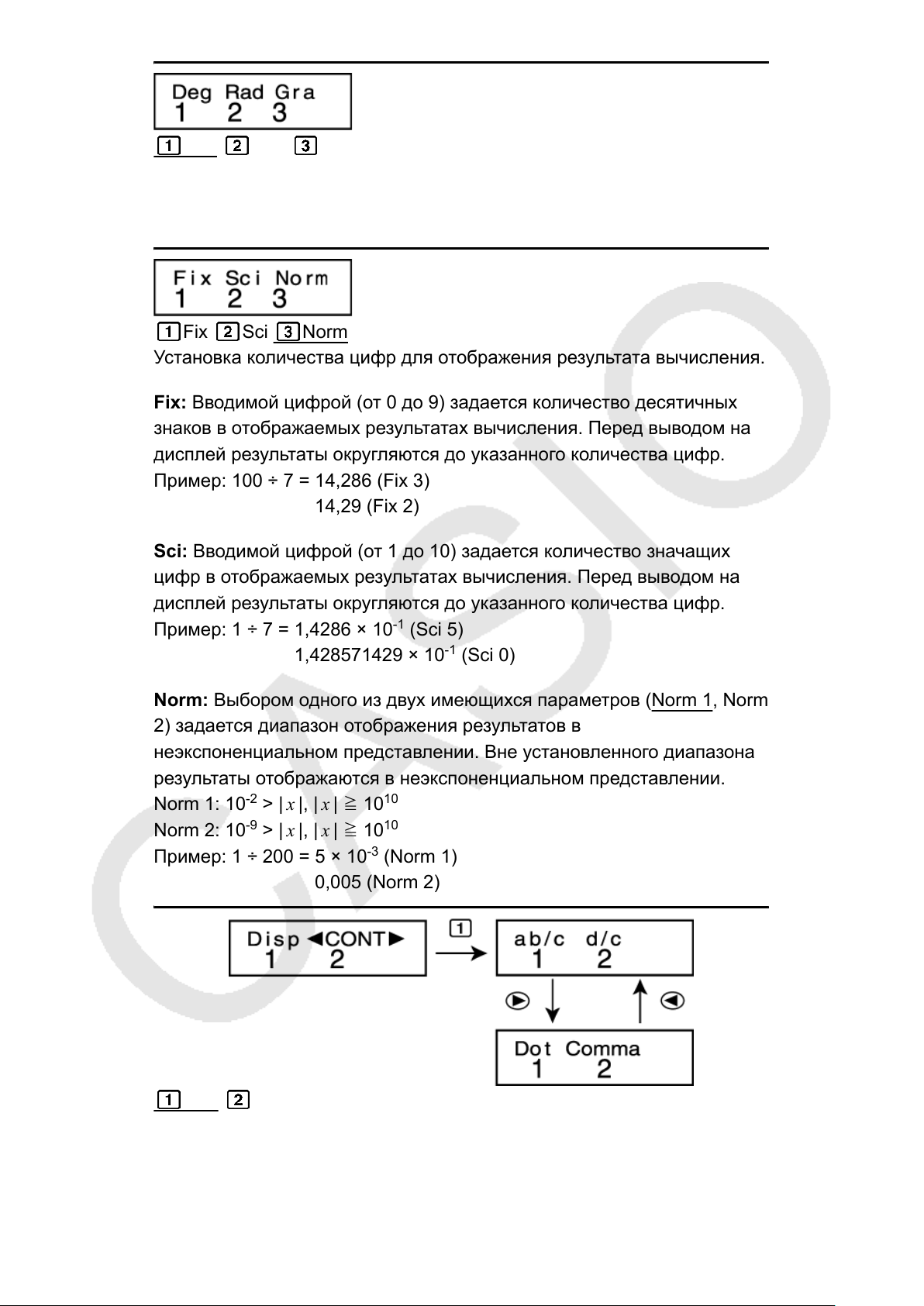
Deg Rad Gra
Установка градусов, радиан или град в качестве единиц измерения
углов для ввода и вывода результатов вычислений.
(90°= π /2 радиан = 100 град)
Fix Sci Norm
Установка количества цифр для отображения результата вычисления.
Fix: Вводимой цифрой (от 0 до 9) задается количество десятичных
знаков в отображаемых результатах вычисления. Перед выводом на
дисплей результаты округляются до указанного количества цифр.
Пример: 100 ÷ 7 = 14,286 (Fix 3)
14,29 (Fix 2)
Sci: Вводимой цифрой (от 1 до 10) задается количество значащих
цифр в отображаемых результатах вычисления. Перед выводом на
дисплей результаты округляются до указанного количества цифр.
-1
Пример: 1 ÷ 7 = 1,4286 × 10
(Sci 5)
1,428571429 × 10⁻¹ (Sci 0)
Norm: Выбором одного из двух имеющихся параметров (Norm 1, Norm
2) задается диапазон отображения результатов в
неэкспоненциальном представлении. Вне установленного диапазона
результаты отображаются в неэкспоненциальном представлении.
Norm 1: 10-2 > | x |, | x | ≧ 10
Norm 2: 10-9 > | x |, | x | ≧ 10
10
10
Пример: 1 ÷ 200 = 5 × 10⁻³ (Norm 1)
0,005 (Norm 2)
ab/c d/c
Использование либо смешанной дроби (ab/c), либо неправильной
дроби (d/c) для отображения дробей в результатах вычислений.
10
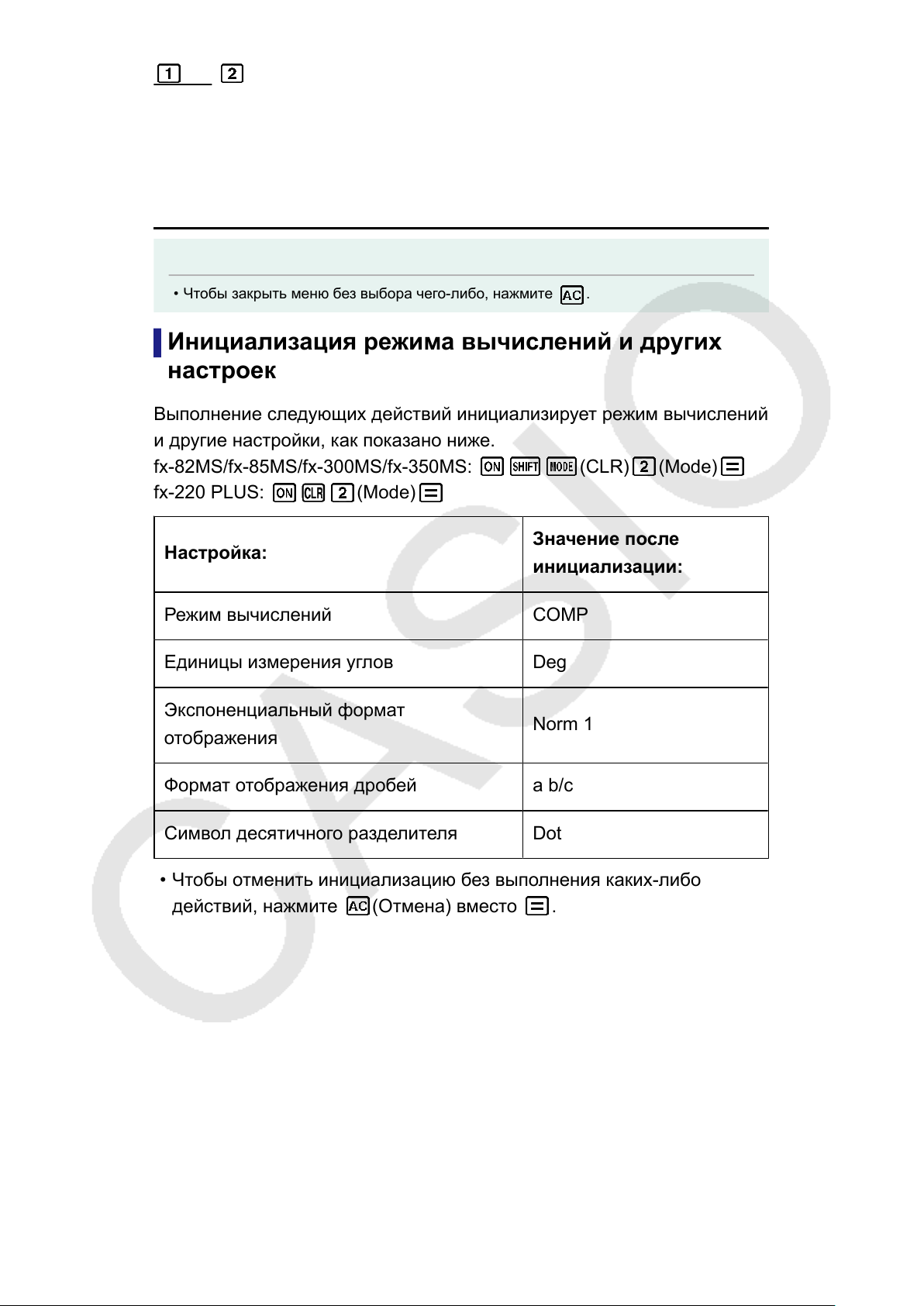
Dot Comma
Использование точки или запятой в качестве десятичного
разделителя результата вычисления. Во время ввода всегда
отображается десятичный разделитель точка.
Dot: Точка в качестве десятичного разделителя
Comma: Запятая в качестве десятичного разделителя
Примечание
• Чтобы закрыть меню без выбора чего-либо, нажмите .
Инициализация режима вычислений и других
настроек
Выполнение следующих действий инициализирует режим вычислений
и другие настройки, как показано ниже.
fx-82MS/fx-85MS/fx-300MS/fx-350MS:
fx-220 PLUS: (Mode)
(CLR) (Mode)
Настройка:
Режим вычислений COMP
Единицы измерения углов Deg
Экспоненциальный формат
отображения
Формат отображения дробей a b/c
Символ десятичного разделителя Dot
• Чтобы отменить инициализацию без выполнения каких-либо
действий, нажмите
(Отмена) вместо .
Значение после
инициализации:
Norm 1
11
Основные вычисления
Для выполнения основных вычислений используйте клавишу
чтобы войти в режим вычислений COMP.
(COMP)
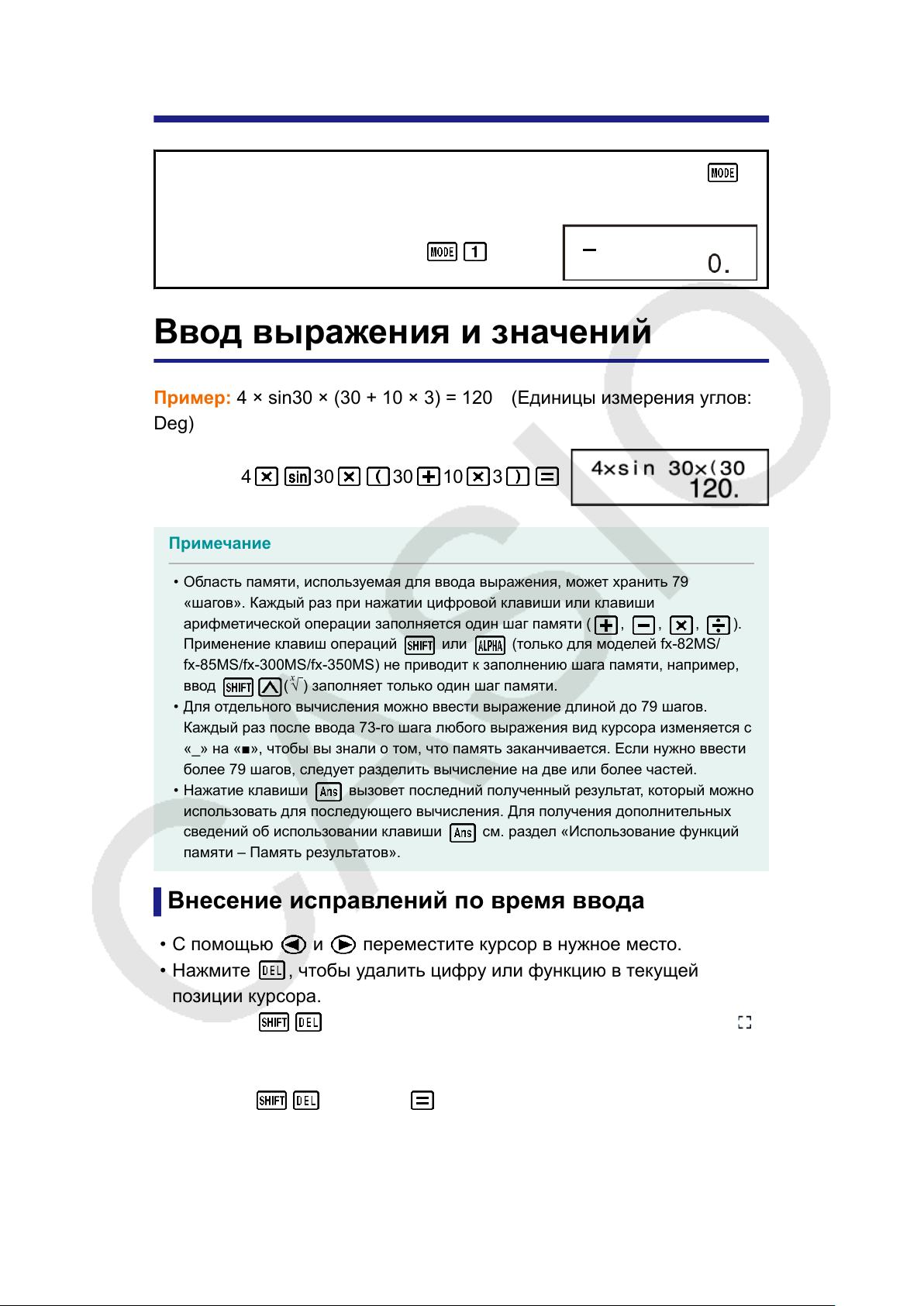
Ввод выражения и значений
Пример: 4 × sin30 × (30 + 10 × 3) = 120 (Единицы измерения углов:
Deg)
4 30 30 10 3
Примечание
• Область памяти, используемая для ввода выражения, может хранить 79
«шагов». Каждый раз при нажатии цифровой клавиши или клавиши
арифметической операции заполняется один шаг памяти ( , , , ).
Применение клавиш операций или (только для моделей fx-82MS/
fx-85MS/fx-300MS/fx-350MS) не приводит к заполнению шага памяти, например,
ввод (x√ ) заполняет только один шаг памяти.
• Для отдельного вычисления можно ввести выражение длиной до 79 шагов.
Каждый раз после ввода 73-го шага любого выражения вид курсора изменяется с
«_» на «■», чтобы вы знали о том, что память заканчивается. Если нужно ввести
более 79 шагов, следует разделить вычисление на две или более частей.
• Нажатие клавиши вызовет последний полученный результат, который можно
использовать для последующего вычисления. Для получения дополнительных
сведений об использовании клавиши см. раздел «Использование функций
памяти – Память результатов».
,
Внесение исправлений по время ввода
• С помощью и переместите курсор в нужное место.
Нажмите , чтобы удалить цифру или функцию в текущей
•
позиции курсора.
Нажмите (INS), чтобы изменить курсор в режим вставки .
•
Пока курсор отображается в режиме вставки, любые вводимые
данные будут вставляться в положении курсора.
Нажатие (INS) или вернет курсор из режима вставки в
•
нормальное состояние.
Пример 1: Чтобы исправить cos60 на sin60
12
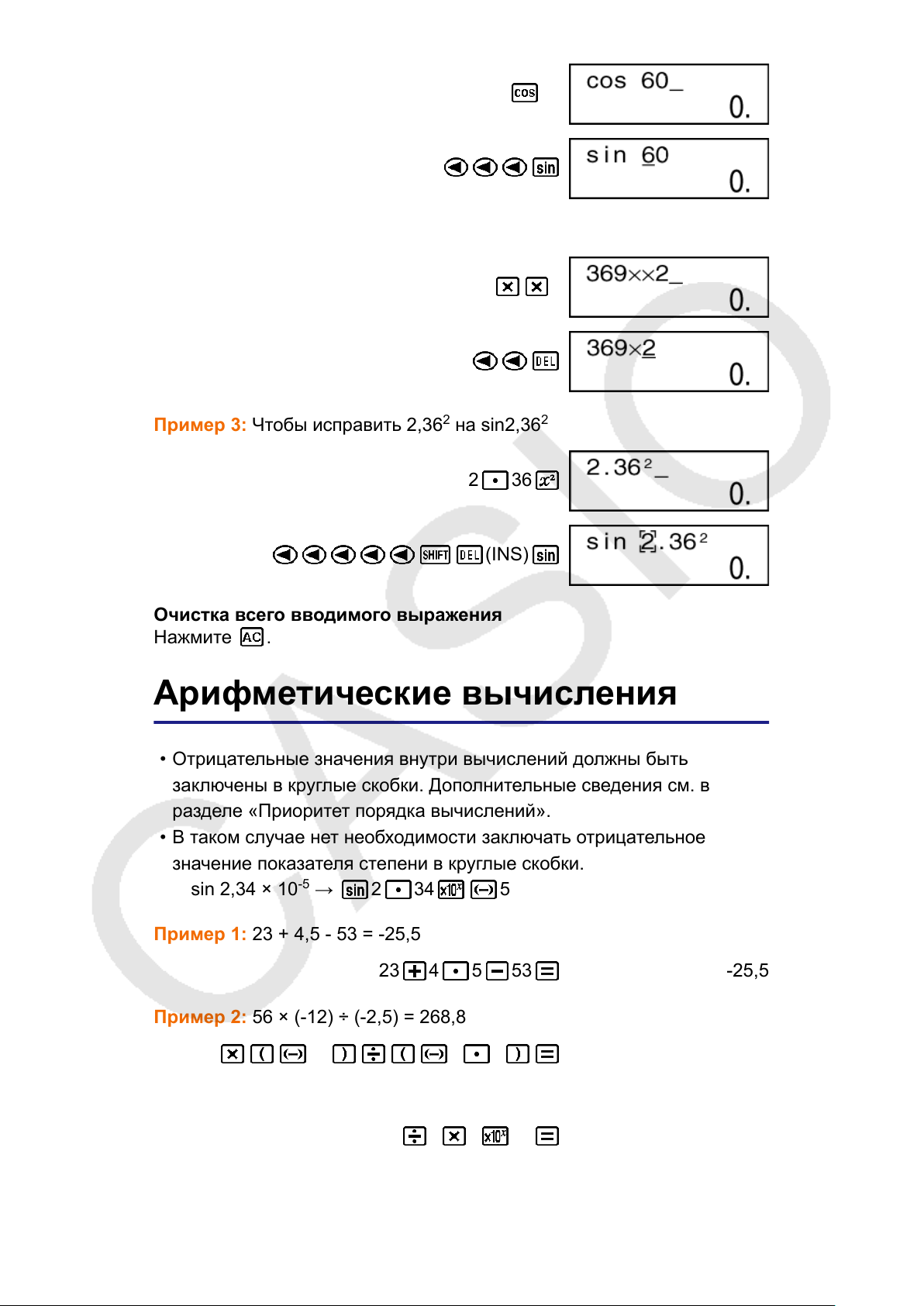
60
Пример 2: Чтобы исправить выражение 369 × × 2 на 369 × 2
369 2
Пример 3: Чтобы исправить 2,362 на sin2,36
2
2 36
(INS)
Очистка всего вводимого выражения
Нажмите .
Арифметические вычисления
• Отрицательные значения внутри вычислений должны быть
заключены в круглые скобки. Дополнительные сведения см. в
разделе «Приоритет порядка вычислений».
• В таком случае нет необходимости заключать отрицательное
значение показателя степени в круглые скобки.
sin 2,34 × 10⁻⁵ → 2 34 5
Пример 1: 23 + 4,5 — 53 = -25,5
23 4 5 53 -25,5
Пример 2: 56 × (-12) ÷ (-2,5) = 268,8
56 12 2 5 268,8
Пример 3: 2 ÷ 3 × (1 × 1020) = 6,666666667 × 10
19
2 3 1 20 6,666666667×10
Пример 4: 7 × 8 — 4 × 5 = 36
13
19
7 8 4 5 36,
Пример 5:
Пример 6: 2 × [7 + 6 × (5 + 4)] = 122
6
4 × 5
2 7 6 5 4 122,
= 0,3
6 4 5 0,3
Количество десятичных знаков количество
значимых цифр
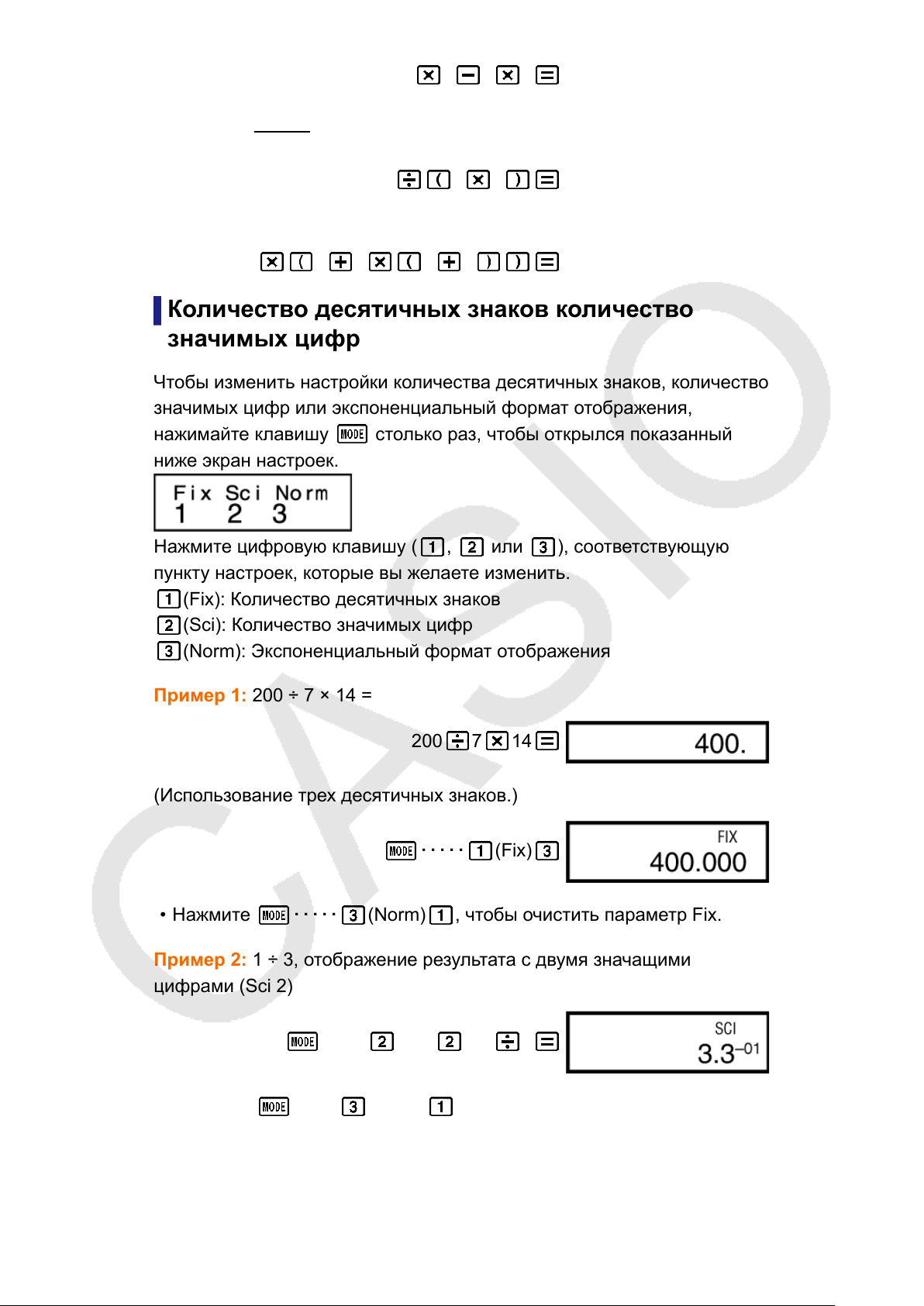
Чтобы изменить настройки количества десятичных знаков, количество
значимых цифр или экспоненциальный формат отображения,
нажимайте клавишу
ниже экран настроек.
Нажмите цифровую клавишу ( , или ), соответствующую
пункту настроек, которые вы желаете изменить.
(Fix): Количество десятичных знаков
(Sci): Количество значимых цифр
(Norm): Экспоненциальный формат отображения
столько раз, чтобы открылся показанный
Пример 1: 200 ÷ 7 × 14 =
200 7 14
(Использование трех десятичных знаков.)
・・・・・
• Нажмите ・・・・・ (Norm) , чтобы очистить параметр Fix.
Пример 2: 1 ÷ 3, отображение результата с двумя значащими
цифрами (Sci 2)
・・・・・ (Sci) 1 3
Нажмите ・・・・・ (Norm) , чтобы очистить параметр Sci.
•
(Fix)
14
Пропуск последней закрывающей круглой
скобки
Пример: (2 + 3) × (4 — 1 = 15
2 3 4 1 15,
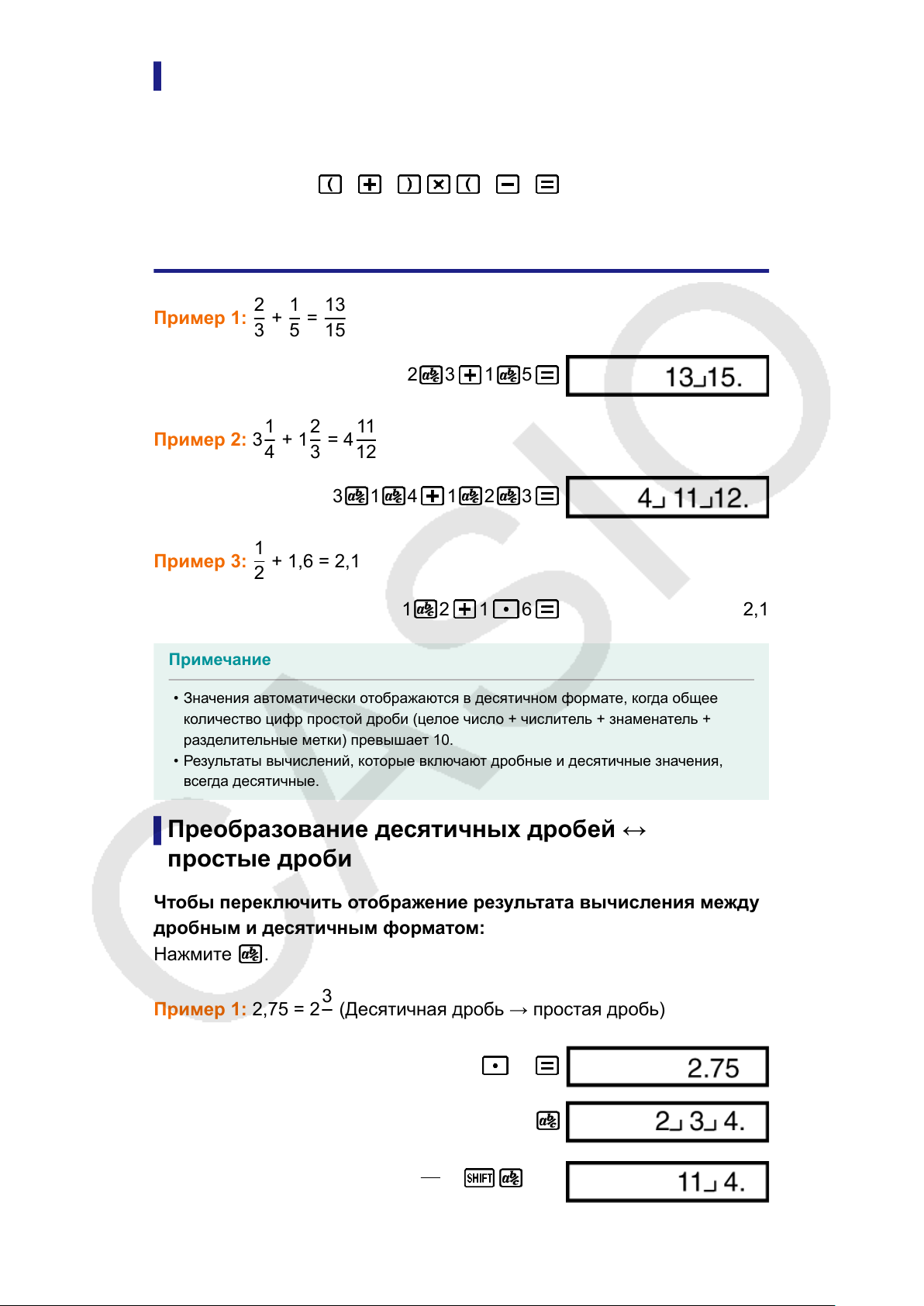
Вычисления простых дробей
2
1
Пример 1:
Пример 2: 3
+
3
1
+ 1
4
13
=
5
15
2 3 1 5
2
3
11
= 4
12
3 1 4 1 2 3
Пример 3:
Примечание
• Значения автоматически отображаются в десятичном формате, когда общее
количество цифр простой дроби (целое число + числитель + знаменатель +
разделительные метки) превышает 10.
• Результаты вычислений, которые включают дробные и десятичные значения,
всегда десятичные.
1
+ 1,6 = 2,1
2
1 2 1 6 2,1
Преобразование десятичных дробей ↔
простые дроби
Чтобы переключить отображение результата вычисления между
дробным и десятичным форматом:
Нажмите
Пример 1: 2,75 = 2
.
3
(Десятичная дробь → простая дробь)
4
11
=
(d/c)
4
15
2 75
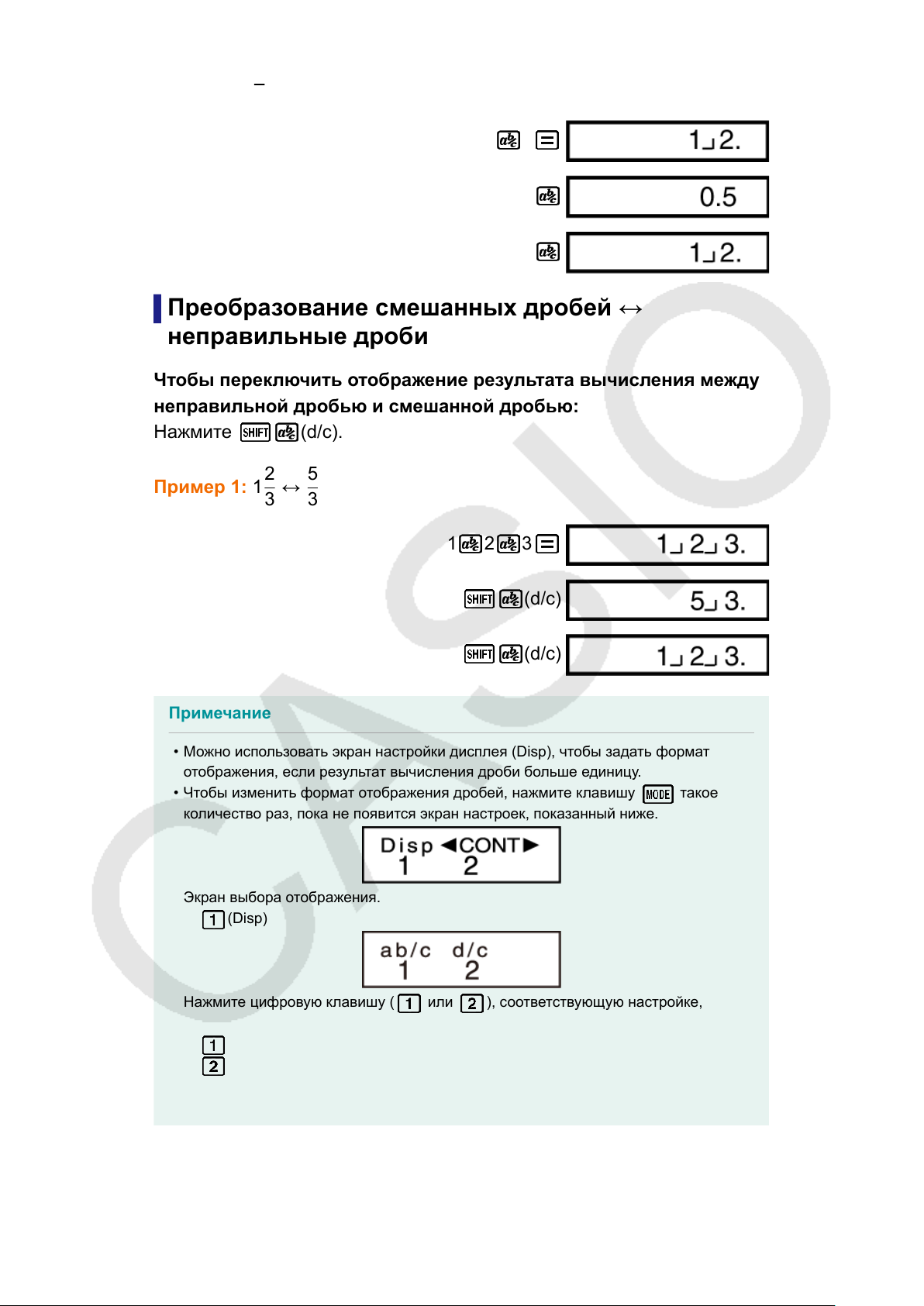
Пример 2:
↔ 0,5 (Простая дробь ↔ десятичная дробь)
2
1 2
Преобразование смешанных дробей ↔
неправильные дроби
Чтобы переключить отображение результата вычисления между
неправильной дробью и смешанной дробью:
1
2
3
↔
(d/c).
5
3
Нажмите
Пример 1: 1
1 2 3
(d/c)
(d/c)
Примечание
• Можно использовать экран настройки дисплея (Disp), чтобы задать формат
отображения, если результат вычисления дроби больше единицу.
• Чтобы изменить формат отображения дробей, нажмите клавишу такое
количество раз, пока не появится экран настроек, показанный ниже.
Экран выбора отображения.
(Disp)
Нажмите цифровую клавишу ( или ), соответствующую настройке,
которую вы желаете использовать.
(ab/c): Смешанная дробь
(d/c): Неправильная дробь
• Если вы попытаетесь ввести смешанную дробь, в то время как выбран формат
отображения d/c, произойдет ошибка.
16
Loading…
View the manual for the Casio FX-220 Plus here, for free. This manual comes under the category calculators and has been rated by 24 people with an average of a 8.9.
This manual is available in the following languages: English. Do you have a question about the Casio FX-220 Plus or do you need help?
Ask your question here
Casio FX-220 Plus specifications
Below you will find the product specifications and the manual specifications of the Casio FX-220 Plus.
The Casio FX-220 Plus is a pocket-sized scientific calculator made primarily of plastic. It has a compact form factor, measuring 78 millimeters in width, 155 millimeters in depth, and 19.5 millimeters in height. With a weight of 115 grams, it’s lightweight and portable.
Featuring a two-line display, this calculator allows for easy input and viewing of mathematical calculations. It is powered by a single AA battery, providing convenient and long-lasting usage. The calculator does not have built-in capabilities beyond basic scientific functions, focusing on essential mathematical calculations.
The Casio FX-220 Plus offers a reliable and durable option for individuals in need of a scientific calculator. Its plastic housing material ensures its longevity, making it a suitable choice for long-term usage. The calculator’s simple design and functionality make it accessible to users of various mathematical backgrounds.
With its compact size and lightweight nature, the FX-220 Plus is easy to carry around, fitting conveniently into pockets or bags. The calculator’s reliance on a single AA battery provides flexibility in power source, as spare batteries are readily available.
Overall, the Casio FX-220 Plus fills the basic requirements of a scientific calculator, providing a portable and reliable option for users in need of essential mathematical functions. With its durable construction and practical design, it offers a well-rounded solution for everyday mathematical calculations.
General
| Brand | Casio |
| Model | FX-220 Plus | FX-220 PLUS |
| Product | calculator |
| EAN | 4971850189015, 4971850146049 |
| Language | English |
| Filetype | User manual (PDF) |
Design
| Type | Scientific |
| Form factor | |
| Product color | Blue |
| Housing material | Plastic |
| Built-in capability | No |
| Cover | Yes |
| Control type | Buttons |
Display
| Digits | — digits |
| Display tilting | — |
| Display number of lines | 2 lines |
| Second display | No |
| Display type | Dot-matrix |
| Backlight display | No |
Power
| Battery type | AA |
| Power source | Battery |
| Number of batteries supported | 1 |
| Battery life (max) | 17000 h |
| Auto power off | Yes |
Weight & dimensions
| Width | 78 mm |
| Weight | 115 g |
| Depth | 155 mm |
| Height | 19.5 mm |
Performance
| Certification | CE |
| Random number/integer generator | Yes |
| Conversion between | Decimal, Fraction |
| Symbolic notation | Square root |
Packaging data
| Package type | Box |
| Package weight | 230 g |
| Package width | 230 mm |
| Package depth | 142 mm |
| Package height | 33 mm |
Memory
show more
Frequently Asked Questions
Can’t find the answer to your question in the manual? You may find the answer to your question in the FAQs about the Casio FX-220 Plus below.
How do I calculate logarithms (log) with base other than 10 on my Casio FX-220 Plus?
To calculate logarithms with a base other than 10, use the LOG function. Enter the number you want to take the logarithm of, then press SHIFT followed by the LOG button. Now, enter the base of the logarithm you desire, and the calculator will provide the result.
How do I perform complex number calculations on my Casio FX-220 Plus?
To perform complex number calculations, press the MODE button, then select the COMPLEX mode. Once in this mode, you can use the buttons labeled «Re» and «Im» to enter the real and imaginary parts of the complex numbers.
How can I convert an angle from radians to degrees using my Casio FX-220 Plus?
To convert an angle from radians to degrees, press the ANGLE button, then select the MODE option. From there, choose the DEGREE mode. Now, you can enter the angle in radians, and the calculator will automatically convert it to degrees.
How can I solve quadratic equations on my Casio FX-220 Plus?
To solve quadratic equations, press the MODE button and choose the EQUATION menu. From there, select the QUAD option. Enter the coefficients of your quadratic equation, and the calculator will display the solutions for you.
How do I use the scientific notation (exponential) format on my Casio FX-220 Plus?
To display numbers in scientific notation format, press SHIFT followed by the DISP button. Select the NORM option, and then choose SCI. Now, any numbers you input or calculations you perform will be displayed in scientific notation.
Is Casio FX-220 Plus a scientific calculator?
Yes, Casio FX-220 Plus is a scientific calculator. This means that it is designed to perform advanced mathematical calculations and functions.
Is Casio FX-220 Plus a pocket-sized calculator?
Yes, Casio FX-220 Plus is a pocket-sized calculator. This means that it is compact and easy to carry around, making it convenient for on-the-go use.
Does Casio FX-220 Plus have a plastic housing?
Yes, Casio FX-220 Plus has a plastic housing. This means that it is lightweight and durable, making it suitable for everyday use.
Does Casio FX-220 Plus have a built-in capability?
No, Casio FX-220 Plus does not have a built-in capability. This means that it relies solely on its own functions and features, without the ability to connect to external devices or software.
Does Casio FX-220 Plus have a 2-line display?
Yes, Casio FX-220 Plus has a 2-line display. This means that it can show multiple lines of calculations or results at the same time, allowing for easier readability and efficiency.
What is the weight of the Casio FX-220 Plus?
The Casio FX-220 Plus has a weight of 115 g.
What is the height of the Casio FX-220 Plus?
The Casio FX-220 Plus has a height of 19.5 mm.
What is the width of the Casio FX-220 Plus?
The Casio FX-220 Plus has a width of 78 mm.
What is the depth of the Casio FX-220 Plus?
The Casio FX-220 Plus has a depth of 155 mm.
A battery in my calculator has started to corrode. Is the device still safe to use?
The product can still be used safely after proper cleaning. Remove the battery with gloves and clean the battery compartment with a toothbrush and vinegar. After drying, new batteries can be inserted into the device.
What certifications does the Casio FX-220 Plus have?
The Casio FX-220 Plus has the following certifications: CE.
What is an Overflow error?
An Overflow error usually occurs when the sum result is longer than the calculator can show.
What does AC stand for on my calculator?
AC stands for ‘all clear’. You clear the entire memory of the calculator with this button.
Is the manual of the Casio FX-220 Plus available in English?
Yes, the manual of the Casio FX-220 Plus is available in English .
Is your question not listed? Ask your question here
Калькуляторы, органайзеры Casio
- Размер инструкции: 1.19 Мб
- Формат файла: pdf
Если вы потеряли инструкцию от калькулятора, органайзера Casio FX-220 PLUS (2-я редакция / S-V.P.A.M.), можете скачать файл для просмотра на компьютере или печати.
Инструкция для калькулятора, органайзера Casio FX-220 PLUS (2-я редакция / S-V.P.A.M.) на русском языке. В руководстве описаны возможности и полезные функции, а также правила эксплуатации. Перед использованием внимательно ознакомьтесь с инструкцией.
Чтобы не читать всю инструкцию вы можете выполнить поиск по содержимому внутри инструкции и быстро найти необходимую информацию. Рекомендации по использованию помогут увеличить срок службы калькулятора, органайзера Casio FX-220 PLUS (2-я редакция / S-V.P.A.M.). Если у вас появилась проблема, то найдите раздел с описанием неисправностей и способами их решения. В нем указаны типичные поломки и способы их решения.
1. Important Information
• The displays and illustrations (such as key markings) shown in
this User’s Guide are for illustrative purposes only, and may differ
somewhat from the actual items they represent.
• The contents of this manual are subject to change without notice.
• In no event shall CASIO Computer Co., Ltd. be liable to anyone
for special, collateral, incidental, or consequential damages in
connection with or arising out of the purchase or use of this product
and items that come with it. Moreover, CASIO Computer Co., Ltd.
shall not be liable for any claim of any kind whatsoever by any other
party arising out of the use of this product and the items that come
with it.
• Be sure to keep all user documentation handy for future reference.
2. Sample Operations
Sample operations in this manual are indicated by a icon. Unless
specifically stated, all sample operations assume that the calculator
is in its initial default setup.
3. Initializing the Calculator
Perform the following procedure when you want to initialize the
calculator and return the calculation mode and setup to their initial
default settings. Note that this operation also clears all data currently
in calculator memory.
fx-82MS/85MS/300MS/350MS: p!,(CLR) 3(All) =
fx-82SX PLUS/220 PLUS: pr3(All)=
4. Safety Precautions
• Keep batteries out of the reach of small children.
• Use only the type of battery specified for this calculator in this
manual.
5. Handling Precautions
• Dim figures on the display of the calculator indicate that battery
power is low. Continued use of the calculator when the battery
is low can result in improper operation. Replace the battery
as soon as possible when display figures becomes dim. Even
if the calculator is operating normally, replace the battery at
least once every two years (fx-82MS/82SX PLUS/220 PLUS), or
three years (fx-85MS/300MS/350MS). A dead battery can leak,
causing damage to and malfunction of the calculator. Never
leave a dead battery in the calculator.
• The battery that comes with the calculator discharges slightly
during shipment and storage. Because of this, it may require
replacement sooner than the normal expected battery life.
• Do not use an oxyride battery* or any other type of nickel-based
primary battery with this product. Incompatibility between
such batteries and product specifications can result in shorter
battery life and product malfunction.
• Avoid use and storage of the calculator in areas subjected
to temperature extremes, and large amounts of humidity and
dust.
• Do not subject the calculator to excessive impact, pressure,
or bending.
• Never try to take the calculator apart.
• Use a soft, dry cloth to clean the exterior of the calculator.
Battery
Battery
RJA530690-001V01 SA1303-B Printed in Thailand
x-350MS
User’s Guide
CASIO Worldwide Education Website
http://edu.casio.com
E • Whenever discarding the calculator or batteries, be sure to
do so in accordance with the laws and regulations in your
particular area.
* Company and product names used in this manual may be registered
trademarks or trademarks of their respective owners.
6. Removing the Hard Case
Before using the calculator, slide
its hard case downwards to
remove it, and then affix the hard
case to the back of the calculator
as shown in the illustration
nearby.
7. Turning Power On and Off
Press O to turn on the calculator.
Press 1A(OFF) to turn off the calculator.
Auto Power Off
Your calculator will turn off automatically if you do not perform any
operation for about 10 minutes.
8. Adjusting Display Contrast
1. Press the , key a number of times until
you reach the setup screen shown to the
right.
2. Press c.
3. Use d and e to adjust contrast.
4. After the setting is the way you want, press A.
Important: If adjusting display contrast does not improve display
readability, it probably means that battery power is low. Replace
the battery.
9. Reading the Display
The display of the calculator shows expressions you input, calculation
results, and various indicators.
Input expression
Calculation result
Indicators
10. Specifying the Calculation Mode
When you want to perform this type of
operation:
Perform this key
operation:
General calculations
N1(COMP)
Standard deviation
N2(SD)
Regression calculations (fx-82MS/85MS/
300MS/350MS only)
N3(REG)
Note: Mode indicators appear in the upper part of the display. Be sure
to check the current calculation mode (COMP, SD, REG) and angle
unit setting (Deg, Rad, Gra) before beginning a calculation.
11. Configuring the Calculator Setup
Pressing the , key more than once displays additional setup
screens. Underlined ( ___ ) settings are initial defaults.
1Deg 2Rad 3Gra Specifies degrees,
radians or grads as the angle unit for value
input and calculation result display.
Note: In this manual, the v symbol next to a sample operation
indicates degrees.
1Fix 2Sci 3Norm Specifies the
number of digits for display of a calculation
result.
Fix: The value you specify (from 0 to 9) controls the number of decimal
places for displayed calculation results. Calculation results are
rounded off to the specified digit before being displayed.
Example: 100 ÷ 7 = 14.286 (Fix 3)
Sci: The value you specify (from 1 to 10) controls the number of
significant digits for displayed calculation results. Calculation results
are rounded off to the specified digit before being displayed.
Example: 1 ÷ 7 = 1.4286 × 10
–1
(Sci 5)
Norm: Selecting one of the two available settings ( Norm 1 , Norm
2) determines the range in which results will be displayed in non-
exponential format. Outside the specified range, results are displayed
using exponential format.
Norm 1: 10
–2
| x |, | x | 10
10
Norm 2: 10
–9
| x |, | x | 10
10
Example: 1 ÷ 200 = 5 × 10
–3
(Norm 1); 0.005 (Norm 2)
1ab/c 2 d/c Specifies either mixed fraction (ab/c) or improper
fraction (d/c) for display of fractions in calculation results.
1Dot 2 Comma Specifies whether to display a dot or a
comma for the calculation result decimal point. A dot is always
displayed during input.
Initializing Calculator Settings
Perform the following procedure to initialize the calculator, which
returns the calculation mode to COMP and returns all other settings,
including setup menu settings, to their initial defaults.
fx-82MS/85MS/300MS/350MS: p1,(CLR) c(Mode) =
fx-82SX PLUS/220 PLUS: prc(Mode) =
12. Inputting Expressions and Values
4 × sin30 × (30 + 10 × 3) = 120 v
4 *s 30 *( 30 + 10 * 3 )=
Note: • The memory area used for calculation input can hold 79
“steps”. One step is taken up each time you press a number key
or arithmetic operator key ( +, —, *, /). A ! or a (fx-
82MS/85MS/300MS/350MS only) key operation does not take up a
step, so inputting !W(
3
‘), for example, takes up only one step.
• Whenever you input the 73rd step of any calculation, the cursor
changes from “_” to “ k” to let you know memory is running low.
Calculation Priority Sequence
When the priority of two expressions is the same, the calculation is
performed from left to right.
1st
Function with parentheses: Pol(
x , y ), Rec( r , θ ),
RanInt#(
a , b )* (*fx-82SX PLUS/220 PLUS only)
2nd
Type A functions: With these functions, the value is
entered and then the function key is pressed. (
x
3
, x
2
, x
−1
,
x !, ° ’ ”, m, m
1
, m
2
, n, °,
r
,
g
)
3rd
Powers and roots: ^( x
y
),
x
‘
4th Fractions
5th
Implied multiplication of π ,
e (natural logarithm base),
memory name, or variable name: 2 π , 3
e , 5A, π A, etc.
6th
Type B functions: With these functions, the function key is
pressed and then the value is entered. ( ‘,
3
‘, log, ln,
e
x
, 10
x
, sin, cos, tan, sin
−1
, cos
−1
, tan
−1
, sinh, cosh, tanh,
sinh
−1
, cosh
−1
, tanh
−1
, (−))
7th
Implied multiplication of Type B functions: 2 ‘3, Alog2, etc.
8th Permutation ( n P r ), combination ( n C r )
9th
Multiplication, division ( × , ÷)
10th Addition, subtraction (+, –)
• The negative sign (–) is treated as a Type B function, so particular
care is required when the calculation includes a high-priority Type
A function, or power or root operations.
Example: (–2)
4
= 16; –2
4
= –16
Correcting and Clearing an Expression
To delete a single character or function:
1234_ → ddD → 12 4
To insert a character or function into a calculation:
123_ → d!D(INS) e → 1243
• The cursor changes from “_” to “ t”.
To clear all of the calculation you are inputting: Press A.
13. Basic Calculations
Fraction Calculations
2 $ 3 + 1 $ 2 = 1{1{6.
Note: • Mixing fractions and decimal values in a calculation will cause
the result to be displayed as a decimal value. • Fractions in calculation
results are displayed after being reduced to their lowest terms.
To switch a calculation result between improper fraction and
mixed fraction format: Press 1$( d/c ).
To switch a calculation result between fraction and decimal
format: Press $.
Percent Calculations
150 × 20% = 30 150 * 20 1=(%) 30.
Calculate what percentage of 880 is 660. (75%)
660 / 880 1=(%)
75.
Increase 2500 by 15%. (2875)
2500 * 15 1=(%)+
2875.
Discount 3500 by 25%. (2625)
3500 * 25 1=(%)—
2625.
Discount the sum of 168, 98, and 734 by 20%. (800)
168 + 98 + 734 =G1~(STO)—(A)
a-(A)** 20 1=(%)—
800.
* As shown here, if you want to use the current Ans (answer) memory
value in a mark up or discount calculation, you need to assign the
Ans memory value into a variable and then use the variable in the
mark up/discount calculation.
If 300 grams are added to a test sample originally weighing
500 grams, what is the percentage increase in weight?
(160%)
300+500!=(%)
160.
k
k
k
k
k
What is the percentage change when a value is increased
from 40 to 46? (15%)
46 —40 !=(%)
15.
Degree, Minute, Second (Sexagesimal)
Calculations
The following is the input format for a sexagesimal value: {degrees}
$ {minutes} $ {seconds} $.
Note: You must always input something for the degrees and minutes,
even if they are zero.
2°20´30˝ + 39´30˝ = 3°00´00˝
2 $ 20 $ 30 $+ 0 $ 39 $ 30 $=
3°0°0.
Convert 2°15´18˝ to its decimal equivalent.
2 $ 15 $ 18 $=$
2.255
(Converts decimal to sexagesimal.) !$(←) 2°15°18.
Multi-Statements
(fx-82MS/85MS/300MS/350MS only)
You can use the colon character (:) to connect two or more
expressions and execute them in sequence from left to right when
you press =.
3 + 3 : 3 × 3 3 + 3 Sr(:) 3 * 3 = 6. Disp
= 9.
Using Engineering Notation
A simple key operation transforms a displayed value to engineering
notation.
Transform the value 1234 to engineering notation, shifting the
decimal point to the right.
1234 =W
1.234×10
3
W 1234.×10
0
Calculation History (Not included on the fx-82SX PLUS)
In the COMP Mode, the calculator remembers up to approximately
150 bytes of data for the newest calculation. You can scroll through
calculation history contents using f and c.
1 + 1 = 2 2 + 2 = 4 3 + 3 = 6
1 + 1 = 2 + 2 = 3 + 3 =
6.
(Scrolls back.) f 4.
(Scrolls back again.) f 2.
Note: Calculation history data is all cleared whenever you press O,
when you change to a different calculation mode, or whenever you
initialize modes and settings.
Replay (Not included on the fx-82SX PLUS)
While a calculation result is on the display, you can press d or e
to edit the expression you used for the previous calculation.
4 × 3 + 2.5 = 14.5 4 * 3 + 2.5 = 14.5
4 × 3 − 7.1 = 4.9
(Continuing) dYYYY— 7.1 = 4.9
Answer Memory (Ans)
The last calculation result obtained is stored in Ans (answer) memory.
Ans memory contents are updated whenever a new calculation
result is displayed.
To divide the result of 3 × 4 by 30
3 * 4 =/ 30 =
123 + 456 = 579 123 + 456 =
579.
789 – 579 = 210 (Continuing) 789 —G= 210.
Variables (A, B, C, D, E, F, X, Y)
(fx-82MS/85MS/300MS/350MS only)
Your calculator has eight preset variables named A, B, C, D, E, F,
X, and Y.
To assign the result of 3 + 5 to variable A
3 + 5 1t(STO) y(A)
8.
To multiply the contents of variable A by 10
(Continuing) Sy(A) * 10 =
80.
To recall the contents of variable A
(Continuing) ty(A)
8.
To clear the contents of variable A
0 1t(STO) y(A) 0.
Independent Memory (M)
You can add calculation results to or subtract results from independent
memory. The “M” appears on the display when there is any value
other than zero stored in independent memory.
k
k
k
k
k
k
k
k
To clear the contents of M
fx-82MS/85MS/300MS/350MS:
0 1t(STO) l(M)
0.
fx-82SX PLUS/220 PLUS: 0 1n(Min) 0.
To add the result of 10 × 5 to M
(Continuing) 10 * 5 l
50.
To subtract the result of 10 + 5 from M
(Continuing) 10 + 5 1l(M–) 15.
To recall the contents of M
fx-82MS/85MS/300MS/350MS:
(Continuing) tl(M)
35.
fx-82SX PLUS/220 PLUS: (Continuing) n 35.
Note: Variable M is used for independent memory.
Clearing the Contents of All Memories
Independent memory and variable contents are retained even if you
press A, change the calculation mode, or turn off the calculator.
Perform the following procedure when you want to clear the contents
of all memories.
fx-82MS/85MS/300MS/350MS: p!,(CLR) 1(Mcl) =
fx-82SX PLUS/220 PLUS: pr1(Mcl) =
14. Function Calculations
: π is displayed as 3.141592654, but π = 3.14159265358980 is
used for internal calculations.
e (fx-82MS/85MS/300MS/350MS only) : e is displayed as
2.718281828, but
e = 2.71828182845904 is used for internal
calculations.
sin, cos, tan, sin
−1
, cos
−1
, tan
−1
: Trigonometric functions. Specify
the angle unit before performing calculations. See
.
sinh, cosh, tanh, sinh
−1
, cosh
−1
, tanh
−1
: Hyperbolic functions. The
angle unit setting does not affect calculations. See
.
°,
r
,
g
: These functions specify the angle unit. ° specifies degrees,
r
radians, and
g
grads. Input a function from the menu that appears
when you perform the following key operation: 1G(DRG ‘).
See
.
10
x
, e
x
: Exponential functions. See
.
log
: Logarithmic function. See
.
ln
: Natural logarithm to base e . See
, x
−1
: Powers, power roots, and
reciprocals. See
.
Pol, Rec : Pol converts rectangular coordinates to polar coordinates,
while Rec converts polar coordinates to rectangular coordinates.
See
.
Pol(x, y) = (r, θ) Rec(r, θ) = (x, y)
Specify the angle unit
before performing
calculations.
Calculation result
θ
is
displayed in the range
of −180°
θ
180°.
Rec Pol
x ! : Factorial function. See
.
Ran# : Generates a 3-digit pseudo random number that is less than
1. See
.
RanInt# (fx-82SX PLUS/220 PLUS only) : For input of the function
of the form RanInt#(
a , b ), which generates a random integer within
the range of
a to b . See
.
n P r , n C r : Permutation ( n P r ) and combination ( n C r ) functions. See
.
Rnd : The argument of this function is made a decimal value and
then rounded in accordance with the current number of display digits
setting (Norm, Fix, or Sci). With Norm 1 or Norm 2, the argument is
rounded off to 10 digits. See
.
Note: Using functions can slow down a calculation, which may delay
display of the result. To interrupt an ongoing calculation before its
result appears, press A.
Examples
sin 30°= 0.5 v s 30 = 0.5
sin
−1
0.5 = 30° v 1s(sin
−1
) 0.5 = 30.
sinh 1 = 1.175201194 ws(sinh) 1 = 1.175201194
cosh
–1
1 = 0 w1c(cosh
−1
) 1 = 0.
π /2 radians = 90°, 50 grads = 45° v
(1E( π ) / 2 )1G(DRG ‘) c(R) = 90.
50 1G(DRG ‘) d(G) = 45.
To calculate e
5
× 2 to three significant digits (Sci 3)
N 2(Sci) 3 1i( e
x
) 5 * 2 = 2.97×10
2
log 1000 = 3 l 1000 = 3.
k
k
33
44
55
LY700-4E140421.indd1LY700-4E140421.indd1 14.4.212:56:15PM14.4.212:56:15PM
- Topics
- manualsbase, manuals,
- Collection
- manuals_casio; manuals; additional_collections
- Language
- English
- Item Size
- 4.1M
- Addeddate
- 2020-06-03 14:33:49
- Identifier
- manualsbase-id-25084
- Identifier-ark
- ark:/13960/t8tb9xp7t
- Ocr
- ABBYY FineReader 11.0 (Extended OCR)
- Ppi
- 300
- Scanner
- Internet Archive Python library 1.9.3
plus-circle Add Review
plus-circle Add Review
comment
Reviews
There are no reviews yet. Be the first one to
write a review.
91
Views
DOWNLOAD OPTIONS
download 1 file
ABBYY GZ download
Temporarily Unavailable
DAISY
For users with print-disabilities
Temporarily Unavailable
EPUB
download 1 file
FULL TEXT download
download 1 file
ITEM TILE download
download 1 file
PAGE NUMBERS JSON download
download 1 file
PDF download
download 1 file
SINGLE PAGE PROCESSED JP2 ZIP download
download 1 file
TORRENT download
download 12 Files
download 6 Original
SHOW ALL
IN COLLECTIONS
Manuals: Casio
The Manual Library
Additional Collections
Uploaded by
chris85
on