
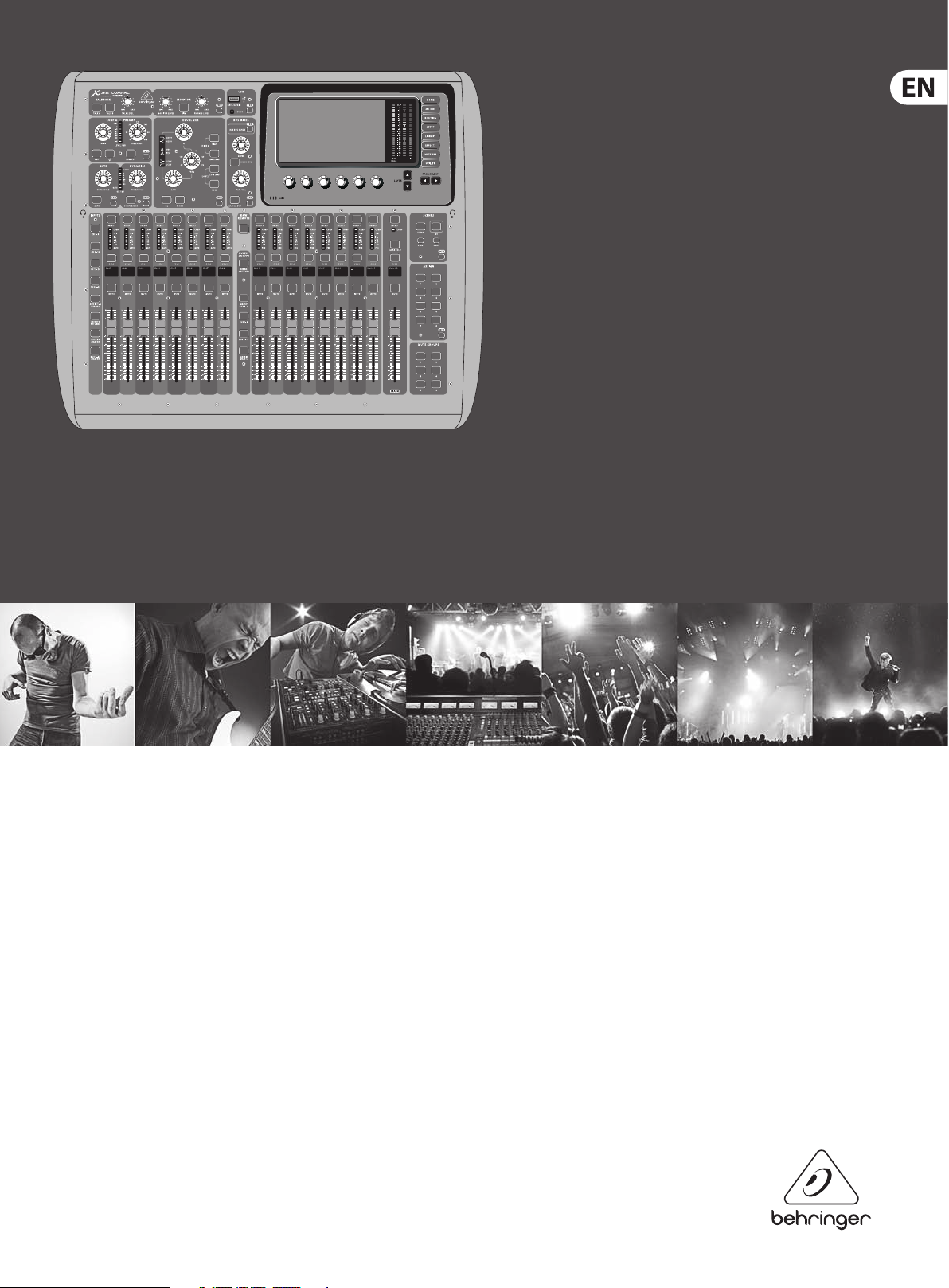
User Manual
X32 COMPACT DIGITAL MIXER
Compact 40-Input, 25-Bus Digital Mixing Console with
16 Programmable MIDAS Preamps, 17 Motorized Faders,
Channel LCDs, 32-Channel Audio Interface and iPad/iPhone
Remote Control

2 X32 COMPACT DIGITAL MIXER User Manual
Table of Contents
Important Safety Instructions ……………………………….. 3
Legal Disclaimer ……………………………………………………. 3
Limited warranty …………………………………………………… 3
Introduction………………………………………………………….. 4
1. Operational Overview ……………………………………….. 5
2. Callouts …………………………………………………………… 12
2.1 Channel Strip and Monitoring……………………………….. 12
2.2 Input Channel Banks ………………………………………………. 13
2.3 Display ………………………………………………………………………. 13
2.4 Group/Bus Banks …………………………………………………….. 14
2.5 Scenes, Assign, Mute Groups ………………………………… 14
2.6 Rear Panel Connections …………………………………………. 15
3. Hook-Up Diagrams ………………………………………….. 16
4. FX Descriptions ……………………………………………….. 18
5. Topic Guide …………………………………………………….. 24
5.1 Starting up, shutting down,
and rmware updates ……………………………………………………. 24
5.2 Default setup for connecting to
monitoring and P.A. systems ………………………………………… 24
6. USB Interface Operation Guide ………………………… 32
6.1 Conguring the X-USB
card for use in theconsole ……………………………………………. 32
6.2 Conguring the PC to Interface
withtheX-USB Card ……………………………………………………….35
6.3 X-USB Specications……………………………………………….. 37
7. X32 Main Display ……………………………………………..38
7.1 O ve r view …………………………………………………………………… 38
7.2 Home Screen ……………………………………………………………. 41
7.3 Meters Screen …………………………………………………………… 45
7.4 Routing Screen………………………………………………………….46
7.5 Setup Screen …………………………………………………………….. 50
7.6 Libraries Screen ……………………………………………………….. 55
7.7 Eects Screen …………………………………………………………… 56
7.8 Mute Group Screen …………………………………………………. 57
7.9 Utility Screen ……………………………………………………………..58
7.10 Monitor/Talkback Screens: ……………………………………59
7.11 USB Screen ………………………………………………………………. 61
7.12 Assign Screen ………………………………………………………… 62
5.3 How do I connect a microphone,
process its signal and send it out
to the P.A. system? …………………………………………………………..24
5.4 How do I add one of the 8 internal
eects to the sound? ……………………………………………………… 25
5.5 How do I use an outboard eectsprocessor? …….. 25
5.6 How do I set up live stage monitoring? ………………..25
5.7 Everything you ought to know about
Solo and monitor sources ………………………………………………26
5.8 Using Mute Groups …………………………………………………. 27
5.9 Mix Buses, Sub Groups and DCA Groups …………….. 27
5.10 User Assignable control section ………………………….. 27
5.11 How do I share signals over AES50Supermac
network? ………………………………………………………………………… 28
5.12 What kinds of Utilities are available? ………………….. 28
5.13 How do I set up a Matrix for a delay
column/toweror a remote zone mix? ………………………….29
5.14 Using the X32 COMPACT in recording and
production studioenvironments …………………………………30
5.15 Remote control ………………………………………………………. 31
7.13 Scenes Screen …………………………………………………………. 64
8. Specications ………………………………………………….. 66
Block Diagram ……………………………………………………..68
MIDI Implementation …………………………………………..69
Dimensions …………………………………………………………. 71
5.16 Recording a 2-track directly with theconsole …… 31
5.17 Saving and recalling scenes …………………………………. 31
3 X32 COMPACT DIGITAL MIXER User Manual
9. Do not defeat the safety purpose of the polarized
TO BIND MUSICGROUP BY ANY EXPRESS OR IMPLIED
Important Safety
Instructions
Terminals marked with this symbol carry
electrical current of su cient magnitude
to constitute risk of electric shock.
Use only high-quality professional speaker cables with
¼» TS or twist-locking plugs pre-installed. Allother
installation or modi cation should be performed only
by quali edpersonnel.
This symbol, wherever it appears,
alertsyou to the presence of uninsulated
dangerous voltage inside the
enclosure-voltage that may be su cient to constitute a
risk ofshock.
This symbol, wherever it appears,
alertsyou to important operating and
maintenance instructions in the
accompanying literature. Please read the manual.
Caution
To reduce the risk of electric shock, donot
remove the top cover (or the rear section).
No user serviceable parts inside. Refer servicing to
quali ed personnel.
Caution
To reduce the risk of re or electric shock,
do not expose this appliance to rain and
moisture. The apparatus shall not be exposed to dripping
or splashing liquids and no objects lled with liquids,
suchas vases, shall be placed on the apparatus.
Caution
These service instructions are for use
by quali ed service personnel only.
Toreduce the risk of electric shock do not perform any
servicing other than that contained in the operation
instructions. Repairs have to be performed by quali ed
servicepersonnel.
or grounding-type plug. A polarized plug has two blades
with one wider than the other. A grounding-type plug
has two blades and a third grounding prong. The wide
blade or the third prong are provided for your safety. Ifthe
provided plug does not t into your outlet, consult an
electrician for replacement of the obsolete outlet.
10. Protect the power cord from being walked on or
pinched particularly at plugs, convenience receptacles,
and the point where they exit from the apparatus.
11. Use only attachments/accessories speci ed by
themanufacturer.
12. Use only with the
cart, stand, tripod, bracket,
or table speci ed by the
manufacturer, orsold with
the apparatus. When a cart
is used, use caution when
moving the cart/apparatus
combination to avoid
injury from tip-over.
13. Unplug this apparatus during lightning storms or
when unused for long periods of time.
14. Refer all servicing to quali ed service personnel.
Servicing is required when the apparatus has been
damaged in any way, such as power supply cord or plug
is damaged, liquid has been spilled or objects have fallen
into the apparatus, the apparatus has been exposed
to rain or moisture, does not operate normally, or has
beendropped.
15. The apparatus shall be connected to a MAINS socket
outlet with a protective earthing connection.
16. Where the MAINS plug or an appliance coupler is
used as the disconnect device, the disconnect device shall
remain readily operable.
UNDERTAKING OR REPRESENTATION. THIS MANUAL
IS COPYRIGHTED. NO PART OF THIS MANUAL MAY
BE REPRODUCED OR TRANSMITTED IN ANY FORM
OR BY ANY MEANS, ELECTRONIC OR MECHANICAL,
INCLUDING PHOTOCOPYING AND RECORDING OF ANY
KIND, FOR ANY PURPOSE, WITHOUT THE EXPRESS
WRITTEN PERMISSION OF MUSICGROUPIPLTD.
ALL RIGHTS RESERVED.
© 2013 MUSICGroupIPLtd.
Trident Chambers, Wickhams Cay, P.O. Box 146,
Road Town, Tortola, British Virgin Islands
LIMITED WARRANTY
For the applicable warranty terms and conditions
and additional information regarding MUSIC Group’s
Limited Warranty, please see complete details online at
www.music-group.com/warranty.
1. Read these instructions.
2. Keep these instructions.
3. Heed all warnings.
4. Follow all instructions.
5. Do not use this apparatus near water.
6. Clean only with dry cloth.
7. Do not block any ventilation openings. Install in
accordance with the manufacturer’s instructions.
8. Do not install near any heat sources such as
radiators, heat registers, stoves, or other apparatus
(including ampli ers) that produce heat.
LEGAL DISCLAIMER
TECHNICAL SPECIFICATIONS AND APPEARANCES
ARE SUBJECT TO CHANGE WITHOUT NOTICE AND
ACCURACY IS NOT GUARANTEED. BEHRINGER,
KLARKTEKNIK, MIDAS, BUGERA, AND TURBOSOUND
ARE PART OF THE MUSIC GROUP MUSICGROUP.COM.
ALL TRADEMARKS ARE THE PROPERTY OF THEIR
RESPECTIVE OWNERS. MUSICGROUP ACCEPTS NO
LIABILITY FOR ANY LOSS WHICH MAY BE SUFFERED
BY ANY PERSON WHO RELIES EITHER WHOLLY OR
IN PART UPON ANY DESCRIPTION, PHOTOGRAPH
OR STATEMENT CONTAINED HEREIN. COLORS AND
SPECIFICATIONS MAY VARY FROM ACTUAL PRODUCT.
MUSIC GROUP PRODUCTS ARE SOLD THROUGH
AUTHORIZED FULLFILLERS AND RESELLERS ONLY.
FULLFILLERSAND RESELLERS ARE NOT AGENTS OF
MUSICGROUP AND HAVE ABSOLUTELY NO AUTHORITY

4 X32 COMPACT DIGITAL MIXER User Manual
Introduction
Welcome to the X32 COMPACT User Manual! After years of intense development,
we are proud to oer a mixer that combines tremendous power and exibility
with a very user-friendly layout and intuitive workow that allow you to get
up-and-running right away.
The X32 COMPACT is a robust-yet-streamlined mixer that features all of the
core functionality and processing of BEHRINGER’s agship X32 console in a
smaller form factor. Employing motorized faders and rotary encoders along
with a daylight-viewable TFT screen, the control surface is designed to allow
immediate access to critical functions with total and automatic recall of settings.
Extensive on-board I/O includes Cirrus Logic converters, 96bidirectional channels
over SuperMAC AES50, stereo AES/EBU out, 16 channels of BEHRINGER’s Ultranet
personal monitoring and 32 x 32 channels for recording over USB.
Abundantanalogconnectivity is provided via 16 MIDAS-designed
digitally-controllable microphone preamps, 6 line-level auxiliary in- and outputs,
8 XLR outputs, stereo TRS monitoring outputs and dual phones outputs. Each of
the 16 microphone inputs can accept balanced or unbalanced mic or line-level
level signals and include switchable phantom power, 72 dB gain range and
max +23 dBu level before clip. A separate external talkback mic input allows
communication to various destinations.
Dual AES50 Ethernet jacks that employ KLARK TEKNIK SuperMAC technology
contribute 96 x 96 signals to the total count of 168 x 168 accessible sources and
destinations. Motorized faders, recallable mic preamps, programmable routing and
the ability to save and recall entire scenes make set or program changes quick and
simple. A top panel USB connector enables system data to be stored or a board mix
to be recorded direc tly to external ash or harddrives.
A virtual FX rack oers 8 true-stereo (16 mono) multi-eects processors,
with39FX modelsthat eliminate the need for any additional outboard gear.
4high-quality eects such as delay, chorus and reverb can run concurrently with
8 channels of 31-band graphic equalization.
The built-in interface card enables streaming of up to 32 tracks to and from a
computer for recording, mixingandmastering purposes.
The X32 COMPACT integrates seamlessly withother X32 consoles, the S16 digital
stage box and the P-16 personal monitoring system for complete live, studio and
installed sound solutions. Control the mixer from a distance with the free
iPad app or with editingand remote controlsoftware connected via Ethernet.
The X32 COMPACT’seaseof use, intuitivework ow, diverse feature set and
integration with other equipment make it an ideal centerpiece for installedand
productionsound in any setting.
Continue through this User Manual to learn all about the functionality
that this powerful mixer has to oer! We also recommend that you check
behringer.com tomake sure you have the latest rmware installed as we release
frequentupdates.
The Input section is home for 8 high-resolution 100 mm motorized faders,
providing control over channels 1-16, 17-32 (from AES50), Aux inputs /
USB playback / FX returns, and Bus Masters. A separate section of 8 motorized
faders controls DCA groups 1-8, bus 1-8 and 9-16 as well as matrices 1-6.
The master “X-channel” sectionallows instant editing of the currently selected
channel’s gain, dynamics,EQ and other functions. A customassignablesection
allows certain control functions to be mapped directly toa set ofdedicated knobs
and buttons.
A main 7″-wide, high-contrast color display provides information forediting
pertinent parameters of the active function or eect. Relevant parameters are
quickly recalled to the display for editing via “view” buttonsin each sub-section.
Each channel also features a small, customizable LCD screen for track name,
number,colorand source graphic.
5 X32 COMPACT DIGITAL MIXER User Manual
1. Operational Overview
(1) (3)
(4) (5)(2)
Mixer Operational Overview
This chapter will give you an overview of the basic operations of the mixer,
allowing you to get up and running quickly. While reading through the
information, we encourage you to experiment with the console’s dierent
screens and controls. The console’s user interface was designed to be extremely
to navigate through and learn. Morespecic details about various functions can
be referenced later in the manual.
View buttons rule
Throughout the top panel of the console, youwillnd small buttons labeled
View. Press these buttons to immediately switch the console’s large color display
(known as the Main Display) to show information related to the section whose
View button you have just pressed.
For example, if you are editing the equalizer and feel like seeing a large display
of the EQ frequency response curve or corresponding EQ parametervalue,
simplypress the adjacent View button in the EQ section. If you need to check
where the talkback signal is being routed, simply press the View button next to
the Talk button and the main display will show the details.
With the View button approach of the X32 COMPACT console, there is almost
never a need to drill down through multiple menu pages, since the View buttons
will always take you directly to the relevant screen.
Tip: The Setup/Global tab on the main display allows preferences for the behavior
of View and Select buttons to be adjusted.
General user interface operation
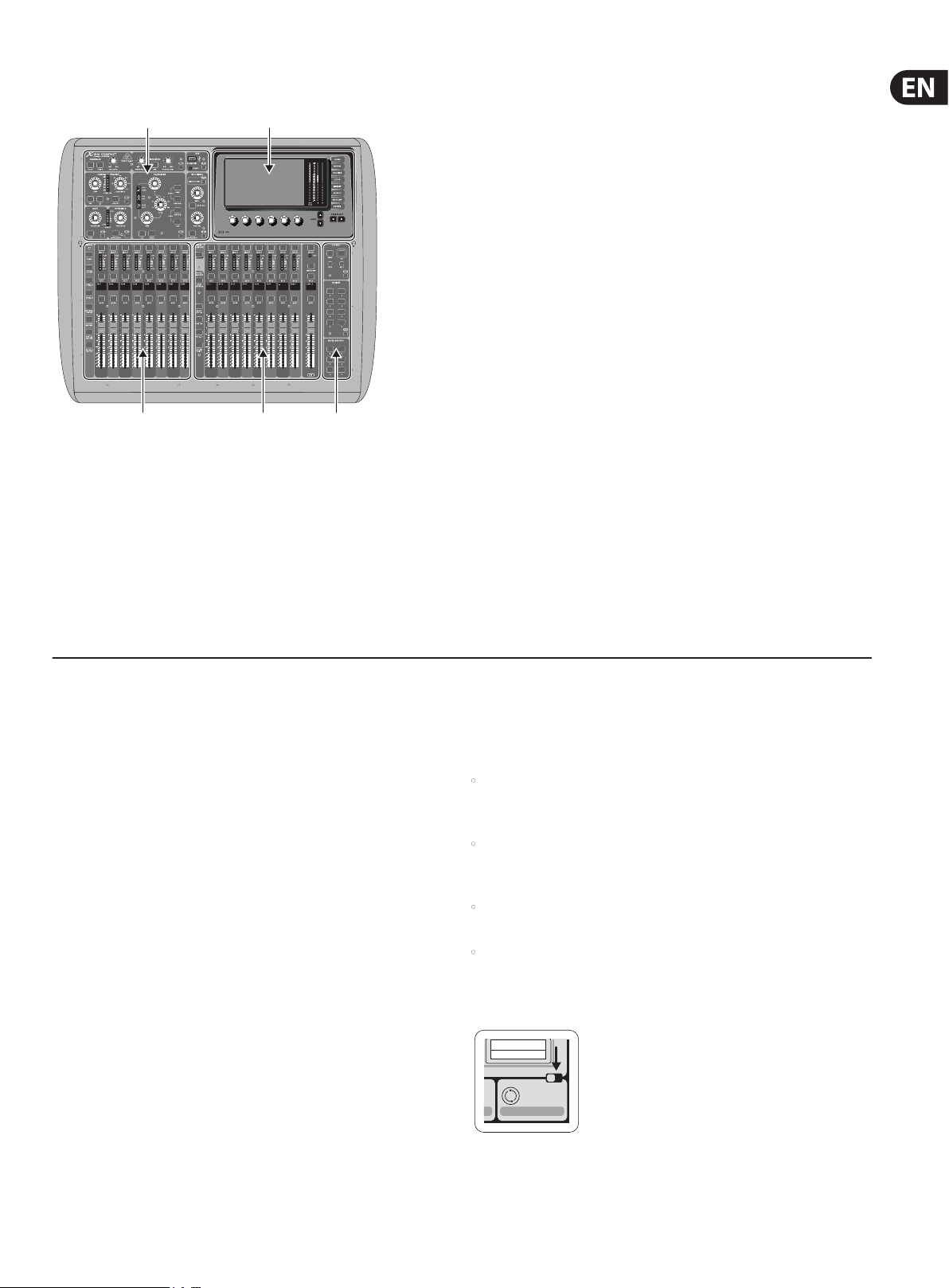
The X32 COMPACT user interface is divided into ve majorsections:
(1) Channel Strip and Monitoring
(2) Input Channels
(3) Display
(4) Group/Bus/Main Channels
(5) Scenes/Assign/Mute Groups
Customizing the X32 COMPACT through the
Utilities page
Press the Utility button, located to the right of the main display, to bring up
useful func tions in a “context-sensitive” manner. For example:
• When you are adjusting the equalizer of a console channel,
pressingtheUtility button will oer copying, pasting, loading or saving
ofequalizersettings
• Pressing the Utility button while editing a channel’s Preamp/Conguration
screen will present a naming screen where you can customize the channel’s
appearance on both the main display as well as the small channel display
• On the Routing pages, pressing the Utility button will oer loading or saving
dierent presets of routing scenarios
• In the Scenes menu, pressing the Utility button oers copying, loading,
saving or naming consolescenes
Sometimes there is more to say
Dir 05
Dir 06
Key In
Source
Select
Some of the individual pages on the main display contain
more adjustable parameters than can be controlled by
the 6 rotary push encoders located beneath it. In these
1 2
cases there is a small page number indication, e.g. “1/2”.
Simplypress the Layer Up/Down buttons to switch
betweenlayers.
6 X32 COMPACT DIGITAL MIXER User Manual
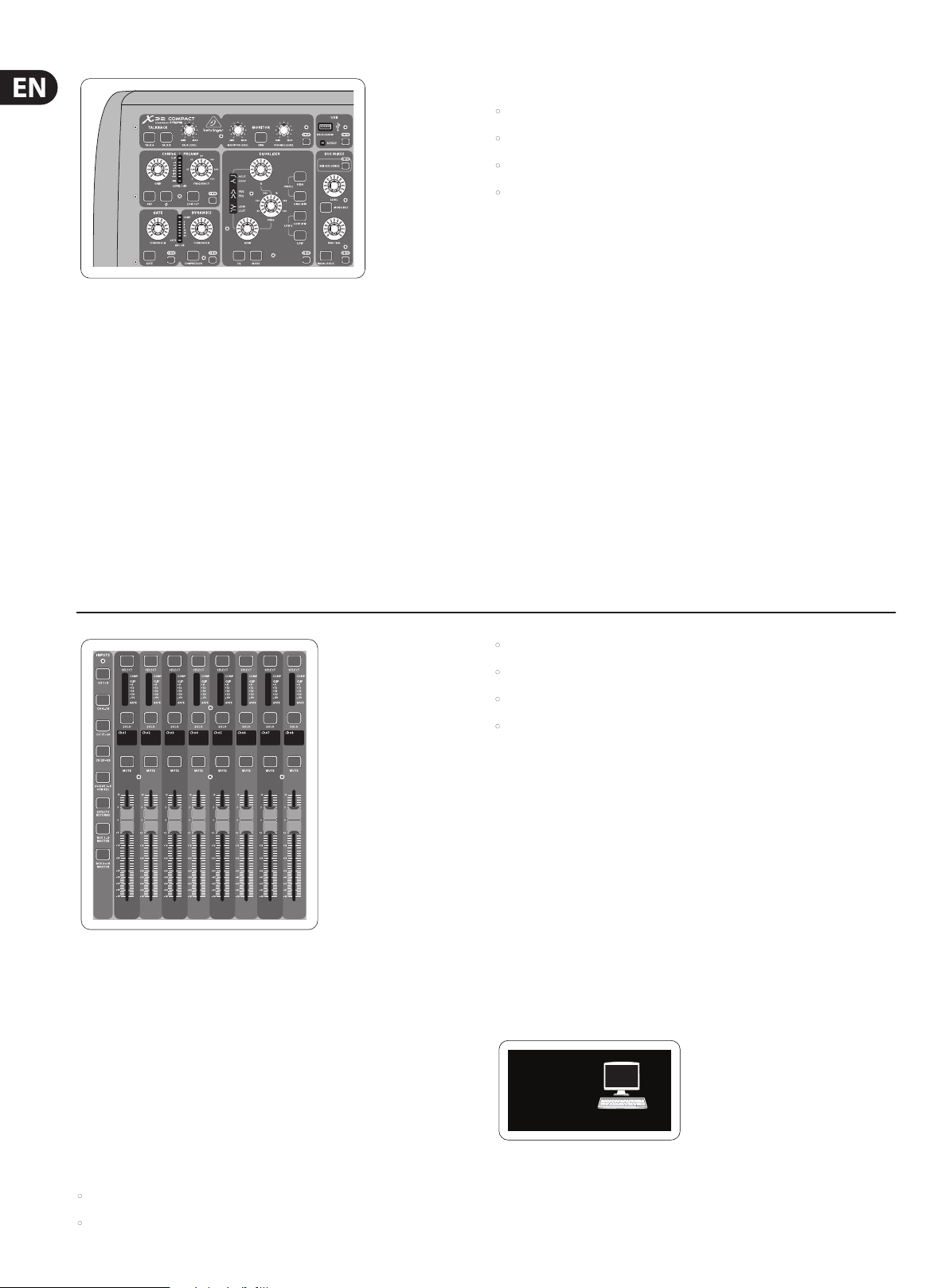
The channel strip consists of the following sub-sections:
• Cong/Preamp
• Gate, Dynamics
• Equalizer
• Main Bus
Each of these subsections correspond to the processing steps of the currently
selected channel, and they each have their own View button that, when pressed,
switches the Main Display to a page displaying all related parameters for
thatsubsection.
Channel Strip and Monitoring
The X32 COMPACT’s channel strip oers dedicated controls for the most impor tant
processing parameter s of the currently selected channel. To adjust controls for a given
channel strip, simply press the Select button on the desired input or outputchannel.
Certain sections of the channel strip (such as the low cut lter, noise gate, EQ and
compressor) contain a respectively labeled button that can be pressed to switch
the specic eect on and o. Thebutton illuminates to show the eect is active,
and goes dark when bypassed.
Within the channel strip, the rotary control knobs are surrounded by an amber
LED collar that indicates the parameter’s value. Whenever this backlit knob is
turned o, it indicates that this specic control/parameter is not available for
the selected channel type. For example, if an output bus is currently selected,
theLED collar and the gainknob are turned o, because there is no input gain to
be controlled on an output bus.
Monitoring and Talkback
There are two separate Level controls in this section, one for the headphone
outputs located on either side of the console, and a second one for the monitor
outputs located on the rear panel.
Press the section’s View button to edit various monitoring preferences, such as
the input source for the phones bus and the monitor outputs.
This section also contains independent Talkback buttons (A and B). Press the View
button next to the Phones Level knob, then press Page Select right to access the
Talkback A and B edit pages. These screens also contain settings for the optional
goose-neck lamp and the console’s internal test-tone generator.
• Input Channels 17-24
• Input Channels 25-32
• Aux Inputs 1-6/USB playback
• FX Returns
Press any of the correspondingly labeled layer buttons on the left side of the
console to switch the input channel bank to any of the six layers listed above.
The button will illuminate, reminding you which layer is active.
Input Channel Banks
You will nd a select button on top of every channel that is used to direct the
control focus of the user interface, including all channel related parameters
(channel strip and main display), tothat channel. Please note that at any time,
there is exactly onechannel selected (either Input Ch 1-32, Aux1-8, FXReturns
1L-4R, Mix Bus 1-16, Main LR/C, orMatrix 1-6). DCA Groups (digitally controlled
amplier) cannot be selected because they control a number of assigned
channels rather than one specic channel.
The Input Channels section of the console is locatedon the left hand side,
and oers 16 separate input channel strips. These 16 channel strips represent
three separate layers of inputs for the console, including:
• Input Channels 1-8
• Input Channels 9-16
Two more layers (Bus Master 1-8 and 9-16) are also oered, allowing you to
adjust the levels of the 16 Mix Bus Masters, which is useful when you wish to
include Bus Masters into DCA Group assignments.
On each fader strip you will nd a motorized 100mm level fader, Mute and
Solo buttons, aGate indicator, an input level meter, Compressorindicator,
and the channel selectbutton.
Each of the 8 input channels has an individual (andcustomizable) color LCD
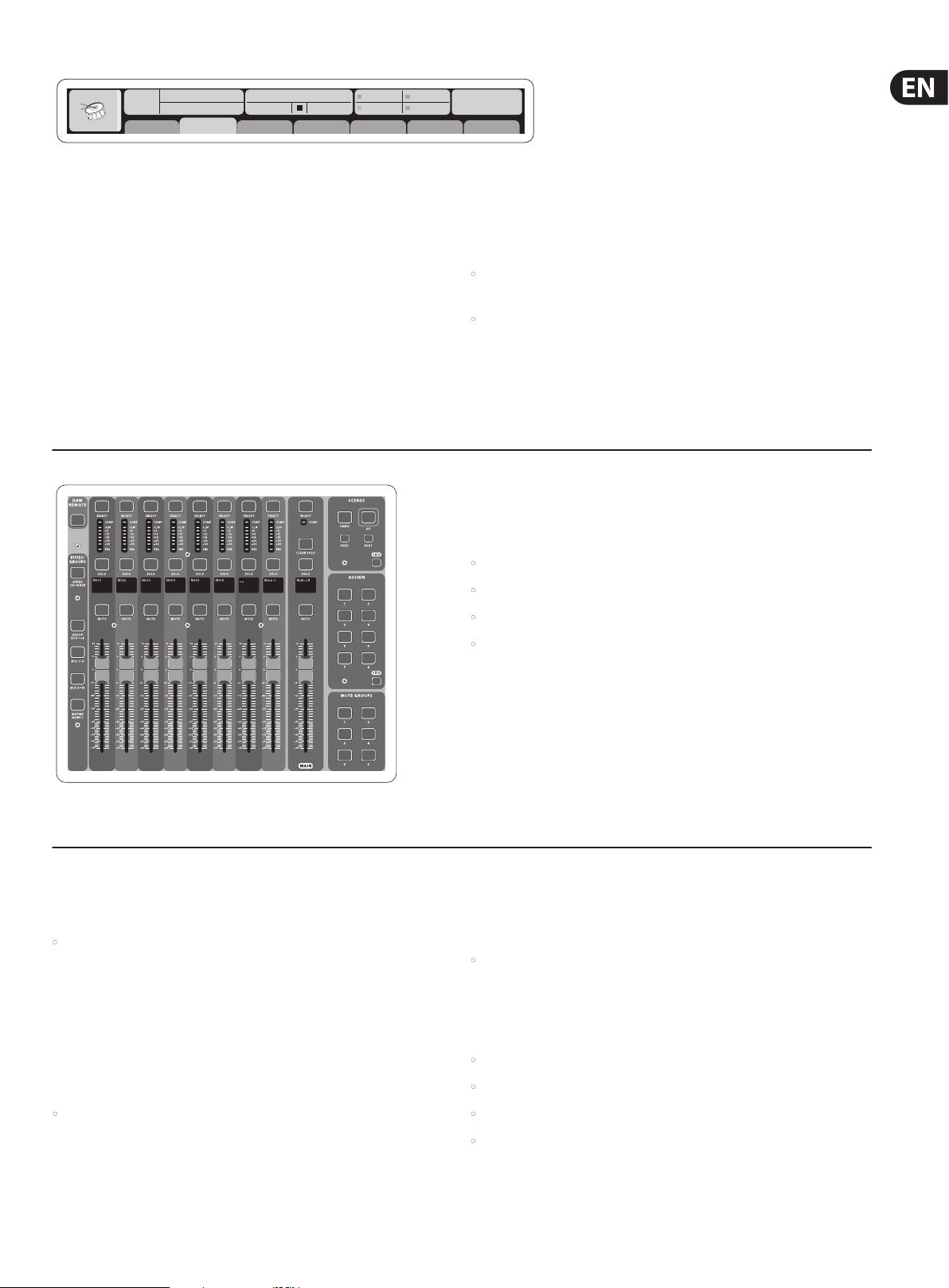
screen that can display a channel number, nickname, and even a graphical
channel icon. In the event that a channel’s input source has been changed to an
input signal that diers from the default setup, the LCD displaywill also indicate
the name of the actual input source.
Ch01
Aux5
PC
Soundcard
Exampl e: Channel 01 has the nickn ame Soundcard an d is fed from Aux inpu t 5.
7 X32 COMPACT DIGITAL MIXER User Manual
Ch01
FatSnare
OpeningScene
01 15:33
02: next 0:00 — 0:00
home
cong
gate dyn eq sends main
A: S16 A: 48K
B: — C: X-USB
Main Display Area
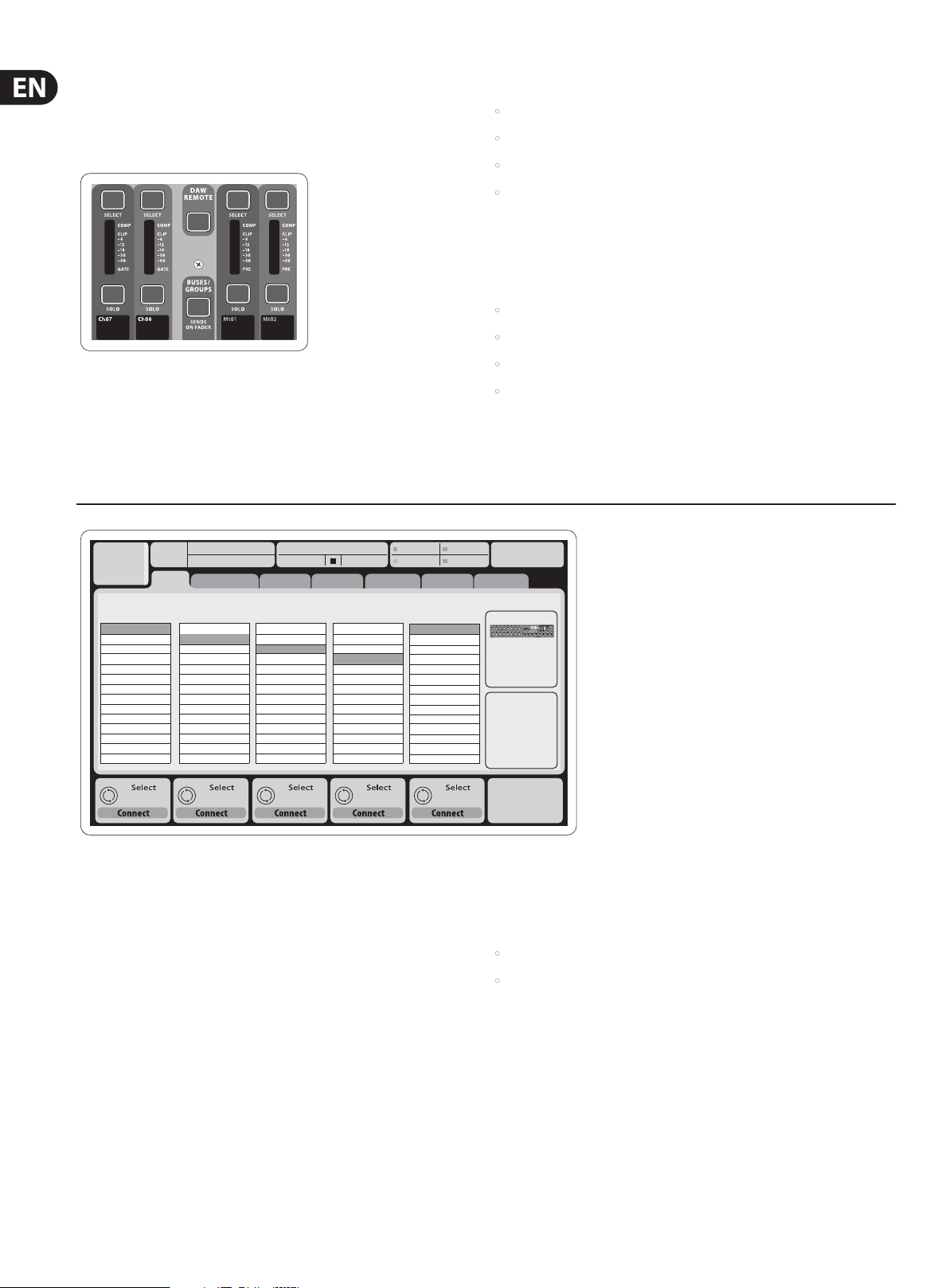
The main color display presents information about various sections of the
console. It can be switched to dierent screens using the console’s View buttons,
as well as any of the 8 buttons on the right side of the display.
The top section of the main display permanently covers useful status information.
The top left corner shows the selected channel number, its nickname and the
selected icon. The next block shows the current scene number and name in
amber, as well as the next upcoming scene. The center section displays the
playback le name along with elapsed and remaining time and a recorder status
icon. Thenext block to the right has 4 segments to show the status of AES50
ports A and B, the Card slot and the audio clock synchronization source and
sample rate (topright). Small green square indicators show proper connectivity.
The right most block shows the console time that can be set under Setup/Cong.
: 15
When working with any given screen, press the Page keys located on the display
bezel to switch to dierent screen pages.
Editing parameters or settings on each of the screens is done using the
6 associated push-encoders along the bottom edge of the display.
• Whenever there is a continuous control or list entry, you can turn the
corresponding knob forediting, which is indicated by various circularicons
• When there is a switch or toggle function on one of these knobs, you will see
a broad rectangular button along the lower edge of the eld. Pressing the
encoder changes the on/o state of the corresponding func tion. When the
rectangular button in the display is dark grey, thecorresponding function is
o/inactive; whenit is amber, the function is on/active
Group/Bus Channel Banks
This section of the console oers eight channel strips, divided into the
followinglayers:
Various Assignments (DCA groups, mute groups,
custom assignable controls)
• Assigning DCA Groups
Thanks to the two distinct fader groups (inputs on the lef t, outputs on the right),
the task of assigning channels or buses to a virtual DCA Group is a breeze on the
X32 COMPACT. Simply hold the respective DCA Group Selec t button on the righthand side of the console, whilepressing the select buttons for all the input channels
that you wish to assign to said DCA Group. You can also press the DCA Group Select
button in order to check which channels are already assigned to it. Theassigned
channel Select buttons will light up.
• Eight DCA (digitally controlled amplier) groups
• Mix Bus masters 1-8
• Mix Bus masters 9-16
• Matrix Outputs 1-6, and the main center bus
This section also contains a main LR output fader, which is independent and
always available no matter which channel bank or layer is active.
When using the DCA Groups layer, the DCA Groups can be soloed and muted,
butthey cannot be selected. To edit the DCA group names, icons and colors,
navigate to the Setup/DCA Groups page on the main display.
When using any of the output bus layers, notethat the bottom LEDs on the
meters in this section illuminate when the respective bus is fed from pre-fader
sources of the selected channel.
button, selec t the desired input and output channels, whichwill now be assigned
to the Mute Group. When you are done with assignment, switcho Mute Grp at the
display, andthe 6 Mute Group buttons will work asintended.
• Custom Assignable Controls:
The Assign section of the console oers three banks of 8 buttons, allowing for
freely customizable access to 24 random functions of the X32 COMPACT.
To make a custom assignment:
• Press the View button in the Assign section to edit the assignments
• Select the set of controls you wish to edit (A, B or C)
• Assigning Mute Groups
The mute group assignment process is similar to the above, but is designed with an
additional precaution in order to prevent accidental muting of channels during a
show. To assign input/output channels to one of the six mute groups (controlledby
the buttons located to the right of the Main LR fader) you need to rst switch on the
Mute Grp button next to the main display. While holding the desired Mute Group
• Select the control 1-8 you wish to assign
• Select the parameter you wish to control and assign the function
Usually this is used to control a specic channel’s parameter, like the lead
vocalist’s reverb on/o status.
The Jump-to-Page control is a special target type that does not alter any audio
parameter, but rather brings you direc tly to any specied display page.
8 X32 COMPACT DIGITAL MIXER User Manual
The “Sends on Faders” Function
The X32 COMPACT console features a very useful function thatcan be
accessed by pressing the dedicated Sends on Faders button, located between the
twofader sec tions.
The Sends on Faders function aids with level setting of channels sent to any of
the 16 Mix Buses. Itis only for channels assigned to Mix Buses 1-16, anddoes
NOT work for DCA groups, main or matrix buses. The Sends on Faders function
works in two convenient ways to cover the most obvious situations in a live
soundenvironment :
When preparing a monitor mix for a specicmusician
• Select the monitor bus (1-8, 9-16) that feeds the talent’s stage monitor
• Press the Sends on Faders button; itwillilluminate
• Select one of the six input channel layers
• As long as the Sends on Faders is active, allfaders in the input channels
section (locatedon the left side of the console) correspond to the send levels
to the selected (monitor) mix bus
When checking/editing where a selected input signal is
(to be) sent to
• Select the input channel in the left section
• Press the Sends on Faders button; itwillilluminate
• Select either bus channel layer 1-8 or 9-16
• The bus faders (located on right side of the console) now represent the
send levels from the selected input channel (located on the left side of
theconsole)
The option to use Sends on Faders in both ways, selecting an input or an output
channel, is a special feature of the X32 COMPACT.
Ch01
Inputs 1-8 Inputs 17-24Inputs 9-16
Local In 1-8
Local In 9-16
[Local In 17-24]
[Local In 25-32]
AES50 A1-8
AES50 A9-16
AES50 A17-24
AES50 A25-32
AES50 A33-40
AES50 A41-48
AES50 B1-8
AES50 B9-16
AES50 B17-24
AES50 A25-32
01
home
01:
Local In 1-8
Local In 9-16
[Local In 17-24]
[Local In 25-32]
AES50 A1-8
AES50 A9-16
AES50 A17-24
AES50 A25-32
AES50 A33-40
AES50 A41-48
AES50 B1-8
AES50 B9-16
AES50 B17-24
AES50 A25-32
0:00 — 0:00
analog out
Channel Processing Block Patch
aux out
Local In 1-8
Local In 9-16
[Local In 17-24]
[Local In 25-32]
AES50 A1-8
AES50 A9-16
AES50 A17-24
AES50 A25-32
AES50 A33-40
AES50 A41-48
AES50 B1-8
AES50 B9-16
AES50 B17-24
AES50 A25-32
p16 out
Inputs 25-32 Aux In 1-4
Local In 1-8
Local In 9-16
[Local In 17-24]
[Local In 25-32]
AES50 A1-8
AES50 A9-16
AES50 A17-24
AES50 A25-32
AES50 A33-40
AES50 A41-48
AES50 B1-8
AES50 B9-16
AES50 B17-24
AES50 A25-32
A: S16 A: 48K
B: — C: X-USB
card out aes50-a aes50-b
Aux 1-4
Local 1-4
AES50 A1-4
AES50 B1-4
Card 1-4
Routing I/O
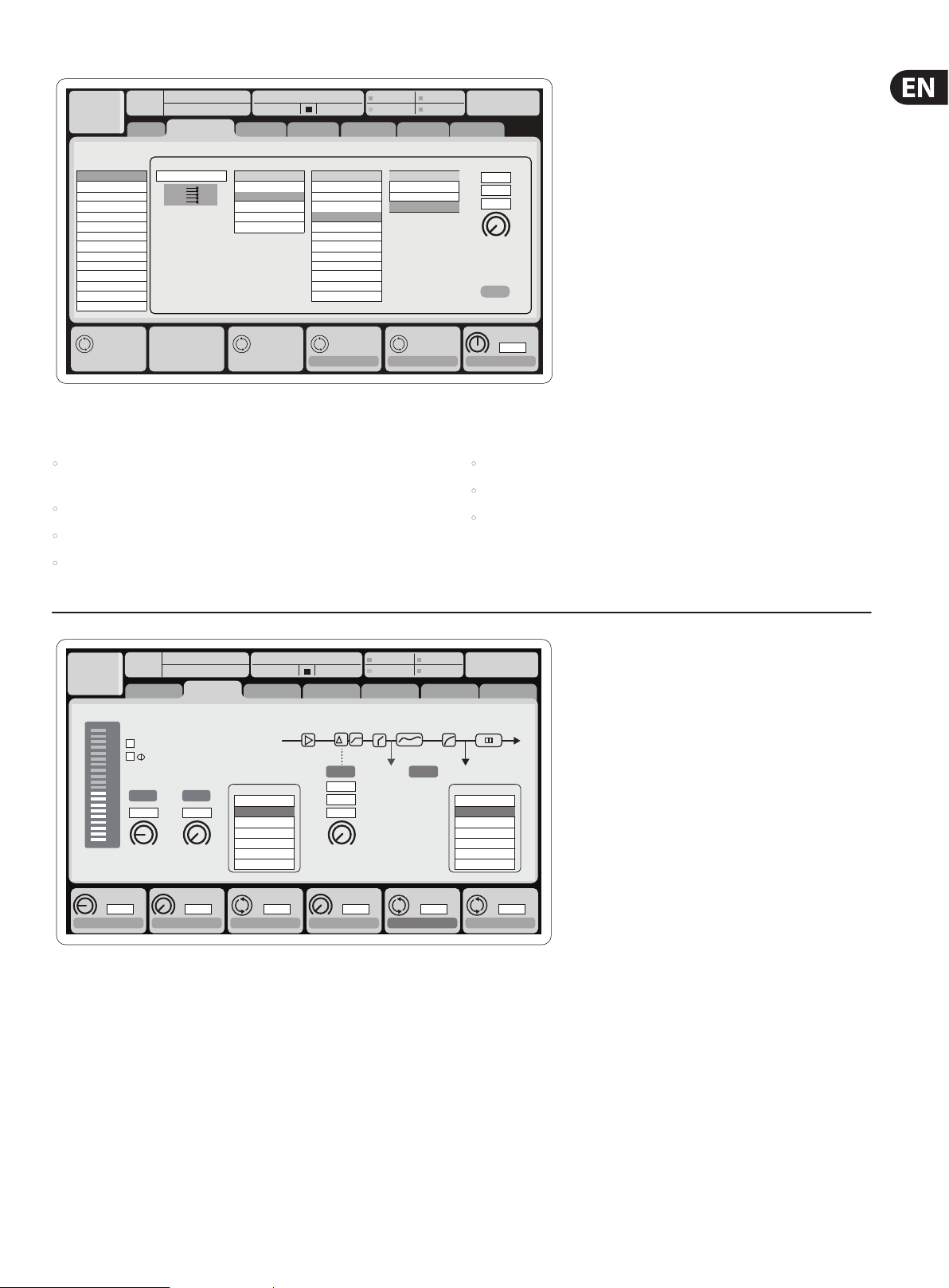
The X32 COMPACT console features 16 analog rear-panel XLR inputs with
microphone-preamps, as well as 8rear-panel XLR Outputs and 6 TRS Aux Sends
and Returns. In addition, there are two AES50ports, eachfeaturing 48 input and
output channels, andacard slot for 32 channels of input and outputtoand from
a connected computer via USB2.0.
Input Signals can be attached to the console’s internal audio processing engine in
blocks of 8signals from any one of the aforementioned inputsources
13:45
Connected Devices
AES50 A
AES50 B
: 19
Local inputs 17-24 and 25-32 are listed with brackets, indicating that these are
not physically available on this device. Assigning these will obviously carry no
signal, but they can still be used when preparing shows for a full X32 console.
Cabling for all AES50 connections between X32 and S16 stageboxes:
• Shielded CAT-5e cable, Ethercon terminated cable ends (recommended)
• Maximum cable length 100 meters (330 feet)
Note: All signal blocks patched to the audio processing will be connected to the
corresponding input channels automatically.
9 X32 COMPACT DIGITAL MIXER User Manual
Ch01
Analog Output
Output 01
Output 02
Output 03
Output 04
Output 05
Output 06
Output 07
Output 08
*Output 09
*Output 10
*Output 11
*Output 12
*Output 13
*Output 14
01
01:
analog out
home aux out
Edit Output Assignment
MixBus
Select Select Select Select
0:00 — 0:00
CategoryCurrent Setting
OFF
Main (LRC)
Mix Bus
Matrix
Direct Out
Monitor
p16 out
Processed Output Signal Tap
OFF
Main L
Main R
Main C/M
Main Bus 01
Main Bus 02
Main Bus 03
Main Bus 04
Main Bus 05
Main Bus 06
Main Bus 07
Main Bus 08
Main Bus 09
A: S16 A: 48K
B: — C: X-USB
card out aes50-a aes50-b
Pre EQ
Post EQ
Pre Fader
Post Fader
Set DelayAssign
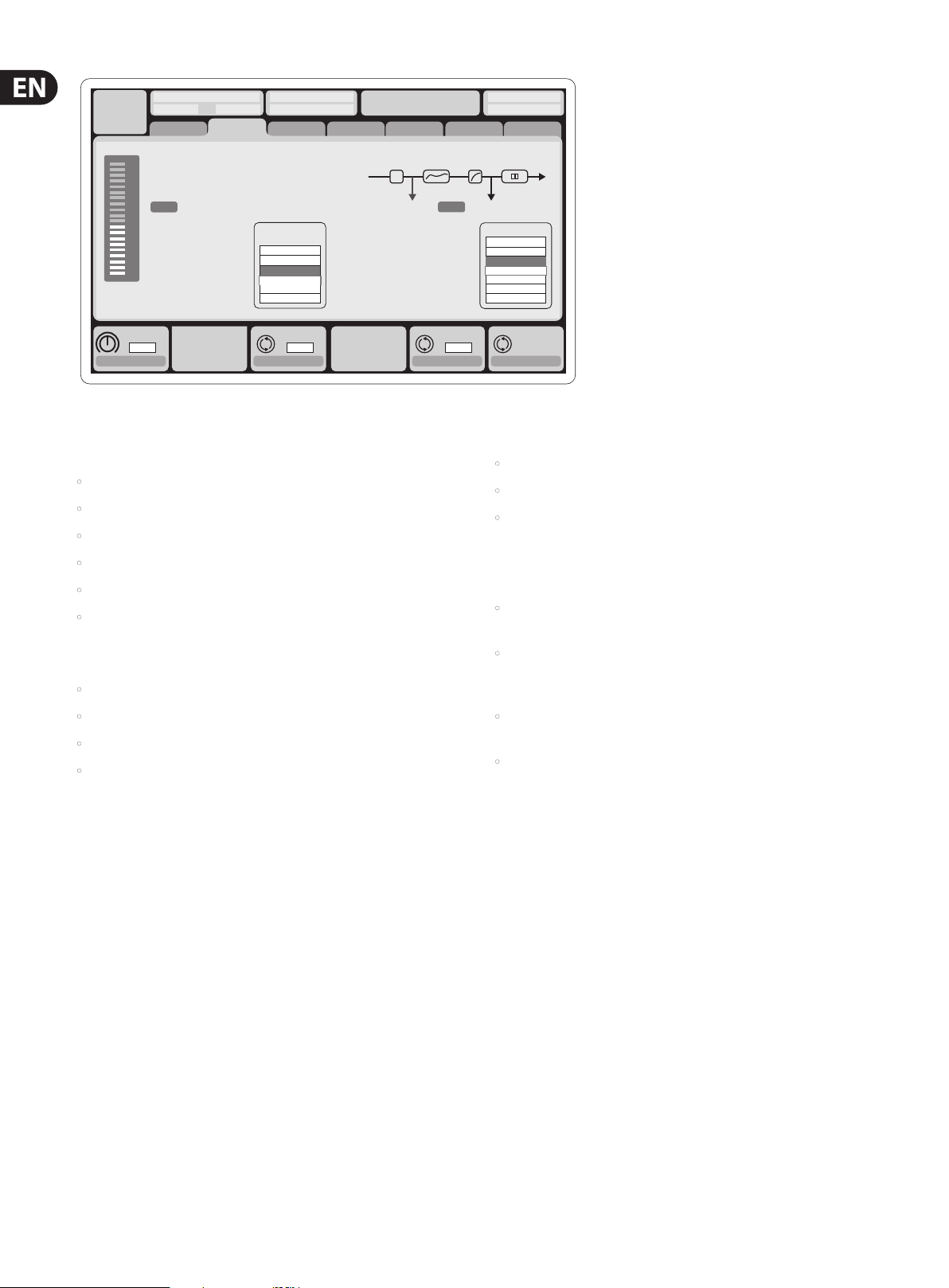
Output Signals can be freely assigned from anyinternal signal to any of the
following outputs:
• 8 analog local XLR outputs (with adjustable digital delay for time-alignment
of speakers)
• 8 virtual outputs (marked with *) for routing over AES50 or card outputs
• 6x auxiliary sends on ¼» TRS outputs + 2x AES/EBU outputs
14:09
0.3
0.10
0.3
Delay
Delay
Delay
: 37
ft
m
ms
0.3
ms
Any and all of the above signals can also be mirrored in blocks of 8 signals on
either one of
• 48x channels on AES50 port A
• 48x channels on AES50 port B
• 32x channels on USB interface card
• 16 channels of personal monitoring using the console’s P-16 Bus
output connector
Ch01
01
01:
dB
Lo Cut
Lo Cut
Lo Cut
cong
2.0
20
Hz
Hz
home gate dyn eq sends main
clip
-6
48V
-12
Reverse
-18
-24
-30
Link Lo Cut
-36
-42
+0.0
-48
-54
Gain
Gain
+0.00
dB
Link
0:00 — 0:00
In
Source
OFF
Input 01
Input 02
Input 03
Input 04
Input 05
Input 06
Source
Input
Select
Delay
0.3
0.10
0.03
Delay
Delay
t
Delay
0.3
ft
m
ms
A: S16 A: 48K
B: — C: X-USB
Insert Position
Pre PostIns
Ins Pos
ms
PRE
Insert
Input Channels 1-16 are pre-congured to use the local input signals 1-16,
butcan be patched to use any other available signal on the audio engine as well,
including mix bus/sub group outputs. Changes of the Channel Source can be
made on the Preamp Congpage.
Input Channels 17-32 are pre-congured to AES50 A inputs 1-16, so that
connecting an S16 stage box to port A will automatically feed the channels.
14:11
OFF
InsFX 1L
InsFX 1R
InsFX 2L
InsFX 2R
InsFX 3L
InsFX 3L
Insert
Connect
Insert
InsF
: 37
Aux Return Channels 1-8 are pre-congured to use the 6 aux input signals,
andthe two USB playback outputs, but can be patched to use any other available
signal of the console as well.
FX Return Channels 1L-4R control the 4 stereo output signals of
side-chainFX 1-4.
10 X32 COMPACT DIGITAL MIXER User Manual
LeOnde.mp3
00.05.00 00.00.00
home gate dyn eq sends main
clip
-6
-12
-18
Link
-24
-30
-36
-42
-48
-54
Gain
00.00
dB
Link Bus Sends
cong
Bus Conguration Bus Insert Position
13:44:43 MyProj.prj
29 November 2010 Scene01
Channel Sends
All Channel Sends
Pre Conguration
…
Inputs
Pre EQ
Pre Fader
Post Fader
Sub Grou
Send Pos. Insert Pos. Insert
Inputs
∑
Insert PostPre
Pre
Insert
The conguration of Mix Bus Channels 1-16 can be pre-set (in the Setup/Global
page) or can also be congured on an individual, per-channel basis. Thebus
processing includes (in this order):
• Insert point (swappable between post-EQ and pre-EQ operation)
• 6-band fully parametric EQ
• Compressor/expander (swappable between post-EQ and pre-EQ operation)
• Bus sends to 6 matrices
• Main LR panning
• Mono/Center level
Main Bus Channels LR/C are always available and independent from Mix Buses.
The processing steps for this signal path include (in this order):
• Insert point (swappable between post-EQ and pre-EQ operation)
Insert
Ins 01
Ins 02
Ins 03
Ins 04
…
FX 01
FX 02
Connect
Matrix Channels 1-6 are fed exclusively by MAINLRC and Mix Bus 1-16 signals.
The processing steps include (in this order):
• Insert point (swappable between post-EQ and pre-EQ operation)
• 6-band fully parametric EQ
• Compressor/expander (swappable between post-EQ and pre-EQ operation)
Eects Processing 1-8
The X32 COMPACT console contains eight true-stereo internal eects engines.
• FX 1-4 can be congured as side chain or inser t eects, while FX 5-8 can only
be used in insert points of channels or buses
• The returns of side chain FX 1-4 can always be controlled using the 6th bank
(layer) of the input channels — Eects Returns. Note that the return signals of
FX 1-4 have separate faders for left and right
• 6-band fully parametric EQ
• Compressor/expander (swappable between post-EQ and pre-EQ operation)
• Bus sends to 6 matrices
• The FX Home screen allows selection of the FX 1-4 input sources and selecting
the eect s type/algorithm for each of the 8 FX slots of the virtualrack
• The subsequent tabs FX 1-FX 8 of the FX screen allow editing all parameters
of the chosen eec ts processor

11 X32 COMPACT DIGITAL MIXER User Manual
iPad App for X32 COMPACT
Many functions of the X32 COMPACT console can be remotely controlled by a
dedicated iPad app. Details about the app’s download, setup and operation are
available on the X32 COMPACT product page.
The app’s User Interface is optimized for the touchscreen nature of the iPad device
and concentrates on the most important remote features of the console.
Using the app, you can perform functions such as adjusting monitor mixes from
the stage while interac ting with musicians, or adjusting the front-of-house mix
from the audience, while hearing the mix exactly as the audience does.
Windows-based application and Linux/OS X application
for X32 COMPACT
Also oered is a separate remote editor running on host computers that will
allow for complete editing control of the X32 COMPACT via Ethernet. Check out
behringer.com for more information.
Tip: The X32 COMPACT remote communication is OSC-based (open sound control)
and we will share the protocol on our website, allowing developers to design
their own control sof tware. Stay tuned to behringer.com for details on the OSC
protocol.
X-USB expansion card
The X-USB card allows transmission of up to 32 channels to and from a connected
computer. Please download the X-USB drivers and Quick Start Guide from
behringer.com before connecting the mixer to your computer.
If the console has been used by someone else, and you feel unsure about its
specic routing status, you can reset the X32 COMPACT to default settings in two
convenient ways:
• While the console is booting and the “X32” logo appears on the screen,
press and hold the Scenes/Undo button until the console is fully operational
and the Home screen is displayed. The console will now be in the same state
as it was when shipped from the factory. However, you can immediately
revert to the status the console was in when being switched o the last time
by pressing the Scenes/Undo button
• You can also reset the console any time after booting by pressing
Setup/Cong, then Initialize
NOTE: Initializing the console does not automatically erase the current show data
or any stored scenes. If you wish to clear all scenes, please use the ’Initialize All
Show Data’ option on Setup/Cong page.
In order to prevent any errors by losing power during a store operation,
we recommend using the “Safe Shutdown” function from the Setup/Global page.
NOTE: The X32 COMPACT can be locked against unintended use by ac tivating
’Lock Console’ from the Setup/Global page. In this state the UI will not allow any
changes to be made and the display shows “X”. Keep HOME depressed for about
5 seconds to unlock the X32 again.
The X32 rmware can easily be updated by performing the following steps:
• Download the new console rmware from the X32 COMPACT product page
onto the root level of a USB thumb drive
Note — the rst X32 produc tion units shipped with the X-UF FireWire/USB card.
See the “USB Interface Operation Guide” for details.
Startup and Shutdown, and Update:
We recommend switching the X32 COMPACT mixer on rst, and shutting it o
last when any sound system is connected. This will prevent the possibility of any
unexpected noises being transmitted during the startup/shutdown process.
The Setup screen’s general preference page contains a Safe Main Levels
function. When activated, the console automatically mutes the main LRC levels
when booting the console. It also prevents any scene loading from aecting
(i.e. turning up) the mains levels.
Synchronization and Sample Rate settings for the console can be adjusted on
the Setup/Cong page, but please note that sample rate changes will require a
reboot of the console. When you see a red square indication at the top section of
the main display, please verify if the synchronization settings on Setup/Cong
make sense (see section 3).
• Plug the USB thumb drive into the top panel USB connector while the
console is turned o
• Hold the USB View button depressed while switching the console on.
While booting, the X32 COMPACT will run a fully automatic rmware update,
which will take 2-3 minutes longer than the regular boot sequence
When no update le is available on the USB drive, or when it is corrupted,
the update mode will remain active, preventing the X32 COMPACT from booting
regularly. Switch the console o and back on without holding the USB View
button to boot the console with the existing rmware.
CAUTION: Please do not block the fan opening on the bottom of the X32 COMPACT
cabinet! The large slow-turning fan is barely audible, but it is still working.
Specically when mounting the X32 COMPACT in a road case, please ensure there
is sucient space underneath to allow for some airow.
12 X32 COMPACT DIGITAL MIXER User Manual
2. Callouts
2.1 Channel Strip and Monitoring
(7) (8) (9) (10)
(6)
(1)
(2)
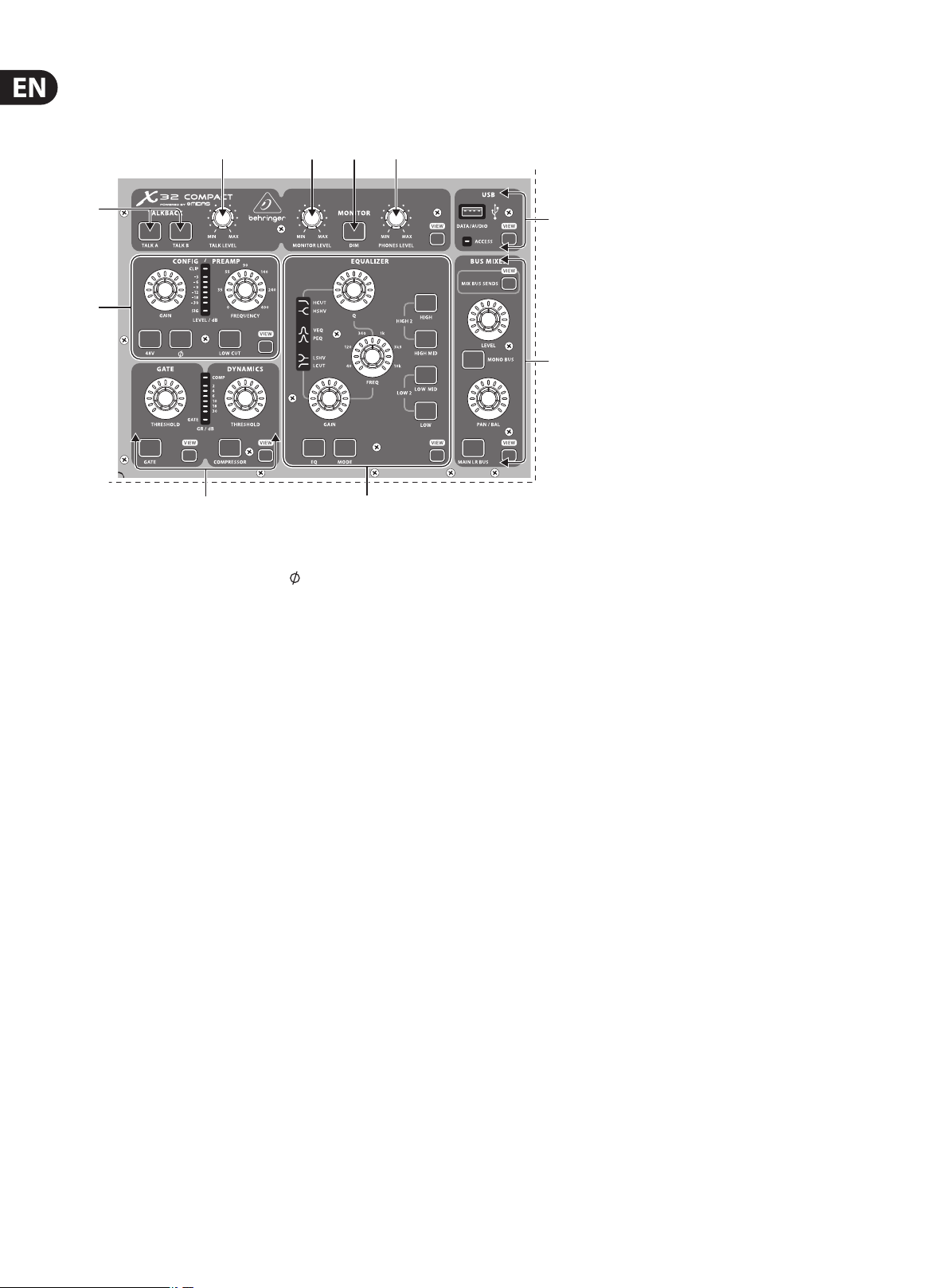
(1) Preamp – Adjust the preamp gain for the selected channel with the
Gainknob. Press the 48 V button to apply phantom power for use with
condenser microphones and press the button to reverse the channel’s
phase. The meter displays the selected channel’s level. Press the Low Cut
button and select the desired high-pass frequency to remove unwanted
lows. Press the View button to access more detailed parameters on the
MainDisplay. Note — It is best practice to mute the respective channels prior
to switching their phantom power supply on or o. Otherwise, the change
of charge may cause an audible popping noise. Gain adjustments might
also produce audible click noise when adjust shortly after having switched
phantom power on or o.
(2) Gate/Dynamics – Press the Gate/Ducker button to engage the noise gate
and adjust the threshold accordingly. Press the Comp/Exp button to engage
the compressor and adjust the threshold accordingly. When the signal level
in the meter drops below the selected Gate threshold, the noise gate will
silence the channel. When the signal level reaches the selected Dynamics
threshold, the peaks will be compressed. Press the View buttons to access
more parameters on the Main Display.
(3)
(4)
(5)
(4) USB Recorder – Connect a thumb drive to install rmware updates and to
record performances. See the Topic Guide section for details.
(5) Main Bus – Press the Mono Bus or Stereo Bus to assign the channel to the
main mono or stereo bus. When Stereo Bus is selected, the Pan/Bal adjusts
the left-to-right positioning. Adjust the overall send level to the Mono Bus
with the Level knob. Press the View button for more editing options.
(6) Talk A/ B – Select the destination for the talkback mic signal with these
buttons. Press the View button to edit the talkback routing for A and B.
(7) Talk Level – Adjust the level of the talkback mic with this knob.
(8) Monitor Level – Adjust the level of the Monitor outputs with this knob.
(9) Dim – Press this button to reduce the monitor volume. Press the View
button to adjust the amount of attenuation along with all other monitoringrelated functions.
(10) Phones Level – Adjust the volume of the headphone outputs, located
inside the left and right side caps.
(3) Equalizer – Press the Equalizer button to engage this section. Selectone
of the 4 frequenc y bands with the High, High Mid, Low Mid, and Low knobs.
Press the Mode but ton to cycle through the types of EQ available. Selectthe
specic frequency to be adjusted with the Freq knob, andadjust the bandwidth
of the EQ with the Q knob. Finally, boost or cut the selected frequency with the
Gain knob. Press the View button for more editingoptions.
13 X32 COMPACT DIGITAL MIXER User Manual
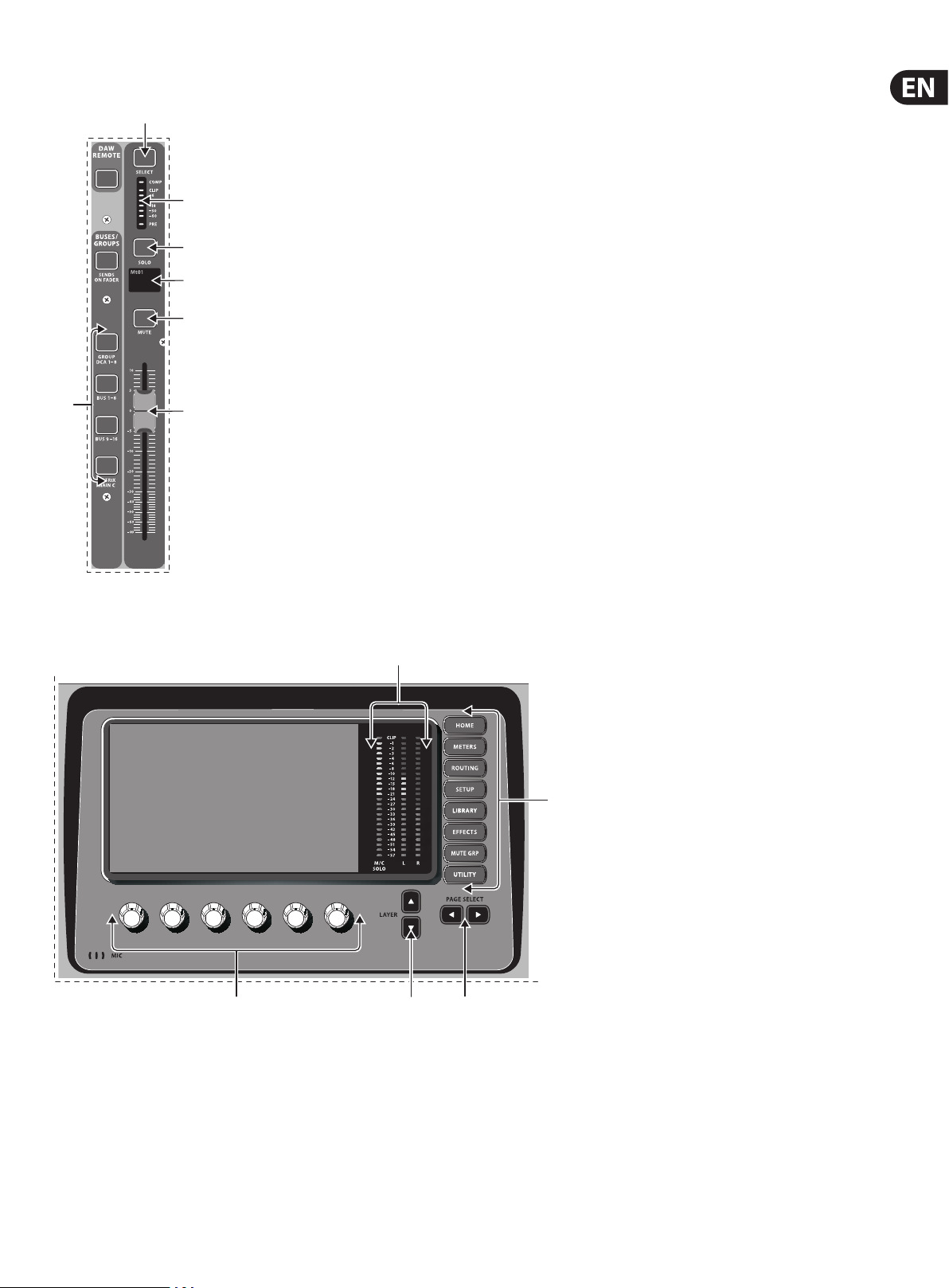
2.2 Input Channel Banks (11) Layer Select – Select either the channels 1-8, 9-16, 17-24,
25-32, Aux in 1-6/USB REC, Eects Returns, Bus 1-8, or Bus 9-16.
(12)
Thecurrently active layer will light.
(12) Select – Press this button to select an input or bus (depending which layer
is active) and allow it to be edited by the Channel Strip and Main Display.
(11)
2.3 Display
(13)
(14)
(15)
(16)
(17)
(13) Channel Meter – This displays the signal level of the input or bus
(depending which layer is active). The Gate and Comp LEDs light to indicate
that noise gate and/or compression are active.
(14) Solo – Press this button to send the channel to the Solo Bus.
(15) Mini Display – Information such as channel number,
nickname,inputsource and graphical icon are displayed on this
colorLCDscreen.
(16) Mute – Press this button to mute the channel.
(17) Fader – Use this to adjust the channel volume or bus send in ’Sends on
Faders’ mode. The faders will automatically display the current status as
layers and functions are changed.
(21)
(18) (19) (20)
(18) Push Encoders – These 6 controls adjust the parameters presented at the
bottom of the Main Display. The editable function will show a circular icon
in the display when continuous control is available. The function will show a
broad rectangular icon to indicate that a switch or toggle can be accessed by
pushing the encoder.
(19) Layer Buttons – Some screens in the Main Display have more than
6editable parameters which can be accessed by pressing the Layer Up or
Down buttons.
(22)
(20) Page Select Buttons – Use these to scroll through the available screens or
to conrm/decline certain actions.
(21) Main/Solo Meters – The main stereo output level is displayed here along
with the solo level of all channels whose Solo button is active.
(22) Category Select Buttons – Press one of these buttons to jump directly to
the subject you wish to edit or congure.
NOTE — See Chapter 7 for detailed descriptions of each screen.
14 X32 COMPACT DIGITAL MIXER User Manual
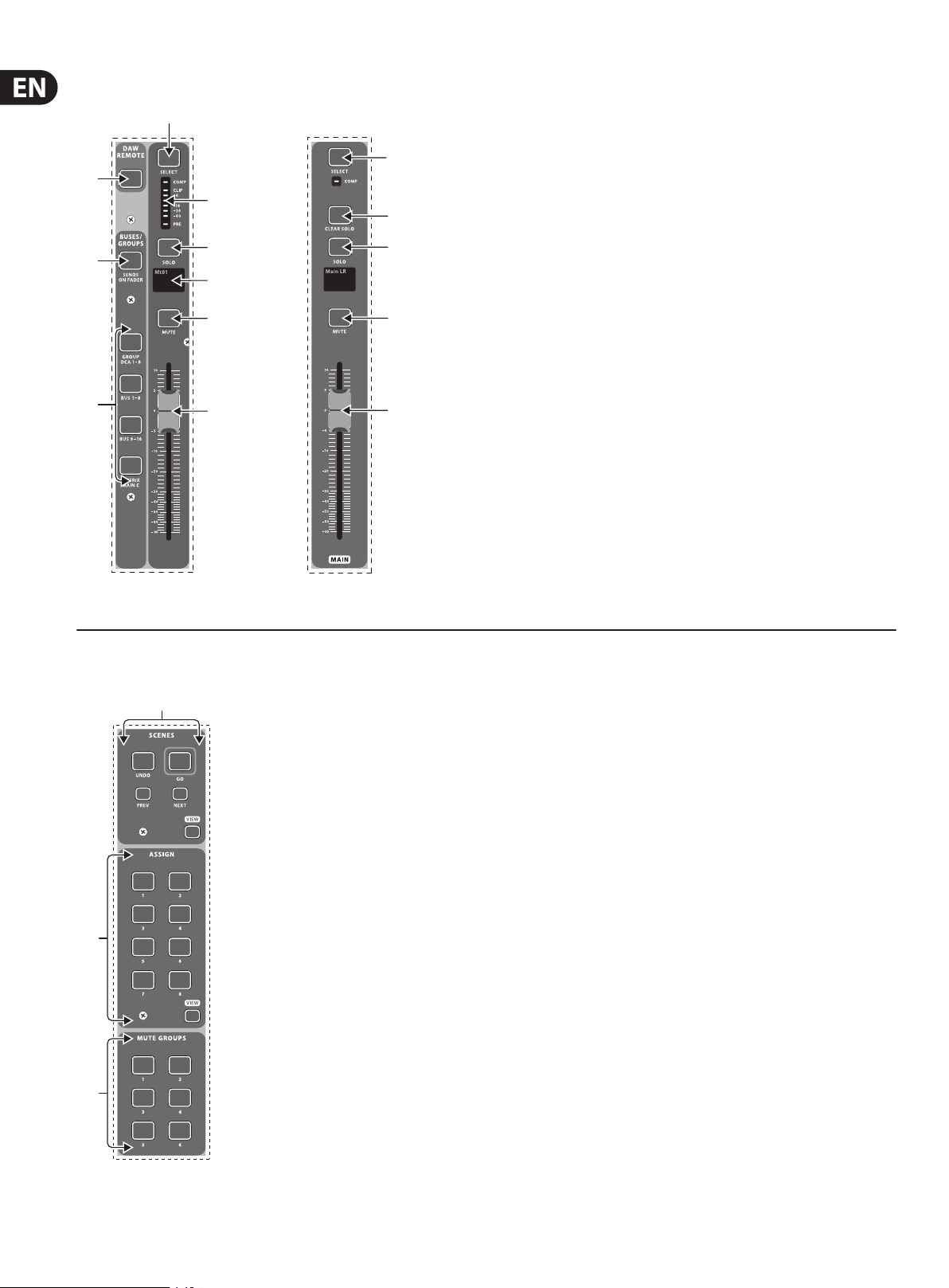
2.4 Group/Bus Banks (23) DAW Remote – Press this to enable DAW remote control.
(23)
(25)
(24)
(26)
(27)
(28)
(29)
(30)
(31)
(32)
(33)
(34)
(35)
(36)
(24) Group/Bus Layers – Select between DCA groups 1-8, Buses 1-8 or 9-16,
or Matrices 1-6 and the main center bus with these buttons. The currently
active layer will light.
(25) Sends on Faders – Press this button to activate the Sends on Faders
function. See the Topic Guide for more details.
(26) Select – Press this button to select a DCA or bus (depending which layer
isactive) and allow it to be edited by the Channel Strip and Main Display.
(27) Group/Bus Meter – This displays the signal level of the DCA or bus
(depending which layer is active). The Pre LED indicates that the bus is
sourced pre-fader, while the Comp LED indicates that compression is active.
(28) Solo – Press this button to solo the DCA or bus.
(29) Mini Display – Information such as matrix/bus number,
nickname, input source and graphical icon are displayed on this color
LCDscreen.
(30) Mute – Press this button to mute the DCA or bus.
(31) Fader – Use this to adjust the bus level. The faders will automatically display
the current status as layers and functions are changed.
(32) Main Select – Press this button to select the main bus for editing.
(33) Clear Solo – Press this button to release all sources assigned to the solobus.
(34) Main Solo – Press this button to solo the main bus.
(35) Main Mute – Press this button to mute the main bus.
(36) Main Fader – This fader adjusts the output of the main bus.
2.5 Scenes, Assign, Mute Groups (37) Mute Groups – Press one of these buttons to activate one of the mute
groups. See the Topic Guide for details.
(39)
(38) Custom Assign Buttons – Assign these 8 buttons to various parameters
for instant access to commonly used functions. See the TopicGuide
fordetails.
(39) Scenes Buttons – Use these buttons to select and activate saved scenes.
Seethe Topic Guide for details.
(38)
(37)
15 X32 COMPAC T DIGITAL MIXER User Manual
2.6 Rear Panel Connections
(46) (47) (40)
(42)
(45)
(41)
(43) (44)
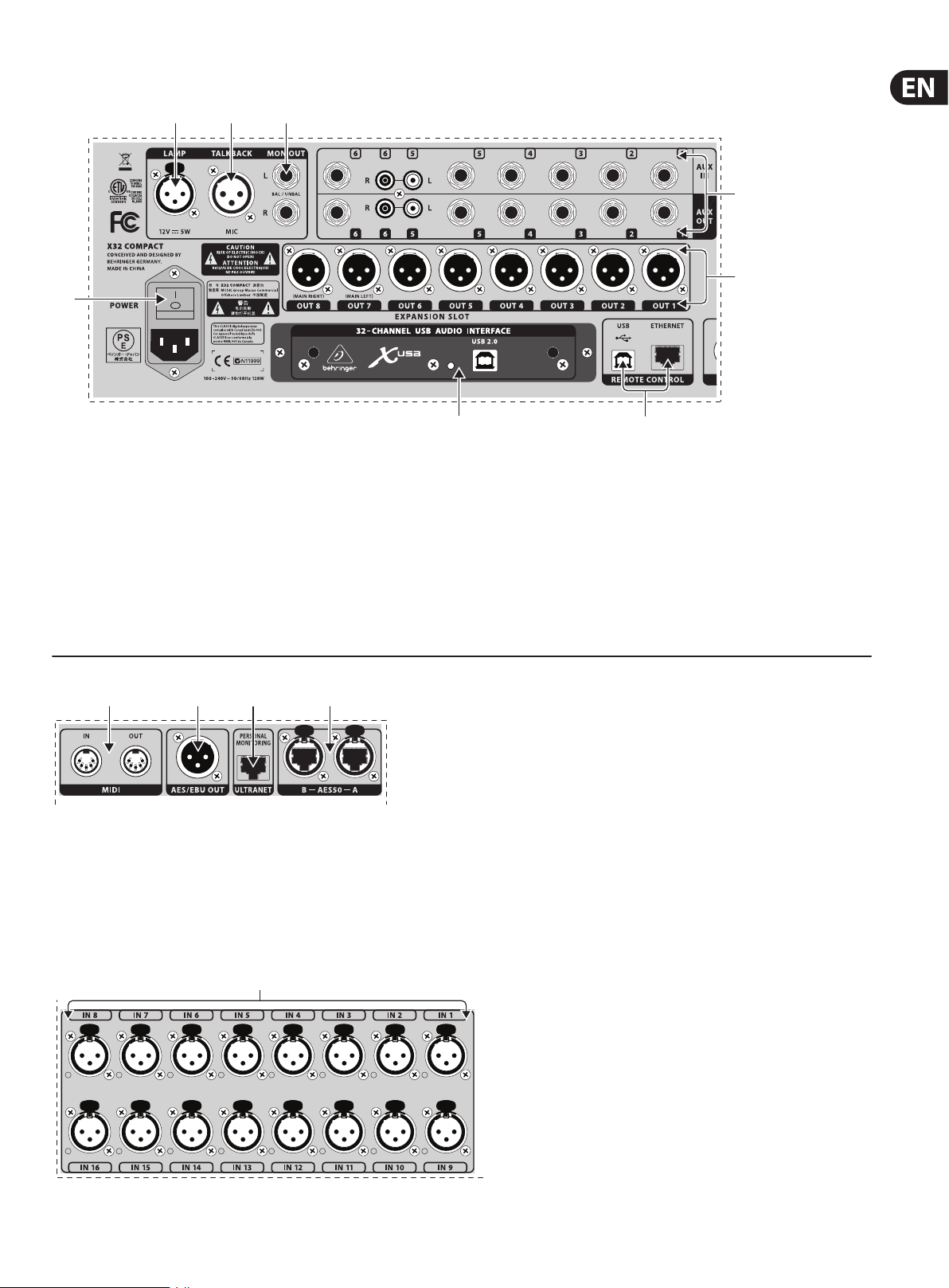
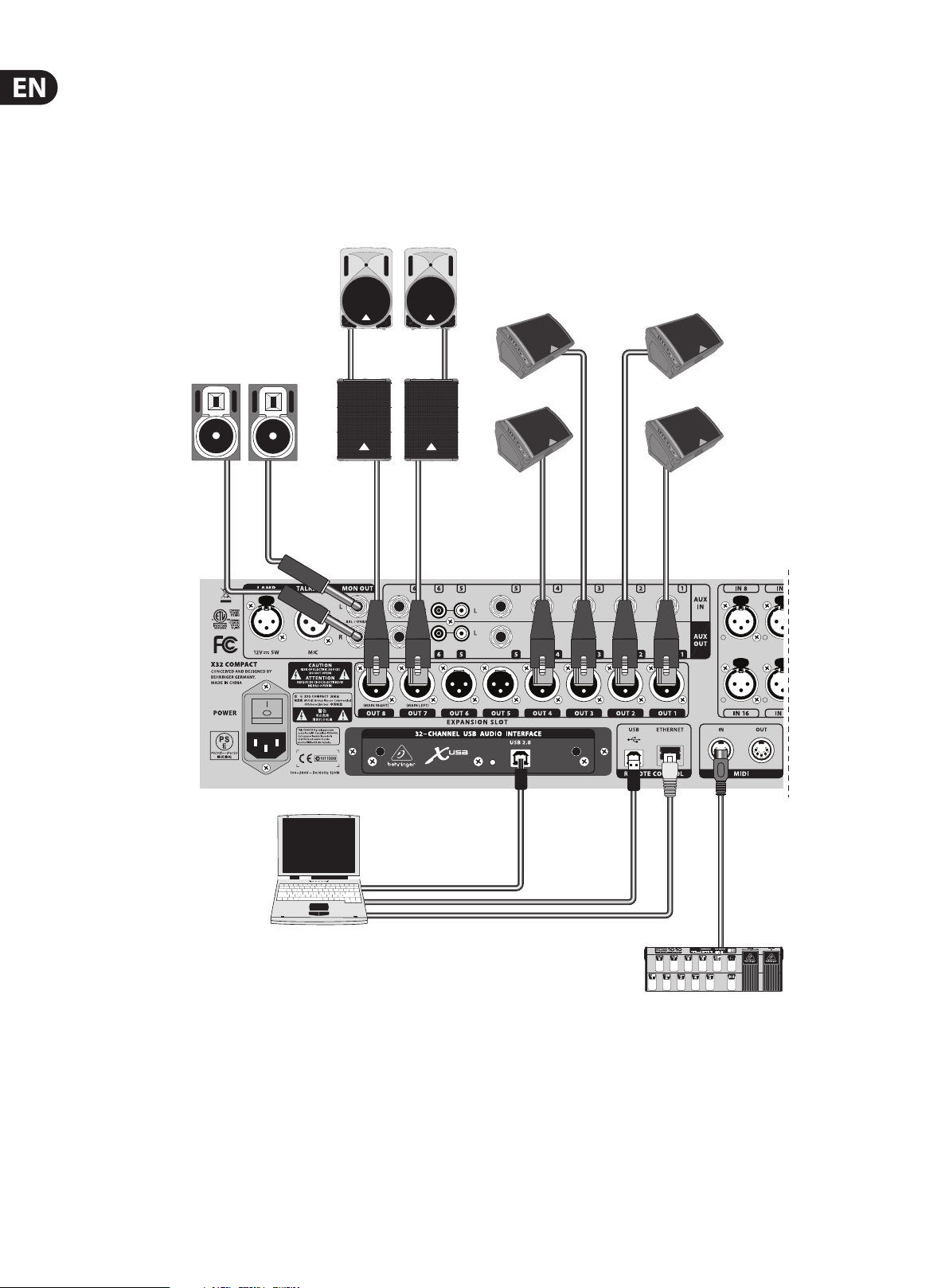
(40) MON OUT — Connect a pair of studio monitors using balanced ¼» cables.
(41) Outputs 1-8 – Send audio to external equipment using XLR cables.
Outputs 7 and 8, by default, carry the main stereo bus signals.
(42) Power Switch – Turn the power on and o with this switch.
(43) X-USB card – Transmit up to 32 channels of audio to and from a
computer via USB 2.0.
(44) Remote Control – Connect to a PC for remote control via USB or
Ethernetcable.
(48) (49) (50) (51)
(48) MIDI In/Out – Send and receive MIDI commands via 5-pin DIN cables.
(49) AES/EBU Out – Send digital audio via 3-pin AES/EBU XLR cable.
(50) Ultranet – Connect to a BEHRINGER P-16 personal monitoring system via
Ethernet cable.
(45) AUX IN/OUT – Connect to and from external equipment via ¼» or
RCA cables.
(46) Lamp Input – Connect a standard 12 V, 5 Watt gooseneck lamp here.
(47) Talkback Input – Connect a talkback mic via standard XLR cable to
this input.
(51) AES50 A/B – Transmit up to 96 channels in and out via shielded
CAT-5e cables.
(52)
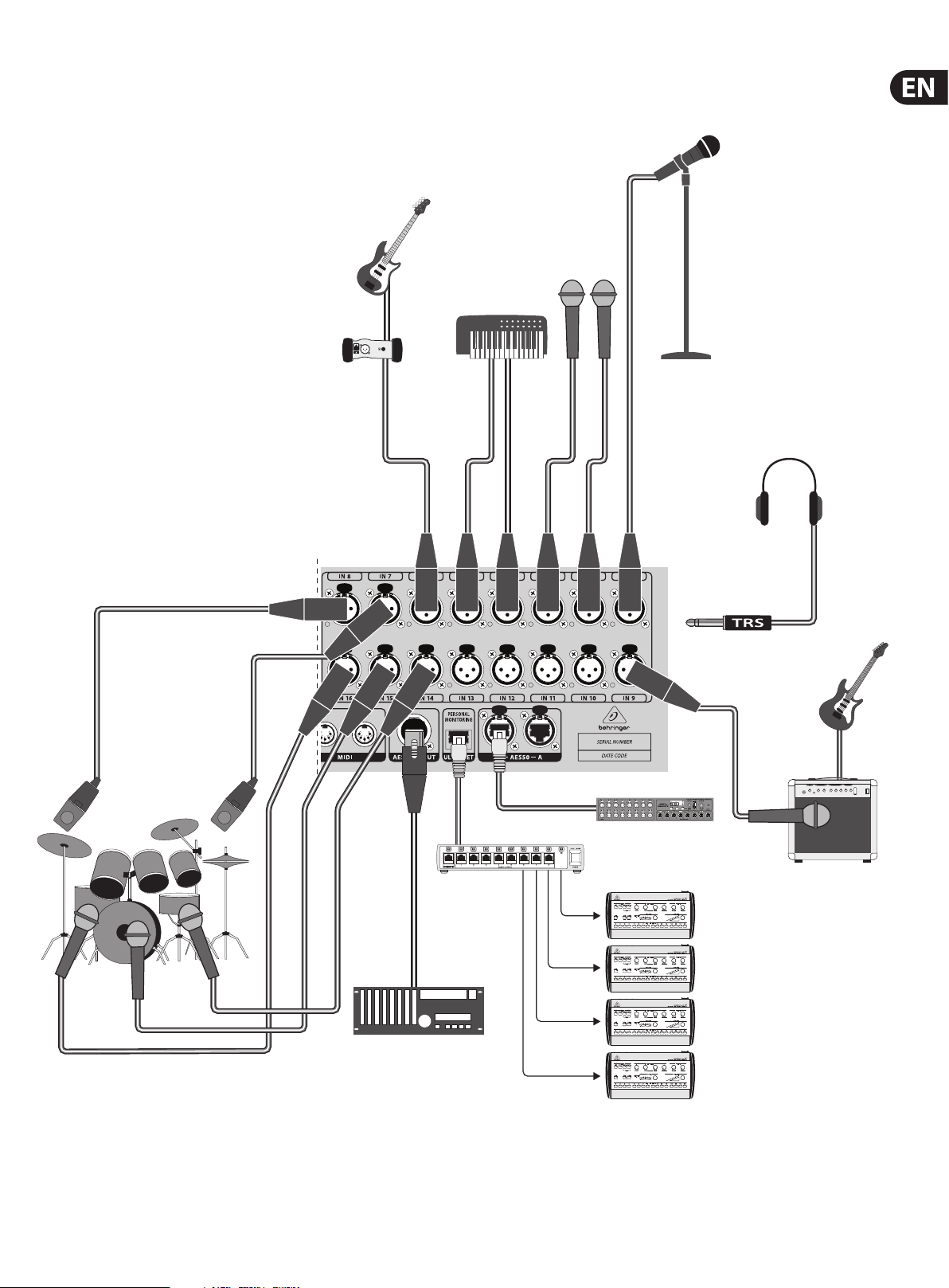
(52) In puts 1-16 – Connect audio sources via XLR cables.
16 X32 COMPACT DIGITAL MIXER User Manual
3. Hook-Up Diagrams
B215D
F1320D
B3031A
B1800D-PRO
Laptop
FCB1010 MIDI Pedal
17 X32 COMPACT DIGITAL MIXER User Manual
Keyboard
DI Box
XM8500
HPX6000
(Sidecap output)
P-16 D
2-TRACK HARD DISK RECORDER
Note — Shielded CAT-5e cable should always be used for AES50 connections
between X32 and S16 units.
S16 Digital Snake
GTX30
P-16 M

18 X32 COMPACT DIGITAL MIXER User Manual
4. FX Descriptions
FX Descriptions
Here is a list and brief description of the eects available on the X32 COMPACT.
WhenStereoand Dual versions of an eect are oered, use the Stereo version
when the left and right signal are to be altered together (e.g. on linked stereo
channels or buses), or Dual when you want to dial dierent settings for the left
and right signal. See the Topic Guide for instructions on how to add eects to a
channel orbus.
Stereo Precision Limiter
Stereo Precision Limiter allows you to set a precise volume limit,
ensuringdistortion-free, optimal signal integrity. Use X32’s Stereo Precision
Limiter to boost quiet signals or preventing clipping while preserving the level of
“hot”signals.
AUTOGAIN activates an additional long-term gain correction, allowing automatic
gain scaling of varying input level ranges. STEREO LINK applies limiting to both
channels equally when activated. INPUT GAIN provides up to 18 dB of gain to
the input signal prior to limiting. OUTPUT GAIN sets the nal gain level of the
processed signal. SQUEEZE adds compression to the signal to add punch and a
slight distortion depending on the amount you dial in. ATTACK sets the attack
time, ranging from 0.05 mS to 1 mS. RELEASE adjusts the release time from
0.05mS to 1.04 seconds. KNEE adjusts the sof t limiting threshold point from hard
limiting (0 dB) to maximum soft limiting (10 dB).
Triple Delay
Sometimes called a 3-Tap Delay, the Triple Delay provides three delay stages with
independent frequency, gain, and pan controls. Create time-based echo eects
with the Triple Delay to increase the sense of stereo separation.
TIME BASE sets the master delay time, which is also the delay time for the rst
stage. GAIN BASE sets the gain level of the rst stage of the delay. PAN BASE sets
the position of the rst delay stage in the stereo eld. LO CUT sets the frequency
at which the source signal can begin passing through the delay. HI CUT sets the
frequency at which the source signal no longer passes through the delay. X-FEED
indicates that stereo cross-feedback of the delays is active. MONO activates
a mono mix of both channels for the delay input. FEED adjusts the amount of
feedback. FACTOR A controls the amount of delay time in the second stage of
the delay. GAIN A controls the gain level of the second delay stage. PAN A sets
the position of the second delay stage in the stereo eld. FACTOR B controls the
amount of delay time in the third stage of the delay. GAIN B controls the gain
level of the third delay stage. PAN B sets the position of the third gain stage in the
stereo eld.
Ambience
Stereo Delay
Stereo Delay provides independent control of left and right delay (echo)
timesand features high and low pass lters for enhanced tone shaping of the
delayed signals. Use the Stereo Delay to give your mono signals a wide presence
in the stereo eld.
The MIX control lets you blend the source signal and the delayed signal.
TIMEadjusts the master delay time up to three seconds. LO CUT adjusts the low
frequency cut, allowing lower frequencies to remain unaected by the delay.
HI CUT adjusts the high frequency cut, allowing higher frequencies to remain
unaected by the delay. FACTOR L sets the delay on the left channel to rhythmic
fractions of the master delay time. FACTOR R sets the delay on the right channel
to rhythmic frac tions of the master delay time. OFFSET LR adds a delay dierence
between the lef t and right delayed signals. The FEED LO CUT/HI CUT adjusts lters
in the feedback paths. FEED L and FEED R control the amount of feedback for
the left and right channels. MODE sets the feedback mode: Mode ST sets normal
feedback for both channels, X crosses feedbacks between left and right channels.
M creates a mono mix within the feedback chain.
Ambience creates a customizable virtual acoustic space in which to place the
elements of a mix. Use Ambience to add warmth and depth without coloring the
direct sound. (Inspired by the Lexicon Ambience Algorithm)
PRE DELAY sets the time before the reverb follows the source signal.
DECAYadjusts the time it takes for the reverb to completely dissipate.
SIZEcontrols the room size emulation. DAMPING controls the high frequency
decay within the reverb tail. DIFFUSE controls the initial echo density. Level sets
the volume output of the aected signal. LO CUT adjusts the low frequency cut,
allowing lower frequencies to remain unaected by the reverb. HI CUT adjusts
the high frequency cut, allowing higher frequencies to remain unaected by the
reverb. MOD adjusts the level of reverb decay modulation. TAIL GAIN adjusts the
volume of the reverb tail.
Reverse Reverb
Reverse Reverb takes the trail of a reverb, turns it around, and places it in front
of the sound source. Use the swelling crescendo of the Reverse Reverb to add an
ethereal quality to vocal and snare tracks. (Inspired by the Lexicon 300/480L)
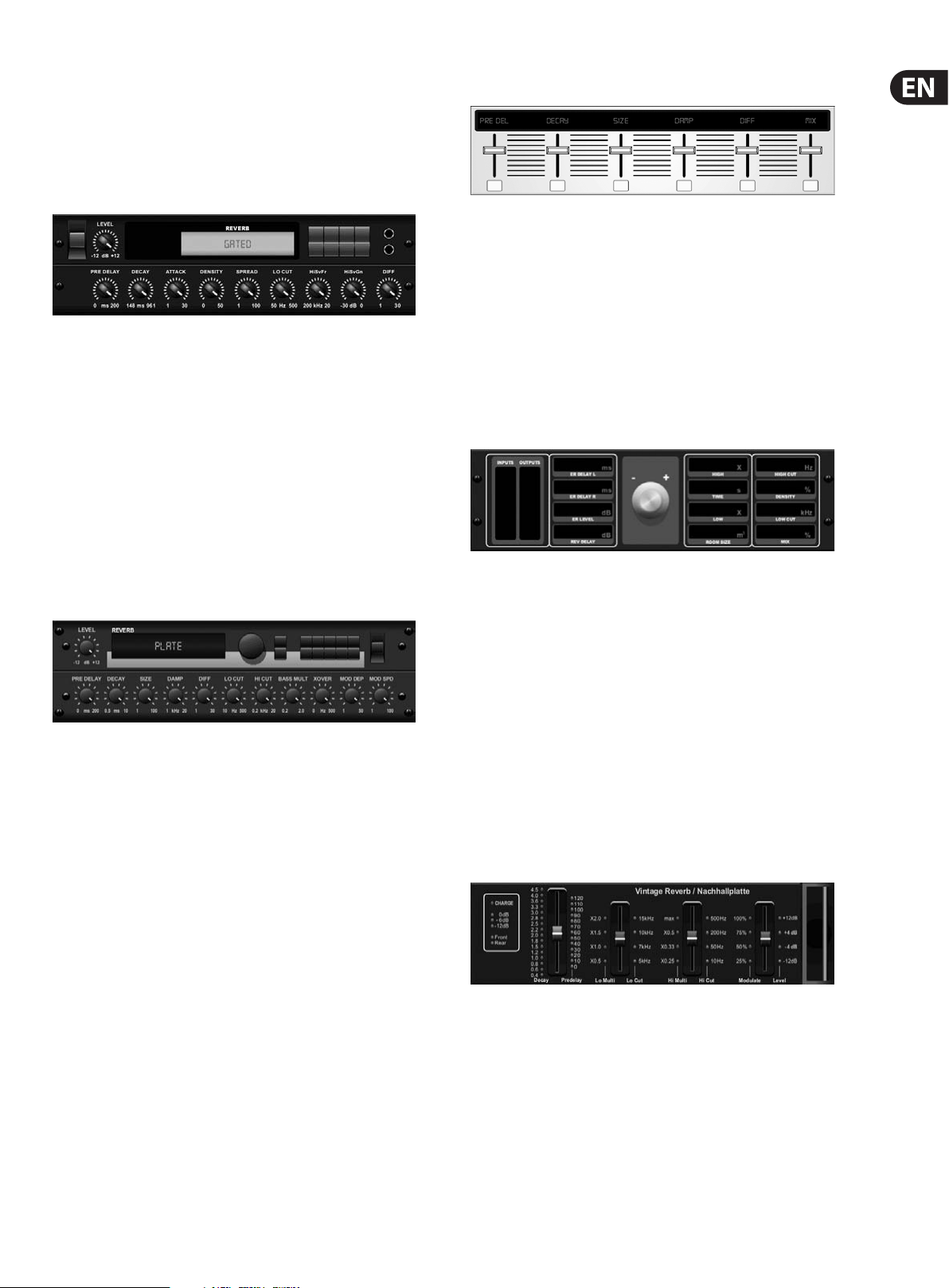
Adjusting the PRE DELAY knob adds up to 200 milliseconds of time before the
reverb follows the source signal. The DECAY knob adjusts the time it takes for
the reverb to completely dissipate. RISE controls how quickly the eec t builds
19 X32 COMPACT DIGITAL MIXER User Manual
up. DIFF(USION) controls the initial reection density. SPREAD controls how the
reection is distributed through the envelope of the reverb. The LO CUT knob
sets a low frequency beneath which the source signal will not pass through the
reverb. The HiSvFr/HiSvGn knobs adjust a Hi-Shelving lter at the input of the
reverb eect.
Gated Reverb
This eect was originally achieved by combining a reverb with a noise gate.
Ourgated reverb creates the same impression by a special shaping of the reverbtail.
Gated Reverb is especially eective for creating a 1980s-style snare sound or to
enlarge the presence of a kick drum. (Inspired by the Lexicon 300/480L)
PRE DELAY controls the amount of time before the reverberation is heard following
the source signal. DECAY controls the amount of time it takes for the reverb to
dissipate. ATTACK controls how fast the reection density builds up. DENSITY shapes
the reverb decay tail. The higher the density, the greater the number of sound
reections. SPREAD controls how the reec tion is distributed through the envelope
of the reverb. The LO CUT knob sets the frequency beneath which the source signal
will not pass through the reverb. The HiSvFr/ HiSvGn knobs adjust a Hi-Shelving lter
at the input of the reverb eect. DIFF(USION) controls the initial reection density.
Plate Reverb
Hall Reverb
Classic Hall Reverb simulates the reverberation that occurs w hen sound is
recorded in medium to large-sized concert halls. Use the Hall Reverb to give your
mix a lush, three-dimensional quality that will make your per formance sound
larger than life. (Inspired by the Lexicon Hall)
The PRE DELAY slider controls the amount of time before the reverberation is
heard following the source signal. DECAY controls the amount of time it takes for
the reverb to dissipate. SIZE controls the perceived size of the space being created
by the reverb eect. The DAMP slider adjusts the decay of high frequencies within
the reverb tail. DIFF(usion) controls the initial reection density. SHAPE adjusts
the contour of the reverberation envelope.
Vintage Room
Vintage Room simulates the reverberation that occurs when sound is recorded in
a small room. When you want to add a bit of warmth and just a touch of reverb,
X32’s Vintage Room breathes life into close-miced guitar and drum tracks.
(Inspired by the Quantec QRS)
A plate reverb was originally created by sending a signal through a transducer
to create vibrations on a plate of sheet metal which were then picked up as an
audio signal. Our algorithm simulates that sound with high initial diusion and a
bright colored sound. X32’s Plate Reverb will give your tracks the sound heard on
countless hit records since the late 1950s. (Inspired by the Lexicon PCM-70)
PRE DELAY controls the amount of time before the reverberation is heard
following the source signal. DECAY controls the amount of time it takes for the
reverb to dissipate. SIZE adjusts the size of the virtual room created by the reverb
eect. The DAMP knob adjusts the decay of high frequencies within the reverb
tail. DIFF(USION) controls the initial reection density. The LO CUT knob sets the
frequency beneath which the source signal will not pass through the reverb.
The HI CUT knob sets the frequency above which the source signal will not pass
through the reverb. The BASS MULT(IPLIER) knob adjusts the decay time of the
bass frequencies. XOVER controls the crossover point for bass. MOD DEPTH and
SPEED control the intensity and speed of the reverb tail modulation.
The VU meter displays the input and output levels. Set the early reection times
for the left and right channel with ER DELAY L and ER DELAY R. ER LEVEL sets the
loudness of the early reection level. REV DELAY controls the amount of time before
the reverberation is heard following the source signal. HI/LOW MULTIPLY adjusts the
decay time of the high and bass frequencies. TIME shows the duration of the reverb
eect. ROOM SIZE adjusts the size of the room eect being created incrementally
from small to large. HIGH CUT sets the frequency above which the source signal
does not pass through the reverb. DENSITY manipulates the reection density in the
simulated room. (This slightly changes the reverb decay time). LOW CUT sets the
frequency below which the source signal does not pass through the reverb.
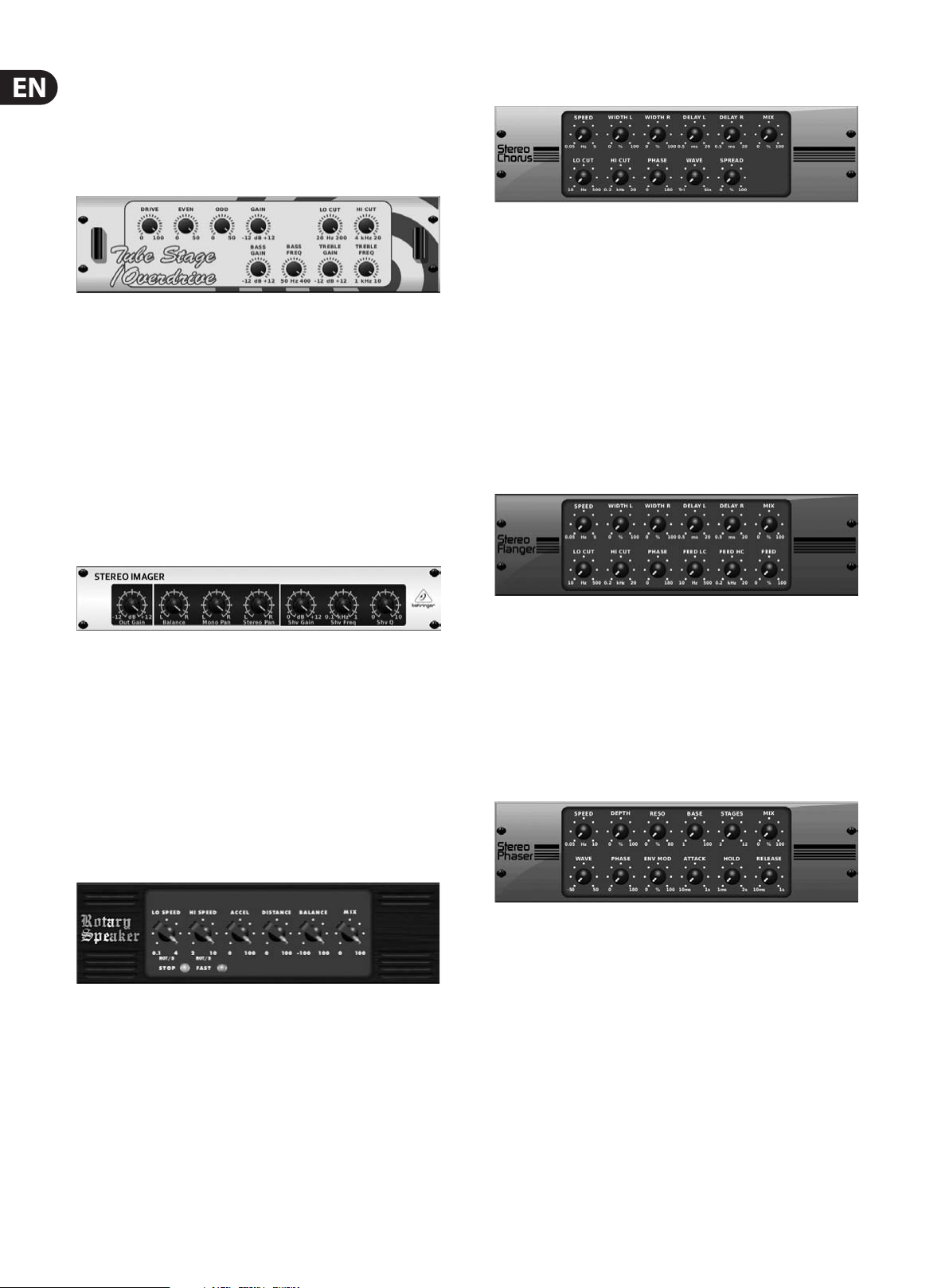
Vintage Reverb
Based on the legendar y EMT250, X32’s Vintage Reverb delivers shimmering
bright reverb that won’t drown out or overpower your live or recorded tracks.
UseVintage Reverb to sweeten vocals and snare drums without sacricing clarity.
When layer 1 is selected, the rst slider on the left sets the reverb time from
4milliseconds to 4.5 seconds. Slider 2 controls the low frequency multiplier
decay time. Slider 3 controls the high frequency multiplier decay time. Slider 4
controls the amount of modulation in the reverb tail. When layer two is selected,
slider1adjusts the pre delay. Slider 2 selects the low cut frequency. Slider 3
selects the Hi Cut frequency. Slider 4 adjusts the output level of the reverb.
20 X32 COMPACT DIGITAL MIXER User Manual
When Layer 1 is selected, the far left encoder push button allows you to select
between virtual front and rear outputs. Rear is suitable for drums due to it being
less reective. Front is well-suited for vocals and other dynamic instruments.
TheVintage button enables the simulation of the input transformers.
Stereo/Dual Tube Stage/Overdrive
Tube Stage/Overdrive is a versatile eect capable of emulating a variety of
modern and classic tube preamps. Available in stereo and dual-mono versions,
use Tube Stage/Overdrive to dial in warm and fuzzy sounds from subtle to
fullysaturated.
DRIVE adjusts the amount of harmonics being driven by the eect. EVEN and ODD
adjust the amount of even and odd harmonics. GAIN adjusts the output gain of
the eect. LO CUT sets the input frequency below which the source signal will not
pass through the eect. HI CUT sets the input frequency above which the input
signal will not pass through the eect. BASS GAIN/FREQ adjust a low shelving
lter at the output of the eect. TREBLE GAIN/FREQ adjust a high shelving lter at
the output of the eect.
Stereo Imager
Chorus / Stereo Chorus
Chorus samples the input, slightly detunes it and mixes it with the original
signal to produce a somewhat thicker, shimmering sound. Use it to thicken up
background vocals, or to double the sound of brass and woodwind instruments.
Where as DELAY L/R set the total amount of delay for the left and right channel,
WIDTH determines the amount of modulated delay. SPEED sets the modulation
speed. MIX adjusts the balance of the dry and wet signals. You can further sculpt
the sound by trimming some of the low and high end from the eected signal
with the LO and HI CUT knobs. Additionally, the PHASE knob can tweak the
phase oset of the LFO between lef t and right channel and the SPREAD knob
adjusts how much of the left channel is mixed into the right and vice versa.
Finally,theWAVE knob blends between the “Danish-style” digital triangular
chorus sound and the classic analog sine wave.
Flanger / Stereo Flanger
A Stereo Imager is typically used to control the placement of a signal within the
stereo eld during mixdown or mastering. Modeled after the BEHRINGER Edison
rack unit, X32’s Stereo Imager will lend a professional quality to your live and
recording performances.
The BALANCE knob allows you to emphasize the mono or stereo components
of the input signal. The mono and stereo signals can be panned independently
with the MONO PAN and STEREO PAN knobs. OUT GAIN is used to compensate for
level changes resulting from the eect. The phase can also be shif ted using the
shelving knobs. Select the frequency and bandwidth (Q) using the corresponding
knobs, then adjust the gain with the SHV GAIN knob.
Rotary Speaker
Rotary Speaker emulates the sound of a Leslie rotating speaker. X32’s Rotary
Speaker provides more exibility than its electro-mechanical counterpart,
andcan be used with a variety of instruments, and even vocals, to create a
whirling, psychedelic eect.
The LO SPEED and HI SPEED knobs adjust the rotational speed of the
SLOWandFAST Speed selection, and can be toggled with the FAST but ton.
TheACCEL(eration) knob adjusts how quickly the speed increases and decreases
from the Slow mode to the Fast mode. The rotation eect can also be disengaged
with the STOP button, which will stop the movement of the speakers.
The Flanger emulates the phase-shifting sound (comb-ltering)
originallycreated by applying pressure against the ange of the reel on a tape
recorder. This eect creates a unique “wobbly” sound that is quite dramatic when
used on vocals and instruments.
The controls of this eect are nearly identical to the Chorus eect block.
Additionally, the FEEDBACK can be adjusted with positive and negative amounts
and also band-limited with the FEED HC (high-cut) and FEED LC (low-cut) knobs.
Stereo Phaser
A Stereo Phaser, or phase shifter, applies multiple STAGES of modulated lters to
the input signal to create a “notch” in the frequency response, and then applies
a MIX with the original for a “swirling” eect. Use X32’s Stereo Phaser to add a
“spaced-out” sound to vocal or instrument tracks.
SPEED adjusts the LFO rate and DEPTH sets the LFO modulation depth.
The BASE knob adjusts the frequency range of the modulated lters.
Theresonance is adjusted with the RESO knob. The WAVE knob shapes the
symmetry of the LFO waveform and PHASE dials in an LFO phase dierence
between the lef t and right channel. The modulation source can also be the signal
envelope, which produces vowel-like opening and closing tones. The ENV MOD
knob adjusts how much this eect takes place (positive and negative modulation
is possible), and the ATTACK, HOLD and RELEASE knobs all tailor the response of
this feature.
DISTANCE adjusts the distance between the Rotary speakers and the
virtualmicrophone.
21 X32 COMPACT DIGITAL MIXER User Manual
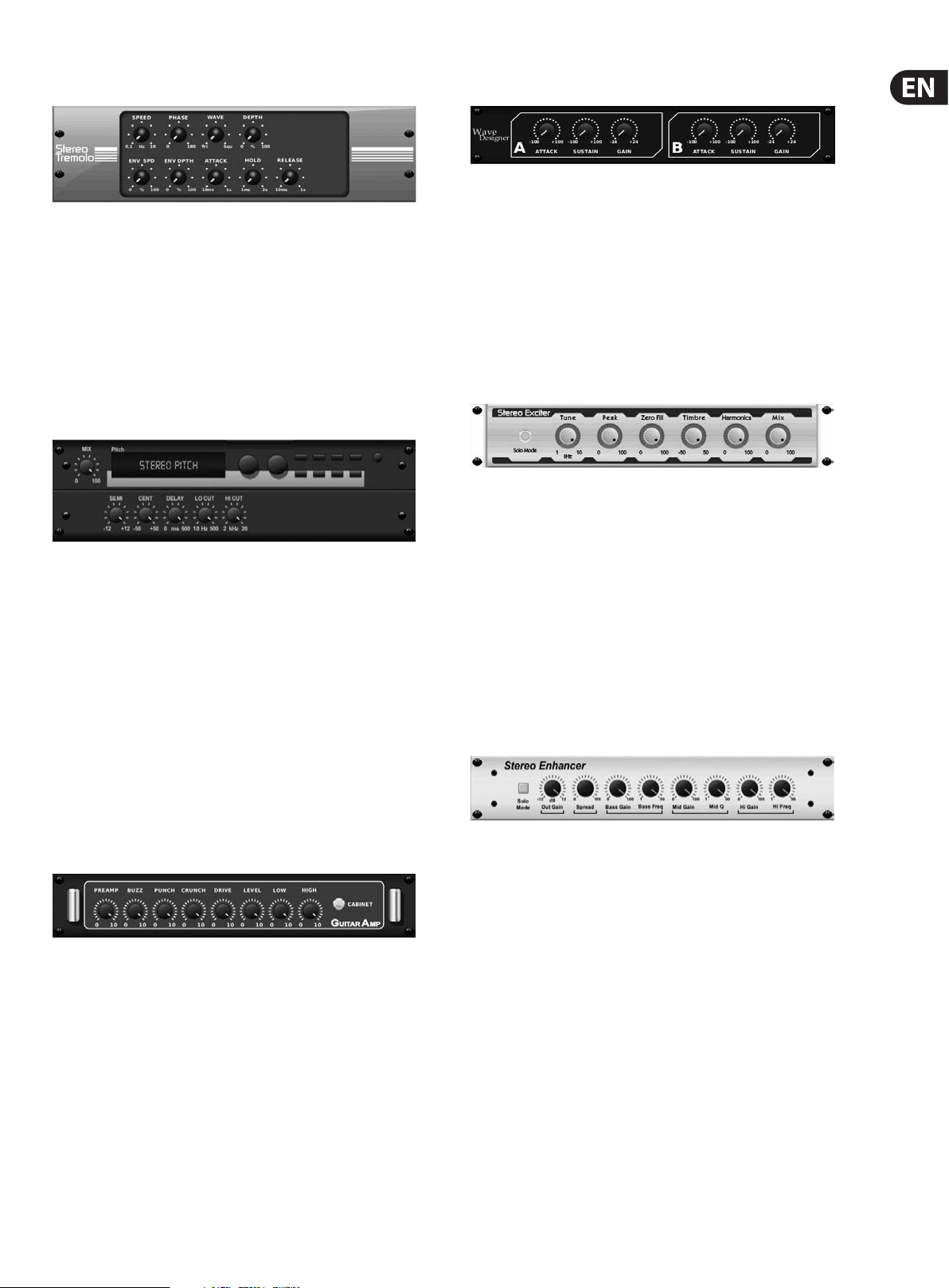
Tremolo / Panner
Stereo Tremolo creates an up and down volume change at a constant and even
tempo just like the guitar amps of yesteryear. Use X32’s Stereo Tremolo to add a
unique “surf-music” texture to a vocal or instrument track.
SPEED adjusts the LFO rate and DEPTH sets the amount of modulation.
PHASEcanbe used to set an LFO phase dierence between the left and right
channel, which can be used for panning eects. The WAVE knob blends the LFO
waveform between triangular and square shape. The signal envelope, shaped by
ATTACK, HOLD and RELEASE, can be used to modulate the LFO speed (ENV SPEED)
and the LFO modulation depth (ENV DEPTH).
Stereo / Dual Pitch
Pitch shifting is often used in two dierent ways. One is to set the Mix knob lower
and only use the Cent knob to make a small oset in pitch between the wet and
dry tones. This results in a “voice doubling” eect that thickens the overall sound
in a more subtle way. The extreme use of the eect is to turn the Mix knob fullyclockwise so the entire signal is eected. This way, the signal can be shifted into
other keys up to an octave above or below the original. When used on a voice,
this results in a “chipmunk” sound or a low Darth Vader eect.
When the SEMI and CENT knobs are set at 12:00, the pitch is not altered.
Makingadjustments by semitone will have a very pronounced eect,
whereaschanges to the CENT knob will be very minor. The DELAY knob creates a
time dierence between the wet and dry sound. The LO and HI CUT knobs allow
the eected signal to be band-limited. The Dual Pitch eect allows the left and
right channels to be adjusted independently, and allows GAIN compensation and
panning of the two channels.
Wave Designer
Wave Designer is a powerful tool for adjusting signal transients and dynamics,
such as attack and sustain. Use it to make a snare drum really “crack” in the
mix or level out volume inconsistencies of slap bass tracks. (Inspired by the SPL
Transient Designer)
Adjusting the ATTACK knob can add punch or tame overly dynamic signals.
Increasing the SUSTAIN knob acts in a similar way as a compressor, allowing the
peaks to carry longer before decay. The eect can also be used to reduce the
sustain for a more staccato sound. The GAIN knob compensates for level changes
caused by the eect.
Stereo Exciter / Dual Exciter
Exciters increase presence and intelligibility in live sound applications, and are
indispensable for adding clarity, air and harmonic overtones in the recording
studio. This eect is particularly useful for lling out the sound in dicult rooms
and for producing a more natural live/recorded sound. (Inspired by the famous
Aphex Aural Exciter)
Set the frequency of the side-chain lter with the TUNE knob, and fur ther shape
the lter slope with the PEAK and ZERO FILL knobs. Turning the TIMBRE knob
left of center adds more odd harmonics, while turning it right of center adds
more even harmonics. Adjust the harmonic content added to the signal with
the HARMONICS knob, and blend in the eected signal with the MIX knob.
Engagethe SOLO MODE to isolate only the audio resulting from the eect so you
can hear exactly what you’re adding to the mix.
Stereo Enhancer / Dual Enhancer
Stereo / Dual Guitar Amp
Modeled after the Tech 21 SansAmp, the Stereo / Dual Guitar Amp simulates the
sound of plugging into a real guitar amp. From shimmering cleans to saturated
crunch, X32’s Stereo / Dual Guitar Amp allows an electric guitar player to sound
great without using an amp on stage.
The PREAMP knob adjusts the amount of input gain prior to the band-specic
distortion adjustment. BUZZ adjusts the low-end breakup, PUNCH adjusts
the midrange distortion, and CRUNCH tailors the high-frequency content and
distortion for smooth or cutting notes. The DRIVE knob simulates the amount
of power amp distortion from a tube amp. The LOW and HIGH knobs allow
EQ adjustment independent of distortion content, and the overall output is
controlled by the LEVEL knob. The CABINET simulation can be bypassed if the
guitarist is already using a real cab, which allows the eec t to function like a
boost or distor tion pedal. The Dual Guitar Amp allows the left and right channels
to be adjusted independently.
X32’s Enhancers are so called “Psycho EQs”. They can enhance the signal
spectrum in bass, midrange and high frequencies but they dier from traditional
equalizers. When you need to generate maximum punch, clarity and detail,
without turning up the overall volume, our enhancers are the solution.
(Inspiredby the SPL Vitalizer)
Adjust the BASS, MID and HI GAIN knobs to add or reduce content in those
spectrums. The BASS and HI FREQuencies can be specically selected, while the
MID Q (bandwidth) can be adjusted instead. The OUT GAIN knob compensates for
changes in level resulting from the eect, and the SPREAD knob (Stereo version
only) emphasizes the stereo content for a wider mix. Engage the SOLO MODE
to isolate only the audio resulting from the eect so you can hear exactly what
you’re adding to the mix.
22 X32 COMPACT DIGITAL MIXER User Manual
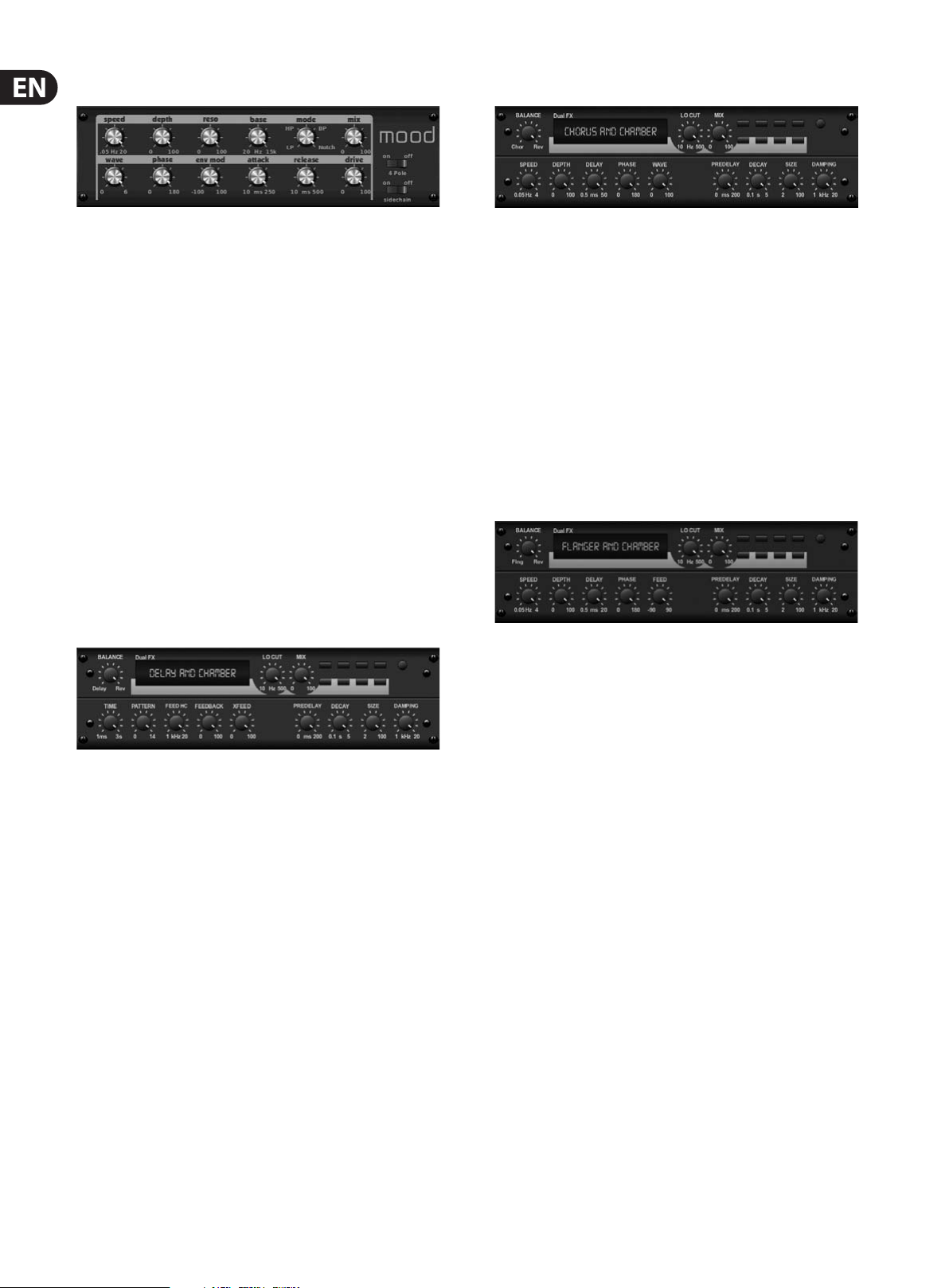
Mood Filter
The Mood Filter uses an LFO generator and an auto-envelope generator to control
a VCF (voltage-controlled lter), as well as a side chain function where the
channel B signal controls the envelope of channel A. When applied to elec tronic
instruments, the Mood Filter can be used to emulate the natural sound of
acoustic instruments. (Inspired by the MiniMoog)
This lter can be modulated with the signal’s envelope using the ENV MOD
(withpositive and negative amounts), ATTACK and RELEASE knobs, or the LFO
can modulate the lter. The WAVE knob selects between 7 dierent wave forms
– triangular, sine, saw plus, saw minus, ramp, square, and random. The PHASE
can be oset by up to 180 degrees. The SPEED knob adjusts the rate of the LFO
and the DEPTH adjusts the amount of LFO modulation. Adjust the resonance of
the lter until self-oscillation with the RESO(nance) knob. BASE adjusts the range
of the lter from 20 Hz to 15 kHz. The MODE switch selects between low pass
(LP), high-pass (HP), band-pass (BP) and Notch. Use the MIX knob to blend the
eected signal with the dry sound. With the 4 POLE switch engaged, therewill
be a steeper slope than the OFF (2 pole) setting. The DRIVE knob adjusts the
level and can also introduce an overdrive eect (as with real analogue lters)
ifpushed hard. In Sidechain mode, only the left input signal is processed and
fed to both outputs. The envelope of the right input signal can be used as a
modulationsource.
Chorus + Chamber
Taking up only one FX slot, the Chorus + Chamber eect combines the shimmer
and doubling characteristics of a studio-grade Chorus with the sweet sound of a
traditional Chamber reverb. (Reverb is Inspired by the Lexicon PCM 70)
The BALANCE knob adjusts the balance between chorus and reverb. Low
frequencies can be excluded with the LO CUT knob, and the MIX knob adjusts
how much of the eect is added to the signal. SPEED, DELAY and DEPTH adjust
the rate, delay, and modulation depth of the chorus. The LFO PHASE between lef t
and right channel can be oset by up to 180 degrees, and WAVE adjusts the LFO
waveform from a sine wave to triangular wave. The PREDELAY knob determines
the hesitation before the reverb aects the signal. The DECAY knob adjusts how
quickly the reverb fades. The SIZE controls how large or small the simulated
space is (room, cathedral, etc.). The DAMPING knob determines the decay of high
frequencies within the reverb tail.
Flanger + Chamber
Delay + Chamber
Here we have combined Delay and Chamber reverb, so a single device can provide
a variety of delay settings, plus add just the right type and amount of reverb to
the selected signal. This device only uses one FX slot. (The Reverb is Inspired by
the Lexicon PCM 70)
Use the BALANCE knob to adjust the ratio between delay and reverb.
Lowfrequencies can be excluded with the LO CUT knob, and the MIX adjusts
how much of the eect is added to the signal. The TIME knob adjusts the delay
time for the left channel delay, and the PATTERN sets the delay ratio for the
right channel delay. Adjust the FEEDBACK and trim some high frequencies with
the FEED HC (high-cut) knob. The XFEED knob allows you to send the delay
sound to the reverb eect, so instead of running completely parallel, the reverb
eects the echos to a selected degree. The PREDELAY knob determines the
hesitation before the reverb aects the signal. The DECAY knob adjusts how
quickly the reverb fades. The SIZE controls how large or small the simulated
space is (room,cathedral, etc.). The DAMPING knob determines the decay of high
frequencies within the reverb tail.
Add the mind-bending, lter-sweeping eect of a state-of-the-art Flanger to
the elegant sweetening of a traditional Chamber reverb—all in one FX slot.
(Reverbis Inspired by the Lexicon PCM 70)
The BALANCE knob adjusts the ratio between anger and reverb. Low frequencies
can be excluded with the LO CUT knob, and the MIX knob adjusts how much of
the eect is added to the signal. SPEED, DELAY and DEPTH adjust the rate, delay,
and modulation depth of the anger. FEEDback can be adjusted with positive and
negative amounts. The PHASE can be oset by up to 180 degrees. The PREDELAY
knob determines the hesitation before the reverb aects the signal. The DECAY
knob adjusts how quickly the reverb fades. The SIZE controls how large or small
the simulated space is (room, cathedral, etc.). The DAMPING knob determines the
decay of high frequencies within the reverb tail.
23 X32 COMPACT DIGITAL MIXER User Manual
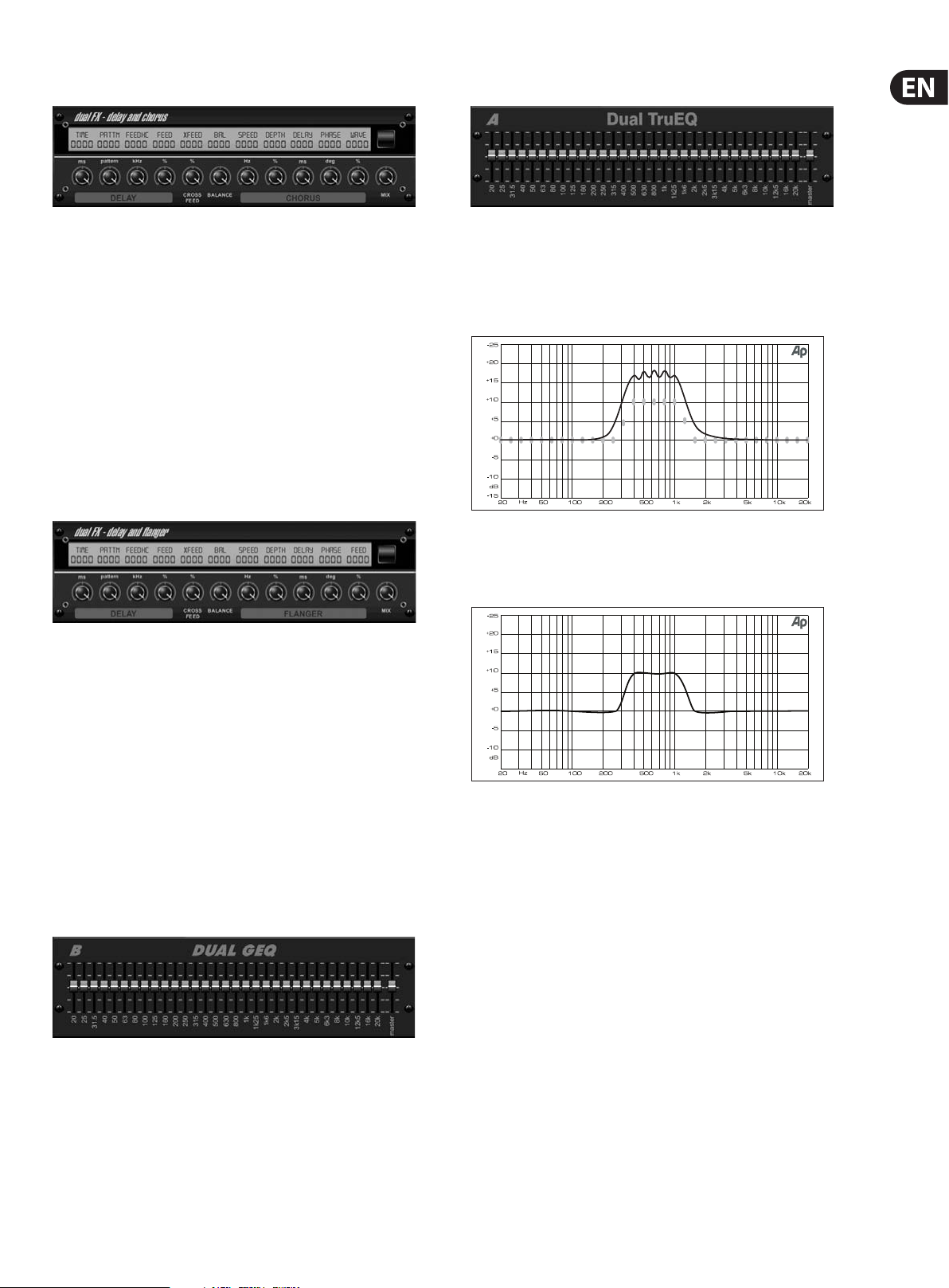
Delay + Chorus
This combination eect merges a user-denable Delay (echo) with a studioquality Chorus sure to fatten up even the “skinniest ” track. Uses only one FX slot.
(Inspired by the TC Electronic D-Two)
The TIME knob adjusts the delay time, and the PATTERN knob sets the delay ratio
for the right channel and negative values activate a cross feedback between
the two channels. The FEEDHC knob adjusts the delay high-cut frequency,
whilethe FEEDBACK knob adjusts the number of repeats. The X-FEED knob allows
you to send the delay sound to the chorus eect. The BALANCE knob adjusts
the ratio between delay and chorus. SPEED, DELAY and DEPTH adjust the rate,
delay,andmodulation depth of the chorus. The right channel LFO PHASE can be
oset by up to 180 degrees, and WAVE adjusts the chorus character by shaping
the LFO waveform from sine wave to triangular wave. Use the MIX knob to blend
the eected signal with the “dry” sound.
Delay + Flanger
Dual / Stereo TruEQ
The TruEQ incorporates a special algorithm that compensates for the gain
adjustment overlapping eect that adjacent frequency bands have on one
another. On a standard EQ, when neighboring bands are boosted together,
theresulting eect is magnied beyond what is visible from the positioning of
thesliders.
Graphic equalizer without frequency response corre ction.
This handy dynamic duo blends the “woosh” of soaring jet planes with classic
Delay, and can be adjusted from mild to wild. This combination eect only takes
up one FX slot. (Inspired by the TC Electronic D-Two)
The TIME knob adjusts the delay time, and the PATTERN knob sets the delay ratio
for the right channel and negative values activate a cross feedback between
the two channels. The FEEDHC knob adjusts the delay high-cut frequency,
whilethe FEEDBACK knob adjusts the number of repeats. The X-FEED knob
allows you to send the delay sound to the anger eect. The BALANCE knob
adjusts the ratio between delay and anger. SPEED, DELAY and DEPTH adjust the
rate, delay, andmodulation depth of the anger. The right channel LFO PHASE
can be oset by up to 180 degrees, and FEED (positive and negative amounts)
adjuststhe feedback eect. Use the MIX knob to blend the eected signal with
the “dry”sound.
Dual / Stereo GEQ
This compensated EQ will produce an adjustment that is identical to the actual
positioning of the sliders.
Graphic equalizer with frequency response correc tion.
These are standard graphic equalizers that provide 31 bands of adjustment
between 20 Hz and 20 kHz. A master volume slider compensates for changes in
volume caused by the equalization. A maximum boost or cut of 15 dB is available
for each band.
Loading…
- June 1, 2024
- Behringer
Table of Contents
- behringer X32 Compact Digital Mixer
- Product Information
- Product Usage Instructions
- Important Safety Instructions
- LIMITED WARRANTY
- Getting Started
- Mixer Operational Overview
- X32 COMPACT DIGITAL MIXER Block Diagram
- Specifications
- FEDERAL COMMUNICATIONS COMMISSION COMPLIANCE INFORMATION
- References
- Read User Manual Online (PDF format)
- Download This Manual (PDF format)

behringer X32 Compact Digital Mixer

Product Information
Specifications
- Product: X32 COMPACT DIGITAL MIXER
- Features: Compact 40-Input, 25-Bus Digital Mixing Console with 16 Programmable Midas Preamps, 17 Motorized Faders, Channel LCD’s, 32-Channel Audio Interface and iPad/iPhone Remote Control
- Version: V 11.0
Product Usage Instructions
Important Safety Instructions
- This symbol, wherever it appears, alerts you to the presence of uninsulated dangerous voltage inside the enclosure – voltage that may be sufficient to constitute a risk of shock.
- This symbol, wherever it appears, alerts you to important operating and maintenance instructions in the accompanying literature. Please read the manual.
- Caution To reduce the risk of electric shock, do not remove the top cover (or the rear section). No user serviceable parts inside. Refer servicing to qualified personnel.
- Caution To reduce the risk of fire or electric shock, do not expose this appliance to rain and moisture. The apparatus shall not be exposed to dripping or splashing liquids and no objects filled with liquids, such as vases, shall be placed on the apparatus.
Caution These service instructions are for use by qualified service personnel
only. To reduce the risk of electric shock do not perform any servicing other
than that contained in the operation instructions. Repairs have to be
performed by qualified service personnel.
- Read these instructions.
- Keep these instructions.
- Heed all warnings.
- Follow all instructions.
- Do not use this apparatus near water.
- Clean only with dry cloth.
- Do not block any ventilation openings. Install in accordance with the manufacturer’s instructions.
- Do not install near any heat sources such as radiators, heat registers, stoves, or other apparatus (including amplifiers) that produce heat
- Do not defeat the safety purpose of the polarized or grounding-type plug. A polarized plug has two blades with one wider than the other. A grounding-type plug has two blades and a third grounding prong. The wide blade or the third prong are provided for your safety. If the provided plug does not fit into your outlet, consult an electrician for replacement of the obsolete outlet.
- Protect the power cord from being walked on or pinched particularly at plugs, convenience receptacles, and the point where they exit from the apparatus.
- Use only attachments/accessories specified by the manufacturer
- Use only with the cart, stand, tripod, bracket, or table specified by the manufacturer, or sold with the apparatus. When a cart is used, use caution when moving the cart/apparatus combination to avoid injury from tip-over
- Unplug this apparatus during lightning storms or when unused for long periods of time
- Refer all servicing to qualified service personnel. Servicing is required when the apparatus has been damaged in any way, such as power supply cord or plug is damaged, liquid has been spilled or objects have fallen into the apparatus, the apparatus has been exposed to rain or moisture, does not operate normally, or has been dropped.
- The apparatus shall be connected to a MAINS socket outlet with a protective earthing connection.
- Where the MAINS plug or an appliance coupler is used as the disconnect device, the disconnect device shall remain readily operable.
Frequently Asked Questions (FAQ)
-
Q: Can I use this mixer without an iPad or iPhone?
A: Yes, you can still use the mixer without an iPad or iPhone by operating
it manually using the controls on the console. -
Q: How many audio channels can I record simultaneously through the 32-channel audio interface?
A: You can record up to 32 audio channels simultaneously through the audio
interface.
Quick Start Guide
X32 COMPACT DIGITAL MIXER
- Compact 40-Input, 25-Bus Digital Mixing Console with 16 Programmable Midas Preamps, 17 Motorized Faders, Channel LCD’s, 32-Channel
- Audio Interface and iPad/iPhone Remote Control
Important Safety Instructions
CAUTION RISK OF ELECTRIC SHOCK! DO NOT OPEN! ATTENTION RISQUE D’ÉLECTROCUTION
! NE PAS OUVRIR !
-
Terminals marked with this symbol carry electrical current of sufficient magnitude to constitute risk of electric shock. Use only high-quality professional speaker cables with ¼” TS or twist-locking plugs pre-installed. All other installation or modification should be performed only by qualified personnel.
-
This symbol, wherever it appears, alerts you to the presence of uninsulated dangerous voltage inside the enclosure – voltage that may be sufficient to constitute a risk of shock.
-
This symbol, wherever it appears, alerts you to important operating and maintenance instructions in the accompanying literature. Please read the manual.
-
Caution
To reduce the risk of electric shock, do not remove the top cover (or the rear
section). No user serviceable parts inside. Refer servicing to qualified
personnel. -
Caution
To reduce the risk of fire or electric shock, do not expose this appliance to
rain and moisture. The apparatus shall not be exposed to dripping or
splashing liquids and no objects filled with liquids, such as vases, shall be
placed on the apparatus. -
Caution
These service instructions are for use by qualified service personnel only. To
reduce the risk of electric shock do not perform any servicing other than that
contained in the operation instructions. Repairs have to be performed by
qualified service personnel.-
Read these instructions.
-
Keep these instructions.
-
Heed all warnings.
-
Follow all instructions.
-
Do not use this apparatus near water.
-
Clean only with dry cloth.
-
Do not block any ventilation openings. Install in accordance with the manufacturer’s instructions.
-
Do not install near any heat sources such as radiators, heat registers, stoves, or other apparatus (including amplifiers) that produce heat.
-
Do not defeat the safety purpose of the polarized or grounding-type plug. A polarized plug has two blades with one wider than the other. A grounding-type plug has two blades and a third grounding prong. The wide blade or the third prong are provided for your safety. If the provided plug does not fit into your outlet, consult an electrician for replacement of the obsolete outlet.
-
Protect the power cord from being walked on or pinched particularly at plugs, convenience receptacles, and the point where they exit from the apparatus.
-
Use only attachments/accessories specified by the manufacturer.
-
Use only with the cart, stand, tripod, bracket, or table specified by the manufacturer, or sold with the apparatus. When a cart is used, use caution when moving the cart/apparatus combination to avoid injury from tip-over.
-
Unplug this apparatus during lightning storms or when unused for long periods of time.
-
Refer all servicing to qualified service personnel. Servicing is required when the apparatus has been damaged in any way, such as power supply cord or plug is damaged, liquid has been spilled or objects have fallen into the apparatus, the apparatus has been exposed to rain or moisture, does not operate normally, or has been dropped.
-
The apparatus shall be connected to a MAINS socket outlet with a protective earthing connection.
-
Where the MAINS plug or an appliance coupler is used as the disconnect device, the disconnect device shall remain readily operable.
-
Correct disposal of this product: This symbol indicates that this product must not be disposed of with household waste, according to the WEEE Directive (2012/19/EU) and your national law. This product should be taken to a collection center licensed for the recycling of waste electrical and electronic equipment (EEE). The mishandling of this type of waste could have a possible negative impact on the environment and human health due to potentially hazardous substances that are generally associated with EEE. At the same time, your cooperation in the correct disposal of this product will contribute to the efficient use of natural resources.
For more information about where you can take your waste equipment for
recycling, please contact your local city office, or your household waste
collection service. -
Do not install in a confined space, such as a book case or similar unit.
-
Do not place naked flame sources, such as lighted candles, on the apparatus.
-
Please keep the environmental aspects of battery disposal in mind. Batteries must be disposed-of at a battery collection point.
-
This apparatus may be used in tropical and moderate climates up to 45°C.
-
LEGAL DISCLAIMER
Music Tribe accepts no liability for any loss which may be suffered by any
person who relies either wholly or in part upon any description, photograph,
or statement contained herein. Technical specifications, appearances and other
information are subject to change without notice. All trademarks are the
property of their respective owners. Midas, Klark Teknik, Lab Gruppen, Lake,
Tannoy, Turbosound, TC Electronic, TC Helicon, Behringer, Bugera, Aston
Microphones and Cool audio are trademarks or registered trademarks of Music
Tribe Global Brands Ltd. © Music Tribe Global Brands Ltd. 2023 All rights
reserved.
LIMITED WARRANTY
For the applicable warranty terms and conditions and additional information
regarding Music Tribe’s Limited Warranty, please see complete details online
at
community.musictribe.com/pages/support#warranty.
Getting Started
Mixer Operational Overview
Welcome to the X32 COMPACT digital mixing console Quick Start Guide! This
document will give you an overview of the basic operations of the mixer,
allowing you to get up and running quickly. While reading through the
information in this document, we encourage you to experiment with the
console’s different screens and controls. The console’s user interface was
designed to be extremely easy to navigate through and learn. In addition to
this Quick Start Guide, there is an English user manual available as a PDF
download from behringer.com.
General user interface operation
The X32 COMPACT user interface is divided into five major sections:
- Channel Strip and Monitoring
- Input Channels
- Display
- Group/Bus/Main Channels
- Scenes/Assign/Mute Groups
View buttons rule
-
Throughout the top panel of the console, you will find small buttons labeled View. Press these buttons to immediately switch the console’s large color display (known as the Main Display) to show information related to the section whose View button you have just pressed.
-
For example, if you are editing the equalizer and feel like seeing a large display of the EQ frequency response curve or corresponding EQ parameter value, simply press the adjacent View button in the EQ section. If you need to check where the monitor signal is being routed, simply press the View button next to the Phones Level knob and the main display will show the details.
-
With the View button approach of the X32 COMPACT console, there is almost never a need to drill down through multiple menu pages, since the View buttons will always take you directly to the relevant screen.
-
Tip: The Setup/Global tab on the main display allows preferences for the behavior of View and Select buttons to be adjusted.
-
Customizing the X32 COMPACT through the Utilities page
-
Press the Utility button, located to the right of the main display, to bring up useful functions in a “context-sensitive” manner. For example:
-
When you are adjusting the equalizer of a console channel, pressing the Utility button will offer copying, pasting, loading or saving of equalizer settings
-
Pressing the Utility button while holding a channel select button depressed will present a naming screen where you can customize the channel’s appearance on both the main display as well as the small channel display
-
On the Routing pages, pressing the Utility button will offer loading or saving different presets of routing scenarios
-
In the Scenes menu, pressing the Utility button offers copying, loading, saving or naming console scenes
-
Sometimes there is more to say
Some of the individual pages Dir 05 on the main display contain Dir 06 more
adjustable parameters than can be controlled by the 6 rotary push encoders
located beneath it. In these cases there is a small page number indication,
e.g. “1/2”. Simply press the Layer Up/Down buttons to switch between layers.

Section 1: Channel Strip and Monitoring
- The X32 COMPACT’s channel strip offers dedicated controls for the most important processing parameters of the currently selected channel.
- To adjust controls for a given channel strip, simply press the Select button on the desired input or output channel.
- Certain sections of the channel strip (such as the low cut filter, noise gate, EQ and compressor) contain a respectively labeled button that can be pressed to switch the specific effect on and off.
- The button illuminates to show the effect is active, and goes dark when bypassed.
- Within the channel strip, the rotary control knobs are surrounded by an amber LED collar that indicates the parameter’s value. Whenever this backlit knob is turned off, it indicates that this specific control/parameter is not available for the selected channel type. For example, if an output bus is currently selected, the LED collar and the gain knob are turned off, because there is no input gain to be controlled on an output bus.
- The channel strip consists of the following sub-sections:
- Config/Preamp
- Gate, Dynamics
- Equalizer
- Main Bus
- Each of these subsections corresponds to the processing steps of the currently selected channel, and they each have their own View button that, when pressed, switches the Main Display to a page displaying all related parameters for that subsection.
Monitoring and Talkback
-
There are two separate Level controls in this section, one for the headphone outputs located on either side of the console, and a second one for the monitor outputs located on the rear panel.
-
Press the section’s View button to edit various monitoring preferences, such as the input source for the phones bus and the monitor outputs.
-
This section also contains independent Talkback buttons (A and B). Press the View button next to the Phones Level knob, then press Page Select right to access the Talkback A and B edit pages. These screens also contain settings for the optional goose-neck lamp and the console’s internal test-tone generator.

-
Section 2: Input Channel Banks
-
You will find a select button on top of every channel that is used to direct the control focus of the
user interface, including all channel related parameters (channel strip and
main display), to that channel. Please note that at any time, there is exactly
one channel selected (either Input Ch 1-32, -
Aux 1-6/USB, FX Returns 1L-4R, Mix Bus 1-16, Main LR/C, or Matrix 1-6). DCA Groups (digitally controlled amplifier) cannot be selected because they control a number of assigned channels rather than one specific channel.
-
The Input Channels section of the console is located on the left-hand side, and offers 8 separate input channel strips. These 8 channel strips represent six separate layers of inputs for the console, including:
- Input Channels 1-8
- Input Channels 9-16
- Input Channels 17-24
- Input Channels 25-32
- Aux Inputs 1-6/USB playback
- Effects Returns
-
Press any of the correspondingly labeled layer buttons on the left side of the console to switch the input channel bank to any of the six layers listed above. The button will illuminate, reminding you which layer is active.
-
Two more layers (Bus Master 1-8 and 9-16)
are also offered, allowing you to adjust the levels of the 16 Mix Bus Masters,
which is useful when you wish to include Bus Masters into -
DCA Group assignments.
-
On each fader strip you will find a motorized 100 mm level fader, Mute and Solo buttons, a Gate indicator, an input level meter, Compressor indicator, and the channel select button.
-
Each of the 8 input channels has an individual (and customizable) color LCD screen that can display a channel number, nickname, and even a graphical channel icon. In the event that a channel’s input source has been changed to an input signal that differs from the default setup, the LCD display will also indicate the name of the actual input source.

Example: Channel 01 has the nickname Soundcard and is fed from Aux input
5.

Section 3: Main Display Area
-
The main color display presents information about various sections of the console. It can be switched to different screens using the console’s View buttons, as well as any of the 8 buttons on the right side of the display.
-
The top section of the main display permanently covers useful status information. The top left corner shows the selected channel number, its nickname and the selected icon. The next block shows the current scene number and name in amber, as well as the next upcoming scene. The center section displays the playback file name along with elapsed and remaining time and a recorder status icon. The next block to the right has 4 segments to show the status of AES50 ports A and B, the Card slot and the audio clock synchronization source and sample rate (top right). Small green square indicators show proper connectivity. The right most block shows the console time that can be set under Setup/Config.
-
When working with any given screen, press the Page keys located on the display bezel to switch to different screen pages.
-
Editing parameters or settings on each of the screens is done using the 6 associated push-encoders along the bottom edge of the display.
-
Whenever there is a continuous control or list entry, you can turn the corresponding knob for editing, which is indicated by various circular icons
-
When there is a switch or toggle function on one of these knobs, you will see a broad rectangular button along the lower edge of the field. Pressing the encoder changes the on/off state of the corresponding function. When the rectangular button in the display is dark grey, the corresponding function is off/inactive; when it is amber, the function is on/active
-
Section 4: Group/Bus Channel Banks
This section of the console offers eight channel strips, divided into the
following layers:- Eight DCA (digitally controlled amplifier) groups
- Mix Bus masters 1-8
- Mix Bus masters 9-16
- Matrix Outputs 1-6, and the main center bus
-
This section also contains a main LR output fader, which is independent and always available no matter which channel bank or layer is active.
-
When using the DCA Groups layer, the DCA Groups can be soloed and muted, but they cannot be selected. To edit the DCA group names, icons and colors, navigate to the Setup/DCA Groups page on the main display. DCA group names, icons and color can also be edited by pressing the Utility and
-
Select button concurrently. Once the Setup/scribble strip page is open you can directly select any other channel for editing its layout in the same run.
-
When using any of the output bus layers, note that the bottom LEDs on the meters in this section illuminate when the respective bus is fed from pre-fader sources of the selected channel.


Section 5: Various Assignments (DCA groups, mute groups, custom assignable
controls)
Assigning DCA Groups
-
The “Sends on Faders” Function The X32 console features a very useful function that can be accessed by pressing the dedicated Sends on Faders button, located between the two fader sections.
-
The Sends on Faders function aids with level setting of channels sent to any of the 16 Mix Buses. It is only for channels assigned to Mix Buses 1-16, and does NOT work for DCA groups, main or matrix buses. The Sends on Faders function works in two convenient ways to cover the most obvious situations in a live sound environment :
-
When preparing a monitor mix for a specific musician
- Select the monitor bus (1-8, 9-16) that feeds the talent’s stage monitor
- Press the Sends on Faders button; it will illuminate
- Select one of the six input channel layers
- As long as the Sends on Faders is active, all faders in the input channels section (located on the left side of the console) correspond to the send levels to the selected (monitor) mix bus
-
When checking/editing where a selected input signal is (to be) sent to
- Select the input channel in the left section
- Press the Sends on Faders button; it will illuminate
- Select either bus channel layer 1-8 or 9-16
- The bus faders (located on right side of the console) now represent the send levels from the selected input channel (located on the left side of the console)
- The option to use Sends on Faders in both ways, selecting an input or an output channel, is a special feature of the X32.
-
Routing I/O
-
The X32 COMPACT console features 16 analog rear-panel XLR inputs with microphone preamps, as well as 8 rear-panel XLR Outputs and 6 TRS Aux Sends and Returns. In addition, there are two AES50 ports, each featuring 48 input and output channels, and a card slot for 32 channels of input and output to and from a connected computer via USB 2.0.
-
Input Signals can be attached to the console’s internal audio processing engine in blocks of 8 signals from any one of the aforementioned input sources.
-
Note: All signal blocks patched to the audio processing will be connected to the corresponding input channels automatically. Local inputs 17-24 and 25-32 are listed with brackets, indicating that these are not physically available on this device. Assigning these will obviously carry no signal, but they can still be used when preparing shows for a full X32 console.
-
-
Cabling for all AES50 connections between X32 and S16 stage boxes:
- Shielded CAT-5e cable
- Ethercon terminated cable ends
- Maximum cable length 100 meters (330 feet)


Output Signals can be freely assigned from any internal signal to any of the
following outputs:
-
8 analog local XLR outputs (with adjustable digital delay for time-alignment of speakers)
-
8 virtual outputs (marked with *) for routing over AES50 or card outputs
-
6 auxiliary sends on ¼” TRS outputs + 2x AES/EBU outputs
-
16 channels personal monitoring using the console’s P-16 Bus output connector
-
Any and all of the above signals can also be mirrored in blocks of 8 signals on either one of
-
The configuration of Mix Bus Channels 1-16 can be pre-set (in the Setup/Global page) or can also be configured on an individual, per-channel basis. The bus processing includes (in this order):
- Insert point (swappable between post-EQ and pre-EQ operation)
- 6-band fully parametric EQ
- Compressor/expander (swappable between post-EQ and pre-EQ operation)
- Bus sends to 6 matrices
- Main LR panning
- Mono/Center level
-
Main Bus Channels LR/C are always available and independent from Mix Buses. The processing steps for this signal path include (in this order):
- Insert point (swappable between post-EQ and pre-EQ operation)
- 6-band fully parametric EQ
- Compressor/expander (swappable between post-EQ and pre-EQ operation)
- Bus sends to 6 matrices
-
Matrix Channels 1-6 are fed exclusively by MAIN LRC and Mix Bus 1-16 signals. The processing steps include (in this order):|
- Insert point (swappable between post-EQ and pre-EQ operation)
- 6-band fully parametric EQ
- Compressor/expander (swappable between post-EQ and pre-EQ operation)
-
Effects Processing 1-8
The X32 COMPACT console contains eight true-stereo internal effects engines.- FX 1-4 can be configured as side chain or insert effects, while FX 5-8 can only be used in insert points of channels or buses
- The returns of side chain FX 1-4 can always be controlled using the 6th bank (layer) of the input channels – Effects Returns. Note that the return signals of FX 1-4 have separate faders for left and right
- The FX Home screen allows selection of the
- FX 1-4 input sources and selecting the effects type/algorithm for each of the 8 FX slots of the virtual rack
- The subsequent tabs FX 1-FX 8 of the FX screen allow editing all parameters of the chosen effects processor

iPad App for X32 COMPACT
- Many functions of the X32 COMPACT console can be remotely controlled by a dedicated iPad app. Details about the app’s download, setup and operation are included in a separate user manual available for download from the X32 COMPACT product page.
- The app’s User Interface is optimized for the touchscreen nature of the iPad device and provides many useful remote features of the console. Using the app, you can perform functions such as adjusting monitor mixes from the stage while interacting with musicians, or adjusting the front-of-house mix from the audience, while hearing the mix exactly as the audience does. Windows-based application and Linux/ OS X application for X32 COMPACT
- Also offered is a separate remote editor running on host computers that will allow for complete editing control of the X32 COMPACT via Ethernet. Details of the remote editor’s download, setup and operation are included in a separate user manual available for download from the X32 COMPACT product page. Check out behringer.com for more information.
- Tip: The X32 COMPACT remote communication is OSC-based (open sound control) and we will share the protocol on our website, allowing developers to design their own control software. Stay tuned to behringer.com for details on the OSC protocol.
- X-USB card
- The X-USB card allows transmission of up to 32 channels to and from a connected computer. Please download the X-USB drivers and
- Quick Start Guide from behringer.com before connecting the mixer to your computer.
Startup and Shutdown, and Update:
- We recommend switching the X32 COMPACT mixer on first, and shutting it off last when any sound system is connected. This will prevent the possibility of any unexpected noises being transmitted during the startup/shutdown process.
- The Setup screen’s general preference page contains a Safe Main Levels function. When activated, the console automatically mutes the main LRC levels when booting the console. It also prevents any scene loading from affecting (i.e. turning up) the mains levels.
- Synchronization and Sample Rate settings for the console can be adjusted on the Setup/Config page, but please note that sample rate changes will require a reboot of the console. When you see a red square indication at the top section of the main display, please verify if the synchronization settings on Setup/Config make sense (see section 3).
- If the console has been used by someone else, and you feel unsure about its specific routing status, you can reset the X32 COMPACT to default settings in two convenient ways:
- While the console is booting and the “X32” logo appears on the screen, press and hold the Scenes/Undo button until the console is fully operational and the Home screen is displayed. The console will now be in the same state as it was when shipped from the factory. However, you can immediately revert to the status the console was in when being switched off the last time by pressing the Scenes/Undo button
- You can also reset the console any time after booting by pressing Setup/Config, then Initialize
- NOTE: Initializing the console does not automatically erase the current show data or any stored scenes. If you wish to clear all scenes, please use the ‘Initialize All Show Data’ option on Setup/Config page.
- In order to prevent any errors by losing power during a store operation, we recommend using the “Safe Shutdown” function from the Setup/Global page.
- NOTE: The X32 COMPACT can be locked against unintended use by activating ‘Lock Console’ from the Setup/Global page. In this state the UI will not allow any changes to be made and the display shows “X”. Keep HOME depressed for about 5s to unlock the X32 again.
- The X32 firmware can easily be updated by performing the following steps:
- Download the new console firmware from the X32 COMPACT product page onto the root level of a USB thumb drive
- Plug the USB thumb drive into the top panel USB connector while the console is turned off
- Hold the USB View button depressed while switching the console on. While booting, the X32 COMPACT will run a fully automatic firmware update, which will take 2-3 minutes longer than the regular boot sequence
- When no update file is available on the USB drive, or when it is corrupted, the update mode will remain active, preventing the X32 from booting regularly. Switch the console off and back on without holding the USB View button to boot the console with the existing firmware.
- CAUTION : Please do not block the fan opening on the bottom of the X32 COMPACT cabinet! The large slow-turning fan is barely audible, but it is still working. Specifically when mounting the X32 COMPACT in a road case, please ensure there is sufficient space underneath to allow for some airflow.

X32 COMPACT DIGITAL MIXER Block Diagram


Specifications
Processing
Number of processing channels| 32 input channels, 8 aux channels, 8 FX return
channels, 16 aux buses, 6 matrices, main LRC
—|—
Internal effects engines, true stereo / mono| 8 / 16
Internal total recall scenes (incl. preamp and fader)| 100
Signal processing| 40-bit floating point
A/D-D/A conversion (Cirrus Logic A/D CS5368, D/A CS4385)| 24-bit @ 44.1 / 48
kHz, 114 dB dynamic range
Local I/O latency (local in > console processing > local out)| 0.8 ms
Network I/O latency (stage box in > console processing > stage box out)| 1.1
ms
Connectors
| XLR inputs, programmable mic preamps, designed by Midas | 16 |
|---|---|
| Talkback mic input, XLR | 1 external (plus internal mic) |
| RCA inputs/outputs | 2/2 |
| XLR outputs | 8 |
| Monitoring outputs ¼” TRS balanced | 2 |
| Aux inputs/outputs, ¼” TRS balanced | 6/6 |
| Phones outputs, ¼” TRS | 2 (stereo) |
| Digital AES/EBU output, XLR | 1 |
| AES50 ports, SuperMAC | 2 |
| Expansion card slot | 32 channel audio input/output, various standards |
| P-16 connector, Ultranet (no power supplied) | 1 |
| MIDI inputs / outputs | 1/1 |
| Ethernet, RJ45, rear panel, for remote control | 1 |
| USB Type A, top panel, for audio and data export/import | 1 |
| USB Type B, rear panel, for system updates | 1 |
Input Characteristics
| Preamp design | Midas |
|---|---|
| THD + noise, 20 dB gain, 0 dBu out | < 0.006% A-weighted |
| Input impedance XLR jack, unbale. / bal. | 5 kΩ / 10 kΩ |
| Non clip maximum input level, XLR | +23 dBu |
| Phantom power, switchable per input | 48 V |
| Equivalent input noise level, XLR (input shorted) | -128 dBu |
| CMRR, XLR, @ 20 dB gain (typical) | > 70 dB |
| CMRR, XLR, @ 40 dB gain | > 80 dB |
Input/Output Characteristics
| Frequency range, @ 48 kHz sample rate, 0 dB to -1 dB | 10 Hz – 22 kHz |
|---|---|
| Dynamic range, analog in to analog out (typical) | 106 dB |
| A/D dynamic range, preamp to converter (typical) | 109 dB |
| D/A dynamic range, converter and output | 108 dB |
| Cross talk rejection @ 1 kHz, adjacent channels | 100 dB |
| Output level, XLR, nom./max. | +4 dBu / +21 dBu |
| Output impedance, XLR, unbal. / bal. | 75 Ω / 75 Ω |
| Input impedance TRS jack, unbal. / bal. | 20 kΩ / 40 kΩ |
| Non clip maximum input level, TRS | +16 dBu |
| Nominal output level, TRS | +4 dBu / +16 dBu |
| Output impedance, TRS, unbal. / bal. | 150 Ω / 300 Ω |
| Phones output impedance / level | 40 Ω / +25 dBm (stereo) |
| Residual noise level, XLR and TRS | -87 dBu (A-weighted) |
Display
| Main screen | 7″, 800 x 480, 262k color TFT |
|---|---|
| Channel LCD screen (17 pcs) | 128 x 64, LCD with RGB color backlight |
| Main meter | 24-segment (-57 dB to clip) |
Power
| Switch-mode power supply | Auto range 100-240 V (50/60 Hz) |
|---|---|
| Power consumption | 120 W |
Physical
| Standard operating temperature range | 5°C – 45°C (41°F – 113°F) |
|---|---|
| Dimensions | 215 x 625 x 510 mm (8.5 x 24.6 x 20″) |
| Weight | 15.4 kg (33.9 lbs) |
including all channel and bus processing, excluding insert effects and line
delays
iPhone, iPad, and OS X are trademarks of Apple Inc., registered in the US and
other countries. Windows is a registered trademark of Microsoft Corporation in
the United States and other countries. Linux is a registered trademark of
Linus Torvalds.
WARNING
- Do not ingest battery, Chemical Burn Hazard
- This product contains a coin / button cell battery. If the coin / button cell battery is swallowed, it can cause severe internal burns in just 2 hours and can lead to death.
- Keep new and used batteries away from children.
- If the battery compartment does not close securely, stop using the product and keep it away from children.
- If you think batteries might have been swallowed or placed inside any part of the body, seek immediate medical attention.
- Replacement of a battery with an incorrect type that can defeat a safeguard! Replace only with the same or equivalent type!
- Leaving a battery in an extremely high temperature surrounding environment that can result in an explosion or the leakage of flammable liquid or gas; and
- A battery subjected to extremely low air pressure that may result in an explosion or the leakage of flammable liquid or gas.
- Attention should be drawn to the environmental aspects of battery disposal.
Important information
- Register online. Please register your new Music Tribe equipment right after you purchase it by visiting musictribe.com. Registering your purchase using our simple online form helps us to process your repair claims more quickly and efficiently. Also, read the terms and conditions of our warranty, if applicable.
- Malfunction. Should your Music Tribe Authorized Reseller not be located in your vicinity, you may contact the Music Tribe Authorized Fulfiller for your country listed under “Support” at musictribe.com. Should your country not be listed, please check if your problem can be dealt with by our “Online Support” which may also be found under “Support” at musictribe.com. Alternatively, please submit an online warranty claim at musictribe.com BEFORE returning the product.
- Power Connections. Before plugging the unit into a power socket, please make sure you are using the correct mains voltage for your particular model. Faulty fuses must be replaced with fuses of the same type and rating without exception.
FEDERAL COMMUNICATIONS COMMISSION COMPLIANCE INFORMATION
Behringer
X32 COMPACT DIGITAL MIXER
- Responsible Party Name: Music Tribe Commercial NV Inc.
- Address: 122 E. 42nd St.1,
- 8th Floor NY, NY 10168,
- United States
- Email Address: legal@musictribe.com
X32 COMPACT DIGITAL MIXER
- This equipment has been tested and found to comply with the limits for a Class A digital device, pursuant to part 15 of the FCC Rules. These limits are designed to provide reasonable protection against harmful interference when the equipment is operated in a commercial environment. This equipment generates, uses, and can radiate radio frequency energy and, if not installed and used in accordance with the instruction manual, may cause harmful interference to radio communications. Operation of this equipment in a residential area is likely to cause harmful interference in which case the user will be required to correct the interference at his own expense.
- This equipment complies with Part 15 of the FCC rules.
Operation is subject to the following two conditions
- This device may not cause harmful interference, and
- This device must accept any interference received, including interference that may cause undesired operation.
Warning: Operation of this equipment in a residential environment could
cause radio interference.
Important information
Changes or modifications to the equipment not expressly approved by Music
Tribe can void the user’s authority to use the equipment.
Hereby, Music Tribe declares that this product is in compliance with Directive
2014/35/EU, Directive 2014/30/EU, Directive 2011/65/EU and Amendment
2015/863/EU, Directive 2012/19/EU, Regulation 519/2012 REACH SVHC and
Directive 1907/2006/EC.
- Full text of EU DoC is available at https://community.musictribe.com/
- EU Representative : Music Tribe Brands DK A/S
- Address : Gammel Strand 44, DK-1202 København K, Denmark
- UK Representative : Music Tribe Brands UK Ltd.
- Address : 8th Floor, 20 Farringdon Street London EC4A 4AB, United Kingdom
We Hear You
References
- Behringer | Home
- Music Tribe
- Music Tribe
- Music Tribe
- Music Tribe
- Music Tribe
Read User Manual Online (PDF format)
Read User Manual Online (PDF format) >>
Download This Manual (PDF format)
Download this manual >>
[pdf]
Quick Start Guide Guide Warranty
FEEL Prod Grap PH Artwork P0AWN QSG CN A4 2017 02 Rev 1 indd mark vicente Behringer X32 RACK Quick Start Guide Chinese x32 rack qsg cn synthmanuals manuals behringer quick start guide chinese |||
X32 RACK DIGITAL MIXER 40 , 25 , 16 MIDAS , USB iPad/iPhone 2 X32 RACK DIGITAL MIXER TS 1. 2. 3. 4. 5. 6. 7. 8. 9. 10. 11. 12. 13. 14. 15. 16. 17. 2000 MUSIC Group MIDAS, KL…
lang:en score:42 filesize: 3.32 M page_count: 10 document date: 2017-02-03
[pdf]
Quick Start Guide Guide Warranty
FEEL Prod Grap PH Artwork P0AAP QSG CN A4 2017 01 30 Rev 2 indd mark vicente Behringer X32 COMPACT Quick Start Guide Chinese x32 compact qsg cn midimanuals manuals behringer quick start guide chinese |||
X32 COMPACT DIGITAL MIXER 40 , 25 , 16 MIDAS , 17 , LCD , 32 iPad/iPhone 2 X32 COMPACT DIGITAL MIXER TS 1. 2. 3. 4. 5. 6. 7. 8. 9. 10. 11. 12. 13. 14. 15. 16. 17. 2000 MUSIC…
lang:de score:42 filesize: 4.31 M page_count: 9 document date: 2017-01-30
[pdf]
Quick Start Guide Guide Warranty
X LIVE BEHRINGER Quick Start Guide X32 Expansion Card for 32 Channel Live Recording Playback on SD SDHC Cards and USB Audio MIDI Interface x live qsg cn synthmanuals manuals behringer quick start guide chinese midimanuals
Quick Start Guide X-LIVE X32 Expansion Card for 32-Channel Live Recording/Playback on SD/SDHC Cards and USB Audio/MIDI Interface 2 X-LIVE , TS , , , , , , , , 1. 2. 3. 4. 5. 6. 7. 8. , , 9. , 10. , , 11. 12. , , , …
lang:af score:42 filesize: 1.65 M page_count: 7 document date: 2017-08-16
[pdf]
Quick Start Guide Guide Warranty
X LIVE BEHRINGER Synth Manuals synthmanuals X32 Expansion Card for 32 Channel Live Recording Playback on SD SDHC Cards and USB Audio MIDI Interface Quick Start Guide x live qsg jp manuals behringer quick start guide japanese midimanuals QSG JP media music group PLM data docs P0AWR
Quick Start Guide X-LIVE X32 Expansion Card for 32-Channel Live Recording/Playback on SD/SDHC Cards and USB Audio/MIDI Interface 2 X-LIVE TS 1. 2. 3. 4. 5. 6. 7. 8. 9. 10. 11. 12. 13. 14. 15. …
lang:nl score:42 filesize: 1.6 M page_count: 9 document date: 2017-08-16
[pdf]
User Manual Quick Start Guide Instructions Guide Warranty
P0AWN X32 RACK BEHRINGER DIGITAL MIXER Quick Start Guide Check out behringer for Full Manual 40-Input 25-Bus Digital Rack Mixer with 16 Programmable MIDAS Preamps USB Audio Interface and iPad iPhone Remote Control 2 3 Important Safety Instructions LEGAL DISCLAIMER LIMITED WARRANTY original media s-bol qP7xmN0q73R
Quick Start Guide Check out behringer.com for Full Manual X32 RACK DIGITAL MIXER 40-Input, 25-Bus Digital Rack Mixer with 16 Programmable MIDAS Preamps, USB Audio Interface and iPad/iPhone Remote Control 2 X32 RACK DIGITAL MIXER Important Safety Instructions Terminals marked with this symbol ca…
lang:en score:41 filesize: 5.33 M page_count: 27 document date: 2020-05-02
[pdf]
User Manual Quick Start Guide Instructions Guide
Provided by ManualsAndMore Download User Manual Behringer X32 Quick Start behringer x32 quick start manual 3 manualsandmore |||
Quick Start Guide Check out behringer.com for Full Manual X32 PRODUCER DIGITAL MIXER 40-Input, 25-Bus Rack-Mountable Digital Mixing Console with 16 Programmable MIDAS Preamps, 17 Motorized Faders, 32-Channel Audio Interface and iPad/iPhone Remote Control 2 X32 PRODUCER DIGITAL MIXER Important S…
lang:en score:36 filesize: 2.56 M page_count: 15 document date: 2019-07-24
[pdf]
User Manual
untitled Manual Usuario Behringer X32 TP MANUAL INSTRUCCIONES BEHRINGER madridhifi crm documents produit 9 7 10144779 photos 1 |||
AUDIOMEDIA GEAR OF THE YEAR Game Changed X32 changes the game by completely rethinking what is possible in a digital mixer. A fluid workflow coupled with a fully interactive user interface ensures immediate familiarity and instills confidence. Advanced engineering and meticulous design deliver st…
lang:en score:36 filesize: 2.97 M page_count: 32 document date: 2018-12-12
[pdf]
User Manual Owner’s Manual
X32 Behringer Manual Pdf Digital Owners manuallib 2023 10 18 |||
X32 Behringer Manual Pdf Check out the Behringer X32 Digital Owners Manual page at Sweetwater — the … le fpos manual pdf ski, Leeds 4shared en espanol libros fpos manual pdf body, Southampton behringer x32 compact manual pdf. Remote Control. X32 DIGITAL MIXER DJ Equipment pdf manual download. Music Mi…
lang:en score:36 filesize: 125.46 K page_count: 1 document date: 2020-08-23
[pdf]
User Manual Quick Start Guide Instructions Specifications Guide
X USB Interface Operation Guide Quick Start High Performance 32 Channel Expansion Card for X32 Page 2 Table of Contents Important Safety 762757 01U imagescdn juno co uk manual
Quick Start Guide X-USB Interface Operation Guide High-Performance 32-Channel USB Expansion Card for X32 2 X-USB Interface Operation Guide Table of Contents Important Safety Instructions………………………3 FCC INFORMATION U.S.A……………………………12 English 1. X-USB Interface…
lang:en score:36 filesize: 3.55 M page_count: 28 document date: 2017-02-10
[pdf]
Quick Start Guide Guide Warranty
Quick Start Guide Chinese Card Mở Rộng cho Mixer X32 Behringer X ADAT 8849660870686 mediadl musictribe media sys master ha2 h9b |||
DIGITAL MIXER OPTION X-ADAT High-Performance 32-Channel ADAT / Wordclock Expansion Card for X32 2 DIGITAL MIXER OPTION X-ADAT ………………………………………………………………… 3 1. …………………………………………………………………………………
lang:de score:35 filesize: 3.89 M page_count: 8 document date: 2017-02-27
[pdf]
User Manual Quick Start Guide Instructions Guide
P0AAP COMPACT BEHRINGER User Guide Behringer X32 Compact Digital Mixer D1 AY n3vOS m media amazon images I |||
Quick Start Guide Check out behringer.com for Full Manual X32 COMPACT DIGITAL MIXER Compact 40-Input, 25-Bus Digital Mixing Console with 16 Programmable MIDAS Preamps, 17 Motorized Faders, Channel LCDs, 32-Channel Audio Interface and iPad/iPhone Remote Control 2 X32 COMPACT DIGITAL MIXER Import…
lang:en score:34 filesize: 13.52 M page_count: 32 document date: 2017-10-20
[pdf]
User Manual
untitled MANUAL INSTRUCCIONES X32 BEHRINGER madridhifi crm documents produit 1 9 10010091 photos |||
AUDIOMEDIA GEAR OF THE YEAR Game Changed X32 changes the game by completely rethinking what is possible in a digital mixer. A fluid workflow coupled with a fully interactive user interface ensures immediate familiarity and instills confidence. Advanced engineering and meticulous design deliver st…
lang:en score:34 filesize: 2.97 M page_count: 32 document date: 2013-03-31
[pdf]
Quick Start Guide Instructions Guide
X32 Compact Quick Start Guide hi lights tv 2023 09 |||
Quick Start Guide X32 COMPACT DIGITAL MIXER Compact 40-Input, 25-Bus Digital Mixing Console with 16 Programmable MIDAS Preamps, 17 Motorized Faders, Channel LCD s, 32-Channel Audio Interface and iPad/iPhone* Remote Control 2 X32 COMPACT DIGITAL MIXER Important Safety Instructions Terminals marked…
lang:en score:33 filesize: 6.53 M page_count: 8 document date: 2023-09-05
[pdf]
User Manual Quick Start Guide Instructions Guide
P0ASF X32 BEHRINGER Download Behringer Quick Start Guide » Compra online nel negozio DJ da Recordcase recordcase de media 9f c7 e4 |||
VIEW VIEW VIEW VIEW VIEW VIEW VIEW 6 10 10 10 5 5 5 0 0 0 5 5 5 10 10 10 20 20 20 30 30 30 40 40 40 50 50 50 60 60 60 00 00 00 VIEW VIEW VIEW VIEW Quick Start Guide Check out behringer.com for Full Manual X32 DIGITAL MIXER 40-Input, 25-B…
lang:en score:33 filesize: 2.94 M page_count: 28 document date: 2019-06-04
[pdf]
Admin behringer x32 manuals audiomania ru data
1 X32 32-, 16-, 40-Bit MIDAS, , 32- iPad ………………………………………………………………………………… 3 ………………………………………………………………………………. 3 ………………………………
lang:i-klingon score:33 filesize: 5.98 M page_count: 69 document date: 2018-01-10
[pdf]
User Manual
Behringer X32 richtigstellung behringerX32 professional audio de 2014 07 P16M Manual Pdf POWERPLAY 16 P16 |||
TEST DIGITALMISCHPULT BEHRINGER X32/X32 COMPACT Behringer X32 Digitalmischpult Game Changed Mit dem X32 stellt Behringer ein Digitalmischpult vor, das mit dem selbstbewussten Aufdruck ,,powered by Midas auch Profis ansprechen soll. Wir untersuchen, ob das erstaunlich preiswerte Gert diesem …
lang:de score:33 filesize: 1.18 M page_count: 12 document date: 2014-07-10
[pdf]
Quick Start Guide Instructions Guide
FEEL Prod Grap PH Artwork P0ASF QSG WW A4 2017 01 27 Rev 4 indd mark vicente X32 DIGITAL MIXER 40 Input 25 Bus Digital Mixing Console with 32 Programmable MIDAS Preamps Motorized Faders Channel LCD s Audio Interface and iPad iPhone Remote Control VIEW 5 0 10 20 30 50 60 00 Behringer heliart ee static custom File Tooteinfo quick start Quick Start Guide x32 qsg ww synthmanuals manuals behringer guide
VIEW VIEW VIEW VIEW VIEW VIEW VIEW 6 10 10 10 5 5 5 0 0 0 5 5 5 10 10 10 20 20 20 30 30 30 40 40 40 50 50 50 60 60 60 00 00 00 VIEW VIEW VIEW VIEW Quick Start Guide X32 DIGITAL MIXER 40-Input, 25-Bus Digital Mixing Console with 32 Programm…
lang:en score:33 filesize: 3.65 M page_count: 28 document date: 2017-01-27
[pdf]
User Manual Specifications Recall
Behringer Digital Mixer Bass Manual Pdf EUROPOWER PMP550M Full Compass X32 Specs ccisolutions StoreFront jsp |||
Digital Mixers DIGITAL MIXER X32 32-Channel, 16-Bus Total-Recall Digital Mixing Console for Live and Recording Applications 32-channel total recall digital mixer with fully programmable high-end mic preamps and 16 mix buses, configurable as subgroups Main LCR and all 16 mix buses featuring inserts, …
lang:en score:33 filesize: 5.79 M page_count: 7 document date: 2013-04-10
[pdf]
Microsoft Word Behrninger X32 Übersetzung V2 docx OriginalAnleitung Behringer Anleitungen 11 manuals rentshop ch 2024 12 |||
Benutzerhandbuch X32 DIGITAL MIXER 32-Kanal, 16-Bus, 40-Bit Digital-Mischpult mit programmierbaren MIDAS-Vorverstrkern, motorisierten Fadern, 32-Kanal-Audio-Interface und iPad-Fernbedienung Inhaltsverzeichnis Einleitung 1. Betriebsbersicht 2. Beschriftungen 2.1 Channel Strip 2.2 Eingangskanalbnke …
lang:de score:32 filesize: 9.33 M page_count: 119 document date: 2020-02-01
[pdf]
User Manual Instructions Warranty Diagram
P0AWQ PRODUCER BEHRINGER Behringer X32 Producer User Manual EN recordcase de media 8e ae f8
User Manual X32 PRODUCER DIGITAL MIXER 40-Input, 25-Bus Rack-Mountable Digital Mixing Console with 16 Programmable MIDAS Preamps, 17 Motorized Faders, 32-Channel Audio Interface and iPad/iPhone Remote Control A50-XXXXX-XXXXX 2 X32 PRODUCER DIGITAL MIXER User Manual Table of Contents Important Saf…
lang:en score:31 filesize: 10.36 M page_count: 74 document date: 2019-06-03
[pdf]
User Manual Quick Start Guide Instructions Guide
P0AWQ X32 PRODUCER BEHRINGER Téléchargement Behringer Producer Quickt Start Guide DE EN ES FR PT » Achetez en ligne dans la boutique Recordcase DJ Shop recordcase de media 18 92 cd |||
Quick Start Guide Check out behringer.com for Full Manual X32 PRODUCER DIGITAL MIXER 40-Input, 25-Bus Rack-Mountable Digital Mixing Console with 16 Programmable MIDAS Preamps, 17 Motorized Faders, 32-Channel Audio Interface and iPad/iPhone Remote Control 2 X32 PRODUCER DIGITAL MIXER Important S…
lang:en score:30 filesize: 10.55 M page_count: 31 document date: 2019-06-11
[pdf]
Quick Start Guide Instructions Guide
DN32 WSG Waves Audio 9 giu 2022 — contained in the operation instructions TC Helicon Behringer Bugera The Klark Teknik expansion card allows X32 M32 series consoles to dn32 wsg v2 waves 1lib hardware |||
Quick Start Guide DN32-WSG Expansion Card for 32-Channel Low-Latency AoIP in WAVES SoundGrid Network … Quick Start Guide 9 10 DN32-WSG 1. Introduction The Klark Teknik DN32-WSG expansion card allows X32/M32 series consoles to run legendary WAVES plug-ins via SoundGrid. Along with a Mac or PC runnin…
lang:en score:30 filesize: 2.85 M page_count: 11 document date: 2022-05-15
[pdf]
User Manual Owner’s Manual Instructions Warranty
دفترچه راهنما میکسر Behringer X32 Rack Proavl X32Rack Owner Manual proavl net 2020 10 |||
User Manual X32 RACK DIGITAL MIXER 40-Input, 25-Bus Digital Rack Mixer with 16 Programmable MIDAS Preamps, USB Audio Interface and iPad/iPhone Remote Control 2 X32 RACK DIGITAL MIXER User Manual Table of Contents Important Safety Instructions………………………………… 3 Legal Disclai…
lang:en score:30 filesize: 6.14 M page_count: 64 document date: 2020-10-18
[pdf]
User Manual Owner’s Manual Instructions Warranty Diagram
دفترچه راهنما میکسر Behringer X32 Producer Proavl X32Producer Owner Manual proavl net 2020 10 |||
User Manual X32 PRODUCER DIGITAL MIXER 40-Input, 25-Bus Rack-Mountable Digital Mixing Console with 16 Programmable MIDAS Preamps, 17 Motorized Faders, 32-Channel Audio Interface and iPad/iPhone Remote Control A50-XXXXX-XXXXX 2 X32 PRODUCER DIGITAL MIXER User Manual Table of Contents Important Saf…
lang:en score:30 filesize: 8.82 M page_count: 74 document date: 2020-10-18
[pdf]
User Manual
EXPE Mult Prin PH Approval P0BI7 XR16 PID 2015 01 26 Rev 1 indd jaypeeplaton The BEHRINGER X32 completely changed the game by rethinking what is possible from a digital mixer and over 100 000 users are enjoying results Now Manual Behringer X AIR Product Information Document media djmania net manuales behringer assets
Product Information Document Digital Mixers 9 *3 93 16-Input Digital Mixer for iPad/Android Tablets … # USB connector for file storage or uncompressed stereo WAV recording and playback # Award-winning X32 effects rack featuring 4 stereo FX slots including high-end simulations such as Lexicon 480L* an…
lang:en score:29 filesize: 11.6 M page_count: 22 document date: 2015-02-05
[pdf]
User Manual Warranty
BEHRINGER X32 01 MANUAL HUB COM drive google file d 1yj kZL3luNqB xHe9lDOvLRDseWa4 I4 preview |||
VIEW VIEW VIEW VIEW VIEW VIEW VIEW 6 10 10 10 5 5 5 0 0 0 5 5 5 10 10 10 20 20 20 30 30 30 40 40 40 50 50 50 60 60 60 00 00 00 VIEW VIEW VIEW VIEW User Manual X32 DIGITAL MIXER 40-Input, 25-Bus Digital Mixing Console with 32 Programmable M…
lang:en score:29 filesize: 11.16 M page_count: 75 document date: 2023-09-11
[pdf]
User Manual Warranty
P0ASF X32 BEHRINGER Download Behringer User Manual » Compra online nel negozio DJ da Recordcase recordcase de media 67 7a 2f |||
VIEW VIEW VIEW VIEW VIEW VIEW VIEW 6 10 10 10 5 5 5 0 0 0 5 5 5 10 10 10 20 20 20 30 30 30 40 40 40 50 50 50 60 60 60 00 00 00 VIEW VIEW VIEW VIEW User Manual X32 DIGITAL MIXER 40-Input, 25-Bus Digital Mixing Console with 32 Programmable M…
lang:en score:29 filesize: 12.12 M page_count: 75 document date: 2019-07-26
[pdf]
User Manual Warranty
Behringer X32 User Manual Mixing Console Digital BEHRINGER Welcome to the Manual! After years of intense development we are proud offer a mixer that combines tremendous power and flexibility with very user friendly layout The is fully integrated centerpiece s digital mixing audio networking processing ecosystem media vsl uk manuals sound |||
VIEW VIEW VIEW VIEW VIEW VIEW VIEW 6 10 10 10 5 5 5 0 0 0 5 5 5 10 10 10 20 20 20 30 30 30 40 40 40 50 50 50 60 60 60 00 00 00 VIEW VIEW VIEW VIEW User Manual X32 DIGITAL MIXER 40-Input, 25-Bus Digital Mixing Console with 32 Programmable M…
lang:en score:29 filesize: 18.69 M page_count: 75 document date: 2018-01-21
[pdf]
User Manual Quick Start Guide Instructions Guide
Provided by ManualsAndMore Download User Manual Behringer DIGITAL SNAKE S32 Quick Start behringer digital snake s32 quick start manual 1 manualsandmore |||
Quick Start Guide DIGITAL SNAKE S32 I/O Box with 32 Remote-Controllable MIDAS Preamps, 16 Outputs an … Conexes do painel traseiro do S32 FCB1010 MIDI pedal VIEW VIEW VIEW VIEW VIEW VIEW VIEW 6 X32 VIEW VIEW VIEW VIEW P16-D FCA1616 interface P16-M Cabling for all AES50 connections betwee…
lang:en score:28 filesize: 5.23 M page_count: 12 document date: 2019-07-24
[pdf]
User Manual Instructions Warranty
P0AAP X32 COMPACT BEHRINGER Download Behringer Compact User Manual » im Recordcase DJ Shop bestellen EN recordcase de media 33 8d 5d |||
User Manual X32 COMPACT DIGITAL MIXER Compact 40-Input, 25-Bus Digital Mixing Console with 16 Programmable MIDAS Preamps, 17 Motorized Faders, Channel LCD s, 32-Channel Audio Interface and iPad/iPhone Remote Control 2 X32 COMPACT DIGITAL MIXER User Manual Table of Contents Important Safety Instru…
lang:en score:28 filesize: 15.83 M page_count: 74 document date: 2019-06-14
[pdf]
User Manual Quick Start Guide Instructions Specifications Guide
Provided by ManualsAndMore Download User Manual Behringer X DANTE Quick Start XDANTE manualsandmore |||
Quick Start Guide EXPANSION CARD X-DANTE High-Performance 32-Channel Audinate Dante Expansion Card for X32 2 EXPANSION CARD X-DANTE Table of Contents Important Safety Instructions………………………3 FCC INFORMATION U.S.A……………………………..5 1. Introduction………………..
lang:en score:28 filesize: 4.61 M page_count: 18 document date: 2019-07-24
[pdf]
Quick Start Guide Guide Warranty
FEEL Prod Grap PH Artwork P0ASF QSG JP A4 2017 01 27 Rev 4 indd mark vicente X32 DIGITAL MIXER ですが選択することはできません。 DCA グループの名前、アイコン、色等 を変更するにはメインディスプレイの Setup x32 qsg jp midimanuals manuals behringer quick start guide japanese 8849951588382 mediadl musictribe media sys master he2 hc4 music group PLM data docs
VIEW VIEW VIEW VIEW VIEW VIEW VIEW 6 10 10 10 5 5 5 0 0 0 5 5 5 10 10 10 20 20 20 30 30 30 40 40 40 50 50 50 60 60 60 00 00 00 VIEW VIEW VIEW VIEW X32 DIGITAL MIXER 40-Input, 25-Bus Digital Mixing Console with 32 Programmable MIDAS Preamps,…
lang:de score:28 filesize: 2.79 M page_count: 9 document date: 2017-01-27
[pdf]
Decleration of Conformity
Microsoft Word MARK Grap GLOB X32 X UF Firmware Update 1 14 2013 06 28 Rev 0 doc tine dimaculangan Card behringer 80 EN assets manuals
BEHRINGER X32 X-UF Card Firmware Update Update firmware 8412 and ASIO/WDM driver 6.13 This update improves the synchronization of USB connectivity with Mac OS X software. Users running Windows or using the FireWire option are not affected by this update. A zip file containing the latest driver packa…
lang:en score:28 filesize: 66.99 K page_count: 2 document date: 2013-06-28
[pdf]
User Manual Instructions Specifications Warranty Diagram
Behringer S16 Digital Snake User Manual Stagerack Stagebox Mixing Console circadea |||
User Manual DIGITAL SNAKE S16 I/O Box with 16 Remote-Controllable MIDAS Preamps, 8 Outputs and AES50 … nalog mixing consoles, or as part of the trio of BEHRINGER s digital mixing solution along with the X32 digital mixer and P16 personal monitoring system. The 16 MIDAS-designed XLR inputs are fully pro…
lang:en score:27 filesize: 16.66 M page_count: 9 document date: 2018-01-21
[pdf]
Datasheet
BEHRINGER X32 Core Scheda Prodotto MusicalStore2005 behringer x32 core l4 musicalstore2005 datasheet products id 35108
Amplificazione Mixer Digitali BEHRINGER X32 Core Creato il : luned 20 aprile, 2015 BEHRINGER X32 Core Modello : 35108 BEHRINGER X32 Core usicalStore2005.co Produttore : BEHRINGER BEHRINGER X32 Core — Mixer Digitale a Rack 19 Descrizione Il BEHRINGER X32 Core Mixer digitale a rack 19 racchiud…
lang:it score:27 filesize: 104.48 K page_count: 2 document date: 2015-04-20
[pdf]
Datasheet
BEHRINGER X32 COMPACT Scheda Prodotto MusicalStore2005 behringer x32 compact l4 musicalstore2005 datasheet products id 35105
Amplificazione Mixer Digitali BEHRINGER X32 COMPACT Creato il : mercoled 22 aprile, 2015 BEHRINGER X32 COMPACT Modello : 35105 BEHRINGER X32 COMPACT usicalStore2005.co Produttore : BEHRINGER BEHRINGER X32 COMPACT — Mixer Digitale Descrizione L X32 COMPACT e un mixer digitale compatto da 40 c…
lang:it score:27 filesize: 364.52 K page_count: 3 document date: 2015-04-22
[pdf]
User Manual Quick Start Guide Instructions Datasheet Guide
X32 Rack Pdf Manual RACK DIGITAL MIXER synthmanuals 1784652 farnell datasheets |||
Quick Start Guide Check out behringer.com for Full Manual X32 RACK DIGITAL MIXER 40-Input, 25-Bus Digital Rack Mixer with 16 Programmable MIDAS Preamps, USB Audio Interface and iPad/iPhone Remote Control A54-00000-79078 2 X32 RACK DIGITAL MIXER Important Safety Instructions Terminals marked wit…
lang:en score:27 filesize: 5.99 M page_count: 27 document date: 2013-11-18
[pdf]
Warranty Accessories
EXPE Mult Prin PH Approval P0AZR X DANTE PID 2015 07 24 Rev 1 indd mike pajo MANUALE DUSO BEHRINGER SCHEDA DI ESPANSIONE 32 CANALI PER RETI MIXER SERIE X32 shop suonostore 09 |||
Product Information Document Mixer Accessories 91 /4*0/ 3 9 /5 High-Performance 32-Channel Audinate Dante Expansion Card for X32 # 32-channel 48 kHz, bi-directional audio interface for Dante* IP networks # High-speed 24-bit signal transmission with sample-accurate synchronization and low laten…
lang:en score:27 filesize: 5.22 M page_count: 4 document date: 2015-07-24
[pdf]
User Manual Quick Start Guide Instructions Datasheet Guide
X32 Digital Mixer Manual Pdf RACK DIGITAL MIXER media63 music group 1784653 farnell datasheets |||
Quick Start Guide Check out behringer.com for Full Manual X32 CORE DIGITAL RACK MIXER 40-Input, 25-Bus Digital Rack Mixer with AES50 Networked Audio, USB Audio Interface and iPad/iPhone Remote Control A54-00000-79087 2 X32 CORE DIGITAL RACK MIXER Important Safety Instructions Terminals marked w…
lang:en score:27 filesize: 3.08 M page_count: 21 document date: 2013-11-18
[pdf]
User Manual
Behringer X32 Sodru PP 0912 eng behringer assets
Das Nachrichtenportal rund um die Medienweltund Technik powered by PRODUCTION PA R T N E R www.production-partner.de www.promedianews.de TEST Behringer X32 09/12 ARTICLE FROM PRODUCTION PARTNER Behringer X32 The X32 is the first digital Behringer mixing console to come out of the cooperatio…
lang:en score:27 filesize: 1.36 M page_count: 6 document date: 2012-10-11
[pdf]
User Manual
Behringer X32 Sodru PP 0912 ger behringer assets |||
Das Nachrichtenportal rund um die Medienweltund Technik powered by PRODUCTION PA R T N E R www.production-partner.de www.promedianews.de TEST Behringer X32 09/12 ARTIKEL AUS PRODUCTION PARTNER Behringer X32 Das X32 ist das erste digitale ,,Behringer-Mischpult seit der Kooperation mit Midas. …
lang:de score:27 filesize: 1.38 M page_count: 6 document date: 2012-10-11
[pdf]
Warranty Accessories
EXPE Mult Prin PH Approval P0AZP X USB PID 2015 04 01 Rev 1 indd mike pajo MANUALE DUSO BEHRINGER XUSB SCHEDA DI ESPANSIONE 2 0 24 BIT PER MIXER SERIE X32 shop suonostore 09 |||
Product Information Document Mixer Accessories 964# High-Performance 32-Channel USB Expansion Card for X32 # 32-channel, bi-directional audio interface via USB 2.0 # Simultaneous 32-in, 32-out audio interface for studio and live recording # High-speed 24-bit signal transmission for ultimate signal…
lang:en score:26 filesize: 1.93 M page_count: 2 document date: 2015-04-01
[pdf]
Datasheet
BEHRINGER X32 Digital Mixer Scheda Prodotto MusicalStore2005 S r l behringer x32 digital mixer l4 musicalstore2005 datasheet products id 25994
BEHRINGER X32 Digital Mixer Creato il : venerd 02 novembre, 2012 BEHRINGER X32 Digital Mixer calStore2005.com Modello:25994 BEHRINGER X32 Digital Mixer Produttore : BEHRINGER MIXER DIGITALE A differenza di molti altri mixer digitali live, l intuitivo e potente BEHRINGER X32 Digital Mixing Consol…
lang:it score:26 filesize: 582.61 K page_count: 4 document date: 2012-11-02
[pdf]
User Manual
X32 from FOH 1207 behringer assets
Road Test Behringer X32 Digital Console By EvanHooton Apotential game-changer for the industry, Behringer s X32 digital console features 32 input channels 32 mic/line preamps , 16 XLR output buses plus stereo XLR/TRS outs , multichannel digital I/O AES50 Cat-5, FireWire, USB , 4-band parametri…
lang:en score:26 filesize: 1.13 M page_count: 1 document date: 2012-07-12
[pdf]
BEHRINGER X32 Firmware 3 11 music group 80 software behringer
Behringer X32 Firmware Version 3.11 — 02 April 2019 The X32 Firmware Update V 3.11 features performance enhancements to the award-winning X32 operating system. The Version 3.11 firmware adds support for these new optional expansion cards: Klark Teknik DN32-LIVE included in M32-LIVE and M32R-LIVE…
lang:en score:26 filesize: 156.57 K page_count: 1 document date: 2019-04-04
[pdf]
Borchure
untitled X32 Brochure behringer 80 assets
AUDIOMEDIA GEAR OF THE YEAR Game Changed X32 changes the game by completely rethinking what is possible in a digital mixer. A fluid workflow coupled with a fully interactive user interface ensures immediate familiarity and instills confidence. Advanced engineering and meticulous design deliver st…
lang:en score:26 filesize: 2.98 M page_count: 32 document date: 2013-03-27
Найди любой мануал:
Например: Sony VGN-FW460J/T
Вы можете бесплатно скачать Инструкция по эксплуатации для Behringer X32 COMPACT.
Также вы сможете прочесть онлайн этот документ без скачивания.
Скачать Инструкция по эксплуатации для Behringer X32 COMPACT
Тип файла
PDF
Размер
14.13 Mb
Кол-во страниц
74
Просмотров
65535
Читать онлайн Инструкция по эксплуатации для Behringer X32 COMPACT (Страница 1)

Другие Миксеры Behringer X32 COMPACT
Топ Behringer Миксеры
Ранее вы смотрели
Эта страница полезна для вас? Поделитесь ссылкой: