
ИНСТРУКЦИЯ ПО ПОДКЛЮЧЕНИЮ И НАСТРОЙКИ УМНЫХ СМАРТ ЧАСОВ ВЕРСИИ DT NO.1 3 MAX ULTRA для Android:
ВАЖНО!
-
Перед настройкой смарт-часов обязательно зарядите часы до максимума.
-
Заряжать смарт часы необходимо сетевым адаптером 5V 1Ампер или от компьютера.
В первые зарядки аккумулятор часов набирает емкость и их необходимо заряжать от 30% до 100%, не допуская разрядки до 0%! Также не пугайтесь, есть будет первые дни быстро заканчиваться заряд или отключаться Bluetooth и основные функции, но после 3-5 циклов заряда батарея будет стабильно выполнять свои функции. -
Обратите внимание при постоянном подключении Watch Audio значительно увеличивает расход заряда аккумулятора!
-
На смарт часах присутствует минимальная защита от влаги, пыли и брызг! КУПАТЬСЯ И МОЧИТЬ ЗАПРЕЩЕНО!
-
Если у вас остались вопросы по настройке обращайтесь в нашу службу поддержки.
Обязательно соблюдайте наши рекомендации после покупки и приятного вам пользования!
ВНИМАНИЕ! Перед подключением проверьте в Bluetooth соединениях чтобы не было никаких подключенных устройств. Часы подключаются к смартфону обязательно только через приложение Wear Pro.
1. Скачайте приложение Wear Pro на свой смартфон: наведите камеру вашего телефона на Qr- код ниже или на обратной стороне коробки от часов.
2. При установке необходимо предоставить все разрешения, которые запросит приложение для корректной работы часов.


3. Заполните данные о себе, приложение запросит доступ к различным приложениям – подтвердите все для корректной синхронизации и работы смарт-часов с телефоном.


4. Далее зайдите в приложении раздел «Мое устройство» и нажмите поиск добавить устройство (при этом необходимо убедиться, что Bluetooth включен!). Если не получится найти устройство, сбросьте заводские настройки на часах и повторите попытку еще раз. (Настройки, сброс заводский настроек). Возможно приложение предложит обновить прошивку!


5. Включите смарт часы (нажатием на большое колесико). Телефон спросит подключить спикерфон-соглашайтесь и дайте доступ к контактам. Затем в телефоне открыть «Настройки» «Bluetooth» и в поиске вы увидите устройство Watch Audio***(***номер вашего устройства), нужно выполнить сопряжение.

6. Чтобы подключить звонки, напоминания и уведомления зайдите в приложении раздел «Мое устройство» и активируйте нужные Вам уведомления и подтвердите все разрешения, которые запросит приложение.
7.


8. После того, как вы подключите Watch Audio, все звуки будут воспроизводиться на часах!
Чтобы обратно вернуть воспроизведение на смартфон, необходимо зайти в настройки «Bluetooth», найти Watch Audio, нажать на шестеренку справа и убрать звонки.

Умные круглые часы серия DT3 Max Ultra
- Модные часы на вашем запястье
- Отслеживание движения с помощью GPS
- Двусторонний платеж Alipay
- Голосовой помощник с искусственным интеллектом
- Контроль доступа NFC
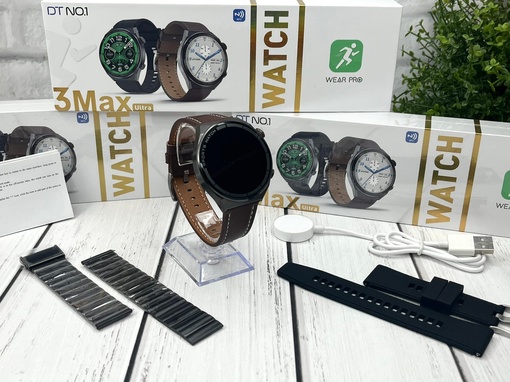
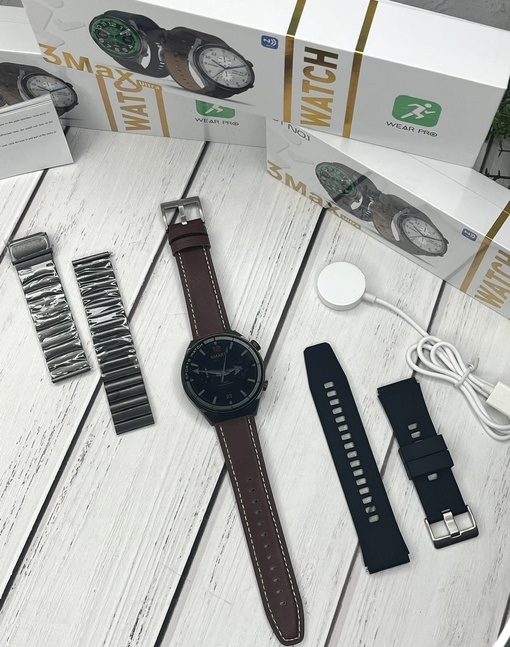
- Три ремешка в комплекте (кожаный, металлический, силиконовый)
Красота будущего у вас на запястье
Новое поколение полноэкранных дисплеев Retina HD высокой четкости 1,36 дюйма с высоким разрешением в пикселях. Добавлена профессиональная технология отображения экрана sharp, чтобы сделать каждый экран четким и умным. Узкая рамка, не допускающая прерывания толстой черной рамки экрана, обеспечивает более открытое визуальное наслаждение.
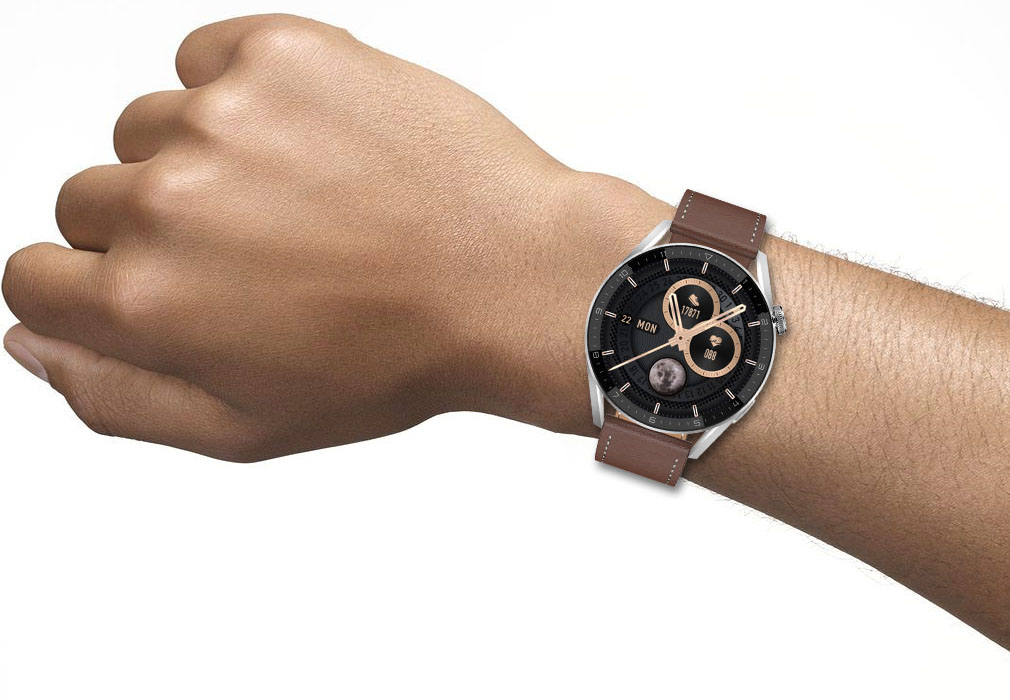
- Высокая частота обновления — 60 Гц
Эффект плавного переливания экрана
- 1,36 дюйма
Полноэкранный режим
- 320PPI
Разрешение 390X390
- 32-бит
Высокая цветопередача
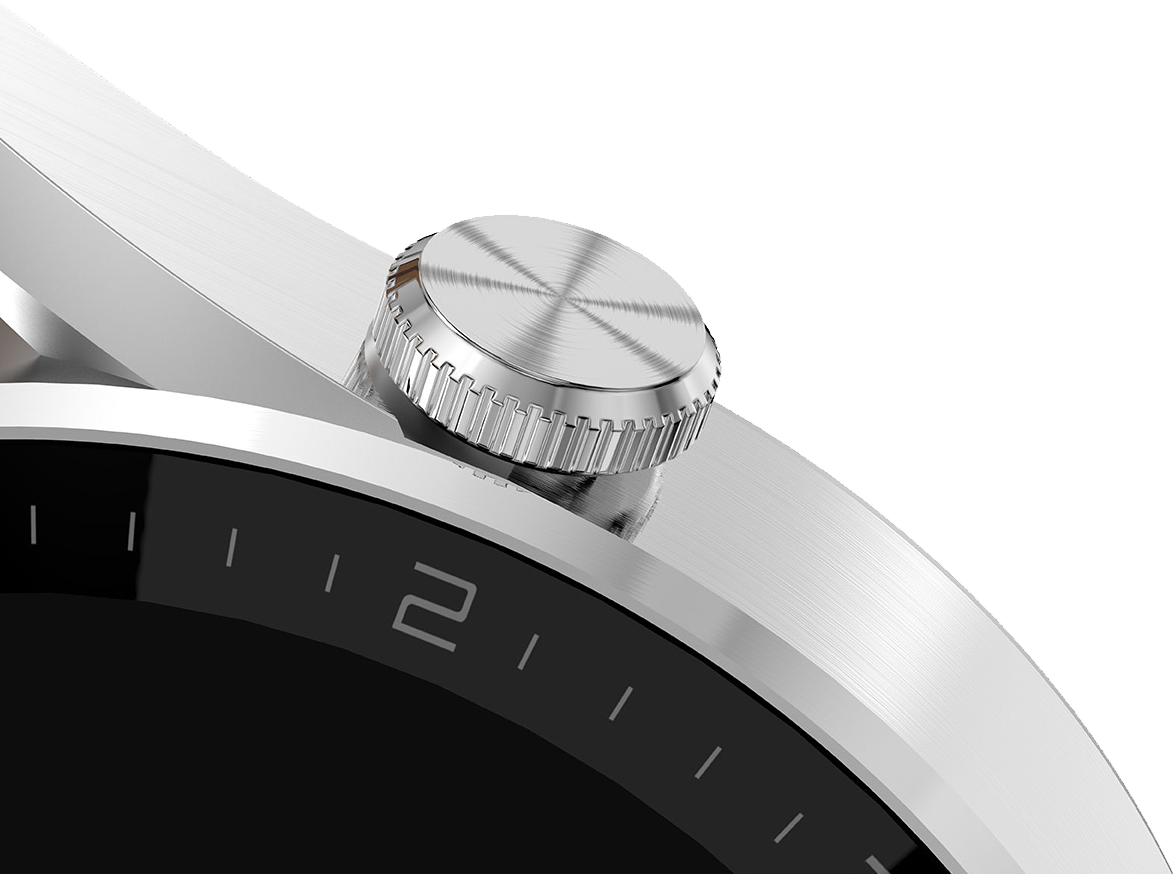
Поворотная заводная головка
Измените форму классической цифровой заводной головки, превратите утомительные операции в простоту и обеспечьте взаимодействие, оно станет простым и естественным.
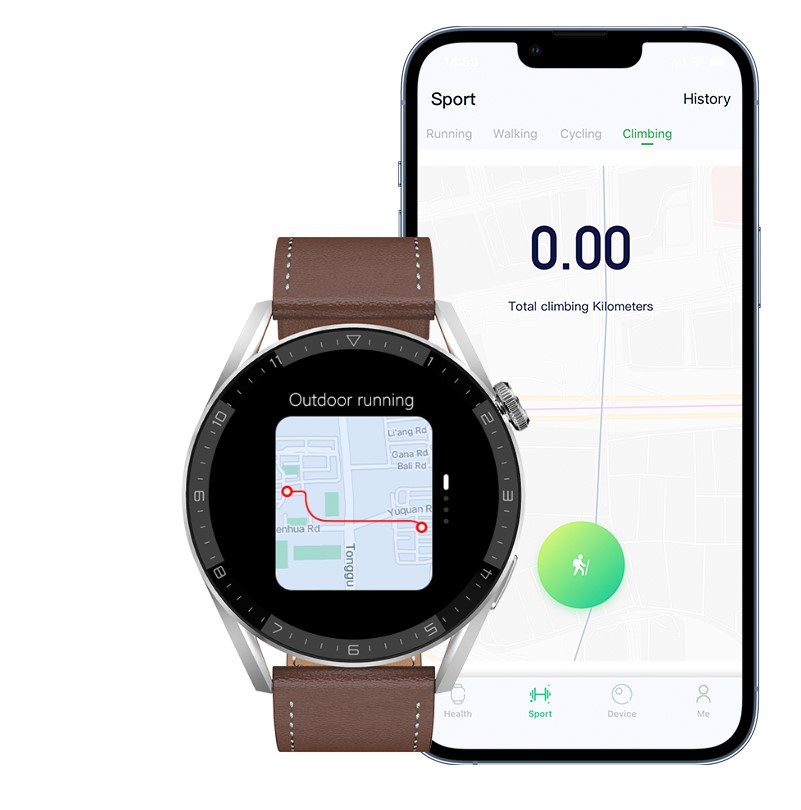
Отслеживание движения с помощью GPS
Включите функцию GPS в приложении. Отслеживание движения с помощью GPS, точное записывайте каждый сделанный вами шаг. Данные о потреблении калорий будут перенесены на часы и сохранены для просмотра.
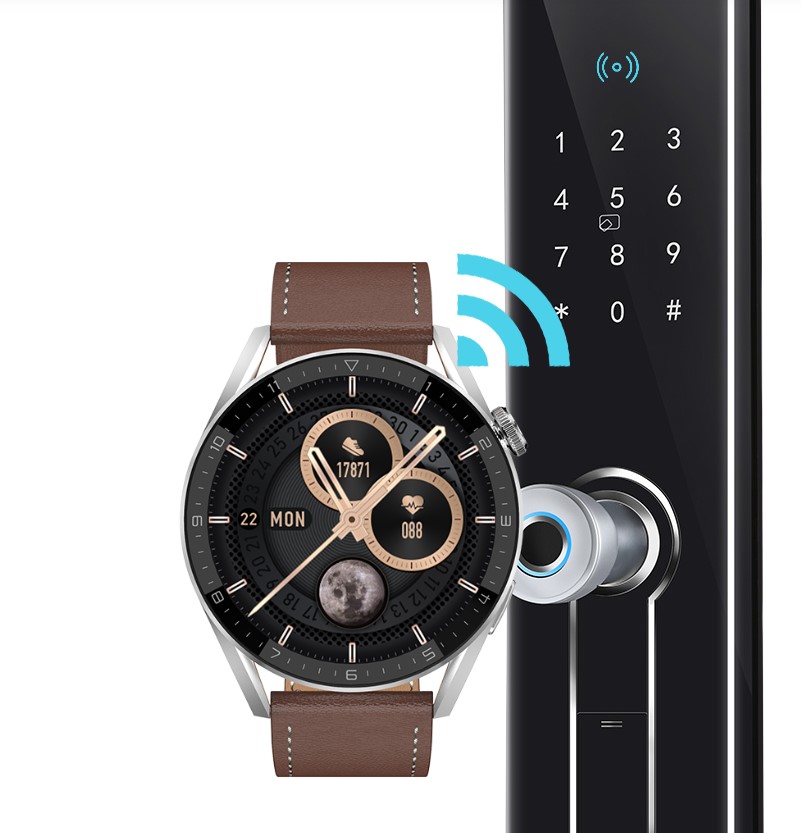
Управление доступом с помощью NFC
Наденьте часы, прежде чем выходить из офиса, отсканируйте код, просто поднеся часы. Когда вы возвращаетесь домой, часы — это ваш ключ. Поднимите запястье, чтобы быстро открыть дверь.
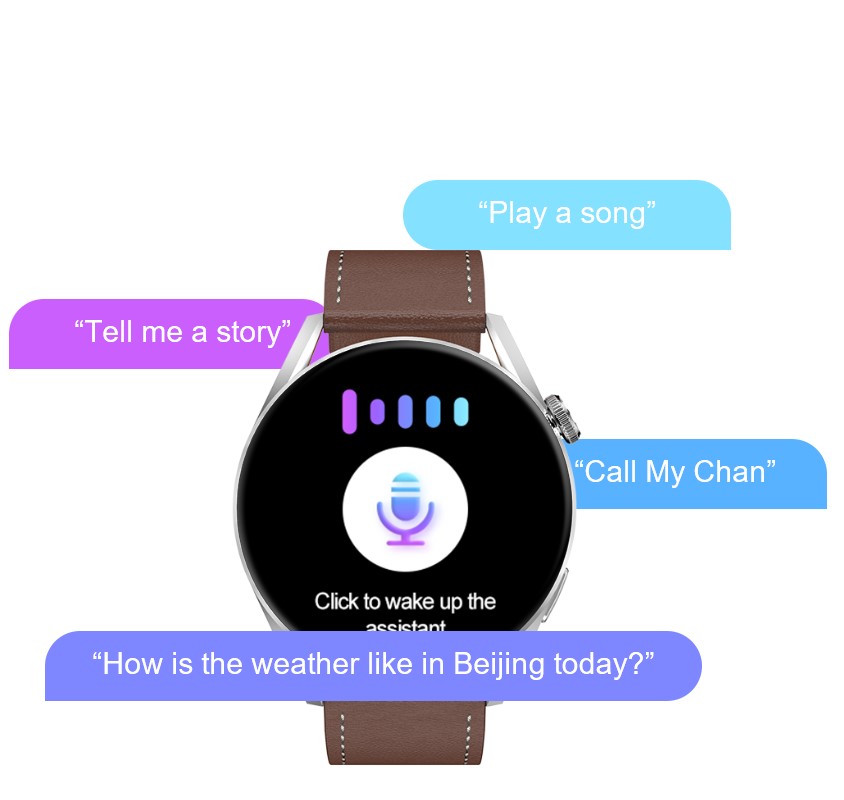
Голосовой помощник с искусственным интеллектом
Эксклюзивный голосовой алгоритм искусственного интеллекта: прослушивание и выполнение задач, всегда в полной готовности. Дважды коснитесь, чтобы включить голосового помощника, полностью освободите руки, произнесите голосовую команду.
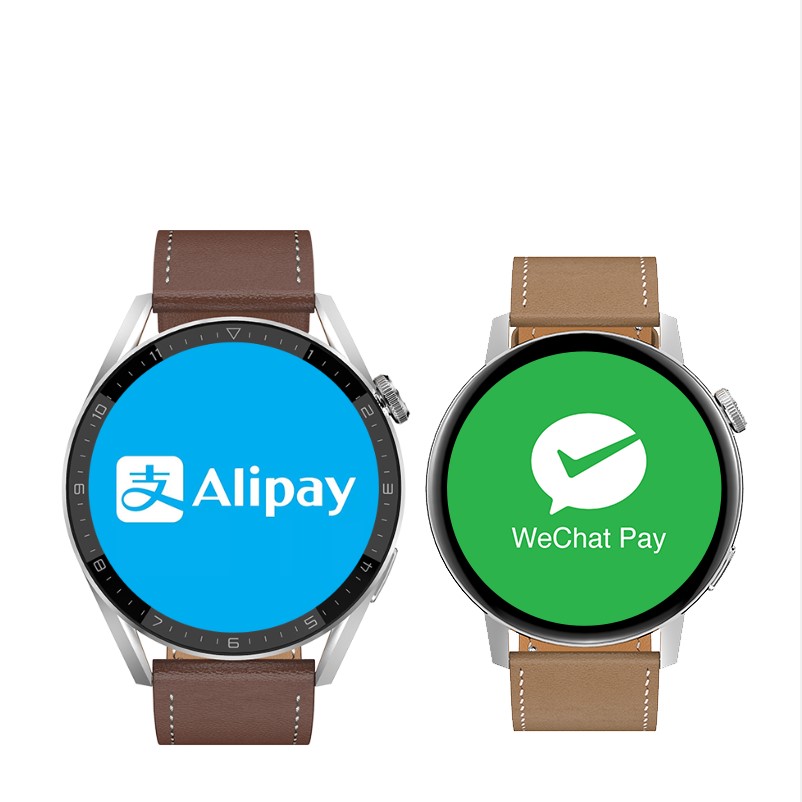
Двусторонний процесс оплаты
Поддержка Alipay и офлайн-платежей, WeChat-платежей. Не нужно пользоваться мобильным телефоном, просто поднимите часы для сканирования, и вы можете легко сканировать код за считанные секунды с помощью часов. Быстрая оплата.
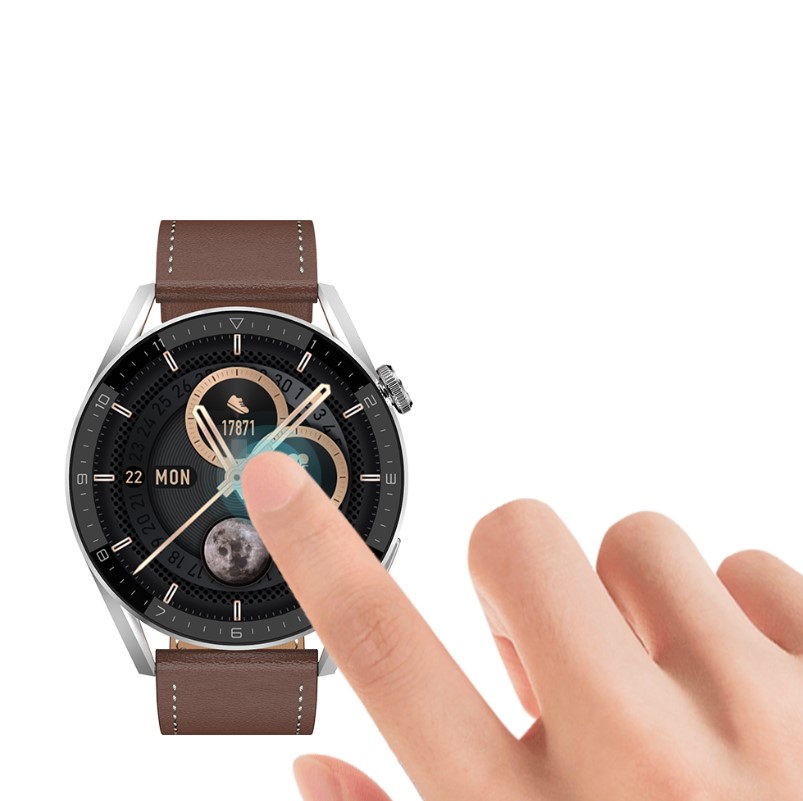
Дважды коснитесь экрана для активации
Дважды коснитесь, чтобы перевести экран в режим ожидания. Смарт-часы позволяют переключить режим часов в любое время, настроить часы / будильник. Это позволяет использовать функции, даже когда ваш мобильный телефон не с вами.
Вызов по Bluetooth
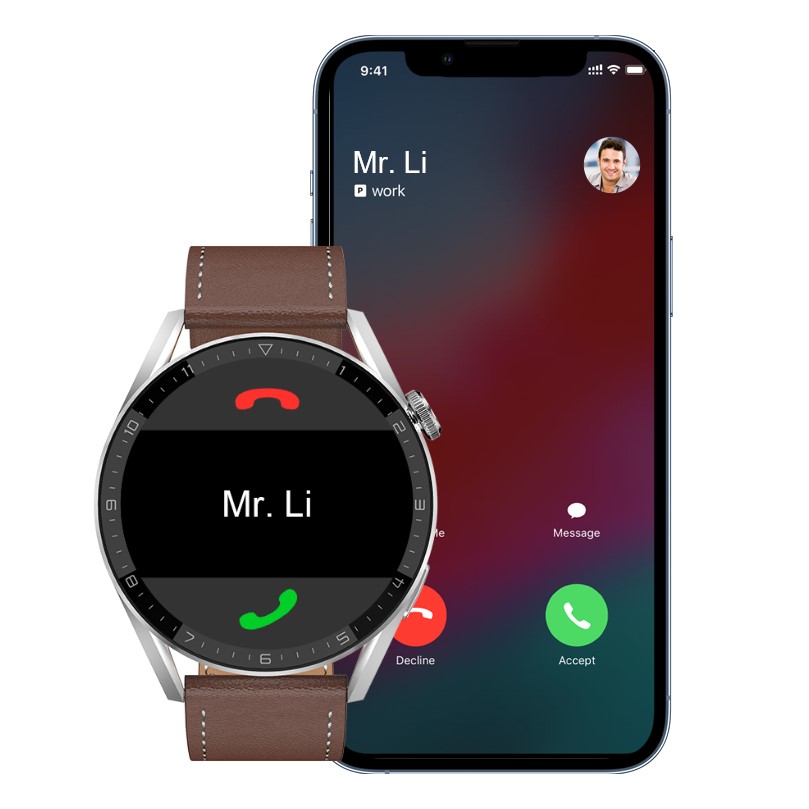
Smart watch DT3 MAX имеют высококачественные водонепроницаемые динамики, Громкая связь во время Bluetooth звонков с высоким четким оригинальным звуком. Будь то спорт или время в пути, телефонные звонки будут вовремя передаваться на часы. Ответ одним щелчком освободит ваши руки и сделает общение более удобным.
Беспроводная зарядка
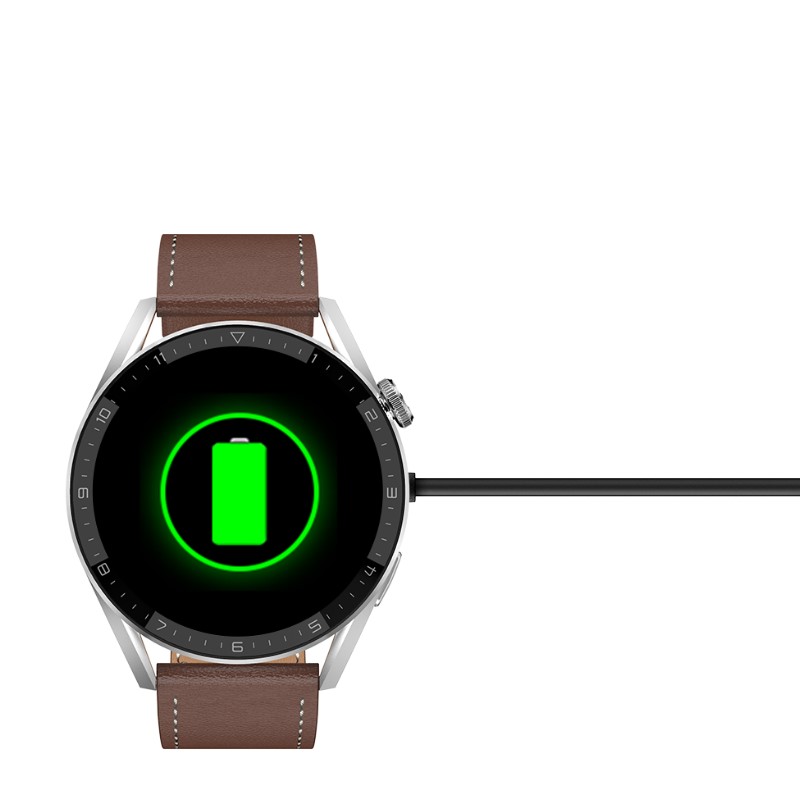
Попрощайтесь с оковами проводной зарядки и наслаждайтесь удобством беспроводной зарядки. Новая усовершенствованная защита от перегрева автоматически отключит питание, когда температура слишком высокая.
Более 200 циферблатов
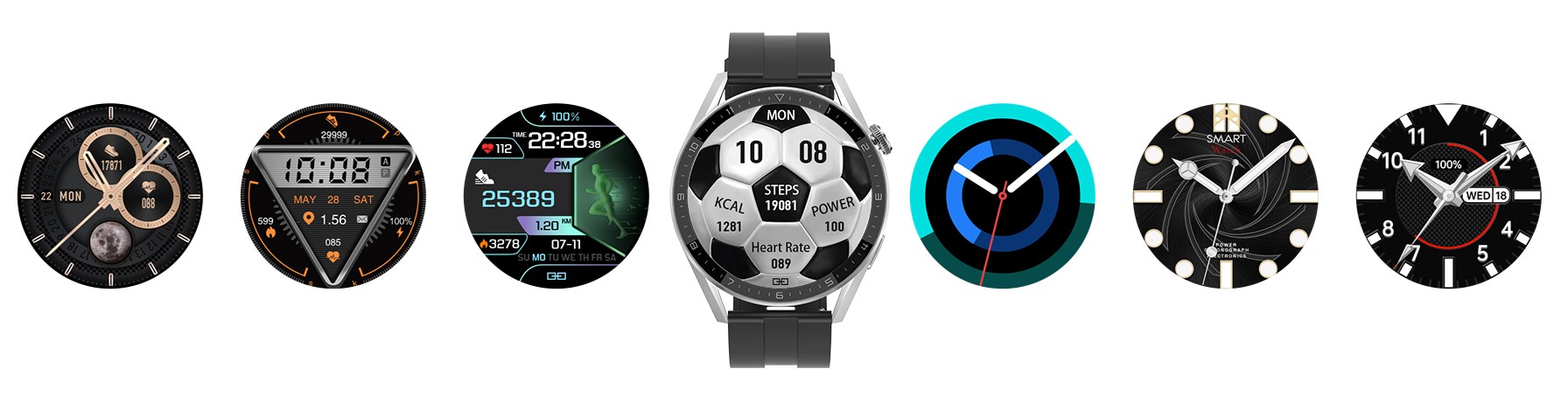
В часы DT 1 3 Max Ultra встроено множество новых циферблатов, в том числе множество динамических циферблатов. Кроме того, в магазине циферблатов представлено более 200 персонализированных циферблатов, из которых вы можете выбрать. Недостаточно? Выберите любимые фотографии со смартфона и поставьте их на фон смарт часов — сделайте из них свой любимый циферблат.
Мультиспортивный режим
Независимо от того, какой вид спорта вам нравится, умные часы дают любую программу физической подготовки, которая подходит именно вам. Выбирайте бег, баскетбол, футбол, езду на велосипеде или другие виды спорта, которые вас интересуют, занимайтесь спортом столько, сколько захотите, а часы DT3 MAX станут лучшим помощником.
Точный мониторинг сердечного ритма с датчиком контроля отключения рук
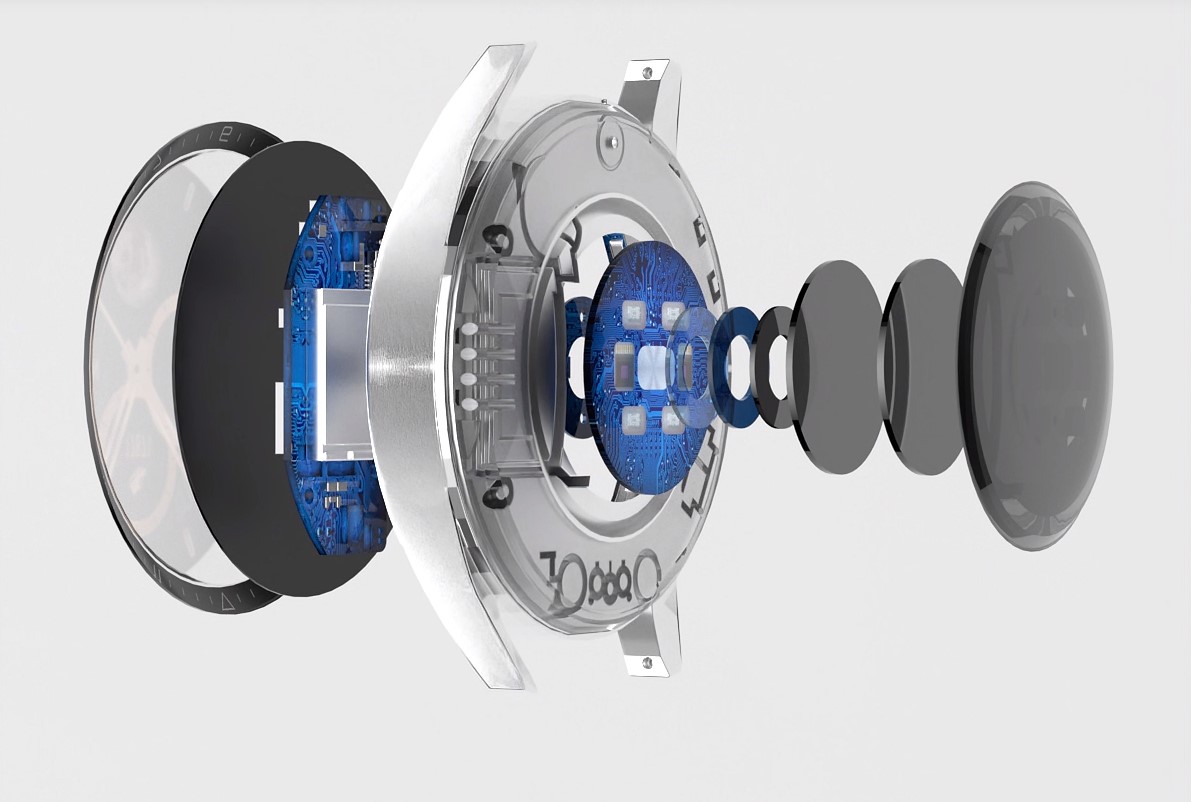
Вы можете контролировать ваш пульс 24 часа в сутки, чтобы достичь оптимального показателя. Эта функция основана на оптическом датчике биологического слежения, который эффективно помогает в мониторинге сердцебиения.
Обратите внимание. Приведенные данные и результаты мониторинга пульса и других показателей здоровья приведены только для справки, а не в качестве основы для диагностики и лечения, ввиду того, что смарт часы — не медицинский прибор.
Мониторинг сна
Точно контролируйте стадию сна, глубокий сон, легкий сон, период быстрого движения глаз, дремоту. Умные фитнес часы DT3 MAX ULTRA дают профессиональную интерпретацию характеристик сна для каждого периода и дают качественный анализ, который поможет вам скорректировать свои привычки сна и сделать сон более качественным.
Водонепроницаемость IP68
Степень IP68 — водонепроницаемость и защита от пыли во время мытья рук и в дождливые дни. Часы также можно использовать в обычном режиме при занятиях спортом.
Примечание: Избегайте попадания внутрь часов чистящих средств, мыла, морской воды и других агрессивных жидкостей, которые могут повредить компоненты. Не рекомендуется полное погружение под воду (бассейн, водоемы).
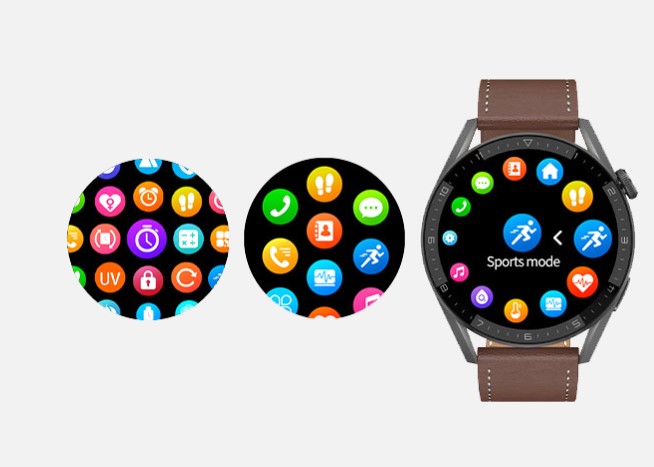
Несколько вариантов меню
Переключение стиля меню по своему усмотрению — это специальная функция, настроенная специально для вас, широкий выбор предустановленных меню, удовлетворяющих разнообразные вкусы, в зависимости от настроения, одежды и соответствия различным случаям.
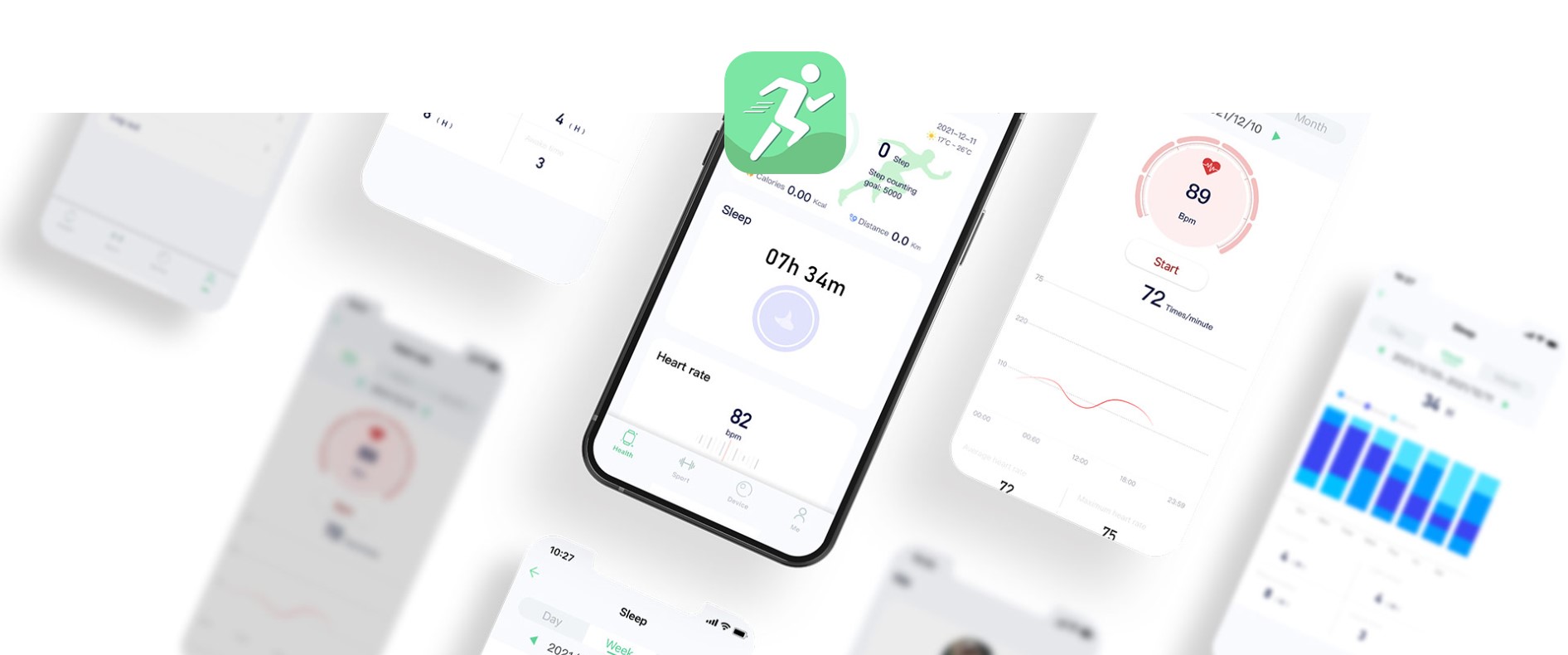
WearPro
Умные часы подключены к недавно обновленному приложению WearPro. WearPro — это многофункциональная платформа для управления показателями здоровья, которая может записывать различные данные о занятиях спортом и состоянии организма.
Спецификация
- Модель: DT3 Max
- Диаметр: 46 мм
- Чип: RTK8762D
- Экран: 1,36 TFT HD экран
- Разрешение: 390*390
- Размер: 46 * 11,6 мм
- Аккумулятор: 280 мАч
- Bluetooth: 5.0
- Ширина ремешка: 22 мм
- Водонепроницаемость: IP68
- Языки: Английский, Китайский, Традиционный китайский, Датский, Греческий, Латинский, Румынский, Турецкий, Иврит, Чешский, Польский, Испанский, Немецкий, Русский, Португальский, Французский, Японский, Итальянский, Вьетнамский, Корейский, Арабский, Персидский

Комплектация
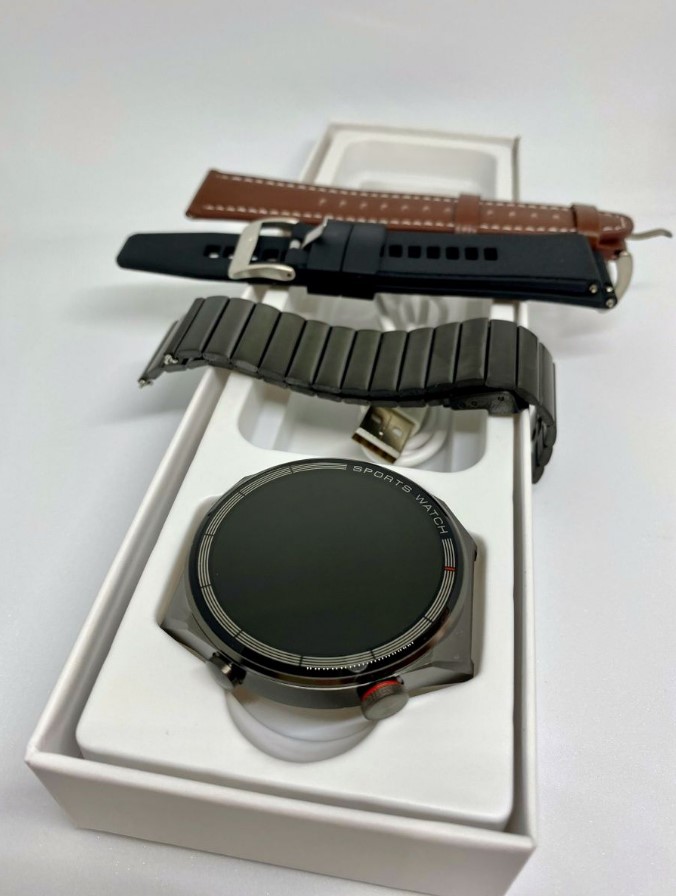
- Смарт часы DT NO.1 DT3 Max Ultra
- Три ремешка (силиконовый, металлический, кожаный)
- Беспроводная зарядка
- Инструкция
Купить круглые смарт часы DT NO.1 DT3 Max Ultra по доступной цене можно в нашем интернет-магазине с доставкой по Москве и России!
Материал корпуса:
Алюминиевый сплав + сталь
Световая индикация питания (Да/Нет):
Да
Совместимы с устройством на ОС
Операционная система, сокр. ОС (англ. operating system, OS) — комплекс взаимосвязанных программ, предназначенных для управления ресурсами компьютера и организации взаимодействия с пользователем.
Большинство смарт-часов предназначено для совместной работы со смартфонами. Устройства для профессиональных спортсменов, могут также соединяться с различными датчиками — например, велосипедными компьютерами, пульсометрами и другими. Некоторые гаджеты также поддерживают прямое подключение к компьютеру для выгрузки информации в специальные приложения.
:
Android, iOS, Windows Phone
Материал ремешка:
силикон, металл, кожа
Сменный браслет/ремешок:
Да
Влагозащита:
IP68 (защита от пота, дождя и брызг)
Встроенный аккумулятор:
Есть
Степень пыле-влагозащиты:
IP68
Емкость аккумулятора:
280 мАч
Диагональ/разрешение:
1,36″ / 390х390
Технология дисплея
Обычные TFT-экраны недороги, но имеют ограниченные углы обзора и невысокую контрастность. Применение матрицы IPS делает изображение ярким и насыщенным при взгляде с любого ракурса. Технология AMOLED позволяет получить очень высокую контрастность и бесконечную глубину черного цвета. Дисплеи Retina от Apple отличаются малым размером пикселей.
:
Retina
Пульсометр
Пульсометр, или монитор сердечного ритма, — устройство персонального мониторинга частоты сокращений сердца в реальном времени или записи его для последующего исследования.
:
Да
Браслет/Ремешок:
в комплекте
Кабель питания/данных:
в комплекте
Чтобы смарт-часы правильно функционировали, их нужно настроить. Не все владеют этими знаниями и навыками. Подсказки и инструкции помогут справиться с задачей.
Установка и настройка приложения для смарт-часов
Какое нужно скачать приложение для смарт-часов? На сайте поддержки Google объясняют, что нужно скачать на телефон приложение Wear OS. С его помощью можно подключить и настроить смарт-часы не только на Android, но и iOS. Также можно попробовать приложение SmartWatch Sync Wear, позволяющее установить соединение Bluetooth с Android.
Как настроить смарт-часы с телефоном? Рассмотрим как настроить смарт-часы на примере использования приложения Wear OS:
- Через Google Play Market или App Store скачайте и установите приложение.
- Включите часы.
- Запустите приложение на телефоне и нажмите «Настроить».
- Выберите язык и примите пользовательское соглашение.
- Следуйте инструкции на экране телефона, пока не увидите название часов. Если на телефоне не видите название часов, перейдите к настройкам самих часов.
- Когда на экране часов появится надпись «Нажмите, чтобы начать», коснитесь экрана.
- Выберите язык на часах.
- Примите условия использования.
- Когда на часах появится надпись «Скачайте и запустите приложение Wear OS на мобильном устройстве», нажмите «Обновить» на телефоне.
- Кликните на название часов на телефоне.
- На смартфоне и часах появятся коды. Если они совпадают, нажмите «Подключить» на телефоне. Если коды не совпадают, перезапустите часы.
- Завершите настройку, следуя инструкциям на экране.
На некоторых телефонах перед настройкой нужно активировать передачу геоданных. Сделайте это в настройках в разделе «Местоположение», включив функцию «Использовать местоположение». После этого откройте Wear OS и обновите, чтобы обнаружить смарт-часы.
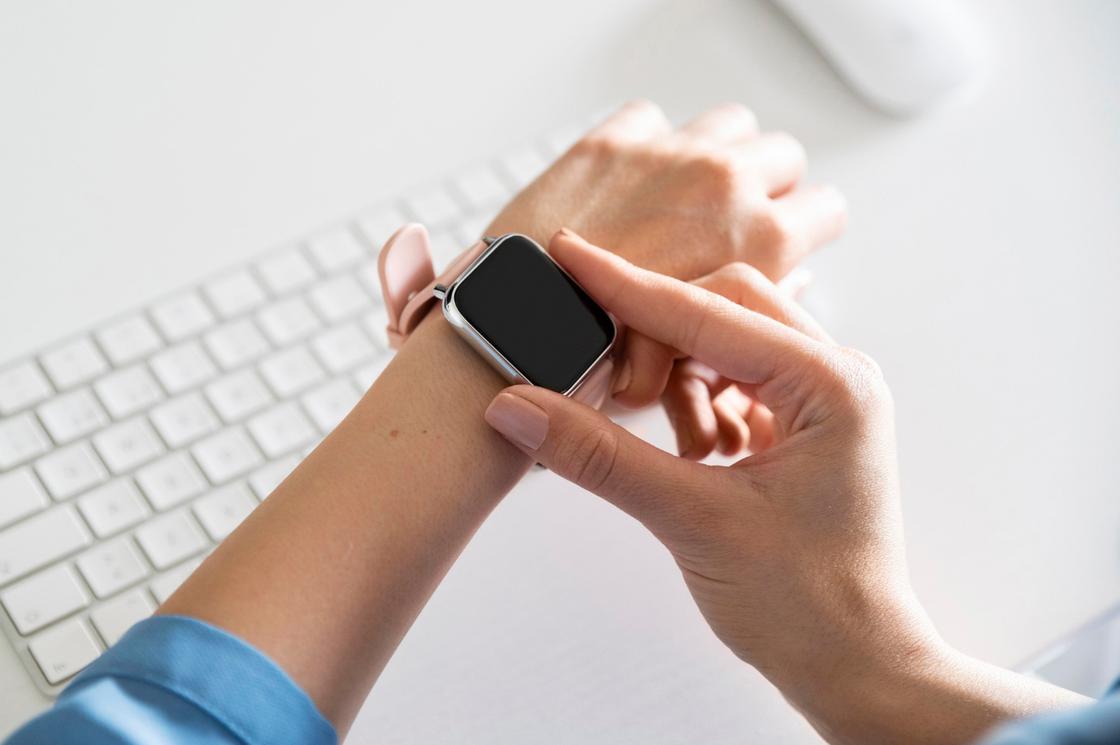
Если после всех манипуляций, телефон не может обнаружить часы, отключите их от устройства и сбросьте настройки. Сделаете это так:
- Нажмите и удерживайте кнопку питания на часах. Прокрутите экран вниз и тапните «Отключение и сброс настроек». Если такого пункта нет, выберите «Отключить от телефона».
- Подтвердите действие.
- Закройте Wear OS и сопутствующее приложение на устройствах.
- Повторите настройку с первого шага.
Когда часы подключены к устройству, в приложении Wear OS видна надпись «Подключено». В противном случае на экране часов показан значок «Отключено» в виде перечеркнутого облака.
Отладка базовых настроек
Как настроить дату и время на смарт-часах? Как правило, ничего делать не нужно, поскольку срабатывает автоопределение даты и времени. Если этого не произошло, выполните такие действия:
- Войдите в меню настроек смарт-часов.
- Перейдите в раздел «Время и дата» либо подобный.
- Укажите год, месяц, день и время.
Настраивая эти параметры учтите, что время на гаджете и телефоне должно совпадать.
Как настроить смарт-часы без телефона? Настройте дату и время, если это не произошло автоматически, выберите язык, циферблат и фон, при желании включите будильник, активируйте уведомления. Подобные настройки зависят от модели смарт-часов. Некоторые предоставляют больше возможностей, поэтому изучите в паспорте доступные функции, что еще можно установить или настроить.
В некоторых моделях можно установить SIM-карту, особенно в детских. Как правило, слот под симку располагается сбоку или под аккумулятором. Перед установкой SIM-карты в часы активируйте и протестируйте ее на телефоне.
Если часы не видят SIM-карту после установки, возможно, она недостаточно плотно вошла в разъем. Проверьте это. После успешной установки SIM-карты в течение нескольких секунд на дисплее смарт-часов должен отобразиться индикатор мобильной сети.
Синхронизация смарт-часов с телефоном
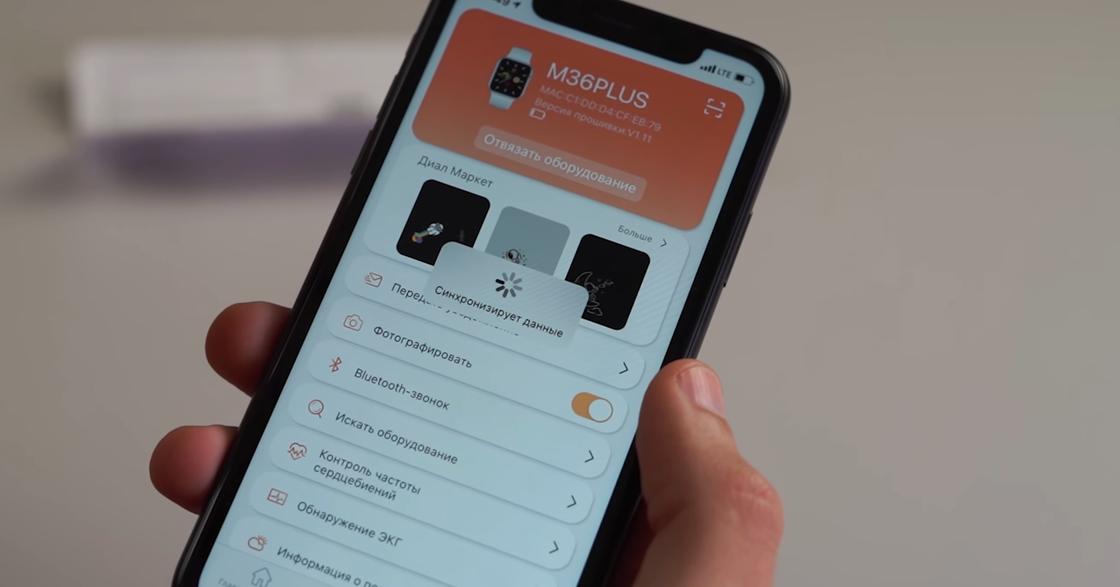
Синхронизация позволяет дублировать уведомления и звонки, которые поступают на телефон, на дисплее смарт-часов. Проще всего синхронизировать устройства через Bluetooth:
- На телефоне и смарт-часах включите Bluetooth.
- Когда телефон распознает часы, отобразится их название. Тапните по нему.
- На дисплеях обоих устройств появится код. Введите его на телефоне. Возможно, понадобится ввести PIN-код, который найдете в инструкции к часам. Иногда ничего вводить не нужно, устройства синхронизируются автоматически.
- Появится кнопка «Подключиться». Нажмите на нее.
Apple Watch подключите к iPhone так:
- Включите часы и наденьте на руку.
- Поднесите их к iPhone.
- Подождите, пока не появится уведомление, нажмите «Продолжить». Если уведомление не отображается, откройте приложение Apple Watch на iPhone и в разделе со всеми часами добавьте свои.
- Разместите iPhone над часами.
- Если это первый Apple Watch, нажмите «Настройка нового Apple Watch».
- Если ранее на этом устройстве iPhone были настроены другие часы Apple Watch, отобразится экран «Ваш новый Apple Watch». Нажмите «Программы и данные» и «Параметры», дождитесь, пока функция экспресс-настройки настроит новые часы. После этого нажмите кнопку «Продолжить». Для восстановления настроек выберите резервную копию предыдущих часов Apple Watch.
- Войдите при помощи Apple ID при появлении соответствующего запроса.
- Создайте код доступа.
- Настройте необходимые параметры на свое усмотрение.
- Настройте мобильную связь и Apple Pay.
Когда процесс создания пары будет завершен и часы будут готовы к использованию, на Apple Watch отобразится циферблат. Держите Apple Watch и iPhone рядом, чтобы устройства могли продолжать синхронизироваться. При необходимости обновите iOS и WatchOS до последней версии.
Подключение к Wi-Fi
На портале Citizenwatch указано, как подключить смарт-часы к Wi-Fi. Выполните следующие действия:
- Нажмите среднюю кнопку или проведите пальцем вниз от верхней части экрана.
- Прокрутите и нажмите «Настройки».
- Нажмите на подключение.
- Кликните на Wi-Fi и «Добавить сеть».
- Прокрутите, чтобы найти свою сеть, и нажмите.
- Включите телефон и запустите приложение Wear OS или подобное.
- Нажмите «Ввод» на телефоне, введите пароль.
Если часы сопряжены с телефоном Android и уже были подключены к Wi-Fi, часы могут автоматически подключаться к сохраненным сетям Wi-Fi при потере соединения Bluetooth с телефоном. Таким образом, можете получать уведомления и использовать голосовой поиск на часах по всему дому и на работе, даже если оставляете телефон в другой комнате.
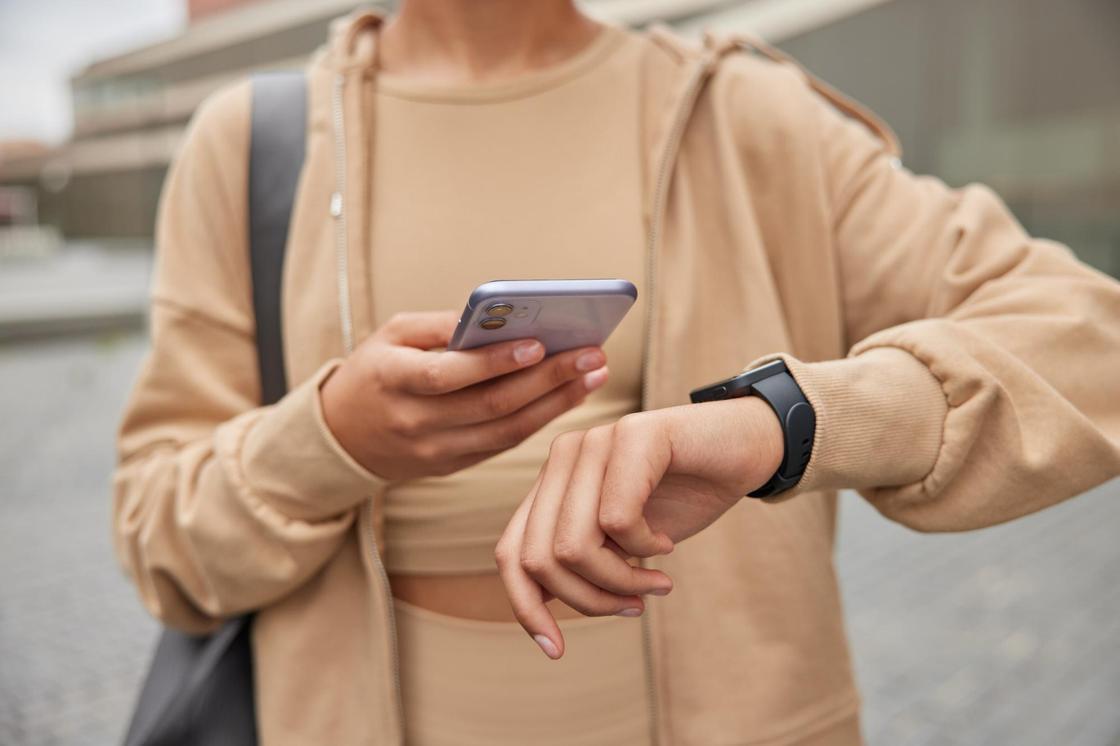
Настройка мобильных платежей
Автор портала Engadget Черлинн Лоу пишет, что смарт-часы располагают очень удобной функцией — мобильными платежами. Это возможно в том случае, если смарт-часы поддерживают технологию NFC и соответствующий способ оплаты.
Для осуществления бесконтактных платежей при помощи смарт-часов необходимо добавить карту. Рассмотрим на примере Google Pay, как это сделать. На часах должно быть установлено Wear OS версии 2.0 и выше. Действия следующие:
- На часах откройте приложение «Google Кошелек». Если данного приложения нет на часах, установите их из Google Play.
- Нажмите «Начать».
- Настройте блокировку экрана, если этого еще не делали.
- На телефоне выполните действия по добавлению карты.
Карта сохраниться только в Google кошельке на часах. Учтите, что «Google Кошелек» не поддерживает PayPal, подарочные, скидочные и бонусные карты. При оплате часы необходимо будет просто поднести к терминалу и дождаться звукового сигнала или вибрации.
На устройствах Samsung используется приложение Samsung Gear, а на Apple Watch — приложение Wallet.
Это были основные и первоначальные действия для настройки смарт-часов. Многие модели предлагают возможность настройки различных фитнес-функций и многого другого. Все это настраивается и добавляется на свое усмотрение.
- June 5, 2024
- Shenzhen Xinkeying Technology
Table of Contents
- Shenzhen Xinkeying Technology DT3MAX Sports Smart Watch
- Watch function description
- My QR code
- Menu style
- Bind APP
- Connect APP through mobile phone Bluetooth
- Connect the watch’s audio/call Bluetooth channel
- Unbind Bluetooth connection from the APP side
- Unbind audio Bluetooth connection
- Find the device
- Camera
- Data synchronization
- Raise your hand to brighten the screen
- Do not disturb mode
- Daily alarm clock
- Sedentary reminder
- Drink water reminder
- Dial push
- Firmware version
- QR code of Alipay payment
- Warranty Description
- FCC Caution
- Read User Manual Online (PDF format)
- Download This Manual (PDF format)

Shenzhen Xinkeying Technology DT3MAX Sports Smart Watch
Watch function description

Up button
Turn on and off the screen; one key to return to the main interface; long
press to restart the watch.
Button-down
Short press to enter multi-sport mode. In addition, when the watch is in the
off-screen state, the watch can turn on the screen by pressing the button.
Charging instructions
Wireless charging, as shown in the figure below.

Shortcut function
- Swipe to the left to display the “+” icon, click the icon to add part of the menu as a shortcut function.
- Slide down to display, Bluetooth connection status, time, power, brightness adjustment and other functions.
- Swipe to the right to display, time/date/week, the latest message (enter to view multiple messages)/turn on or off Bluetooth for calls and display some of the recently used menu functions.
- Swipe up to enter the menu interface, and slide up and down to find the corresponding function.
- Long press the watch face interface to slide to switch the watch face, select it and touch it to set it successfully.
Push message
- When the watch is bound to the APP, and the notification permission is turned on, the new messages received in the notification bar of the mobile phone will be pushed to the watch, and a total of 10 messages can be saved. The messages received after 10 messages will be overwritten one by one news.
- Swipe to the bottom to press the delete icon to clear all message records.
Drop-down menu
The dial interface slides down to open the drop-down menu interface.
- Bluetooth connection status; time display, power display;
- The first icon, is about;
- Setting; enter the setting part of the function;
- Brightness adjustment; adjustable screen brightness adjustment;
- stopwatch; Click the stopwatch to enter the timing interface, and you can record the time at a time.
Phone/Call History
- Enter the left swipe interface, click the call icon to turn on/off the Bluetooth phone, turn on Bluetooth, go to “About” to turn on Bluetooth, open the phone settings, search, Bluetooth name + the last four digits of the Bluetooth address, after connecting the phone to Bluetooth successfully, you can Use the watch to answer/hang up the Bluetooth phone.
- Call records, which can save the records of connected and dialed calls. (It can save more than 50 call records, and it will be automatically overwritten when 128 records are full. Click any call record to call back)
- Dial the keyboard, you can enter the phone number to make a call.
Message
The watch and the APP are successfully bound, the corresponding notification
authority in the mobile phone system is opened, and the mobile phone
information can be synchronized with the watch.
- Incoming call notification: Turn on the call reminder in the personal application. When the phone receives the call reminder, the watch will light up or vibrate.
- SMS notification: The SMS notification is enabled in the personal application. When one or more SMS messages are received on the mobile phone, the watch will receive one or more SMS reminders at the same time.
- Other application message notifications: Turn on the corresponding application message notification switch in personal applications, such as WeChat, QQ, Outlook, Facebook and other applications. When the mobile terminal receives one/multiple application message notifications, the watch terminal will receive one/multiple corresponding message reminders at the same time Notice.
Frequently used contacts
You can connect to the APP. In the device of the APP” select frequently used
contacts” add contacts (up to 20 contacts can be added), which can be
synchronized to the watch, and the watch can display up to 20 contacts.
Fitness data
The fitness data is turned on by default. Enter the fitness data interface and
slide from bottom to top to display the current number of steps, distance, and
calories of the watch. The data is cleared at 12 o’clock in the morning every
day.
Sports modes (strike, running, cycling, skipping rope, badminton,
basketball, football) Select the corresponding exercise mode, click the start
button on the screen to enter the corresponding exercise mode; click the start
button of the exercise being calculated to pause the exercise, click the end
button to end the exercise and save the data. When the exercise time is
longer than 1 minute, the exercise data can be saved; when the exercise is
saved under this condition, it will prompt “Too little data to save”.
Heart rate
Put the watch on your wrist correctly, enter the heart rate menu, and you can
measure the heart rate value at a time.
ECG
Put the watch on your wrist correctly, enter the ECG menu (need to open the
APP “ECG monitor” interface), you can measure the ECG value in a single time,
and the single ECG measurement can be saved in the APP simultaneously. This
function needs to be connected to the APP to use.
My QR code
Connect the watch to the APP, find my QR code on the APP interface, select
WeChat/QQ/ Alipay and other “Receive money QR code” to save (the specific
operation method is based on the instructions of the APP).
Calculator
Simple calculations can be performed after entering.
Remote music
Connecting to the APP, you can control the phone’s
music/start/pause/previous/next song, and the speaker sound will appear on the
phone.
Connect the call Bluetooth, you can control the phone’s
music/start/pause/previous/next song, and the speaker sound appears on the
watch.
Sleep
Sleep monitoring time period: from 18:00 in the evening to 10:00 the next day,
the watch generates data. After exiting the sleep monitoring, the sleep data
on the watch can be synchronized to the APP for viewing after connecting to
the app.
Stopwatch
Click the stopwatch to enter the timing interface, and you can record the time
at a time.
Weather
After the watch is connected to the app and the data is synchronized, click on
the weather on the watch to display the weather information of the day.
Find mobile phone
After the watch is bound to the app, click on the phone to find the phone on
the watch, and the phone will vibrate or ring tones.
Meteorology
Click the weather on the watch side to display the ultraviolet (UV) and air
pressure conditions of the day.
Breathing
There are three modes of breathing: slow, moderate, and fast, which can be
selected, and the breathing can be carried out according to the mode selected
by the user.
Massager
Tap the green button to start the massage, and the watch is in a vibrating
state, tap the red button to end the massage state.
There are a variety of menu styles to choose from. After setting, the menu
style of the watch will also be changed.
Settings
- When you enter, you can select the watch language, connect to the APP, and synchronize data. The watch and the phone have the same language.
- Switch the watch face, slide right to select the next watch face, select a watch face, and click to set the watch face.
- Bright screen time; a variety of bright screen time lengths can be selected.
- Vibration intensity; click to set reminder vibration intensity.
- Bluetooth phone; Bluetooth phone can be turned on/off
- Password; a 4-digit password can be set (if you forget the password, please enter 8762, which can be decrypted)
- Restore factory settings; click √ to enable the factory reset, and click X to cancel the factory reset.
Bind APP
APP download
Scan the QR code to download the APP
For Android end user:
Search for “WearPro” in the Google Play App Store or any customized Android
Store to download, remember to check the phone pop-up box to agree to the
permissions when installing;
For IOS end user:
Search for “WearPro” in the APP Store to download, remember to check the
mobile phone pop-up box to agree to the permissions when installing; After
WearPro is installed, the application icon is shown as:
Connect APP through mobile phone Bluetooth
Search for Bluetooth name to connect/pair
Scroll down on the watch’s main interface, find the first icon “About (i)” and
click it, and remember the Bluetooth name of the watch; then, open the WearPro
APP on the mobile phone, click on the “Device” column, and click on “Search to
bind device” to start searching, In the Bluetooth list, find the Bluetooth
name of your watch and pair it. If the connection is successful, the Bluetooth
icon of the watch will light up green (in the middle of the icon);
Scan QR code to connect/pair
After pulling down on the watch main interface, click on the first icon
displayed “About (i)” , you can see a QR code for connection, then take out
the phone to open WearPro, and in the “Device” column, select “Scan to bind
device”, the pairing box will pop up after scanning the QR code. Click “Pair”
to connect the App to the watch. Remember to check to agree to the
notification permissions of various Apps;
Connect the watch’s audio/call Bluetooth channel
Open the Bluetooth settings of the phone, swipe right on the main interface of
the watch, click the “phone call” icon that appears below, and click “Open” to
see the name of the audio/call Bluetooth. Find the Bluetooth name in the
Bluetooth list of the phone and pair; after the audio/call Bluetooth
connected, the Bluetooth icon of the watch is displayed as (the outer
periphery ) lights up in blue;
Tip: Based on this connection, make sure to tap on various APP
notification synchronization permissions in WearPro settings, to realize
synchronously viewing of various messages from the mobile phone on the watch
side; to realize all connection functions(like making a phone call through the
watch), make sure that both App side and audio Bluetooth are connected to the
phone.
Unbind Bluetooth connection from the APP side
Android system unbind Bluetooth from the APP
In the “Device” column of WearPro, pull down to the “Unbind” and click to
unbind the App;
IOS system unbind APP Bluetooth
In the “Device” column of WearPro, scroll down to “Unbind” and click to unbind
the App; then go to the Bluetooth settings of the phone, select the Bluetooth
name of the smartwatch, and click “Ignore this device”
After canceling the Bluetooth connection on the APP, the green connection in
the middle of the Bluetooth icon of the watch is released, and the blue
outside the circle is still lit;
Unbind audio Bluetooth connection
TO disable the audio Bluetooth connection, find the name of the audio
Bluetooth in the Bluetooth settings of the mobile phone, and click “Ignore
this device” to unbind all Bluetooth connections with the watch. After all
operations are completed, the watch’s Bluetooth icon will return to gray,
which means no connection.
Find the device
The watch is successfully bound to the app. Click to find the watch on the
mobile app, and the watch will vibrate once when the screen is on.
Camera
Tap the camera to wake up the watch device’s camera mode, tap the camera
button to take a photo, and the picture will be automatically saved to the
phone system album.
Data synchronization
The watch is successfully bound to the app, and the data from the watch can be
synchronized to the app.
Raise your hand to brighten the screen
Wear the watch correctly on your wrist (left/right hand). When you turn on the
hand-up button, when you lift your wrist to look at the watch, the watch will
automatically brighten the screen.
Do not disturb mode
In the APP Device>More, set the start to end time, such as: 12:00 to 14:00
noon for the do not disturb mode, during this time there will be no phone
calls and message sound reminders on the watch.
Daily alarm clock
In the APP in the APP Device>More, set the start to end time, the alarm can be
set only once or repeatedly select the date (week) setting, and the alarm can
be turned on/off.
Sedentary reminder
Set the start to end time period and the sedentary time interval (minutes) in
the APP, click to enter the repeat setting only once or select the sedentary
reminder date (week). When the sedentary time is reached, the watch will
vibrate and there will be a sedentary icon.
Drink water reminder
Set the start to end time period and frequency (minutes) in the APP, click to
enter the repeat setting, select the drinking reminder date (week), check the
drinking reminder and save it. When the reminder time for drinking water
arrives, the watch will vibrate and there will be a drinking water icon.
Dial push
Push an existing watch face
Connect to the app, go to Device>Dial Push>Select Dial>, and make sure to
replace it with this dial. After the dial is synchronized, the watch will
automatically restart and then automatically connect to the app.
Customize the watch face
Connect to the APP, select Device>Dial Push>(Dials with pen icons belong to
custom dials) Custom Dial Settings>You can choose a custom background. After
the dial is synchronized, the watch will automatically restart and then
automatically connect to the app.
Firmware version
The version of the watch is displayed, and the user can choose to upgrade the
firmware version.
QR code of Alipay payment
The watch features the payment function, which requires the phone to scan the
code to verify the binding. Follow the steps below:
Click the Alipay icon on the main interface(drop-down screen) of the watch,
and complete the binding and use of the personal Alipay account and smartwatch
payment function according to the instructions in the popup box. If you do not
use the watch to pay, you can also unbind it.
Frequently asked questions and answers
Please avoid exposing the device to extreme temperatures that are too cold or
too hot for a long time, which may cause permanent damage.
Why can’t I take a hot bath with my watch?
The temperature of the bathwater is relatively changed, it will produce a lot
of water vapor, and the water vapor is in the gas phase, and its molecular
radius is small, and it is easy to seep into the gap of the watch case. The
internal circuit of the watch is short-circuited, which damages the circuit
board of the watch and damages the watch.
No power on, no charging.
If you receive the goods and the watch does not turn on, it may be caused by a
collision during the transportation of the watch and the battery Seiko board
has been protected, so plug in the charging cable to activate it.
If the battery is too low or the watch does not turn on after a long period of
time, please plug in the data cable and charge it for more than half an hour
to activate.
Warranty Description
- When this product is in normal use, if there are product quality problems caused by manufacturing, materials, design, etc., From the date of purchase, the motherboard is guaranteed for free within one year, and the battery and charger are guaranteed for half a year.
- No free warranty is provided for failures caused by the user’s personal reasons, as f
- Failure caused by unauthorized disassembly or modification of the watch. 2). Failure caused by accidental fall during use.
- All man-made ruins or due to the third party’s fault, misuse (such as: water in the main engine, external force cracking, scratches on peripheral components Damage, etc.) are not covered by the warranty.
- When requesting a free warranty, please provide a warranty card with the date of purchase and the stamp of the place of purchase.
- When the user repairs the product, please take the product to our company or our company’s dealership.
- All functions of the product are based on physical objects.
FCC Caution
This device complies with part 15 of the FCC Rules. Operation is subject to
the following two conditions:
- This device may not cause harmful interference, and
- this device must accept any interference received, including interference that may cause undesired operation.Any changes or modifications not expressly approved by the party responsible for compliance could void the user’s authority to operate the equipment.
NOTE: This equipment has been tested and found to comply with the limits
for a Class B digital device, pursuant to Part 15 of the FCC Rules. These
limits are designed to provide reasonable protection against harmful
interference in a residential installation. This equipment generates, uses,
and can radiate radio frequency energy and, if not installed and used in
accordance with the instructions, may cause harmful interference to radio
communications. However, there is no guarantee that interference will not
occur in a particular installation.
If this equipment does cause harmful interference to radio or television
reception,
which can be determined by turning the equipment off and on, the user is
encouraged to try to correct the interference by one or more of the following
measures:
- Reorient or relocate the receiving antenna.
- Increase the separation between the equipment and receiver.
- Connect the equipment into an outlet on a circuit different from that to which the receiver is connected.
- Consult the dealer or an experienced radio/TV technician for help.
The device has been evaluated to meet general RF exposure requirements. The
device can be used in portable exposure conditions without restriction.
FCC ID: 2A54U-DT3MAX
Purchase date: Invoice(Ref) No.:
Seller:
Customer Signature:
Signature of Store Clerk:
Thank you for choosing our smart watch. You can fully understand the use and
operation of the equipment by reading this manual.
The company reserves the right to modify the contents of this manual without
any prior notice.
The product contains a packing box, a manual, a watch body, and a USB cable.
Read User Manual Online (PDF format)
Read User Manual Online (PDF format) >>
Download This Manual (PDF format)
Download this manual >>
О компании
Служба поддержки

Избранное
- Электроника
- Бытовая техника
- Бытовая химия и личная гигиена
- Товары для дома
- Автотовары
- Строительство и ремонт
- Одежда
- Обувь
- Аксессуары
- Красота
- Детские товары
- Спорт и отдых
- Дача, сад и огород
- Зоотовары
- Канцтовары
- Хобби и творчество
- Книги
- Здоровье