
FODSPORTS SUPPORT
Which Unit Do You Need Help With?
Fodsports Intercom
GPS FAQs & Maps
Fodsports Motorcycle Communication Headsets User Manual
2 Ways Helmet Intercom User Manual
Group Talk Helmet Intercom User Manual
Fodsports Helmet Speaker
F1 Motorcycle Helmet Bluetooth Speaker
Fodsports Motorcycle GPS User Manual
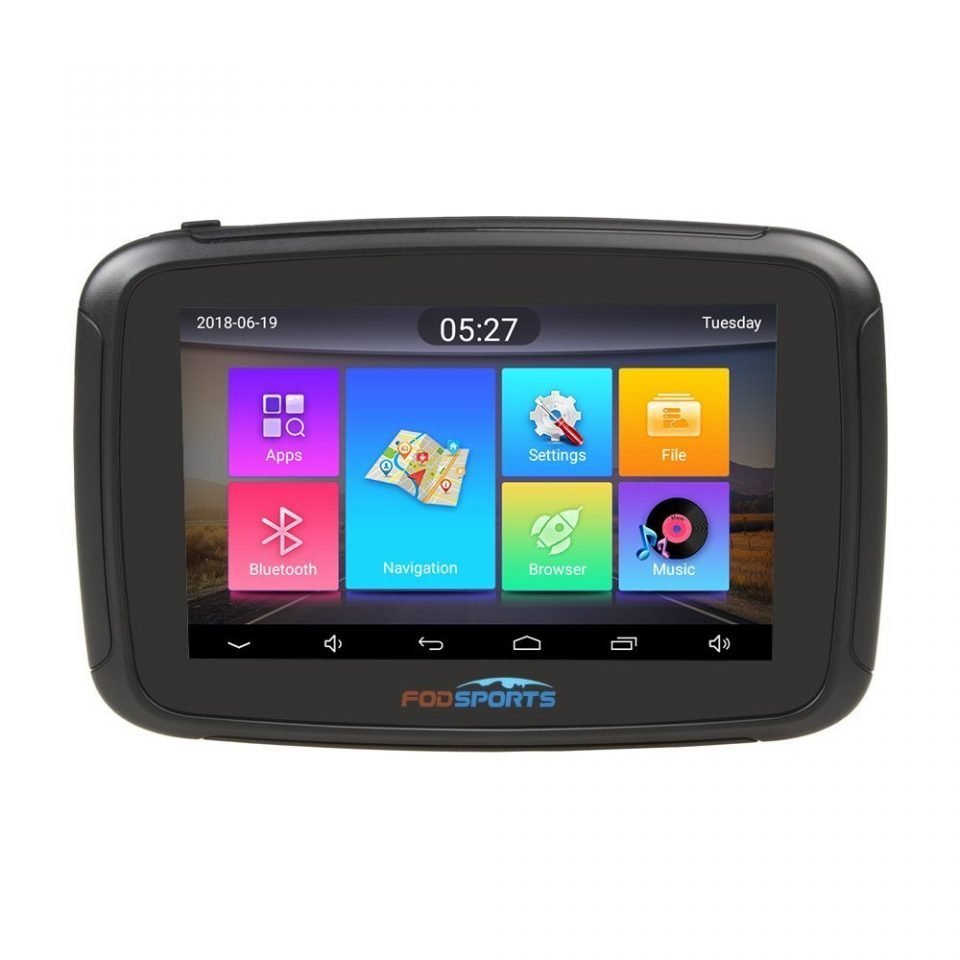
5 inch Motorcycle GPS M5S Pro
Fodsports Motorcycle GPS Map Downloads
Products FAQ
Can’t find what you need
To contact Customer Service, please
SEND US A FORM
Operation hours: Mon -Fri: 9:00 AM-6:00 PM (GMT)
We use cookies on our website to give you the most relevant experience by remembering your preferences and repeat visits. By clicking “Accept All”, you consent to the use of ALL the cookies. However, you may visit «Cookie Settings» to provide a controlled consent.
- June 6, 2024
- Fodsports
Table of Contents
- 2 Ways Helmet Intercom – V6 Plus
- 1. Introduction
- 2. Packet Content
- 3. Install Instructions
- 4. Charging
- 5. General Operation Instructions
- 6. FM Radio
- 7. Universal Pairing and Using
- 8. Bluetooth Intercom Talk
- 9. Technical Specifications
- FAQs:
- How does it work?
- Can you turn off auto answer?
- Can it be charged through USB?
- **Can two connected V6 units listen to the same cellphone’s music? And,
- Does the product work with Google Assistant?
- **Does this include the headset or do I have to purchase it
- Can I pair my iPod and iPhone at the same time?
- Technical Specifications
- Downloads:
- Read User Manual Online (PDF format)
- Download This Manual (PDF format)
2 Ways Helmet Intercom – V6 Plus

Operation Manual
Attention:
Thank you for purchasing FODSPORTS V6 Plus (6 RIDERS PLUS) helmet Bluetooth
intercom. For best use experiences. please read manual before use.
1. Introduction
Thank you for choosing the FODSPORTS V6 Plus(6 Riders Plus) Motorcyde 6 Riders
full-duplex stereo Bluetooth wireless helmet headsets, designed for installing
into most open-face, flip-front and full-face style helmets.
With the V6 Plus, you can call hands-free on your Bluetooth mobile phone,
listen to music or voice instructions of GPS navigation, and activate wireless
intercom for rider to rider or rider to passenger intercom talk within range
of 1200 meters(depending on terrain conditions).
The V6 Plus is compliant with Bluetooth Specification V3.0 supporting the
following profiles: Headset Profile(HSP), Hands-Free Profile(HFP), and
Advanced Audio Distribution Profile (A2DP), and Audio Video Remote Control
Profile(AVRCP) and Audio Gateway (AG). It supports universal pairing with most
Bluetooth headsets on the market. The user can activate Siri or S-Voioe from
the main unit for voice dialing and other voice commands. The FM radio tuner
is built into the main unit and allows for station scanning.
Superior audio fidelity has been achieved with our high fidelity, non-ported,
and ultra-slim helmet HD speakers. This headset also provides the industry’s
best combination of wind and ambient noise reduction with the miniature boom
microphone.
Please read this User Manual carefully before using this product.


2. Packet Content
- Main Unit
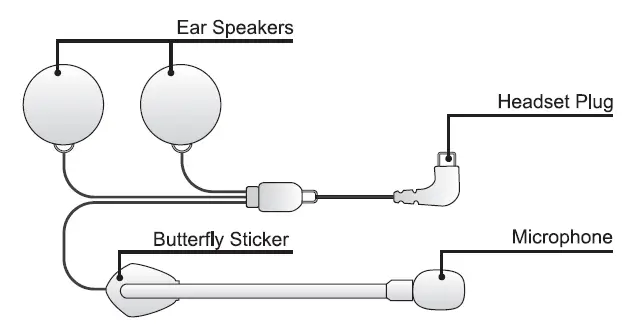
- HIFI Speaker and Microphone(hard & soft) USB Cable
- Clip Mounting Bracket
- User Manual
3. Install Instructions
Fixed Installation Method
- Locate the helmet at the left and dean ii up
- Peel off the 3M rubber protective film
- Apply pressure to the metal carrier to secure the holder firmly
Note: it takes 24 hours after drying

Temporary installation method
- Clip on the left edge of the helmet
- Remove metal handle after installation
- If required, use additional anti slip rubber patches

Install host
- Slide V6 Plus host off the top of the clip and you’ll hear a click when it is completely plugged in
- Plug in the 3.5mm headset plug
Headset mounting method
- Stick the left and right horns of the headphones in the position of the left and right ears of the helmet
- Keep the microphone in front of the mouth, Note: microphone holes point to the mouth

4. Charging
- You can charge with the Micro USB cable in the package. During charging, OLEO show “Charging”. After full charging, OLEO show “Charged full”, and ii is recommended to recharge the battery before each use. Suggest full charge before each use.
- Low battery warning : Headset will automatically voice prompt low battery at every 5 minutes to prompt the user to recharge it.
- Battery state notify: When standby, double press Power button to report battery level.
5. General Operation Instructions
Power on /Power off
Press Power button for approx 3S, the screen display “FODSPORTS”, and it
powers on.
When power on status, press Power button for approx. 1 s,the screen display”
Power o1f’, and it power off.
Pairing with Cell Phone or GPS and Using

Mobile Phone/GPS pairing steps
1. When power off, press Power button for approx 8S, the screen display
“Pairing”, Open the phone Bluetooth, search for “FODSPORTS V6 PLUS”, then dick
on the phone connection pair. After the pairing, the screen display “Paired”
and goes back to standby mode.
Answer phone calling
The unit will automatically answer the incoming call after 10 seconds. Or
press Phone button to answer the incoming phone call immediately.
Reject incoming call
When have incoming calls, double press Power button 2 times to reject within
12s.
End phone calling
During talking, short press Phone button to end the call.
Voice dial
When phone standby, double press Volume – button to make voice dialing (The
phone itself must have voice dialing function)
Last number redials
When cell phone standby, double press Volume + button to make last number
redialing.
Memory connects with cell phone
Once pairing with cell phone, when power on again, headset will re-connect
with mobile automatically. Or in case disconnect during standby mode, short
press Phone button will connecting again.
Connect third party calls
When connecting two cell phones, during phone call with first cell phone and
second cell phone dial in, can double press Phone two times to answer the
second cell phone and hold the first cell phone conversation. When finish the
second cell phone conversation, will back to the conversation with fist cell
phone.
Music Control
Press the Phone button to play and pause the music. When playing music, double
press Volume + button to go to next track, double press Volume – button to go
to previous track.
Voice Volume Control
Short press Volume + button or Volume- button adjust the voice volume. Or
while music or talking state, long press Volume+ button or Volume – button
adjust the voice volume.
6. FM Radio
Tum on/off radio
When in standby mode, press and hold Volume+ button or Volume – button 1
seconds to tum on FM radio. Press and hold ii again for 1 seconds to tum off
FM radio.
FM Radio Station Search
While in FM mode, double press Volume + button or Volume – button to seardl a
nexVprevious FM channel.
Preset and store up to 6 FM radio stations
In FM radio mode, when a favorite station is found, long press Phone button 1
seoonds to save, a beep tone will sound. Preset and store up 6 FM radio
stations. Once 6 stations have been saved, saving a new station will overwrite
the oldest saved station. Press Phone button to rotate between each saved
station.
7. Universal Pairing and Using

Power on other brand Bluetooth device into pairing suitable, meanwhile V6 Plus
at standby mode, long press Intercom B button 1 seconds, and screen display
“pairing”, then short press Intercom B, and screen display
“Searching”. After pair successfully, the screen display
“Paired”.
After paired, while V6 Plus at standby mode, short press Volume+ and Volume-
button at the same times, V6 Plus reconnect with Bluetooth headset which
connected before and start talking.
While in talking mode, short press Phone button to end it.
8. Bluetooth Intercom Talk
The V6 Plus can be paired with other V6 Plus for up to a total of 6 units for
full duplex Bluetooth intercom. Pairing Two V6 Plus headsets and talk

Step 1: Power on unit 1 and unit 2, then long press unit 1 and unit 2
Button B, the screen display “Pairing” of all, then short press Button B on
either unit, then the unit’s screen display “Searching”, after paring finish,
the screen display “Paired” and go back to standby mode.
Step 2: After pair finished, Short press Button B on either unit, it will
start intercom, and screen display “Intercom B”. During Intercom talking,
short press Phone button to exit intercom mode.
Pairing Three V6 Plus headsets and talk

Step 1: Power on unit 1 and unit 2, then long press unit 1 and unit 2
Button B, the screen display “Pairing” of all, then short press Button B on
either unit, then the unit’s screen display “Searching”, after paring finish,
the screen display “Paired” and go back to standby mode.
Step 2 : Power on unit 1 and unit 3, then long press unit 1 and unit 3
Button C, the screen display “Pairing” of all, then short press Button Con
either unit , then the unit’s screen display “Searching”, after paring finish,
the screen display “Paired” and go back to standby mode.
Step 3: After pair finished, Short press Button Bon unit1 or unit2, it
will start intercom, and screen display “Intercom B”. During Intercom talking,
short press Phone button to exit intercom mode.
Step 4:After pair finished, Short press Button Con unit1 or unit3, it will
start intercom, and screen display “Intercom C”. During Intercom talking,
short press Phone button to exit intercom mode.
Pairing Four V6 Plus headsets and talk

Step 1: Power on unit 1 and unit 2, then long press unit 1 and unit 2
Button B, the screen display “Pairing” of all, then short press Button B on
either unit, then the unit’s screen display “Seardling”, after paring finish,
the screen display “Paired” and go back to standby mode.
Step 2: Power on unit 1 and unit 3, then long press unit 1 and unit 3
Button C, the screen display “Pairing” of all, then short press Button Con
either unit, then the unit’s screen display “Seardling”, after paring finish,
the screen display “Paired” and go back to standby mode.
Step 3: Power on unit 1 and unit 4, then long press unit 1 and unit 4
Button D, the screen display “Pairing” of all, then short press Button 4 on
either unit, then the unit’s screen display “Seardling”, after paring finish,
the screen display “Paired” and go back to standby mode.
Step 4: After pair finished, Short press Button Bon unit1 or unit2, ii
will start intercom, and screen display “Intercom B”. During Intercom talking,
short press Phone button to exit intercom mode.
Step 5:After pair finished, Short press Button Con unit1 or unil3, it will
start intercom, and screen display “Intercom C”. During Intercom talking,
short press Phone button to exit intercom mode.
Step 6: After pair finished, Short press Button D on unit1 or unit4, it
will start intercom, and sa-een display “Intercom D”. During Intercom talking,
short press Phone button to ex[ intercom mode.
Pairing Five V6 Plus headsets and talk

Step 1: Power on unit 1 and un[ 2, then long press un[ 1 and unit 2
Button B, the screen display “Pairing” of all, then short press Button B on
either un[, then the unit’s screen display “Searching”, after paring finish,
the screen display “Paired” and go back to standby mode.
Step 2: Power on unit 1 and un[ 3, then long press un[ 1 and unit 3
Button C, the sa-een display “Pairing” of all, then short press Button Con
either unit, then the unit’s screen display “Searching”, after paring finish,
the screen display “Paired” and go back to standby mode.
Step 3: Power on unit 1 and un[ 4, then long press un[ 1 and unit 4
Button D, the sa-een display “Pairing” of all, then short press Button 4 on
either unit, then the unit’s sa-een display “Searching”, after paring finish,
the screen display “Paired” and go back to standby mode.
Step 4: Power on unit 1 and un[ 5, then long press unit 1 and unit 5
Button E, the screen display “Pairing” of all, then short press Button 5 on
either unit, then the unit’s sa-een display “Searching”, after paring finish,
the screen display “Paired” and go back to standby mode.
Step 5: After pair finished, Short press Button Bon unit1 or unit2, it
will start intercom, and screen display “Intercom B”. During Intercom talking,
short press Phone button to exit intercom mode.
Step 6: After pair finished, Short press Button C on unit1 or unit3, it
will start intercom, and screen display “Intercom C’. During Intercom talking,
short press Phone button to exit intercom mode.
Step 7: After pair finished, Short press Button D on unil1 or unit4, it
will start intercom, and screen display “Intercom D”. During Intercom talking,
short press Phone button to exit intercom mode.
Step 8: Mer pair finished, Short press Button E on unit1 or units, ii
will start intercom, and screen display “Intercom E”. During Intercom talking,
short press Phone button to exit intercom mode.
Pairing Six V6 Plus headsets and talk

Step 1: Power on unit 1 and un[ 2, then long press un[ 1 and unit 2
Button B, the screen display “Pairing” of all, then short press Button B on
either unit, then the unit’s screen display “Searching”, after paring finish,
the screen display “Paired” and go back to standby mode.
Step 2: Power on unit 1 and un[ 3, then long press un[ 1 and unit 3
Button C, the screen display “Pairing” of all, then short press Button Con
either unit, then the unit’s screen display “Searching”, after paring finish,
the screen display “Paired” and go back to standby mode.
Step 3: Power on unit 1 and un[ 4, then long press un[ 1 and unit 4
Button D, the screen display “Pairing” of all, then short press Button 4 on
either unit, then the unit’s screen display “Searching”, after paring finish,
the screen display “Paired” and go back to standby mode.
Step 4: Power on unit 1 and un[ 5, then long press un[ 1 and unit 5
Button E, the screen display “Pairing” of all, then short press Button 5 on
either unit, then the unit’s screen display “Searching”, after paring finish,
the screen display “Paired” and go back to standby mode.
Step 5: Let unit 1 and Unit 6 in power off state, then long press unit 1
and unit 6 Power button about 6 seconds, the screen display “Pairing” of all,
and short press Power button on either unit, the unit’s screen display
“Searching”, after paring finish, the screen display “Paired” and go back to
standby mode.
Step 6: After pair finished, Short press Button Bon unit1 or unit2, it
will start intercom, and screen display “Intercom B”. During intercom talking,
short press Phone button to exit intercom mode.
Step ?:After pair finished, Short press Button C on unit1 or unit3, it will
start intercom, and screen display “Intercom C’. During Intercom talking,
short press Phone button to exit intercom mode.
Step 8:Afler pair finished, Short press Button D on unit1 or unit4, it will
start intercom, and screen display “Intercom D”. During Intercom talking,
short press Phone button to exit intercom mode.
Step 9:After pair finished, Short press Button E on unit1 or units, it will
start intercom, and screen display “Intercom E”. During Intercom talking,
short press Phone button to exit intercom mode.
Step 1 O:After pair finished, Short press Button power on unit1 or unit6, it
will start intercom, and screen display
“Intercom /\’. During Intercom talking, short press Phone button to exit
intercom mode.
After third Intercom call
When two device have started the Intercom talking, the other Intercom call in,
the unit who be called have tone to notify, and double press Phone button two
times on the unit to answer the incoming Intercom call.
Memory clear (intercom ): When device is on, press volume+ button and volume-
button at same time for 3 seconds.
9. Technical Specifications
- Bluetooth 3.0 Support : HSP,HFP,A2DP,AVRCP, AGHSP
- Working hours: 18 hours
- Standby time: 300 hours
- Charging time: 2 hours
- Battery: Lithium containing rechargeable lithium battery 850mAH, 3.7v
- Dimensions: 87cm • 45cm • 26cm
- Weight: 50g
- Certification : CE FCC ROHS TELEC
NOTE: This equipment has been tested and found to comply with the limns
for a Class B digital device, pursuant to part 15 of the FCC Rules. These
limits are designed to provide reasonable protection against harmful
interference in a residential installation. This equipment generates uses and
can radiate radio frequency energy and, if not installed and used in a rdance
with the instructions, may cause harmful interference to radio communications.
However, there is no guarantee that interference will not occur in a
particular installation. If this equipment does cause harmful interference to
radio or television reception, which can be determined by turning the
equipment off and on, the user is encouraged to try to correct the
interference by one or more of the following measures:
- Reorient or relocate the receiving antenna.
- Increase the separation between the equipment and receiver.
- Connect the equipment into an ouflet on a circuit different from that to which the receiver is connected.
- Consult the dealer or an experienced radio/TV technician for help Changes or modifications not expressly approved by the party responsible for compliance could void the use as authority to operate the equipment. This device complies with Part 15 of the FCC Rules. Operation is subject to the following two conditions: this device may not cause harmful interference, and this device must accept any interference received, including interference that may cause undesired operation.
RF Exposure Information:
FCC RF Exposure requirements: The highest SAR value reported under this
standard during product certification for use next to the head with the
minimum separation distance of 0.904mmis 1.6W/Kg. This transmitter must not be
collocated or operating in conjunction with any other antenna or transmitter.
This product is compliance to FCC RF Exposure requirements and refers to FCC
website https://apps.fcc.gov/oetcf/eas/reports/GenericSearch.cfm search for
FCC ID:
FAQs:
How does it work?
The rider can only choose to talk to the captain, and the other riders cannot
talk to each other.
Of course, the captain can also call any other rider and talk after passing
the permit.
For example: A is the captain, one of the riders (B or C or D or E) can talk
to A, but (B, C, D, E) can’t talk to each other.
Can you turn off auto answer?
Sorry, V6 Plus can’t. but Fodsports M1S Pro can switch manual/automatic
answering.
Can it be charged through USB?
yes it can
**Can two connected V6 units listen to the same cellphone’s music? And,
can they talk over the intercom while the music is playing?**
Sorry, you can’t listen to the same music, can only listen to your own music
separately. And music and intercom functions cannot be performed at the same
time. Need to switch. If you need to do it at the same time, you can buy
Fodsports M1S pro.
Does the product work with Google Assistant?
Yes! it does.
**Does this include the headset or do I have to purchase it
separately?**
Include! my friend!
Can I pair my iPod and iPhone at the same time?
Yes. it can!
Technical Specifications
| Manufacturer | Fodsports |
|---|---|
| Brand | FODSPORTS |
| Item Weight | 50 g |
| Product Dimensions | 3.35 x 0.79 x 1.57 inches |
| Item model number | V6 Plus |
| Batteries | 850mAh battery |
| Manufacturer Part Number | V6 Plus |
Downloads:
Fodsports V6 Plus 2 Ways Helmet Intercom User Manual (English-Japanese) –
[Optimized PDF ]
Fodsports V6 Plus 2 Ways Helmet Intercom User Manual (English-Japanese) –
[Original PDF ]
Read User Manual Online (PDF format)
Read User Manual Online (PDF format) >>
Download This Manual (PDF format)
Download this manual >>
Описание
Мото шлем гарнитура 6 всадников-max 1200 м
беспроводные наушники для беспроводного шлема
-6 гонщиков подключен, полный дуплекс, 2 всадников говорить в то же время
-Max 1200 м/397 футы диапазон подключен, Поддержка 120 км/ч для верховой езды
-Чип CSR, подавление шума, может отвечать на телефонные звонки и слушать музыку, GPS навигации трансляции
-Водонепроницаемый, полный погода защищены, ветрозащитные, анти-туман
-850 мАч литий-полимерный аккумулятор, заряда 2 ~ 3 h, в режиме ожидания 150 H, музыка 10 h, Talk 8 h
-Bluetooth 3.0, пара телефон, блокнот, GPS и т. д.
-Мощность питания: AC 110 В ~ 240 В,
Мощность Выход: DC 5 В 55 ~ 75mA
-Поддерживается 9 язык
(Английский, Пособия по немецкому языку, французский, итальянский, португальский, русский, испанский, японский, китайский)
V6 Pro домофон может пара другие 5 домофоны
Полный дуплекс с любой из домофоны
Отрезать подключение, когда Главный домофон ответить на вызов, для защиты вашей конфиденциальности
Импортируется из YOOX CSR, идеально шумоподавления
Ветрозащитные и анти-шумно специальная конструкция для наушник
Обновлен V6 Pro Аккумулятор, 850 мАч, в режиме ожидания 150 H, работа 8 H, музыка 10 h
Литий-полимерный Чип позволяет пополнить более раз, чем нормальный
Авто-отвечать на телефонные звонки, будет отрезана музыка когда телефон приходит
Пара GPS навигации, телефон, блокнот, MP3 и т. д.
Водонепроницаемый, анти-туман, анти-пот, полный погода защищены
Костюм для мотоциклистов снаружи дождь для верховой езды
6 гонщиков в паре, 2 всадников говорить, используемый для мотоцикла группы, райдеров и passagers
ATV спортивный, картинг скорость Лыжный Спорт
9 языков руководство включены
Английский, Пособия по немецкому языку, французский, итальянский, португальский, русский, Spainsh, японский, китайский
Легко установить, fodsports поддерживается Half-лицо/анфас/Интегральные/закрытый шлем

О V6 Pro домофон, более подробной информации нажмите эту ссылку, чтобы получить больше
Https://www.aliexpress.com/store/product/Fodsports-V6-Pro-Moto-Intercom-FAQ/108409_32829409101.html?spm=2114.12010612.0.0.5bdadf47700cnQ

Более доставка детали, пожалуйста, нажмите здесь, чтобы получить более
Https://www.aliexpress.com/store/product/Fodsports-Parcel-Tracking-Information/108409_32831371806.html?spm=2114.12010611.0.0.649f3bbbQUgr5o


~~~~~~~~~~~~~~~~~ Все наши продукты имеют гарантии ~~~~~~~~~~~~~~~~~~~~
1). Неисправен или неправильно товар будет предложен замену или возврат после предложение фотографии, чтобы доказать это.
Заказ Незаконченный, возврат будет предложено через спор. заказ закончил, возврат будет предложено по paypal.
2). Вы можете вернуть любой продуктов, которые вы купили, даже эти в отличном состоянии, Но покупателю необходимо оплатить расходы по доставке.
3). Во всех случаях, покупатели оплачивают Доставка сборы на свой счет, чтобы вернуть продукты для обмена или возврата.
Мы будем нести ответственность за почтовые замен. Возврат будет сделан после получения возвращенного товара.

Bluetooth гарнитура Fodsports V6 Pro для закрытых шлемов с защитой от воды по стандарту IPX5 и функцией интеркома до 1200 метров для шести человек. Устройство также отлично подойдет для любителей горнолыжного спорта.
Особенности:
• Интерком для шести человек (до двух в режиме конференции).
• Рабочая скорость до 120Км/ч.
• Удобное управление в перчатках.
• Динамики в комплекте, подходят как для прослушивания музыки, так и для разговора.
• Максимальное расстояние для использования интеркома 1200 метров.
• Микрофон с защитой от ветра хорошо передает голос без лишних шумов.
• Шумоподавление DSP.
• Низкое энергопотребление.
• Защита от воды по стандарту IPX5
• Отлично подходит для мотоциклистов и любителей горнолыжного спорта
В комплект входит:
1 x Мотогарнитура Fodsports V6 Pro для закрытого шлема
1 х Гарнитура (Динамики и Микрофон)
1 х USB кабель
1 x Набор креплений + металлическое в подарок
1 x Отвертка
Характеристики:
Бренд: Fodsports
Модель: V6 Pro
Bluetooth: 3.0
Аккумулятор: 800мА
Максимальное расстояние внутренней связи: 1200 м
Цвет: черный
Нет отзывов об этом товаре.
Fodsports FX6 Group Talk Helmet Intercom
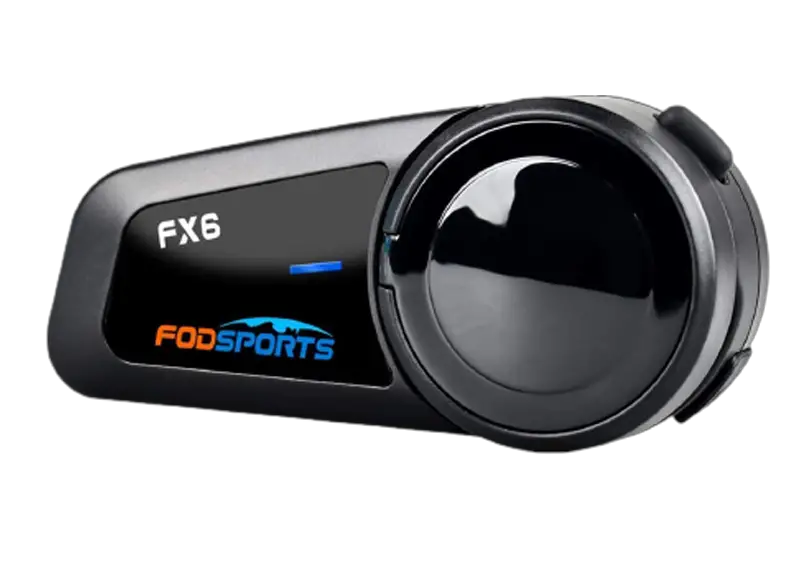
USER MANUAL
BLUETOOTH HEADSET
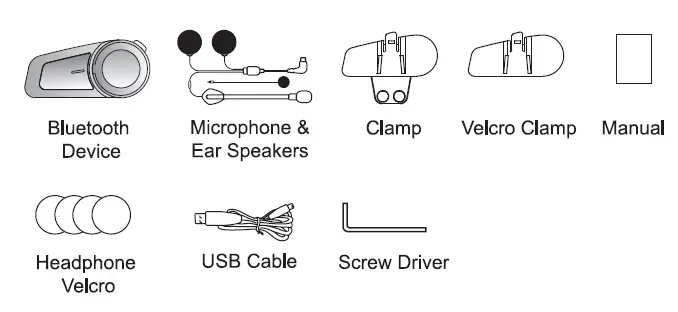
1. Packing List
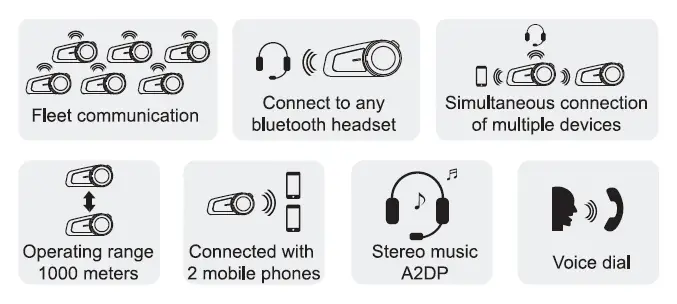
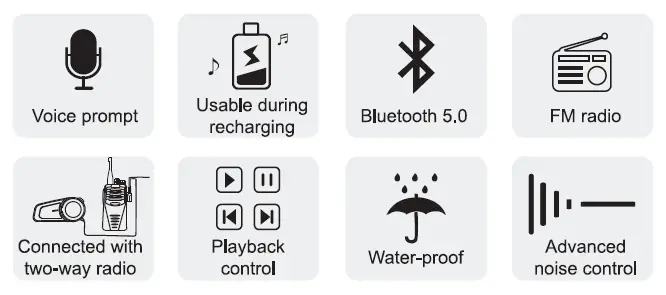
2. Function Introduction
3. Installation Step
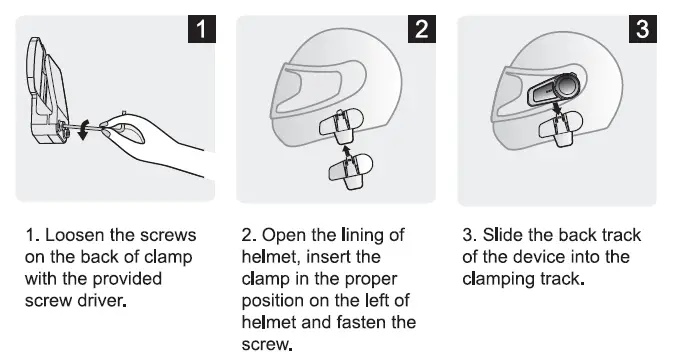
3.1 Fixed by clamp
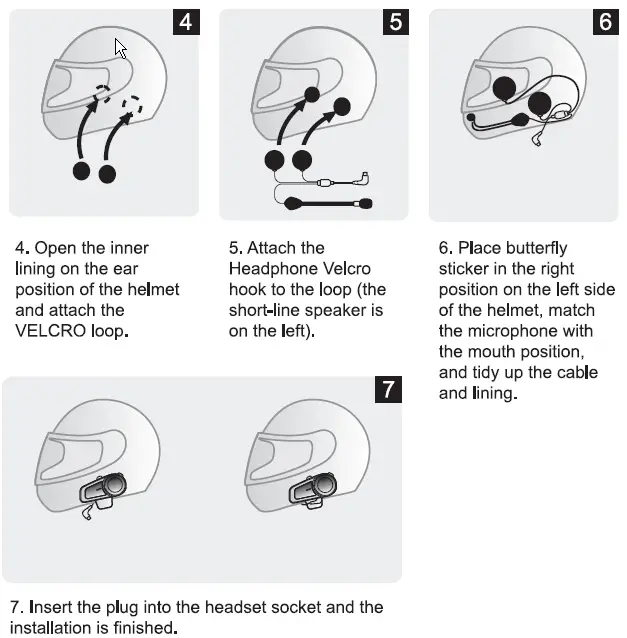
3.2 Fixed by VELCRO sticker
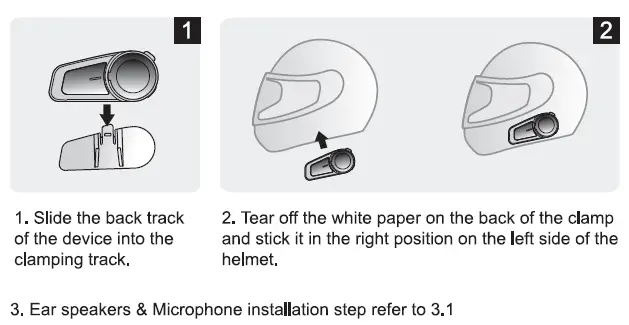
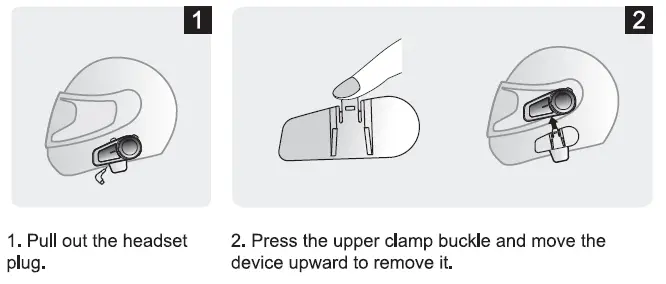
4. Disassembly of the Device
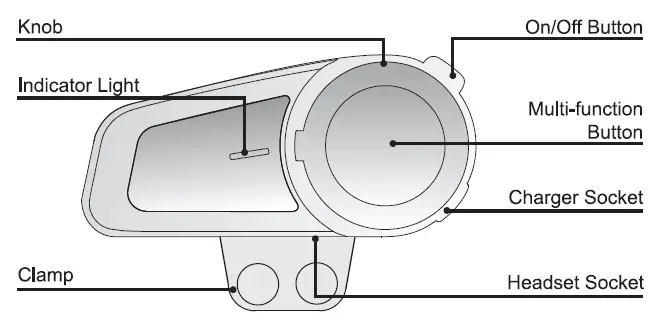
5. Product Introduction
6. Button Operation Introduction
6.1 On/Off Button
Turn on: ( When the headset is off, press and hold ii for 3 seconds. There is a “Welcome to FODSPORTS Bluetooth Communication System” sound prompt, and the blue light will be on for 1 second.)
Turn off: ( When the headset is on, press and hold it for 5 seconds. There is a “Power Off’ sound prompt, and the red light will be on for 1 second.)
Pairing: ( When the headset is off, press and hold it for 6 seconds. There is a “Pairing” sound prompt, and blue and red lights flash alternately.)
Clear the pairing device: ( When the headset is on, keep pressing the button for another 3 seconds after turn it off. After “power off’ sound prompt, the red light quickly flashes 3 times and a “toot” sound prompt can be heard.)
Start the Bluetooth Intercom: (When paired, press once on the button, you will hear an “Intercom Connected” sound prompt When the connection is successful, then press again to disconnect the intercom, press again to reconnect.)
Note: If B pair with A & C successively, B need to press the button once to initiate intercom with C, and press twice to intercom with A.
End the Bluetooth Intercom: ( Shortly press the button and intercom closes after a “Intercom disconnected” sound prompt.)
6.2 Multi-function Button
Pairing: ( When the headset is on, press and hold it for 6 seconds. There is a “Pairing” sound prompt, blue and red lights flash alternately.)
Answering a call: ( When there is coming call, click it once to pick up or take no action, the headset will pick it up automatically, you will hear “Dong Dong” sound prompt.)
Rejection of call: ( If there is a call, press and hold it 2 seconds to reject, you will hear “Dong Dong” sound prompt. )
Disconnect headset temporarily & answer by phone: ( During a call, press and hold it for 2 seconds. There is a “Dong” sound prompt, and the red light flash every other second.)
End a call: ( Click it once on call will end it, there is a “Dong” sound prompt.)
Voice dialing: ( If you are not on a call, click it twice and there is a “Voice Dial” sound prompt.) NOTE: Please make sure that your phone supports voice command and the functions are turned on.
Music Play/Pause: ( When connected, click it once.)
Switch between Bluetooth and FM: ( When the headset is on, triple-click it and there is “Bluetooth mode” or “FM mode” sound prompt.)
*Turn on/off FM: When device is on, short press Multi-function Button 3 times to Switch on / off FM function.
6.3 Knob
Turn up the volume: ( On a call , intercom, playing music or FM, turn the knob clockwise and hold it to increase volume until ii reaches the level you want . A “tool” prompt will be heard when it reaches Max volume.)
Turn down the volume: ( On a call , intercom, playing music or FM, turn the knob counter clockwise and hold ii to decrease volume until ii reaches the level you want. A “toot” prompt will be heard when it reaches Min volume.)
Play the next: ( When playing music or FM, turn the knob clockwise . )
Play the previous: ( When playing music or FM, turn the knob counter clockwise .)
7. Bluetooth Status Indication and Prompt
Power on status: ( If Bluetooth is connected, there is a “Bluetooth connected” sound prompt ,the blue indicator light flashes once every 6 seconds; if Bluetooth is not connected, there is a “Bluetooth disconnected” sound prompt , the blue indicator light flashes twice every 6 seconds.)
Low battery alarm: ( The “Battery Low” sound is prompted every 60 seconds when turn on, red light will keep flashing.)
Charging status: ( Red light is on when charging and off when fully charged.)
Battery status sound prompt when powered on: ( If the battery is full, the “Battery
Full” sound is prompted. If the battery is low, the “Battery Low” sound is prompted.)
8. Pairing Methods
8.1 Two ways for FX6 to enter pairing status
8.1.1 Mode 1 When the headset is off, press and hold On/Off Button for 6 seconds. There is a “Pairing” sound prompt, blue and red lights flash alternately.
8.1.2 Mode 2: When the headset is on, press and hold Multi-function Button for 6 seconds. There is a “Pairing” sound prompt, and blue and red lights flash alternately.
8.2 Pairing with the Non-Fodsports FOB Bluetooth device
Step 1: Place the FX6 and the device within a visible range of 1 meter.
Step 2: Set the Non-FX6 Bluetooth device into paring status.
Step 3: Follow step (8.1.2), FX6 enters pairing status.
Step 4: Short press FX6 on/off button to search the device, the Intercom connected” sound prompt means the 2 items are successfully paired.
Note 1: In step 4, the intercom connection must be initiated by FX6.
Note 2: When intercom, press FX6 on/off button to disconnect the intercom, then press again to reconnect.
8.3 Pairing with Mobile, GPS and MP3
Step 1: Place the “FODSPORTS FX6” and the device within a visible range of I meter.
Step 2: Follow step (8.1.1), “FODSPORTS FX6′ enters pairing status
Step 3: Tum on the device Bluetooth, search “FODSPORTS FX6” and connect. The connected’ sound prompt means the connection is successful.
8.4 Pairing between two FX6
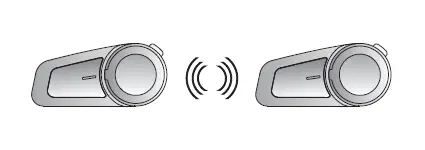
Step 1: Ensure both FX6 are off and within 1 meter visible range.
Step 2: Follow step (8.1.1), both FX6 are in pairing status.
Step 3: Short press the multi-function button or on/ off button on ether FX6 to search the other one, you will hear “intercom connected” when successfully pried.
NOTE: In the pairing status, short press multi-function button on either FX6 to search, can be used for connection between 2 FX6 only. For other non-FX6 deviceu have to press the on/ off button.
8.5 Group Intercom Settings
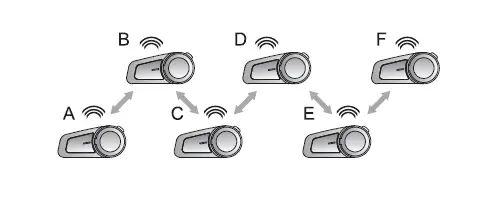
Note: For group intercom. the first and last FX6 CAN NOT be paired.
Step 1 : Clear the matching record between A and F
Press and hold the on/off buttons of A and F for 6 seconds until you hear sound prompt “power off”, then hold them for another 3 seconds.
Step 2 : Refer to the matching operations in 8.4 for following operations
- Pair A and B, turn off B after successfully paried;
- Pair B and C, turn off C after successfully paried;
- Pair C and D, turn off D after successfully paried;
- Pair D and E, turn off E after successfully paried;
- Pair E and F.
Step 3: Connect A, B, C, D, E and Fin series
- For D, press the on/off button to connect with E;
- For C, press the on/off button to connect with D;
- For B, press the on/off button to connect with C;
- For A, press the on/off button to connect with B.
* E and Fare connected completed after the Step 2 , Now A, B, C, D, E and Fare all matched successfully, you can enter group intercom.
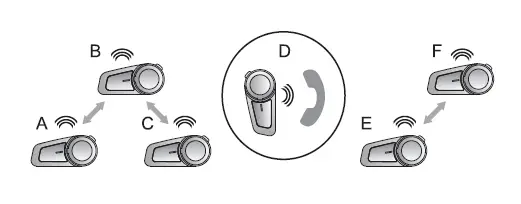
Note: During the 6 people group intercom, if D receives a call, D will be disconnected temporarily from the group. A, Band C form a group, E and F form a group.
After D finished call, D will be reconnected into the group intercom automatically and the 6 people group intercom resumes.
8.6 Simultaneous connection of multiple devices
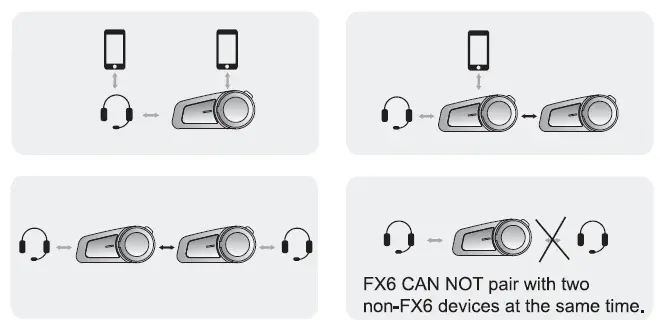
Note: Please DO NOT pair FX6 with mobile phone before you pair it with Bluetooth headset, otherwise, it may cause intercom communication error. It won’t happen if FX6 is not connected with phone.
9. Priority of Functions
Level 1: Phone call & Intercom by introduced adapter.
Level 2: Intercom introduced by Two-way radio cable.
Level 3: Bluetooth Intercom
Level 4: FM & Music
10. Specifications
- Bluetooth Version: 5.0
- Operating Range: Up to 1000 meters
- Standby Time: Up to 200 hours
- Operating Time: Up to 10 hours
- Charging Time: Approximately 2.5 hours
- Charging Interface: Micro USB Android universal plug
- Battery Type: Rechargeable Li-Polymer battery
- Power Supply: 5V-0.5A
- Operating Temperature: 14F-131F (-10 C-55 C
- Storage Temperature: -4F-140F (-20°C-60°C)
* The actual time may vary from the phone type and usage.
* The working distance will be deviated for the influence of environment and climate
11. Matters Need Attention
1. The Bluetooth name is “FODSPORTS FX6”.
2. The appropriate storage temperature for this device is between -20 C and 60 C. Please do not store it in environment with too high or too low temperatures, otherwise the service life will be affected.
3. To avoid explosion, please do not expose it to open fire.
4. If you’re not using it for a long time, please keep the device in dry place and charge it regularly (once every 3 months), to preserve battery life.
12. After-Sale Service
For any quality problem or missing accessories, especially pairing problem between 2 or more FX6 headsets, please feel free to contact us at email: [email protected]. We’re always here ready to help, will reply to you in 12 hours.
FAQs:
Why are my two speakers or one side speaker unavailable/no sound?
A: 1. Please check if the headphone cable is inserted in the correct direction, M1-S PLUS is a Type-C interface, with the microphone icon facing you, and then inserting the interface is the correct direction. 2. Please make sure the headphone cable is fully inserted into the interface.
Why is my microphone unavailable/no sound?
The microphone part is detachable and can replace the soft/boom microphone, so please check if this part is inserted tightly.
Why are my speakers volume low?
Different locations of speakers will cause differences in volume, please install the speaker as close to your ears as possible. If the distance is too far, the volume will be reduced. You can use the thickened pad in the package to achieve it.
How Does FX6 Work?
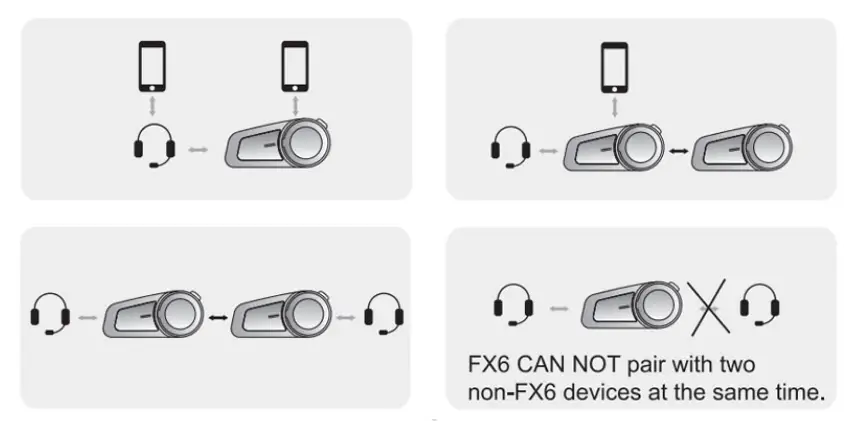
Can FX6 be paired with other brands of Bluetooth intercoms?
Technical Specifications
| Manufacturer | Fodsports |
| Brand | FODSPORTS |
| Item Weight | 11.2 ounces |
| Product Dimensions | L:4.8 x 4.5 x 3.3 inches |
| 1000m | |
| Item model number | FX6 |
| Batteries | 500mAH, 3.7v |
| Manufacturer Part Number | FX6 |
| Connections | Bluetooth 5.0 |
| Headphones Form Factor | 40MM High Impedance & High Fidelity Speaker |
| Control Type | Ultra Big Integrated Button Control Supports Siri Voice Dial |
| FM Support | YES |
| Plug Type | EU Plug |