

СТАРАЕТСЯ ДЛЯ МЕНЯ
Каталог фотоаппаратов

4-459-706-12(1)
Цифровой
фотоаппарат со
сменным объективом
α Руководство
A-переходник
Подготовка камеры
Съемка и просмотр
изображений
Фотосъемка в
зависимости от объекта
Использование функций
съемки
Использование функций
воспроизведения
Список функций
Просмотр фотоснимков
на компьютере
Прочее
Дополнительные
операции
Алфавитный указатель
SLT-A58
©2013 Sony Corporation

Cодержание
Основные
операции ………………………………………………………………… 11
В данном разделе приведена основная информация по
эксплуатации фотоаппарата.
Примечания по использованию фотоаппарата …. 12
Подготовка камеры
Проверка комплектации …………………………………….15
Компоненты камеры …………………………………………..17
Передняя сторона ………………………………………….. 17
Задняя сторона ……………………………………………….19
Верхняя сторона …………………………………………….. 20
Боковые стороны/Нижняя сторона ………………. 22
Объектив ………………………………………………………..24
Зарядка батарейного блока ………………………………..25
Установка аккумулятора/карты памяти (продается
отдельно) ………………………………………………………… 27
Карты памяти, которые вы можете
использовать ………………………………………….. 29
Присоединение объектива ………………………………….31
Включение фотоаппарата и установка часов ……. 35
Перед съемкой …………………………………………………….38
Регулировка оптической резкости видоискателя
(диоптрийная коррекция) ………………………. 38
Как правильно держать фотоаппарат ……………38
Съемка и просмотр изображений
Съемка неподвижных изображений ………………….. 40
Запись фильмов …………………………………………………..43
Воспроизведение изображений ………………………….. 44
Удаление изображений (Удалить) ……………………..45
2
Фотосъемка в зависимости от объекта
Регулировка угла установки ЖК-экрана ……………46
Выбор режима съемки ………………………………………..47
Супер авторежим …………………………………. 48
Выбор сцены ………………………………………….. 50
Панорамный обзор …………………………………. 51
Непрер. приор. АЭ с телеконв. ………………52
Использование функций съемки
Использование вспышки …………………………………….53
Настройка яркости изображения ……………………….55
Выбор режима протяжки ……………………….. 57
Переключение информационной индикации в
режиме записи (DISP) ……………………………………. 58
Настройка размера изображения ………………………. 59
Размер изобр. …………………………………………………. 59
Панорама: размер ………………………………………….. 60
Использование функций воспроизведения
Увеличение изображений …………………………………..61
Переключение на отображение списка
изображений …………………………………………………..62
Просмотр изображений на экране телевизора ….63
Список функций
Функции, которыми можно управлять с помощью
кнопок/переключателя…………………………………… 64
Выбор функции с помощью кнопки Fn
(Функция) ……………………………………………………….66
Функции, которые можно выбирать с помощью
кнопки Fn (Функция) …………………………………….67
Выбор функций с помощью кнопки MENU ……… 69
Использование функции рекомендаций
камеры ……………………………………………………………. 78
Встроенная справка ……………………………………….. 78
Подсказки по съемке …………………………………….. 78
3

Просмотр фотоснимков на компьютере
Какие возможности предоставляет программное
обеспечение …………………………………………………….80
Какие возможности предоставляет
“PlayMemories Home” …………………………….81
Какие возможности предоставляет
“Image Data Converter” ………………………….82
Установка программного обеспечения ……………… 83
Установка программы
“PlayMemories Home” …………………………….83
Просмотр руководства “Справочное
руководство по PlayMemories Home” …… 84
Установка программы “Image Data
Converter” ………………………………………………. 84
Просмотр руководства “Руководство по Image
Data Converter” ………………………………………85
Установка программы “Remote Camera
Control” …………………………………………………..86
Выбор способа создания видеодиска ………………….87
Создание диска с помощью компьютера ………. 88
Создание диска с помощью устройства,
отличного от компьютера………………………89
Прочее
Список экранных значков …………………………………..90
Функции, доступные для каждого режима
съемки ……………………………………………………………. 93
Доступные режимы вспышки ……………………………..94
4
Дополнительные
операции
………………………………………………………………… 95
В данном разделе приведена дополнительная информация по
эксплуатации фотоаппарата.
Подготовка
Настройка фотоаппарата …………………………………… 96
Снятие наглазника окуляра …………………………… 96
Экранная индикация режима съемки ………………… 97
Выбор режима экрана …………………………………… 97
Гистограмма ……………………………………………………98
Контроль объекта через объектив без
отображения эффектов …………………………. 99
Список значков режима видоискателя …………. 99
Съемка четкого изображения без дрожания
фотоаппарата ……………………………………………….. 102
Индикатор предупреждения о дрожании
фотоаппарата ……………………………………….102
Использование функции SteadyShot ……………. 103
Использование штатива ……………………………….103
Съемка
Выбор режима фотосъемки …………………………….. 104
Интеллект. Авто/ Вспышка выкл ……… 104
Супер авторежим ………………………………… 104
Выбор сцены ………………………………………… 105
Панорамный обзор ……………………………….. 108
Непрер. приор. АЭ с телеконв. …………….110
Программное авто ……………………………………. 111
Приор. диафрагмы …………………………………… 112
Приор. выдержки ……………………………………… 115
Ручной экспозиция ……………………………………117
BULB ……………………………………………………….. 119
Установка записи видео ……………………………………. 121
Простая запись видео …………………………………… 121
Цифров увелич ……………………………………………..123
Изменение чувствительности отслеживания
автофокуса во время записи видео ……… 123
5

Запись видео с регулировкой выдержки и
диафрагмы …………………………………………….124
Формат файла ………………………………………………. 125
Параметры записи ………………………………………..126
Запись звука …………………………………………………. 127
Регулировка фокусировки ……………………………….. 128
Автофокус …………………………………………………….129
Блокировка фокуса ………………………………………131
Режим АФ …………………………………………………….. 132
Область AF …………………………………………………..133
Подсветка АФ ………………………………………………. 134
Следящий AF ………………………………………………..135
Фокусировка вручную ………………………………….137
Выделение контуров ……………………………………. 139
Фокусировоч. лупа ………………………………………..139
Распознавание лиц …………………………………………….141
Распознаван. лиц ………………………………………….. 141
Регистрация лиц …………………………………………… 142
Авто кадрирование ………………………………………. 144
Smile Shutter ………………………………………………….145
Регулировка яркости изображения …………………..147
Блокировка АЭ …………………………………………….147
AEL с выдержкой …………………………………………148
Режим измер. ………………………………………………..148
Кор.эксп.вспыш. …………………………………………… 149
Управл.вспышкой …………………………………………150
Вспышка …………………………………………………………….152
Беспроводная вспышка ………………………………..153
Установка ISO …………………………………………………..155
Многокадр. шумоподавл. …………………………….. 156
Автоматическая компенсация яркости и
контрастности (Д-диапазон) …………………………157
Опт.Д-диап. ……………………………………………………157
Авто HDR ……………………………………………………. 158
Установка обработки изображений ………………….160
Эффект рисунка ……………………………………………160
Творческ. стиль …………………………………………….162
6

Регулировка цветовых тонов
Зуммирование ……………………………………………………169
Воспроизведение
Экранная индикация режима
Использование функций воспроизведения ……… 179
Защита изображений (Защита) ……………………….. 182
Удаление изображений (Удалить) …………………… 183
Воспроизведение на телевизоре ……………………….185
(Баланс белого) ……………………………………………. 164
Экран точной регулировки цвета ……………….. 166
Цвет. темпер./Цветной фильтр …………………… 166
Пользоват. баланс белого ……………………………. 167
Выбор режима протяжки ……………………… 172
Покадров. Съемка ……………………………………….. 172
Непрерыв. Съемка ………………………………………. 172
Автоспуск ……………………………………………………..173
Брек.: Непрер./Покадр. брекетинг ……………… 174
Брекетинг WB ……………………………………………… 176
воспроизведения …………………………………………… 177
Переключение экрана во время
воспроизведения …………………………………… 177
Список значков дисплея гистограммы ………… 177
Поворот изображения ………………………………….179
Выб. фото./видео ………………………………………….180
Слайд-шоу ……………………………………………………..180
Дисп.реж.воспр. ……………………………………………. 181
Прокрутка панорамных изображений ………… 181
Удалить (Неск. снимков) …………………………….. 183
Удаление всех изображений или видеозаписей в
каждом режиме просмотра…………………..184
Использование приложения “BRAVIA”
Sync ………………………………………………………. 185
7

Настройка фотоаппарата
Установка формата и качества изображения …..187
Формат ………………………………………………………….187
Качество ……………………………………………………….187
Установка других функций фотоаппарата ………. 189
ШП длит. экспоз. ………………………………………….. 189
ШП высокого ISO …………………………………………190
Цвет. простран. …………………………………………….. 190
Спуск б/объектива ………………………………………..191
Сетка ……………………………………………………………..191
Авто.просмотр ………………………………………………192
Функ. кнопки AEL ……………………………………….. 192
Кнопка ISO ……………………………………………………193
Кнопка предпросмотра …………………………………193
Электронная передняя шторка затвора ………. 194
Яркость видоискат. ………………………………………. 194
Эконом. питания ………………………………………….. 195
Настр. FINDER/LCD ……………………………………195
Коррекция объектива ………………………………………. 196
Корр. об.: Периферич. затенение ………………… 196
Коррекция объектива: Хром. аберр. ……………196
Коррекция объектива: Дисторсия ……………….196
Установка способа записи на карту памяти …….. 197
Форматировать …………………………………………….. 197
Номер файла ………………………………………………… 197
Название папки ……………………………………………. 198
Выбор папк. записи ………………………………………198
Создать папку ………………………………………………. 198
Восстан. БД изобр. ……………………………………….199
Парам. Выгрузки ………………………………………….199
Возврат к исходным установкам ………………………201
Подтверждение версии фотоаппарата …………….. 205
8

Компьютер
Печать
Чистка
Использование фотоаппарата с
компьютером ……………………………………………….. 206
Рекомендуемая конфигурация компьютера
(Windows) ……………………………………………… 207
Рекомендуемая конфигурация компьютера
(Mac) …………………………………………………….. 208
Подключение фотоаппарата к компьютеру ……. 209
Создание USB-соединения ……………………………209
Установка режима USB-соединения
(Настройка USB LUN)…………………………. 210
Подключение к компьютеру ……………………….. 210
Импортирование изображений в компьютер
(Windows) …………………………………………….. 211
Импортирование изображений в компьютер
(Mac) …………………………………………………….. 213
Удаление USB-соединения ………………………….. 213
Создание диска с видеозаписями ……………………… 215
Создание диска с качеством высокой четкости
(HD) на компьютере (диск с записью
AVCHD) ……………………………………………….215
Создание диска с качеством стандартной
четкости (STD)……………………………………… 216
Типы дисков, которые можно использовать с
программой “PlayMemories Home” …….. 217
Указание DPOF ………………………………………………… 218
Печать даты …………………………………………………. 219
Чистка фотоаппарата и объектива ………………….. 220
Чистка датчика изображения …………………………… 221
9

Поиск и устранение неисправностей/Прочее
Устранение неисправностей ……………………………..224
Предупреждающие сообщения …………………………235
Меры предосторожности …………………………………. 238
Использование фотоаппарата за границей —
Источники питания ………………………………………243
Формат AVCHD ………………………………………………..244
Карты памяти …………………………………………………….245
Аккумулятор/Зарядное устройство ………………….248
Лицензия ……………………………………………………………. 250
Алфавитный указатель …………………………………………………252
10
Основные операции
В данном разделе приведена основная информация
по эксплуатации фотоаппарата. В первую очередь
ознакомьтесь с данным разделом. Для более
эффективного использования фотоаппарата см.
раздел “Дополнительные операции” (стр. 95).
11

Примечания по использованию
фотоаппарата
Процедура съемки
Данный фотоаппарат имеет 2 режима
для контроля объектов: режим ЖКэкрана с использованием ЖК-экрана
и режим видоискателя с
использованием видоискателя.
Примечания по доступным
функциям фотоаппарата
Чтобы проверить, является ли
фотоаппарат 1080 60i-совместимым
устройством или 1080 50iсовместимым устройством, проверьте
следующие метки на его нижней
стороне.
1080 60i-совместимое устройство: 60i
1080 50i-совместимое устройство: 50i
Компенсации за потерю
содержимого записи не
предусмотрены
Компенсации за потерю содержимого
записи не предусмотрены, если запись
или воспроизведение невозможны
вследствие неисправности
фотоаппарата или карты памяти и
т.п.
Рекомендация резервного
копирования
Для предотвращения опасности
потери данных всегда следует
выполнять копирование
(резервирование) данных на другой
носитель.
Примечания по ЖК-экрану,
электронному видоискателю,
объективу и датчику
изображения
• ЖК-экран и электронный
видоискатель изготовлены с
использованием особо
высокоточной технологии, что
позволяет при эксплуатации
эффективно использовать свыше
99,99% пикселей. Однако может
быть несколько очень мелких
черных и/или ярких точек (белого,
красного, синего или зеленого
цвета), постоянно появляющихся на
ЖК-экране и электронном
видоискателе. Появление этих
точек вполне нормально для
процесса изготовления и никаким
образом не влияет на изображение.
• Не держите фотоаппарат за ЖКэкран.
• Не подвергайте фотоаппарат
воздействию солнечного света и не
снимайте в направлении солнца в
течение продолжительного
времени. Это может привести к
повреждению внутреннего
механизма. Если отраженный
солнечный свет будет
сфокусирован на близлежащий
объект, это может вызвать
возгорание.
• Позади и вокруг поворотной оси
подвижной части ЖК-экрана
находятся магниты. Не
располагайте рядом с ЖК-экраном
предметы, которые чувствительны
к воздействию магнитов, такие как
дискеты и платежные карты.
12

Примечания по использованию фотоаппарата
• В холодных местах на экране
может появляться шлейф
изображения. Это не является
неисправностью. При включении
фотоаппарата в холодном месте
экран может временно потемнеть.
После того, как фотоаппарат
прогреется, экран будет
функционировать нормально.
• Записанное изображение может
отличаться от изображения,
видимого перед съемкой.
Примечания по записи в
течение длительного
периода времени
• При продолжении съемки в
течение длительного времени
температура фотоаппарата
повышается. При достижении
температурой определенного
уровня на экране появится значок
и фотоаппарат автоматически
выключится. В случае выключения
питания оставьте фотоаппарат на
10 минут или дольше, чтобы дать
температуре внутри фотоаппарата
снизиться до безопасного уровня.
• При высокой температуре
окружающей среды температура
фотоаппарата быстро повышается.
• При повышении температуры
фотоаппарата качество
изображения может ухудшиться.
Перед продолжением съемки
рекомендуется подождать, пока
температура фотоаппарата не
снизится.
• Поверхность фотоаппарата может
стать теплой. Это не является
неисправностью.
Примечания по
импортированию
видеозаписей AVCHD в
компьютер
При импортировании видеозаписей
AVCHD в компьютер, для Windows
используйте программное
обеспечение “PlayMemories Home”.
Примечания относительно
воспроизведения
видеозаписей на других
устройствах
• Эта камера использует MPEG-4
AVC/H.264 High Profile для записи в
формате AVCHD. Видеозаписи,
полученные с помощью этого
фотоаппарата в формате AVCHD,
невозможно воспроизвести на
следующих устройствах.
– Другие устройства, совместимые
с форматом AVCHD, которые не
поддерживают High Profile
– Устройства, не совместимые с
форматом AVCHD
Эта камера также использует
MPEG-4 AVC/H.264 Main Profile
для записи в формате MP4. По этой
причине видеозаписи в формате
MP4, выполненные с помощью
этого фотоаппарата, невозможно
воспроизвести на устройствах,
отличных от тех, которые
поддерживают MPEG-4 AVC/
H.264.
13
Примечания по использованию фотоаппарата
• Диски, записанные с качеством
изображения HD (высокой
четкости), можно воспроизвести
только на устройствах,
совместимых с форматом AVCHD.
DVD-проигрыватели или
рекордеры не могут
воспроизводить диски с качеством
изображения HD, поскольку они не
совместимы с форматом AVCHD.
Также DVD-проигрыватели или
рекордеры могут не вытолкнуть
диски с качеством изображения
HD.
Предупреждение об
авторских правах
На телевизионные программы,
фильмы, видеоленты и другие
материалы может распространяться
авторское право.
Несанкционированная запись таких
материалов может противоречить
положениям законодательства об
авторском праве.
Изображения, используемые
в данном руководстве
Фотографии, использованные в
качестве примеров в данном
руководстве пользователя, являются
воспроизведенными изображениями,
а не изображениями, полученными с
помощью данной камеры.
О технических
характеристиках, указанных
в данном руководстве
Данные по характеристикам и
параметрам определены при
следующих условиях, если иное не
указано в данном руководстве: при
обычной температуре окружающей
°C и использовании
среды 25
аккумулятора, который был
полностью заряжен в течение
примерно одного часа после
выключения индикатора зарядки.
Название модели
Данное руководство относится к
нескольким моделям, поставляемым с
различными объективами.
Название модели зависит от
прилагаемого объектива. Доступная
модель варьируется в зависимости от
страны/региона.
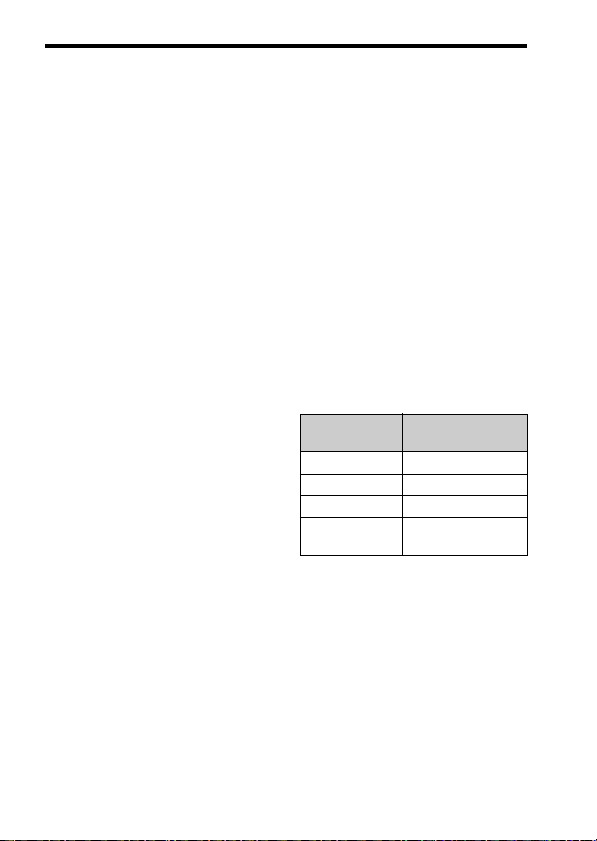
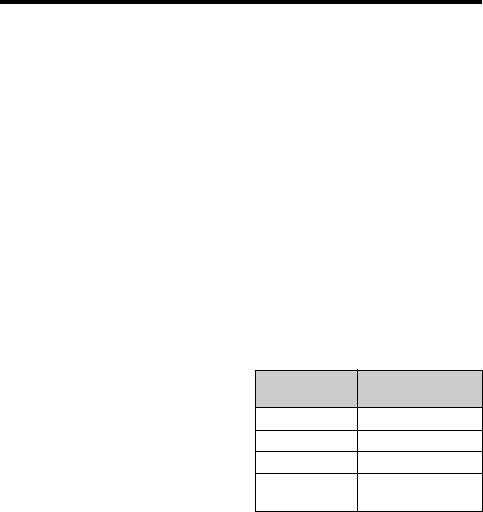
Название
модели
Объектив
SLT-A58 —
SLT-A58K DT18-55mm
SLT-A58M DT18-135mm
SLT-A58Y DT18-55mm и
DT55-200mm
14
Подготовка камеры
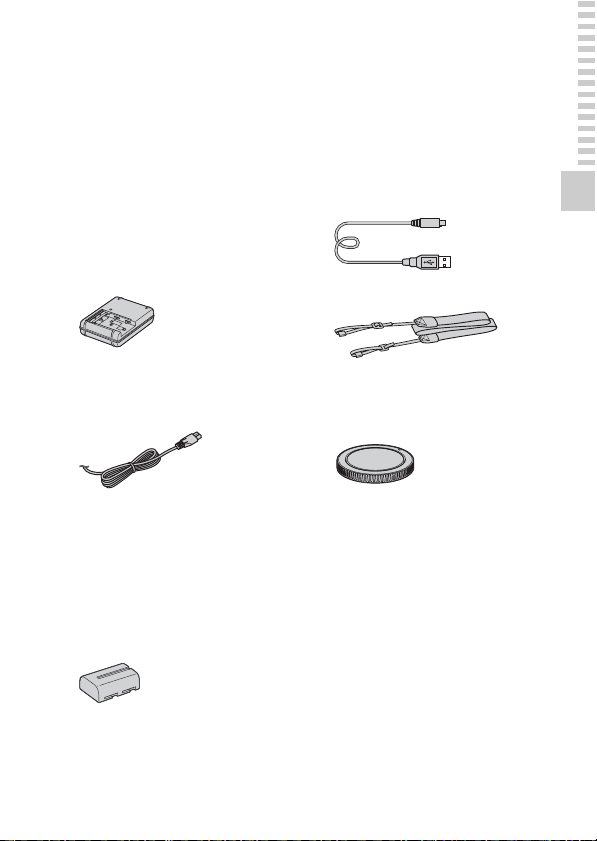
Проверка комплектации
Прежде всего проверьте название модели фотоаппарата
(стр. 14). Прилагаемые принадлежности различаются в
зависимости от модели.
Число в скобках означает количество.
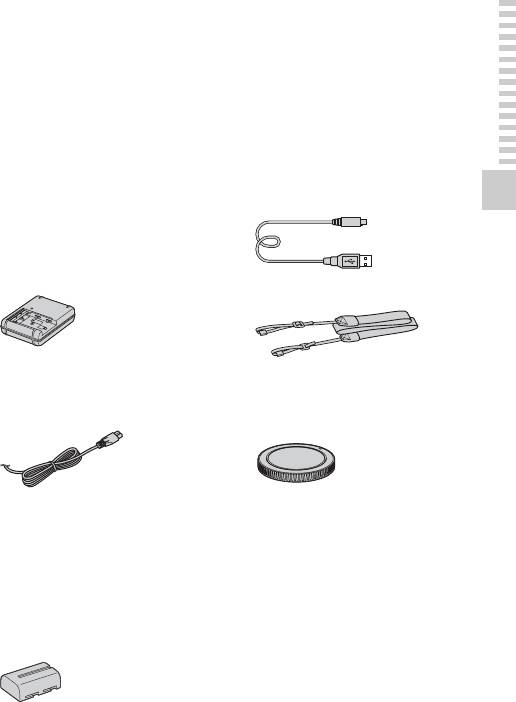
Прилагается ко всем
моделям
• Фотоаппарат (1)
• Зарядное устройство
BC-VM10A (1)
• Шнур питания (1)*
(не прилагается в США и
Канаде)
* К фотоаппарату может
прилагаться несколько шнуров
питания. Используйте тот,
который подходит для вашей
страны/региона.
• Перезаряжаемый
батарейный блок
NP-FM500H (1)
• Кабель Micro USB (1)
Подготовка камеры
• Плечевой ремень (1)
• Крышка байонета (1)
(Надевается на
фотоаппарат)
• Наглазник окуляра (1)
(Надевается на
фотоаппарат)
• Инструкция по эксплуатации
(1)
SLT-A58K
• Зум-объектив DT18-55mm
(1)/Передняя крышка
объектива (1)/Упаковочная
крышка (1)
15

SLT-A58M
• Зум-объектив DT18-135mm
(1)/Передняя крышка
объектива (1)/Задняя
крышка объектива (1)/
Светозащитная бленда
объектива (1)
SLT-A58Y
• Зум-объектив DT18-55mm
(1)/Передняя крышка
объектива (1)/Упаковочная
крышка (1)
• Зум-объектив DT55-200mm
(1)/Передняя крышка
объектива (1)/Задняя
крышка объектива (1)/
Светозащитная бленда
объектива (1)
Проверка комплектации
16
Компоненты камеры
Подробные сведения о работе деталей приведены на страницах в
скобках.
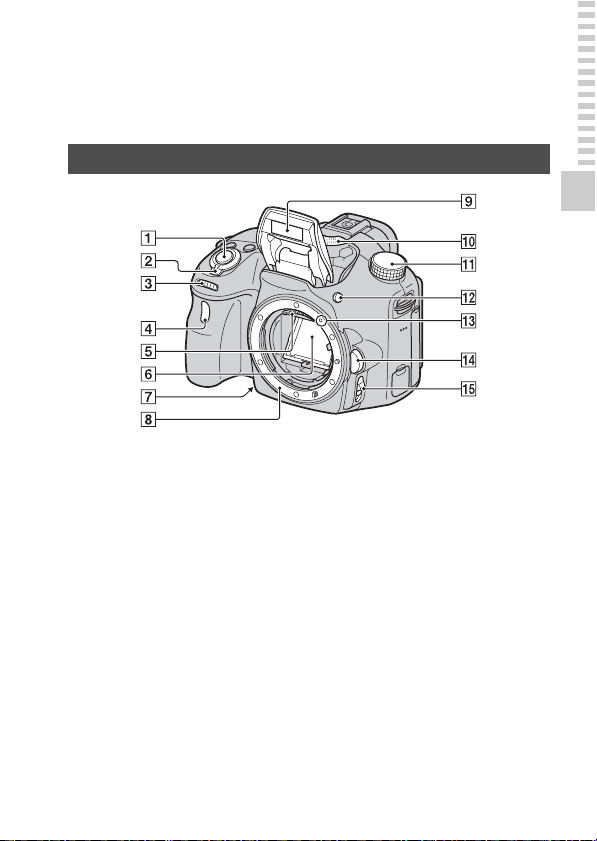
Передняя сторона
Подготовка камеры
A Кнопка затвора (40)
B Выключатель питания (35)
C Диск управления (112, 115,
117)
D Лампочка автоспуска (173)
E Контакты соединения с
объективом*
F Зеркало*
• Это зеркало сделано из
прозрачной пленки. Не
прикасайтесь к зеркалу.
Такие действия могут
привести к загрязнению
или деформации зеркала, а
результате чего качество
изображения и
характеристики
фотоаппарата могут
ухудшиться.
G Кнопка предварительного
просмотра (114)/
кнопка
увеличителя фокуса (139)
17

H Байонет
I Встроенная вспышка* (53,
152)
J Микрофон** (127)
K Диск режимов (47)
L Кнопка (подъем
вспышки) (53, 152)
M Метка крепления (31)
N Кнопка фиксатора
объектива (32)
O Переключатель режима
фокусировки (129, 137)
* Не прикасайтесь
непосредственно к этим
частям.
** Не закрывайте эту часть
во время видеозаписи.
Это может привести к
возникновению шумов
или снижению
громкости.
Компоненты камеры
18
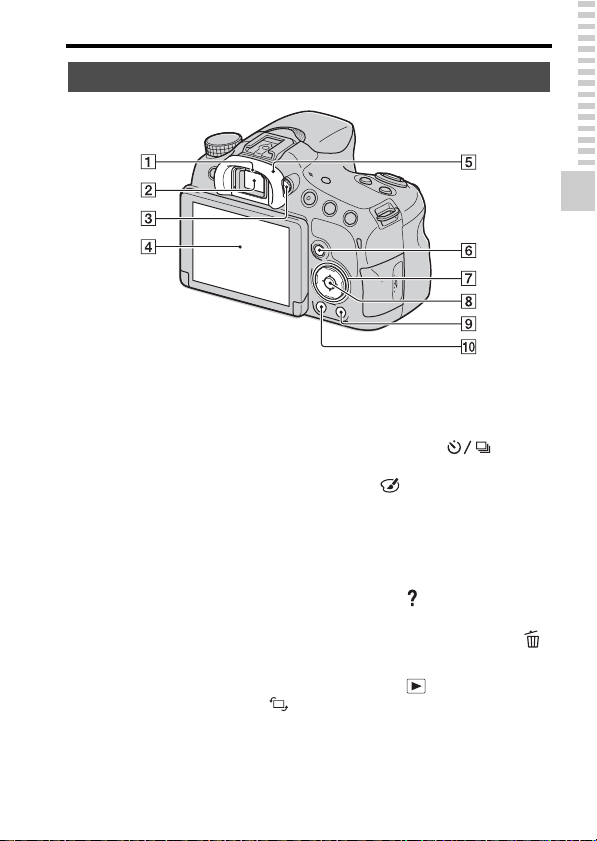
Задняя сторона
Компоненты камеры
Подготовка камеры
A Датчики окуляра (96)
B Видоискатель*
• При взгляде в видоискатель
активируется режим
видоискателя, а при
отдалении лица от
видоискателя режим
просмотра возвращается в
режим ЖК-экрана.
C Диск коррекции
диоптрийности (38)
D ЖК-экран (90, 99, 177)
E Наглазник окуляра (96)
F Для съемки: Кнопка Fn
(Функция) (66, 67)
Для просмотра: Кнопка
(Поворот изображения)
(179)
G Кнопка управления
v/V/b/B/DISP (Вид экрана)
(58, 177)/WB (Баланс
белого) (164)/
(Режим протяжки) (57,
172)/ (Эффект рисунка)
(160)
H Кнопка управления (Ввод)/
кнопка AF (133)/кнопка
следящий AF (135)
I Кнопка (Встроенная
справка) (78)
Для просмотра: Кнопка
(Удалить) (45)
J Кнопка
(Воспроизведение) (44)
* Не прикасайтесь
непосредственно к этой
части.
19
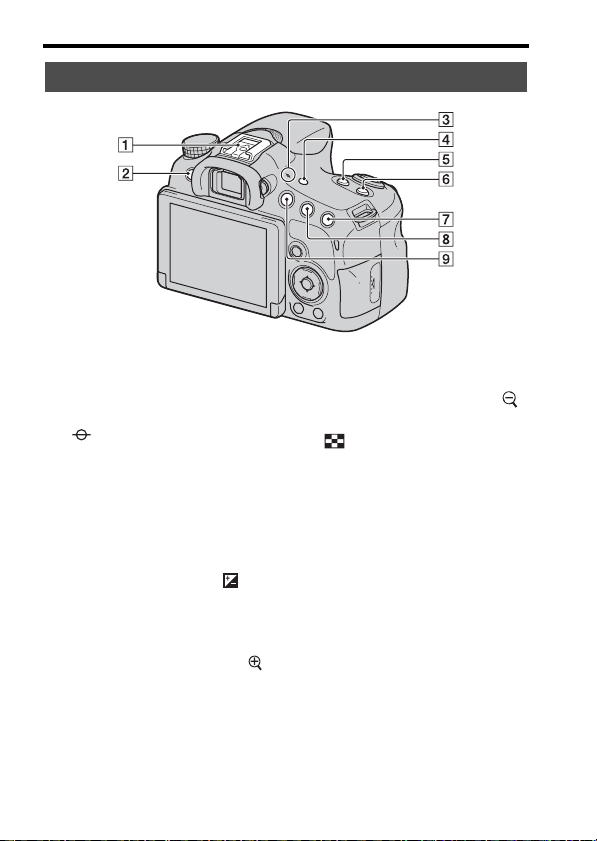
Верхняя сторона
Компоненты камеры
A Многоинтерфейсный
B Кнопка MENU (69)
C Метка положения
разъем
1) 2)
(153)
датчика изображения (131)
D Кнопка FINDER/LCD
(195)
E Кнопка ZOOM (169)
F Кнопка ISO (155, 193)
G Для съемки: Кнопка
(Экспозиция) (55)/кнопка
AV (Значение диафрагмы)
(117)
Для просмотра: Кнопка
(Увеличение) (61)
20
H Для съемки: Кнопка AEL
(блокировка АЭ) (147, 192)
Для просмотра: Кнопка
(уменьшение) (61)/кнопка
(индексное
изображение) (62)
I Кнопка MOVIE (43, 121)
1)
Для получения подробных
сведений о совместимых
дополнительных аксессуарах для
многоинтерфейсного разъема
посетите веб-сайт Sony, или
обратитесь за консультацией к
дилеру Sony или в локальный
уполномоченный сервисный
центр Sony в вашей области.
Также можно использовать
дополнительные аксессуары для
разъема для крепления
аксессуаров. Работа с
аксессуарами других
производителей не
гарантируется.
2)
Аксессуары для разъема для
крепления дополнительных
аксессуаров с автоматической
фиксацией можно также
прикреплять с помощью
адаптера для башмака
(продается отдельно).
Компоненты камеры
Подготовка камеры
21
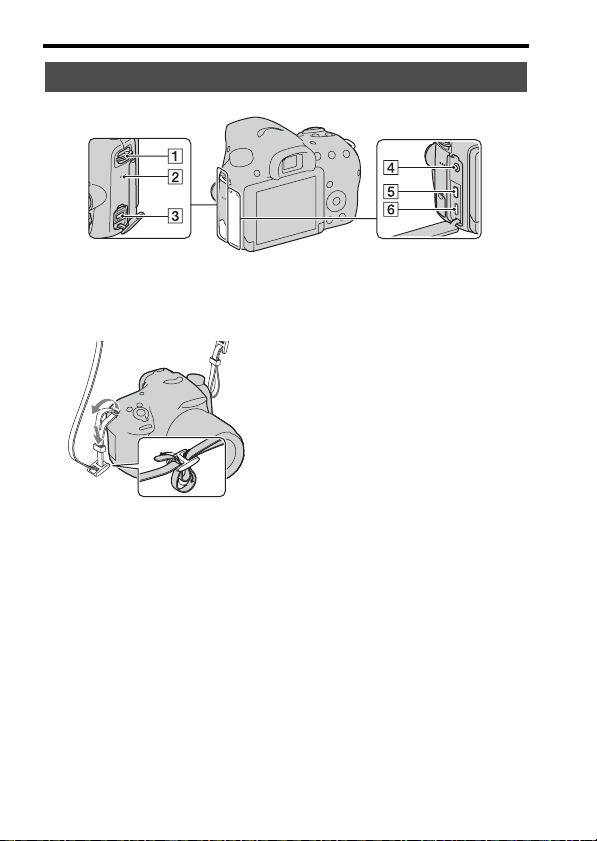
Компоненты камеры
Боковые стороны/Нижняя сторона
A Петли для плечевого ремня
• Прикрепите оба конца
ремня к фотоаппарату.
B Динамик
C Разъем DC IN
• При подсоединении
адаптера переменного тока
AC-PW10AM (продается
отдельно) к фотоаппарату,
выключите фотоаппарат,
затем вставьте разъем
адаптера переменного тока
в разъем DC IN
фотоаппарата.
22
D Гнездо m (микрофон)
• При подсоединении
внешнего микрофона
внутренний микрофон
автоматически
отключается. Если
внешний микрофон
относится к типу, питание
на который подается через
гнездо, питание на
микрофон будет подаваться
с фотоаппарата.
E Микрогнездо HDMI (63,
185)
F Разъем Multi/Micro USB
(210)
• Поддерживает Micro USBсовместимое устройство.
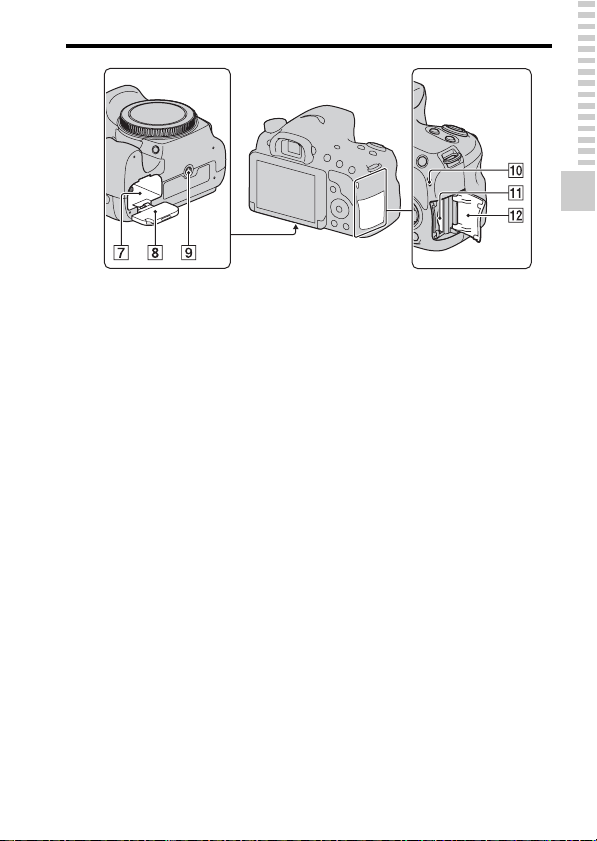
G Гнездо для вставки
аккумулятора (27)
H Крышка аккумулятора (27)
I Гнездо штатива
• Используйте штатив с
длиной винта не более
5,5 мм. Вы не сможете
надежно закрепить
фотоаппарат на штативе с
помощью винтов, длина
которых 5,5 мм или выше, и
попытка сделать это может
привести к повреждению
фотоаппарата.
J Лампочка доступа (28)
K Слот для вставки карты
памяти (27)
L Крышка карты памяти (27)
Компоненты камеры
Подготовка камеры
23
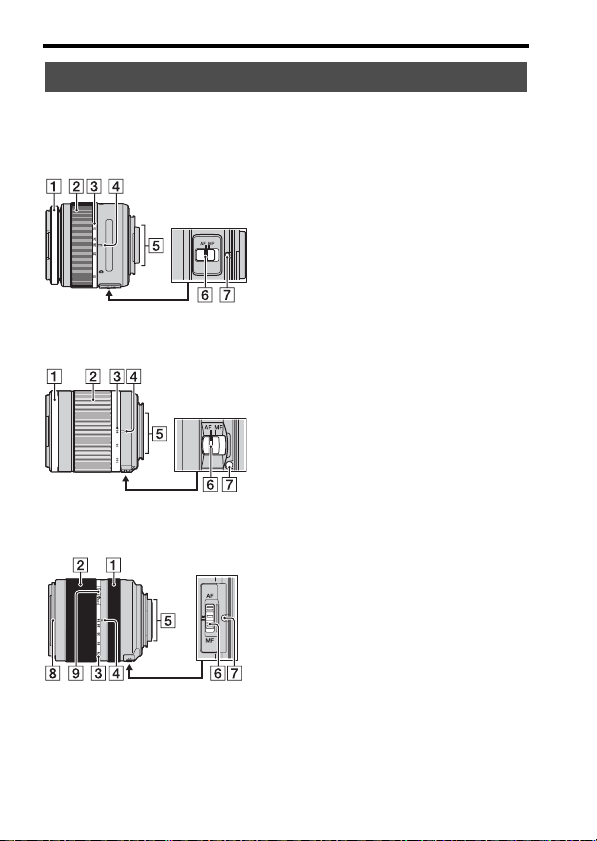
Объектив
Компоненты камеры
DT 18-55mm F3.5-5.6 SAM II
(Прилагается к SLT-A58K/
A58Y)
DT 55-200mm F4-5.6 SAM
(Прилагается к SLT-A58Y)
DT 18-135mm F3.5-5.6 SAM
(Прилагается к SLT-A58M)
A Кольцо фокусировки
B Кольцо зуммирования
C Шкала фокусного
расстояния
24
D Метка фокусного
расстояния
E Контакты соединения с
объективом
F Переключатель режима
фокусировки
G Установочная метка
H Индекс светозащитной
бленды объектива
I Фиксатор зума
• DT 18-55mm F3.5-5.6 SAM II/
DT 55-200mm F4-5.6 SAM/
DT 18-135mm F3.5-5.6 SAM
предназначены для
фотоаппаратов с Апереходником Sony (модели,
оснащенные датчиком
изображений размера APSC). Данные объективы
невозможно использовать с
фотоаппаратами 35-мм
формата.
• Что касается объективов,
отличных от DT 18-55mm
F3.5-5.6 SAM II/DT 55200mm F4-5.6 SAM/DT 18135mm F3.5-5.6 SAM,
обращайтесь к инструкции
по эксплуатации,
прилагаемой к объективу.
Зарядка батарейного блока
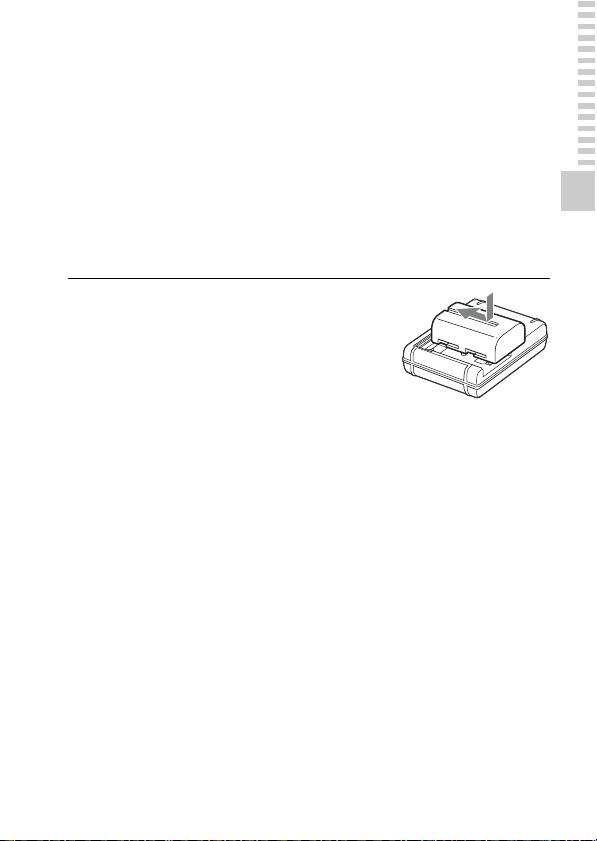
При первом использовании камеры зарядите батарейный блок
NP-FM500H “InfoLITHIUM” (прилагается).
Батарейный блок “InfoLITHIUM” может заряжаться даже в том
случае, если он не был полностью разряжен. Батарейный блок
можно также использовать, если он не полностью заряжен.
Заряженная аккумуляторная батарея будет понемногу
разряжаться, даже если вы не пользуетесь камерой. Чтобы не
пропустить возможность съемки, снова зарядите батарейный
блок перед съемкой.
Вставьте аккумулятор
1
в зарядное устройство.
Нажмите на аккумулятор до
щелчка.
Подготовка камеры
25
Зарядка батарейного блока
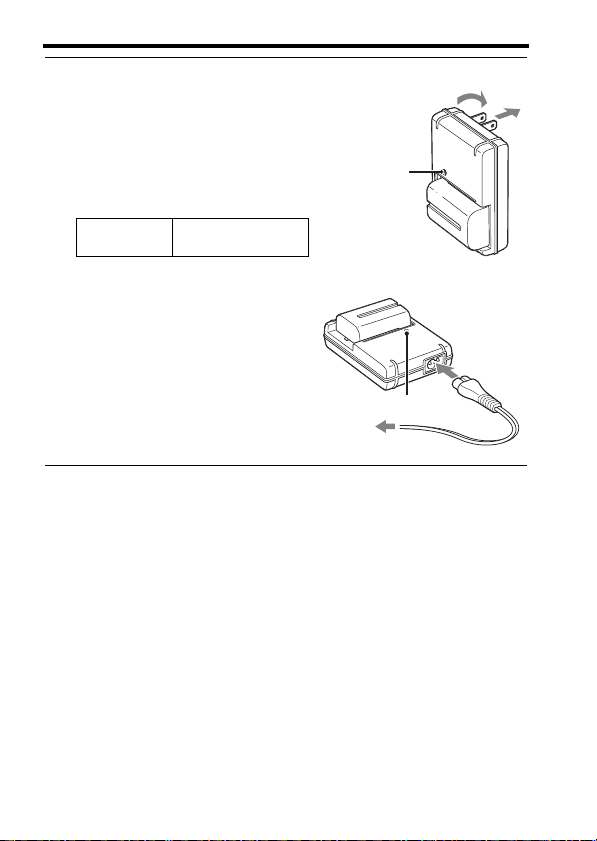
Подсоедините
2
зарядное устройство к
Для США и Канады
Вилка
сетевой розетке.
Лампочка горит: выполняется
зарядка
Лампочка не горит: зарядка
завершена
Время
зарядки
• При зарядке полностью
разряженного аккумулятора при
температуре 25°C.
• После завершения зарядки
лампочка CHARGE
выключается.
Примечания
• Время зарядки отличается в зависимости от оставшейся емкости
аккумулятора или условий зарядки.
• Рекомендуется заряжать аккумулятор при окружающей температуре от
10°C до 30°C. Эффективно зарядить аккумулятор за пределами этого
температурного диапазона невозможно.
• Подсоедините зарядное устройство к ближайшей сетевой розетке.
Около 175 минут
Лампочка
CHARGE
Для стран/регионов, кроме
США и Канады
Лампочка CHARGE
К сетевой розетке
26
Установка аккумулятора/
карты памяти (продается
отдельно)
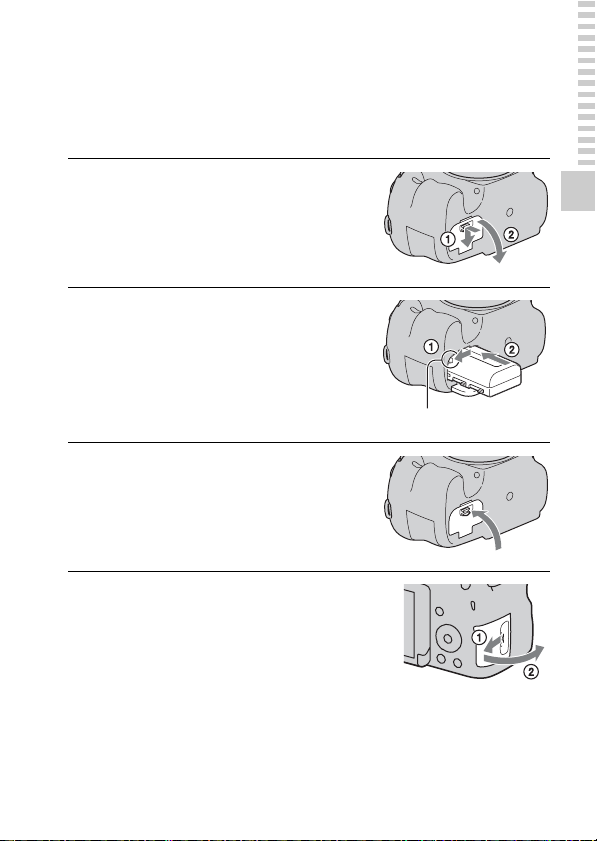
Откройте крышку
1
аккумулятора, сдвинув
рычажок.
Полностью вставьте
2
батарейный блок,
используя конец
батареи для нажатия
рычажка блокировки.
Закройте крышку.
3
Выдвиньте и откройте
4
крышку карты памяти.
Рычаг фиксации
Подготовка камеры
27
Установка аккумулятора/карты памяти (продается отдельно)
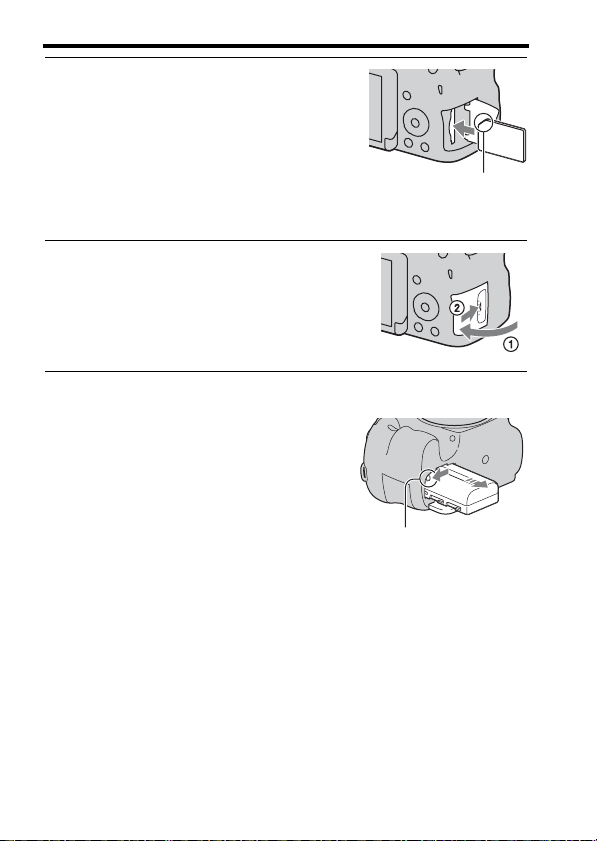
Вставьте карту памяти.
5
• Расположив карту памяти с
зазубренным углом так, как
показано на рисунке, вставьте ее
до щелчка.
Закройте крышку.
6
Для извлечения аккумулятора
Выключите фотоаппарат и
убедитесь, что он прекратил
вибрировать, а ЖК-экран и
лампочка доступа (стр. 23)
выключены. Затем передвиньте
рычаг фиксатора в направлении
стрелки для извлечения
аккумулятора. Будьте осторожны,
чтобы не уронить батарейный блок.
Проверьте, чтобы зазубренный
угол был расположен
правильно.
Рычаг фиксации
Для извлечения карты памяти
Убедитесь, что лампочка доступа не светится, затем откройте
крышку и один раз нажмите на карту памяти.
28
Установка аккумулятора/карты памяти (продается отдельно)
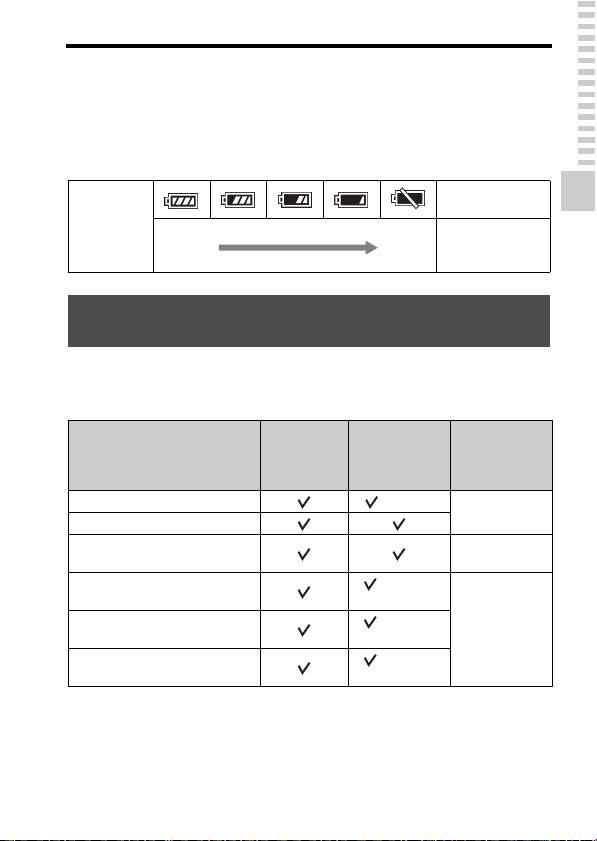
Для проверки оставшегося заряда аккумулятора
Прилагаемый аккумулятор – это аккумулятор на литиевых
ионах, способный обмениваться информацией об условиях
эксплуатации с фотоаппаратом. Оставшийся заряд аккумулятора
в процентах отображается в соответствии с условиями
эксплуатации фотоаппарата.
“Батарея
Уровень
заряда
батареи
Высокий Низкий
разряжена.”
Дальнейшая
фотосъемка
невозможна.
Карты памяти, которые вы можете
использовать
С данным фотоаппаратом совместимы следующие карты
памяти. Тем не менее, работа всех карт памяти с данным
фотоаппаратом не гарантируется.
Неподвиж-
Тип карты памяти
Memory Stick PRO Duo (Mark2)
Memory Stick PRO-HG Duo
Memory Stick XC-HG Duo Memory Stick
Карта памяти SD
Карта памяти SDHC
Карта памяти SDXC
ные
изображения
Фильмы
(Класс 4
или выше)
(Класс 4
или выше)
(Класс 4
или выше)
В данном
руководстве
Memory Stick
PRO Duo
XC Duo
Карта SD
Подготовка камеры
29
Loading…
Раздел: Электроника
Тип: Фотоаппарат цифровой зеркальный
Характеристики, спецификации
Разрешение матрицы:
20.1 Мпикс
Дисплей:
OLED 2.7″ поворотный
Режимы фокусировки:
автоматический, ручной
Тип автофокусировки:
TTL phase detection
Совместимые объективы (крепление байонета):
Minolta A-type
Размер матрицы:
15.4 x 23.2 мм
Стабилизатор изображения:
стабилизация с подвижной матрицей
Чувствительность матрицы:
ISO 100-16000
Замер экспозиции:
многосегментный, точечный, центрально-взвешенный
Режимы экспозиции:
с приоритетом диафрагмы, с приоритетом затвора
Экспокоррекция:
+/- 3 EV с шагом 1/3 ступени
Скорость затвора:
1/4000 — 30 сек
Баланс белого:
автоматический, из списка, ручная установка
Настройки баланса белого:
2500K — 9900K, вспышка, дневной свет, лампа накаливания, облачность, тень, флюоресцентное освещение
Режимы съемки:
Intelligent Auto, автоматический, брекетинг баланса белого, высококонтрастный, закат, лампа, насыщенно, панорама, пейзаж, портрет, программируемый, резкий, ручной, специальные эффекты, стандарт, сцена, черно-белый, яркий
Серийная съемка, кадров/сек.:
8
Таймер:
Есть, 10 сек., 2 сек.
Запись фото:
JPEG — 5536 x 2160
Запись видео:
AVCHD — 1920 x 1080 — 50 g
Расположение:
выдвижная, горячий башмак
Режимы вспышки:
автоматический, беспроводная, заполняющая, медленная синхронизация, подавление «эффекта красных глаз», синхронизация по задней шторке
Максимальная дальность работы:
10 м
Поддерживаемые форматы карт памяти:
Memory Stick PRO Duo, Memory Stick PRO-HG Duo, SD, SDHC, SDXC
Поддерживаемый стандарт батарей:
собственный аккумулятор
Модель аккумулятора в комплекте:
NP-FM500H
Батареи в комплекте:
1, Li-ion
Инструкция к Фотоаппарату цифровой зеркальному Sony SLT-A58
4-459-706-12(1)
Цифровой
Подготовка камеры
фотоаппарат со
Съемка и просмотр
сменным объективом
изображений
Фотосъемка в
зависимости от объекта
Использование функций
α Руководство
съемки
Использование функций
A-переходник
воспроизведения
Список функций
Просмотр фотоснимков
на компьютере
Прочее
Дополнительные
операции
Алфавитный указатель
©2013 Sony Corporation
SLT-A58
Cодержание
Основные
операции ……………..……………….…………………….………….. 11
В данном разделе приведена основная информация по
эксплуатации фотоаппарата.
Примечания по использованию фотоаппарата …. 12
Подготовка камеры
Проверка комплектации ……..……..…..…….……..……. 15
Компоненты камеры …….……..…..……..…….……..……. 17
Передняя сторона ..……..…….……..……..…….…….... 17
Задняя сторона ..……..…….……..……..…….……..……. 19
Верхняя сторона ……..…….……..……..…….……..……. 20
Боковые стороны/Нижняя сторона …….…..……. 22
Объектив ..…….……..…..……..……..…….……..……..…. 24
Зарядка батарейного блока …..……..……..…….…….... 25
Установка аккумулятора/карты памяти (продается
отдельно) ………………………………..………………..…….. 27
Карты памяти, которые вы можете
использовать …………..…………………..…………. 29
Присоединение объектива ..……..……..…….……..…….31
Включение фотоаппарата и установка часов ……. 35
Перед съемкой ………..…….……..……..…….……..……..…. 38
Регулировка оптической резкости видоискателя
(диоптрийная коррекция) .…….……..……..…. 38
Как правильно держать фотоаппарат ……..……. 38
Съемка и просмотр изображений
Съемка неподвижных изображений ………….…….... 40
Запись фильмов ………..…..……..……..…….……..……..…. 43
Воспроизведение изображений …………..……………… 44
Удаление изображений (Удалить) …………..……..…. 45
2
Фотосъемка в зависимости от объекта
Регулировка угла установки ЖК-экрана ……….….. 46
Выбор режима съемки …………..…….……..……..…….… 47
Супер авторежим ….……..…..…….……..…….. 48
Выбор сцены ………..……..……..…….……..…….. 50
Панорамный обзор .………….……..……..…….… 51
Непрер. приор. АЭ с телеконв. …..……..….. 52
Использование функций съемки
Использование вспышки …….……..…….……..……..….. 53
Настройка яркости изображения ..……..……..…….… 55
Выбор режима протяжки ………..……..…….… 57
Переключение информационной индикации в
режиме записи (DISP) ……….…….……..……..…..….. 58
Настройка размера изображения …..…….……..…….. 59
Размер изобр. ..…….……..……..…….……..……..…….… 59
Панорама: размер ….…….……..……..…….………….… 60
Использование функций воспроизведения
Увеличение изображений ……..…….……..…..……..….. 61
Переключение на отображение списка
изображений ……….……..……..…….……..……..…….… 62
Просмотр изображений на экране телевизора …. 63
Список функций
Функции, которыми можно управлять с помощью
кнопок/переключателя………..……..…….………….… 64
Выбор функции с помощью кнопки Fn
(Функция) ……..…….……..……..…….……..……..…….… 66
Функции, которые можно выбирать с помощью
кнопки Fn (Функция) …………………………………….67
Выбор функций с помощью кнопки MENU ……… 69
Использование функции рекомендаций
камеры .…….……..…..……..……..…….……..……..…….… 78
Встроенная справка ……..……..……..…….……..…….. 78
Подсказки по съемке …..……..……..…….……..…..… 78
3

Просмотр фотоснимков на компьютере
Какие возможности предоставляет программное
обеспечение …..……..……..…….……..……..…….…….... 80
Какие возможности предоставляет
“PlayMemories Home” ……………..…….…….... 81
Какие возможности предоставляет
“Image Data Converter” …………..…….…….... 82
Установка программного обеспечения ……..…….... 83
Установка программы
“PlayMemories Home” ……………..…….…….... 83
Просмотр руководства “Справочное
руководство по PlayMemories Home” …… 84
Установка программы “Image Data
Converter” …….……..…….……..……..…….…….... 84
Просмотр руководства “Руководство по Image
Data Converter” …..…….……..……..…….…….... 85
Установка программы “Remote Camera
Control” …………..…….……..……..…….……..……. 86
Выбор способа создания видеодиска ..……..……..…. 87
Создание диска с помощью компьютера …..….. 88
Создание диска с помощью устройства,
отличного от компьютера …..…….……..……. 89
Прочее
Список экранных значков ………..……..…….……..……. 90
Функции, доступные для каждого режима
съемки ..…….……..……..…..…….……..……..…….…….... 93
Доступные режимы вспышки ……..…….……..……..…. 94
4
Дополнительные
операции
…..…….….……………….……………….………………... 95
В данном разделе приведена дополнительная информация по
эксплуатации фотоаппарата.
Подготовка
Настройка фотоаппарата .……………………………..…… 96
Снятие наглазника окуляра …..…….……..……..….. 96
Экранная индикация режима съемки …..……..…….. 97
Выбор режима экрана …………..…….……..……..….. 97
Гистограмма ….…….……..……..…..…….……..……..….. 98
Контроль объекта через объектив без
отображения эффектов ……..…….………….… 99
Список значков режима видоискателя ……..….. 99
Съемка четкого изображения без дрожания
фотоаппарата ….……..…….……..…..……..……..…….. 102
Индикатор предупреждения о дрожании
фотоаппарата …….…..……..…….……..……..… 102
Использование функции SteadyShot …..……..… 103
Использование штатива ……..……..…..……..…….. 103
Съемка
Выбор режима фотосъемки ………..……..…..……..… 104
Интеллект. Авто/ Вспышка выкл ……… 104
Супер авторежим ……..…….……..……..…..… 104
Выбор сцены ………..……..……..…….……..…… 105
Панорамный обзор .………….……..……..…….. 108
Непрер. приор. АЭ с телеконв. …..……..… 110
Программное авто ……………………………………. 111
Приор. диафрагмы ……..……..…….……..……..… 112
Приор. выдержки …………..…….……..……..…….. 115
Ручной экспозиция ……..……..…….……..……..… 117
BULB ……..……..…….……..……..…….……..……..… 119
Установка записи видео ……………..…….……..……..… 121
Простая запись видео …………………………………… 121
Цифров увелич …………..……..…….……..……..…….. 123
Изменение чувствительности отслеживания
автофокуса во время записи видео .…….. 123
5
Запись видео с регулировкой выдержки и
диафрагмы …………..…….……..……..…….…….. 124
Формат файла …….…….……..……..…….……..…….... 125
Параметры записи …………..……..…….……..…….... 126
Запись звука ……….…..…….……..……..…….……..….. 127
Регулировка фокусировки ..……..……..…….……..….. 128
Автофокус ..……..……..…….……..……..…..…….…….. 129
Блокировка фокуса ….……..……..…….……..…….... 131
Режим АФ ……..……..……..…..……..…….……..…….... 132
Область AF …..……..……..…..……..…….……..…….... 133
Подсветка АФ …….…….……..……..…….……..…….... 134
Следящий AF ..……..……..…….……..……..…….…….. 135
Фокусировка вручную ..…..……..…….……..…….... 137
Выделение контуров …..…….……..……..…….…….. 139
Фокусировоч. лупа …………..……..…….……..…….... 139
Распознавание лиц .……..…….…..……..……..…….…….. 141
Распознаван. лиц ..…….……..……..…….……..…..….. 141
Регистрация лиц ……….……..……..…….……..…..….. 142
Авто кадрирование ………….…..……..…….……..….. 144
Smile Shutter ….……..……..…….……..……..…….…….. 145
Регулировка яркости изображения ……….……..….. 147
Блокировка АЭ .……..…….……..……..…….……..….. 147
AEL с выдержкой …..…….……..……..…….……..….. 148
Режим измер. ……..…….…..……..……..…….……..….. 148
Кор.эксп.вспыш. ……….……..……..…….……..…….... 149
Управл.вспышкой …..…….……..……..…….……..….. 150
Вспышка ….…….……..……..…..…….……..……..…….…….. 152
Беспроводная вспышка ……….…..……..…….…….. 153
Установка ISO ……..……..…….……..……..…….…..…….. 155
Многокадр. шумоподавл. ….……..……..…….…….. 156
Автоматическая компенсация яркости и
контрастности (Д-диапазон) …….……..…….…….. 157
Опт.Д-диап. …………..……..…….……..……..…….…….. 157
Авто HDR …..……..…….……..……..…….……..…….... 158
Установка обработки изображений ….……..…..….. 160
Эффект рисунка ……….……..…..……..…….……..….. 160
Творческ. стиль ….…….……..……..…….…..……..….. 162
6

Регулировка цветовых тонов
(Баланс белого) ……….……..……..…….……..……..… 164
Экран точной регулировки цвета ……………….. 166
Цвет. темпер./Цветной фильтр …………………… 166
Пользоват. баланс белого …..……..…….……..…… 167
Зуммирование ………….…..……..……..…….……..……..… 169
Выбор режима протяжки ………..……..…….. 172
Покадров. Съемка ……..……..…….……..……..…….. 172
Непрерыв. Съемка ….……..……..…….…..……..…… 172
Автоспуск ……..…..…….……..……..…….……..……..… 173
Брек.: Непрер./Покадр. брекетинг ……….…….. 174
Брекетинг WB …..…….……..……..…..…….……..…… 176
Воспроизведение
Экранная индикация режима
воспроизведения …….…….……..……..…….……..…… 177
Переключение экрана во время
воспроизведения ..…………………..…………….. 177
Список значков дисплея гистограммы ………… 177
Использование функций воспроизведения ……… 179
Поворот изображения …………….……..…..……..… 179
Выб. фото./видео ……….……..…….……..……..…….. 180
Слайд-шоу ……..…….……..……..…….……..…..……..… 180
Дисп.реж.воспр. ……….……..…..……..…….……..…… 181
Прокрутка панорамных изображений ….…….. 181
Защита изображений (Защита) ……….…..……..…… 182
Удаление изображений (Удалить) ……..……..…….. 183
Удалить (Неск. снимков) ………..…..……..……..… 183
Удаление всех изображений или видеозаписей в
каждом режиме просмотра…………………..184
Воспроизведение на телевизоре ….……..……..…..… 185
Использование приложения “BRAVIA”
Sync ….……..……..…….……..……..…….……..…... 185
7

Настройка фотоаппарата
Установка формата и качества изображения ….. 187
Формат ………..……..…..…….……..……..…….……..….. 187
Качество ……….………….……..……..…….……..…….... 187
Установка других функций фотоаппарата ………. 189
ШП длит. экспоз. ….……..…….……..……..…….…….. 189
ШП высокого ISO …….……..……..…….……..…….... 190
Цвет. простран. …..…….……..……..…….……..…….... 190
Спуск б/объектива .……..…….……..……..…..…….... 191
Сетка …..…….……..……..…….……..……..…….…..…….. 191
Авто.просмотр ………….…..……..……..…….……..….. 192
Функ. кнопки AEL …………..……..…….……..…….... 192
Кнопка ISO …………..…..……..……..…….……..…….... 193
Кнопка предпросмотра ……..………….……..…….... 193
Электронная передняя шторка затвора ………. 194
Яркость видоискат. ……..…….……..…..……..…….... 194
Эконом. питания ….……..…….……..……..…….…….. 195
Настр. FINDER/LCD .……..……..…….……..…….... 195
Коррекция объектива ……….……..……..…….……..….. 196
Корр. об.: Периферич. затенение ……..…..…….. 196
Коррекция объектива: Хром. аберр. ……….….. 196
Коррекция объектива: Дисторсия ….…….…….. 196
Установка способа записи на карту памяти ……..197
Форматировать …..…….……..……..…….……..…….... 197
Номер файла …………….……..……..…….…..……..….. 197
Название папки …………….……..……..…….……..….. 198
Выбор папк. записи ……………..……..…….……..….. 198
Создать папку ………………………………………………. 198
Восстан. БД изобр. ……..…….……..…..……..…….... 199
Парам. Выгрузки ………….……..……..…….……..….. 199
Возврат к исходным установкам ……………..…….... 201
Подтверждение версии фотоаппарата …………….. 205
8

Компьютер
Использование фотоаппарата с
компьютером …….…..…….……..……..…….……..…… 206
Рекомендуемая конфигурация компьютера
(Windows) …..…….……..……..…….……..……..… 207
Рекомендуемая конфигурация компьютера
(Mac) …..……..…….…..……..……..…….……..…… 208
Подключение фотоаппарата к компьютеру ……. 209
Создание USB-соединения ……………..……..…..… 209
Установка режима USB-соединения
(Настройка USB LUN)……….…….……..…… 210
Подключение к компьютеру ……….…..……..…… 210
Импортирование изображений в компьютер
(Windows) …………..……..…….……..……..…….. 211
Импортирование изображений в компьютер
(Mac) …..……..…….…..……..……..…….……..…… 213
Удаление USB-соединения ………….……..……..… 213
Создание диска с видеозаписями ………..……..…….. 215
Создание диска с качеством высокой четкости
(HD) на компьютере (диск с записью
AVCHD) ………….……..……..…..…….……..…… 215
Создание диска с качеством стандартной
четкости (STD)…………..…….……..……..…….. 216
Типы дисков, которые можно использовать с
программой “PlayMemories Home” …….. 217
Печать
Указание DPOF ……..…….……..……..…….……..……..… 218
Печать даты …………..…….……..……..…….……..…… 219
Чистка
Чистка фотоаппарата и объектива ……………….…. 220
Чистка датчика изображения ….……..…….……..…... 221
9

Поиск и устранение неисправностей/Прочее
Устранение неисправностей ..……..…..…….……..….. 224
Предупреждающие сообщения …….…..……..…….... 235
Меры предосторожности ………………..…….…..…….. 238
Использование фотоаппарата за границей —
Источники питания ……………..……..…….……..….. 243
Формат AVCHD …..……..…….……..……..…….……..….. 244
Карты памяти …….……..……..…….……..……..…….…….. 245
Аккумулятор/Зарядное устройство ……………..….. 248
Лицензия .……..…….……..……..…….……..……..…….…….. 250
Алфавитный указатель .……………….…………………….………… 252
10
Основные операции
В данном разделе приведена основная информация
по эксплуатации фотоаппарата. В первую очередь
ознакомьтесь с данным разделом. Для более
эффективного использования фотоаппарата см.
раздел “Дополнительные операции” (стр. 95).
11
Примечания по использованию
фотоаппарата
Процедура съемки
Примечания по ЖК-экрану,
Данный фотоаппарат имеет 2 режима
электронному видоискателю,
для контроля объектов: режим ЖК-
объективу и датчику
экрана с использованием ЖК-экрана
изображения
и режим видоискателя с
• ЖК-экран и электронный
использованием видоискателя.
видоискатель изготовлены с
использованием особо
Примечания по доступным
высокоточной технологии, что
функциям фотоаппарата
позволяет при эксплуатации
Чтобы проверить, является ли
эффективно использовать свыше
фотоаппарат 1080 60i-совместимым
99,99% пикселей. Однако может
устройством или 1080 50i-
быть несколько очень мелких
совместимым устройством, проверьте
черных и/или ярких точек (белого,
следующие метки на его нижней
красного, синего или зеленого
стороне.
цвета), постоянно появляющихся на
1080 60i-совместимое устройство: 60i
ЖК-экране и электронном
1080 50i-совместимое устройство: 50i
видоискателе. Появление этих
точек вполне нормально для
Компенсации за потерю
процесса изготовления и никаким
содержимого записи не
образом не влияет на изображение.
предусмотрены
• Не держите фотоаппарат за ЖК-
Компенсации за потерю содержимого
экран.
записи не предусмотрены, если запись
• Не подвергайте фотоаппарат
или воспроизведение невозможны
воздействию солнечного света и не
вследствие неисправности
снимайте в направлении солнца в
фотоаппарата или карты памяти и
течение продолжительного
т.п.
времени. Это может привести к
повреждению внутреннего
Рекомендация резервного
механизма. Если отраженный
копирования
солнечный свет будет
Для предотвращения опасности
сфокусирован на близлежащий
потери данных всегда следует
объект, это может вызвать
выполнять копирование
возгорание.
(резервирование) данных на другой
• Позади и вокруг поворотной оси
носитель.
подвижной части ЖК-экрана
находятся магниты. Не
располагайте рядом с ЖК-экраном
предметы, которые чувствительны
к воздействию магнитов, такие как
дискеты и платежные карты.
12

Примечания по использованию фотоаппарата
• В холодных местах на экране
Примечания по
может появляться шлейф
импортированию
изображения. Это не является
видеозаписей AVCHD в
неисправностью. При включении
компьютер
фотоаппарата в холодном месте
При импортировании видеозаписей
экран может временно потемнеть.
AVCHD в компьютер, для Windows
После того, как фотоаппарат
используйте программное
прогреется, экран будет
обеспечение “PlayMemories Home”.
функционировать нормально.
• Записанное изображение может
Примечания относительно
отличаться от изображения,
воспроизведения
видимого перед съемкой.
видеозаписей на других
устройствах
Примечания по записи в
• Эта камера использует MPEG-4
течение длительного
AVC/H.264 High Profile для записи в
периода времени
формате AVCHD. Видеозаписи,
• При продолжении съемки в
полученные с помощью этого
течение длительного времени
фотоаппарата в формате AVCHD,
температура фотоаппарата
невозможно воспроизвести на
повышается. При достижении
следующих устройствах.
температурой определенного
– Другие устройства, совместимые
уровня на экране появится значок
с форматом AVCHD, которые не
и фотоаппарат автоматически
поддерживают High Profile
выключится. В случае выключения
– Устройства, не совместимые с
питания оставьте фотоаппарат на
форматом AVCHD
10 минут или дольше, чтобы дать
Эта камера также использует
температуре внутри фотоаппарата
MPEG-4 AVC/H.264 Main Profile
снизиться до безопасного уровня.
для записи в формате MP4. По этой
• При высокой температуре
причине видеозаписи в формате
окружающей среды температура
MP4, выполненные с помощью
фотоаппарата быстро повышается.
этого фотоаппарата, невозможно
• При повышении температуры
воспроизвести на устройствах,
фотоаппарата качество
отличных от тех, которые
изображения может ухудшиться.
поддерживают MPEG-4 AVC/
Перед продолжением съемки
H.264.
рекомендуется подождать, пока
температура фотоаппарата не
снизится.
• Поверхность фотоаппарата может
стать теплой. Это не является
неисправностью.
13
Примечания по использованию фотоаппарата
• Диски, записанные с качеством
О технических
изображения HD (высокой
характеристиках, указанных
четкости), можно воспроизвести
в данном руководстве
только на устройствах,
Данные по характеристикам и
совместимых с форматом AVCHD.
параметрам определены при
DVD-проигрыватели или
следующих условиях, если иное не
рекордеры не могут
указано в данном руководстве: при
воспроизводить диски с качеством
обычной температуре окружающей
изображения HD, поскольку они не
среды 25
°C и использовании
совместимы с форматом AVCHD.
аккумулятора, который был
Также DVD-проигрыватели или
полностью заряжен в течение
рекордеры могут не вытолкнуть
примерно одного часа после
диски с качеством изображения
выключения индикатора зарядки.
HD.
Название модели
Предупреждение об
Данное руководство относится к
авторских правах
нескольким моделям, поставляемым с
На телевизионные программы,
различными объективами.
фильмы, видеоленты и другие
Название модели зависит от
материалы может распространяться
прилагаемого объектива. Доступная
авторское право.
модель варьируется в зависимости от
Несанкционированная запись таких
страны/региона.
материалов может противоречить
Название
положениям законодательства об
Объектив
модели
авторском праве.
SLT-A58 —
Изображения, используемые
SLT-A58K DT18-55mm
в данном руководстве
Фотографии, использованные в
SLT-A58M DT18-135mm
качестве примеров в данном
SLT-A58Y DT18-55mm и
руководстве пользователя, являются
DT55-200mm
воспроизведенными изображениями,
а не изображениями, полученными с
помощью данной камеры.
14
Подготовка камеры
Проверка комплектации
Прежде всего проверьте название модели фотоаппарата
(стр. 14). Прилагаемые принадлежности различаются в
зависимости от модели.
Число в скобках означает количество.
Прилагается ко всем
• Кабель Micro USB (1)
моделям
Подготовка камеры
• Фотоаппарат (1)
• Зарядное устройство
BC-VM10A (1)
• Плечевой ремень (1)
• Шнур питания (1)*
• Крышка байонета (1)
(не прилагается в США и
(Надевается на
Канаде)
фотоаппарат)
* К фотоаппарату может
• Наглазник окуляра (1)
прилагаться несколько шнуров
(Надевается на
питания. Используйте тот,
фотоаппарат)
который подходит для вашей
• Инструкция по эксплуатации
страны/региона.
(1)
• Перезаряжаемый
батарейный блок
SLT-A58K
NP-FM500H (1)
• Зум-объектив DT18-55mm
(1)/Передняя крышка
объектива (1)/Упаковочная
крышка (1)
15

Проверка комплектации
SLT-A58M
• Зум-объектив DT18-135mm
(1)/Передняя крышка
объектива (1)/Задняя
крышка объектива (1)/
Светозащитная бленда
объектива (1)
SLT-A58Y
• Зум-объектив DT18-55mm
(1)/Передняя крышка
объектива (1)/Упаковочная
крышка (1)
• Зум-объектив DT55-200mm
(1)/Передняя крышка
объектива (1)/Задняя
крышка объектива (1)/
Светозащитная бленда
объектива (1)
16
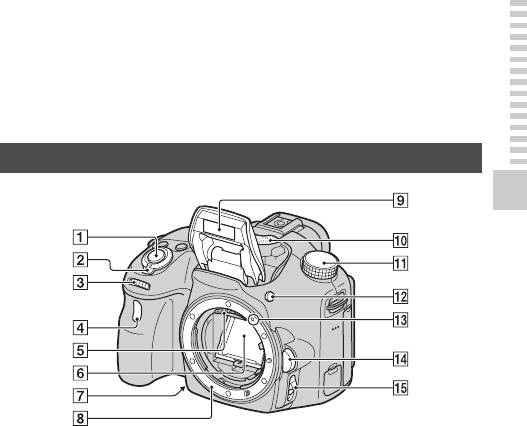
Компоненты камеры
Подробные сведения о работе деталей приведены на страницах в
скобках.
Передняя сторона
Подготовка камеры
A Кнопка затвора (40)
F Зеркало*
B Выключатель питания (35)
• Это зеркало сделано из
прозрачной пленки. Не
C Диск управления (112, 115,
прикасайтесь к зеркалу.
117)
Такие действия могут
привести к загрязнению
D Лампочка автоспуска (173)
или деформации зеркала, а
E Контакты соединения с
результате чего качество
изображения и
объективом*
характеристики
фотоаппарата могут
ухудшиться.
G Кнопка предварительного
просмотра (114)/
кнопка
увеличителя фокуса (139)
17

Компоненты камеры
H Байонет
I Встроенная вспышка* (53,
152)
J Микрофон** (127)
K Диск режимов (47)
L Кнопка (подъем
вспышки) (53, 152)
M Метка крепления (31)
N Кнопка фиксатора
объектива (32)
O Переключатель режима
фокусировки (129, 137)
* Не прикасайтесь
непосредственно к этим
частям.
** Не закрывайте эту часть
во время видеозаписи.
Это может привести к
возникновению шумов
или снижению
громкости.
18
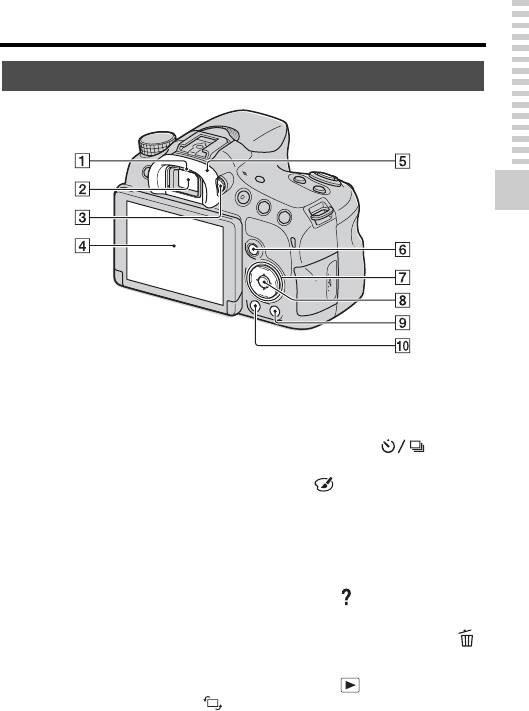
Компоненты камеры
Задняя сторона
Подготовка камеры
A Датчики окуляра (96)
G Кнопка управления
v/V/b/B/DISP (Вид экрана)
B Видоискатель*
(58, 177)/WB (Баланс
• При взгляде в видоискатель
белого) (164)/
активируется режим
(Режим протяжки) (57,
видоискателя, а при
172)/ (Эффект рисунка)
отдалении лица от
видоискателя режим
(160)
просмотра возвращается в
H Кнопка управления (Ввод)/
режим ЖК-экрана.
кнопка AF (133)/кнопка
C Диск коррекции
следящий AF (135)
диоптрийности (3 
I Кнопка (Встроенная
D ЖК-экран (90, 99, 177)
справка) (78)
E Наглазник окуляра (96)
Для просмотра: Кнопка
(Удалить) (45)
F Для съемки: Кнопка Fn
(Функция) (66, 67)
J Кнопка
Для просмотра: Кнопка
(Воспроизведение) (44)
(Поворот изображения)
* Не прикасайтесь
(179)
непосредственно к этой
части.
19
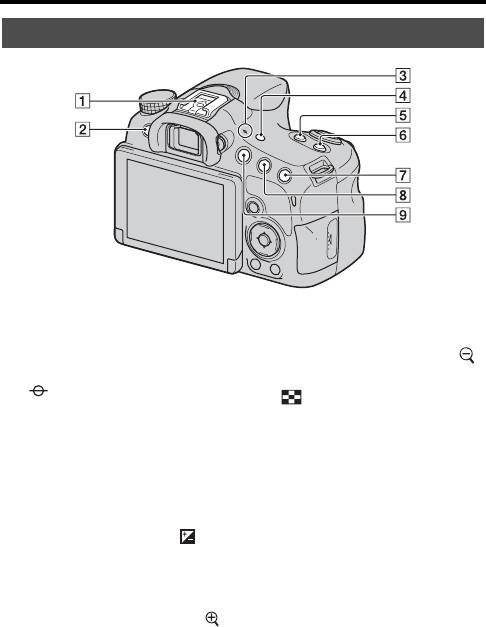
Компоненты камеры
Верхняя сторона
A Многоинтерфейсный
H Для съемки: Кнопка AEL
1) 2)
разъем
(153)
(блокировка АЭ) (147, 192)
Для просмотра: Кнопка
B Кнопка MENU (69)
(уменьшение) (61)/кнопка
C Метка положения
(индексное
датчика изображения (131)
изображение) (62)
D Кнопка FINDER/LCD
I Кнопка MOVIE (43, 121)
(195)
E Кнопка ZOOM (169)
F Кнопка ISO (155, 193)
G Для съемки: Кнопка
(Экспозиция) (55)/кнопка
AV (Значение диафрагмы)
(117)
Для просмотра: Кнопка
(Увеличение) (61)
20
Оглавление
Аннотация для Фотоаппарата цифровой зеркального Sony SLT-A58 в формате PDF
Топ 10 инструкций
Другие инструкции
Перейти к контенту
Цифровые фотоаппараты Sony
- Размер инструкции: 2.82 Мб
- Формат файла: pdf
Если вы потеряли инструкцию от цифрового фотоаппарата Sony SLT-A58, можете скачать файл для просмотра на компьютере или печати.
Инструкция для цифрового фотоаппарата Sony SLT-A58 на русском языке. В руководстве описаны возможности и полезные функции, а также правила эксплуатации. Перед использованием внимательно ознакомьтесь с инструкцией.
Чтобы не читать всю инструкцию вы можете выполнить поиск по содержимому внутри инструкции и быстро найти необходимую информацию. Рекомендации по использованию помогут увеличить срок службы цифрового фотоаппарата Sony SLT-A58. Если у вас появилась проблема, то найдите раздел с описанием неисправностей и способами их решения. В нем указаны типичные поломки и способы их решения.
Перейти к контенту

Русские электронные инструкции по эксплуатации
Постоянно обновляемый большой каталог документации по эксплуатации и использованию современных устройств и оборудования на русском языке. Бесплатное скачивание файлов.
Поиск:
Главная
♥ В закладки
Просмотр инструкции в pdf
Инструкция по эксплуатации фотоаппарата зеркального Sony Alpha SLT-A58 Kit 18-55 Black.
Скачать инструкцию к фотоаппарату зеркальному Sony Alpha SLT-A58 Kit 18-55 Black (23,10 МБ)
Инструкции по эксплуатации фотоаппаратов зеркальных Sony
« Инструкция к фотоаппарату зеркальному Sony Alpha ILCA-A77 II Kit 16-50 Black (ILCA-77M2Q)
» Инструкция к фотоаппарату зеркальному Sony Alpha SLT-A58 Kit 18-55+55-200 Black
Вам также может быть интересно

Инструкция к беспроводным наушникам Sony MDR-XB50BS-LZ Blue

Инструкция к телевизору Sony KD-75XH9505

Инструкция к беспроводным наушникам Sony WI-C310 Gold

Инструкция к беспроводным наушникам Sony WF-XB700 Black

Инструкция к беспроводным наушникам Sony WH-XB900N Black

Инструкция к телевизору Sony KD55XE7096

Инструкция к телевизору Smart TV Sony KDL-40WD653

Инструкция к беспроводным наушникам Sony WF1000XM4-SM True Wireless Silver
Добавить комментарий
Имя *
Email *
Сайт
Комментарий
Сохранить моё имя, email и адрес сайта в этом браузере для последующих моих комментариев.
- Добавить инструкцию
- Заказать инструкцию
- Политика конфиденциальности
-
Страница 1
4-459-705- 11 (1) SLT-A58 ©2013 Sony Corporation Interch angeabl e Lens Digital Camera α Handb ook A-mount Prepar ing the camera Shoot ing and v iewing imag es Shoot ing image s to suit your subj ect Using t he shoo ting function s Using t he play back function s Functi on list Viewing images on a computer Others Advance d Operation s Index[…]
-
Страница 2
2 Table of Conte nts Basi c Opera tio ns …………… ………. ……….. ……………. ……….. .. 9 This secti on provide s basic infor mation on ope rating the c amera. Notes on usi ng your camera … …………. …………… …………. 10 Prepar ing the cam era Checkin g the supplied i tems …………. …………. ……[…]
-
Страница 3
3 Using the s hooting func tions Using t he flash …… …….. ……. …….. ….. …….. ……. …….. ….. … 41 Adjust ing the i mage bri ghtness …… ……. ….. …….. …….. ….. 43 Selecti ng the drive mod e ………. ….. …….. ….. …….. 45 Switchi ng the recordi ng informat ion display (DI SP) …… 46 Sett[…]
-
Страница 4
4 Other s List of screen i cons …….. ….. ……. …….. …….. ….. ……. …….. .. 71 Functio ns availabl e for each shooti ng mode ……. ….. ……. 74 Flash mod es available …. ……. …….. …….. ….. ……. …….. ……. 75 Adva nced Opera tio ns …………… ………. ……….. ……………. ……….[…]
-
Страница 5
5 Changing th e tracking sensitivit y of autofo cus during movie rec ording ………… ….. …….. ……. …… ……. . 102 Recordi ng movies with the shutter spee d and aperture adjuste d ….. ……. …….. …….. ….. ……. …….. ….. …… 102 File Forma t ……… ….. ……. …….. ….. …….. ……. …….. ..[…]
-
Страница 6
6 Adjusti ng color tones ( White Balance) ….. ……. …….. ….. 136 Fine adjust ment screen fo r color ………. ……. …….. ….. 137 Color T emp./Colo r Filt er … ……. …… ……. …….. …….. .. 138 Custom white ba lance …….. ……. …….. …….. ….. …….. .. 138 Zooming . ….. ……. …….. …….. .[…]
-
Страница 7
7 Auto Re view …. …….. ……. ….. …….. …….. ……. …… ……. . 161 Func. of AEL but ton …. ……. …….. …….. ….. …….. ……. . 1 61 ISO But ton …… ….. …….. ……. …….. ….. …….. …….. ……. . 162 Previ ew Button ………. …….. …….. ….. ……. …….. ….. …… 162 Elec[…]
-
Страница 8
8 Creatin g a movie disc …… …….. ….. …….. ……. ….. …….. ….. 181 Creating a high de finition quality (HD) disc (AVCHD recordin g disc ) on a comp uter ………… ….. …….. 181 Creating a st andard defin ition quali ty (STD) disc …. 182 Discs you can us e with “PlayMem ories Home” .. …. 183 Print Specifyin g DP[…]
-
Страница 9
9 Basic Operations This se ction provide s basic in forma tion on operating the came ra. Read this se ction first. To use the cam era ev en more effe ctively, see “A dvanc ed Oper ations” (pag e 76) .[…]
-
Страница 10
10 Notes on us ing your c amer a Shooting proc edure This camera has 2 modes for monitoring subjects: an LCD screen mode using the LCD screen, and a viewfi nder mode using the viewfinder. Notes on the functio ns availabl e with the cam era To check whether it is a 1080 60i- compatible device or 1080 50i-compatible device, check for the follo wing m[…]
-
Страница 11
11 Notes on using your camera Notes on i mporting AVC HD movi es to a compute r When importing AVCHD movies to a computer, for Windows computers, use the “PlayMemories Home” software. Notes on play ing movie s on other devi ce s • This camera uses MPEG-4 AVC/H.2 64 High Profile for AVCHD format recording. Movies recorded in AVCHD format on th[…]
-
Страница 12
12 Prepa ring the camera Check ing the su pplied it ems First check the model nam e of your cam era (page 11). The acc essories supplied differ dependi ng on t he mo del. The nu mber in pa rentheses indi cates th e quantity. Supplied w ith all models • Camer a (1) • Battery ch arger BC-VM 10A (1) • Power cord (m ains lead) (1) * (not sup plie[…]
-
Страница 13
13 Preparing the camera Identif ying part s See the pages in pare ntheses for deta ils on operation for the parts. A Shutter butt on (30) B Power switch (27) C Control di al (92, 94, 96) D Self -tim er la mp ( 144 ) E Lens co ntacts* F Mirror* • Thi s mirror is made of a transmis sive fi lm. D o not touc h the m irror. Do ing so ma y soil or defo[…]
-
Страница 14
14 Identifying parts A Eyep iece s ensors (77) B View finder * • When you l ook in to the viewfinde r, view finder mode is activated, and whe n you move your face away fro m the viewfinde r, view ing mode retu rns to LCD scr een m ode. C Diopter-a djustment di al (29) D LCD screen (71 , 80, 147) E Eyep iece cu p (77) F For shooting: Fn (Func tion[…]
-
Страница 15
15 Identifying parts Preparing the camera A Multi i nterface shoe 1)2) (127) B MENU butto n (55) C Image sensor posi tion mark (1 08) D FINDER/L CD button (16 4) E ZOOM button (140 ) F ISO button (12 9, 162) G For shooting: (Exposure ) button (43 )/AV (Ap erture value) butt on (96) For vie wing: (Zoom in) button (48 ) H For shooting: A EL (AE lock)[…]
-
Страница 16
16 Identifying parts A Hooks for sho ulder strap • Attach both ends of the strap to the camera. B Speaker C DC IN terminal • When connecting the AC- PW10AM AC Adaptor (sold sep arate ly) to t he came ra, tur n the camera off, th en plug the connector of th e AC Adaptor into the D C IN terminal on the camera. D m (Micropho ne) jack • W hen an […]
-
Страница 17
17 Identifying parts Preparing the camera G Battery insertion sl ot (21) H Batter y cover (21) I Tripo d rece ptacle • Use a tri pod with a scre w length of less than 5.5 mm (7/32 in ch ). You will be unable to firmly secur e the came ra to trip ods with a screw length of 5.5 mm (7/32 inch) or lo nger, and attemp ting to do so may damage the came[…]
-
Страница 18
18 Identifying parts DT 18-5 5mm F3.5 -5.6 SAM II (Suppl ied with th e SLT-A58 K/ A58Y) DT 55-200 mm F4 -5.6 SAM (Suppl ied with th e SLT-A58 Y) DT 18- 135m m F3 .5-5 .6 SAM (Suppl ied with th e SLT-A58 M) A Focusing ring B Zoom ring C Focal-lengt h scale D Focal-lengt h index E Lens co ntac ts F Focus ing mode switch G Mounting inde x H Lens hood […]
-
Страница 19
19 Preparing the camera Charg ing the ba tter y pa ck When us ing the camera for th e firs t tim e, be s ure to charge the NP- FM500H “InfoL ITHIUM ” batte ry pac k (supp lied). The “In foLITHIU M” batt ery pack ca n be charge d even w hen it has not been fully de pleted . The battery pack can a lso be used wh en i t has no t been fully ch […]
-
Страница 20
20 Charging the battery pack Note s • The charging time d iffers depending on the remaini ng capacity of the battery pa ck or charging conditions. • We recommend charging the battery pack in an ambient temperature of between 10°C to 30°C (50°F to 86°F) . You may not be able to efficiently charge the battery pack outside of this temperature […]
-
Страница 21
21 Preparing the camera Inser ting th e batt ery pack /memo ry car d (sold sepa ratel y) 1 Open the battery cove r by sliding th e lever. 2 Insert the battery pack completely, using the tip of the battery to press th e lock lever. Lock lever 3 Clos e th e cov er. 4 Slide and open the memo ry card cover.[…]
-
Страница 22
22 Inserting the battery pack/memory card (sold separately) To remove the battery pack To remove the memory card Make sure that th e access lamp is not lit, then open the cover and push the memory card once. 5 Insert a memory card. • W ith the n otche d corne r facin g in the direction shown , insert the memory card until it clic ks into pla ce. […]
-
Страница 23
23 Inserting the battery pack/memory card (sold separately) Preparing the camera To ch eck the re maini ng batt ery lev el The suppl ied batte ry pack is a lithi um-ion ba ttery pack that can e xchan ge informa tion re lated to operati ng condi tions wi th your c amera. The remainin g batter y time in per cent fig ures is displayed accordi ng to t […]
-
Страница 24
24 Attach ing a lens 1 Remove t he body cap from the came ra and the pack agi ng lid fro m the rear of t he le ns. • Quickly chang e the lens some where away from dusty locatio ns so as to keep dust or debr is from gett ing insid e the cam era. • Whe n shooting , remove the fron t lens cap fro m the f ront of the le ns. Front lens cap Packaging[…]
-
Страница 25
25 Attaching a lens Preparing the camera Notes • When attaching a lens, do not pr ess the lens release butto n. • Do not use force when attaching a lens. • E-mount lenses are not compatible with this camera. • When using a lens equipped with a tripod socket, attach the socket on the lens side to the tripod to maintain balance. • When carr[…]
-
Страница 26
26 Attaching a lens To attach a l ens ho od Note s • A lens hood is not supplied with the DT 18-55mm F3.5-5.6 SAM II. You can use the ALC-SH108 ( sold separately). • The lens hood may block the light of the flash. Remove the lens hood when using the flash. • When storing, turn over the lens hood and place it onto th e lens backwards. Note on […]
-
Страница 27
27 Preparing the camera Turning on the camera and setti ng the cloc k When you t urn on the camer a for the fir st tim e, the date/time setup screen appear s. 1 Set the power swi tch to ON to turn on the camera. The screen to set da te and tim e appears. • To turn off th e camera , set the power switc h to OFF. 2 Check tha t [Enter] is selected o[…]
-
Страница 28
28 Turning on the camera and setting the clock To cancel the dat e/time set ting op eration Press the MENU bu tton. To set t he date/time a gain The date /time set up screen ap pears auto matical ly only whe n you turn the came ra on f or th e fir st time. To se t the d ate an d time again, use t he men u. MENU b utton t 1 t [Date/ Time Setup] To s[…]
-
Страница 29
29 Preparing the camera Before sho oting Notes • The dioptric adjustment attachment (sold separately) cannot be used with this camera. Stabilize your upper body and take a positio n that keeps the camera fr om moving. Point 1 Hold the camera with one hand, and sup port the lens with th e other. Point 2 Take a se cure stan ce wi th y our fe et sho[…]
-
Страница 30
30 Shooti ng and vie wing i mages Shooting still images In [Intel ligent A uto] mode , the c amera anal yzes the subject a nd allo ws you to shoo t with the ap propri ate sett ings . Sele ct when shooti ng in a location wher e flash use is res tricted. 1 Set the mode dia l to (Intel ligent Aut o) or (Flash Off). 2 Hold the camera, mon itoring your […]
-
Страница 31
31 Shooting still images Shooting and viewing images 5 Press the shutter button halfway down to focus. When the focus is confirme d, z or (Focus indica tor) lights up (page 107) . Focus indicator 6 Press the shutter button fully down to shoot. • When [Auto Object F raming ] is s et to [Auto ] and the camera shoot s faces, close-ups, or subjects t[…]
-
Страница 32
32 Record ing movies Note s • The sound of the camer a and the lens in operation may be recorded while recording a movie. You can disable sound recording by setting [Audio Recording] to [Off] (page 105). • The continuou s recording time of a movie ma y be shorter, depending on the a mbient temperature or the status of the camera. See “Notes o[…]
-
Страница 33
33 Shooting and viewing images Play ing back images Notes • Movies recorded using other devices may not play back on this camera in some cases. 1 Press the button. button 2 MENU button t 1 t [Still/Movie Select] t Sel ect the desire d mode • To play back still image s, sele ct [Folder Vie w(Stil l)], and to play ba ck movies, sele ct [Folder Vi[…]
-
Страница 34
34 Del eting i mage s (Del ete) Once you ha ve delet ed an image , the image ca nnot be rest ored. Be sure that you do not want the image before delet ing it. Note s • Protected images cannot be deleted. 1 Display t he image you want to delet e and pr ess the butt on. button 2 Select [ Delete] usin g v on the cont rol bu tton, then press th e cen[…]
-
Страница 35
35 Shooting images to suit your subject Shooti ng images to suit you r subject Adjus tin g the a ngl e of th e LC D scr een Adju st the LCD scree n to an eas ily view able an gle. • Th e LCD scre en tilts down ab out 55 degree s and up ab out 135 degr ees.[…]
-
Страница 36
36 Select ing a shoo tin g mod e The fo llowing shoo ting mode s are avai lable: Set t he mo de d ial t o th e de sired shoo ting mo de. (Intelligent Auto)/ (Flash Off) (30, 85) In [Intelligent Auto] mode, the camera anal yzes the subject and allows you to shoot with the appropriate settings. Select [Flash Off] when you want to shoot without the fl[…]
-
Страница 37
37 Selecting a shooting mode Shooting images to suit your subject Scene r ecognition Superio r Auto 1 Set the mode dial t o (Supe rior Au to). 2 Point the camera towards t he su bject, and ad just the focus and shoot the subject . When the camera recog nizes t he subje ct and adju sts itself for shooti ng condit ions, the f ollow ing inf ormati on […]
-
Страница 38
38 Selecting a shooting mode Scene Selecti on 1 Set the mode dial to (Scen e Selection), the n press the center of the cont rol bu tton. 2 Select th e desi red mode using v / V , th en pr ess th e ce nter of the co ntrol bu tton. • To change the s cene, press the Fn button, th en select an other scen e. 3 Adj ust the f ocus and shoot the subjec t[…]
-
Страница 39
39 Selecting a shooting mode Shooting images to suit your subject Sweep Pano rama 1 Set the mode dial t o (Sweep P anora ma). 2 Point the cam era at the subj ect for whic h you want to adjust the bright ness a nd focus, a nd press the shu tter bu tton ha lfwa y down . 3 Point the camera a t the ed ge of the co mposition wh ile pres sing the sh utte[…]
-
Страница 40
40 Selecting a shooting mode • When [AEL w/ shut ter] is set to [Off], the camera continues to adju st the exposure even after the first shot in [Cont . Shooting] or [T ele-zoom Cont. Priority AE ] (page 123). • When [Aut ofocus Mode] is set to [Continuou s AF], the cam era continu es to adjust focus d uring shoo ting. You can set [ISO ] to the[…]
-
Страница 41
41 Using the shooting functions Using t he sho oting func tions Using th e flash In dark env ironmen ts, use t he flash to shoo t the subje ct brightly and to preve nt came ra shake . When s hooti ng again st the sun, u se the f lash t o lighte n the image of the ba cklit subje ct. 1 Fn but ton t (F lash Mode) t Select the desir ed sett ing • For[…]
-
Страница 42
42 Using the flash (Flash Off) Does not fire even if the flash i s raised. • You cannot select this item when the mode dial is set to P, A, S, or M. If you do not want to use the flash in these modes, push the flash down. (Autoflash) Fires in dark environments or when s hooting towards bright light. (Fill-flas h) Fires every time you trig ger the[…]
-
Страница 43
43 Using the shooting functions Adjusti ng the im age brigh tness Normally, the exp osure is automatic ally se lected ( Automatic exposur e). Based on t he exposure acquired by the au tomatic exposure, you ca n perform exposure compen satio n. You can m ake the en tire image brighter by s hifting to th e + sid e. The e ntire image becomes darke r w[…]
-
Страница 44
44 Adjusting the image brightness Note s • This item cannot be set when the exposure mode is set to [I ntelligent Auto] , [Superior Auto], o r [Scene Selection]. • When the exposure mode is set to M, the exposure can be adjusted o nly when [ISO] is set to [AUTO]. Turn the control dial during AE lock to adjust the compensation value. • Even th[…]
-
Страница 45
45 Using the shooting functions Select ing the dr ive mod e You ca n select the appr opriate drive mode , such as single, continu ous, or bracke t shooting, to suit your pu rpose. on th e control but ton t Select the desired mode (Single Shooting) ( 143) This mode is for nor mal shooting. (Cont. Shooting) (143) The camera records images continuousl[…]
-
Страница 46
46 Switc hing the r ecordin g informat ion displa y (DISP) Graph ic Di splay Each t ime y ou pre ss DIS P on th e cont rol button, the recordi ng informat ion display chan ges as fo llows. You can set the re cordi ng informat ion display sep arately for viewfin der mo de and LC D screen mode. [Graphic D isplay] sh ows the shutter speed and aper tur[…]
-
Страница 47
47 Using the shooting functions Setting image si ze MENU bu tton t 1 t [Image Size] t Select the de sired si ze [Aspect R atio]: [3 :2] [Aspect R atio]: [1 6:9] Notes • When [Quality] is set to [RAW] or [RAW & JPEG] , the image size of the RAW image corresponds to L. This s ize is not d isplayed on the scre en. You can set th e image size for[…]
-
Страница 48
48 Using t he playba ck fu nctions Enlarg ing imag es A stil l image ca n be en larged for clo ser exam inatio n. This is conv enien t for checki ng the fo cus cond ition of a recor ded im age. To cancel the enlarged playback Press the cen ter of the co ntrol button and the image returns to no rmal size. 1 Disp lay the imag e you want to enla rge, […]
-
Страница 49
49 Using the playback functions Switc hin g to th e im age l ist d ispla y You can d isplay mu ltiple i mages o n the scr een simult aneously . To return t o the single-i mage screen Press the cent er of the contro l button afte r selecting the desir ed image. To displ ay the desi red folder Press the bu tton. The imag e index scree n is displayed.[…]
-
Страница 50
50 Viewin g images on a TV scre en To vie w ima ges that wer e record ed on th e camer a on a TV set, an HDMI cable (s old sep aratel y) and an HD TV eq uippe d with an HDM I conne ctor are requi red (pa ge 155). 1 Turn off b oth you r camer a and t he TV, and connect th e camera to the TV. 2 Turn on the TV and swi tch the input. • See al so the […]
-
Страница 51
51 Function list Func tion lis t Funct ion s that can be op erate d usin g the butt ons/sw itch You can set up or operate va rious function s using the buttons/swi tch. For the loca tion of the butt ons/switc h, see “Identifyi ng parts” (p age 13). button (41, 126) Pops the flash up. button (43)/AV button (96)/ button (48) Adjusts the exposure.[…]
-
Страница 52
52 Sele cting a fu nct ion usin g th e Fn (Funct ion ) butt on This butt on is used for setting up or execut ing funct ions used frequ ently in shooting. To set up the camera dire ctly from the recordin g informa tion screen Turn the c ontrol dial wi thout pressi ng the cen ter z in step 2. You ca n set up the came ra direct ly from the recordin g […]
-
Страница 53
53 Function list Funct ion s that can be se lecte d usin g the F n (F unctio n) b utton The functi ons that can be selected using th e Fn button ar e as follows: Scene Selection (38, 86) Selects an appropriate mode f rom among the Scene Selection preset settings to suit shooting condi tions. (Portrait/Spor ts Action/Macro/Landscape/Sunset/N ight Sc[…]
-
Страница 54
54 Functions that can be selected using the Fn (Function) button White Ba lance (136) Adjus ts the c olor tone of images. (Auto WB/Daylight/S hade/Cloudy/Incandescent/Fluor .: Warm White/F luor.: Cool White/F luor.: Day White/Flu or.: Daylight/Flas h/C.Temp./F ilter/Custo m) DRO/Auto HDR (1 30) Adjusts the brightness and contrast automatically. (Of[…]
-
Страница 55
55 Function list Funct ion s sele cted using the MENU butt on You ca n set the basic se ttin gs for th e camer a as a wh ole or ex ecute functions suc h as shooting, playback, or other ope rations. Press the ME NU but ton, then se t up the desired i tem using v / V / b / B on the control but ton, then pre ss the center of the c ontrol button . Stil[…]
-
Страница 56
56 Functions selected using the MENU button Movie s hooting m enu Long Exposure NR (159) Sets noise reduction processing for shots with a s hutter speed of 1 second or longer. (On/O ff) High ISO NR (159) Se ts noise reduction p rocessing for high-s ensitivity shooting. (High/Norm al/Low) Flash control (124) Sets the method for determining the inten[…]
-
Страница 57
57 Functions selected using the MEN U button Function list Custom menu Audio Record ing (105) Sets whether to record audio when shooting a movie. (On/ Off) Wind Noise Re duct. (105) Reduces wind noi se during m ovie recording. (On/ Off) Eye-Start AF Sets whether to use auto focus when you look through the viewfinder. (On/ Off) FINDER/LCD Set ting ([…]
-
Страница 58
58 Functions selected using the MENU button Peaking Level (115) Enhances the outline of in-focus ranges with a specific colo r in manual focus mode. (High/Mid/Low/Off) Peaking Color (115) Sets the color used for the peaking function. (Red/Yello w/White) Live View Display (80) Sets whether to display the effect of a function on the screen, such as t[…]
-
Страница 59
59 Functions selected using the MEN U button Function list Playback menu * Av ailable items differ depending on the view mode. Lens Comp.: Distortion (165) Compensates for distortion on the screen caused by the attached lens. (Auto/Off) e-Front Curtain Shutter (16 3) Sets whether or not t o use the electr onic front curtain shutter function. (On/ O[…]
-
Страница 60
60 Functions selected using the MENU button Memory Card Tool menu Cloc k setu p menu Setup menu Format ( 166) Formats the memory car d. File Number (166) Sets the method used to ass ign file numbers to still image s and MP4 movies. (Series/ Reset) Folder Name (166) Sets the folde r format for still im ages. (Standard For m/Date Form) Select REC Fol[…]
-
Страница 61
61 Functions selected using the MEN U button Function list * Ap pears when an Eye-Fi card (sold separately) is inserted in the camera. Power Save ( 164) Se ts the level of the power saving feature. (Max/Standard) Power Saving Start Time (164) Sets the interval after which power save m ode engages. (30 Min/5 Min/ 1 Min/20 S ec/10 Sec) HDMI Res oluti[…]
-
Страница 62
62 Using th e guid e func tion of th e camer a The ca mera disp lays shoo ting ti ps in a ccordance with th e shooti ng mode sele cted. In-Camera Guide When yo u press t he (In-C amera Gu ide) button on the Fn (Fu nction) sc reen or menu s creen, a guide for th e curre ntly select ed func tion or settin g auto maticall y appears . To select unava i[…]
-
Страница 63
63 Using the guide function of the camera Function list To acces s all shooti ng tips You ca n search thr ough all th e shooting tip s from the me nu. Use thi s item whe n you w ant to read shooting tips y ou have seen before . MENU bu tton t 3 t [Shootin g Tip Lis t] t Se lect the desir ed shooting tip[…]
-
Страница 64
64 Viewin g imag es on a c omputer What yo u ca n do with s oftw are To ut ilize i mages record ed with the ca mera, u se the follo wing so ftware: • “Play Memories Ho me” (Windows only) You can impor t stil l imag es or movies recor ded wit h the camera to your computer so tha t you can view the m, and use various c onven ient feat ures to e[…]
-
Страница 65
65 What you can do w ith software Viewing images on a computer Notes • An Internet conne ction is required to install “ PlayMemorie s Home.” • An Internet connection is required to use “PlayMemories Onli ne” or other n etwork services. “PlayMem ories Online” or other ne twork services may not be available in some countries or region[…]
-
Страница 66
66 Instal ling the s oftware • Log on as A dministrator. • If th e software “PMB (Pictu re Motion Br owser),” supp lied with models released be fore 2011, has alread y been install ed on your co mputer, “Play Memorie s Home” will overwr ite it and wil l be instal led. Althou gh some “PlayM emorie s Home” functi ons differ from th os[…]
-
Страница 67
67 Installing the software Viewing images on a computer • For Windows 8, select th e [PlayMemo ries Home ] icon on the Start sc reen, then launc h “PlayMe mories Home” and sele ct [PlayMe mories Home H elp Guide] from th e [Help] menu. • For details on “Pla yMemorie s Home,” you can a lso see the follow ing PlayMe mories Ho me suppo rt […]
-
Страница 68
68 Installing the software To use “R emo te Cam era C ontrol, ” conne ct the ca mer a to a com pute r. The foll owing fu nctio ns are avai lable. • You can set up the c amera or shoot a n image f rom the computer . • You can re cord an image direct ly to the co mputer. • You can per form Inter val Timer Shooting. • For details on ho w t[…]
-
Страница 69
69 Viewing images on a computer Selecti ng t he me thod for c reat ing a movie disc Dependi ng on the disc typ e, playable de vices may va ry. Select the method that suits your disc player. There are two ways to creat e a movie disc. Use “Pl ayMemor ies Ho me” on your com puter o r create a disc using devices oth er than a c omputer , such as a[…]
-
Страница 70
70 Selecting the method for creating a movie disc You can impor t AVCHD mo vies to a computer usin g “PlayM emori es Home, ” and crea te an AVCHD reco rding d isc or a stand ard defin ition quality ( STD) d isc. For details on how to create a disc usin g “PlayMemo ries Home,” see “PlayMemori es Home Help Guide .” Note s • To create Bl[…]
-
Страница 71
71 Others Others List o f screen icons Graphi c Displ ay (LCD scre en) Displa y All Info. (L CD screen) For playb ack (Basic in formation displ ay) A Displ ay Indication P A S M Exposure mode (36) Scene Recognition icons (37, 85) Memory card (21, 205)/ Upload (168) 100 R emaining number of recordable images Aspect ratio of still images (157) 20M 10[…]
-
Страница 72
List of screen icons 72 B C D Flash charge in progress (41) Setting Effect OFF (80) No audio r ecording of movies (105) SteadyShot/Camera shake warning (83) SteadyShot error (197) Overheating warning (10) Database file full (199)/ Database file error (199) View Mode (149) 100-0003 Folder — fi le number (179) — Prot ect (152) DPOF DPOF set (184) Rem[…]
-
Страница 73
73 List of screen icons Others E Face Detection (117)/ Smile Shutter (120) Auto Object Framing (119) Smile D etection Sensitivity indicator (120) Disp lay Indi cation Metering mod e (123) Flash compensation (124) AWB 7500K A5 G5 White balance (Auto, Preset, Custom, Color temperature , Colo r filter ) (136) D-Range Optimizer (130)/Auto HDR (131) +3 […]
-
Страница 74
74 Functi ons avail able f or e ach shooti ng mode The funct ions you can use depend on the selecte d shooting mode . In the tabl e below, indicates th e functio n is avai lable, an d a – indica tes the f uncti on is not availabl e. The fu nctions you cannot use are di splayed i n gray on the sc reen. * When th e exposu re mod e is set to M, the […]
-
Страница 75
75 Others Flas h modes availabl e The flash m odes you c an select d epend on the shooting m ode and func tions selected. In the tabl e below, indi cates th e funct ion is selec table, an d a – indica tes the func tion is not sel ectab le. The flash m odes you cann ot select are disp layed in gray on the screen . Shoot Mode (Fla sh Off) (Autoflas[…]
-
Страница 76
76 Advanced Operations This sectio n provides further informatio n on opera ting the camera.[…]
-
Страница 77
77 Preparation (Advanced Operations) Prepa ration Prepara tion (Advanced Operations) Setti ng up th e camera When at tachin g the FDA-A1AM Angle Finder (sold sepa rately ) to the camera, remove the Eye piece cup. Notes • When you attach an FDA-A1AM Angle Finder (sold separately) to the camera, set [FINDER/LC D Setting] to [Manual] in th e Custom […]
-
Страница 78
78 Shoot ing mo de scre en dis play You can select the desired scree n mode. When you switch the scree n by pressing DISP on th e control button (pag e 46), only select ed screen s are displaye d. You can se t the screens to be disp layed on th e LCD scree n and the viewf inder se parately. Selecting the scree n mode 1 MENU butto n t 2 t [DISP Butt[…]
-
Страница 79
79 Shooting mode screen display Preparation (Advanced Operations) Notes • The hist ogram does not indic ate the fi nal re corded image . It in dicates the condition of the image jus t monitored on the s creen. T he histo gram will differ bas ed on aperture setting, etc. • The histogram differs between shooting an d playback in the following sit[…]
-
Страница 80
80 Shooting mode screen display You can mon itor the subje ct through the lens without displa ying effect s, such as [Expo sure Comp.], [White Balance ], [Creative Style], [Picture Effe ct], et c. MENU b utton t 2 t [Liv e View Displa y] t [Settin g Effect OFF] • When [Setti ng Effe ct OFF ] is s electe d, the Live V iew imag e in M mo de is alwa[…]
-
Страница 81
81 Shooting mode screen display Preparation (Advanced Operations) A B Disp lay Indi cation P A S M Exposure mode (36) Memory card (21, 205)/ Upload (168) 100 R emaining number of recordable images Aspect ratio of still images (157) 20M 10M 5. 0M 17M 8. 4M 4.2 M Image s ize of s till images (47) Image qua lity of still images (157) Frame rate of mov[…]
-
Страница 82
82 Shooting mode screen display C Picture Effect ( 133) Auto Object Framing (119) Displ ay Indicatio n 1/125 Shutt er speed (94) F3. 5 Aper tu re ( 92) Exposure compensation (43)/Metered Manual (97) Flash compensation (124) EV scale (146) ISO A UTO ISO sensitivity (12 9) AE lock (122) Histogram (79) z Lock-on AF Lock-on AF ( 111) Displ ay Indicatio[…]
-
Страница 83
83 Preparation (Advanced Operations) Shootin g a clea r image wit hout camera shake “Camer a shake” re fers to un wanted mo vement of th e camera th at occurs during shoo ting, resu lting in a blurred image. To reduc e camera shake, follow th e instruct ions below. Notes • The (Camera shake warning) indicato r is displayed only in modes that […]
-
Страница 84
84 Shooting a clear image without camera shake In the followi ng cases, we recommend that you mount th e camera o n a tripo d. • Shooting without a fl ash under dar k conditions. • Shooting with slow shut ter spee ds, wh ich ar e typic ally u sed in n ight- time shooting. • Shooting close-ups of th e subjects , such as in macr o shooting. •[…]
-
Страница 85
85 Shooting (Advanced Operations) Shoot ing Shooting (Ad vanced Oper ations) Selecti ng the sh ooting m ode Set the mode dia l to (Intellig ent Auto), a nd shoot im ages (page 30). • S elect (Flash Off) whe n shooting i n a location where the use of flash is restri cted. Notes • Since the camera turn s on the automatic sett ing function, many f[…]
-
Страница 86
86 Selecting the shooting mode Set the mode di al to (Scene S election), select the d esired mode, an d shoot images ( page 38) . Scene Selecti on This mode is suitabl e for z Shooting with preset setting s based on the scene (Portrait) Blurs away backgrounds and sharpens the subject. Ac centuates skin tones softly. • To blur the background more,[…]
-
Страница 87
87 Selecting the shooting mode Shooting (Advanced Operations) • Wh en you want fine r images, set the mode di al to P, A, S, or M and use the [C reative Style ] func tion ( page 13 4) so that yo u can adjust the exposu re, ISO, etc. (Sunset) Shoots the red of the su nrise or sunset beautifully . (Night S cene) Shoots night scenes at a distance wi[…]
-
Страница 88
88 Selecting the shooting mode Note s • Since the camera ju dges the sett ings automa tically, m any features will be unavailable, such as exposure compensation and ISO setting. • The flash is set t o [Autoflash] o r [Flash Off] for each [Scene Selection] mode. You can change these settings (pages 41, 75, 126). Set the mode dial to (Sweep Panor[…]
-
Страница 89
89 Selecting the shooting mode Shooting (Advanced Operations) • The camera continues shooting during [ Sweep Panorama] recording, and the shutter keeps clicking until the end of the shot. • [Auto Object Framing] and the zoom feature of the camera cannot be used. Tips for sho oting a panoram ic imag e • In [Sw eep Panor ama], we rec ommen d th[…]
-
Страница 90
90 Selecting the shooting mode Set th e mode d ial to ( Tele- zoom C ont. P rior ity AE) , and shoot i mages (page 40 ). • The minimum zo om scale o f the ca mera i s set to 2 times and the image size is set to S. • When [Aut ofocus Mode] is set to [Continuou s AF], the cam era continu es to adjust focus d uring shoo ting. You can set [ISO ] to[…]
-
Страница 91
91 Selecting the shooting mode Shooting (Advanced Operations) Program Shif t Program Au to This mo de is suitabl e for z Changing settings for I SO sensitivity, Creat ive Style, D-Range Optimizer, etc. while using automati c exposure. 1 Set the mode dial t o P. 2 Set the s hooting fu nctions to yo ur desi red set tings (p ages 1 06 to 146) . • To[…]
-
Страница 92
92 Selecting the shooting mode Aperture Pr iority This mode is suitabl e for z Placing the subject in sharp focus an d blurring everything in fr ont of and beyond the subject. Open ing the aperture n arrows the rang e that is in focu s. (Depth of field becomes shallower.) z Shooting depth of scenery. Narrowing the ap erture widens the r ange that i[…]
-
Страница 93
93 Selecting the shooting mode Shooting (Advanced Operations) • Th e shutter speed ma y become slowe r depending on the aperture value. When the sh utter spee d is slower, use a tripod. • To blur t he bac kground m ore, use a t elephoto lens or a lens that i s equ ipped w ith a sm aller ap erture value (bri ght lens ). • Y ou can che ck the a[…]
-
Страница 94
94 Selecting the shooting mode To check bl urring of the bac kgrou nd (Preview button) • Press the previe w button afte r you adjust the foc us. • You can adjust the aper ture in pr eview mode. Note s • When [Focus Magnifier] is assigned to the preview button, set [Preview Button] to [Shot. Result Preview] or [Aperture Preview] in the Cus tom[…]
-
Страница 95
95 Selecting the shooting mode Shooting (Advanced Operations) • Wh en the sh utter spee d is slo wer, use a tripod . • Wh en shooting an i ndoor sport, select a higher ISO sensitivity . Notes • The (Camera shake warning) indicator does not appear in [Shutter Priority] mode. • The higher the ISO sensitivity, the more conspicuous the noise. ?[…]
-
Страница 96
96 Selecting the shooting mode • Press the button when you shoot with the flash. However, when using the flash, if you close the aperture (a larger F-number) by making the s hutter speed slower, the light of the flash will not reach distant subjects. Manual E xposure This mode is suitabl e for z Shooting with the desired exposure setting by adjus[…]
-
Страница 97
97 Selecting the shooting mode Shooting (Advanced Operations) Notes • The (Camera shake warning) indicato r is not displayed in manual exposure mode. • Press the button when you shoot with the flash. However, the flash range differs according to the aperture value. When you s hoot with the fl ash, check the flash range under “Specifications.?[…]
-
Страница 98
98 Selecting the shooting mode • Use a tripod . • Set the focus to infinity in manu al focus mode when shoot ing firewor ks, etc. When th e infinity posi tion of the lens is not known, first adju st the focus on firework s that are be ing set off in the same general are a, then shoot them. 2 Rotate the c ontrol dial to the left until [BULB] is […]
-
Страница 99
99 Selecting the shooting mode Shooting (Advanced Operations) • If you use a Remot e Commande r* that is eq uipped wit h a shutter button lock fun ction (sold separa tely), you ca n keep the shutter open usin g the Re mote Com man de r. * Use a Remote Commande r that is comp atible with a Mul ti/Micr o USB Termin al. Notes • When using a tripod[…]
-
Страница 100
100 Movie r eco rding setu p Movi e recor din g can be sta rted fr om an y exposu re mod e. The shut ter speed and ap erture va lue are ad justed automati call y. Pres s the MOVIE button to start r ecordin g (page 32). • Start record ing after you adjust th e focus. • The following se ttings that we re set during still image shooting can a lso […]
-
Страница 101
101 Movie recording setup Shooting (Advanced Operations) • Do not shoot a strong l ight source, such as t he sun. The in ternal mechanism of the camera may be d amaged. • When you import AVCHD movies to a co mputer, use “PlayMemories Home” (pages 64, 178). • When you continue to shoot for an extende d period of time, the temperature of th[…]
-
Страница 102
102 Movie recording setup When you reco rd fast movi ng subjects, sele ct [High], and when severa l subjects a re moving or crossing back and fort h, select [Low ]. MENU b utton t 1 t [AF Track. Duration] t Select the desir ed setti ng You can record mo vies with the shutte r speed an d apert ure ad justed , control ling the back ground de focus or[…]
-
Страница 103
103 Movie recording setup Shooting (Advanced Operations) MENU bu tton t 1 t [File Format ] t Sele ct th e des ired format (Shutter Priori ty) (94) Allows you to shoot after adjusting the shutter speed manually using the control dial. (Manual Exposure) (96) Allows you to shoot after adjusting the exposure manually (both the shut ter speed and the ap[…]
-
Страница 104
104 Movie recording setup The highe r the a verag e bit-r ate, the highe r the ima ge qual ity. MENU b utton t 1 t [Record Setting] t Select the desi red setting [File Form at]: [AVCHD ] [File Form at]: [MP4 ] * 1080 60i- compatible device **1080 50i-compatible device Note s • Movies recorded w ith the [60i 24M(FX)]/[50i 24M (FX)] or [24p 2 4M(FX[…]
-
Страница 105
105 Movie recording setup Shooting (Advanced Operations) When y ou record movies, the ope rating noi se of t he cam era or lens m ay be recor ded. You can record movies withou t audi o. MENU bu tton t 1 t [Audio Recordi ng] t [Off] Whe n the fo cus m ode is s et to ma nual focu s, t he op era ting nois e of the len s during au tofocus will no t be […]
-
Страница 106
106 Adjus ting the fo cus Ther e are 2 met hods for ad just ing the foc us: aut ofocus a nd man ual focus . Dependi ng on the l ens, the me thod for switching between th e autofoc us and manual focus is differ en t. The type of lens The switch to be used To switch to auto foc us To switch to manual focus Lens equipped with a focus mode switch Lens […]
-
Страница 107
107 Adjusting the focus Shooting (Advanced Operations) Notes • While th e camera is focusin g automa tically, d o not touc h the rot ating focus ing ring. • To sel ect th e AF ar ea used for focusi ng, se t up [ AF are a] (pag e 110 ). Focu s indica tor Subjec ts that may re quire spe cial focusing When u sing the autof ocus, i t is hard to foc[…]
-
Страница 108
108 Adjusting the focus To measur e the exact distance to t he subject Note s • If the subject is closer than the minimum shooting distance of the attached lens, the focus cannot be confir med. Make sure to place enoug h distance between the subject and the camera . The m ark lo cated on th e top of the camera shows the locati on of th e image se[…]
-
Страница 109
109 Adjusting the focus Shooting (Advanced Operations) Fn butt on t (Aut ofocus Mode) t Select t he desire d setting • Use [Single-shot AF] when the subject i s motionless. • Use [Contin uous AF] when the subjec t is in motion. Notes • [Automatic AF] is se lected when the exposure mode is set to [Intelligent Auto], [Superior Auto] or one of t[…]
-
Страница 110
110 Adjusting the focus Fn butto n t (AF area) t Select th e des ired settin g Note s • [AF area] is fixed to [Wide] and you cannot selec t other settings when the exposure mode is set to [Intelligent Auto] , [Superior Auto] or [S cene Selection ], or when the [Lock-on AF] function is being used or the Smile Shutter is activated. • The AF area […]
-
Страница 111
111 Adjusting the focus Shooting (Advanced Operations) You can set the AF illumi nator to focus on a subject under da rk lighting. MENU bu tton t 2 t [AF Illu minato r] t Sele ct the de sired setting • Since th e camer a use s the b uilt-in flash as an A F illu minato r, press the button to open the flas h. • The AF ill uminat or does no t o pe[…]
-
Страница 112
112 Adjusting the focus • To capture persons, you can detec t and track the person’s face using the followi ng setting s: [Lock-o n AF] is set to [On( Lock-on AF w/ shutter) ], [AF are a] is se t to [Wid e], and [Smile/ Face Dete ct.] is set to [Fa ce Dete ctio n On] • When th e subject is small on the L ive View sc reen, yo u can trac k the […]
-
Страница 113
113 Adjusting the focus Shooting (Advanced Operations) To cha nge the mod e Fn butt on t (Lock-on AF) t [On] or [O ff]. Notes • [Lock-on AF] may be difficult in the followin g situations: – The subject is moving too quickly . – T he subject is t oo small or too large. – The contrast between the subject and the background is poor. – T he s[…]
-
Страница 114
114 Adjusting the focus When it is dif ficult to get th e proper focu s in autofocus mode, you can adjus t the focu s manu ally . Note s • When the Wide AF area is used, the center area is used for focusi ng; when the Zone AF area is use d, a typica l area of the s elected zone is used; and when the Local AF area is use d, an area that i s select[…]
-
Страница 115
115 Adjusting the focus Shooting (Advanced Operations) Direc t manual f ocus When a lens that is equippe d with a dire ct manual focus functi on is mount ed and [Autof ocus Mode] is set to [Single-shot AF] or [Automat ic AF], you can m ake fi ne adjustme nts using the foc using ri ng afte r the f ocus is lo cked (DT 1 8-135mm F3.5- 5.6 S AM, etc. )[…]
-
Страница 116
116 Adjusting the focus You can che ck the focu s by enlarging t he image be fore shootin g. Focus Magnifier 1 MENU butto n t 3 t [Preview Button] t [Focus Magn ifier] 2 Press th e Foc us Magni fier butto n. Focus Magnifier button 3 Press th e Foc us Magni fier butto n again t o enlar ge th e image and select the porti on you w ant to enl arge usin[…]
-
Страница 117
117 Shooting (Advanced Operations) Detect ing fac es The camer a detects f aces, adju sts the foc us and exposur e, perfor ms image processing, and adjusts flash settings. Fn butt on t (Smile/ Face Detect .) t Select the des ired setting The Face D etection fr ame • If a fac e is not po siti oned in side the AF ar ea avail able when you pr ess t […]
-
Страница 118
118 Detecting faces Note s • When the exposure mode is [Sweep Panorama] or [Tele-zoom Cont. Priority AE], [Face Detection] cannot be used. • Up to 8 faces can be detected. • The camera may not det ect any faces, or may detect some other object, depending on the shooting conditions. The ca mera d etect s face s for w hich inform atio n has bee[…]
-
Страница 119
119 Detecting faces Shooting (Advanced Operations) To delete a regist ered face You ca n delete a re gistered face. MENU bu tton t 4 t [Face Reg istra tion] t [Delete ] t Select the face yo u want to delete • Wh en y ou s elect [Del ete A ll], you c an d elete all r egist ered faces at on e time. Notes • Even if you select [Delete], the data on[…]
-
Страница 120
120 Detecting faces • When [Quality] is set to [ RAW] or [RAW & JPEG], this function cannot be used. • This feature cannot be used with the f ollowing functions : Continuous shooting, continuous bracket, [Multi Frame Noise Reduc t.], [Auto HDR], the zoom feature of the camera, manual focus, or [Soft Focus], [HDR Painting], [Rich-tone Mono.][…]
-
Страница 121
121 Detecting faces Shooting (Advanced Operations) • To foc us on the smil e, ove rlay t he Face Detect ion fr ame and AF ar ea. • Do not cove r the eyes w ith bang s, etc. Keep the eyes narro wed. • Do not obscu re the fa ce with a hat, a mask, sungla sses, etc. • Try to orien t the fa ce in front of the ca mera an d keep it as leve l as p[…]
-
Страница 122
122 Adjus ting the b rightne ss of the im age When sho oting i nto the sun or by a wi ndow w hen th e ex posure may not b e approp riate for the subject, use the ligh t meter where the subj ect is brig ht enoug h and lock th e exposure be fore sho oting. To red uce the bri ghtness of the su bjec t, po int the cam era to ward a spo t tha t is br igh[…]
-
Страница 123
123 Adjusting the brightness of the image Shooting (Advanced Operations) Sets whet her to fix the e xposure whe n you press the shutter butto n halfway down . MENU bu tton t 3 t [AE L w/ shu tte r] t Sele ct th e desi red setting Notes • AEL button operation is given priority over the [AEL w/ shutter] settings . Fn butt on t (Meter ing Mode) t Se[…]
-
Страница 124
124 Adjusting the brightness of the image When shoot ing with th e flash, you ca n adjust the am ount of flash light alone, without ch angin g the exposur e com pensatio n. You ca n only cha nge the exposu re of the main subject w ithin the fla sh range. Fn butto n t (Flash Co mp.) t Select the des ired setti ng Toward +: Makes the fl ash level hig[…]
-
Страница 125
125 Adjusting the brightness of the image Shooting (Advanced Operations) Notes • When the distance between the subject and th e external flash (sold separately) cannot be determi ned (wireless flash s hooting using an external flash (so ld separately), shooting with an off-camera flash using a cable, s hooting with a macro twin flash, etc .), the[…]
-
Страница 126
126 The fl ash Pres s the Fn button, selec t the desired flash mode, p ress th e butto n, and sh oot i mage s (page 41 ). • The le ns hood may bloc k the light of th e flash. Re move the lens h ood when using t he flash. • When using th e flash, shoo t the subjec t at a dis tance of 1 m (3.3 feet) or great er. • When shooti ng indoors or shoo[…]
-
Страница 127
127 The flash Shooting (Advanced Operations) With a flash t hat has a wirel ess shooting func tion (sold separa tely), you ca n shoot w ith the fl ash witho ut a cord, eve n when the fl ash is not at tache d to the came ra. By chang ing the posi tion of the flash , you can shoo t an imag e with a thr ee-dimen sional fee l by highlight ing the co nt[…]
-
Страница 128
128 The flash Wireless fl ash with lig hting ratio co ntrol You c an us e th e wir eles s lig htin g rati o c ontro l in com binat ion w ith mult iple flashes. For detai ls, refer to the opera ting instruct ions supplied wi th flash (HVL-F60M (sold sepa rately), HVL-F58AM (sold sep arately), or HVL- F43AM ( sold separa tely)).[…]
-
Страница 129
129 Shooting (Advanced Operations) Setting ISO Sensitivity to light is exp ressed by the ISO num ber (rec ommende d exposur e index). The la rger the numb er, the highe r the sensit ivity. Notes • When the exposure mode is set to [Inte lligent Auto], [Superior Auto], [Sweep Panorama], or [Scene Selection], [ISO] is fixed to [AUTO] and you cannot […]
-
Страница 130
130 Compens ati ng for brigh tne ss an d contra st a utom atica lly ( D-Ra nge) Fn butto n t (DRO /Aut o HD R) t Select the desired se tting * Lv_ di splayed with is the step currently selected. (Off) Does not use the DRO/Auto HDR functions. (D-Range O pt.) By dividing the image into s mall areas, the cam era analyzes the contrast of light and shad[…]
-
Страница 131
131 Compensating for brightness and contrast automatically (D-Range) Shooting (Advanced Operations) Notes • The setting is fixed to [Of f] when the exposure mode is set to [Sweep Panorama], or when [Mul ti Frame Noise Reduct. ] or [Picture Ef fect] is used. • The setting is fixed to [Off] when [Sunset], [Night Scene], [Night Portrait], or [Hand[…]
-
Страница 132
132 Compensating for brightness and contrast automatically (D-Range) Note s • You cannot use this function on RAW images. • When the exposure mode is set to [Int elligent Auto], [S uperior Auto], [Swee p Panorama], [Tele-zo om Cont. Pr iority A E] or [ Scene Select ion], o r when [Mu lti Frame Noise Red uct.] is selected, yo u cannot select [Au[…]
-
Страница 133
133 Shooting (Advanced Operations) Sett ing imag e proces sing Select the d esired effect filter to ac hieve mo re imp ressive and a rtistic images. Picture Effect Set the mode dial to (Picture Effect ), and sele ct the desire d setting . • F or a mode that has a fine adjustme nt option , select the desire d setting using b / B . (Toy Camer a) Cr[…]
-
Страница 134
134 Setting image processing • (Off) can be selec ted if you use (Pic ture Effe ct) on the cont rol button. Note s • When the zoom feature of the camera is used, th e [Toy Camera] and [Miniature] effects are not available. • When [Partial Co lor] is selected, images may not retain the selec ted color, depending on the sub ject or shooti ng co[…]
-
Страница 135
135 Setting image processing Shooting (Advanced Operations) (Contra st), (Saturation), and (Sharpn ess) can be adjusted for e ach Creati ve St yle it em. Notes • When the exposure mode is set to [Inte lligent Auto], [Superior Auto] or [Scene Selection] , or [Picture Effe ct] mode is selecte d, [Creative Style ] is fixed to [Standard] and y ou can[…]
-
Страница 136
136 Adjus ting colo r tones (W hite Bal ance) The co lor t one o f the subj ect cha nges depend ing on the c harac teris tics of the light sourc e. The table below shows ho w the color tone chang es based on various ligh t sources, co mpared with a subjec t that ap pears white under the sunlig ht. Use t his fe ature whe n the co lor tone of the im […]
-
Страница 137
137 Adjusting color tones (White Balance) Shooting (Advanced Operations) • Use the whit e balance b racket fun ction if you cannot g et the desir ed white balan ce using the sel ected opti on (page 146 ). • W hen you s elect [C. Temp ./F ilte r], yo u ca n adju st th e valu e to the de sire d one (pa ge 138 ). • Wh en you select [Custom], you[…]
-
Страница 138
138 Adjusting color tones (White Balance) Note s • Since col or meters are designed f or film cameras, the v alues d iffer under fluorescent/ sodium lamp/m ercury la mps. We r ecommend that you use the cus tom white b alance or perform a test shooting. In a s cene whe re the amb ient ligh t co nsis ts of mult iple typ es of ligh t sou rce, use of[…]
-
Страница 139
139 Adjusting color tones (White Balance) Shooting (Advanced Operations) Notes • The message “Custom WB Error” indicates that the value is beyond the expected range, when the flash is used on a subject in close proxi mity or a subject with a bright color is in the frame. If you register this value, the in dicator turns yellow on the recording[…]
-
Страница 140
140 Zoomin g You can ma gnify ima ges with a hi gher scale than the op tical z oom of the lens. The zoom fea tures avai lable with t his camera The icon displayed on the scree n chang es as follows ba sed on the zoo m scal e. A : The zoom fe ature of the camera is not used (×1.0 is indi cated) . B Smart Zo om: You c an magnif y imag es by trimming[…]
-
Страница 141
141 Zooming Shooting (Advanced Operations) Notes • The zoom feature of the camera is unavailable – When the exposure mode is set to [Sweep Panorama]. – When [Qua lity] is set to [RAW] or [R AW & JPEG]. • The [Clear Im age Zoom] is unavailable – When the exposure mode is set to [Tele-zoom Cont. Priority AE]. – When [Drive Mode] is se[…]
-
Страница 142
142 Zooming To change th e [Digital Zo om] setting The defa ult setting i s [Off]. If you wa nt to use higher m agnific ation regardless of th e deteriora tion of the image, set it to [On]. MENU b utton t 2 t [Digital Zoo m] t Select the desired setting[…]
-
Страница 143
143 Shooting (Advanced Operations) Select ing the dr ive mod e This mode is for no rmal shoot ing. Notes • When the exposure mode is set to [Sports Action] in [ Scene Selection], you canno t use [Single Shooting]. The camer a records images con tinuo usly. • To shoot co ntinuousl y faster, set the exposur e mode to [Te le-zoom Cont. Priority AE[…]
-
Страница 144
144 Selecting the drive mode Note s • When is s elected, the rec orded ima ge is displayed between the shots. • You cannot shoot continuously when using [Scene Selection] modes other than [Sports Action]. The 10 -secon d sel f-timer i s con venient when the p hotog rapher w ants to appear in the photo and th e 2-second self-timer is c onvenie n[…]
-
Страница 145
145 Selecting the drive mode Shooting (Advanced Operations) Notes • When the mode dial is set to M and [ISO] is se t to other than [AUTO], the exposure is shifted by adjust ing the shutter sp eed. When [ISO] is s et to [AUTO], the camera changes the ISO s ensitivity and adjusts the exposure value. • When you adjust the exposure, the exposure is[…]
-
Страница 146
146 Selecting the drive mode The EV sca le in br acket sh ootin g * Ambie nt light: Any light other than the flas h light that shin es on the scene for an exte nded peri od of time, suc h as natural li ght, an inca ndescent light, or a fl uorescent light. • In bracke t shooting, th e same num ber of indice s as the numbe r of reco rdable ima ges […]
-
Страница 147
147 Playback (Advanced Operations) Play back Playbac k (Advanced Oper ations) Play back m ode s creen disp lay Each t ime y ou press D ISP on th e cont rol butt on, th e scree n chan ges as follows. A Switchin g the screen during p layback List of hi stogram di splay icons Display Info. Histogram No Disp. Info. Disp lay Indi cation Memory card (21,[…]
-
Страница 148
148 Playback mode screen display B * When the image has a high-key or low-key portion, that portion flashes on the histogram display (Luminance limit warning). Database file full (199)/ Database file error (199) Overheating warning (10) Displ ay Indicatio n Histogram* (7 9) P A S M Exposure mode (36) 1/125 Shutt er speed (94) F3. 5 Aper tu re ( 92)[…]
-
Страница 149
149 Playback (Advanced Operations) Using th e play back fun ction s To re tur n to the nor mal pl ayba ck s cre en Press the button agai n. Notes • You cannot rotate m ovies or 3D-images . • When you copy rotated images to a com puter, “PlayMemories Home” can display the rotated images correctly. However, the images may not be rotated depen[…]
-
Страница 150
150 Using the playback functions MENU b utton t 1 t [Slid e Show] t [Enter] Play s back recor ded imag es in order (Sli de Sh ow). Th e slide show autom ati cal ly sto ps af ter al l the im age s hav e been play ed bac k. • You can view the previous/ next image using b / B on the contro l butto n. • You cannot pause the slide show. To end in th[…]
-
Страница 151
151 Using the playback functions Playback (Advanced Operations) Sele ct a panor amic i mage, t hen pre ss the cent er of the cont rol button. • P ress th e center of the contro l button a gain to paus e the play back. You can sc roll a panor amic image ma nually by pr essing v / V / b / B du ring pause . Scrol ling pano ramic image s[…]
-
Страница 152
152 Protec ting im ages (Prot ect) You ca n pro tect images agai nst a cciden tal e rasur e. To canc el prot ection of all t he i mages or mov ies You ca n ca ncel p rotectio n of all th e image s or mo vies in each view mo de displayed. MENU b utton t 1 t [Protect] t [Canc el All Images] , [Canc el All Movies (MP4)] or [Ca ncel All A VCHD view fil[…]
-
Страница 153
153 Playback (Advanced Operations) Delet ing i mage s (D elete) You can delet e sele cted i mages or all t he imag es. Once you have deleted an ima ge, you cannot r estore it. Be sure t hat you d o not want the image before deleting it. Notes • Protected i mages cannot be deleted. To displ ay the desi red folder Sele ct th e bar on the le ft o f […]
-
Страница 154
154 Deleting images (Delete) You can delet e all still images or mo vies in each vi ew mode di splayed. Del eting all imag es or movi es in e ach vie w mode 1 MENU butto n t 1 t [De lete] t [All in Folder] or [All AVCH D view fil es] 2 Select [D elete] using v on the contr ol butt on, the n pre ss the center of the cont rol bu tton.[…]
-
Страница 155
155 Playback (Advanced Operations) TV pl ayba ck Connec t the cam era to a TV usi ng an HDMI cab le (sold separa tely) and pla y bac k images (page 50). Notes • Use an HDMI cable t hat has the HDMI logo. • Use an HDMI cable with a mini connector o n one end (for the camera), and a connector suitable for connecti on to your TV on the other end. […]
-
Страница 156
156 TV playback Sync Men u it ems Note s • The operations available are restr icted when the camera is connected to a TV using an HDMI cable (sold separately). • Only TVs that support “BRAVIA” Sync can provide these operations. SYNC MENU operations differ depending on the TV connected. For deta ils, refer to the operating inst ructions supp[…]
-
Страница 157
157 Camera Setup (Advanced Operations) Came ra Setup Camera Setup (Advanc ed Operations) Setti ng th e asp ect ratio and imag e qual ity MENU bu tton t 1 t [Aspect Ra tio] t Select th e desi red ratio Notes • [Aspect Ratio] cannot be set when the exposure mode is set to [Sweep Panorama]. MENU bu tton t 1 t [Quality ] t Selec t the de sired sett i[…]
-
Страница 158
158 Setting the aspect ratio and image quality About RAW ima ges Downl oad and inst all “Imag e Data Conv erter ” on your co mputer to open a RAW i mage reco rded o n this camera. With t his so ftware , a RAW i mage can be op ened and co nvert ed to a common fo rmat, s uch as JPEG or TIFF, and its white ba lanc e, colo r satu ration, contra st,[…]
-
Страница 159
159 Camera Setup (Advanced Operations) Sett ing the ot her came ra fun ctions When yo u set the shutter spee d to 1 second or l onger (Lon g exposur e shooting ), noise re duction is turned on for the same d uration th at the shutter is open. Th is reduc es the grai ny noise typical for a long ex posure . When noise red uction is in prog ress, a me[…]
-
Страница 160
160 Setting the other camera functions The way co lors are r epr esent ed w ith c ombi natio ns of n umb ers or the r an ge of color rep roduct ion is call ed “col or space.” You c an change the color space, dependi ng on you r purpose. MENU b utton t 3 t [Color Spac e] t Select the desi red setting Note s • Adobe RGB is for applications or p[…]
-
Страница 161
161 Setting the other camera functions Camera Setup (Advanced Operations) The gri d line is an auxi liary lin e for shootin g compositio n. You can set the grid lin e to on/off or sele ct the type of gr id line. The ava ilabl e range of movie r ecording is al so displa yed. MENU bu tton t 2 t [Grid L ine] t Selec t the de sired sett ing You can c h[…]
-
Страница 162
162 Setting the other camera functions Note s • While the exposure value is locked, appears on the LC D screen and in the viewfinder. Be careful not to reset the setting. • When [AEL toggle] is selected, be s ure to press the AEL button again to release t he lock. To assign anot her funct ion to the AEL button You can assign one of the follow i[…]
-
Страница 163
163 Setting the other camera functions Camera Setup (Advanced Operations) The elec tronic fro nt curtain shut ter functio n shorten s the time lag be tween shutter rele ases. MENU bu tton t 4 t [e-F ront Curtain Shut ter] t Selec t the desired setting Notes • When you shoot at high shutter speeds, ghosting of a blurred area may occur and the imag[…]
-
Страница 164
164 Setting the other camera functions You can short en the waiting tim e until the cam era turns on pow er save mode when it is not bein g opera ted to prev ent the ba ttery from being consume d. If you opera te the cam era, for ex ample, pre ssing the shutte r button halfway down, t he camera return s to shoo ting m ode. If y ou do not operate th[…]
-
Страница 165
165 Camera Setup (Advanced Operations) Lens co mpen sation You can au toma tic ally compe nsa te fo r the fo llo wing chara cte ristic s: li ght fall-off at the edges, chr omatic ab erration, and di stortion (o nly for automa tic compe nsation complian t lenses) . For further informati on on automa tic compe nsation complian t lenses, visit th e So[…]
-
Страница 166
166 Settin g the memory card reco rding method Note t hat format ting i rrevocab ly erase s all da ta on a m emory ca rd, includi ng protecte d image s. MENU b utton t 1 t [Format] t [Ente r] Note s • During formatting, the access lamp lights up. Do not ejec t the memory card while the lamp is lit. • Format the memory card using the camera. If […]
-
Страница 167
167 Setting the memory card recordi ng method Camera Setup (Advanced Operations) Notes • The MP4 movie folder form is fixed as “folder number + ANV01.” When a standa rd for m folder is se lected and t here are 2 or mo re fold ers, you can select th e recordin g folder to which ima ges are recorde d. MENU bu tton t 1 t [Select R EC Fold er] t […]
-
Страница 168
168 Setting the memory card recording method When incon sistencies are ca used in the image database file by processing files on co mputer s, et c., imag es on the me mory c ard wil l not be pl ayed back on this camera. I f this happens , the came ra repai rs the f ile. MENU b utton t 1 t [Re cover Image D B] t [E nter] Note s • Use a sufficientl[…]
-
Страница 169
169 Setting the memory card recordi ng method Camera Setup (Advanced Operations) • Eye-Fi cards include a wireless LAN functi on. Do not insert any Eye-Fi cards in the camera when it is pr ohibited to do so, such as on an airplane. If there is an Eye-Fi card insert ed in the camera, set [Uploa d Settings] to [Off] . is displayed on the screen whe[…]
-
Страница 170
170 Reset ting to de fault set tings You can r eset the m ain f unct ions of t he c amera . MENU bu tton t 3 t [Initialize] t Select the desired setti ng t [OK] The fol lowing ite ms will be reset. Shooting func tions (R eset Defaul t/Rec mod e reset) Stil l shooti ng menu (Reset Default /Rec mo de reset) Items Reset to Exposure Comp. (43) ±0.0 Dr[…]
-
Страница 171
171 Resetting to default settings Camera Setup (Advanced Operations) Movie shooting menu (Res et Default/R ec mod e reset) Custom menu (Reset Default/Cus tom rese t) Quality ( 157) Fine Panorama: Size (47) Standard Panorama: Direction (89) Right Clear Image Zoom (140) On Digital Zoom (101, 140) Off Long Exposur e NR (159) On High ISO NR (159) Norma[…]
-
Страница 172
172 Resetting to default settings Playback m enu (Reset Default) Memory Card Tool menu (R eset Def ault) DISP Butt on(Monitor) (7
 Display All Info./Graphi c Display/No Disp . Info . DISP Button(F inder) (78) No Dis p. Info./Graphic Display Peaking Level (115) Off Peaking Color (115 ) White Live View Display (80) Setting Effect ON Func. of AE L b[…]
 -
Страница 173
173 Resetting to default settings Camera Setup (Advanced Operations) Setup menu (R eset Defaul t) Othe rs (R eset Defau lt) Notes • Faces register ed using [Face Regi stration] are not deleted e ven if you use [Re set Default]. Select [Delete All] in [Face Registration] in the Custom menu. • Perfo rm [Res et Defaul t] to reset [ Date/Time Setup[…]
-
Страница 174
174 Confi rming t he c amer a vers ion Displays the ca mera ve rsion. Confirm the versio n when a firm ware upd ate is rele ase d. If you mount a lens comp atible wit h the lens ver sion up feat ure, the l ens version is also di splayed. MENU b utton t 3 t [Version] Note s • An update can be performed only when the batter y level is (3 remaining […]
-
Страница 175
175 Computer (Advanced Operations) Comp uter Comput er (Advanced Op erations) Using th e camer a with your co mpute r Use the f ollowin g applic ations to allow more versa tile use s of i mages shot usin g your camera . • “PlayMemories Home” You can im port still images or mo vies recorded usi ng the camera to you r comp uter so tha t you ca […]
-
Страница 176
176 Using the camera with your computer ** Starter (Ed ition) is no t supported . The fo llowing co mputer e nvironm ent is recom mende d when usi ng the software an d importing images via a U SB conn ection. Note s • Operation is not assured in an environment based on an upgrade of the operating systems described ab ove or in a multi-boot enviro[…]
-
Страница 177
177 Computer (Advanced Operations) Conne cti ng the camer a to a comp uter Selects the method used to make a USB conn ection be tween th e camer a and a comput er or a USB device usin g a US B cabl e. MENU bu tton t 2 t [U SB Conn ecti on] t Select the desir ed setting Notes • When [USB Connecti on] is set to [Auto], it may take some time to esta[…]
-
Страница 178
178 Connecting the camera to a computer “Pla yMemor ies Ho me” all ows yo u to eas ily i mport images. For details on “P layMemori es Home” funct ions, see the “Pla yMemories Home Help Guide.” Multi Normally, use [Mu lti]. Single Set [USB LUN Setting] to [Singl e] only if you cannot make a connection. Connecti ng to a computer 1 Insert […]
-
Страница 179
179 Connecting the camera to a computer Computer (Advanced Operations) Importin g images to the comput er without using “PlayM emories Home” When th e Auto Play Wiz ard ap pears after making a USB connect ion between t he camer a and a computer , clic k [Open folder to view f iles] t [OK] t [DC IM] or [MP_ROOT] t copy the d esired images to the[…]
-
Страница 180
180 Connecting the camera to a computer Soft ware fo r Mac co mpute rs For details on othe r software for Mac c omputer s, access the follo wing URL: http:/ /www.sony.co.jp /imsoft/ Mac/ Perform ste ps 1 and 2 below be fore perfor ming the foll owing oper ations: • Disc onnec ting t he USB cable. • Remo ving the memor y card. • Turning off th[…]
-
Страница 181
181 Computer (Advanced Operations) Creatin g a movie disc You can c reate a high d efinition quality (HD) AVC HD reco rding disc from AVC HD movi es imp orted to a com puter using the softwa re “PlayM emori es Home .” Notes • Install “PlayMemories Home” beforehand. • Still images and M P4 movie file s cannot be recorded on the AVCHD rec[…]
-
Страница 182
182 Creating a movie disc Crea ting a B lu-ray disc You can creat e a Blu-r ay di sc usi ng AVCHD movies pr evi ousl y impor ted to a com puter. Y our c omputer m ust support the creatio n of Bl u-ray di scs. BD-R (non -rewrita ble) and BD -RE (rewr itable ) media can be used to crea te Blu-ray d iscs. You can not add c ontent to e ither type of di[…]
-
Страница 183
183 Creating a movie disc Computer (Advanced Operations) You can use the following t ypes of 12 cm discs usi ng “PlayMem ories Home.” For Blu-ray discs, see pa ge 182. • A lways update yo ur PlayStat ion®3 to the latest version of the PlayStation®3 system software . • Th e PlayStation® 3 may not be availa ble in some count ries/regions. […]
-
Страница 184
184 Print Print ( Advanced Oper at ions) Specif yin g DPOF Usin g the camer a, y ou can s pec ify still im age s befo re pr inti ng th em at a shop or w ith your prin ter. Fo llow th e proce dure be low. DPO F spec ific atio ns ar e lef t with imag es afte r prin tin g. It is recom me nded that you un specif y them aft er printi ng. Note s • You […]
-
Страница 185
185 Cleaning (Advanced Operations) Cleanin g Cleaning (Ad vanced Oper ations) Clean ing the ca mera and lens • D o not touch part s inside the came ra, such as the lens c ontacts or the mirro r. Since dust on th e mirror or aroun d the mirro r may affect the imag es or the pe rform ance of the cam era, blow the dust aw ay usin g a comm ercia lly […]
-
Страница 186
186 Cle aning the image se nsor If dust or d ebris ent ers the cam era an d adheres to the im age senso r (the pa rt that acts as th e film), it may app ear as dark spo ts on the phot o image, dependi ng on the shootin g environm ent. If there is dust on the ima ge sensor, clea n it following the st eps below. Note s • Do not use a spray-type blo[…]
-
Страница 187
187 Cleaning the image sensor Cleaning (Advanced Operations) If further cleanin g is need ed after using cl eaning mode, cl ean the i mage sensor using a blow er, following the ste ps below. Cleani ng the image sens or using a blower 1 Per form th e cleani ng op eration describe d in step s 1 to 4 of “Clean ing the image sensor a utomati cally us[…]
-
Страница 188
188 Cleaning the image sensor Note s • After clean ing is finished, conf irm t hat the mir ror is locked down firmly when you attach the lens. Oth erwise the lens may be scratched or additional problems may be caused. Also, if the mirror is not locked down firmly, the autofocus will not work while shooting. • You cannot shoot while the mirror i[…]
-
Страница 189
189 Troubleshooting/Others (Advanced Operations) Trouble shooting /Others Troublesho oting/Othe rs (Advanced Operations) Trou bleshoo ting If you expe rience troub le with th e camer a, try the follow ing solution s. The batt ery pack ca nnot be i nstalle d. • As you insert the batter y pack, use the tip of the battery pack to p ush the lock leve[…]
-
Страница 190
190 Troubleshooting The p ower tur ns off suddenl y. • If you do not operate the camera fo r a cert ain period of time, t he camera reverts to power-sa ving mode . To canc el power saving, ope rate the c amera, such as pressing the shutter butt on halfway down (pa ge 164). The CHARGE lam p flashes wh en charg ing the bat tery pack. • Onl y an N[…]
-
Страница 191
191 Troubleshooting Troubleshooting/Others (Advanced Operations) The sh utter does n ot re lease. • You are using a memory card with a write -protect s witch, and the switch is set t o the L OCK positi on. Set the switch t o the recor ding p osition . • Check the free capa city of the me mory card. • Yo u cannot record im ages wh ile chargi n[…]
-
Страница 192
192 Troubleshooting The f las h does no t wor k. • The flash mode is set t o [Autofla sh]. If you want to ma ke sure the flash fi res each time , set the flash m ode to [Fill- flash] (pag es 41, 126). The fla sh takes too l ong to rechar ge. • The fl ash has been fired in quic k successio n over a short period. When the flash has been fired in […]
-
Страница 193
193 Troubleshooting Troubleshooting/Others (Advanced Operations) The eyes of the subje ct are red. • Acti vate th e red eye reduc tion fun ction (pa ge 57). • Get close to the subjec t, and sho ot the subject within t he flas h range using the fl ash. Chec k the flas h range in “Spec ificati ons.” Dots ap pear and rema in on the LC D screen[…]
-
Страница 194
194 Troubleshooting You do not know if the OS of your c omputer is co mpatib le with the came ra. • Check “Usi ng the camera with your com puter” (pag e 175). Your com puter d oes not reco gnize your camera. • Check that the cam era is turned on. • When the batt ery level is low, install a charg ed battery pa ck (page 19) or use the AC Ad[…]
-
Страница 195
195 Troubleshooting Troubleshooting/Others (Advanced Operations) Cannot in sert a memory card. • Th e insert ion direc tion of the me mory card is wrong. I nsert it in the cor rect direction (page 21) . Cannot rec ord on a memory card. • The memory card is full. Del ete unnece ssary images (pag es 34, 153). • An inco mpatibl e mem ory car d i[…]
-
Страница 196
196 Troubleshooting Cannot prin t images with th e date. • Usi ng “PlayMemor ies Home,” you c an print images with the date (page 6 4). • This camera doe s not have a feature for superimposi ng dates on imag es. Howeve r, becaus e the ima ges shot with the cam era includ e info rmatio n on the record ing date , you can prin t image s with t[…]
-
Страница 197
197 Troubleshooting Troubleshooting/Others (Advanced Operations) The ca mera does not work prope rly. • Tu rn off the cam era. Remove the battery pa ck and insert it ag ain. If the camera is warm, remove the ba ttery pack, an d allow it to cool down bef ore trying t his correctiv e procedu re. • If an AC Adaptor (sold separately) is use d, disc[…]
-
Страница 198
198 Troublesho oting/Othe rs (Advanced Operations) Warning mess ages If th e follo win g mes sag es ap pear , foll ow the instruct ions below. Set Area /Date/T ime. • Set the are a, date , and time . If you have not used th e camera for a long time , charge th e intern al rechargea ble battery (p ages 27, 201). Unable to u se mem ory card. Forma […]
-
Страница 199
199 Warning messages Troubleshooting/Others (Advanced Operations) Intern al temp. high. Allow i t to cool. • Th e camera has be come hot because you have been sho oting continu ously. Turn the power off. Allow the camera to coo l and wait until the camera is ready t o shoot ag ain. • Be cause you have been reco rding for a lo ng time , the temp[…]
-
Страница 200
200 Precau tio ns Do no t use/st ore the came ra in the foll owing places • In an e xtr eme ly hot , dr y or hu mid place In places suc h as in a car parked in the sun, the cam era body may become de formed and this may cause a malf unction . • Under direct sunlight or near a heater The camera body may become discolore d or deformed , and this […]
-
Страница 201
201 Precautions Troubleshooting/Others (Advanced Operations) How to prevent moisture condensati on When mov ing the ca mera fro m a cold place to a warm pl ace, seal t he camera in a plas tic ba g and allo w it to adapt to conditions a t the new location for about 1 hour. If moistur e condensation occurs Turn off the camera and wait for about an ho[…]
-
Страница 202
202 Precautions Note s on d ispos al or tr ansfe r of th e ca mera For the protec tion of perso nal informati on, perform the following operations w hen y ou disp ose of or transf er the ca mera. • [I nitia lize] t [Reset Defaul t] (page 1 70) • [Face Registrat ion] t [Del ete A ll] (page 1 19) On reco rdin g/play back • Whe n you use a memor[…]
-
Страница 203
203 Troubleshooting/Others (Advanced Operations) Using yo ur camera abroad — Pow er sour ces You can use your camera, the battery charger and the AC-P W10AM AC Adaptor (sold separate ly) in any country or regio n where the power supply is with in 100 V to 240 V AC, 50/60 Hz. Notes • D o not u se an el ectronic transf ormer (trave l converter ),[…]
-
Страница 204
204 AVCHD f orma t The AVCHD form at is a hi gh definition digital video ca mera for mat used to record a high def inition (HD) signal of eit her the 1080i specifi cation* 1 or the 720p specifi cation* 2 using efficie nt data compress ion coding te chnology. The MPEG-4 AVC/H.264 f ormat is adopted to compress video da ta, and the Dolby Digital or L[…]
-
Страница 205
205 Troubleshooting/Others (Advanced Operations) Memory cards • Do not strike, bend or dro p the memory car d. • Do not use or s tore the memory card under the f ollowing condit ions: – Locations wit h high tem peratur es, such as in a car p ark ed in the sun. – Locat ions expo sed to d irect sunlight. – Humid locati ons or location s wit[…]
-
Страница 206
206 Memory cards “Memory Stick X C-HG Du o” media * 1 * 2 “Memory Stic k PRO Duo” media * 1 * 2 * 3 “Memory Stic k PRO-HG Duo” media * 1 * 2 Compat ible with your cam era “Memory St ick Duo” media Not compatibl e with your camera “Memory S tick” media and “Mem ory Stick PRO” media Not compatibl e with your camera *1 This is […]
-
Страница 207
207 Troubleshooting/Others (Advanced Operations) Batt ery pack / Batt ery char ger • The charging time differs depe ndi ng on th e rem aini ng capac ity of the batte ry pack or chargi ng conditions . • We recommen d charging the battery pack at a n ambien t temper ature between 10°C an d 30°C (50°F and 86°F). You ma y not be a ble to effi c[…]
-
Страница 208
208 Battery pack/Battery charger Effect ive us e of the ba ttery pack • Battery performan ce decreases in low-tempe rature envi ronments. This m eans tha t the ti me the battery pack can be used is sho rter in c old places and the spe ed of continuous shooting slo ws down. We recomm end that you put t he batt ery pack in a pocket clos e to your b[…]
-
Страница 209
209 Troubleshooting/Others (Advanced Operations) Lice nse Note s on the Lice nse Softwa re prov ided in th e camera are based on licens e agreem ents with the copyright owners. Based on reque sts by the owners of copyr ight of these software applicati ons, we have an oblig ation to infor m you of the follow ing. Pleas e read the follo wing sections[…]
-
Страница 210
210 Index Inde x A A (Apert ure Priorit y) ………….. ….92 ADI flash ……….. ……… ……… …..124 AdobeRGB …….. ……… …… ……..160 AE Lock……. ……… …… ……… …..122 AEL …….. …….. ……… …… ……… ..161 AEL butto n ………….. …… ……… ..161 AEL w/ sh utter .. ……… ..[…]
-
Страница 211
211 Index Index Contrast …….. ……… ……… ……… . 134 Control bu tton ………. ……… ……… 51 Control di al …….. ……… … 92, 94, 9 6 Creative St yle …….. ……… ……… . 134 CTRL FOR HDMI ………… ……. 155 Custom (White Bal ance) ……… . 138 D Date Impr int ……. ……… …… ……. 18[…]
-
Страница 212
212 Index Focus Hold Button………… ……… .58 Focus in dicator ……….. ……… …..107 Focus Magnif ier………. ……… …..116 Focus-lock ………… …… ……… …..108 Folder Name ……… ……… ……… ..166 Folder View ……. …… ……… ……..14 9 For view finder (Monitor) ………. .80 Format…….[…]
-
Страница 213
213 Index Index Macro ……….. …… ……… ……… 38, 86 Manual Exposure …….. …… ……… 96 Manual focus…… ……… ……… …. 1 14 Mass Storage ……… ……… ……… . 177 Memory card ……… ……… …. 2 1, 205 MENU ………. ……… ……… …… …… 55 Menu ………… …… ……… …..[…]
-
Страница 214
214 Index R RAW ……. …….. ……… ……… …… ..157 RAW+J …….. ……… …… ……… …..157 Rear Sync…….. ……… ……… …… ….42 Record Se tting ……… …… ……… ..104 Record Se tting (Mov ie) …. ……..104 Record ing inf ormat ion display …….. ……… ……… ..46, 147 Recordin g movies […]
-
Страница 215
215 Index Index Sunset ………….. …… ……… …… 38, 87 Superior Auto ….. ……… ……… 37, 85 Sweep Panoram a ……… ……… 39, 88 T T8 ……….. ……… ……… …… ……… … 40 Tele- zoo m Cont . Pr ior ity AE …… ……… …… ……… …… 40, 90 Time zo ne ……. …… ……… …… ……[…]