
FtyCamPro Spy Camera User Manual

App installation
- Download the FtyCamPro app by using App Store for IOS and Google Play for Android. To make the installation easier, scan the following QR code.
Note: We recommend you to use the built-in browser or another QR code scanner to download the app. You can’t download the app with WeChat scanner. - Open the FtyCamPro cam, press “+” to add a network camera (the name is similar to XXX-nnnnnn-YYYYY).

- Go to the WiFi connection page, select the corresponding network and connect (the name is similar to XXX-nnnnnn-YYYYY). Once the connection is successful, return to the app and the device will be successfully added. (If the app does not automatically connect to a device, click on search to add the device you want.)

- Once the camera is successfully connected, select it to capture real-time videos. The device can be controlled from the video interface.
- Main icons and buttons on the video page.
Take snapshots and record videos
Vertical and horizontal rotation of images


Camera settings
- Press the tool settings button to go to the advanced settings page.

- Fill in the camera name and P2P code (default password: admin) and click «Yes». The camera will connect successfully. After completing the camera settings, we advise you to change the P2P code.
- Set the WiFi connection for the camera. Select «WiFi Settings» to see the available networks. Select your WiFi network (SSID), enter the password and press «Complete».
Note: If the camera connects to WiFi after it is saved, it will exit the application for about a minute to complete the connection. - SD card registration settings

Main settings and indicator light
If you want to connect a new camera, reset it to its original settings. When the camera is turned on, press and hold «MODE» for more than 5 seconds and the indicator light will flash slowly (once every 0.5 seconds). Then open the mobile settings, connect the mobile to the camera network, and wait for it to connect before opening the application.
Indicator light:
- When in AP mode, the blue light will flash. The red light refers to USB operation and turns off when the device is fully charged.
- During WiFi setup, the blue light is always on. If the blue light flashes, make sure the WiFi password is correct.
Note: If the application continues to have problems, check the following parameters:
A. If the mobile cannot connect to the AP camera, connect the mobile to the cam hotspot AP.
B. A public WiFi network requesting a login password may not be compatible.
C. Avoid entering the wrong network name, password, and UID.
D. Chinese WiFi network names, passwords and special symbols are not compatible.
E. 5G WiFi signals are not compatible.
FAQ
1.Why the application does not detect / cannot connect to the network?
Make sure the device is connected properly and check if the operation of the application is limited.
2.Why does the camera keep asking me to enter my username and password? / Why does it show me that I am entering the wrong username?
If you forget your username or password, you can go back to the original settings to find your default username and password.
3.How do I reset the camera to its original settings?
Press the «MODE» button for about 5 seconds until the camera restarts.
4.Why is the image blurred?
Remove the protective film from the lenses. If the image is still blurred, rotate the lens and focus on theimage.
Documents / Resources
tags: camera, FtyCamPro, Spy Camera,
This article describes in detail how to use FtyCamPro camera, including how to connect FtyCamPro camera, function settings, etc.
It is suitable for all FtyCamPro cameras, such as mini cameras, bulb cameras, indoor and outdoor cameras, etc.
FtyCamPro APP Download
FtyCamPro supports Android and iPhone, you can download it from google play or app store.
Connection Notes
- To use FtyCamPro APP, please allow all permissions, otherwise you may not be able to connect to the camera. (You can turn off the unneeded permissions after setting the network mode)
- To connect FtyCamPro camera, you need to turn on the GPS location of your phone, and turn on the gps location permission of FtyCamPro APP, so that the app can get the wifi information of the camera. (You can turn off the permission after setting the network mode)
- If the APP can’t add camera automatically, please try to close the SIM card network.
- After connecting to the camera’s hotspot wifi, the phone prompts no network, to switch wifi, please choose not to switch.
Connect FtyCamPro Camera To Wifi
Before connecting the FtyCamPro camera, please connect the camera to the power supply, if it is a battery camera, please press the on/off button to start the studio.
AP Mode
FtyCamPro will transmit a wifi, after connecting to the camera’s wifi you can control the camera.
AP mode can only use the camera if it is connected to the camera’s hotspot wifi, this mode is only to help networking and proximity use.
1. After you start FtyCamPro camera, open your phone’s wifi settings, connect the camera’s hotspot wifi.
The camera’s hot wifi name format is: XXX000000XXXXX , if you can’t find the camera’s hot wifi, please reset the camera.
2. After the phone connects to the camera’s wifi, open FtyCamPro APP will add the camera automatically.
If it is not added automatically, please try to refresh or quit the app to reopen and check the connection notes.

If you want to use it remotely, please continue the setup.
Networking Mode
Networked mode can use the camera remotely, as long as there is network, you can view the camera at any time. After setting the network mode, the camera’s hotspot wifi will be hidden.
1. In order to connect to your wifi quickly, please set it up next to your router.
2. Click on Settings, WiFi, and then select your wifi.

3. Enter your wifi password, click Confirm setting, then wait for the camera to connect to your wifi, about 30-60 seconds.
If it keeps showing offline, then the camera can not connect to wifi, please reset the camera and reconnect, and make sure your wifi password is correct.

FtyCamPro camera can be used by multiple people at the same time.
1. Go to camera settings, there is a QR code in the settings page, please save it and send it to the person who wants to add the camera. (Please save the QR code, the QR code contains the camera ID, username and password information.)

2. Download the app on the phone where you want to add FtyCamPro camera, then open the app, click + , select Add a device which online, click the icon in the upper right corner, scan the saved QR code to add the camera.

Recording Settings
FtyCamPro camera supports local recording and memory card recording.
- Local Recording: It is saved in the phone, you need to open the app all the time to record.
- Memory Card Recording: Save in the memory card, as long as the camera is started after setting recording, it will record, no need to open the APP.
Local recording settings
In the live video interface, click the record icon to start recording, this mode requires the live video interface to be open all the time in order to record.

Memory card recording
To use memory card recording, you need to insert a memory card to set it, FtyCamPro camera supports 4-128G memory card, please insert the memory card when the camera is off, otherwise the camera may not be able to read the memory card.
1. Click SD-Card, open Schedule and All day or set recording time, then click Confirm setting to save.

View Recorded Video
Click on the recording icon to view the video, Local is the local recording video file, Peer is the recording file saved in the memory card.

Motion Detection Alarm Setting
When FtyCamPro camera detects a moving object in the screen, it will send a notification to your phone, and you can also set it to record and take pictures.
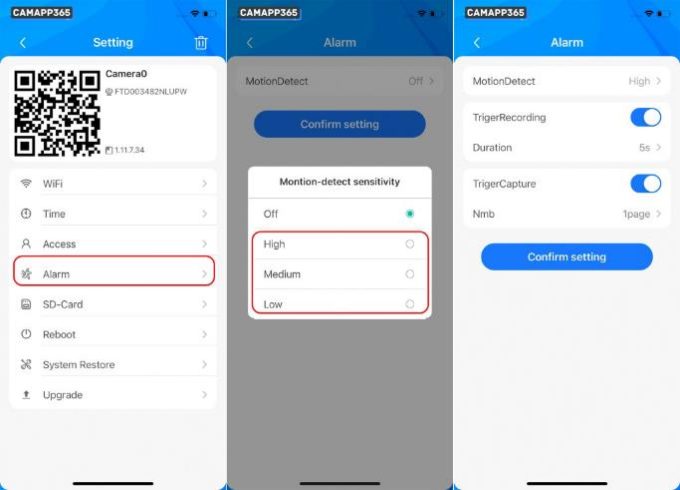
1. Enter the Alarm interface, click Motion Detect to select the detection sensitivity, and then click Confirm setting to save.
- Triger Recording: Recording when a moving object is detected.
- Triger Capture: Detects moving objects to take pictures.

FtyCamPro APP Interface Description
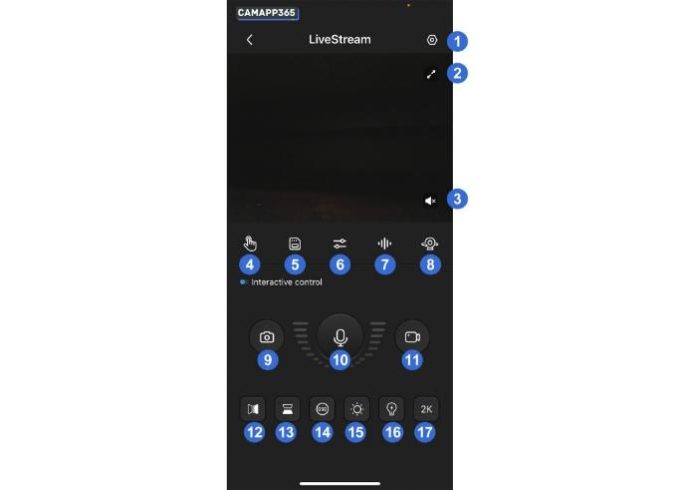
iPhone
- Camera settings
- Landscape viewing
- sound switch
- unknown
- View recorded video
- video color control
- sound control
- PTZ control (not supported by mini camera)
- local photo
- voice intercom (mini camera does not support)
- Local video recording
- horizontal flip
- vertical flip
- display transmission data
- night vision switch (mini camera only supports manual switch)
- white light switch
- switch resolution

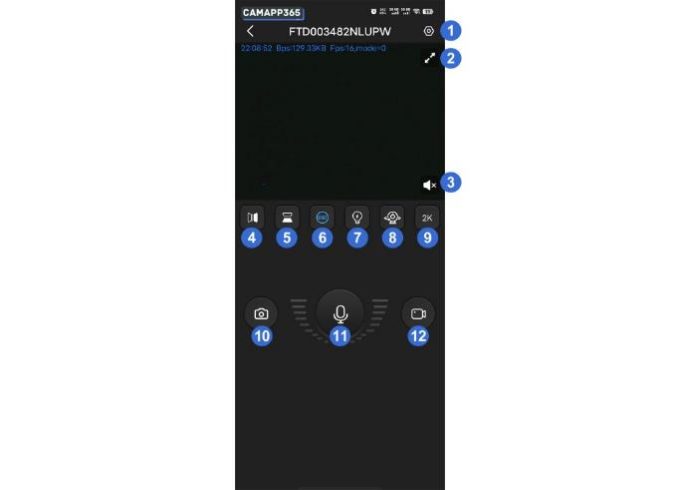
Android
- camera settings
- landscape viewing
- sound switch
- horizontal flip
- vertical flip
- display transmission data
- White light switch
- Switching lens
- switch resolution
- Local photo taking
- Voice intercom (mini camera does not support)
- local recording

How To Set Up FtyCamPro Camera , This article describes in detail how to use FtyCamPro camera, including how to connect FtyCamPro camera, function settings, etc.
It is suitable for all FtyCamPro cameras, such as mini cameras, bulb cameras, indoor and outdoor cameras, etc.
FtyCamPro Camera APP Download
FtyCamPro supports Android and iPhone, you can download it from google play or app store.
Connection Notes
· To use FtyCamPro APP, please allow all permissions, otherwise you may not be able to connect to the camera. (You can turn off the unneeded permissions after setting the network mode)
· To connect FtyCamPro camera, you need to turn on the GPS location of your phone, and turn on the gps location permission of FtyCamPro APP, so that the app can get the wifi information of the camera. (You can turn off the permission after setting the network mode)
· If the APP can’t add camera automatically, please try to close the SIM card network.
· After connecting to the camera’s hotspot wifi, the phone prompts no network, to switch wifi, please choose not to switch.
Connect FtyCamPro Camera To Wifi
Before connecting the FtyCamPro camera, please connect the camera to the power supply, if it is a battery camera, please press the on/off button to start the studio.
AP Mode
FtyCamPro will transmit a wifi, after connecting to the camera’s wifi you can control the camera.
AP mode can only use the camera if it is connected to the camera’s hotspot wifi, this mode is only to help networking and proximity use.
1. After you start FtyCamPro camera, open your phone’s wifi settings, connect the camera’s hotspot wifi.
The camera’s hot wifi name format is: XXX000000XXXXX , if you can’t find the camera’s hot wifi, please reset the camera.
2. After the phone connects to the camera’s wifi, open FtyCamPro APP will add the camera automatically.
If it is not added automatically, please try to refresh or quit the app to reopen and check the connection notes.
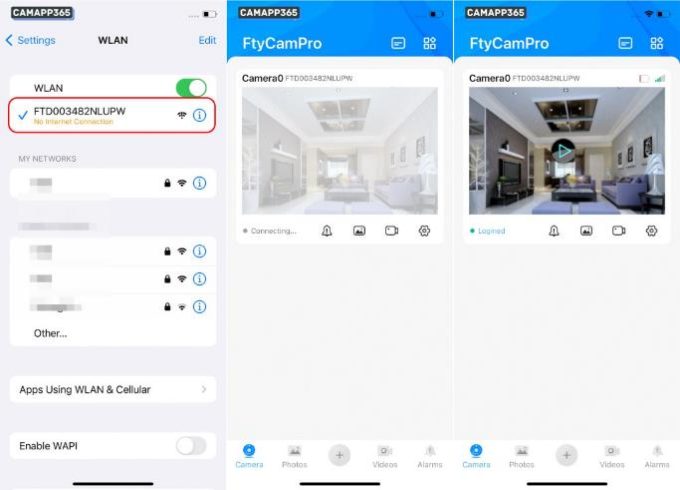
If you want to use it remotely, please continue the setup.
Networking Mode
Networked mode can use the camera remotely, as long as there is network, you can view the camera at any time. After setting the network mode, the camera’s hotspot wifi will be hidden.
1. In order to connect to your wifi quickly, please set it up next to your router.
2. Click on Settings, WiFi, and then select your wifi.
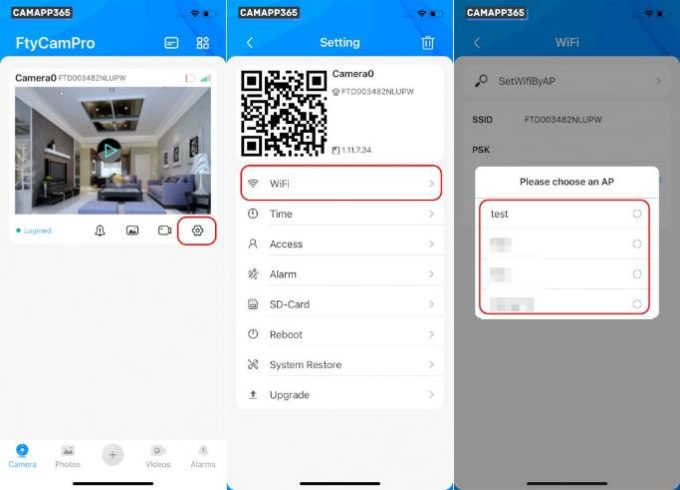
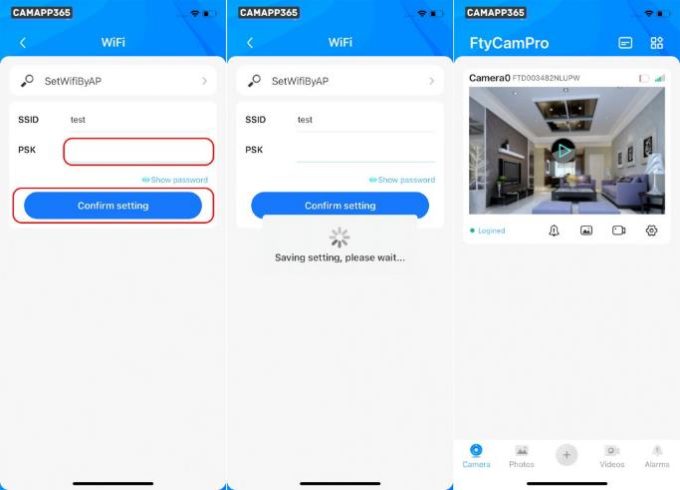
3. Enter your wifi password, click Confirm setting, then wait for the camera to connect to your wifi, about 30-60 seconds.
If it keeps showing offline, then the camera can not connect to wifi, please reset the camera and reconnect, and make sure your wifi password is correct.
Share FtyCamPro Cameras
FtyCamPro camera can be used by multiple people at the same time.
.
See also FtyCamPro For PC: How to use FtyCamPro on PC
.
1. Go to camera settings, there is a QR code in the settings page, please save it and send it to the person who wants to add the camera. (Please save the QR code, the QR code contains the camera ID, username and password information.)
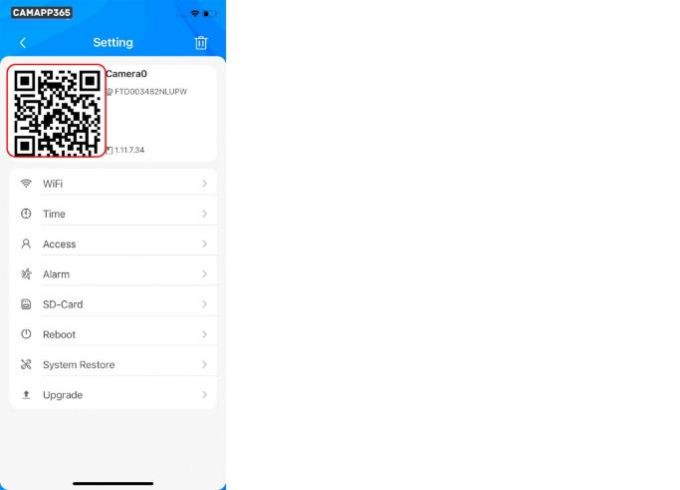
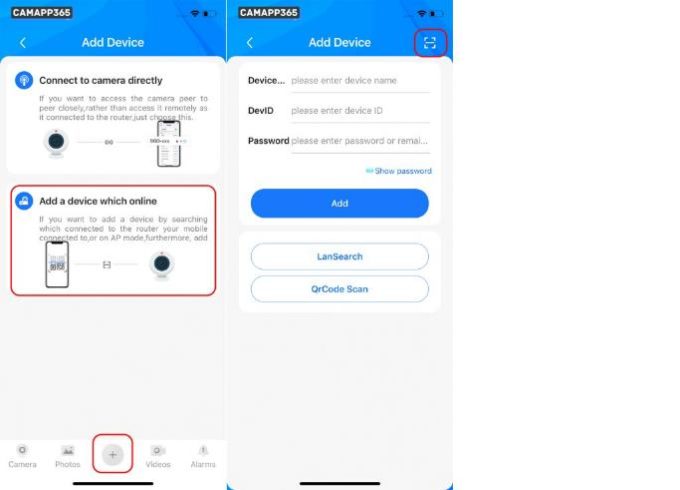
2. Download the app on the phone where you want to add FtyCamPro camera, then open the app, click + , select Add a device which online, click the icon in the upper right corner, scan the saved QR code to add the camera.
Recording Settings
FtyCamPro camera supports local recording and memory card recording.
· Local Recording: It is saved in the phone, you need to open the app all the time to record.
· Memory Card Recording: Save in the memory card, as long as the camera is started after setting recording, it will record, no need to open the APP.
Local recording settings
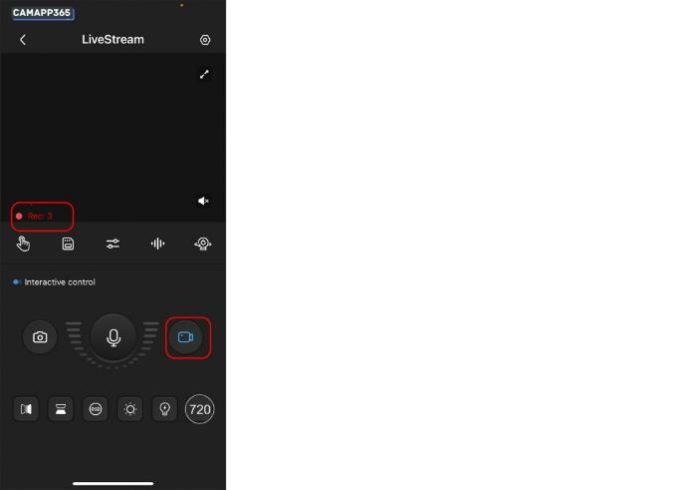
In the live video interface, click the record icon to start recording, this mode requires the live video interface to be open all the time in order to record.
Memory card recording
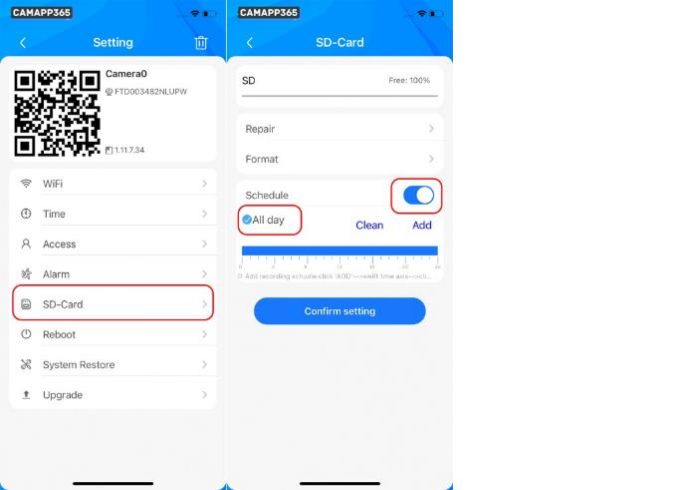
To use memory card recording, you need to insert a memory card to set it, FtyCamPro camera supports 4-128G memory card, please insert the memory card when the camera is off, otherwise the camera may not be able to read the memory card.
1. Click SD-Card, open Schedule and All day or set recording time, then click Confirm setting to save.
View Recorded Video
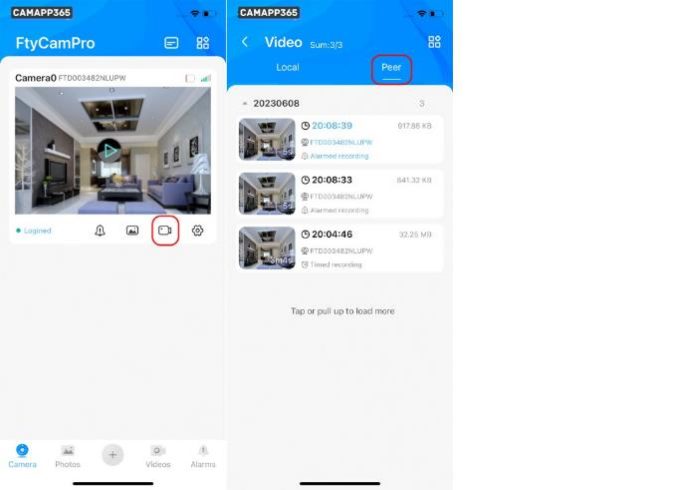
Click on the recording icon to view the video, Local is the local recording video file, Peer is the recording file saved in the memory card.
.
See also FtyCamPro Camera FAQ and Troubleshooting
.
Motion Detection Alarm Setting
When FtyCamPro camera detects a moving object in the screen, it will send a notification to your phone, and you can also set it to record and take pictures.
1. Enter the Alarm interface, click Motion Detect to select the detection sensitivity, and then click Confirm setting to save.
· Triger Recording: Recording when a moving object is detected.
· Triger Capture: Detects moving objects to take pictures.
FtyCamPro APP Interface Description
iPhone
8.PTZ control (not supported by mini camera)
10.voice intercom (mini camera does not support)
14.display transmission data
15.night vision switch (mini camera only supports manual switch)
Android
6.display transmission data
11.Voice intercom (mini camera does not support)
FtyCamPro Camera FAQ and Troubleshooting
You can check here for frequently asked questions about FtyCamPro Camera, such as camera offline, resetting the camera, etc.
Why the camera is not displayed when I connect to the hotspot wifi of FtyCamPro camera?
1.Make sure your phone is connected to the hotspot wifi of FtyCamPro camera, some phones will automatically disconnect the wifi that cannot be connected.
2.Make sure you have turned on the GPS location of your phone and the GPS location permission of APP, due to the limitation of the system, you need to turn on the GPS permission for APP to get the camera information.
3.If you are an Apple phone, check whether you have opened the Local Network permission of FtyCamPro APP.
4.Close the SIM card network, then close the APP and reopen it.
Why is my FtyCamPro Camera offline?
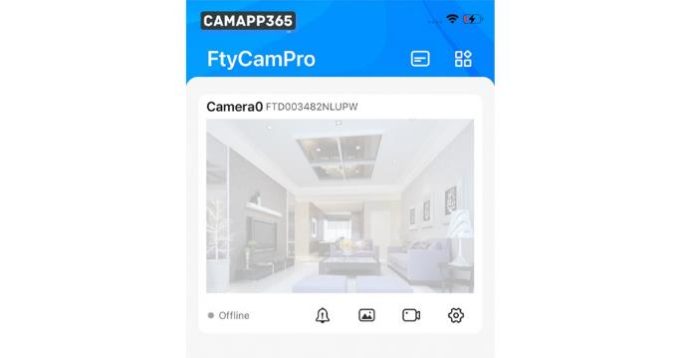
FtyCamPro camera shows offline in AP mode, please make sure your phone has a hotspot wifi connection to the camera, and close to the camera, AP mode only supports close connection.
FtyCamPro camera shows offline in network mode, please try to reset the camera to reconnect, and put the camera close to the router, sometimes the distance is far, the wifi signal is not good.
.
See also How To SetUp FtyCamPro Camera (Ultimate Manual)
.
Why does the FtyCamPro camera show offline after I set it to connect to my wifi?
This is usually due to wrong wifi password or bad wifi signal, please reset the camera to reconnect, and make sure you enter the correct wifi password.
What is the default username and password for the FtyCamPro camera?
The default user name of FtyCamPro camera is: camera0
The password is random, it will be changed to a new password every time you reset the camera.
You can change the user name and password in the Access settings.
How do I reset the FtyCamPro camera?
Press and hold the reset button for 5 seconds to reset the camera, after reset the FtyCamPro camera will be restored to factory settings, you need to reconnect the camera.
Forgot the password of FtyCamPro camera?
You can reset the camera and delete it, then reconnect it.
FtyCamPro For PC: How to use FtyCamPro on PC
FtyCamPro is an app for security cameras, With the increasing prevalence of smart security systems, this app has gained popularity among users looking for an efficient way to monitor their homes or other locations directly from their PC. In this article, we will explore how to use the FtyCamPro app on a Windows or Mac computer.
First of all, FtyCamPro only supports cell phones, there is no computer software. Fortunately, there are multiple ways to run the Android application on a desktop computer, allowing users to enjoy the features of FtyCamPro on a larger screen.
How to Install FtyCamPro on PC
FtyCamPro is a popular app that enables you to monitor and control your FtyCamPro cameras remotely. However, to use it on your PC, you will need to install an Android emulator like BlueStacks. In this section, we will guide you on how to install FtyCamPro on PC using BlueStacks.
Using BlueStacks
1.Download BlueStacks: First, download the BlueStacks 5 software, if you haven’t already installed it on your computer. BlueStacks is a widely-used emulator that allows you to run Android apps on your PC.
2.Install BlueStacks: After downloading the software, run the .exe file and follow the on-screen installation instructions. It’s a straightforward process and should only take a few minutes to complete.
3.Open BlueStacks: Once BlueStacks is successfully installed, open the application. It may take some time to load the emulator during the initial launch.
4.Search for FtyCamPro: In BlueStacks, click on the search bar and type “FtyCamPro.” The app should appear in the search results. Click on the app to access its dedicated installation page.
5.Install FtyCamPro: On the FtyCamPro installation page, click the “Install” button to begin the installation process. BlueStacks will download the app and install it on your PC.
6.Run FtyCamPro: After the installation is completed, go back to the BlueStacks main screen, and you should see the FtyCamPro app among your installed apps. Simply click on the app to launch it.
.
Now that you have FtyCamPro installed on your PC using BlueStacks, you can use it to monitor and control your security cameras with ease. Remember to configure the app with your camera settings and ensure that your PC and the cameras are connected to the internet for a seamless experience.
FtyCamPro For PC
Once the emulator is installed, users simply need to search for FtyCamPro within its interface and click “install.” The app will then be available for use on the PC, allowing users to take advantage of all its functions, including real-time monitoring and function settings.
For further assistance with FtyCamPro, including the setup process, camera connection, and troubleshooting, refer to the detailed user guide provided by camapp365. This manual is suitable for all FtyCamPro cameras and provides comprehensive information to ensure a smooth user experience.
In summary, FtyCamPro is an excellent solution for those looking to monitor their network cameras through their PC. By following the steps outlined above and consulting the available resources, users can expect a hassle-free setup and efficient camera management.
Can I use FtyCamPro on my computer without an emulator?
No, FtyCamPro only has mobile app, no PC software, and FtyCamPro camera does not support ONVIF, rtsp, so you can’t use FtyCamPro on PC in other ways.
FtyCamPro setup, FtyCamPro camera setup, FtyCamPro installation, FtyCamPro guide, IP camera setup, Wi-Fi camera setup, home security camera setup
FtyCamPro app setup, FtyCamPro mobile app, FtyCamPro network setup, FtyCamPro cloud storage, FtyCamPro motion detection setup, FtyCamPro recording setup
how to set up FtyCamPro camera, FtyCamPro setup for beginners, FtyCamPro setup step by step, FtyCamPro quick start guide
FtyCamPro camera connection, FtyCamPro WiFi setup, FtyCamPro app connection, FtyCamPro live view, FtyCamPro remote access
FtyCamPro camera not connecting, FtyCamPro app not working, FtyCamPro no video, FtyCamPro connection problems
FtyCamPro, IP camera setup, Wi-Fi camera, home security camera, camera setup
how to connect FtyCamPro camera to WiFi, how to set up motion detection on FtyCamPro, how to access FtyCamPro camera remotely, FtyCamPro app for iOS, FtyCamPro app for Android
FtyCamPro smart home integration, FtyCamPro cloud storage, FtyCamPro AI features, FtyCamPro cybersecurity
Qwerty123
⭐⭐⭐
Здравствуйте, у меня возникла проблема с подключением камеры FtyCamPro к моему телефону через Wi-Fi. Кто-нибудь знает, как это сделать?
Admin123
⭐⭐⭐⭐
Для подключения камеры FtyCamPro к телефону через Wi-Fi необходимо скачать и установить приложение, предоставленное производителем. Затем нужно подключить камеру к вашей домашней сети Wi-Fi и следовать инструкциям в приложении для завершения подключения.
TechnoPro
⭐⭐⭐⭐⭐
Дополню предыдущий ответ: после установки приложения и подключения камеры к сети Wi-Fi, вам нужно будет ввести пароль от вашей сети в настройках камеры. После этого вы сможете просматривать видео с камеры прямо на вашем телефоне.
Newbie2022
⭐⭐
Спасибо за советы! У меня всё получилось, камера теперь подключена к моему телефону через Wi-Fi. Очень удобно!
Вопрос решён. Тема закрыта.
- Где находится река Обь: материк и часть света?
- Передача имущества с забалансом: как это сделать?
- Какой цирк лучше: Цветной или Вернадского?
Как подключить камеру видеонаблюдения FTYCamPro? — коротко
Для подключения камеры видеонаблюдения FTYCamPro необходимо выполнить следующие шаги:
- Подключите камеру к устройству с помощью USB-кабеля.
- Установите драйверы и программное обеспечение, предоставленные производителем, для настройки и управления камерой.
Как подключить камеру видеонаблюдения FTYCamPro? — развернуто
Подключение камеры видеонаблюдения FTYCamPro включает несколько этапов, которые требуют внимательности и точности. В данной инструкции описаны основные шаги для успешного подключения устройства.
-
Подготовка к подключению:
- Убедитесь, что у вас есть все необходимые компоненты: камера FTYCamPro, электрический кабель питания, сетевой кабель (опционально), инструменты для монтажа и документация.
- Определите место установки камеры, где она обеспечит наилучшую видимость объекта наблюдения.
-
Монтаж камеры:
- Используя предоставленные инструкции и крепежные элементы, закрепите камеру на выбранном месте. Обратите внимание на угол установки для обеспечения оптимального поля зрения.
- Убедитесь, что камера надежно зафиксирована и не подвержена вибрациям или другим механическим воздействиям.
-
Подключение питания:
- Подключите кабель питания к соответствующему разъему на камере.
- Вставьте другой конец кабеля в розетку или используйте сетевой адаптер для подключения к сети. Убедитесь, что питание включено и стабильно.
-
Подключение к сети (опционально):
- Если ваша камера поддерживает подключение к локальной сети, используйте сетевой кабель для соединения камеры с маршрутизатором или коммутатором.
- В случае использования беспроводного подключения, следуйте инструкциям по настройке Wi-Fi, предоставленным в документации к устройству.
-
Настройка камеры:
- После включения питания и ожидания нескольких секунд для загрузки системы, подключите компьютер или мобильное устройство к той же локальной сети, что и камера.
- Откройте web браузер и введите IP-адрес камеры (обычно указан на этикетке или в документации) в адресную строку.
- Войдите в интерфейс управления, используя предоставленные по умолчанию логин и пароль (обычно admin/admin или admin/password). Рекомендуется изменить эти данные после первого входа для обеспечения безопасности.
-
Настройка параметров:
- В интерфейсе управления вы можете настроить различные параметры камеры, такие как угол обзора, качество видео, частота кадров и другие.
- Убедитесь, что все параметры соответствуют вашим требованиям и обеспечивают оптимальную работу системы видеонаблюдения.
-
Проверка и тестирование:
- После завершения всех настроек проведите тестовую передачу изображения, чтобы убедиться в корректной работе камеры.
- Если возникают проблемы или искажения изображения, проверьте соединения и повторите настройки.
Соблюдение этих шагов обеспечит успешное подключение и настройку камеры видеонаблюдения FTYCamPro, что позволит вам эффективно использовать систему для мониторинга и обеспечения безопасности.