

To reduce the impacts on global warming, the packaging materials of this product
are recyclable and reusable. GIGABYTE works with you to protect the environment.
For more product details, please visit GIGABYTE’s website.
Z590 GAMING XZ590 GAMING X AX
Z590 GAMING X AX
Z590 GAMING X
User’s Manual
Rev. 1001
12ME-Z59GX-1001R
Copyright
© 2021 GIGA-BYTE TECHNOLOGY CO., LTD. All rights reserved.
The trademarks mentioned in this manual are legally registered to their respective owners.
Disclaimer
Information in this manual is protected by copyright laws and is the property of GIGABYTE.
Changes to the specications and features in this manual may be made by GIGABYTE without
prior notice. No part of this manual may be reproduced, copied, translated, transmitted, or
published in any form or by any means without GIGABYTE’s prior written permission.
In order to assist in the use of this product, carefully read the User’s Manual.
For product-related information, check on our website at: https://www.gigabyte.com
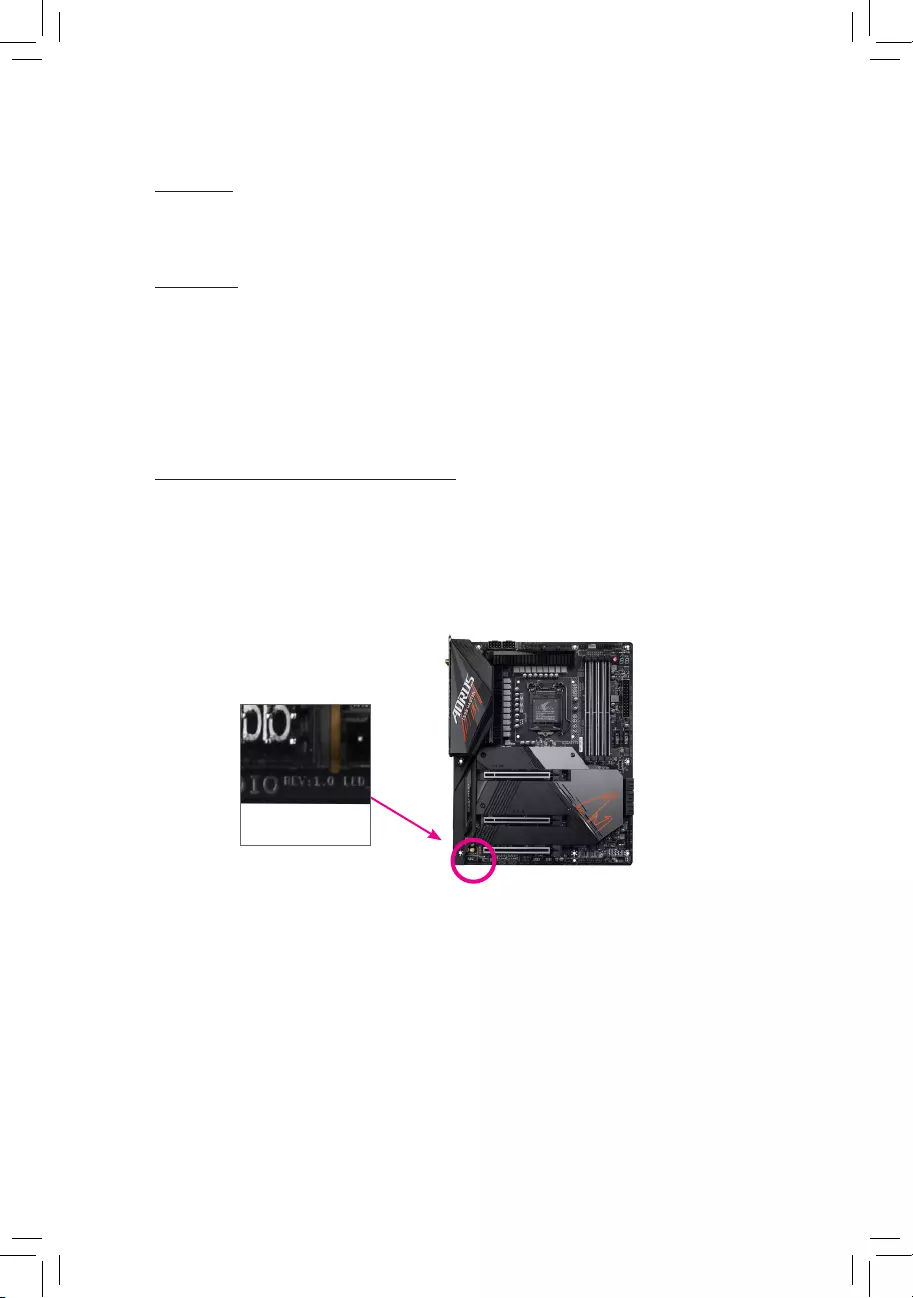
Identifying Your Motherboard Revision
The revision number on your motherboard looks like this: «REV: X.X.» For example, «REV: 1.0»
means the revision of the motherboard is 1.0. Check your motherboard revision before updating
motherboard BIOS, drivers, or when looking for technical information.
Example:

— 3 —
Table of Contents
Z590 GAMING X AX/Z590 GAMING X Motherboard Layout ……………………………………4
Chapter 1 Hardware Installation ………………………………………………………………………….5
1-1 Installation Precautions ………………………………………………………………………… 5
1-2 ProductSpecications ………………………………………………………………………….. 6
1-3 Installing the CPU ……………………………………………………………………………… 10
1-4 Installing the Memory …………………………………………………………………………. 10
1-5 Installing an Expansion Card ………………………………………………………………. 11
1-6 Back Panel Connectors ………………………………………………………………………. 11
1-7 Internal Connectors ……………………………………………………………………………. 13
Chapter 2 BIOS Setup ……………………………………………………………………………………..24
2-1 Startup Screen ………………………………………………………………………………….. 24
2-2 The Main Menu …………………………………………………………………………………. 25
2-3 Smart Fan 6 …………………………………………………………………………………….. 26
2-4 Favorites (F11) ………………………………………………………………………………….. 27
2-5 Tweaker ……………………………………………………………………………………………. 28
2-6 Settings ……………………………………………………………………………………………. 34
2-7 System Info. ……………………………………………………………………………………… 39
2-8 Boot …………………………………………………………………………………………………. 40
2-9 Save & Exit ……………………………………………………………………………………….. 43
Chapter 3 Appendix …………………………………………………………………………………………44
3-1 ConguringaRAIDSet ………………………………………………………………………. 44
3-2 Installing Intel® Optane™ Memory and Storage Management …………………… 45
3-3 DriversInstallation ……………………………………………………………………………… 47
RegulatoryNotices ………………………………………………………………………………………. 48
Contact Us …………………………………………………………………………………………………. 52
j Only for the Z590 GAMING X AX.
— 4 —
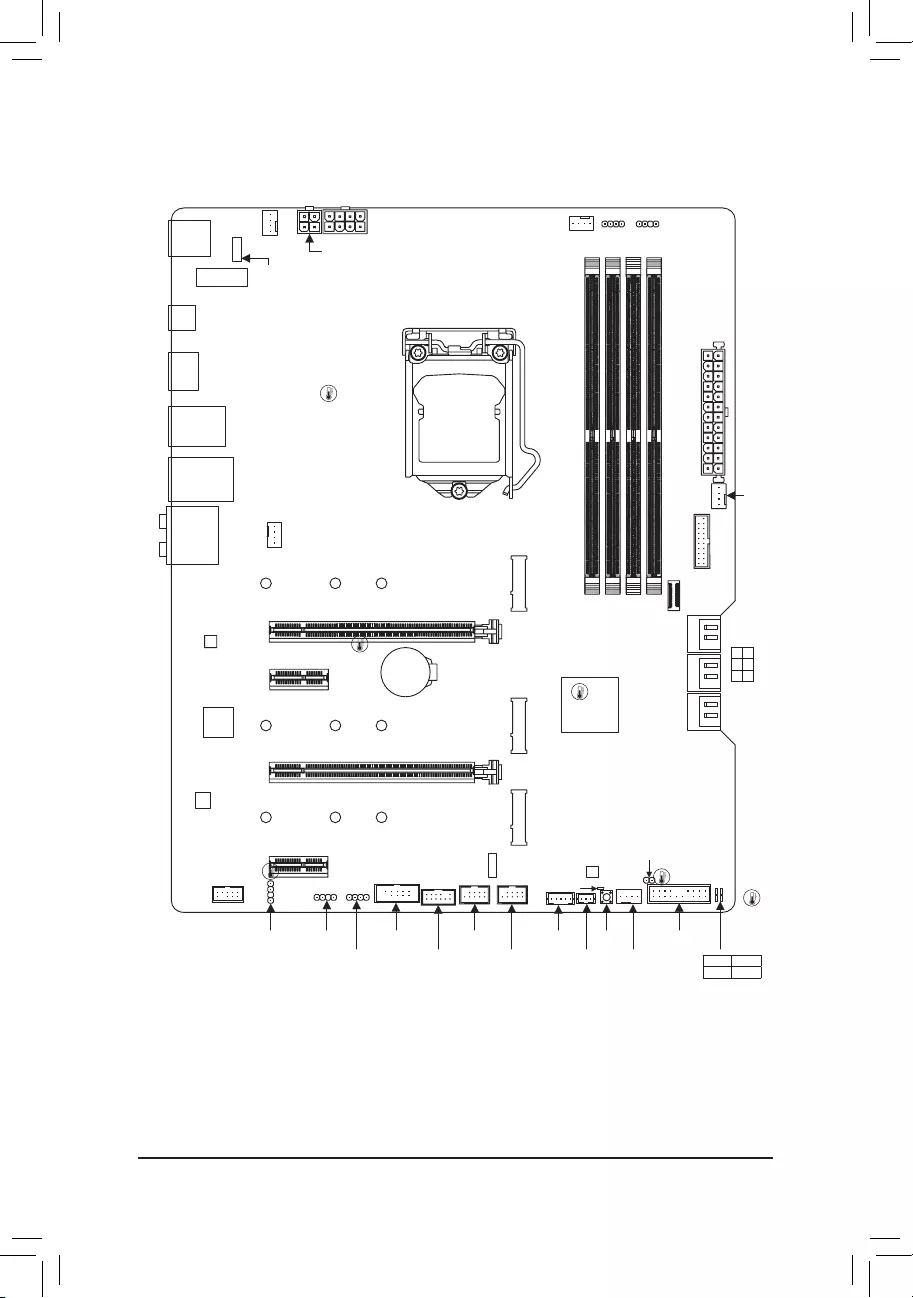
Z590 GAMING X AX/Z590 GAMING X Motherboard Layout
* The box contents above are for reference only and the actual items shall depend on the product package you
obtain. The box contents are subject to change without notice.
Box Contents
5Z590 GAMING X AX or Z590 GAMING X motherboard
5Motherboard driver disc 5One antennaj
5User’s Manual 5M.2 screws
5Two SATA cables
Temperature
sensor
KB_MS_USB
M2_WIFIj
DP
U32G2C
U32_LAN
LGA1200
ATX
AUDIO
ATX_12V_2X4
Intel® Z590
CLR_CMOS
M_BIOS
PCIEX1_1
PCIEX4
PCIEX16
PCIEX1_2
F_U32
F_U32C
M2A_SB M2P_CPU
CODEC
Z590 GAMING X (AX)
F_PANEL
F_USB1
F_USB2COM
LED_C2
LED_C1
D_LED2
F_AUDIO
D_LED1SPDIF_O
SYS_FAN3
SYS_FAN4
QFLASH_
PLUS
SPI_TPM
SYS_FAN1
USB 2.0 Hub
USB 2.0 Hub
SYS_FAN2
CPU_FAN
iTE®
Super I/O
60
60
60
80
80
80
110
110
110
SATA3 5 3 1
4 2 0
BAT
Realtek®
2.5GbE LAN
CPU DRAM
VGA BOOT
U32_G2
THB_C1
THB_C2
M2M_SB
ATX_12V_2X2
QFLED
DDR4_A1
DDR4_A2
DDR4_B1
DDR4_B2

Chapter 1 Hardware Installation
1-1 Installation Precautions
The motherboard contains numerous delicate electronic circuits and components which can become
damagedasaresultofelectrostaticdischarge(ESD).Priortoinstallation,carefullyreadtheuser’s
manual and follow these procedures:
•Prior to installation, make sure the chassis is suitable for the motherboard.
•Prior to installation, do not remove or break motherboard S/N (Serial Number) sticker or
warranty sticker provided by your dealer. These stickers are required for warranty validation.
•Always remove the AC power by unplugging the power cord from the power outlet before
installing or removing the motherboard or other hardware components.
•When connecting hardware components to the internal connectors on the motherboard, make
sure they are connected tightly and securely.
•When handling the motherboard, avoid touching any metal leads or connectors.
•It is best to wear an electrostatic discharge (ESD) wrist strap when handling electronic
componentssuchasamotherboard,CPUormemory.IfyoudonothaveanESDwriststrap,
keepyourhandsdryandrsttouchametalobjecttoeliminatestaticelectricity.
•Prior to installing the motherboard, please have it on top of an antistatic pad or within an
electrostatic shielding container.
•Before connecting or unplugging the power supply cable from the motherboard, make sure
the power supply has been turned off.
•Before turning on the power, make sure the power supply voltage has been set according to
the local voltage standard.
•Before using the product, please verify that all cables and power connectors of your hardware
components are connected.
•To prevent damage to the motherboard, do not allow screws to come in contact with the
motherboard circuit or its components.
•Make sure there are no leftover screws or metal components placed on the motherboard or
within the computer casing.
•Donotplacethecomputersystemonanunevensurface.
•Donotplacethecomputersysteminahigh-temperatureorwetenvironment.
•Turning on the computer power during the installation process can lead to damage to system
components as well as physical harm to the user.
•If you are uncertain about any installation steps or have a problem related to the use of the
product,pleaseconsultacertiedcomputertechnician.
•If you use an adapter, extension power cable, or power strip, ensure to consult with its installation
and/or grounding instructions.
— 5 —
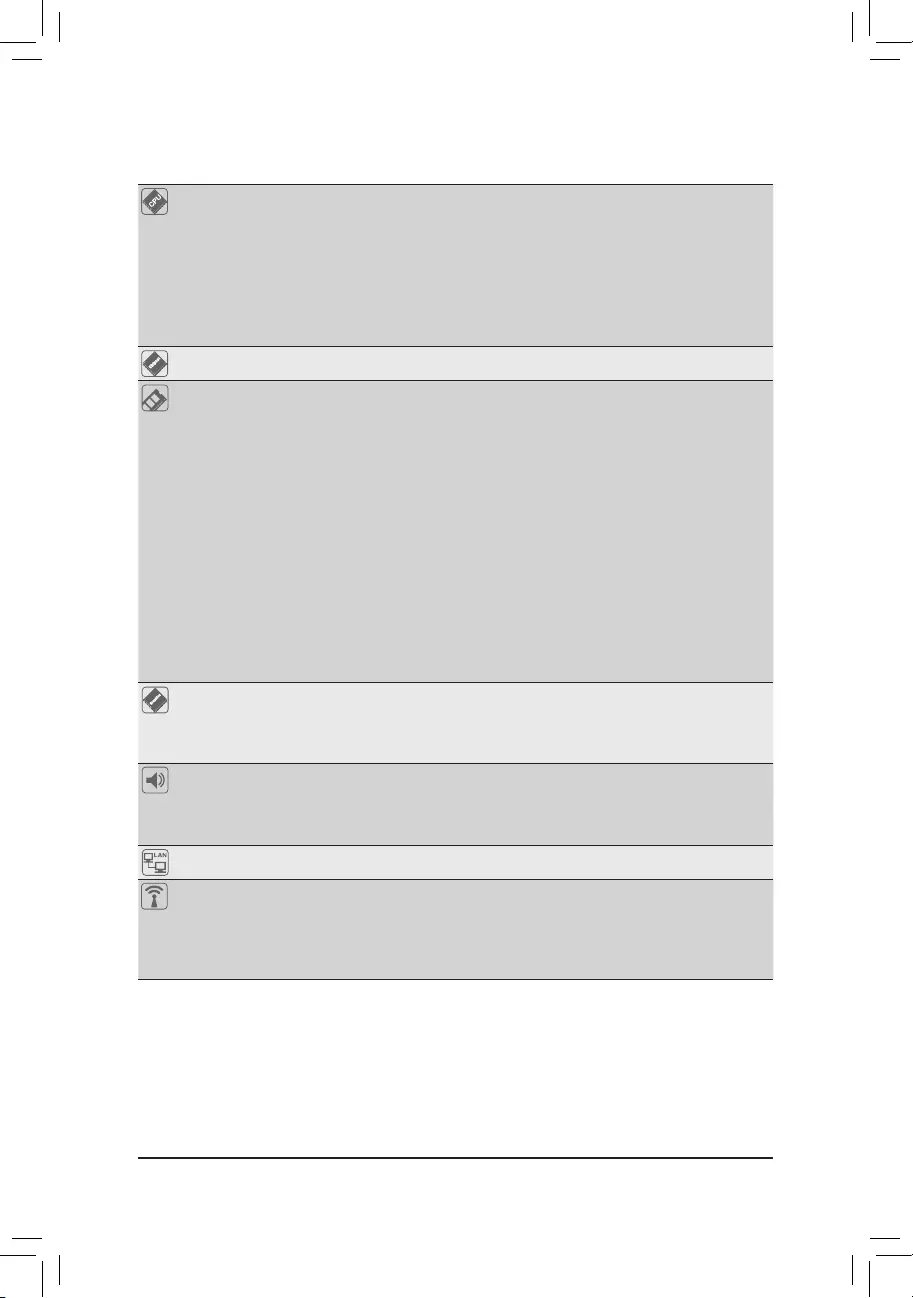
1-2 ProductSpecications
CPU LGA1200 package:
— 11th Generation Intel® Core™ i9 processors/Intel® Core™ i7 processors/Intel®
Core™ i5 processors
— 10th Generation Intel® Core™ i9 processors/Intel® Core™ i7 processors/Intel®
Core™ i5 processors/Intel® Core™ i3 processors/Intel® Pentium® processors/
Intel® Celeron® processors
(Go to GIGABYTE’s website for the latest CPU support list.)
L3 cache varies with CPU
Chipset Intel® Z590 Express Chipset
Memory 11th Generation Intel® Core™ i9/i7/i5 processors:
- SupportforDDR43200/3000/2933/2666/2400/2133MHzmemorymodules
10th Generation Intel® Core™ i9/i7 processors:
- SupportforDDR42933/2666/2400/2133MHzmemorymodules
10th Generation Intel® Core™ i5/i3/Pentium®/Celeron® processors:
- SupportforDDR42666/2400/2133MHzmemorymodules
4xDDR4DIMMsocketssupportingupto128GB(32GBsingleDIMMcapacity)
of system memory
Dualchannelmemoryarchitecture
SupportforECCUn-bufferedDIMM1Rx8/2Rx8memorymodules(operatein
non-ECC mode)
Supportfornon-ECCUn-bufferedDIMM1Rx8/2Rx8/1Rx16memorymodules
SupportforExtremeMemoryProle(XMP)memorymodules
(Go to GIGABYTE’s website for the latest supported memory speeds and memory
modules.)
Onboard
Graphics
Integrated Graphics Processor-Intel®HDGraphicssupport:
- 1xDisplayPort,supportingamaximumresolutionof4096×2304@60Hz
* SupportforDisplayPort1.2versionandHDCP2.3
(GraphicsspecicationsmayvarydependingonCPUsupport.)
Audio Realtek® audio codec
HighDenitionAudio
2/4/5.1/7.1-channel
SupportforS/PDIFOut
LAN Realtek® 2.5GbE LAN chip (2.5 Gbit/1 Gbit/100 Mbit)
Wireless
Communication
Modulej
Intel® Wi-Fi 6 AX201
- WIFIa,b,g,n,acwithwave2features,ax,supporting2.4/5GHzDual-Band
— BLUETOOTH 5
- Supportfor11ax160MHzwirelessstandardandupto2.4Gbpsdatarate
* Actual data rate may vary depending on environment and equipment.
j Only for the Z590 GAMING X AX.
— 6 —
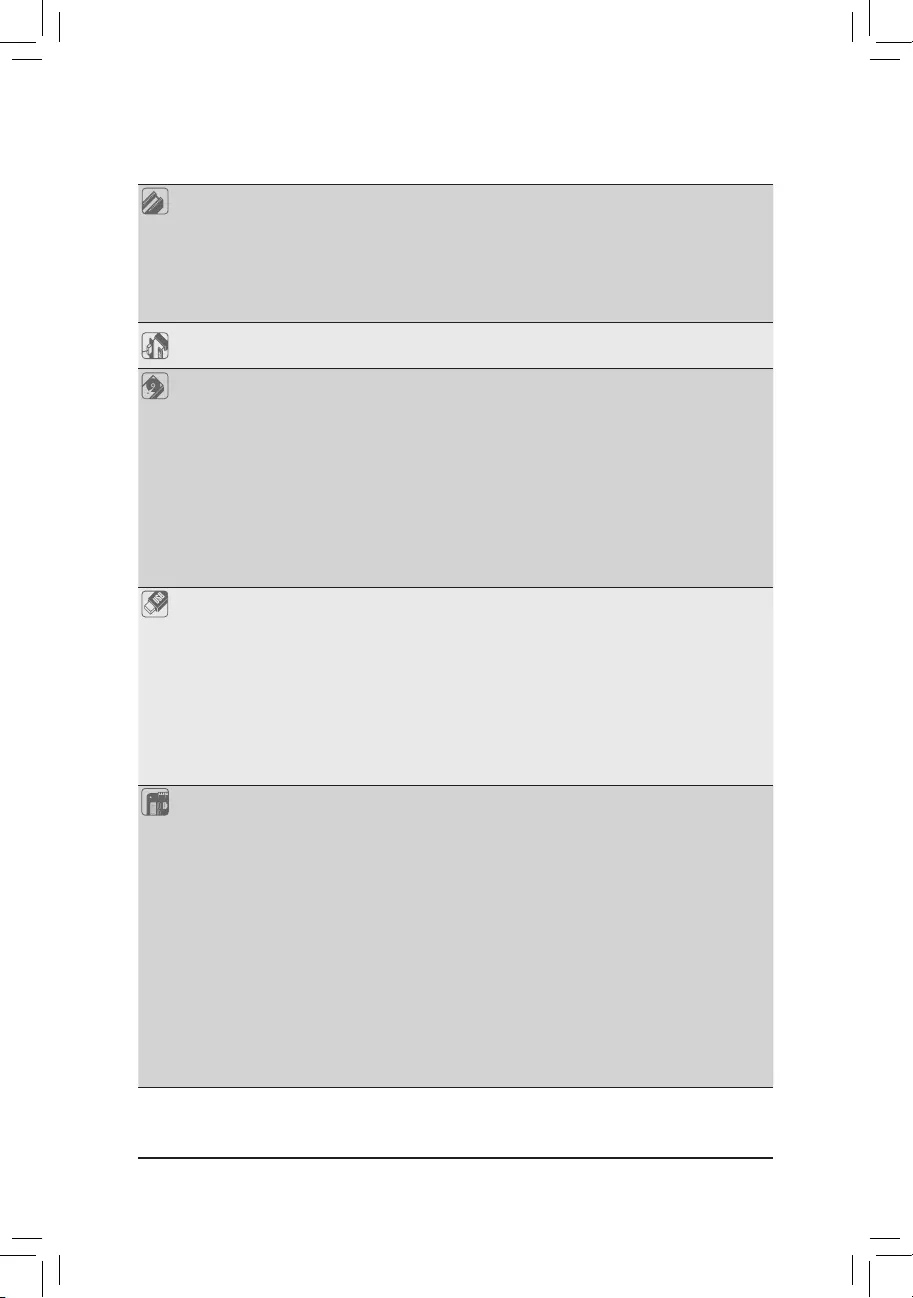
Expansion Slots 1 x PCI Express x16 slot, running at x16 (PCIEX16)
* For optimum performance, if only one PCI Express graphics card is to be installed,
be sure to install it in the PCIEX16 slot.
(The PCIEX16 slot conforms to PCI Express 4.0 standard.) (Note)
1 x PCI Express x16 slot, running at x4 (PCIEX4)
2 x PCI Express x1 slots
(The PCIEX4 and PCI Express x1 slots conform to PCI Express 3.0 standard.)
Multi-Graphics
Technology SupportforAMDQuad-GPUCrossFire™and2-WayAMDCrossFire™ technologies
Storage Interface CPU:
— 1 x M.2 connector (Socket 3, M key, type 2260/2280/22110 PCIe 4.0 x4/x2
SSDsupport)(M2P_CPU) (Note)
Chipset:
— 2 x M.2 connectors (Socket 3, M key, type 2260/2280/22110 SATA and PCIe
3.0x4/x2SSDsupport)(M2A_SB)(M2M_SB)
— 6 x SATA 6Gb/s connectors
SupportforRAID0,RAID1,RAID5,andRAID10
* Referto»1-7InternalConnectors,»fortheinstallationnoticesfortheM.2andSATA
connectors.
Intel® Optane™MemoryReady
USB Chipset:
— 1 x USB Type-C® port on the back panel, with USB 3.2 Gen 2 support
— 1 x USB Type-C® port with USB 3.2 Gen 1 support, available through the
internal USB header
— 1 x USB 3.2 Gen 2 Type-A port (red) on the back panel
— 7 x USB 3.2 Gen 1 ports (5 ports on the back panel, 2 ports available through
the internal USB header)
Chipset+2 USB 2.0 Hubs:
— 6 x USB 2.0/1.1 ports (2 ports on the back panel, 4 ports available through
the internal USB headers)
Internal
Connectors
1 x 24-pin ATX main power connector
1 x 8-pin ATX 12V power connector
1 x 4-pin ATX 12V power connector
1 x CPU fan header
4 x system fan headers
2xaddressableLEDstripheaders
2xRGBLEDstripheaders
6 x SATA 6Gb/s connectors
3 x M.2 Socket 3 connectors
1 x front panel header
1 x front panel audio header
1xS/PDIFOutheader
1 x USB Type-C® header, with USB 3.2 Gen 1 support
1 x USB 3.2 Gen 1 header
2 x USB 2.0/1.1 headers
(Note) Supported by 11th Generation processors only.
— 7 —
Internal
Connectors
1 x Trusted Platform Module header (For the GC-TPM2.0 SPI/GC-TPM2.0 SPI
2.0 module only)
2 x Thunderbolt™ add-in card connectors
1 x serial port header
1 x Clear CMOS jumper
1 x Q-Flash Plus button
Back Panel
Connectors
1 x PS/2 keyboard/mouse port
2xSMAantennaconnectors(2T2R)j
1 x USB Type-C® port, with USB 3.2 Gen 2 support
1xDisplayPort
1 x USB 3.2 Gen 2 Type-A port (red)
5 x USB 3.2 Gen 1 ports
2 x USB 2.0/1.1 ports
1xRJ-45port
6 x audio jacks
I/O Controller iTE® I/O Controller Chip
Hardware
Monitor
Voltage detection
Temperature detection
Fan speed detection
Fan fail warning
Fan speed control
* Whether the fan speed control function is supported will depend on the cooler you
install.
BIOS 1x256Mbitash
Use of licensed AMI UEFI BIOS
PnP1.0a,DMI2.7,WfM2.0,SMBIOS2.7,ACPI5.0
Unique Features Support for APP Center
* Available applications in APP Center may vary by motherboard model. Supported
functionsofeachapplicationmayalsovarydependingonmotherboardspecications.
- @BIOS
— EasyTune
— Fast Boot
— Game Boost
— ON/OFF Charge
- RGBFusion
— Smart Backup
— System Information Viewer
Support for Q-Flash Plus
Support for Q-Flash
Support for Xpress Install
j Only for the Z590 GAMING X AX.
— 8 —
Bundled
Software
Norton® Internet Security (OEM version)
Realtek® 8125 Gaming LAN Bandwidth Control Utility
Operating
System Support for Windows 10 64-bit
Form Factor ATX Form Factor; 30.5cm x 24.4cm
* GIGABYTEreservestherighttomakeanychangestotheproductspecicationsandproduct-relatedinformationwithout
prior notice.
Please visit the Support\Utility List page on GIGABYTE’s website to download the latest
version of apps.
Please visit GIGABYTE’s website for support lists of CPU, memory
modules,SSDs,andM.2devices.
Z590 GAMING XZ590 GAMING X AX
— 9 —
1-3 Installing the CPU
ReadthefollowingguidelinesbeforeyoubegintoinstalltheCPU:
•Make sure that the motherboard supports the CPU.
(Go to GIGABYTE’s website for the latest CPU support list.)
•Always turn off the computer and unplug the power cord from the power outlet before installing the CPU
to prevent hardware damage.
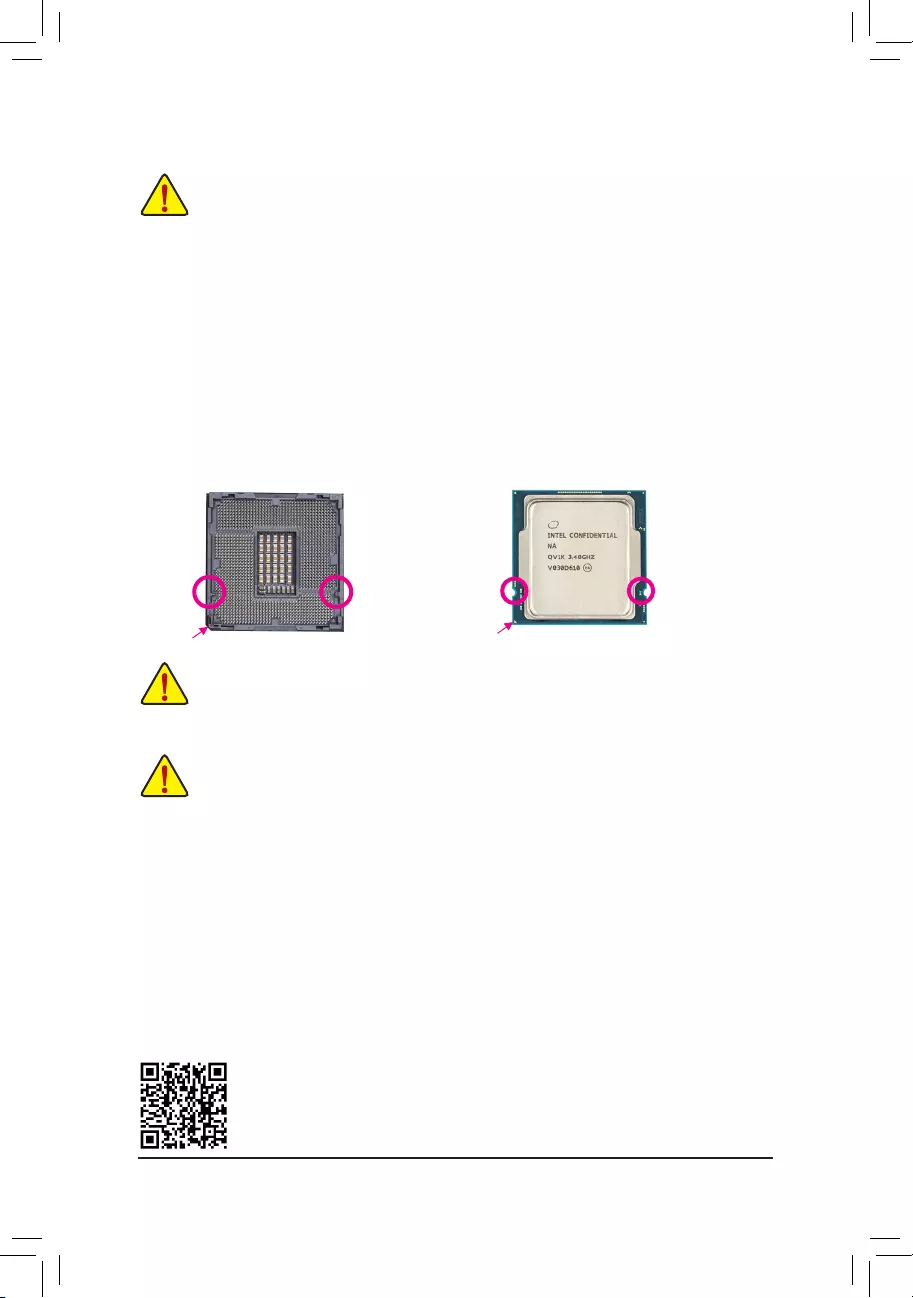
•Locate the pin one of the CPU. The CPU cannot be inserted if oriented incorrectly. (Or you may locate
the notches on both sides of the CPU and alignment keys on the CPU socket.)
•Apply an even and thin layer of thermal grease on the surface of the CPU.
•DonotturnonthecomputeriftheCPUcoolerisnotinstalled,otherwiseoverheatinganddamageof
the CPU may occur.
•SettheCPUhostfrequencyinaccordancewiththeCPU specications. It is not recommended that
thesystembusfrequencybesetbeyondhardwarespecicationssinceitdoesnotmeetthestandard
requirementsfortheperipherals.Ifyouwishtosetthefrequencybeyondthestandardspecications,please
dosoaccordingtoyourhardwarespecicationsincludingtheCPU,graphicscard,memory,harddrive,etc.
Installing the CPU
Locate the alignment keys on the motherboard CPU socket and the notches on the CPU.
Do not remove the CPU socket cover before inserting the CPU. It may pop off from the load
plate automatically during the process of re—engaging the lever after you insert the CPU.
1-4 Installing the Memory
Readthefollowingguidelinesbeforeyoubegintoinstallthememory:
•Make sure that the motherboard supports the memory. It is recommended that memory of the same
capacity, brand, speed, and chips be used.
(Go to GIGABYTE’s website for the latest supported memory speeds and memory modules.)
•Always turn off the computer and unplug the power cord from the power outlet before installing the
memory to prevent hardware damage.
•Memory modules have a foolproof design. A memory module can be installed in only one direction.
If you are unable to insert the memory, switch the direction.
DualChannelMemoryConguration
ThismotherboardprovidesfourmemorysocketsandsupportsDualChannelTechnology.Afterthememory
isinstalled,theBIOSwillautomaticallydetectthespecicationsandcapacityofthememory.EnablingDual
Channel memory mode will double the original memory bandwidth.
Please visit GIGABYTE’s website for details on hardware installation.
Triangle Pin One Marking on the CPU
Notch
Notch
LGA1200 CPU
Alignment
Key
Alignment
Key
LGA1200 CPU Socket
Pin One Corner of the CPU Socket
The four memory sockets are divided into two channels and each channel has two memory sockets as following:
ChannelA:DDR4_A1,DDR4_A2
ChannelB:DDR4_B1,DDR4_B2
— 10 —
RecommandedDualChannelMemoryConguration:
DDR4_A1 DDR4_A2 DDR4_B1 DDR4_B2
2 Modules — — DS/SS — — DS/SS
4 Modules DS/SS DS/SS DS/SS DS/SS
(SS=Single-Sided,DS=Double-Sided,»--«=NoMemory)
DuetoCPUlimitations,readthefollowingguidelinesbeforeinstallingthememoryinDualChannelmode.
1. DualChannelmodecannotbeenabledifonlyonememorymoduleisinstalled.
2. WhenenablingDualChannelmodewithtwoorfourmemorymodules,itisrecommendedthatmemory
of the same capacity, brand, speed, and chips be used.
1-5 Installing an Expansion Card
Readthefollowingguidelinesbeforeyoubegintoinstallanexpansioncard:
•Make sure the motherboard supports the expansion card. Carefully read the manual that came
with your expansion card.
•Always turn off the computer and unplug the power cord from the power outlet before installing an
expansion card to prevent hardware damage.
1-6 Back Panel Connectors
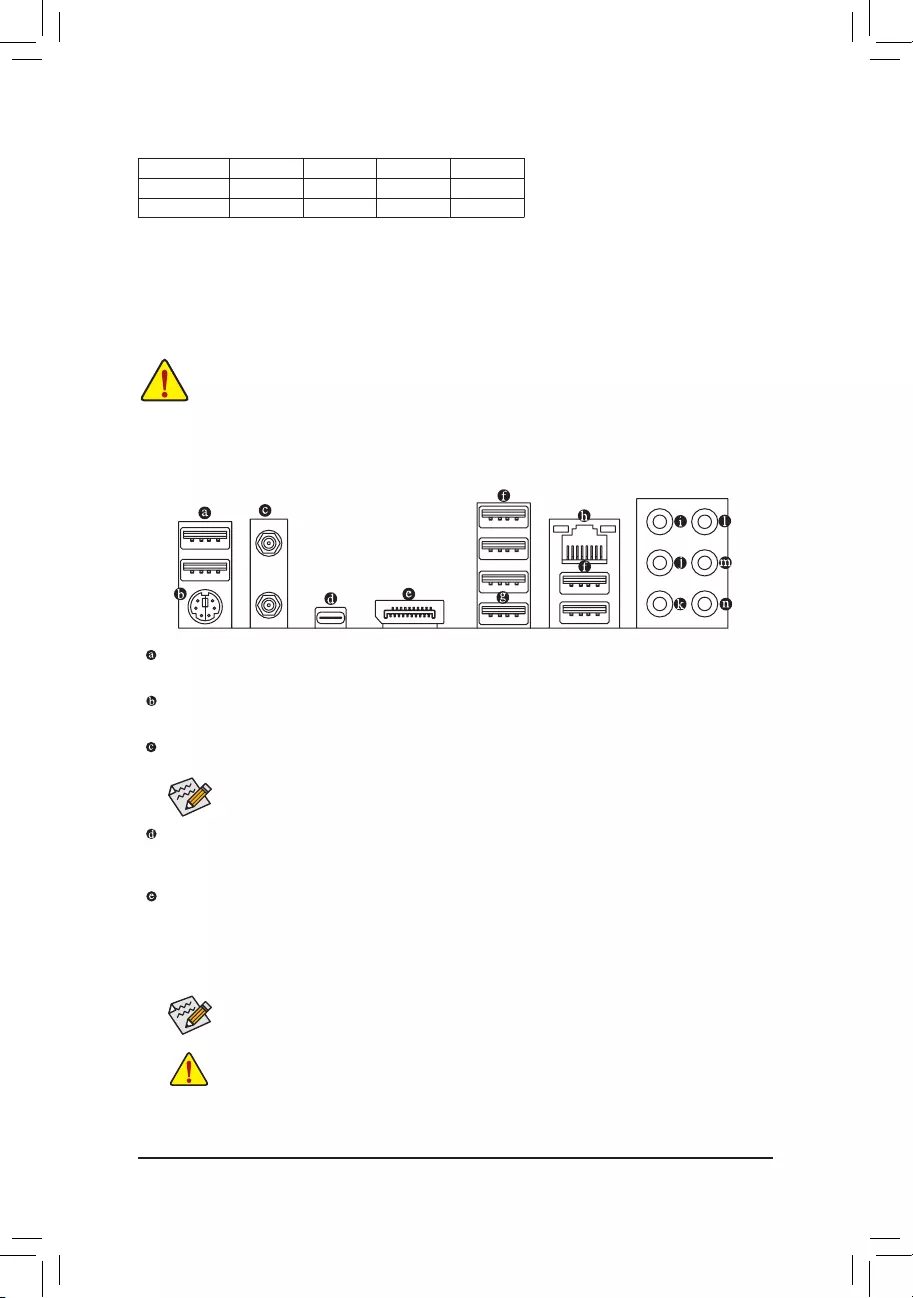
USB 2.0/1.1 Port
TheUSBportsupportstheUSB2.0/1.1specication.UsethisportforUSBdevices.
PS/2 Keyboard/Mouse Port
Use this port to connect a PS/2 mouse or keyboard.
SMA Antenna Connectors (2T2R)j
Use this connector to connect an antenna.
AfterinstallingtheDisplayPortdevice,makesuretosetthedefaultsoundplaybackdeviceto
DisplayPort.(Theitemnamemaydifferdependingonyouroperatingsystem.)
•Whenremovingthecableconnectedtoabackpanelconnector,rstremovethecablefrom
your device and then remove it from the motherboard.
•Whenremovingthecable,pullitstraightoutfromtheconnector.Donotrockitsidetosideto
prevent an electrical short inside the cable connector.
j Only for the Z590 GAMING X AX.
Tighten the antennas to the antenna connectors and then aim the antennas correctly for better
signal reception.
USB Type-C® Port
ThereversibleUSBportsupportstheUSB3.2Gen2specicationandiscompatibletotheUSB3.2Gen1
andUSB2.0specication.UsethisportforUSBdevices.
DisplayPort
DisplayPortdelivershighqualitydigitalimagingandaudio,supportingbi-directionalaudiotransmission.
DisplayPortcansupporttheHDCP2.3contentprotectionmechanism.Youcanusethisporttoconnect
yourDisplayPort-supportedmonitor.Note:TheDisplayPortTechnologycansupportamaximumresolution
of4096×2304@60Hzbuttheactualresolutionssupporteddependonthemonitorbeingused.
j
— 11 —
USB 3.2 Gen 1 Port
TheUSB3.2Gen1portsupportstheUSB3.2Gen1specicationandiscompatibletotheUSB2.0
specication.UsethisportforUSBdevices.
USB 3.2 Gen 2 Type-A Port (Red) (Q-Flash Plus Port)
TheUSB3.2Gen2portsupportstheUSB3.2Gen2specicationandiscompatibletotheUSB3.2Gen1
andUSB2.0specication.UsethisportforUSBdevices.BeforeusingQ-FlashPlus(Note), make sure to
inserttheUSBashdriveintothisportrst.
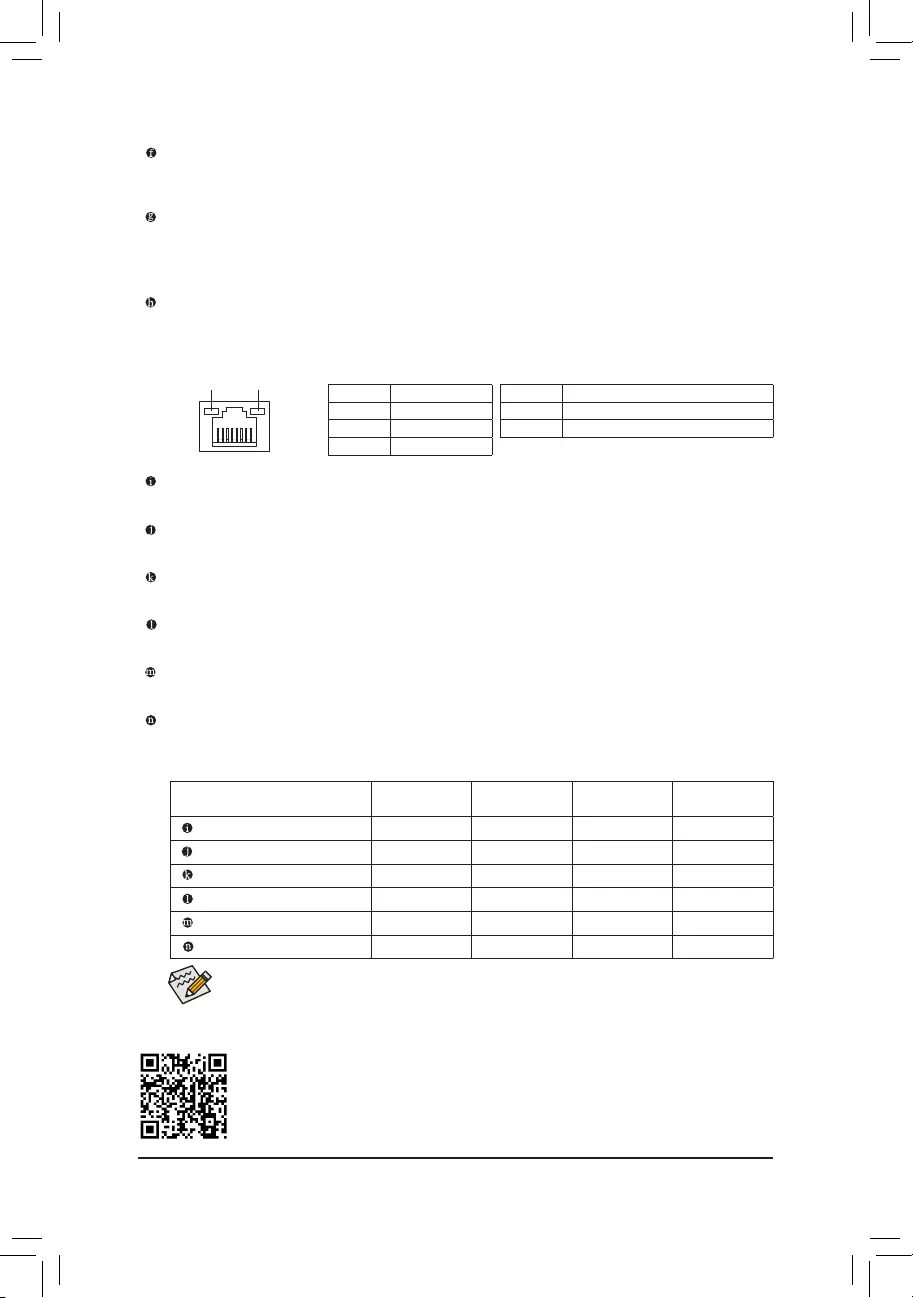
RJ-45 LAN Port
The Gigabit Ethernet LAN port provides Internet connection at up to 2.5 Gbps data rate. The following
describesthestatesoftheLANportLEDs.
ActivityLED
Connection/
SpeedLED
LAN Port
Connection/SpeedLED:
State Description
Orange 2.5 Gbps data rate
Green 1 Gbps data rate
Off 100 Mbps data rate
ActivityLED:
State Description
Blinking Datatransmissionorreceivingisoccurring
Off No data transmission or receiving is occurring
Center/Subwoofer Speaker Out (Orange)
Use this audio jack to connect center/subwoofer speakers.
Rear Speaker Out (Black)
Use this audio jack to connect rear speakers.
Side Speaker Out (Gray)
Use this audio jack to connect side speakers.
Line In (Blue)
The line in jack. Use this audio jack for line in devices such as an optical drive, walkman, etc.
Line Out/Front Speaker Out (Green)
The line out jack.
Mic In (Pink)
The Mic in jack.
AudioJackCongurations:
Jack Headphone/
2-channel 4-channel 5.1-channel 7.1-channel
Center/Subwoofer Speaker Out a a
RearSpeakerOut aaa
Side Speaker Out a
Line In
Line Out/Front Speaker Out aaaa
Mic In
PleasevisitGIGABYTE’swebsitefordetailsonconguringtheaudiosoftware.
(Note) ToenabletheQ-FlashPlusfunctionpleasevisitthe«UniqueFeatures»webpageofGIGABYTE’swebsite.
— 12 —
You can change the functionality of an audio jack using the audio software.
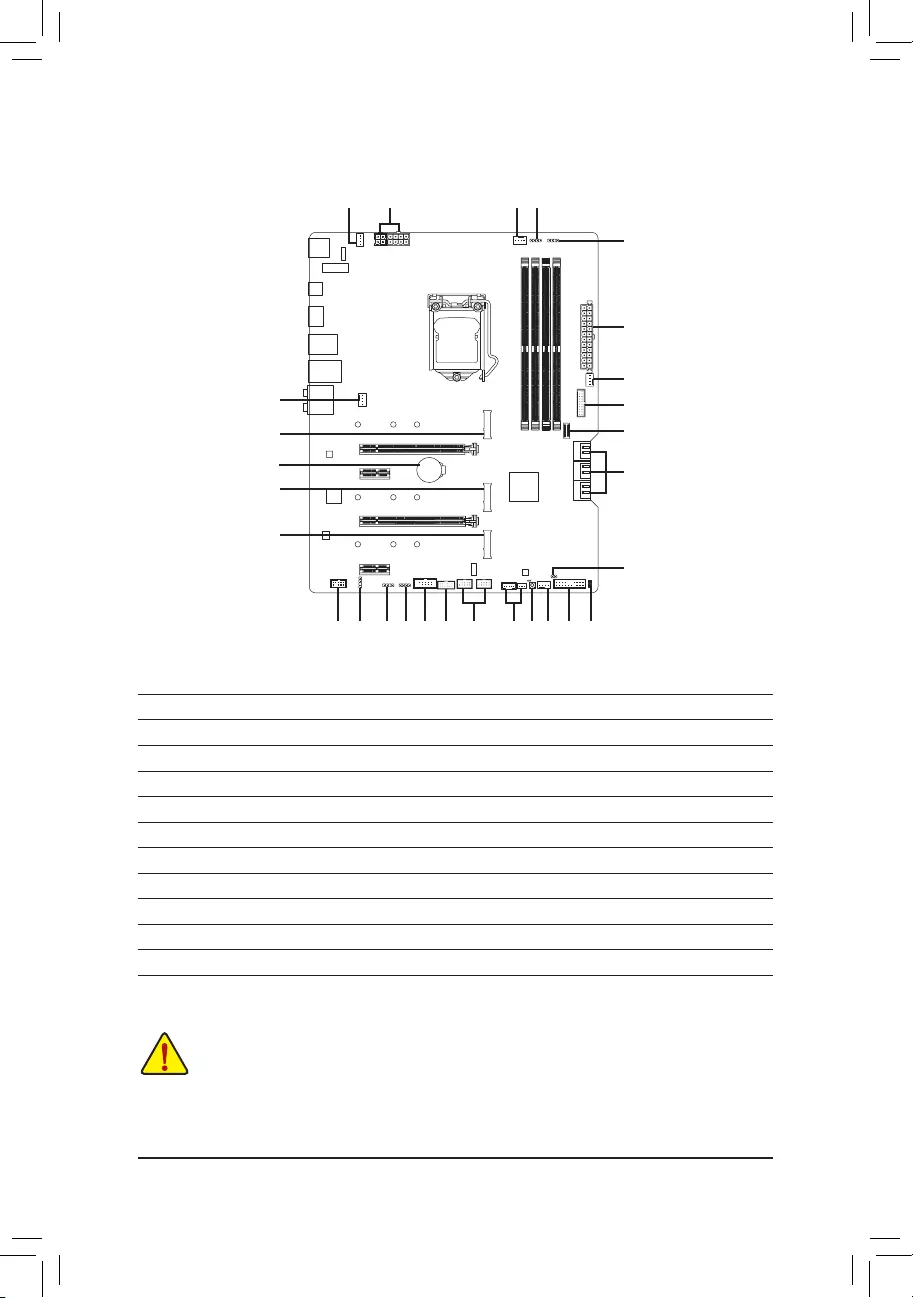
1-7 Internal Connectors
Readthefollowingguidelinesbeforeconnectingexternaldevices:
•First make sure your devices are compliant with the connectors you wish to connect.
•Before installing the devices, be sure to turn off the devices and your computer. Unplug the power
cord from the power outlet to prevent damage to the devices.
•After installing the device and before turning on the computer, make sure the device cable has
been securely attached to the connector on the motherboard.
1) ATX_12V_2X2/ATX_12V_2X4
2) ATX
3) CPU_FAN
4) SYS_FAN1/2/3/4
5) LED_C1/LED_C2
6) D_LED1/D_LED2
7) SATA3 0/1/2/3/4/5
 M2P_CPU/M2A_SB/M2M_SB
9) F_PANEL
10) F_ AUDIO
11) SPDIF_O
12) F_U32
13) F_U32C
14) F_USB1/F_USB2
15) THB_C1/THB_C2
16) COM
17) SPI_TPM
18) CLR_CMOS
19) BAT
20) CPU/DRAM/VGA/BOOT
21) QFLASH_PLUS
9 20
4
13
2
6
7
12
175 1610 11
1
4
6
18
19
14 415 21
3 5
8
8
8
4
— 13 —
131
2412
ATX
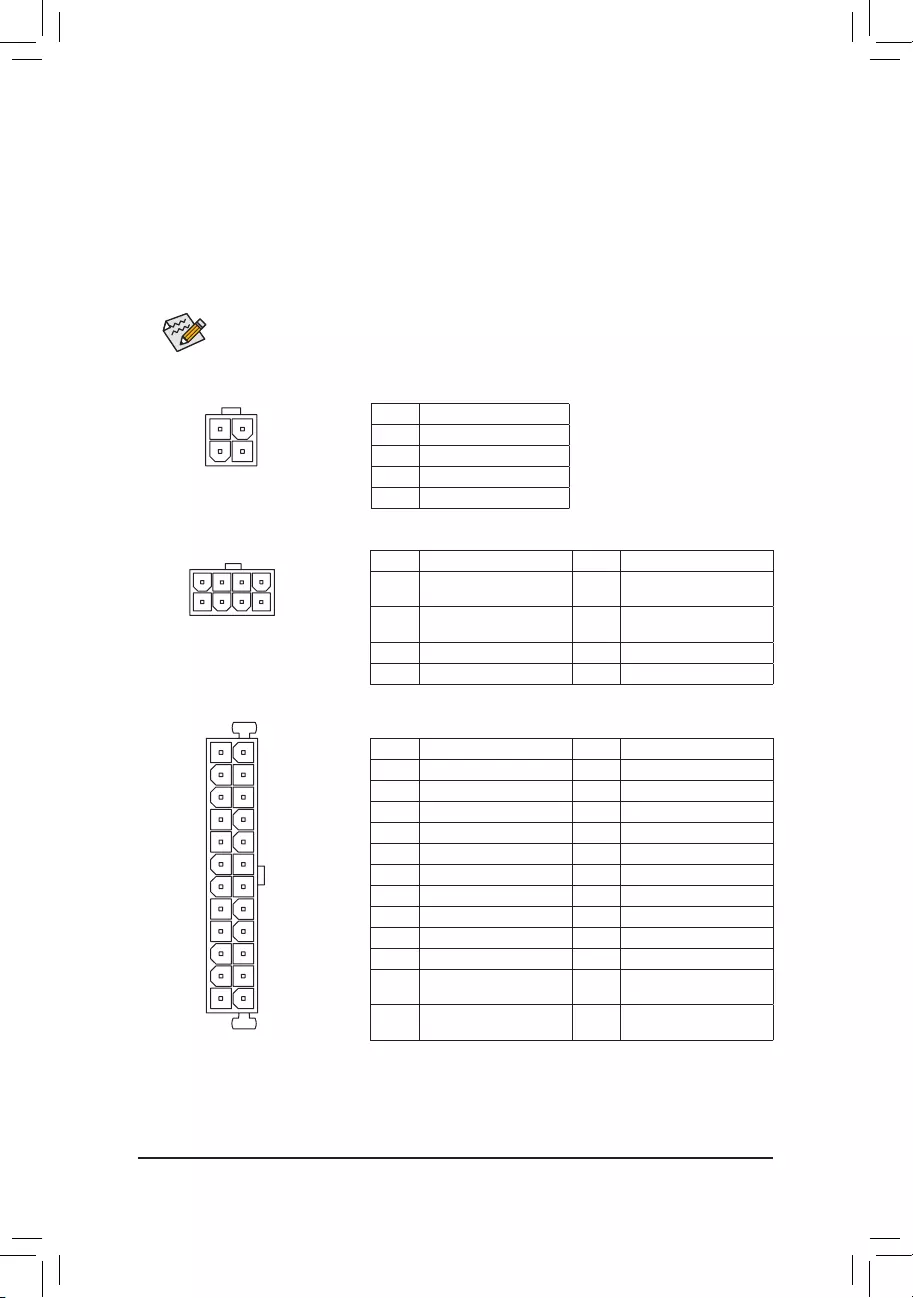
1/2) ATX_12V_2X2/ATX_12V_2X4/ATX (2×2, 2×4, 12V Power Connectors and 2×12 Main Power
Connector)
With the use of the power connector, the power supply can supply enough stable power to all the components
onthemotherboard.Beforeconnectingthepowerconnector,rstmakesurethepowersupplyisturned
off and all devices are properly installed. The power connector possesses a foolproof design. Connect the
power supply cable to the power connector in the correct orientation.
The 12V power connector mainly supplies power to the CPU. If the 12V power connector is not connected,
the computer will not start.
To meet expansion requirements, it is recommended that a power supply that can withstand high
power consumption be used (500W or greater). If a power supply is used that does not provide the
required power, the result can lead to an unstable or unbootable system.
ATX:
Pin No. Denition Pin No. Denition
1 3.3V 13 3.3V
2 3.3V 14 -12V
3GND 15 GND
4 +5V 16 PS_ON (soft On/Off)
5GND 17 GND
6 +5V 18 GND
7GND 19 GND
8 Power Good 20 NC
9 5VSB (stand by +5V) 21 +5V
10 +12V 22 +5V
11 +12V (Only for 2×12-pin
ATX)
23 +5V (Only for 2×12-pin
ATX)
12 3.3V (Only for 2×12-pin
ATX)
24 GND(Onlyfor2×12-pin
ATX)
ATX_12V_2X4:
Pin No. Denition Pin No. Denition
1GND(Onlyfor2×4-pin12V) 5 +12V (Only for 2×4-pin
12V)
2GND(Onlyfor2×4-pin12V) 6 +12V (Only for 2×4-pin
12V)
3GND 7 +12V
4GND 8 +12V
ATX_12V_2X4
41
85
ATX_12V_2X2:
Pin No. Denition
1GND
2GND
3 +12V
4 +12V
ATX_12V_2X2
3 4
21
— 14 —
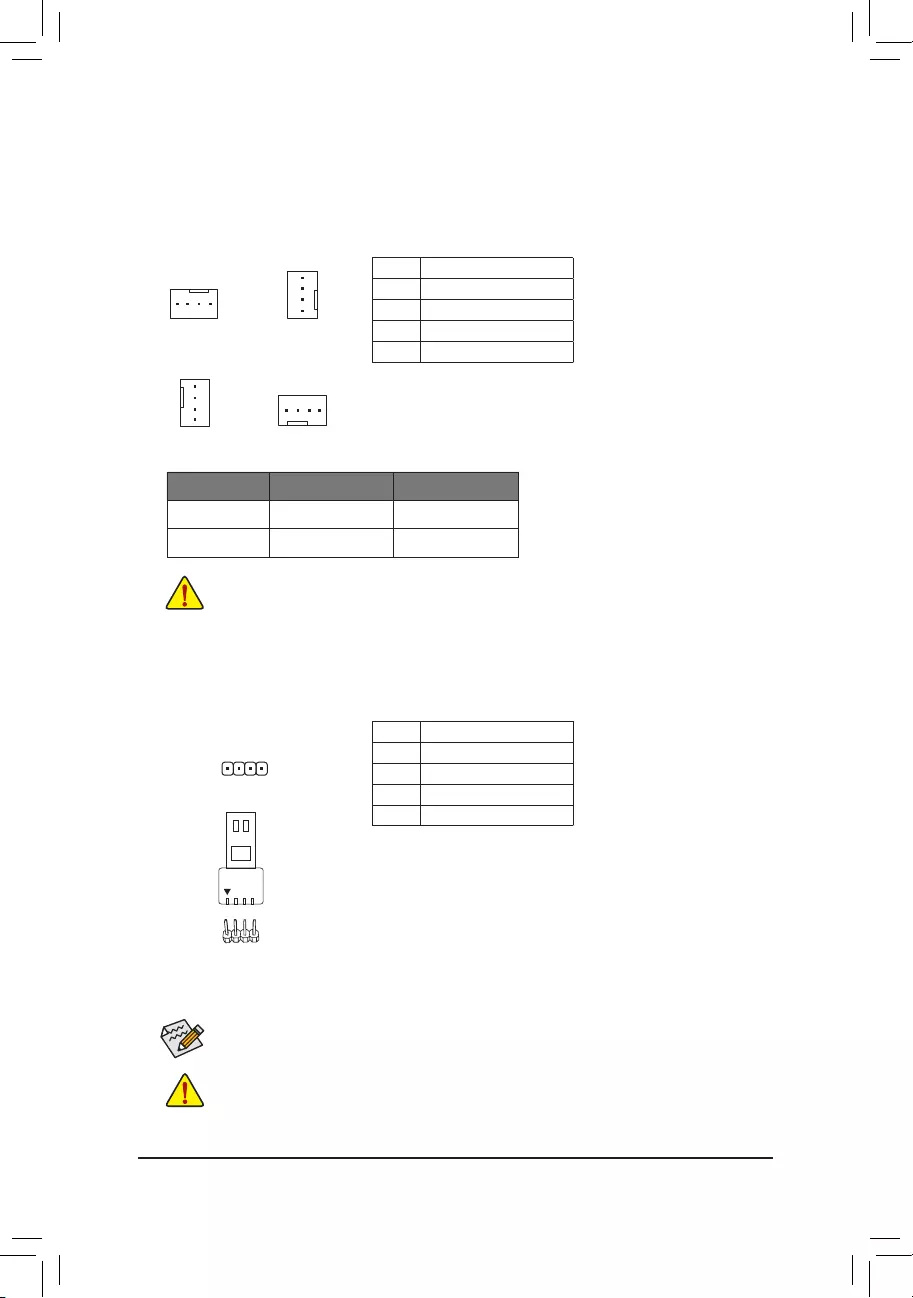
5) LED_C1/LED_C2 (RGB LED Strip Headers)
Theheaderscanbeusedtoconnectastandard5050RGBLEDstrip(12V/G/R/B),withmaximumpower
rating of 2A (12V) and maximum length of 2m.
Pin No. Denition
1 12V
2 G
3R
4 B
Before installing the devices, be sure to turn off the devices and your computer. Unplug the power
cord from the power outlet to prevent damage to the devices.
Forhowtoturnon/offthelightsoftheLEDstrippleasevisitthe«UniqueFeatures»webpageof
GIGABYTE’s website.
1
3/4) CPU_FAN/SYS_FAN1/2/3/4 (Fan Headers)
All fan headers on this motherboard are 4-pin. Most fan headers possess a foolproof insertion design.
When connecting a fan cable, be sure to connect it in the correct orientation (the black connector wire is
the ground wire). The speed control function requires the use of a fan with fan speed control design. For
optimum heat dissipation, it is recommended that a system fan be installed inside the chassis.
•Be sure to connect fan cables to the fan headers to prevent your CPU and system from
overheating. Overheating may result in damage to the CPU or the system may hang.
•Thesefanheadersarenotcongurationjumperblocks.Donotplaceajumpercapontheheaders.
CPU_FAN
1
1
SYS_FAN1/SYS_FAN4
SYS_FAN3SYS_FAN2
1
1
Pin No. Denition
1GND
2 Voltage Speed Control
3 Sense
4 PWM Speed Control
Connector CPU_FAN SYS_FAN1~4
Maximum Current 2A 2A
Maximum Power 24W 24W
— 15 —
ConnectyourRGBLEDstriptotheheader.Thepowerpin(marked
withatriangleontheplug)oftheLEDstripmustbeconnectedtoPin
1 (12V) of this header. Incorrect connection may lead to the damage
oftheLEDstrip.
RGB
LEDStrip
1
12V
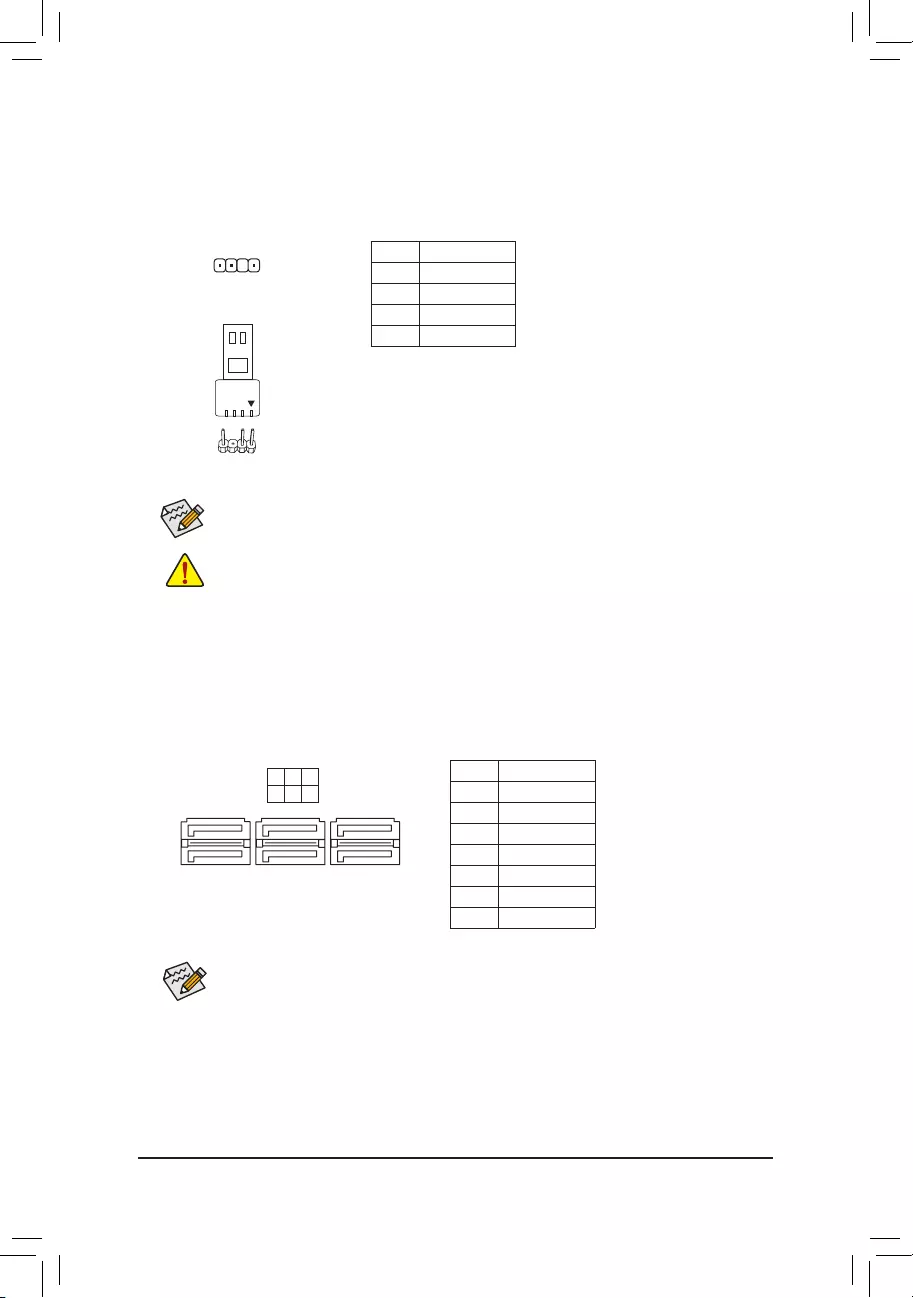
7) SATA3 0/1/2/3/4/5 (SATA 6Gb/s Connectors)
The SATA connectors conform to SATA 6Gb/s standard and are compatible with SATA 3Gb/s and SATA
1.5Gb/s standard. Each SATA connector supports a single SATA device. The Intel®ChipsetsupportsRAID0,
RAID1,RAID5,andRAID10.RefertoChapter3,«ConguringaRAIDSet,»forinstructionsonconguring
aRAIDarray.
Pin No. Denition
1GND
2 TXP
3 TXN
4GND
5RXN
6RXP
7GND
Toenablehot-pluggingfortheSATAports,refertoChapter2,«BIOSSetup,»«Settings\IOPorts\
SATAAndRSTConguration,»formoreinformation.
1
1
SATA3 531
420
7
7
6) D_LED1/D_LED2 (Addressable LED Strip Headers)
Theheaderscanbeusedtoconnectastandard5050addressableLEDstrip,withmaximumpowerrating
of5A(5V)andmaximumnumberof1000LEDs.
Pin No. Denition
1 V (5V)
2Data
3 No Pin
4GND
1
Connectyour addressable LEDstrip to theheader.Thepower pin
(markedwithatriangleontheplug)oftheLEDstripmustbeconnected
toPin1oftheaddressableLEDstripheader.Incorrectconnectionmay
leadtothedamageoftheLEDstrip.
F_USB30 F_U
B_
F_ F_
_
B
BS_
B
SB_
B
_S
S_
_
B
_U
_
B
S
123
123
123
123
1
1
1
1
BSS
S
_S
SSU
1 2 3
S3 BSSS
U
__ 3
F_USB3F
S _
S _
S _
SF
B_
B_
F
_0
S
S
_0F
_F
_
_
__B
U
S _S
_ SF_
B
USB0_B
B_
B_
F_USB3
F_USB303
_
_3U
S_
AddressableLED
Strip
1
Before installing the devices, be sure to turn off the devices and your computer. Unplug the power
cord from the power outlet to prevent damage to the devices.
Forhowtoturnon/offthelightsoftheLEDstrippleasevisitthe«UniqueFeatures»webpageof
GIGABYTE’s website.
— 16 —
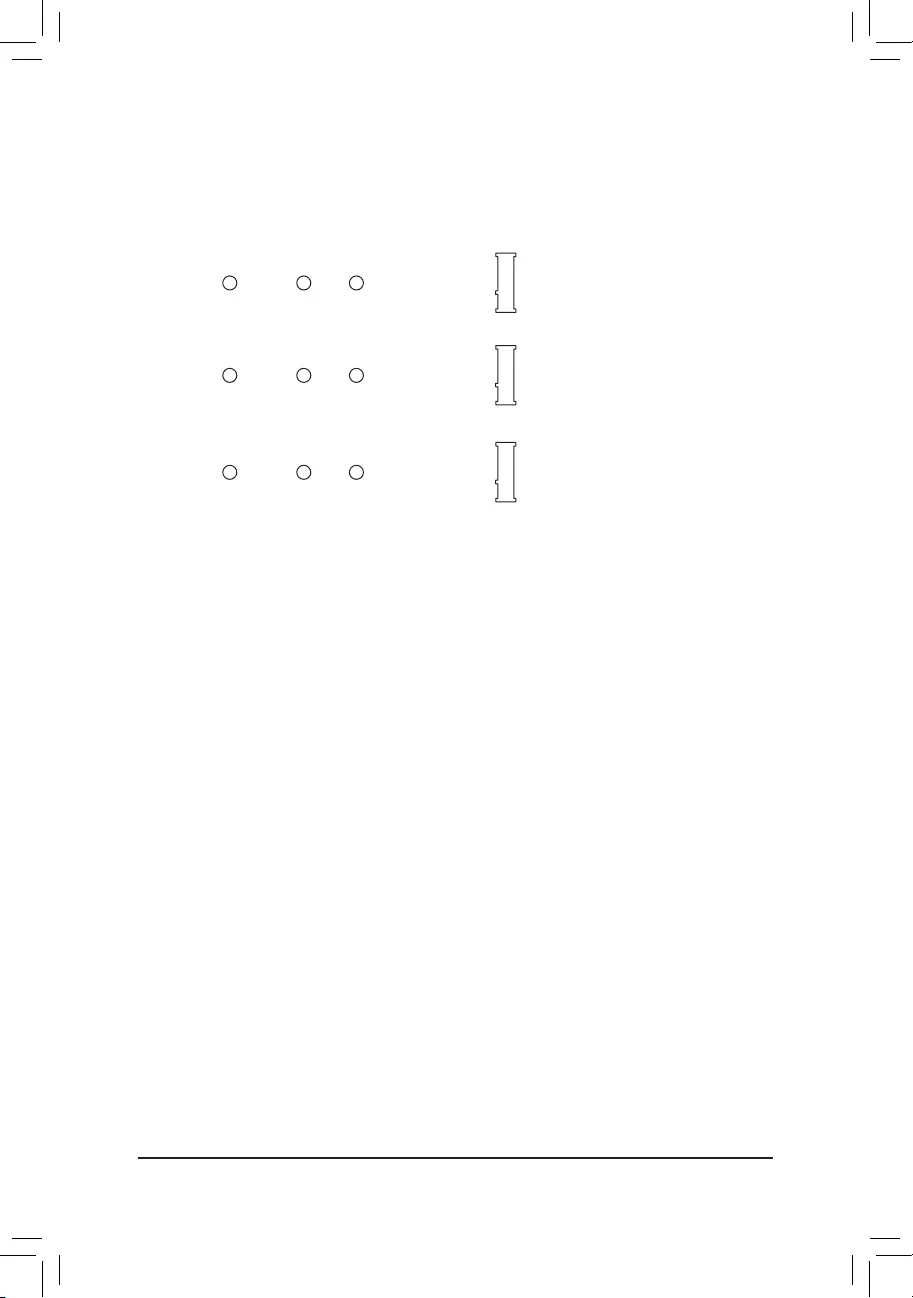
M2P_CPU (Note)/M2A_SB/M2M_SB (M.2 Socket 3 Connectors)
TheM.2connectorssupportM.2SATASSDsorM.2PCIeSSDsandsupportRAIDconguration.Please
notethatanM.2PCIeSSDcannotbeusedtocreateaRAIDseteitherwithanM.2SATASSDoraSATA
harddrive.RefertoChapter3,»ConguringaRAIDSet,»forinstructionsonconguringaRAIDarray.
FollowthestepsbelowtocorrectlyinstallanM.2SSDintheM.2connector.
Step 1:
LocatetheM.2connectorwhereyouwillinstalltheM.2SSD,useascrewdrivertounfastenthescrewon
the heatsink and then remove the heatsink. (Only the M2P_CPU and M2A_SB connectors has the heatsink)
Step 2:
LocatethepropermountingholebasedonthelengthofyourM.2SSDdrive.Ifneeded,movethestandoff
tothedesiredmountinghole.InserttheM.2SSDintotheM.2connectoratanangle.
Step 3:
PresstheM.2SSDdownandthenusetheincludedscrewtosecureitintheconnector.Replacethe
heatsinkandsecureittotheoriginalhole.Removetheprotectivelmfromthebottomoftheheatsink
before replacing the heatsink.
M2P_CPU (Note)
F_USB30 F_U
B_
F_ F_
_
B
BS_
B
SB_
B
_S
S_
_
B
_U
_
B
S
123
123
123
123
1
1
1
1
BSS
S
_S
SSU
1 2 3
S3 BSSS
U
__ 3
F_USB3F
S _
S _
S _
SF
B_
B_
F
_0
S
S
_0F
_F
_
_
__B
U
S _S
_ SF_
B
USB0_B
B_
B_
F_USB3
F_USB303
_
_3U
S_
80110 60
M2A_SB
F_USB30 F_U
B_
F_ F_
_
B
BS_
B
SB_
B
_S
S_
_
B
_U
_
B
S
123
123
123
123
1
1
1
1
BSS
S
_S
SSU
1 2 3
S3 BSSS
U
__ 3
F_USB3F
S _
S _
S _
SF
B_
B_
F
_0
S
S
_0F
_F
_
_
__B
U
S _S
_ SF_
B
USB0_B
B_
B_
F_USB3
F_USB303
_
_3U
S_
80110 60
M2M_SB
F_USB30 F_U
B_
F_ F_
_
B
BS_
B
SB_
B
_S
S_
_
B
_U
_
B
S
123
123
123
123
1
1
1
1
BSS
S
_S
SSU
1 2 3
S3 BSSS
U
__ 3
F_USB3F
S _
S _
S _
SF
B_
B_
F
_0
S
S
_0F
_F
_
_
__B
U
S _S
_ SF_
B
USB0_B
B_
B_
F_USB3
F_USB303
_
_3U
S_
80110 60
(Note) Supported by 11th Generation processors only. Be sure to use Intel®SSDsifyouwanttosetupa
RAIDcongurationontheM2A_CPUconnector.
— 17 —
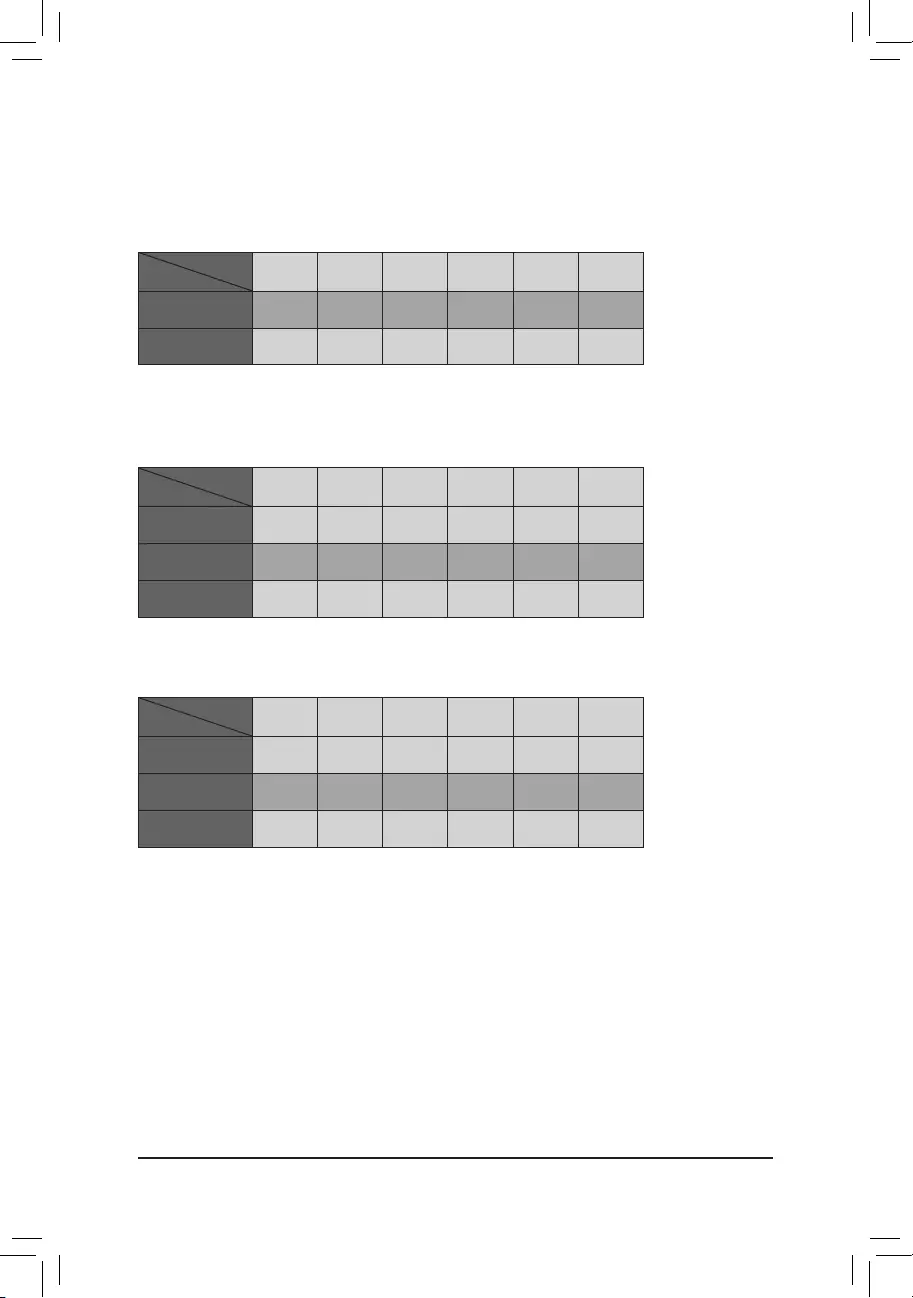
Installation Notices for the M.2 and SATA Connectors:
The availability of the SATA connectors may be affected by the type of device installed in the M.2 sockets. The
M2A_SB connector shares bandwidth with the SATA3 1 connector. The M2M_SB connector shares bandwidth
withtheSATA34,5connectors.Refertothefollowingtablesfordetails.
•M2M_SB:
SATA3 0 SATA3 1 SATA3 2 SATA3 3 SATA3 4 SATA3 5
M.2SATASSD a a a a r r
M.2PCIeSSD
a a a a r r
NoM.2SSDInstalled aaaaaa
a: Available, r: Not available
Connector
Type of
M.2SSD
•M2A_SB:
SATA3 0 SATA3 1 SATA3 2 SATA3 3 SATA3 4 SATA3 5
M.2SATASSD ara a a a
M.2PCIeSSD
aaaaaa
NoM.2SSDInstalled aaaaaa
a: Available, r: Not available
Connector
Type of
M.2SSD
•M2P_CPU (Note):
SATA3 0 SATA3 1 SATA3 2 SATA3 3 SATA3 4 SATA3 5
M.2PCIeSSD
aaaaaa
NoM.2SSDInstalled aaaaaa
a: Available, r: Not available
* TheconnectorsupportsonlyPCIeSSDs.
Connector
Type of
M.2SSD
(Note) Supported by 11th Generation processors only. Be sure to use Intel®SSDsifyouwanttosetupa
RAIDcongurationontheM2A_CPUconnector.
— 18 —
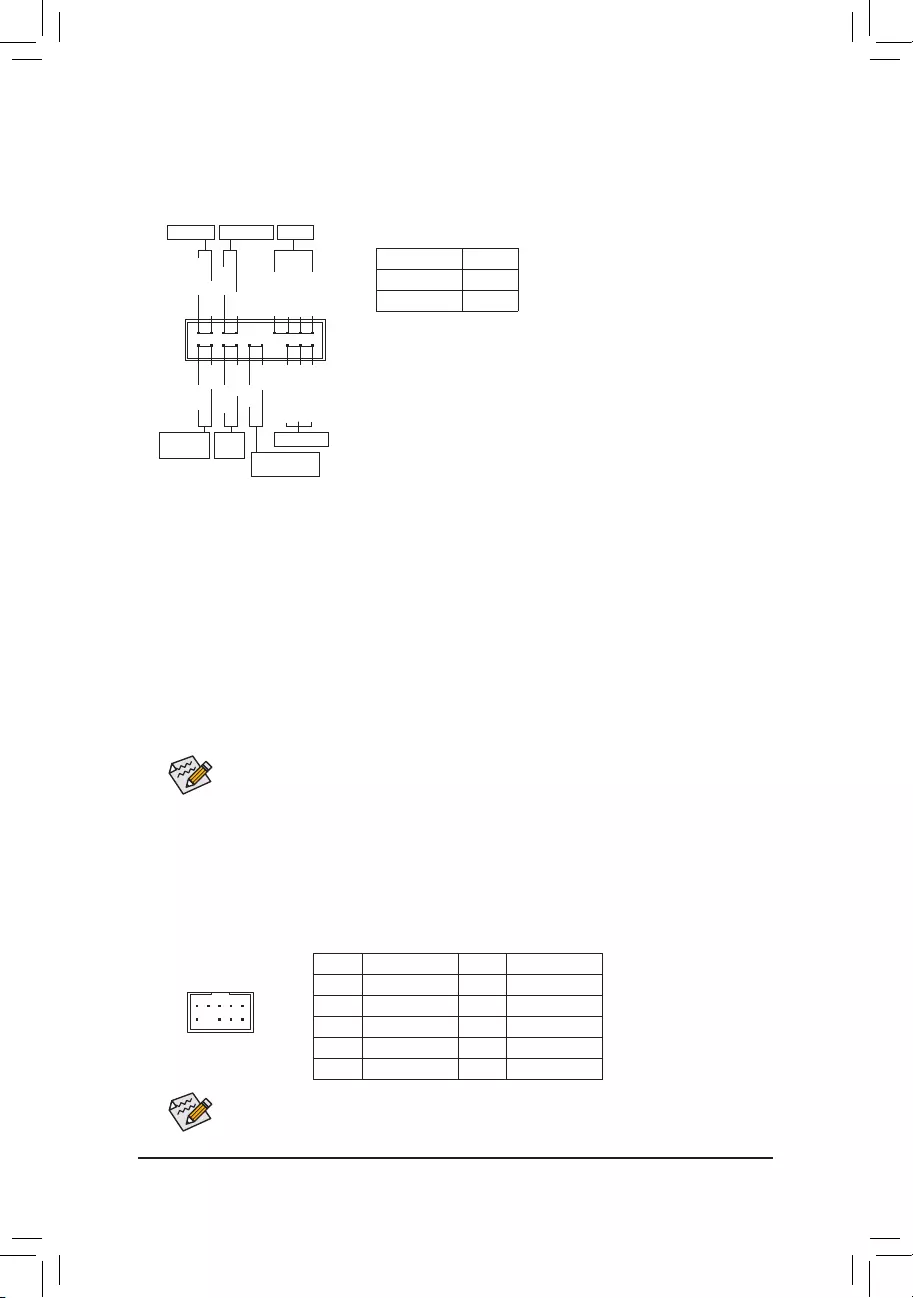
The front panel design may differ by chassis. A front panel module mainly consists of power switch,
resetswitch,powerLED,harddriveactivityLED,speakerandetc.Whenconnectingyourchassis
front panel module to this header, make sure the wire assignments and the pin assignments are
matched correctly.
9) F_PANEL (Front Panel Header)
Connect the power switch, reset switch, speaker, chassis intrusion switch/sensor and system status indicator
on the chassis to this header according to the pin assignments below. Note the positive and negative pins
before connecting the cables.
System Status LED
S0 On
S3/S4/S5 Off
•PW(PowerSwitch,Red):
Connects to the power switch on the chassis front panel. You may
congure the way to turn off your system using thepower switch
(refertoChapter2,«BIOSSetup,»«Settings\PlatformPower,»formore
information).
•PLED/PWR_LED (PowerLED,Yellow/Purple):
Connects to the power status indicator
onthechassisfrontpanel.TheLEDison
whenthesystemisoperating.TheLEDis
off when the system is in S3/S4 sleep state
or powered off (S5).
•SPEAK (Speaker, Orange):
Connects to the speaker on the chassis front panel. The system reports system startup status by issuing
a beep code. One single short beep will be heard if no problem is detected at system startup.
•HD (HardDriveActivityLED,Blue):
ConnectstotheharddriveactivityLEDonthechassisfrontpanel.TheLEDisonwhentheharddrive
is reading or writing data.
•RES (ResetSwitch,Green):
Connects to the reset switch on the chassis front panel. Press the reset switch to restart the computer
ifthecomputerfreezesandfailstoperformanormalrestart.
•CI (Chassis Intrusion Header, Gray):
Connects to the chassis intrusion switch/sensor on the chassis that can detect if the chassis cover has
been removed. This function requires a chassis with a chassis intrusion switch/sensor.
•NC (Orange): No Connection.
PowerLED
1
2
19
20
CI-
CI+
PWR_LED-
PWR_LED+
PLED-
PW-
SPEAK+
SPEAK-
PLED+
PW+
PowerLED
HD-
RES+
HD+
RES-
HardDrive
ActivityLED
Reset
Switch Chassis Intrusion
Header
Power Switch Speaker
PWR_LED-
NC
NC
10) F_AUDIO (Front Panel Audio Header)
ThefrontpanelaudioheadersupportsHighDenitionaudio(HD).Youmayconnectyourchassisfront
panel audio module to this header. Make sure the wire assignments of the module connector match the
pin assignments of the motherboard header. Incorrect connection between the module connector and the
motherboard header will make the device unable to work or even damage it.
Some chassis provide a front panel audio module that has separated connectors on each wire
instead of a single plug. For information about connecting the front panel audio module that has
different wire assignments, please contact the chassis manufacturer.
F_USB30 F_U
B_
F_ F_
_
B
BS_
B
SB_
B
_S
S_
_
B
_U
_
B
S
123
123
123
123
1
1
1
1
BSS
S
_S
SSU
1 2 3
S3 BSSS
U
__ 3
F_USB3F
S _
S _
S _
SF
B_
B_
F
_0
S
S
_0F
_F
_
_
__B
U
S _S
_ SF_
B
USB0_B
B_
B_
F_USB3
F_USB303
_
_3U
S_
9 1
10 2
Pin No. Denition Pin No. Denition
1 MIC2_L 6 Sense
2GND 7FAUDIO_JD
3MIC2_R 8 No Pin
4 NC 9 LINE2_L
5LINE2_R 10 Sense
— 19 —
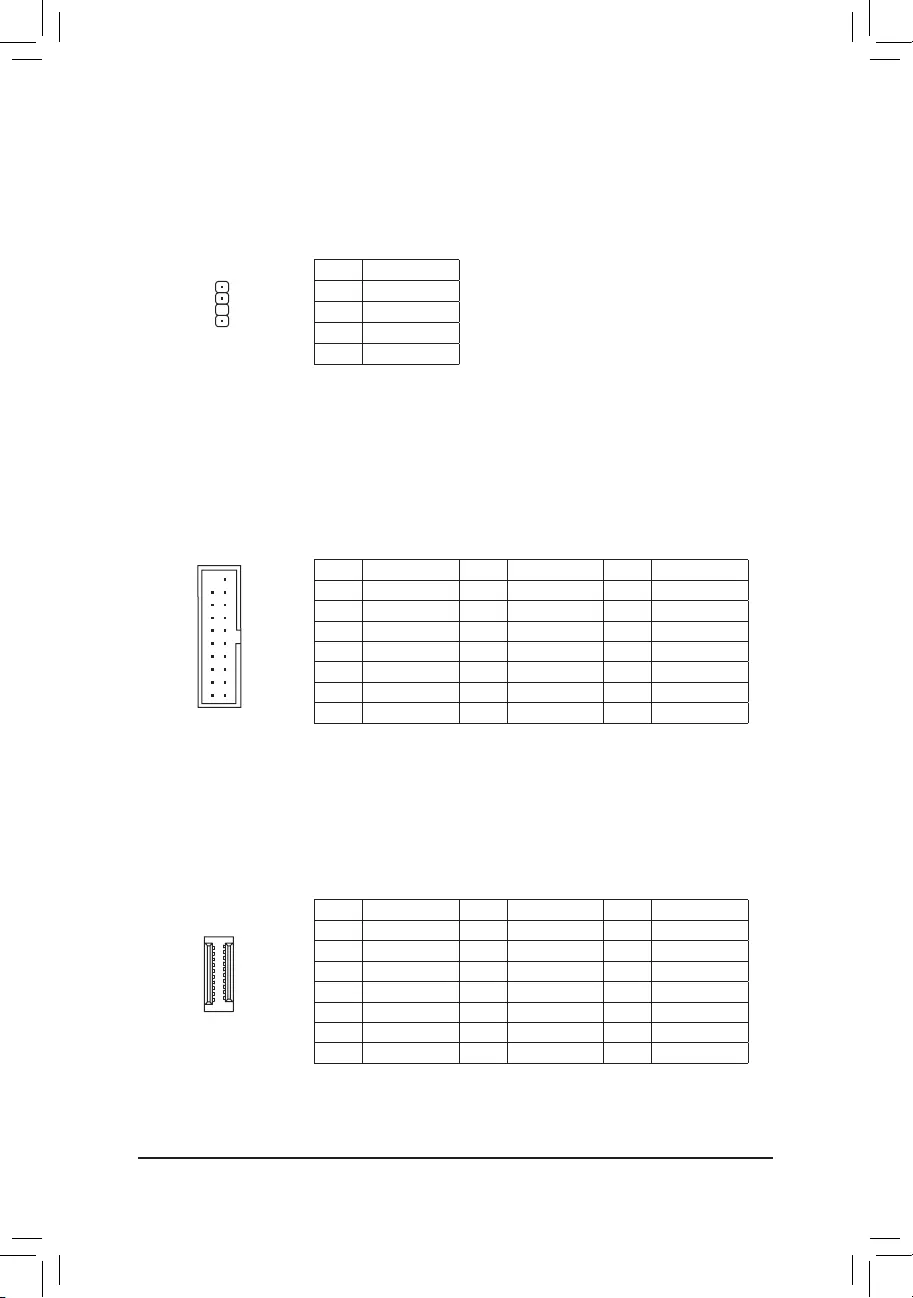
11) SPDIF_O (S/PDIF Out Header)
ThisheadersupportsS/PDIFdigitaloutput,whichallowsyoutoconnectaS/PDIFdigitalaudiocableto
output digital audio from your motherboard to the supported audio devices. For information about connecting
the digital audio cable, carefully read the manual for your audio devices.
Pin No. Denition
15VDUAL
2 No Pin
3SPDIFO
4GND
1
F_USB30 F_U
B_
F_ F_
_
B
BS_
B
SB_
B
_S
S_
_
B
_U
_
B
S
123
123
123
123
1
1
1
1
BSS
S
_S
SSU
1 2 3
S3 BSSS
U
__ 3
F_USB3F
S _
S _
S _
SF
B_
B_
F
_0
S
S
_0F
_F
_
_
__B
U
S _S
_ SF_
B
USB0_B
B_
B_
F_USB3
F_USB303
_
_3U
S_
Pin No. Denition Pin No. Denition Pin No. Denition
1 VBUS 8 D1- 15 SSTX2-
2SSRX1- 9D1+ 16 GND
3SSRX1+ 10 NC 17 SSRX2+
4GND 11 D2+ 18 SSRX2-
5 SSTX1- 12 D2- 19 VBUS
6 SSTX1+ 13 GND 20 No Pin
7GND 14 SSTX2+
12) F_U32 (USB 3.2 Gen 1 Header)
TheheaderconformstoUSB3.2Gen1andUSB2.0specicationandcanprovidetwoUSBports.For
purchasingtheoptional3.5″frontpanelthatprovidestwoUSB3.2Gen1ports,pleasecontactthelocal
dealer.
F_USB30 F_U
B_
F_ F_
_
B
BS_
B
SB_
B
_S
S_
_
B
_U
_
B
S
123
123
123
123
1
1
1
1
BSS
S
_S
SSU
1 2 3
S3 BSSS
U
__ 3
F_USB3F
S _
S _
S _
SF
B_
B_
F
_0
S
S
_0F
_F
_
_
__B
U
S _S
_ SF_
B
USB0_B
B_
B_
F_USB3
F_USB303
_
_3U
S_
10
20 1
11
Pin No. Denition Pin No. Denition Pin No. Denition
1 VBUS 8 CC1 15 RX2+
2 TX1+ 9 SBU1 16 RX2-
3 TX1- 10 SBU2 17 GND
4GND 11 VBUS 18 D-
5RX1+ 12 TX2+ 19 D+
6RX1- 13 TX2- 20 CC2
7 VBUS 14 GND
13) F_U32C (USB Type-C® Header with USB 3.2 Gen 1 Support)
TheheaderconformstoUSB3.2Gen1specicationandcanprovideoneUSBport.
F_USB30 F_U
B_
F_ F_
_
B
BS_
B
SB_
B
_S
S_
_
B
_U
_
B
S
123
123
123
123
1
1
1
1
BSS
S
_S
SSU
1 2 3
S3 BSSS
U
__ 3
F_USB3F
S _
S _
S _
SF
B_
B_
F
_0
S
S
_0F
_F
_
_
__B
U
S _S
_ SF_
B
USB0_B
B_
B_
F_USB3
F_USB303
_
_3U
S_
20
10 11
1
— 20 —
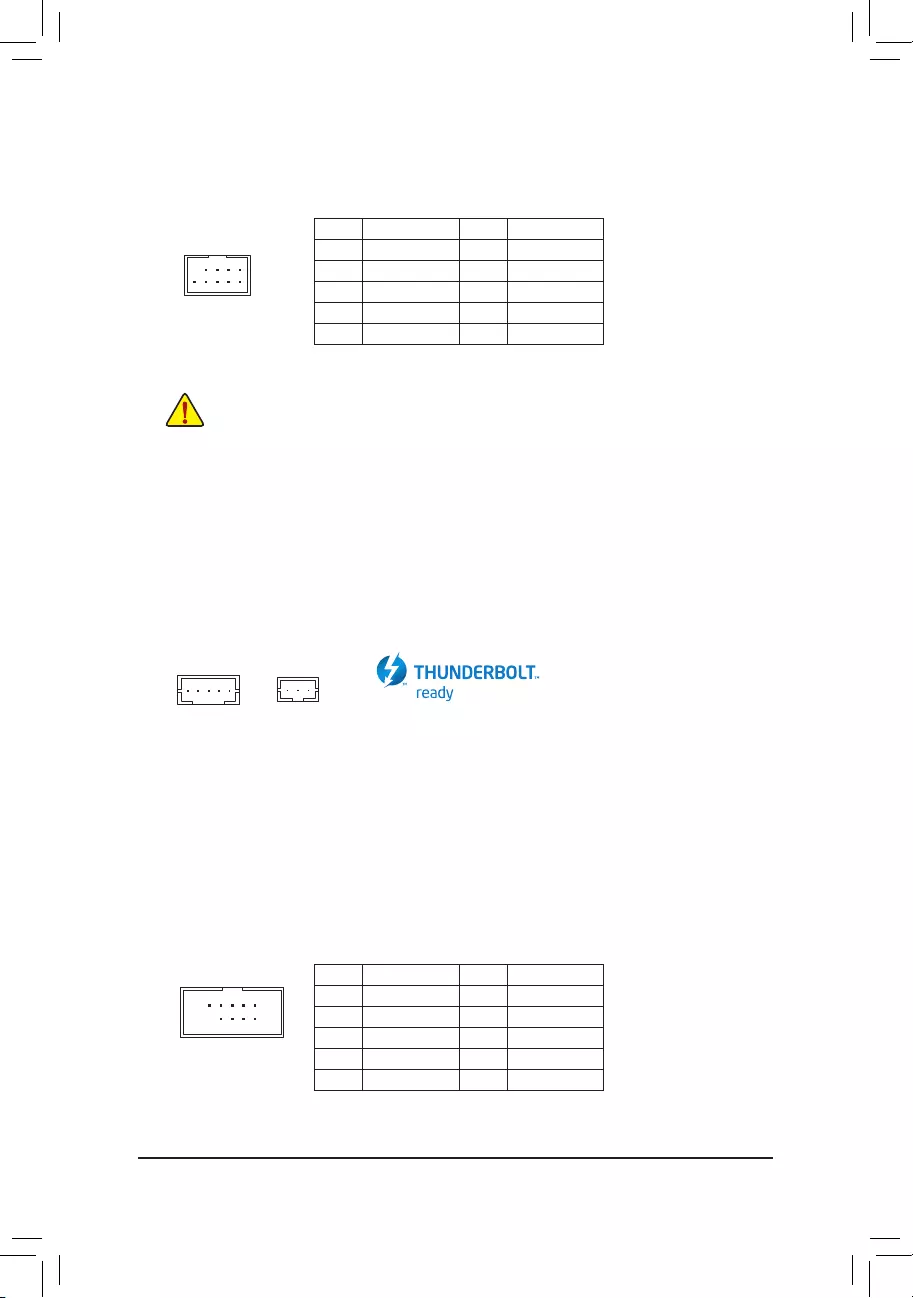
15) THB_C1/THB_C2 (Thunderbolt™ Add-in Card Connectors)
The connectors are used to connect to a GIGABYTE Thunderbolt™ add-in card.
Supports a Thunderbolt™ add-in card.
F_USB30 F_U
B_
F_ F_
_
B
BS_
B
SB_
B
_S
S_
_
B
_U
_
B
S
123
123
123
123
1
1
1
1
BSS
S
_S
SSU
1 2 3
S3 BSSS
U
__ 3
F_USB3F
S _
S _
S _
SF
B_
B_
F
_0
S
S
_0F
_F
_
_
__B
U
S _S
_ SF_
B
USB0_B
B_
B_
F_USB3
F_USB303
_
_3U
S_
F_USB30 F_U
B_
F_ F_
_
B
BS_
B
SB_
B
_S
S_
_
B
_U
_
B
S
123
123
123
123
1
1
1
1
BSS
S
_S
SSU
1 2 3
S3 BSSS
U
__ 3
F_USB3F
S _
S _
S _
SF
B_
B_
F
_0
S
S
_0F
_F
_
_
__B
U
S _S
_ SF_
B
USB0_B
B_
B_
F_USB3
F_USB303
_
_3U
S_
1
THB_C1 THB_C2
1
10
9
2
1
16) COM (Serial Port Header)
The COM header can provide one serial port via an optional COM port cable. For purchasing the optional
COM port cable, please contact the local dealer.
Pin No. Denition Pin No. Denition
1NDCD- 6NDSR-
2 NSIN 7 NRTS-
3 NSOUT 8 NCTS-
4NDTR- 9NRI-
5GND 10 No Pin
14) F_USB1/F_USB2 (USB 2.0/1.1 Headers)
TheheadersconformtoUSB2.0/1.1specication.EachUSBheadercanprovidetwoUSBportsviaan
optional USB bracket. For purchasing the optional USB bracket, please contact the local dealer.
Pin No. Denition Pin No. Denition
1 Power (5V) 6 USBDY+
2 Power (5V) 7 GND
3USBDX- 8GND
4USBDY— 9 No Pin
5USBDX+ 10 NC
•DonotplugtheIEEE1394bracket(2×5-pin)cableintotheUSB2.0/1.1header.
•Prior to installing the USB bracket, be sure to turn off your computer and unplug the power cord
from the power outlet to prevent damage to the USB bracket.
10
9
2
1
— 21 —
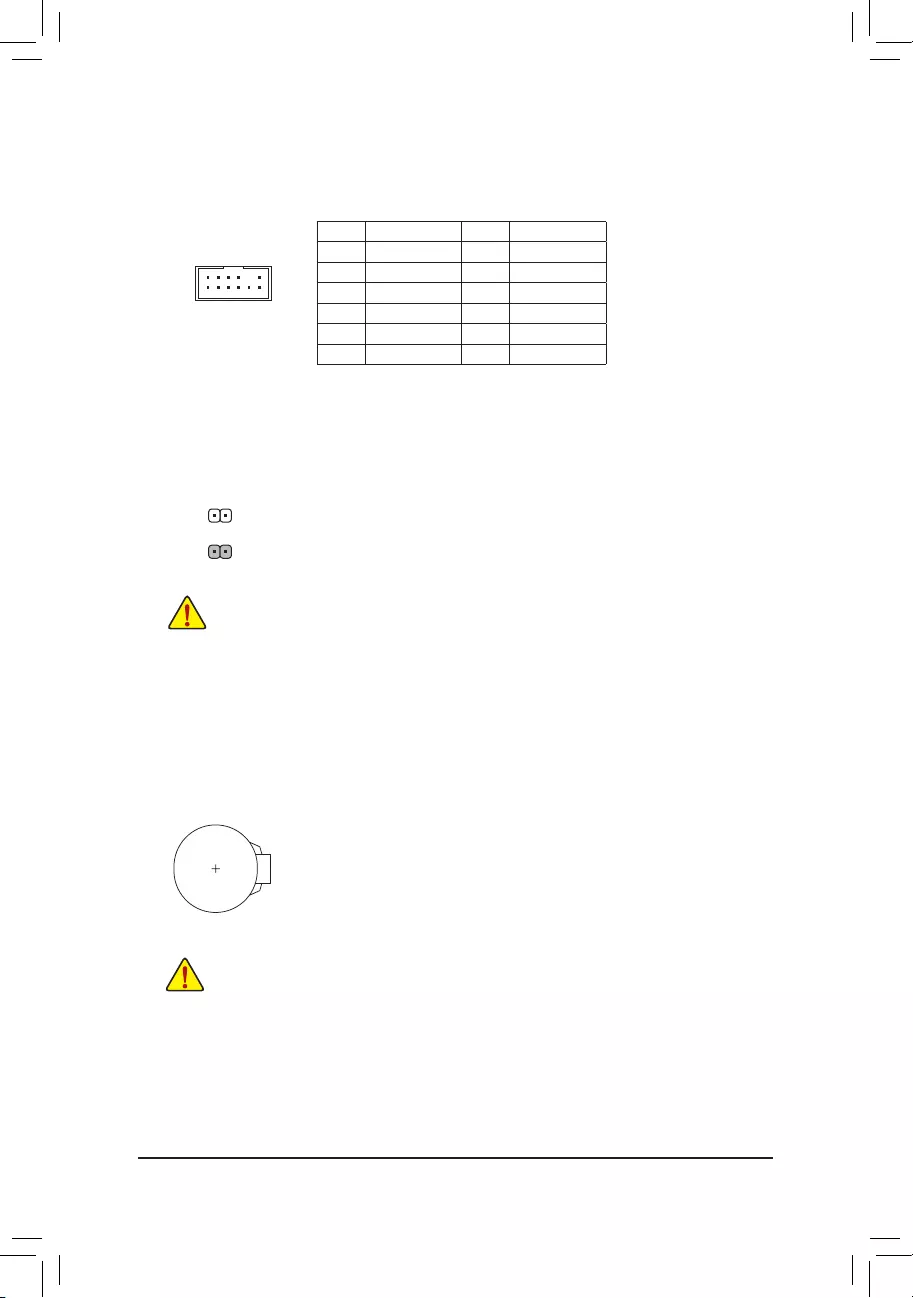
18) CLR_CMOS (Clear CMOS Jumper)
UsethisjumpertocleartheBIOScongurationandresettheCMOSvaluestofactorydefaults.Toclear
the CMOS values, use a metal object like a screwdriver to touch the two pins for a few seconds.
•Always turn off your computer and unplug the power cord from the power outlet before clearing
the CMOS values.
•Aftersystemrestart,gotoBIOSSetuptoloadfactorydefaults(selectLoadOptimizedDefaults)or
manuallyconguretheBIOSsettings(refertoChapter2,«BIOSSetup,»forBIOScongurations).
Open: Normal
Short: Clear CMOS Values
19) BAT (Battery)
Thebatteryprovidespowertokeepthevalues(suchasBIOScongurations,date,andtimeinformation)
intheCMOSwhenthecomputeristurnedoff.Replacethebatterywhenthebatteryvoltagedropstoalow
level, or the CMOS values may not be accurate or may be lost.
You may clear the CMOS values by removing the battery:
1. Turn off your computer and unplug the power cord.
2. Gently remove the battery from the battery holder and wait for one minute. (Or use a metal
object like a screwdriver to touch the positive and negative terminals of the battery holder,
making them short for 5 seconds.)
3. Replacethebattery.
4. Plug in the power cord and restart your computer.
•Always turn off your computer and unplug the power cord before replacing the battery.
•Replacethebatterywithanequivalentone.Damagetoyourdevicesmayoccurifthebatteryis
replaced with an incorrect model.
•Contact the place of purchase or local dealer if you are not able to replace the battery by yourself
or uncertain about the battery model.
•When installing the battery, note the orientation of the positive side (+) and the negative side (-)
of the battery (the positive side should face up).
•Used batteries must be handled in accordance with local environmental regulations.
12
11
2
1
17) SPI_TPM (Trusted Platform Module Header)
You may connect an SPI TPM (Trusted Platform Module) to this header.
Pin No. Denition Pin No. Denition
1DataOutput 7Chip Select
2Power (3.3V) 8GND
3No Pin 9IRQ
4NC 10 NC
5DataInput 11 NC
6CLK 12 RST
F_USB30 F_U
B_
F_ F_
_
B
BS_
B
SB_
B
_S
S_
_
B
_U
_
B
S
123
123
123
123
1
1
1
1
BSS
S
_S
SSU
1 2 3
S3 BSSS
U
__ 3
F_USB3F
S _
S _
S _
SF
B_
B_
F
_0
S
S
_0F
_F
_
_
__B
U
S _S
_ SF_
B
USB0_B
B_
B_
F_USB3
F_USB303
_
_3U
S_
— 22 —
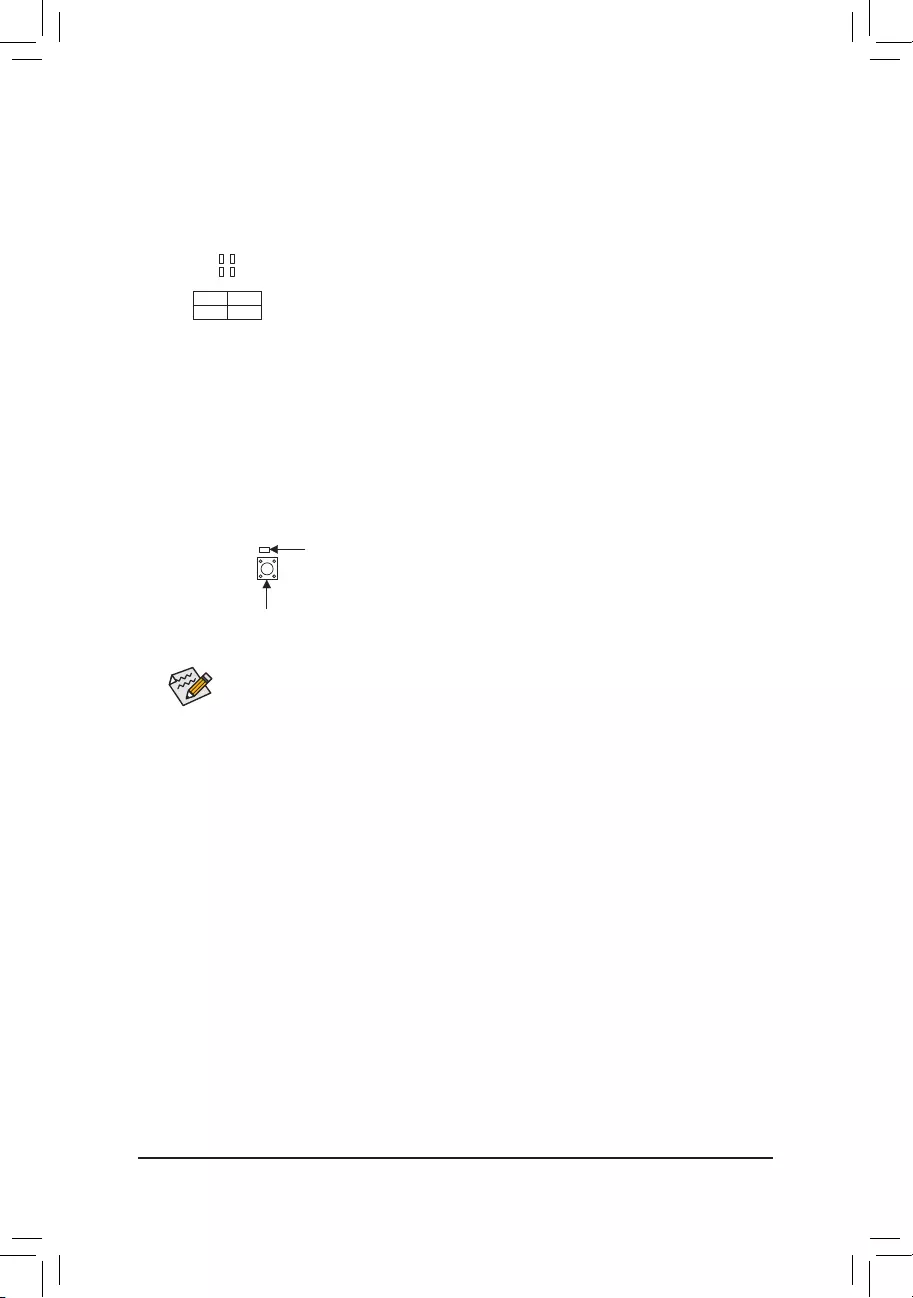
21) QFLASH_PLUS (Q-Flash Plus Button)
Q-Flash Plus allows you to update the BIOS when your system is off (S5 shutdown state). Save the latest
BIOSonaUSBthumbdriveandplugitintotheQ-FlashPlusport,andthenyoucannowashtheBIOS
automaticallybysimplypressingtheQ-FlashPlusbutton.TheQFLEDwillashwhentheBIOSmatching
andashingactivitiesstartandwillstopashingwhenthemainBIOSashingiscomplete.
ForhowtouseQ-FlashPluspleasevisitthe«UniqueFeatures»webpageofGIGABYTE’swebsite.
QFLASH_PLUS
QFLED
20) CPU/DRAM/VGA/BOOT (Status LEDs)
Thestatus LEDs show whetherthe CPU, memory, graphics card, andoperatingsystem are working
properlyaftersystempower-on.IftheCPU/DRAM/VGALEDison,thatmeansthecorrespondingdevice
isnotworkingnormally;iftheBOOTLEDison,thatmeansyouhaven’tenteredtheoperatingsystemyet.
CPU: CPUstatusLED
DRAM: MemorystatusLED
VGA: GraphicscardstatusLED
BOOT: OperatingsystemstatusLED
F_USB30 F_U
B_
F_ F_
_
B
BS_
B
SB_
B
_S
S_
_
B
_U
_
B
S
123
123
123
123
1
1
1
1
BSS
S
_S
SSU
1 2 3
S3 BSSS
U
__ 3
F_USB3F
S _
S _
S _
SF
B_
B_
F
_0
S
S
_0F
_F
_
_
__B
U
S _S
_ SF_
B
USB0_B
B_
B_
F_USB3
F_USB303
_
_3U
S_
— 23 —
CPU DRAM
VGA BOOT
BIOS (Basic Input and Output System) records hardware parameters of the system in the CMOS on the
motherboard. Its major functions include conducting the Power-On Self-Test (POST) during system startup,
saving system parameters and loading operating system, etc. BIOS includes a BIOS Setup program that allows
theusertomodifybasicsystemcongurationsettingsortoactivatecertainsystemfeatures.
When the power is turned off, the battery on the motherboard supplies the necessary power to the CMOS to
keepthecongurationvaluesintheCMOS.
ToaccesstheBIOSSetupprogram,pressthe<Delete>keyduringthePOSTwhenthepoweristurnedon.
ToupgradetheBIOS,useeithertheGIGABYTEQ-Flashor@BIOSutility.
•Q-Flash allows the user to quickly and easily upgrade or back up BIOS without entering the operating system.
•@BIOSisaWindows-basedutilitythatsearchesanddownloadsthelatestversionofBIOSfromtheInternet
and updates the BIOS.
Chapter 2 BIOS Setup
•BecauseBIOSashingispotentiallyrisky,ifyoudonotencounterproblemsusingthecurrentversionofBIOS,
itisrecommendedthatyounotashtheBIOS.ToashtheBIOS,doitwithcaution.InadequateBIOSashing
may result in system malfunction.
•It is recommended that you not alter the default settings (unless you need to) to prevent system instability or other
unexpected results. Inadequately altering the settings may result in system’s failure to boot. If this occurs, try to
cleartheCMOSvaluesandresettheboardtodefaultvalues.(Refertothe»LoadOptimizedDefaults»sectionin
this chapter or introductions of the battery/clear CMOS jumper in Chapter 1 for how to clear the CMOS values.)
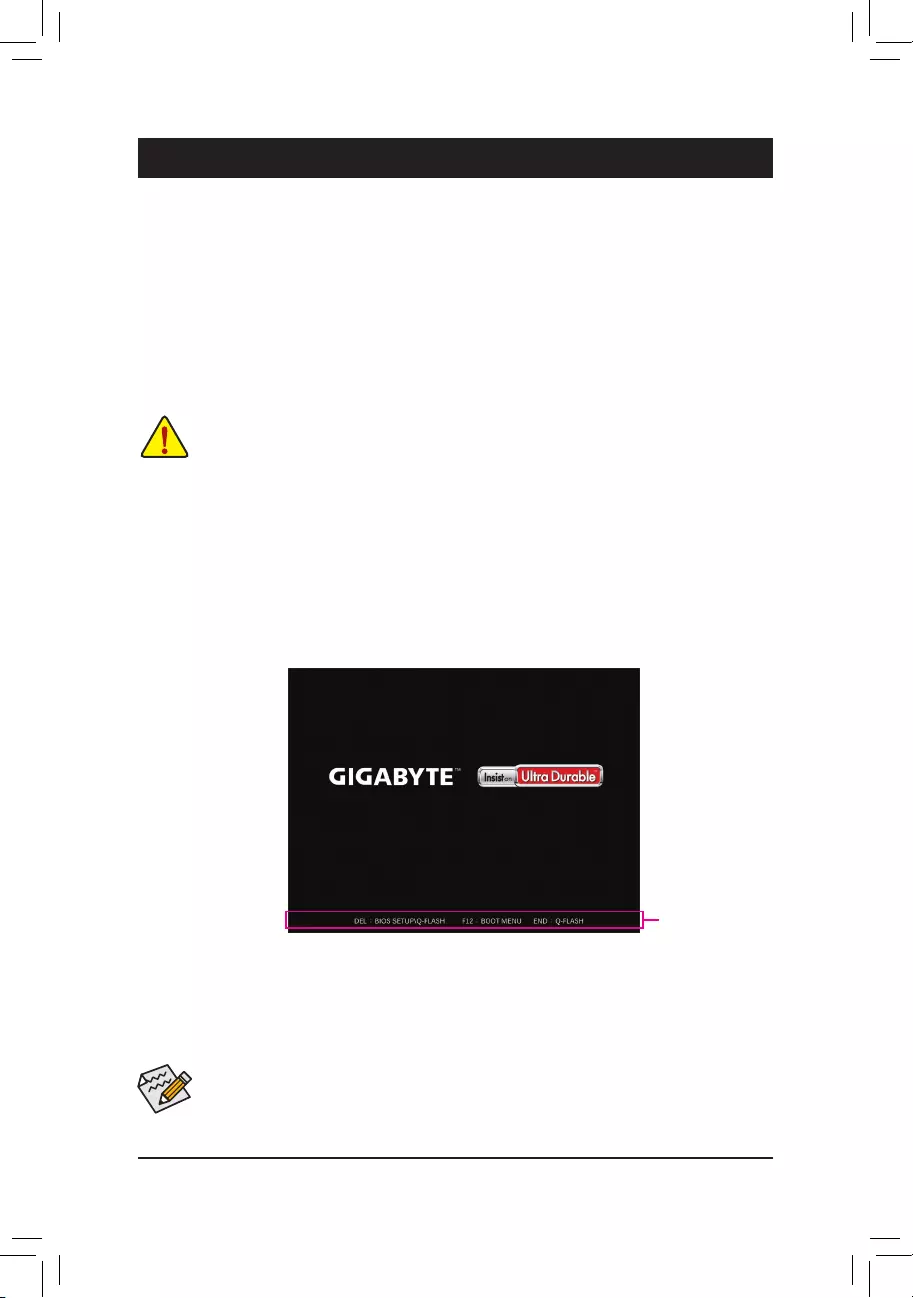
2-1 Startup Screen
The following startup Logo screen will appear when the computer boots.
•When the system is not stable as usual, select the Load Optimized Defaults item to set your system to its defaults.
•The BIOS Setup menus described in this chapter are for reference only and may differ by BIOS version.
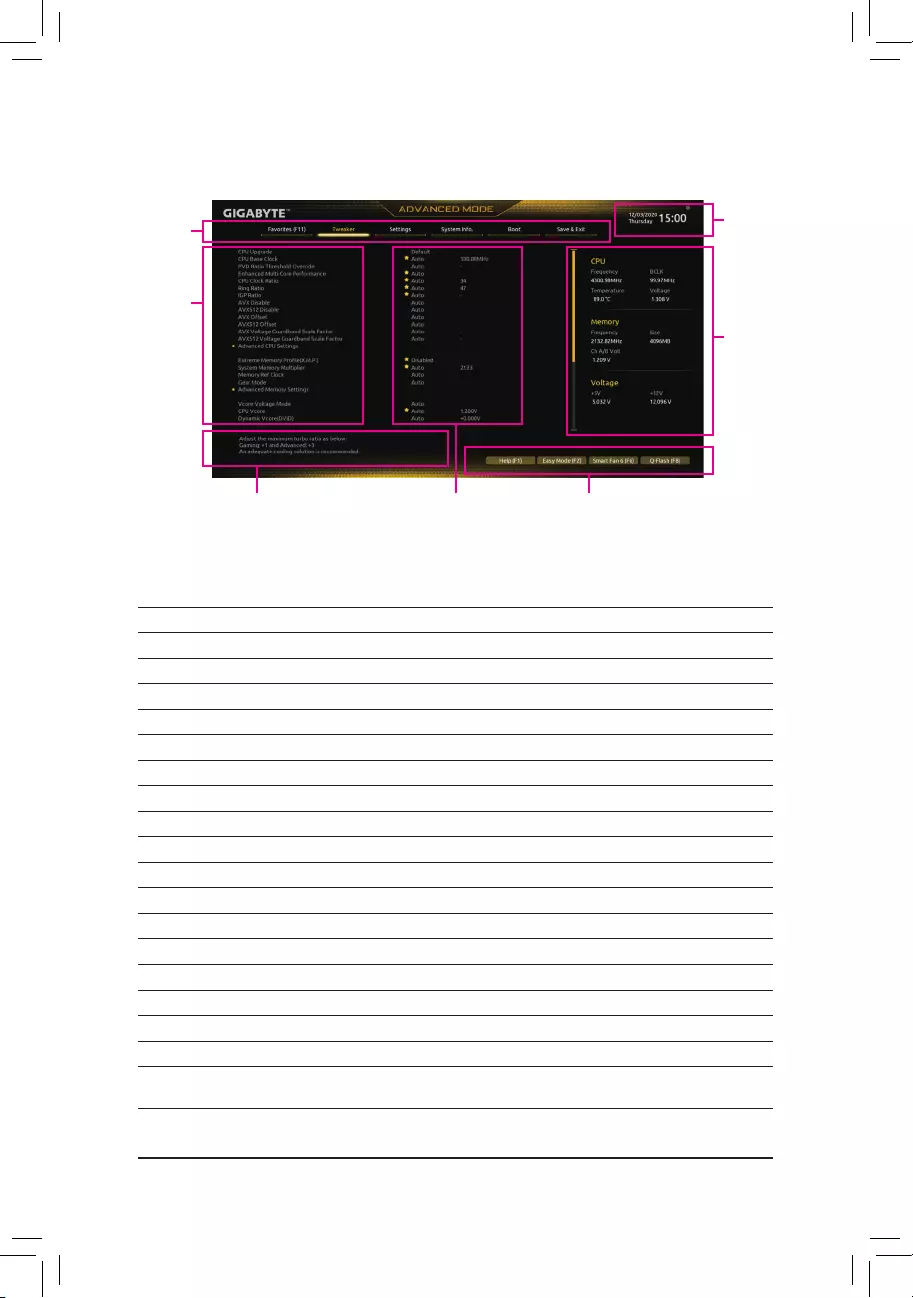
TherearetwodifferentBIOSmodesasfollowsandyoucanusethe<F2>keytoswitchbetweenthetwomodes.
Easy Mode allows users to quickly view their current system information or to make adjustments for optimum
performance.InEasyMode,youcanuseyourmousetomovethroughcongurationitems.TheAdvancedMode
provides detailed BIOS settings. You can press the arrow keys on your keyboard to move among the items
andpress<Enter>toacceptorenterasub-menu.Oryoucanuseyourmousetoselecttheitemyouwant.
Function Keys
— 24 —
2-2 The Main Menu
Advanced Mode Function Keys
<f><g>Move the selection bar to select a setup menu
<h><i> Movetheselectionbartoselectancongurationitemonamenu
<Enter>/DoubleClick Execute command or enter a menu
<+>/<PageUp> Increase the numeric value or make changes
<—>/<PageDown> Decreasethenumericvalueormakechanges
<F1> Show descriptions of the function keys
<F2> Switch to Easy Mode
<F3> SavethecurrentBIOSsettingstoaprole
<F4> LoadtheBIOSsettingsfromaprolecreatedbefore
<F5> RestorethepreviousBIOSsettingsforthecurrentsubmenus
<F6> DisplaytheSmartFan6screen
<F7> LoadtheOptimizedBIOSdefaultsettingsforthecurrentsubmenus
<F8> Access the Q-Flash utility
<F10> Save all the changes and exit the BIOS Setup program
<F11> Switch to the Favorites submenu
<F12> Capture the current screen as an image and save it to your USB drive
<Insert> Add or remove a favorite option
<Ctrl>+<S> Displayinformationontheinstalledmemory
<Esc> Main Menu: Exit the BIOS Setup program
Submenus: Exit current submenu
Hardware
Information
CongurationItems Current Settings
Setup Menus
Conguration
Items
System Time
Quick Access Bar allows you to quickly move to
the General Help, Easy Mode, Smart Fan 6, or
Q-Flash screen.
— 25 —
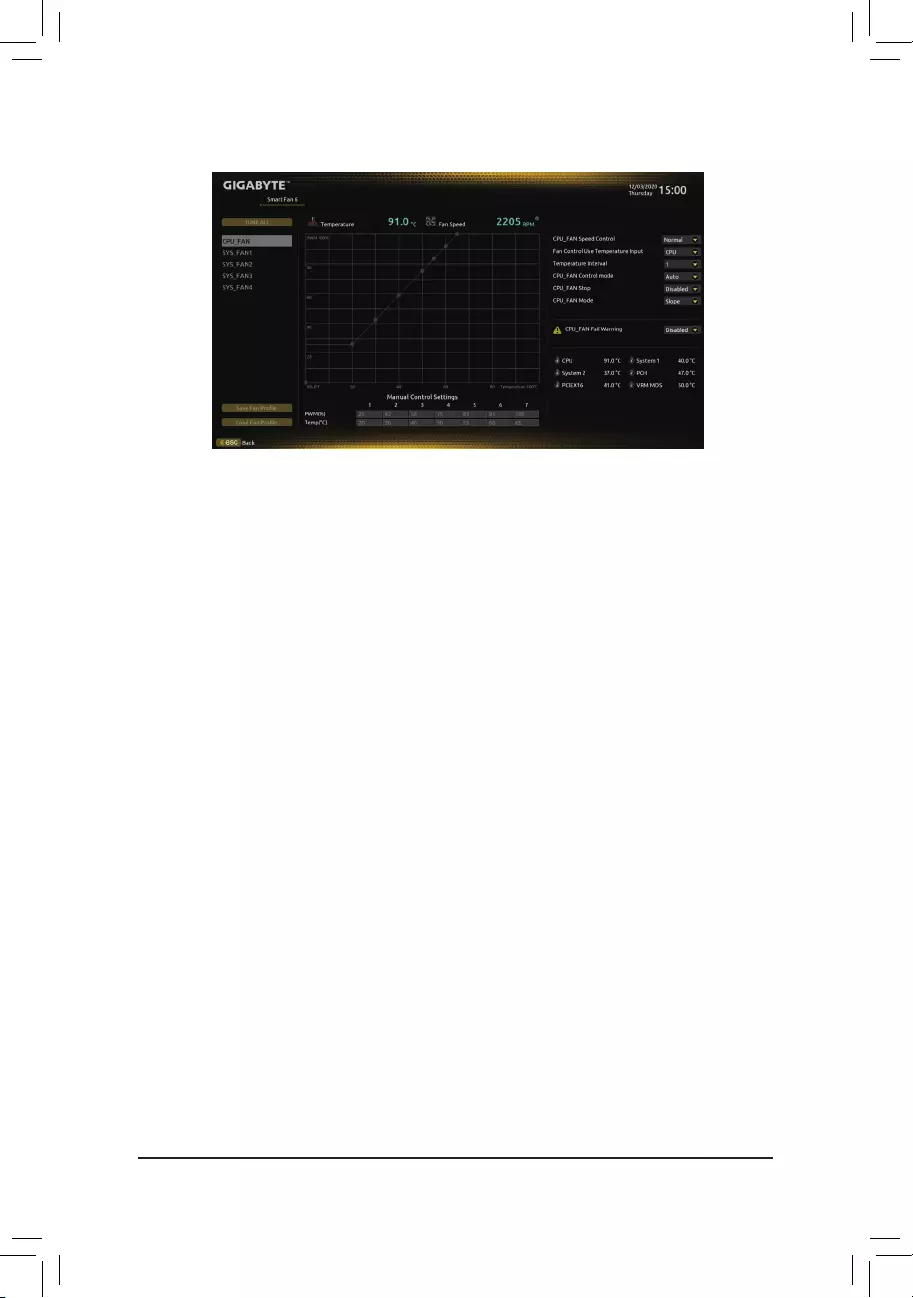
Usethe<F6>functionkeytoquicklyswitchtothisscreen.Thisscreenallowsyoutocongurefanspeedrelated
settings for each fan header or monitor your system/CPU temperature.
&TUNE ALL
Allows you to apply the current settings to all fan headers.
&Temperature
Displaysthecurrenttemperatureoftheselectedtargetarea.
&Fan Speed
Displayscurrentfanspeeds.
&Fan Speed Control
Allows you to determine whether to enable the fan speed control function and adjust the fan speed.
Normal Allows the fan to run at different speeds according to the temperature. You can adjust
the fan speed with System Information Viewer based on your system requirements.
(Default)
Silent Allows the fan to run at slow speeds.
Manual Allows you to drag the curve nodes to adjust fan speed. Or you can use the EZ Tuning
feature. After adjusting the node position, press Apply to automatically calculate the
slope of the curve.
Full Speed Allows the fan to run at full speeds.
&Fan Control Use Temperature Input
Allows you to select the reference temperature for fan speed control.
&Temperature Interval
Allows you to select the temperature interval for fan speed change.
&FAN Control Mode
Auto Lets the BIOS automatically detect the type of fan installed and sets the optimal control
mode.(Default)
Voltage Voltage mode is recommended for a 3-pin fan.
PWM PWM mode is recommended for a 4-pin fan.
2-3 Smart Fan 6
— 26 —
&FAN Stop
Enables or disables the fan stop function. You can set the temperature limit using the temperature curve.
Thefanstopsoperationwhenthetemperatureislowerthanthelimit.(Default:Disabled)
&FAN Mode
Allows you to set the operating mode for the fan.
Slope Adjuststhefanspeedlinearlybasedonthetemperature.(Default)
Stair Adjusts the fan speed stepwise based on the temperature.
&FAN Fail Warning
Allows the system to emit warning sound if the fan is not connected or fails. Check the fan condition or fan
connectionwhenthisoccurs.(Default:Disabled)
&SaveFanProle
Thisfunctionallowsyoutosavethecurrentsettingstoaprole.YoucansavetheproleintheBIOSor
select Select File in HDD/FDD/USBtosavetheproletoyourstoragedevice.
&LoadFanProle
ThisfunctionallowsyoutoloadapreviouslysavedBIOSprolewithoutthehasslesofreconguringthe
BIOS settings. Or you can select Select File in HDD/FDD/USBtoloadaprolefromyourstoragedevice.
2-4 Favorites (F11)
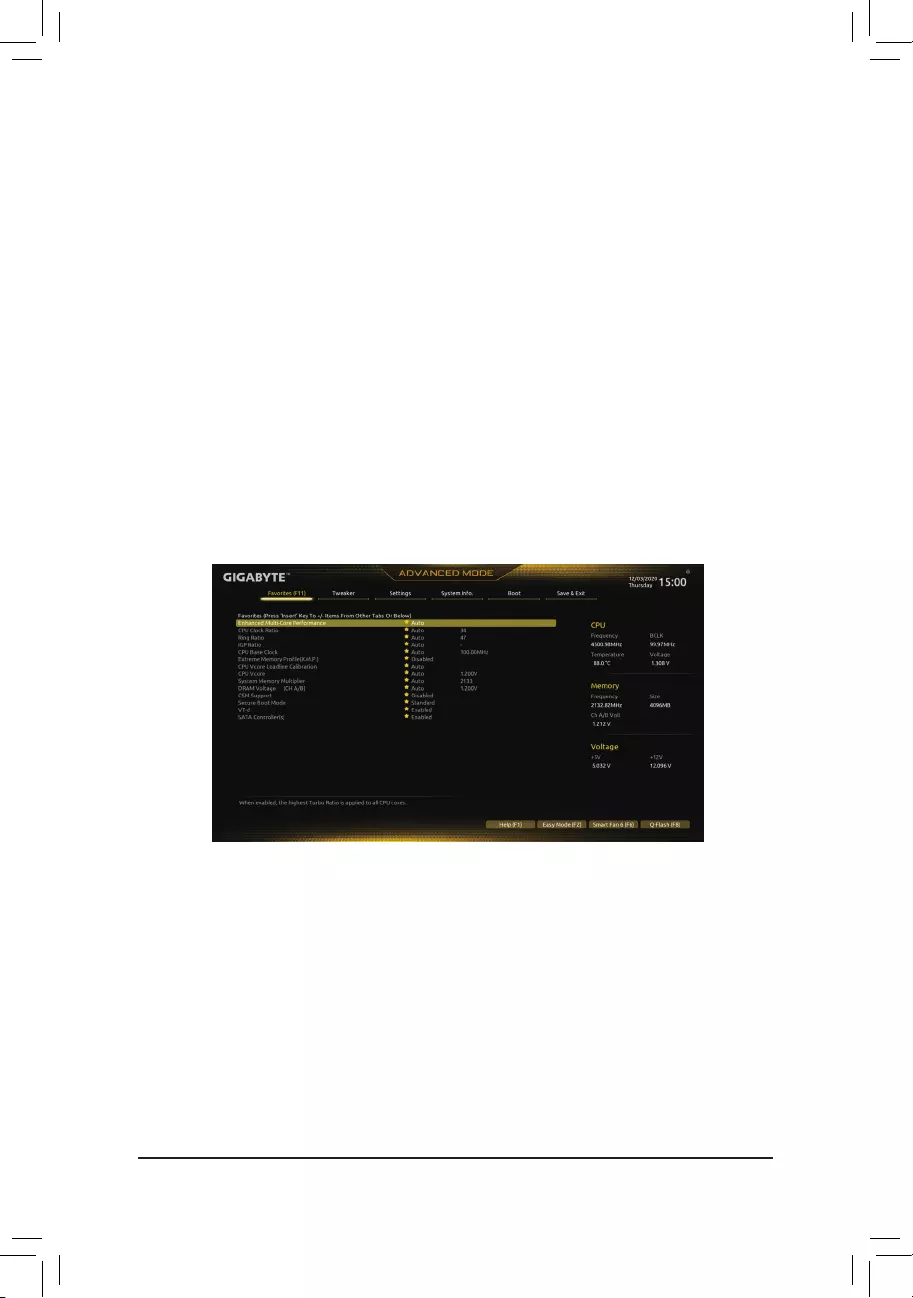
Setyourfrequentlyusedoptionsasyourfavoritesandusethe<F11>keytoquicklyswitchtothepagewhere
all of your favorite options are located. To add or remove a favorite option, go to its original page and press
<Insert>ontheoption.Theoptionismarkedwithastarsignifsetasa»favorite.»
— 27 —
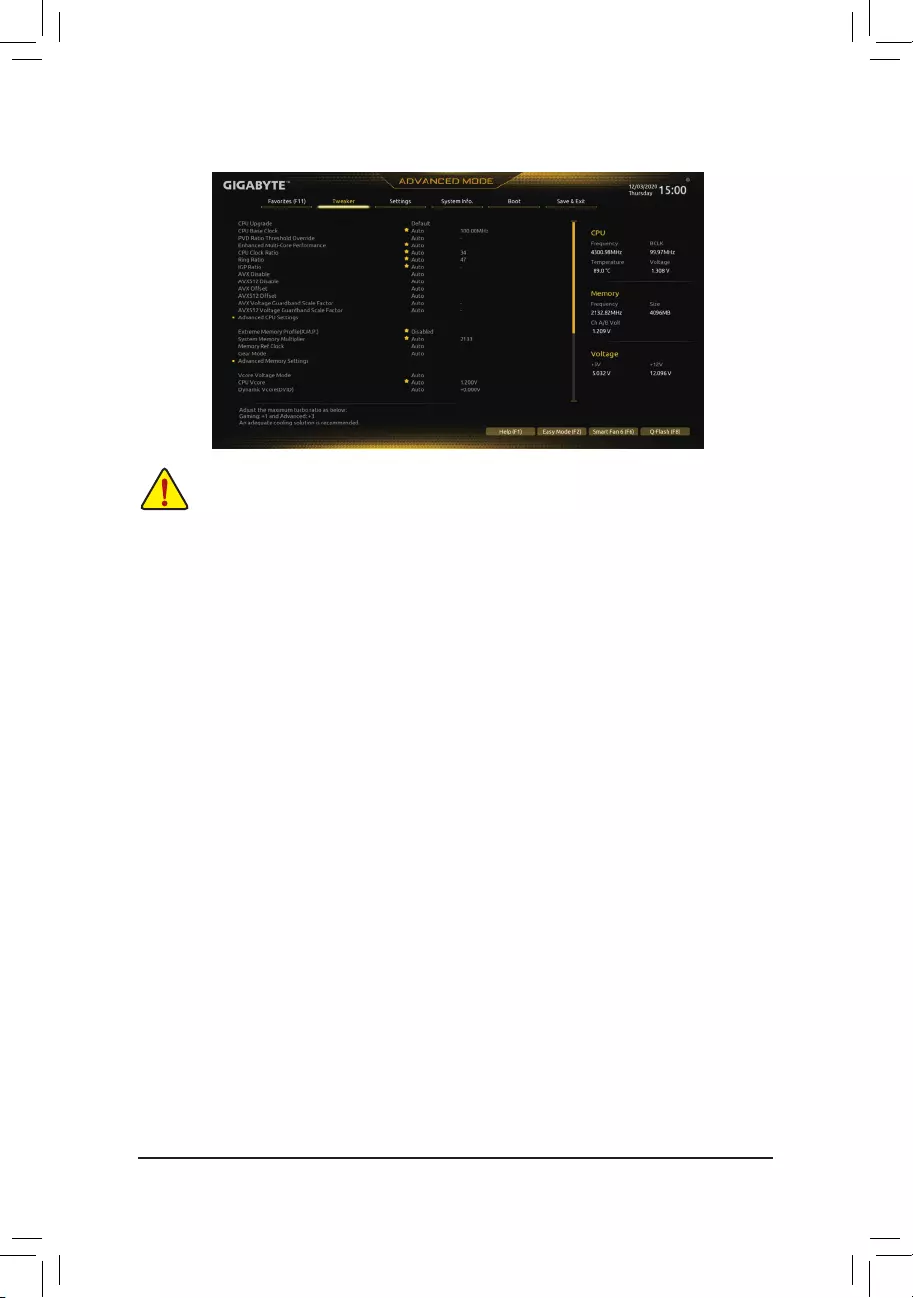
Whether the system will work stably with the overclock/overvoltage settings you made is dependent on your overall
systemcongurations.Incorrectlydoingoverclock/overvoltagemayresultindamagetoCPU,chipset,ormemory
and reduce the useful life of these components. This page is for advanced users only and we recommend you not to
alter the default settings to prevent system instability or other unexpected results. (Inadequately altering the settings
may result in system’s failure to boot. If this occurs, clear the CMOS values and reset the board to default values.)
&CPU Upgrade
AllowsyoutosettheCPUfrequency.ThenalresultmayvarydependingontheCPUused.Optionsare:
Default,GamingProle,AdvancedProle.(Default:Default)
&CPU Base Clock
AllowsyoutomanuallysettheCPUbaseclockin0.01MHzincrements.(Default:Auto)
Important: It is highly recommended that the CPU frequency be set in accordance with the CPU
specications.
&PVD Ratio Threshold Override (Note)
AllowsyoutodeterminewhethertoimproveperformanceunderextremeBCLKOCbyreducinga«PLL
Banding»conditioncausedinpartbyaveryhighDCOfrequency.(Default:Auto)
&Enhanced Multi-Core Performance
DetermineswhethertoallowtheCPUtorunatTurbo1Cspeed.(Default:Auto)
&CPU Clock Ratio
Allows you to alter the clock ratio for the installed CPU. The adjustable range is dependent on the CPU
being installed.
&Ring Ratio
AllowsyoutosettheCPUUncoreratio.TheadjustablerangeisdependentontheCPUbeingused.(Default:
Auto)
&IGP Ratio (Note)
AllowsyoutosettheGraphicsRatio.(Default:Auto)
&AVX Disable (Note)
AllowsyoutodisabletheAVXinstructionsetsonaCPUthatsupportsAVX.(Default:Auto)
&AVX512 Disable (Note)
AllowsyoutodisabletheAVX-512instructionsetsonaCPUthatsupportsAVX-512.(Default:Auto)
(Note) This item is present only when you install a CPU that supports this feature. For more information about
Intel® CPUs’ unique features, please visit Intel’s website.
2-5 Tweaker
— 28 —

&AVX Offset (Note)
AVXoffsetisthenegativeoffsetofAVXratio.(Default:Auto)
&AVX512 Offset (Note)
AVXoffsetisthenegativeoffsetofAVX512ratio.(Default:Auto)
&AVX Voltage Guardband Scale Factor (Note)
AllowsyoutolowerthestandardAVXvoltage.(Default:Auto)
&AVX512 Voltage Guardband Scale Factor (Note)
AllowsyoutolowerthestandardAVX-512voltage.(Default:Auto)
Advanced CPU Settings
&Core Fused Max Core Ratio (Note)
Displaysthehighestfrequencyofeachcore.
&CPU Over Temperature Protection (Note)
Allowsyoutone-tunetheTJMaxoffsetvalue.(Default:Auto)
&FCLK Frequency for Early Power On (Note)
AllowsyoutosettheFCLKfrequency.Optionsare:Normal(800Mhz),1GHz,400MHz.(Default:1GHz)
&Hyper-Threading Technology
Allows you to determine whether to enable multi-threading technology when using an Intel® CPU that
supports this function. This feature only works for operating systems that support multi-processor mode.
AutoletstheBIOSautomaticallycongurethissetting.(Default:Auto)
&No. of CPU Cores Enabled
Allows you to select the number of CPU cores to enable in an Intel® multi-core CPU (the number of CPU
cores may vary by CPU). AutoletstheBIOSautomaticallycongurethissetting.(Default:Auto)
&Intel(R) Speed Shift Technology (Intel® Speed Shift Technology) (Note)
Enables or disables Intel® Speed Shift Technology. Enabling this feature allows the processor to ramp up
itsoperatingfrequencymorequicklyandthenimprovesthesystemresponsiveness.(Default:Enabled)
&CPU Thermal Monitor (Note)
Enables or disables Intel® Thermal Monitor function, a CPU overheating protection function. When enabled,
the CPU core frequency and voltage will be reduced when the CPU is overheated. Auto lets the BIOS
automaticallycongurethissetting.(Default:Auto)
&Ring to Core offset (Down Bin)
AllowsyoutodeterminewhethertodisabletheCPURingratioauto-downfunction.Auto lets the BIOS
automaticallycongurethissetting.(Default:Auto)
&CPU EIST Function (Note)
Enables or disables Enhanced Intel®SpeedStepTechnology(EIST).DependingonCPUloading,Intel®
EIST technology can dynamically and effectively lower the CPU voltage and core frequency to decrease
average power consumption and heat production. AutoletstheBIOSautomaticallycongurethissetting.
(Default:Auto)
&Race To Halt (RTH) (Note)/EnergyEfcientTurbo (Note)
EnablesordisablestheCPUpowersavingrelatedsettings.(Default:Auto)
&Intel(R) Turbo Boost Technology (Note)
Allows you to determine whether to enable the Intel® CPU Turbo Boost technology. Auto lets the BIOS
automaticallycongurethissetting.(Default:Auto)
(Note) This item is present only when you install a CPU that supports this feature. For more information about
Intel® CPUs’ unique features, please visit Intel’s website.
— 29 —

&Intel(R) Turbo Boost Max Technology 3.0 (Note)
Enables or disables Intel® Turbo Boost Max Technology 3.0. Intel® Turbo Boost Max Technology 3.0 allows
the system to identify the processor’s best performance core and lets you manually direct the most critical
workloadstoit.Youcanevenadjustthefrequencyofeachcoreindividuallyforperformanceoptimization.
(Default:Enabled)
&CPU Flex Ratio Override
EnablesordisablestheCPUFlexRatio.ThemaximumCPUclockratiowillbebasedontheCPU Flex
Ratio Settings value if CPU Clock Ratio is set to Auto.(Default:Disabled)
&CPU Flex Ratio Settings
AllowsyoutosettheCPUFlexRatio.TheadjustablerangemayvarybyCPU.
&Frequency Clipping TVB (Note)
Allows you to enable or disable automatic CPU frequency reduction initiated by Thermal Velocity Boost.
AutoletstheBIOSautomaticallycongurethissetting.(Default:Auto)
&Voltage reduction initiated TVB (Note)
Allows you to enable or disable automatic CPU voltage reduction initiated by Thermal Velocity Boost. Auto
letstheBIOSautomaticallycongurethissetting.(Default:Auto)
dActive Turbo Ratios
&Turbo Ratio (Core Active)
Allows you to set the CPU Turbo ratios for different number of active cores. Auto sets the CPU Turbo ratios
accordingtotheCPUspecications.ThisitemiscongurableonlywhenActive Turbo Ratios is set to
Manual.(Default:Auto)
dPer Core HT Disable Setting
&HT Disable (Note)
AllowsyoutodeterminewhethertodisabletheHTfeatureforeachCPUcore.Thisitemiscongurable
only when Per Core HT Disable Setting is set to Manual.(Default:Disabled)
dC-States Control
&CPU Enhanced Halt (C1E)
Enables or disables Intel
®
CPU Enhanced Halt (C1E) function, a CPU power-saving function in system halt state.
When enabled, the CPU core frequency and voltage will be reduced during system halt state to decrease
power consumption. AutoletstheBIOSautomaticallycongurethissetting.Thisitemiscongurableonly
when C-States Control is set to Enabled.(Default:Auto)
&C3 State Support (Note)
Allows you to determine whether to let the CPU enter C3 mode in system halt state. When enabled, the
CPU core frequency and voltage will be reduced during system halt state to decrease power consumption.
The C3 state is a more enhanced power-saving state than C1. AutoletstheBIOSautomaticallycongure
thissetting.ThisitemiscongurableonlywhenC-States Control is set to Enabled.(Default:Auto)
&C6/C7 State Support
Allows you to determine whether to let the CPU enter C6/C7 mode in system halt state. When enabled, the
CPU core frequency and voltage will be reduced during system halt state to decrease power consumption.
The C6/C7 state is a more enhanced power-saving state than C3. AutoletstheBIOSautomaticallycongure
thissetting.ThisitemiscongurableonlywhenC-States Control is set to Enabled.(Default:Auto)
(Note) This item is present only when you install a CPU that supports this feature. For more information about
Intel® CPUs’ unique features, please visit Intel’s website.
— 30 —

&C8 State Support (Note 1)
Allows you to determine whether to let the CPU enter C8 mode in system halt state. When enabled, the CPU
core frequency and voltage will be reduced during system halt state to decrease power consumption. The
C8 state is a more enhanced power-saving state than C6/C7. AutoletstheBIOSautomaticallycongure
thissetting.ThisitemiscongurableonlywhenC-States Control is set to Enabled.(Default:Auto)
&C10 State Support (Note 1)
Allows you to determine whether to let the CPU enter C10 mode in system halt state. When enabled, the
CPU core frequency and voltage will be reduced during system halt state to decrease power consumption.
The C10 state is a more enhanced power-saving state than C8. AutoletstheBIOSautomaticallycongure
thissetting.ThisitemiscongurableonlywhenC-States Control is set to Enabled.(Default:Auto)
&Package C State limit (Note 1)
Allows you to specify the C-state limit for the processor. AutoletstheBIOSautomaticallycongurethis
setting.ThisitemiscongurableonlywhenC-States Control is set to Enabled.(Default:Auto)
dTurbo Power Limits
Allows you to set a power limit for CPU Turbo mode. When the CPU power consumption exceeds the
speciedpowerlimit,theCPUwillautomaticallyreducethecorefrequencyinordertoreducethepower.
AutosetsthepowerlimitaccordingtotheCPUspecications.(Default:Auto)
&Power Limit TDP (Watts) / Power Limit Time
Allows you to set the power limit for CPU/platform/memory Turbo mode and how long it takes to operate
atthespeciedpowerlimit.AutosetsthepowerlimitaccordingtotheCPUspecications.Thisitemis
congurableonlywhenTurbo Power Limits is set to Enabled.(Default:Auto)
&Core Current Limit (Amps)
AllowsyoutosetacurrentlimitforCPUTurbomode.WhentheCPUcurrentexceedsthespeciedcurrent
limit, the CPU will automatically reduce the core frequency in order to reduce the current. Auto sets the
powerlimitaccordingtotheCPUspecications.ThisitemiscongurableonlywhenTurbo Power Limits
is set to Enabled.(Default:Auto)
dTurbo Per Core Limit Control (Note 1)
AllowsyoutocontroleachCPUcorelimitseparately.(Default:Auto)
&ExtremeMemoryProle(X.M.P.)(Note 2)
AllowstheBIOStoreadtheSPDdataonXMPmemorymodule(s)toenhancememoryperformancewhen
enabled.
Disabled Disablesthisfunction.(Default)
Prole1 UsesProle1settings.
Prole2(Note 2) UsesProle2settings.
&System Memory Multiplier
Allows you to set the system memory multiplier. AutosetsmemorymultiplieraccordingtomemorySPD
data.(Default:Auto)
&Memory Ref Clock
Allowsyoutomanuallyadjustthememoryreferenceclock.(Default:Auto)
(Note 1) This item is present only when you install a CPU that supports this feature. For more information about
Intel® CPUs’ unique features, please visit Intel’s website.
(Note 2) This item is present only when you install a CPU and a memory module that support this feature.
— 31 —

&Memory Odd Ratio (100/133 or 200/266) (Note)
EnabledallowsQclktoruninoddfrequency.(Default:Auto)
&Gear Mode (Note)
AllowsyoutoimprovethemaximumOCfrequencypotential.(Default:Auto)
Advanced Memory Settings
&Memory Multiplier Tweaker
Providesdifferentlevelsofmemoryauto-tuning.(Default:Auto)
&Channel Interleaving
Enables or disables memory channel interleaving. Enabled allows the system to simultaneously access
different channels of the memory to increase memory performance and stability. Auto lets the BIOS
automaticallycongurethissetting.(Default:Auto)
&Rank Interleaving
Enables or disables memory rank interleaving. Enabled allows the system to simultaneously access different
ranks of the memory to increase memory performance and stability. Auto lets the BIOS automatically
congurethissetting.(Default:Auto)
&Memory Boot Mode
Provides memory detection and training methods.
Auto LetstheBIOSautomaticallycongurethissetting.(Default)
Normal The BIOS automatically performs memory training. Please note that if the system
becomes unstable or unbootable, try to clear the CMOS values and reset the board
todefaultvalues.(Refertotheintroductionsofthebattery/clearCMOSjumperin
Chapter 1 for how to clear the CMOS values.)
EnableFastBoot Skipmemorydetectionandtraininginsomespeciccriteriaforfastermemory
boot.
DisableFastBoot Detectandtrainmemoryateverysingleboot.
&Realtime Memory Timing
Allowsyoutone-tunememorytimingsaftertheBIOSstage.(Default:Auto)
&Memory Enhancement Settings
Providesseveralmemoryperformanceenhancementsettings:Auto,RelaxOC,EnhancedStability,Normal
(basicperformance),EnhancedPerformance,HighFrequency,HighDensity,andDDR-4500+.(Default:
Auto)
&Memory Channel Detection Message
Allows you to determine whether to show an alert message when the memory is not installed in the optimal
memorychannel.(Default:Enabled)
SPD Info
Displaysinformationontheinstalledmemory.
(Note) This item is present only when you install a CPU and a memory module that support this feature.
— 32 —

Memory Channels Timings
d Channels Standard Timing Control, Channels Advanced Timing Control, Channels Misc
Timing Control
These sections provide memory timing settings. Note: Your system may become unstable or fail to boot
after you make changes on the memory timings. If this occurs, please reset the board to default values by
loadingoptimizeddefaultsorclearingtheCMOSvalues.
& Vcore Volatge Mode/CPU Vcore/Dynamic Vcore(DVID)/BCLK Adaptive Voltage/CPU
Graphics Voltage (VAXG)/DRAM Voltage (CH A/B)/CPU VCCIO/CPU VCCIO2/CPU System
Agent Voltage/VCC Substained/VCCPLL OC/VCCVTT/ VCC STG/ VCC18 PCH/VCC1V8P
These items allow you to adjust the CPU Vcore and memory voltages.
Advanced Voltage Settings
ThissubmenuallowsyoutocongureLoad-LineCalibrationlevel,over-voltageprotectionlevel,andover-
current protection level.
— 33 —
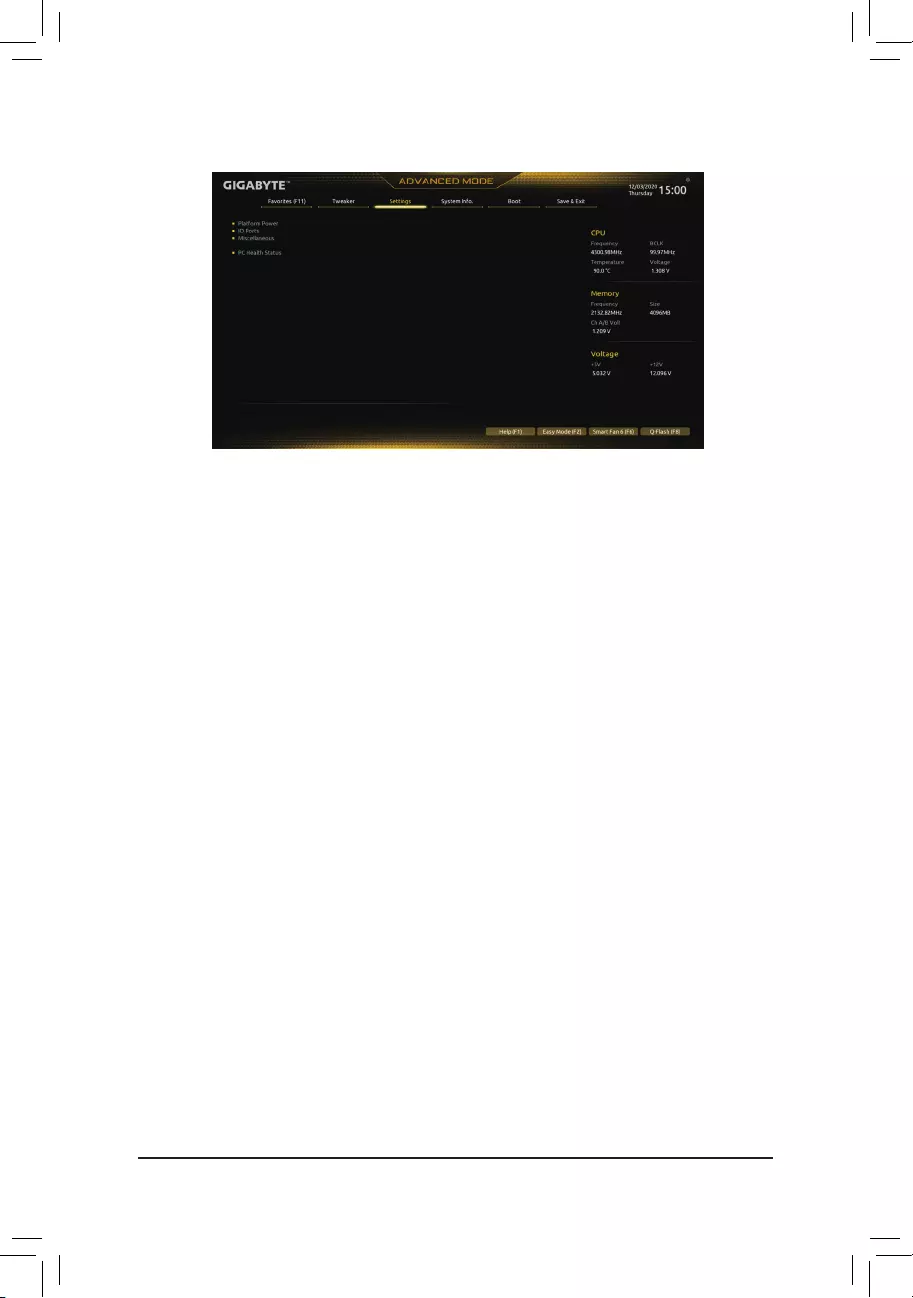
2-6 Settings
Platform Power
&Platform Power Management
EnablesordisablestheActiveStatePowerManagementfunction(ASPM).(Default:Disabled)
&PEG ASPM
AllowsyoutoconguretheASPMmodeforthedeviceconnectedtotheCPUPEGbus.Thisitemis
congurableonlywhenPlatform Power Management is set to Enabled.(Default:Disabled)
&PCH ASPM
AllowsyoutoconguretheASPMmodeforthedeviceconnectedtoChipset’sPCIExpressbus.Thisitem
iscongurableonlywhenPlatform Power Management is set to Enabled.(Default:Disabled)
&DMI ASPM
AllowsyoutoconguretheASPMmodeforbothCPUsideandChipsetsideoftheDMIlink.Thisitemis
congurableonlywhenPlatform Power Management is set to Enabled.(Default:Disabled)
&Power On By Keyboard
Allows the system to be turned on by a PS/2 keyboard wake-up event.
Note: To use this function, you need an ATX power supply providing at least 1A on the +5VSB lead.
Disabled Disablesthisfunction.(Default)
Password Set a password with 1~5 characters to turn on the system.
Keyboard98 PressPOWERbuttonontheWindows98keyboardtoturnonthesystem.
Any Key Press any key to turn on the system.
&Power On Password
Set the password when Power On By Keyboard is set to Password.
Press<Enter>onthisitemandsetapasswordwithupto5charactersandthenpress<Enter>toaccept.
Toturnonthesystem,enterthepasswordandpress<Enter>.
Note:Tocancelthepassword,press<Enter>onthisitem.Whenpromptedforthepassword,press<Enter>
again without entering the password to clear the password settings.
&Power On By Mouse
Allows the system to be turned on by a PS/2 mouse wake-up event.
Note: To use this function, you need an ATX power supply providing at least 1A on the +5VSB lead.
Disabled Disablesthisfunction.(Default)
Move Move the mouse to turn on the system.
DoubleClick Doubleclickonleftbuttononthemousetoturnonthesystem.
— 34 —

&ErP
DetermineswhethertoletthesystemconsumeleastpowerinS5(shutdown)state.(Default:Disabled)
Note: When this item is set to Enabled,thefollowingfunctionswillbecomeunavailable:ResumebyAlarm,
power on by mouse, and power on by keyboard.
&Soft-Off by PWR-BTTN
ConguresthewaytoturnoffthecomputerinMS-DOSmodeusingthepowerbutton.
Instant-Off Pressthepowerbuttonandthenthesystemwillbeturnedoffinstantly.(Default)
Delay4Sec. Pressandholdthepowerbuttonfor4secondstoturnoffthesystem.Ifthepower
button is pressed for less than 4 seconds, the system will enter suspend mode.
&Resume by Alarm
Determineswhethertopoweronthesystematadesiredtime.(Default:Disabled)
If enabled, set the date and time as following:
Wakeupday:Turnonthesystemataspecictimeoneachdayoronaspecicdayinamonth.
Wake up hour/minute/second: Set the time at which the system will be powered on automatically.
Note: When using this function, avoid inadequate shutdown from the operating system or removal of the
AC power, or the settings may not be effective.
&Power Loading
Enables or disables dummy load. When the power supply is at low load, a self-protection will activate causing
it to shutdown or fail. If this occurs, please set to Enabled. AutoletstheBIOSautomaticallycongurethis
setting.(Default:Auto)
&RC6(Render Standby)
Allows you to determine whether to let the onboard graphics enter standby mode to decrease power
consumption.(Default:Enabled)
&AC BACK
DeterminesthestateofthesystemafterthereturnofpowerfromanACpowerloss.
Memory The system returns to its last known awake state upon the return of the AC power.
Always On The system is turned on upon the return of the AC power.
AlwaysOff ThesystemstaysoffuponthereturnoftheACpower.(Default)
IO Ports
&Initial Display Output
SpeciestherstinitiationofthemonitordisplayfromtheinstalledPCIExpressgraphicscardortheonboard
graphics.
IGFX (Note) Setstheonboardgraphicsastherstdisplay.
PCIe1Slot SetsthegraphicscardonthePCIEX16slotastherstdisplay.(Default)
PCIe2Slot SetsthegraphicscardonthePCIEX4slotastherstdisplay.
ThisitemiscongurableonlywhenCSM Support is set to Enabled.
&Internal Graphics
Enablesordisablestheonboardgraphicsfunction.(Default:Auto)
&DVMT Pre-Allocated
Allowsyoutosettheonboardgraphicsmemorysize.(Default:64M)
&DVMT Total Gfx Mem
AllowsyoutoallocatetheDVMTmemorysizeoftheonboardgraphics.Optionsare:128M,256M,MAX.
(Default:256M)
(Note) This item is present only when you install a CPU that supports this feature.
— 35 —

&Aperture Size
Allows you to set the maximum amount of system memory that can be allocated to the graphics card.
Optionsare:128MB,256MB,512MB,1024MB,and2048MB.(Default:256MB)
&PCIE Bifurcation Support
Allows you to determine how the bandwidth of the PCIEX16 slot is divided. Options: Auto, PCIE x8/x8,
PCIEx8/x4/x4.(Default:Auto)
&OnBoard LAN Controller
EnablesordisablestheonboardLANfunction.(Default:Enabled)
If you wish to install a 3rd party add-in network card instead of using the onboard LAN, set this item to
Disabled.
&Audio Controller
Enablesordisablestheonboardaudiofunction.(Default:Enabled)
If you wish to install a 3rd party add-in audio card instead of using the onboard audio, set this item to
Disabled.
&Above 4G Decoding
Enables or disables 64-bit capable devices to be decoded in above 4 GB address space (only if your system
supports 64-bit PCI decoding). Set to Enabled if more than one advanced graphics card are installed and
their drivers are not able to be launched when entering the operating system (because of the limited 4 GB
memoryaddressspace).(Default:Disabled)
&IOAPIC 24-119 Entries
Enablesordisablesthisfunction.(Default:Enabled)
SuperIOConguration
&Serial Port
Enablesordisablestheonboardserialport.(Default:Enabled)
USBConguration
&Legacy USB Support
AllowsUSBkeyboard/mousetobeusedinMS-DOS.(Default:Enabled)
&XHCI Hand-off
Determineswhether to enableXHCI Hand-off feature for anoperating system withoutXHCI Hand-off
support.(Default:Enabled)
&USB Mass Storage Driver Support
EnablesordisablessupportforUSBstoragedevices.(Default:Enabled)
&Mass Storage Devices
DisplaysalistofconnectedUSBmassstoragedevices.ThisitemappearsonlywhenaUSBstoragedevice
is installed.
NetworkStackConguration
&Network Stack
DisablesorenablesbootingfromthenetworktoinstallaGPTformatOS,suchasinstallingtheOSfrom
theWindowsDeploymentServicesserver.(Default:Disabled)
&IPv4 PXE Support
EnablesordisablesIPv4PXESupport.ThisitemiscongurableonlywhenNetwork Stack is enabled.
&IPv4 HTTP Support
EnablesordisablesHTTPbootsupportforIPv4.ThisitemiscongurableonlywhenNetwork Stack is
enabled.
— 36 —

&IPv6 PXE Support
EnablesordisablesIPv6PXESupport.ThisitemiscongurableonlywhenNetwork Stack is enabled.
&IPv6 HTTP Support
EnablesordisablesHTTPbootsupportforIPv6.ThisitemiscongurableonlywhenNetwork Stack is
enabled.
&PXE boot wait time
Allowsyoutocongurehowlongtowaitbeforeyoucanpress<Esc>toabortthePXEboot.Thisitemis
congurableonlywhenNetwork Stackisenabled.(Default:0)
&Media detect count
Allowsyoutosetthenumberoftimestocheckthepresenceofmedia.Thisitemiscongurableonlywhen
Network Stackisenabled.(Default:1)
NVMeConguration
DisplaysinformationonyourM.2NVMEPCIeSSDifinstalled.
SATAAndRSTConguration
&SATA Controller(s)
EnablesordisablestheintegratedSATAcontrollers.(Default:Enabled)
&SATA Mode Selection
EnablesordisablesRAIDfortheSATAcontrollersintegratedintheChipsetorcongurestheSATAcontrollers
to AHCI mode.
IntelRSTPremiumWithIntelOptaneSystemAcceleration EnablesRAIDfortheSATAcontroller.
AHCI CongurestheSATAcontrollerstoAHCImode.AdvancedHostControllerInterface
(AHCI)isaninterfacespecicationthatallowsthestoragedrivertoenableadvanced
SerialATAfeaturessuchasNativeCommandQueuingandhotplug.(Default)
&Aggressive LPM Support
Enables or disables the power saving feature, ALPM (Aggressive Link Power Management), for the Chipset
SATAcontrollers.(Default:Disabled)
&Port 0/1/2/3/4/5
EnablesordisableseachSATAport.(Default:Enabled)
&SATA Port 0/1/2/3/4/5 DevSlp
AllowsyoutodeterminewhethertolettheconnectedSATAdevicegointosleepmode.(Default:Disabled)
&Hot plug
EnablesordisablethehotplugcapabilityforeachSATAport.(Default:Disabled)
&ConguredaseSATA
Enables or disables support for external SATA devices.
Realtek PCIe 2.5GBE Family Controller
Thissub-menuprovidesinformationonLANcongurationandrelatedcongurationoptions.
— 37 —

Miscellaneous
&LEDs in System Power On State
AllowsyoutoenableordisablemotherboardLEDlightingwhenthesystemison.
Off Disablestheselectedlightingmodewhenthesystemison.
On Enablestheselectedlightingmodewhenthesystemison.(Default)
&LEDs in Sleep, Hibernation, and Soft Off States
AllowsyoutosetthelightingmodeofthemotherboardLEDsinsystemS3/S4/S5state.
ThisitemiscongurablewhenLEDs in System Power On State is set to On.
Off DisablestheselectedlightingmodewhenthesystementersS3/S4/S5state.(Default)
On Enables the selected lighting mode when the system enters S3/S4/S5 state.
&Intel Platform Trust Technology (PTT)
Enables or disables Intel®PTTTechnology.(Default:Disabled)
&3DMark01 Enhancement
Allowsyoutodeterminewhethertoenhancesomelegacybenchmarkperformance.(Default:Disabled)
&CPU PCIe Link Speed
Allows you to set the operation mode of the CPU-controlled PCI Express slots to Gen 1, Gen 2, Gen 3, or
Gen 4 (Note).Actualoperationmodeissubjecttothehardwarespecicationofeachslot.Auto lets the BIOS
automaticallycongurethissetting.(Default:Auto)
&PCH PCIe Link Speed
Allows you to set the operation mode of the Chipset-controlled PCI Express slots to Gen 1, Gen 2, or
Gen3.Actualoperationmodeissubjecttothehardwarespecicationofeachslot.Auto lets the BIOS
automaticallycongurethissetting.(Default:Auto)
&VT-d
Enables or disables Intel®VirtualizationTechnologyforDirectedI/O.(Default:Enabled)
Trusted Computing
Enables or disables Trusted Platform Module (TPM).
PC Health Status
&Reset Case Open Status
Disabled Keepsorclearstherecordofpreviouschassisintrusionstatus.(Default)
Enabled Clears the record of previous chassis intrusion status and the Case Openeldwill
show»No»atnextboot.
&Case Open
DisplaysthedetectionstatusofthechassisintrusiondetectiondeviceattachedtothemotherboardCI
header.Ifthesystemchassiscoverisremoved,thiseldwillshow»Yes»,otherwiseitwillshow»No».To
clear the chassis intrusion status record, set Reset Case Open Status to Enabled, save the settings to
the CMOS, and then restart your system.
&CPU Vcore/CPU VCCSA/DRAM Channel A/B Voltage/+3.3V/+5V/+12V/CPU VAXG
Displaysthecurrentsystemvoltages.
(Note) This item is present only when you install a CPU that supports this feature.
— 38 —
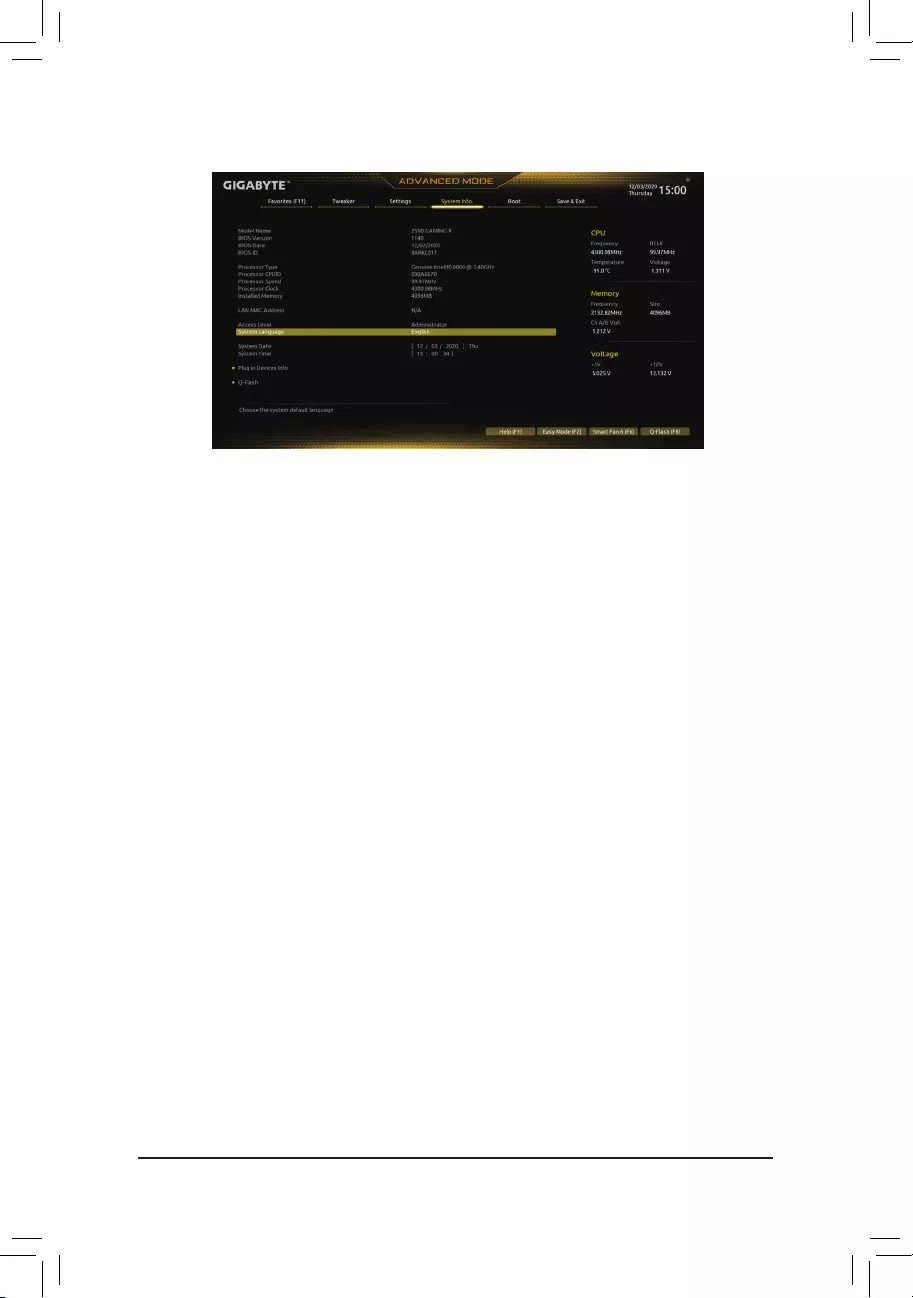
2-7 System Info.
This section provides information on your motherboard model and BIOS version. You can also select the default
language used by the BIOS and manually set the system time.
&Access Level
Displaysthecurrentaccessleveldependingonthetypeofpasswordprotectionused.(Ifnopasswordis
set, the default will display as Administrator.) The Administrator level allows you to make changes to all
BIOS settings; the User level only allows you to make changes to certain BIOS settings but not all.
&System Language
Selects the default language used by the BIOS.
&System Date
Setsthesystemdate.Thedateformatisweek(read-only),month,date,andyear.Use<Enter>toswitch
betweentheMonth,Date,andYeareldsandusethe<PageUp>or<PageDown>keytosetthedesired
value.
&System Time
Sets the system time. The time format is hour, minute, and second. For example, 1 p.m. is 13:00:00. Use
<Enter>toswitchbetweentheHour,Minute,andSecondeldsandusethe<PageUp>or<PageDown>
key to set the desired value.
Plug in Devices Info
DisplaysinformationonyourPCIExpressandM.2devicesifinstalled.
Q-Flash
AllowsyoutoaccesstheQ-FlashutilitytoupdatetheBIOSorbackupthecurrentBIOSconguration.
— 39 —
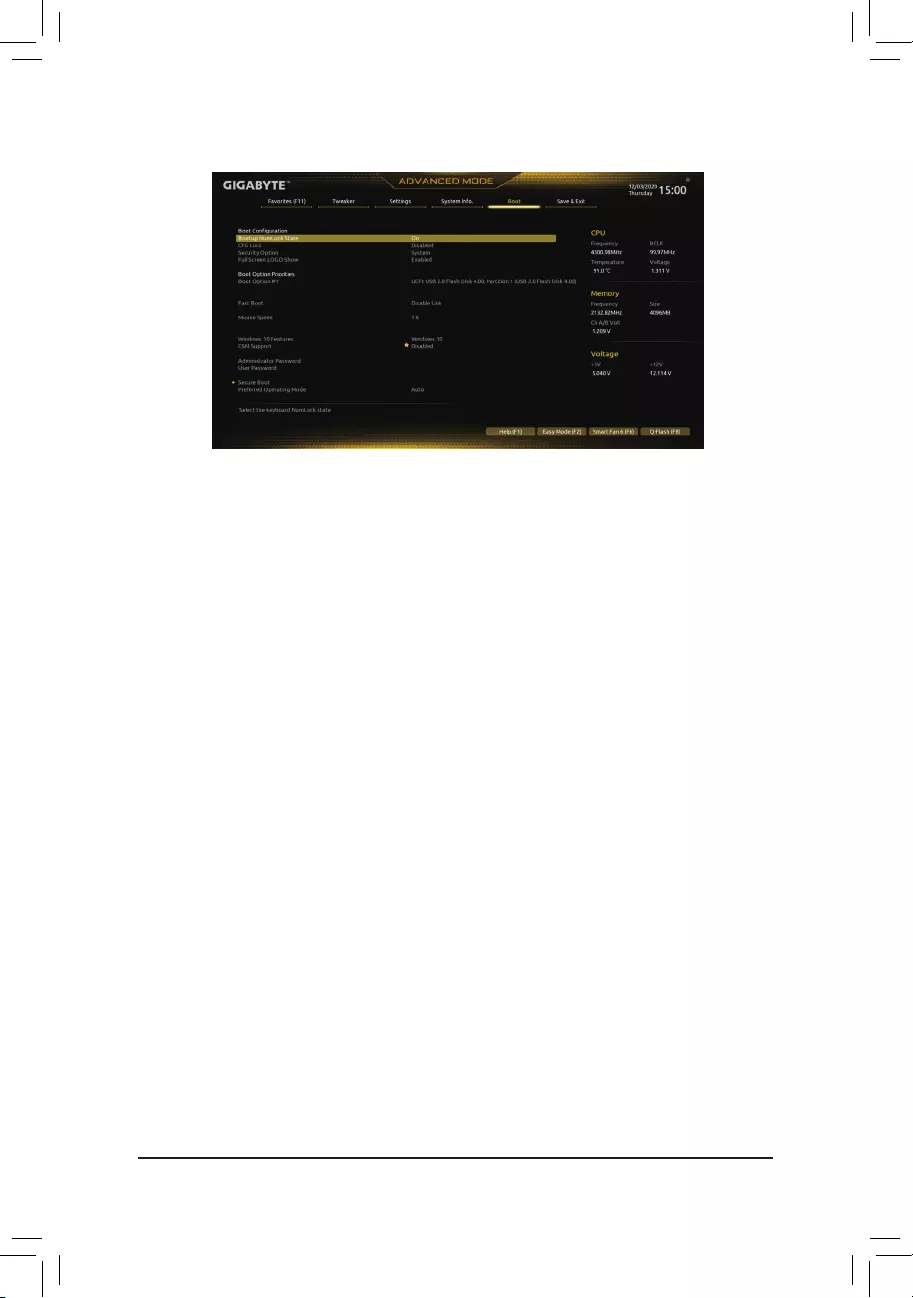
2-8 Boot
&Bootup NumLock State
EnablesordisablesNumlockfeatureonthenumerickeypadofthekeyboardafterthePOST.(Default:On)
&CFG Lock
EnablesordisablestheMSR0xE2function.(Default:Disabled)
&Security Option
Specieswhetherapasswordisrequiredeverytimethesystemboots,oronlywhenyouenterBIOSSetup.
Afterconguringthisitem,setthepassword(s)undertheAdministrator Password/User Password item.
Setup A password is only required for entering the BIOS Setup program.
System A password is required for booting the system and for entering the BIOS Setup
program.(Default)
&Full Screen LOGO Show
Allows you to determine whether to display the GIGABYTE Logo at system startup. Disabled skips the
GIGABYTELogowhenthesystemstartsup.(Default:Enabled)
&Boot Option Priorities
Speciestheoverallbootorderfromtheavailabledevices.RemovablestoragedevicesthatsupportGPT
formatwillbeprexedwith«UEFI:»stringonthebootdevicelist.Tobootfromanoperatingsystemthat
supportsGPTpartitioning,selectthedeviceprexedwith»UEFI:»string.
Or if you want to install an operating system that supports GPT partitioning such as Windows 10 64-bit,
selecttheopticaldrivethatcontainstheWindows1064-bitinstallationdiscandisprexedwith«UEFI:»
string.
&Fast Boot
Enables or disables Fast Boot to shorten the OS boot process. Ultra Fast provides the fastest bootup
speed.(Default:DisableLink)
&SATA Support
LastBootSATADevicesOnly Exceptforthepreviousbootdrive,allSATAdevicesaredisabled
beforetheOSbootprocesscompletes.(Default)
AllSATADevices AllSATAdevicesarefunctionalintheoperatingsystemandduringthePOST.
ThisitemiscongurableonlywhenFast Boot is set to Enabled or Ultra Fast.
— 40 —

&VGA Support
Allows you to select which type of operating system to boot.
Auto EnableslegacyoptionROMonly.
EFIDriver EnablesEFIoptionROM.(Default)
ThisitemiscongurableonlywhenFast Boot is set to Enabled or Ultra Fast.
&USB Support
DisableLink All USB devices are disabled before the OS boot process completes.
Full Initial All USB devices are functional in the operating system and during the POST.
(Default)
Partial Initial Part of the USB devices are disabled before the OS boot process completes.
ThisitemiscongurableonlywhenFast Boot is set to Enabled or Ultra Fast. This function is disabled
when Fast Boot is set to Ultra Fast.
&PS2 Devices Support
DisableLink AllPS/2devicesaredisabledbeforetheOSbootprocesscompletes.
Enabled All PS/2 devices are functional in the operating system and during the POST.
(Default)
ThisitemiscongurableonlywhenFast Boot is set to Enabled or Ultra Fast. This function is disabled
when Fast Boot is set to Ultra Fast.
&NetWork Stack Driver Support
DisableLink Disablesbootingfromthenetwork.(Default)
Enabled Enables booting from the network.
ThisitemiscongurableonlywhenFast Boot is set to Enabled or Ultra Fast.
&Next Boot After AC Power Loss
NormalBoot EnablesnormalbootupuponthereturnoftheACpower.(Default)
Fast Boot Keeps the Fast Boot settings upon the return of the AC power.
ThisitemiscongurableonlywhenFast Boot is set to Enabled or Ultra Fast.
&Mouse Speed
Allowsyoutosetthemousecursormovementspeed.(Default:1X)
&Windows 10 Features
Allowsyoutoselecttheoperatingsystemtobeinstalled.(Default:Windows10)
&CSM Support
Enables or disables UEFI CSM (Compatibility Support Module) to support a legacy PC boot process.
Disabled DisablesUEFICSMandsupportsUEFIBIOSbootprocessonly.(Default)
Enabled Enables UEFI CSM.
&LAN PXE Boot Option ROM
AllowsyoutoselectwhethertoenablethelegacyoptionROMfortheLANcontroller.(Default:Disabled)
ThisitemiscongurableonlywhenCSM Support is set to Enabled.
&Storage Boot Option Control
AllowsyoutoselectwhethertoenabletheUEFIorlegacyoptionROMforthestoragedevicecontroller.
Donotlaunch DisablesoptionROM.
UEFI EnablesUEFIoptionROMonly.
Legacy EnableslegacyoptionROMonly.(Default)
ThisitemiscongurableonlywhenCSM Support is set to Enabled.
— 41 —

&Other PCI devices
AllowsyoutoselectwhethertoenabletheUEFIorLegacyoptionROMforthePCIdevicecontrollerother
than the LAN, storage device, and graphics controllers.
Donotlaunch DisablesoptionROM.
UEFI EnablesUEFIoptionROMonly.(Default)
Legacy EnableslegacyoptionROMonly.
ThisitemiscongurableonlywhenCSM Support is set to Enabled.
&Administrator Password
Allowsyoutocongureanadministratorpassword.Press<Enter>onthisitem,typethepassword,and
thenpress<Enter>.Youwillberequestedtoconrmthepassword.Typethepasswordagainandpress
<Enter>.Youmustentertheadministratorpassword(oruserpassword)atsystemstartupandwhenentering
BIOSSetup.Differingfromtheuserpassword,theadministratorpasswordallowsyoutomakechangesto
all BIOS settings.
&User Password
Allowsyoutocongureauserpassword.Press<Enter>onthisitem,typethepassword,andthenpress
<Enter>.Youwillberequestedtoconrmthepassword.Typethepasswordagainandpress<Enter>.
You must enter the administrator password (or user password) at system startup and when entering BIOS
Setup. However, the user password only allows you to make changes to certain BIOS settings but not all.
Tocancelthepassword,press<Enter>onthepassworditemandwhenrequestedforthepassword,enter
thecorrectonerst.Whenpromptedforanewpassword,press<Enter>withoutenteringanypassword.
Press<Enter>againwhenpromptedtoconrm.
NOTE:BeforesettingtheUserPassword,besuretosettheAdministratorPasswordrst.
Secure Boot
AllowsyoutoenableordisableSecureBootandcongurerelatedsettings.Thisitemiscongurableonly
when CSM Support is set to Disabled.
&Preferred Operating Mode
Allows you to select whether to enter Easy mode or Advanced mode after entering BIOS Setup. Auto
enterstheBIOSmodewhereitwaslasttime.(Default:Auto)
— 42 —
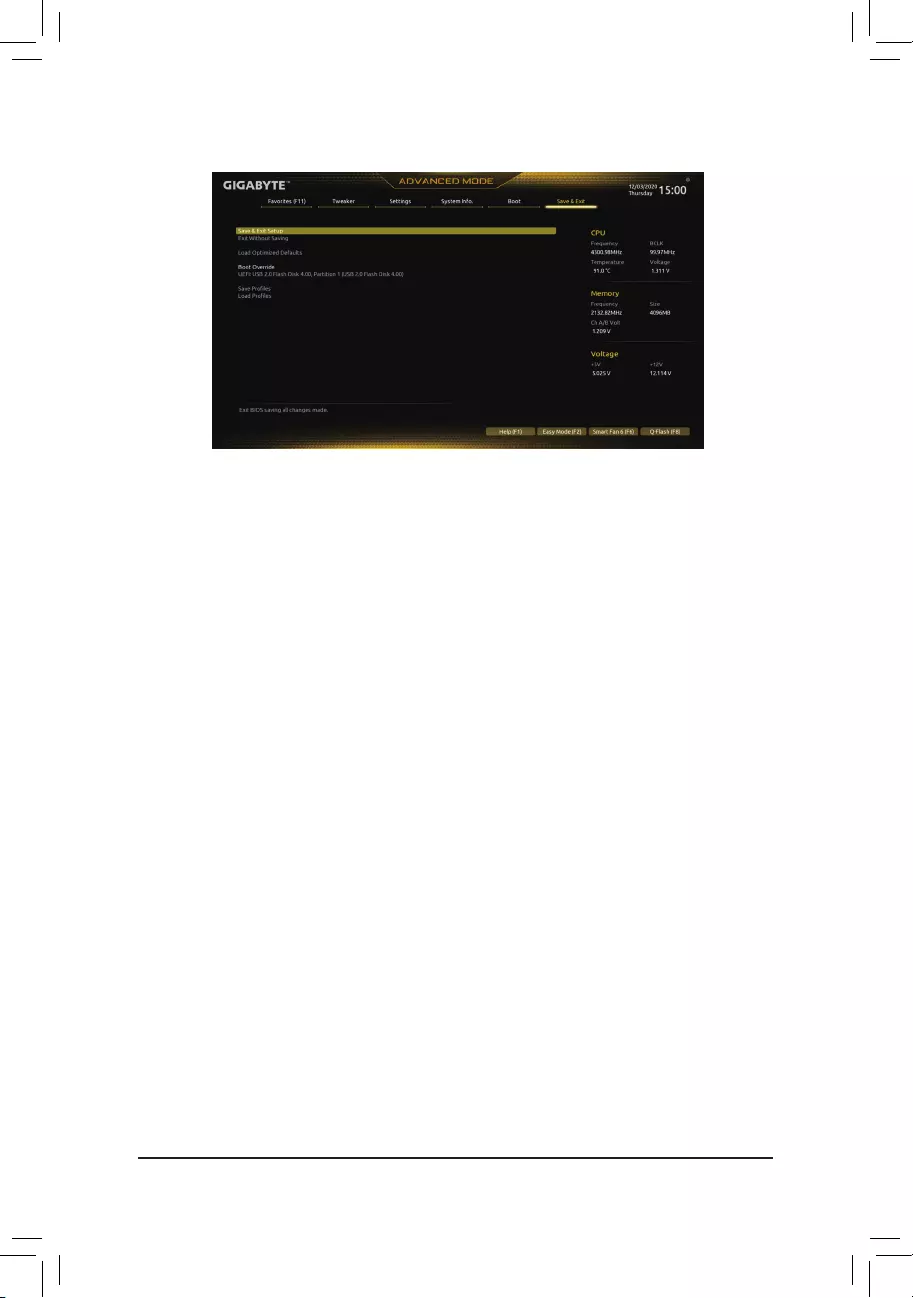
2-9 Save & Exit
&Save & Exit Setup
Press<Enter>onthisitemandselectYes. This saves the changes to the CMOS and exits the BIOS Setup
program. Select Noorpress<Esc>toreturntotheBIOSSetupMainMenu.
&Exit Without Saving
Press<Enter>onthisitemandselectYes. This exits the BIOS Setup without saving the changes made
in BIOS Setup to the CMOS. Select Noorpress<Esc>toreturntotheBIOSSetupMainMenu.
&Load Optimized Defaults
Press<Enter>onthisitemandselectYes to load the optimal BIOS default settings. The BIOS defaults
settingshelpthesystemtooperateinoptimumstate.AlwaysloadtheOptimizeddefaultsafterupdating
the BIOS or after clearing the CMOS values.
&Boot Override
Allowsyoutoselectadevicetobootimmediately.Press<Enter>onthedeviceyouselectandselectYes
toconrm.Yoursystemwillrestartautomaticallyandbootfromthatdevice.
&SaveProles
ThisfunctionallowsyoutosavethecurrentBIOSsettingstoaprole.Youcancreateupto8prolesand
saveasSetupProle1~SetupProle8.Press<Enter>tocomplete.OryoucanselectSelect File in
HDD/FDD/USBtosavetheproletoyourstoragedevice.
&LoadProles
If your system becomes unstable and you have loaded the BIOS default settings, you can use this function
toloadthe BIOSsettingsfromaprolecreatedbefore,withoutthehasslesofreconguringtheBIOS
settings.Firstselecttheproleyouwishtoloadandthenpress<Enter>tocomplete.YoucanselectSelect
File in HDD/FDD/USBtoinputtheprolepreviouslycreatedfromyourstoragedeviceorloadtheprole
automatically created by the BIOS, such as reverting the BIOS settings to the last settings that worked
properly (last known good record).
— 43 —
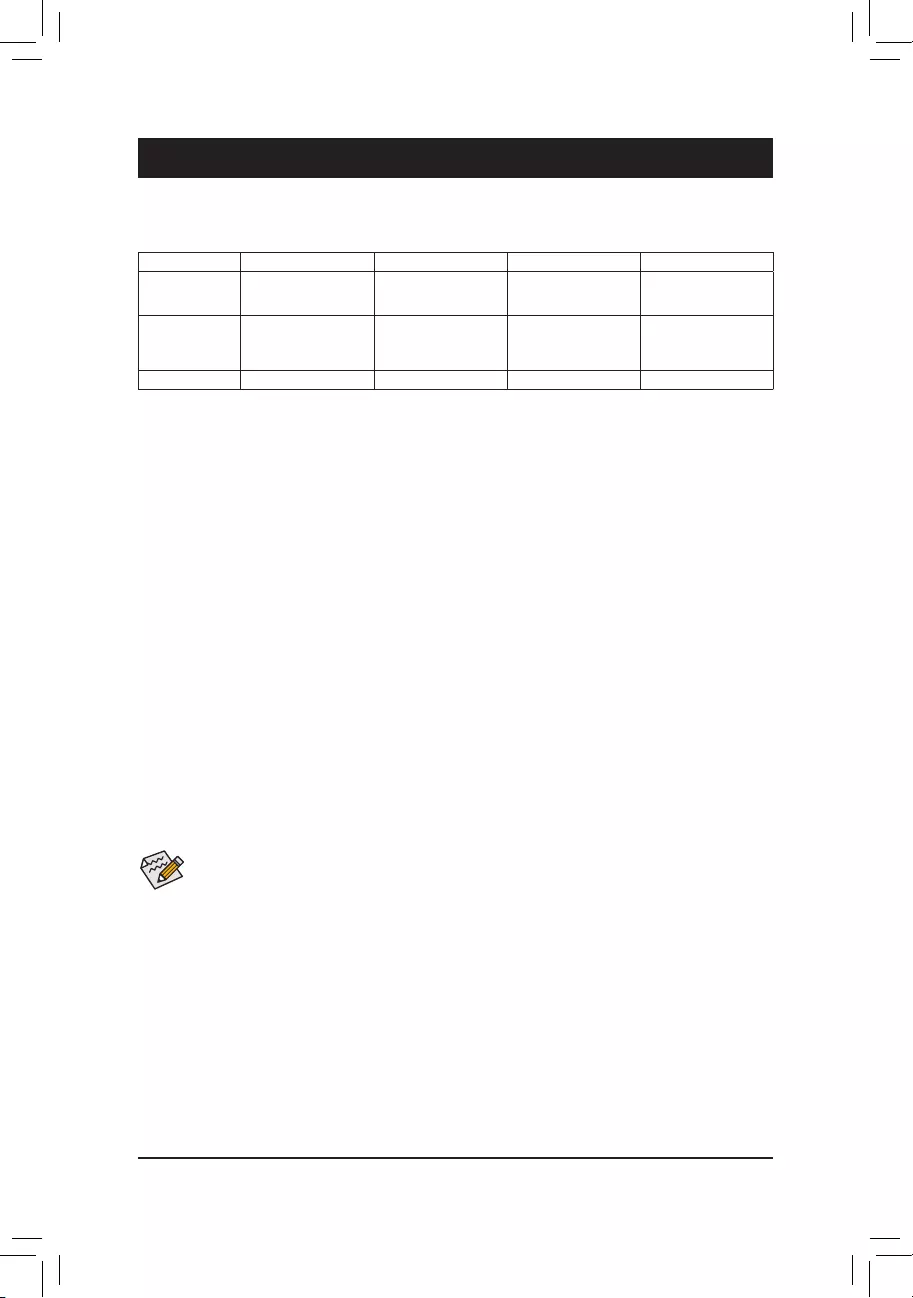
Chapter 3 Appendix
Before you begin, please prepare the following items:
•AtleasttwoSATAharddrivesorSSDs.(Note 1) (To ensure optimal performance, it is recommended that you
use two hard drives with identical model and capacity). (Note 2)
•Windows setup disc.
•Motherboard driver disc.
•A USB thumb drive.
ConguringtheOnboardSATAController
A. Installing SATA hard drive(s) in your computer
Installtheharddrives/SSDsintheIntel® Chipset controlled connectors on the motherboard. Then connect the
power connectors from your power supply to the hard drives.
B.ConguringSATAcontrollermodeinBIOSSetup
MakesuretoconguretheSATAcontrollermodecorrectlyinsystemBIOSSetup.
Steps:
Turnonyourcomputerandpress<Delete>toenterBIOSSetupduringthePOST(Power-OnSelf-Test).Goto
Settings\IOPorts\SATAAndRSTConguration, make sure SATA Controller(s)isenabled.TocreateRAID,
set SATA Mode Selection to Intel RST Premium With Intel Optane System Acceleration. Then save the
settingsandrestartyourcomputer.Note:WhenusingaPCIeSSD,makesuretosettheRST Control PCIe
Storage Devices item under Settings\IOPorts\SATAAndRSTConguration to Manual. Then depending
the M.2 connector you use, set the corresponding PCIe Storage Dev on Port XX item to RST Controlled.
Finally, save the settings and exit BIOS Setup.
3-1 ConguringaRAIDSet
RAID Levels
RAID 0 RAID 1 RAID 5 RAID 10
Minimum
Number of Hard
Drives
≥2 2≥3 4
Array Capacity
Number of hard
drives*Sizeofthe
smallest drive
Sizeofthesmallest
drive
(Number of hard
drives-1)*Sizeof
the smallest drive
(Number of hard
drives/2)*Sizeofthe
smallest drive
Fault Tolerance No Yes Yes Yes
(Note1) AnM.2PCIeSSDcannotbeusedtosetupaRAIDseteitherwithanM.2SATASSDoraSATAhard
drive.
(Note2) Referto»InternalConnectors,»fortheinstallationnoticesfortheM.2andSATAconnectors.
C.UEFIRAIDConguration
Steps:
1. After the system reboot, enter BIOS Setup again. Then enter the Settings\IO Ports\Intel(R) Rapid Storage
Technology sub-menu.
2. On the Intel(R) Rapid Storage Technologymenu,press<Enter>onCreate RAID Volume to enter the
Create RAID Volume screen. Enter a volume name with 1~16 letters (letters cannot be special characters)
under the Nameitemandpress<Enter>.Then,selectaRAIDlevel.RAIDlevelssupportedincludeRAID0,
RAID1,RAID10,andRAID5(theselectionsavailabledependonthenumberoftheharddrivesbeing
installed). Next, use the down arrow key to move to Select Disks.
The BIOS Setup menus described in this section may differ from the exact settings for your motherboard.
The actual BIOS Setup menu options you will see shall depend on the motherboard you have and
the BIOS version.
— 44 —

PleasevisitGIGABYTE’swebsitefordetailsonconguringaRAIDarray.
3. Under Select Disksitem,selecttheharddrivestobeincludedintheRAIDarray.Pressthe<Space>key
ontheharddrivestobeselected(selectedharddrivesaremarkedwith»X»).Thensetthestripeblocksize.
Thestripeblocksizecanbesetfrom4KBto128KB.Onceyouhaveselectedthestripeblocksize,setthe
volume capacity.
4. After setting the capacity, move to Create Volumeandpress<Enter>tobegin.
5. After completing, you’ll be brought back to the Intel(R) Rapid Storage Technology screen. Under RAID
VolumesyoucanseethenewRAIDvolume.Toseemoredetailedinformation,press<Enter>onthevolume
tocheckforinformationonRAIDlevel,stripeblocksize,arrayname,andarraycapacity,etc.
Install the RAID driver and operating system
With the correct BIOS settings, you are ready to install the operating system.
AssomeoperatingsystemsalreadyincludeRAIDdriver,youdonotneedtoinstallseparateRAIDdriverduring
the Windows installation process. After the operating system is installed, we recommend that you install all
requireddriversfromthemotherboarddriverdiscusing«XpressInstall»toensuresystemperformanceand
compatibility.IftheoperatingsystemtobeinstalledrequiresthatyouprovideadditionalRAIDdriverduringthe
OS installation process, please refer to the steps below:
1. Copy the IRST folder under \Boot in the driver disc to your USB thumb drive.
2. Boot from the Windows setup disc and perform standard OS installation steps. When the screen requesting
you to load the driver appears, select Browse.
3. ThenbrowsetotheUSBashdriveandselectthelocationofthedriver.Thelocationofthedriverisas
follows:\IRST\f6py-x64
4. When a screen as shown, select Intel(R) Chipset SATA/PCIe RST Premium Controller and click Next to
load the driver and continue the OS installation.
3-2 Installing Intel® Optane™ Memory and Storage Management
Steps:
1. After entering the operating system, insert the motherboard driver disc into your optical drive. On the Xpress
Install screen, select Intel® Optane™ Memory and Storage Management to install and follow the on-screen
instructions to complete the installation. When completed, restart the system.
2. After you install the included motherboard drivers, make sure your Internet connection works properly. The
system will automatically install the software from Intel®.Restartthesystemafterthedriverisinstalled.
A. Enabling an Intel® Optane™ Memory
A-1. System Requirements
1. Intel® Optane™ memory
2. The Optane™ memory must have at least 16 GB capacity, and it must have equal or smaller capacity than
theharddrive/SSDtobeaccelerated.
3. The Optane™memorycannotbeusedtoaccelerateanexistingRAIDarray;theacceleratedharddrive/SSD
cannotbeincludedinaRAIDarray.
4. Theharddrive/SSDtobeacceleratedmustbeaSATAharddriveorM.2SATASSD.
5. Theharddrive/SSDtobeacceleratedcanbeasystemdriveordatadrive.ThesystemdrivemustbeGPT
formatted and have Windows 10 64-bit (or later version) installed on it. The data drive must also be GPT
formatted.
6. The motherboard driver disc
7. TheSATAcontrollermustsetinIntelRSTPremiumWithIntelOptaneSystemAccelerationmode.
— 45 —
B. Rebuilding an Array
Rebuildingistheprocessofrestoringdatatoaharddrivefromotherdrivesinthearray.Rebuildingappliesonly
tofault-tolerantarrayssuchasRAID1,RAID5orRAID10arrays.Theproceduresbelowassumeanewdrive
isaddedtoreplaceafaileddrivetorebuildaRAID1array.(Note:Thenewdrivemusthaveequalorgreater
capacity than the old one.)
Turnoffyourcomputerandreplacethefailedharddrivewithanewone.Restartyourcomputer.Whileinthe
operating system, launch the Intel® Optane™ Memory and Storage Management utility from the Start menu.
1. Go to the Manage menu and click Rebuild to another disk in Manage Volume.
2. SelectanewdrivetorebuildtheRAIDandclickRebuild.
3. The Statusitemontherightofthescreendisplaystherebuildprogress.AftertheRAID1volumerebuilding,
the Status will display as Normal.
A-2. Installation Guidelines
1. Go to Settings\IO Ports\SATAAndRSTConguration and make sure RST Control PCIe Storage
Devices is set to Manual. Then depending on which M.2 connector you install the Optane™ memory in, set
the corresponding PCIe Storage Dev on Port XX item to RST Controlled.
2. After re-entering the operating system, launch the Intel® Optane™ Memory and Storage Management
application from the Start menu. If you install more than one Optane™ memory, please select which one
you are going to use. Then select which drive to be accelerated. Click Enable Intel® Optane™ Memory. All
data on the Optane™ memory will be erased. Make sure you back up the data before continuing. Follow the
on-screen instructions to proceed. When completed, restart the system.
3. Launch the Intel® Optane™ Memory and Storage Management application from the Start menu and make
sure the Intel® Optane™ Memory has been enabled.
4. Ifyouwanttoacceleratethesystemdrive,youcanselectspecicfolders,les,orapplicationstoaccelerate
using the Intel® Optane™ Memory Pinning function. (The Optane™ memory used must have at least
32 GB capacity.)
•An Optane™memorycannotbeusedtoaccelerateanM.2PCIeSSD.
•If more than one Optane™ memory is installed, you can select only one of them to accelerate
your SATA-based boot drive. The other(s) can only be used as data drive(s).
•DonotabruptlyremovetheOptane™memory.Doingsowillcausetheoperatingsystemtostop
functioning correctly.
•If you want to change/remove the Optane™ memory, you must disable it using the Intel® Optane™
Memory and Storage Managementapplicationrst.
•After enabling the Optane™ memory, the related BIOS settings will remain even after a BIOS
update.
— 46 —
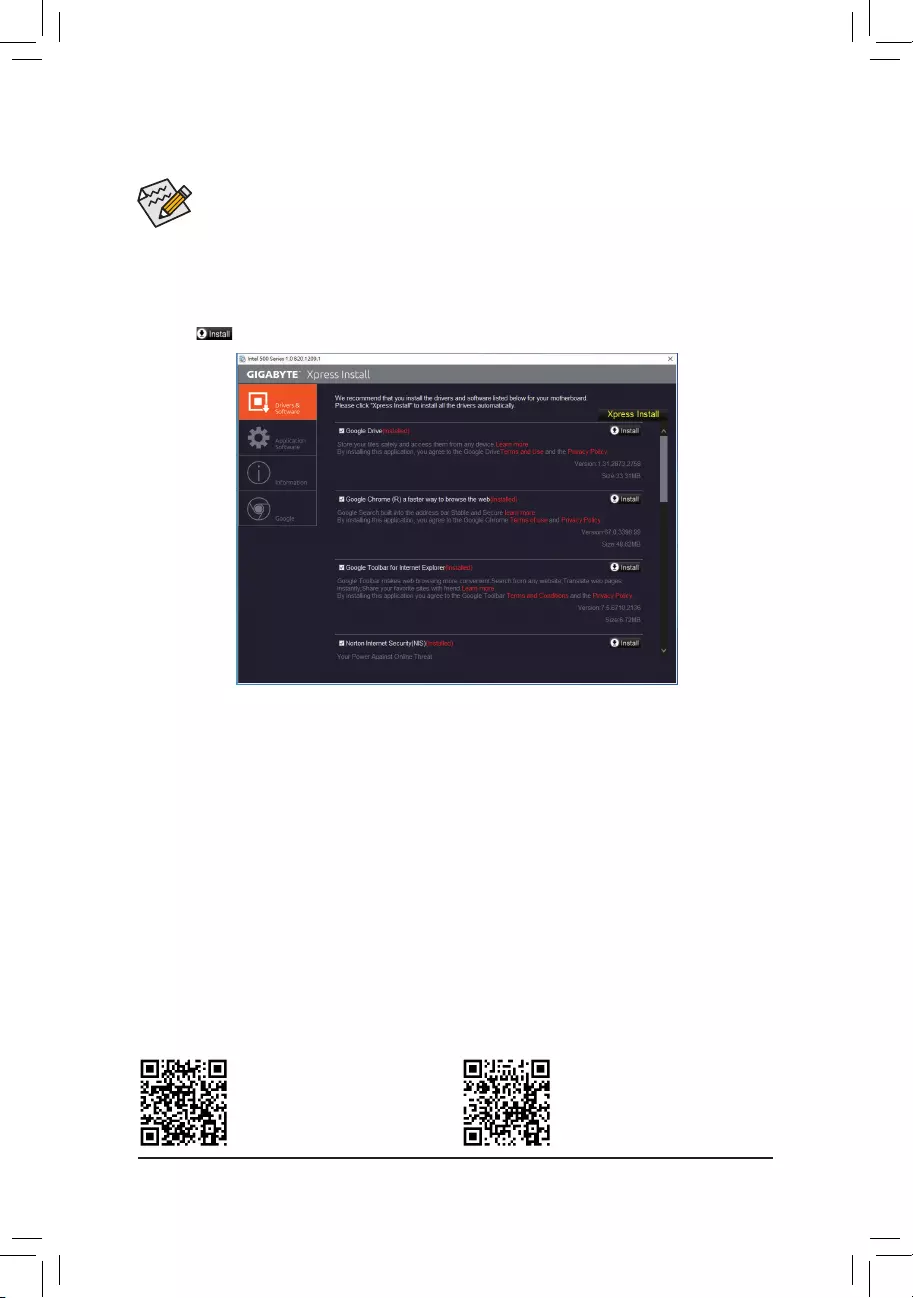
•Beforeinstallingthedrivers,rstinstalltheoperatingsystem.
•After installing the operating system, insert the motherboard driver disc into your optical drive. Click
onthemessage»Taptochoosewhathappenswiththisdisc»onthetop-rightcornerofthescreen
andselect»RunRun.exe.»(OrgotoMyComputer,double-clicktheopticaldriveandexecutethe
Run.exeprogram.)
«XpressInstall»willautomaticallyscanyoursystemandthenlistallofthedriversthatarerecommendedto
install. You can click the Xpress Installbuttonand«XpressInstall»willinstallalloftheselecteddrivers.Orclick
the arrow icon to individually install the drivers you need.
3-3 Drivers Installation
Please visit GIGABYTE’s website for
more software information.
Please visit GIGABYTE’s website for
more troubleshooting information.
— 47 —
Supplier’s Declaration of Conformity
47 CFR § 2.1077 Compliance Information
Product Name: Motherboard
Trade Name: GIGABYTE
Model Number: Z590 GAMING X AX/Z590 GAMING X
Responsible Party – U.S. Contact Information: G.B.T. Inc.
Address: 17358 Railroad street, City Of Industry, CA91748
Tel.: 1-626-854-9338
Internet contact information: https://www.gigabyte.com
FCC Compliance Statement:
This device complies with Part 15 of the FCC Rules, Subpart B, Unintentional Radiators.
Operation is subject to the following two conditions: (1) This device may not cause harmful interference, and (2) this
device must accept any interference received, including interference that may cause undesired operation.
Antenna use:
Inordertocomplywith FCCRFexposure limits,lowgainintegrated
antennas should be located at a minimum distance of 7.9 inches (20
cm) or more from the body of all persons.
Explosive Device Proximity Warning
Warning: Do not operate a portable transmitter (such as awireless
network device) near unshielded blasting caps or in an explosive
environmentunless thedevice hasbeen modiedto bequalied for
such use.
Antenna Warning
The wireless adapter is not designed for use with high-gain antennas.
Use On Aircraft Caution
Caution:RegulationsoftheFCCandFAAprohibitairborneoperationof
radio-frequency wireless devices because their signals could interfere
with critical aircraft instruments.
Other Wireless Devices
SafetyNoticesforOtherDevicesintheWirelessNetwork:Refertothe
documentation supplied with wireless Ethernet adapters or other devices
in the wireless network.
Canada, Canada-Industry Notice:
Thisdevicecomplies withIndustryCanada license-exemptRSS
standard(s). Operation is subject to the following two conditions:
(1) this device may not cause interference, and
(2) this device must accept any interference, including interference that
may cause undesired operation of the device.
Cetappareilest conformeauxnormes Canada d’Industriede RSS
permis-exempt. L’utilisation est assujetti aux deux conditions suivantes:
(1) le dispositif ne doit pas produire de brouillage préjudiciable, et
(2) ce dispositif doit accepter tout brouillage reçu, y compris un brouillage
susceptible de provoquer un fonctionnement indésirable.
Caution: When using IEEE 802.11a wireless LAN, this product is
restrictedtoindoor usedueto itsoperation in the5.15-to 5.25-GHz
frequency range. Industry Canada requires this product to be used
indoorsforthefrequencyrangeof5.15GHzto5.25GHztoreducethe
potential for harmful interference to co-channel mobile satellite systems.
Highpowerradarisallocatedastheprimaryuserofthe5.25-to5.35-GHz
and5.65to5.85-GHzbands.Theseradarstationscancauseinterference
with and/or damage to this device. The maximum allowed antenna gain
forusewiththisdeviceis6dBiinordertocomplywiththeE.I.R.Plimitfor
the5.25-to5.35and5.725to5.85GHzfrequencyrangeinpoint-to-point
operation.TocomplywithRFexposurerequirementsallantennasshould
be located at a minimum distance of 20cm, or the minimum separation
distance allowed by the module approval, from the body of all persons.
Attention:l’utilisationd’unréseausanslIEEE802.11aestrestreinteà
uneutilisationenintérieuràcausedufonctionnementdanslabandede
fréquence5.15-5.25GHz.IndustryCanadarequiertqueceproduitsoit
utiliséàl’intérieurdesbâtimentspourlabandedefréquence5.15-5.25
GHzanderéduirelespossibilitésd’interférencesnuisiblesauxcanaux
co-existants des systèmes de transmission satellites. Les radars de
puissances ont fait l’objet d’une allocation primaire de fréquences dans
lesbandes5.25-5.35GHzet5.65-5.85GHz.Cesstationsradarpeuvent
créer des interférences avec ce produit et/ou lui être nuisible. Le gain
d’antenne maximum permissible pour une utilisation avec ce produit
estde6dBiand’êtreconformeauxlimitesdepuissanceisotropique
rayonnéeéquivalente(P.I.R.E.)applicable.
danslesbandes5.25-5.35GHzet5.725-5.85GHzenfonctionnement
point-à-point.Pourseconformerauxconditionsd’expositiondeRFtoutes
lesantennesdevraientêtrelocaliséesàunedistanceminimumde20
cm, ou la distance de séparation minimum permise par l’approbation
du module, du corps de toutes les personnes.
Regulatory Notices
United States of America, Federal Communications Commission Statement
TheFCCwithitsactioninETDocket96-8hasadoptedasafetystandardforhumanexposuretoradiofrequency(RF)electromagneticenergy
emittedbyFCCcertiedequipment.TheIntelPRO/Wireless5000LANproductsmeettheHumanExposurelimitsfoundinOETBulletin65,2001,
and ANSI/IEEE C95.1, 1992. Proper operation of this radio according to the instructions found in this manual will result in exposure substantially
below the FCC’s recommended limits.
The following safety precautions should be observed:
•Donottouchormoveantennawhiletheunitistransmittingorreceiving.
•Donotholdanycomponentcontainingtheradiosuchthattheantennaisverycloseortouchinganyexposedpartsofthebody,especiallythe
face or eyes, while transmitting.
•Donotoperatetheradioorattempttotransmitdataunlesstheantennaisconnected;ifnot,theradiomaybedamaged.
•Useinspecicenvironments:
- Theuseofwirelessdevicesinhazardouslocationsislimitedbytheconstraintsposedbythesafetydirectorsofsuchenvironments.
— The use of wireless devices on airplanes is governed by the Federal Aviation Administration (FAA).
— The use of wireless devices in hospitals is restricted to the limits set forth by each hospital.
— 48 —
European Union (EU) CE Declaration of Conformity
This device complies with the following directives: Electromagnetic
CompatibilityDirective2014/30/EU,Low-voltageDirective2014/35/EU,
RadioEquipmentDirective2014/53/EU,ErPDirective2009/125/EC,RoHS
directive (recast) 2011/65/EU & the 2015/863 Statement.
This product has been tested and found to comply with all essential
requirementsoftheDirectives.
European Union (EU) RoHS (recast) Directive 2011/65/EU & the
European Commission Delegated Directive (EU) 2015/863 Statement
GIGABYTEproductshavenotintendedtoaddandsafefromhazardous
substances(Cd,Pb,Hg,Cr+6,PBDE,PBB,DEHP,BBP,DBPandDIBP).
ThepartsandcomponentshavebeencarefullyselectedtomeetRoHS
requirement. Moreover, we at GIGABYTE are continuing our efforts to
develop products that do not use internationally banned toxic chemicals.
European Union (EU) Community Waste Electrical & Electronic
Equipment (WEEE) Directive Statement
GIGABYTEwillfulllthenationallawsasinterpretedfromthe2012/19/
EU WEEE (Waste Electrical and Electronic Equipment) (recast) directive.
The WEEE Directive species the treatment, collection, recycling and
disposal of electric and electronic devices and their components. Under
theDirective,usedequipmentmustbemarked,collectedseparately,and
disposed of properly.
WEEE Symbol Statement
The symbol shown below is on the product or on its
packaging, which indicates that this product must not be
disposed of with other waste. Instead, the device should be
taken to the waste collection centers for activation of the
treatment, collection, recycling and disposal procedure.
For more information about where you can drop off your waste equipment
forrecycling,pleasecontactyourlocalgovernmentofce,yourhousehold
waste disposal service or where you purchased the product for details of
environmentally safe recycling.
End of Life Directives-Recycling
The symbol shown below is on the product or on its packaging,
which indicates that this product must not be disposed of with
other waste. Instead, the device should be taken to the waste
collection centers for activation of the treatment, collection,
recycling and disposal procedure.
Déclaration de Conformité aux Directives de l’Union européenne (UE)
Cet appareil portant la marque CE est conforme aux directives de l’UE
suivantes: directive Compatibilité Electromagnétique 2014/30/UE, directive
Basse Tension 2014/35/UE, directive équipements radioélectriques
2014/53/UE,ladirectiveRoHSII2011/65/UE&ladéclaration2015/863.
Laconformitéà cesdirectivesest évaluéesurla basedesnormes
européennes harmonisées applicables.
European Union (EU) CE-Konformitätserklärung
DiesesProduktemitCE-KennzeichnungerfüllenfolgendenEU-Richtlinien:
EMV-Richtlinie2014/30/EU,Niederspannungsrichtlinie 2014/35/EU,
FunkanlagenRichtlinie2014/53/EU,RoHS-Richtlinie2011/65/EUerfüllt
und die 2015/863 Erklärung.
DieKonformitätmit diesen Richtlinienwird unter Verwendungder
entsprechendenStandardszurEuropäischenNormierungbeurteilt.
CE declaração de conformidade
Este produto com a marcação CE estão em conformidade com das
seguintesDiretivasUE: DiretivaBaixaTensão2014/35/EU; Diretiva
CEM2014/30/EU;DiretivaRSP2011/65/UEeadeclaração2015/863.
A conformidade com estas diretivas é vericada utilizando as normas
europeiasharmonizadas.
CE Declaración de conformidad
Este producto que llevan la marca CE cumplen con las siguientes
DirectivasdelaUniónEuropea:DirectivaEMC2014/30/EU,Directivade
bajovoltaje2014/35/EU,Directivadeequipamentosderádio2014/53/EU,
DirectivaRoHS2011/65/EUylaDeclaración2015/863.
El cumplimiento de estas directivas se evalúa mediante las normas
europeasarmonizadas.
CE Dichiarazione di conformità
I prodotti con il marchio CE sono conformi con una o più delle seguenti
DirettiveUE,comeapplicabile:DirettivaEMC2014/30/UE,Direttivasulla
bassatensione2014/35/UE,Direttivadiapparecchiatureradio2014/53/
UE,DirettivaRoHS2011/65/EUeDichiarazione2015/863.
La conformità con tali direttive viene valutata utilizzando gli Standard
europeiarmonizzatiapplicabili.
DeklaracjazgodnościUEUniiEuropejskiej
Urządzeniejestzgodne z następującymidyrektywami: Dyrektywa
kompatybilnościelektromagnetycznej2014/30/UE, Dyrektywa
niskonapięciowej2014/35/UE,Dyrektywaurządzeńradiowych2014/53/
UE,DyrektywaRoHS2011/65/UEidyrektywa2015/863.
Niniejszeurządzeniezostałopoddanetestomistwierdzonojegozgodność
zwymaganiamidyrektywy.
ESProhlášeníoshodě
Toto zařízenísplňujepožadavky SměrniceoElektromagnetické
kompatibilitě 2014/30/EU, Směrnice o Nízkém napětí 2014/35/EU,
Směrniceorádiovýchzařízeních2014/53/EU,SměrniceRoHS2011/65/
EU a 2015/863.
Tentoproduktbyltestovánabyloshledáno,žesplňujevšechnyzákladní
požadavkysměrnic.
EKmegfelelőséginyilatkozata
A termék megfelelnek az alábbi irányelvek és szabványok
követelményeinek, azok a kiállításidőpontjában érvényes, aktuális
változatában:EMCirányelv 2014/30/EU, Kisfeszültségűvillamos
berendezésekrevonatkozóirányelv 2014/35/EU,rádióberendezések
irányelv2014/53/EU,RoHSirányelv2011/65/EUés2015/863.
ΔήλωσησυμμόρφωσηςΕΕ
Είναισεσυμμόρφωση με τιςδιατάξεις των παρακάτωΟδηγιών
τηςΕυρωπαϊκήςΚοινότητας: Οδηγία2014/30/ΕΕσχετικά μετην
ηλεκτρομαγνητικήσυμβατότητα,Οοδηγία χαμηλήτάση2014/35/EU,
Οδηγία2014/53/ΕΕσε ραδιοεξοπλισμό,ΟδηγίαRoHS 2011/65/ΕΕ
και2015/863.
Ησυμμόρφωσημεαυτέςτιςοδηγίεςαξιολογείταιχρησιμοποιώνταςτα
ισχύονταεναρμονισμέναευρωπαϊκάπρότυπα.
Under Industry Canada regulations, this radio transmitter may only operate
using an antenna of a type and maximum (or lesser) gain approved for
the transmitter by Industry Canada. To reduce potential radio interference
to other users, the antenna type and its gain should be chosen so that
the equivalent isotropically radiated power (e.i.r.p.) is not more than that
necessary for successful communication.
Conformémentàlaréglementationd’IndustrieCanada,leprésentémetteur
radio peut fonctionner avec une antenne d’un type et d’un gain maximal
(ouinférieur)approuvé pour l’émetteurpar Industrie Canada.Dansle
butderéduirelesrisquesdebrouillageradioélectriqueàl’intentiondes
autres utilisateurs, il faut choisir le type d’antenne et son gain de sorte
que la puissance isotrope rayonnée équivalente (p.i.r.e.) ne dépasse pas
l’intensiténécessaireàl’établissementd’unecommunicationsatisfaisante.
— 49 —
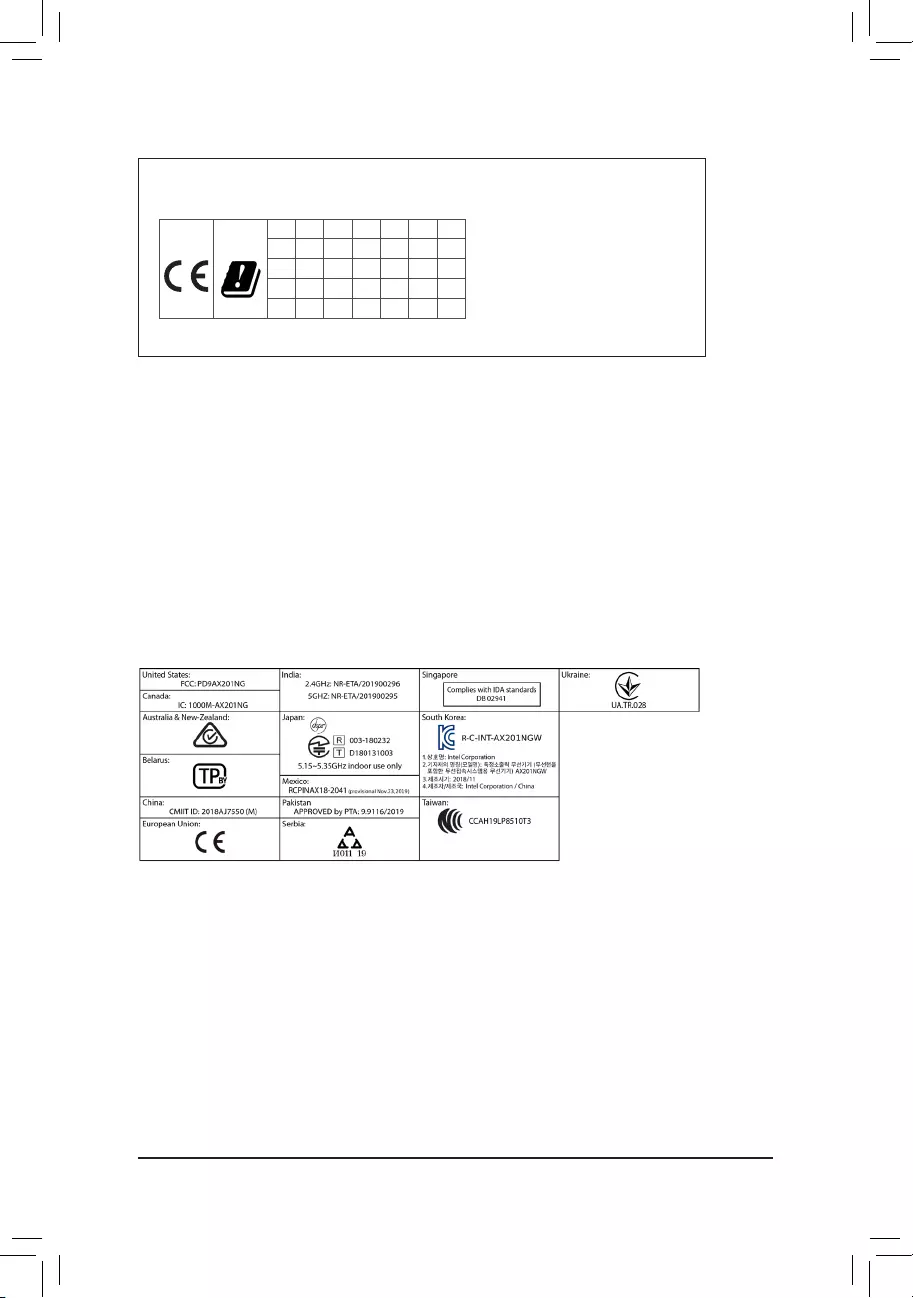
European Community Directive R&TTE Directive Compliance Statement:
ThisequipmentcomplieswithalltherequirementsandotherrelevantprovisionsofRadioEquipmentDirective2014/53/EU.
ThisequipmentissuitableforhomeandofceuseinalltheEuropeanCommunityMemberStatesandEFTAMemberStates.
Thelowband5.15-5.35GHzisforindooruseonly.
AT BE BG CH CY CZ DE
DK EE EL ES FI FR HR
HU IE IS IT LI LT LU
LV MT NL PL PT RO SE
SI SK TR UK
Wireless module manufacturer: Intel® Corporation SAS
Wireless module model name: AX201NGW
Taiwan NCC Wireless Statements / 無線設備警告聲明:
低功率電波輻射性電機管理辦法
第十二條: 經型式認證合格之低功率射頻電機,非經許可,公司、商號或使用者均不得擅自變更頻率、加大功率或變更
原設計之特性及功能。
第十四條: 低功率射頻電機之使用不得影響飛航安全及干擾合法通信;經發現有干擾現象時,應立即停用,並改善至無
干擾時方得繼續使用。前項合法通信,指依電信法規定作業之無線電通信。低功率射頻電機須忍受合法通信
或工業、科學及醫療用電波輻射性電機設備之干擾。
在5.25-5.35 秭赫頻帶內操作之無線資訊傳輸設備,限於室內使用。
Korea KCC NCC Wireless Statement:
5,25GHz-5,35GHz대역을 사용하는 무선 장치는 실내에서만 사용하도록 제한됩니다。
Japan Wireless Statement:
5.15GHz帯~5.35GHz帯: 屋内のみの使用。
Wireless module country approvals:
Wireless module manufacturer: Intel® Corporation
Wireless module model name: AX201NGW
— 50 —

— 51 —
•GIGABYTE eSupport
To submit a technical or non-technical (Sales/Marketing) question, please link to:
https://esupport.gigabyte.com
Contact Us
GIGA-BYTE TECHNOLOGY CO., LTD.
Address:No.6,BaoqiangRd.,XindianDist.,NewTaipeiCity231,Taiwan
TEL: +886-2-8912-4000, FAX: +886-2-8912-4005
Tech. and Non-Tech. Support (Sales/Marketing) : https://esupport.gigabyte.com
WEB address (English): https://www.gigabyte.com
WEB address (Chinese): https://www.gigabyte.com/tw
— 52 —
На чтение5 мин
Опубликовано
Обновлено
Материнская плата Z590 Gaming X Gigabyte является одной из наиболее популярных моделей среди геймеров и энтузиастов. Сочетая в себе мощность и функциональность, она предлагает широкий спектр возможностей для настройки и оптимизации системы.
При подготовке к использованию материнской платы Z590 Gaming X Gigabyte, необходимо учесть несколько факторов. Во-первых, рекомендуется обновить биос до последней версии, чтобы получить доступ ко всем функциям и исправлениям ошибок. Во-вторых, следует правильно настроить параметры работы системы, чтобы достичь оптимальной производительности.
Для настройки материнской платы Z590 Gaming X Gigabyte рекомендуется использовать специальное программное обеспечение, предоставляемое производителем. Оно позволяет управлять параметрами разгона процессора, настраивать систему охлаждения, контролировать работу вентиляторов и другие важные функции.
Кроме того, стоит обратить внимание на подключение периферийных устройств к материнской плате. Z590 Gaming X Gigabyte предлагает широкие возможности для расширения системы: слоты PCI-E, порты USB, разъемы M.2 и другие. Важно правильно подключить все устройства и настроить их работу в соответствии с требованиями и предпочтениями пользователя.
Z590 Gaming X Gigabyte: настройка и оптимизация
Материнская плата Z590 Gaming X Gigabyte обладает большими возможностями настройки и оптимизации, которые позволяют максимально использовать возможности вашего компьютера. В этом разделе мы рассмотрим основные шаги по настройке и оптимизации данной материнской платы.
- Установите последнюю версию BIOS. Обновление BIOS может исправить ошибки, улучшить совместимость с оборудованием и увеличить производительность системы. Для обновления BIOS вы можете посетить официальный веб-сайт Gigabyte и загрузить последнюю версию BIOS для вашей модели материнской платы.
- Настройте параметры питания. В BIOS вы можете настроить различные параметры питания, такие как режим работы процессора (разгон или стандартный режим), регуляторы напряжения и температуры. Рекомендуется ознакомиться с руководством пользователя и выполнить настройки в соответствии с вашими потребностями и требованиями.
- Оптимизируйте память. В BIOS вы можете настроить параметры работы памяти, такие как тактовая частота, тайминги и напряжение. Рекомендуется ознакомиться с рекомендациями производителя памяти и выполнить настройки в соответствии с их рекомендациями для достижения максимальной производительности.
- Настройте параметры графики. Если у вас есть дискретная видеокарта, вы можете настроить параметры графики в BIOS. Некоторые материнские платы Gigabyte позволяют настраивать такие параметры, как частота шины PCI-E и уровень работы графического ядра. Вы можете также использовать специальные утилиты Gigabyte для оптимизации работы графики.
- Настройте систему охлаждения. В BIOS вы можете настроить параметры работы системы охлаждения, такие как обороты вентиляторов и температурные пороги. Регуляция системы охлаждения может помочь в поддержании низкой температуры компонентов и увеличении их долговечности.
Это лишь некоторые основные шаги по настройке и оптимизации материнской платы Z590 Gaming X Gigabyte. Конфигурация вашей системы и ваши потребности могут потребовать дополнительных настроек. Рекомендуется ознакомиться с руководством пользователя и другими источниками информации, чтобы получить более подробные инструкции и рекомендации по настройке и оптимизации вашей системы.
Шаги по настройке Z590 Gaming X Gigabyte
Настройка материнской платы Z590 Gaming X Gigabyte может показаться сложной задачей для новичков, но с правильными инструкциями и рекомендациями все становится намного проще. Вот некоторые важные шаги и советы, которые помогут вам настроить вашу материнскую плату:
- Установка процессора: Внимательно прочитайте руководство пользователя, чтобы правильно установить процессор на материнскую плату. Обратите внимание на правильное выравнивание и установку разъема процессора.
- Установка оперативной памяти: Убедитесь, что оперативная память правильно вставлена в соответствующие слоты на материнской плате. Проверьте совместимость оперативной памяти с материнской платой.
- Подключение кабелей: Правильно подключите все необходимые кабели, включая питание процессора, питание системы, кабель USB, HDMI и другие внутренние и внешние устройства.
- Обновление BIOS: После установки материнской платы рекомендуется обновить BIOS до последней версии. Проверьте официальный сайт Gigabyte для загрузки последней версии BIOS и следуйте инструкциям по обновлению.
- Настройка BIOS: Запустите компьютер и войдите в BIOS, нажав соответствующую клавишу при запуске системы. В BIOS вы можете настроить различные параметры, такие как порядок загрузки, настройки памяти, разгон и др.
- Установка драйверов: Установите все необходимые драйверы и программное обеспечение, предоставляемые Gigabyte, с официального сайта. Это поможет обеспечить оптимальную работу вашей материнской платы и подключенных устройств.
Помните, что эти шаги являются общими рекомендациями и могут быть немного отличаться в зависимости от конкретной конфигурации вашей системы. Всегда обращайтесь к руководству пользователя и официальному сайту Gigabyte для получения подробной информации о настройке вашей материнской платы Z590 Gaming X Gigabyte.
Советы по оптимизации производительности
Для достижения максимальной производительности на материнской плате Z590 Gaming X от Gigabyte рекомендуется следовать некоторым частным советам:
1. Обновите BIOS:
Проверьте версию BIOS на вашей материнской плате и убедитесь в том, что она находится на последней доступной версии. Биос-обновления могут содержать исправления ошибок и улучшения производительности.
2. Установите оптимальные настройки BIOS:
Настройте BIOS чтобы получить оптимальную производительность. Важные параметры включают режимы работы CPU, настройки памяти, разгон и энергосбережение. Следуйте рекомендациям производителя и проведите некоторые тесты стабильности после изменения настроек.
3. Разгоните процессор:
При необходимости можно разогнать процессор для повышения его производительности. Это может быть осуществлено через BIOS вручную или автоматически с помощью инструментов разгона от производителя материнской платы.
4. Оптимизируйте настройки памяти:
Настройте память для достижения высокой скорости и стабильной работы. Убедитесь, что память работает на рекомендуемой частоте и таймингах. Также рекомендуется включить режим XMP, если он поддерживается.
5. Охладите систему:
Используйте эффективный системный охлаждение для того, чтобы сохранить низкую температуру работы компонентов, особенно процессора и графической карты. Это поможет предотвратить перегрев и снижение производительности.
6. Оптимизируйте программное обеспечение:
Закройте фоновые программы и процессы, которые не используются, для увеличения доступной системной памяти и процессорной мощности. Удалите ненужное или устаревшее программное обеспечение, которое может негативно влиять на производительность.
7. Драйверы и обновления:
Убедитесь, что у вас установлены последние версии драйверов для всех компонентов, включая видеокарту, звуковую карту и сетевые адаптеры. Также регулярно проверяйте наличие обновлений для операционной системы и другого системного ПО.
8. Система охлаждения:
Имеет значение как монтировать систему охлаждения. Обратитесь к руководству по установке и убедитесь, что кулеры установлены в соответствии с рекомендациями производителя. Обеспечьте хороший приток свежего воздуха и правильную вентиляцию внутри корпуса.
| Советы: |
|---|
| • Регулярно очищайте систему от пыли и грязи, чтобы поддерживать оптимальные температуры. |
| • Включите файл подкачки для обеспечения достаточного объема виртуальной памяти. |
| • Постоянно следите за температурой и производительностью системы с помощью специализированного ПО. |
| • Подключите компьютер к надежному и стабильному источнику питания. |
Будучи последовательными в выполнении этих советов, вы сможете максимизировать производительность вашей материнской платы Z590 Gaming X Gigabyte.
Современная игровая платформа, безусловно — это настольный компьютер, с полноценной материнской платой, мощным блоком питания и крутой видеокартой, много оперативки и современные быстрые SSD накопители! Но база любого ПК — это даже не процессор, это материнская плата.
Сегодня я представлю именно такую интересную матплату на сокете LGA1200. Хотя это все еще бюджетный уровень материнских плат, стоит она у нас в Алма-Ате. от 76 тысяч тенге, и до 115-120 тысяч. вот такой разброс цен.
Эта матплата описана в интернете, поэтому здесь я не буду повторяться. И не буду описывать то, что не играет особой роли, типа коробка, комплектация, или — «ой какие красивые штучки!».
На плате уже установлен процессор и кулер башенного типа от Aero Cool. Два модуля памяти — Kingston KF426C16BBAK2/16 — их описание читайте по ссылке. Установлен SSD Kingston NV1 SNVS/500G — также его описание читайте по ссылке. Ну и заодно — все это было упаковано в корпус Aero Cool Cylon — его я также опишу отдельно.
Шесть SATA разъемов. 24-контактный разъем питания. эти вот полосатые штучки — они светятся. Четыре слота под память DDR4, максимум 128 Гб.
А вот матплата с другого ракурса. Здесь два слота PCI Express x16, нижний работает в режиме х4. Два коротких PCI Express x1. Ниже батарейки в слот M.2 вставлен SSD накопитель. есть еще два — они «спрятаны» под эти две накладки, которые просто декорация. Вправо видим алюминиевый радиатор на чипсете. А по левому краю — три важные микросхемы: аудиокодек, сетевой контроллер, и Super I/O контроллер. А выше, влево от процессорного кулера непонятная конструкция — это радиатор, охлаждающий МОСФЕТы питания CPU. И пластмассовый кронштейн — просто «для красоты».
По нижнему краю платы много разных разъемов. аудио для передней панели на корпусе, всякие подсветки. Разъем для внешней планки с COM-портом. Разъем для SPI TPM — бесполезное устройство, но с выходом Windows 11 без него никак. но покупать модуль TPM надо отдельно. Два разъема под четыре USB2.0 порта передней панели. на плате есть разъем и для дополнительных USB3.0 — в общем, а как иначе? В правом углу место для подключения индикаторов и кнопок передней панели.
Здесь же есть кнопка Q-Flash Plus и вот что это такое: BIOS этой материнской платы можно прошивать по-разному, в том числе и без установленного процессора. А правильнее — к матплате должно быть только подключено питание, и больше ничего. Надо заранее подготовить флешку и закинуть на нее прошивку БИОС. Эту флешку втыкаем в специальный USB разъем на задней панели — он выделен красным цветом. Затем нажимаем эту кнопку. Иной раз эта функция нужна.
Это верхняя часть матплаты, здесь два разъема дополнительного питания 4+8. но все работает, если подключить 2 обычных 4-контактных разъема. Также здесь подключается дополнительный вентилятор. И процессорный кулер. а также всякие подсветки. Вообще, этим гламурным подсветкам уделено через чур много внимания!
Разворачиваем матплату, внешние разъемы и здесь: один универсальный разъем PS/2 — можно подключить клавиатуру или мышь. тут же два «черных» разъема USB2.0 и потом один USB3.2 Type-C, затем разъем DP — DisplayPort (к сожалению, нет HDMI и DVI), потом шесть USB3.2 (один из них красный и подписан BIOS, о чем говорил ранее), затем сетевой разъем LAN 2.5G. И шесть аудиоразъемов.
Переворачиваем матплату, здесь ничего интересного — пусто. темно-коричневые цвета, и вот такая пластмассовая конструкция по ту сторону процессорного разъема. Это крестовина от кулера Aero Cool. под ней обычная стальная пластина.
Изначально было несколько проблем с этой матплатой, о них я расскажу во второй части статьи — где будут описаны настройки BIOS-UEFI, и описан процесс установки ОС.
· Опубликовал Bulgakov-1998 February 05 2022 · В Материнские платы · 1 Комментарий · 2952 Прочтений ·
Вы не зарегистрированы?
Нажмите здесь для регистрации.
Забыли пароль?
Запросите новый здесь.
Источник
Настройка BIOS на материнских платах Gigabyte

- Видео инструкция
- Настраиваем БИОС Гигабайт
- Настройки RAM
- Параметры GPU
- Настройка вращения кулеров
- Оповещения о перегреве
- Настройки загрузки
- Сохранение настроек
- Вопросы и ответы
Многие пользователи, которые самостоятельно собирают себе компьютер, часто выбирают в качестве материнской платы продукцию компании Gigabyte. После сборки компьютера необходимо соответствующим образом настроить BIOS, и сегодня мы хотим познакомить вас с этой процедурой для рассматриваемых «материнок».
Настраиваем БИОС Гигабайт
Первое, с чего стоит начать процесс настройки – вход в режим низкоуровневого управления платой. На современных «материнках» указанного производителя за вход в БИОС отвечает клавиша Del. Её следует нажимать в момент после включения компьютера и появления заставки.
Читайте также: Как войти в BIOS на компьютере
После загрузки в BIOS вы можете наблюдать следующую картину.
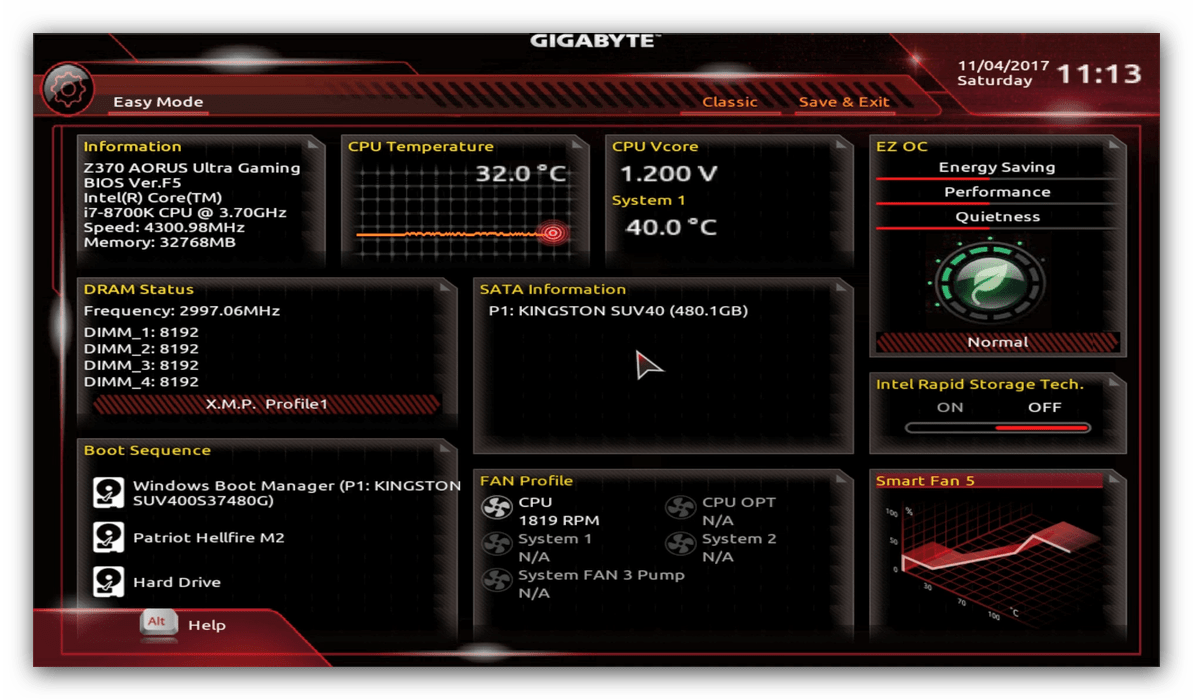
Как видите, производитель использует UEFI, как более безопасный и удобный для пользователя вариант. Вся инструкция далее будет ориентирована именно на UEFI-вариант.
Первое, что нужно сконфигурировать в параметрах БИОСа – тайминги оперативной памяти. Из-за неправильно установленных настроек компьютер может работать некорректно поэтому внимательно следуйте инструкции далее:
Из главного меню перейдите к параметру «Advanced Memory Settings», расположенному на вкладке «M.I.T».
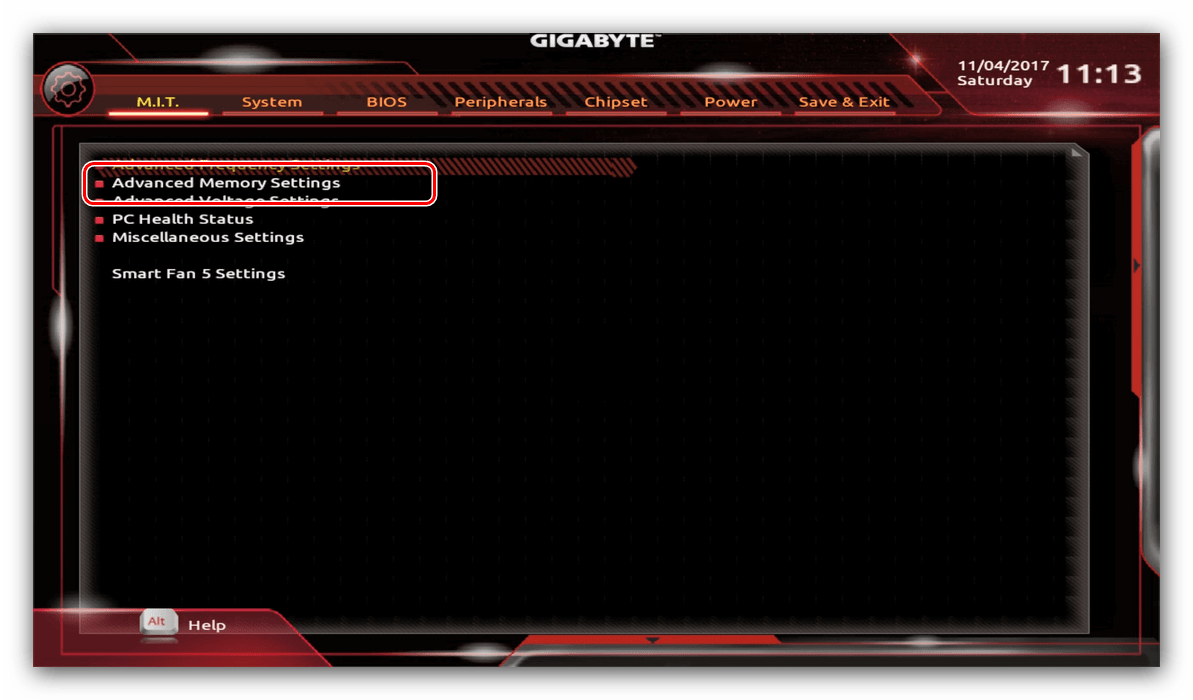
В нём перейдите к опции «Extreme Memory Profile (X.M.P.)».
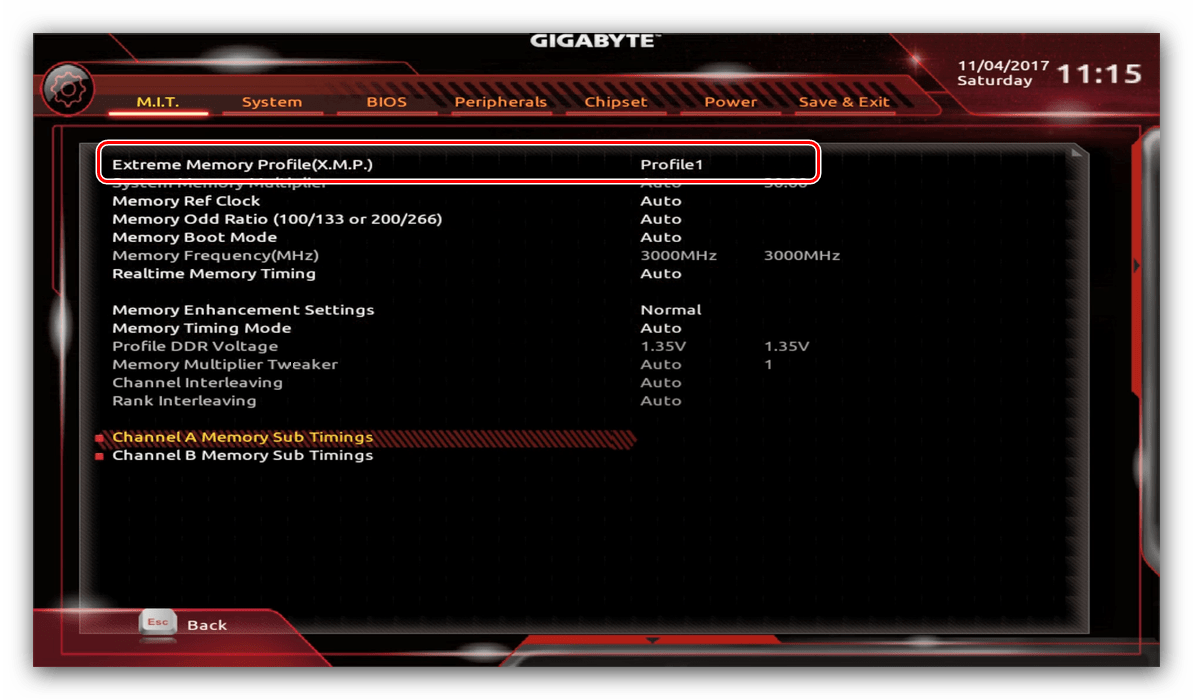
Тип профиля следует выбирать исходя из типа установленной RAM. Например, для DDR4 подойдёт вариант «Profile1», для DDR3 – «Profile2».
Также доступны опции для любителей разгона – можно вручную изменить тайминги и вольтаж для более быстрой работы модулей памяти.
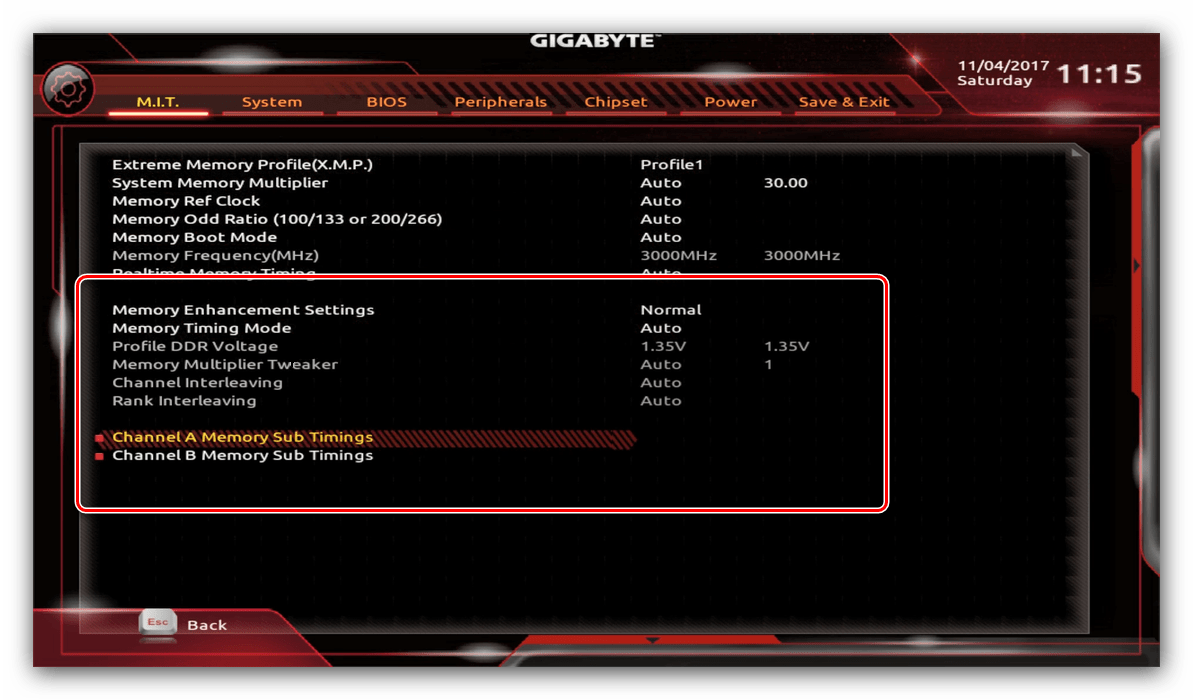
Подробнее: Разгон оперативной памяти
Через UEFI BIOS плат Gigabyte можно настроить работу компьютера с видеоадаптерами. Для этого перейдите на вкладку «Peripherals».
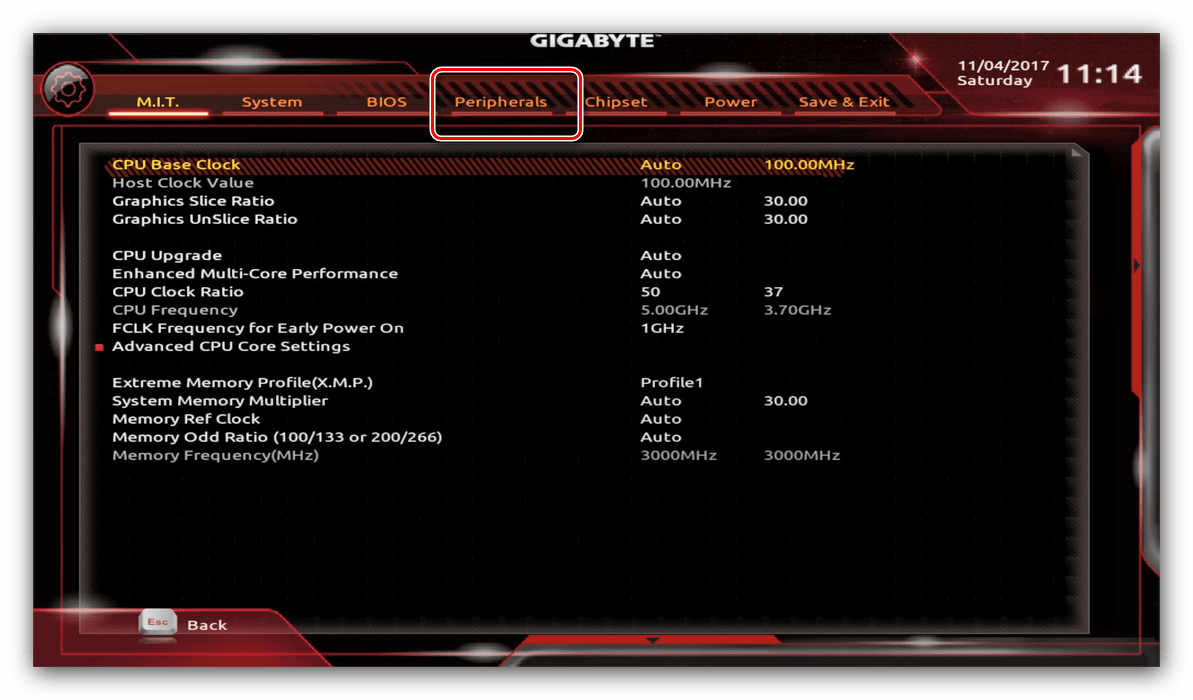
Самой важной опцией здесь является «Initial Display Output», позволяющая установить основной используемый графический процессор. Если на компьютере на момент настройки нет выделенного GPU, следует выбрать вариант «IGFX». Для выбора дискретной видеокарты установите «PCIe 1 Slot» или «PCIe 2 Slot», зависит от порта, к которому подключен внешний графический адаптер.
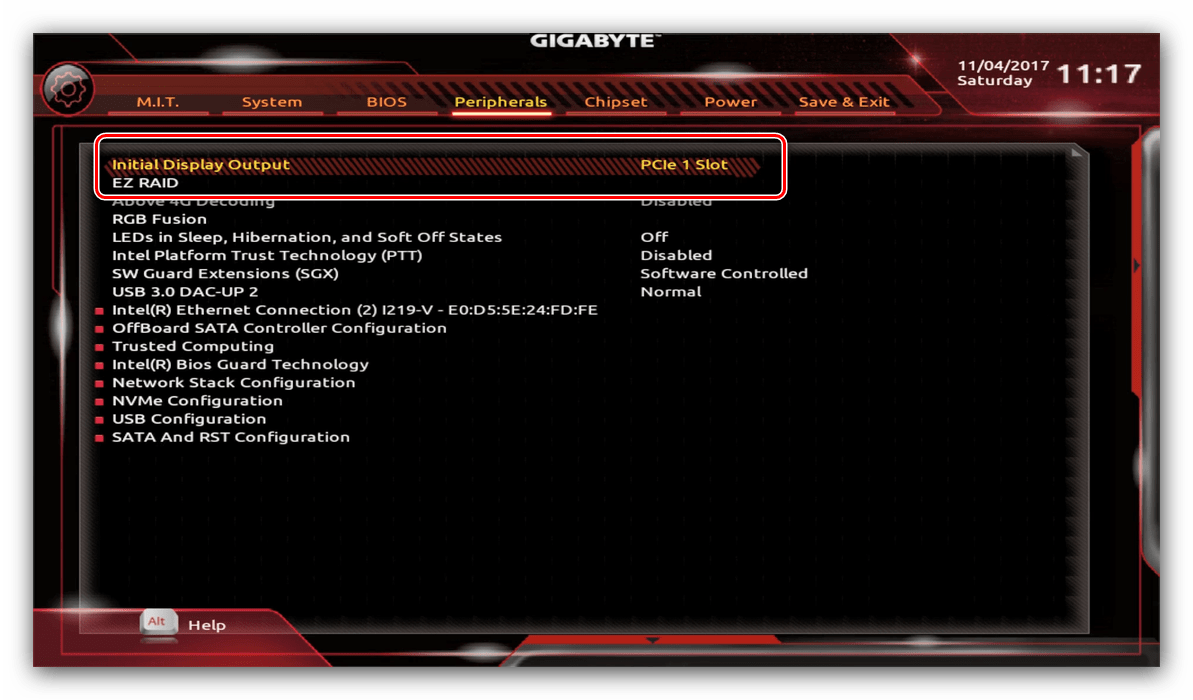
В разделе «Chipset» можно либо полностью отключить встроенную графику для снижения нагрузки на CPU (опция «Internal Graphics» в положении «Disabled»), либо увеличить или уменьшить объём оперативной памяти, которая потребляется этим компонентом (опции «DVMT Pre-Allocated» и «DVMT Total Gfx Mem»). Обратите внимание, доступность этой возможности зависит как от процессора, так и от модели платы.
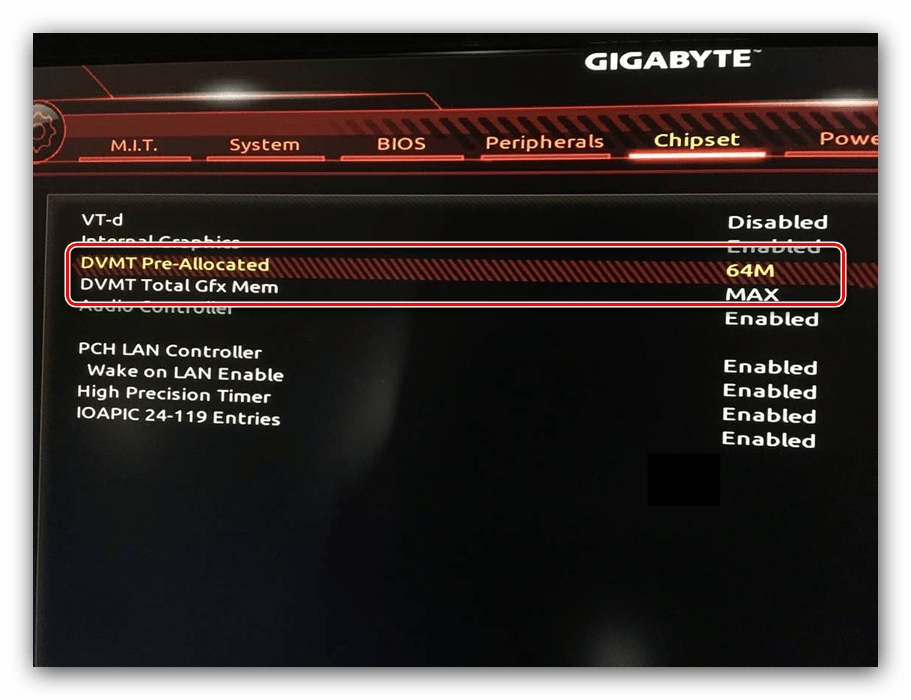
Настройка вращения кулеров
Нелишним также будет сконфигурировать скорость вращения системных вентиляторов. Для этого перейдите воспользуйтесь опцией «Smart Fan 5».
В зависимости от количества установленных на плате кулеров в меню «Monitor» будет доступно управление ими.
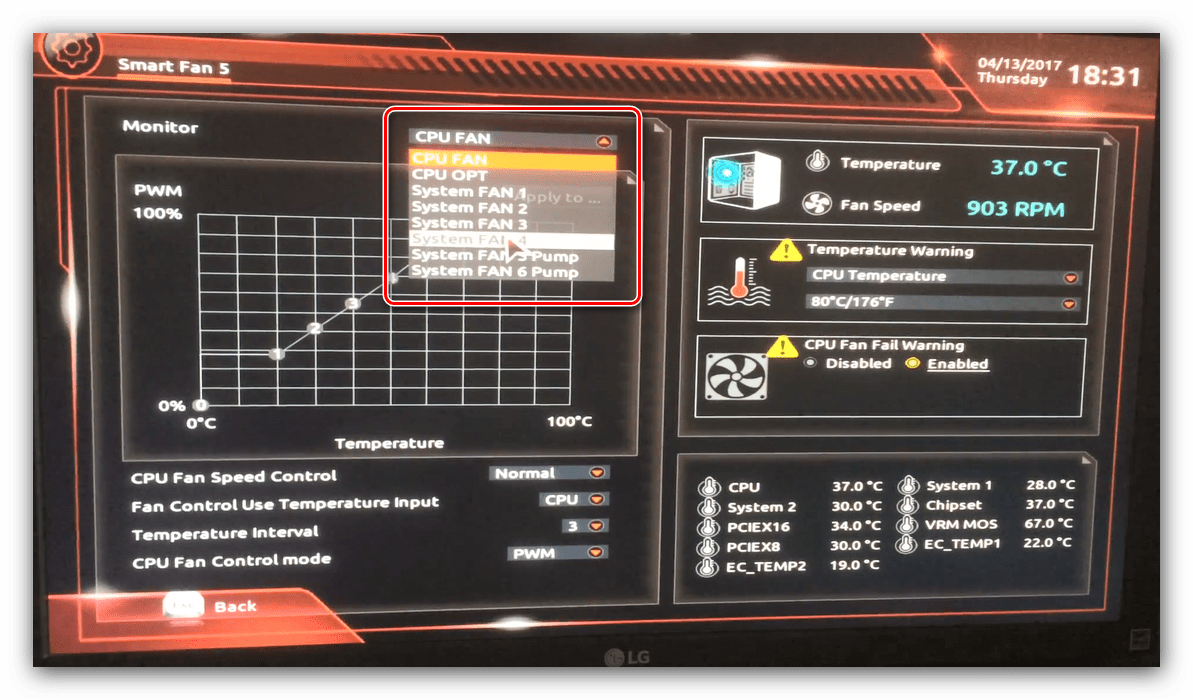
Скорости вращения каждого из них стоит установить в положение «Normal» – это обеспечит автоматический режим работы в зависимости от нагрузки.
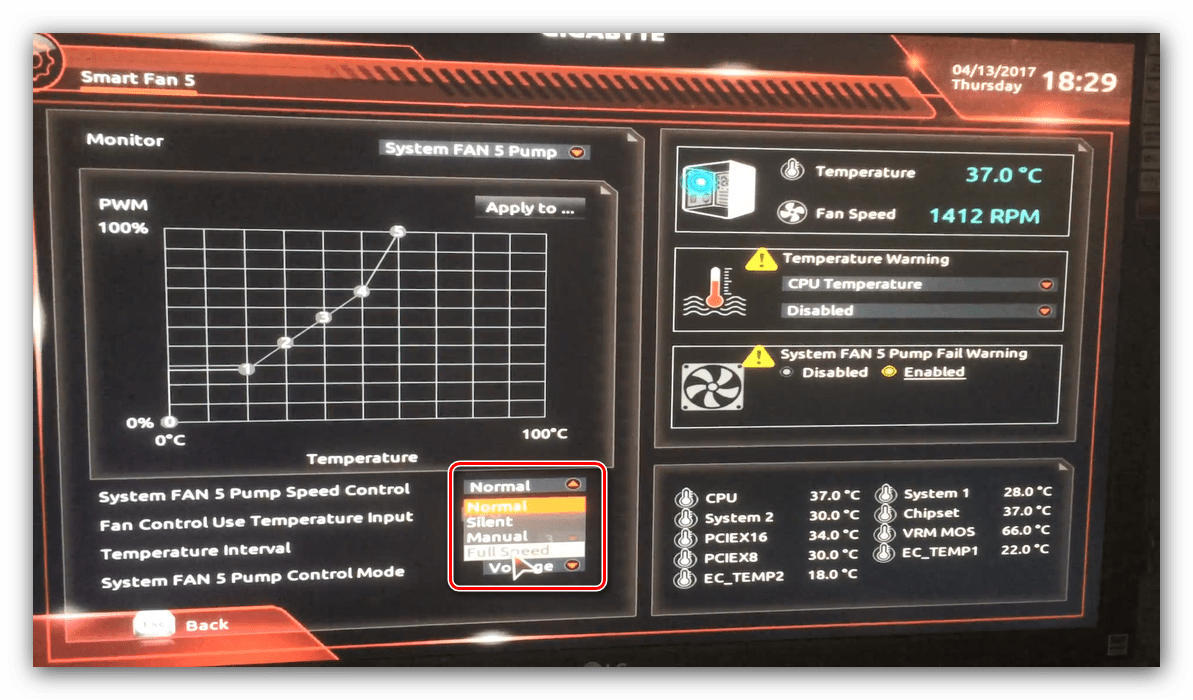
Можно также настроить режим работы кулера вручную (вариант «Manual») или выбрать минимально шумный, но обеспечивающий наихудшее охлаждение (параметр «Silent»).
Оповещения о перегреве
Также в платы рассматриваемого производителя встроено средство защиты компонентов компьютера от перегрева: при достижении порогового значения температуры пользователь получит оповещение о необходимости выключения машины. Настроить отображение этих уведомлений можно в разделе «Smart Fan 5», упомянутом на предыдущем этапе.
Нужные нам опции расположены в блоке «Temperature Warning». Здесь потребуется вручную определить максимально допустимое значение температуры процессора. Для CPU с низким тепловыделением достаточно выбрать значение в 70 °C, а если TDP у процессора высокий, то 90 °C.
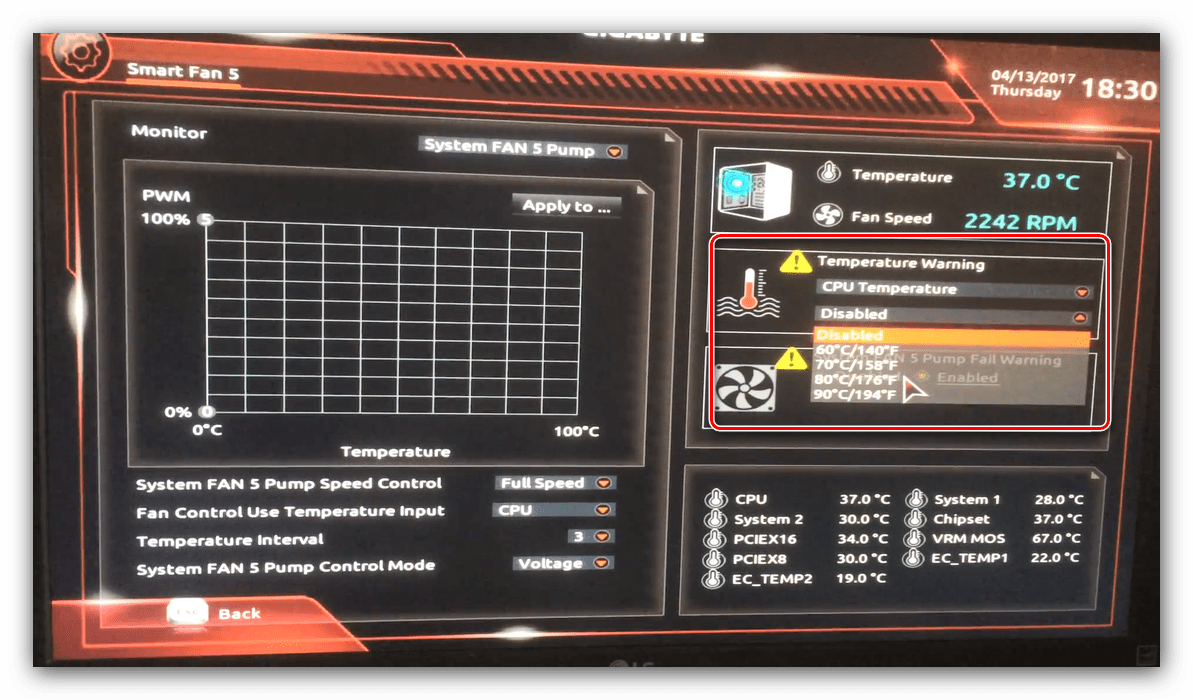
По желанию можно также настроить оповещение о неполадках с кулером процессора – для этого в блоке «System FAN 5 Pump Fail Warning» отметьте вариант «Enabled».
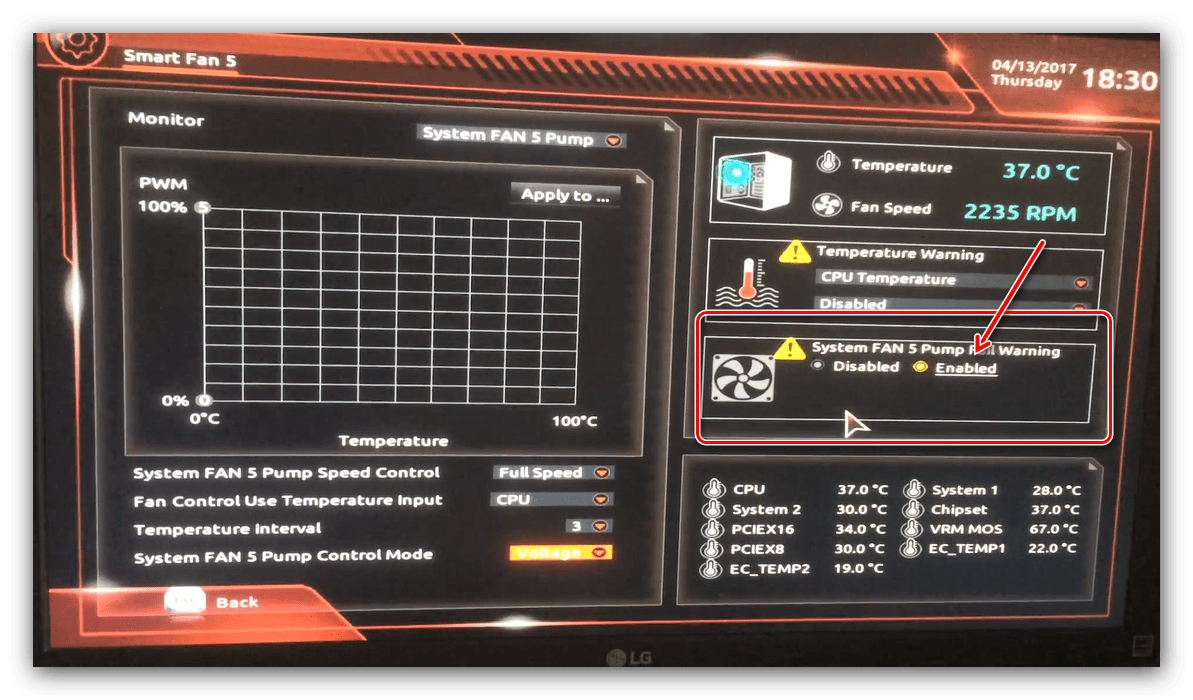
Последние важные параметры, которые следует настроить – приоритет загрузки и включение режима AHCI.
Зайдите в раздел «BIOS Features» и воспользуйтесь опцией «Boot Option Priorities».
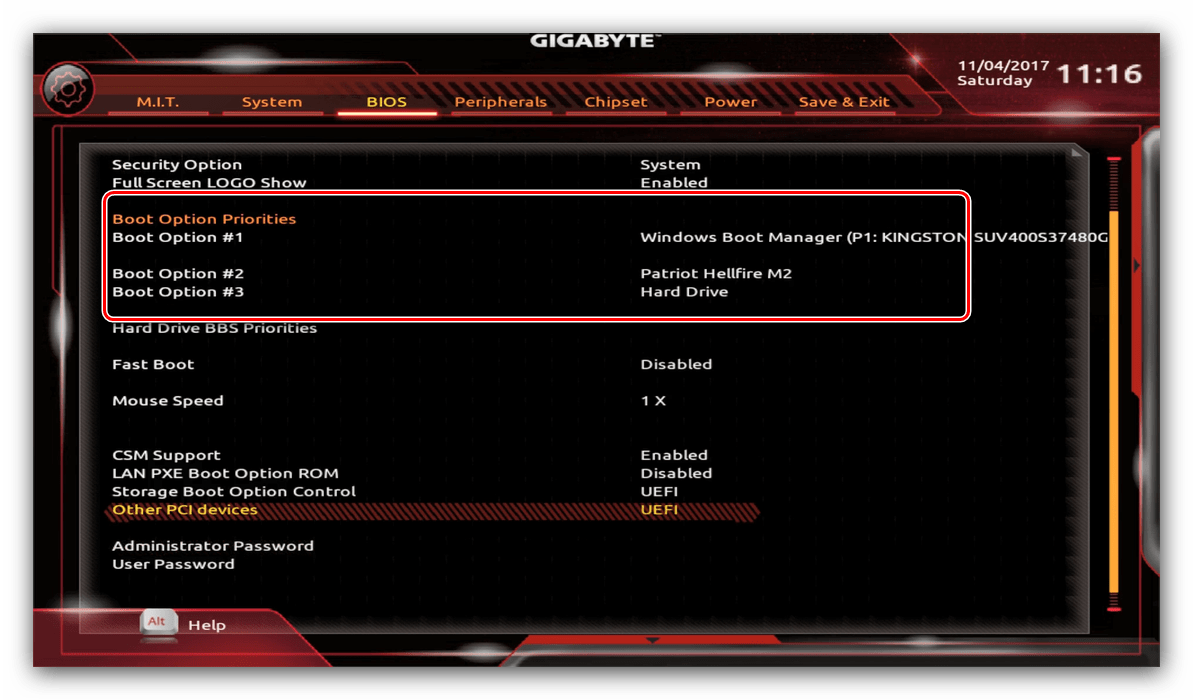
Здесь выберите нужный загрузочный носитель. Доступны как обычные жесткие диски, так и твердотельные накопители. Также можно выбрать флешку или оптический диск.
Режим AHCI, необходимый для современных HDD и SSD, включается на вкладке «Peripherals», в разделах «SATA and RST Configuration» – «SATA Mode Selection».
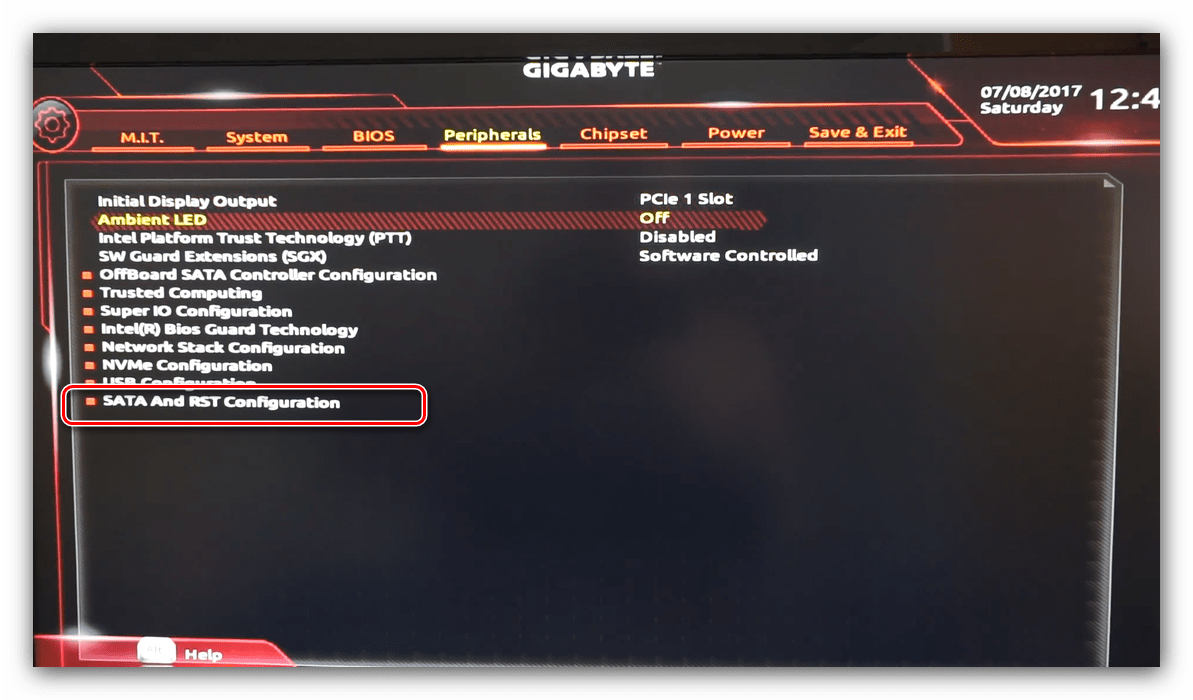
Для сохранения введённых параметров воспользуйтесь закладкой «Save & Exit».
Сохранение параметров происходит после нажатия на пункт «Save & Exit Setup».
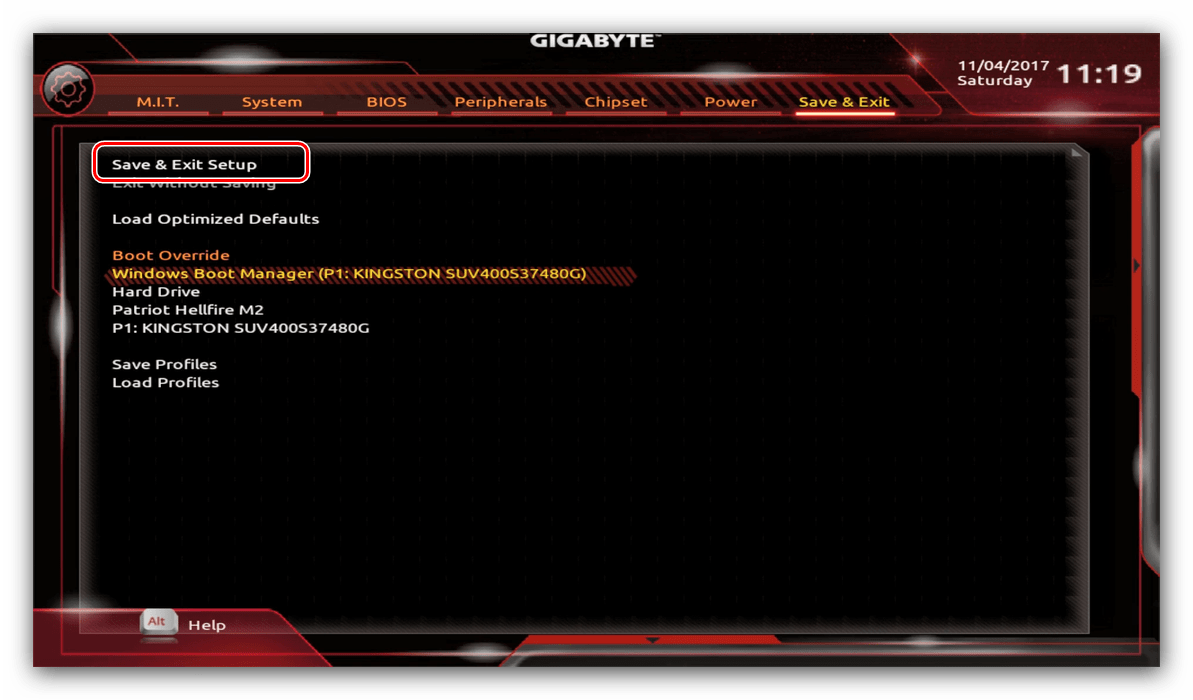
Также можно выйти без сохранения (если не уверены, что ввели всё правильно), используйте опцию «Exit Without Saving», или сбросить настройки БИОС к заводским, за что отвечает вариант «Load Optimized Defaults».
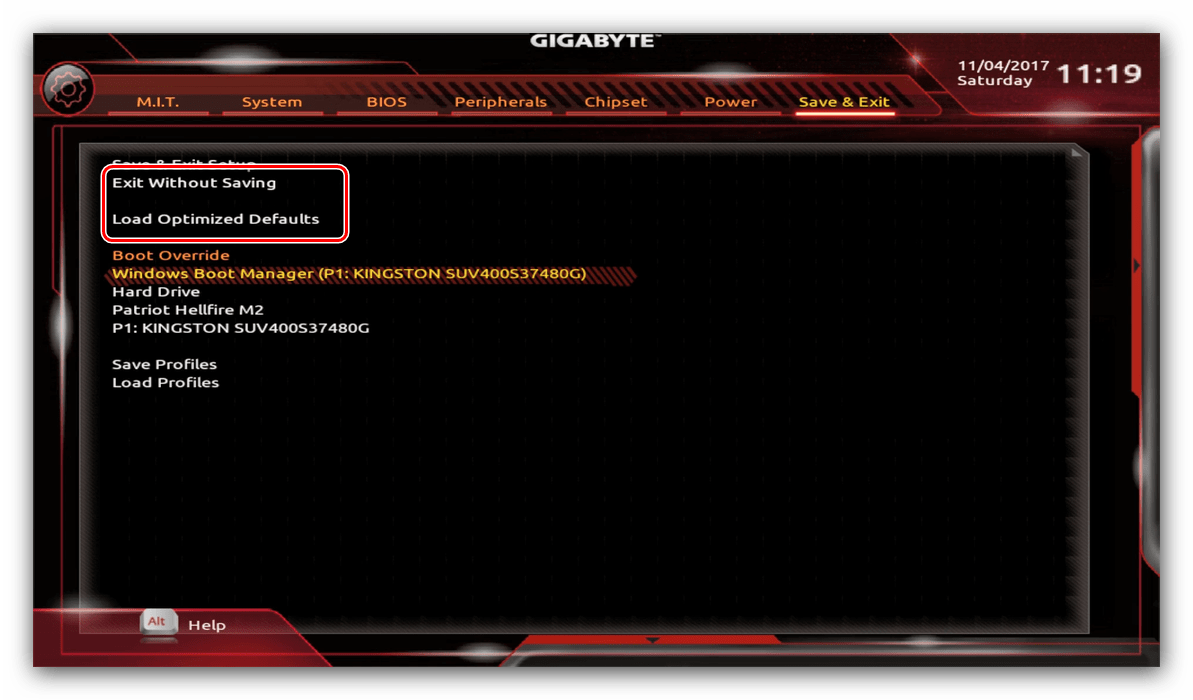
Таким образом мы закончили настройку основных параметров BIOS на материнской плате Gigabyte.
Источник
Настройка BIOS материнской платы
Правильная сборка компьютера – еще не гарантия его работы на 100% производительности. Желательна подкрутка параметров аппаратных средств ПК. Каждый пользователь подгоняет систему под себя. Для одних важно максимальное быстродействие, для других – низкий уровень шума. Этот выбор делается в BIOS материнской платы.
Выполнять настройку BIOS компьютера приветствуется в следующих случаях:
- Сборка ПК “с нуля”;
- Замена комплектующих;
- Наличие встроенной графики в CPU;
- Разгон центрального процессора и оперативной памяти;
- Настройка работы вентиляторов системного блока;
- Включение звуковых аварийных оповещений;
- Переустановка операционной системы.
Настройка BIOS материнских плат Gigabyte
Для входа в BIOS плат фирмы Gigabyte при загрузке компьютера нажимаем клавишу Del. На главной странице (M.I.T. Current Status) увидим текущую версию BIOS, множитель частоты системной шины, величины частот CPU и оперативки, объем памяти, температуру и напряжение центрального процессора.
Оперативная память
На начало 2018 года самый распространенный тип оперативной памяти для ПК – это DDR4, частота которой достигает 4266 МГц, что намного выше, чем у DDR3. По умолчанию память RAM работает на частоте 2133 МГц. Поэтому необходимо ее перевести на частоту, соответствующую спецификации. Значение частоты зашито в профиле X.M.P. Для ее активации находим параметр Advanced Memory Settings, далее – Extreme Memory Profile (X.M.P.) и выставляем значение Profile1.
Для энтузиастов доступен разгон памяти путем изменения таймингов (Channel A/B Memory Sub Timings) и напряжения (DRAM Voltage Control).
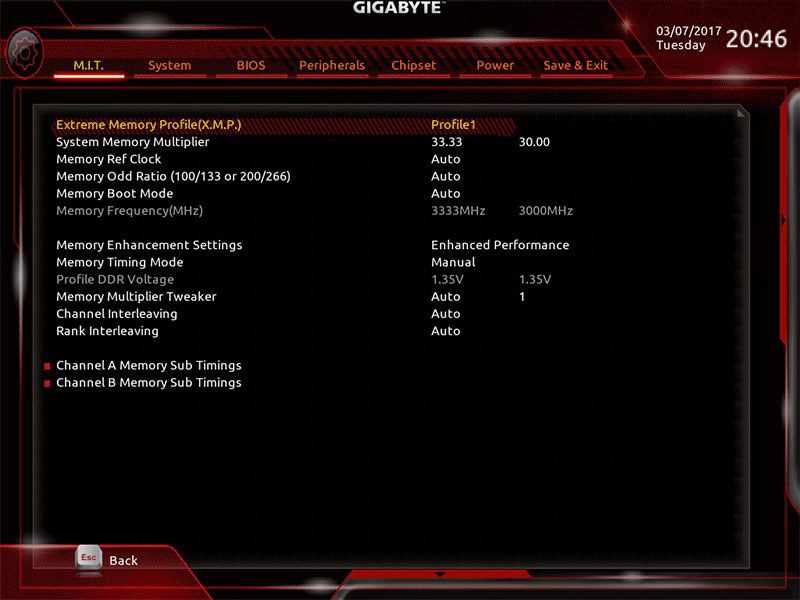
Настройки видеоадаптера
На следующем этапе настройки концентрируем внимание на графическом адаптере. В этом нам поможет вкладка Peripherals. Если конфигурация системного блока не предполагает использования дискретной видеокарты, то активируем встроенное в CPU графическое ядро: Initial Display Output – выбираем IGFX. Этот адаптер использует некоторое количество от общей оперативной памяти компьютера. Для изменения ее объема в разделе Chipset кликаем на DVMT Pre-Allocated и останавливаемся на максимально возможном значении. А в DVMT Total Gfx Mem делаем активным размер MAX.
При наличии внешней видеокарты параметр Initial Display Output меняем на PCIe 1 slot (слот PCIEX16) или PCIe 2 slot (слот PCIEX4), а значение Internal Graphics в подменю Chipset – на Disabled. Это делается для снижения нагрузки на CPU. При наличии двух мониторов возможно использование сразу двух графических адаптеров – внешнего и встроенного – выбор за пользователем.
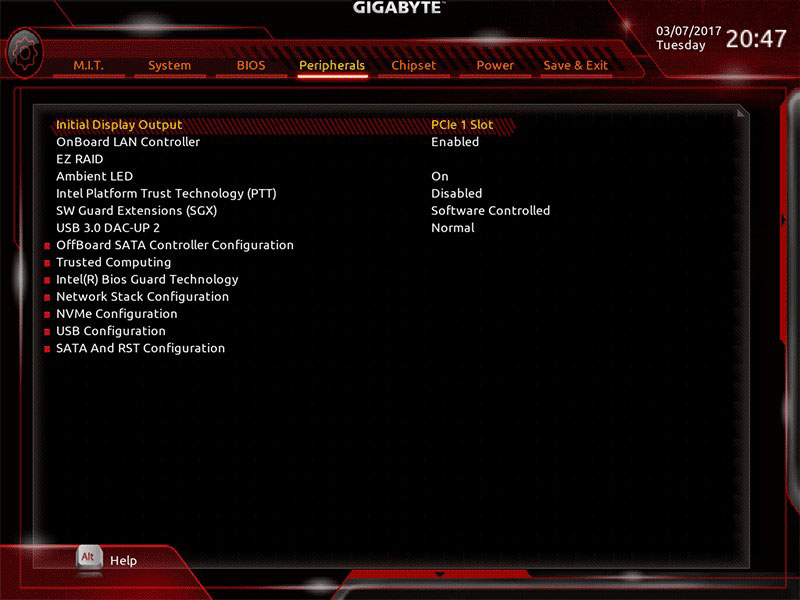
Управление вентиляторами
Что главное – поддержание минимально возможной температуры внутри корпуса или тишина? Ответ кроется в типе используемого видеоадаптера. Если он выделяет много тепла (от 150 Ватт), то отработанный горячий воздух необходимо как можно быстрее удалить из корпуса. Этим занимаются кулеры, располагаемые спереди, сзади и вверху системного блока. Они подключены в соответствующие разъемы на материнской плате. Но при нетребовательных задачах современный графический адаптер потребляет мало энергии. Поэтому в большом разделе M.I.T.\PC Health Status в подменю 1st System Fan Speed Control, 2nd System Fan Speed Control и 3rd System Fan Speed Control устанавливаем параметр Normal, который будет автоматически изменять скорость вращения лопастей исходя из температуры в системе. Можно активировать и собственный график этой зависимости, выбрав Manual. Эти значения устанавливаются в подразделе Fan Speed Control для каждого кулера. Если за видео графику отвечает встроенный в ядро CPU адаптер, то для уменьшения шума используем тихий режим – Silent.
В этом же разделе параметр CPU Fan Speed Control (CPU_FAN Connector) отвечает за регулирование скорости вращения процессорного кулера. Доступны следующие опции: Normal (автоматическая работа, зависящая от температуры ядер центрального процессора), Silent (вентилятор работает на пониженных скоростях), Manual (ручное управление), Full Speed (максимально возможная степень вращения).
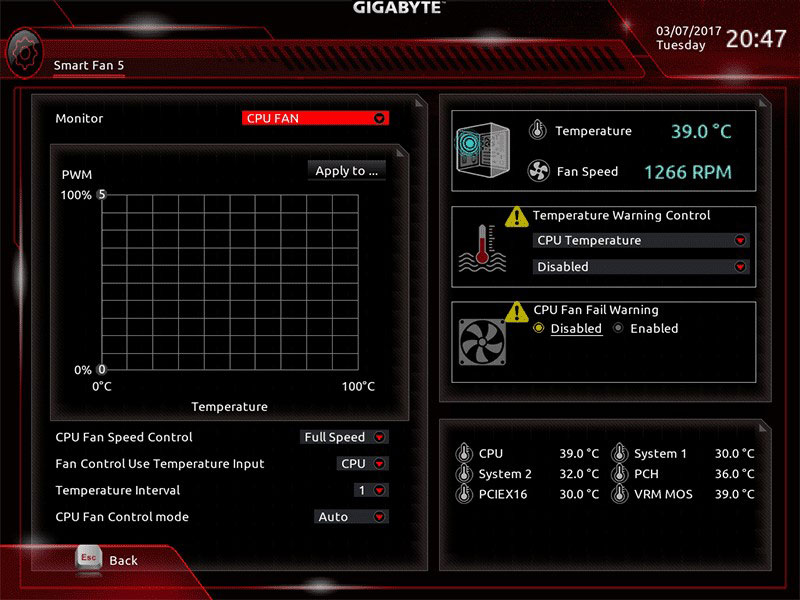
Сигналы тревоги
Спецификации центральных процессоров подразумевают их функционирование до 100 ºС. Но чем ниже температура внутри CPU, тем дольше он проработает. Поэтому BIOS предлагает установить пороговое значение этого параметра, по достижении которого включается аварийное оповещение. Находим в меню M.I.T.\PC Health Status строку CPU/System Temperature Warning. По умолчанию она имеет значение Disabled. Для процессоров с небольшим тепловыделением рекомендуется изменить его на 70 ºС/158 ºF, а для “горячих” – 90 ºС/194 ºF. Этот параметр зависит от того, как эффективно кулер отводит тепло от крышки процессора. Данная настройка применима и для корпусных вентиляторов охлаждения.
Сигнал тревоги также поступит при сбое в работе любого из вентиляторов и неправильном их подключении к разъемам на системной плате. Для включения этой функции в том же разделе ищем CPU/CPU OPT/System Fan Fail Warning и меняем на Enabled. В последнее время на рынке стали появляться кулеры с полупассивным режимом работы. При небольшой нагрузке на центральный процессор они не вращаются. В таком случае целесообразно оставить значение по умолчанию — Disabled.
Оптимизация работы периферийных устройств
Для установки операционной системы необходимо, чтобы компьютер при запуске обратился к диску, где находится дистрибутив операционки. Задать эти параметры можно в BIOS Features, зайдя в Boot Option Priorities, где в качестве первого загрузочного диска выбираем HDD, SSD, USB или DVD.
Система сейчас обычно ставится на твердотельный накопитель, который наилучшим образом работает в режиме AHCI. Активировать его можно в разделе Peripherals — SATA Configuration и его подразделе SATA Mode Selection. Здесь же, но в подменю External SATA включаем внешние устройства с SATA интерфейсом.
В любой материнской плате встроен аудио контроллер. Если пользователя не устраивает качество звучания, он добавляет в порт PCI или USB внешнюю звуковую карту. Тогда необходимо отключить интегрированный звук в меню Chipset – Audio Controller.
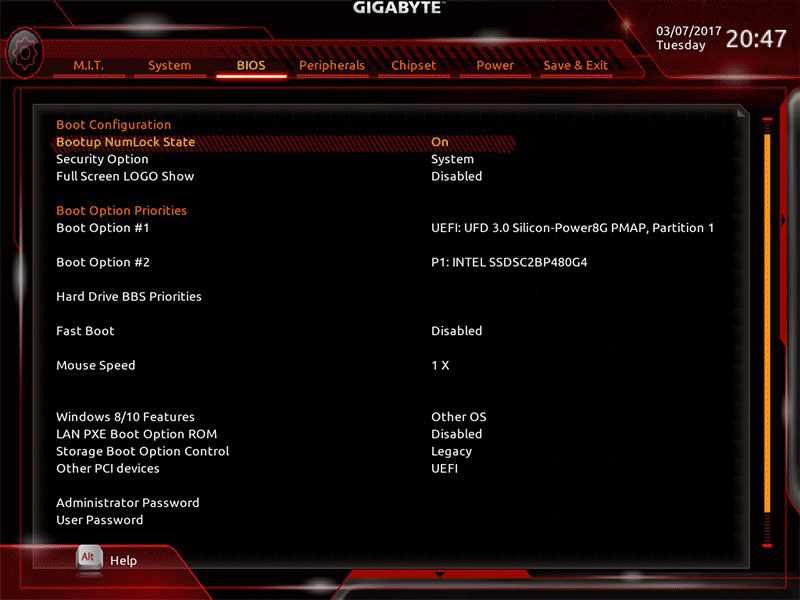
Заключительный этап
Подтверждение или отмена сделанных изменений BIOS делается в секции Save & Exit:
- Save &Exit Setup – сохранение исправлений и выход;
- ExitWithoutSaving – выход без внесения поправок;
- Load Optimized Defaults – загрузка оптимальных настроек по умолчанию, которые требуются после обновления BIOS или очистки CMOS параметров.
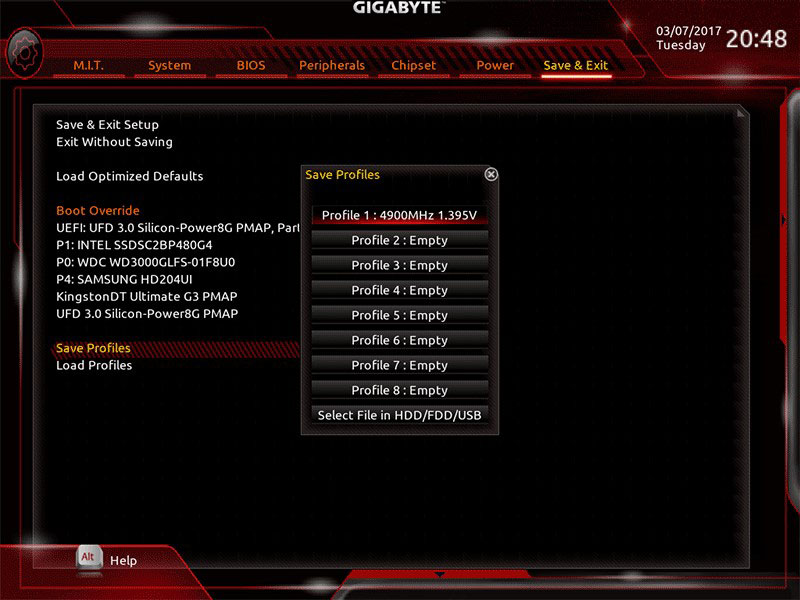
Настройка BIOS материнских плат Asus
Чтобы войти в BIOS системной платы производителя Asus, следует нажать на Del или F2. Здесь доступны два режима – EZ Mode и Advanced Mode. По умолчанию загружается EZ Mode. Для перехода во второе состояние необходимо внизу найти соответствующую ссылку или использовать клавишу F7. Рассмотрим более подробно Advanced Mode.
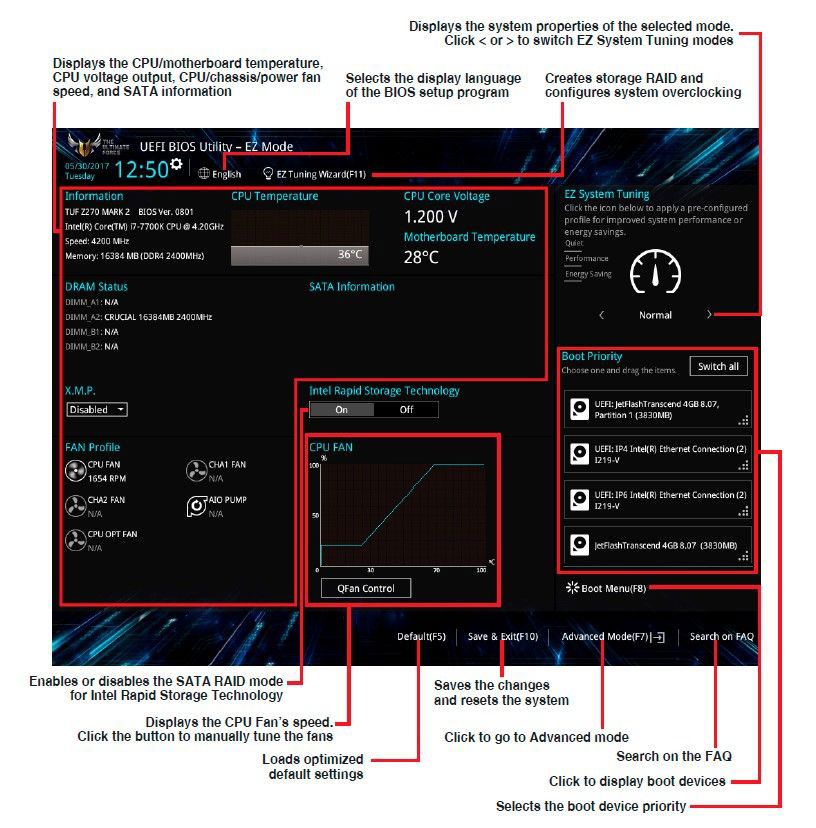
Опции, отвечающие за работу кулеров в системе, находятся в QFan Control (F6). Здесь имеются предустановленные и ручной профили для процессорного и корпусных вентиляторов: Standard, Silent, Turbo, Full Speed, Manual. В ручном режиме можно построить зависимость степени вращения каждого кулера от температуры.
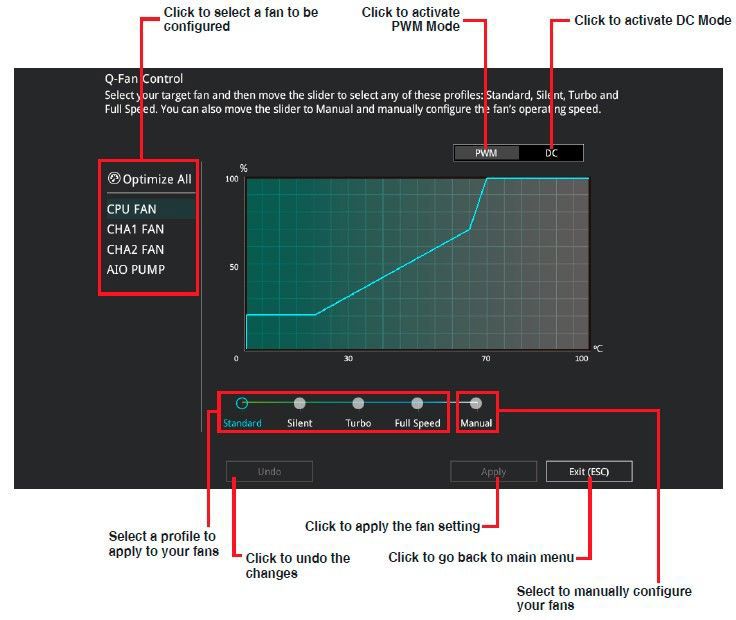
Отключить функцию управления охладителями можно в меню Monitor\Q-Fan Configuration. Доступно регулирование и 3-х пиновых вентиляторов, выбрав режим DC Mode.
Утилита EZ Tuning Wizard (F11) позволяет разогнать процессор c учетом типа его охлаждения. Это актуально для обладателей процессоров Intel с индексом К. В подменю ОС выбираем сценарий для компьютера повседневного использования (Daily Computing) или игрового ПК (Gaming/Media Editing). Потом кликаем на пиктограмму с боксовым, башенным или жидкостным куллером и запускаем процесс тюнинга.
Активация профиля XMP для оперативной памяти происходит в подменю Ai Overclock Tuner.
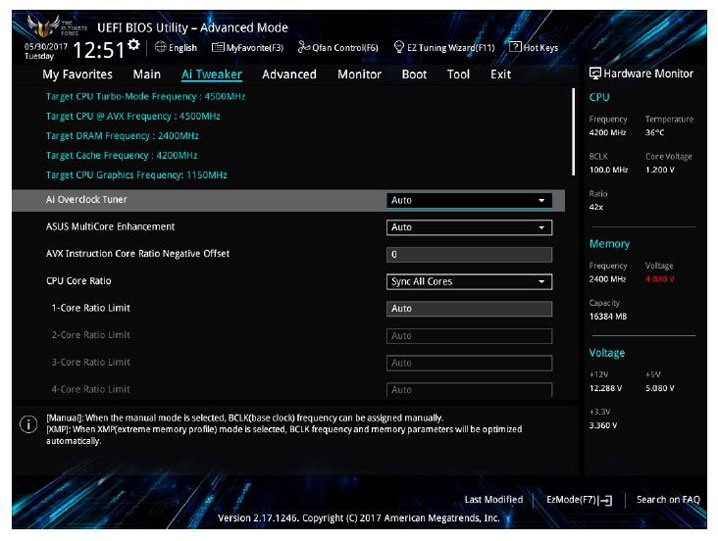
Для встроенной в CPU графики необходимо в разделе Advanced\System Agent (SA) Configuration\Graphics Configuration\Primary Display выставить значение IGFX, а для дискретного видео адаптера — PEG.
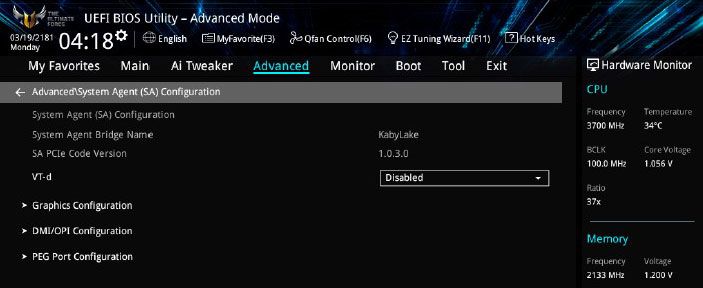
Режим работы накопителей с интерфейсом SATA настраивается в Advanced\PCH Storage Configuration\SATA Mode Selection. Выбираем AHCI. Здесь же пункт S.M.A.R.T. Status Check обеспечивает мониторинг состояния жестких дисков и оповещает об ошибках в их работе.
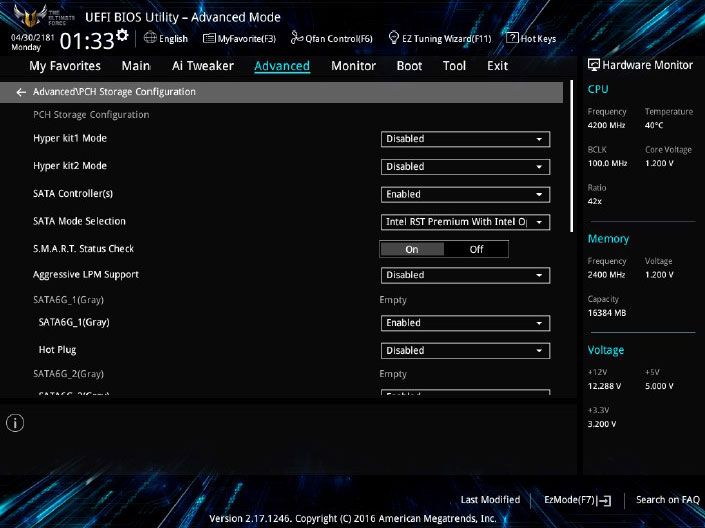
Скорость SSD устройств снижается с течением времени по мере заполнения свободного пространства. Утилита Secure Erase в меню Tool оптимизирует работу твердотельных накопителей, возвращая тем самым им изначальную производительность.
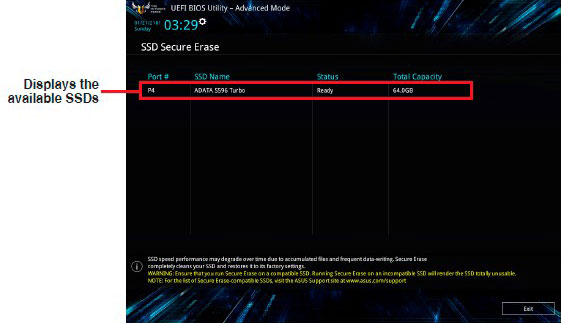
Информацию о всех подключенных носителей информации можно посмотреть в Advanced\HDD/SSD Smart Information.
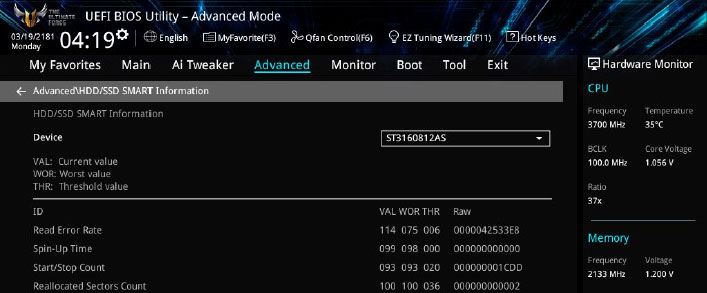
Включение/отключение встроенного в материнскую плату аудио контроллера осуществляется в подменю Advanced\HD Audio Controller.
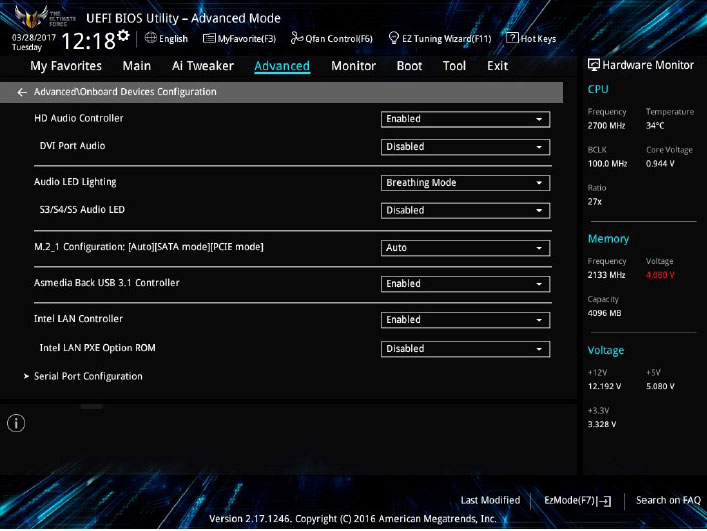
Приоритет в загрузке устройств задается в меню Boot\Boot Option Priorities.
Сохранение и отмена внесенных изменений в BIOS, загрузка оптимальных заводских параметров доступно в главном меню Exit.
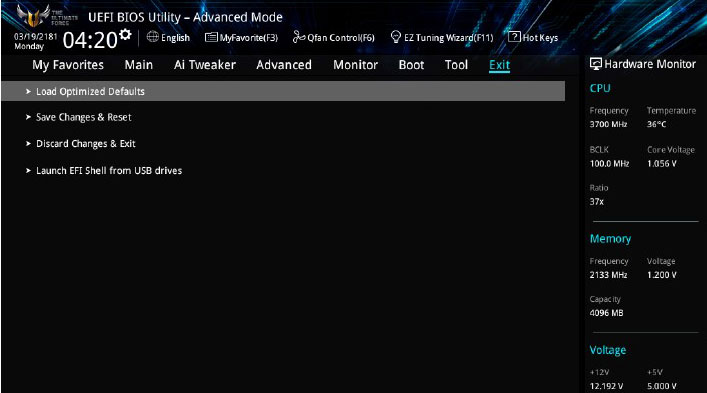
Настройка BIOS важна для тех, кто стремится получить от сборки конфигурации компьютера максимальную отдачу. Поэтому перед установкой операционной системы нужно детально изучить эту процедуру, которая описана в инструкции, поставляемой в коробке с материнской платой.
Источник
Gigabyte Z590 GAMING X
To reduce the impacts on global warming, the packaging materials of this product
are recyclable and reusable. GIGABYTE works with you to protect the environment.
For more product details, please visit GIGABYTE’s website.
Z590 GAMING XZ590 GAMING X AX
Z590 GAMING X
User’s Manual
Rev. 1001
12ME-Z59GX-1001R
Инструкция
Посмотреть инструкция для Gigabyte Z590 GAMING X бесплатно. Руководство относится к категории материнские платы, 1 человек(а) дали ему среднюю оценку 8.8. Руководство доступно на следующих языках: английский. У вас есть вопрос о Gigabyte Z590 GAMING X или вам нужна помощь?
Задайте свой вопрос здесь
Содержание
- Z590 GAMING X AX/Z590 GAMING X Motherboard Layout
- Chapter 1 Hardware Installation
- Chapter 2 BIOS Setup
- Chapter 3 Appendix
Изображения продукта (7)

Технические характеристики Gigabyte Z590 GAMING X
Ниже вы найдете технические характеристики изделия и руководства по эксплуатации Gigabyte Z590 GAMING X.
Материнская плата Gigabyte Z590 GAMING X поддерживает процессоры Intel, а также совместима с различными сериями процессоров Intel Celeron, Intel Core i3, Intel Core i5, Intel Core i7, Intel Core i9, Intel Pentium. Она оснащена разъемом процессора LGA 1200 (Socket H5) и может поддерживать до 128 ГБ оперативной памяти через 4 слота DIMM, которые поддерживают ECC и non-ECC память. Поддерживаемые частоты памяти составляют 2133, 2400, 2666, 2933, 3000 и 3200 МГц.
Материнская плата также поддерживает уровни RAID 0, 1, 5 и 10, а также может поддерживать до 9 накопителей. Это делает ее отличным выбором для пользователей, которые нуждаются в большом количестве хранилища на своем компьютере.
Кроме того, материнская плата Gigabyte Z590 GAMING X была разработана с использованием высококачественных материалов, чтобы гарантировать надежность и долговечность в течение длительного времени работы. Кроме того, она поддерживает несколько частот процессоров и памяти, что обеспечивает большую гибкость и функциональность при использовании в системах различных типов и назначений.
В целом, материнская плата Gigabyte Z590 GAMING X является хорошим выбором для пользователей, которые нуждаются в высококачественной и надежной основе для своей системы.
Производитель процессора
Intel
Поддерживаемые типы памяти
DDR4-SDRAM
Поддержка технологии параллельной обработки
2-Way CrossFireX, Quad-GPU CrossFireX
Количество M.2 (M) слотов
3
Главная
| Бренд | Gigabyte |
| Модель | Z590 GAMING X | Z590 GAMING X |
| Изделие | материнская плата |
| EAN | 0889523026342, 4719331814465 |
| Язык | английский |
| Тип файла | Руководство пользователя (PDF), Инструкция по установке (PDF) |
Процессор
| Производитель процессора | Intel |
| Сокет процессора | LGA 1200 (Socket H5) |
| Совместимые серии процессоров | Intel Celeron, Intel Core i3, Intel Core i5, Intel Core i7, Intel Core i9, Intel Pentium |
| Поддерживаемые сокеты процессоров | LGA 1200 (Socket H5) |
Память
| Поддерживаемые типы памяти | DDR4-SDRAM |
| Количество слотов памяти | 4 |
| Тип слотов памяти | DIMM |
| Каналы памяти | Dual-channel |
| Небуферизованная память | Да |
| Максимальная внутренняя память | 128 GB |
| Поддерживаемые частоты памяти | 2133,2400,2666,2933,3000,3200 MHz |
Контроллеры хранения данных
| Уровни RAID | 0, 1,5, 10 |
| Количество поддерживаемых дисков памяти | 9 |
| Поддерживаемые интерфейсы носителя | M.2, SATA III |
| Поддерживаемые типы накопителей | HDD & SSD |
Графический адаптер
| Поддержка технологии параллельной обработки | 2-Way CrossFireX, Quad-GPU CrossFireX |
| HDCP | Да |
| Максимальное разрешение | 4096 x 2304 пикселей |
Внутренние порты
| Разъемы USB 2.0 | 2 |
| Разъемы USB 3.2 Gen 1 (3.1 Gen 1) | 2 |
| Разъемы USB 3.2 Gen 2 (3.1 Gen 2) | 0 |
| Количество разъемов SATA III | 6 |
| Количество разъемов SATA II | 0 |
| Количество параллельных разъемов ATA (PATA) | 0 |
| Разъем выхода S/PDIF | Да |
| Разъем передней панели | Да |
| Аудиоразъем передней панели | Да |
| Разъем питания ATX (24-конт.) | Да |
| Разъем вентилятора центрального процессора | Да |
| Разъем для вентилятора | Да |
| Периферийные (Molex) разъемы питания (4-конт) | 4 |
| EPS разъем питания (8-конт) | Да |
| TPM коннектор | Да |
| Коннекторы последовательного порта | 1 |
| разъемы Thunderbolt | 2 |
| RGB LED контактный разъем | Да |
| 12В разъем питания | Да |
Слоты расширения
| Количество M.2 (M) слотов | 3 |
| PCI Express x16 слоты | 2 |
| PCI Express x1 слоты | 1 |
Порты на задней панели
| Количество портов USB 2.0 | 2 |
| Количество портов USB 3.2 Gen 1 (3.1 Gen 1) Type-A | 5 |
| Количество портов USB 3.2 Gen 1 (3.1 Gen 1) Type-С | 0 |
| Количество портов USB 3.2 Gen 2 (3.1 Gen 2) Type-С | 1 |
| Количество портов USB 3.2 Gen 2 (3.1 Gen 2) Type-A | 1 |
| Количество портов Ethernet LAN ( RJ-45) | 1 |
| Количество портов PS/2 | 1 |
| Количество портов eSATA | 0 |
| Порты FireWire | 0 |
| Количество портов VGA (D-Sub) | 0 |
| Количество HDMI портов | 0 |
| Количество портов DVI-D | 0 |
| Количество портов DisplayPort | 1 |
| Версия DisplayPort | 1.2 |
| Линейные выходы наушников | 6 |
| Линейный вход микрофона | Да |
| Тип USB коннектора | USB Type-A, USB Type-C |
Сеть
| Подключение Ethernet | Да |
| Wi-Fi | Нет |
| Тип Ethernet интерфейса | 2.5 Gigabit Ethernet |
Свойства
| Комплектующие для | ПК |
| Семейство чипсета материнской платы | Intel |
| Чипсет материнской платы | Intel Z590 |
| Формат материнской платы | ATX |
| Выходные звуковые каналы | 7.1 канала |
| Мониторинг состояния ПК | FAN, Temperature, Voltage |
| Поддерживаемые операционные системы Windows | Windows 10 x64 |
BIOS
| Размер памяти BIOS | 256 Mbit |
| Тип BIOS | UEFI AMI |
| Перемычка Clear CMOS | Да |
| Версия ACPI | 5.0 |
| Desktop Management Interface (DMI) версия | 2.7 |
| Версия BIOS (SMBIOS) | 2.7 |
Вес и размеры
| Ширина | 305 mm |
| Глубина | 244 mm |
Содержимое упаковки
| Драйвера в комплекте | Да |
| Поставляемое ПО | Norton Internet Security, Realtek 8125 Gaming LAN Bandwidth Control Utility |
Логистические данные
| Код гармонизированной системы описания (HS) | 84733020 |
показать больше
Часто задаваемые вопросы
Не можете найти ответ на свой вопрос в руководстве? Вы можете найти ответ на свой вопрос ниже, в разделе часто задаваемых вопросов о Gigabyte Z590 GAMING X.
Как правильно установить материнскую плату Gigabyte Z590 GAMING X?
Убедитесь, что материнская плата правильно выровнена с отверстиями для винтов на корпусе, осторожно опустите ее на место и закрепите специальными винтами. Подключите необходимые силовые кабели и убедитесь, что все компоненты надежно установлены.
Как я подключаю передние панельные разъемы на материнской плате {Gigabyte Z590 GAMING X}?
Обратитесь к руководству пользователя материнской платы Gigabyte Z590 GAMING X, чтобы получить точную конфигурацию пинов разъемов передней панели. Обычно в этих разъемах присутствуют кнопка включения, кнопка сброса, светодиод питания и светодиод жесткого диска. Подсоедините их к соответствующим пинам на материнской плате, следуя инструкциям в руководстве.
Как я могу обновить BIOS на моей материнской плате Gigabyte Z590 GAMING X?
Начните скачивание последней версии BIOS с официального сайта Gigabyte. Сохраните ее на USB флеш-накопитель, отформатированный в FAT32. Перезагрузите компьютер и войдите в настройки BIOS, нажав нужную клавишу при загрузке (обычно Del или F2). Перейдите в утилиту обновления BIOS и выберите файл BIOS с USB-накопителя. Следуйте инструкциям на экране, чтобы завершить процесс обновления.
Как правильно настроить систему охлаждения на материнской плате Gigabyte Z590 GAMING X?
Убедитесь, что вы правильно установили кулер для процессора, нанеся теплопроводящую пасту согласно инструкции кулера. Подключите все корпусные вентиляторы к соответствующим разъемам на материнской плате, обеспечив правильное направление потока воздуха. Точно настройте скорость вращения вентиляторов и профили охлаждения в настройках BIOS для оптимизации управления температурой.
Как включить поддержку множественных графических процессоров на материнской плате Gigabyte Z590 GAMING X?
Во-первых, убедитесь, что ваш блок питания может справиться с дополнительной видеокартой(ами) и что ваши видеокарты совместимы с материнской платой. Установите дополнительную видеокарту(ы) в соответствующие слоты PCIe и подключите их через мосты SLI или CrossFire, если это требуется. В настройках BIOS включите поддержку множественных видеокарт и настройте все необходимые параметры для оптимальной производительности.
Поддерживает ли материнская плата Gigabyte Z590 GAMING X процессоры Intel?
Да, материнская плата Gigabyte Z590 GAMING X поддерживает процессоры Intel Celeron, Intel Core i3, Intel Core i5, Intel Core i7, Intel Core i9 и Intel Pentium. Это позволяет пользователям выбирать из широкого спектра процессоров Intel для своей сборки.
Сколько слотов для памяти имеет материнская плата Gigabyte Z590 GAMING X?
У материнской платы Gigabyte Z590 GAMING X есть 4 слота под память. Это позволяет пользователям расширить емкость оперативной памяти до 128 ГБ.
Поддерживает ли материнская плата Gigabyte Z590 GAMING X ECC-память?
Да, материнская плата Gigabyte Z590 GAMING X поддерживает память ECC (Error-Correcting Code). Эта функция обеспечивает более высокую надежность и целостность данных, что делает ее подходящей для пользователей, которым требуется расширенная возможность обнаружения и исправления ошибок.
Какие уровни RAID поддерживает материнская плата Gigabyte Z590 GAMING X?
Материнская плата Gigabyte Z590 GAMING X поддерживает уровни RAID 0, 1, 5 и 10. Это позволяет пользователям настроить свои накопительные устройства в различных конфигурациях RAID для достижения улучшенной производительности, резервирования данных или их сочетания.
На сколько накопителей можно установить на материнскую плату Gigabyte Z590 GAMING X?
Материнская плата Gigabyte Z590 GAMING X поддерживает до 9 накопителей. Это высокое количество поддерживаемых накопителей обеспечивает пользователям достаточную ёмкость для хранения файлов, независимо от того, используются ли традиционные HDD или современные SSD.
Какая ширина Gigabyte Z590 GAMING X?
Gigabyte Z590 GAMING X имеет ширину 305 mm.
Какая толщина Gigabyte Z590 GAMING X?
Gigabyte Z590 GAMING X имеет толщину 244 mm.
Какой тип USB-подключения Gigabyte Z590 GAMING X имеет?
Gigabyte Z590 GAMING X имеет USB Type-A, USB Type-C подключение.
Инструкция Gigabyte Z590 GAMING X доступно в русский?
К сожалению, у нас нет руководства для Gigabyte Z590 GAMING X, доступного в русский. Это руководство доступно в английский.
Не нашли свой вопрос? Задайте свой вопрос здесь