
HD Камера — HD запись и просмотр в реальном времени.
Широкий угол обзора — угол 150 градусов, камера обеспечивает широкий охват сцены, не пропустит ничего, что произошло в вашем доме.
Ночное видение — камера обеспечивает отличное ночное видение, вы можете контролировать даже в темноте.
Циклическая запись — в процессе записи после заполнения памяти камера A9 автоматически удаляет предыдущее видео и сохраняет последнее видео.
Датчик движения — видео будет записано при обнаружении движения, что сделает ваш дом или офис более безопасным. Идеально подходит для наблюдения за ребенком, наблюдения за домашними животными и домашней безопасности. Вы можете знать, что происходило, когда вас не было дома.
Мини размер — способы крепления: стоя / магнитная палочка / стена / флип.
Инструкция.
H.264 -1080P удаленная беспроводная скрытая камера
Камера A9 использует уникальный ультрапортативный дизайн, ее можно применять в различных областях, она очень удобна, безопасна и приносит красочную жизнь для вас, пожалуйста, правильно установите камеру в соответствии с инструкцией.
Нажмите кнопку ON / OFF для включения, нажмите и удерживайте кнопку ON / OFF в течение 3 секунд, чтобы выключить. (Клавиша MODE — это кнопка сброса. Нажмите и удерживайте в течение 5 секунд в состоянии включения питания, чтобы восстановить заводские настройки после автоматического перезапуска)
Синий свет — индикатор питания.
Зеленый индикатор — индикатор Wi-Fi
Красный — индикатор заряда
APP скачать программное обеспечение
Способ 1: Сканируйте код QR (рисунок 1) напрямую, чтобы перейти к экрану загрузки (рисунок 2). Выберите подходящее программное обеспечение для загрузки в соответствии с вашей системой мобильного телефона. (Примечание: . Этот вид установки доступен только для материкового Китая).
Способ 2. Для телефонов Android найдите приложение Google с названием «HDMiniCam» в Google Play, загрузите и установите его.
Для Iphone, приложение APP под названием «HDMiniCam» в App Store, загрузите и установите его.
Подключение телефона к камере
Введите настройки телефона, где находится сигнал Wi-Fi, найдите сигнал (это уникальный номер UID машины для каждой машины) и подключите. как показано на рисунке
Затем откройте телефон APP (IMINICAM), как показано на рисунке, этот сигнал UID устройства UID каждой машины отличается, даже после нажатия на знак плюс, показанный выше, чтобы добавить в камеру, как показано ниже.
Нажмите, чтобы начать просмотр онлайн камеры.
Настройка камеры
Нажмите на значек . Настройте камеру..
Введите пароль для камеры.
Хорошо, подождите, пока камера перезагрузится, это займет около 40 секунд. Онлайн с камеры отключится, тогда вы сможете получить удаленный доступ, и когда телефон Wi-Fi и камеры в той же сети, которая является локальной сетью, или любой другой телефон, подключенный к сотовому телефону 4G Wi-Fi APP, автоматически переподключат камеру после успешного подключения вы можете посмотреть видео.
1) Загрузите компьютерный клиент, загрузив адрес http://112.124.40.254:808/PCTools.zip и установите
2) Нажмите на установку, появится окно, как показано на рисунке. (Смотри ниже)
Введите имя пользователя (admin) Нажмите «Войти» (Примечание: исходное имя пользователя — «admin» без пароля).
Enter
Enter
Enter
Enter
Характеристики камеры А9
Соотношение разрешения: 1080P / 720P / 640P / 320P
Формат видео: AVI
Частота кадров: 25
Угол обзора: 150 градусов
Камера обнаружения движения Съемка прямой линии 6 метров
Минимальное освещение: 1LUX
Продолжительность видео: более 1 часа
Сжатый формат: H.264
Потребление: 240 мА / 3,7 В
Температура хранения: -20-80 градусов по Цельсию
Рабочая температура: -10-60 градусов по Цельсию
Рабочая влажность: 15-85% относительной влажности
Тип карты памяти: TF карта
Программное обеспечение плеера: VLCPlayer / SMPlayer
Операционная система компьютера: Windows / Mac OS X
Операционная система мобильного телефона: Android / iOS
Веб-браузер: IE7 и выше, Chrome, Firefox Safari.etc
FAQ
1. Почему видеозапись не является гладким?
Вы должны выбрать подходящее разрешение для просмотра в соответствии с вашим Интернетом.
2. Почему SD-карта не работает?
SD-карта должна быть отформатирована, если вы используете ее впервые.
3. Почему нет соединения с сетью?
Выберите правильный способ подключения в соответствии с вашей сетью
4. Почему приложение удаленного просмотра видео с SD-карты не является плавным?
Настроить видеооборудование в соответствии с разрешением вашего мобильного телефона.
5. Как сбросить пароль?
Нажать кнопку сброса с 10 секундами и восстановить заводские настройки.
Замечания:
Название устройства P2P UID
Пароль 8888, если вы изменили.
Специальное примечание:
1. Если камера не подключена к маршрутизатору, выполните сброс даже после горячей настройки компьютера.
2. Если камера не читает карту памяти, или мобильный телефон в локальной сети, расширенные настройки в фоновом формате после использования.
3. Сброс выключения: пожалуйста, снова выключите и перезагрузите, когда вы увидите красный свет.
LOOKCAM H.264 1080P Remote Wireless Camera User Manual
Operating Instructions
Thank you for having chosen this product. This camera adopts a unique ultra-portable design, which enables it to be applied in various fields and brings you convenient, safe nd olorful daily life. Please follow the steps in the instructions to set up your camera correctly.
- Press the ON/OFF key to turn on the camera. Press the ON/OFF key for 3 seconds to turn it off.
(When the camera is on, you may press Reset for 5 seconds to restart the camera for factory settings)
Mode represented by key indicator
The red light is the power indicator, which is always on when the power is on.
Blue light is the WIFI indicator.
The specific model is as follows:
- Point-to-point mode: Blue light flashes slowly
- Configuration of remote camera completed: Blue light is always on
If you are not clear about what mode it is, reset the camera and switch to point-to-point mode.
Note: This reset works only when the blue light is always on or flashes slowly. Press the Reset key for about 5 seconds until the indicators all go out, and let go until the camera starts (about 30 seconds).
Download APP software
Method 1. Scan the QR code (Figure 1), and enter the download page (Figure 2). Choose to download the software according to the system of the mobile phone. Download and install the computer client through the download address: http://lookcam.ffvv.xyz:8800/lookcam_download.html
Method 2. For Android, search for APP software called LOOKCAM on Google Play, and download and install it.
For Apple, search for APP software called LOOKCAM in App Store, and download and install it.
Note: If you scan with WeChat, when (Figure 2) appears, click the browser in sharing in the upper right corner to open and download the software.
After downloading and installing, the following icon appears on the mobile phone
Point-to-point connectionthe of mobile phone to the camera
Enter the mobile phone WI-FI settings, find the WiFi account (UID number) and connect. As shown in the figure
After the UID of the device is connected, open the phone APP (LOOKCAM). (As shown below)
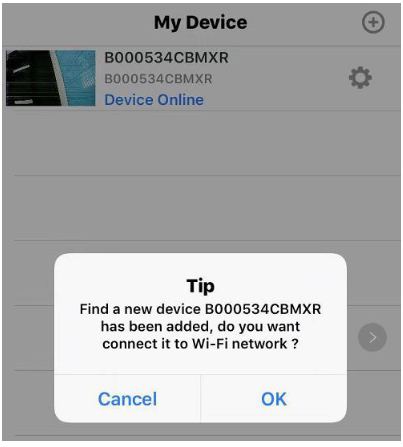
Click Cancel point-to-point short-range viewing (point-to-point is connected and viewing allowed) and click Yes to fast pair router and enter remote viewing (If you need to set p remote, please continue to read the instructions and follow the steps)
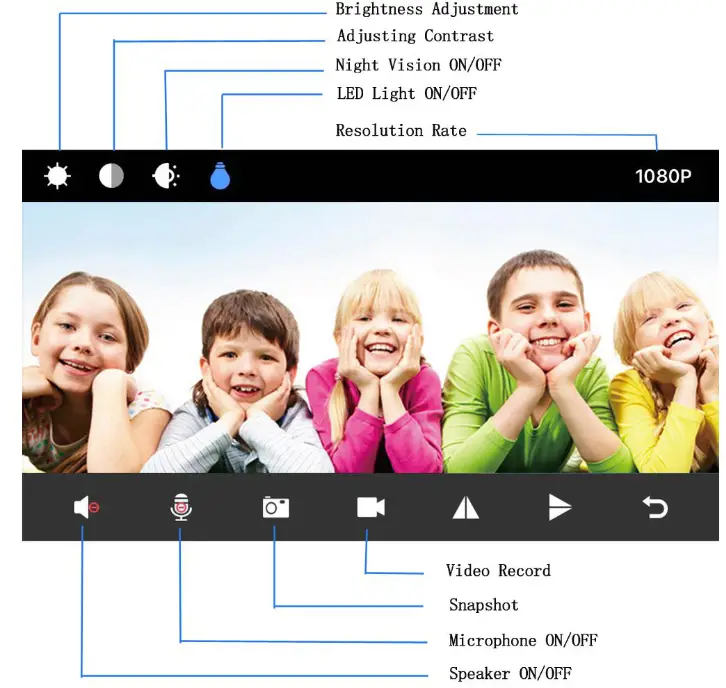
When point-to-point video can be viewed, return to the previous level and enter the interface as shown in the figure.
Click the setup icon → Advanced Configuration →WiFi Connection Configuration → Find WiFi → Enter Password → Click OK and the camera will restart automatically. Wait for the camera to restart (about 40 seconds). The camera will change from offline to online, at which time the viewable video can be accessed remotely.)
Note: When connecting to remote, make sure you enter the correct WIFI password. Otherwise, the camera will restart automatically after clicking OK. However, due to the rong password, the camera will not be online, and then you need to reset it and re-pair.
| Resolution Ratio | 1080P/720P/640P/320P |
| Video Format | AVI |
| Frame Number | 25 |
| Visual Angle | 150 /90 degree |
| Motion Detection Camera Shooting | Straight line 6 meters |
| Minimal Illumination | 1LUX |
| Video Duration | Over 1 Hours |
| Compressed Format | H.264 |
| Recording Range | 5㎡ |
| Consumption | 380MA/3.7V |
| Storage Temperature | -20-80 degree centigrade |
| Operating Temperature | -10-60 degree centigrade |
| Operation Humidity | 15-85%RH |
| Memory Card Type | TF card |
| Player Software | VLCPlayer/SMPlayer |
| Computer Operating System | Windows/Mac OS X |
| Mobile Phone Operating System | Android/iOS |
| Web browser | IE7 and above,chrome,firefox safari.etc |
| Largest customer | 4 |
Specifications and parameters
Reminder: What Micro SD Card is required for recording? Why can’t I use my Micro SD Card for recording? The camera supports up to 128 GB Micro SD card. Please use High-Speed Class 10 FAT formatted memory card. You must format the Micro SD before using it. If the SD card is not recognized when inserted into the camera, just remove and re-insert. Why can’t the camera go online?
- Powerless.
- Check if your router is working properly or not.
- Weak Wi-Fi signal.
- Wrong password wrong while Wi-Fi setting
Why is remote monitoring not smooth? You should choose a suitable resolution to watch according to your internet
speed. Why I can’t save to my SD card? SD Card must be formatted if this is your first time using it. How do I when I forgot my password? Press the reset key fo seconds and restore the factory setting. - The initial password for each camera is 123456. Please change the password to ensure the security of your camera.
- If the camera cannot be connected to the router, please reset, and connect the hot spots before completing the configuration.
FAQS
What is Lookcam app?
Description. It’s a client used with plug and play IP cameras. You can view the real time IP cameras videos, talk and listen, PTZ control by using this version. And you can manage the user account, device parameters and the record datas. It’s your wonderful assistent to manage your ip cameras.
What is the default password for Lookcam?
The initial password for each camera is 123456. Please change the password to ensure the security of your camera.
What does camera offline mean?
Your camera has only just been switched on. The camera may be unable to connect to your network. Your Internet connection may be offline. Your Internet speed may have been throttled.
Can you connect a spy camera to your phone?
Before you can successfully connect your surveillance camera with your iPhone or Android phone and make it work you need a wireless connection and a surveillance app. Check the market and you will see that most of the spy cams available can be linked to a smart or cell phone.
Can wireless camera work without internet?
The answer is yes, wireless cameras can work without the internet, but you won’t be able to access all of their features. Of course, whether or not the camera will work without the internet depends on the type of camera, how it was set up, and how it stores video.
Can a cell phone detect a hidden camera?
Yes, your cell phone can detect a hidden camera. All you need to do is download a hidden camera detector app. Once you have the app installed, simply open it and scan the area for any hidden cameras.
How can you tell if there is a camera in a mirror?
Simply touch the mirror with your fingertip—if there isn’t a gap between your fingertip and the reflection, it’s probably a two-way mirror. At this point, you can try to take the mirror off of the wall or keep searching for a hidden camera.
Is there a free app to detect hidden cameras?
Detectify also says it can detect infrared spy cams. The app is free for android.
What is the default password for DVR H 264?
Most likely the default username will be admin and password: empty, 12345, or 123456.
What is the IP camera activation password?
In earlier versions of the firmware (to version 5.3. 0) IP cameras HIKVISION supplied to IP address 192.0. 0.64 and the default password is 12345.
How far will wireless cameras work?
Wireless security camera systems work well as long as the signal from the cameras to the central hub is clear and uninterrupted. Within the home, wireless systems usually have a range of about 150 feet or less.
How do you power an outdoor wireless security camera?
There are two main ways wireless security cameras are powered: a wireless transmitter and batteries. A wireless transmitter can be placed in the home or business and as long asthe camera is within range of this transmitter, it will receive power from it. Another option is to connect it to a battery through an adapter.
How do you find a small hidden camera?
Use a smartphone. Sometimes you can do without special equipment and just use your smartphone camera and a flashlight. Turn off the lights and draw the curtains (the room must be dark), turn on both the flashlight and phone camera, and point them where you think a hidden device might be lurking.
Table of Contents
- Mode represented by key indicator
- Download APP software
- Point-to-point connection of mobile phone to camera
- Set up the camera remote
- Specifications and parameters
- Contact Us
- References
- Read User Manual Online (PDF format)
- Download This Manual (PDF format)
SPY SHOP EUROPE COM H.264-1080P Remote Wireless Camera Instruction Manual

Thank you for having chosen this product. This camera adopts a unique ultra-
portable design, which enables it to be applied in various fields and brings
you convenient, safe and colorful daily life. Please follow the steps in the
instructions to set up your camera correctly.
- Press the ON/OFF key to turn on the camera. Press the ON/OFF key for 3 seconds to turn it off.
(When the camera is on, you may press Reset for 5 seconds to restart the
camera for factory settings)
Mode represented by key indicator
Red light is power indicator, which is always on when the power is on.
Blue light is WIFI indicator.
Specific mode is as follows:
- Point-to-point mode: Blue light flashes slowly
- Configuration of remote camera completed: Blue light is always on If you are not clear what mode it is, reset the camera and switch to point-to-point mode.
Note: This reset works only when the blue light is always on or flashes
slowly. Press the Reset key for about 5 seconds until the indicators all go
out, and let go until the camera starts (about 30 seconds).
Download APP software
-
Method 1. Scan the QR code (Figure 1), and enter the download page
(Figure 2). Choose to download the software according to the system
of the mobile phone. Download and install the computer client through the
download address http://lookcam.ffvv.xyz:8800/lookcam_download.html
-
Method 2. For Android, search for APP software called LOOKCAM on Google Play, and download and install it.
For Apple, search for APP software called LOOKCAM in App Store, and download
and install it.

Note: If you scan with WeChat, when (Figure 2) appears, click the
browser in sharing in the upper right corner to open and download the
software. After downloading and installing, the following icon appears on the
mobile phone
Point-to-point connection of mobile phone to camera
Enter the mobile phone WI-FI settings, find the WiFi account (UID number) and
connect. As shown in the figure

After the UID of the device is connected, open the phone APP (LOOKCAM). (As
shown below)

Click Cancel point-to-point short-range viewing (point-to-point is connected
and viewing allowed) and click Yes to fast pair router and enter remote
viewing (If you need to set up remote, please continue to read the
instructions and follow the steps)

Set up the camera remote
When point-to-point video can be viewed, return to the previous level and
enter the interface as shown in the figure.
Click the setup icon → Advanced Configuration →WiFi Connection Configuration →
Find WiFi → Enter Password → Click OK and the camera will restart
automatically. (Wait for the camera to restart (about 40 seconds). The camera
will change from offline to online, at which time the viewable video can be
accessed remotely.)


Note: When connecting to remote, make sure you enter the correct WIFI
password. Otherwise, the camera will restart automatically after clicking OK.
However, due to the wrong password, the camera will not be online, and then
you need to reset it and re-pair.
| Resolution Ratio | 1080P/720P/640P/320P |
|---|---|
| Video Format | AVI |
| Frame Number | 25 |
| Visual Angle | 150 /90 degree |
Motion Detection Camera
Shooting| Straight line 6 meters
Minimal Illumination| 1LUX
Video Duration| Over 1 Hours
Compressed Format| H.264
Recording Range| 5m’
Consumption| 380MA/3.7V
Storage Temperature| -20-80 degree centigrade
Operating Temperature| -10-60 degree centigrade
Operation Humidity| 15-85%RH
Memory Card Type| TF card
Player Software| VLCPlayer/SMPlayer
Computer Operating
System| Windows/Mac OS X
Mobile Phone Operating
System| Android/i0S
Web browser| 1E7 and above,chrome,firefox safari.etc
Largest customer| 4
Specifications and parameters
Reminder: What Micro SD Card is required for recording? Why can’t I use
my Micro SD Card for recording? The camera supports up to 128 GB Micro SD
card. Please use High Speed Class 10 FAT formatted memory card. You must
format the Micro SD before using. If SD card is not recognized when inserted
into camera, just remove and re-insert.
Why can’t the camera go online?
-
Powerless.
-
Check if your router is working properly or not.
-
Weak Wi-Fi signal.
-
Wrong password wrong while Wi-Fi setting
Why is remote monitoring not smooth?
You should choose a suitable resolution to watch according to your internet
speed.
Why I can’t save to my SD card?
SD Card must be formatted if this is your first time to use it. How do I when
I forgot my password? Press reset key for 10 seconds and restore the factory
setting. -
The initial password for each camera is 123456. Please change the password to ensure the security of your camera.
-
If the camera cannot be connected to the router, please reset, and connect the hot spots before completing the configuration.
Contact Us
Beling d.o.o.
Franje tandeka 23B
51000 Rijeka, Croatia
VAT No. HR 80249393012
Tel. +385 51 673 400
Fax. +385 51 671 542
Mail: info@spyshopeurope.com
sales@spyshopeurope.com
References
- LookCam
Read User Manual Online (PDF format)
Read User Manual Online (PDF format) >>
Download This Manual (PDF format)
Download this manual >>
Views: 770
LookCam H.264-1080P Remote Wireless Camera User Manual
Operating Instructions
Thank you for having chosen this product. This camera adoptsaunique ultra-portable design, which enables it to be appliedinvarious fields and brings you convenient, safe and colorful dailylife. Please follow the steps in the instructions to set up your cameracorrectly.
- Press the ON/OFF key to turn on the camera. Press the ON/OFFkey for 3 seconds to turn it off. (When the camera is on, you may press Reset for 5 secondstorestart the camera for factory settings)
Mode represented by key indicator
Red light is power indicator, which is always on when the power ison. Blue light is WIFI indicator. Specific mode is as follows:
- Point-to-point mode: Blue light flashes slowly
- Configuration of remote camera completed: Blue light is alwayson
- If you are not clear what mode it is, reset the cameraandswitch to point-to-point mode. Note: This reset works only when the blue light is alwaysonorflashes slowly. Press the Reset key for about 5 secondsuntil the indicators all go out, and let go until the camera starts(about 30 seconds)
- Download APP software
- Method 1. Scan the QR code (Figure 1), and enter the downloadpage (Figure 2). Choose to download the software accordingtothe system of the mobile phone. Download and install the computer client through the download address http://lookcam.ffvv.xyz:8800/lookcam_download.html
- Method 2. For Android, search for APP software called LOOKCAMon Google Play, and download and install it. For Apple, search for APP software called LOOKCAMin AppStore, and download and install it.
Note: If you scan with WeChat, when (Figure 2) appears, clickthebrowser in sharing in the upper right corner to open anddownloadthe software. After downloading and installing, the following icon appearsonthemobile phone
Point-to-point connection of mobile phone to camera
- Enter the mobile phone WI-FI settings, find number) and connect. As shown in the figure
- After the UID of the device is connected, open the phone APP(LOOKCAM). (As shown below)
- Click Cancel point-to-point short-range viewing (point-to-point is connected and viewingallowed) and click Yes to fast pair router and enter remote viewing (If you need to set upremote, please continue to read the instructions and follow the steps)
Set up the camera remote
When point-to-point video can be viewed, return to the previouslevel and enter the interface as shown in the figure. Click the setup icon → Advanced Configuration →WiFi Connection Configuration →FindWiFi → Enter Password → Click OK and the camera will restart automatically. (Wait for the camera to restart (about 40 seconds). The camera will change fromoffline to online, at which time the viewable video can be accessed remotely.)
Note: When connecting to remote, make sure you enter thecorrect WIFI password. Otherwise, the camera will restart automatically after clicking OK. However, due to the wrongpassword, the camera will not be online, and then youneedtoreset it and re-pair.
Resolution Ratio 1080P/720P/640P/320P
Video Format AVI
Frame Number 25
Visual Angle 150 /90 degree
Motion Detection Camera
Shooting
Straight line 6 meters
Minimal Illumination 1LUX
Video Duration Over 1 Hours
Compressed Format H.264
Recording Range 5㎡
Consumption 380MA/3.7V
Storage Temperature -20-80 degree centigrade
Operating Temperature -10-60 degree centigrade
Operation Humidity 15-85%RH
Memory Card Type TF card
Player Software VLCPlayer/SMPlayer
Computer Operating
System
Windows/Mac OS X
Mobile Phone Operating
System
Android/iOS
Web browser
IE7 and above,chrome,firefox safari.etc
Largest customer 4
Specifications and parameters
Reminder: What Micro SD Card is required for recording?Whycan’t I use my Micro SD Card for recording? The camera supports up to 128 GB Micro SD card. Please use High Speed Class 10 FAT formatted memory card. You must format the MicroSD before using. If SD card is not recognized when inserted into camera, just remove and re-insert.
Why can’t the camera go online?
- Powerless.
- Check if your router is working properly or not. 3. Weak Wi-Fi signal.
- Wrong password wrong while Wi-Fi setting Why is remote monitoring not smooth? You should choosea suitable resolution to watch according to your internet speed. Why I can’t save to my SD card? SD Card must be formatted if this is your first time to use it. How do I when I forgot my password? Press reset key for 10 seconds and restore the factory setting.
- The initial password for each camera is 123456. Please changethe password to ensure the security of your camera.
- If the camera cannot be connected to the router, pleasereset, and connect the hot spots before completing the configuration.
REFRENCE LINK
https://lookcam.com/
SPY SHOP EUROPE COM H.264-1080P Remote Wireless Camera Instruction Manual
Thank you for having chosen this product. This camera adopts a unique ultra-portable design, which enables it to be applied in various fields and brings you convenient, safe and colorful daily life. Please follow the steps in the instructions to set up your camera correctly.
- Press the ON/OFF key to turn on the camera. Press the ON/OFF key for 3 seconds to turn it off.
(When the camera is on, you may press Reset for 5 seconds to restart the camera for factory settings)
Mode represented by key indicator
Red light is power indicator, which is always on when the power is on.
Blue light is WIFI indicator.
Specific mode is as follows:
- Point-to-point mode: Blue light flashes slowly
- Configuration of remote camera completed: Blue light is always on If you are not clear what mode it is, reset the camera and switch to point-to-point mode.
Note: This reset works only when the blue light is always on or flashes slowly. Press the Reset key for about 5 seconds until the indicators all go out, and let go until the camera starts (about 30 seconds).
Download APP software
- Method 1. Scan the QR code (Figure 1), and enter the download page
(Figure 2). Choose to download the software according to the system
of the mobile phone. Download and install the computer client through the download address http://lookcam.ffvv.xyz:8800/lookcam_download.html - Method 2. For Android, search for APP software called LOOKCAM on Google Play, and download and install it.
For Apple, search for APP software called LOOKCAM in App Store, and download and install it.
Note: If you scan with WeChat, when (Figure 2) appears, click the browser in sharing in the upper right corner to open and download the software. After downloading and installing, the following icon appears on the mobile phone
Point-to-point connection of mobile phone to camera
Enter the mobile phone WI-FI settings, find the WiFi account (UID number) and connect. As shown in the figure
After the UID of the device is connected, open the phone APP (LOOKCAM). (As shown below)
Click Cancel point-to-point short-range viewing (point-to-point is connected and viewing allowed) and click Yes to fast pair router and enter remote viewing (If you need to set up remote, please continue to read the instructions and follow the steps)
Set up the camera remote
When point-to-point video can be viewed, return to the previous level and enter the interface as shown in the figure.
Click the setup icon → Advanced Configuration →WiFi Connection Configuration → Find WiFi → Enter Password → Click OK and the camera will restart automatically. (Wait for the camera to restart (about 40 seconds). The camera will change from offline to online, at which time the viewable video can be accessed remotely.)
Note: When connecting to remote, make sure you enter the correct WIFI password. Otherwise, the camera will restart automatically after clicking OK. However, due to the wrong password, the camera will not be online, and then you need to reset it and re-pair.
| Resolution Ratio | 1080P/720P/640P/320P |
| Video Format | AVI |
| Frame Number | 25 |
| Visual Angle | 150 /90 degree |
| Motion Detection Camera Shooting |
Straight line 6 meters |
| Minimal Illumination | 1LUX |
| Video Duration | Over 1 Hours |
| Compressed Format | H.264 |
| Recording Range | 5m’ |
| Consumption | 380MA/3.7V |
| Storage Temperature | -20-80 degree centigrade |
| Operating Temperature | -10-60 degree centigrade |
| Operation Humidity | 15-85%RH |
| Memory Card Type | TF card |
| Player Software | VLCPlayer/SMPlayer |
| Computer Operating System |
Windows/Mac OS X |
| Mobile Phone Operating System |
Android/i0S |
| Web browser | 1E7 and above,chrome,firefox safari.etc |
| Largest customer | 4 |
Specifications and parameters
Reminder: What Micro SD Card is required for recording? Why can’t I use my Micro SD Card for recording? The camera supports up to 128 GB Micro SD card. Please use High Speed Class 10 FAT formatted memory card. You must format the Micro SD before using. If SD card is not recognized when inserted into camera, just remove and re-insert.
Why can’t the camera go online?
- Powerless.
- Check if your router is working properly or not.
- Weak Wi-Fi signal.
- Wrong password wrong while Wi-Fi setting
Why is remote monitoring not smooth?
You should choose a suitable resolution to watch according to your internet speed.
Why I can’t save to my SD card?
SD Card must be formatted if this is your first time to use it. How do I when I forgot my password? Press reset key for 10 seconds and restore the factory setting. - The initial password for each camera is 123456. Please change the password to ensure the security of your camera.
- If the camera cannot be connected to the router, please reset, and connect the hot spots before completing the configuration.
Contact Us
Beling d.o.o.
Franje tandeka 23B
51000 Rijeka, Croatia
VAT No. HR 80249393012
Tel. +385 51 673 400
Fax. +385 51 671 542
Mail: [email protected]
[email protected]
Documents / Resources
References
-
LookCam
tags: H.264-1080P, H.264-1080P Remote Wireless Camera, Remote Wireless Camera, SPY SHOP EUROPE COM,