
-
Страница 1
A V R 247 AUDIO/VIDEO RECEIVER O WN ER’S M ANUAL AVR247om.qxd 7/10/07 1:05 PM Page 1[…]
-
Страница 2
2 SAFETY INFORMA TION 1. Read Instructions. All the safety and operating instruc- tions should be read before the product is operated. 2. Retain Instructions. The safety and operating instruc- tions should be retained for future reference . 3. Heed Warnings. All warnings on the product and in the operating instructions should be adhered to . 4. Fol[…]
-
Страница 3
3 Important Safety Information Verify Line Voltage Before Use Y our A VR 247 has been designed for use with 120-volt AC current. Connection to a line voltage other than that for which it is intended can create a safety and fire hazard and may damage the unit. If you have any questions about the voltage requirements for your specific model, or about[…]
-
Страница 4
4 ST APLE INVOICE HERE AVR247om.qxd 7/10/07 1:05 PM Page 4[…]
-
Страница 5
5 2 SAFETY INFORMA TION 6 INTRODUCTION 8 FRONT -P ANEL CONTROLS 10 REAR-P ANEL CONNECTIONS 13 REMOTE CONTROL FUNCTIONS 16 INTRODUCTION TO HOME THEA TER 17 CONNECTIONS 17 Speaker Connections 17 Subwoofer 17 Connecting Source Devices to the AVR 18 Audio Connections 18 Digital Audio 19 Analog Audio 19 Video Connections 19 Digital Video 19 Analog Video[…]
-
Страница 6
6 Thank you for choosing Harman Kardon ® ! In the years since Harman Kardon invented the high-fidelity receiver , we have taken to heart the philosophy of bringing the joy of home entertainment to as many people as possible , adding performance and ease-of-use features that enhance the home entertainment experience . In the years since our first s[…]
-
Страница 7
7 INTRODUCTION Audio Inputs • AM/FM/XM ® * tuner • CD • T ape • 6-/8-Channel direct • /DMP for iPod** connectivity with audio/video playback Audio/Video Inputs (With S-Video) • Video 1 • Video 2 • Video 3 • Video 4 (on front panel) • DVD • Three assignable 100MHz component video inputs • Simplay HD ™ -verified HDMI ™ 1 […]
-
Страница 8
8 Main Power Switch: This mechanical switch tur ns the power supply on or off . It is usually left pressed in (On position), and cannot be turned on using the remote control. Standby/On Switch: This electrical switch turns the receiver on for playback, or leaves it in Standby mode for quick turn-on using this switch or the remote control. Power Ind[…]
-
Страница 9
9 S urround Mode T uning Pre s et S tation s S urround S elect T uner Band T uning Mode S ource S elect Headphone Jack/Ez S et/E Q Microphone Input Digital Audio Input s (Optical 3 and C oaxial 3) Video 4 Video Input s Video 4 Analog Audio Input s Navigation T one Mode S peaker S ize S etup Delay Digital Input S elect Power Indicator Main Power S w[…]
-
Страница 10
10 REAR-P ANEL CONNECTIONS AM and FM Antenna T erminals: Connect the included AM and FM antennas to their respective terminals for radio reception. XM Antenna Jack: Plug in an XM antenna module here . The XM antenna module is purchased separately , and should specify that it is for home use with an XM Ready ® product. Y ou will need to subscribe t[…]
-
Страница 11
11 REAR-P ANEL CONNECTIONS The Bridge/DMP Input: Connect the optional Harman Kardon to this input for use with your iPod (not included). Make sure the receiver is turned off (in Standby mode) when connecting The Bridge . 6-/8-Channel Inputs: Connect the multichannel analog audio outputs of a DVD-Audio , SACD ™ , Blu-ray Disc ™ or HD-DVD ™ pla[…]
-
Страница 12
12 FM Antenna XM Antenna Jack AM Antenna Video 2 A/V Inputs Video 1 A/V Outputs Video 3 A/V Inputs Video 1 A/V Inputs Video Monitor Outputs DVD A/V Inputs Component Video Inputs (1, 2 & 3) Component Video Monitor Outputs AC Power Cord RS-232 Serial Port Coaxial Digital Audio Inputs (1 & 2) RS-232 Mode The Bridge/ DMP Input RS-232 Reset HDMI[…]
-
Страница 13
13 REMOTE CONTROL FUNCTIONS The A VR 247 remote is capable of controlling 1 1 devices , including the A VR itself and an iPod docked in the optional The Bridge accessory . During the installation process , you may program the codes for each of your source components into the remote . Each time you wish to use the codes for any component, first pres[…]
-
Страница 14
IR T ran s mitter Len s Program Indicator Power On AVR S elector AM/FM XM Radio Te s t T one S leep D S P S urround On- S creen Di s play C hannel Level Digital Input T uning Mode Direct S tation Entr y T uning T one Mode Night Mode T rack S kip T ran s port C ontrol s Power Off Mute Input S elector s 6 -/8- C hannel Input S elector TV/Video Volume[…]
-
Страница 15
15 REMOTE CONTROL FUNCTIONS Sleep Button: Press this button to activate the sleep timer , which turns off the receiver after a programmed period of time of up to 90 minutes . Volume Controls: Press these buttons to raise or lower the volume , which will be shown in decibels (dB) in the Message Display . DSP Surround: Press this button to select a D[…]
-
Страница 16
16 16 INTRODUCTION TO HOME THEA TER The A VR 247 may be the first multichannel surround sound receiver you have owned. Although it has more connections and features than 2-channel receivers , many of the principles are similar and the new concepts are easy to understand. This introductory section will help you to familiarize yourself with the basic[…]
-
Страница 17
17 17 CONNECTIONS There are different types of audio and video connections used to connect the receiver to the speakers and video display , and to connect the source devices to the receiver . T o make it easier to keep them all straight, the Consumer Electronics Association (CEA ® ) has established a color -coding standard. T able 1 may be helpful[…]
-
Страница 18
18 18 CONNECTIONS Audio Connections There are two formats for audio connections: digital and analog . Digital audio signals are of higher quality , and are required for listening to sources encoded with digital surround modes , such as Dolby Digital and DTS . There are three types of digital audio connections: HDMI, coaxial and optical. Any one typ[…]
-
Страница 19
19 19 Analog Audio Analog connections require two cables , one for the left channel (white) and one for the right channel (red). These two cables are often attached to each other for most of their length. See Figure 7. Most sources that have digital audio jacks also have analog audio jacks , although some older types of sources , such as tape decks[…]
-
Страница 20
20 20 CONNECTIONS plug on an S-video cable contains four metal pins , plus a plastic guide pin. Be careful to line up the plug correctly when you insert it into the jack on the receiver , source or video display . See Figure 11. Figure 11 – S-Video Component video separates the video signal into three components – one luminance (“Y”) and tw[…]
-
Страница 21
21 SPEAKER PLACEMENT Before you begin to connect cables , it is important to place your speakers in their correct locations in the room. Optimally , the speakers should be placed in a circle with the listening position at its center . The distance from the listening position to the video display forms the radius of the circle . The speakers should […]
-
Страница 22
22 SPEAKER PLACEMENT Left Speaker Output. Y ou will then need to follow the directions in the Advanced Features section for manual setup of the sur- round back speaker . Subwoofer Placement The subwoofer’s location is less critical, since low-frequency sounds are omnidirectional. Placing the subwoofer close to a wall or in a corner will reinforce[…]
-
Страница 23
23 INST ALLA TION Y ou are now ready to connect your various components to your receiver . Before beginning , make sure that all components , including the A VR 247, are turned completely off and their power cords are unplugged. Don’t plug any of the power cords back in until you ha ve finished making all of your connections. Remember that your r[…]
-
Страница 24
24 INST ALLA TION For each video source , select one type of video connection. HDMI video is preferred, but both your source device and your video display must have this type of video capability . If either device does not, then use component video , S-video or composite video . Referring to T able 2, we recommend that you connect the DVD source to[…]
-
Страница 25
25 INST ALLA TION W e recommend connecting your various sources using the connections shown in T able 2 in order to simplify programming your receiver and remote control. However , you may connect any device to any source input. NOTE: The A VR 247 is equipped with a total of six digital audio inputs , not including the HDMI inputs: four on the rear[…]
-
Страница 26
26 INST ALLA TION Figure 23 – Video 4 A / V and Digital Audio Inputs NOTE: The Video 4 Input Selector on the remote may only be programmed to operate a television or video display . IMPORT ANT NOTE FOR MICROSOFT ® XBOX ® 360 USERS: The Microsoft Xbox 360 gaming system is capable of outputting high-definition 1080i and 1080p video signals using […]
-
Страница 27
27 INST ALLA TION Remember to connect the output jacks on your recorder to the T ape or digital audio input jacks on the A VR, and the input jacks on your recorder to the T ape or digital audio output jacks on the A VR. No video connections are needed. With Harman Kardon’s optional The Bridge , you can enjoy audio , video or still images stored o[…]
-
Страница 28
out so that the word OFF appears on its top . Gently press the button to turn the switch off . This will prevent the possibility of damaging the A VR in case of a transient power surge . Step Seven – Insert Batteries in Remote The A VR 247 remote control uses three AAA batteries , which are included. T o remove the batter y cover located on the b[…]
-
Страница 29
29 INST ALLA TION 4. Enter a code from Step 1 , above . a) If the device turns off , then press the Input Selector again to accept the code; it will flash. The remote will exit the Program mode . b) If the device does not turn off , try entering another code . If you run out of codes , you may search through all of the codes in the remote’s libra[…]
-
Страница 30
30 INST ALLA TION requirements of all applicable state and local building codes , as well as NEC (National Electrical Code) requirements . Check with your local authorities as needed to ensure that all wiring inside walls is installed in compliance with the proper standards . F ailure to do so may present a potential safety hazard. If you have any […]
-
Страница 31
31 INITIAL SETUP Before you begin enjoying your new receiver , a few adjustments should be made to configure the A VR 247 to match your actual system. Make sure that you have connected a video display to one of the video monitor outputs on the receiver . When you turn on your display and the A VR, you should see a blue screen. A message may appear […]
-
Страница 32
32 INITIAL SETUP Configure the AVR 247 Using EzSet/EQ One of the most important and perhaps often overlooked aspects of setting up a home theater system is to calibrate the receiver to match the loudspeakers , which enables the A VR to perform at its best. Until recently , most receivers required the user to perform the calibration and configuratio[…]
-
Страница 33
33 INITIAL SETUP Figure 50 – EzSet/EQ: W arning to Plug in Microphone NOTE: As shown in Figures 48, 49, and 51– 54, while EzSet/EQ is in progress a Cancel setting is available or even highlighted. Y ou may interrupt EzSet/EQ at any time by selecting the Cancel setting and pressing the Set Button. What EzSet/EQ Does EzSet/EQ will send test signa[…]
-
Страница 34
34 INITIAL SETUP Figure 53 – EzSet/EQ: Speaker Size/Crossover T est At the same time the overall size of the speaker’s frequency range is measured, the A VR will measure the crossover , which is the lowest frequency each of your main speakers is capable of handling effectively , in order to set the highest frequency the subwoofer should reprodu[…]
-
Страница 35
35 INITIAL SETUP TITLE: Y ou may change the display name for any source . Not only does this enable you to customize your system; it helps you to select the correct source device even when you have forgotten which physical connections were used. Move the cursor down to the TITLE line and press the Set Button. The screen shown in Figure 57 will appe[…]
-
Страница 36
36 INITIAL SETUP If you used a digital audio connection for another source , change this setting to assign the correct digital audio input to the source , even if you also connected the analog audio outputs of the source to the receiver . AUTO POLL: The Auto Poll feature is used when both an analog audio and digital audio connection have been made […]
-
Страница 37
37 OPERA TION Now that you have installed your system components and completed at least a basic configuration of your receiver , you are ready to begin enjoying your home theater system. T urning On the AVR 247 Gently press the Master Power Switch until the word OFF is no longer visi- ble . The Power Indicator above the two power switches should li[…]
-
Страница 38
38 OPERA TION T o restore nor mal audio , either press the Mute Button again, or adjust the volume . T urning off the A VR will also end muting . Figure 63 – Mute Button T one Controls Y ou may boost or cut either the treble or the bass frequencies by up to 10dB . Using the front-panel controls or the remote , press the T one Mode Button once . S[…]
-
Страница 39
39 OPERA TION The source name will appear in the upper line of the front-panel display . If you retitled the source , only the new title will appear . Otherwise , the audio input assigned to the source (analog or one of the digital audio inputs) will also appear . The surround mode will be displayed on the lower line . The same infor mation will al[…]
-
Страница 40
40 OPERA TION If you need to use composite or S-video for your multichannel player , e .g., if your video display does not have component video inputs , then use the video inputs for another source . Since the A VR automatically selects the last-used video inputs for audio sources , first select the source you connected the video cables to , and th[…]
-
Страница 41
41 OPERA TION 2. After you have programmed Preset stations (see below), either enter the Preset number (1 through 30) using the remote or use the Preset Stations Buttons (front panel or remote) to scroll through the list of presets . 3. In Auto tuning mode , with each press of the T uning Buttons (front panel or remote), the A VR 247 will scan in t[…]
-
Страница 42
42 OPERA TION channel number and preset location. Press the T uning Mode Button repeatedly to display the category , current artist or song title . For traffic and weather channels , the current city’s name will appear instead of the channel name , and pressing the T uning Mode Button repeatedly will display the local weather and temperature . Pr[…]
-
Страница 43
43 OPERA TION SETTINGS: This line accesses the Settings menu, shown in Figure 76. The items in this menu enable you to use the Shuffle and Repeat functions on the iPod. Y ou may also set the Resume function, which resumes play of a selection from the point at which it was stopped, Figure 76 – The Bridge: Settings Menu Screen NOTE: iT unes allows […]
-
Страница 44
44 OPERA TION • The MP4 and H.264 video formats often used for videos to be played on the iPod are intended for optimal performance on the iPod’ s small screen. Playback on larger displays may have different results . Selecting a Surround Mode Surround mode selection can be as simple or sophisticated as your individual system and tastes . F eel[…]
-
Страница 45
45 ADV ANCED FUNCTIONS Much of the A VR 247’s performance is handled automatically , with little intervention required on your part. However , the A VR 247 is a sophisti- cated component, and is capable of being customized to suit your particular system and your tastes . In this section we describe some of the more advanced adjustments available […]
-
Страница 46
46 46 ADV ANCED FUNCTIONS “3” is used with DTS-ES bitstreams to represent the presence of the discrete surround back channel in addition to the side surround left and right channels . The third number is used for the LFE channel: “0” indicates no LFE channel. “.1” indicates that an LFE channel is present. The 6.1-channel signals – Dol[…]
-
Страница 47
47 ADV ANCED FUNCTIONS Press the Set Button to access the Surround Setup menu, as shown in Figure 81. With the Surround Mode highlighted, press the Set Button to change the surround mode group . Use the ‹ / › Buttons to scroll through the options , and press the Set Button when the desired mode group appears . Navigate to the Mode line and foll[…]
-
Страница 48
48 T able 8 – Surround Modes Surround Mode Description Incoming Bitstream or Signal Dolby Digital Provides up to five separate main audio channels and a dedicated • Dolby Digital 1/0/.0 or .1, 2/0/.0 or .1, low-frequency effects (LFE) channel. May be encoded for Night mode , 3/0/.0 or .1, 2/1/.0 or .1, 2/2/.0 or .1, which allows the user to app[…]
-
Страница 49
49 ADV ANCED FUNCTIONS Surround Mode Description Incoming Bitstream or Signal Dolby Pro Logic IIx This mode is similar to Dolby Pro Logic II Music , including the availability • Dolby Digital 2/0/.0 or .1, 2/2/.0 or .1, Music of center width, dimension and panorama adjustments . Dolby Pro Logic IIx 3/2/.0 or .1, EX Music adds a surround back chan[…]
-
Страница 50
50 Surround Mode Description Incoming Bitstream or Signal DTS Neo:6 Depending on the number of speakers in your system, select 3-, 5- or • DTS 2/2/.0 or .1, 3/2/.0 or .1 Cinema 6-channel modes , enhanced for movie or video presentations . • DTS 96/24 • Analog (2-channel) • PCM ( 32kHz, 44.1kHz or 48kHz) DTS Neo:6 Available only in 5- and 6-[…]
-
Страница 51
Manual Setup The A VR 247 is flexibly designed to be used with almost any loud- speakers available . The flexibility arises from the A VR 247’ s capability to be configured to match the characteristics of your particular speakers , and to compensate for the acoustic characteristics of your room. EzSet/EQ automatically detects the capabilities of […]
-
Страница 52
52 ADV ANCED FUNCTIONS Figure 84 – Manual Speaker Setup Menu There are four submenus in the Manual Speaker Setup Menu: Speaker Size , Speaker Crossover , Delay Adjust and Channel Adjust. As each sub- menu’s name is highlighted, its settings will be displayed. T o navigate the Manual Speaker Setup menus , press the Set Button when the desired su[…]
-
Страница 53
53 ADV ANCED FUNCTIONS • If you set the front speakers to LARGE, you may select from three possible settings for the subwoofer . SUB L/R+LFE: This setting sends all low-frequency information to the subwoofer , including both infor mation that would normally be played through the front left and right speakers and the special low-frequency effects […]
-
Страница 54
54 ADV ANCED FUNCTIONS Figure 86 – Delay Adjust Menu Screen This menu requires you to enter the distance from each speaker to the listening position, which you measured in Step T wo – Measure Speaker Distances and noted in T able A3 in the appendix. The default unit of measurement is feet. If you wish to change the unit to meters , move the cur[…]
-
Страница 55
55 ADV ANCED FUNCTIONS a few seconds , it will move to the center channel, then the front right channel, surround right, surround back right, surround back left, surround left and finally the subwoofer , displaying the channel name on the front of the receiver and in the semi-OSD display , as well as the current level setting (varies between –10d[…]
-
Страница 56
56 ADV ANCED FUNCTIONS users of Microsoft Xbox 360 systems and some older set-top boxes , and the picture cannot be improved by making adjust- ments in the A VR 247’s Video Setup menu. If your digital cable television set-top box outputs 1080i or higher video via component video outputs and is not equipped with an HDMI output, contact your cable […]
-
Страница 57
b) Purchase an external amplifier . Connect the Surround Back/Multiroom Preamp Outputs to the amplifier’s inputs . Y ou may place the amplifier either in the main listening room or the remote room. Placing the amplifier in the main listening room would require the use of long speaker wires to reach the remote room, while placing the amplifier in […]
-
Страница 58
58 ADV ANCED FUNCTIONS when turned on. This feature avoids discomfort for listeners in case the last user turned the volume ver y high. Press the OSD Button to remove the display from the screen so that you may adjust the volume to a desired level while a source is playing . Make a note of the number that appears in the display , and return to the […]
-
Страница 59
59 ADV ANCED FUNCTIONS Y ou may reassign the transport control punch-through programming for the A VR, VID2 and VID3 devices to other devices , such as CD . If you wish to remove transport control punch-through altogether for the A VR, VID2 or VID3 device , follow the same procedure as for programming punch-through, but in Step 3 press either of th[…]
-
Страница 60
60 SYMPTOM CAUSE SOLUTION Unit does not function when Main • No AC Power • Make certain AC power cord is plugged into Power Switch is pushed a live outlet • Check to see whether outlet is switch-controlled Display lights , but no sound • Intermittent input connections • Make certain that all input and speaker connections or picture are se[…]
-
Страница 61
61 Audio Section Stereo Mode Continuous Average Power (FTC) 65 Watts per channel, 20Hz–20kHz, @ <0.07% THD , both channels driven into 8 ohms Seven-Channel Surround Modes Power per Individual Channel Front L&R channels: 50 Watts per channel @ <0.07% THD , 20Hz–20kHz into 8 ohms Center channel: 50 Watts @ <0.07% THD , 20Hz–20kHz i[…]
-
Страница 62
62 Appendix – Default settings, worksheets, remote product codes T able A1 – Source Input Setting Defaults Source DVD HDMI 1 HDMI 2 Video 1 Video 2 Video 3 Video 4 The Bridge/ CD T ape T uner 6-/8- XM DMP Channel Title TUNER XM Video Input Comp V 1 HDMI 1 HDMI 2 Comp V 2 Comp V 3 Composite Composite The Bridge/ Comp V1 Comp V1 Comp V1 Comp V1 C[…]
-
Страница 63
63 T able A4 – Source Input Settings Source DVD HDMI 1 HDMI 2 Video 1 Video 2 Video 3 Video 4 The Bridge/DMP CD T ape T uner 6-/8-Channel XM Title Video Input Audio Input The Bridge/DMP T uner 6-/8-Channel T uner Auto Poll Surround Mode T one Mode Bass T reble Video Mode T able A5 – Speaker/Channel Settings Source DVD HDMI 1 HDMI 2 Video 1 Vide[…]
-
Страница 64
64 T able A6 – Remote Control Codes Source Input Product T ype (circle one or fill in) Remote Control Code Video 1 VCR, PVR Video 2 Cable , Satellite Video 3 TV Video 4 TV DVD DVD CD CD , CDR T ape Cassette HDMI 1 VCR, PVR, DVD , Cable , Satellite HDMI 2 VCR, PVR, DVD , Cable , Satellite T able A7 – System Settings Feature Default Setting Y our[…]
-
Страница 65
65 1 3 6 9 13 15 18 21 24 30 2 5 8 12 17 20 23 26 28 47 10 11 14 16 19 22 25 27 29 31 65 67 66 68 69 70 32 33 34 35 36 37 38 39 40 41 42 43 44 45 46 47 48 49 50 51 52 53 54 55 56 57 58 59 60 61 62 63 64 Refer to the numbered buttons in Figure 92 when using the Function List. Figure 92 – Remote Control Function List Reference APPENDIX AVR247om.qxd[…]
-
Страница 66
66 APPENDIX No. Button Name AVR Function DVD CD/CD-R T a pe VCR (VID1) TiVo (VID1) CBL (VID2) SA T (VID2) TV (VID3/VID4) (DMP) XM HDMI 1/2 1 Power On Power On Power On Power On Power On Power On/Off Power On Power On P ower On Power On Power On 2 Power Off Power Off Power Off Power Off P ower Off TV Power Power Off Power Off Power Off Power Off Pow[…]
-
Страница 67
67 No. Button Name AVR Function DVD CD/CD-R T a pe VCR (VID1) TiV o (VID1) CBL (VID2) SA T (VID2) TV (VID3/VID4) (DMP) XM HDMI 1/2 43 Memory Memor y Audio or Playlist Time Memory 44 T uning Up T uning Up Next Chapter T rack Direct Cancel Cancel Sleep T uning Up 45 Direct Direct T uner Entr y Angle Random Play F AV/Angle F A V Angle/FA V 46 Clear Cl[…]
-
Страница 68
68 TV Manufacturer/Brand Setup Code Number AIWA 027 A MARK 122 132 ADMIRAL 192 AKAI 123 160 AMPRO 164 ANAM 045 106 109 112 122 AOC 122 123 128 BLAUPUNKT 084 BROKSONIC 205 206 CANDLE 123 128 CAPEHART 059 CENTURION 123 171 CENTRONIC 045 CITIZEN 045 123 128 132 CLASSIC 045 CONCERTO 128 CONTEC 045 CORANDO 172 CORONADO 132 CRAIG 045 157 158 159 CROWN 04[…]
-
Страница 69
69 TV Manufacturer/Brand Setup Code Number LOGIK 069 LUXMAN 128 LXI 077 145 148 MAGNA VOX 030 123 128 132 145 148 MARANTZ 115 123 148 MA TSUI 148 MEMOREX 069 128 METZ 084 MGA 115 123 128 MINERV A 084 MITSUBISHI 077 115 123 128 160 167 168 MTC 175 176 NA TIONAL 148 177 180 181 182 NEC 115 121 123 125 NIKEI 045 ONKING 045 ONWA 045 OPTONICA 077 ORION […]
-
Страница 70
70 APPENDIX VCR Manufacturer/Brand Setup Code Number AIWA 040 AKAI 048 108 109 126 AMPRO 076 ASA 134 AUDIO DYNAMICS 018 048 BROKSONIC 110 147 CANDLE 134 135 CANON 135 140 CAPEHART 094 CITIZEN 134 CRAIG 045 116 DAEWOO 017 094 104 DA YTRON 094 DBX 018 048 DYNA TECH 040 EMERSON 013 040 042 110 112 FISHER 017 FUNAI 040 GE 076 095 124 GO VIDEO 113 GOLDS[…]
-
Страница 71
71 CD Manufacturer/Brand Setup Code Number ADCOM 063 069 AIWA 072 111 118 156 170 AKAI 050 177 184 AUDIO TECHNICA 053 AUDIOACCESS 125 AUDIOFILE 211 BSR 044 CALIFORNIA AUDIO 109 CAPETRONIC 070 CARRERA 087 CARVER 136 140 141 143 144 145 185 186 CASIO 117 166 CLARINETTE 166 DENON 187 188 213 EMERSON 052 093 108 FISHER 055 095 FRABA 117 FUNAI 126 GE 16[…]
-
Страница 72
72 APPENDIX T able A12 – Remote Control Product Codes – DVD DVD Manufacturer/Brand Setup Code Number APEX DIGIT AL 061 DENON 019 051 GE 003 004 GOLDST AR/LG 005 055 064 066 HARMAN KARDON 001 002 068 JVC 006 MAGNA VOX 056 MARANTZ 059 MITSUBISHI 023 NAD 062 ONKYO 009 048 P ANASONIC 024 030 044 PHILIPS 056 PIONEER 041 065 PROCEED 060 PROSCAN 003 0[…]
-
Страница 73
73 APPENDIX T a pe Manufacturer/Brand Setup Code Number HARMAN KARDON 001 T able A15 – Remote Control Product Codes – CBL CBL Manufacturer/Brand Setup Code Number ABC 001 011 ALLEGRO 111 AMERICAST 212 ARCHER 112 BELCOR 113 CABLE ST AR 033 113 CITIZEN 111 COLOUR VOICE 085 090 DIGI 114 EAGLE 186 EASTERN 066 070 ELECTRICORD 039 EMERSON 112 FOCUS 1[…]
-
Страница 74
74 NOTES AVR247om.qxd 7/10/07 1:05 PM Page 74[…]
-
Страница 75
NOTES AVR247om.qxd 7/10/07 1:05 PM Page 75[…]
-
Страница 76
® 250 Crossways Park Drive , Woodbury , New Y ork 11797 www .harmankardon.com © 2007 Harman International Industries , Incorporated. All rights reser ved. Part No . CQX1A1184Z AVR247om.qxd 7/10/07 1:05 PM Page 76[…]

AVR 247
AUDIO/VIDEO RECEIVER
OWNER’S M ANUAL
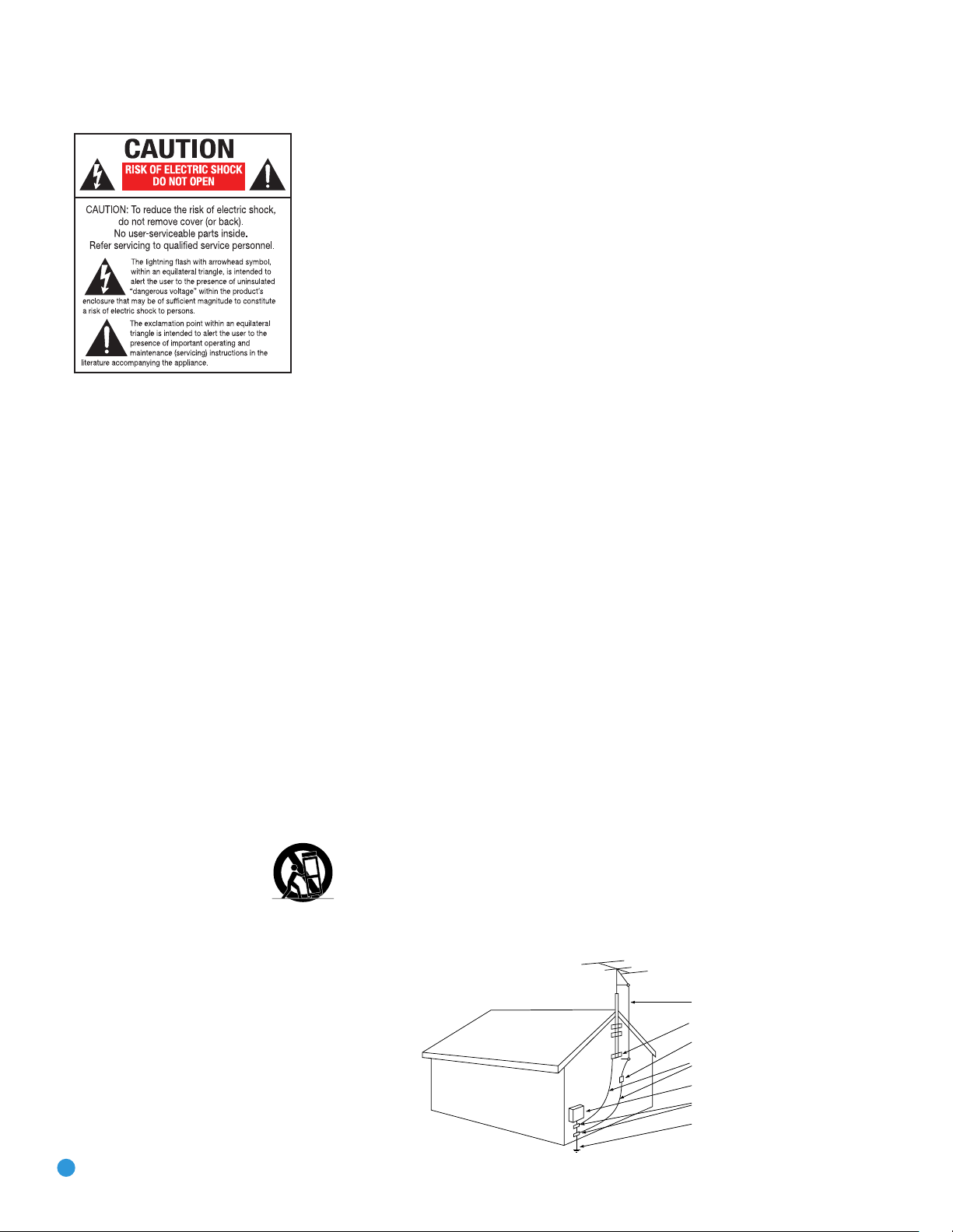
SAFETY INFORMATION
Antenna Lead-In Wire
Ground Clamp
Antenna Discharge Unit (NEC Section 810-20)
Grounding Conductors (NEC Section 810-21)
Electric Service Equipment
Ground Clamps
Power Service Grounding Electrode System
(NEC Art 250, Part H)
1. Read Instructions. All the safety and operating instructions should be read before the product is operated.
2. Retain Instructions. The safety and operating instructions should be retained for future reference.
3. Heed Warnings. All warnings on the product and in the
operating instructions should be adhered to.
4. Follow Instructions. All operating and use instructions
should be followed.
5. Cleaning. Unplug this product from the wall outlet before
cleaning. Do not use liquid cleaners or aerosol cleaners. Use
a damp cloth for cleaning.
6. Attachments. Do not use attachments not recommended
by the product manufacturer, as they may cause hazards.
7. Water and Moisture. Do not use this product near
water – for example, near a bathtub, wash bowl, kitchen
sink or laundry tub; in a wet basement; near a swimming
pool; or the like.
8. Accessories. Do not place this product on an unstable
cart, stand, tripod, bracket or table. The product may fall,
causing serious injury to a child or adult, and serious damage to the product. Use only with a cart, stand, tripod,
bracket or table recommended by the manufacturer, or sold
with the product. Any mounting of the product should follow
the manufacturer’s instructions, and should use a mounting
accessory recommended by the manufacturer.
9. A Product and Cart Combination Should
Be Moved With Care. Quick stops, excessive
force and uneven surfaces may cause the
product and cart combination to overturn.
10. Ventilation. Slots and openings in the cabinet are provided for ventilation and to ensure reliable operation of the
product and to protect it from overheating, and these openings must not be blocked or covered. The openings should
never be blocked by placing the product on a bed, sofa, rug
or other similar surface. This product should not be placed in
a built-in installation, such as a bookcase or rack, unless
proper ventilation is provided or the manufacturer’s instructions have been adhered to.
11. Power Sources. This product should be operated only
from the type of power source indicated on the marking
label. If you are not sure of the type of power supply to your
2
home, consult your product dealer or local power company.
For products intended to operate from battery power, or
other sources, refer to the operating instructions.
12. Polarization. This product may be equipped with a
polarized alternating-current-line plug (a plug having one
blade wider than the other). This plug will fit into the power
outlet only one way. This is a safety feature. If you are unable
to insert the plug fully into the outlet, try reversing the plug.
If the plug should still fail to fit, contact your electrician to
replace your obsolete outlet. Do not defeat the safety purpose of the polarized plug.
13. Power-Cord Protection. Power-supply cords should be
routed so that they are not likely to be walked on or pinched
by items placed upon or against them, paying particular
attention to cords at plugs, convenience receptacles, and
the point where they exit from the product.
14. Nonuse Periods. The power cord of the product should
be unplugged from the outlet when left unused for long
periods of time.
15. Outdoor Antenna Grounding. If an outside antenna
or cable system is connected to the product, be sure the
antenna or cable system is grounded so as to provide some
protection against voltage surges and built-up static charges.
Article 810 of the National Electrical Code, ANSI/NFPA 70,
provides information with regard to proper grounding of the
mast and supporting structure, grounding of the lead-in wire
to an antenna discharge unit, size of grounding conductors,
location of antenna-discharge unit, connection to grounding
electrodes, and requirements for the grounding electrode.
See Figure A.
16. Lightning. For added protection for this product during
a lightning storm, or when it is left unattended and unused
for long periods of time, unplug it from the wall outlet and
disconnect the antenna or cable system. This will prevent
damage to the product due to lightning and power-line
surges.
17. Power Lines. An outside antenna system should not
be located in the vicinity of overhead power lines or other
electric light or power circuits, or where it can fall into
such power lines or circuits. When installing an outside
antenna system, extreme care should be taken to keep
from touching such power lines or circuits, as contact with
them might be fatal.
Figure A.
Example of Antenna Grounding as per
National Electrical Code ANSI/NFPA 70
18. Overloading. Do not overload wall outlets, extension
cords, or integral convenience receptacles, as this can result
in a risk of fire or electric shock.
19. Object and Liquid Entry. Never push objects of any
kind into this product through openings, as they may touch
dangerous voltage points or short-out parts that could result
in a fire or electric shock. Never spill liquid of any kind
on the product.
20. Servicing. Do not attempt to service this product
yourself, as opening or removing covers may expose you
to dangerous voltage or other hazards. Refer all servicing
to qualified service personnel.
21. Damage Requiring Service. Unplug this product from
the wall outlet and refer servicing to qualified service personnel
under the following conditions:
a. The power-supply cord or the plug has been damaged; or
b. Objects have fallen onto, or liquid has been spilled into, the
product; or
c. The product has been exposed to rain or water; or
d. The product does not operate normally when following the
operating instructions. Adjust only those controls that are
covered by the operating instructions, as an improper
adjustment of other controls may result in damage and
will often require extensive work by a qualified technician
to restore the product to its normal operation; or
e. The product has been dropped or damaged in any way; or
f. The product exhibits a distinct change in performance; this
indicates a need for service.
22. Replacement Parts. When replacement parts are
required, be sure the service technician has used replacement parts specified by the manufacturer or that have the
same characteristics as the original part. Unauthorized substitutions may result in fire, electric shock or other hazards.
23. Safety Check. Upon completion of any service or
repairs to this product, ask the service technician to perform
safety checks to determine that the product is in proper
operating condition.
24. Wall or Ceiling Mounting. The product should be
mounted to a wall or ceiling only as recommended by the
manufacturer.
25. Heat. The product should be situated away from heat
sources such as radiators, heat registers, stoves or other
products (including amplifiers) that produce heat.

SAFETY INFORMATION
Important Safety Information
Verify Line Voltage Before Use
Your AVR 247 has been designed for use with 120-volt AC current. Connection to
a line voltage other than that for which it is intended can create a safety and fire
hazard and may damage the unit.
If you have any questions about the voltage requirements for your specific model, or
about the line voltage in your area, contact your selling dealer before plugging the unit
into a wall outlet.
Do Not Use Extension Cords
To avoid safety hazards, use only the power cord attached to your unit. We do not
recommend that extension cords be used with this product. As with all electrical
devices, do not run power cords under rugs or carpets or place heavy objects on
them. Damaged power cords should be replaced immediately by an authorized service
center with a cord meeting factory specifications.
Handle the AC Power Cord Gently
When disconnecting the power cord from an AC outlet, always pull the plug; never
pull the cord. If you do not intend to use the unit for any considerable length of time,
disconnect the plug from the AC outlet.
Do Not Open the Cabinet
There are no user-serviceable components inside this product. Opening the cabinet
may present a shock hazard, and any modification to the product will void your
guarantee. If water or any metal object such as a paper clip, wire or staple accidentally falls inside the unit, disconnect it from the AC power source immediately, and
consult an authorized service center.
CATV or Antenna Grounding
If an outside antenna or cable system is connected to this product, be certain that it is
grounded so as to provide some protection against voltage surges and static charges.
Section 810 of the National Electrical Code, ANSI/NFPA No. 70-1984, provides
information with
grounding of the lead-in wire to an antenna
tors, location of antenna discharge unit,
requirements of the grounding electrode.
NOTE TO CATV SYSTEM INSTALLER: This reminder is provided to call the CATV
(cable TV) system installer’s attention to article 820-40 of the NEC, which provides
guidelines for proper grounding and, in particular, specifies that the cable ground
shall be connected to the grounding system of the building, as close to the point
of cable entry as possible.
Installation Location
• To ensure proper operation and to avoid the potential for safety hazards, place the
unit on a firm and level surface. When placing the unit on a shelf, be certain that
the shelf and any mounting hardware can support the weight of the product.
• Make certain that proper space is provided both above and below the unit for
ventilation. If this product will be installed in a cabinet or other enclosed area,
make certain that there is sufficient air movement within the cabinet. Under some
circumstances, a fan may be required.
• Do not place the unit directly on a carpeted surface.
• Avoid installation in extremely hot or cold locations, or in an area that is exposed
to direct sunlight or heating equipment.
• Avoid moist or humid locations.
• Do not obstruct the ventilation slots on the top of the unit, or place objects
directly over them.
• Due to the weight of the AVR 247 and the heat generated by the amplifiers,
there is the remote possibility that the rubber padding on the bottom of the
respect to proper grounding of the mast and supporting structure,
discharge unit, size of grounding conduc-
connection to grounding electrodes and
unit’s feet may leave marks on certain wood or veneer materials. Use caution
when placing the unit on soft woods or other materials that may be damaged
by heat or heavy objects. Some surface finishes may be particularly sensitive to
absorbing such marks, due to a variety of factors beyond Harman Kardon’s control, including the nature of the finish, cleaning materials used, and normal heat
and vibration caused by the use of the product, or other factors. We recommend
that caution be exercised in choosing an installation location for the component and
in normal maintenance practices, as your warranty will not cover this type of damage
to furniture.
Cleaning
When the unit gets dirty, wipe it with a clean, soft, dry cloth. If necessary, and only after
unplugging the AC power cord, wipe it with a soft cloth dampened with mild soapy
water, then a fresh cloth with clean water. Wipe it dry immediately with a dry cloth.
NEVER use benzene, aerosol cleaners, thinner, alcohol or any other volatile cleaning
agent. Do not use abrasive cleaners, as they may damage the finish of metal parts.
Avoid spraying insecticide near the unit.
Moving the Unit
Before moving the unit, be certain to disconnect any interconnection cords
with other components, and make certain that you disconnect the unit from
the AC outlet.
Important Information for the User
This equipment has been tested and found to comply with the limits for a Class-B
digital device, pursuant to Part 15 of the FCC Rules. The limits are designed to provide reasonable protection against harmful interference in a residential installation.
This equipment generates,
installed and used in accordance with the instructions, may cause harmful interference to radio communication. However, there is no guarantee that harmful interference will not occur in a particular installation. If this equipment does cause harmful
interference to radio or television reception, which can be determined by turning the
equipment off and on, the user is encouraged to try to correct the interference by
one or more of the following measures:
• Reorient or relocate the receiving antenna.
• Increase the separation between the equipment and receiver.
• Connect the equipment into an outlet on a circuit
receiver is connected.
• Consult the dealer or an experienced radio/TV technician for help.
This device complies with Part 15 of the FCC Rules. Operation is subject to the
following two conditions: (1) this device may not cause harmful interference, and
(2) this device must accept interference received, including interference that may
cause undesired operation.
NOTE: Changes or modifications may cause this unit to fail to comply with Part
the FCC Rules and may void the user’s authority to operate the equipment.
uses and can radiate radio-frequency energy
different from that to which the
and, if not
15 of
Unpacking
The carton and shipping materials used to protect your new receiver during shipment were specially designed to cushion it from shock and vibration. We suggest
that you save the carton and packing materials for use in shipping if you move, or
should the unit ever need repair.
To minimize the size of the carton in storage, you may wish to flatten it. This is done
by carefully slitting the tape seams on the bottom and collapsing the carton. Other cardboard inserts may be stored in the same manner. Packing materials that cannot be collapsed should be saved along with the carton in a plastic bag.
If you do not wish to save the packaging materials, please note that the carton and
other sections of the shipping protection are recyclable. Please
ment and discard those materials at a local recycling center.
It is important that you remove the protective plastic film from the front-panel lens.
Leaving the film in place will affect the performance of your remote control.
respect the environ-
3

STAPLE INVOICE HERE
4
TABLE OF CONTENTS
2 SAFETY INFORMATION
6 INTRODUCTION
8 FRONT-PANEL CONTROLS
10 REAR-PANEL CONNECTIONS
13 REMOTE CONTROL FUNCTIONS
16 INTRODUCTION TO HOME THEATER
17 CONNECTIONS
17 Speaker Connections
17 Subwoofer
17 Connecting Source Devices to the AVR
18 Audio Connections
18 Digital Audio
19 Analog Audio
19 Video Connections
19 Digital Video
19 Analog Video
20 Antennas
20 RS-232 Serial Port
21 SPEAKER PLACEMENT
23 INSTALLATION
23 Step One – Connect the Speakers
23 Step Two – Connect the Subwoofer
23 Step Three – Connect the Antennas
23 Step Four – Connect the Source Components
27 Step Five – Connect the Video Display
27 Step Six – Plug in AC Power
28 Step Seven – Insert Batteries in Remote
28 Step Eight – Program Sources Into the Remote
29 Step Nine – Remote IR Inputs and Output
29 Step Ten – Install a Multiroom System
30 Step Eleven – Turn On the AVR 247
31 INITIAL SETUP
31 Using the On-Screen Menu System
32 Configure the AVR 247 Using EzSet/EQ
33 What EzSet/EQ Does
34 Configure Sources
37 OPERATION
37 Turning On the AVR 247
37 Sleep Timer
37 Volume Control
37 Mute Function
38 Tone Controls
38 Headphones
38 Source Selection
39 Audio Input Selection
39 Video Input Selection
39 6-/8-Channel Direct Inputs
40 Using the Tuner
41 XM Radio Operation
42 Recording
42 Using
44 Selecting a Surround Mode
45 ADVANCED FUNCTIONS
45 Audio Processing and Surround Sound
45 Analog Audio Signals
45 Digital Audio Signals
46 Surround Modes
47 Dolby Surround Settings
47 Default Modes
51 Manual Setup
51 Step One – Determine Speaker Size
51 Step Two – Measure Speaker Distances
51 Step Three – Manual Setup Menu
52 Speaker Size Menu
53 Speaker Crossover Menu
53 Delay Adjust Menu
54 Step Four – Setting Channel Output Levels Manually
55 Video Adjustments
56 Multiroom Operation
56 Installing a Multiroom System
57 Operating the Multiroom System
57 System Settings
58 Dim Function
58 Advanced Remote Control Functions
58 Punch-Through Programming
59 Macros
59 Resetting the Remote
59 Processor Reset
59 Memory
60 TROUBLESHOOTING GUIDE
61 TECHNICAL SPECIFICATIONS
61, 64 Trademark Acknowledgements
62 APPENDIX
WARNING
To prevent fire or shock hazard, do not expose this
appliance to rain or moisture.
For Canadian model
This class B digital apparatus complies with Canadian
ICES-003.
For models having a power cord with a polarized plug:
CAUTION: To prevent electric shock, match wide blade
of plug to wide slot, fully insert.
Modèle pour les Canadien
Cet appareil numérique de la classe B est conforme
à la norme NMB-003 du Canada.
Sur les modèles dont la fiche est polarisee:
ATTENTION: Pour éviter les chocs électriques, introduire
la lame la plus large de la fiche dans la borne
correspondante de la prise et pousser jusqu’au fond.
5
INTRODUCTION
Please register your AVR 247 on our Web site at www.harmankardon.com.
Note: You’ll need the product’s serial number. At the same time, you can choose to be notified about our new products
and/or special promotions.
WWW.HARMANKARDON.COM
Thank you for choosing Harman Kardon®!
In the years since Harman Kardon invented the high-fidelity receiver,
we have taken to heart the philosophy of bringing the joy of home
entertainment to as many people as possible, adding performance and
ease-of-use features that enhance the home entertainment experience.
In the years since our first single-channel component was introduced,
Harman Kardon has offered a number of receiver models, each an
improvement upon its predecessors, leading to the AVR 247, a
7.1-channel digital audio/video receiver that offers a wealth of listening
and viewing options, all in an elegant package.
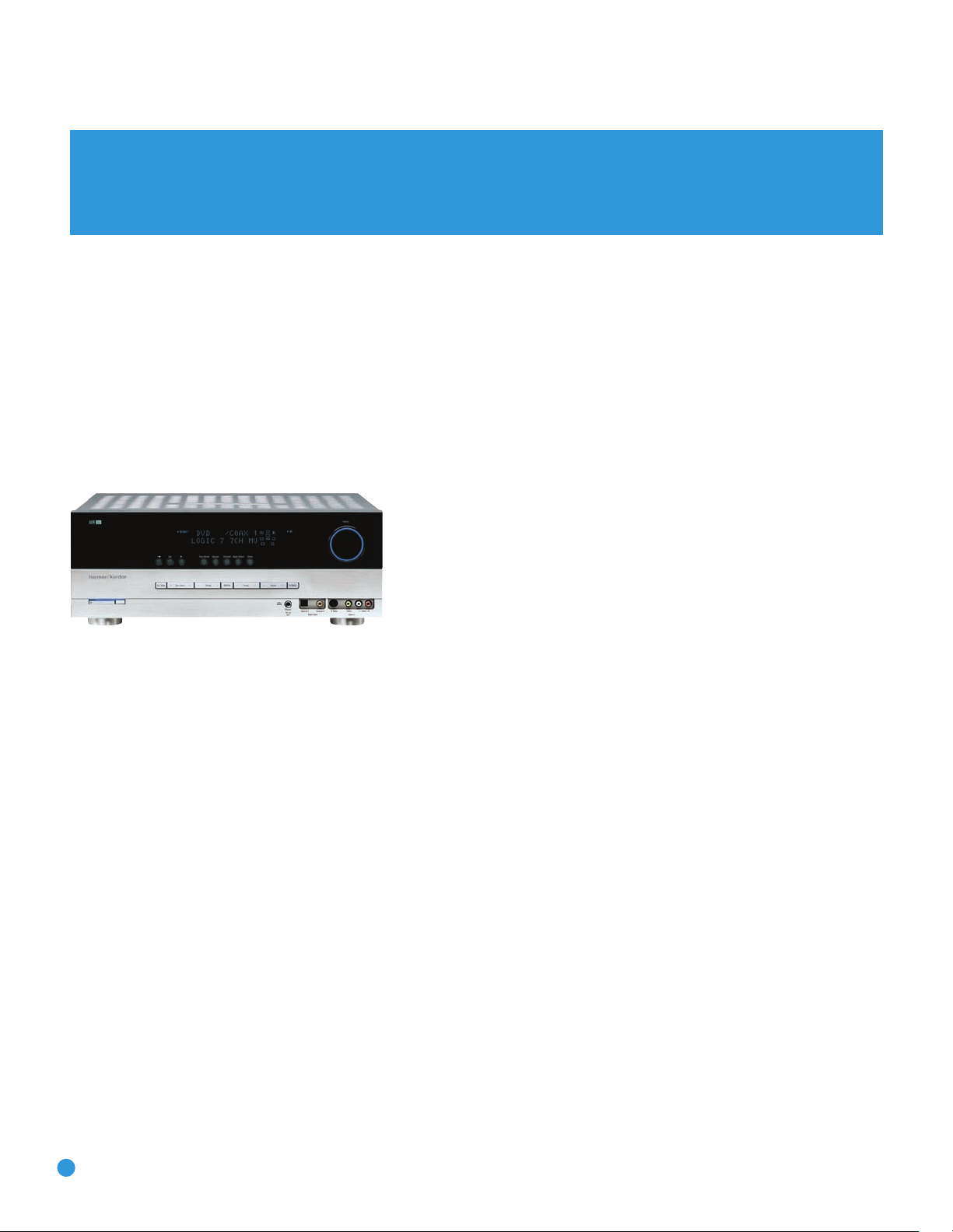
AVR 247 7.1-Channel Audio/Video Receiver
Audio Section
• 50 Watts x 7, seven channels driven at full power at 8 ohms,
20Hz – 20kHz, <0.07% THD (surround modes), 350 watts total
• 65 Watts x 2, two channels driven at full power at 8 ohms,
20Hz – 20kHz, <0.07% THD (surround off mode), 130 watts total
• High-current capability, ultrawide-bandwidth amplifier design with low
negative feedback
• All-discrete amplifier circuitry
• Dual independent power supplies, for front and surround channels
• Quadruple-crossover bass management
®
• 24-Bit, twin-core Cirrus Logic
32-bit postprocessor
CS 49510 DSP processor with
To obtain the maximum enjoyment from your new receiver, we urge you
to read this manual and refer back to it as you become more familiar
with its features and their operation.
If you have any questions about this product, its installation or its
operation, please contact your retailer or customer installer, or visit our
Web site at www.harmankardon.com.
Surround Modes
• Dolby®Digital EX
®
• Dolby Pro Logic
• Dolby Virtual Speaker Version 2 (Reference two- or three-speaker;
Wide two-, three-, four- or five-speaker)
• Dolby Headphone Version 2
®
(5.1; DTS Stereo; DTS-ES®6.1 Discrete and Matrix)
• DTS
• DTS 96/24
• DTS Neo:6
• Logic 7
®
• Hall 1 and Hall 2 (5- or 6-channel)
II and IIx (Movie, Music and Game)
™
(DTS Stereo)
®
(Cinema 3-, 5- or 6-channel; Music 5- or 6-channel)
(Cinema, Music and Enhance – 5.1 and 7.1)
• 192kHz/24-bit D/A conversion
• Sampling upconversion to 96kHz
6
• Theater (5- or 6-channel)
• 5- or 7-Channel Stereo
• Surround Off (DSP or Analog Bypass)

INTRODUCTION
Audio Inputs
• AM/FM/XM®* tuner
• CD
• Tape
• 6-/8-Channel direct
• /DMP for iPod** connectivity with audio/video playback
Audio/Video Inputs (With S-Video)
• Video 1
• Video 2
• Video 3
• Video 4 (on front panel)
• DVD
• Three assignable 100MHz component video inputs
™
• Simplay HD
and 1080p pass-through)
• DCDi
Transcodes composite and S-video to component video
Transcodes 480i video to HDMI format, with upscaling up to 720p
-verified HDMI™1 and 2 (with audio/video processing
®
by Faroudja video processing
Ease of Use
• EzSet/EQ™automated setup (microphone supplied)
• Graphic on-screen display with HDMI, component, composite
and S-video
• Two-line dot-matrix front-panel display
• Color-coded connections
• Programmable 11-device main remote control
• Source input renaming
• A/V Sync Delay
• RS-232 serial port for system upgrades
• Switched accessory power outlet
• Remote infrared (IR) input and output
• Multiroom IR input
The AVR 247 is Simplay HD-verified for compatibility
via the HDMI connection with other Simplay HD-verified products.
Supplied Accessories
The following accessory items are supplied with the AVR 247. If any
of these items are missing, please contact Harman Kardon customer
service at www.harmankardon.com.
Upgraded graphic text-based on-screen displays
Digital Audio Inputs
• Coaxial: two rear-panel/one front-panel
• Optical: two rear-panel/one front-panel
Outputs
• 7.1-Channel preamp outputs
• Tape (analog audio)
• Video 1 (analog audio and video)
• Video monitor (composite, S-video and component)
• Digital audio (one coaxial, one optical)
• Simplay HD-verified HDMI
• Multiroom audio: speaker- and line-level (shared with surround
back channels)
• Headphone
• System remote control
• EzSet/EQ microphone
• AM loop antenna
• FM wire antenna
• Three AAA batteries
• Two covers for front-panel jacks
*XM antenna module and subscription to XM service required. Hardware and
service sold separately. XM service is not available in Alaska or Hawaii.
**Compatible with all iPod models equipped with a dock connector. Not compatible
with iPod shuffle models. Images and videos stored on iPod photo and video
models may be viewed.
7

FRONT-PANEL CONTROLS
Main Power Switch: This mechanical switch turns the power supply
on or off. It is usually left pressed in (On position), and cannot be turned
on using the remote control.
Standby/On Switch: This electrical switch turns the receiver on
for playback, or leaves it in Standby mode for quick turn-on using this
switch or the remote control.
Power Indicator: This LED has three possible modes. When main
power is turned off, the LED is dark and the receiver won’t respond to
any button presses. When main power is turned on, but before the
Standby/On Switch is used, the LED turns amber to indicate that the
receiver is in Standby mode and ready to be turned on. When the
receiver is turned on, the LED turns blue.
Source Select: Press this button to select a source device, which
is a component where a playback signal originates, e.g., DVD, CD,
cable TV, satellite or HDTV tuner.
Source Indicators: The name of the current source input lights up.
The indicated input changes each time the Source Select button is
pressed.
Volume Knob: Turn this knob to raise or lower the volume, which will
be shown in decibels (dB) in the Message Display.
Message Display: Various messages appear in this two-line display
in response to commands and changes in the incoming signal. When
the on-screen display menu system (OSD) is in use, the message OSD
ON will appear to remind you to check the video display.
Tuner Band: Press this button to select the tuner as the source, to
switch between the AM and FM bands, or to select XM satellite radio.
Tuning: Press either side of this button to tune a radio station or
XM channel.
Tuning Mode: This button toggles between manual (one frequency
step at a time) and automatic (seeks frequencies with acceptable signal
strength) tuning mode. It also toggles between stereo and mono modes
when an FM station is tuned.
When XM Radio is in use, pressing this button repeatedly displays the
channel name, category, artist and track title in the lower line of the
Message Display. For traffic-and-weather channels, this button displays
the city, channel name, local weather and local temperature.
Preset Stations: Press this button to select a preset radio station.
Headphone Jack/EzSet/EQ Microphone Input: Plug a 1/4″
headphone plug into this jack for private listening.
This jack is also used to connect the supplied microphone before beginning the EzSet/EQ procedure described in the Initial Setup section. To
begin EzSet/EQ, plug the supplied microphone into this jack, place the
microphone at the listening position, and follow the directions given in
the Speaker Setup-Auto Configuration on-screen menu.
Surround Mode: Press this button to select a surround sound (e.g.,
multichannel) mode group. Choose from the Dolby modes, DTS modes,
Logic 7 modes, DSP modes or Stereo modes.
Surround Select: After you have selected the desired surround
mode group, press this button to select a specific mode.
Surround Mode Indicators: One or more of these icons may light
up as you select different surround modes. The Message Display also
indicates the surround mode.
Analog Audio, Video and Digital Audio Inputs: Connect a
source component that will only be used temporarily, such as a camera
or game console, to these jacks. Use only one type of audio and one
type of video connection.
Speaker/Channel Input Indicators: The box icons indicate
which speaker positions you have configured, and the size (frequency
range) of each speaker. When a digital audio input is used, letters will
light inside the boxes to indicate which channels are present in the
incoming signal.
Navigation: These buttons are used together with the following five
buttons to make selections.
Tone Mode: Press this button to access the tone controls (bass and
‹/›
treble). Use the
Navigation Buttons to make your selections.
Speaker: Press this button to configure speaker sizes, that is, the
low-frequency-range capability of each speaker.
Channel Level Adjust: Press this button to set the output level for
each channel so that all speakers sound equally loud at the listening
position.
Digital Input Select: Press this button to select the specific digital
audio input (or analog audio input) you used for the current source.
Delay: Press this button to set delay times that compensate for
placing the speakers at different distances from the listening position.
Remote IR Sensor: This sensor receives infrared (IR) commands
from the remote control. It is important to ensure that it is not blocked.
If covering the sensor is unavoidable, such as when the AVR 247 is
placed inside a cabinet, you may use an optional Harman Kardon
HE 1000, or other infrared receiver, connecting it to the Remote IR
Input on the AVR 247’s rear panel. Alternatively, connect the Remote IR
Output of another compatible component to the AVR 247’s Remote
IR Input. Point the remote at the other device’s remote sensor, and the
command will be transmitted to the AVR 247. An external IR “blaster”
may also be used, positioned to point at this area.
8
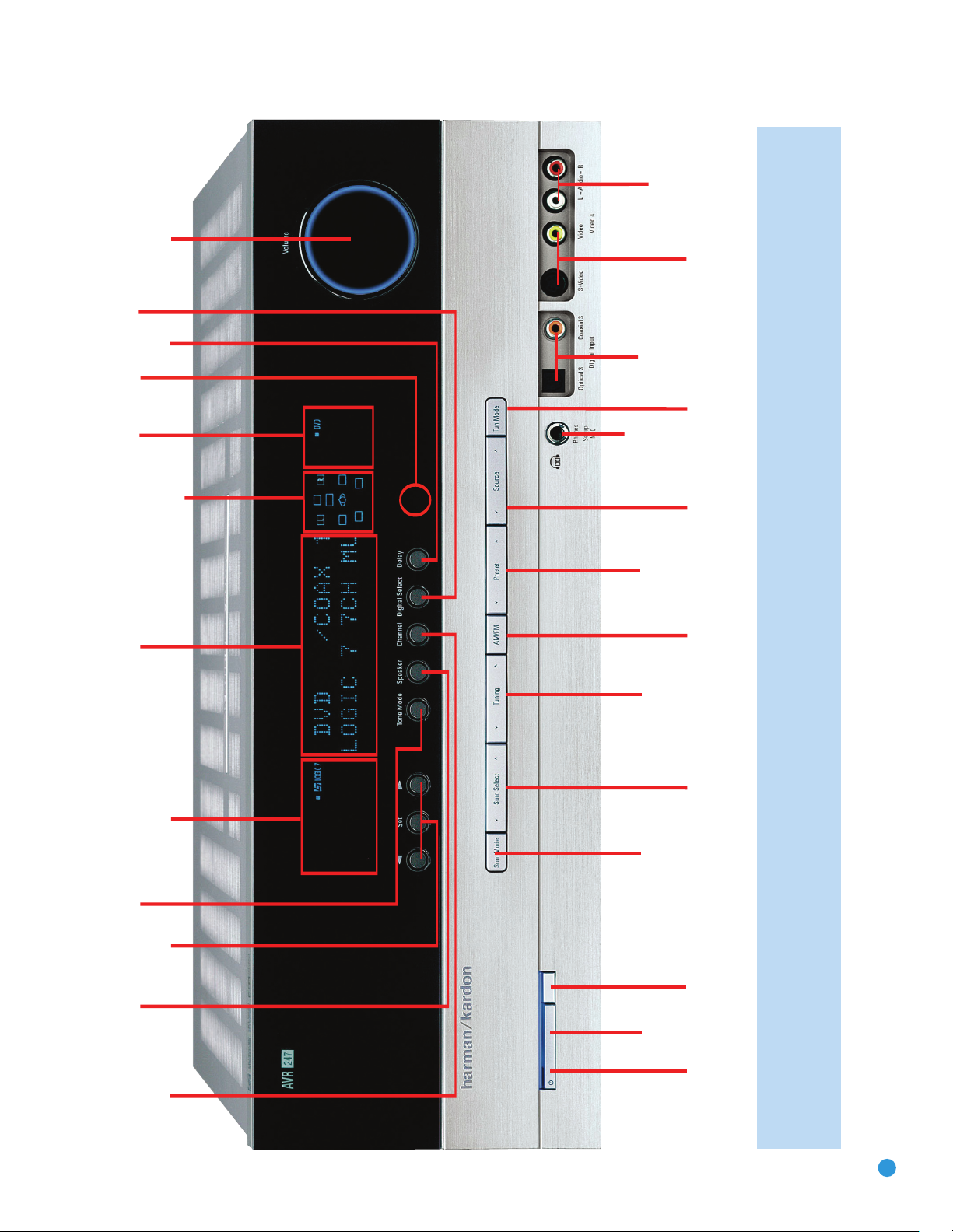
Surround
Mode
Tuning
Preset Stations
Surround
Select
Tuner Band
Tuning
Mode
Source
Select
Headphone
Jack/EzSet/EQ
Microphone
Input
Digital
Audio Inputs
(Optical 3 and
Coaxial 3)
Video 4
Video Inputs
Video 4 Analog
Audio Inputs
Navigation
Tone Mode
Speaker Size
Setup
Delay
Digital Input
Select
Power
Indicator
Main Power
Switch
Standby/On
Switch
Volume
Source
Indicators
Message Display
Surround Mode Indicators
Speaker/Channel
Input Indicators
Channel Level
Adjust
Remote
IR Sensor
NOTE: To make it easier to follow the instructions throughout the manual that refer to this illustration, a copy of this page may be downloaded from the Product Support section at
www.harmankardon.com.
9

REAR-PANEL CONNECTIONS
AM and FM Antenna Terminals: Connect the included AM and
FM antennas to their respective terminals for radio reception.
XM Antenna Jack: Plug in an XM antenna module here. The XM
antenna module is purchased separately, and should specify that it is
for home use with an XM Ready
the XM service, which is available separately, and activate the service for
your antenna module. (XM service is not available in Alaska and Hawaii.)
®
product. You will need to subscribe to
Front, Center and Surround Speaker Outputs: Use two-
conductor speaker wire to connect each set of terminals to the correct
speaker. Remember to observe the correct polarity (positive and negative
connections). Always connect the positive lead to the colored terminal
on the receiver and the red terminal on the speaker. Connect the negative
lead to the black terminal on both the receiver and the speaker. See the
Connections section for more information on connecting your speakers.
Surround Back/Multiroom Speaker Outputs: These speaker
outputs may be used either for the surround back channels in a 7.lchannel home theater, or they may be reassigned to a remote room for
use with a multiroom system. When these outputs are reassigned for
multiroom operation, only a 5.1-channel configuration will be available in
the main listening room. Use the on-screen menu system to configure
these channels as desired.
As with the other speaker outputs, remember to observe proper polarity
by connecting the positive and negative output terminals to the corresponding terminals on each speaker.
Subwoofer Output: If you have a powered subwoofer with a
line-level input, connect it to this jack.
Preamp Outputs: Connect these jacks to an external amplifier if
more power is desired.
Surround Back/Multiroom Preamp Outputs: These outputs
may be used with an external amplifier either to power the surround
back channels, or to power the speakers in the remote zone of a multichannel system. Use the on-screen menu system to configure these
channels as desired.
Remote Infrared (IR) Input and Output: When the remote IR
receiver on the front panel is blocked, such as when the AVR is placed
inside a cabinet, connect an optional IR receiver to the Remote IR Input
jack for use with the remote control. The Remote IR Output may be
connected to the Remote IR Input of a compatible source device (or
other product) to enable remote control through the AVR. This is particularly useful in multiroom applications, when you wish to control the
source device from the remote room (when used with the Multiroom IR
Input). When several source devices are used, connect them in “daisy
chain” fashion.
Multiroom Infrared (IR) Input: Connect a remote IR receiver
located in the remote zone of a multiroom system to this jack to control
the AVR and any source devices connected to the Remote IR Output
from the remote zone.
Video 1, Video 2, Video 3 and DVD Audio/Video Inputs:
These jacks may be used to connect your video-capable source
components (e.g., VCR, DVD player, cable TV box) to the receiver.
Remember to use only one type of video connection for each source.
See the Connections section for more information on audio and video
connection options for each source component.
Video 1 Audio/Video Outputs: These jacks may be used to
connect your VCR or another recorder.
Composite and S-Video Monitor Outputs: If any of your
sources use composite or S-video connections, you may need to
connect one or both of these monitor outputs to the corresponding
inputs on your television or video display in order to view the sources
and to view the on-screen displays. If your video display is equipped
with HDMI or component video inputs, you may take advantage of the
AVR 247’s transcoding capability, which transcodes composite and
S-video signals to HDMI and component video, allowing for only a
single video connection from the AVR to the video display.
HDMI Inputs and Output: HDMI (High-Definition Multimedia
Interface) is a newer type of connection for transmitting digital audio and
video signals between devices. With the AVR 247’s powerful processor,
you may connect up to two HDMI-equipped source devices to the HDMI
inputs using a single-cable connection, while benefiting from superior
digital audio and video performance. However, if your video display is
not HDMI-compatible, you will need to connect the device to one of the
other source inputs, selecting a coaxial or optical digital audio input and
analog video input. See the Connections and Installation sections for
more information.
If your video display has an HDMI input, but some of your sources
have only analog video outputs, you may still rely on just the HDMI video
connection to your display; the AVR 247 will automatically transcode
analog video signals up to 720p to the HDMI format. High-resolution
analog 1080i or higher signals are not available at the HDMI Output, but
1080i signals received through one of the HDMI Inputs will be passed
through directly to the HDMI Output without any video processing.
The AVR 247 is Simplay HD-verified for compatibility via the HDMI
connection with other Simplay HD-verified products.
CD and Tape Audio Inputs: These jacks may be used to connect
audio-only source components (e.g., CD player, tape deck). Do not
connect a turntable to these jacks without a phono preamp.
Tape Outputs: These jacks may be used to connect a CDR or
another audio-only recorder.
Coaxial and Optical Digital Audio Inputs: If a source has
a compatible digital audio output, and if you are not using an HDMI
connection for audio for the device, connect it to one of these jacks
for improved audio performance. Use only one type of digital audio
connection for each source.
Coaxial and Optical Digital Audio Outputs: If a source is
also an audio recorder, you may connect a compatible digital audio
output to the recorder’s input for improved recording quality.
10

REAR-PANEL CONNECTIONS
The Bridge/DMP Input: Connect the optional Harman Kardon
to this input for use with your iPod (not included). Make
sure the receiver is turned off (in Standby mode) when connecting
The Bridge.
6-/8-Channel Inputs: Connect the multichannel analog audio
™
outputs of a DVD-Audio, SACD
(or any other external decoder) to these jacks to enjoy these proprietary
formats.
NOTE: When an HD-DVD or Blu-ray Disc player has an
onboard digital decoder, it is not necessary to connect it to
the 6-/8-Channel Analog Audio Inputs. Only a digital audio
connection (HDMI, coaxial or optical) is needed.
, Blu-ray Disc™or HD-DVD™player
Component Video Inputs: If both a video source (e.g., DVD
player or HDTV tuner) and your television or video display have analog
component video (Y/Pb/Pr) capability, and if you are not using an HDMI
connection for the device, then you may connect the component video
outputs of the source to one of the two component video inputs. Do
not make any other video connections to that source.
Component Video Monitor Outputs: If you are using one of
the Component Video Inputs and your television or video display is
component-video-capable, and if you are not connecting the HDMI
Output to your display, you may connect these jacks to the corresponding inputs on your video display.
Switched AC Accessory Outlet: You may plug the AC power
cord of one source device into this outlet, and it will turn on whenever
you turn on the receiver. Do not use a source that consumes more than
50 watts of power.
AC Power Cord: After you have made all other connections, plug
the AC power cord into an unswitched outlet.
NOTES:
• Due to copy-protection restrictions, there is no output at
the Component Video Monitor Outputs for copy-protected
sources.
• High-resolution analog 1080i and 1080p video signals are
not available at the HDMI Output, but 1080i signals are
passed through, as is, to the Component Video Outputs. If your
source outputs analog high-resolution video, either use the
AVR’s Component Video Outputs, lower the output resolution
of your source device, or connect your source’s component
video outputs directly to your video display.
• Due to the design of some video displays, analog 480p or
720p component video source signals may produce artifacts
when used with the AVR’s analog video outputs (composite,
S-video or component video). If this occurs, try changing the
Video Mode setting in the INPUT SETUP menu, or connecting
the source device’s video output directly to your video display.
However, for best results, we recommend you consider
upgrading to an HDMI-capable video display.
RS-232 Serial Port: This specialized connector may be used with
your personal computer in case Harman Kardon offers a software
upgrade for the receiver at some time in the future.
RS-232 Mode: Leave this switch popped out in the Operate position
unless the AVR 247 is being upgraded.
RS-232 Reset: This switch is only used during a software upgrade.
A standard processor reset is performed by pressing and holding the
front-panel Tone button.
11
FM Antenna
XM
Antenna
Jack
AM Antenna
Video 2
A/V
Inputs
Video 1
A/V
Outputs
Video 3
A/V
Inputs
Video 1
A/V
Inputs
Video
Monitor
Outputs
DVD A/V
Inputs
Component
Video
Inputs
(1, 2 & 3)
Component
Video
Monitor
Outputs
AC Power
Cord
RS-232
Serial Port
Coaxial Digital
Audio
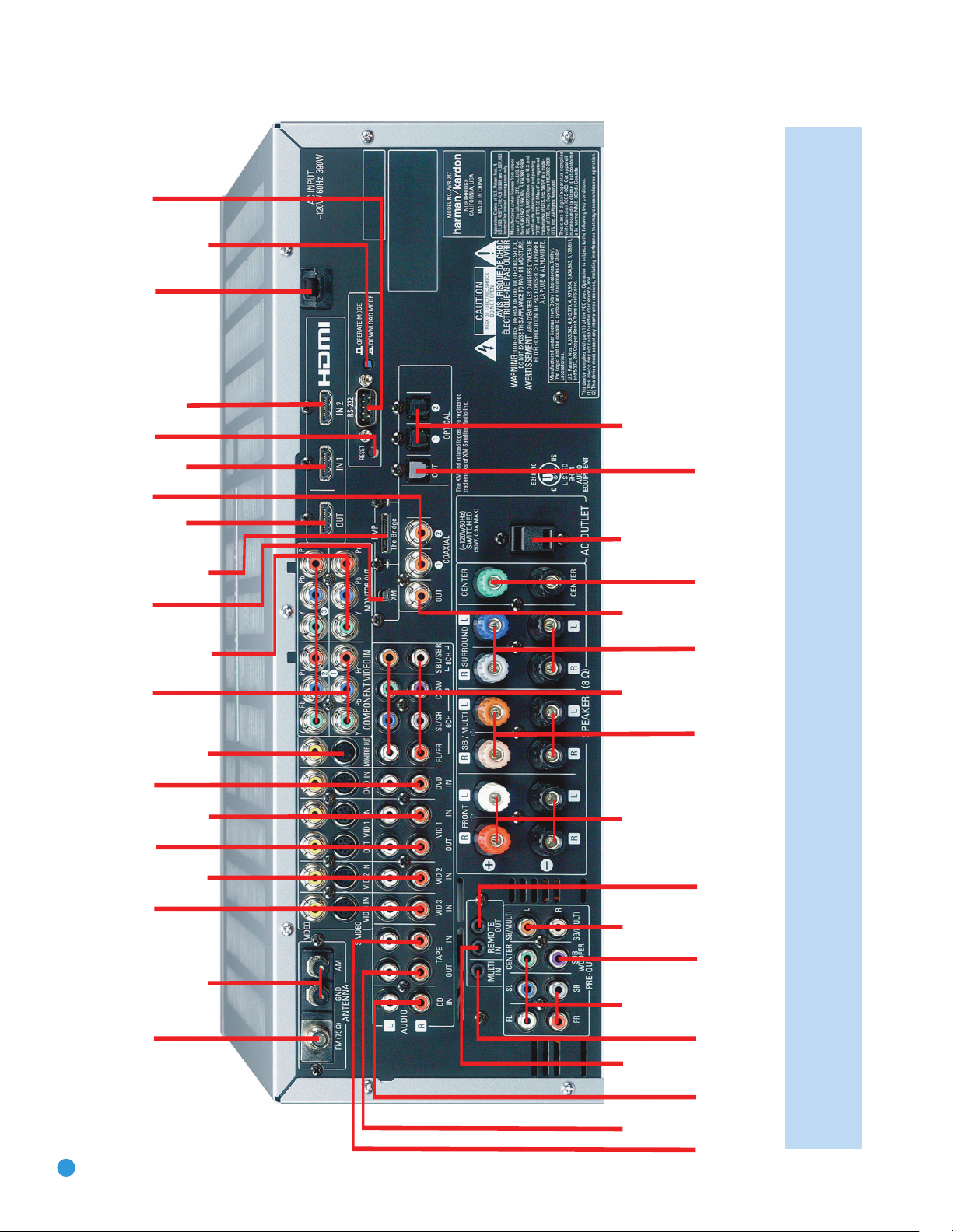
Inputs
(1 & 2)
RS-232
Mode
The
Bridge/
DMP
Input
RS-232
Reset
HDMI
Output
HDMI 2
Input
HDMI1
Input
Subwoofer
Output
Preamp
Outputs
Front Speaker
Outputs
Surround
Speaker
Outputs
6-/8-
Channel
Inputs
Surround
Back/Multiroom
Speaker Outputs
Surround
Back/
Multiroom
Preamp
Outputs
Center Speaker
Outputs
Switched AC
Accessory
Outlet
Coaxial
Digital
Audio
Output
Optical Digital
Audio Inputs (1 & 2)
Optical Digital
Audio Output
CD
Inputs
Multiroom
IR Input
Remote
IR Input
Remote
IR Output
Tape
Outputs
Tape
Inputs
NOTE: To make it easier to follow the instructions throughout the manual that refer to this illustration, a copy of this page may be downloaded from the Product Support section at
www.harmankardon.com.
12

REMOTE CONTROL FUNCTIONS
The AVR 247 remote is capable of controlling 11devices, including the
AVR itself and an iPod docked in the optional The Bridge accessory.
During the installation process, you may program the codes for each
of your source components into the remote. Each time you wish to use
the codes for any component, first press the Selector button for that
component. This changes the button functions to the appropriate codes
for that product.
NOTE: Several of the Input Selectors are shared between two
devices. The selector button will light in red when the remote
is in the device mode printed on the button, and it will light in
green for the device mode printed above the button. To switch
between the two device modes, press the selector
in succession. The selector will remain in the last-selected mode
until the next time you press the selector twice quickly.
For example, the first time you press the DVD button, the button
will light up in red, indicating that the remote is in DVD mode. If
you press another selector, such as the VID3 selector, and then
press the DVD button again, the DVD button will remain red,
indicating the remote is still in DVD mode. Now press the DVD
button twice quickly. At the first press the button will light red,
indicating that the remote is in DVD mode. On the second press
the button will turn green, indicating that the remote is now in CD
mode. If you press a different selector and return to the DVD/CD
Selector, you will observe that the remote is still in CD mode.
Each Input Selector has been preprogrammed to control certain types
of components, with only the codes specific to each brand and model
changing, depending on which product code is programmed. The
device types programmed into each selector may not be changed.
However, you may program the HDMI 1 and 2 Selectors with the DVD,
cable/satellite or VCR/PVR device type.
twice
quickly
DVD: Controls DVD players and recorders.
CD: Controls CD players and recorders.
Tape: Controls cassette decks.
Video 1: Controls VCRs, TiVo
®
and PVRs.
Video 2: Controls cable and satellite television set-top boxes.
Video 3: Controls televisions and other video displays.
Video 4: Controls televisions and other video displays.
HDMI 1 and 2: Each code set controls a source device (VCR/PVR,
DVD player or cable/satellite set-top box) connected to one of these
two inputs.
XM: Controls the AVR functions for XM Satellite Radio.
The Bridge/DMP: Controls an iPod docked in The Bridge.
For example, if you have inserted a disc in your CD player and you
would like to skip ahead three tracks, but you then find that the volume
is too loud, you would follow this procedure:
1. Press the CD Input Selector to switch to the codes that control your
CD player. If the remote is in DVD mode, press the selector twice quickly
to switch to CD mode, indicated by the selector lighting in green.
2. Press the Play Button (in the Transport Controls section) if the disc
is not already playing.
3. Press the Skip Up Button three times to advance three tracks.
4. Press the AVR Button so that you can access the Volume Controls.
5. Press the Volume Down Button until the volume level is satisfactory.
Any given button may have different functions, depending on which
component is being controlled. Some buttons are labeled with these
functions. For example, the Sleep and DSP Surround Buttons are
labeled for use as Channel Up/Down Buttons when controlling a television or cable box. See Table A8 in the appendix for listings of the
different functions for each type of component.
IR Transmitter Lens: As buttons are pressed on the remote,
infrared codes are emitted through this lens. Make sure it is pointing
toward the component being operated.
Power On Button: Press this button to turn on the AVR or another
device. The Master Power Switch on the AVR 247’s front panel must
first have been switched on.
Mute Button: Press this button to mute the AVR 247’s speaker and
headphone outputs temporarily. To end the muting, press this button
or adjust the volume. Muting is also canceled when the receiver is
turned off.
Program Indicator: This LED lights up or flashes in one of three colors
as the remote is programmed with codes.
Power Off Button: Press this button to turn off the AVR 247 or
another device.
AVR Selector: Press this button to switch the remote to the codes
that operate the receiver.
Input Selectors: Press one of these buttons to select a source
device, which is a component where a playback signal originates, e.g.,
DVD, CD, cable TV, satellite or HDTV tuner, or an iPod docked in the
optional The Bridge. This will also turn on the receiver and switch the
remote’s mode to operate the source device.
XM Radio Button: Press this button to select XM Satellite Radio as
the source. You will need to have purchased and activated an XM antenna
module, and you will also need to subscribe to the XM Radio service.
Visit www.xmradio.com for more information.
AM/FM Button: Press this button to select the tuner as the source,
or to switch between the AM and FM bands, or XM Radio.
6-/8-Channel Input Selector: Press this button to select the
6-/8-Channel Inputs as the audio source. The receiver will use the video
input and remote control codes for the last-selected video source.
Test Tone: Press this button to activate the test tone for manual
output-level calibration.
TV/Video: This button has no effect on the receiver, but is used to
switch video inputs on some video source components.
13
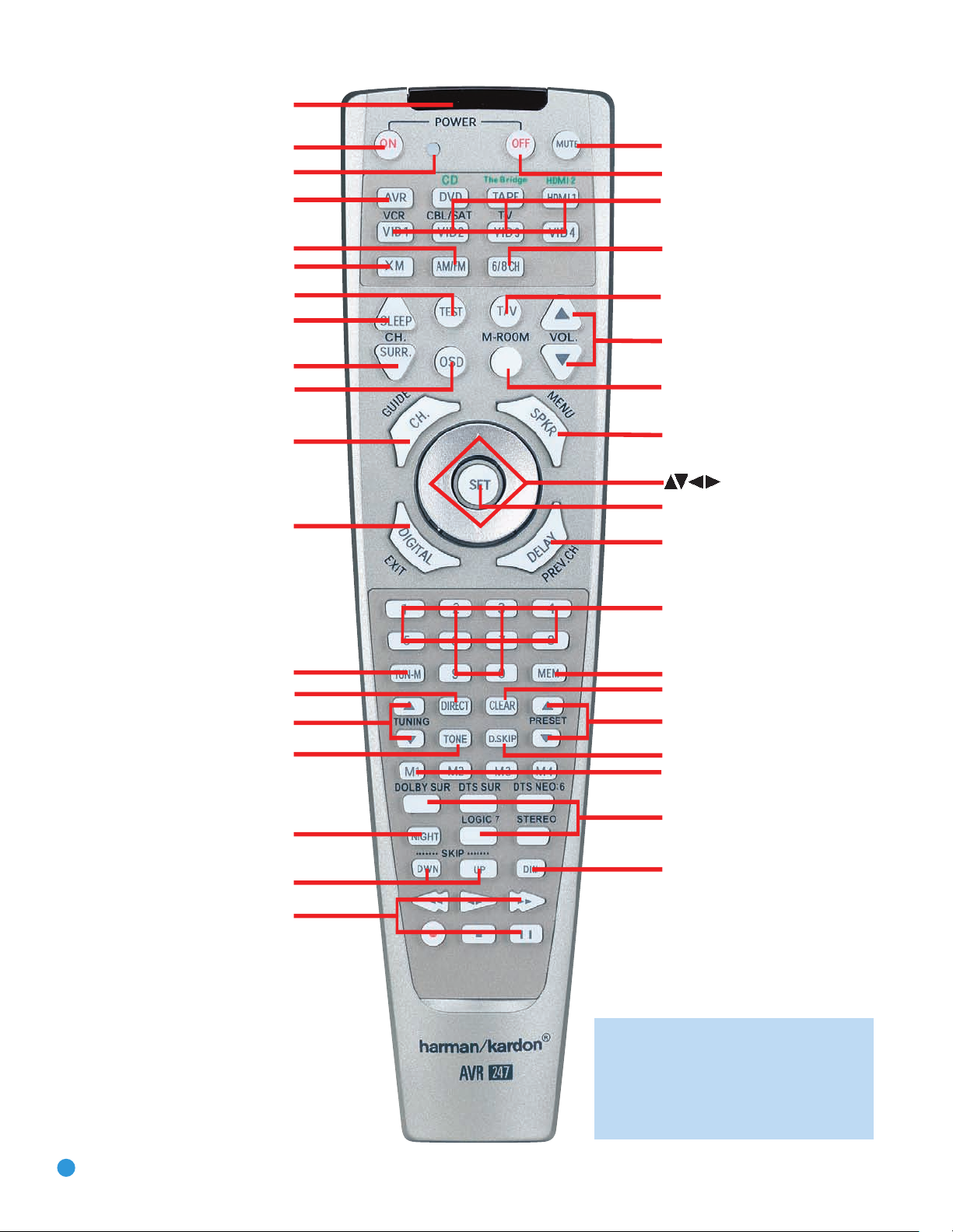
IR Transmitter Lens
Program Indicator
Power On
AVR Selector
AM/FM
XM Radio
Test Tone
Sleep
DSP Surround
On-Screen Display
Channel Level
Digital Input
Tuning Mode
Direct Station Entry
Tuning
Tone Mode
Night Mode
Track Skip
Transport Controls
Power Off
Mute
Input Selectors
6-/8-Channel Input Selector
TV/Video
Volume Controls
Multiroom
Speaker Setup
Set
Navigation
Numeric Keys
Delay
Memory
Clear
Preset Stations Selectors
Disc Skip
Macros
Surround Mode Selectors
Dim
NOTE: To make it easier to follow the instruc-
tions throughout the manual that refer to this
illustration, a copy of this page may be downloaded from the Product Support section at
www.harmankardon.com.
14

REMOTE CONTROL FUNCTIONS
Sleep Button: Press this button to activate the sleep timer, which turns
off the receiver after a programmed period of time of up to 90 minutes.
Volume Controls: Press these buttons to raise or lower the volume,
which will be shown in decibels (dB) in the Message Display.
DSP Surround: Press this button to select a DSP surround mode
(Hall 1, Hall 2, Theater).
On-Screen Display (OSD): Press this button to activate the
on-screen menu system.
Multiroom: Press this button to control the multiroom system. Three
settings are available: MULTI ON/OFF, which is used to turn the multiroom
system on or off; MULTI LEVEL, which adjusts the volume of the remote
zone only; and MULTI INPUT, which is used to select the source input for
the remote zone. See Multiroom Operation in the Advanced Functions
section for more information on using the AVR 247’s multiroom system.
Channel Level: Press this button to adjust the output levels for each
channel so that all speakers sound equally loud at the listening position.
Usually this is done while playing an audio selection, such as a favorite CD,
after you have calibrated the levels using EzSet/EQ, as described in the Initial
Setup section.
Speaker Setup: Press this button to configure speaker sizes, that is,
the low-frequency capability of each speaker. Usually this is done using
the on-screen menu system, as described in the Initial Setup section.
Navigation (
used to make selections within the on-screen menu system, or when
accessing the functions of the four buttons surrounding this area of the
remote – Channel Level, Speaker Setup, Digital Input or Delay.
⁄/¤
›
/‹/
) and Set Buttons: These buttons are
Digital Input Select: Press this button to select the specific digital
audio input (or analog audio input) you used for the current source.
Delay: Press this button to set delay times that compensate for placing
the speakers at different distances from the listening position, or to
resolve a “lip sync” issue that may be caused by digital video processing.
This may also be done using the on-screen menu system, as described
in the Initial Setup section.
Numeric Keys: Use these buttons to enter radio station frequencies
or to select station presets. When the AM or FM band is in use, press
the Direct Button before entering the station frequency.
When listening to XM Radio, you may enter channel numbers without first
pressing the Direct Button; however, to access the preset stations, you will
need to use the Preset Stations Selectors. To access another bank of XM
presets, press the Set Button repeatedly until PRESET SEARCH appears,
then use the
⁄/¤
Buttons to select the letter of the desired bank.
Tuning Mode: When listening to AM or FM radio, this button toggles
between manual (one frequency step at a time) and automatic (seeks
frequencies with acceptable signal strength) tuning mode. It also toggles
between stereo and mono modes when an FM station is tuned.
When listening to XM Radio, press the Tuning Mode Button once to view
the category name of the current channel. Additional presses will display
the artist, song title and channel name.
Memory: After you have tuned a particular radio station, press this
button, then the numeric keys, to save that station as a radio preset.
For XM Radio, the procedure for saving a preset is a little different. To
save the current channel in one of the 40 available preset locations,
press the Set Button repeatedly until PRESET SEARCH appears. Use
⁄/¤
the
the five banks of preset memory slots. Then press the Memory Button,
followed by a Numeric Key (1 through  for the precise preset memory
location you wish to save the channel in.
Buttons to select a letter (A through E) representing one of
Tuning: Press these buttons to tune a radio station or XM Radio
channel. For the AM and FM bands, and depending on whether the
tuning mode has been set to manual or automatic, each press will either
change one frequency step at a time, or seek the next frequency with
acceptable signal strength.
Direct: Press this button before using the Numeric Keys to directly
enter a radio station frequency (AM or FM bands only).
Clear: Press this button to clear a radio station frequency you have
started to enter.
Preset Stations Selector: Press these buttons to select a preset
radio station.
For XM Radio, first press the Set Button repeatedly until PRESET SEARCH
⁄/¤
appears and then use the
desired bank of presets.
Buttons to select the letter of the
Tone Mode: Press this button to access the tone controls (bass and
treble). Use the Navigation Buttons to make your selections.
Disc Skip: This button has no effect on the receiver, but is used with
some optical disc changers to skip to the next disc.
Macros: These buttons may be programmed to execute long command
sequences with a single button press. They are useful for programming the
command to turn on or off all of your components, or for accessing specialized functions for a different component than you are currently operating.
Surround Mode Selectors: Press any of these buttons to select
a type of surround sound (e.g., multichannel) mode. Choose from the
Dolby modes, DTS modes, Logic 7 modes or Stereo modes. Each
press of a button will cycle to the next available variant of that mode.
Not all modes or mode groups are available with all sources.
Night Mode: Press this button to activate Night mode with specially
encoded Dolby Digital discs or broadcasts. Night mode compresses the
audio so that louder passages are reduced in volume to avoid disturbing
others, while dialogue remains intelligible.
Track Skip: These buttons have no effect on the receiver, but are
used with many source components to change tracks or chapters.
Dim: Press this button to partially or fully dim the front-panel display.
Transport Controls: These buttons have no effect on the receiver,
but are used to control many source components. By default, when the
remote is operating the receiver, these buttons will control a DVD player.
15

INTRODUCTION TO HOME THEATER
The AVR 247 may be the first multichannel surround sound receiver
you have owned. Although it has more connections and features than
2-channel receivers, many of the principles are similar and the new
concepts are easy to understand. This introductory section will help you
to familiarize yourself with the basic concepts, which will make setup
and operation smoother.
If you are already familiar with home theater, you may skip this section
and proceed to the Connections section on page 17.
Typical Home Theater System
A home theater typically includes your audio/video receiver, which con
the system; a DVD player; a source component for television broad
which may be a cable box, a satellite dish receiver, an HDTV tuner or
simply an antenna connected to the TV; a video display (television);
and loudspeakers.
All of these components are connected using various types of cables
for audio and video signals.
trols
casts,
Multichannel Audio
The main benefit of a home theater system is that several loudspeakers
are used in various locations around the room to produce “surround
sound.” Surround sound immerses you in the musical or film presentation
for increased realism.
The AVR 247 may have up to seven speakers connected directly to it
(plus a subwoofer). Each main speaker is powered by its own amplifier
channel inside the receiver. When more than two speakers are used, it
is called a multichannel system.
• Front Left and Right – The main speakers are used the same
way as in a 2-channel system. However, you may notice that in
many surround modes, these speakers are used more for ambient
sound while the main action, especially dialogue, is moved to the
center speaker.
• Center – The center speaker is usually placed above or below the
video screen, and is used mostly for dialogue in movies and television
programs. This placement allows the dialogue to originate near the
actors’ faces, for a more natural sound.
your main listening area, and reassign the surround back channels
for use with a multiroom system, in which you use the surround back
channels to power a pair of loudspeakers located in another room.
Many people expect the surround speakers to play as loudly as the
front speakers. Although all of the speakers in the system will be
calibrated to sound equally loud at the listening position, most artists
use the surround speakers for ambient effects only, and they program
their materials to steer very little sound to these speakers.
• Subwoofer – A subwoofer is a special-purpose speaker designed
to play only the lowest frequencies (the bass). It may be used to
augment smaller, limited-range satellite speakers used for the other
channels. In addition, many digital-format programs, such as movies
recorded in Dolby Digital, contain a special low-frequency effects
(LFE) channel which is directed only to the subwoofer. The LFE channel packs the punch of a rumbling train or airplane, or the power of
an explosion, adding realism and excitement to your home theater.
Many people use two subwoofers, placed on the left and right sides
of the room, for additional power and even distribution of the sound.
Surround Modes
There are different theories as to the best way to present surround
sound and to distribute soundtrack information among the various
speakers. A variety of algorithms have been developed in an effort to
accurately reproduce the way we hear sounds in the real world. The
result is a rich variety of surround mode options. Some modes are
selected automatically, depending on the signal being received from
the source. In many cases, you may select a surround mode manually.
Several companies have taken surround sound in slightly differing directions. It is helpful to group the numerous surround modes either by their
brand name, or by using a generic name:
• Dolby Laboratories, Inc. Modes – Dolby Digital, Dolby Digital EX,
Dolby Pro Logic II and IIx, Dolby Virtual Speaker, Dolby Headphone
• DTS Modes – DTS, DTS-ES (Discrete and Matrix), DTS Neo:6,
DTS 96/24
• Harman International (Harman Kardon’s Parent Company) –
Logic 7
• Surround Left and Right – The surround speakers are used to
improve directionality of ambient sounds. In addition, by using more
loudspeakers in the system, more dynamic soundtracks may be
played without risk of overloading any one speaker.
• Surround Back Left and Right – Additional surround speakers may be
placed behind the listening position, improving the precision with which
ambient sounds may be placed and allowing for more realistic-sounding
pans. By using more speakers in the system, the same sound levels may
be attained with less burden placed on any individual speaker.
The surround back speakers may also be used with specialized
surround modes that are designed for use with 7.1-channel systems,
such as Dolby Digital EX, DTS-ES (Discrete and Matrix) and Logic 7
(7.1 modes). However, the surround back speakers are optional. In
fact, the AVR 247 enables you to set up a 5.1-channel system in
16
• DSP Modes – Generic modes that include Hall 1, Hall 2 and Theater
• Stereo Modes – Generic modes that expand upon conventional
2-channel stereo, including DSP Surround Off, Analog Bypass
Surround Off and 5- and 7-Channel Stereo
Table 8 on pages 48–50 contains detailed explanations of the
differences between the various mode groups, and the mode options
available within each group. Digital modes, such as Dolby Digital and
DTS, are only available with specially encoded programs, such as HDTV,
DVDs and digital cable or satellite television. Other modes may be used
with various digital and analog signals to create a different surround
presentation, or to use a different number of speakers. Surround mode
selection depends upon the number of speakers in your system, the
materials you are watching or listening to, and your personal tastes.
Feel free to experiment.
16
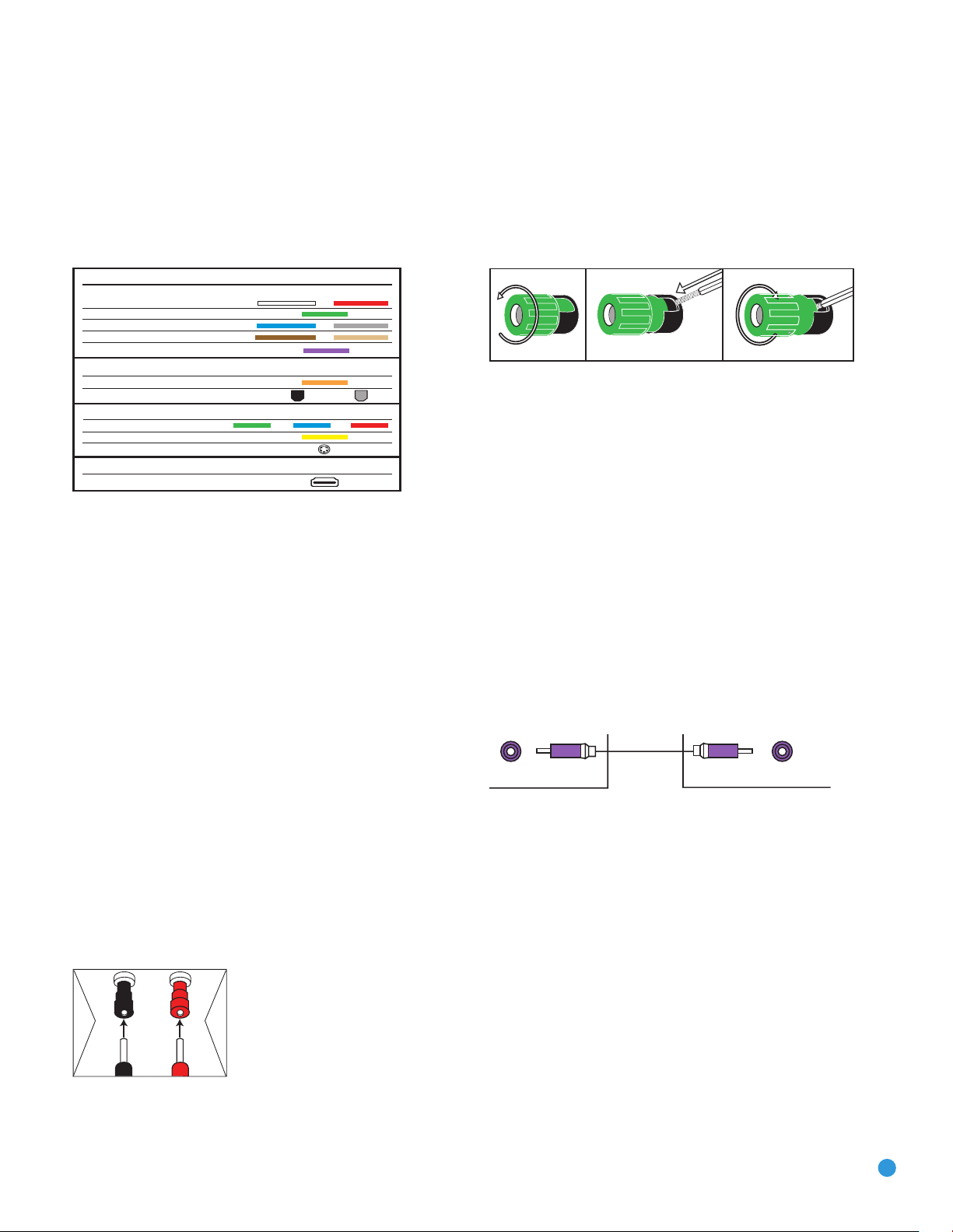
CONNECTIONS
Audio Connections
Left Right
Front (FL/FR)
Center (C)
Surround (SL/SR)
Surround Back (SBL/SBR)
Subwoofer (SUB)
Digital Audio Connections
Coaxial
Optical Input Output
Video Connections
Component Y Pb Pr
Composite
S-Video
HDMI™ Connections
(digital audio/video)
HDMI
There are different types of audio and video connections used to
connect the receiver to the speakers and video display, and to connect
the source devices to the receiver. To make it easier to keep them all
®
straight, the Consumer Electronics Association (CEA
) has established
a color-coding standard. Table 1 may be helpful to you as a reference
while you set up your system.
Table 1 – Connection Color Guide
Types of Connections
This section will briefly review different types of cables and connections
that you may use to set up your system.
Speaker Connections
Speaker cables carry an amplified signal from the receiver’s speaker
terminals to each loudspeaker. Speaker cables contain two wire conductors, or leads, inside plastic insulation. The two conductors are usually
differentiated in some way, by using different colors, or stripes, or even
by adding a ridge to the insulation. Sometimes the actual wires are
different, one being copper-colored and the other silver.
Bare wire cables are installed as follows (see Figure 2):
1. Unscrew the terminal cap until the pass-through hole in the collar is
revealed.
2. Insert the bare end of the wire into the hole.
3. Hand-tighten the cap until the wire is held snugly.
Figure 2 – Binding-Post Speaker Terminals With Bare Wires
Subwoofer
The subwoofer is a specialized type of loudspeaker that is usually
connected in a different way. The subwoofer is used to play only the
low frequencies (bass), which require much more power than the other
speaker channels. In order to obtain the best results, most speaker
manufacturers offer powered subwoofers, in which the speaker contains
its own amplifier on board. Sometimes the subwoofer is connected to
the receiver using the front left and right speaker outputs, and then the
front left and right speakers are connected to terminals on the subwoofer.
More often, a line-level (nonamplified) connection is made from the
receiver’s Subwoofer Output to a corresponding jack on the subwoofer,
as shown in Figure 3.
Although the subwoofer output looks similar to the analog audio jacks
used for the various components, it is filtered and only allows the low
frequencies to pass. Don’t connect this output to any other devices.
Although doing so won’t cause any harm, performance will suffer.
The differentiation is important because each speaker must be connected
to the receiver’s speaker-output terminals using two wires, one positive
(+) and one negative (–), referred to as speaker polarity. It’s important
to maintain the proper polarity for all speakers in the system. If some
speakers have their negative terminals connected to the receiver’s positive
terminals, performance can suffer, especially for the low frequencies.
Always connect the positive terminal on the loudspeaker, which is usually
colored red, to the positive terminal on the receiver, which is colored as
shown in the Connection Color Guide (Table 1). Similarly, always connect
the black negative terminal on the speaker to the black negative terminal
on the receiver.
The AVR 247 uses binding-post speaker
terminals that can accept banana plugs
Figure 1 – Binding-Post Speaker Terminals With Banana Plugs
17
or bare-wire cables. Banana plugs are
simply plugged into the hole in the middle
of the terminal cap. See Figure 1.
Figure 3 – Subwoofer
Connecting Source Devices to the AVR
The AVR 247 is designed to process audio and video input signals,
playing back the audio and displaying the video on a television or
monitor connected to the AVR. These signals originate in what are
known as “source devices,” including your DVD player, CD player, DVR
(digital video recorder) or other recorder, tape deck, game console,
cable or satellite television box or MP3 player. Although the tuner is
built into the AVR, it also counts as a source, even though no external
connections are needed, other than the FM and AM antennas and the
XM antenna module.
Separate connections are required for the audio and video portions of
the signal, except for digital HDMI connections. The types of connections
used depend upon what’s available on the source device, and for video
signals, the capabilities of your video display.
17
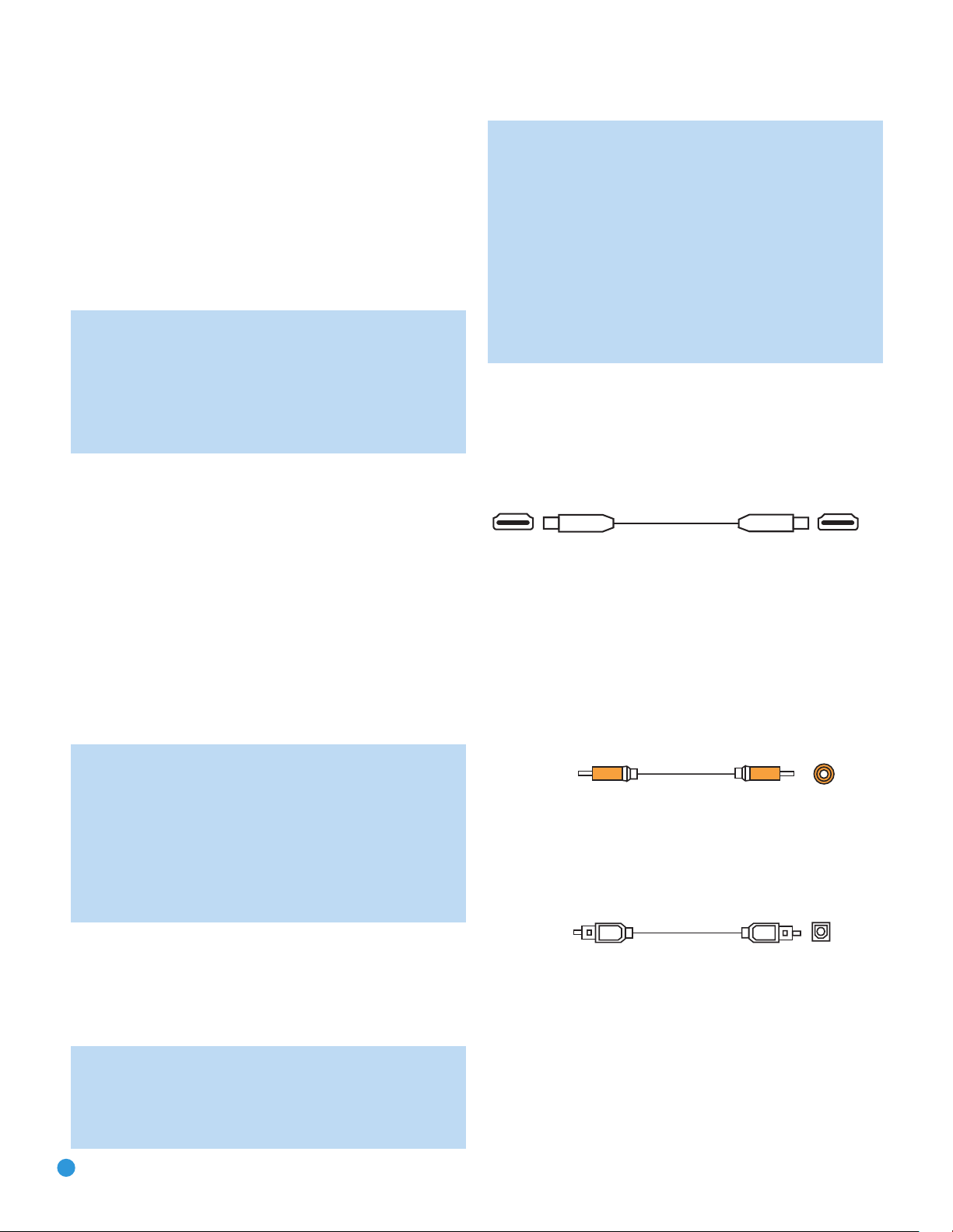
CONNECTIONS
Optical
Optical digital
audio cable
Coaxial
Coaxial digital
audio cable
Audio Connections
There are two formats for audio connections: digital and analog. Digital
audio signals are of higher quality, and are required for listening to
sources encoded with digital surround modes, such as Dolby Digital and
DTS. There are three types of digital audio connections: HDMI, coaxial
and optical. Any one type of digital audio connection may be used for
each source device, but never more than one for the same source.
However, it’s okay to make both analog and digital audio connections
at the same time to the same source.
NOTE: Since the AVR 247 is capable of processing the audio
and video portions of most HDMI signals, if your video display
device has an HDMI input, you may make a single HDMI
connection from your source device (such as a DVD player) to
the AVR. In that case, no separate digital audio connection is
required. Make sure to turn the volume on your television all
the way off.
Digital Audio
The AVR 247 is equipped with two HDMI (High-Definition Multimedia
Interface) inputs, and one output. HDMI is capable of carrying digital
audio and video information using a single cable, thus delivering the
highest possible quality picture and sound.
There are different versions of HDMI, depending on the capability of
the source device and the type of signal it is capable of transmitting
via the HDMI connection.
In addition, receivers and processors such as the AVR 247 may handle
the incoming signal in several different ways, depending on their capability
as well. The AVR 247 uses HDMI version 1.2a, and is capable of
processing both the audio and video components of the HDMI data,
minimizing the number of cable connections in your system.
If your digital cable television set-top box outputs 1080i or higher
video via component video outputs and is not equipped with an
HDMI output, contact your cable operator for a replacement.
For Xbox 360 and satellite television customers, either change
the settings on your source device to ensure that it outputs only
720p video through its component video outputs, which the
AVR can convert to the HDMI format, or connect the AVR’s
Component Video Monitor Outputs to the video display.
Although you could connect the source device’s component
video outputs directly to your video display, you would then have
to select the correct video input on the display, depending on
which source input on the AVR was in use.
The physical HDMI connection is simple. The connector is shaped for
easy plug-in (see Figure 4). If your video display has a DVI input, you
may use an HDMI-to-DVI adapter (not included) to connect it to the AVR’s
HDMI Output. HDMI cable runs are usually limited to about 10 feet.
The AVR 247 is Simplay HD-verified for compatibility via the HDMI
connection with other Simplay HD-verified products.
Figure 4 – HDMI Connection
If your video display or source device is not HDMI-capable, use one of
the analog video connections (composite, S- or component video) and,
if available on your source device, either a coaxial or optical digital audio
connection.
Coaxial digital audio jacks are usually color-coded in orange. Although
they look similar to analog jacks, they should not be confused, and you
should not connect coaxial digital audio outputs to analog inputs or
vice versa. See Figure 5.
NOTE: Some multichannel audio devices, such as DVD-Audio,
SACD, HD-DVD or Blu-ray Disc players, output some audio
formats only through the source’s multichannel analog outputs.
These include DVD-Audio players with HDMI version 1.0, and
HD-DVD and Blu-ray Disc players that do not decode the digital
audio. In those cases, make a separate analog audio connection
in addition to the HDMI connection, which is still used for video
or if you wish to listen to Dolby Digital, DTS or PCM materials
that may be stored on the disc.
In addition, the AVR 247 will convert analog video signals to the HDMI
format, upscaling to high-definition 720p resolution. Digital source signals
with 1080i or 1080p resolution are passed via the HDMI Output to
your display at their original high-quality resolution, depending on your
display’s capabilities. You may view the AVR 247’s own on-screen
display menus using the HDMI output.
IMPORTANT NOTE: The AVR 247 cannot convert 1080i or
1080p analog video signals to the HDMI format, but passes 1080i
signals in their native format to the Component Video Outputs. This
®
affects users of Microsoft
Xbox®360 systems and some older
set-top boxes.
18
Figure 5 – Coaxial Digital Audio
Optical digital audio connectors are often covered by a shutter to protect
them from dust. The shutter opens as the cable is inserted. Input connectors are color-coded using a black shutter, while outputs use a gray
shutter. See Figure 6.
Figure 6 – Optical Digital Audio
Due to the nature of digital signals as binary bits, they aren’t subject
to signal degradation the way analog signals are. Therefore, the quality
of all digital audio connections should be the same, although it is important to limit the length of the cable. Whichever type of connection you
choose, Harman Kardon recommends that you always select the highest
quality cables available within your budget.
18
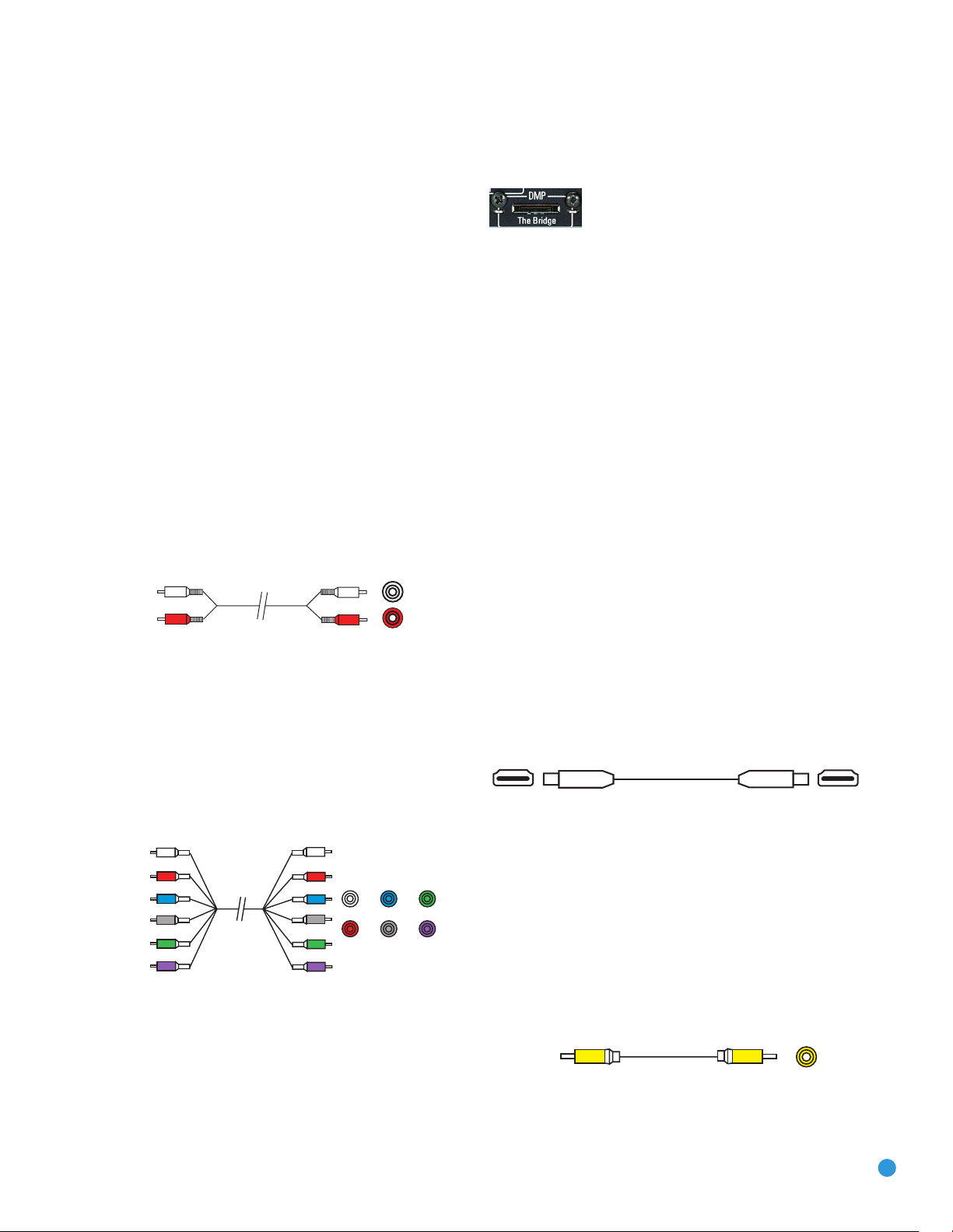
Multichannel
analog audio
cable (RCA)
Front Surround Center
Subwoofer
L
R
Analog audio
cable (RCA)
CONNECTIONS
Analog Audio
Analog connections require two cables, one for the left channel (white)
and one for the right channel (red). These two cables are often attached
to each other for most of their length. See Figure 7.
Most sources that have digital audio jacks also have analog audio jacks,
although some older types of sources, such as tape decks, have only
analog jacks. For sources that are capable of both digital and analog
audio, you may wish to make both connections.
The analog audio connection is strongly recommended if you intend to
use the source with the multiroom system. It’s required if you will be
using the multiroom preamp outputs with an external amplifier to power
your remote speakers, as the AVR 247’s multiroom system is not capable of converting the digital signal to analog format. It’s suggested that
you also use the analog audio connections when using the surround
back/multiroom speaker outputs, in case another two-channel digital
audio source is in use in the main listening area. The AVR 247 is only
capable of processing one PCM source at a time.
If you wish to record materials from DVDs or other copy-protected
sources, you may only do so using analog connections. Remember to
comply with all copyright laws, if you choose to make a copy for your
own personal use.
messages displayed on the front panel and on a video display connected
to the AVR. The Bridge outputs analog audio to the AVR 247, and it is
available to the multiroom system.
Figure 9 – The Bridge
Video Connections
Although some sources produce an audio signal only (e.g., CD player,
tape deck), many sources output both audio and video signals (e.g.,
DVD player, cable television box, HDTV tuner, satellite box, VCR, DVR).
In addition to the audio connection, connect one type of video connection for each source (never more than one at the same time for any
source).
Digital Video
If you have already connected a source device to one of the HDMI
inputs as explained in the Digital Audio Connections section, then you
have automatically made a video connection at the same time, as the
HDMI signal includes both digital audio and video components.
If the source device is not capable of transmitting its digital audio signal
through the HDMI connection, then use one of the coaxial or optical
digital audio inputs for the source.
Figure 7 – Analog Audio
Multichannel analog connections are used with some high-definition
sources where the copy-protected digital content is decoded inside the
source. These types of connections are usually used with DVD-Audio,
SACD, Blu-ray Disc, HD-DVD and other multichannel players. See
Figure 8. However, the multichannel analog audio connection is not
required for DVD-Audio players compliant with HDMI version 1.1 or
better, or HD-DVD and Blu-ray Disc players that decode the digital audio
internally and output linear PCM signals in digital format. Consult the
owner’s guide for your disc player for more information.
Figure 8 – Multichannel Analog Audio
Harman Kardon receivers also include a proprietary, dedicated audio
connection called “The Bridge/DMP”. If you own an iPod with a dock
connector, you may purchase The Bridge separately and connect it to
The Bridge/DMP port on the receiver. See Figure 9. Dock your iPod
(not included) in The Bridge, and you may enjoy your audio and video
materials through your high-performance audio/video system. You may
even use the AVR 247 remote to control the iPod, with navigation
19
If a multichannel analog audio connection is required for certain lossless
formats (e.g., DVD-Audio, SACD, HD-DVD or Blu-ray Disc), you may
make both audio connections, but you must also make an analog video
connection. To listen to the multichannel disc, first select the analog video
source input, then select the 6-/8-channel analog audio inputs, and the
AVR will retain the last video source you selected other than HDMI.
The AVR 247 is Simplay HD-verified for compatibility via the HDMI
connection with other Simplay HD-verified products.
Figure 4 (repeated) – HDMI Connection
Analog Video
There are three types of analog video connections: composite video,
S-video and component video.
Composite video is the basic connection most commonly available. The
jack is usually color-coded yellow, and looks like an analog audio jack,
although it is important never to confuse the two. Do not plug a composite
video cable into an analog or coaxial digital audio jack, or vice versa.
Both the chrominance (color) and luminance (intensity) components of
the video signal are transmitted using a single cable. See Figure 10.
Figure 10 – Composite Video
S-video, or “separate” video, transmits the chrominance and luminance
components using separate wires contained within a single cable. The
19
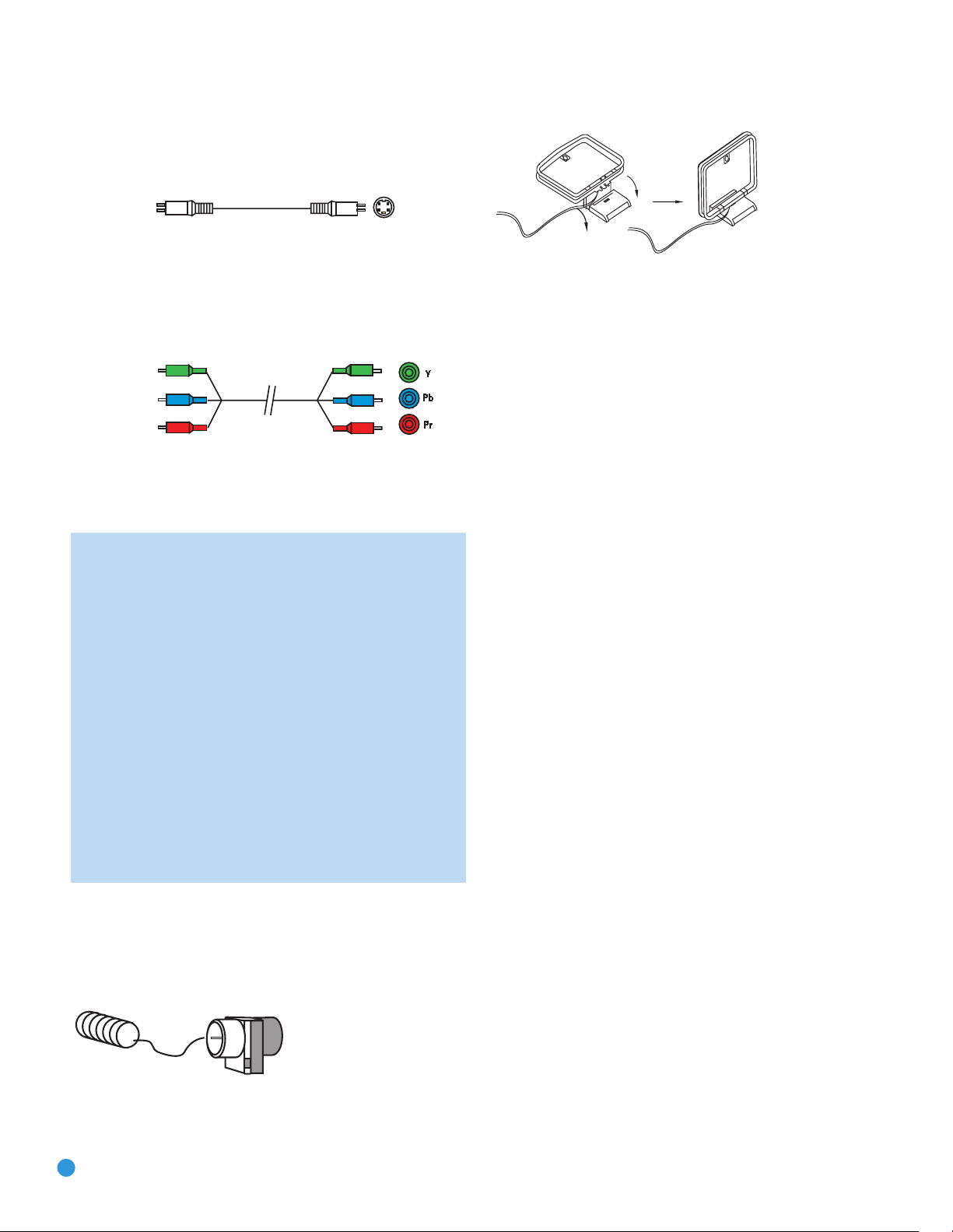
CONNECTIONS
plug on an S-video cable contains four metal pins, plus a plastic guide
pin. Be careful to line up the plug correctly when you insert it into the
jack on the receiver, source or video display. See Figure 11.
Figure 11 – S-Video
Component video separates the video signal into three components –
one luminance (“Y”) and two sub-sampled color signals (“Pb” and “Pr”) –
that are transmitted using three separate cables. The “Y” cable is colorcoded green, the “Pb” cable is colored blue and the “Pr” cable is
colored red. See Figure 12.
Figure 12 – Component Video
If it’s available on your video display, HDMI is recommended as the best
quality connection, followed by component video, S-video and then
composite video.
NOTES:
• Due to copy-protection restrictions, there is no output at the
Component Video Monitor Outputs for copy-protected sources.
• High-resolution 1080i and 1080p video signals are not
available at the HDMI Output, but 1080i signals are passed
through, as is, to the Component Video Outputs. If your source
outputs analog high-resolution video, either use the Component
Video Outputs, change the output resolution of your source
device to 720p, or connect your source’s component video
outputs directly to your video display.
• Due to the design of some video displays, analog 480p or
720p component video source signals may produce artifacts
when used with the AVR’s analog video outputs (composite,
S-video or component video). If this occurs, try changing the
Video Mode setting in the INPUT SETUP menu, or connecting
the source device’s video output directly to your video display.
However, for best results, we recommend that you consider
upgrading to an HDMI-capable video display.
Figure 14 – AM Antenna
RS-232 Serial Port
The RS-232 serial port on the AVR 247 is used only for data. If
Harman Kardon releases a software upgrade for the receiver’s operating
system at some time in the future, the upgrade may be downloaded
to the AVR using this port. Complete instructions will be provided at
that time.
Antennas
The AVR 247 uses separate terminals for the included FM and AM
antennas that provide proper reception for the tuner.
The FM antenna uses a 75-ohm F-connector. See Figure 13.
Figure 13 – FM Antenna
The AM loop antenna needs to be assembled. Then connect the two
leads to the screw terminals on the receiver. See Figure 14.
20
20
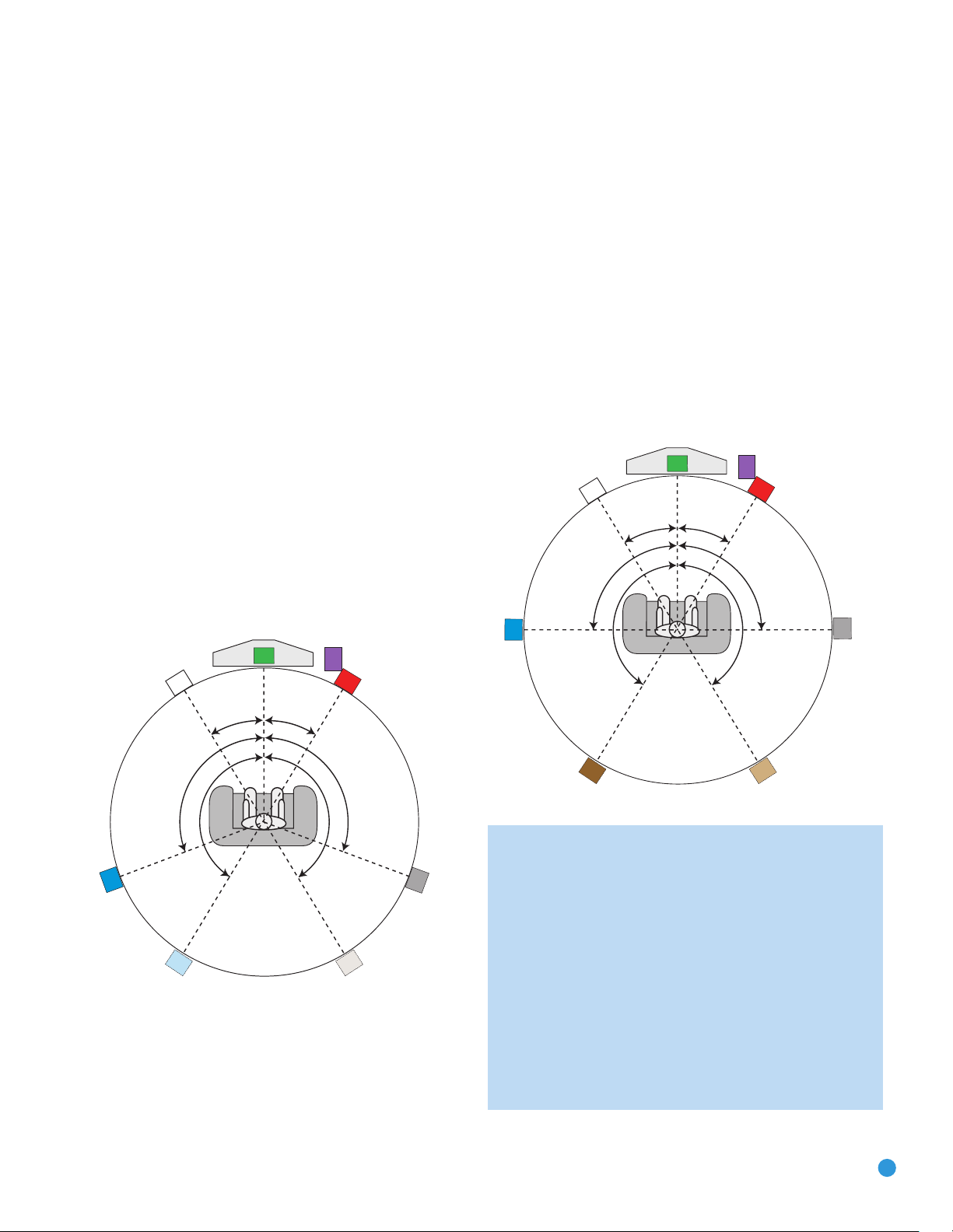
SPEAKER PLACEMENT
C
90°
150°
90°
150°
30° 30°
SUB
FRFL
SL
SBL SBR
SR
C
Alternate placement
for Side Surround
Left Speaker
Alternate placement
for Side Surround
Right Speaker
110°
150°
110°
150°
30° 30°
SUB
FRFL
SL SR
Before you begin to connect cables, it is important to place your speakers
in their correct locations in the room.
Optimally, the speakers should be placed in a circle with the listening
position at its center. The distance from the listening position to the
video display forms the radius of the circle.
The speakers should be angled so that they directly face the listening
position.
Front Speaker Placement
The center speaker is placed either on top of, below or mounted on the
wall above or below the video display screen.
The front left and right speakers are placed along the circle, about 30
degrees from the center speaker and angled toward the listener.
It is best to place the front left/right and center speakers as close to
the same height as possible, preferably at about the same height as
the listener’s ears. In any event, the center speaker should be no more
than two feet above or below the left/right speakers.
Placement of the surround speakers depends on the number of
speakers in your system. If you’re using only two speakers with the
AVR 247, place them in the front left and right positions, and skip to
the Installation section. However, Harman Kardon recommends using
the AVR 247 in a 5.1- or 7.1-channel configuration for optimal
surround sound performance.
Placement of Surround Speakers in a 5.1-Channel
System
The side surround speakers should be placed 110 degrees from the
center speaker, that is, slightly behind and angled toward the listener.
If this isn’t feasible, place them behind the listener, with each surround
speaker facing the opposite-side front speaker. See Figure 15. The
surround speakers may be placed a little higher than the listener’s ears.
Placement of Surround Speakers in a 7.1-Channel
System
In a 7.1-channel system, the side surround speakers are placed 90 degrees
from the center speaker, directly to either side of the listening position,
which is different than in a 5.1-channel system. The surround back left
and right speakers are placed 150 degrees from the center speaker, or
directly facing the opposite-side front speaker. See Figure 16.
Figure 15 – Speaker Placement (5.1-Channel System)
Figure 16 – Speaker Placement (7.1-Channel System)
NOTE: Some speaker manufacturers offer 6.1-channel speaker
systems, which are compatible with the 6.1-channel digital
surround sound formats available on DVD and elsewhere, such
as Dolby Digital EX and DTS-ES Discrete and Matrix modes.
We do not recommend using the AVR 247 in a 6.1-channel
configuration. In fact, the 6.1-channel formats will sound better
when played through a 7.1-channel system. The same surround
back channel information is played through both surround back
speakers, but with twice the power and clarity.
If you wish to use the AVR 247 with a 6.1-channel speaker
system, place the single surround back speaker directly behind
the listener, but do not connect it until after you have run the
EzSet/EQ procedure for a 5.1-channel system. After EzSet/EQ
finishes, connect the surround back speaker to the Surround Back
21

SPEAKER PLACEMENT
Left
Speaker Output. You will then need to follow the directions
in the Advanced Features section for manual setup of the surround back speaker.
Subwoofer Placement
The subwoofer’s location is less critical, since low-frequency sounds are
omnidirectional. Placing the subwoofer close to a wall or in a corner will
reinforce the low frequencies, and may create a “boomy” sound. You
may wish to experiment over time by placing the subwoofer where the
listener normally sits and then walking around the room until the low
frequencies sound best. Place the subwoofer in that spot.
NOTE: Your receiver will sound its best when the same model
loudspeaker is used for all positions (other than the subwoofer).
If that isn’t possible, try to use speakers made by the same
manufacturer.
22
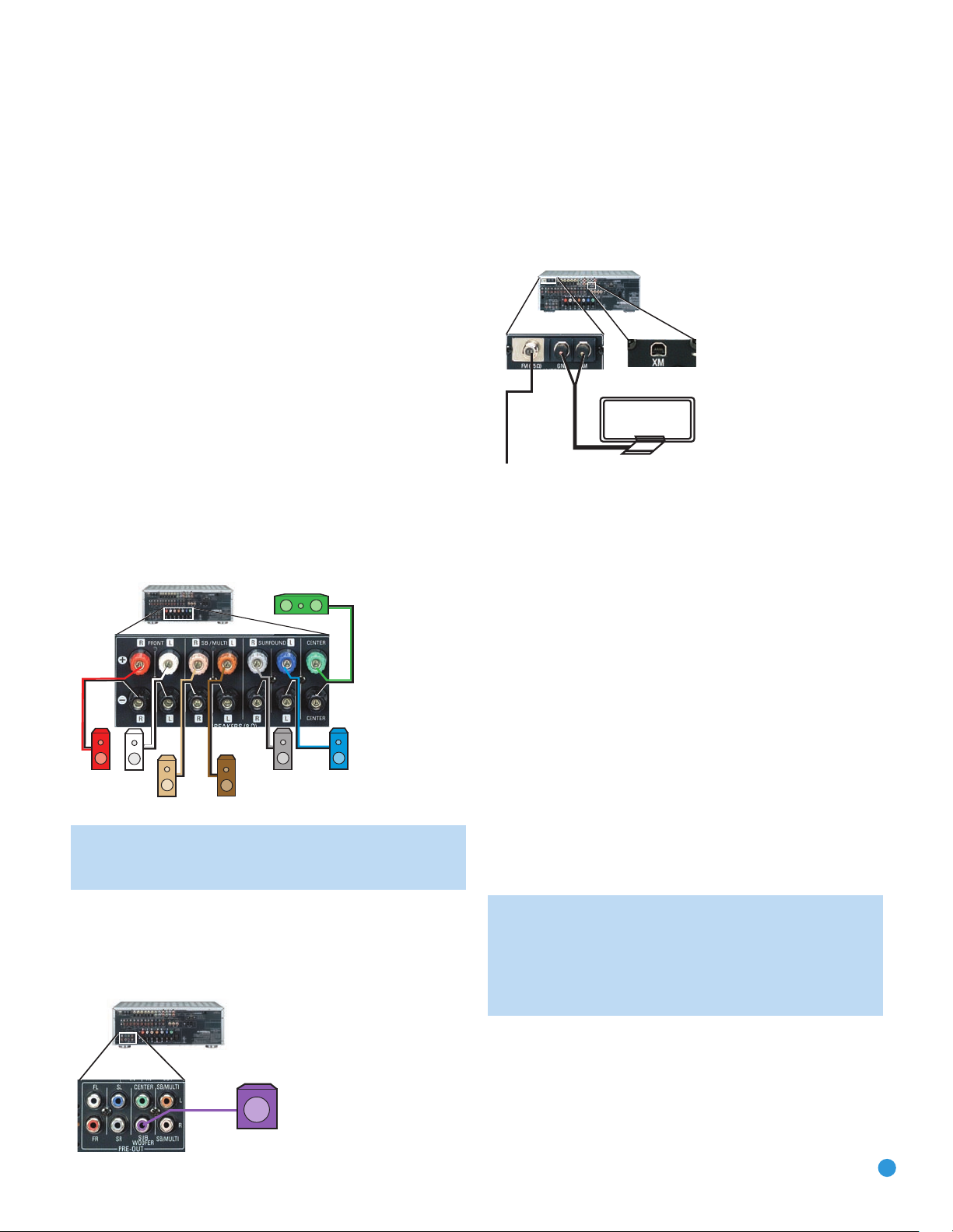
INSTALLATION
AVR 247
SR
SL
FR FL
SBR
SBL
C
You are now ready to connect your various components to your receiver.
Before beginning, make sure that all components, including the AVR 247,
are turned completely off and their power cords are unplugged. Don’t
plug any of the power cords back in until you have finished
making all of your connections.
Remember that your receiver generates heat while it is on. Select a
location that leaves several inches of space on all sides of the receiver.
It is preferable to avoid completely enclosing the receiver inside a
cabinet. It is also preferable to place components on separate shelves
rather than stacking them directly on top of the receiver. Some surface
finishes are delicate. Try to select a location with a sturdy surface finish.
Step One – Connect the Speakers
If you have not yet done so, place your speakers in the listening room,
as described in the Speaker Placement section above.
Connect the center, front left, front right, surround left, surround
right, surround back left and surround back right loudspeakers to the
corresponding speaker terminals on the AVR 247. See Figure 17.
Remember to maintain the proper polarity by always connecting the
positive and negative terminals on each speaker to the positive and
negative terminals on the receiver. Use the Connection Color Guide
on page 17 as a reference.
Step Three – Connect the Antennas
Connect the FM and AM antennas to their terminals. If you have purchased
an XM antenna module designed for connection to an XM Ready device,
such as the AVR 247, you may connect it now. To enjoy XM Radio,
remember to purchase a subscription and activate your antenna module.
More information is available at www.xmradio.com.See Figure 19.
Figure 19 – Antenna Connections
Step Four – Connect the Source Components
Use the Table A4 worksheet in the Appendix to note which connections
you will use for each of your source devices.
For each source, select a source input (Video 1, Video 2, Video 3, etc.).
In Table 2 we recommend connecting certain types of sources to certain
source inputs to make it easier to program and use the remote control.
Figure 17 – Speaker Connections
NOTE: If you only have one surround back speaker, wait until
after you have run EzSet/EQ in the Initial Setup section before
connecting it to the Surround Back Left speaker outputs.
Step Two – Connect the Subwoofer
Connect the Subwoofer Output on the AVR 247 to the line-level input on
your subwoofer. See Figure 18. Consult the manufacturer’s guide for the
subwoofer for additional information.
Figure 18 – Subwoofer Connection
Decide which audio connections you will use. If your source device has
them, use one of the HDMI, coaxial digital or optical digital audio connections. Referring to Table 2, we recommend you connect the DVD source
to the Coaxial 1 input jack, and the source designated Video 2 to the
Optical 1 input jack. If you are using the HDMI inputs, then in most cases
no other audio connection is required. If your source outputs video but
not audio via its HDMI connection, then select any available coaxial or
optical digital audio input on the AVR to use with the source. If your HDMI
source plays DVD-Audio, SACD, HD-DVD, Blu-ray Discs or another multichannel audio format, connect its multichannel analog audio outputs to
the AVR 247’s 6-/8-Channel Inputs, and connect one of its analog video
outputs to a source input on the AVR 247 (e.g., Video 3). When you
select that source input, e.g., Video 3, select the 6-/8-Channel Inputs,
and the AVR will automatically use the analog video input.
NOTE: The multichannel analog audio connection is not
required for DVD-Audio players compliant with HDMI version
1.1 or better, or HD-DVD and Blu-ray Disc players that decode
the digital audio internally and output linear PCM signals in
digital format. Consult the owner’s guide for your disc player
for more information.
In addition to the digital audio connections, we recommend that you
connect the analog audio connections for each source, as a backup to
the digital connections, for recording, for use with the multiroom system,
or in the event that you use all six of the digital audio inputs for other
devices. For sources that don’t have digital audio outputs, you must use
the analog audio connections.
23
Loading…
Скачать
AVR 247
AUDIO/VIDEO RECEIVER
OWNER’S MANUAL
AVR247om.qxd 7/10/07 1:05 PM Page 1
Скачать файл PDF «Harman Kardon AVR 247 Инструкция по эксплуатации» (6.4 Mb)
Популярность:
8251 просмотры
Подсчет страниц:
76 страницы
Тип файла:
Размер файла:
6.4 Mb
Google Ads:
-
Page 1: Harman-Kardon AVR 247
A V R 247 AUDIO/VIDEO RECEIVER O WN ER’S M ANUAL AVR247om.qxd 7/10/07 1:05 PM Page 1[…]
-
Page 2: Harman-Kardon AVR 247
2 SAFETY INFORMA TION 1. Read Instructions. All the safety and operating instruc- tions should be read before the product is operated. 2. Retain Instructions. The safety and operating instruc- tions should be retained for future reference . 3. Heed Warnings. All warnings on the product and in the operating instructions should be adhered to . 4. Fol[…]
-
Page 3: Harman-Kardon AVR 247
3 Important Safety Information Verify Line Voltage Before Use Y our A VR 247 has been designed for use with 120-volt AC current. Connection to a line voltage other than that for which it is intended can create a safety and fire hazard and may damage the unit. If you have any questions about the voltage requirements for your specific model, or about[…]
-
Page 4: Harman-Kardon AVR 247
4 ST APLE INVOICE HERE AVR247om.qxd 7/10/07 1:05 PM Page 4[…]
-
Page 5: Harman-Kardon AVR 247
5 2 SAFETY INFORMA TION 6 INTRODUCTION 8 FRONT -P ANEL CONTROLS 10 REAR-P ANEL CONNECTIONS 13 REMOTE CONTROL FUNCTIONS 16 INTRODUCTION TO HOME THEA TER 17 CONNECTIONS 17 Speaker Connections 17 Subwoofer 17 Connecting Source Devices to the AVR 18 Audio Connections 18 Digital Audio 19 Analog Audio 19 Video Connections 19 Digital Video 19 Analog Video[…]
-
Page 6: Harman-Kardon AVR 247
6 Thank you for choosing Harman Kardon ® ! In the years since Harman Kardon invented the high-fidelity receiver , we have taken to heart the philosophy of bringing the joy of home entertainment to as many people as possible , adding performance and ease-of-use features that enhance the home entertainment experience . In the years since our first s[…]
-
Page 7: Harman-Kardon AVR 247
7 INTRODUCTION Audio Inputs • AM/FM/XM ® * tuner • CD • T ape • 6-/8-Channel direct • /DMP for iPod** connectivity with audio/video playback Audio/Video Inputs (With S-Video) • Video 1 • Video 2 • Video 3 • Video 4 (on front panel) • DVD • Three assignable 100MHz component video inputs • Simplay HD ™ -verified HDMI ™ 1 […]
-
Page 8: Harman-Kardon AVR 247
8 Main Power Switch: This mechanical switch tur ns the power supply on or off . It is usually left pressed in (On position), and cannot be turned on using the remote control. Standby/On Switch: This electrical switch turns the receiver on for playback, or leaves it in Standby mode for quick turn-on using this switch or the remote control. Power Ind[…]
-
Page 9: Harman-Kardon AVR 247
9 S urround Mode T uning Pre s et S tation s S urround S elect T uner Band T uning Mode S ource S elect Headphone Jack/Ez S et/E Q Microphone Input Digital Audio Input s (Optical 3 and C oaxial 3) Video 4 Video Input s Video 4 Analog Audio Input s Navigation T one Mode S peaker S ize S etup Delay Digital Input S elect Power Indicator Main Power S w[…]
-
Page 10: Harman-Kardon AVR 247
10 REAR-P ANEL CONNECTIONS AM and FM Antenna T erminals: Connect the included AM and FM antennas to their respective terminals for radio reception. XM Antenna Jack: Plug in an XM antenna module here . The XM antenna module is purchased separately , and should specify that it is for home use with an XM Ready ® product. Y ou will need to subscribe t[…]
-
Page 11: Harman-Kardon AVR 247
11 REAR-P ANEL CONNECTIONS The Bridge/DMP Input: Connect the optional Harman Kardon to this input for use with your iPod (not included). Make sure the receiver is turned off (in Standby mode) when connecting The Bridge . 6-/8-Channel Inputs: Connect the multichannel analog audio outputs of a DVD-Audio , SACD ™ , Blu-ray Disc ™ or HD-DVD ™ pla[…]
-
Page 12: Harman-Kardon AVR 247
12 FM Antenna XM Antenna Jack AM Antenna Video 2 A/V Inputs Video 1 A/V Outputs Video 3 A/V Inputs Video 1 A/V Inputs Video Monitor Outputs DVD A/V Inputs Component Video Inputs (1, 2 & 3) Component Video Monitor Outputs AC Power Cord RS-232 Serial Port Coaxial Digital Audio Inputs (1 & 2) RS-232 Mode The Bridge/ DMP Input RS-232 Reset HDMI[…]
-
Page 13: Harman-Kardon AVR 247
13 REMOTE CONTROL FUNCTIONS The A VR 247 remote is capable of controlling 1 1 devices , including the A VR itself and an iPod docked in the optional The Bridge accessory . During the installation process , you may program the codes for each of your source components into the remote . Each time you wish to use the codes for any component, first pres[…]
-
Page 14: Harman-Kardon AVR 247
IR T ran s mitter Len s Program Indicator Power On AVR S elector AM/FM XM Radio Te s t T one S leep D S P S urround On- S creen Di s play C hannel Level Digital Input T uning Mode Direct S tation Entr y T uning T one Mode Night Mode T rack S kip T ran s port C ontrol s Power Off Mute Input S elector s 6 -/8- C hannel Input S elector TV/Video Volume[…]
-
Page 15: Harman-Kardon AVR 247
15 REMOTE CONTROL FUNCTIONS Sleep Button: Press this button to activate the sleep timer , which turns off the receiver after a programmed period of time of up to 90 minutes . Volume Controls: Press these buttons to raise or lower the volume , which will be shown in decibels (dB) in the Message Display . DSP Surround: Press this button to select a D[…]
-
Page 16: Harman-Kardon AVR 247
16 16 INTRODUCTION TO HOME THEA TER The A VR 247 may be the first multichannel surround sound receiver you have owned. Although it has more connections and features than 2-channel receivers , many of the principles are similar and the new concepts are easy to understand. This introductory section will help you to familiarize yourself with the basic[…]
-
Page 17: Harman-Kardon AVR 247
17 17 CONNECTIONS There are different types of audio and video connections used to connect the receiver to the speakers and video display , and to connect the source devices to the receiver . T o make it easier to keep them all straight, the Consumer Electronics Association (CEA ® ) has established a color -coding standard. T able 1 may be helpful[…]
-
Page 18: Harman-Kardon AVR 247
18 18 CONNECTIONS Audio Connections There are two formats for audio connections: digital and analog . Digital audio signals are of higher quality , and are required for listening to sources encoded with digital surround modes , such as Dolby Digital and DTS . There are three types of digital audio connections: HDMI, coaxial and optical. Any one typ[…]
-
Page 19: Harman-Kardon AVR 247
19 19 Analog Audio Analog connections require two cables , one for the left channel (white) and one for the right channel (red). These two cables are often attached to each other for most of their length. See Figure 7. Most sources that have digital audio jacks also have analog audio jacks , although some older types of sources , such as tape decks[…]
-
Page 20: Harman-Kardon AVR 247
20 20 CONNECTIONS plug on an S-video cable contains four metal pins , plus a plastic guide pin. Be careful to line up the plug correctly when you insert it into the jack on the receiver , source or video display . See Figure 11. Figure 11 – S-Video Component video separates the video signal into three components – one luminance (“Y”) and tw[…]
-
Page 21: Harman-Kardon AVR 247
21 SPEAKER PLACEMENT Before you begin to connect cables , it is important to place your speakers in their correct locations in the room. Optimally , the speakers should be placed in a circle with the listening position at its center . The distance from the listening position to the video display forms the radius of the circle . The speakers should […]
-
Page 22: Harman-Kardon AVR 247
22 SPEAKER PLACEMENT Left Speaker Output. Y ou will then need to follow the directions in the Advanced Features section for manual setup of the sur- round back speaker . Subwoofer Placement The subwoofer’s location is less critical, since low-frequency sounds are omnidirectional. Placing the subwoofer close to a wall or in a corner will reinforce[…]
-
Page 23: Harman-Kardon AVR 247
23 INST ALLA TION Y ou are now ready to connect your various components to your receiver . Before beginning , make sure that all components , including the A VR 247, are turned completely off and their power cords are unplugged. Don’t plug any of the power cords back in until you ha ve finished making all of your connections. Remember that your r[…]
-
Page 24: Harman-Kardon AVR 247
24 INST ALLA TION For each video source , select one type of video connection. HDMI video is preferred, but both your source device and your video display must have this type of video capability . If either device does not, then use component video , S-video or composite video . Referring to T able 2, we recommend that you connect the DVD source to[…]
-
Page 25: Harman-Kardon AVR 247
25 INST ALLA TION W e recommend connecting your various sources using the connections shown in T able 2 in order to simplify programming your receiver and remote control. However , you may connect any device to any source input. NOTE: The A VR 247 is equipped with a total of six digital audio inputs , not including the HDMI inputs: four on the rear[…]
-
Page 26: Harman-Kardon AVR 247
26 INST ALLA TION Figure 23 – Video 4 A / V and Digital Audio Inputs NOTE: The Video 4 Input Selector on the remote may only be programmed to operate a television or video display . IMPORT ANT NOTE FOR MICROSOFT ® XBOX ® 360 USERS: The Microsoft Xbox 360 gaming system is capable of outputting high-definition 1080i and 1080p video signals using […]
-
Page 27: Harman-Kardon AVR 247
27 INST ALLA TION Remember to connect the output jacks on your recorder to the T ape or digital audio input jacks on the A VR, and the input jacks on your recorder to the T ape or digital audio output jacks on the A VR. No video connections are needed. With Harman Kardon’s optional The Bridge , you can enjoy audio , video or still images stored o[…]
-
Page 28: Harman-Kardon AVR 247
out so that the word OFF appears on its top . Gently press the button to turn the switch off . This will prevent the possibility of damaging the A VR in case of a transient power surge . Step Seven – Insert Batteries in Remote The A VR 247 remote control uses three AAA batteries , which are included. T o remove the batter y cover located on the b[…]
-
Page 29: Harman-Kardon AVR 247
29 INST ALLA TION 4. Enter a code from Step 1 , above . a) If the device turns off , then press the Input Selector again to accept the code; it will flash. The remote will exit the Program mode . b) If the device does not turn off , try entering another code . If you run out of codes , you may search through all of the codes in the remote’s libra[…]
-
Page 30: Harman-Kardon AVR 247
30 INST ALLA TION requirements of all applicable state and local building codes , as well as NEC (National Electrical Code) requirements . Check with your local authorities as needed to ensure that all wiring inside walls is installed in compliance with the proper standards . F ailure to do so may present a potential safety hazard. If you have any […]
-
Page 31: Harman-Kardon AVR 247
31 INITIAL SETUP Before you begin enjoying your new receiver , a few adjustments should be made to configure the A VR 247 to match your actual system. Make sure that you have connected a video display to one of the video monitor outputs on the receiver . When you turn on your display and the A VR, you should see a blue screen. A message may appear […]
-
Page 32: Harman-Kardon AVR 247
32 INITIAL SETUP Configure the AVR 247 Using EzSet/EQ One of the most important and perhaps often overlooked aspects of setting up a home theater system is to calibrate the receiver to match the loudspeakers , which enables the A VR to perform at its best. Until recently , most receivers required the user to perform the calibration and configuratio[…]
-
Page 33: Harman-Kardon AVR 247
33 INITIAL SETUP Figure 50 – EzSet/EQ: W arning to Plug in Microphone NOTE: As shown in Figures 48, 49, and 51– 54, while EzSet/EQ is in progress a Cancel setting is available or even highlighted. Y ou may interrupt EzSet/EQ at any time by selecting the Cancel setting and pressing the Set Button. What EzSet/EQ Does EzSet/EQ will send test signa[…]
-
Page 34: Harman-Kardon AVR 247
34 INITIAL SETUP Figure 53 – EzSet/EQ: Speaker Size/Crossover T est At the same time the overall size of the speaker’s frequency range is measured, the A VR will measure the crossover , which is the lowest frequency each of your main speakers is capable of handling effectively , in order to set the highest frequency the subwoofer should reprodu[…]
-
Page 35: Harman-Kardon AVR 247
35 INITIAL SETUP TITLE: Y ou may change the display name for any source . Not only does this enable you to customize your system; it helps you to select the correct source device even when you have forgotten which physical connections were used. Move the cursor down to the TITLE line and press the Set Button. The screen shown in Figure 57 will appe[…]
-
Page 36: Harman-Kardon AVR 247
36 INITIAL SETUP If you used a digital audio connection for another source , change this setting to assign the correct digital audio input to the source , even if you also connected the analog audio outputs of the source to the receiver . AUTO POLL: The Auto Poll feature is used when both an analog audio and digital audio connection have been made […]
-
Page 37: Harman-Kardon AVR 247
37 OPERA TION Now that you have installed your system components and completed at least a basic configuration of your receiver , you are ready to begin enjoying your home theater system. T urning On the AVR 247 Gently press the Master Power Switch until the word OFF is no longer visi- ble . The Power Indicator above the two power switches should li[…]
-
Page 38: Harman-Kardon AVR 247
38 OPERA TION T o restore nor mal audio , either press the Mute Button again, or adjust the volume . T urning off the A VR will also end muting . Figure 63 – Mute Button T one Controls Y ou may boost or cut either the treble or the bass frequencies by up to 10dB . Using the front-panel controls or the remote , press the T one Mode Button once . S[…]
-
Page 39: Harman-Kardon AVR 247
39 OPERA TION The source name will appear in the upper line of the front-panel display . If you retitled the source , only the new title will appear . Otherwise , the audio input assigned to the source (analog or one of the digital audio inputs) will also appear . The surround mode will be displayed on the lower line . The same infor mation will al[…]
-
Page 40: Harman-Kardon AVR 247
40 OPERA TION If you need to use composite or S-video for your multichannel player , e .g., if your video display does not have component video inputs , then use the video inputs for another source . Since the A VR automatically selects the last-used video inputs for audio sources , first select the source you connected the video cables to , and th[…]
-
Page 41: Harman-Kardon AVR 247
41 OPERA TION 2. After you have programmed Preset stations (see below), either enter the Preset number (1 through 30) using the remote or use the Preset Stations Buttons (front panel or remote) to scroll through the list of presets . 3. In Auto tuning mode , with each press of the T uning Buttons (front panel or remote), the A VR 247 will scan in t[…]
-
Page 42: Harman-Kardon AVR 247
42 OPERA TION channel number and preset location. Press the T uning Mode Button repeatedly to display the category , current artist or song title . For traffic and weather channels , the current city’s name will appear instead of the channel name , and pressing the T uning Mode Button repeatedly will display the local weather and temperature . Pr[…]
-
Page 43: Harman-Kardon AVR 247
43 OPERA TION SETTINGS: This line accesses the Settings menu, shown in Figure 76. The items in this menu enable you to use the Shuffle and Repeat functions on the iPod. Y ou may also set the Resume function, which resumes play of a selection from the point at which it was stopped, Figure 76 – The Bridge: Settings Menu Screen NOTE: iT unes allows […]
-
Page 44: Harman-Kardon AVR 247
44 OPERA TION • The MP4 and H.264 video formats often used for videos to be played on the iPod are intended for optimal performance on the iPod’ s small screen. Playback on larger displays may have different results . Selecting a Surround Mode Surround mode selection can be as simple or sophisticated as your individual system and tastes . F eel[…]
-
Page 45: Harman-Kardon AVR 247
45 ADV ANCED FUNCTIONS Much of the A VR 247’s performance is handled automatically , with little intervention required on your part. However , the A VR 247 is a sophisti- cated component, and is capable of being customized to suit your particular system and your tastes . In this section we describe some of the more advanced adjustments available […]
-
Page 46: Harman-Kardon AVR 247
46 46 ADV ANCED FUNCTIONS “3” is used with DTS-ES bitstreams to represent the presence of the discrete surround back channel in addition to the side surround left and right channels . The third number is used for the LFE channel: “0” indicates no LFE channel. “.1” indicates that an LFE channel is present. The 6.1-channel signals – Dol[…]
-
Page 47: Harman-Kardon AVR 247
47 ADV ANCED FUNCTIONS Press the Set Button to access the Surround Setup menu, as shown in Figure 81. With the Surround Mode highlighted, press the Set Button to change the surround mode group . Use the ‹ / › Buttons to scroll through the options , and press the Set Button when the desired mode group appears . Navigate to the Mode line and foll[…]
-
Page 48: Harman-Kardon AVR 247
48 T able 8 – Surround Modes Surround Mode Description Incoming Bitstream or Signal Dolby Digital Provides up to five separate main audio channels and a dedicated • Dolby Digital 1/0/.0 or .1, 2/0/.0 or .1, low-frequency effects (LFE) channel. May be encoded for Night mode , 3/0/.0 or .1, 2/1/.0 or .1, 2/2/.0 or .1, which allows the user to app[…]
-
Page 49: Harman-Kardon AVR 247
49 ADV ANCED FUNCTIONS Surround Mode Description Incoming Bitstream or Signal Dolby Pro Logic IIx This mode is similar to Dolby Pro Logic II Music , including the availability • Dolby Digital 2/0/.0 or .1, 2/2/.0 or .1, Music of center width, dimension and panorama adjustments . Dolby Pro Logic IIx 3/2/.0 or .1, EX Music adds a surround back chan[…]
-
Page 50: Harman-Kardon AVR 247
50 Surround Mode Description Incoming Bitstream or Signal DTS Neo:6 Depending on the number of speakers in your system, select 3-, 5- or • DTS 2/2/.0 or .1, 3/2/.0 or .1 Cinema 6-channel modes , enhanced for movie or video presentations . • DTS 96/24 • Analog (2-channel) • PCM ( 32kHz, 44.1kHz or 48kHz) DTS Neo:6 Available only in 5- and 6-[…]
-
Page 51: Harman-Kardon AVR 247
Manual Setup The A VR 247 is flexibly designed to be used with almost any loud- speakers available . The flexibility arises from the A VR 247’ s capability to be configured to match the characteristics of your particular speakers , and to compensate for the acoustic characteristics of your room. EzSet/EQ automatically detects the capabilities of […]
-
Page 52: Harman-Kardon AVR 247
52 ADV ANCED FUNCTIONS Figure 84 – Manual Speaker Setup Menu There are four submenus in the Manual Speaker Setup Menu: Speaker Size , Speaker Crossover , Delay Adjust and Channel Adjust. As each sub- menu’s name is highlighted, its settings will be displayed. T o navigate the Manual Speaker Setup menus , press the Set Button when the desired su[…]
-
Page 53: Harman-Kardon AVR 247
53 ADV ANCED FUNCTIONS • If you set the front speakers to LARGE, you may select from three possible settings for the subwoofer . SUB L/R+LFE: This setting sends all low-frequency information to the subwoofer , including both infor mation that would normally be played through the front left and right speakers and the special low-frequency effects […]
-
Page 54: Harman-Kardon AVR 247
54 ADV ANCED FUNCTIONS Figure 86 – Delay Adjust Menu Screen This menu requires you to enter the distance from each speaker to the listening position, which you measured in Step T wo – Measure Speaker Distances and noted in T able A3 in the appendix. The default unit of measurement is feet. If you wish to change the unit to meters , move the cur[…]
-
Page 55: Harman-Kardon AVR 247
55 ADV ANCED FUNCTIONS a few seconds , it will move to the center channel, then the front right channel, surround right, surround back right, surround back left, surround left and finally the subwoofer , displaying the channel name on the front of the receiver and in the semi-OSD display , as well as the current level setting (varies between –10d[…]
-
Page 56: Harman-Kardon AVR 247
56 ADV ANCED FUNCTIONS users of Microsoft Xbox 360 systems and some older set-top boxes , and the picture cannot be improved by making adjust- ments in the A VR 247’s Video Setup menu. If your digital cable television set-top box outputs 1080i or higher video via component video outputs and is not equipped with an HDMI output, contact your cable […]
-
Page 57: Harman-Kardon AVR 247
b) Purchase an external amplifier . Connect the Surround Back/Multiroom Preamp Outputs to the amplifier’s inputs . Y ou may place the amplifier either in the main listening room or the remote room. Placing the amplifier in the main listening room would require the use of long speaker wires to reach the remote room, while placing the amplifier in […]
-
Page 58: Harman-Kardon AVR 247
58 ADV ANCED FUNCTIONS when turned on. This feature avoids discomfort for listeners in case the last user turned the volume ver y high. Press the OSD Button to remove the display from the screen so that you may adjust the volume to a desired level while a source is playing . Make a note of the number that appears in the display , and return to the […]
-
Page 59: Harman-Kardon AVR 247
59 ADV ANCED FUNCTIONS Y ou may reassign the transport control punch-through programming for the A VR, VID2 and VID3 devices to other devices , such as CD . If you wish to remove transport control punch-through altogether for the A VR, VID2 or VID3 device , follow the same procedure as for programming punch-through, but in Step 3 press either of th[…]
-
Page 60: Harman-Kardon AVR 247
60 SYMPTOM CAUSE SOLUTION Unit does not function when Main • No AC Power • Make certain AC power cord is plugged into Power Switch is pushed a live outlet • Check to see whether outlet is switch-controlled Display lights , but no sound • Intermittent input connections • Make certain that all input and speaker connections or picture are se[…]
-
Page 61: Harman-Kardon AVR 247
61 Audio Section Stereo Mode Continuous Average Power (FTC) 65 Watts per channel, 20Hz–20kHz, @ <0.07% THD , both channels driven into 8 ohms Seven-Channel Surround Modes Power per Individual Channel Front L&R channels: 50 Watts per channel @ <0.07% THD , 20Hz–20kHz into 8 ohms Center channel: 50 Watts @ <0.07% THD , 20Hz–20kHz i[…]
-
Page 62: Harman-Kardon AVR 247
62 Appendix – Default settings, worksheets, remote product codes T able A1 – Source Input Setting Defaults Source DVD HDMI 1 HDMI 2 Video 1 Video 2 Video 3 Video 4 The Bridge/ CD T ape T uner 6-/8- XM DMP Channel Title TUNER XM Video Input Comp V 1 HDMI 1 HDMI 2 Comp V 2 Comp V 3 Composite Composite The Bridge/ Comp V1 Comp V1 Comp V1 Comp V1 C[…]
-
Page 63: Harman-Kardon AVR 247
63 T able A4 – Source Input Settings Source DVD HDMI 1 HDMI 2 Video 1 Video 2 Video 3 Video 4 The Bridge/DMP CD T ape T uner 6-/8-Channel XM Title Video Input Audio Input The Bridge/DMP T uner 6-/8-Channel T uner Auto Poll Surround Mode T one Mode Bass T reble Video Mode T able A5 – Speaker/Channel Settings Source DVD HDMI 1 HDMI 2 Video 1 Vide[…]
-
Page 64: Harman-Kardon AVR 247
64 T able A6 – Remote Control Codes Source Input Product T ype (circle one or fill in) Remote Control Code Video 1 VCR, PVR Video 2 Cable , Satellite Video 3 TV Video 4 TV DVD DVD CD CD , CDR T ape Cassette HDMI 1 VCR, PVR, DVD , Cable , Satellite HDMI 2 VCR, PVR, DVD , Cable , Satellite T able A7 – System Settings Feature Default Setting Y our[…]
-
Page 65: Harman-Kardon AVR 247
65 1 3 6 9 13 15 18 21 24 30 2 5 8 12 17 20 23 26 28 47 10 11 14 16 19 22 25 27 29 31 65 67 66 68 69 70 32 33 34 35 36 37 38 39 40 41 42 43 44 45 46 47 48 49 50 51 52 53 54 55 56 57 58 59 60 61 62 63 64 Refer to the numbered buttons in Figure 92 when using the Function List. Figure 92 – Remote Control Function List Reference APPENDIX AVR247om.qxd[…]
-
Page 66: Harman-Kardon AVR 247
66 APPENDIX No. Button Name AVR Function DVD CD/CD-R T a pe VCR (VID1) TiVo (VID1) CBL (VID2) SA T (VID2) TV (VID3/VID4) (DMP) XM HDMI 1/2 1 Power On Power On Power On Power On Power On Power On/Off Power On Power On P ower On Power On Power On 2 Power Off Power Off Power Off Power Off P ower Off TV Power Power Off Power Off Power Off Power Off Pow[…]
-
Page 67: Harman-Kardon AVR 247
67 No. Button Name AVR Function DVD CD/CD-R T a pe VCR (VID1) TiV o (VID1) CBL (VID2) SA T (VID2) TV (VID3/VID4) (DMP) XM HDMI 1/2 43 Memory Memor y Audio or Playlist Time Memory 44 T uning Up T uning Up Next Chapter T rack Direct Cancel Cancel Sleep T uning Up 45 Direct Direct T uner Entr y Angle Random Play F AV/Angle F A V Angle/FA V 46 Clear Cl[…]
-
Page 68: Harman-Kardon AVR 247
68 TV Manufacturer/Brand Setup Code Number AIWA 027 A MARK 122 132 ADMIRAL 192 AKAI 123 160 AMPRO 164 ANAM 045 106 109 112 122 AOC 122 123 128 BLAUPUNKT 084 BROKSONIC 205 206 CANDLE 123 128 CAPEHART 059 CENTURION 123 171 CENTRONIC 045 CITIZEN 045 123 128 132 CLASSIC 045 CONCERTO 128 CONTEC 045 CORANDO 172 CORONADO 132 CRAIG 045 157 158 159 CROWN 04[…]
-
Page 69: Harman-Kardon AVR 247
69 TV Manufacturer/Brand Setup Code Number LOGIK 069 LUXMAN 128 LXI 077 145 148 MAGNA VOX 030 123 128 132 145 148 MARANTZ 115 123 148 MA TSUI 148 MEMOREX 069 128 METZ 084 MGA 115 123 128 MINERV A 084 MITSUBISHI 077 115 123 128 160 167 168 MTC 175 176 NA TIONAL 148 177 180 181 182 NEC 115 121 123 125 NIKEI 045 ONKING 045 ONWA 045 OPTONICA 077 ORION […]
-
Page 70: Harman-Kardon AVR 247
70 APPENDIX VCR Manufacturer/Brand Setup Code Number AIWA 040 AKAI 048 108 109 126 AMPRO 076 ASA 134 AUDIO DYNAMICS 018 048 BROKSONIC 110 147 CANDLE 134 135 CANON 135 140 CAPEHART 094 CITIZEN 134 CRAIG 045 116 DAEWOO 017 094 104 DA YTRON 094 DBX 018 048 DYNA TECH 040 EMERSON 013 040 042 110 112 FISHER 017 FUNAI 040 GE 076 095 124 GO VIDEO 113 GOLDS[…]
-
Page 71: Harman-Kardon AVR 247
71 CD Manufacturer/Brand Setup Code Number ADCOM 063 069 AIWA 072 111 118 156 170 AKAI 050 177 184 AUDIO TECHNICA 053 AUDIOACCESS 125 AUDIOFILE 211 BSR 044 CALIFORNIA AUDIO 109 CAPETRONIC 070 CARRERA 087 CARVER 136 140 141 143 144 145 185 186 CASIO 117 166 CLARINETTE 166 DENON 187 188 213 EMERSON 052 093 108 FISHER 055 095 FRABA 117 FUNAI 126 GE 16[…]
-
Page 72: Harman-Kardon AVR 247
72 APPENDIX T able A12 – Remote Control Product Codes – DVD DVD Manufacturer/Brand Setup Code Number APEX DIGIT AL 061 DENON 019 051 GE 003 004 GOLDST AR/LG 005 055 064 066 HARMAN KARDON 001 002 068 JVC 006 MAGNA VOX 056 MARANTZ 059 MITSUBISHI 023 NAD 062 ONKYO 009 048 P ANASONIC 024 030 044 PHILIPS 056 PIONEER 041 065 PROCEED 060 PROSCAN 003 0[…]
-
Page 73: Harman-Kardon AVR 247
73 APPENDIX T a pe Manufacturer/Brand Setup Code Number HARMAN KARDON 001 T able A15 – Remote Control Product Codes – CBL CBL Manufacturer/Brand Setup Code Number ABC 001 011 ALLEGRO 111 AMERICAST 212 ARCHER 112 BELCOR 113 CABLE ST AR 033 113 CITIZEN 111 COLOUR VOICE 085 090 DIGI 114 EAGLE 186 EASTERN 066 070 ELECTRICORD 039 EMERSON 112 FOCUS 1[…]
-
Page 74: Harman-Kardon AVR 247
74 NOTES AVR247om.qxd 7/10/07 1:05 PM Page 74[…]
-
Page 75: Harman-Kardon AVR 247
NOTES AVR247om.qxd 7/10/07 1:05 PM Page 75[…]
-
Page 76: Harman-Kardon AVR 247
® 250 Crossways Park Drive , Woodbury , New Y ork 11797 www .harmankardon.com © 2007 Harman International Industries , Incorporated. All rights reser ved. Part No . CQX1A1184Z AVR247om.qxd 7/10/07 1:05 PM Page 76[…]