

LASERJET PRO 100 COLOR MFP M175
Service Manual


HP LaserJet Pro 100 color MFP M175
Service Manual

Copyright and License
Trademark Credits
© 2012 Copyright Hewlett-Packard
Development Company, L.P.
Reproduction, adaptation, or translation
without prior written permission is
prohibited, except as allowed under the
copyright laws.
The information contained herein is subject
to change without notice.
The only warranties for HP products and
services are set forth in the express warranty
statements accompanying such products and
services. Nothing herein should be
construed as constituting an additional
warranty. HP shall not be liable for technical
or editorial errors or omissions contained
herein.
Part number: CE866-90936
Edition 1, 7/2012
Microsoft®, Windows®, Windows® XP,
and Windows Vista® are U.S. registered
trademarks of Microsoft Corporation.

Conventions used in this guide
TIP: Tips provide helpful hints or shortcuts.
NOTE: Notes provide important information to explain a concept or to complete a task.
CAUTION: Cautions indicate procedures that you should follow to avoid losing data or damaging
the product.
WARNING! Warnings alert you to specific procedures that you should follow to avoid personal
injury, catastrophic loss of data, or extensive damage to the product.
ENWW iii

iv Conventions used in this guide ENWW

Table of contents
1 Removal and replacement …………………………………………………………………………………… 1
Introduction …………………………………………………………………………………………………………….. 2
Removal and replacement strategy ………………………………………………………………………………… 2
Electrostatic discharge ……………………………………………………………………………………………….. 3
Required tools ………………………………………………………………………………………………………….. 3
Service approach ……………………………………………………………………………………………………… 4
Before performing service ……………………………………………………………………………… 4
After performing service ………………………………………………………………………………… 4
Post-service test …………………………………………………………………………………………… 4
Product verification test ……………………………………………………………………. 4
Parts removal order ……………………………………………………………………………………… 5
Removal and replacement procedures ……………………………………………………………………………. 7
Print cartridges ……………………………………………………………………………………………. 7
Imaging drum …………………………………………………………………………………………….. 9
Input tray ………………………………………………………………………………………………… 11
Secondary transfer roller ……………………………………………………………………………… 12
Separation pad assembly …………………………………………………………………………….. 13
Pickup roller …………………………………………………………………………………………….. 14
Remove the pickup roller assembly ……………………………………………………. 15
Covers and document feeder ………………………………………………………………………… 16
Right cover …………………………………………………………………………………. 16
Left cover …………………………………………………………………………………… 17
Document feeder ………………………………………………………………………….. 18
Remove the document feeder ……………………………………………… 18
Document feeder hinges …………………………………………………………………. 21
Remove the document feeder hinges …………………………………….. 21
Top door, rear-top cover, and delivery cover ……………………………………….. 22
Remove the top door, rear-top cover, and delivery cover ……………. 22
Reinstall the top door, rear-top cover, and delivery cover …………… 25
Rear door assembly ………………………………………………………………………. 27
Remove the rear door assembly ………………………………………….. 27
Rear-lower cover ………………………………………………………………………….. 28
ENWW v

Remove the rear-lower cover ………………………………………………. 28
Control panel ……………………………………………………………………………… 29
Remove the control panel ………………………………………………….. 29
Left-front cover …………………………………………………………………………….. 31
Remove the left-front cover …………………………………………………. 31
Front door ………………………………………………………………………………….. 33
Remove the front door ………………………………………………………. 33
Inner cover …………………………………………………………………………………. 35
Remove the inner cover …………………………………………………….. 35
Main assemblies ……………………………………………………………………………………….. 38
Formatter PCA (base model) ……………………………………………………………. 38
Remove the formatter PCA (base model) ………………………………… 38
Formatter and wireless PCA (plus model) …………………………………………….. 40
Remove the formatter and wireless PCA (plus model) ………………… 40
Fuser power supply ………………………………………………………………………. 42
Remove the fuser power supply …………………………………………… 42
ITB assembly ……………………………………………………………………………….. 43
Remove the ITB assembly …………………………………………………… 43
Fuser delivery assembly …………………………………………………………………. 53
Remove the fuser delivery assembly ……………………………………… 54
Engine controller assembly ……………………………………………………………… 58
Remove the engine controller assembly …………………………………. 58
Low-voltage power supply assembly ………………………………………………….. 63
Remove the low-voltage power supply assembly ………………………. 63
Document feeder components ……………………………………………………………………….. 69
Document feeder input tray ……………………………………………………………… 69
Document feeder cover ………………………………………………………………….. 70
Document feeder core ……………………………………………………………………. 72
Remove the document feeder core ……………………………………….. 72
Post scan pinch rollers …………………………………………………………………… 74
Remove the post scan pinch rollers ………………………………………. 74
Document feeder base assembly ………………………………………………………. 75
Remove the document feeder base assembly ………………………….. 75
2 Solve problems ………………………………………………………………………………………………… 77
Solve problems checklist …………………………………………………………………………………………… 78
Step 1: Test print functionality ……………………………………………………………………….. 78
Step 2: Test copy functionality ………………………………………………………………………. 78
Menu map ……………………………………………………………………………………………………………. 79
Troubleshooting processes …………………………………………………………………………………………. 80
Determine the problem source ……………………………………………………………………….. 80
vi ENWW

Power subsystem ……………………………………………………………………………………….. 81
Power-on checks ………………………………………………………………………….. 81
Tools for troubleshooting …………………………………………………………………………………………… 82
Component diagnostics ……………………………………………………………………………….. 82
Component tests …………………………………………………………………………… 82
Control-panel tests …………………………………………………………… 82
Diagrams ………………………………………………………………………………………………… 83
Locations of connectors ………………………………………………………………….. 83
Locations of major components ………………………………………………………… 84
General timing chart ……………………………………………………………………… 86
General circuit diagram …………………………………………………………………. 87
Internal print-quality test pages ………………………………………………………………………. 88
Print a Diagnostics Page ………………………………………………………………… 88
Interpret the Print Quality Page …………………………………………………………. 89
Print-quality troubleshooting tools …………………………………………………………………… 90
Repetitive image defects ruler ………………………………………………………….. 90
Calibrate the product …………………………………………………………………….. 90
Control panel menus …………………………………………………………………………………… 91
Setup menu ………………………………………………………………………………… 91
Reports menu …………………………………………………………………. 91
System Setup menu ………………………………………………………….. 91
Service menu …………………………………………………………………. 94
Network Setup menu (network models only) …………………………… 94
Function specific menus ………………………………………………………………….. 95
Copy Menu …………………………………………………………………… 95
Service mode functions …………………………………………………………………………………………….. 97
Service menu/Secondary service menu ……………………………………………………………. 97
Service menu ………………………………………………………………………………. 97
Secondary service menu ………………………………………………………………… 97
Open the secondary service menu ……………………………………….. 97
Secondary service menu structure ………………………………………… 98
Product resets …………………………………………………………………………………………… 99
Restore factory settings …………………………………………………………………… 99
NVRAM initialization …………………………………………………………………….. 99
Product updates ……………………………………………………………………………………………………… 99
3 Parts and diagrams ………………………………………………………………………………………… 101
Order parts by authorized service providers …………………………………………………………………. 102
Order replacement parts ……………………………………………………………………………. 102
Related documentation and software …………………………………………………………….. 102
Supplies part numbers ………………………………………………………………………………. 102
ENWW vii

Service parts ………………………………………………………………………………………….. 103
Whole-unit replacement part numbers ……………………………………………………………. 103
How to use the parts lists and diagrams ………………………………………………………………………. 104
Assembly locations ………………………………………………………………………………………………… 105
Base product (no optional trays or accessories) ………………………………………………… 105
Covers, panels, and doors ………………………………………………………………………………………. 106
Internal assembly ………………………………………………………………………………………………….. 108
Internal assembly …………………………………………………………………………………….. 108
PCAs …………………………………………………………………………………………………………………. 110
Scanner and document feeder (ADF) main assemblies …………………………………………………….. 112
Document feeder internal components ………………………………………………………………………… 114
Alphabetical parts list …………………………………………………………………………………………….. 116
Numerical parts list ……………………………………………………………………………………………….. 119
Appendix A Service and support …………………………………………………………………………. 123
Hewlett-Packard limited warranty statement ………………………………………………………………….. 124
HP’s Premium Protection Warranty: LaserJet print cartridge limited warranty statement ……………… 126
HP’s LaserJet imaging drum limited warranty statement for replacement imaging drums ……………. 127
Data stored on the print cartridge and imaging drum ……………………………………………………… 128
End User License Agreement …………………………………………………………………………………….. 129
OpenSSL …………………………………………………………………………………………………………….. 132
Customer self-repair warranty service …………………………………………………………………………. 133
Customer support ………………………………………………………………………………………………….. 133
Repack the product ……………………………………………………………………………………………….. 134
Appendix B Specifications …………………………………………………………………………………… 135
Physical specifications ……………………………………………………………………………………………. 136
Power consumption, electrical specifications, and acoustic emissions …………………………………… 136
Environmental specifications …………………………………………………………………………………….. 136
Appendix C Regulatory information ……………………………………………………………………… 137
FCC regulations ……………………………………………………………………………………………………. 138
Declaration of conformity (base models) ……………………………………………………………………… 139
Declaration of conformity (wireless models) ………………………………………………………………….. 141
Certificate of Volatility ……………………………………………………………………………………………. 143
Safety statements ………………………………………………………………………………………………….. 144
Laser safety ……………………………………………………………………………………………. 144
Canadian DOC regulations ………………………………………………………………………… 144
VCCI statement (Japan) ……………………………………………………………………………… 144
Power cord instructions ……………………………………………………………………………… 144
viii ENWW

Power cord statement (Japan) ……………………………………………………………………… 144
EMC statement (Korea) ……………………………………………………………………………… 145
Laser statement for Finland …………………………………………………………………………. 145
GS statement (Germany) ……………………………………………………………………………. 145
Substances Table (China) …………………………………………………………………………… 146
Restriction on Hazardous Substances statement (Turkey) ……………………………………… 146
Additional statements for wireless products …………………………………………………………………… 147
FCC compliance statement—United States ………………………………………………………. 147
Australia statement …………………………………………………………………………………… 147
Brazil ANATEL statement ……………………………………………………………………………. 147
Canadian statements ………………………………………………………………………………… 147
European Union regulatory notice ………………………………………………………………… 147
Notice for use in France …………………………………………………………………………….. 148
Notice for use in Russia …………………………………………………………………………….. 148
Korean statement …………………………………………………………………………………….. 148
Taiwan statement …………………………………………………………………………………….. 149
Index ………………………………………………………………………………………………………………. 151
ENWW ix

x ENWW

List of tables
Table 2-1 External covers and doors (base) ……………………………………………………………………………….. 85
Table 2-2 Service menu ……………………………………………………………………………………………………… 97
Table 2-3 Secondary service menu ………………………………………………………………………………………….. 98
Table 3-1 Order parts, accessories, and supplies ………………………………………………………………………. 102
Table 3-2 Related documentation and software ………………………………………………………………………… 102
Table 3-3 Supplies part numbers …………………………………………………………………………………………… 102
Table 3-4 Whole-unit replacement part numbers ……………………………………………………………………….. 103
Table 3-5 Base product ……………………………………………………………………………………………………… 105
Table 3-6 Covers, panels, and doors ……………………………………………………………………………………… 107
Table 3-7 Internal assembly) ………………………………………………………………………………………………… 109
Table 3-8 PCAs ……………………………………………………………………………………………………………….. 111
Table 3-9 Scanner and document feeder main assemblies …………………………………………………………… 113
Table 3-10 Document feeder assembly parts ……………………………………………………………………………. 115
Table 3-11 Alphabetical parts list …………………………………………………………………………………………. 116
Table 3-12 Numerical parts list …………………………………………………………………………………………….. 1 1 9
Table B-1 Physical specifications
Table B-2 Environmental specifications …………………………………………………………………………………… 136
1
………………………………………………………………………………………….. 136
ENWW xi

xii ENWW

List of figures
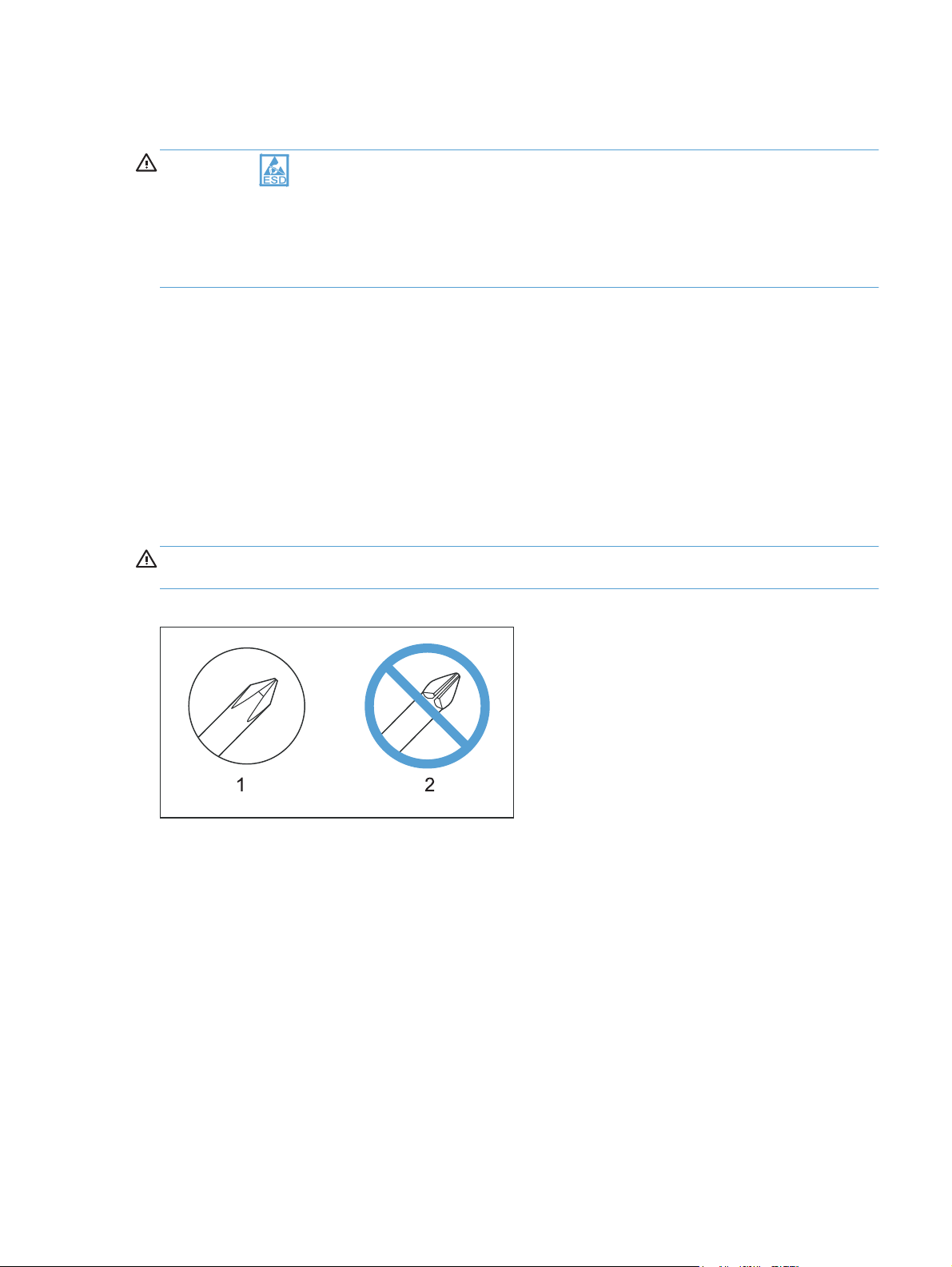
Figure 1-1 Phillips and Pozidriv screwdriver comparison …………………………………………………………………. 3
Figure 1-2 Parts removal order (base) ………………………………………………………………………………………… 5
Figure 1-3 Parts removal order (document feeder) …………………………………………………………………………. 6
Figure 1-4 Remove the tray …………………………………………………………………………………………………… 11
Figure 1-5 Remove the secondary transfer roller ………………………………………………………………………….. 12
Figure 1-6 Remove the separation pad assembly (1 of 1) ………………………………………………………………. 13
Figure 1-7 Remove the pickup roller assembly (1 of 2) ………………………………………………………………….. 15
Figure 1-8 Remove the pickup roller assembly (2 of 2) ………………………………………………………………….. 15
Figure 1-9 Remove the right cover (1 of 2) ………………………………………………………………………………… 16
Figure 1-10 Remove the right cover (2 of 2) ………………………………………………………………………………. 16
Figure 1-11 Remove the left cover (1 of 2) ………………………………………………………………………………… 17
Figure 1-12 Remove the left cover (2 of 2) ………………………………………………………………………………… 17
Figure 1-13 Remove the document feeder (1 of 4) ……………………………………………………………………….. 18
Figure 1-14 Remove the document feeder (2 of 4) ……………………………………………………………………….. 19
Figure 1-15 Remove the document feeder (3 of 4) ……………………………………………………………………….. 19
Figure 1-16 Remove the document feeder (4 of 4) ……………………………………………………………………….. 20
Figure 1-17 Remove the scanner hinges (1 of 2) …………………………………………………………………………. 21
Figure 1-18 Remove the scanner hinges (2 of 2) …………………………………………………………………………. 21
Figure 1-19 Remove the top door, rear-top cover, and delivery cover (1 of 6) …………………………………….. 22
Figure 1-20 Remove the top door, rear-top cover, and delivery cover (2 of 6) …………………………………….. 23
Figure 1-21 Remove the top door, rear-top cover, and delivery cover (3 of 6) …………………………………….. 23
Figure 1-22 Remove the top door, rear-top cover, and delivery cover (4 of 6) …………………………………….. 24
Figure 1-23 Remove the top door, rear-top cover, and delivery cover (5 of 6) …………………………………….. 24
Figure 1-24 Remove the top door, rear-top cover, and delivery cover (6 of 6) …………………………………….. 25
Figure 1-25 Reinstall the top door, rear-top cover, and delivery cover (1 of 2) …………………………………….. 25
Figure 1-26 Reinstall the top door, rear-top cover, and delivery cover (1 of 2) …………………………………….. 26
Figure 1-27 Remove the rear door assembly (1 of 2) ……………………………………………………………………. 27
Figure 1-28 Remove the rear door assembly (2 of 2) ……………………………………………………………………. 27
Figure 1-29 Remove the rear-lower cover ………………………………………………………………………………….. 28
Figure 1-30 Remove the control panel (1 of 3) ……………………………………………………………………………. 29
Figure 1-31 Remove the control panel (2 of 3) ……………………………………………………………………………. 30
Figure 1-32 Remove the control panel (3 of 3) ……………………………………………………………………………. 30
ENWW xiii

Figure 1-33 Remove the left-front cover (1 of 2) ………………………………………………………………………….. 31
Figure 1-34 Remove the left-front cover (2 of 2) ………………………………………………………………………….. 32
Figure 1-35 Remove the front door (1 of 2) ……………………………………………………………………………….. 33
Figure 1-36 Remove the front door (2 of 3) ……………………………………………………………………………….. 34
Figure 1-37 Remove the inner cover (1 of 4) ……………………………………………………………………………… 35
Figure 1-38 Remove the inner cover (2 of 4) ……………………………………………………………………………… 36
Figure 1-39 Remove the inner cover (3 of 4) ……………………………………………………………………………… 36
Figure 1-40 Remove the inner cover (4 of 4) ……………………………………………………………………………… 37
Figure 1-41 Remove the formatter PCA (base model; 1 of 2) ………………………………………………………….. 38
Figure 1-42 Remove the formatter PCA (base model; 2 of 2) ………………………………………………………….. 39
Figure 1-43 Remove the formatter and wireless PCA (plus model; 1 of 3) …………………………………………… 40
Figure 1-44 Remove the formatter and wireless PCA (plus mode; 2 of 3) …………………………………………… 40
Figure 1-45 Remove the formatter and wireless PCA (plus mode; 3 of 3) …………………………………………… 41
Figure 1-46 Remove the fuser power supply (1 of 2) ……………………………………………………………………. 42
Figure 1-47 Remove the fuser power supply (2 of 2) ……………………………………………………………………. 42
Figure 1-48 Remove the ITB assembly (1 of 17) ………………………………………………………………………….. 43
Figure 1-49 Remove the ITB assembly (2 of 17) ………………………………………………………………………….. 44
Figure 1-50 Remove the ITB assembly (3 of 17) ………………………………………………………………………….. 44
Figure 1-51 Remove the ITB assembly (4 of 17) ………………………………………………………………………….. 45
Figure 1-52 Remove the ITB assembly (5 of 17) ………………………………………………………………………….. 45
Figure 1-53 Remove the ITB assembly (6 of 17) ………………………………………………………………………….. 46
Figure 1-54 Remove the ITB assembly (7 of 17) ………………………………………………………………………….. 46
Figure 1-55 Remove the ITB assembly (8 of 17) ………………………………………………………………………….. 47
Figure 1-56 Remove the ITB assembly (9 of 17) ………………………………………………………………………….. 48
Figure 1-57 Remove the ITB assembly (10 of 17) ………………………………………………………………………… 48
Figure 1-58 Remove the ITB assembly (11 of 17) ………………………………………………………………………… 49
Figure 1-59 Remove the ITB assembly (12 of 17) ………………………………………………………………………… 49
Figure 1-60 Remove the ITB assembly (13 of 17) ………………………………………………………………………… 50
Figure 1-61 Remove the ITB assembly (14 of 17) ………………………………………………………………………… 50
Figure 1-62 Remove the ITB assembly (15 of 17) ………………………………………………………………………… 51
Figure 1-63 Remove the ITB assembly (16 of 17) ………………………………………………………………………… 51
Figure 1-64 Remove the ITB assembly (17 of 17) ………………………………………………………………………… 52
Figure 1-65 Remove the fuser delivery assembly (1 of 6) ……………………………………………………………….. 54
Figure 1-66 Remove the fuser delivery assembly (2 of 6) ……………………………………………………………….. 54
F
gure 1-67 Remove the fuser delivery assembly (3 of 6) ……………………………………………………………….. 55
i
Figure 1-68 Remove the fuser delivery assembly (4 of 6) ……………………………………………………………….. 55
Figure 1-69 Remove the fuser delivery assembly (5 of 6) ……………………………………………………………….. 56
Figure 1-70 Remove the fuser delivery assembly (6 of 6) ……………………………………………………………….. 56
Figure 1-71 Reinstall the fuser delivery assembly (1 of 2) ………………………………………………………………. 57
Figure 1-72 Reinstall the fuser delivery assembly (2 of 2) ………………………………………………………………. 57
Figure 1-73 Remove the engine controller assembly (1 of 7) …………………………………………………………… 58
xiv ENWW

Figure 1-74 Remove the engine controller assembly (2 of 7) …………………………………………………………… 59
Figure 1-75 Remove the engine controller assembly (3 of 7) …………………………………………………………… 59
Figure 1-76 Remove the engine controller assembly (4 of 7) …………………………………………………………… 60
Figure 1-77 Remove the engine controller assembly (5 of 7) …………………………………………………………… 60
Figure 1-78 Remove the engine controller assembly (6 of 7) …………………………………………………………… 61
Figure 1-79 Remove the engine controller assembly (7 of 7) …………………………………………………………… 61
Figure 1-80 Installing a replacement engine controller assembly ……………………………………………………… 62
Figure 1-81 Remove the low-voltage power supply assembly (1 of 9) ……………………………………………….. 63
Figure 1-82 Remove the low-voltage power supply assembly (2 of 9) ……………………………………………….. 64
Figure 1-83 Remove the low-voltage power supply assembly (3 of 9) ……………………………………………….. 64
Figure 1-84 Remove the low-voltage power supply assembly (4 of 9) ……………………………………………….. 65
Figure 1-85 Remove the low-voltage power supply assembly (5 of 9) ……………………………………………….. 65
Figure 1-86 Remove the low-voltage power supply assembly (6 of 9) ……………………………………………….. 66
Figure 1-87 Remove the low voltage power supply assembly (7 of 9) ……………………………………………….. 66
Figure 1-88 Remove the low-voltage power supply assembly (8 of 9) ……………………………………………….. 67
Figure 1-89 Remove the low-voltage power supply assembly (9 of 9) ……………………………………………….. 67
Figure 1-90 Reinstall the low-voltage power supply ……………………………………………………………………… 68
Figure 1-91 Installing a replacement low-voltage power supply ………………………………………………………. 68
Figure 1-92 Remove the document feeder input tray (1 of 2) ………………………………………………………….. 69
Figure 1-93 Remove the document feeder input tray (2 of 2) ………………………………………………………….. 69
Figure 1-94 Remove the document feeder cover (1 of 3) ……………………………………………………………….. 70
Figure 1-95 Remove the document feeder cover (2 of 3) ……………………………………………………………….. 70
Figure 1-96 Remove the document feeder cover (3 of 3) ……………………………………………………………….. 71
Figure 1-97 Remove the document feeder core (1 of 4) ………………………………………………………………… 72
Figure 1-98 Remove the document feeder core (2 of 4) ………………………………………………………………… 72
Figure 1-99 Remove the document feeder core (3 of 4) ………………………………………………………………… 73
Figure 1-100 Remove the document feeder core (4 of 4) ………………………………………………………………. 73
Figure 1-101 Remove the post scan pinch rollers ………………………………………………………………………… 74
Figure 1-102 Remove the document feeder base assembly (1 of 3) ………………………………………………….. 75
Figure 1-103 Remove the document feeder base assembly (2 of 3) ………………………………………………….. 76
Figure 1-104 R
ure 2-1 Locations of connectors ………………………………………………………………………………………….. 83
Fig
Figure 2-2 Cross section view ………………………………………………………………………………………………… 84
Figure 2-3 External covers and doors (base) ………………………………………………………………………………. 85
Figure 2-4 General timing diagram …………………………………………………………………………………………. 86
Figure 2-5 General circuit diagram …………………………………………………………………………………………. 87
Figure 2-6 Diagnostics Page ………………………………………………………………………………………………….. 88
Figure 3-1 Base product (no optional trays or accessories) …………………………………………………………… 105
Figure 3-2 Covers, panels, and doors ……………………………………………………………………………………. 106
Figure 3-3 Internal assembly ………………………………………………………………………………………………… 108
Figure 3-4 PCAs ………………………………………………………………………………………………………………. 110
emove the document feeder base assembly (3 of 3) ………………………………………………….. 76
ENWW xv

Figure 3-5 Scanner and document feeder main assemblies ………………………………………………………….. 112
Figure 3-6 Document feeder assembly parts …………………………………………………………………………….. 114
xvi ENWW

1 Removal and replacement
Introduction
●
Removal and replacement strategy
●
Electrostatic discharge
●
Required tools
●
Service approach
●
Removal and replacement procedures
●
ENWW 1

Introduction
This chapter describes the removal and replacement of field-replaceable units (FRUs) only.
Replacing FRUs is generally the reverse of removal. Occasionally, notes and tips are included to
provide directions for difficult or critical replacement procedures.
HP does not support repairing individual subassemblies or troubleshooting to the component level.
Note the length, diameter, color, type, and location of each screw. Be sure to return each screw to its
original location during reassembly.
Incorrectly routed or loose wire harnesses can interfere with other internal components and can become
damaged or broken. Frayed or pinched harness wires can be difficult to find. When replacing wire
harnesses, always use the provided wire loops, lance points, or wire-harness guides and retainers.
Removal and replacement strategy
WARNING! Turn the product off, wait 5 seconds, and then remove the power cord before
attempting to service the product. If this warning is not followed, severe injury can result, in addition to
damage to the product. The power must be on for certain functional checks during troubleshooting.
However, disconnect the power supply during parts removal.
Never operate or service the product with the protective cover removed from the laser/scanner
assembly. The reflected beam, although invisible, can damage your eyes.
The sheet-metal parts can have sharp edges. Be careful when handling sheet-metal parts.
CAUTION: Do not bend or fold the flat flexible cables (FFCs) during removal or installation. Also, do
not straighten pre-folds in the FFCs. You must fully seat all FFCs in their connectors. Failure to fully seat
an FFC into a connector can cause a short circuit in a PCA.
NOTE: To install a self-tapping screw, first turn it counterclockwise to align it with the existing thread
pattern, and then carefully turn it clockwise to tighten. Do not overtighten. If a self-tapping screw-hole
becomes stripped, repair the screw-hole or replace the affected assembly.
TIP: For clarity, some photos in this chapter show components removed that would not be removed to
service the product. If necessary, remove the components listed at the beginning of a procedure before
proceeding to service the product.
2 Chapter 1 Removal and replacement ENWW
Electrostatic discharge
CAUTION: Some parts are sensitive to electrostatic discharge (ESD). Look for the ESD reminder
when removing product parts. Always perform service work at an ESD-protected workstation or mat, or
use an ESD strap. If an ESD workstation, mat, or strap is not available, ground yourself by touching the
sheet-metal chassis before touching an ESD-sensitive part.
Protect the ESD-sensitive parts by placing them in ESD pouches when they are out of the product.
Required tools
#2 Phillips screwdriver with a magnetic tip and a 152-mm (6-inch) shaft length
●
Small flat-blade screwdriver
●
Needle-nose pliers
●
ESD mat (if one is available) or ESD strap
●
Penlight (optional)
●
CAUTION: Always use a Phillips screwdriver (callout 1). Do not use a Pozidriv screwdriver
(callout 2) or any motorized screwdriver. These can damage screws or screw threads.
Figure 1-1 Phillips and Pozidriv screwdriver comparison
ENWW
Electrostatic discharge
3

Service approach
Before performing service
Remove all paper from the product.
●
Turn off the power using the power button.
●
WARNING! The power button must be turned off before performing service. Failure to turn off
the power leaves the fuser engaged and prevents its removal.
Unplug the power cable and interface cable or cables.
●
Place the product on an ESD workstation or mat (if one is available), or use an ESD strap. If an
●
ESD workstation, mat, or strap is not available, ground yourself by touching the sheet-metal
chassis before touching an ESD-sensitive part.
Remove the print cartridges and imaging drum. See
●
drum on page 9
Remove the input tray. See
●
After performing service
Plug in the power cable.
●
Reinstall the print cartridges.
●
Load paper in the product.
●
Post-service test
Perform the following test to verify that the repair or replacement was successful.
Product verification test
1. Verify that you have completed the necessary reassembly steps.
2. Make sure that the tray contains clean, unmarked paper.
3. Attach the power cord and interface cable or interface cables, and then turn on the product.
Print cartridges on page 7 and Imaging
Input tray on page 11.
4. Verify that the expected startup sounds occur.
5. Print a configuration page, and then verify that the expected printing sounds occur.
6. Send a print job from the host computer, and then verify that the output meets expectations.
7. Use the document feeder to make a copy.
8. Clean the outside of the product with a damp cloth.
4 Chapter 1 Removal and replacement ENWW

Parts removal order
Figure 1-2 Parts removal order (base)
Print cartridges
Imaging drum
Input tray
Secondary
transfer roller
Separation pad
Pickup roller
Right cover assembly
Left cover assembly
Document feeder
Document feeder
hinges
Separation
pad
Left cover
Left cover
Right cover
Document
feeder
Left cover
Top door, rear cover,
and delivery cover
Rear door assembly
Rear-lower cover
Control Panel
Left-front cover
Front door
Inner cover
Formatter PCA
(base model)
Formatter and
wireless PCA
(plus model)
Fuser power supply
ITB
Fuser delivery
assembly
Engine controller
assembly
Low-voltage power
supply assembly
Right cover
Right cover
Right cover
Right cover
Right cover
Right cover
Right cover
Left cover
Left cover
Left cover
Right cover
Right cover
Right cover
Right cover
Left cover
Left cover
Left cover
Left cover
Left cover
Left cover
Left cover
Left cover
Left cover
Left cover
Document
feeder
Rear door
Document
feeder
Document
feeder
Document
feeder
Document
feeder
Document
feeder
Document
feeder
Document
feeder
Document
feeder
Document
feeder hinges
Document
feeder hinges
Document
feeder hinges
Document
feeder hinges
Document
feeder hinges
Document
feederhinges
Document
feeder hinges
Document
feeder hinges
Document
feeder hinges
Top door,
rear cover,
and delivery cover
Top door,
rear cover,
and delivery cover
Top door,
rear cover,
and delivery cover
Top door,
rear cover,
and delivery cover
Top door,
rear cover,
livery cover
and de
Top door,
rear cover,
and delivery cover
Top door,
rear cover,
and delivery cover
Top door,
rear cover,
and delivery cover
Control
Pan el
Control
Pan el
Control
Pan el
Rear door
assembly
Rear door
assembly
Control
Pan el
Rear door
assembly
Left-front
cover
Left-front
cover
Rear-lower
cover
Rear-lower
cover
Left-front
cover
Rear-lower
cover
Formatter
PCA
Formatter
PCA
Inner
cover
Control
Pan el
Formatter
PCA
Left-front
cover
Inner cover
Formatter
PCA
ENWW
Service approach
5

Figure 1-3 Parts removal order (document feeder)
Document feeder input tray
Document feeder cover
Document core
Post scan pinch rollers
Document feeder input tray
Document feeder cover
Document core
Document feeder base assembly
Document feeder input tray
Document feeder cover
6 Chapter 1 Removal and replacement ENWW
Removal and replacement procedures
Print cartridges
When a print cartridge approaches the estimated end of its useful life, you can continue printing with
the current print cartridge until it no longer yields acceptable print quality.
Once an HP print cartridge has reached “very low’, the HP Premium Protection Warranty on that
supply has ended. All print defects or print cartridge failures incurred when an HP supply is used in
continue at very low mode will not be considered to be defects in materials or workmanship in the
supply under the HP Print Cartridge Warranty Statement.
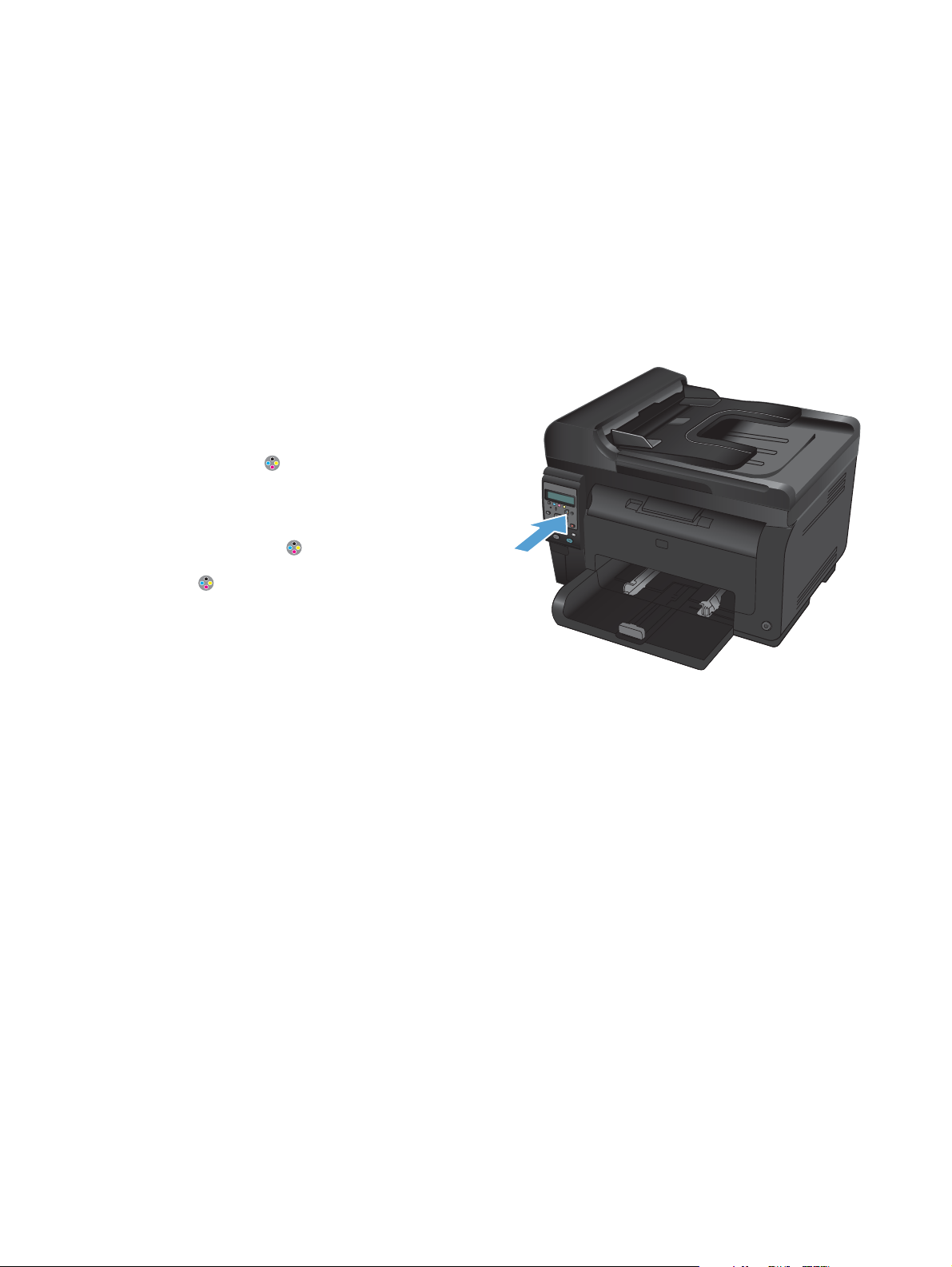
1. Some error messages or status messages cause
the product to rotate the print cartridge
carousel to the affected cartridge
automatically. If the print cartridge that needs
to be replaced is not in the correct position,
press the Cartridge
cartridge carousel to the cartridge color that
you want to replace.
NOTE: All doors must be closed when
pressing the Cartridge
imaging drum must be installed for the
Cartridge
NOTE: Wait until the Rotating message
and the rotation sounds stop before opening
the print cartridge door.
button to work.
button to rotate the print
button. Also, the
ENWW
Removal and replacement procedures
7
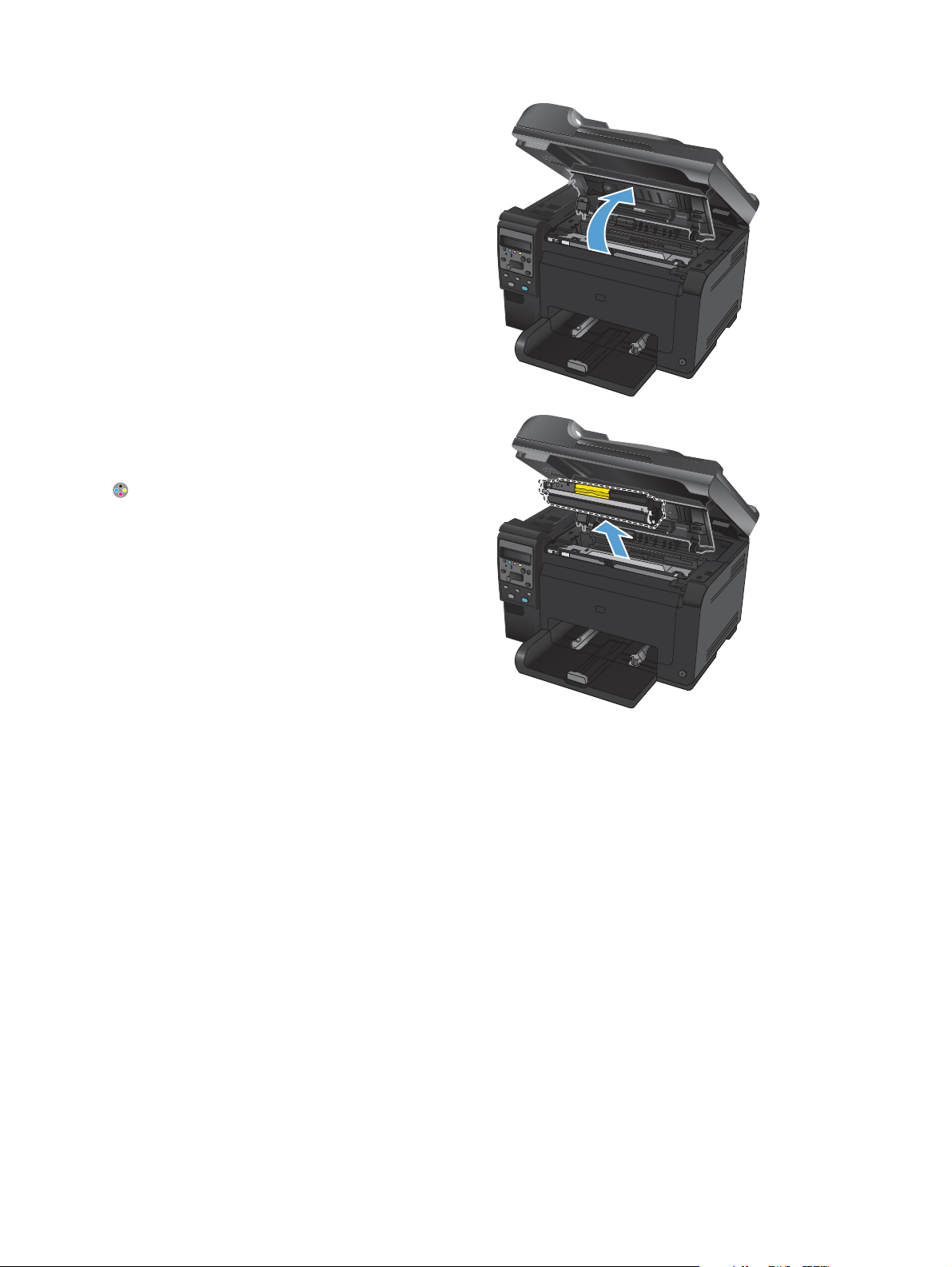
2. Open the print cartridge door.
3. Grasp the old print cartridge by the center
handle and remove it.
Close the doors, and then press the Cartridge
button to rotate the print cartridge carousel
to the next cartridge. Repeat to remove all
cartridges.
NOTE: Make sure that you store the
removed print cartridges away from strong
light. HP recommends that you cover the print
cartridges while servicing the product.
8 Chapter 1 Removal and replacement ENWW
Imaging drum
NOTE: The imaging drum installed in this product is covered by the product warranty. Replacement
imaging drums have a one-year limited warranty from the date of installation. The imaging drum
installation date displays on the supplies status page. The HP Premium Protection Warranty applies only
to the print cartridges for the product.
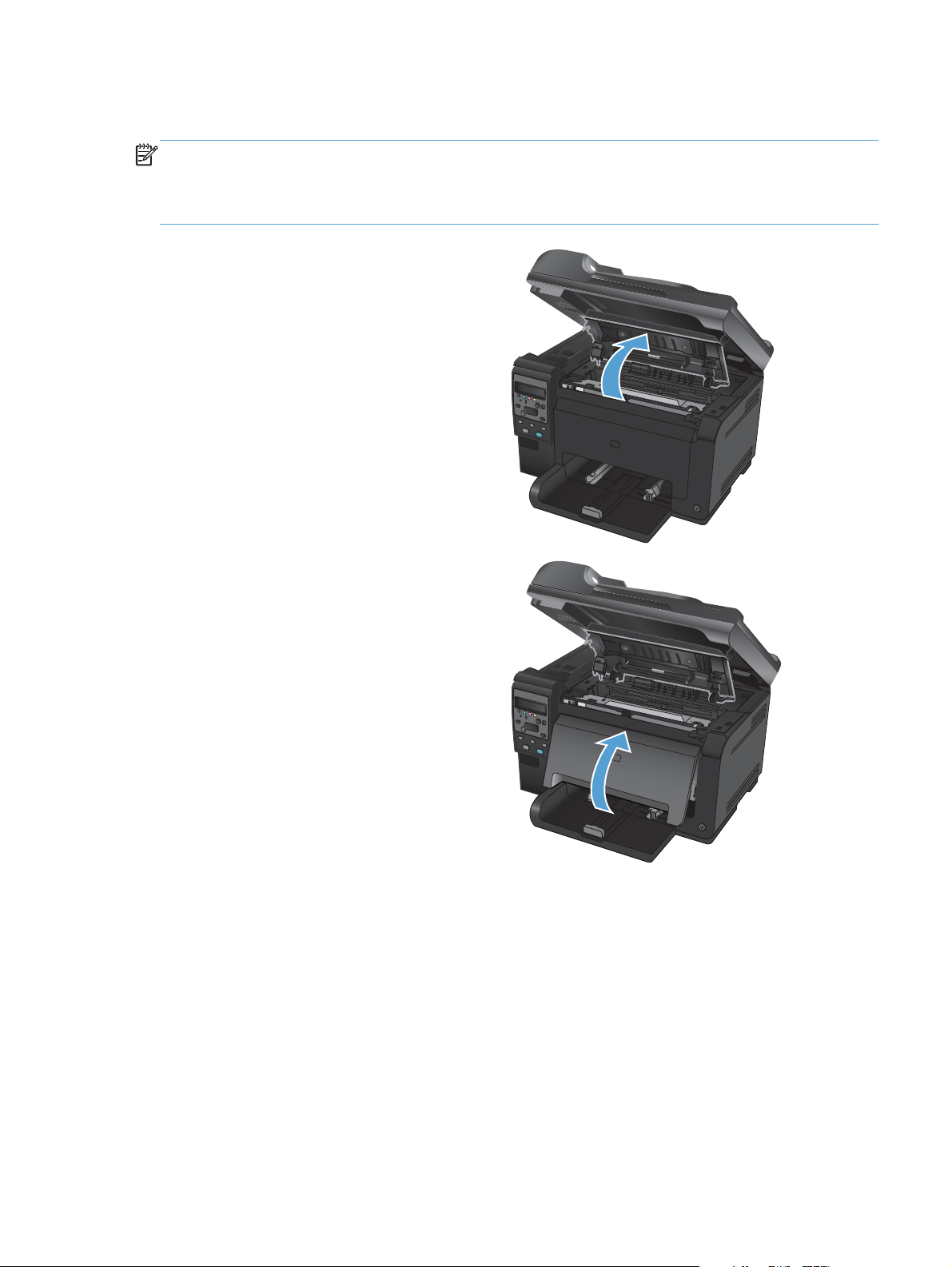
1. Open the print cartridge door.
2. Open the front cover.
ENWW
Removal and replacement procedures
9
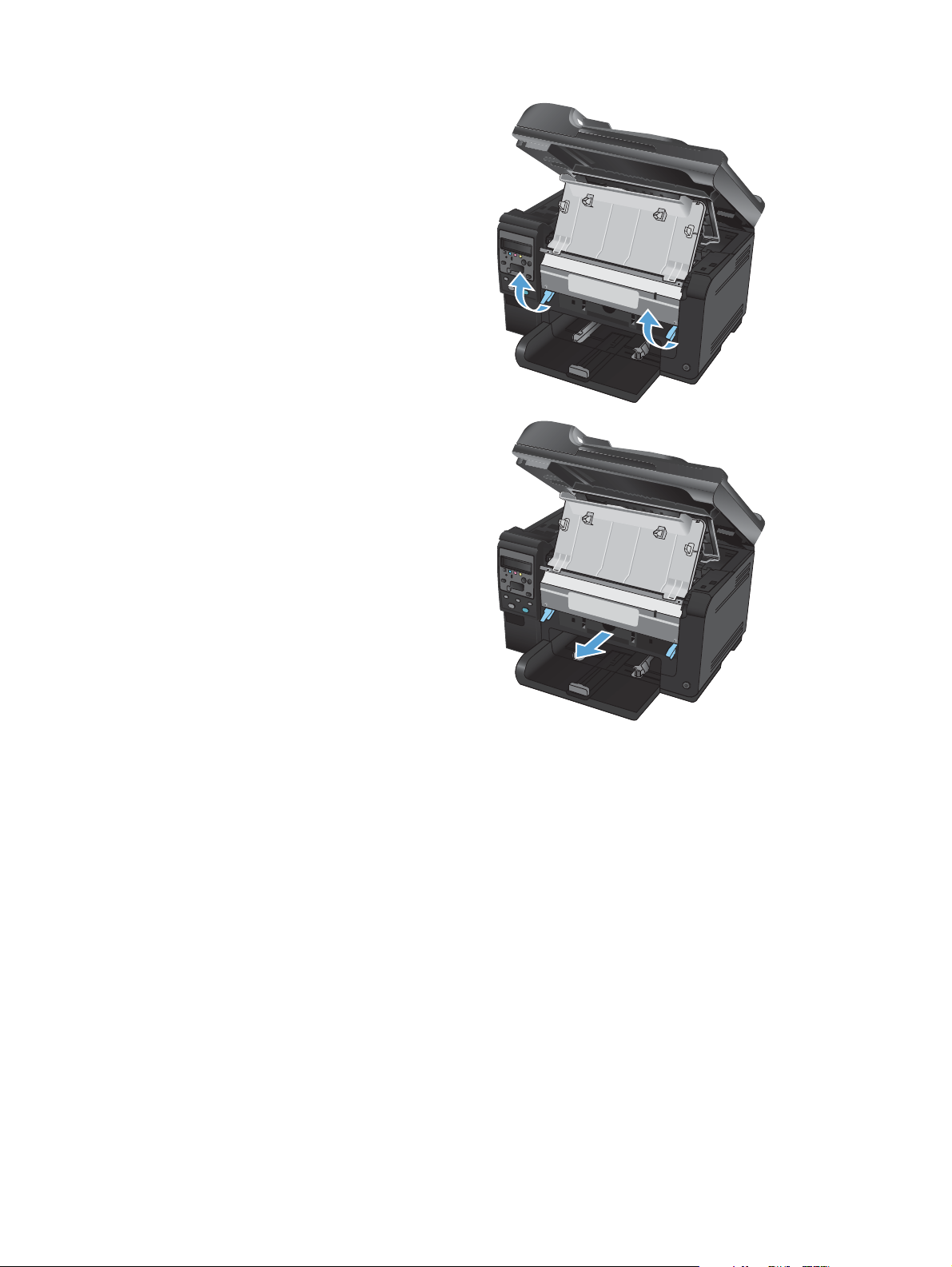
3. Lift the two levers that hold the imaging drum.
4. Remove the old imaging drum.
NOTE: Make sure that you store the
removed imaging drum away from strong
light. HP recommends that you cover the
imaging drum while servicing the product.
10 Chapter 1 Removal and replacement ENWW
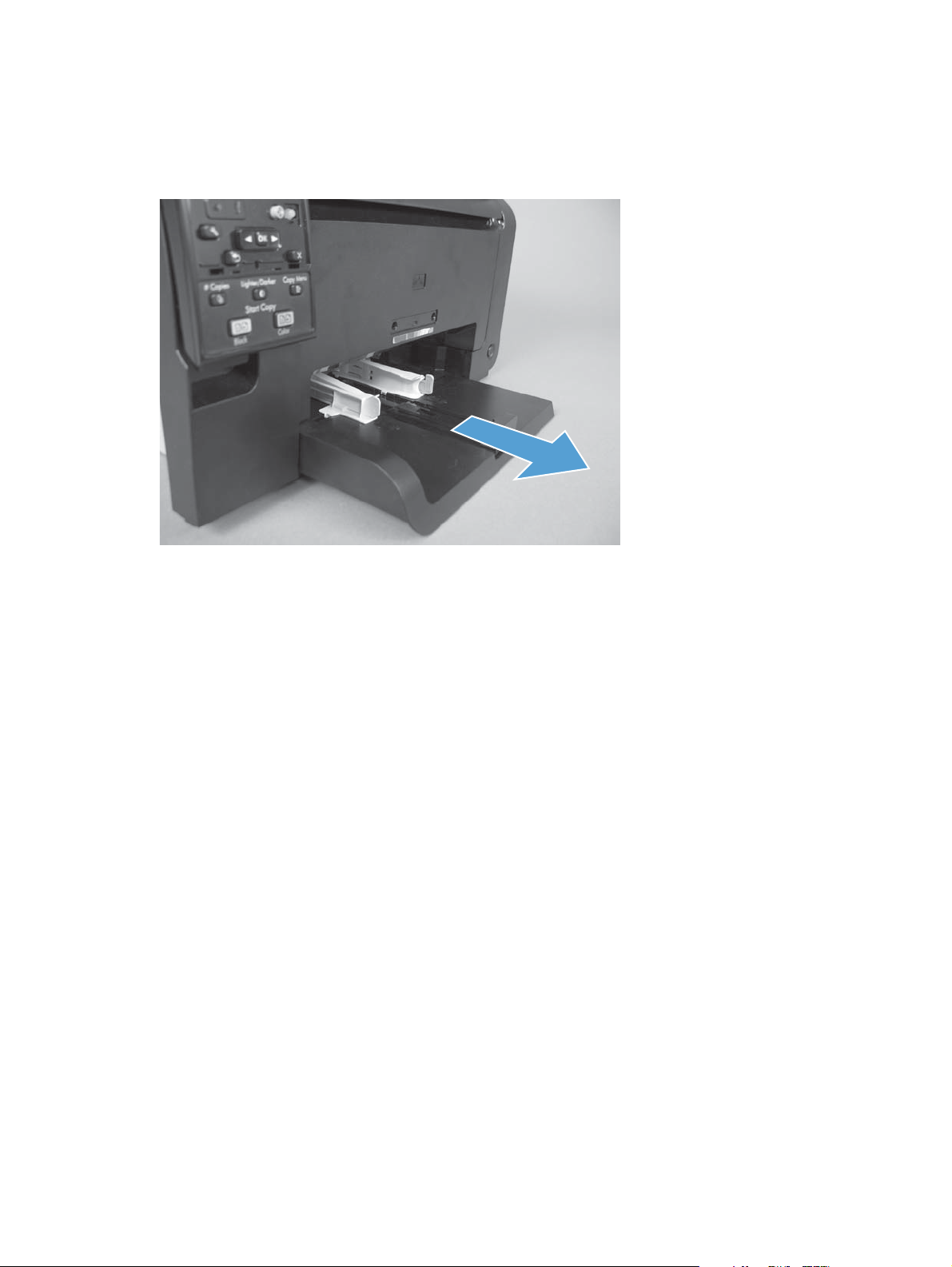
Input tray
Pull the tray away from the printer to remove.
Figure 1-4 Remove the tray
ENWW
Removal and replacement procedures
11
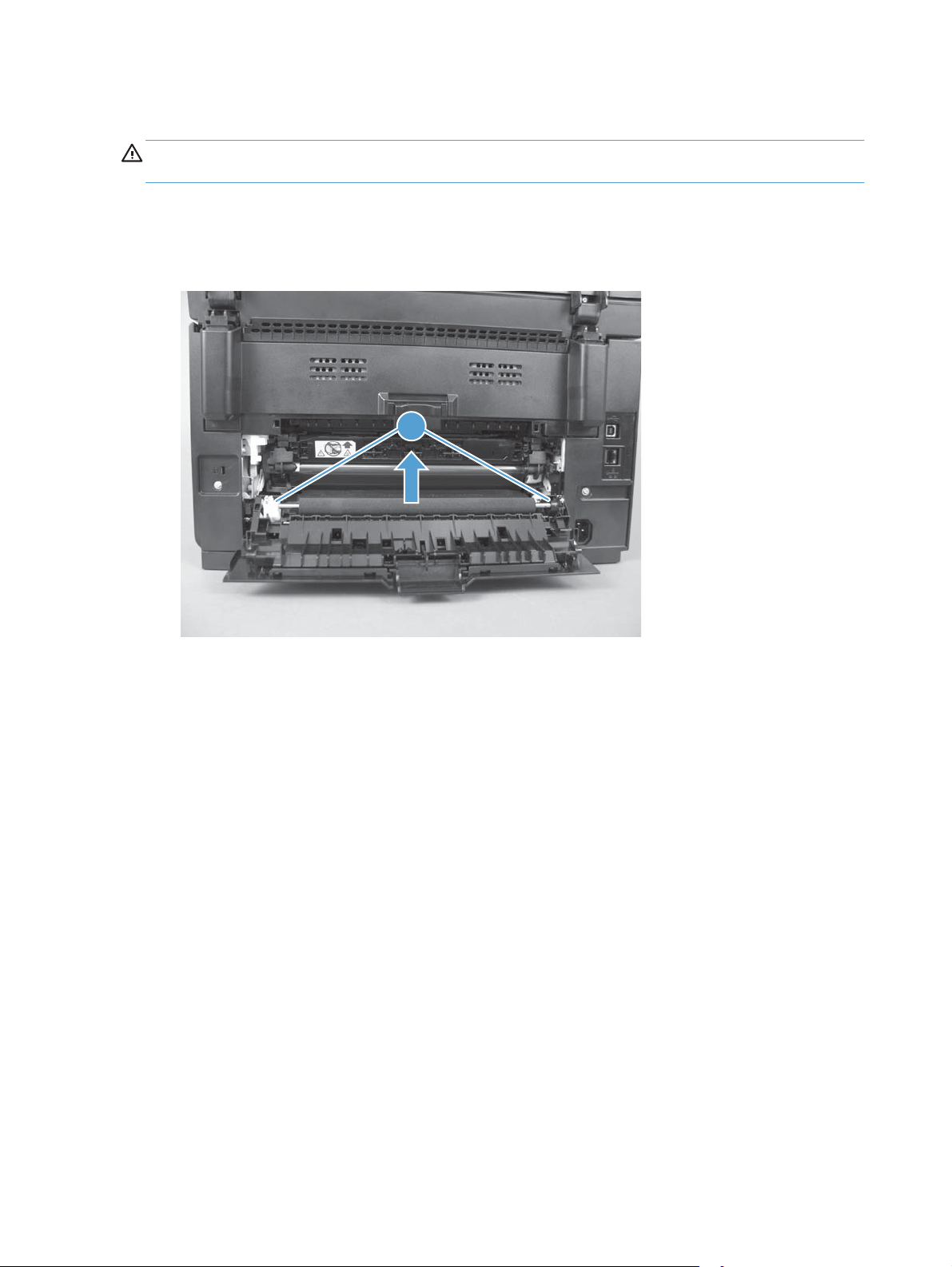
Secondary transfer roller
CAUTION: Do not touch the black spongy part of the roller. Skin oils might cause print-quality
problems.
1. Open the rear door.
2. Release two clips (callout 1), and then remove the roller from the product.
Figure 1-5 Remove the secondary transfer roller
1
12 Chapter 1 Removal and replacement ENWW
Loading…
HP LaserJet Pro 100 Color MFP M175a
Manual
View the manual for the HP LaserJet Pro 100 Color MFP M175a here, for free. This manual comes under the category printers and has been rated by 1 people with an average of a 9.1.
This manual is available in the following languages: English. Do you have a question about the HP LaserJet Pro 100 Color MFP M175a or do you need help?
Ask your question here
Index
- Product basics
- Control panel menus
- Software for Windows
- Use the product with Mac
- Connect the product
- Paper and print media
- Print cartridges and imaging drum
- Print tasks
- Color
- Copy
- Scan
- Manage and maintain the product
- Solve problems
- Supplies and accessories
- Service and support
- Specifications
- Regulatory information
- Index
Product Images (2)


HP LaserJet Pro 100 Color MFP M175a specifications
Below you will find the product specifications and the manual specifications of the HP LaserJet Pro 100 Color MFP M175a.
The HP LaserJet Pro 100 Color MFP M175a is a printer designed for home and small business use. It offers the capability to print, scan, and copy documents, making it a versatile all-in-one solution.
With its compact and sleek design, the LaserJet Pro 100 M175a fits easily into any workspace. It has a small footprint, making it ideal for limited desk or office space. The printer is compatible with Windows and Mac operating systems, ensuring easy integration into existing setups.
Equipped with laser printing technology, the LaserJet Pro 100 M175a delivers high-quality prints every time. It has a maximum print resolution of up to 600 x 600 dots per inch (dpi), ensuring sharp and clear text and graphics. The printer also supports color printing, allowing for the production of vibrant and eye-catching documents.
The scanner feature of the LaserJet Pro 100 M175a allows users to easily digitize documents. It has a maximum scanning resolution of up to 1200 dpi, ensuring accurate and detailed scans. The printer can also function as a standalone copier, providing convenient copying capabilities without the need for a computer.
The LaserJet Pro 100 M175a has a standard input tray that can hold up to 150 sheets of paper, reducing the need for frequent paper reloading. It supports various paper sizes, including A4, A5, and Letter. The printer also has a manual duplex printing feature, allowing for double-sided printing.
The connectivity options of the LaserJet Pro 100 M175a include a USB 2.0 port, enabling quick and easy connection to computers and other devices. It also supports mobile printing, allowing users to print directly from their smartphones and tablets.
Overall, the HP LaserJet Pro 100 Color MFP M175a is a reliable and efficient printer that offers printing, scanning, and copying capabilities for home and small business users. Its compact design, high-quality prints, and versatile features make it a valuable addition to any workspace.
General
| Brand | HP |
| Model | LaserJet Pro 100 Color MFP M175a |
| Product | printer |
| EAN | 885631717868 |
| Language | English |
| Filetype | User manual (PDF) |
Frequently Asked Questions
Can’t find the answer to your question in the manual? You may find the answer to your question in the FAQs about the HP LaserJet Pro 100 Color MFP M175a below.
Why is my printer not turning on?
Ensure the printer is properly connected to a power source and that the power switch is turned on. Check if the power cable is properly plugged in and try a different outlet if necessary.
How can I resolve print quality issues?
You can try cleaning the print heads to improve print quality. Additionally, make sure you are using the correct paper type and settings for your desired print job. If the issue persists, consider replacing the toner cartridges.
Why am I experiencing paper jams?
Check for any loose or stuck paper inside the printer and gently remove it if found. Ensure that the paper being used is within the supported specifications and properly loaded in the tray. Keep the paper tray clean and avoid overfilling it, as these factors can contribute to paper jams.
What can I do if my printer is printing slowly?
Verify that the printer is in the correct print mode and the print quality settings are appropriate for your needs. Consider optimizing the document you are attempting to print, as complex files or large image sizes can significantly impact print speed. Upgrading the printer’s memory capacity may also help improve performance.
How can I troubleshoot network connectivity issues?
Verify that the printer is connected to the same network as your computer or device. Ensure that the network cables are securely connected and functioning properly. Check the printer’s network settings to ensure it has a valid IP address. Restarting your printer and networking devices can often resolve connectivity issues.
What is the best way to remove jammed paper from my printer?
It is best to gently pull the paper out of the printer. Turn the printer off, and make sure that the printhead is not hanging over the paper and that no paper remains in the printer.
How come my prints are of poor quality?
There can be various reasons for poor print quality. Check if the cartridges or toners are full. If so, inkjet printers often require cleaning the printer, the cartridges have dried out, or the print head is broken. With laser printers, calibrating the laser printer is recommended.
How come my printer does not accept original cartridges?
Non-genuine cartridges may not be recognised by the printer. In that case you will receive a message that the cartridge is empty. The manual of the purchased cartridge usually contains the solution, if this does not work, it is advisable to contact the seller.
How come my inkjet printer has black stripes?
In most cases, the inkjet printer cartridge is broken and the cartridge needs to be replaced.
What is the difference between a laser printer and an inkjet printer?
A laser printer prints with a toner and an inkjet printer prints with ink.
What does DPI stand for?
DPI stands for Dots Per Inch and is the number of ink droplets (per inch) that end up on the paper when printing.
Is the manual of the HP LaserJet Pro 100 Color MFP M175a available in English?
Yes, the manual of the HP LaserJet Pro 100 Color MFP M175a is available in English .
Is your question not listed? Ask your question here
На этой странице вы можете совершенно бесплатно скачать Инструкция по эксплуатации HP LaserJet Pro 100 color MFP M175a.
У документа PDF Инструкция по эксплуатации 220 страниц, а его размер составляет 4.39 Mb.
Читать онлайн МФУ HP LaserJet Pro 100 color MFP M175a Инструкция по эксплуатации
Google Ads:
Скачать файл PDF «HP LaserJet Pro 100 color MFP M175a Инструкция по эксплуатации» (4.39 Mb)
Популярность:
4071 просмотры
Подсчет страниц:
220 страницы
Тип файла:
Размер файла:
4.39 Mb
Google Ads:
Google Ads:
Прочие инструкции HP LaserJet Pro 100 color MFP M175a
Прочие инструкции HP МФУ
Прочие инструкции HP
HP LaserJet Pro 100 M175a
LASERJET PRO 100 COLOR MFP M175
User Guide
Инструкция
Посмотреть инструкция для HP LaserJet Pro 100 M175a бесплатно. Руководство относится к категории принтеры, 2 человек(а) дали ему среднюю оценку 8.6. Руководство доступно на следующих языках: английский. У вас есть вопрос о HP LaserJet Pro 100 M175a или вам нужна помощь?
Задайте свой вопрос здесь
Содержание
- Product basics
- Control panel menus
- Software for Windows
- Use the product with Mac
- Connect the product
- Paper and print media
- Print cartridges and imaging drum
- Print tasks
- Color
- Copy
- Scan
- Manage and maintain the product
- Solve problems
- Supplies and accessories
- Service and support
- Specifications
- Regulatory information
- Index
Изображения продукта (17)

Ниже вы найдете технические характеристики изделия и руководства по эксплуатации HP LaserJet Pro 100 M175a.
Технология печати
Лазерная
Мультифункциональсть устройства
Copy, Print, Scan
Максимальный рабочий цикл
20000 стр/мес
Максимальное разрешение копирования
300 x 300 DPI
Разрешение оптического сканирования
1200 x 1200 DPI
Общий объем подачи бумаги
150 листов
Главная
| Бренд | HP |
| Модель | LaserJet Pro 100 M175a | CE865A |
| Изделие | принтер |
| EAN | 3610170541479, 4053162315280, 4260217175939, 5053460945249, 885631717844, 885631717868, 8856317178688, 885631717875, 885631717882, 885631717912, 0885631717844, 0885631717875, 0885631717868, 0885631717912, 0885631717882, 0008563171786, 0885631717851, 0885631717776, 0885631717899, 0885631717837, 0885631717790, 0885631717783, 0885631717813, 0885631717905, 0885631717820, 0885631717806 |
| Язык | английский |
| Тип файла | Руководство пользователя (PDF) |
Печать
| Технология печати | Лазерная |
| Максимальное разрешение | 600 x 600 DPI |
| Скорость печати (ч/б, обычное кач., A4/US Letter) | 16 ppm |
| Скорость печати (цвет., обычное кач., A4/US Letter) | 4 ppm |
| Разрешение ч/б печати | 600 x 600 DPI |
| Время выхода первой страницы (ч/б, норм. качество) | 15.5 s |
| Время выхода первой страницы (цвет, норм. качество) | 27.5 s |
| Печать | цветная печать |
| Двусторонняя печать | Нет |
Прочие свойства
| Мультифункциональсть устройства | Copy, Print, Scan |
| Функции МФУ в цвете | copy, print, scan |
| Размеры (ШхГхВ) | 441 x 421 x 338 mm |
| Совместимые операционные системы | Windows 7, Vista, XP\r\nMac OS X v10.5.8, v10.6\r\nLinpus Linux (9.4, 9.5), RED HAT Enterprise Linux 5.0\r\nSUSE Linux (10.3, 11.0, 11, 11.1, 11.2), Fedora (9, 9.0, 10, 10.0, 11.0, 11, 12, 12.0), Ubuntu (8.04, 8.04.1, 8.04.2, 8.10, 9.04, 9.10, 10.04), Debian (5.0, 5.0.1, 5.0.2, 5.0.3)\r\nHPUX 1\r\nSolaris 8/9 |
| Встроенный сканер | Да |
| Возможность цветного копирования | Да |
Свойства
| Максимальный рабочий цикл | 20000 стр/мес |
| Языки описания страницы | PCL 5c, PCL 6, PDF 1.7, PostScript 3 |
| Цифровой передатчик | Нет |
Копирование
| Максимальное разрешение копирования | 300 x 300 DPI |
| Скорость копирования (обычное кач., ч/б, A4) | 16 cpm |
| Скорость копирования (обычное кач., цвет., A4) | 4 cpm |
| Максимальное число копий | 99 копий |
| Масштабирование копии | 25 — 400 % |
| Копирование | цветное копирование |
| Дуплексное копирование | Нет |
Сканирование
| Разрешение оптического сканирования | 1200 x 1200 DPI |
| Максимальная область сканирования | 216 x 297 mm |
| Тип сканера | Сканер ADF |
| Поддерживаемые форматы изображения | JPG, PNG, TIF |
| Подерживаемые форматы документов | |
| Сканирование | цветное сканирование |
| Двустороннее сканирование | Нет |
Входная и выходная емкость
| Общий объем подачи бумаги | 150 листов |
| Емкость автоподатчика бумаги | 35 листов |
| Общий объем вывода бумаги | 50 листов |
| Автоподатчик (ADF) | Да |
Типы и характеристики бумаги
| Максимальные размеры печати | 210 x 297 mm |
| Типы материалов для печати | Bond paper, Card stock, Envelopes, Glossy paper, Labels, Photo paper, Plain paper, Pre-Printed, Recycled paper, Transparencies |
| ISO A-форматы (А0…А9) | A4, A5, A6 |
| ISO B-форматы (B0…B9) | B5 |
| Размеры конвертов | B5, C5, DL |
| Вес лотка подачи материалов для печати | 60 — 176 g/m² |
| Изменяемая ширина носителя | 76 — 216 mm |
| Изменяемая длина носителя | 127 — 345 mm |
| Максимальный размер бумаги ISO A-формата | A4 |
Дизайн
| Дисплей | ЖК |
| Отображение количества строк | 2 линий |
| Встроенный экран | Да |
| Позиционирование на рынке | Бизнес |
| Цвет товара | Черный |
Порты и интерфейсы
| Прямая печать | Нет |
| Стандартные интерфейсы | USB 2.0 |
| Количество портов USB 2.0 | 1 |
| USB порт | Да |
Сеть
| Подключение Ethernet | Нет |
| Wi-Fi | Нет |
| Bluetooth | Нет |
Производительность
| Оперативная память | 128 MB |
| Максимальный объём внутренней памяти | 128 MB |
| Встроенный кардридер | Нет |
| Тактовая частота процессора | 600 MHz |
| Совместимость с Mac | Да |
Энергопитание
| Средняя потребляемая мощность (в рабочем режиме) | 310 W |
| Потребляемая мощность (выкл.) | 0.2 W |
| Потребляемая мощность (в режим ожидания) | 11 W |
| Входящее напряжение сети | 110 — 127 V |
Вес и размеры
| Вес | 16200 g |
| Глубина | 421 mm |
| Высота | 338 mm |
| Ширина | 441 mm |
Данные об упаковке
| Масса брутто | 17500 g |
| Глубина упаковки | 480 mm |
| Высота упаковки | 441 mm |
| Ширина упаковки | 441 mm |
Условия эксплуатации
| Диапазон температур при эксплуатации | 15 — 32.5 °C |
| Диапазон относительной влажности при эксплуатации | 20 — 70 % |
Системные требования
| Поддерживаемые операционные системы Windows | Да |
| Поддерживаемые операционные системы Mac | Да |
| Поддерживаемые операционные системы Linux | Да |
Устойчивость
| Сертификаты устойчивого развития | ENERGY STAR |
Факс
| Факс | Нет |
| Дуплексная передача по факсу | Нет |
показать больше
Часто задаваемые вопросы
Не можете найти ответ на свой вопрос в руководстве? Вы можете найти ответ на свой вопрос ниже, в разделе часто задаваемых вопросов о HP LaserJet Pro 100 M175a.
Какой вес HP LaserJet Pro 100 M175a?
HP LaserJet Pro 100 M175a имеет вес 16200 g.
Какая высота HP LaserJet Pro 100 M175a?
HP LaserJet Pro 100 M175a имеет высоту 338 mm.
Какая ширина HP LaserJet Pro 100 M175a?
HP LaserJet Pro 100 M175a имеет ширину 441 mm.
Какая толщина HP LaserJet Pro 100 M175a?
HP LaserJet Pro 100 M175a имеет толщину 421 mm.
Как удалить замятую бумагу из принтера?
Лучше всего аккуратно вытянуть бумагу из принтера. Выключите принтер и убедитесь, что печатающий узел не нависает над бумагой и что в принтере не осталось бумаги.
Чем обусловлено плохое качество печати?
Причины плохого качества печати могут быть разными. Убедитесь, что картридж заполнен, а тонер имеется в достаточном количестве. Если такой проблемы нет, причина может заключаться в том, что струйному принтеру требуется чистка, высох картридж или сломан печатающий узел. Для лазерного принтера рекомендуется выполнить калибровку.
Почему после установки оригинального картриджа принтер не работает?
Принтер может не распознать неоригинальный картридж. В этом случае вы получите сообщение о том, что картридж пуст. В инструкции к приобретенному картриджу обычно указаны способы устранения проблемы. Если это сделать не удалось, рекомендуется обратиться к продавцу.
Почему при печати на струйном принтере появляются черные полосы?
В большинстве случаев это обусловлено поломкой картриджа струйного принтера. Необходимо заменить картридж.
В чем разница между лазерным и струйным принтером?
Лазерный принтер печатает тонером, а струйный — чернилами.
Что означает аббревиатура DPI?
DPI обозначает Dots Per Inch и представляет собой количество капель чернил (на дюйм), которые подаются на бумагу при печати.
Инструкция HP LaserJet Pro 100 M175a доступно в русский?
К сожалению, у нас нет руководства для HP LaserJet Pro 100 M175a, доступного в русский. Это руководство доступно в английский.
Не нашли свой вопрос? Задайте свой вопрос здесь