
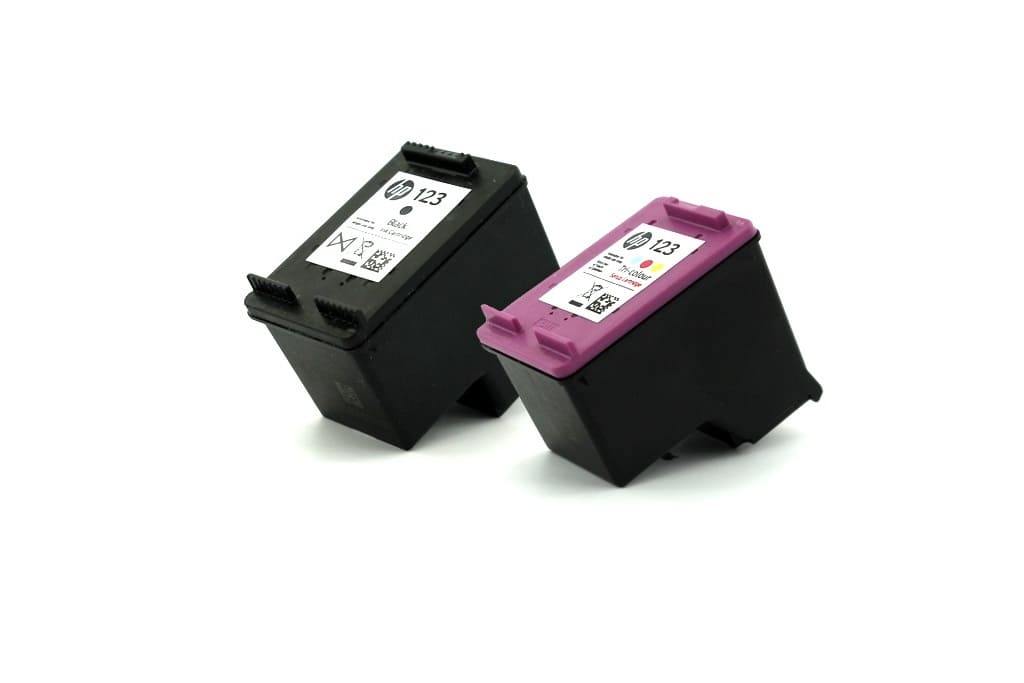
Рисунок 1.
HP DeskJet-2630 относится к бюджетному классу принтера и МФУ, со встроенными печатающими головками (далее ПГ) в картридже. Когда пользователи приобретают печатающие устройства по относительно низкой цене, после израсходования чернил, узнают о стоимости новых расходных материалов и думают как сэкономить на печати. Одним из способов не тратить лишние деньги, является заправка картриджей HP 2630 в домашних условиях.
Чернила подходящие для принтера HP DeskJet-2630 в нашем интернет магазине
В принтере находятся два картриджа, черный и цветной картриджи HP 123. На их примере мы покажем как заправить принтер HP DeskJet-2630 самостоятельно. Для успешного результата заправки, необходимо убедиться в работоспособности картриджей. Самые распространенные проблемы, это засохла печатающая головка или вышла из строя электроника. В первом случае, надо прочистить ПГ специальной промывочной жидкостью, а во втором случае нужно покупать новый.
Заправка картриджа HP DeskJet-2630 своими руками не сложный процесс, ниже мы покажем как это возможно сделать. В черном картридже лучше вставлять иглу в центральное отверстие. В цветном, для начала, надо определить расположение цветов. Возможны несколько вариантов, один из них представлен на рисунке 2.
Определить расположение цветов можно различными способами:
- Под наклейкой внимательно посмотреть на губку в заправочных отверстиях и увидеть следы чернил.
- Сделать отпечаток ПГ на листе (Цвет посередине отпечатка всегда находится вверху, а цвета слева и права отпечатка находятся соответственно отпечатка в картридже. (Рисунок 2)).
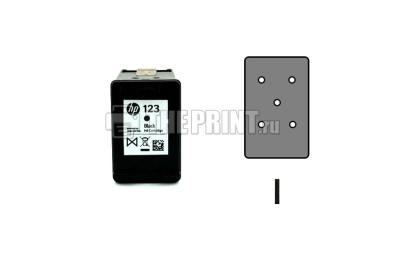
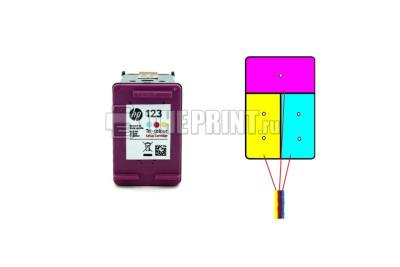
Рисунок 2.
- Приступаем к заправке картриджей HP 2630, набираем в шприцы краску, лучше взять 4 шприца и заправить их чернилами (Black, Magenta, Yellow, Cyan), можно использовать 10 или как в нашем случае 20 мл. шприцы.
- Аккуратно снимаем сверху наклейки, если ранее этого не сделали.
- Вставляем иглу шприца внутрь заправочного отверстия. Вводить глубоко не нужно, достаточно 10-15 мм. (Рисунок 3)
- Медленно вводите чернила до тех пор, пока чернила не появится в заправочном отверстии, нужно примерно 3 мл. для черного и 9 мл. (по 3 мл. в каждый цвет) для цветного, далее излишние чернила откачать обратно в шприц, всегда лучше не долить чернила, чем перелить. (Рисунок 3.)
- Заправляем все цвета и очищаем сухой салфеткой поверхности от чернил.
- Наклейте этикетки на место (При необходимости возможно использовать скотч).
- Делаем отпечаток печатающих головок на листе, они должны быть четкими. (Рисунок 2.)
- Устанавливаем заправленные картриджи в принтер, делаем прочистку ПГ.
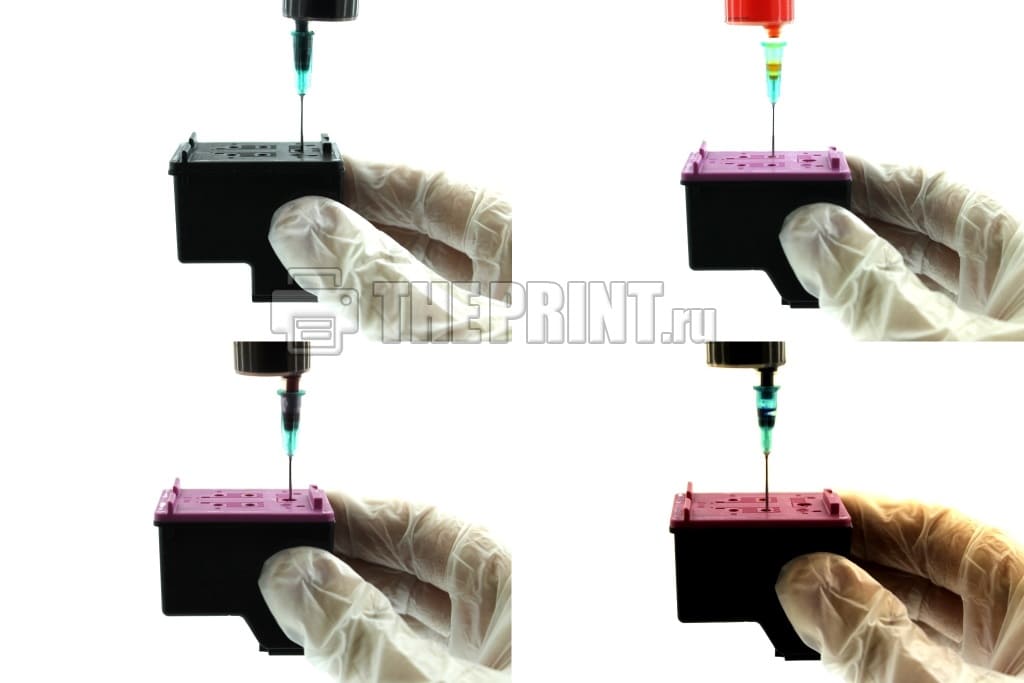
Рисунок 3.
ВАЖНО!
- Обратите внимание на контакты (Рисунок 4), они должны быть сухие, если Вы установите в принтер расходный материал с мокрыми контактами, у Вас сгорит электроника.
- Если Вы заправляете первый раз, то нужно отменить слежение за расходными материалами, для этого нажмите и удерживайте кнопку «Отмена» (Красный крестик или треугольник) на принтере в течение 15 секунд. После отмены слежения, у Вас печатающее устройство будет сигнализировать что чернила закончились, но печатать будет.
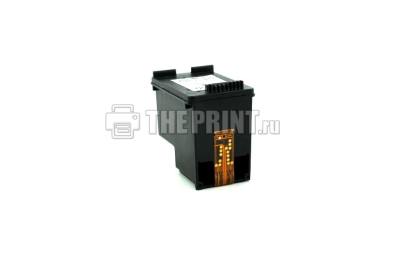
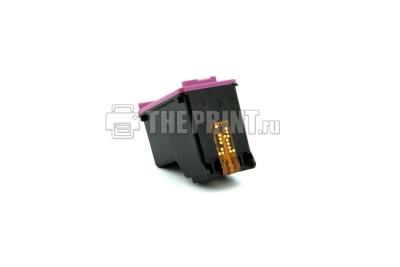
Рисунок 4.
Вспомогательные товары для заправки картриджа HP DeskJet-2630
Перейдя по ссылке, Вы можете посмотреть полный список чернил для принтера HP DeskJet-2630 на нашем сайте.
Код: 111106
Извините, товара сейчас нет в наличии
Бесплатная доставка
по Красноярску
Извините, товара сейчас нет в наличии
Новости интернет-магазина «Лаукар»:
Дополнительная информация в категории МФУ:
В интернет-магазине бытовой техники «Лаукар» Вы можете скачать инструкцию к товару МФУ HP DeskJet 2630 совершенно бесплатно.
Все инструкции, представленные на сайте интернет-магазина бытовой техники «Лаукар», предоставляются производителем товара.
Перед началом использования товара рекомендуем Вам ознакомиться с инструкцией по применению.
Для того чтобы скачать инструкцию, Вам необходимо нажать на ссылку «скачать инструкцию», расположенную ниже, а в случае, если ссылки нет,
Вы можете попробовать обратиться к данной странице позднее,
возможно специалисты интернет-магазина бытовой техники «Лаукар» еще не успели загрузить для скачивания инструкцию к товару:
МФУ HP DeskJet 2630.

Фирма-производитель оставляет за собой право на внесение изменений в конструкцию, дизайн и комплектацию товара: МФУ HP DeskJet 2630. Пожалуйста, сверяйте информацию о товаре с информацией на
официальном сайте компании производителя.
It’s elegant, compact, and versatile, the HP Deskjet 2630 All-in-One printer looks great, is available in different colors, and combines printing, scanning, and copying in a space-saving device. Decorate your home with your most beautiful moments. This printer puts your pictures in the best light on photo paper. As a full-fledged photo printer, the printer prints photos on photo paper, which it receives directly from your smartphone or tablet. Thanks to its compact size, it can be placed anywhere, and with its recommended print volume of 50 to 200 pages per month, it reliably does your everyday tasks and implements your photo projects. There are hardly any limits to your creativity with this printer. Despite its small, compact form, the HP DeskJet 2630 has a copy and scan function; the feeder scanner is located on the top of the device to save space. The associated Photosmart software creates image files or searchable PDFs from them. The DeskJet copies documents at a speed of up to 6 sheets per minute. Work tool or creative workshop – the HP All-in-One all-rounder will inspire you The printhead is firmly glued to the ink cartridges. With around 7.5 ipm (pages per minute) in black and up to 5.5 ipm in color with standard quality on normal paper, progress is rather leisurely. The black ink is pigmented, but not smudge-proof and is only used on plain paper or other matt media. The three colors are water-based (dye ink) and can also be used on glossy paper. The printer offers a supply of up to 60 sheets of normal paper via the open, dust-free feed from the rear. Automatic double-sided printing is not possible due to the lack of a duplex unit. HP also prohibits borderless printing in its smallest multifunction printer. Printing, scanning, and copying – wireless, even without a network – this printer amazes with its extensive capabilities and is super easy to use, without any setup, Smartphones, and tablets communicate with the HP Deskjet 2630 via a direct connection. Or you can send the print jobs via Apple AirPrint or directly via wireless direct printing. Via HP ePrint, you can also print jobs over the Internet, no matter where you are. You can also connect it directly to your PC using a USB cable. It prints your jobs when and where you want with up to 8 pages per minute. The LCD on the device facilitates operation.
HP DeskJet 2630 Manual PDF
Download the HP DeskJet 2630 Manual Instructions
Refer to the operating systems compatibility to make sure the HP DeskJet 2630 printer is compatible with your PC or Mac to avoid issues when installing or using the printer.
Download the HP DeskJet 2630 User Guide, Getting Started Guide, and Setup Poster
The manual below includes all tutorials from the beginning to the advanced guide to using your printer.
HP DeskJet 2630 User Guide
Filename: c05439290.pdf
File size: 1.52MB
HP DeskJet 2630 Getting Started Guide
Filename: c05440504.pdf
File size: 1.24MB
HP DeskJet 2630 Setup Poster
Filename: c05441677.pdf
File size: 1.44MB
Related Series: HP DeskJet 2655 Manual
All HP DeskJet 2630 Manuals are copyrighted by Hewlett Packard, the customer agrees to the applicable license or other agreement from HP.
*V1N01-90074*
*V1N01-90074*
V1N01-90074
© Copyright 2017 HP Development Company, L.P.
Printed in [English]
The information contained herein is subject to change without notice.
NO DA ET LT LV
EN DE IT FR NL ES PT SV FI
HP DeskJet 2600 All-in-One series
Need help? www.hp.com/support/dj2600
Scan: Use the HP Smart app or printer software to scan. Find more information about scanning at
www.hp.com/support/dj2600.
1
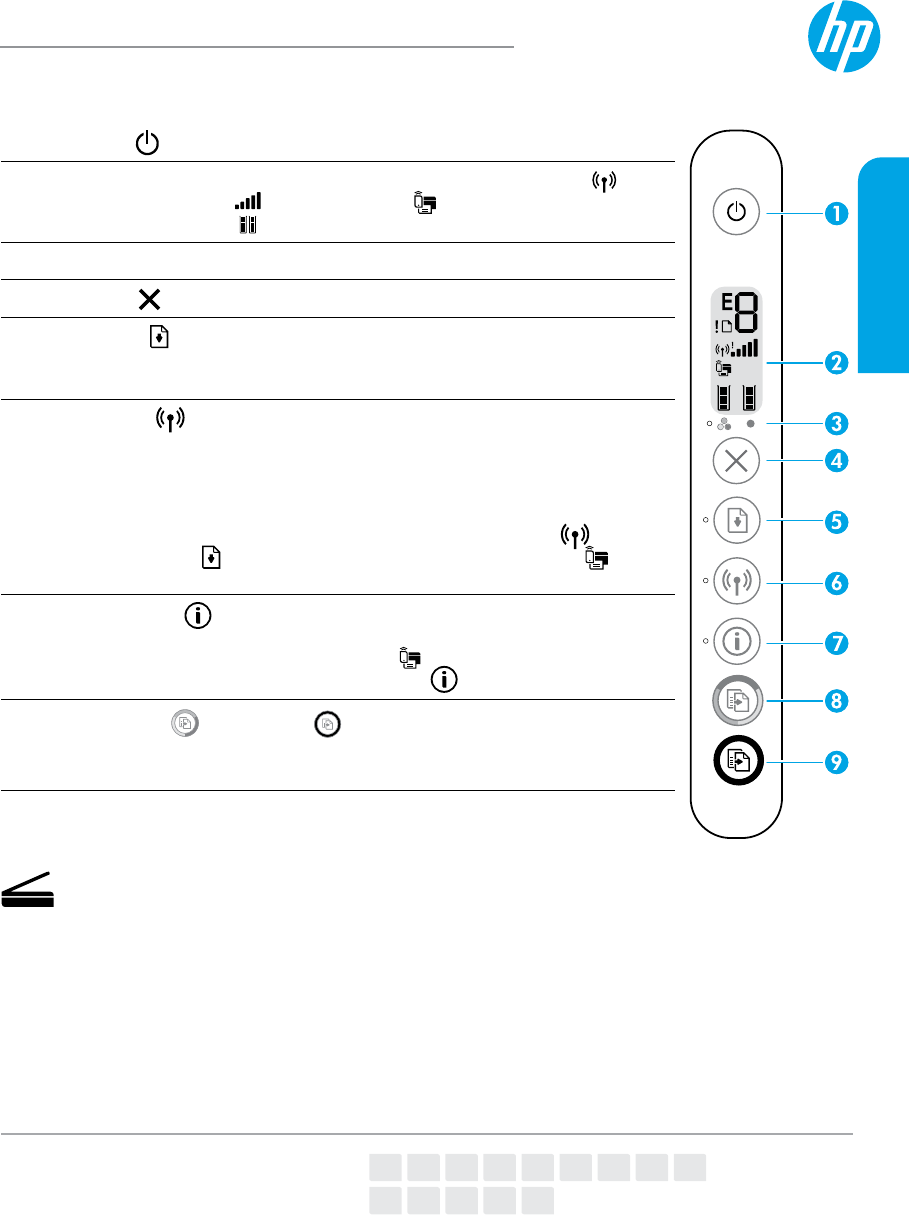
Power : Press to turn the printer on or o.
2
Control panel display: Indicates number of copies, wireless status
and signal strength , Wi—Fi Direct status , warnings or errors, and
estimated ink levels .
3
Ink Alert light: Indicates low ink or cartridge problems.
4
Cancel : Press to stop the current operation.
5
Resume : The light blinks when a job is interrupted by a problem (for
example, out of paper or paper jam). After you have resolved the problem,
press the button to resume the job.
6
Wireless : Press to turn the printer’s wireless capability on or o.
• If the blue light is blinking, the wireless capability is on but the printer is not
yet connected to a wireless network.
• If the blue light stays on, the printer is connected to a wireless network.
• If the light is o, the wireless capability is o.
To turn Wi-Fi Direct on or o, press and hold the Wireless button and the
Resume button together for three seconds. The Wi-Fi Direct icon on the
display is on when Wi-Fi Direct is turned on.
7
Information : Press to print a printer information page that provides
a summary of the printer information and its current status. If the light is
blinking in white and the Wi—Fi Direct icon on the display is blinking fast at
the same time, press the Information button to conrm a connection.
8, 9
Color Copy or Black Copy : Press to start a color or black-and—white
copy job. To increase the number of copies, press the button multiple times
quickly.
Safety information
Use only with the power cord and power adapter (if provided) supplied by HP.
Regulatory Model Number: For regulatory identication purposes, your product is assigned a Regulatory Model
Number. The Regulatory Model Number for your product is SNPRH-1602. This regulatory number should not be
confused with the marketing name (HP DeskJet 2600 All-in-One Printer series, HP DeskJet Ink Advantage 2600
All-in-One Printer series, etc.) or product numbers (V1N01A, V1N02A, etc.).
English
Are you looking for the manual for HP DeskJet 2630? You are in the right place. Below the document viewer for HP DeskJet 2630 manual in PDF format. To save your time, we say that the most common problems with HP DeskJet 2630 can be found in the manual in the «Troubleshooting» section. Check the appropriate page number in the table of contents, and then enter it in the page number box on the right side of the document viewer for HP DeskJet 2630.
If you have questions about the HP DeskJet 2630 device, use the form at the bottom of the page and ask our community a question.
Remember! Reading the HP DeskJet 2630 user manual and adhering to the rules of using the device provided there, greatly help in its effective use. It is important to correctly configure HP DeskJet 2630, it will save resources needed to use it. In case of problems, you will also find recommended companies that can properly fix HP DeskJet 2630. One of the most important reasons why you should read the HP DeskJet 2630 user manual is that to take advantage of the warranty provided on HP DeskJet 2630 — the device must be used in accordance with the manufacturer’s recommendations presented in user manual.
If you want to download HP DeskJet 2630 manual, use the «Download» button below. You can easily view the downloaded version and print selected manual pages HP DeskJet 2630. All manuals on our website are available in PDF format, which is the most universal format that is as easy to use as possible on all operating systems.