
FODSPORTS M1-S Pro Helmet Bluetooth Intercom User Manual

Package Include
M1-S PRO

Speakers& Hard Tube Microphone

USB Cable

Wired Microphone

2.5mm to 3.5mm Cable
Unit base
Metal Clip
3M Glue Velcro
Velcro
EVA Booster
User Manual

User Guide

Charging

- The function button lights up red when charging, and the red light goes out after finishing(As shown below).
Please charge before using for the first time. - Please use a qualified charger 5V/1A±0.5A.
- Please keep charging at least once every 2 months If the product is not used for a long time.
Installation & Disassembly
Speaker Installation
- Open the inner helmet lining on the ear position and attach the velcro loops.

- Attach the Headphone with Velcro hook to the loop (the short-line speaker is on the left)

- Place Velcro on the right position on the left side of the helmet, match the microphone with the mouth position, and tidy up the cable and lining.

Remark: the microphone should be closed to and aim at the mouth as possible. The speakers are as close to ears as possible. If installation position of the speaker is too deep so that the speaker is too far away from the ear, the sponge in accessory may be used to jack up.
- Fixed by clamp
- Find and assemble the Unit base and metal clip.

- Fix the base on the right position.
- Assemble the M1 S-PLUS: Insert the snap of the bottom of the host in to the groove of the base, press the host to the base so that the clip of the base buckle the top of the host.

- Insert the microphone and earphone connection line, installation complete.
- Find and assemble the Unit base and metal clip.


Disassembly of the Device
- Pull out the headset plug.
- Press the upper clamp buckle and move the device upward to remove it.


Button and basic function operation
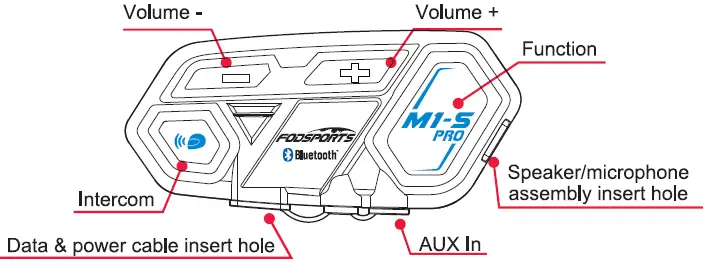
Outlook / Button
- Intercom
- Volume —
- Volume +
- Function
- MICRO-5Pin port ( charging / Data )
- AUX In
- Speaker/microphone assembly insert hole
Switch On / OFF
Switch On: Long press Intercom button and Function button at the same time for 3 seconds,Voice message will also say “ Welcome to FODSPORTS Bluetooth Communication System”.
Switch Off: Long press Intercom button and Function button at the same time for 3 seconds. Voice message will also say “Power off ”.
*For first time use, please recharge the device until the red light is off
Power Detect & Notification Function
M1-S PRO has power detect function, when device is on, long press Function button and Volume- button at the same time for 3 seconds, recorded voice message will tell you:
Power over 90%
Power over 50%
Power lower than 50%
Low Power Notification
When power lower than 20%, red light flash in the function button and voice message will remind “Power lower than 20%,please recharge immediately”.
When power lower than 10%, red light flash in the function button and voice message will remind“ Power lower than 10%,will be turning off. please recharge immediately”.
Cellphone
- Answering Call: Short press Function button.
- Hangup Call: Call ended, short press Function button.
- Refuse Call: Long press Function button for 2 seconds.
- Redial: Short press Function button twice.
- Volume Up: Short press Volume+ button.
- Volume Down: Short press Volume- button.
Voice Command
Short press function button once
Automatically switch on voice command input function

When your M1-S PRO is paired up with cellphone. Short press function button once will automatically switch on the voice command function (only for iOS and Android ).
*Cellphone must have voice command function.*
Music Function
- Play: Short press Volume+ button twice.
- Pause: Short press Volume+ button twice.
- Volume Up: Short press Volume+ button once.
- Volume Down: Short press Volume- button once.
- Play Previous: Long press Volume+ button 2 seconds.
- Play Next: Long press Volume- button 2 seconds.
Intercom Function
- Switch Intercom On: Short press Intercom button.
- Switch Intercom Off: Short press Intercom button.
- Volume Up: Short press Volume+ button .
- Volume Down: Short press Volume- button .
Memory Clear

Memory Clear: When device is on, press Function and Volume+ buttons at the same time for 5 seconds. Then M1-S PRO will clear the pairing memory with other devices. The red and blue lights flash at the same time, clearing memory completely.
Device Pairing
- Pairing Modes
- Passive pairing mode

When device is on, long press Function button to enter Pairing Mode, red and blue lights flash quickly, voice notice “ pairing ”. Pairing mode for connection to Bluetooth devices such as mobile phones and Bluetooth GPS.
- Active search mode

When device is on, long press Intercom button to enter Search Mode , red and blue lights flash slowly, voice message says “ Searching ”.Search mode only use for intercom function connection between M1-S PRO devices.
- (A) M1-S PRO connect with (B) M1-S PRO

A M1-S PRO is on positive search mode(refer to 5.1.2), B M1-S PRO is on passive search mode(refer to 5.1.1),A and B M1-S PRO change from flashing red and blue lights alternately to function and intercom buttons flashing blue lights at the same time, connect successfully
- Pairing With Cellphone
STEP1.When device is on, long press Function button, red and blue light flash quickly, entering passive pairing mode.(refer to 5.1.1)

STEP2.Turn on cellphone Bluetooth, Select“ FODSPORTS M1-S PRO”, the pairing is complete. Voice message will notice “Device Connected”.
- Connect with two phones

Step1. Connect to the first phone(refer to 5.3)
Step2. Long press the Function button, M1-S PRO on passive search mode, connect to the second phone (refer to 5.3)
Notice: M1-S PRO can connect with two phones, but only support one phone for audio input. - Wire Connecting

Any device with 3.5mm connector can transmit voice signal to M1-S PRO.
When device wire connected by 2.5mm to 3.5mm cable to M1-S PRO,Complete the wired sound source input.
Long press the [Volume+] and [Volume-] buttons for 3 seconds to turn on or turn off the wired audio input.
You need to purchase a cable if you need a wired connection for Walkie talkie equipment.
- Passive pairing mode


Multi-device pairing connection
- Occasions: Rider A connect with Passenger B for intercom. Then A connect with two bluetooth devices and one wired equipment and B connect with one bluetooth device(as shown below).

- Step 1. A M1-S PRO connect with B M1-S PRO(refer to 5.2)
- Step 2. Short press one time A or B intercom button to disconnet intercom
- Step 3. A connect with 2 phones(refer to 5.4)
- Step 4. A use 2.5 mm to 3.5 mm AUX audio line to connect with one audio device
- Step 5. B connect with one phone(bluetooth device)
- Step 6. Short press intercome button of A or B for connection.
Notice: If A or B need to use the audio function of phone (bluetooth device), you need to disconnect the intercom.
- Multiple Intercom
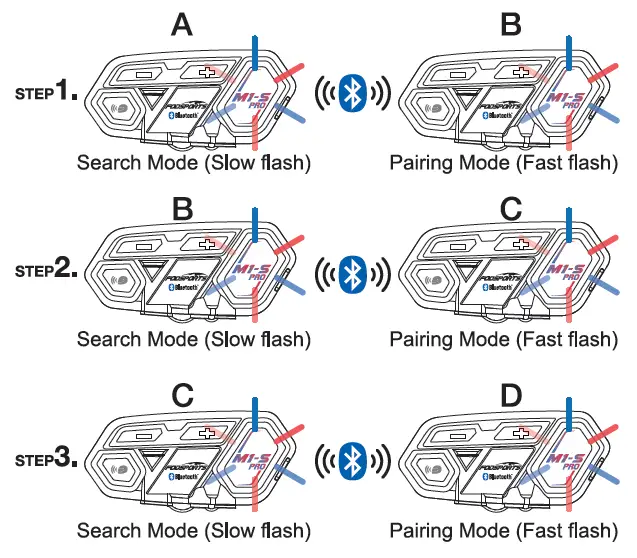
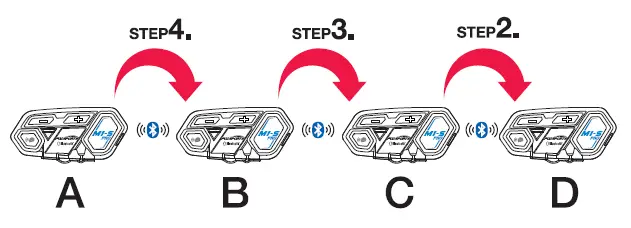
M1-S PRO equipped with multiple intercom function, recommended 4 units(A,B,C,D), pairing procedure as follow:


Step 1: Unit A is on positive search mode(refer to 5.1.2), Unit B is on passive search mode(refer to 5.1.1),
Unit A and Unit B change from flashing red and blue lights alternately to function button and intercom button flashing blue lights at the same time, connect successfully. Short press the intercom button of Unit B for one time, exit intercom state temporarily.
Step 2: Unit B is on positive search mode(refer to 5.1.2), Unit C is on passive search mode(refer to 5.1.1),
Unit B and Unit C change from flashing red and blue lights alternately to function button and intercom button flashing blue lights at the same time, connect successfully. Short press the intercom button of Unit C for one time, exit intercom state temporarily.
Step 3: Unit C is on positive search mode(refer to5.1.2), UnitD is on passive search mode(refer to 5.1.1),
UnitC and Unit D change from flashing red and blue lights alternately to function button and intercom button flashing blue lights at the same time, connect successfully.
Step 4: The intercom buttons and function buttons of Unit A ,B ,C and D flash blue light at the same time, the connection of group intercom successfully.
*You can connect more M1-S PRO by repeating the above methods.
Notice: The first and the last one M1-S PRO can connect with another 2 Bluetooth devices. The M1-S PRO in the middle connection position of the group can connect with an additional Bluetooth device.
For example: When in the group intercom mode, Unit B and C can only connect with one bluetooth device. Unit A and D can connect with two bluetooth devices.
*Intercom Interruption
In multiple intercoms mode, if there is an incoming call caused one unit away from the connection, after call, will reconnected automatically. If interruption is caused by distance or bad signal, please press intercom button to reconnect. - Memory Connection Function
M1-S PRO will remember paired units, but after switch off and want to reconnect again, please follow the procedure:
STEP1. Switch off all 4 units(A,B,C,D) and all Bluetooth devices connected to the headset such as cellphone and GPS. (It will affect the pairing)
STEP2. Switch on all 4 units(A,B,C,D) in the same time(long press intercom and function buttons about 3 seconds).
STEP3. Short press one intercom button of the 4 M1-S PRO and they flash blue and red lights in the same time. Memory connection start successfully.
STEP4. After all 4 units reconnected , switch on original connected Bluetooth devices such as cellphone and GPS.


Technical Specifications
Bluetooth Support: HSP,HFP,A2DP,AVRCP, AGHSP
Battery: lithium battery, 900mAh , 3.7v
Dimensions: 8.7cm * 4.2cm * 2.3cm
Weight: 44G, 92G(Include Headphone & Mic Kits)
Frequency Range: 2.4GHz~2.485GHz
Operating temperature: -20℃~50℃
Certification: CE FCC ROHS BQB TELEC
USB Adapter standard charge voltage: DC 5V±0.2V
USB Adapter standard charge circuit: DC 1A±0.5A
Charging time: 2~3 hours
Q & A / Warning
- Q1:No sounds from one or two side speaker.
A1:Check device plug, needs to firmly connected. - Q2:Can it be recharged from bike USB charger while riding ?
A2:Not recommended, unstable power source will cause damage on internal circuit may cause unable to recharge/can’t fully charged/can’t switch on.- Power bank will be good.
- Q3:When using radio, not transmission or continuous transmission.
A3:Check 2.5mm pin, has to insert firmly. The pin equipped with waterproof aprons, user might think its already plugged. - Q4:New device can’t switch on.
A4:Recharged at least 30 minutes before switch use.
Warning
Sound Volume Warning
Long period or too loud may hurt hearing ability.
Disassemble or Modification
The M1-S PRO is precisely made in factory. Any disassemble or modification may damage the device, please do not tear any of the safety regulation and serial sticker from the device ,that will void the warranty. Please contact us directly if needed .
Statement / Warranty/After-Sale Service
FCC Statement
Changes or modifications not expressly approved by the party responsible for compliance could void the user’s authority to operate the equipment.
This equipment has been tested and found to comply with the limits for a Class B digital device, pursuant to Part 15 of the FCC Rules. These limits are designed to provide reasonable protection against harmful interference in a residential installation. This equipment generates uses and can radiate radio frequency energy and, if not installed and used in accordance with the instructions, may cause harmful interference to radio communications.
However, there is no guarantee that interference will not occur in a particular installation. If this equipment does cause harmful interference to radio or television reception, which can be determined by turning the equipment off and on, the user is encouraged to try to correct the interference by one or more of the following measures:
- Reorient or relocate the receiving antenna.
- Increase the separation between the equipment and receiver.
- Connect the equipment into an outlet on a circuit different from that to which the receiver is connected.
- Consult the dealer or an experienced radio/TV technician for help
This device complies with part 15 of the FCC rules.Operation is subject to the following two conditions
- this device may not cause harmful interference, and
- this device must accept any interference received, including interference that may cause undesired operation.
This device has been evaluated to meet general RF exposure requirement. The device can be used in portable exposure condition without restriction.
After-Sale Service
For any quality problem or missing accessories, especially pairing problem between 2 or more M1-S PRO headsets, please feel free to contact us at email: [email protected]. We’re always here ready to help, will reply to you in 24 hours.
Documents / Resources
References
-
M1-S Pro User Manual
Documents — fodsports – M1-SPRO,2A4SC-M1-SPRO,2A4SCM1SPRO,M1SPRO
| [pdf] User Manual Specifications Warranty M1 S Pro 155×93 说明书 英日 20220104 User manual SHENZHEN CITYGO TECHNOLOGY CO LTD SPRO hard hat bluetooth headset 2A4SC 2A4SCM1SPRO m1 spro CONTENTS 1. Package Include —————————————————————————————————————— 2 2. Charging —————————————————————————————————————————- 3 3. Installation… lang:en score:31 filesize: 2.55 M page_count: 50 document date: 2022-02-26 |
Related FCC IDs:
- 2A4SC-M1-SPRO — SHENZHEN CITYGO TECHNOLOGY CO.,LTD hard hat bluetooth headset [-M1-SPRO]
tags: 2A4SC-M1-SPRO, 2A4SCM1SPRO, Bluetooth Intercom, fodsports, Helmet Bluetooth Intercom, Intercom, M1-S Pro Helmet Bluetooth Intercom, M1-SPRO, M1SPRO,
Operation Manual
Attention
Thank you for purchasing FODSPORTS M1-S PRO Bluetooth stereo headsets. For best experiences, please read manual before use.
Sound volume warning
Long period or too loud may hurt hearing ability.
Disassemble or modification
The M1-S PRO is precisely made in the factory. Any disassemble or modification may damage the device. Please do not tear any of the safety regulation and serial number sticker from the device, that will void warranty. Please contact us at [email protected] if needed.
Warranty:
In normal use, we offer one year warranty from the date of purchase. Any disassemble, modification, will void warranty.
1. Outlook (e.g. M1-S PRO)
Functions
Switch On: When device is off, press intercom button and function button at samelimefor3 seconds.
Switch Off: When device is on, press intercom button and function button at samelimefor3
Power Detect: When device is on, short press volume”-‘ button and volume”+’ button at same time.
Voice control function {Only If your cellphone is equipped) : Short press function button once.
Switch on external wired device such as speed detector : when device IS on, long press volume•-• button and volume”+’ button at same time for 3 seconds.
Cellphone Function
Answering call: Short press function button once.
Hangup call : After call, short press function once.
Refuse call : After call, short press function button once.
Redial : Short press function button twice.
Volume up : Press volume’,” button while talking.
Volume down : Press volume”-” button while talking.
Switch manual/automatic answering calls : While in standby, press and hold the intercom button and volume ” +” / “-” button at the same time for 3 seconds.
Device Pair Up
Pairing mode : When device is on, long press function button for 5 seconds. Search mode When device is on, long press intercom button for 5 seconds. Remark, pairing mode is for pairing up to other devices like cellphone, gps Search mode is for pairing up with other Ml-S PRO.
Music Function
Play : When device is on, short press volume”+” button twice.
Pause : When music playing, short press volume”+” button twice.
Volume up : When playing music, short press volume”+” button once.
Volume down : When playing music, short press volume”: button once.
Play previous : When playing music, long press volume”+” button for 2 seconds.
Play next : When playing music, long press volume “-” button for 2 seconds.
Intercom Function
Switch intercom on : when device on : short press intercom button once.
Switch off : when talking, short press intercom button once.
Volume up : when talking, short press volume’,” button once.
Volume down : when talking, short press volume”, button once.
Special Function
Update mode : Plug in the Data & power cable, press volume “-” button and function button at same time for 5 seconds.
Memory clear : When device is on, press volume “+” button and function button at same time for 5 seconds.
2. Recharge
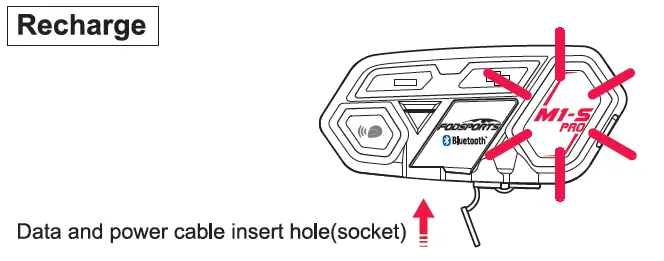
For first time use, please recharge the device until red light is off.
- Use data and power cable plug to the socket, connect to power source.
Bike usb chargers are not recommended, unsterilized circuit may damage the device. - When connecting to power source, red light appears in function button. When recharge complete, red light is off. Complete recharge is about 2 hours.
Low power notification
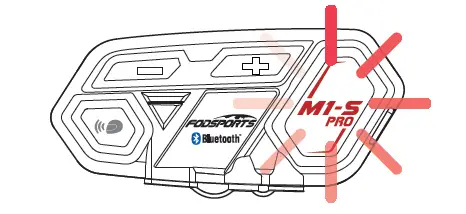
When power lower than 10%, Red light flash in the function button and voice message will remind power lower than 10%, please recharge immediately.
Power Detect Function
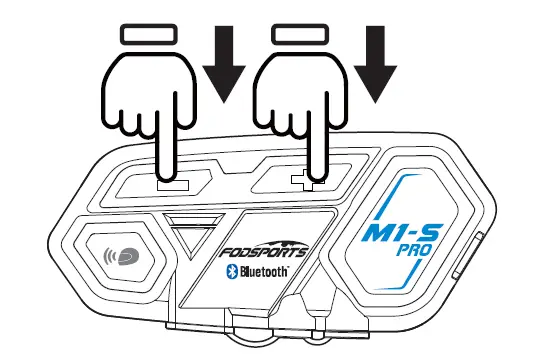
M1-S PRO has power detection function, when device is on, short press volume”-” button and volume”+” button at same time. Recorded voice message will remind
Power over 90%
Power over 50%
Power lower 50%
Power lower than 10% please recharge immediately
Voice control function( only if your cellphone is equipped): short press function button once
Switch on external wired devices such as speed detector … : when device is on, long press volume”-” button and volume”+” button at same time for 3 seconds.
3. On / Off
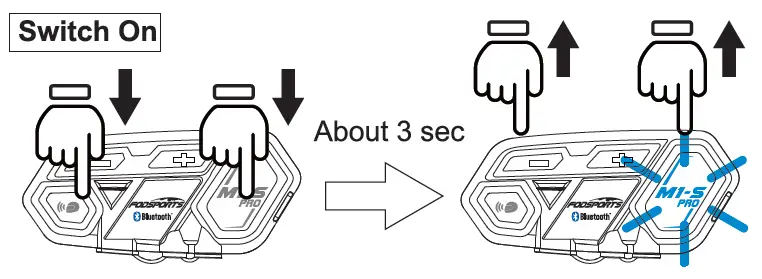
1. Switch on : long press function and intercom button at same time for
3 seconds. until blue light flash in function button. Voice message says “welcome to the Fodsports bluetooth communication system”.
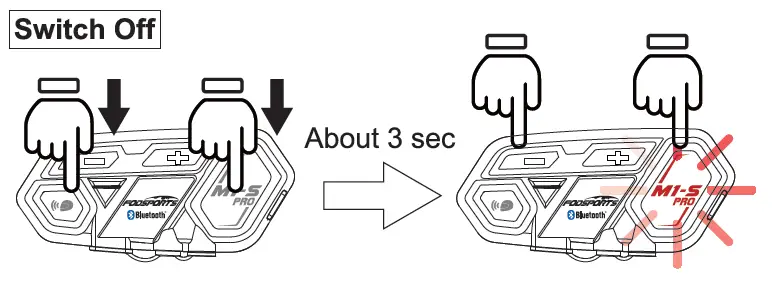
2. Switch off : When the device is on, long press function and intercom button at same time for 3 seconds, until red light flash in function button. The device will detect power and voice message will says “power off’.
4. Pair Up To Different Devices
M1-S PRO can pair to different Bluetooth devices.
Pairing Mode
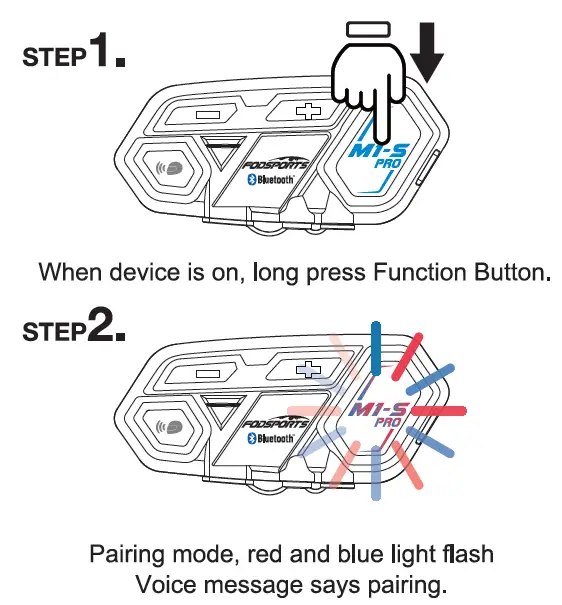
Search Mode
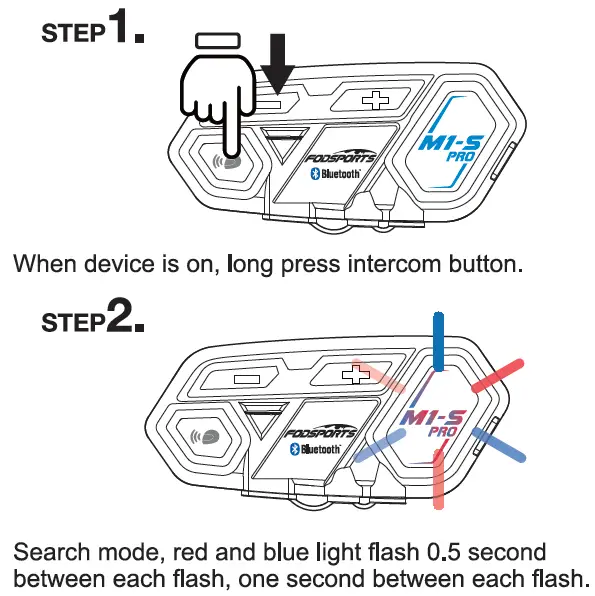
It’s search mode, voice message shows “Searching” sound.
5. Pairing With Cellphone
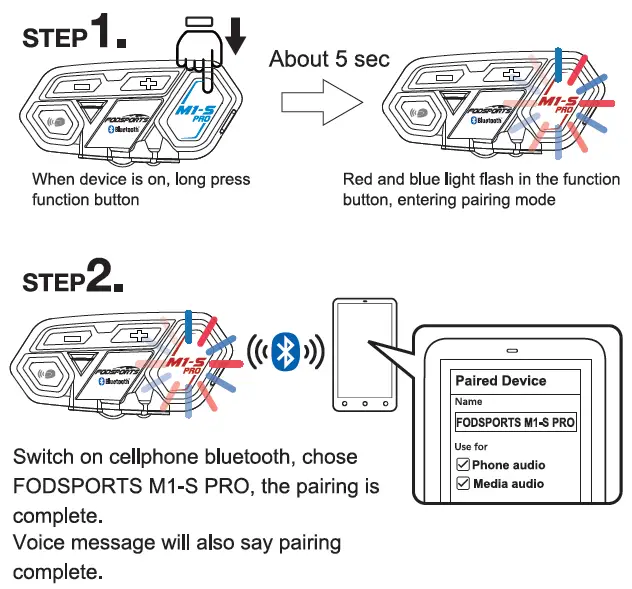
Remark, when pairing complete, please check both cellphone audio and media audio are all chosen, otherwise call or music can’t be processed.
6. Telephone Function
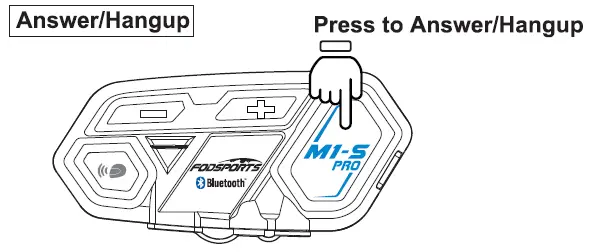
M1-S PRO is set to automaticity answer incoming calls, when incoming calls, beside rings, blue light flashes. Push function button to answer and push function button to hang up.
When talking, press volume”+” button and volume”-” button to adjust volume.
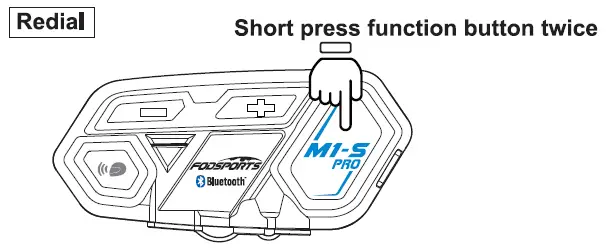
When the device is on, short press function button twice, will redial, blue light flashes.
*Only redial last call out number
7. Voice Command
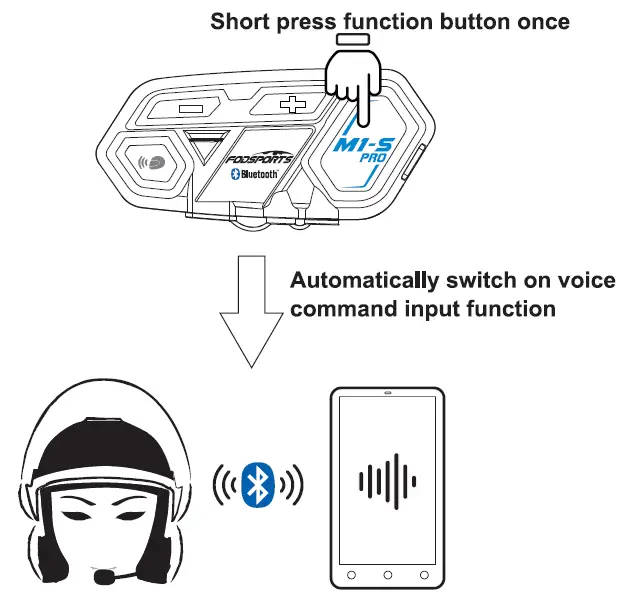
When your M1-S PRO is paired up with your cellphone, when both device are on, short press function button once, will automatically switch on the voice command function
*Cellphone must be equipped with this function
8. Music Selections Functions
Play/Pause
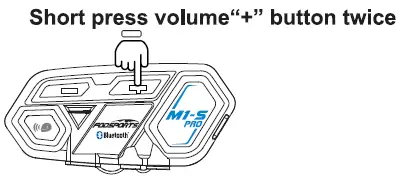
Play music: When cellphone and M1 -S paired up, when both devices are on, short press volume”+” button twice, will play music.
Pause: When playing music, short press volume”+” button twice, will pause.
Previous
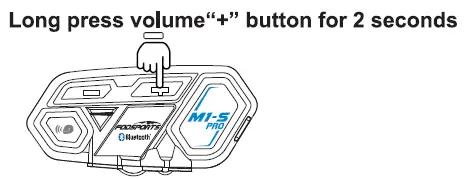
Long press volume”+” button for 2 seconds, will play previous music in your cellphone music list.
Next
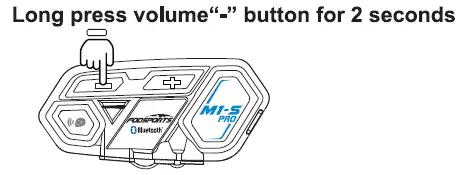
Long press volume”-” button for 2 seconds, will play next music stored in your cellphone music list.
9. Wire Connecting
Long press volume”+” button and volume”-” button for 3 seconds.
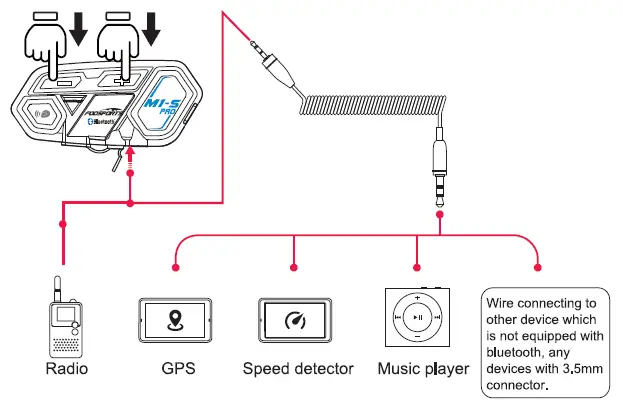
M1-S PRO equipped with wire connection function in order to connect to devices without bluetooth. As long as the device is connected by 3.5mm aux out, all can transmit voice signal to M1 -S PRO.
When device wire connected by 2.5mm to 3.5mm cable to M1-S PRO, long press volume”+” button and volume”-” button for 3 seconds to switch on the connection.
* When wired mode is switched on, it will keep it on until switch off the M1-S PRO.
10. Operating Scenario 1:
One person use, pair to cellphone + Bluetooth GPS device + Bluetooth speed detector
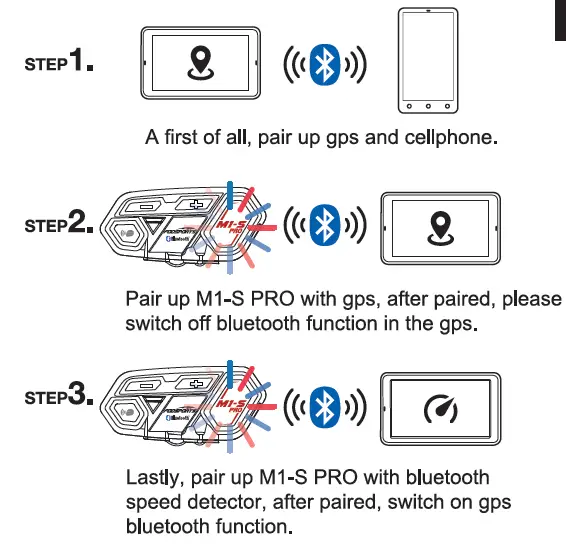
*After M1-S PRO paired with gps, if don’t switch off gps’s bluetooth, its will interference the pairing when pairing to speed detector. Recommended to switch gps bluetooth off, after pair up to detector, switch the bluetooth back on.
11. Operating scenario 2:
Two persons intercom, and pairing to cellphone + Bluetooth GPS + speed detector or radio
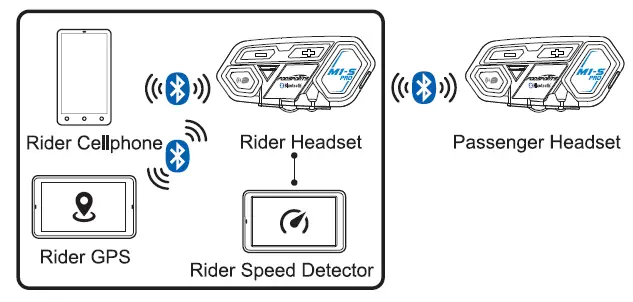
Passenger Procedure:
Step 1: switch rider headset to search mode, passenger headset to pairing mode. When both headset stop red+blue light flashes, they are paired.
Step 2: switch rider headset to pairing mode, cellphone search this M1-S PRO and pair it up.
Step 3: keep riders headset in pairing mode, use bluetooth gps to search rider’s headset and pair it up.
Step 4: use 2.5mm to 3.5mm aux in to connect speed detector or radio to M1 -S PRO, and switch M1-S PRO to Wire Connecting, all audio integrade complete.
Please read STEP 9. For Wire Connecting.
12. Operating Scenario 3:
Two persons intercom, rider using cellphone + Bluetooth GPS passenger using Bluetooth Speed detector
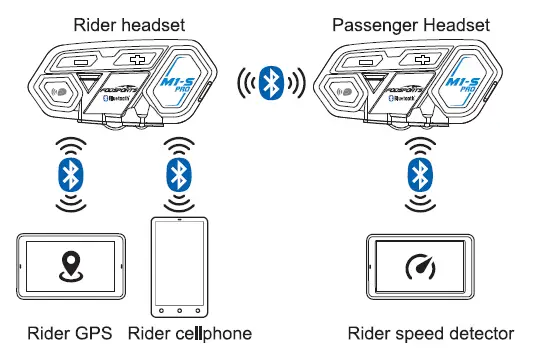
Pairing Procedure
Step 1: switch rider headset to search mode, passenger’s headset switch to pairing mode, when red and blue light stop flash, intercom pairing complete. At same time instantly switch on intercom.
Step 2: Set rider headset to pairing mode, use cellphone to search rider’s headset to complete pair up.
Step 3: set rider’s headset to pairing mode, use bluetooth gps to search rider’s headset and complete.
Step 4: set passenger’s headset to pairing mode, use Bluetooth speed detector to search passenger headset and complete pair up.
13. Multiple Intercom
Multiple intercom pairing procedure
*Numbers of device which the headset can be paired 8 x M1-S PRO (A, B, C D}, multiple intercom connections, the connection will occupy channels, thus only unit A can connect to the other two Bluetooth devices, the others B, C, D can only connect to one Bluetooth device.
M1-S PRO equipped multiple intercom function, support 8 units talk same time,but recommended 4-6 units,pairing procedure as follow.
Step 1: switch on both A and B unit, long press A unit intercom button to search mode, Then long press unit B function button to pairing mode. When blue light on both intercoms, pairing complete.(You should press the intercom button on B unit to end the talking if you need to pair with more than 2 units.in order to new pairing later)
Now A and B unit pairing complete.
Step 2: When B C units on power on status. long press unit B intercom button to search mode, Then long press unit C function button to pairing mode. When blue light on both units, pairing complete.(You should press intercom button on B units if you need 3 units talk same time, then 3 units will light on blue same lime. Or you should press intercom button on C unit to end the talking if you need to pair with more than 3 units)
Three unit pairing complete.
Step 3: When C D units on power on status, Long press unit C intercom button, then long press unit D function button. When blue light on both units, pairing complete.(You should press intercom button on B C units if you need 4 units talk same lime, then 4 units will light on blue same time. Or you need to press intercom on D unit to end the talking if you need to pair with more than 4 units) Pis repeat above steps if you need to pair with 5 or 6 or 7 or 8 units.
Four units pairing complete.
*Interruption
In multiple intercom mode, if there is an incoming call caused one of unit away from the connection. After call, will reconnected automatically. If interruption is caused by distance or bad signal. Please press intercom button to reconnect.
Multiple intercom reconnect procedure
M1-S PRO will remember paired units. But after switch off and want to reconnect again, please follow the procedure.
Step 1: switching off all four units and all bluetooth device connected to the headset.
Step 2: switch on C and D unit, press C unit intercom button to connect to D unit.
Step 3: switch on B unit, press B unit intercom button to connect to C and D unit.
Step 4: switch on A unit, press A unit intercom button to connect to B, C and D unit. After all four unit reconnected, switch on original connected bluetooth devices.
14. QandA
Q1 : No sounds from one or two side speaker.
A1 : Check device plug, needs to firmly connected.
Q2 : Can it be recharged from bike USB charger while riding?
A2.1 : Not recommended, unstablized power source will cause damage on internal circuit, may cause unable to recharge/can’t fully charged/can’t switch on.
A2.2 : Power bank is a good choice.
Q3 : When using radio, not transmission or continuous transmission.
A3 : Pis check whether plug the 2.5mm pin deeply enough. this pin built in waterproof parts, It is easily misunderstand it have been pluged well because of a little resistance.
Q4 : New device can’t switch on.
A4 : Recharged at least 30mins before use.
FAQs:
Frequently Asked Questions
Why are my two speakers or one side speaker unavailable/no sound?
A: 1. Please check if the headphone cable is inserted in the correct direction.
2. Please make sure the headphone cable is fully inserted into the interface.
Why is my microphone unavailable/no sound?
The microphone part is detachable and can replace the soft/boom microphone, so please check if this part is inserted tightly.
2. Please check if the headphone cable is inserted in the correct direction.
Why are my speakers volume low?
Different locations of speakers will cause differences in volume, please install the speaker as close to your ears as possible. If the distance is too far, the volume will be reduced. You can use the thickened pad in the package to achieve it.
Please note that both the volume of the intercom or the volume of listening to music can be adjusted with the volume +- button, if you think the intercom volume is too low, you can press “+” button to increase the intercom volume.
Technical Specification
| Manufacturer | Fodsports |
| Brand | FODSPORTS |
| Item Weight | 40g |
| Product Dimensions | 4cm*2.5cm*8cm |
| Item model number | M1-S Pro |
| Batteries | 900 mAh battery |
| Manufacturer Part Number | M1-S Pro |
| Maximum Number of Speakers | |
| special Features | |
| Max number of speakers | |
| Reminder | |
| Handsfree Bluetooth Headset | |
| Waterproof | |
| Bluetooth and chips: | |
| Maximum Intercom Distance | |
| Stereo Music/Audio | |
| Applicable Helmet Type |
More Manuals From Fodsports
Views: 401
FODSPORTS M1-S Pro Bluetooth Intercom Headsets User Guide
PACKAGE INCLUDE :
CHARGING:
- When charging, the red light flashes, and when it is full, the blue light turns on(As shown below). Please fully charge before using it for the first time.
- Please use a qualified charger 5V/1A±0.5A.
- Please keep charging at least once every 2 months If the product has not been used for a long time.
INSTALLATION & DISASSEMBLY
Speaker Installation
Remark:
the microphone should be closed to and aimed at the mouth as much as possible. The speakers are as close to their ears as possible. If the installation position of the speaker is too deep so that the speaker is too far away from the ear, the sponge in the accessory may be used to jack up.
Fixed by clamp
Disassembly of the Device
- Pull out the headset plug.
- Press the upper clamp buckle and move the device upward to remove it.
OPERATION (GETTING STARTED)
Outlook / Button
- Intercom
- Volume –
- Volume +
- Function
- AUX In
- TYPE-C port (earphones/charging)
Switch On / OFF
Switch On: Long press the Intercom button and Function button at the same time for 3 seconds, Voice message will also say “ Welcome to FODSPORTS Bluetooth Communication System”. Switch Off: Long press the Intercom button and Function button at the same time for 3 seconds. A voice message will also say “Power off.
Power Detect & Notification Function
M1-S AIR has a power detect function when the device is on, long press the Function button and Volume- button at the same time for
3 seconds, a recorded voice message will tell you:
- Power over 90%
- Power over 50%
- Power lower than 50%
Low Power Notification
When power is lower than 20%, a red light flashes in the function button, and a voice message will remind “Power lower than 20%, please recharge immediately”. When power is lower than 10%, a red light flashes on the function button, and a voice message will remind“Power lower than 10%, will be turned off. please recharge immediately.
Cellphone Answering Call:
Short press the Function button. Hangup Call: Call ended, short press the Function button. Refuse Call: Long press the Function button button for 2 seconds. Redial: Short press the Function button twice. Volume Up: short press the Volume+ button. Volume Down: short press Volume- button. Switch manual/automatic answering calls: While on standby, press and hold the intercom button and volume “+” “- ” button at the same time for 3 seconds. (Default: answer incoming calls automatically)
Voice Command
When your M1-S AIR is paired up with a cellphone, Short press the Volume+ button and Volume button once, will automatically switch on the voice command function (only for iOS). *The phone must have a voice command function.*
Music Function
- Play: short press the Function button.
- Pause: short press the Function button.
- Volume Up: short press the Volume+ button.
- Volume Down: short press Volume- button.
- Play Previous: short press the Volume+ button twice.
- Play Next: short press Volume- button twice.
Music Sharing
*Start Sharing Music
For example: A shares music with B
- Step 1: A connection with the phone(refer to 5.3)
- Step 2: A and B establish intercom connection(refer to 5.2)
- Step 3: Short press intercom button of A to exit intercom mode
- Step 4: Long press the volume + button for about 3 seconds, voice notices “Start Sharing Music”
- Step 5:Turn on the Music player on your phone and play songs.
- Step 6 Now, B can enjoy the music shared by A.
*Stop Sharing Music
Pause music first, long press the volume + button for about 3 seconds, voice notices “Stop Sharing Music”
*About Music Sharing
- Music sharing function is used only between two M1-S AIR devices.
- When you start/stop music sharing, the music needs to be in pause status.
- Short press the function button to play/pause music sharing.
- If the operation of sharing music fails, you need to clear the pairing memory of unit A and unit B and try again.
Intercom Function
- Switch Intercom On short press the Intercom button.
- Switch the Intercom Off: short press the Intercom button.
- Volume Up: short press the Volume+ button.
- Volume Down: short press Volume- button
Microphone (mute) Mute Microphone:
When the device is on a call (intercom ), long press the Volume+ button for 2 seconds. Enable Microphone: When the device is on a call (intercom ), long press the Volume+ button for 2 seconds. (Default: Enable Microphone)
Switch prompt tone
Switch prompt tone( English/Japanese ): While on standby, press the Intercom button, Function button, and Volume+ buttons at the same time for 5 seconds…
FM Function
- FM On: Long press the Volume- button for 3 seconds.
- FM Off: Long press the Volume- button for 3 seconds.
- Volume Up: Short press the Volume+ button.
- Volume Down: Short press the Volume- button.
- Search channels: short press the Volume+ / Volume- button twice.
Memory Clear
Memory Clear:
When the device is on, press the Function and Volume+ buttons at the same time for 5 seconds. Then M1-S AIR will clear the pairing memory with other devices. The red and blue lights flash at the same time, clearing memory completely.
DEVICE PAIRING
Passive pairing mode
When the device is on, long press the Function button to enter Pairing Mode, red and blue lights flash quickly, voice notices “ pairing ”. Pairing mode for connection to Bluetooth devices such as mobile phones and Bluetooth GPS.
Active search mode
When the device is on, long press the Intercom button to enter Search Mode, red and blue lights flash slowly, voice message says “
Searching ”.Search mode is only used for intercom function connection between M1-S AIR devices.
2 (A) M1-S AIR connect with (B) M1-S AIR
A M1-S AIR is on positive search mode(refer to 5.1.2), B M1-S AIR is on passive search mode(refer to 5.1.1),A and B M1-S
AIR changed from flashing red and blue lights alternately to function and intercom buttons flashing blue lights at the same
time, connecting successfully.
Pairing With Cellphone
STEP1.When the device is on, long press the Function button, and red and blue lights flash quickly, entering passive pairing mode.
STEP2.Turn on the cellphone Bluetooth, Select“ FODSPORTS M1-S AIR”, and the pairing is complete. A voice message will notice “Device Connected”
Connect with two phones
- Step1 . Connect to the first phone(refer to 5.3)
- Step2 . Long press the Function button, M1-S AIR on passive search mode, and connect to the second phone(refer to 5.3)
Notice:
M1-S AIR can connect with two phones but only support one phone for audio input.
Wire Connecting
Any device with a 3.5mm connector can transmit a voice signal to M1-S AIR. When the device wire is connected by a 2.5mm to 3.5mm cable to M1-S AIR, Complete the wired sound source input.
You need to purchase a cable if you need a wired connection for Walkie-talkie equipment.
MULTI-DEVICE PAIRING CONNECTION
Occasions: Rider A connects with Passenger B for intercom. Then A connects with two bluetooth devices and one wired equipment and B connects with one bluetooth device(as shown below).
- Step 1. A M1-S AIR connect with B M1-S AIR(refer to 5.2)
- Step 2. Short press one time A or B intercom button to disconnect the intercom
- Step 3. A connect with 2 phones(refer to 5.4)
- Step 4. A use 2.5 mm to 3.5 mm AUX audio line to connect with one audio device
- Step 5. B connects with one phone(bluetooth device)
- Step 6. Short press the Intercome button of A or B for connection.
- Notice: If A or B needs to use the audio function of the phone(bluetooth device), you need to disconnect the intercom.
Pairing three M1-S AIR headsets to talk
TECHNICAL SPECIFICATIONS
- Bluetooth Support: HSP, HFP, A2DP, AVRCP, AGHSP
- Battery: lithium battery, 900mA, 3.7v
- Dimensions: 8.6cm * 4.4cm * 2.5cm
- Weight: 44G, 92G(Include Headphone & Mic Kits)Frequency Range: 2.4G-2.485G
- Operating temperature: -20℃-50℃
- Certification: CE FCC ROHS BQB TELEC
- USB Adapter standard charge voltage: DC 5V±0.2V
- USB Adapter standard charge circuit: DC 1A±0.5A
- Charging time: 2-3 hours
STATEMENT / WARRANTY/AFTER-SALE SERVICE
FCC Statement
Changes or modifications not expressly approved by the party responsible for compliance could void the user’s authority to operate the equipment. This equipment has been tested and found to comply with the limits for a Class B digital device, under Part 15 of the FCC Rules. These limits are designed to provide reasonable protection against harmful interference in a residential installation. This equipment generates uses and can radiate radio frequency energy and, if not installed and used in accordance with the instructions, may cause harmful interference to radio communications.
However, there is no guarantee that interference will not occur in a particular installation. If this equipment does cause harmful interference to radio or television reception, which can be determined by turning the equipment off and on, the user is encouraged to try to correct the interference by one or more of the following measures:
- Reorient or relocate the receiving antenna.
- Increase the separation between the equipment and the receiver.
- Connect the equipment to an outlet on a circuit different from that to which the receiver is connected.
- Consult the dealer or an experienced radio/TV technician for help.
This device complies with part 15 of the FCC rules. Operation is subject to the following two conditions (1) this device may not cause harmful interference, and (2) this device must accept any interference received, including interference that may cause undesired operation. This device has been evaluated to meet general RF exposure requirements. The device can be used in portable exposure conditions without restriction.
After-Sale Service
For any quality problem or missing accessories, especially pairing problems between 2 or more M1-S AIR headsets, please feel free to contact us at email: winzon.cs@outlook.com. We’re always here ready to help, will reply to you in 24 hours.
REFERENCE LINK
https://www.fodsports.com/m1s-pro/
Как подключить мотогарнитуру Fodsports M1S Pro
Мотогарнитура – это превосходное устройство для тех, кто много времени проводит на дороге. Она позволяет объединить коммуникацию и безопасную езду на мотоцикле. Fodsports M1S Pro является одной из лучших моделей на рынке среди мотогарнитур. В этой статье мы рассмотрим, как подключить мотогарнитуру Fodsports M1S Pro к мотоциклу и смартфону.
Подключение к мотоциклу
Одним из первых шагов при использовании мотогарнитуры Fodsports M1S Pro является ее подключение к мотоциклу. Для этого необходимо выполнить следующие действия:
- Убедитесь, что мотоцикл выключен.
- Возьмите крепления, которые идут в комплекте с мотогарнитурой, и установите их на шлеме.
- Подключите мотогарнитуру к креплениям на шлеме и убедитесь в надежности их фиксации.
- Соедините мотогарнитуру с аккумулятором мотоцикла. Обычно это делается через провод, который идет в комплекте с устройством.

Теперь ваша мотогарнитура Fodsports M1S Pro подключена к мотоциклу, и вы можете использовать ее во время поездок.
Соединение со смартфоном
Для того чтобы мотогарнитура Fodsports M1S Pro работала с вашим смартфоном, необходимо выполнить следующие шаги:
- Включите Bluetooth на вашем смартфоне.
- На мотогарнитуре зажмите кнопку включения и удерживайте ее, пока не будет мигать синий светодиод. Это означает, что мотогарнитура в режиме поиска устройств.
- На смартфоне найдите доступные Bluetooth устройства и выберите Fodsports M1S Pro из списка.
- После успешного соединения смартфона и мотогарнитуры, вы сможете слушать музыку, отвечать на звонки и использовать другие функции мотогарнитуры через ваш смартфон.

Теперь мотогарнитура Fodsports M1S Pro полностью подключена и готова к использованию вместе с вашим мотоциклом и смартфоном.
Использование мотогарнитуры Fodsports M1S Pro делает поездки на мотоцикле более удобными и безопасными. Благодаря возможности общения с попутчиками и управлению смартфоном без отрыва от дороги, вы можете наслаждаться своей поездкой и быть всегда на связи.
Общий итог
В данной статье мы рассмотрели процесс подключения мотогарнитуры Fodsports M1S Pro к мотоциклу и смартфону. Как вы убедились, данный процесс довольно прост и не требует большого количества времени. Главное – следовать инструкциям и убедиться в правильном подключении всех компонентов.
Мотогарнитура Fodsports M1S Pro является отличным выбором для тех, кто ценит комфорт и безопасность на дороге. Теперь вы знаете, как правильно подключить эту мотогарнитуру к мотоциклу и смартфону, и можете наслаждаться всеми ее функциями во время ваших захватывающих поездок.
Как подключить мотогарнитуру fodsports m1s pro

Мотогарнитуры – это отличный инструмент для коммуникации между водителями мотоциклов, особенно при дальних поездках. Одной из самых популярных моделей на рынке является мотогарнитура fodsports m1s pro. В этой статье мы расскажем вам, как подключить эту гарнитуру и насладиться комфортной и безопасной поездкой.
Шаг 1: Разборка и загрузка аккумулятора

Перед началом процесса подключения мотогарнитуры fodsports m1s pro необходимо разобрать ее и загрузить аккумулятор. Для этого найдите кнопку разблокировки на корпусе гарнитуры и аккуратно снимите ее с мотоцикла. Затем откройте крышку отсека для аккумулятора и вставьте полностью заряженный аккумулятор в предусмотренное место. Убедитесь, что аккумулятор правильно установлен и плотно закрыть крышку.
Шаг 2: Подключение к мотоциклу
Перед подключением мотогарнитуры fodsports m1s pro к мотоциклу, убедитесь, что заряд аккумулятора достаточен для использования. Затем найдите разъем бортовой электрики на мотоцикле, обычно располагающийся под сиденьем или панелями приборов.
Важно помнить, что подключение неправильного разъема может повредить как гарнитуру, так и мотоцикл, поэтому внимательно изучите руководство пользователя и проконсультируйтесь с профессионалом при необходимости.
Подключите кабель, идущий от мотогарнитуры, к соответствующему разъему мотоцикла. Убедитесь, что разъемы плотно подсоединены, чтобы избежать проблем с передачей сигнала.
Шаг 3: Парное подключение между гарнитурами
Одна из преимуществ мотогарнитуры fodsports m1s pro — возможность парного подключения с другой гарнитурой. Это позволяет общаться с попутчиком без необходимости останавливаться и снимать шлем. Чтобы осуществить парное подключение, необходимо выполнить следующие действия:
- Включите обе гарнитуры и дождитесь, пока они не перейдут в режим парного подключения.
- На одной из гарнитур нажмите кнопку «Pair» и удерживайте ее до тех пор, пока не загорится индикатор парного подключения.
- На второй гарнитуре также нажмите кнопку «Pair» и удерживайте ее до появления индикатора парного подключения.
- После этого индикаторы на обеих гарнитурах должны загореться одновременно, указывая на успешное парное подключение.
После выполнения этих шагов ваши гарнитуры будут подключены друг к другу, и вы сможете наслаждаться общением во время поездки.
Итог
Настройка и подключение мотогарнитуры fodsports m1s pro может показаться сложной задачей, но следуя приведенным выше инструкциям, вы сможете выполнить все необходимые действия и насладиться комфортной поездкой с возможностью общения на ходу. Помните, что безопасность всегда должна быть на первом месте, поэтому аккуратно изучите руководство пользователя и, при необходимости, проконсультируйтесь с профессионалом.
Мотогарнитура fodsports m1s pro – это надежный и функциональный инструмент для общения во время мотопоездок. Надеемся, что наша статья была полезной и помогла вам настроить эту гарнитуру без проблем. Следуйте нашим советам, и вы сможете наслаждаться комфортной и безопасной поездкой вместе с fodsports m1s pro!
Как подключить мотогарнитуру Fodsports M1S Pro
Мотогарнитуры стали популярным аксессуаром для мотоциклистов, предоставляющим им возможность общаться между собой во время поездок. Одной из самых популярных моделей на рынке является мотогарнитура Fodsports M1S Pro. В этой статье я покажу вам, как правильно подключить эту гарнитуру и настроить ее для комфортного использования.
Шаг 1: Распаковка и подготовка гарнитуры

Перед тем, как начать подключение, убедитесь, что у вас есть все необходимые компоненты: гарнитура Fodsports M1S Pro, зарядное устройство, крепления для шлема и руководство пользователя. Внимательно прочитайте руководство пользователя для более подробной информации о функциях и настройках гарнитуры.
Шаг 2: Установка креплений на шлем
Перед тем, как приступить к подключению гарнитуры, установите крепления на ваш шлем. Fodsports M1S Pro поставляется с различными креплениями, которые позволяют легко и безопасно закрепить гарнитуру на вашем шлеме. Следуйте инструкциям в руководстве пользователя, чтобы правильно установить крепления.
Шаг 3: Подключение гарнитуры
Теперь, когда крепления установлены на шлеме, можно приступить к подключению гарнитуры Fodsports M1S Pro. Процесс подключения довольно прост и состоит из следующих шагов:
- 1. Включите гарнитуру, удерживая кнопку включения несколько секунд, пока не загорится индикатор питания.
- 2. Включите Bluetooth на вашем смартфоне или другом устройстве. Перейдите в настройки Bluetooth и найдите устройство «Fodsports M1S Pro».
- 3. Нажмите на устройство «Fodsports M1S Pro» в списке доступных устройств Bluetooth на вашем смартфоне. Дождитесь, пока устройства успешно подключатся друг к другу.
- 4. Повторите процедуру для каждого из элементов гарнитуры, чтобы обеспечить полноценную связь между ними.
Итог

Мотогарнитура Fodsports M1S Pro является отличным выбором для мотоциклистов, желающих оставаться связанными во время своих приключений на дороге. Подключение гарнитуры очень простое и занимает всего несколько минут. Установите крепления на свой шлем, подключите гарнитуру к вашему смартфону через Bluetooth и наслаждайтесь коммуникацией с другими мотоциклистами. Удачных поездок!