
PubMed User Guide
Last update: February 25, 2025
Follow PubMed
New and Noteworthy for brief announcements highlighting recent enhancements and changes to PubMed.
FAQs
- How can I get the full text article? What if the
link to the full text is not working? - How do I search by author?
- How do I search by journal name?
- How do I find a specific citation? I have some
information such as the author, journal name, and publication year. - I retrieved too many citations. How can I focus my
search? - I retrieved too few citations. How can I expand my
search? - How do I find consumer health information about a disease
or condition? - How do I find systematic reviews?
- Are there tools to help with clinical searches or
finding medical genetics information? - I’m not finding what I need.
How does a PubMed search work? - Can you explain what is shown on the search results?
- How do I display an abstract?
- How can I save my results?
- Can I receive email updates when new results are available
for my search? - How do I report an error or duplicate citation in
PubMed? - How can I cite an article or export
citations to my citation management software program? - How do I
get a link to bookmark or share my PubMed search? - How can I download PubMed?
- Is there a guide to NLM
resources for MEDLINE/PubMed? - Where can I find further assistance and
training?
Search PubMed
- How do I search PubMed?
- I retrieved too many citations. How can I focus my search?
- I retrieved too few citations. How can I expand my search?
- Find a specific citation
- Searching by author
- Searching by journal
- Searching by date
- Filters
- Searching for a phrase
- Wildcards and truncation
- Combining search terms with Boolean operators (AND, OR, NOT)
- Using search field tags
- Proximity searching
How do I search PubMed?
- Identify the key concepts for your search.
- Enter the terms (or key concepts) in the search box.
- Press the Enter key or click Search.
For many searches, it is not necessary to use special tags or syntax. PubMed uses
multiple tools to help you find relevant results:
- Best Match sort order uses a state-of-the-art machine learning algorithm to place
the most relevant citations at the top of your results. - An autocomplete feature displays suggestions as you type your search terms. This
feature is based on PubMed query log analysis described in »Finding Query Suggestions for PubMed
.» - A spell checking feature suggests alternative spellings for search terms that may
include misspellings. - A citation sensor displays suggested results for searches that include terms
characteristic of citation searching, e.g., author names, journal titles,
publication dates, and article titles.
I retrieved too many citations. How can I focus my search?
To limit the number of search results:
- Replace general search terms with more specific ones (e.g., low back pain instead of
back pain). - Include additional terms in your query.
- Use the sidebar filters to restrict results by publication date, full text
availability, article type, and more.
I retrieved too few citations. How can I expand my search?
- On the abstract page for a citation, see the Similar
Articles section for a pre-calculated set of additional PubMed citations
closely related to that article. - Remove extraneous or specific terms from the search box.
- Try using alternative terms to describe the concepts you are searching.
Find a specific citation
Paste the article title into the search box, or enter citation details such as the
author, journal name and the year the article was published in the search box and the
PubMed citation sensor will automatically analyze your query for citation information to
return the correct citation. The citation sensor incorporates a fuzzy matching algorithm
and will retrieve the best match even if a search includes an incorrect term. You do not
need to use field tags or Boolean operators.
Enter the author’s last name and initials without punctuation in the search box, and
click Search.
If you only know the author’s last name, use the author search field tag [au], e.g.,
brody[au].
Names entered using either the lastname+initials format (e.g., smith ja) or the full name
format (john a smith) and no search tag are searched as authors as well as
collaborators, if they exist in PubMed.
Enter a full author name in natural or inverted order, e.g., julia s wong or wong julia
s.
- Prior to 2002, full author names were not included on PubMed citations, so full
author name searches will only retrieve citations from 2002 forward, when the full
author name was published in the article. - A comma following the last name for searching is optional. For some names, however,
it is necessary to distinguish which name is the last name by using the comma
following the last name, e.g., james, ryan.
Omit periods after initials and put all suffixes at the end, e.g., vollmer charles jr
Initials and suffixes are not required. If you include a middle initial or suffix, you
will only retrieve citations for articles that were published using the middle initial
or suffix.
More information about author searching:
- To search by author using the search builder, click
Advanced search and then
select Author from the All Fields menu. The author search box includes an
autocomplete feature. - You may click an author link on the abstract display to execute a search for the
author in PubMed. Results will display using a ranking algorithm if the author name
is computationally similar for additional PubMed citations. - If an author name includes only stopwords, use the author
search field tag [au] to search in combination with other terms, e.g., just by[au]
seizure. - Author names are automatically truncated to account for varying initials and
designations such as Jr. To turn off the truncation, use double quotes around the
author’s name with the author search field tag [au], e.g., «smith j»[au]. - Use the search field tag [1au] to search for the first personal author or [lastau]
to search for the last personal author name in a citation.
For additional information on author names in PubMed,
please see the journal article,
«Author Name Disambiguation for PubMed.»
Searching by journal
Enter one of the following in the search box:
- full journal title (e.g., molecular biology of the cell)
- title abbreviation (e.g., mol biol cell)
- ISSN number, a standardized international code (e.g., 1059-1524)
More information about journal searching:
- To search by journal using the search builder, click
Advanced search and then
select Journal from the All Fields menu. The journal search box includes an
autocomplete feature. - To find full journal names, use the
NLM Catalog, or mouseover the
journal title abbreviation on the citation (available in abstract view).- Click Journals in NCBI Databases on the PubMed homepage.
- Enter the journal name and click Search.
- Use the journal search field tag [ta] to limit your search to the journal only,
e.g., gene therapy[ta], scanning[ta] - Searching with the full journal title or abbreviation is recommended for complete
retrieval of indexed items; older citations may not have an ISSN. - If a journal title or abbreviation includes a special character (e.g., parentheses,
brackets, &), enter the title or abbreviation without the special characters.
For example, to search by the journal abbreviation j hand surg [am], enter j hand
surg am. - Searching for a journal will automatically map to the official journal title and the
title associated with an alternative title, if one exists. To turn off this
automatic mapping enter the journal in double quotes and tag with [ta], e.g.,
«science»[ta].
A list of journals included in PubMed is available by
FTP.
Searching by date
- Using the results timeline
- Using the search builder
- Searching by a single date in the search box
- Searching for a date range in the search box
- Searching for a relative date range
Using the results timeline
Click and drag the sliders on the Publication Date timeline to change the date range for
your search.
Note: The Publication Date timeline counts all publication dates for a citation as supplied by
the publisher, e.g., print and electronic publication dates. These dates may span more than one
year; for example, an article that was published online in November 2018 and published in a
print issue in January 2019. This means the sum of results represented in the timeline may
differ from the search results count.
Using the search builder
- Click Advanced search and
use the search builder. - Select a date field from the All Fields menu, e.g., Date – Publication, and enter a
single date or a date range in the fill-in-the-blank boxes. Month and day are
optional. If you want to search for a date range up to the current date, do not edit
the ‘Present’ date box. - Add the date from the builder to the query box.
- Once you have finished adding terms to the query box, click Search (or Add to History)
to run the search.
Searching by a single date in the search box
Enter dates using the format yyyy/mm/dd [date field]. The month and day are optional.
Use a Boolean operator when combining a
date with other search terms.
The available date fields are:
- Date of Publication [dp] — Date searching includes both print and electronic dates
of publication. Searching for a single date does not include items when the
electronic date of publication is after the print date. - Electronic Date of Publication (if applicable) [epdat]
- Print Date of Publication (if applicable) [ppdat]
- Entry Date [edat] — Date used for PubMed processing, such as “Most Recent” sort order.
- MeSH Date [mhda] — The date the citation was indexed with MeSH terms.
- Create Date [crdt] — The date the PubMed record was first created.
Searching for a date range in the search box
Enter date ranges using a colon (:) between each date followed by a [date field].
Use a Boolean operator when combining
a date range with other search terms.
Comprehensive searches for a full year should be entered as 2000:2000[dp] rather than
2000[dp] to retrieve citations with a different print and electronic year of
publication.
Date range searching includes both print and electronic dates of publication.
Searching for a relative date range
Use the following format to search for a relative date range:
- term=»last X days»[date field]
- term=»last X months»[date field]
- term=»last X years»[date field]
where X is the number of days, months or years immediately preceding
today’s date and [date field] is the date field tag: [dp], [edat] or
[crdt].
The relative date range search for publication dates will also include citations with
publication dates after today’s date; therefore, citations with publication dates in
the future will be included in the results.
Filters
You can use filters to narrow your search results by
publication date,
text availability,
article attribute,
article type,
article language,
species,
sex,
age,
and other.
To apply a filter:
- Run a search in PubMed.
- Click the filter you would like to activate from the sidebar. A check mark will
appear next to the activated filter(s). - Subsequent searches will be filtered until the selected filters are turned off, or
until your browser data is cleared. - A green «Filters applied» message will display at the top of the results page when
filters are applied to your search.
The most frequently used filters appear on the sidebar by default. More filters are
available for some categories:
- Click the «See all … filters» link for a filter category.
- A pop-up menu will appear showing all available filters for that category.
- Select the filter(s) you would like to apply to your search.
- To cancel your selections, click Cancel or click on the X in the upper right
corner to close the pop-up and return to your search results.
- To cancel your selections, click Cancel or click on the X in the upper right
- Click Apply. This will close the pop-up menu, apply the selected filter(s) to
your search, and display your selection(s) on the sidebar.- The selected filter(s) will appear on the sidebar in addition to the default
filters until your browser cookies are cleared, or you click the «Reset filters display»
button at the bottom of the sidebar.
- The selected filter(s) will appear on the sidebar in addition to the default
Clearing applied filters:
- To turn off all currently applied filters, click the «Clear filters» link in the green
«Filters applied» message at the top of the page, or click the «Clear all filters»
button at the bottom of the sidebar. - To turn off individual filters, click the filter on the sidebar.
- To reset the filters shown on the sidebar to the default filter list, click
the «Reset filters display» button at the bottom of the sidebar. This will also clear
any currently applied filters.
More information about filters:
- Many filters under the Additional Filters section limit your search results to citations
that have been assigned specific MeSH terms during MEDLINE indexing. This means these filters
may exclude some otherwise relevant results that do not include the associated MeSH terms. - See Filter search strategies for the equivalent
PubMed query for each filter. - You can activate additional filters with
My Custom filters. Once activated,
these filters will appear at the top of your sidebar under «My Custom Filters».
Publication date filters
To filter your results by Publication Date, click 1 year, 5 years, 10 years, or enter a
custom range. These filters include both electronic and print publication dates.
Text availability filters
To filter your results to only citations that include a link to full text, a link to free
full text, or an abstract, click the appropriate selections.
Alternatively, you may search for citations with links to full text, free full text or
include an abstract using the values: full text[sb], free full text[sb], or
‘hasabstract’. No search field tag is required for hasabstract. You may also search for
all citations with a structured abstract with ‘hasstructuredabstract’.
Note: Most citations in PubMed to articles published before 1975 do not include
abstracts.
Article attribute filter
Use the associated data filter to find citations that include secondary source databanks
and accession numbers. These data links connect to records in other NLM databases
(for example: GenBank, ClinicalTrials.gov) or external data repositories
(for example: figshare, Dryad). Data links are provided by the publisher and/or by data
repositories through participation in NCBI’s LinkOut service.
Article type filters
Use article type filters to narrow your results based on the content or style of the article,
such as: Clinical Trial or Review. Article types are also called publication types.
You can add more article type filters to the sidebar using the «See all article type filters» link. The
complete list of publication types found in PubMed is
available.
Article type filters rely on citations’ Publication Type [pt] data except for the
Systematic Review filter, which uses a search strategy in addition
to the publication type.
Publication type data may be supplied by the publisher or assigned during the MEDLINE indexing process.
Therefore, these filters may exclude some citations that have not yet completed the MEDLINE indexing process.
Systematic reviews
To search for systematic reviews in PubMed, use the Systematic Review article type filter on the sidebar, or enter your search
terms followed by AND systematic[sb] in the search box. For example, lyme disease AND systematic[sb].
The Systematic Review filter uses a
search strategy in addition to the Systematic Review publication type [pt] to find systematic reviews in PubMed.
To limit your search to only those citations with the Systematic Review publication type, use the
publication type search tag[pt], i.e., systematic review[pt]; however, this may
exclude some relevant citations that have not yet completed the MEDLINE indexing process.
Article language filters
Language filters restrict your search to articles published in the selected language(s).
You can add more language filters to the sidebar using the «See all article language filters»
link.
By default, PubMed displays English language titles and abstracts when provided by the
publisher. Check the Abstract display for links to view the abstract in other languages
(when available).
Article language filters are located under the Additional Filters section.
Species filters
Species filters restrict your results to human or animal studies:
- Humans
- Other Animals
Species filters limit your search results to citations that were assigned
the associated MeSH terms for species during MEDLINE
indexing. These filters will typically deliver precise results but can also exclude some
otherwise relevant results that do not include the associated MeSH terms on their PubMed record.
For example, some citations are not indexed for MEDLINE, such as preprints, Online Ahead of Print
citations, and U.S. government-funded research published in journals that are not indexed for MEDLINE.
Species filters are located under the Additional Filters section.
Sex filters
Sex filters restrict your search results to a specific sex for an animal or human study:
- Female
- Male
Sex filters limit your search results to citations that were assigned
the associated MeSH terms for sex during MEDLINE
indexing. These filters will typically deliver precise results but can also exclude some
otherwise relevant results that do not include the associated MeSH terms on their PubMed record.
For example, some citations are not indexed for MEDLINE, such as preprints, Online Ahead of Print
citations, and U.S. government-funded research published in journals that are not indexed for MEDLINE.
Sex filters are located under the Additional Filters section.
Age filters
Age filters restrict results to a specific age group for a human study.
Age filters limit your search results to citations that were assigned
the associated MeSH terms for age during MEDLINE
indexing. These filters will typically deliver precise results but can also exclude some
otherwise relevant results that do not include the associated MeSH terms on their PubMed record.
For example, some citations are not indexed for MEDLINE, such as preprints, Online Ahead of Print
citations, and U.S. government-funded research published in journals that are not indexed for MEDLINE.
Age filters are located under the Additional Filters section. You can add more age filters to the sidebar
using the «See all age filters» link.
Age filters include:
- Child: birth-18 years
- Newborn: birth-1 month
- Infant: birth-23 months
- Infant: 1-23 months
- Preschool Child: 2-5 years
- Child: 6-12 years
- Adolescent: 13-18 years
- Adult: 19+ years
- Young Adult: 19-24 years
- Adult: 19-44 years
- Middle Aged + Aged: 45+ years
- Middle Aged: 45-64 years
- Aged: 65+ years
- 80 and over: 80+ years
Other filters & more subsets
Exclude preprints
The Exclude preprints filter will exclude preprint citations from your search results.
Alternatively, you can exclude preprints from your search results by including
NOT preprint[pt] at the end of your query.
See Preprints for more information about preprint
citations in PubMed.
The Exclude preprints filter is located under the Additional Filters section.
MEDLINE Subset
The MEDLINE filter limits results to citations that are indexed for MEDLINE.
To use this filter in a query, add medline[sb] to your search.
The MEDLINE filter is located under the Additional Filters section.
PubMed Central Subset
To restrict retrieval to citations that have a free full text article available in
PubMed Central (PMC), search «pubmed
pmc»[sb].
Use the PMID/PMCID/NIHMSID
Converter to convert IDs for publications referenced in PubMed and PMC. To
retrieve citations that include an NIHMS ID use the query, hasnihmsid.
Citation Status Subsets
The citation status indicates the internal processing stage of an article in the PubMed
database (see PubMed Citation Status Subsets).
To search for a particular citation status, enter one of the search terms below followed
by the [sb] search tag:
- publisher
- inprocess
- medline
- pubmednotmedline
To search for the total number of PubMed citations, enter all[sb] in the search box.
Ahead of Print Citations
Publishers may submit citations for articles that appear on the web prior to their
publication in final or print format. To search for these ahead-of-print citations,
enter pubstatusaheadofprint.
Searching for a phrase
Many phrases are recognized by the subject translation table used in
PubMed’s Automatic Term Mapping (ATM).
For example, if you enter fever of unknown origin, PubMed
recognizes this phrase as a MeSH Term.
You can bypass ATM and search for a specific phrase using the following formats:
-
Enclose the phrase in double quotes: «kidney allograft»
- If you use quotes and the phrase is not found in the
phrase index, the quotes are ignored and the terms
are processed using automatic term mapping. The message «Quoted phrase not
found in phrase index» will display at the top of your search results.
- If you use quotes and the phrase is not found in the
-
Use a search tag: kidney allograft[tw]
- If you use a search tag and the phrase is not found in the
phrase index, the phrase will be broken into
separate terms. For example, «psittacine flight» is not in the phrase index, so a
search for psittacine flight[tw] is broken up and translated as:
(((«psittaciformes»[MeSH Terms] OR «psittaciformes»[All Fields])
OR «psittacine»[All Fields]) OR «psittacines»[All Fields]) AND «flight»[Text Word]
- If you use a search tag and the phrase is not found in the
-
Use a hyphen: kidney-allograft
- If you use a hyphen and the phrase is not found in the
phrase index, the search will not return any results
for that phrase. - Hyphenated phrases matching a MeSH term or entry term will include those terms
in the search translation. If you want to prevent such mapping, put the hyphenated
phrase inside double quotes: «heart-attack»
- If you use a hyphen and the phrase is not found in the
When you enter search terms as a phrase, PubMed will not perform automatic term mapping
that includes the MeSH term and any specific terms indented under that term in the MeSH
hierarchy. For example, «health planning» will include citations that are indexed to the
MeSH term, Health Planning, but will not include the more specific terms, e.g., Health
Care Rationing, Health Care Reform, Health Plan Implementation, that are included in the
automatic MeSH mapping.
Phrase index
PubMed uses a phrase index to provide phrase searching. To browse the phrase index, use
the Show Index feature included in the
Advanced Search builder:
select a search field, enter the beginning of a phrase, and then click Show Index.
Quoted phrase not found
Phrases may appear in a PubMed record but not be in the phrase index. To search for a
phrase that is not found in the phrase index, use a
proximity search with a distance of 0 (e.g.,
«cognitive impairment in multiple sclerosis»[tiab:~0]); this will search for the
quoted terms appearing next to each other, in any order.
Automated processes regularly add new phrases to the index based on standard criteria
such as phrase frequency and length. If you would like to request a phrase be added to
the phrase index, please
write to the NLM Help Desk.
Wildcards and truncation
To create a wildcard search in PubMed, use an asterisk (*) to substitute for 0 or
more characters in a term or phrase. For example,
«vaccin* schedul*»
will find results that include «vaccine schedule», «vaccine scheduling», «vaccination schedules»,
and more variations of this phrase.
- A wildcard (*) substitutes for 0 or more characters
- Terms must begin with at least 4 characters before the first wildcard: colo*
- Multiple wildcards can be used in the same term: organi*ation*
To use wildcards in a phrase search, use any of the following formats:
- Enclose the phrase in double quotes: «breast feed*»
- Use a search tag: breast feed*[tiab]
- Use a hyphen: breast-feed*
Phrases can include more than one wildcard:
«colo* cancer*»
Wildcards turn off Automatic Term Mapping (ATM)
and the process that includes the MeSH term
and any specific terms indented under that term in the MeSH hierarchy. For example,
«heart attack*» will not map to the MeSH term Myocardial Infarction or include any of the
more specific terms, e.g., Myocardial Stunning; Shock, Cardiogenic.
Wildcards can be particularly useful to capture variations of a phrase, since phrase
searches already turn off automatic term mapping and do not otherwise include alternate
spellings or singular/plural forms. For example, searching for «tumo*r
associated macrophage*» retrieves variations of the phrase such as: «tumor associated
macrophage», «tumour associated macrophage», «tumor associated macrophages», and «tumour
associated macrophages».
Combining search terms with
Boolean operators (AND, OR, NOT)
PubMed applies an AND operator between concepts, e.g., «vitamin c common cold» is
translated as vitamin c AND common cold. Enter Boolean operators in uppercase characters
to combine or exclude search terms:
- AND retrieves results that include all the search terms.
- OR retrieves results that include at least one of the search terms.
- NOT excludes the retrieval of terms from your search.
PubMed processes searches in a left-to-right sequence. Use parentheses to «nest» concepts
that should be processed as a unit and then incorporated into the overall search.
- PubMed uses automatic term mapping to identify concepts. For example, for the search
air bladder fistula, PubMed will search «air bladder» as a phrase. If you do not
want this automatic phrase parsing, enter each term separated by the Boolean
operator AND, e.g., air AND bladder AND fistula. - Search Details show how a search was translated.
Using search field tags
You can search for a term in a specific field by including a
search field tag after the term; for example, UCLA[ad]
will search for the term “UCLA” in the affiliation field only.
More information about using search field tags:
- The search field tag must be enclosed in square brackets.
- Case and spacing do not matter: crabs [mh] = Crabs[mh].
- Search field tags turn off Automatic Term Mapping (ATM),
limiting your search to the specified term only. - Using a search field tag after multiple terms will attempt to
search those terms as a phrase: kidney allograft[tiab]. - To search multiple terms in the same field, each term must be tagged individually:
covid-19[ti] vaccine[ti] children[ti]. - The Advanced Search builder can help you
search for terms in specific fields and build large, complex search strings.
Search field tags
Proximity searching
You can use proximity searching to search for multiple terms appearing in any order
within a specified distance of one another in the [Title], [Title/Abstract], or
[Affiliation] fields.
To create a proximity search in PubMed, enter your terms using the following format:
«search terms»[field:~N]
- Search terms = Two or more words enclosed in double quotes.
- There is no limit to the number of words you can search together in
proximity; however, the more terms you enter, the more restrictive your
search becomes. Using the Boolean operator AND to combine terms may be more appropriate than
combining many terms into one proximity search.
- There is no limit to the number of words you can search together in
- Field = The search field tag for [Title], [Title/Abstract], or
[Affiliation] fields.- Proximity searching is only available in the Title,
Title/Abstract, and Affiliation
search fields. - You can use the full search field tags [Title], [Title/Abstract], and
[Affiliation], or the abbreviated versions [ti], [tiab], and [ad].
- Proximity searching is only available in the Title,
- N = The maximum number of words appearing between your search terms.
- What N value to use will depend on your search. Try changing the N value and
comparing the results to find what works best for your search. - A higher N creates a broader, more comprehensive search; this will typically
retrieve more results overall, but some of these results may be less
relevant. Using the Boolean
operator AND to combine terms may be more appropriate than proximity
searching with a large N value. - A lower N creates a narrower, more precise search; this will typically
retrieve fewer results that are highly relevant, but may exclude other
relevant results. - If N=0, the quoted terms will appear next to each other—with no other words
in between. - For the affiliation field only, an N value of 1,000 or less will search
for the double quoted terms together within the same affiliation, rather than
spread across all affiliations on the record. See Affiliation [ad]
for an example proximity search in the affiliation field and more information
about searching for affiliations.
- What N value to use will depend on your search. Try changing the N value and
More information about proximity searching:
- Results will include your quoted terms in any order. If you would like to search for
an exact phrase with terms appearing in a specific order, use a phrase search
instead. - Automatic Term Mapping is not applied to the quoted terms.
- Proximity searching is not compatible with wildcards (*).
If the double quoted terms in a proximity search include a wildcard (*), the proximity
operator will be ignored. - You can combine proximity searches with other terms using Boolean operators; for
example, «hip pain»[Title:~4] AND stretching - Booleans and stopwords included in quoted terms for
proximity search are searched like regular keywords.
Example
Search PubMed for citations with the terms «rationing» and «healthcare» appearing
within 2 words of each other—in any order—in the Title field:
«rationing healthcare»[Title:~2]
Search results may include: rationing healthcare, healthcare rationing, rationing of
healthcare, rationing in healthcare, rationing universal healthcare, rationing
strategies in healthcare, rationing limited healthcare… and more.
Example
Search PubMed for citations with the terms «patient,» «physician,» and «relationship»
appearing next to each other—in any order—in the Title/Abstract fields:
«patient physician relationship»[Title/Abstract:~0]
Since N=0, the quoted terms must appear next to each other with no other words in
between them, although they can still appear in any order.
Display, Sort, and Navigate
- Understanding your search results
- Display an abstract
- Changing the display format of search results
- Showing more results
- Sorting your results
- Finding the full text article
- Figures
- Similar articles
- Cited by
- References
- Grants and funding
- Navigating searches with more than 10,000 results
- Discovering related data in NCBI databases
- Find related resources using LinkOut
- Reporting broken or problem links
Understanding your search results
Citations are initially displayed 10 items per page and sorted by Best Match.
By default, PubMed search results are displayed in a summary format and include snippets
from the citation abstract. Snippets and highlighted terms are selected based on
relatedness to your query.
To see the abstract for an individual citation, click the title of the citation to go to
its abstract page.
Journal names are shown using the journal title abbreviation. When viewing citations in
Abstract format, you can mouseover a journal’s title abbreviation to display the full journal name.
Display an abstract
Click the title of the citation to go to its abstract page, or change the search results
display to Abstract format using the Display options button in the upper right corner of the
search results page.
PubMed may include non-English abstracts if supplied by the publisher. The abstract text defaults
to English when a citation has an accompanying non-English abstract. Links to display the additional
language(s) are available on the Abstract display. To retrieve citations with non-English abstracts,
use the query hasnonenglishabstract.
Changing the display format of search results
Results are displayed in the summary format by default, except a single citation result
will go directly to the abstract page. You can change the results format using the Display
options button:
- Click the Display options button in the upper right corner of the search results page
- Select the display format you would like to use
- Results will be displayed in the new format
Selecting one or more items and changing the display format will display only the selected result(s)
in the new format.
By default, the summary format includes snippets from the citation abstract. You can turn off
snippets under Display options by deselecting Abstract snippets.
Showing more results
The results page indicates the total number of items retrieved.
Ten items are displayed per page by default. You can change the number of items
displayed per page using the Display options button:
- Click the Display options button in the upper right corner of the search results page
- Select the number of items to display per page: 10, 20, 50, 100, or 200
- Your selection will be active for subsequent searches until your browser cookies
are cleared.
Click «Show more» to display the next page of results, or click «Jump to page» to
navigate directly to a specific page of results.
Sorting your results
The default sort order in PubMed is Best Match. You can use the «Sort by» drop-down
menu at the top of the search results page to change the sort order.
If you change the sort order, your new selection will be active for subsequent searches
until your browser cookies are cleared.
Sort orders
You can sort your search results by:
- Best Match: The Best Match sort order is based on an algorithm
that analyzes each PubMed citation found with your search terms. For each search
query, «weight» is calculated for citations depending on how many search terms are
found and in which fields they are found. In addition, recently-published articles
are given a somewhat higher weight for sorting. The top articles returned by the
weighted term frequency algorithm above are then re-ranked for better relevance by a
new machine-learning algorithm. Please see the Algorithm for finding best matching citations in PubMed for more information. - Most Recent: Citations sorted by Most Recent are displayed in reverse date added
order: last in, first out. The Most Recent date is the date a record was initially
added to PubMed, not the publication date. The secondary sort is PMID. - Publication Date: Citations sorted by Publication Date are displayed in reverse
chronological order: newest to oldest. Citations with more than one publication date,
such as electronic and print, are sorted by their earliest publication date.
Publication dates without a month are set to January, multiple months (e.g., Oct-Dec)
are set to the first month, and dates without a day are set to the first day of the
month. Dates with a season are set as: winter = January, spring = April, summer = July
and fall = October. - First Author: Citations are sorted alphabetically by first author name. The
secondary sort order within a group with the same first author is PMID. - Journal: Citations are sorted alphabetically by journal name. The secondary sort
order within a group with the same journal name is PMID.
Reverse sort order
- When sorting by Most Recent, Publication Date, First Author, or Journal, you can reverse
the sort order by clicking the up/down arrow next to the selected sort option to toggle
between ascending or descending order. - The reverse sort option will not display when Best Match sort order is selected.
Computed author sort
Clicking an author name link on the abstract display runs a search for the
author in PubMed. If an author name is computationally similar with an author name
for additional PubMed citations, the results will display those citations first, in
ranked order, followed by the non-similar citations. Author name disambiguation
details are available in
Liu W and Wilbur WJ.
Finding the full text article
PubMed records contain citation information (e.g., title, authors, journal, publication
date) and abstracts of published articles and books. PubMed search results do not
include the full text of the journal article, but the abstract view in PubMed includes
links to the full text from other sources when available, such as the publisher’s
website or the PubMed Central (PMC)
database. The full text journal site may require a fee or subscription, however online
journals sometimes provide free access. Access may also be available through your
organization, or local medical library.
You may be able to obtain free copies of full text articles in these ways:
Free full text filter
On the filter sidebar, click «Free full text» to narrow results to resources that are
available for free on the web, including PubMed Central, Bookshelf, and publishers’
websites. Alternately, include free full text[Filter] in your query.
PubMed Central
When full text is available in PubMed Central
(PMC), the «Free in PMC» icon will appear on the citation’s abstract display
under Full Text Links. Click the icon to view the article in PMC.
PubMed Central (PMC) is the U.S. National Institutes of Health (NIH) free digital archive
of biomedical and life sciences journal literature.
From the publisher
Journal publishers or related organizations may provide access to articles for free, for
free after registering as an individual or guest, or for a fee. When provided by the
publisher or other organization, icons linking to these sources can be found on the
citation’s abstract display under the «Full Text Links» and/or «LinkOut» sections. Icons
will often indicate free full text when the article is available for free.
Note: When you click a full text icon or link in PubMed, you leave PubMed and are
directed to the full text at an external provider’s site. NCBI does not hold the
copyright to this material, and cannot give permission for its use. Users should review
all copyright restrictions set forth by the full text provider before reproducing,
redistributing, or making commercial use of material accessed through LinkOut.
Please see the Copyright and
Disclaimers page for additional information.
If you are affiliated with a hospital, university, or other institution
Your local medical library is your best option. If you see icons for your library on the
abstract view this indicates that your library provides a link to the article, has the
journal in its collection, or may otherwise obtain the article for you through
interlibrary loan. If your library does not have access to the article you need, ask a
librarian about ordering the article from another institution.
Local library
Some local libraries have copies of medical journals or can get a copy of an article for
you. Ask your local librarian about inter-library loan options and fees.
Figures
PubMed abstracts include figures when the full text article is available in
PubMed Central (PMC). Click the thumbnail to view a larger
version of the image, caption, and link to the figure and copyright information in PMC.
Figures correspond to the article version archived in PMC, which in some cases may be
the Author Manuscript version.
Similar articles
The abstract page for a citation includes links to PubMed citations for similar
articles. The «See all similar articles» link will retrieve a pre-calculated set of
PubMed citations that are closely related to the selected article:
- Similar articles are displayed in ranked order from most to least relevant, with the
«linked from» citation displayed first. - Similar articles are generated by comparing words from the title, abstract, and MeSH
terms using a word-weighted algorithm. - Filters are not activated for similar articles.
- You can refine the list of similar articles using your search
History, where the similar articles
retrieval is represented as a list of PMIDs. Use this search number in a search.
Refining the list removes the ranked order and may remove citations that are
most relevant.
See Computation of similar articles for
more information.
Cited by
PubMed abstracts include links to other resources citing the current item. «Cited by» is
generated using data submitted by publishers and from NCBI resources, when available.
«Cited by» may not be a complete list of works citing a particular item.
References
PubMed abstracts include references when available. Reference lists are available for
citations to full text articles included in the open access subset of PMC and for citations
where the publisher supplied references in the citation data sent to PubMed.
Grants and funding
PubMed displays grant numbers, contract numbers, and intramural research identifiers
that have been associated with a publication by:
- Publishers when depositing data in PubMed and PubMed Central;
- An author, principal investigator, or project director when:
- depositing a manuscript through the NIH
Manuscript Submission (NIHMS) or Europe
PMC Plus system; or - when adding a publication to
My Bibliography; and/or
- depositing a manuscript through the NIH
- NLM text mining and indexing processes.
A grant award or contract may be acknowledged in an article and, therefore, displayed in PubMed,
for various reasons, including support for activities that contributed directly to the publication
as well as support for the generation of an underlying dataset or another shared resource.
Additionally, some articles may not explicitly acknowledge intramural research support, yet the
authors may be affiliated with a funding agency and may have associated their intramural support
with a PubMed record at the time of manuscript deposit to PMC.
Funding information in PubMed is collected in or converted to a
standardized format when
possible to enable broad discovery and impact monitoring. For example, if a publication
acknowledges support from NIH grant number 1R01 GM987654-01-A1 or GM987654 or ROI GM987654 in a
publication, in PubMed the funding information would be normalized to R01 GM987654, consistent
with NIH requirements
for proper grant number format. Funding associations made in a manuscript submission, grant
reporting, or indexing system use standardized project identifiers provided to NLM by the
organization administering the funding. To learn about searching funding information, see
the search field section on Grants and funding [gr].
The scope of funding information included in PubMed has expanded over time to support the
public access policies of NIH
and other funding organizations. Since 1981, NLM has included grant or contract numbers or
both that designate financial support by any agency of the United States Public Health Service
(PHS), including NIH. Until 2000, only up to three grant numbers were included. Beginning in
March 2006, funding information was expanded in PubMed to include grant, contract, and
intramural funding assertions made in NIHMS and My Bibliography to support the NIH Public
Access Policy. Publishers have been able to supply funding information directly to PubMed
since January 2017.
Reporting funding information errors
Some publications may be inadvertently linked to the wrong funding information. For example,
the association of a publication to NIH-funded extramural research requires that the author(s)
acknowledge NIH support in the article and that the acknowledgement be in a form that can be
readily associated with a specific grant or contract. Variations in the format used to cite
NIH funding may lead to either an inability to make an association or erroneous matches of
publications to grants and contracts.
If you identify an error in funding information associated with a PubMed record, please
contact the
NLM help desk. NLM will not remove funding associations that reflect the acknowledged
funding in the article without a published correction to ensure alignment with the scientific
record. If an award association was provided by the author, principal investigator, or project
director in My Bibliography or the NIHMS for formal NIH progress and public access compliance
reporting, removing the association requires the principal investigator be notified and confirm
the lack of direct support.
Navigating searches with more than 10,000 results
PubMed can display up to 10,000 results. The following options can help you navigate searches
with more than 10,000 results:
- Reverse the sort order to see the last results first.
- Divide the result set into smaller chunks using the results
timeline or custom date range filter. - Adjust your search to retrieve fewer results.
- For programmatic use and bulk downloads, PubMed data is
available via FTP.
When available, links to other related NCBI databases are included on a citation’s Abstract
page under the Related information section. The complete list of database options is provided
in Entrez
Link Descriptions.
MEDLINE indexed citations include additional supplemental information on the Abstract page
such as MeSH terms, publication types, and substances with links to search for these data in
PubMed and the MeSH Database.
To simultaneously search all NCBI databases, use the
NCBI Search page.
Find related resources using LinkOut
Most PubMed records include LinkOut resources to a variety of websites including publishers, aggregators,
libraries, biological databases, and sequence centers. LinkOut resources link to
providers’ sites to obtain the full text of articles or related information, e.g.,
consumer health. There may be a charge to access the text or information from a
provider’s site.
To view LinkOut resources, navigate to the LinkOut section at the end of an individual
citation’s abstract page.
To find citations with links to free full text articles, apply the «Free full text»
filter to your search results.
To find citations with links to full text articles, enter search terms followed by AND
full text[sb].
More information about Links:
- LinkOut resource categories such as «free full text» have been selected by the
LinkOut provider. - The current list of
LinkOut providers is available.
- A publisher’s icon link may display on the abstract format if they have
electronically provided their citation data to NCBI. Links are only available for
publishers that are participating in LinkOut; publishers are responsible for
providing working links.
Reporting broken or problem links
LinkOut links are supplied by the LinkOut providers. Publishers who electronically supply
their data to PubMed may include an icon that links to a site providing the full text.
Corrections and changes to links are made by the providers and are their
responsibility.
To report problem links or inquire about online journal subscriptions, contact the
provider directly. Contact information is typically available at a provider’s web
site.
- Save citations temporarily using the Clipboard
- Save citations indefinitely using My NCBI Collections
- Save citations as a text file
- Cite an article
- Export citations into citation management software
- Email citations
- Create an email alert for a search
- Create an RSS feed for a search
- Print your search results
- Get a permalink to bookmark or share your search
- Download PubMed data
Save citations temporarily using the Clipboard
The Clipboard provides a place to collect up to 500 items from one or more searches. Items saved to the
Clipboard are stored in your browser cookies and will expire after 8 hours of inactivity. If you would like
to save items for longer than 8 hours or to view on another device, please use
Send to: Collections.
To add items to the Clipboard:
-
Use the check boxes to select items from your search results. To save all results
(up to a maximum of 500), do not tick any check boxes. - Use the Send to button and choose Clipboard.
-
Selected items will be added to the Clipboard.
-
If no items were selected, a drop-down menu of options will display where
you may add selected items, all results on the page, or all results (up to a
maximum limit of 500 citations) to the Clipboard. - An individual item can also be added to the Clipboard from its abstract page.
-
If no items were selected, a drop-down menu of options will display where
-
To view your selections, click the Clipboard link under the Search bar. This link
will only appear after one or more items have been added to the Clipboard; the link
is not present when the Clipboard is empty.
To delete items from the Clipboard:
-
On the Clipboard page, click «Remove from Clipboard» below each item to delete the
item from the Clipboard. -
Select one or more items using the check boxes next to each item, then click «Remove
selected items.» - To delete all items from the Clipboard, click «Remove all.»
More information about the Clipboard:
-
Citations added to the Clipboard are marked with the message «Item in Clipboard» in
search results. -
The maximum number of items that can be sent to the Clipboard is 500. If you select
Clipboard from send to without selecting citations, PubMed will add all (up to 500
citations) of your search results to the Clipboard. -
The Clipboard will not add a citation that is currently in the Clipboard; it will
not create duplicate entries. - Your web browser must accept cookies to use the Clipboard.
-
Citations in the Clipboard are represented by the search number #0, which may be
used in Boolean search statements. For example, to limit the citations you have
collected in the Clipboard to English language articles, use the following search:
#0 AND english [la]. This does not affect or replace the Clipboard contents.
Save citations indefinitely using
My NCBI Collections
Search results can be saved in My NCBI using the
Collections feature.
There is no limit to the number of collections you may store in My NCBI. In addition,
collections can be made public to share with others.
To save results to a new collection:
- Sign into My NCBI. Run a search in PubMed.
- Use the check boxes to select items from your search results or Clipboard. To save
all results (up to a maximum of 1,000), do not tick any check boxes. - Use the Send to button and choose Collections.
-
Selected items will be added to a Collection.
-
If no items were selected, a drop-down menu of options will display where
you may add selected items, all results on the page, or all results (up to a
maximum limit of 1,000 citations) to a Collection. - An individual item can also be added to a Collection from its abstract page.
-
If no items were selected, a drop-down menu of options will display where
- Choose Create a new collection.
- Name your collection using a short, meaningful title. The name must be unique and less than
100 characters. Identical names for different Collections are not allowed. - Click Add to finish.
As you continue to build collections, you may want to add new items to an existing
collection. To add search results to an existing collection:
- Follow steps 1 — 4 above. Add to an existing collection will be the default selection.
- Use the pull-down menu to choose a collection.
- Click Add to finish.
For more information on viewing, sorting, editing, merging, sharing, and deleting
collections, see Collections in
My NCBI Help.
Save citations as a text file
Use the Save button to download citations to a text file.
-
Use the check boxes to select citations from your search results or Clipboard. You
may move to other pages to continue your selections. If you do not make any selections,
you can choose to save “All results on this page” or “All results” from the Save menu. -
Click Save and choose a Selection and Format from the menu that appears.
-
Selection: The citations you would like to save.
- Selection: The number of selected items will be shown, for example: Selection (87).
- All results on this page
- All results (up to a maximum of 10,000 citations)
- Format: Summary (text), PubMed, PMID list, Abstract (text), or CSV
-
Selection: The citations you would like to save.
- Click Create file.
- Your web browser will prompt you to save the file on your computer.
More information about saving citations to a file:
- Saving a large set of results may take several minutes.
-
To save citations in HTML format, use the «Save» or «Save as» function of your browser and
change the file extension to html. When saving as HTML, only those citations displayed on
the page will be saved; therefore, consider
showing more results.
Cite an article
The Cite button makes it easy to retrieve styled citations that you can copy and paste into
a document, or download an .nbib file to use with your reference manager software.
Using the Cite button for an item will open a pop-up window where you can copy the citation
formatted in four popular styles: AMA (American Medical Association), MLA (Modern Language
Association), APA (American Psychological Association), or NLM (National Library of Medicine).
You can also download the citation as an .nbib file, which most bibliographic reference
management software can import.
Note: In all citation styles, there are certain capitalization rules that machines cannot handle.
For example, there is no way to identify proper nouns, acronyms, abbreviations, etc., that is 100%
accurate and complies with all rules at all times. Capitalization of article titles and other
citation elements should be checked for compliance with a particular reference style when required.
To export multiple citations: follow the instructions for saving
citations as a text file and choose the format Summary (text) to save a list of citations in
NLM style, or follow the instructions to export citations
into your citation management software program.
Export citations into citation management
software
Use Send to: Citation Manager to export citations as an .nbib file that can be used by
many citation management programs:
-
Use the check boxes to select citations from your search results or Clipboard. You
may move to other pages to continue your selections. Alternately, you can choose to save all
results on this page or all results from the Send to: Citation Manager menu. - Click Send to and choose Citation Manager.
-
Confirm the citations you want to export: selection, all results on this page, or all
results (up to a maximum of 10,000). - Click Create file.
- Your web browser will prompt you to save the file on your computer.
- Import this saved file into your citation management program.
You can also download an .nbib file for individual citations using the Cite button.
Questions regarding citation management software should be directed to the respective
companies.
Email citations
- Use the check boxes to select citations from your search results or Clipboard. You
may move to other pages and continue your selections. You may also choose to email
all citations shown on the page without making any selections. - Click the Email button.
- Enter an email address. Select which citations to send and the
format. - Click Send email. The system returns you to your results page and displays a
confirmation e-mail sent message.
More information about emailing citations:
- Your citations will be sent from the NCBI automatic mail server with the sender’s
email address [nobody@ncbi.nlm.nih.gov]. Do not reply to this message, as this is not a
functioning customer service email address and is not monitored. - The CAPTCHA image does not display for users who are signed in to My NCBI.
Create an email alert for a search
Click «Create alert» under the search bar to create an automatic email update for
searches. You must sign in to My NCBI to use this feature. See
Saving and Managing Searches
for more information.
Click on Create RSS under the search box at the top of the page to create an RSS feed
for your search.
- The RSS feed name will default to the search terms. You can edit the RSS feed name
as needed. - Use the pull-down menu to select the number of items displayed. You may manually edit
the limit= parameter in the RSS feed link created in Step 4 to display up to a maximum of
1000 items. Please note that increasing this limit will also increase the loading time. - Click the Create RSS button.
- The RSS Feed Link will appear; click on Copy to copy the link.
- Use this link with your feed reader or other application.
Print your search results
Use the print function of your web browser. To print citations from different searches,
save the citations in PubMed’s Clipboard, and then print.
See also:
- Showing more results
- Changing the display format
Get a permalink to bookmark or share your search
To get the URL for an individual citation, copy the permalink for the citation under
«Share.»
To get the URL for your search results, copy the URL from your web browser’s address bar
or bookmark the URL using your web browser’s bookmark function.
To create a URL manually:
- Use the base URL: https://pubmed.ncbi.nlm.nih.gov/?term=search
- Replace “search” in the base URL with your query terms
- Escape spaces by converting them to plus signs (+); for example, Biochem Soc Trans should
be entered as: Biochem+Soc+Trans
The number of characters you can use may be limited by your browser’s maximum URL length
(which may be different for each browser).
Optional search parameters:
- format=summary, abstract, pubmed, pmid
- sort=relevance, date, pubdate, fauth, jour
- sort_order=asc
- size=10, 20, 50, 100, 200
More information about PubMed links:
- Some settings in PubMed rely on cookies and other session data that may not be
present in the URL. For example, searches that were created using a search number in
Advanced History (e.g., #1 OR #2 AND human[mh]) cannot be saved using the URL
because the search will be lost when your History expires. - Users intending to send frequent queries or retrieve large numbers of records from
the NCBI databases should use E-Utilities. Users must comply with the usage guidelines and requirements to prevent overloading NCBI systems. - The NCBI Disclaimer and
Copyright notice must be evident to users. Users are advised to consult
legal counsel to ensure compliance with intellectual property laws. NLM cannot
provide advice about copyright issues.
Download PubMed data
Once a year, NLM releases a complete (baseline) set of PubMed citation records in XML
format for download from our FTP servers. Incremental update files are released daily
and include new, revised, and deleted citations. The PubMed DTD states any changes to
the structure and allowed elements from year to year.
Note: Binary mode must be used when downloading data from our FTP servers.
- Documentation:
PubMed XML Elements and Attributes -
Terms and Conditions
-
PubMed Baseline
-
PubMed Update Files
-
PubMed DTD
For more information, please see Download
PubMed Data.
Advanced Search
- Searching in a specific field
- Browsing the index of terms
- History
- Previewing the number of search results
- Combining searches using History
- Viewing the Search Details
Tools included on the Advanced
Search page help users to: search for terms in a specific field, combine
searches and build large, complex search strings, see how each query was translated by
PubMed, and compare number of results for different queries.
Searching in a specific field
Use the Advanced Search Builder to search for terms in a specific field, such as author
or journal. For some fields, an autocomplete feature will provide suggestions as you
type.
- From the «All Fields» drop-down menu, select the field you would like to
search. - Add terms from the builder to the query box to construct your search. The default
Boolean operator is AND; if desired, choose OR or NOT from the pull-down menu. - Once you have finished adding terms to the query box, click Search (or Add to
History) to run the search.
You may also search a specific field — and bypass
Automatic Term Mapping — by adding a search field
tag to a term.
Browsing the index of terms
The Advanced Search Builder includes the Show Index feature, which provides an
alphabetical display of terms appearing in selected PubMed search fields. You can browse by
all fields or within specific fields such as MeSH Terms.
- Click Advanced to navigate to the
Advanced Search page, and
use the Builder to select a search field from the All Fields menu. Note: Show
Index is not available for every search field. The Show Index link will only
display for fields that are compatible with this feature. - Enter a term in the search box, then click Show Index.
- The index displays an alphabetic list of search terms and the approximate number of citations
for each term (the actual citation count is returned when the search is executed). - Scroll until you find a term you want to include in your search, and then highlight
it to add it to the search box. - Multiple terms may be selected from the list and added to the search box.
- Add terms from the builder to the query box to construct your search.
- Once you have finished adding terms to the query box, click Search (or Add to
History) to run the search.
More information about using the index:
- PubMed processes all Boolean operators left to right.
- The builder will automatically OR (and add parentheses) for multiple terms selected
from the index. - A slash will display after a space. For example, the MeSH Term and Subheading
«zika virus/analysis» will display after «zika virus infection/virology.» Enter MeSH
terms followed by a slash to go directly to the display for the MeSH/Subheading combination
counts in the index. - Show Index is not available for date fields.
History
Your PubMed search history appears on the
Advanced Search page under
History. This feature requires your web browser to accept cookies.
Descriptions of each column in the History table appear below:
-
Search: Searches are numbered in chronological order.
- Search numbers may be used in place of the search string itself when
combining queries (e.g., #1 OR #2). - A repeated query will move to the top of History but will retain its
original numbering. - History is limited to the last 100 searches. Once the maximum number is
reached, PubMed will remove the oldest search from history and add the most
current search.
- Search numbers may be used in place of the search string itself when
- Actions: Add, delete, or save a query. Adding queries from History places the search
string into the Query box to be used in the next search. Deleting a query removes it
from History. - Query: This column shows previous search strings as entered by the user.
- Details: PubMed may modify or add search terms to a search to optimize retrieval,
e.g., using automatic term mapping. Click the chevron icon » > » to expand search
details and see how the search was translated. - Results: The total number of citations retrieved for that query. Click the number to
run the search and see the results in PubMed. - Time: Timestamp of when the search was conducted.
-
Download: Click Download to generate a CSV file of current History items.
- Please note, Microsoft Excel is typically unable to display or print more
than a maximum of 1024 characters in a cell; therefore, you may want to open
the CSV file with a text editor to display your complete searches.
- Please note, Microsoft Excel is typically unable to display or print more
- Delete: Click «Delete» to remove all queries from History; otherwise, History
expires after 8 hours of inactivity.
Previewing the number of search results
- Click Advanced to navigate to the
Advanced Search page. - Use the builder to add search terms to the query box, or type your search directly
into the query box. - Use the split button to toggle the button function from «Search» to «Add to
History». - Click Add to History. This will run the search without leaving the Advanced Search
page. - See your query including the number of results in the History table.
Combining searches using History
Searches can be combined or used in later searches using your search History.
-
Click Advanced to navigate to the
Advanced Search page. - In the History table, click the More Actions icon » … » next to your query.
-
From the available options, select «Add query» to copy the query to the Query
box. -
After you’ve added content to the Query box, options to use the Boolean operators
AND, OR, or NOT will appear when adding more queries to the Query box. -
Edit your query in the Query box if you would like to make any changes before
running the search. - Click Search (or Add to History).
More information about combining searches from your History:
-
Search numbers may be used in place of the search string itself when combining
queries (e.g., #1 OR #2). -
Citations in the Clipboard are represented by the search number #0, which may be
used in searches. For example, to limit the citations you have collected in the
clipboard to English language citations, use the following search: #0 AND english
[la]. This does not change or replace the Clipboard contents.
Viewing the Search Details
PubMed may modify or add additional search terms to your search to optimize retrieval,
such as: MeSH terms, British/American spellings, singular/plural word forms, and other
synonyms.
- Search Details are included on the
Advanced Search page under
History. - Click the chevron icon » > » next to a query in History to expand the Search
Details. - When expanded, the details below a query in the History table show the search
strategy used to run the search.
More information about search details:
-
Translations show individual term mappings using PubMed’s search rules and syntax. Query terms
without translations will not be listed in this section; for example,
exact phrases bypass
Automatic Term Mapping (ATM). -
Warnings are displayed for the original query with potential errors in bold and red type, such as
syntax errors, terms not found, or invalid tags. Warnings also appear as a highlighted
message in PubMed when the search is run or added to History.
Other services
- Clinical Queries
- Single Citation Matcher
- Search PubMed using the MeSH database
- Search for journal information in the NLM Catalog
- Using the E-utilities API tools
- Citation Matcher API
- Batch Citation Matcher
- Consumer health
Clinical Queries
PubMed Clinical Queries
provides specialized searches for:
- COVID-19 Articles
- Clinical Study Categories
- Medical Genetics
Search for COVID-19 articles
The COVID-19 article filters limit retrieval to citations about the 2019 novel
coronavirus. Results are displayed in a column filtered by research topic categories.
See COVID-19 article filters for the
filter search strategies; these may evolve over time.
To find citations using the COVID-19 article filters:
- Click Clinical Queries from the PubMed homepage
- Enter your search terms in the search box
- Click Search
- Select a Category: General, Mechanism, Transmission, Diagnosis, Treatment, Prevention,
Case Report, Forecasting, or Long COVID - Preview results in the COVID-19 Articles column
- To view the results in PubMed, click the «See all» link below the results preview
To use the COVID-19 article filters in a query, add the filter name to your search with the
search field tag [Filter], e.g., LitCPrevention[Filter]. The available filters are:
- LitCGeneral
- LitCMechanism
- LitCTransmission
- LitCDiagnosis
- LitCTreatment
- LitCPrevention
- LitCCaseReport
- LitCForecasting
- LitCLongCOVID
Search by clinical study category
Clinical Study Categories use a specialized search method with built-in search filters
that limit retrieval to citations reporting research conducted with specific
methodologies, including those that report applied clinical research. See
Clinical Study Categories filters for the
filter search strategies.
To find citations using the Clinical Study Categories:
- Click Clinical Queries from the PubMed homepage
- Enter your search terms in the search box
- Click Search
- Select a Category: Therapy, Diagnosis, Etiology, Prognosis, or Clinical Prediction
Guides - Select a Scope: Narrow (specific search) or Broad (sensitive search)
- Preview results in the Clinical Study Categories column
- To view the results in PubMed, click the «See all» link below the results preview
Medical genetics searches
The Medical Genetics filters limit retrieval to citations related to various topics in medical
genetics. See Medical genetics search filters for the
filter search strategies.
To use a Medical Genetics filter, add the filter name to your search with the search field tag
[Filter], e.g., Genetic Testing[Filter]. The available filters are:
- Diagnosis
- Differential Diagnosis
- Clinical Description
- Management
- Genetic Counseling
- Molecular Genetics
- Genetic Testing
- Medical Genetics
Single Citation Matcher
The Single Citation Matcher
has a fill-in-the-blank form for searching for a citation when you have some bibliographic information,
such as journal name, volume, or page number.
- Click Single Citation Matcher on the PubMed homepage.
- Enter the citation information.
- Click Go.
More information about using the Single Citation Matcher:
- The journal box includes an autocomplete feature that suggests titles as you enter a
title abbreviation or full title. Titles displayed by the autocomplete menu are in
ranked order based on the number of citations in PubMed. - After selecting a journal with special characters (e.g., ampersand, colon) when
using the Back button to return to the Single Citation Matcher you must clear and
reenter the title. - The author box also includes an autocomplete feature that suggests author names in
ranked order based on the number of citations. Full author names may be searched for
citations published from 2002 forward if the full author name is available in the
article. - Click either the ‘Only as first author’ or ‘Only as last author’ check box to limit
an author name to the first or last author.
Search PubMed using the MeSH database
MeSH (Medical Subject Headings)
is the NLM controlled vocabulary thesaurus used for indexing PubMed citations.
Use the MeSH database to find MeSH
terms, including Subheadings, Publication Types, Supplementary Concepts and
Pharmacological Actions, and then build a PubMed search. The MeSH database can be
searched by MeSH term, MeSH Entry Term, Subheading, Publication Type, Supplementary
Concept, or MeSH Scope Note.
More information about the MeSH database:
- An autocomplete feature is available from the search box.
- Search results are displayed in relevance-ranked order, therefore, when a user’s
search exactly matches a MeSH Term, that Term is displayed first. - Click the MeSH term from the Summary display or choose Full from the display format
menu to view additional information and search specifications, such as Subheadings,
restrict to Major MeSH Topic, or exclude terms below the term in the MeSH
hierarchy. - Year Introduced is the year the term was added to MeSH. If more than one year is
shown, the term was available for indexing back to the earliest year noted. Articles
are indexed using the vocabulary in place at the time of indexing, therefore, the
year introduced for a term and the date of publication of a citation indexed with
that term may not agree.
Launch PubMed searches from the MeSH database
To build a PubMed search from MeSH:
- Run a search in the MeSH
database. - Select terms using the check boxes.
- Click «Add to search builder» in the PubMed search builder portlet.
- You may continue searching and including additional terms to the PubMed search
builder using the «Add to search builder» and Boolean pull-down menu. - When you are finished, click «Search PubMed.»
Search for journal information in the NLM Catalog
The NLM Catalog includes
information about the journals in PubMed and the other NCBI databases.
Click
Journals in NCBI Databases
on the homepage of NLM Catalog or the
Journals link on the
PubMed homepage to limit your NLM Catalog results to the subset of journals that are
referenced in NCBI database records.
See the
NLM Catalog help
for additional information.
Other journal resources include:
- PubMed journals with
links to full text - List of all journals included in PubMed via FTP
-
List of Serials Indexed
for Online Users
Using the E-utilities API tools
E-utilities are
tools that provide access to data outside of the regular NCBI web search interface. This
may be helpful for retrieving search results for use in another environment. If you are
interested in large-scale data mining on PubMed data, you may download the data for free
from our FTP server. Please see the
terms and conditions
for data users.
Citation Matcher API
- API root
- Fielded search
- Heuristic search
- Auto search
- Rate control
The PubMed Citation Matcher API finds PubMed identifiers (PMIDs) for citation data in
structured or raw form. The interface supports three retrieval methods:
field— runs a
fielded search using core bibliographic information, such as journal, date, or volume.heuristic—
collects all input elements into a single string and returns the closest matching documents.auto— combines the two above methods and switches to heuristic mode
if the fielded search has not yielded a result. This is the default method.
More information about the Citation Matcher API:
- The API supports both GET and POST requests.
- Data is exchanged in JSON.
- Input data should be UTF-8 encoded.
- The API returns a maximum of 20 PMIDs; queries returning more than 20 PMIDs are treated
as bad requests.
API root
The API root is:
https://pubmed.ncbi.nlm.nih.gov/api/citmatch/
Fielded search
method=field runs a fielded search using core bibliographic information,
such as journal, date, or volume. This functionality is similar to
E-utilities ESearch;
users should select the API that best suits their needs.
For a structured search, the following fields can be used:
journal— the name of the journalpdat— the publication date, in the format YYYY/MM/DDvolume— the volume of the publicationissue— the volume of the publicationauthors— one or more author names, in the format «Surname Initial» (Doe J).
Optionally, the position may be specified as first, last, or auto.
Example
GET request URL:
/citmatch/?method=field&journal=Front+Immunol&volume=13&page=826091&authors=Ihunwo+A
POST request data:
{
    "citmatch": {
        "method": "field",
        "journal": "Front Immunol",
        "volume": "13",
        "page": "826091",
        "authors": [
            {
                "name": "Ihunwo AO",
                "position": "first"
            }
        ]
    }
}
Response:
{
    "version": "1.0",
    "operation": "citmatch",
    "success": true,
    "result": {
        "count": 1,
        "type": "uids",
        "uids": [
            {"pubmed": "35251006"}
        ]
    }
}
Heuristic search
method=heuristic collects all input elements into a single string
and returns the closest matching documents. It is sufficient to supply a raw citation
string, such as: «The role of drag in insect hovering. J. Exp. Biol. 2004;207:4147–4155.»
Example
GET request URL:
/citmatch/?method=heuristic&raw-text=Neurogenesis+and+Viral+Infection.+Front+Immunol.+2022+Feb+17;13:82609.
POST request data:
{
    "citmatch": {
        "method": "heuristic",
        "raw-text": {"text": "Neurogenesis+and+Viral+Infection.+Front+Immunol.+2022+Feb+17;13:82609."}
    }
}
Response:
{
    "version": "1.0",
    "operation": "citmatch",
    "success": true,
    "result": {
        "count": 1,
        "type": "uids",
        "uids": [
            {"pubmed": "35251006"}
        ]
    }
}
Auto search
method=auto first runs a fielded
search, and if no results are found, it combines the fields and runs a heuristic search. This is the default
method.
For a structured search, the following fields can be used:
journal— the name of the journalpdat— the publication date, in the format YYYY/MM/DDvolume— the volume of the publicationissue— the volume of the publicationauthors— one or more author names, in the format «Surname Initial»
(Doe J). Optionally, the position may be specified as first, last, or auto.
Rate control
When using the PubMed Citation Matcher API programmatically, we request that you limit
your application’s rate to 3 requests / sec and do not make concurrent requests to this
service, even at off-peak times. Additionally, requests must contain the name of the
calling project in the User-Agent HTTP header value; e.g. Hydra/1.3.15.
Batch Citation Matcher
Use the Batch Citation Matcher to retrieve PMIDs
for multiple citations. The Batch Citation Matcher requires that you enter the
bibliographic information (journal, volume, page, etc.) in a specific format.
To retrieve PubMed PMIDs:
- Create citation strings for the items you would like to retrieve using the following format:
journal_title|year|volume|first_page|author_name|your_key|
Fields must be separated by a vertical bar with a final bar at the end of the string. - Enter your email address. Email messages may take several minutes to process and be
sent to your email address. - Upload your citation strings as a text file (.txt) or enter each citation string on a
separate line in the text box. If citation strings are entered in the text box and a file
is uploaded, the results will be an aggregate of both. - Click search.
If a match is not found the citation string will display one of the following:
- your_key|NOT_FOUND;INVALID_JOURNAL — The journal name is not valid. See the
journal lists or the
NLM Catalog to find
the correct journal abbreviation. - NOT_FOUND — The journal name is valid, but the citation string did not find a
match. - AMBIGUOUS — The information provided matches more than one citation. Citation
information with 3 or fewer matches include the PMIDs, and more than 3 matches
include the total PMID match count. Use the
Single Citation Matcher or
ESearch
to retrieve all citations for searched fields.
Notes:
- Text (.txt) format must be used when uploading a file.
- You may receive multiple emails for searches containing more than 2,000 citation strings.
- Enter author names without punctuation as smith jc. Initials are optional.
- Your key is any string you choose to tag the citation, it is returned unaltered.
- The journal title field may include the full journal title or the NLM title
abbreviation. - Each citation field is searched starting with the journal title until a unique match
is found. - The journal title is a required field however you may omit other fields. If you omit
fields you must retain the vertical bars in the citation string. For example, if you
omit the volume number 88 from the first example below it should be entered
as:
proc natl acad sci u s a|1991||3248|mann bj|P32022-1|
Example input:
- proc natl acad sci u s a|1991|88|3248|mann bj|P32022-1|
- proc natl acad sci u s a|1992|89|3271|gould se|P26261-1|
- proc natl acad sci u s a|1970|89|3271|smith|P26261-1|
- res microbiol|1992|143|467|ivey dm|P25966-1|
- science|1987|235|182|palmenberg ac|P12296-2|
- eschatology|1993|12|22|public jq|C12233-2|
- virology|1993|193|492|hardy me|Q02945-1|
- virus genes|1992|6|393||P27423-1|
- yeast|1992|8|253|sasnauskas k|P24813-1|
Example output:
- proc natl acad sci u s a|1991|88|3248|mann bj|P32022-1|2014248
- proc natl acad sci u s a|1992|89|3271|gould se|P26261-1|1565618
- proc natl acad sci u s a|1970|89|3271|smith|P26261-1|NOT_FOUND
- res microbiol|1992|143|467|ivey dm|P25966-1|1448623
- science|1987|235|182|palmenberg ac|P12296-2|3026048
- C12233-2|NOT_FOUND;INVALID_JOURNAL
- virology|1993|193|492|hardy me|Q02945-1|8382410
- virus genes|1992|6|393||P27423-1|1335631
- yeast|1992|8|253|sasnauskas k|P24813-1|1514324
Consumer health
The National Library of Medicine cannot provide specific medical advice. NLM urges you to
consult a qualified health care professional for answers to your medical questions. NLM
does not have pamphlets or other materials to mail.
MedlinePlus and MedlinePlus en español
are specifically designed for consumers, containing hundreds of topic pages including
NIH-written descriptive information, videos, health check tools, drug, herb and
supplement info, links to Fact Sheets from other NIH Institutes, the CDC, etc., and
more.
Appendices
- Further assistance and training
- How PubMed works: Automatic Term Mapping (ATM)
- Algorithm for finding best matching citations in PubMed
- PubMed coverage
- PubMed format
- PubMed data field descriptions
- NLM author indexing policy
- Error messages
- Cookies
- MeSH Subheadings
- Stopwords
- PubMed character conversions
- Publication Types
- Status Subsets
- Filter search strategies
- Clinical Queries filters
- Computation of similar articles
- Journal lists
Further assistance and training
Contact customer support
- E-mail the
PubMed
Help Desk - Call the NLM Customer service desk: 1-888-FIND-NLM (1-888-346-3656)
Other NLM publications
- PubMed Online Training
- PubMed Trainer’s Toolkit
- NLM Technical Bulletin
How PubMed works: Automatic Term Mapping (ATM)
Untagged terms that are entered in the search box are matched (in this order) against a
Subject translation table (including MeSH
(Medical Subject Headings)), a Journals translation table, the Author index, and an
Investigator (Collaborator) index.
When a match is found for a term or phrase in a translation table the mapping process is
complete and does not continue on to the next translation table.
To see how your terms were translated, check the Search Details
available on the Advanced Search
page for each query under History. If you want to report a translation that does not seem accurate for your search
topic, please e-mail the information to the
NLM Help Desk.
1. Subject translation table
The Subject Translation Table contains:
- British and American spellings
- Pairs: singular and plural word forms, synonyms, and other closely related
terms - Drug brand name to generic name translations
- MeSH terms
- The See-Reference mappings (also known as entry terms) for MeSH terms
- MeSH Subheadings
- Publication Types
- Pharmacologic action terms
- Terms derived from the Unified
Medical Language System (UMLS) that have equivalent synonyms or lexical
variants in English - Supplementary concept (substance) names and their synonyms.
If a match is found in this translation table, the term will be searched as MeSH (that
includes the MeSH term and any specific terms indented under that term in the MeSH
hierarchy), and in all fields.
For example, if you enter child rearing in the search box, PubMed will translate this
search to: «child rearing»[MeSH Terms] OR («child»[All Fields] AND «rearing»[All
Fields]) OR «child rearing»[All Fields]
If you enter a MeSH Term that is also a Pharmacologic Action PubMed will search the term
as [MeSH Terms], [Pharmacologic Action], and [All Fields].
If you enter an entry term for a MeSH term the translation will also include an all
fields search for the MeSH term associated with the entry term. For example, a search
for odontalgia will translate to: «toothache»[MeSH Terms] OR «toothache»[All Fields] OR
«odontalgia»[All Fields] OR «odontalgias»[All Fields] because Odontalgia is an entry
term for the MeSH term toothache.
Substance name mappings do not include a mapping for individual terms in a phrase, e.g.,
IL-22 will not include IL[All Fields] AND 22[All Fields].
MeSH term mappings that include a standalone number or single character do not include a
mapping for individual terms in a phrase, e.g., Protein C will not include Protein[All
Fields] or C[All Fields].
2. Journals translation table
The Journals translation table contains the:
- full journal title
- title abbreviation
- ISSN and eISSN number.
These will automatically map to the journal abbreviation that is used to search journals
in PubMed and in all fields. For example, a search for endocrine pathology will
translate to: «Endocr Pathol»[Journal] OR («endocrine»[All Fields] AND «pathology»[All
Fields]) OR «endocrine pathology»[All Fields]
3. Author index
If the term is not found in the above tables, and is not a single term, PubMed checks the author index
for a match. The author index includes author names and initials, as well as full author names for
articles published from 2002 forward, if available.
More information about author searching:
- PubMed automatically truncates a search for an author’s name to account for varying initials, e.g.,
o’brien j retrieves o’brien ja, o’brien jb, o’brien jc jr, as well as o’brien j. - When combining multiple authors, to avoid a match with full author names, include initials
or use the [au] search tag, e.g., ryan[au] james[au]. Author names comprised of only stopwords, e.g.,
as a, are not searched as authors if they are part of phrase, chemical burn as a danger, unless
the search only includes the author name, e.g., as a. - Enter a full author name in natural or inverted order, e.g., julia s wong or wong julia s.
- A comma following the last name for searching is optional. For some names, however,
it is necessary to distinguish which name is the last name by using the comma
following the last name, e.g., james, ryan. - Omit periods after initials and put all suffixes at the end, e.g., vollmer charles jr
- Initials and suffixes are not required, if you include a middle initial or suffix,
you will only retrieve citations for articles that were published using the middle
initial or suffix. - To distinguish author initials that may match a full author name use the [fau]
search tag, e.g., peterson do[fau].
4. Investigator (Collaborator) index
If the term is not found in the above tables, except for Author, and is not a single
term, the investigator index is consulted for a match. The investigator
(collaborator) index includes full names, if available. Enter a full
investigator name in natural or inverted order, e.g., harry janes or janes harry.
5. If no match is found?
PubMed breaks apart the phrase and repeats the above automatic term mapping process
until a match is found. PubMed ignores stopwords in
searches.
If there is no match, the individual terms will be combined (ANDed) together and searched
in all fields.
When a search includes terms that were tagged with a search field during the automatic
term mapping process and retrieves zero results, the system triggers a subsequent search
using «Schema: all .» «Schema: all» modifies the search by removing the automatically
added search field tags, and then searches each term in all fields.
Algorithm for finding best matching citations in PubMed
The learned ranking algorithm combines over 150 signals that are helpful for finding best
matching results. Most of these signals are computed from the query-document term pairs
(e.g., number of term matches between the query and the document) while others are either
specific to a document (e.g., publication type; publication year) or query (e.g., query
length). The new ranking model was built on relevance data extracted from the anonymous
and aggregated PubMed search logs over an extended period of time.
For more information about the Best Match algorithm, please see:
- Technical details in the paper
Best Match: New relevance search for PubMed by Fiorini N,
Canese K, Starchenko G, et al. in PLoS Biol (2018). - NLM Technical Bulletin article:
Updated Algorithm for the PubMed Best Match Sort Order
PubMed coverage
The PubMed database contains citations and abstracts to biomedical literature, facilitating
searching across several NLM literature resources:
- MEDLINE
- PubMed Central (PMC)
- NCBI Bookshelf
For additional information, please see the NLM Fact Sheet:
Medline, PubMed, and PMC (PubMed Central): How are they different?
PubMed includes citations to original research articles, literature reviews, case reports,
letters, editorials, commentaries, and other selected publications on scientific and medical
topics (see: publication types found in PubMed). Some categories
of content are out of scope for PubMed, such as: book reviews, individual conference abstracts,
obituaries
and in memoriam articles, news and announcements, and brief summaries of research articles.
More examples are included in
XML Help for PubMed Data Providers: What types of articles are accepted?.
MEDLINE
MEDLINE contains citations to
journal articles in the life sciences with a concentration on biomedicine. The MEDLINE
database contains citations from the late
1940s to the
present, with some older material.
New citations from MEDLINE journals are received electronically from publishers and appear in
PubMed daily. Most citations progress to in-process, and then to indexed for MEDLINE; however,
not all citations will be indexed for MEDLINE. PubMed includes some citations from
MEDLINE journals that are not indexed for MEDLINE, such as:
- Citations preceding the date that a journal was selected for MEDLINE indexing.
-
Out-of-scope citations (e.g., articles on plate tectonics or astrophysics) from certain
MEDLINE journals, primarily general science and chemistry journals, for which the life
sciences articles are indexed for MEDLINE.
Citations that have been indexed for MEDLINE and updated with NLM
Medical Subject Headings (MeSH),
publication types, GenBank accession numbers, and other indexing data are
available daily. To limit your search to MEDLINE citations, add medline[sb] to your
search.
Indexing method
The method used to assign Medical Subject Headings (MeSH) has changed over time.
For more information, please see
Incorporating Values for Indexing Method in MEDLINE/PubMed XML. Use the following
searches to find citations indexed with each method:
- Automated — MeSH indexing is provided algorithmically. Search:
indexingmethod_automated
- Curated — MeSH indexing is provided algorithmically and a human reviewed (and possibly
modified) the algorithm results. Search:
indexingmethod_curated - Manual – MeSH indexing is provided by humans with no algorithmic suggestions. Search:
indexingmethod_manual
PubMed Central (PMC)
PubMed Central (PMC) is a full text
archive that includes articles from journals reviewed and selected by NLM for archiving
(current and historical), as well as individual articles and
preprints collected for archiving in compliance with
funder policies. Some PMC content is not cited in PubMed, such as book reviews and conference
abstracts (see: PubMed coverage).
Preprints
As of June 2020, PubMed Central (PMC) includes preprints that report NIH-funded research
results. Citations to these preprints are deposited in PubMed. To learn more, see:
NIH Preprint Pilot.
NCBI Bookshelf
Bookshelf is a full text archive of books,
reports, databases, and other documents related to biomedical, health, and life sciences. PubMed
includes citations for books and some individual chapters available on Bookshelf.
PubMed format
The PubMed Format tags table defines the data tags that compose the PubMed format. The
tags are presented in alphabetical order. Some of the tags (e.g., CIN) are not mandatory
and therefore will not be found in every record. Other tags (e.g., AU, MH, and RN) may occur
multiple times in one record. You can download records in PubMed format
as a text file (.txt) or as an .nbib file for
exporting into citation management
software programs.
Not all fields are searchable in PubMed. See
Search field tags for the list of searchable fields.
| PubMed Format tags | ||
|---|---|---|
| Tag | Name | Description |
| AB | Abstract | English language abstract taken directly from the published article |
| AD | Affiliation | Author or corporate author addresses |
| AID | Article Identifier | Article ID values supplied by the publisher may include the pii (controlled publisher identifier), doi (digital object identifier), or book accession |
| AU | Author | Authors |
| AUID | Author Identifier | Unique identifier associated with an author, corporate author, or investigator name |
| BTI | Book Title | Book Title |
| CI | Copyright Information | Copyright statement provided by the publisher |
| CIN | Comment In | Reference containing a comment about the article |
| CN | Corporate Author | Corporate author or group names with authorship responsibility |
| COI | Conflict of Interest | Conflict of interest statement |
| CON | Comment On | Reference upon which the article comments |
| CP | Chapter | Book chapter |
| CRDT | Create Date | The date the citation record was first created |
| CRF | Corrected and republished from | Final, correct version of an article |
| CRI | Corrected and republished in | Original article that was republished in corrected form |
| CTDT | Contribution Date | Book contribution date |
| CTI | Collection Title | Collection Title |
| DCOM | Completion Date | NLM internal processing completion date |
| DDIN | Dataset described in | Citation for the primary article resulting from a dataset |
| DRIN | Dataset use reported in | Citation for an article that uses a dataset from another scientific article |
| DEP | Date of Electronic Publication | Electronic publication date |
| DP | Publication Date | The date the article was published |
| DRDT | Date Revised | Book Revision Date |
| ECF | Expression of Concern For | Reference containing an expression of concern for an article |
| ECI | Expression of Concern In | Cites the original article for which there is an expression of concern |
| EDAT | Entry Date | The date the citation was added to PubMed; the date is set to the publication date if added more than 1 year after the date published |
| EFR | Erratum For | Cites the original article for which there is a published erratum; as of 2016, partial retractions are considered errata |
| EIN | Erratum In | Cites a published erratum to the article |
| ED | Editor | Book editors |
| EN | Edition | Book edition |
| FAU | Full Author Name | Full author names |
| FED | Full Editor Name | Full editor names |
| FIR | Full Investigator Name | Full investigator or collaborator names |
| FPS | Full Personal Name as Subject | Full Personal Name of the subject of the article |
| GN | General Note | Supplemental or descriptive information related to the document |
| GR | Grants and Funding | Grant numbers, contract numbers, and intramural research identifiers associated with a publication |
| GS | Gene Symbol | Abbreviated gene names (used 1991 through 1996) |
| IP | Issue | The number of the issue, part, or supplement of the journal in which the article was published |
| IR | Investigator | Investigator or collaborator |
| IRAD | Investigator Affiliation | Investigator or collaborator addresses |
| IS | ISSN | International Standard Serial Number of the journal |
| ISBN | ISBN | International Standard Book Number |
| JID | NLM Unique ID | Unique journal ID in the NLM catalog of books, journals, and audiovisuals |
| JT | Full Journal Title | Full journal title from NLM cataloging data |
| LA | Language | The language in which the article was published |
| LID | Location ID | The pii or doi that serves the role of pagination |
| LR | Modification Date | Citation last revision date |
| MH | MeSH Terms | NLM Medical Subject Headings (MeSH) controlled vocabulary |
| MHDA | MeSH Date | The date MeSH terms were added to the citation. The MeSH date is the same as the Entrez date until MeSH are added |
| MID | Manuscript Identifier | Identifier assigned to an author manuscript submitted to the NIH Manuscript Submission System |
| NM | Substance Name | Supplementary Concept Record (SCR) data |
| OAB | Other Abstract | Abstract supplied by an NLM collaborating organization |
| OABL | Other Abstract Language | Language of an abstract available from the publisher |
| OCI | Other Copyright Information | Copyright owner |
| OID | Other ID | Identification numbers provided by organizations supplying citation data |
| ORI | Original Report In | Cites the original article associated with the patient summary |
| OT | Other Term | Non-MeSH subject terms (keywords) either assigned by an organization identified by the Other Term Owner, or generated by the author and submitted by the publisher |
| OTO | Other Term Owner | Organization that may have provided the Other Term data |
| OWN | Owner | Organization acronym that supplied citation data |
| PB | Publisher | Publishers of Books & Documents citations |
| PG | Pagination | The full pagination of the article |
| PHST | Publication History Status Date | Publisher supplied dates regarding the article publishing process and PubMed date stamps:
|
| PL | Place of Publication | Journal’s (country only) or book’s place of publication |
| PMC | PubMed Central Identifier | Unique identifier for the cited article in PubMed Central (PMC) |
| PMCR | PMC Release | Availability of PMC article |
| PMID | PubMed Unique Identifier | Unique number assigned to each PubMed citation |
| PS | Personal Name as Subject | Individual is the subject of the article |
| PST | Publication Status | Publication status |
| PT | Publication Type | The type of material the article represents |
| RF | Number of References | Number of bibliographic references for Review articles |
| RIN | Retraction In | Retraction of the article |
| RN | EC/RN Number | Includes chemical, protocol or disease terms. May also include a number assigned by the Enzyme Commission or by the Chemical Abstracts Service. |
| ROF | Retraction Of | Article being retracted |
| RPF | Republished From | Article being cited has been republished or reprinted in either full or abridged form from another source |
| RPI | Republished In | Article being cited also appears in another source in either full or abridged form |
| RRI | Retracted and Republished In | Final, republished version of an article |
| RRF | Retracted and Republished From | Original article that was retracted and republished |
| SB | Subset | Journal or citation subset values representing specialized topics |
| SFM | Space Flight Mission | NASA-supplied data space flight/mission name and/or number |
| SI | Secondary Source ID | Identifies secondary source databanks and accession numbers of molecular sequences discussed in articles |
| SO | Source | Composite field containing bibliographic information |
| SPIN | Summary For Patients In | Cites a patient summary article |
| STAT | Status Tag | Used for internal processing at NLM |
| TA | Journal Title Abbreviation | Standard journal title abbreviation |
| TI | Title | The title of the article |
| TT | Transliterated Title | Title of the article originally published in a non-English language, in that language |
| UIN | Update In | Update to the article |
| UOF | Update Of | The article being updated |
| VI | Volume | Volume number of the journal |
| VTI | Volume Title | Book Volume Title |
PubMed data field descriptions
This documentation describes the fields found in PubMed records. If a field is searchable,
the search tag appears after the field name in square brackets: Affiliation [ad]. A
small number of searchable fields do not correspond to a specific
field in the PubMed format.
- See Search field tags for a list of searchable fields.
-
See PubMed format for a quick table view of the fields
found in PubMed records.
Affiliation [ad]
Affiliation may be included for authors, corporate authors and investigators, e.g.,
cleveland [ad] AND clinic [ad], if submitted by the publisher.
Multiple affiliations were added to citations starting from 2014, previously only the
first author’s affiliation was included. PubMed includes the note «Contributed equally» in the
affiliation field when this information is supplied by publishers.
Searching for terms in the affiliation field searches in all author affiliations on
a citation. For example, a search for Hopkins[ad] AND Bloomberg[ad] can find these terms
spread across multiple authors’ affiliations on the same citation.
To search for multiple terms appearing within the same affiliation, use a
proximity search. You can also search affiliations
using a phrase search; however, we suggest using
a proximity search for more comprehensive results because affiliation data may be provided
in a variety of ways for the same institution.
Example
Use proximity searching to find citations with authors
from the Johns Hopkins Bloomberg School of Public Health:
«Hopkins Bloomberg Public»[ad:~45]
This search will find any citation where the words «Hopkins,» «Bloomberg,» and «Public»
appear in the same affiliation, with no more than forty-five words between each term.
Search results may include:
- Johns Hopkins Bloomberg School of Public Health
- Johns Hopkins University, Bloomberg School of Public Health
- Bloomberg School of Public Health, Johns Hopkins University
- Bloomberg Johns Hopkins University School of Public Health
- …and more!
All Fields [all]
Untagged terms and terms tagged with [all] are processed using
Automatic Term Mapping (ATM). Terms that do not
map are searched in all search fields except for Place of Publication, Create Date,
Completion Date, Entry Date, MeSH Date, and Modification Date. Terms enclosed in double
quotes or including wildcards (*) will be searched in all fields and not processed using automatic
term mapping. PubMed ignores stopwords.
Article Identifier [aid]
Includes article identifiers submitted by journal publishers such as DOI (digital object
identifier).
Author [au]
The format to search for this field is: last name followed by a space and up to the first
two initials followed by a space and a suffix abbreviation, if applicable, all without
periods or a comma after the last name (e.g., fauci as or o’brien jc jr). Initials and
suffixes may be omitted when searching.
PubMed automatically truncates a search for an author’s name to account for varying
initials, e.g., o’brien j [au] will retrieve o’brien ja, o’brien jb, o’brien jc jr, as
well as o’brien j. To turn off automatic truncation, enclose the author’s name in double
quotes and tag with [au] in brackets, e.g., «o’brien j» [au] to retrieve just o’brien
j.
Searching by full author name for articles published from 2002 forward is also possible,
if available. See NLM policy on author names.
Author Identifier [auid]
The author identifier includes a unique identifier associated with an author, corporate
or investigator name, if supplied by a publisher. The field includes the organization
authority that established the unique identifier, such as, ORCID, ISNI, VIAF, e.g.,
orcid 0000-0001-5027-4446 [auid].
Book [book]
The book search field includes book citations, e.g., genereviews [book].
Use the following untagged searches to retrieve all book or book chapters, e.g., ataxia
AND pmcbookchapter
- books and chapters: pmcbook
- books: pmcbooktitle
- book chapters: pmcbookchapter
The above searches capture book records provided by the NCBI Bookshelf database; they exclude
a small number of documents from other providers that appear in both PubMed and Bookshelf.
For the most comprehensive search of records appearing in both PubMed and Bookshelf, search
«pubmed books»[sb].
The data in these fields are citations to other associated journal publications, e.g.,
comments or errata. Often these link to the respective citation. Comments/Corrections
data can be retrieved by the search term that follows each type:
- Comment in: hascommentin
- Comment on: hascommenton
- Corrected and republished in: hascorrectedrepublishedin
- Corrected and republished from: hascorrectedrepublishedfrom
- Dataset use reported in: hasassociatedpublication
- Dataset described in: hasassociateddataset
- Erratum in: haserratumin
- Erratum for: haserratumfor
- Expression of concern in: hasexpressionofconcernin
- Expression of concern for: hasexpressionofconcernfor
- Original Report in: hasoriginalreportin
- Republished in: hasrepublishedin
- Republished from: hasrepublishedfrom
- Retracted and republished in: hasretractedandrepublishedin
- Retracted and republished from: hasretractedandrepublishedfrom
- Retraction in: hasretractionin
- Retraction of: hasretractionof
- Summary for patients in: hassummaryforpatientsin
- Update in: hasupdatein
- Update of: hasupdateof
Completion Date [dcom]
Used by NLM for internal processing. Completon Date is not included in All Fields
retrieval; the [dcom] search tag is required.
Conflict of Interest Statement [cois]
The conflict of interest statement from the published article. Conflict of interest
statements are available when supplied by the publisher in the
citation data sent to PubMed, or when included in full text articles in PubMed Central (PMC).
To retrieve all citations that contain conflict of interest statements, use the
query hascois.
Corporate Author [cn]
Corporate author identifies the corporate or collective authorship of an article.
Corporate names display exactly as they appear in the journal.
Note: Citations indexed pre-2000 and some citations indexed in 2000-2001 retain corporate
authors at the end of the title field. For comprehensive searches, consider including
terms and/or words searched in the title field [ti].
Create Date [crdt]
The date the citation record was first created in PubMed. Create Date can be helpful when
checking PubMed for citations added since the last time a query was run.
Create Date is not included in All Fields retrieval; the [crdt] search tag is required.
EC/RN Number [rn]
EC/RN numbers are assigned by:
- The Food and Drug Administration (FDA) Substance Registration System for Unique
Ingredient Identifiers (UNIIs), e.g., Y92OUS2H9B - The Enzyme Commission (EC) to designate a particular enzyme, e.g., EC 1.1.1.57
- The Chemical Abstracts Service (CAS) for Registry Numbers, e.g., 2751-14-6
The EC/RN number search field includes both the Registry Number and the Related Registry
Number (available in the NLM MeSH Browser).
Editor [ed]
The editor search field includes the editors for book or chapter citations.
Entry Date [edat]
Entry date (EDAT) is used for PubMed processing, such as “Most Recent” sort order
(i.e., last in, first out).
EDAT is typically set within 24 hours of the citation’s availability in PubMed.
Exceptions: As of December 15, 2008, citations added to PubMed more than twelve months after the date of publication have the
EDAT set to the date of publication, except for book citations. Prior to this, the
Entry Date was set to the Publication Date on citations published before September
1997. Entry Date is not included in All Fields retrieval; the [edat] search tag is
required.
Note: Entry Date was called Entrez Date in the legacy PubMed system (retired in 2020).
Filter [filter] [sb]
Technical tags used by LinkOut, filters include:
- loall[sb] — citations with LinkOut links in PubMed
- free full text[sb] — citations that include a link to a free full text article
- full text[sb] — citations that include a link to a full text article
First Author Name [1au]
The first personal author name in a citation.
Full Author Name [fau]
The full author name for articles published from 2002 forward, if available. Full author
searches can be entered in natural or inverted order, e.g., julia s wong or wong julia
s.
Full Investigator Name [fir]
The index for the article’s full investigator or collaborator name, if available. Full
investigator searches can be entered in natural or inverted order, e.g., harry janes or
janes harry.
Grants and Funding [gr]
The Grants and funding [gr] search field (previously Grant Number) includes grant numbers,
contract numbers, or other intramural research identifiers associated with a publication.
The most common type of funding information associated with a publication in PubMed are grant
numbers. Data in the Grants and funding search field can consist of up to four parts:
- Number contains the grant, contract, intramural project number
(or both) that designates financial support by any agency of the United States
Public Health Service (US PHS), any institute of the National Institutes of Health, or other
organization. - Funder code contains the 2-letter grant code or funding organization
acronym, for example: CA for National Cancer Institute or DDCF for Doris Duke Charitable
Foundation. See
Grant Number Information Found in the GR Field in MEDLINE/PubMed (Archived)
for the 2-character abbreviations, PHS agency acronyms, and other US and non-US funding
organizations. - Agency includes the acronym or mnemonic in the case of US PHS agencies,
or full organization name. As of 2009 this includes the agency’s hierarchical structure
from lower to higher entity, when known. For example, NCI NIH HHS for National Cancer
Institute, National Institutes of Health, U.S. Department of Health and Human Services. - Country contains the home country of the funding agency, for example:
United States.
Each individual part can be searched using [gr], for example: CA101211[gr], CA[gr], NCI[gr],
NIH[gr], or United States[gr].
This field can also be searched to find articles with intramural support; e.g.,
«intramural nih»[gr] finds all journal citations authored by intramural NIH staff.
Completeness of funding information in PubMed will vary by source.
See Grants and funding for more information about data in this
field.
Investigator [ir]
Names of principal investigator(s) or collaborators who contributed to the research.
Search names following the author field format, for example: soller b[ir].
ISBN [isbn]
The ISBN for book or book chapters.
Issue [ip]
The number of the journal issue in which the article was published.
Journal [ta]
The journal search field includes the journal title abbreviation, full journal title, or
ISSN/eISSN number (e.g., J Biol Chem, Journal of Biological Chemistry, 0021-9258). If a
journal title contains special characters, e.g., parentheses, brackets, enter the name
without these characters, e.g., enter J Hand Surg [Am] as J Hand Surg Am.
Language [la]
The language search field includes the language in which the article was published. Note
that many non-English articles have English language abstracts. You may search using
either the language or the first three characters of most languages, e.g., chi [la]
retrieves the same results as chinese [la]. The most notable exception is jpn [la] for
Japanese.
Last Author Name [lastau]
The last personal author name in a citation.
Location ID [lid]
Location ID includes the DOI or publisher ID that serves the role of pagination to locate
an online article.
MeSH Date [mhda]
The date the citation was indexed with MeSH Terms and elevated to MEDLINE for citations
with an Entry Date after March 4, 2000. The MeSH Date is initially set to the Entry
Date when the citation is added to PubMed. MeSH Date is not included in All Fields retrieval;
the [mhda] search tag is required.
Dates must be entered using the format YYYY/MM/DD [mhda], e.g., 2000/03/15 [mhda]. The
month and day are optional (e.g., 2000 [mhda] or 2000/03 [mhda]).
To enter a date range, insert a colon (:) between each date, e.g., 1999:2000 [mhda] or
2000/03:2000/04 [mhda].
MeSH Major Topic [majr]
A MeSH term that is one of the main topics discussed in the article denoted by an
asterisk on the MeSH term or MeSH/Subheading combination, e.g., Cytokines/physiology*
See MeSH Terms [mh] below.
MeSH Subheadings [sh]
MeSH Subheadings are used
with MeSH terms to help describe more completely a particular aspect of a subject. For
example, the drug therapy of asthma is displayed as asthma/drug therapy; see
MeSH/Subheading Combinations in MeSH Terms [mh] below.
The MeSH Subheading field allows users to «free float» Subheadings, e.g., hypertension
[mh] AND toxicity [sh].
MeSH Subheadings automatically include the
more specific Subheading terms
under the term in a search. To turn off this automatic feature, use the
search syntax [sh:noexp], e.g., therapy [sh:noexp].
In addition, you can enter the two-letter MeSH Subheading
abbreviations rather than spelling out the Subheading, e.g., dh [sh] = diet
therapy [sh].
MeSH Terms [mh]
The NLM Medical Subject Headings
controlled vocabulary of biomedical terms that is used to describe the subject of each
journal article in MEDLINE. MeSH is updated annually to reflect changes in medicine and
medical terminology. MeSH terms are arranged hierarchically by subject categories with
more specific terms arranged beneath broader terms. PubMed allows you to view this
hierarchy and select terms for searching in the MeSH Database.
MEDLINE articles are automatically indexed with MeSH terms using a well-refined algorithm.
Applying the MeSH vocabulary ensures that articles are uniformly indexed by subject,
whatever the author’s words. For more information, see
Frequently Asked Questions about
Indexing for MEDLINE.
More information about MeSH Terms and Major MeSH Topic search fields:
- To search the term only as a MeSH term, it must be tagged using the search field,
e.g., [mh] for MeSH Terms or [majr] for MeSH Major Topic. A tagged term is checked
against the subject translation table, and then
mapped to the appropriate MeSH term(s). To turn off mapping to multiple MeSH terms,
enter the tagged MeSH term in double quotes. - MeSH terms are arranged hierarchically by subject categories with more specific
terms arranged beneath broader terms. MeSH terms in PubMed automatically include the
more specific MeSH terms in a search. To turn off this automatic feature, use the
search syntax [mh:noexp], e.g., neoplasms [mh:noexp].For more detailed information
about MeSH vocabulary including the hierarchical structure, please see the MeSH homepage. - MeSH/Subheading Combinations: To directly attach MeSH Subheadings, use the format
MeSH Term/Subheading, e.g., neoplasms/diet therapy. You may also use the two-letter MeSH Subheading abbreviations, e.g.,
neoplasms/dh. The [mh] tag is not required, however [majr] may be used, e.g.,
plants/genetics[majr]. Only one Subheading may be directly attached to a MeSH term.
For a MeSH/Subheading combination, PubMed always includes the more specific terms
arranged beneath broader terms for the MeSH term and also includes the more specific
terms arranged beneath broader Subheadings. The
broader Subheading, or one of its indentions, will be directly attached to the MeSH
term or one of its indentions. For example, hypertension/therapy also retrieves
hypertension/diet therapy; hypertension/drug therapy; hypertension,
malignant/therapy; hypertension, malignant/drug therapy, and so on, as well as
hypertension/therapy. - To turn off the automatic inclusion of the more specific terms, use the syntax
[field:noexp], e.g., hypertension [mh:noexp], or hypertension [majr:noexp], or
hypertension/therapy [mh:noexp]. The latter example turns off the more specific
terms in both parts, searching for only the one Subheading therapy attached directly
to only the one MeSH term hypertension. - If parentheses are embedded in a MeSH term, replace the parentheses with a space and
tag with [mh] e.g., enter the MeSH term Benzo(a)pyrene as benzo a pyrene [mh]. - MeSH terms can be selected for searching in the MeSH database and from the advanced
search builder index.
Modification Date [lr]
Modification date is a completed citation’s most recent revision date. Modification Date
is not included in All Fields retrieval; the [lr] search tag is required.
NLM Unique ID [jid]
The NLM ID is the alpha-numeric identifier for the cited journal that was assigned by the
NLM Integrated Library System LocatorPlus, e.g., 0375267 [jid].
Other Term [ot]
The author keyword field (OT field) is searchable with the title/abstract [tiab], text word [tw]
and other term [ot] search tags. To retrieve all citations that have keywords, use the query
haskeyword. Other term data may display an asterisk to indicate a major concept;
however, you cannot search other terms with a major concept tag.
Owner
The owner search field includes the acronym that identifies the organization that
supplied the citation data. Search using owner + the owner acronym, e.g., ownernasa.
Pagination [pg]
Enter only the first page number that the article appears on. The citation will display
the full pagination of the article but this field is searchable using only the first
page number.
Personal Name as Subject [ps]
Use this search field tag to limit retrieval to where the name is the subject of the
article, e.g., varmus h[ps]. Search for personal names as subject using the author field
format, e.g., varmus h[ps].
Pharmacological Action [pa]
Substances known to have a particular pharmacologic action. Each pharmacologic action
term index is created with the drug/substance terms known to have that effect. This
includes both MeSH terms and terms for Supplementary Concept Records.
Place of Publication [pl]
Indicates the cited journal’s country of publication. Geographic place of publication
regions are not searchable. In order to retrieve records for all countries in a region
(e.g., North America) it is necessary to OR together the countries of interest. Note:
This field is not included in all fields or text word retrieval.
PMCID and MID
Search for PMC or NIH manuscript identifiers using the appropriate prefix followed by the
ID number, e.g., PMC2600426. To retrieve all NIH manuscript citations, use the query
hasnihmsid.
PMID [pmid]
To search for a PubMed Identifier (PMID), enter the ID with or without the search field
tag [pmid]. You can search for several PMIDs by entering each number in the search box
separated by a space (e.g., 17170002 16381840); PubMed will OR the PMIDs together.
PMIDs do not change over time or during processing and are never reused.
Publication Date [dp]
Publication date is the date that the article was published. The search field tags
[dp] and [pdat] may be used interchangeably for publication date searching.
Dates or date ranges must be searched using the format yyyy/mm/dd [dp], e.g., 1998/03/06
[dp]. The month and day are optional (e.g., 1998 [dp] or 1998/03 [dp]).
To enter a date range search, insert a colon (:) between each date, e.g., 1996:1998 [dp]
or 1998/01:1998/04 [dp].
Use the following format to search X days, months or years immediately preceding today’s
date where X = numeric value:
- «last X days»[dp]
- «last X months»[dp]
- «last X year»[dp]
More information about publication dates:
- The time between an article’s publication and the citation’s availability in PubMed
varies depending on when the publisher deposits the citation to PubMed. Because of this,
searching with Create Date [crdt] (the date a citation was created in PubMed) is often more
comprehensive than Publication Date [dp] when checking PubMed on a regular basis for new
citations. - Journals vary in the way the publication date appears on an issue. Some journals
include just the year, whereas others include the year plus month or year plus month
plus day. And, some journals use the year and season (e.g., Winter 1997). The
publication date in the citation is recorded as it appears in the journal. - Publication dates without a month are set to January, multiple months (e.g.,
Oct-Dec) are set to the first month, and dates without a day are set to the first
day of the month. Dates with a season are set as: winter = January, spring = April,
summer = July and fall = October. - If an article is published electronically and in print on different dates both dates
are searchable and may be included on the citation prefaced with an Epub or Print
label. The electronic date will not be searchable if it is later than the print
date, except when range searching. - To search for electronic dates only use the search tag [EPDAT], for print dates only
tag with [PPDAT]. - Most journals now publish articles online on a continuous basis, as soon as they are
ready for publication (after peer review and editing, etc.) instead of, or in
addition to, publishing collections of articles as an «issue» on a periodic basis.
When a journal deposits a citation for an «online first» article in PubMed, NLM
appends the note «[Online ahead of print]» to the online publication date. The
citation is updated, and the ahead of print notation removed, when the article is
included in a journal issue. The lag between the «online first» and «issue»
publication dates may be days, weeks, months, or more than a year. In many cases,
depending on the journal, the online first version is considered to be the version
of record. The «[Online ahead of print]» note in PubMed should not be taken to mean
that the cited article is not the version of record. - Bookshelf citation publication dates are generated from the book’s original publication
date. Publication date searches include Contribution Date (CTDT) and Date Revised (DRDT)
in addition to Publication Date (DP) for Book citations.
Publication Type [pt]
Describes the material presented in the article (e.g., Review, Clinical Trial,
Retracted Publication, Letter). Citations may include multiple Publication Types.
Use the search tag [pt] with any PubMed Publication Type, e.g., review[pt].
Publication Types are arranged hierarchically with more specific terms arranged beneath broader terms, and
publication types automatically include the more specific publication types in a search.
To turn off this automatic feature, use the search syntax [pt:noexp], e.g., review [pt:noexp].
Publisher [pubn]
Includes publisher names for Bookshelf citations.
Secondary Source ID [si]
The SI field identifies secondary source databanks and accession numbers, e.g., GenBank,
GEO, PubChem, ClinicalTrials.gov, ISRCTN. The
field is composed of the source followed by a slash followed by an accession number and
can be searched with one or both components, e.g., genbank [si], AF001892 [si],
genbank/AF001892 [si]. To retrieve all citations with an SI value, search
hasdatabanklist.
Subset [sb]
The subset field is a method of restricting retrieval by subject, citation status and
journal category, with the search tag [SB]. See also filters
and Find related resources using LinkOut.
Supplementary Concept [nm]
Includes chemical, protocol, disease or organism terms. Synonyms to the supplementary
concepts will automatically map when tagged with [nm]. This field was implemented in
mid-1980; however, many chemical names are searchable as MeSH terms before that
date.
Text Words [tw]
Includes all words and numbers in the title, abstract, other abstract, MeSH terms, MeSH
Subheadings, Publication Types, Substance Names, Personal Name as Subject, Corporate
Author, Secondary Source, Comment/Correction Notes, and Other Terms (see Other Term [OT]
above) typically non-MeSH subject terms (keywords), including NASA Space Flight Mission,
assigned by an organization other than NLM.
Title [ti]
Words and numbers included in the title of a citation, as well as the collection title
for book citations.
Title/Abstract [tiab]
Words and numbers included in a citation’s title, collection title, abstract, other
abstract and author keywords (Other Term [ot] field). English language
abstracts are taken directly from the published article. If an article does not have a
published abstract, NLM does not create one.
Transliterated Title [tt]
Words and numbers in title originally published in a non-English language, in that
language. Non-Roman alphabet language titles are transliterated. Transliterated title is
not included in Text Word [TW] retrieval.
Volume [vi]
The number of the journal volume in which an article is published.
NLM author indexing policy
NLM author indexing policy is as follows:
- 1966 — 1984: MEDLINE did not limit the number of authors.
- 1984 — 1995: The NLM limited the number of authors to 10, with «et al» as the
eleventh occurrence. - 1996 — 1999: The NLM increased the limit from 10 to 25. If there were more than 25
authors, the first 24 were listed, the last author was used as the 25th, and the
twenty-sixth and beyond became «et al.» - 2000 — Present: MEDLINE does not limit the number of authors.
More information:
- Beginning in mid-2005, the policy restrictions on number of author names in past
years were lifted so that on an individual basis, a citation may be edited to
include all author names in the published article, regardless of the limitation in
effect when the citation was created. - Effective with 1992 date of publication, letters are indexed individually with
authors rather than as an anonymous group. - Until 1990, NLM transliterated up to five authors’ Cyrillic or Japanese names to
the Roman alphabet. - Between 1990 and 2016, the first ten Cyrillic or Japanese names are transliterated.
Chinese ideograms were not transliterated by NLM, but if transliterations of the
authors names are available in the journal article or table of contents, they were
included in the citation, even if that includes only one author in a multi-author
article. - Beginning in 2016, author names are published in Roman characters in all MEDLINE
journals, and NLM no longer transliterates Cyrillic or Japanese names. All author
names are included as published.
Error messages
System error messages
Please provide your IT staff with the technical
browser advice for NCBI web pages
to ensure your browser, firewall, and servers are enabled for JavaScript,
cookies, pop-ups, and HTTP 1.1. Antivirus software may affect page caching which can
result in unexpected page expired messages. Also, nlm.nih.gov should be added as a
browser exception and be considered a trusted site by your system and network. You may
have to delete your browser’s cache (temporary files) before trying to access PubMed
again.
Typographical errors
Please contact the journal publisher directly to report an error and initiate a
correction to PubMed citations for content other than MeSH.
To report a MeSH error in a PubMed citation, please contact the
NLM Help Desk
and include the PMID number (e.g., PMID: 12345678), and an indication of
the incorrect and correct information.
NLM provides data to vendors around the world. Other products and services will not
necessarily immediately reflect corrections made to PubMed records. If you search
through a vendor’s system, please contact your vendor about their maintenance schedules.
Cookies
A «cookie» is information stored by a web site server on your computer. See the
NLM Privacy Policy for additional
information.
In the case of PubMed, cookies store information about your interactions that may be
needed later to perform a function. To use these interactive features you need to enable
cookies on your computer. Consult your browser’s help for information on enabling cookies.
If you have problems using cookie-dependent features of PubMed, even after enabling
cookies, possible reasons may include:
- Cookies are blocked by your provider or institution. Check with your Internet
provider and/or the system administrator at your institution to see if cookies can
be accepted. Even if you have them enabled in your web browser, if they are blocked
by your provider or institution (e.g., by a firewall, proxy server, etc.),
cookie-dependent features of PubMed won’t work. - Your computer’s date and time settings are incorrect. Check your computer’s time
settings to ensure that they are correct.
MeSH Subheadings
See the MeSH Subheadings table below and
scope notes and allowable categories
on the NLM website.
| Abbreviation | MeSH Subheading | Abbreviation | MeSH Subheading |
|---|---|---|---|
| AB | Abnormalities | IR | Innervation |
| AD | Administration and Dosage | IS | Instrumentation |
| AE | Adverse Effects | IP | Isolation and Purification |
| AG | Agonists | LJ | Legislation and Jurisprudence |
| AA | Analogs and Derivatives | ME | Metabolism |
| AN | Analysis | MT | Methods |
| AH | Anatomy and Histology | MI | Microbiology |
| AI | Antagonists and Inhibitors | MO | Mortality |
| BI | Biosynthesis | NU | Nursing |
| BS | Blood Supply | OG | Organization and Administration |
| BL | Blood | PS | Parasitology |
| CF | Cerebrospinal Fluid | PY | Pathogenicity |
| CS | Chemical Synthesis | PA | Pathology |
| CI | Chemically Induced | PK | Pharmacokinetics |
| CH | Chemistry | PD | Pharmacology |
| CL | Classification | PH | Physiology |
| CO | Complications | PP | Physiopathology |
| CN | Congenital | PO | Poisoning |
| CY | Cytology | PC | Prevention and Control |
| DF | Deficiency | PX | Psychology |
| DI | Diagnosis | RE | Radiation Effects |
| DH | Diet Therapy | RT | Radiotherapy |
| DG | Diagnostic Imaging | RH | Rehabilitation |
| DE | Drug Effects | SC | Secondary |
| DT | Drug Therapy | ST | Standards |
| EC | Economics | SN | Statistics and Numerical Data |
| ED | Education | SD | Supply and Distribution |
| EM | Embryology | SU | Surgery |
| EN | Enzymology | TU | Therapeutic Use |
| EP | Epidemiology | TH | Therapy |
| ES | Ethics | TO | Toxicity |
| EH | Ethnology | TM | Transmission |
| ET | Etiology | TR | Transplantation |
| GE | Genetics | TD | Trends |
| GD | Growth and Development | UL | Ultrastructure |
| HI | History | UR | Urine |
| IM | Immunology | VE | Veterinary |
| IN | Injuries | VI | Virology |
Stopwords
| Stopwords | |
|---|---|
| A | a, about, again, all, almost, also, although, always, among, an, and, another, any, are, as, at |
| B | be, because, been, before, being, between, both, but, by |
| C | can, could |
| D | did, do, does, done, due, during |
| E | each, either, enough, especially, etc |
| F | for, found, from, further |
| H | had, has, have, having, here, how, however |
| I | i, if, in, into, is, it, its, itself |
| J | just |
| K | kg, km |
| M | made, mainly, make, may, mg, might, ml, mm, most, mostly, must |
| N | nearly, neither, no, nor |
| O | obtained, of, often, on, our, overall |
| P | perhaps, pmid |
| Q | quite |
| R | rather, really, regarding |
| S | seem, seen, several, should, show, showed, shown, shows, significantly, since, so, some, such |
| T | than, that, the, their, theirs, them, then, there, therefore, these, they, this, those, through, thus, to |
| U | upon |
| V | various, very |
| W | was, we, were, what, when, which, while, with, within, without, would |
PubMed character conversions
Certain characters have special meaning in searches, others are converted to spaces.
Searches that include the following characters are translated as follows:
- parentheses ( ) — used to create Boolean nesting
- square brackets [ ] — search field tag qualification
- ampersand & — Boolean operator AND
- pipe | — Boolean operator OR
- forward slash / — MeSH/Subheading combinations
- colon : — designates a range operation
- double quotes » — used to force a phrase search
- pound sign # — designates a History search statement when immediately followed by a
number, e.g., #1 AND cat - asterisk * — wildcard symbol, e.g., toxicol*
Characters converted to spaces in search queries:
- exclamation mark !
- pound sign #
- dollar sign $
- percentage sign %
- asterisk * (if it cannot be used in a wildcard search, for example, when a term is too short)
- plus symbol +
- minus symbol —
- period .
- comma ,
- semi-colon ;
- angle brackets < >
- equal sign =
- question mark ?
- backslash \
- caret ^
- underscore _
- curly brackets { }
- approximately ~
- single quotes ‘
Some characters have special meaning in MeSH fields:
- forward slash /
- hypens —
- comma ,
Publication Types
Publication types found in PubMed are listed below. See Publication Type [PT] and
MeSH Publication Types with Scope Notes
for more information; however, not all MeSH Publication Types are included in PubMed.
Discontinued Publication Types are marked in the list below with an asterisk (*).
Discontinued
Publication Types continue to exist in MeSH, appear on existing citations, and are searchable in PubMed;
however, they are not applied to new citations during MEDLINE indexing.
- Adaptive Clinical Trial
- Address
- Autobiography *
- Bibliography *
- Biography
- Case Reports
- Classical Article
- Clinical Conference
- Clinical Study
- Clinical Trial
- Clinical Trial, Phase I
- Clinical Trial, Phase II
- Clinical Trial, Phase III
- Clinical Trial, Phase IV
- Clinical Trial Protocol
- Clinical Trial, Veterinary
- Collected Work
- Comment
- Comparative Study
- Congress
- Consensus Development Conference
- Consensus Development Conference, NIH *
- Controlled Clinical Trial
- Corrected and Republished Article
- Dataset
- Dictionary *
- Directory *
- Duplicate Publication
- Editorial
- Electronic Supplementary Materials
- English Abstract
- Equivalence Trial
- Evaluation Study
- Expression of Concern
- Festschrift
- Government Publication *
- Guideline
- Historical Article
- Interactive Tutorial *
- Interview
- Introductory Journal Article
- Journal Article (Default value when no more descriptive PT is provided or assigned)
- Lecture
- Legal Case *
- Legislation *
- Letter
- Meta-Analysis
- Multicenter Study
- Network Meta-Analysis
- News
- Newspaper Article *
- Observational Study
- Observational Study, Veterinary
- Overall *
- Patient Education Handout
- Periodical Index *
- Personal Narrative
- Portrait *
- Practice Guideline
- Preprint
- Pragmatic Clinical Trial
- Published Erratum
- Randomized Controlled Trial
- Randomized Controlled Trial, Veterinary
- Research Support, American Recovery and Reinvestment Act
- Research Support, N.I.H., Extramural
- Research Support, N.I.H., Intramural
- Research Support, Non-U.S. Gov’t
- Research Support, U.S. Gov’t, Non-P.H.S.
- Research Support, U.S. Gov’t, P.H.S.
- Retracted Publication
- Retraction Notice
- Review
- Scientific Integrity Review *
- Scoping Review
- Systematic Review
- Technical Report *
- Twin Study
- Validation Study
- Video-Audio Media
- Webcast
Status Subsets
| How to Search | Citation Status |
|---|---|
| publisher[sb] NOT pubstatusnihms NOT pubstatuspmcsd NOT pmcbook | Citations recently added to PubMed via electronic submission from a publisher, and are soon to proceed to the next stage, PubMed — in process (see below). Also for citations received before late 2003 if they are from journals not indexed for MEDLINE, or from a journal that was accepted for MEDLINE after the citations’ publication date. These citations bibliographic data have not been reviewed. |
| inprocess[sb] | MeSH terms will be assigned if the subject of the article is within the scope of MEDLINE. |
| medline[sb] | Citations that have been indexed with MeSH terms, Publication Types, Substance Names, etc. |
| pubstatusnihms AND publisher[sb] | Author manuscripts submitted to PMC that fall under the NIH Public Access Policy. |
| pubstatuspmcsd AND publisher[sb] | Records for selective deposit articles in PMC. These are articles published in non-MEDLINE journals where the publisher has chosen to deposit in PMC only those articles that fall under the NIH Public Access Policy. |
| pmcbook | Book and book chapter citations available on the NCBI Bookshelf. |
| pubmednotmedline[sb] | Citations that will not receive MEDLINE indexing because they are for articles in non-MEDLINE journals, or they are for articles in MEDLINE journals but the articles are out of scope, or they are from issues published prior to the date the journal was selected for indexing, or citations to articles from journals that deposit their full text articles in PMC but have not yet been recommended for indexing in MEDLINE. |
Filter search strategies
- Publication date
- Text availability
- Article attribute
- Article type
- Article language
- Species
- Sex
- Age
- Other
Publication date
| Filter name | PubMed equivalent |
|---|---|
| 1 year | «last year»[dp] |
| 5 years | «last 5 years»[dp] |
| 10 years | «last 10 years»[dp] |
| Custom range | See: Searching for a date range |
Text availability
| Filter name | PubMed equivalent |
|---|---|
| Abstract | hasabstract |
| Free full text | free full text[sb] |
| Full text | full text[sb] |
Article attribute
| Filter name | PubMed equivalent |
|---|---|
| Associated data | data[sb] |
Article type
Most article type filters use the article type name with the publication
type [pt] search field tag; for example, «multicenter study»[pt].
The Systematic Review filter uses a
search strategy in addition to the publication type [pt].
The Books and Documents filter uses the following query: «pubmed books»[sb].
Article language
The article language filters use the language
name with the language [la] search field tag;
for example, esperanto[la].
Species
| Filter name | PubMed equivalent |
|---|---|
| Humans | humans[mh] |
| Other animals | «animals»[mh:noexp] |
Sex
| Filter name | PubMed equivalent |
|---|---|
| Female | female[mh] |
| Male | male[mh] |
Age
| Filter name | PubMed equivalent |
|---|---|
| Child: birth-18 years | (infant[mh] OR child[mh] OR adolescent[mh]) |
| Newborn: birth-1 month | infant, newborn[mh] |
| Infant: birth-23 months | infant[mh] |
| Infant: 1-23 months | infant[mh:noexp] |
| Preschool Child: 2-5 years | child, preschool[mh] |
| Child: 6-12 years | child[mh:noexp] |
| Adolescent: 13-18 years | adolescent[mh] |
| Adult: 19+ years | adult[mh] |
| Young Adult: 19-24 years | «young adult»[mh] |
| Adult: 19-44 years | adult[mh:noexp] |
| Middle Aged + Aged: 45+ years | (middle aged[mh] OR aged[mh]) |
| Middle Aged: 45-64 years | middle aged[mh] |
| Aged: 65+ years | aged[mh] |
| 80 and over: 80+ years | aged, 80 and over[mh] |
Other
See Other filters and more subsets.
Clinical Queries filters
- COVID-19 Articles
- Clinical Study Categories
- Medical Genetics
COVID-19 article filters
The COVID-19 article filters limit retrieval to citations about the 2019 novel
coronavirus; these filters may evolve over time.
| Category | Filter name | PubMed equivalent |
|---|---|---|
| General | LitCGeneral | («COVID-19» OR «COVID19» OR «COVID-19″[MeSH Terms] OR «COVID-19 Vaccines» OR «COVID-19 Vaccines»[MeSH Terms] OR «COVID-19 serotherapy» OR «COVID-19 serotherapy»[MeSH Terms] OR «COVID-19 Nucleic Acid Testing» OR «covid-19 nucleic acid testing»[MeSH Terms] OR «COVID-19 Serological Testing» OR «covid-19 serological testing»[MeSH Terms] OR «COVID-19 Testing» OR «covid-19 testing»[MeSH Terms] OR «SARS-CoV-2» OR «SARSCoV2» OR «SARSCoV-2» OR «SARS-CoV2» OR «sars-cov-2″[MeSH Terms] OR «Severe Acute Respiratory Syndrome Coronavirus 2» OR «2019 NCOV» OR ((«coronavirus»[MeSH Terms] OR «coronavirus» OR «COV» OR «NCOV») AND 2019/11/01[PDAT] : 3000/12/31[PDAT])) |
| Mechanism | LitCMechanism | («COVID-19» OR «COVID19» OR «COVID-19″[MeSH Terms] OR «COVID-19 Vaccines» OR «COVID-19 Vaccines»[MeSH Terms] OR «COVID-19 serotherapy» OR «COVID-19 serotherapy»[ MeSH Terms] OR «COVID-19 Nucleic Acid Testing» OR «covid-19 nucleic acid testing»[MeSH Terms] OR «COVID-19 Serological Testing» OR «covid-19 serological testing»[MeSH Terms] OR «COVID-19 Testing» OR «covid-19 testing»[MeSH Terms] OR «SARS-CoV-2» OR «SARSCoV2» OR «SARSCoV-2» OR «SARS-CoV2» OR «sars-cov-2″[MeSH Terms] OR «Severe Acute Respiratory Syndrome Coronavirus 2» OR «2019 NCOV» OR ((«coronavirus»[MeSH Terms] OR «coronavirus» OR «COV» OR «NCOV») AND 2019/11/01[PDAT] : 3000/12/31[PDAT])) AND («metabolic»[All Fields] OR «metabolical»[All Fields] OR «metabolically»[All Fields] OR «metabolics»[All Fields] OR «metabolism»[MeSH Terms] OR «metabolism»[All Fields] OR «metabolisms»[All Fields] OR «metabolism»[MeSH Subheading] OR «metabolic networks and pathways»[MeSH Terms] OR («metabolic»[All Fields] AND «networks»[All Fields] AND «pathways»[All Fields]) OR «metabolic networks and pathways»[All Fields] OR «metabolities»[All Fields] OR «metabolization»[All Fields] OR «metabolize»[All Fields] OR «metabolized»[All Fields] OR «metabolizer»[All Fields] OR «metabolizers»[All Fields] OR «metabolizes»[All Fields] OR «metabolizing»[All Fields] OR «virology»[MeSH Subheading] OR («mechanism»[All Fields] OR «mechanisms»[All Fields]) OR («etiology»[MeSH Subheading] OR «etiology»[All Fields] OR «pathogenesis»[All Fields]) OR «pathologic process*»[All Fields]) |
| Transmission | LitCTransmission | («COVID-19» OR «COVID19» OR «COVID-19″[MeSH Terms] OR «COVID-19 Vaccines» OR «COVID-19 Vaccines»[MeSH Terms] OR «COVID-19 serotherapy» OR «COVID-19 serotherapy»[ MeSH Terms] OR «COVID-19 Nucleic Acid Testing» OR «covid-19 nucleic acid testing»[MeSH Terms] OR «COVID-19 Serological Testing» OR «covid-19 serological testing»[MeSH Terms] OR «COVID-19 Testing» OR «covid-19 testing»[MeSH Terms] OR «SARS-CoV-2» OR «SARSCoV2» OR «SARSCoV-2» OR «SARS-CoV2» OR «sars-cov-2″[MeSH Terms] OR «Severe Acute Respiratory Syndrome Coronavirus 2» OR «2019 NCOV» OR ((«coronavirus»[MeSH Terms] OR «coronavirus» OR «COV» OR «NCOV») AND 2019/11/01[PDAT] : 3000/12/31[PDAT])) AND («transmission»[Text Word] OR «transmission»[MeSH Subheading] OR «replication»[Text Word] OR «disease transmission, infectious»[MeSH Terms]) |
| Diagnosis | LitCDiagnosis | («COVID-19» OR «COVID19» OR «COVID-19″[MeSH Terms] OR «COVID-19 Vaccines» OR «COVID-19 Vaccines»[MeSH Terms] OR «COVID-19 serotherapy» OR «COVID-19 serotherapy»[ MeSH Terms] OR «COVID-19 Nucleic Acid Testing» OR «covid-19 nucleic acid testing»[MeSH Terms] OR «COVID-19 Serological Testing» OR «covid-19 serological testing»[MeSH Terms] OR «COVID-19 Testing» OR «covid-19 testing»[MeSH Terms] OR «SARS-CoV-2» OR «SARSCoV2» OR «SARSCoV-2» OR «SARS-CoV2» OR «sars-cov-2″[MeSH Terms] OR «Severe Acute Respiratory Syndrome Coronavirus 2» OR «2019 NCOV» OR ((«coronavirus»[MeSH Terms] OR «coronavirus» OR «COV» OR «NCOV») AND 2019/11/01[PDAT] : 3000/12/31[PDAT])) AND («diagnos*»[All Fields] OR «detect*»[All Fields] OR «diagnosis»[MeSH Terms] OR «diagnostic equipment»[MeSH Terms] OR «diagnostic errors»[MeSH Terms] OR «diagnostic imaging»[MeSH Terms] OR «diagnostic services»[MeSH Terms] OR «diagnosis, differential»[MeSH Terms] OR «diagnosis»[MeSH Subheading]) |
| Treatment | LitCTreatment | («COVID-19» OR «COVID19» OR «COVID-19″[MeSH Terms] OR «COVID-19 Vaccines» OR «COVID-19 Vaccines»[MeSH Terms] OR «COVID-19 serotherapy» OR «COVID-19 serotherapy»[ MeSH Terms] OR «COVID-19 Nucleic Acid Testing» OR «covid-19 nucleic acid testing»[MeSH Terms] OR «COVID-19 Serological Testing» OR «covid-19 serological testing»[MeSH Terms] OR «COVID-19 Testing» OR «covid-19 testing»[MeSH Terms] OR «SARS-CoV-2» OR «SARSCoV2» OR «SARSCoV-2» OR «SARS-CoV2» OR «sars-cov-2″[MeSH Terms] OR «Severe Acute Respiratory Syndrome Coronavirus 2» OR «2019 NCOV» OR ((«coronavirus»[MeSH Terms] OR «coronavirus» OR «COV» OR «NCOV») AND 2019/11/01[PDAT] : 3000/12/31[PDAT])) AND («therapeutics»[MeSH Terms] OR «therapeutics»[All Fields] OR «treatments»[All Fields] OR «therapy»[MeSH Subheading] OR «therapy»[All Fields] OR «treatment»[All Fields] OR «treatment s»[All Fields] OR «treat*»[All Fields] OR («clinical trial»[Publication Type] OR «clinical trials as topic»[MeSH Terms] OR «clinical trials»[All Fields]) OR («clinical trial»[Publication Type] OR «clinical trials as topic»[MeSH Terms] OR «clinical trial»[All Fields]) OR («randomized controlled trial»[Publication Type] OR «randomized controlled trials as topic»[MeSH Terms] OR «randomized controlled trial»[All Fields] OR «randomised controlled trial»[All Fields]) OR («randomized controlled trial»[Publication Type] OR «randomized controlled trials as topic»[MeSH Terms] OR «randomized controlled trials»[All Fields] OR «randomised controlled trials»[All Fields]) OR («therapeutics»[MeSH Terms] OR «therapeutics»[All Fields] OR «therapies»[All Fields] OR «therapy»[MeSH Subheading] OR «therapy»[All Fields] OR «therapy s»[All Fields] OR «therapys»[All Fields]) OR («therapeutical»[All Fields] OR «therapeutically»[All Fields] OR «therapeuticals»[All Fields] OR «therapeutics»[MeSH Terms] OR «therapeutics»[All Fields] OR «therapeutic»[All Fields])) |
| Prevention | LitCPrevention | («COVID-19» OR «COVID19» OR «COVID-19″[MeSH Terms] OR «COVID-19 Vaccines» OR «COVID-19 Vaccines»[MeSH Terms] OR «COVID-19 serotherapy» OR «COVID-19 serotherapy»[ MeSH Terms] OR «COVID-19 Nucleic Acid Testing» OR «covid-19 nucleic acid testing»[MeSH Terms] OR «COVID-19 Serological Testing» OR «covid-19 serological testing»[MeSH Terms] OR «COVID-19 Testing» OR «covid-19 testing»[MeSH Terms] OR «SARS-CoV-2» OR «SARSCoV2» OR «SARSCoV-2» OR «SARS-CoV2» OR «sars-cov-2″[MeSH Terms] OR «Severe Acute Respiratory Syndrome Coronavirus 2» OR «2019 NCOV» OR ((«coronavirus»[MeSH Terms] OR «coronavirus» OR «COV» OR «NCOV») AND 2019/11/01[PDAT] : 3000/12/31[PDAT])) AND («transmission*»[All Fields] OR «prevent*»[All Fields] OR «intervent*»[All Fields] OR («prognosis»[MeSH Terms] OR «prognosis»[All Fields] OR «prognoses»[All Fields]) OR «treatment outcome»[All Fields] OR «prevention and control»[MeSH Subheading] OR («therapeutical»[All Fields] OR «therapeutically»[All Fields] OR «therapeuticals»[All Fields] OR «therapeutics»[MeSH Terms] OR «therapeutics»[All Fields] OR «therapeutic»[All Fields]) OR «therapeutic*»[All Fields]) |
| Case Report | LitCCaseReport | («COVID-19» OR «COVID19» OR «COVID-19″[MeSH Terms] OR «COVID-19 Vaccines» OR «COVID-19 Vaccines»[MeSH Terms] OR «COVID-19 serotherapy» OR «COVID-19 serotherapy»[ MeSH Terms] OR «COVID-19 Nucleic Acid Testing» OR «covid-19 nucleic acid testing»[MeSH Terms] OR «COVID-19 Serological Testing» OR «covid-19 serological testing»[MeSH Terms] OR «COVID-19 Testing» OR «covid-19 testing»[MeSH Terms] OR «SARS-CoV-2» OR «SARSCoV2» OR «SARSCoV-2» OR «SARS-CoV2» OR «sars-cov-2″[MeSH Terms] OR «Severe Acute Respiratory Syndrome Coronavirus 2» OR «2019 NCOV» OR ((«coronavirus»[MeSH Terms] OR «coronavirus» OR «COV» OR «NCOV») AND 2019/11/01[PDAT] : 3000/12/31[PDAT])) AND («case report*»[All Fields] OR («case reports»[Publication Type] OR «case reports»[All Fields]) OR «report a case»[All Fields] OR («report*»[All Fields] AND («ambulatory care facilities»[MeSH Terms] OR («ambulatory»[All Fields] AND «care»[All Fields] AND «facilities»[All Fields]) OR «ambulatory care facilities»[All Fields] OR «clinic»[All Fields] OR «clinic s»[All Fields] OR «clinical»[All Fields] OR «clinically»[All Fields] OR «clinicals»[All Fields] OR «clinics»[All Fields] OR «patient*»[All Fields])) OR «reported case»[All Fields] OR «clinical presentation*»[All Fields] OR «patient management»[All Fields] OR «infected patient*»[All Fields]) |
| Forecasting | LitCForecasting | («COVID-19» OR «COVID19» OR «COVID-19″[MeSH Terms] OR «COVID-19 Vaccines» OR «COVID-19 Vaccines»[MeSH Terms] OR «COVID-19 serotherapy» OR «COVID-19 serotherapy»[ MeSH Terms] OR «COVID-19 Nucleic Acid Testing» OR «covid-19 nucleic acid testing»[MeSH Terms] OR «COVID-19 Serological Testing» OR «covid-19 serological testing»[MeSH Terms] OR «COVID-19 Testing» OR «covid-19 testing»[MeSH Terms] OR «SARS-CoV-2» OR «SARSCoV2» OR «SARSCoV-2» OR «SARS-CoV2» OR «sars-cov-2″[MeSH Terms] OR «Severe Acute Respiratory Syndrome Coronavirus 2» OR «2019 NCOV» OR ((«coronavirus»[MeSH Terms] OR «coronavirus» OR «COV» OR «NCOV») AND 2019/11/01[PDAT] : 3000/12/31[PDAT])) AND («forecast*»[All Fields] OR («forecasted»[All Fields] OR «forecaster»[All Fields] OR «forecasters»[All Fields] OR «forecasting»[MeSH Terms] OR «forecasting»[All Fields] OR «forecast»[All Fields] OR «forecasts»[All Fields] OR «trends»[MeSH Subheading] OR «trends»[All Fields]) OR «trend*»[All Fields] OR «prediction*»[All Fields]) |
| Long COVID | LitCLongCOVID | «COVID-19 sequela*» OR ((«COVID-19» OR «COVID19» OR «Sars-CoV-2» OR «SARSCoV2» OR «SARSCoV-2» OR «SARS-CoV2» OR «2019 Novel Coronavirus» OR «2019-nCoV» OR «Coronavirus Disease 2019» OR «Coronavirus Disease-19» OR «SARS Coronavirus 2» OR «Severe Acute Respiratory Syndrome Coronavirus 2») AND sequela*) OR «post acute sequelae of Sars-CoV-2» OR («PASC» AND («COVID-19» OR «COVID19» OR «Sars-CoV-2» OR «SARSCoV2» OR «SARSCoV-2» OR «SARS-CoV2» OR «2019 Novel Coronavirus» OR «2019-nCoV» OR «Coronavirus Disease 2019» OR «Coronavirus Disease-19» OR «SARS Coronavirus 2» OR «Severe Acute Respiratory Syndrome Coronavirus 2»)) OR «post acute sequelae of COVID» OR ((«post-intensive care syndrome» OR «postintensive care syndrome») AND («COVID-19» OR «COVID19» OR «Sars-CoV-2» OR «SARSCoV2» OR «SARSCoV-2» OR «SARS-CoV2» OR «2019 Novel Coronavirus» OR «2019-nCoV» OR «Coronavirus Disease 2019» OR «Coronavirus Disease-19» OR «SARS Coronavirus 2» OR «Severe Acute Respiratory Syndrome Coronavirus 2»)) OR «post COVID condition*» OR («PCC» AND («COVID-19» OR «COVID19» OR «Sars-CoV-2» OR «SARSCoV2» OR «SARSCoV-2» OR «SARS-CoV2» OR «2019 Novel Coronavirus» OR «2019-nCoV» OR «Coronavirus Disease 2019» OR «Coronavirus Disease-19» OR «SARS Coronavirus 2» OR «Severe Acute Respiratory Syndrome Coronavirus 2»)) OR «convalescent COVID-19» OR «long haul COVID» OR «COVID long haul*» OR «long COVID» OR «long term COVID» OR «COVID-19 survivor*» OR «post COVID-19 symptom*» OR «chronic COVID syndrome» OR «post COVID syndrome» OR «post COVID-19 neurological syndrome» OR «post acute COVID-19» OR «post-acute COVID-19 syndrome»[MeSH Terms] OR «COVID-19 post-intensive care syndrome»[Supplementary Concept] |
Clinical Study Categories
The Clinical Study Categories search filters are based on the work of
Haynes RB et al.
| Category | Optimized for | Sensitive/ Specific | PubMed equivalent |
|---|---|---|---|
| Therapy | sensitive/broad | 99%/70% | ((clinical[Title/Abstract] AND trial[Title/Abstract]) OR clinical trials as topic[MeSH Terms] OR clinical trial[Publication Type] OR random*[Title/Abstract] OR random allocation[MeSH Terms] OR therapeutic use[MeSH Subheading]) |
| specific/narrow | 93%/97% | (randomized controlled trial[Publication Type] OR (randomized[Title/Abstract] AND controlled[Title/Abstract] AND trial[Title/Abstract])) |
|
| Diagnosis | sensitive/broad | 98%/74% | (sensitiv*[Title/Abstract] OR sensitivity and specificity[MeSH Terms] OR diagnose[Title/Abstract] OR diagnosed[Title/Abstract] OR diagnoses[Title/Abstract] OR diagnosing[Title/Abstract] OR diagnosis[Title/Abstract] OR diagnostic[Title/Abstract] OR diagnosis[MeSH:noexp] OR (diagnostic equipment[MeSH:noexp] OR diagnostic errors[MeSH:noexp] OR diagnostic imaging[MeSH:noexp] OR diagnostic services[MeSH:noexp]) OR diagnosis, differential[MeSH:noexp] OR diagnosis[Subheading:noexp]) |
| specific/narrow | 64%/98% | (specificity[Title/Abstract]) | |
| Etiology | sensitive/broad | 93%/63% | (risk*[Title/Abstract] OR risk*[MeSH:noexp] OR (risk adjustment[MeSH:noexp] OR risk assessment[MeSH:noexp] OR risk factors[MeSH:noexp] OR risk management[MeSH:noexp] OR risk taking[MeSH:noexp]) OR cohort studies[MeSH Terms] OR group[Text Word] OR groups[Text Word] OR grouped [Text Word]) |
| specific/narrow | 51%/95% | ((relative[Title/Abstract] AND risk*[Title/Abstract]) OR (relative risk[Text Word]) OR risks[Text Word] OR cohort studies[MeSH:noexp] OR (cohort[Title/Abstract] AND study[Title/Abstract]) OR (cohort[Title/Abstract] AND studies[Title/Abstract])) |
|
| Prognosis | sensitive/broad | 90%/80% | (incidence[MeSH:noexp] OR mortality[MeSH Terms] OR follow up studies[MeSH:noexp] OR prognos*[Text Word] OR predict*[Text Word] OR course*[Text Word]) |
| specific/narrow | 52%/94% | (prognos*[Title/Abstract] OR (first[Title/Abstract] AND episode[Title/Abstract]) OR cohort[Title/Abstract]) |
|
| Clinical Prediction Guides | sensitive/broad | 96%/79% | (predict*[Title/Abstract] OR predictive value of tests[MeSH Terms] OR score[Title/Abstract] OR scores[Title/Abstract] OR scoring system[Title/Abstract] OR scoring systems[Title/Abstract] OR observ*[Title/Abstract] OR observer variation[MeSH Terms]) |
| specific/narrow | 54%/99% | (validation[Title/Abstract] OR validate[Title/Abstract]) |
Clinical Study Categories bibliography
The Clinical Queries search strategies have been updated
based on new evidence from Haynes et al. The current strategies have better performance than their
predecessors. Details of methods appear in the
references below.
Revised December 2011
-
Wilczynski NL, McKibbon KA, Haynes RB. Sensitive Clinical Queries retrieved relevant systematic reviews as well as
primary studies: an analytic survey. J Clin Epidemiol. 2011 Dec;64(12):1341-9. doi: 10.1016/j.jclinepi.2011.04.007.
Epub 2011 Jul 19. PMID: 21775104. -
Lokker C, Haynes RB, Wilczynski NL, McKibbon KA, Walter SD. Retrieval of diagnostic and treatment studies for clinical
use through PubMed and PubMed’s Clinical Queries filters. J Am Med Inform Assoc. 2011 Sep-Oct;18(5):652-9.
doi: 10.1136/amiajnl-2011-000233. Epub 2011 Jun 15. PMID: 21680559;
PMCID: PMC3168323. -
Wilczynski NL, Haynes RB; QI Hedges Team. Optimal search filters for detecting quality improvement studies
in Medline. Qual Saf Health Care. 2010 Dec;19(6):e31. doi: 10.1136/qshc.2010.042432. Epub 2010 Jul 29.
PMID: 20671080. -
Kastner M, Wilczynski NL, McKibbon AK, Garg AX, Haynes RB. Diagnostic test systematic reviews: bibliographic search
filters («Clinical Queries») for diagnostic accuracy studies perform well. J Clin Epidemiol. 2009 Sep;62(9):974-81.
doi: 10.1016/j.jclinepi.2008.11.006. Epub 2009 Feb 20. PMID: 19230607;
PMCID: PMC2737707. -
Wilczynski NL, Haynes RB. Response to Corrao et al.: Improving efficacy of PubMed clinical queries for
retrieving scientifically strong studies on treatment. J Am Med Inform Assoc. 2007 Mar-Apr;14(2):247-8.
Epub 2007 Jan 9. PMID: 17213490;
PMCID: PMC2213472. -
Wilczynski NL, McKibbon KA, Haynes RB. Response to Glanville et al.: How to identify randomized controlled
trials in MEDLINE: ten years on. J Med Libr Assoc. 2007 Apr;95(2):117-8; author reply 119-20.
PMID: 17443240;
PMCID: PMC1852612. -
Wilczynski NL, Morgan D, Haynes RB; Hedges Team. An overview of the design and methods for retrieving high-quality
studies for clinical care. BMC Med Inform Decis Mak. 2005 Jun 21;5:20. doi: 10.1186/1472-6947-5-20.
PMID: 15969765;
PMCID: PMC1183213. -
Haynes RB, McKibbon KA, Wilczynski NL, Walter SD, Werre SR; Hedges Team. Optimal search strategies for
retrieving scientifically strong studies of treatment from Medline: analytical survey. BMJ.
2005 May 21;330(7501):1179. doi: 10.1136/bmj.38446.498542.8F. Epub 2005 May 13.
PMID: 15894554;
PMCID: PMC558012. -
Montori VM, Wilczynski NL, Morgan D, Haynes RB; Hedges Team. Optimal search strategies for retrieving systematic
reviews from Medline: analytical survey. BMJ. 2005 Jan 8;330(7482):68. doi: 10.1136/bmj.38336.804167.47.
Epub 2004 Dec 24. PMID: 15619601;
PMCID: PMC543864. -
Wilczynski NL, Haynes RB, Lavis JN, Ramkissoonsingh R, Arnold-Oatley AE; HSR Hedges team. Optimal search
strategies for detecting health services research studies in MEDLINE. CMAJ. 2004 Nov 9;171(10):1179-85.
doi: 10.1503/cmaj.1040512. PMID: 15534310;
PMCID: PMC524948. -
Wilczynski NL, Haynes RB; Hedges Team. Developing optimal search strategies for detecting clinically sound
prognostic studies in MEDLINE: an analytic survey. BMC Med. 2004 Jun 9;2:23. doi: 10.1186/1741-7015-2-23.
PMID: 15189561;
PMCID: PMC441418. -
Haynes RB, Wilczynski NL. Optimal search strategies for retrieving scientifically strong studies of diagnosis
from Medline: analytical survey. BMJ. 2004 May 1;328(7447):1040. doi: 10.1136/bmj.38068.557998.EE.
Epub 2004 Apr 8. PMID: 15073027;
PMCID: PMC403841. -
Bhandari M, Montori VM, Devereaux PJ, Wilczynski NL, Morgan D, Haynes RB; Hedges Team. Doubling the impact:
publication of systematic review articles in orthopaedic journals. J Bone Joint Surg Am. 2004 May;86(5):1012-6.
PMID: 15118046. -
Wong SS, Wilczynski NL, Haynes RB; Hedges Team. Developing optimal search strategies for detecting clinically
relevant qualitative studies in MEDLINE. Stud Health Technol Inform. 2004;107(Pt 1):311-6.
PMID: 15360825. -
Montori VM, Wilczynski NL, Morgan D, Haynes RB; Hedges Team. Systematic reviews: a cross-sectional study of
location and citation counts. BMC Med. 2003 Nov 24;1:2. doi: 10.1186/1741-7015-1-2.
PMID: 14633274;
PMCID: PMC281591. -
Wong SS, Wilczynski NL, Haynes RB, Ramkissoonsingh R; Hedges Team. Developing optimal search strategies for
detecting sound clinical prediction studies in MEDLINE. AMIA Annu Symp Proc. 2003;2003:728-32.
PMID: 14728269;
PMCID: PMC1479983. -
Wilczynski NL, Haynes RB; Hedges Team. Developing optimal search strategies for detecting clinically sound
causation studies in MEDLINE. AMIA Annu Symp Proc. 2003;2003:719-23.
PMID: 14728267;
PMCID: PMC1480286. -
Wilczynski NL, McKibbon KA, Haynes RB. Enhancing retrieval of best evidence for health care from bibliographic
databases: calibration of the hand search of the literature. Stud Health Technol Inform. 2001;84(Pt 1):390-3.
PMID: 11604770. -
Haynes RB, Wilczynski N, McKibbon KA, Walker CJ, Sinclair JC. Developing optimal search strategies for detecting
clinically sound studies in MEDLINE. J Am Med Inform Assoc. 1994 Nov-Dec;1(6):447-58. doi: 10.1136/jamia.1994.95153434.
PMID: 7850570;
PMCID: PMC116228.
Medical genetics search filters
The medical genetics searches were developed in conjunction with the staff of GeneReviews:
Genetic Disease Online Reviews at GeneTests, University of Washington, Seattle.
| Category | PubMed equivalent |
|---|---|
| Diagnosis | (Diagnosis AND Genetics) |
| Differential Diagnosis | (Differential Diagnosis[MeSH] OR Differential Diagnosis[Text Word] AND Genetics) |
| Clinical Description | (Natural History OR Mortality OR Phenotype OR Prevalence OR Penetrance AND Genetics) |
| Management | (therapy[Subheading] OR treatment[Text Word] OR treatment outcome OR investigational therapies AND Genetics) |
| Genetic Counseling | (Genetic Counseling OR Inheritance pattern AND genetics) |
| Molecular Genetics | (Medical Genetics OR genotype OR genetics[Subheading] AND genetics) |
| Genetic Testing | (DNA Mutational Analysis OR Laboratory techniques and procedures OR Genetic Markers OR diagnosis OR testing OR test OR screening OR mutagenicity tests OR genetic techniques OR molecular diagnostic techniques AND genetics) |
| Medical Genetics | ((Diagnosis AND genetics) OR (Differential Diagnosis[MeSH] OR Differential Diagnosis[Text Word] AND genetics) OR (Natural History OR Mortality OR Phenotype OR Prevalence OR Penetrance AND genetics) OR (therapy[Subheading] OR treatment[Text Word] OR treatment outcome OR investigational therapies AND genetics) OR (Genetic Counseling OR Inheritance pattern AND genetics) OR (Medical Genetics OR genotype OR genetics[Subheading] AND genetics) OR (DNA Mutational Analysis OR Laboratory techniques and procedures OR Genetic Markers OR diagnosis OR testing OR test OR screening OR mutagenicity tests OR genetic techniques OR molecular diagnostic techniques AND genetics)) |
Computation of similar articles
The neighbors of a document are those documents in the database that are the most
similar to it. The similarity between documents is measured by the words they have in
common, with some adjustment for document lengths. To carry out such a program, one must
first define what a word is. For us, a word is basically an unbroken string of letters
and numerals with at least one letter of the alphabet in it. Words end at hyphens,
spaces, new lines, and punctuation. The 132 common, but uninformative, words (also known
as stopwords) are eliminated from processing at this stage. Next, a limited amount of
stemming of words is done, but no thesaurus is used in processing. Words from the
abstract of a document are classified as text words. Words from titles are also
classified as text words, but words from titles are added in a second time to give them
a small advantage in the local weighting scheme. MeSH terms are placed in a third
category, and a MeSH term with a subheading qualifier is entered twice, once without the
qualifier and once with it. If a MeSH term is starred (indicating a major concept in a
document), the star is ignored. These three categories of words (or phrases in the case
of MeSH) comprise the representation of a document. No other fields, such as Author or
Journal, enter into the calculations.
Having obtained the set of terms that represent each document, the next step is to
recognize that not all words are of equal value. Each time a word is used, it is
assigned a numerical weight. This numerical weight is based on information that the
computer can obtain by automatic processing. Automatic processing is important because
the number of different terms that have to be assigned weights is close to two million
for this system. The weight or value of a term is dependent on three types of
information: 1) the number of different documents in the database that contain the term;
2) the number of times the term occurs in a particular document; and 3) the number of
term occurrences in the document. The first of these pieces of information is used to
produce a number called the global weight of the term. The global weight is used in
weighting the term throughout the database. The second and third pieces of information
pertain only to a particular document and are used to produce a number called the local
weight of the term in that specific document. When a word occurs in two documents, its
weight is computed as the product of the global weight times the two local weights (one
pertaining to each of the documents).
The global weight of a term is greater for the less frequent terms. This is reasonable
because the presence of a term that occurred in most of the documents would really tell
one very little about a document. On the other hand, a term that occurred in only 100
documents of one million would be very helpful in limiting the set of documents of
interest. A word that occurred in only 10 documents is likely to be even more
informative and will receive an even higher weight.
The local weight of a term is the measure of its importance in a particular document.
Generally, the more frequent a term is within a document, the more important it is in
representing the content of that document. However, this relationship is saturating,
i.e., as the frequency continues to go up, the importance of the word increases less
rapidly and finally comes to a finite limit. In addition, we do not want a longer
document to be considered more important just because it is longer; therefore, a length
correction is applied. This local weight computation is based on the Poisson
distribution and the formula can be found in
Lin J and Wilbur WJ.
The similarity between two documents is computed by adding up the weights (local wt1 ×
local wt2 × global wt) of all of the terms the two documents have in common. This
provides an indication of how related two documents are. The resultant score is an
example of a vector score. Vector scoring was originated by Gerard Salton and has a long
history in text retrieval. The interested reader is referred to Salton, Automatic Text
Processing, Reading, MA: Addison-Wesley, 1989 for further information on this topic. Our
approach differs from other approaches in the way we calculate the local weights for the
individual terms. Once the similarity score of a document in relation to each of the
other documents in the database has been computed, that document’s neighbors are
identified as the most similar (highest scoring) documents found. These closely related
documents are pre-computed for each document in PubMed so that when you select Similar
articles, the system has only to retrieve this list. This enables a fast response time
for such queries.
Journal lists
PubMed journals
- Uncompressed
- GNU zip
- UNIX Compress
- PKZIP
PubMed and NCBI molecular biology database journals
- Uncompressed
- GNU zip
- UNIX Compress
- PKZIP
Данная инструкция составлена для тех, кто только начинает свой путь в медицинской науке и еще не знаком с основными ресурсами для работы с литературой.#nbsp;
Уважаемые коллеги, на сегодняшний день навыки поиска и выделения информации являются одними из определяющих в профессии врача. Каждый день сотнями и тысячами публикуются результаты новых исследований, которые могут помочь вам в вашей повседневной деятельности. В сети вы найдете немало блогов с обзорами статей по разным проблемам, они могут помочь вам ориентироваться в теме, но чтобы не упустить ничего важного, так как блоги ведутся через призму видения автора, необходимо углубиться в сами статьи.#nbsp;
Основная масса данных сегодня публикуется в зарубежных журналах на английском языке. Если вы знаете его на уровне Лондон ис зэ кэпитал оф Грейт Британ, это не значит что вы не можете искать и читать статьи. Нужно знать несколько тонкостей, которые помогут вам ориентироваться в самом начале. Мы подготовили для вас рекомендации по поиску и чтению статей на английском языке.
Первый и самый очевидный совет: делая первые шаги не стесняйтесь пользоваться сайтом translate.google.com. Данная система давно перестала быть просто словарем, ведь ее алгоритмы обучились так, что часто переводят академические статьи не хуже профессиональных переводчиков. Поэтому если вы не знаете как будет по английский то или иное слово, смело спрашивайте это у Google Translate, либо у любой другой программы-переводчика.
Итак, где же искать статьи? К счастью, сегодня не нужно ехать в Москву в библиотеку им. Ленина и заказывать там статьи для их прочтения, как это было в 80-х. Интернет позволяет нам сидя дома в теплых тапочках свободно находить и изучать информацию.#nbsp; Давайте обратимся к одному из самых популярных поисковых сайтов в области медицины: pubmed.gov. Это поисковый модуль статей в области биомедицины и здоровоохранения, работающий по базе данных Medline, PMC (PubMed Central), NCBI Bookshelf. На сегодняшний день в системе зарегистрировано 30 миллионов публикаций и аннотаций с 1966 года, из которых 21,5 миллиона – полнотекстовые статьи, при этом 7,5 миллиона доступны для бесплатного прочтения. Общий охват системы – более 75% всех мировых медицинских изданий.
Перейдем к интерфейсу сайта: набрав в строке поиска браузера pubmed.gov Вы попадаете на сайт, на сегодняшний день имеющий следующий вид:
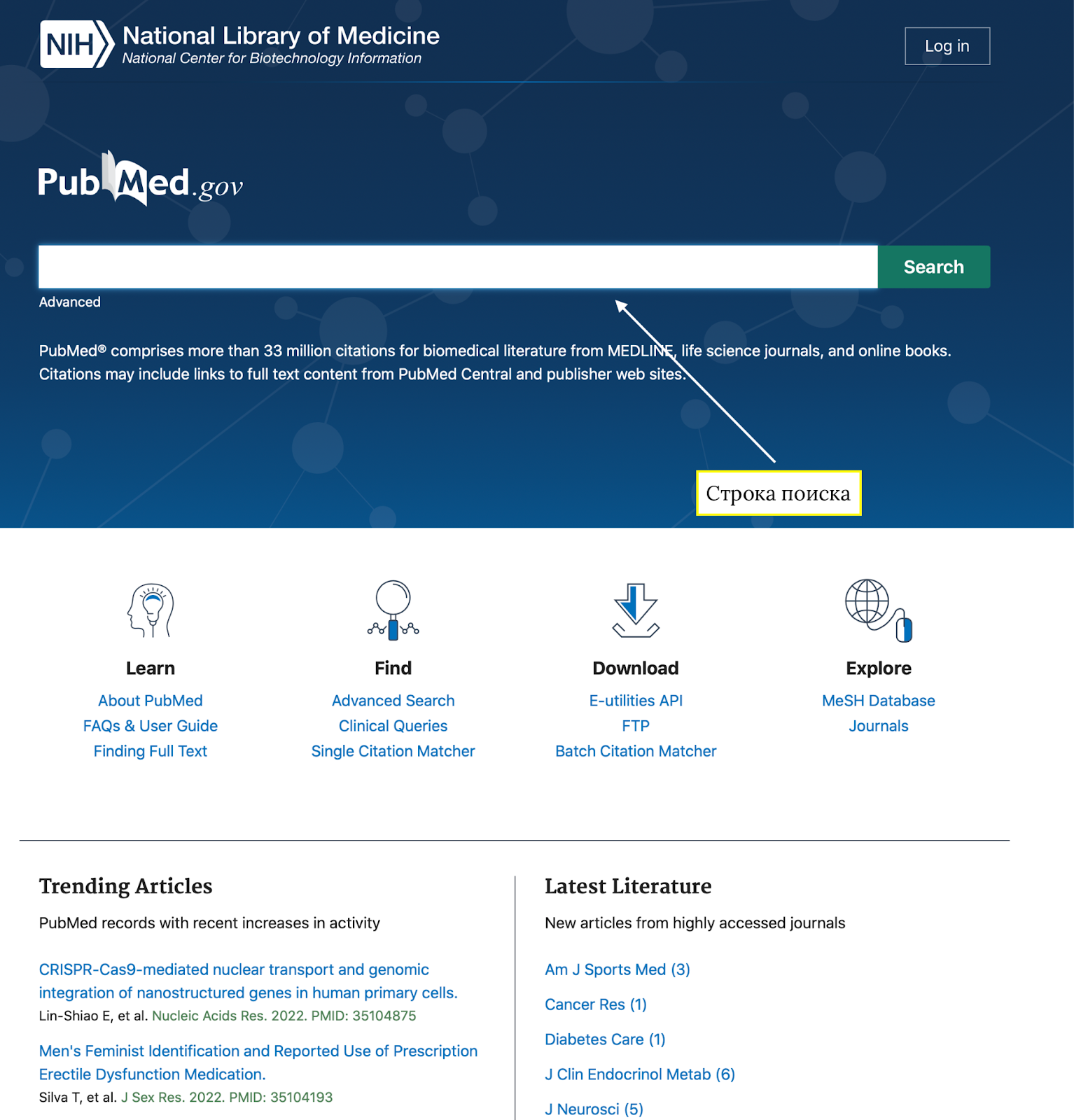
Внизу вы можете найти наиболее популярные статьи в поисковике на данный момент: “Trending Articles”, а также самые новые статьи в наиболее популярных журналах “Latest Literature”. А также блоки с инструкциями по работе, наиболее популярными вопросами по сайту, поиску, скачивании и т.д.
Для нас наибольший интерес представляет строка поиска, в которую мы должны вписать наш поисковый запрос на английском языке в виде ключевых слов, которые необходимо предварительно определить. Это может быть фамилия автора (инициалы позволяют конкретизировать поиск), название журнала, заболевания, возбудителя, гена, белка, лекарственного препарата и т.д. В алгоритмы системы заложено машинное обучение, благодаря этому нет необходимости подбирать «правильный» поисковый запрос, ключевые слова, которые вы можете использовать для поиска, ограничиваются лишь вашей фантазией.
Итак, давайте попробуем найти работы, связанные со штаммом омикрон. В поисковую строку мы вписываем слово: «Omicron» и кликаем на кнопку «Search» в интерфейсе или нажимаем на кнопку «Enter» на клавиатуре. Открывается следующая страница:
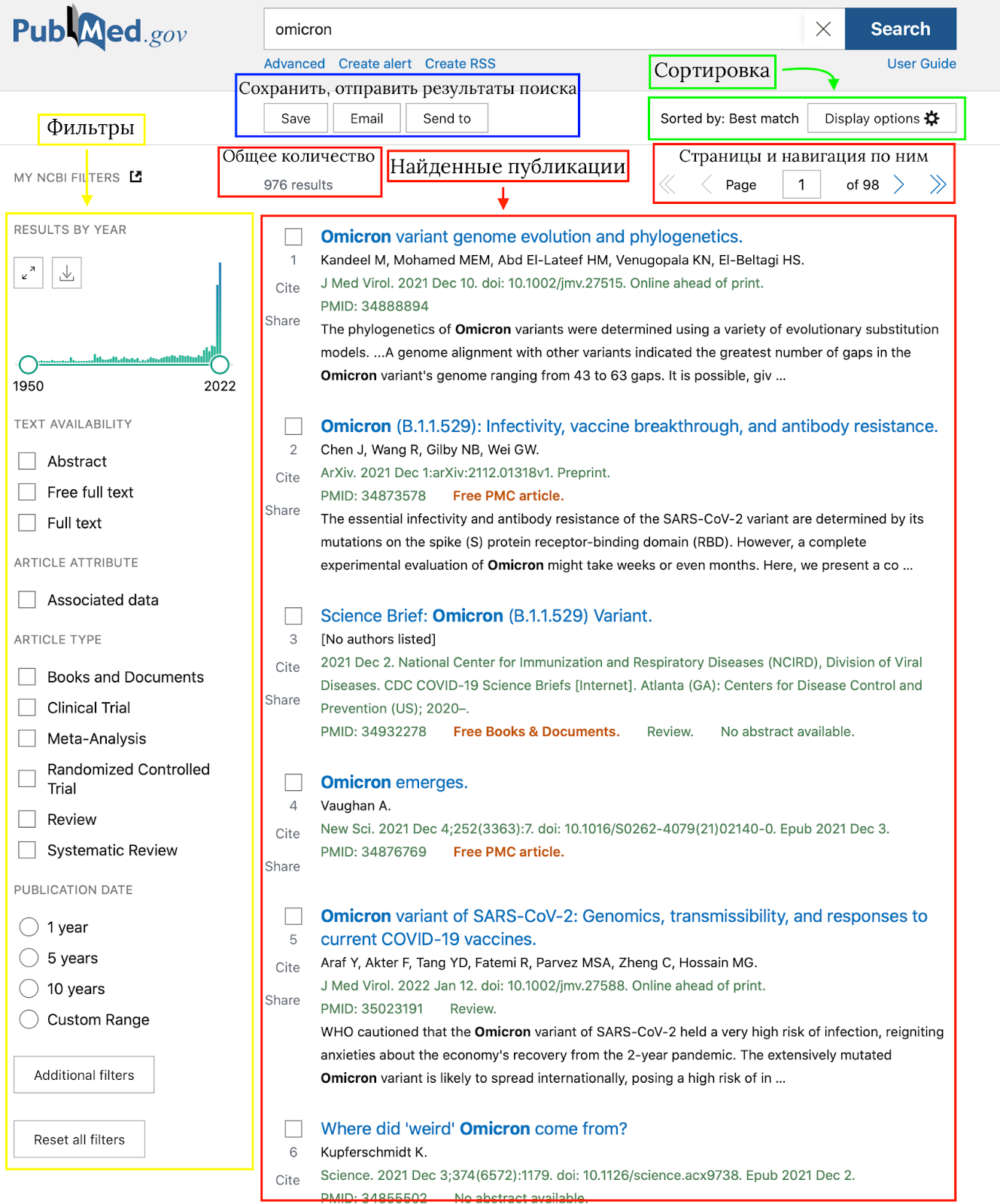
Рассмотрим составляющие страницы, которые выделены на картинке.
Для начала обратимся к инструментам, которые позволяют конкретизировать наш поиск, это блок фильтров и он выделен желтым цветом:
- «Result by year» — распределение результатов по годам. Мы видим гистограмму, где указано количество статей, подходящих под наш запрос, за каждый год с момента с первой публикации. Мы видим резкий рост статей со словом “Omicron” за 2021 и 2022 год, что объяснимо) Распределение по годам можно скачать в виде таблицы, если нажать на иконку со стрелкой вниз.#nbsp;
Это может вам пригодиться для создания гистограмм в ваших презентациях, чтобы показать интерес к теме, о которой вы рассказываете.#nbsp;
- «Text availability» — доступность текста. «Abstract» — в результате поиска выдаются только публикации с аннотациями; «Free full text» — публикации с бесплатным доступом к полному тексту статьи; «Full text» — публикации с полным текстом статьи (как платным, так и бесплатным доступом).
- «Article types» — тип статьи. Можно выбрать из нескольких предложенных: “Books and Documents” — книги и документы, “Clinical Trial” — клинические исследования; “Meta-analysis” — мета-анализы; “Randomized Controlled Trial” — рандомизированные котролируемые исследования; “Review” — обзорные статьи; “Systematic Review” — систематические обзоры. Выбрав тот тип статьи, который вас интересует, вы сможете значительно сузить окно поиска.
- «Publication dates» — дата публикации. Изначально предлагается выбрать промежутки в 1, 5 или 10 последних лет, однако кликнув на «Custom range», вы можете выбрать конкретный промежуток времени, за который хотите найти интересующую вас статью.
Нажав на кнопку «Additional filters», вы сможете открыть окно дополнительных фильтров, которые могут улучшить ваш поиск. Однако их применение очень ограничено, если авторы статьи не указали в своих публикациях специальные отметки по этим фильтрам. Нужно поставить галочки на нужных и нажать кнопку “Show”.
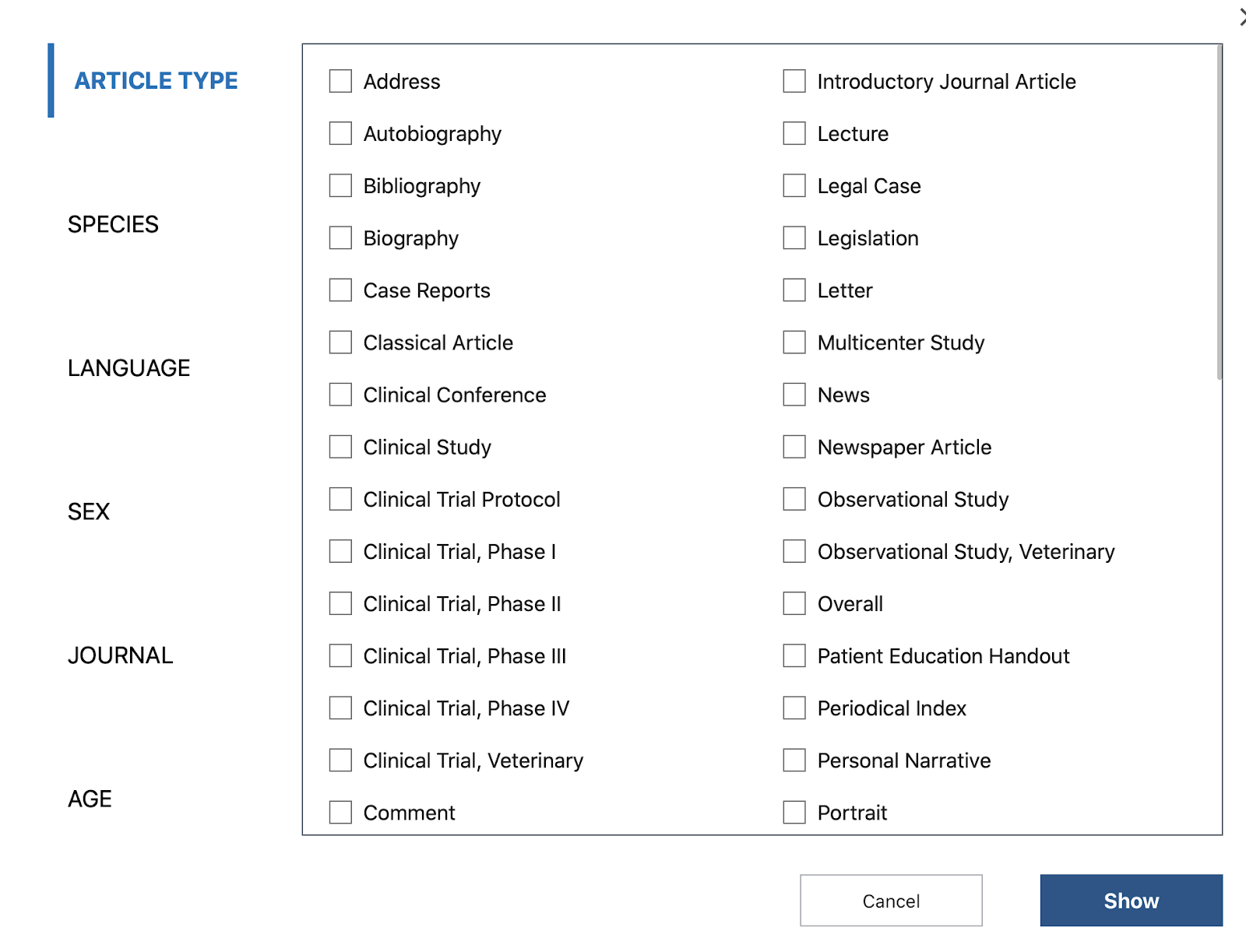
- Первым в списке дополнительных фильтров открывается расширенный список выбора типа статьи «Article types».
- «Species» — вид исследуемых животных. «Human» — человек, «Other animals» — другие животные (если вас интересуют доклинические или ветеринарные исследования).
- «Languages» — язык. По умолчанию английский, но можно выбрать любой доступный вам язык, однако, скорее всего, публикация на отличном от английского языке не найдется)
- «Sex» — пол в исследовании. «Female» — женский «Male» — мужской. Если вы ищете исследования по конкретному полу, то этот фильтр для вас.
- «Journal» — категория журналов. «Core clinical journals» — основные клинические журналы; «Dental journals» — стоматологические журналы; «MEDLINE» — только база данных Medline; «Nursing journal» — журналы для медицинских сестер, и др.
- «Ages» — возраст. Если вас интересуют исследования в конкретный возрастной промежуток испытуемых.
- Кнопка “Reset all filters” — позволяет убрать все фильтры.
Теперь разберём блок сортировки и он выделен зелёным цветом. Чтобы открыть возможные варианты сортировки и отображения поисковой выдачи, вам нужно нажать на кнопку “Display options”, после чего откроется окно с вариантами:
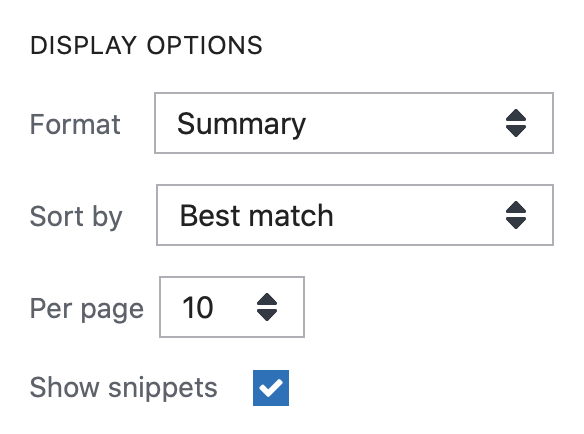
- «Format» — формат отображения публикаций: из всплывающего меню можно выбрать один из вариантов формата, вы можете поэкспериментировать с ними. Однако, по нашему мнению, внимания достойны два формата: «Summary» — выбран по умолчанию, отображает название статьи, авторов и атрибуты публикации в журнале; «Abstract» — ко всему предыдущему добавляется аннотация сразу на поисковой странице.
- «Sort by» — сортировка статей по следующим параметрам: «Most Recent» — самые свежие публикации; «Best Match» — наиболее подходящие по вашему запросу; «Publication Date» — от новых публикаций к старым; «First Author» — по фамилии первого автора в алфавитном порядке; «Journal» — по названию журнала в алфавитном порядке.
- «Per page» — сколько статей будет отображаться на одной поисковой странице.
Ну и самый главный блок выделен красным цветом. Это окно поисковой выдачи. Наверху можно увидеть количество найденных публикаций по запросу — “Results”, а также кнопки навигации по страницам.
Присмотримся к любой статье.
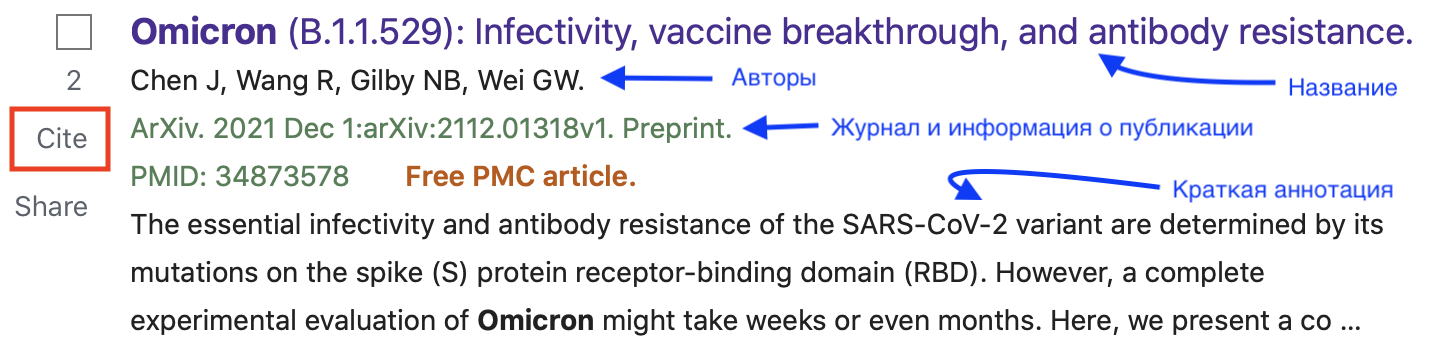
Жирным крупным шрифтом выделено название статьи, под которым находится список авторов. Ниже располагается информация о журнале, дате публикации, ссылки на неё, а также doi (цифровой идентификатор объекта, по которому можно обнаружить местонахождение статьи или метаданные о ней). Надпись «Free PMC article» свидетельствует о том, что статья находится в свободном бесплатном доступе. Далее следует урезанная аннотация статьи. Слева от названия можно заметить две кнопки: #nbsp;«Share» — поделиться статьей (можно отправить ссылку в фэйсбук или твиттер), а также «Cite» — нажав на которую, вы откроете меню, где можно получить форму для цитирования статьи по разным стандартам библиографического списка, нажимая на кнопку «Format»:
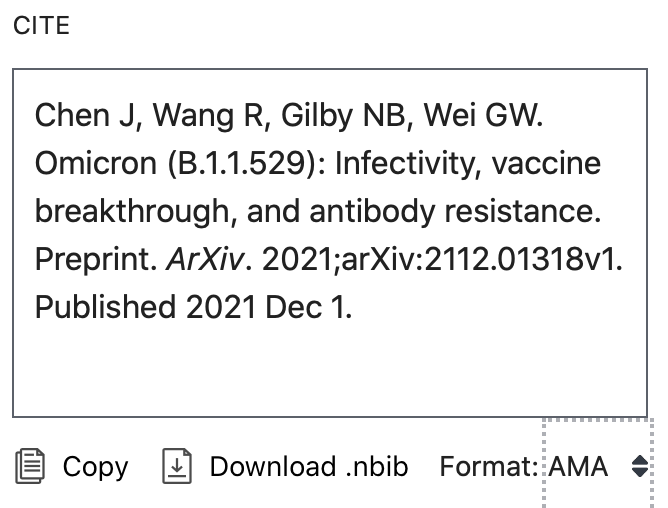
Откроем статью
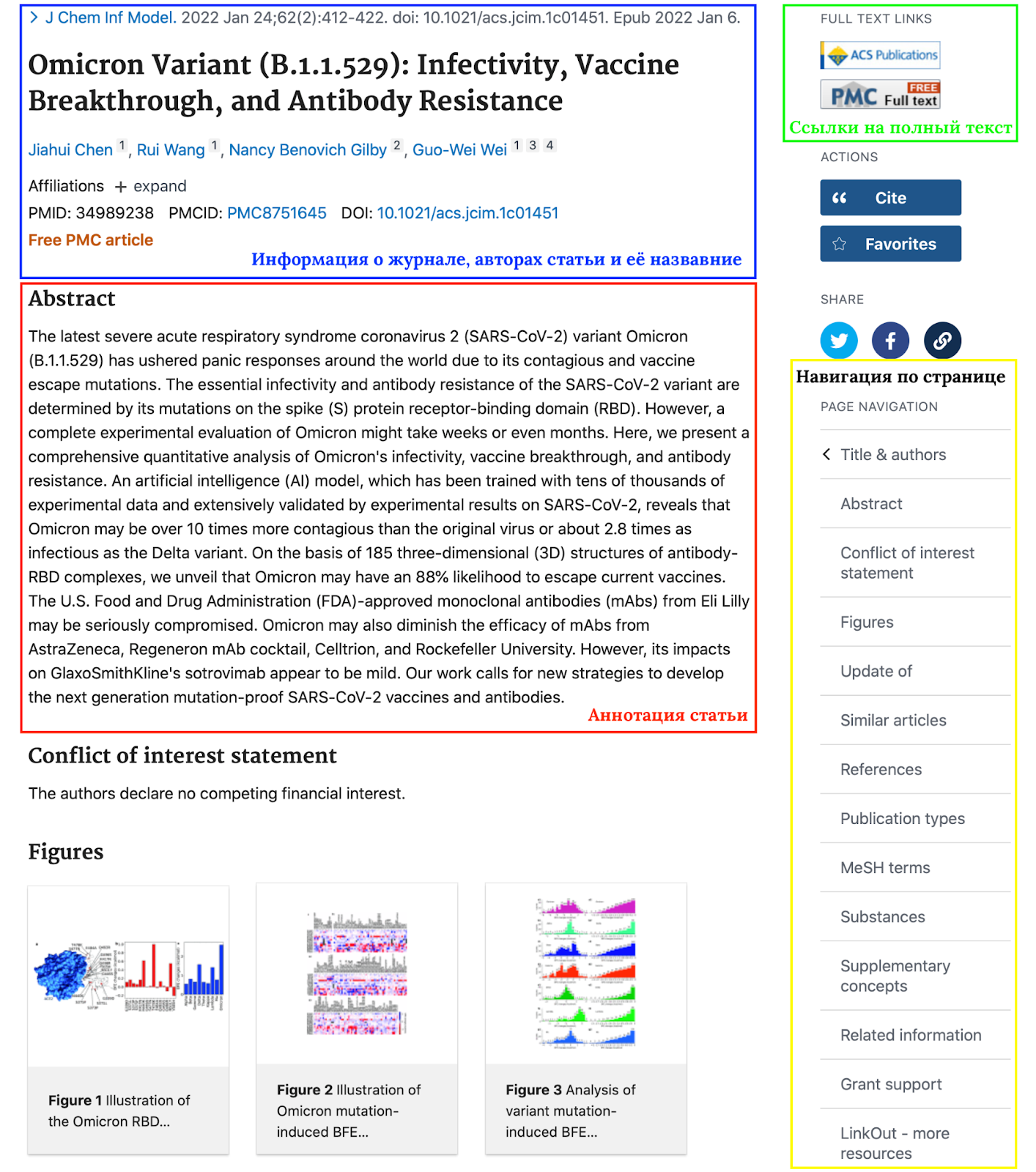
Здесь мы опять видим несколько блоков. В синей рамке блок с информацией о публикации. Он повторяет все, что было в окне поиска.#nbsp;
В красной рамке развернутая аннотация статьи.
В зеленой рамке ссылки на полную статью на сайте журнала и на сайте PubMed.
В желтой рамке кнопки навигации по странице (могут меняться в разных статьях), нажав на которые, вы будете перенаправляться на соответствующий подпункт информации:
- «Title and authors» — заглавие и авторы;
- «Abstract» — аннотация;
- «Conflict of interest statement» — информация о конфликте интересов среди авторов;
- «Figures» — изображения из статьи;
- «Update of» — обновление статуса статьи. Эта кнопка появляется на страницах статей, которые были выложены на стадии препринта, и позже были опубликованы в журнале;
- «Similar articles» — похожие статьи. Система предлагает вам схожие статьи в соответствии с алгоритмами сайта;
- «References» — список литературы;
- «Publication types» — тип публикации (статья, препринт и т.д.);
- «MeSH terms» — термины по словарю MeSH;
- «Substances» — вещества, использованные в статье;
- «Supplementary concepts» — дополнительные понятия, вводимые в статье;
- «Related information» — другая, связанная со статьей информация;
- «Grant support» — грант, которым поддержана статья;
- «LinkOut — more resources» — другие полезные ресурсы.
Чтобы открыть полный текст статьи нужно нажать на кнопки в верхнем правом углу. В случае данной статьи вы можете прочитать её бесплатно на сайте журнала, нажав на верхнюю кнопку «ACS publications» или на нижнюю «PMC Free full text», в таком случае статья откроется на внутреннем ресурсе PubMed.
Что же делать если статьи нет в бесплатном доступе?
1) Попросить вашего коллегу, в организации которого подключена подписка на интересующего издателя, скачать вам эту публикацию. На сегодняшний день, как правило, все ВУЗы подключены к крупнейшим ресурсам.
2) Написать письмо автору статьи с просьбой прислать вам ее экземпляр. Если условия соглашения с журналом не противоречат этому, обычно авторы статей без особых проблем присылают полные тексты статей. Главное в письме объяснить для чего вам эта статья и вкратце рассказать о своей работе и как статья на нее может повлиять. Советуем делать это на сайте Researchgate, если у автора есть страница в этой социальной сети.
3) Воспользоваться сайтом, открывающим доступ к закрытым публикациям. Это более кардинальный способ получить полный текст публикации. Журналы всячески борются с такими ресурсами, так как они нарушают их интересы. Однако, такие проекты позволяют большому количеству людей открыть доступ к знаниям. Ведь стоимость полного текста одной публикации может достигать до сотни долларов и не все имеют возможность приобретения таких статей.#nbsp;
Таких ресурсов несколько, однако самый распространенный и известный из них представлен на скрин-шоте. Ссылку на него мы давать не будем, но через любую поисковую систему, вы за три клика сможете найти этот сайт)
Он очень прост и представлен одной страницей, где есть строка поиска и кнопка «Открыть».
В строку поиска вы можете вставить URL адрес, код doi или ссылку PMID (как их найти мы обсуждали выше), или же просто название статьи, предварительно найденной на поисковом ресурсе PubMed (или любом другом) и нажать кнопку «Открыть». Если такая возможность есть (она есть практически всегда), сайт откроет вам PDF файл с полным текстом статьи, которую вы сможете скачать и благополучно прочитать.#nbsp;
Пользоваться этим или нет – выбор каждого, мы не пропагандируем пиратство, просто рассказываем вам о возможностях разных ресурсов)

Студенты медицинских вузов не просто осваивают теоретические азы в рамках общей медицины и профессии. Старшекурсников также привлекают к научно-исследовательской деятельности, проектным работам. В ходе выполнения таких трудов они глубже погружаются в научно-профессиональную область.
Нередко им приходится выполнять систематический обзор литературы. Данный формат позволяет им разобраться в существующих теориях и концепциях с помощью критического мышления. Чтобы выполнить такую работу качественно, важно подобрать достоверные первоисточники. Для этого студентам-медикам достаточно обратиться к специализированной медицинской базе данных PubMed.
СОДЕРЖАНИЕ
PubMed представляет собой уникальную платформу, на которой собрано свыше 38 миллионов научных работ по медицинским и биомедицинским наукам. Это самая настоящая кладовая научных открытий и достижений, история и эволюция подходов и технологий. Здесь универсанты могут найти материалы из самых разных естественных и комплексных областей для своих курсовых и дипломных работ, НИР, научных статей и пр.
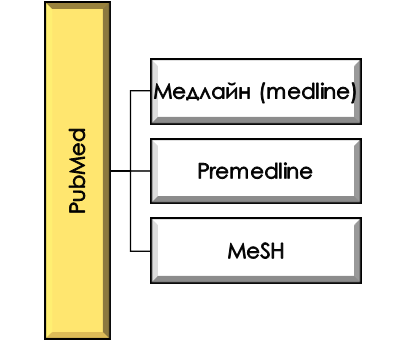
На просторах PubMed действует три связанные между собой платформы:
- Медлайн (medline). Здесь собраны статьи и иные материалы по медицине, начиная с 1966 года. Студенты могут ознакомиться с трудами соотечественников и иностранных авторов-исследователей. Доступ к сервису не ограничен, бесплатен. Все ресурсы переведены на 30 языков (в том числе русский).
- Premedline. Данная часть PubMed – одна из молодых. В ее составе отмечаются библиографические описания всех рукописей, которые успешно прошли стадию индексирования.
- MeSH. В данный сегмент научной базы данных попадают только те материалы, которые успешно прошли стадию индексирования. То есть рукописи, которые не сумели преодолеть данный рубеж, будут храниться в premedline. Проиндексированные труды перейдут в раздел mesh, где будут отсортированы по предметным областям и проработаны по частям для наиболее удобного и простого поиска. Проработка включает создание тезауруса, аннотацию и пр.
То есть на площадке PubMed действует трехуровневая система фильтрации научных работ, которая призвана упорядочить и упростить поиск материалов для студентов-медиков, что упростит им работу по выполнению курсовых и дипломных работ, систематического обзора и пр.
Универсант может работать как в целом на платформе PubMed, так и на базе конкретного сегмента-уровня. Чаще всего студенты полагаются на общий поиск информации.
Как начать поиск информации на PubMed?
Итак, с чего же начать серфинг по просторам PubMed? Первым делом, пользователям предстоит перейти на официальный сайт рассматриваемой площадки. Внимательно ознакомьтесь с его функционалом.
Для начала взгляните на страницу и обратите внимание на разделы. Такой ход быстро сориентирует и поможет понять, что и где искать, как пользоваться базой данных, как решать проблемы и пр.
Визуально сайт выглядит довольно просто и эстетично. Сдержанный и в меру насыщенный тон, четкое расположение инструментов и функций. Благодаря простоте и эстетике, умеренному наполнению, студенты с легкостью ориентируются по нему.
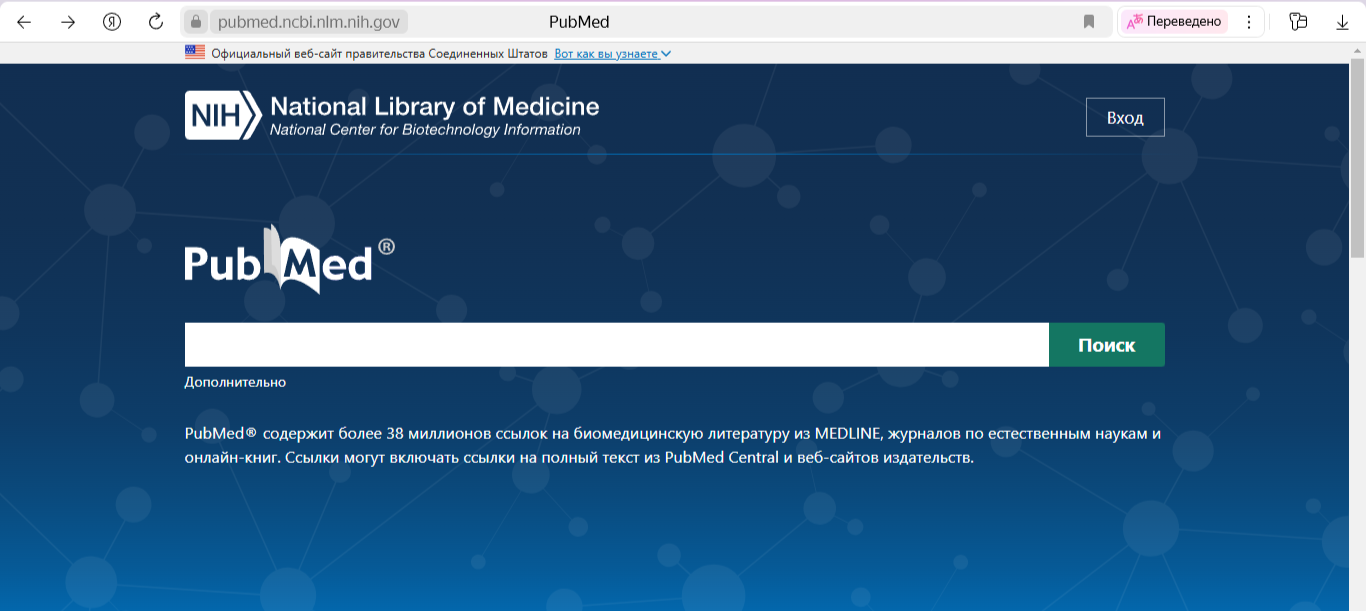
Русифицированный формат площадки выглядит именно так. В верхней части сайта указывается наименование научной базы данных. Справа – регистрация или вход в личный кабинет.
Поиск информации может проходить без регистрационных действий. Все материалы находятся в открытом доступе. Регистрация чаще всего необходима авторам.
Пролистав главную страницу ниже, можно заметить основные инструменты PubMed.
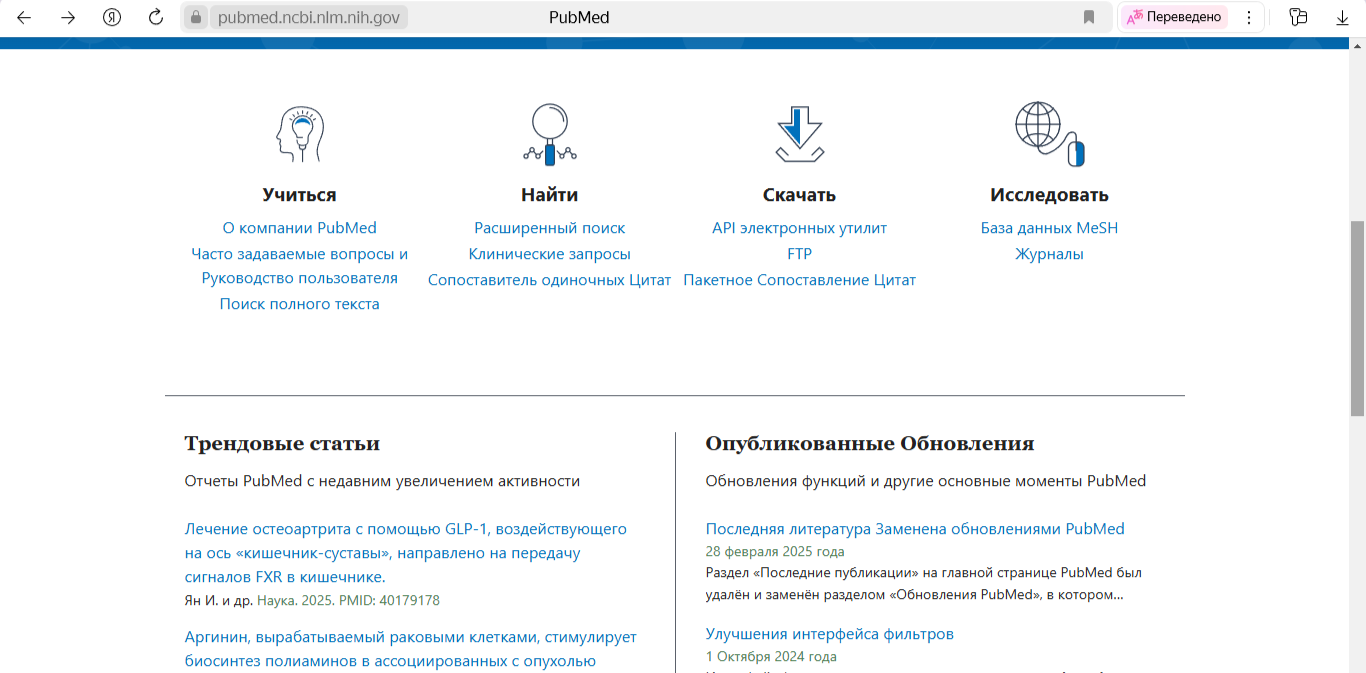
Пользователи могут ознакомиться с историей создания, общей характеристикой и возможностями работы на площадке. Также им предоставлено руководство пользователя, которое пояснит особенности применения тех или иных инструментов, как правильно искать информацию, как ее скачивать и пр.
Как правило, студенты – народ нетерпеливый, который не любит долго изучать инструкции и желает моментально действовать.
Самый простой ход по поиску материалов на PubMed – набрать наименование или интересующий вопрос в поисковой строке. Обратите внимание, что запрос необходимо указывать на английском языке. Поэтому, если самостоятельно перевести вопрос не удается, то лучше прибегнуть к онланй-переводчикам или помощи квалифицированных специалистов (лингвистов, переводчиков и пр.).
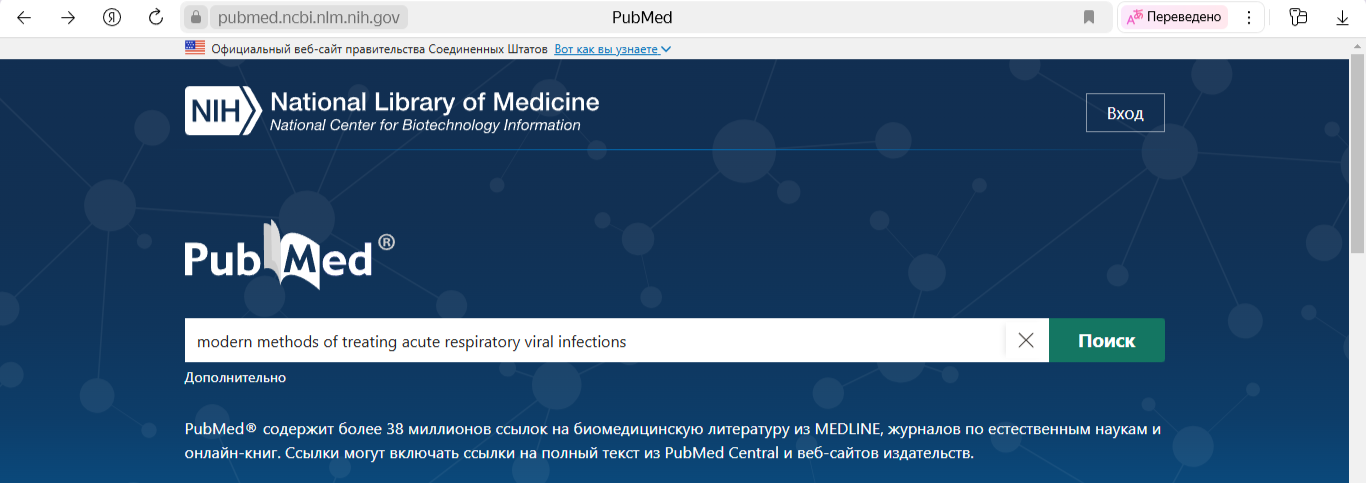
Давайте попробуем найти материалы, посвященные современных методам лечения ОРВИ. После того, как запрос был введен, нужно нажать заветную кнопочку «Найти» и система запустит подбор материалов.
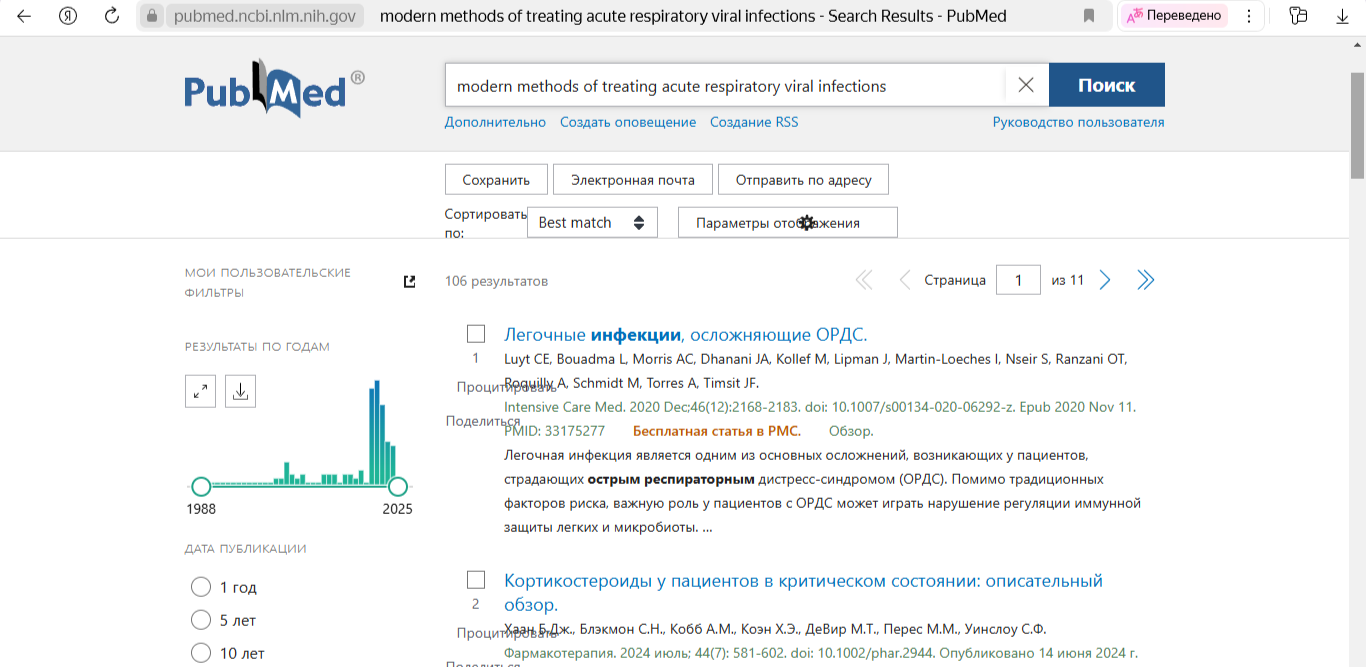
После обработки запроса, платформа выдаст все материалы, которые будут совпадать с общим направлением. Формат собранных данных может быть разным: статьи, обзоры, книги, систематические обзоры.
Чтобы результаты поиска были максимально близкими к желаемым, важно правильно настроить фильтр.
Как настроить фильтр для поиска информации в PubMed?
Настроить фильтр можно как до запуска функции поиска первоисточников, так и после.
Первый вариант предполагает, что пользователь отрегулирует параметры поиска изначально. Для этого нужно перейти во вкладку «Дополнительно». Она находится сразу под поисковой строчкой (куда вписывается запрос).
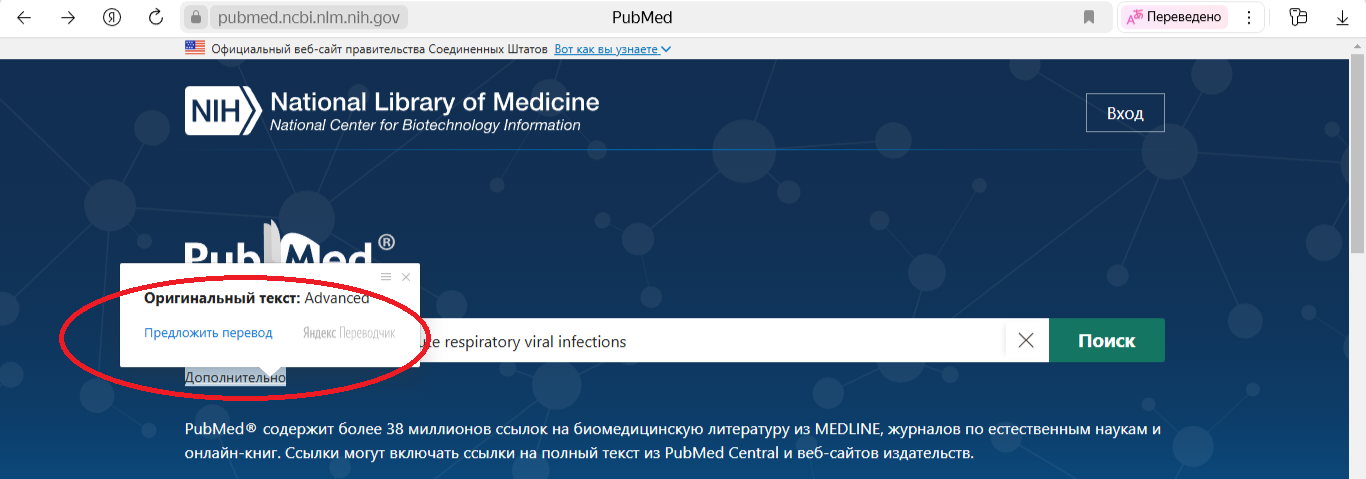
Далее перед студентом появятся дополнительные поля для выбора и уточнения критериев подбора медицинской литературы, исходя из его потребностей.
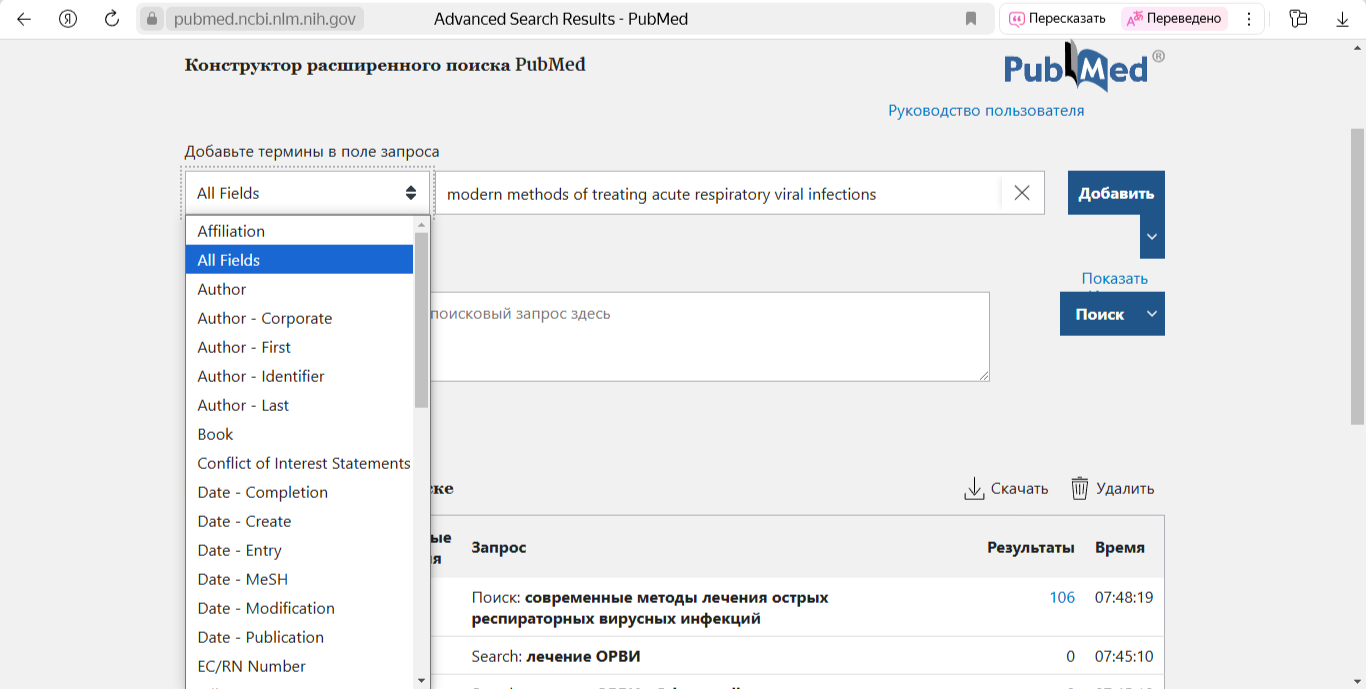
После ее нажатия перед пользователем появится дополнительная опция по фильтрации материалов: по дате, автору, формату, заголовку, ключевым словам и пр. Затем индивиду нудно ввести свой запрос. Это может быть как отражение темы интересуемого исследования, так и известных об интересуемой рукописи данные (ФИО автора, ключевые слова, индексы и пр.).
Второй вариант предполагает настройку фильтра уже после поиска материалов согласно заданному запросу. В этом случае перед пользователем появится следующая страничка.
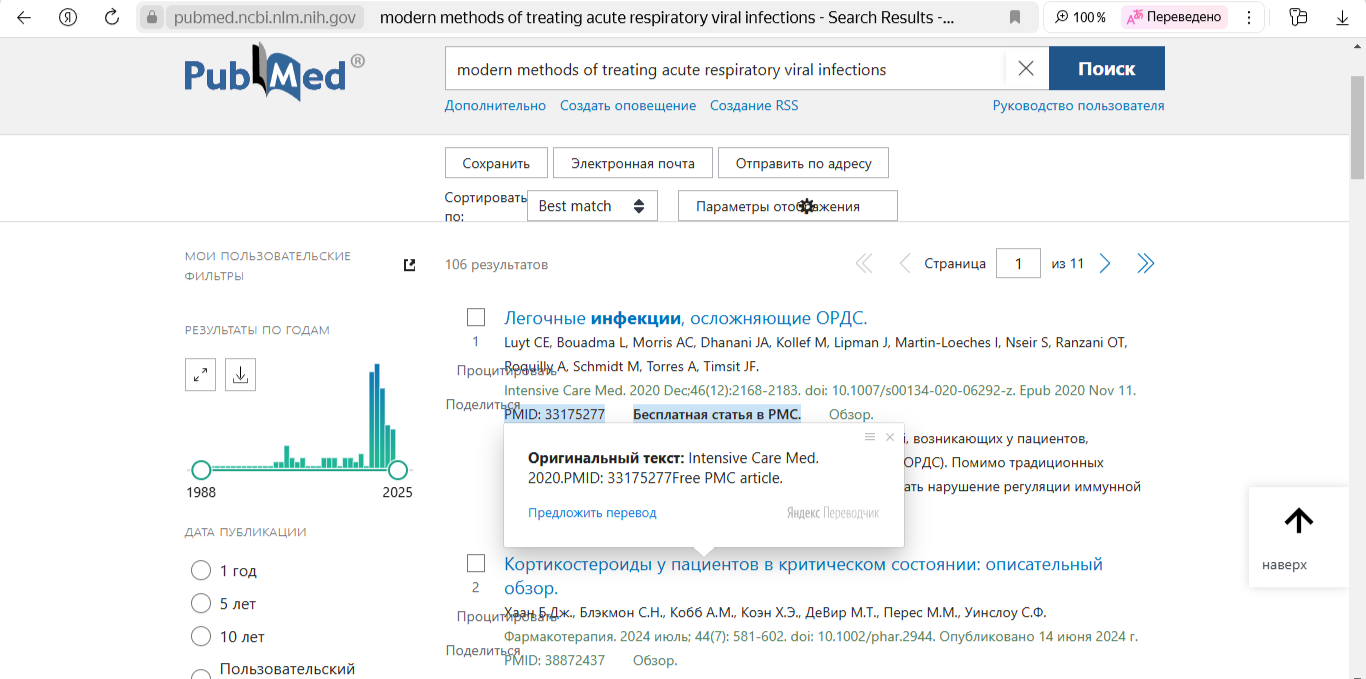
Все фильтры будут располагаться слева. Достаточно лишь их правильно настроить.
Пользователь может отрегулировать следующие данные:
- Выбрать дату искомой публикации или установить соответствующие ограничения по поиску во временном пространстве;
- Отбирать текст с учетом авторских ограничений: открытый доступ, бесплатный текст, полный и пр. Обратите внимание, что полный текст не всегда предоставляется бесплатно.
- Найти связанные с материалом данные;
- Выбрать тип или формат искомой рукописи: книги, газетные статьи, препринты, отчет, обзоры, систематические обзоры, клинические исследования и пр.
Также студент может настроить дополнительные параметры поиска. Он вправе установить язык первоисточника, конкретизировать объект исследования (люди, животные) и уточнить их пол, возраст и пр.
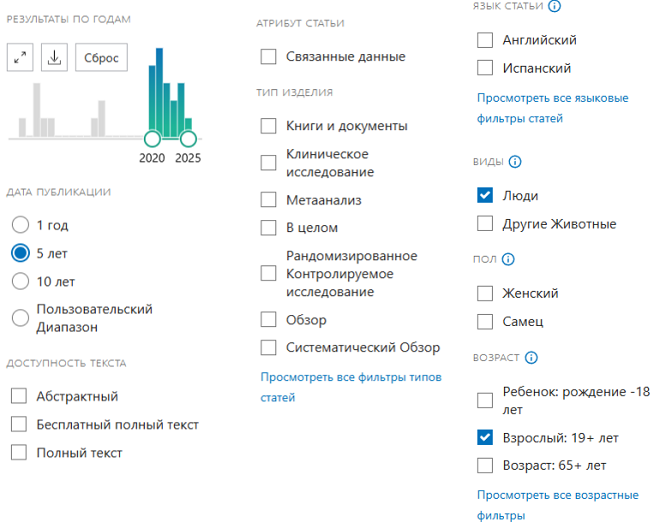
После настройки фильтров и запуска поиска информации, пользователь получит более точные и подходящие его запросу подборки.
Обратите внимание, что универсант может выбрать поиск систематических обзоров по интересуемой его теме, что упростит выполнение новых исследований.
Как скачать информацию из PubMed?
Согласитесь, что искать информацию при помощи таких фильтров несложно. Но одним поиском материалов студент-медик не обойдётся. Для применения собранных данных в собственном медицинском исследовании или проектной деятельности, ему нужно скачать соответствующую рукопись. Как это сделать?
Самый простой вариант – это скопировать необходимый фрагмент или подобранный платформой материал. Далее в собственном проекте или систематическом обзоре важно правильно процитировать соответствующий первоисточник и предоставить корректное библиографические описание ресурса в списке литературы. Ссылке.
Также можно скачать материал с сервиса PubMed. Для этого достаточно выбрать вкладку Сохранить – Абстрактный текст. Система сгенерирует отдельный файл с соответствующей рукописью и данными о ней (автор, публикация и пр.), которая автоматически будет скачана на ваш гаджет или компьютер в формате блокнота.
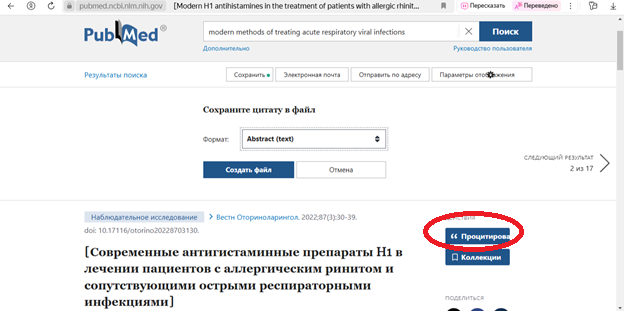
Более того, при оформлении ссылки на материал в ходе написания систематического обзора по медицине, курсовой или дипломной работы, студент может воспользоваться функцией «Процитировать». Притом здесь он может выбрать стиль цитирования, под который ссылка будет отформатирована. В этом случае он получит полное библиографическое описание публикации.
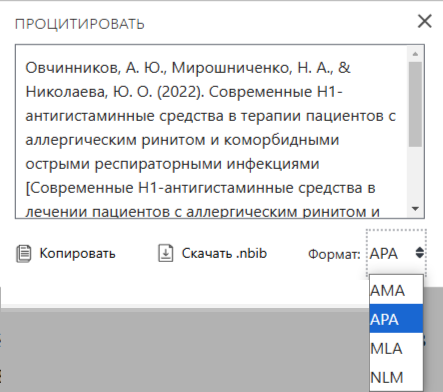
В целом, работать в PubMed не так-то сложно, если студенты умеют правильно выражать свои мысли, формулировать поисковые запросы. Разбираться в материалах.
Для начала важно разобраться в правилах работы на этом сайте, интерфейсе и инструментарии, понять, как и что здесь работает. Остальное – дело техники.
Возникли сложности?
Нужна помощь преподавателя?
Мы всегда рады Вам помочь!

Советы по работе в PubMed
Чтобы применение научной базы данных PubMed было полезным и эффективным, важно тщательно разобраться в правилах пользования, изучить руководство и рекомендации.
Несмотря на то, что сайт имеет версии на разных языках, запросы лучше всего отправлять на английском. Притом, чем точнее переведен искомый
Выбирайте тот способ поискового запроса, который вам удобнее. Одни предпочитают просто переводить интересуемые их вопросы на английский и искать первоисточники по ним. Другим легче выделить ключевые слова, основные термины. Третьи — точно знают, какие данные им пригодятся и могут заниматься подбором литературы по автору, журналу.
Чтобы сузить круг поиска и обработки информации, важно правильно настроить основные фильтры. Обязательно установите ограничения по дате публикации. В рамках систематического обзора можно выбрать конкретный период времени, который универсант-медик намерен изучать и описывать или акцентировать внимание на современное положение дел с отсылками и сравнением похожих явлений в ранние периоды времени.
Обязательно определитесь, какие именно первоисточники вам необходимы для вашего исследования. Это поможет более точно настроить фильтры, сузить ход подбора материалов и получить более точные результаты.
Не спешите скачивать все собранные по вашему запросу данные. Система PubMed – автоматизированная. Она ориентируется на слова и совпадения с названиями рукописей, предметными рубриками и пр. Поэтому платформа выдаст вам все совпадающие с формулировкой запроса труды. Пользователю предстоит как минимум ознакомиться с их общим описанием и понять, подходит ли материал для его потребностей или систематического обзора или нет. То есть без критического и аналитического мышления в этом деле не обойтись.
Установка фильтров сузит круг поиска, но не ликвидирует необходимость изучения и сортировки данных с учетом потребностей пользователя, его научно-исследовательской деятельности.
Не стоит пренебрегать не только сортировкой подобранных первоисточников, но и их проверкой, то есть фактчекингом. Несмотря на авторитет и рейтинг PubMed, пренебрегать этими мероприятиями все же не стоит. Убедитесь, что текст качественный, не вызывает сомнений, достоверен.
Если самостоятельно разобраться с функционалом и работой сайта PubMed не удается, то лучше всего выделить время на изучение руководства для пользователей. Если все же возникнут проблемы по ходу работы в системе, то можно обратиться в техподдержку.
Для работы в PubMed очень важно, прежде всего, уметь работать с информацией. Поисковик может выдать вам от нескольких десятков до сотни подходящих запрошу трудов. А ведь разбираться в них пользователю придется лично, самостоятельно. Притом в данном деле нужны не только навыки по работе с базами данных, интернет-технологиями, но и базовые качества: наблюдательность, критический подход, аналитика, сортировка, фактчекинг, переработка и пр.
Специалисты DissHelp также готовы помочь студентам-медикам разобраться в сетях PubMed и научиться грамотно и эффективно им пользоваться. Также наша команда готова взять на себя поисковую работу и гарантировать качественный результат.
Как искать информацию в пабмеде. Погружение в мир PubMed: Искусство поиска научной информации 🔬
👋Подробности🤛🏼PubMed — это не просто база данных, это целый океан научных знаний, где скрываются сокровища исследований и открытий. 🌊 Для тех, кто стремится к истине и жаждет глубокого понимания, умение эффективно искать информацию в PubMed становится ключом к успеху. 🔑 Сегодня мы с вами отправимся в увлекательное путешествие, чтобы освоить этот навык. В этой статье мы не просто расскажем, как найти нужную статью, а покажем, как стать настоящим исследователем, способным извлечь максимум пользы из этого мощного инструмента.
Для доступа к конкретному разделу нажмите на ссылку ниже:
⭕ Начало пути: Обнаружение журналов в PubMed 🧭
⭕ Глубокий поиск и анализ результатов 🔎
⭕ Заключение: Ваш путь к научным открытиям 🚀
⭕ FAQ: Часто задаваемые вопросы ❓
😶 Отзывы
Начало пути: Обнаружение журналов в PubMed 🧭
Первый шаг к сокровищам научного знания лежит через поиск журналов. Это как найти карту, ведущую к нужным вам исследованиям. 🗺️ Давайте рассмотрим этот процесс более детально:
- Переход к базам данных NCBI: Начните свое путешествие с домашней страницы PubMed. Здесь, в самом сердце портала, вы найдете ссылку на базы данных NCBI. Это как вход в библиотеку, где хранится весь массив научной литературы. 📚
- Выбор раздела Journals: Среди множества опций вам нужно выбрать раздел «Journals». Это как выбрать нужную полку в библиотеке, где хранятся научные журналы. 📖 Это ваш первый шаг к поиску конкретного научного издания.
- Ввод названия журнала: Теперь, когда вы нашли нужный раздел, введите название журнала, который вас интересует, в специальную строку поиска. ✍️ Это как ввести название книги в поисковой системе, чтобы быстро найти ее.
- Нажатие кнопки Search: После ввода названия журнала нажмите кнопку «Search». Это как отдать команду поисковой системе, чтобы она начала свою работу и нашла нужный вам журнал. 🔍
Подробнее о каждом шаге:
- Переход на страницу NCBI: На главной странице PubMed, в самом верху, вы увидите ссылку на базы данных NCBI. Это ваш портал в мир научных ресурсов. 🌐 Нажав на эту ссылку, вы перейдете на страницу, где сосредоточены все инструменты NCBI, включая PubMed.
- Выбор раздела «Journals»: На странице NCBI вы увидите множество ссылок и разделов. Ваша цель — найти раздел, посвященный журналам. Это может быть выделено отдельной кнопкой или ссылкой, часто с надписью «Journals» или «Journals Database». 📒
- Точный ввод названия: Очень важно ввести название журнала точно, как оно официально зарегистрировано. Опечатки или неточности могут помешать поиску. 🧐 Лучше всего использовать полное название журнала, если оно вам известно.
- Использование кнопки поиска: После ввода названия журнала, нажмите кнопку «Search», обычно расположенную рядом с поисковой строкой. 🖱️ Это запустит поиск по базе данных и выведет список результатов, соответствующих вашему запросу.
Глубокий поиск и анализ результатов 🔎
Поиск журнала — это лишь первый этап. Теперь, когда вы нашли нужный журнал, пора углубиться в его содержимое.
- Просмотр списка результатов: PubMed покажет вам список журналов, соответствующих вашему запросу. Это может быть список из нескольких вариантов, если вы ввели не полное название или есть несколько журналов с похожими названиями. 📜
- Выбор нужного журнала: Внимательно просмотрите список и выберите тот журнал, который вас интересует. 🧐 Обратите внимание на точное название, издателя и ISSN (международный стандартный номер сериального издания).
- Переход к статьям: После выбора журнала вы сможете перейти на страницу этого журнала, где будут доступны все опубликованные в нем статьи. 📚
- Поиск по статьям: Теперь вы можете использовать поисковую строку внутри журнала, чтобы найти статьи по конкретной теме, интересующей вас. 🎯
Полезные советы для эффективного поиска:
- Используйте кавычки: Если название журнала состоит из нескольких слов, используйте кавычки (« »), чтобы PubMed искал точное совпадение.
- Проверяйте аббревиатуры: Многие журналы имеют общепринятые аббревиатуры. Если вы знаете аббревиатуру журнала, можете использовать ее для поиска. 🔤
- Фильтруйте результаты: PubMed предлагает различные фильтры для уточнения результатов поиска. Вы можете фильтровать по дате публикации, типу статьи и другим параметрам. ⚙️
- Сохраняйте результаты: Если вы нашли что-то важное, не забудьте сохранить результаты поиска или добавить их в свою коллекцию PubMed. 💾
Заключение: Ваш путь к научным открытиям 🚀
Поиск информации в PubMed — это не просто технический навык, это искусство. 🎨 Это ключ к пониманию сложного мира научных исследований. Освоив эти простые шаги, вы откроете для себя безграничные возможности для обучения, исследований и открытий. 🌟 Не бойтесь экспериментировать, пробовать разные запросы и фильтры. Чем больше вы практикуетесь, тем лучше вы будете ориентироваться в этом огромном океане знаний. 🌊
FAQ: Часто задаваемые вопросы ❓
- Что делать, если я не знаю точного названия журнала?
- Попробуйте ввести ключевые слова из названия. PubMed предложит варианты. 🔑
- Можно ли искать статьи по теме, не зная названия журнала?
- Да, конечно! Используйте поисковую строку PubMed и вводите ключевые слова. ✍️
- Как сохранить результаты поиска?
- PubMed позволяет сохранять результаты в различные форматы или добавлять их в свою коллекцию. 💾
- Нужно ли регистрироваться, чтобы использовать PubMed?
- Нет, регистрация не обязательна для поиска, но она может предоставить дополнительные возможности, такие как сохранение поисковых запросов. 📝
- Есть ли какие-то обучающие материалы по работе с PubMed?
- Да, на сайте NCBI есть множество руководств и обучающих материалов. 📚
Мы надеемся, что это руководство поможет вам стать уверенным исследователем в мире PubMed. Удачи вам в ваших научных поисках! 🎉
☑️ Где искать статьи на русском
☑️ Какие бывают тематики перевода
☑️ Как правильно оформить перевод статьи
☑️ Где искать статьи