
Manuals.eu
- Manuals.eu
- Kyocera
- Computers & Peripherals
- Printers
- FS-1040
- РУКОВОДСТВО ПО ЭКСПЛУАТАЦИИ (RU)
×
1
2
3
4
5
6
7
8
9
10
11
12
13
14
15
16
17
18
19
20
21
22
23
24
25
26
27
28
29
30
31
32
33
34
35
36
37
38
39
40
41
42
43
44
45
46
47
48
49
50
51
52
53
54
55
56
57
58
59
60
61
62
63
64
65
66
67
68
69
70
71
72
73
74
75
76
77
⟨
⟩
Copyright © Manuals.eu
Agreement
Privacy Policy
Contact us

FS-1040
FS-1060DN
SERVICE
MANUAL
Published in March 2012
842M3110
2M3SM060
First Edition

CAUTION
RISK OF EXPLOSION IF BATTERY IS REPLACED BY AN INCORRECT TYPE. DISPOSE
OF USED BATTERIES ACCORDING TO THE INSTRUCTIONS.
It may be illegal to dispose of this battery into the municipal waste stream. Check with your
local solid waste officials for details in your area for proper disposal.
ATTENTION
IL Y A UN RISQUE D’EXPLOSION SI LA BATTERIE EST REMPLACEE PAR UN MODELE
DE TYPE INCORRECT. METTRE AU REBUT LES BATTERIES UTILISEES SELON LES
INSTRUCTIONS DONNEES.
Il peut être illégal de jeter les batteries dans des eaux d’égout municipales. Vérifiez avec les
fonctionnaires municipaux de votre région pour les détails concernant des déchets solides
et une mise au rebut appropriée.
Notation of products in the manual
For the purpose of this service manual, products are identified by print speed at A4 modes.
FS-1040: 20/21 ppm model
FS-1060DN: 25/26 ppm model

Revision history
Revision Date Replaced pages Remarks

This page is intentionally left blank.

Safety precautions
This booklet provides safety warnings and precautions for our service personnel to ensure the safety of
their customers, their machines as well as themselves during maintenance activities. Service personnel
are advised to read this booklet carefully to familiarize themselves with the warnings and precautions
described here before engaging in maintenance activities.
Safety warnings and precautions
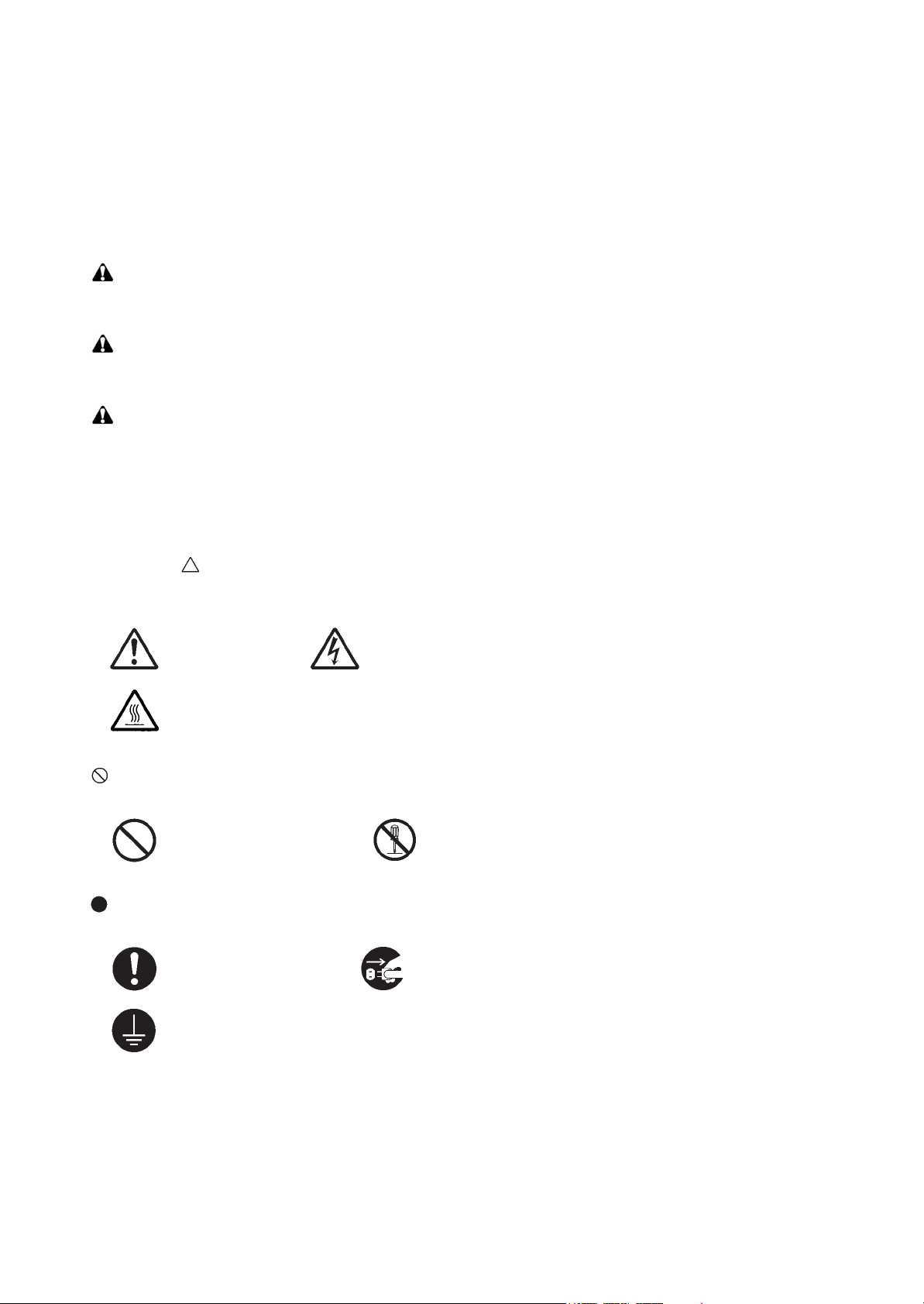
Various symbols are used to protect our service personnel and customers from physical danger and
to prevent damage to their property. These symbols are described below:
DANGER: High risk of serious bodily injury or death may result from insufficient attention to or incorrect
compliance with warning messages using this symbol.
WARNING: Serious bodily injury or death may result from insufficient attention to or incorrect compliance
with warning messages using this symbol.
CAUTION: Bodily injury or damage to property may result from insufficient attention to or incorrect com-
pliance with warning messages using this symbol.
Symbols
The triangle ( ) symbol indicates a warning including danger and caution. The specific point of attention is
shown inside the symbol.
General warning. Warning of risk of electric shock.
Warning of high temperature.
indicates a prohibited action. The specific prohibition is shown inside the symbol.
General prohibited action. Disassembly prohibited.
indicates that action is required. The specific action required is shown inside the symbol.
General action required. Remove the power plug from the wall outlet.
Always ground the copier.
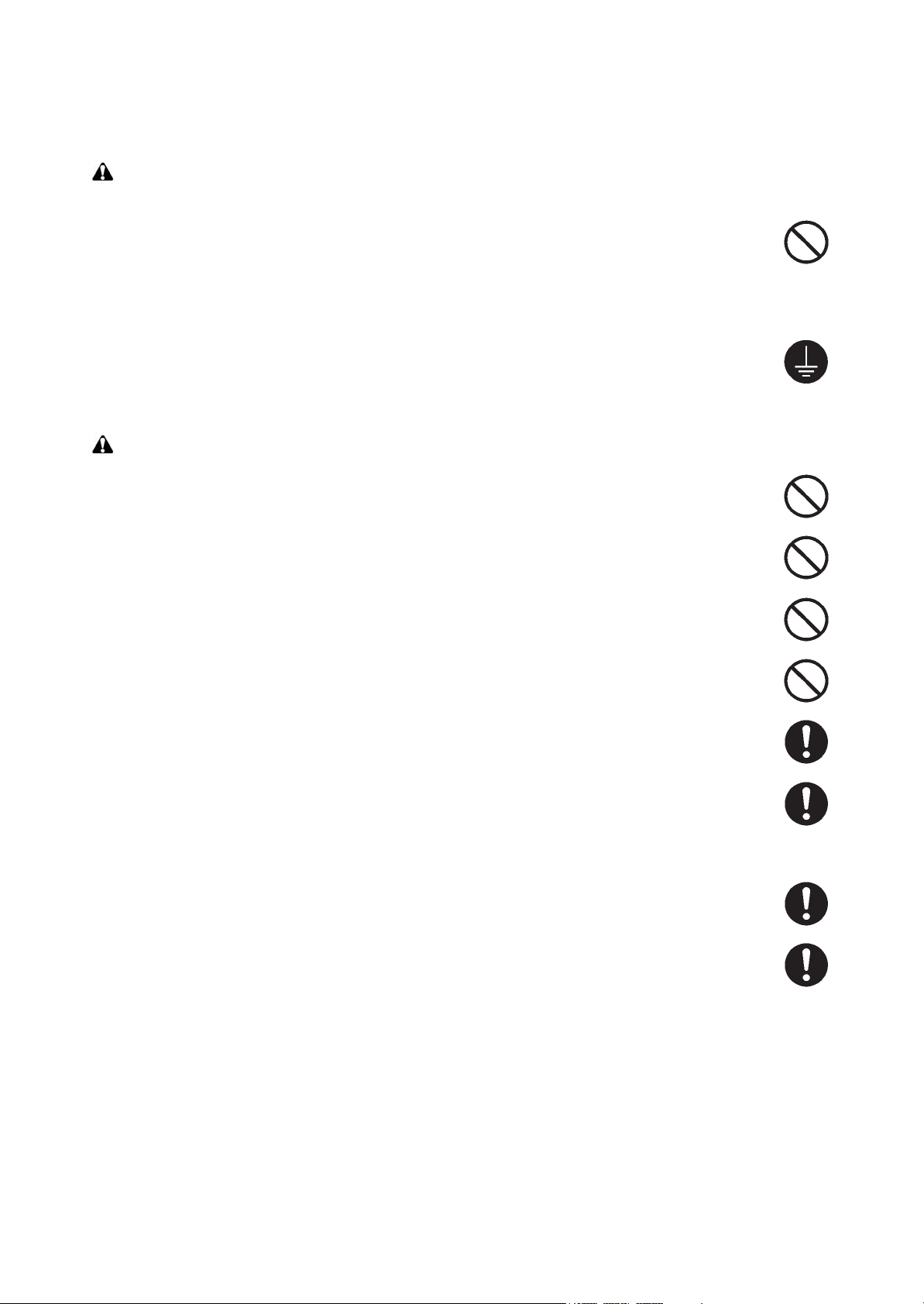
1. Installation Precautions
WARNING
• Do not use a power supply with a voltage other than that specified. Avoid multiple connections to
one outlet: they may cause fire or electric shock. When using an extension cable, always check that
it is adequate for the rated current. ………………………………………………………………………………………..
• Connect the ground wire to a suitable grounding point. Not grounding the copier may cause fire or
electric shock. Connecting the earth wire to an object not approved for the purpose may cause
explosion or electric shock. Never connect the ground cable to any of the following: gas pipes, lightning rods, ground cables for telephone lines and water pipes or faucets not approved by the proper
authorities. …………………………………………………………………………………………………………………………
CAUTION:
• Do not place the copier on an infirm or angled surface: the copier may tip over, causing injury. ………
• Do not install the copier in a humid or dusty place. This may cause fire or electric shock. ……………..
• Do not install the copier near a radiator, heater, other heat source or near flammable material. This
may cause fire. …………………………………………………………………………………………………………………..
• Allow sufficient space around the copier to allow the ventilation grills to keep the machine as cool
as possible. Insufficient ventilation may cause heat buildup and poor copying performance. …………
• Always handle the machine by the correct locations when moving it. ………………………………………….
• Always use anti-toppling and locking devices on copiers so equipped. Failure to do this may cause
the copier to move unexpectedly or topple, leading to injury. ……………………………………………………..
• Avoid inhaling toner or developer excessively. Protect the eyes. If toner or developer is accidentally
ingested, drink a lot of water to dilute it in the stomach and obtain medical attention immediately.
If it gets into the eyes, rinse immediately with copious amounts of water and obtain medical atten-
tion. …………………………………………………………………………………………………………………………………..
• Advice customers that they must always follow the safety warnings and precautions in the copier’s
instruction handbook. ………………………………………………………………………………………………………….
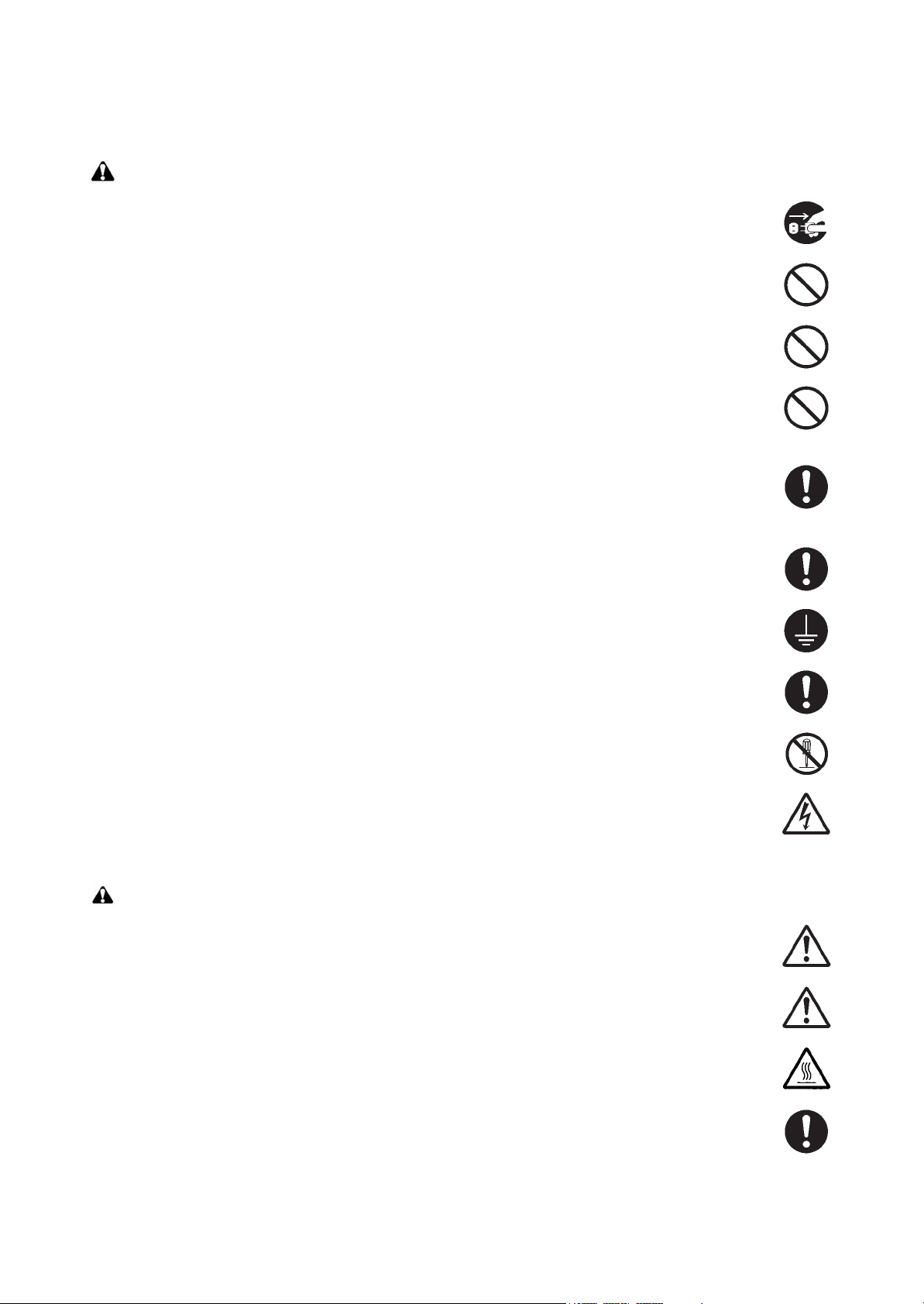
2. Precautions for Maintenance
WARNING
• Always remove the power plug from the wall outlet before starting machine disassembly. …………….
• Always follow the procedures for maintenance described in the service manual and other related
brochures. …………………………………………………………………………………………………………………………
• Under no circumstances attempt to bypass or disable safety features including safety mechanisms
and protective circuits. …………………………………………………………………………………………………………
• Always use parts having the correct specifications. ………………………………………………………………….
• Always use the thermostat or thermal fuse specified in the service manual or other related brochure
when replacing them. Using a piece of wire, for example, could lead to fire or other serious acci-
dent. …………………………………………………………………………………………………………………………………
• When the service manual or other serious brochure specifies a distance or gap for installation of a
part, always use the correct scale and measure carefully. …………………………………………………………
• Always check that the copier is correctly connected to an outlet with a ground connection. ……………
• Check that the power cable covering is free of damage. Check that the power plug is dust-free. If it
is dirty, clean it to remove the risk of fire or electric shock. ………………………………………………………..
• Never attempt to disassemble the optical unit in machines using lasers. Leaking laser light may
damage eyesight. ……………………………………………………………………………………………………………….
• Handle the charger sections with care. They are charged to high potentials and may cause electric
shock if handled improperly. …………………………………………………………………………………………………
CAUTION
• Wear safe clothing. If wearing loose clothing or accessories such as ties, make sure they are safely
secured so they will not be caught in rotating sections. …………………………………………………………….
• Use utmost caution when working on a powered machine. Keep away from chains and belts. ……….
• Handle the fixing section with care to avoid burns as it can be extremely hot. …………………………….
• Check that the fixing unit thermistor, heat and press rollers are clean. Dirt on them can cause
abnormally high temperatures. ……………………………………………………………………………………………..
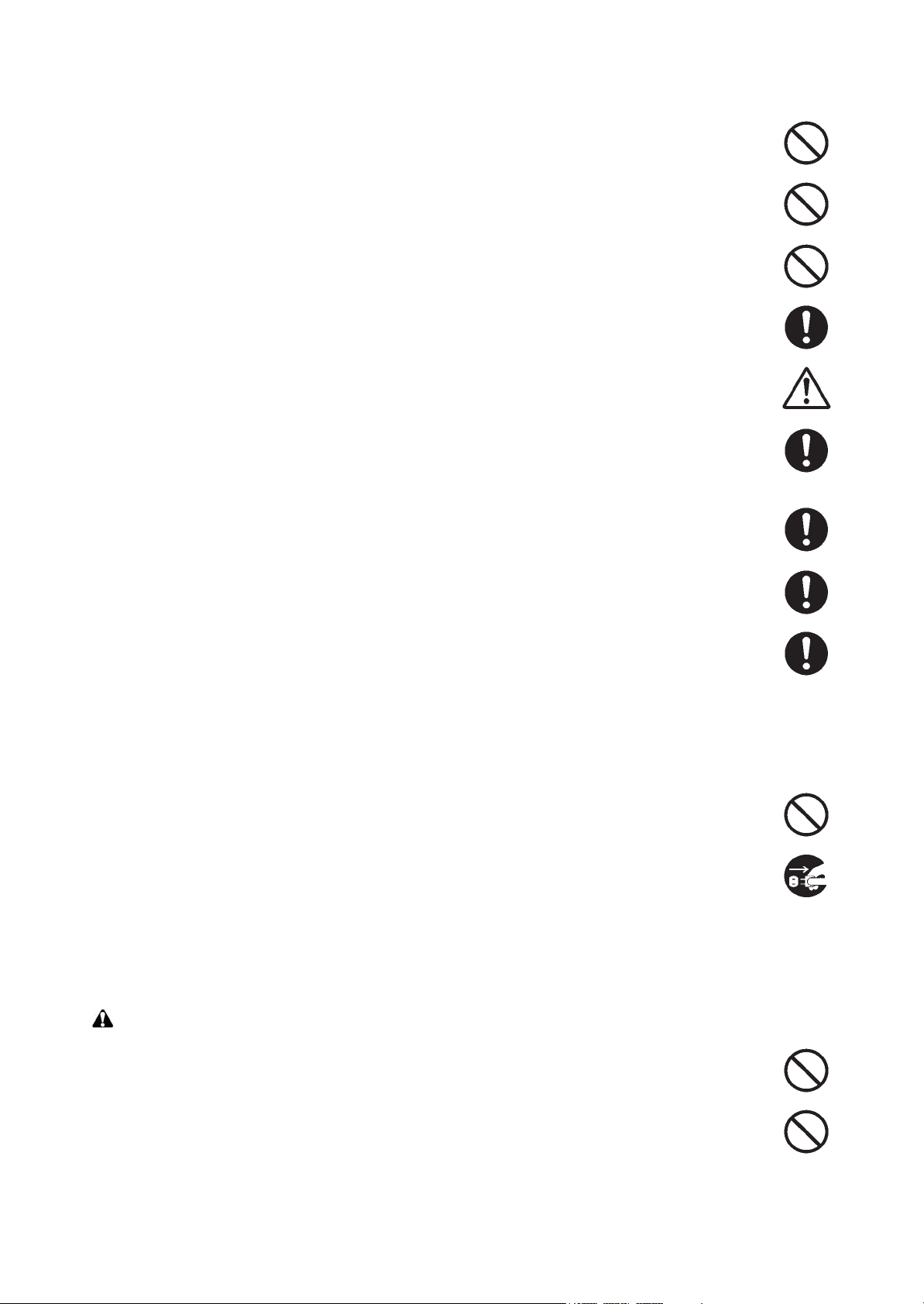
• Do not remove the ozone filter, if any, from the copier except for routine replacement. ………………….
• Do not pull on the AC power cord or connector wires on high-voltage components when removing
them; always hold the plug itself. …………………………………………………………………………………………..
• Do not route the power cable where it may be stood on or trapped. If necessary, protect it with a
cable cover or other appropriate item. ……………………………………………………………………………………
• Treat the ends of the wire carefully when installing a new charger wire to avoid electric leaks. ……….
• Remove toner completely from electronic components. ……………………………………………………………
• Run wire harnesses carefully so that wires will not be trapped or damaged. ………………………………..
• After maintenance, always check that all the parts, screws, connectors and wires that were
removed, have been refitted correctly. Special attention should be paid to any forgotten connector,
trapped wire and missing screws. ………………………………………………………………………………………….
• Check that all the caution labels that should be present on the machine according to the instruction
handbook are clean and not peeling. Replace with new ones if necessary. …………………………………
• Handle greases and solvents with care by following the instructions below: ………………………………..
· Use only a small amount of solvent at a time, being careful not to spill. Wipe spills off completely.
· Ventilate the room well while using grease or solvents.
· Allow applied solvents to evaporate completely before refitting the covers or turning the power
switch on.
· Always wash hands afterwards.
• Never dispose of toner or toner bottles in fire. Toner may cause sparks when exposed directly to
fire in a furnace, etc. ……………………………………………………………………………………………………………
• Should smoke be seen coming from the copier, remove the power plug from the wall outlet immedi-
ately. …………………………………………………………………………………………………………………………………
3. Miscellaneous
WARNING
• Never attempt to heat the drum or expose it to any organic solvents such as alcohol, other than the
specified refiner; it may generate toxic gas. …………………………………………………………………………….
• Keep the machine away from flammable liquids, gases, and aerosols. A fire or an electric shock
might occur. ……………………………………………………………………………………………………………………….

This page is intentionally left blank.

CONTENTS
1-1 Specifications
1-1-1 Specifications ………………………………………………………………………………………………………… 1-1-1
1-1-2 Parts names ………………………………………………………………………………………………………….. 1-1-3
(1) Machine ……………………………………………………………………………………………………………. 1-1-3
(2) Operation panel …………………………………………………………………………………………………. 1-1-4
1-1-3 Machine cross section …………………………………………………………………………………………….. 1-1-5
(1) 20/21 ppm Model……………………………………………………………………………………………….. 1-1-5
(2) 25/26 ppm Model……………………………………………………………………………………………….. 1-1-6
1-2 Installation
1-2-1 Installation environment…………………………………………………………………………………………… 1-2-1
1-2-2 Unpacking and installation……………………………………………………………………………………….. 1-2-2
(1) Installation procedure ………………………………………………………………………………………….1-2-2
1-3 Maintenance Mode
1-3-1 Maintenance mode …………………………………………………………………………………………………. 1-3-1
(1) Executing a maintenance items……………………………………………………………………………. 1-3-1
1-3-2 Maintenance menu ……………………………………………………………………………………………….. 1-3-11
(1) Setting Item …………………………………………………………………………………………………….. 1-3-11
(2) Service package ………………………………………………………………………………………………. 1-3-12
2M2/2M3
1-4 Troubleshooting
1-4-1 Paper misfeed detection ………………………………………………………………………………………….. 1-4-1
(1) Paper misfeed indication …………………………………………………………………………………….. 1-4-1
(2) Paper misfeed detection condition ……………………………………………………………………….. 1-4-2
1-4-2 Self-diagnostic function …………………………………………………………………………………………… 1-4-4
(1) Self-diagnostic function ………………………………………………………………………………………. 1-4-4
(2) Self diagnostic codes indication …………………………………………………………………………… 1-4-4
(3) Self diagnostic codes………………………………………………………………………………………….. 1-4-6
1-4-3 Image formation problems ……………………………………………………………………………………….. 1-4-8
(1) No image appears (entirely white)………………………………………………………………………… 1-4-9
(2) No image appears (entirely black)………………………………………………………………………… 1-4-9
(3) Part of image is missing. …………………………………………………………………………………… 1-4-10
(4) Gray background. …………………………………………………………………………………………….. 1-4-10
(5) White streaks are printed vertically……………………………………………………………………… 1-4-11
(6) Black streaks are printed vertically. …………………………………………………………………….. 1-4-11
(7) White or black streaks are printed horizontally……………………………………………………… 1-4-11
(8) Spots are printed.Printing incomplete or out of position …………………………………………. 1-4-12
(9) Printing incomplete or out of position ………………………………………………………………….. 1-4-12
(10) Paper is wrinkled. ……………………………………………………………………………………………..1-4-12
(11) Offset occurs. …………………………………………………………………………………………………..1-4-13
(12) Fusing is loose…………………………………………………………………………………………………. 1-4-13
(13) Faint or blurred printing …………………………………………………………………………………….. 1-4-13
(14) Dirt on the top edge or back of the paper. ……………………………………………………………. 1-4-14
(15) Spots in the printed objects. ……………………………………………………………………………… 1-4-14
1-4-4 Electric problems ………………………………………………………………………………………………….. 1-4-15
1-4-5 Mechanical problems…………………………………………………………………………………………….. 1-4-17
1-4-6 Error Messages ……………………………………………………………………………………………………. 1-4-18

1-5 Assembly and disassembly
1-5-1 Precautions for assembly and disassembly………………………………………………………………… 1-5-1
(1) Precautions……………………………………………………………………………………………………….. 1-5-1
(2) Drum………………………………………………………………………………………………………………… 1-5-1
(3) Toner ……………………………………………………………………………………………………………….. 1-5-1
(4) How to tell a genuine Kyocera Mita toner container ………………………………………………… 1-5-2
1-5-2 Outer covers ………………………………………………………………………………………………………….. 1-5-3
(1) Detaching and refitting the top cover…………………………………………………………………….. 1-5-3
(2) Detaching and refitting the Right cover …………………………………………………………………. 1-5-4
(3) Detaching and refitting the Left cover……………………………………………………………………. 1-5-5
1-5-3 Fuser section …………………………………………………………………………………………………………. 1-5-6
(1) Detaching and refitting the fuser unit…………………………………………………………………….. 1-5-6
1-5-4 PWBs……………………………………………………………………………………………………………………. 1-5-7
(1) Detaching and refitting the main PWB,high voltage PWB and power source PWB ………1-5-7
(2) Detaching and refitting the operation panel PWB………………………………………………….. 1-5-11
1-5-5 Others …………………………………………………………………………………………………………………. 1-5-12
(1) Detaching and refitting the laser scanner unit ………………………………………………………. 1-5-12
(2) Detaching and refitting the Main motor unit………………………………………………………….. 1-5-14
(3) Direction of installing the principal fan motor………………………………………………………… 1-5-20
2M2/2M3
2-1 Mechanical Construction
2-1-1 Paper feed/conveying section ………………………………………………………………………………….. 2-1-1
(1) Cassette paper feed /paper conveying section ………………………………………………………. 2-1-1
(2) Manual feed section(25/26 ppm model only)………………………………………………………….. 2-1-2
2-1-2 Drum section …………………………………………………………………………………………………………. 2-1-4
2-1-3 Developer section …………………………………………………………………………………………………… 2-1-5
2-1-4 Optical section ……………………………………………………………………………………………………….. 2-1-6
(1) Laser scanner section ………………………………………………………………………………………… 2-1-6
2-1-5 Transfer/Separation section ……………………………………………………………………………………..2-1-9
2-1-6 Fuser section ……………………………………………………………………………………………………….. 2-1-10
2-1-7 Duplex conveying/Eject section ………………………………………………………………………………. 2-1-12
2-2 Electrical Parts Layout
2-2-1 Electrical parts layout ……………………………………………………………………………………………… 2-2-1
(1) PWBs……………………………………………………………………………………………………………….. 2-2-1
(2) Switches and sensors…………………………………………………………………………………………. 2-2-3
(3) Others………………………………………………………………………………………………………………. 2-2-4
2-3 Operation of the PWBs
2-3-1 Main PWB……………………………………………………………………………………………………………… 2-3-1
2-3-2 Relay PWB PWB …………………………………………………………………………………………………….2-3-4
2-3-3 Power source PWB ………………………………………………………………………………………………… 2-3-6
2-3-4 Operation panel PWB……………………………………………………………………………………………… 2-3-8

2-4 Appendixes
2-4-1 Maintenance kits…………………………………………………………………………………………………….. 2-4-1
(1) Maintenance kits………………………………………………………………………………………………… 2-4-1
2-4-2 Procedure for replacing Maintenance kit ……………………………………………………………………. 2-4-2
(1) Preparation ……………………………………………………………………………………………………….. 2-4-2
(2) Detaching the Drum unit……………………………………………………………………………………… 2-4-4
(3) Detaching the developer unit……………………………………………………………………………….. 2-4-4
(4) Detaching the toner disposal box …………………………………………………………………………. 2-4-5
(5) Detaching and refitting the paper feed pulley and lower paper feed guide …………………. 2-4-5
(6) Refitting the toner disposal box ………………………………………………………………………….. 2-4-10
(7) Refitting the developer unit………………………………………………………………………………… 2-4-11
(8) Refitting the drum unit ………………………………………………………………………………………. 2-4-12
(9) Detaching and refitting the transfer roller …………………………………………………………….. 2-4-13
(10) Notice after replacing maintenance kit ………………………………………………………………… 2-4-14
(11) Procedure for only replacing Drum unit ……………………………………………………………….. 2-4-15
(12) Procedure for only replacing Developer unit ………………………………………………………… 2-4-15
2-4-3 Cleaning the Printer ………………………………………………………………………………………………. 2-4-16
2-4-4 Appendixes ………………………………………………………………………………………………………….. 2-4-17
(1) Repetitive defects gauge …………………………………………………………………………………… 2-4-17
(2) Wiring diagram ………………………………………………………………………………………………… 2-4-18
2M2/2M3

2M2/2M3
This page is intentionally left blank.
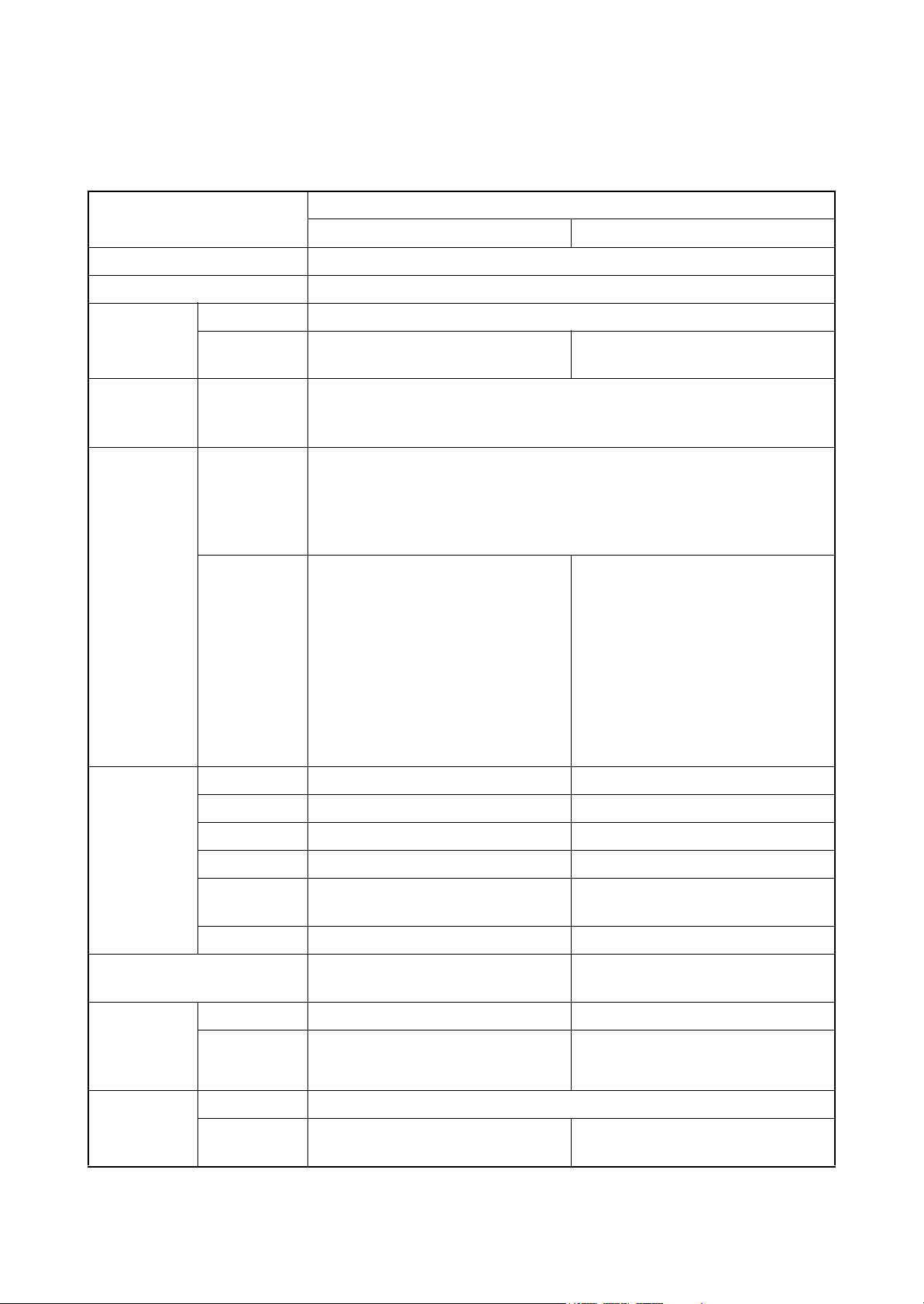
1-1 Specifications
1-1-1 Specifications
Machine
2M2/2M3
Item
20/21 ppm 25/26 ppm
Type Desktop
Printing method Electrophotography, laser scan
2
Paper weight
Cassette 60 to 220 g/m
Manual feed
—
tray*
Paper type
Cassette/
Manual feed
tray*
Plain, Preprinted, Labels, Bond, Recycled, Vellum, Rough, Letterhead,
Color, Prepunched, Envelope, Cardstock, Thick paper, High Quality, Custom 1 to 8
A4, JIS/ISO B5, A5, Folio, Legal, Letter, Oficio II (215.9 × 330.2 mm, 8-1/2
× 13 inches), Mexican Oficio (216 × 340 mm), Statement, Executive, A6,
Cassette
Envelope Monarch, Envelope #10, Envelope #9, Envelope #6-3/4, Envelope C5, Envelope DL, 16K, Custom (105 × 148 to 216 × 356 mm (4-1/8 ×
5-13/16 to 8-1/2 × 14 inches)
— A4, JIS/ISO B5, A5, Folio, Legal,
Paper size
Manual feed
tray*
Specifications
60 to 220 g/m
Letter, Oficio II (215.9 × 330.2 mm,
8-1/2 × 13 inches), Mexican Oficio
(216 × 340 mm), Statement, Executive, A6, Envelope Monarch, Envelope #10, Envelope #9, Envelope
#6-3/4, Envelope C5, Envelope DL,
16K, Custom (105 × 148 to 216 ×
356 mm (4-1/8 × 5-13/16 to 8-1/2 ×
14 inches)
2
A4 20 sheets/min 25 sheets/min
Letter 21 sheets/min 26 sheets/min
Legal 12 sheets/min 15 sheets/min
Printing
speed
B5 12 sheets/min 15 sheets/min
A5/
StatementR
A6 12 sheets/min 15 sheets/min
First print time
(A4, feed from cassette)
Warm-up
Power on 14 s or less
time
(22 °C/71.6
Sleep
°F, 60% RH)
Cassette 250 sheets (80 g/m
Paper
capacity
Manual feed
tray*
12 sheets/min 15 sheets/min
8.5 s or less
7.5 s or less
16 s or less
12 s or less
—
2
)
14 s or less
1 sheets
1-1-1
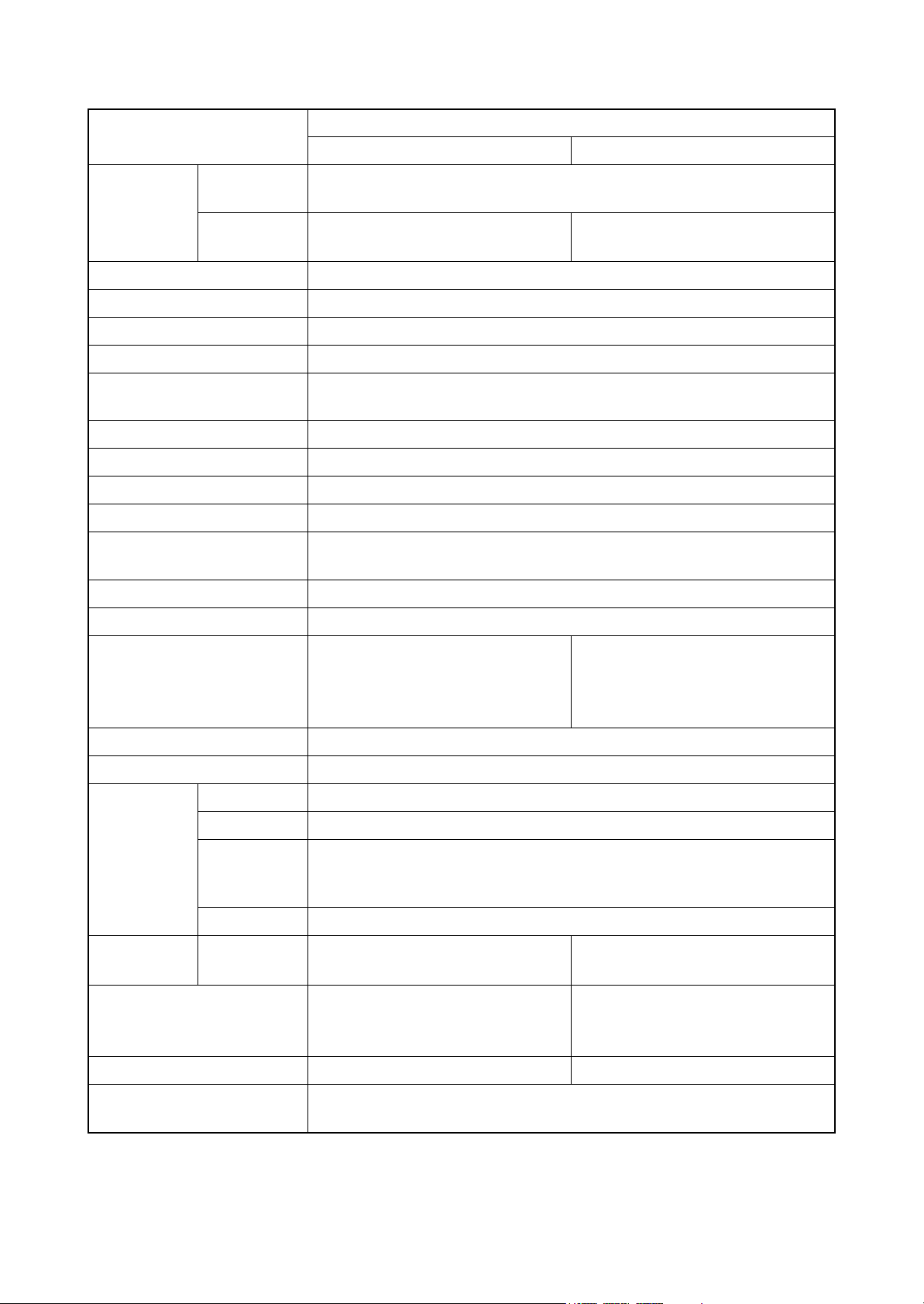
2M2/2M3
Item
Specifications
20/21 ppm 25/26 ppm
2
)
Output tray
capacity
Standard
paper
Special
150 sheets (80 g/m
—
paper
Continuous copying 1 to 999 sheets
Photoconductor OPC drum (drum diameter 24 mm)
Image write system Semiconductor laser (1 beam)
Charging system Charger roller
Developing system
Mono component dry developing method
Toner replenishing: Automatic from the toner container
Transfer system Transfer roller
Separation system Small diameter separation, discharger brush
Cleaning system Counter blade
Charge erasing system Exposure by eraser lamp (LED)
Fusing system
Heat roller system
Abnormally high temperature protection devices: thermostat
1 sheets
CPU ARM926EJ 390MHz
memory 32 MB (Maxmum 32 MB)
USB Interface connector: 1 (USB Hi-
Interface
Speed)
Resolution 600 × 600 dpi
Page Description Language KPSL
Temperature 10 to 32.5 °C/50 to 90.5 °F
Humidity 15 to 80% RH
Operating
environment
Altitude
3,500 m/11,482.8 ft or less
High altitude mode is available for regular operation at less than 1500m or
1500 – 3500m.
Brightness 1,500 lux or less
Dimensions
(W × D × H)
machine
only
358 × 262 × 241 mm
14 1/8 × 10 5/16 × 9 1/2”
358 × 645 mm
Space required (W × D)
(using paper feed tray)
14 1/8 × 13/16”
USB Interface connector: 1 (USB HiSpeed)
Network interface: 1 (10 BASE-T/
100 BASE-TX)
358 × 276 × 241 mm
14 1/8 × 10 7/8 × 9 1/2”
358 × 630 mm)
(using paper feed tray)
14 1/8 × 3/8”
Weight 6.3 kg/13.86 lb
Power source
120 V Specification Model:120 V (60 Hz, 5.4 A)
230 V Specification Model: 220 to 240 V (50 Hz/60 Hz, 2.8 A)
*:The Manual Feed tray is only provided on the 25/26 ppm model.
NOTE: These specifications are subject to change without notice.
1-1-2
6.7 kg/14.74 lb
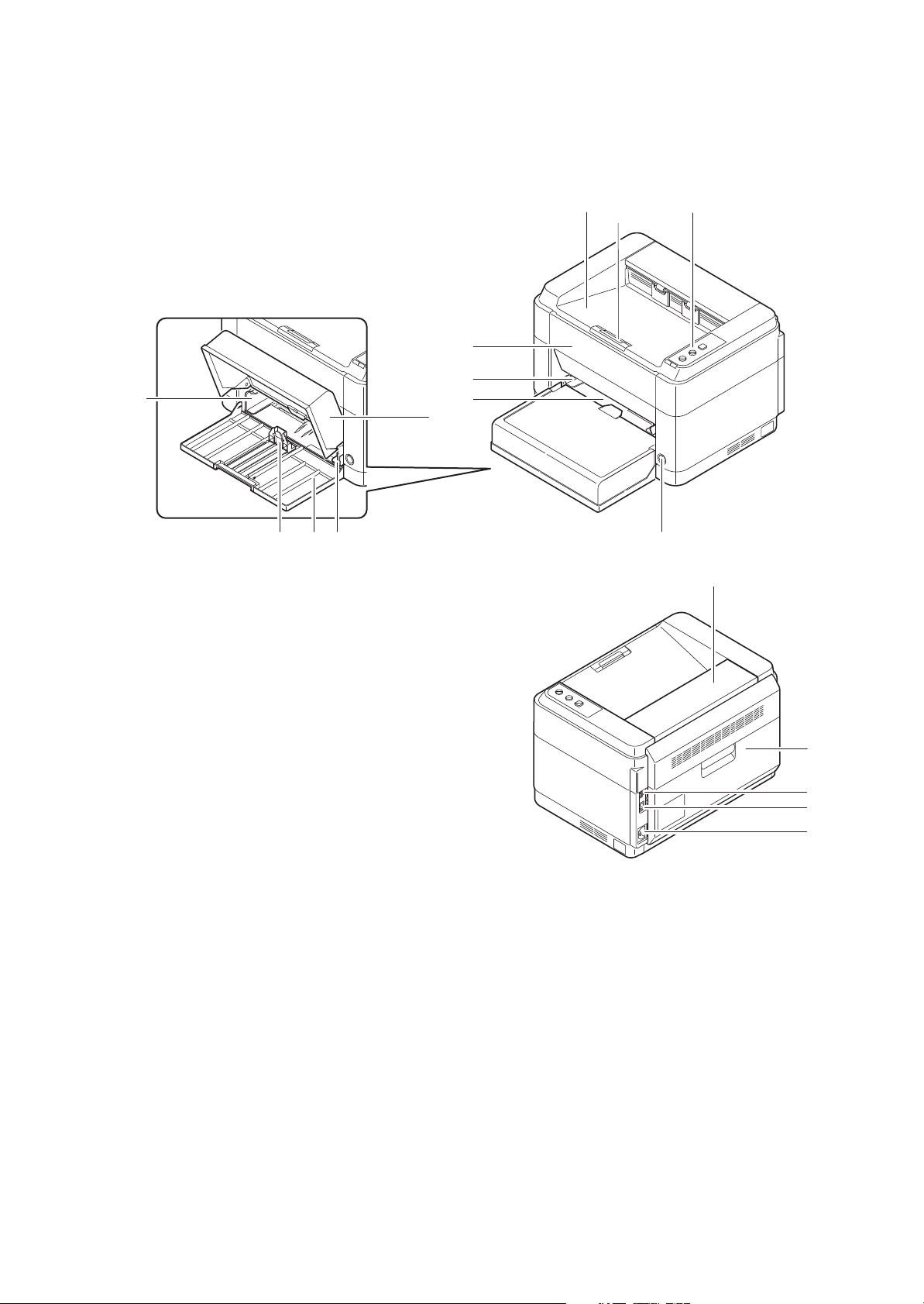
1-1-2 Parts names
1. Top tray
2. Paper stopper
3. Operation panel
4. Power switch
5. Front cover
6. Manual feed paper width guides*
7. Manual feed tray*
8. Cassette cover
9. Cassette
10. Paper width guides
11. Paper length guide
12. Fuser top cover
13. Rear cover
14. USB interface connector
15. Network interface connector*
16. Power code connector
(1) Machine
10
2M2/2M3
1
23
5
6
7
8
9 1011
4
12
13
14
15
16
Figure 1-1-1
*: 25/26 ppm model only.
1-1-3
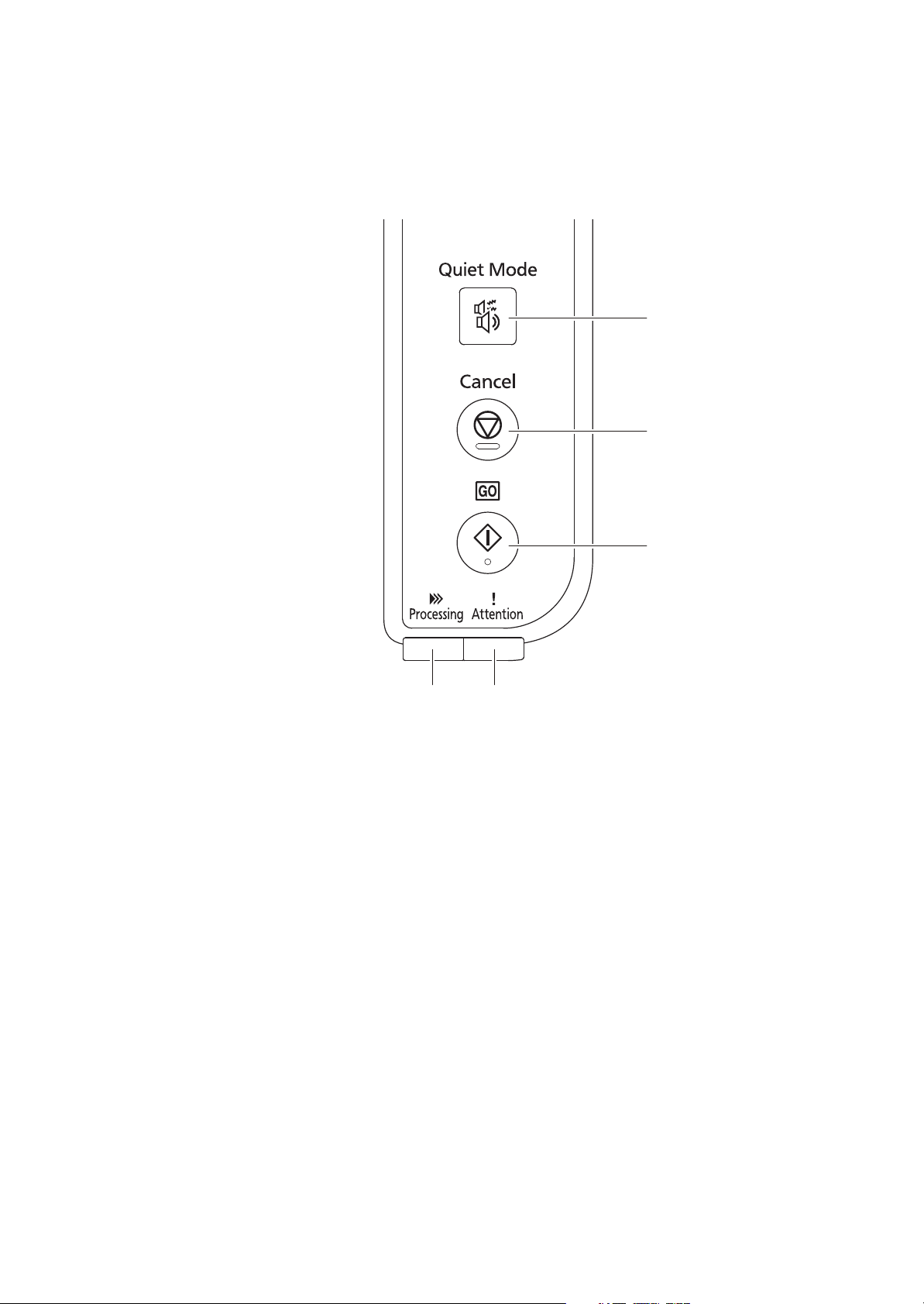
(2) Operation panel
1. Processing indicator
2. Attention indicator
3. Go key
4. Cancel key
5. Quiet Mode key
2M2/2M3
5
4
21
Figure 1-1-2
3
1-1-4
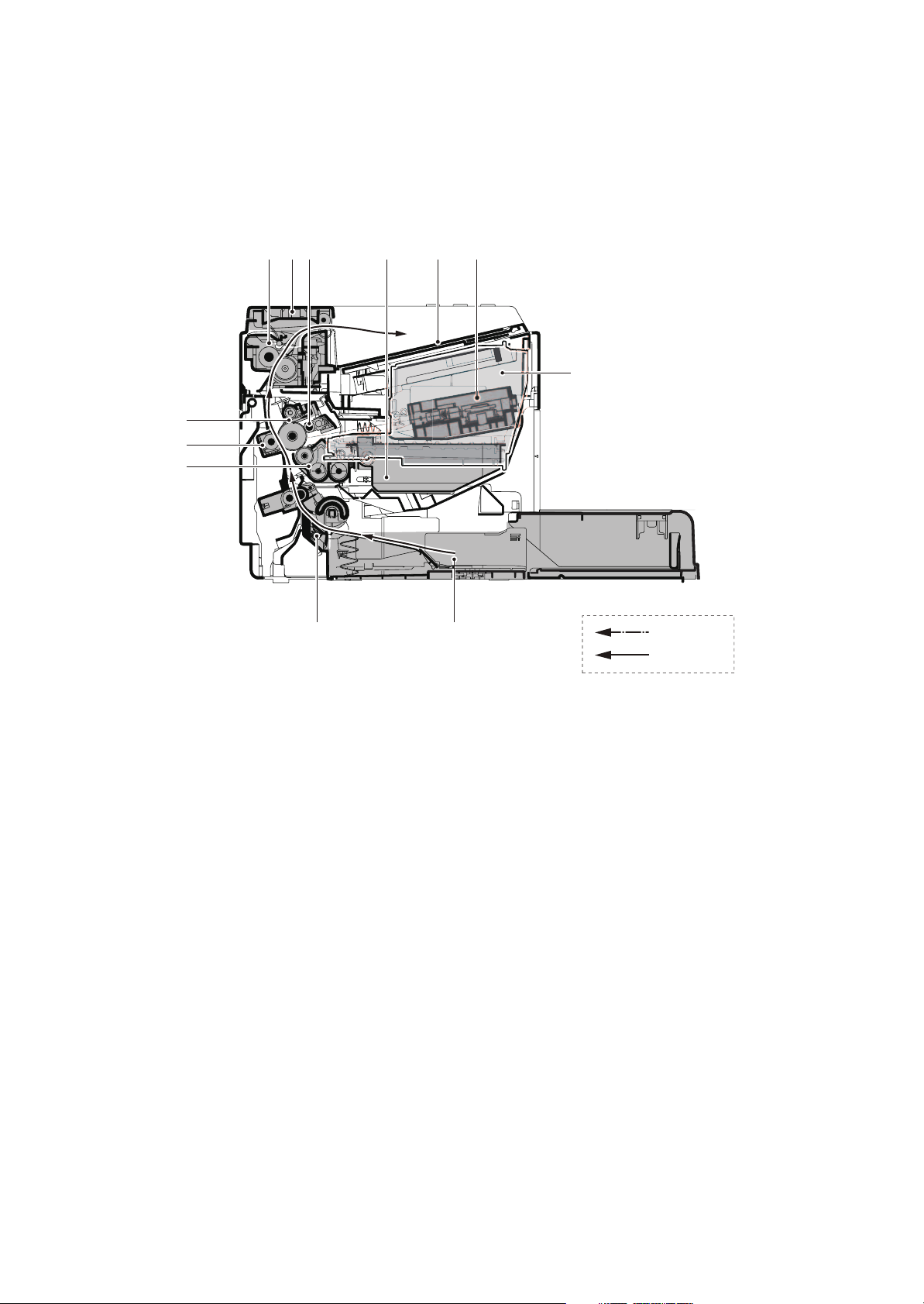
1-1-3 Machine cross section
1. Cassette
2. Paper feed/conveying section
3. Toner container
4. Developing unit
5. Waste toner box
6. Drum charge roller
7. Drum unit
8. Transfer/separation section
9. Laser scanner unit
10. Fuser section
11. Exit section
12. Top tray
(1) 20/21 ppm Model
2M2/2M3
6
5
12
91110
3
7
8
4
2
1
Light path
Paper path
Figure 1-1-3
1-1-5
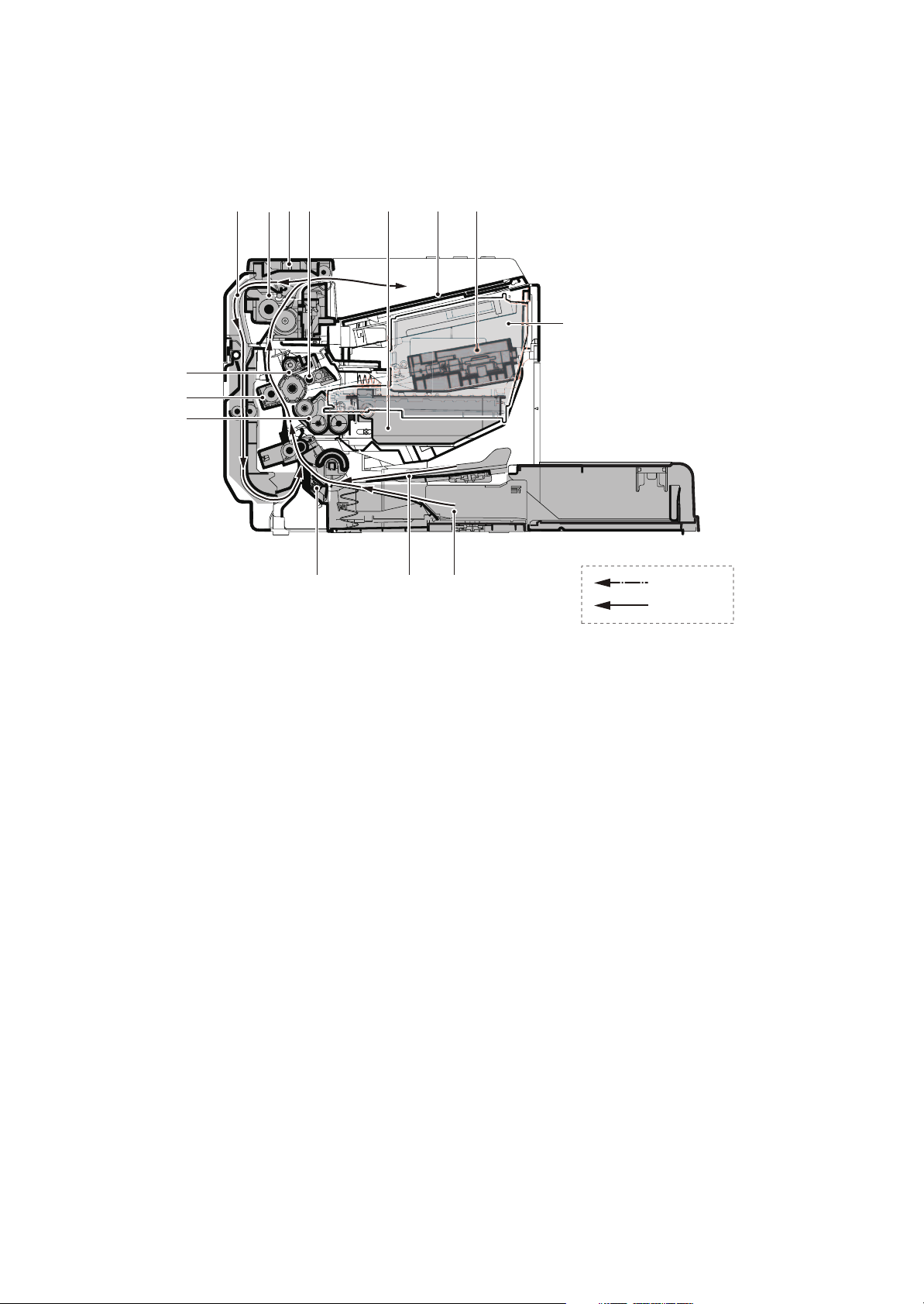
(2) 25/26 ppm Model
1. Cassette
2. Paper feed/conveying section
3. Manual feed tray
4. Toner container
5. Developing unit
6. Waste toner box
7. Drum charge roller
8. Drum unit
9. Transfer/separation section
10. Laser scanner unit
11. Fuser section
12. Feedshift/exit section
13. Duplex conveying section
14. Top tray
2M2/2M3
13
7
6
14
101211
4
8
9
5
2
1
3
Light path
Paper path
Figure 1-1-4
1-1-6
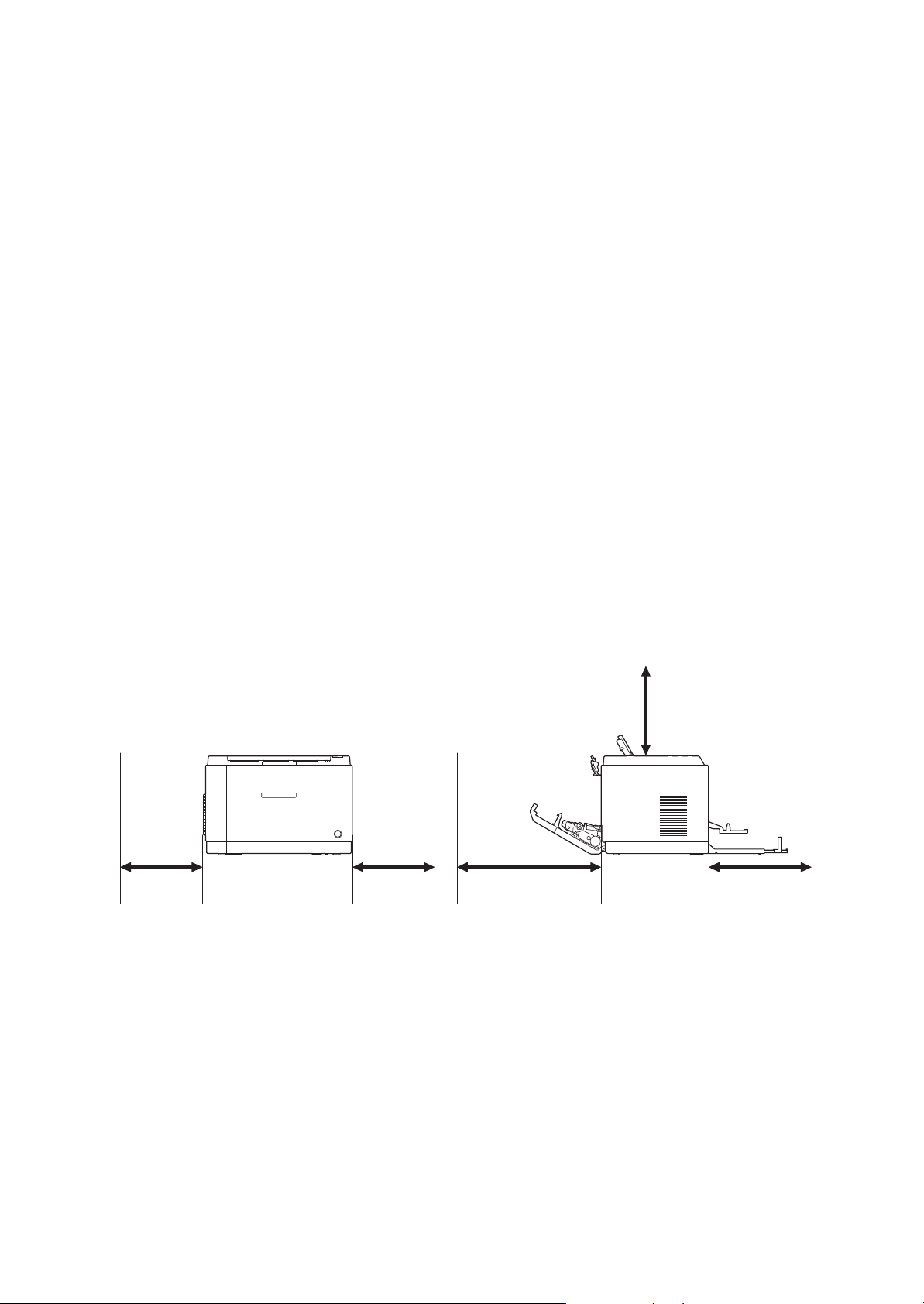
1-2 Installation
1-2-1 Installation environment
1. Temperature: 10 to 32.5°C/50 to 90.5°F
2. Humidity: 15 to 80% RH
3. Power supply: 120 V AC, 5.4 A
220 — 240 V AC, 2.8 A
4. Power source frequency: 50 Hz ± 2%/60 Hz ± 2%
5. Installation location
Avoid direct sunlight or bright lighting. Ensure that the photoconductor will not be exposed to direct sunlight or other strong light when removing paper jams.
Avoid locations subject to high temperature and high humidity or low temperature and low humidity; an
abrupt change in the environmental temperature; and cool or hot, direct air.
Avoid places subject to dust and vibrations.
Choose a surface capable of supporting the weight of the machine.
Place the machine on a level surface (maximum allowance inclination: 1°).
Avoid air-borne substances that may adversely affect the machine or degrade the photoconductor, such
as mercury, acidic of alkaline vapors, inorganic gasses, NOx, SOx gases and chlorine-based organic solvents.
Select a well-ventilated location.
6. Allow sufficient access for proper operation and maintenance of the machine.
Machine front : 25 cm/ 10″
Machine rear : 35 cm/ 14″
Machine right : 20 cm/ 8″
Machine left : 20 cm/ 8″
Machine top : 40 cm/ 15 3/4”
2M2/2M3
200 mm
(8″)
200 mm
(8″)
Figure 1-2-1
350 mm
(14″)
400 mm
(15-3/4″)
250 mm
(10″)
1-2-1
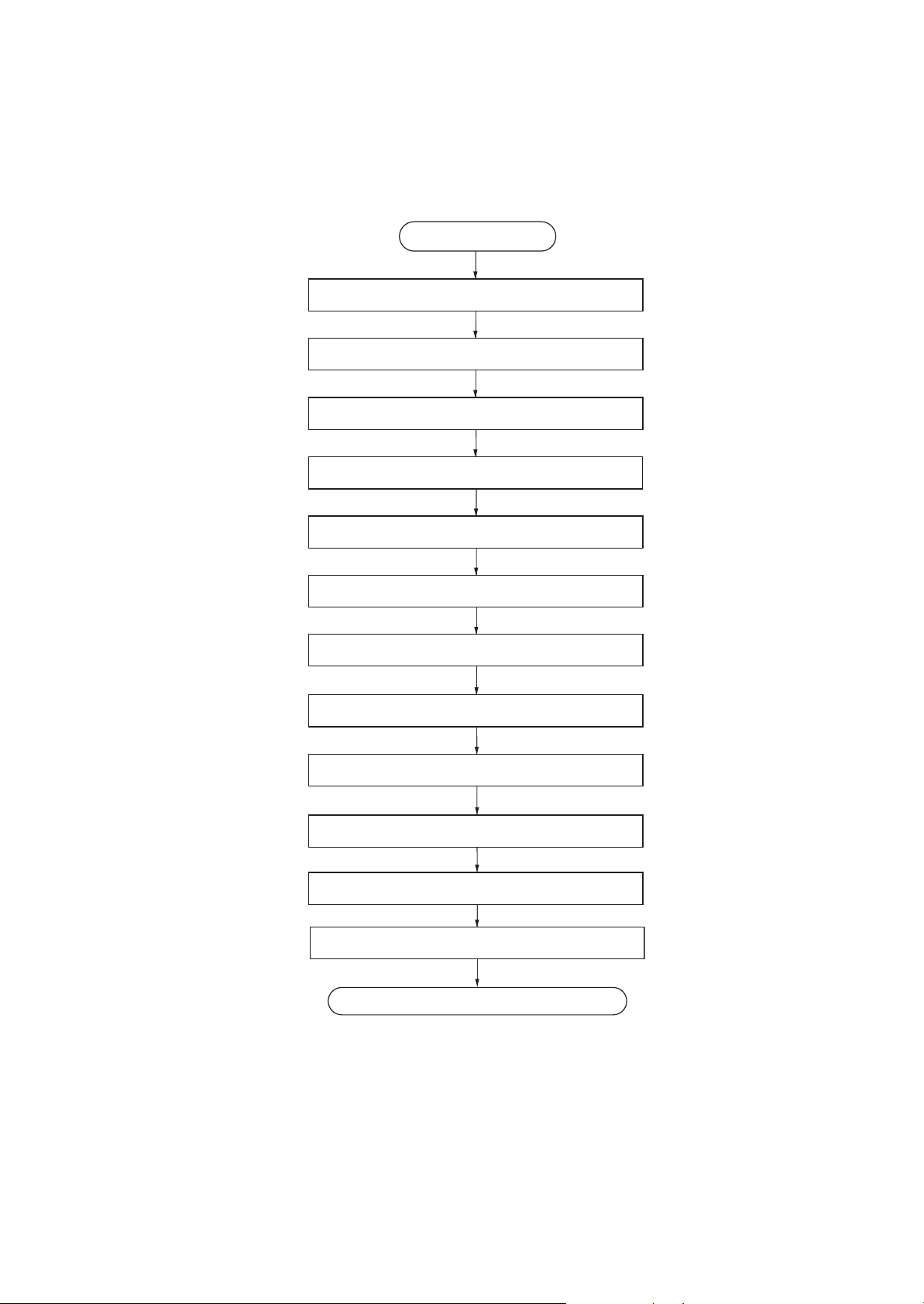
1-2-2 Unpacking and installation
(1) Installation procedure
Start
Unpacking
Taking out the machine
Removing the tapes
Installing the cassette cover
2M2/2M3
Loading paper (cassette)
Installing the toner container
Connect the USB cable
Connect the Network cable (25/26 ppm model)
Connect the power cord
Installing the toner
Make test printing
Installing the printer driver
Completion of the machine installation.
Figure 1-2-2
1-2-2
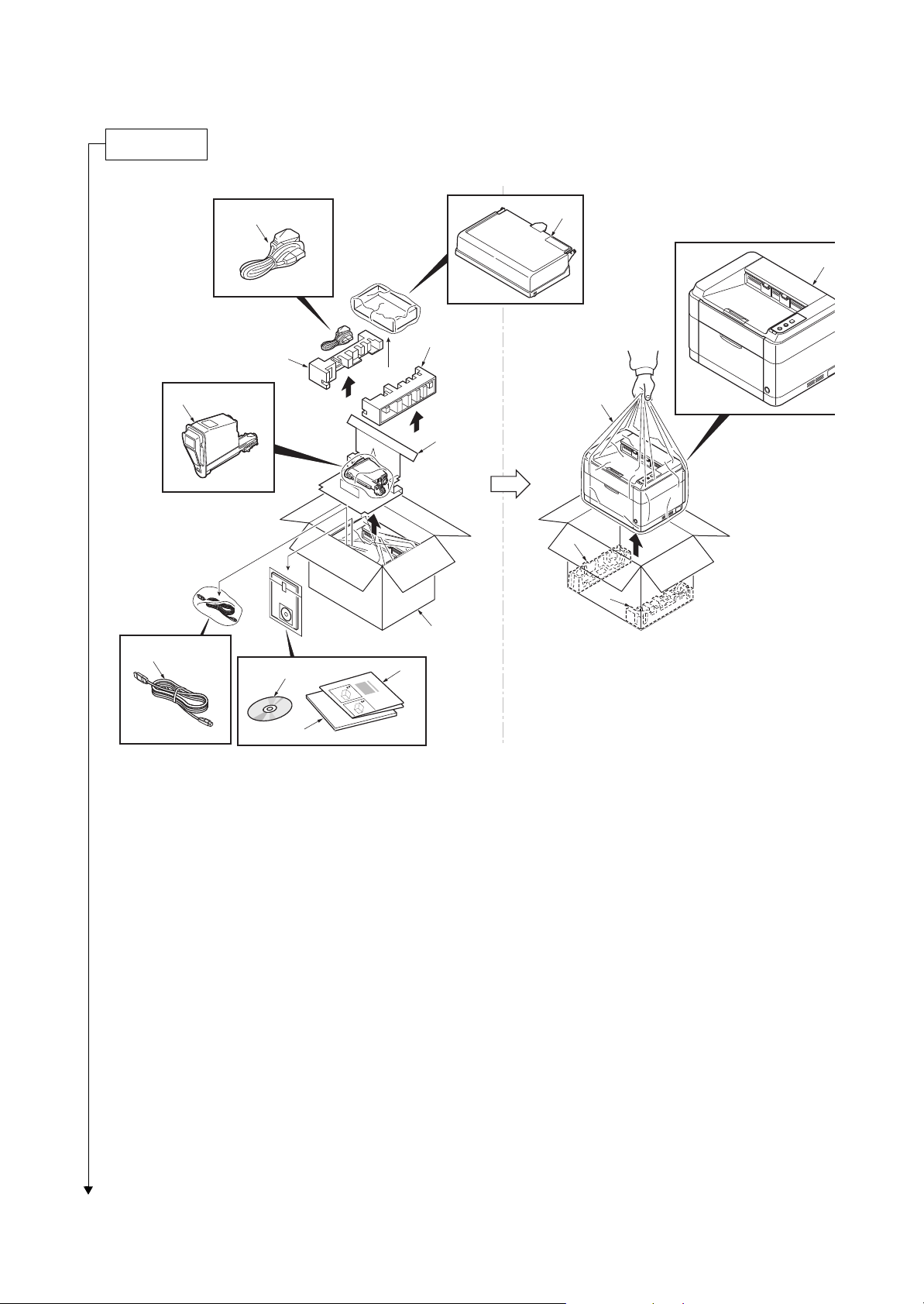
2M2/2M3
4
2
1
6
8
3
5
9
12
10
11
13
14
7
15
1. Machine
2. Outer case
3. Bottom left pad
4. Bottom right pad
5. Machine cover
6. Top left pad
7. Top right pad
8. Top spacer
9. Cassette cover
10. Power cord
11. Toner container
12. DVD
13. Operation guide
14. Quick installation guide
15. USB cable*1
*1:Chaina model only
*: Place the machine on a level surface.
Figure 1-2-3
1-2-3

1. Remove tape.
2M2/2M3
2. Remove two tapes.
Figure 1-2-4
Tape
Tape
Figure 1-2-5
1-2-4
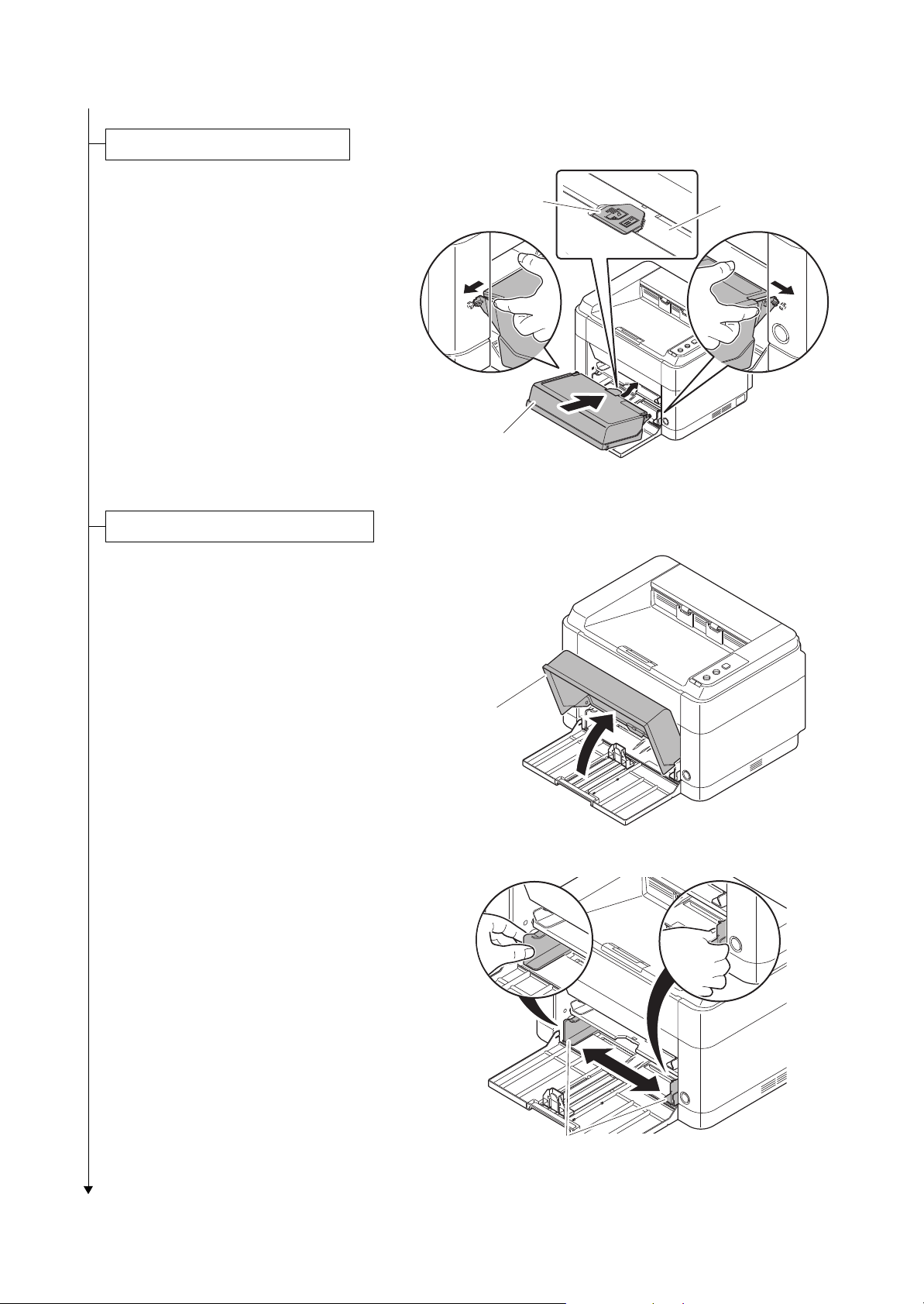
2M2/2M3
Installing the cassette cover
1. Attach the cassette cover.
Attach the cassette cover so that its
right and left-side pins and the boss on
the machine frame mate with each
other.
*: If performing installation in a 25 ppm
model, install the cassette cover so that
its guide at the top is positioned above
the MF base.
1. Open the cassette cover.
Guide
Cassette cover
MF base
Figure 1-2-6
2. Adjust the position of the width guides
located on the left and right sides of the
cassette.
*:
Paper sizes are marked on the cassette.
Cassette cover
Figure 1-2-7
Paper width guides
Figure 1-2-8
1-2-5
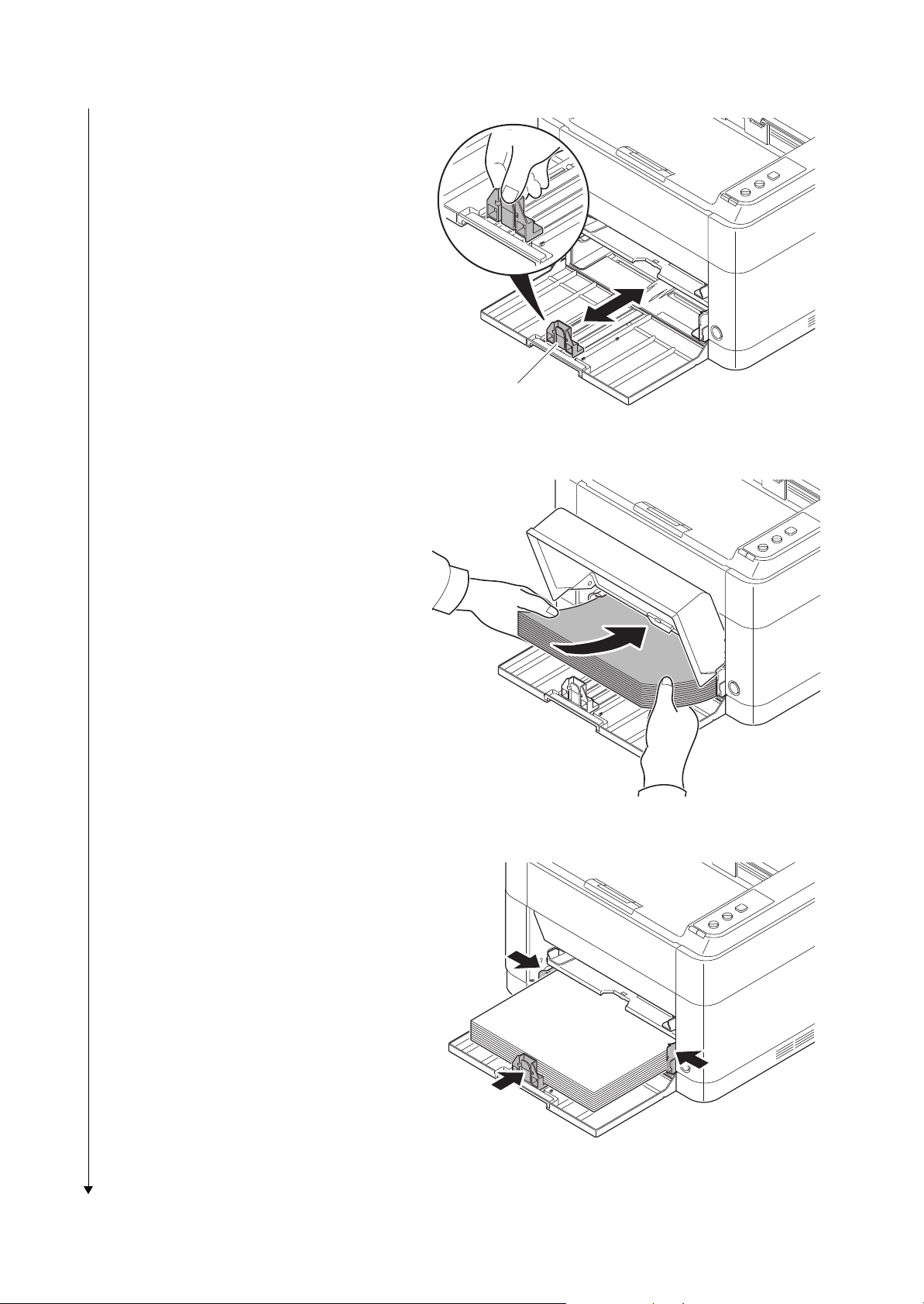
3. Adjust the paper length guide to the paper
size required.
4. Load the paper all the way in the cassette until the paper touches the far
inner side.
*: Ensure the side to be printed is facing up
and the paper is not folded, curled, or
damaged.
2M2/2M3
Paper length guide
Figure 1-2-9
*: Adjust so that there is no gap between
the paper length guide and the paper.
Figure 1-2-10
Figure 1-2-11
1-2-6
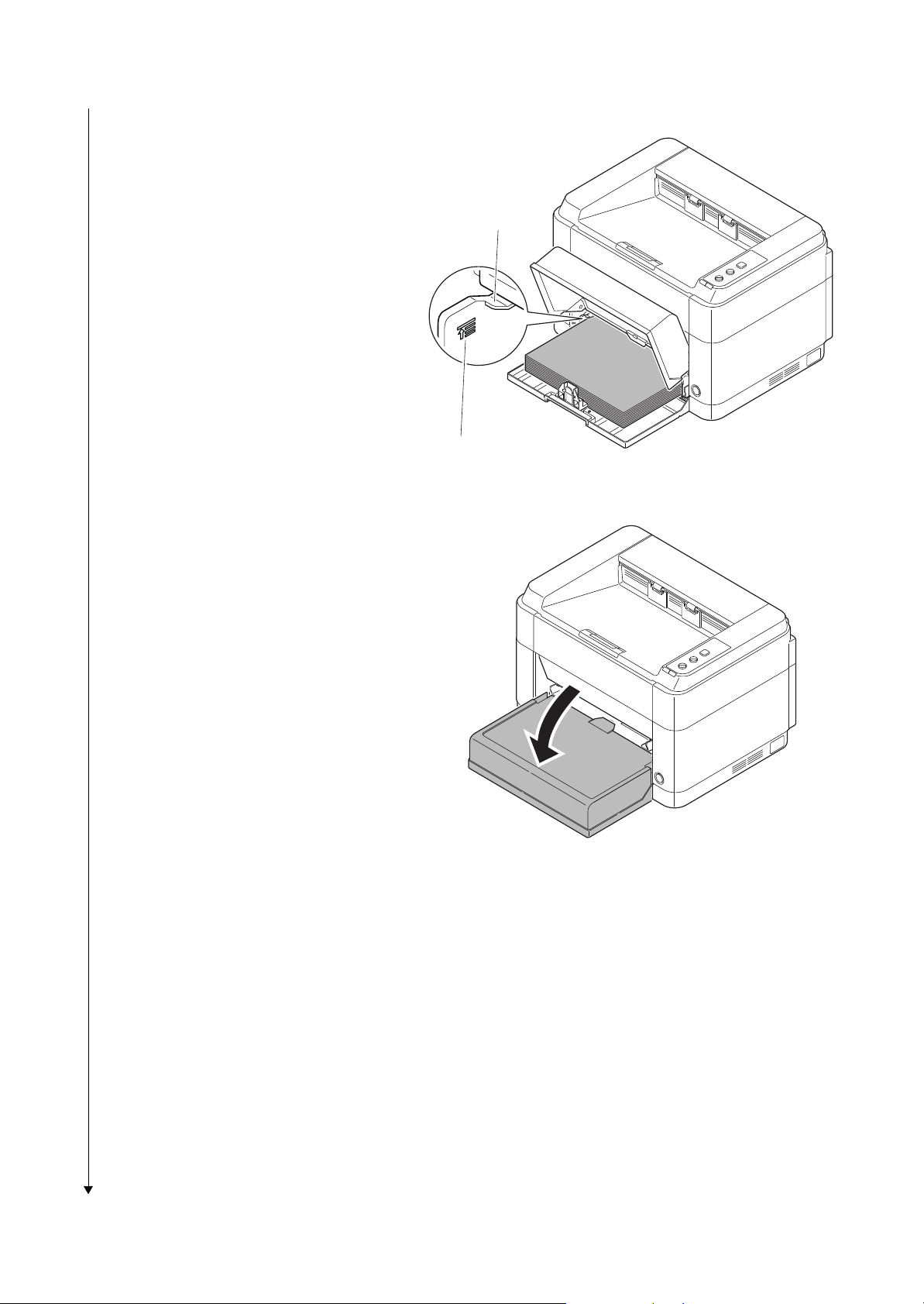
*: Load an amount of paper that fits under
the tabs on the width guides.
*: Ensure that the loaded paper does not
exceed the level indicated.
2M2/2M3
Ta bs
Exceed the level indicated
Figure 1-2-12
5. Close the cassette cover.
Figure 1-2-13
1-2-7
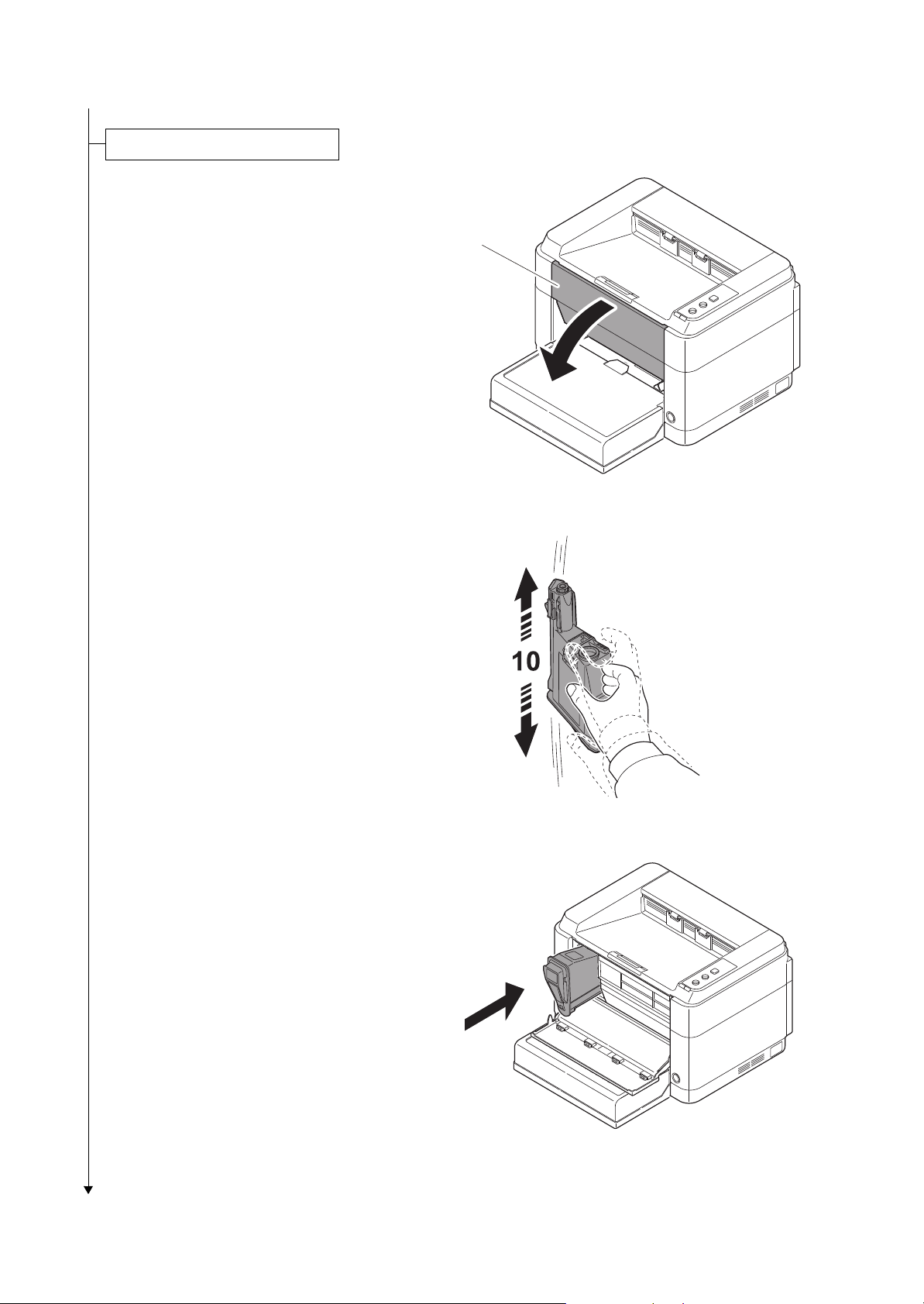
1. Open the front cover.
Installing the toner containers
2M2/2M3
Front cover
Figure 1-2-14
2. Shake the toner container at least 10
times as shown in the figure in order to
distribute the toner evenly inside the
container.
3. Install the toner container in the printer.
*: Push in firmly until you hear a “click”
sound.
Figure 1-2-15
Figure 1-2-16
1-2-8
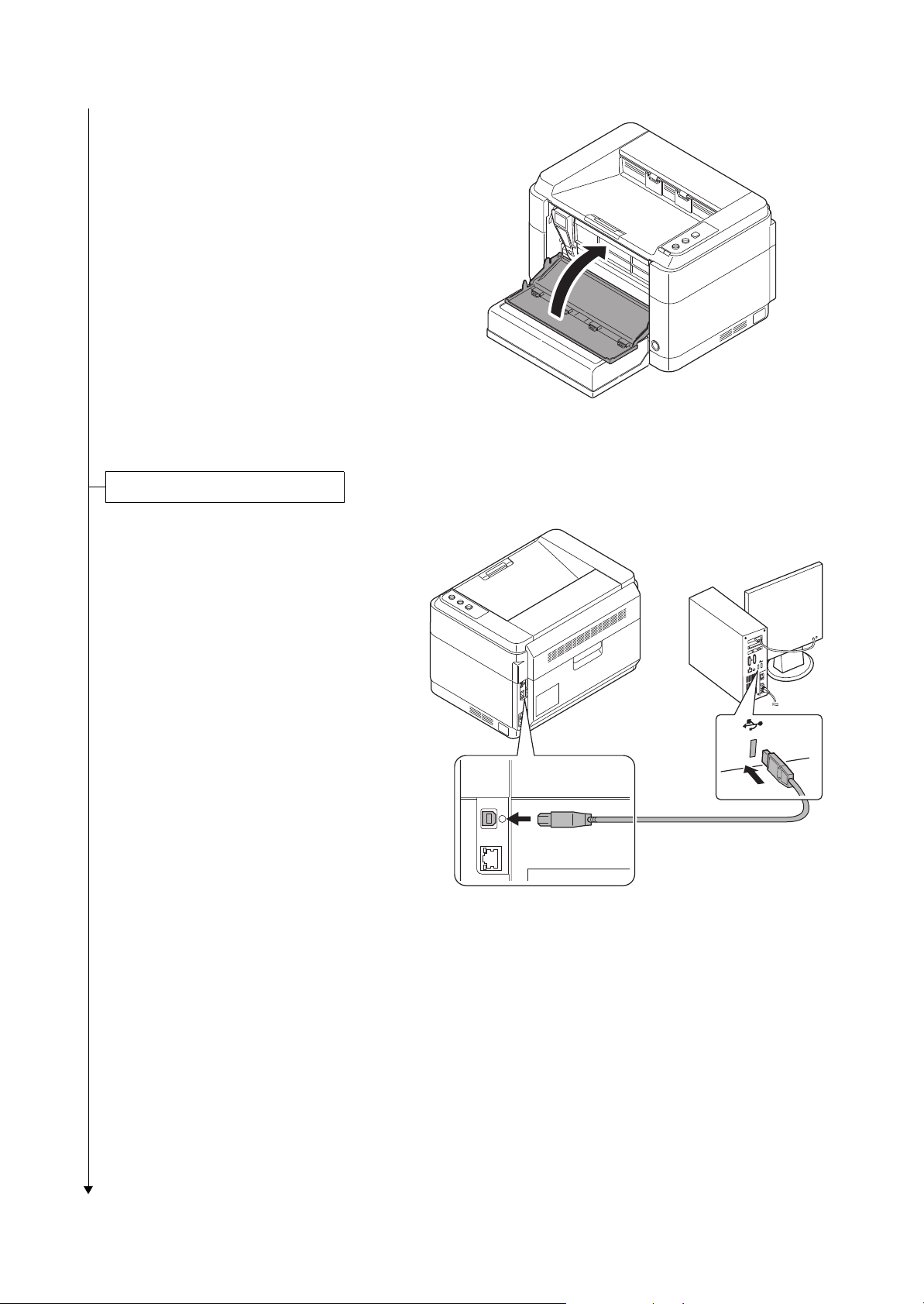
4. Close the front cover.
2M2/2M3
Figure 1-2-17
1. Connect the USB cable (not included)
to the USB interface connector.
Connect the other end of the USB cable
to the computer’s USB interface connector.
*: China model only included.
Figure 1-2-18
1-2-9
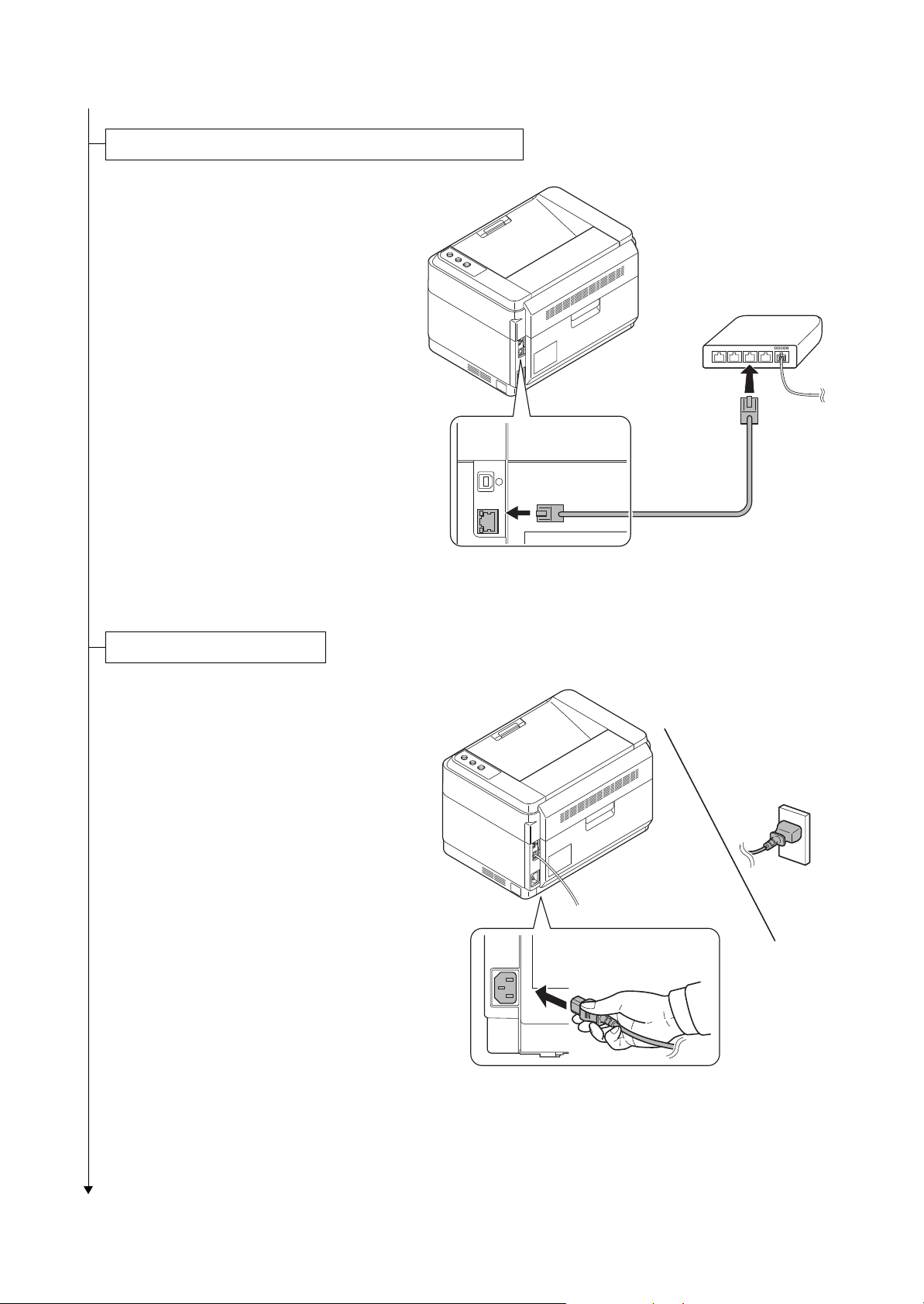
1. Connect the network cable (not
Connecting the Network Cable (25/26 ppm model only)
Connecting the power code
included) to the network interface connector.
Connect the other end of the cable to
the PC or your network device.
*: Use shielded interface cables.
2M2/2M3
1. Connect the power cord to the power
cord connector at the rear of the printer.
2. Connect the other end of the power
cord to a power outlet.
Figure 1-2-19
Figure 1-2-20
1-2-10
Loading…
View the manual for the Kyocera FS-1040 here, for free. This manual comes under the category printers and has been rated by 2 people with an average of a 7.2.
This manual is available in the following languages: English. Do you have a question about the Kyocera FS-1040 or do you need help?
Ask your question here
Kyocera FS-1040 specifications
Below you will find the product specifications and the manual specifications of the Kyocera FS-1040.
The Kyocera FS-1040 printer is a monochrome laser printer that does not support color printing. It has a maximum resolution of 1800 x 600 DPI, allowing for sharp and clear black and white prints. This printer does not have duplex printing capability, meaning it cannot automatically print on both sides of the paper.
Utilizing laser print technology, the Kyocera FS-1040 offers fast and efficient printing. It has a print speed of 20 pages per minute (ppm) for black, normal quality prints on A4 or US letter-sized paper. The warm-up time for this printer is approximately 16 seconds, and it takes around 8.5 seconds to deliver the first black page.
Equipped with 32MB of internal memory and a 390MHz processor, the Kyocera FS-1040 ensures smooth and reliable performance. It has a total input capacity of 250 sheets, enabling users to load a significant amount of paper at once. The maximum input capacity is also 250 sheets. However, the total output capacity is limited to 150 sheets.
While the Kyocera FS-1040 does not have network connectivity, it can be connected to a computer via USB. This makes it suitable for individual use or small work environments where network printing is not a requirement.
In summary, the Kyocera FS-1040 is a monochrome laser printer with a maximum resolution of 1800 x 600 DPI. It offers fast print speeds, a warm-up time of 16 seconds, and a time to first page of 8.5 seconds. With a total input capacity of 250 sheets and USB connectivity, it is a reliable printing solution for individual or small work settings.
Maximum duty cycle
— pages per month
Total input capacity
250 sheets
ISO A-series sizes (A0…A9)
A4, A5, A6
General
| Brand | Kyocera |
| Model | FS-1040 | 1102M22UX0 |
| Product | printer |
| EAN | 0632983025437 |
| Language | English |
| Filetype | User manual (PDF) |
Printing
| Color | No |
| Maximum resolution | 1800 x 600 DPI |
| Duplex printing | No |
| Print technology | Laser |
| Print speed (black, normal quality, A4/US Letter) | 20 ppm |
| Warm-up time | 16 s |
| Time to first page (black, normal) | 8.5 s |
Features
| Maximum duty cycle | — pages per month |
| Number of print cartridges | — |
Network
| Network ready | No |
| Ethernet LAN | No |
| Wi-Fi | No |
| Mobile printing technologies | Not supported |
Performance
| Internal memory | 32 MB |
| Maximum internal memory | — MB |
| Processor frequency | 390 MHz |
| Sound power level (standby) | 28 dB |
| Sound pressure level (printing) | 50 dB |
| Sound pressure level (quiet mode) | 49 dB |
Input & output capacity
| Total input capacity | 250 sheets |
| Maximum input capacity | 250 sheets |
| Total output capacity | 150 sheets |
Paper handling
| ISO A-series sizes (A0…A9) | A4, A5, A6 |
| Maximum print size | 216 x 356 mm |
| Paper tray media types | Plain paper |
| ISO B-series sizes (B0…B9) | B5, B6 |
| Non-ISO print media sizes | Letter |
| Paper tray media weight | 60 — 220 g/m² |
| Maximum ISO A-series paper size | A4 |
Ports & interfaces
| Standard interfaces | USB 2.0 |
| USB 2.0 ports quantity | 1 |
Power
| AC input voltage | 220 — 240 V |
| AC input frequency | 50 — 60 Hz |
| Power consumption (printing) | 304 W |
| Power consumption (standby) | 5 W |
Weight & dimensions
| Width | 358 mm |
| Depth | 262 mm |
| Height | 241 mm |
| Weight | 6300 g |
Sustainability
| Sustainability certificates | ENERGY STAR |
Design
| Product color | Black, White |
show more
Frequently Asked Questions
Can’t find the answer to your question in the manual? You may find the answer to your question in the FAQs about the Kyocera FS-1040 below.
Why is my printer not turning on?
If your Kyocera FS-1040 printer is not turning on, please make sure that it is properly plugged into a working power outlet. Check if the power cable is securely connected to both the printer and the power source. Also, ensure that the power switch on the printer is in the «on» position.
How do I load paper into the printer?
To load paper into your Kyocera FS-1040 printer, open the paper input tray located at the front of the printer. Adjust the paper guides to match the size of the paper you are using, then place the stack of paper neatly into the tray. Close the tray securely, ensuring it is not overloaded with paper.
What should I do if the printer jams while printing?
If you experience a paper jam in your Kyocera FS-1040 printer, first, turn off the printer and unplug it from the power source. Carefully open the printer’s front cover and gently remove the jammed paper, making sure to follow any instructions indicated on the printer’s display. After clearing the jammed paper, close the front cover, plug the printer back in, and turn it on to resume printing.
How can I change the printer toner cartridge?
To replace the toner cartridge in your Kyocera FS-1040 printer, open the top cover of the printer. Locate the toner cartridge inside, hold it by the handle, and carefully pull it out. Remove the new toner cartridge from its packaging, remove any protective covers, and align it properly with the printer’s guides. Insert the cartridge firmly and close the top cover.
My printed documents have streaks or smudges, how can I fix this?
If your printed documents from the Kyocera FS-1040 printer have streaks or smudges, start by ensuring that the paper you are using is suitable for your printer. You may also need to clean the paper feed rollers and the printer’s platen using a soft, lint-free cloth to remove any dirt or ink buildup. Additionally, check if the toner cartridge is properly installed and if it requires replacement due to low toner levels.
Does the Kyocera FS-1040 have duplex printing?
No. This means that the printer does not have the capability to automatically print on both sides of the paper.
What is the maximum resolution of the Kyocera FS-1040?
The maximum resolution is 1800 x 600 DPI. This means that the printer is capable of producing high-quality prints with sharp and clear details.
Is the Kyocera FS-1040 network ready?
No. This means that the printer does not have built-in networking capabilities and cannot be directly connected to a network for sharing with multiple users.
How fast does the Kyocera FS-1040 print?
The print speed is 20 ppm (pages per minute) for black printing on normal quality A4 or US Letter paper. This is a decent printing speed for everyday office use.
What is the warm-up time of the Kyocera FS-1040?
The warm-up time is 16 seconds. This is relatively fast and allows the printer to be ready for use quickly after powering on.
What is the weight of the Kyocera FS-1040?
The Kyocera FS-1040 has a weight of 6300 g.
What is the height of the Kyocera FS-1040?
The Kyocera FS-1040 has a height of 241 mm.
What is the width of the Kyocera FS-1040?
The Kyocera FS-1040 has a width of 358 mm.
What is the depth of the Kyocera FS-1040?
The Kyocera FS-1040 has a depth of 262 mm.
What is the best way to remove jammed paper from my printer?
It is best to gently pull the paper out of the printer. Turn the printer off, and make sure that the printhead is not hanging over the paper and that no paper remains in the printer.
How come my prints are of poor quality?
There can be various reasons for poor print quality. Check if the cartridges or toners are full. If so, inkjet printers often require cleaning the printer, the cartridges have dried out, or the print head is broken. With laser printers, calibrating the laser printer is recommended.
How come my printer does not accept original cartridges?
Non-genuine cartridges may not be recognised by the printer. In that case you will receive a message that the cartridge is empty. The manual of the purchased cartridge usually contains the solution, if this does not work, it is advisable to contact the seller.
How many cartridges can be placed in the Kyocera FS-1040?
— cartridges can be placed in the Kyocera FS-1040.
How come my inkjet printer has black stripes?
In most cases, the inkjet printer cartridge is broken and the cartridge needs to be replaced.
What is the difference between a laser printer and an inkjet printer?
A laser printer prints with a toner and an inkjet printer prints with ink.
What does DPI stand for?
DPI stands for Dots Per Inch and is the number of ink droplets (per inch) that end up on the paper when printing.
Is the manual of the Kyocera FS-1040 available in English?
Yes, the manual of the Kyocera FS-1040 is available in English .
Is your question not listed? Ask your question here
View the manual for the Kyocera FS-1040 here, for free. This user manual comes under the category printers and has been rated by 2 people with an average of a 7.2. This manual is available in the following languages: English. Do you have a question about the Kyocera FS-1040?
Ask your question here
Kyocera FS-1040 specifications
Below you will find the product specifications and the manual specifications of the Kyocera FS-1040.
Maximum duty cycle
— pages per month
Total input capacity
250 sheets
ISO A-series sizes (A0…A9)
A4, A5, A6
General
| Brand | Kyocera |
| Model | FS-1040 | 1102M22UX0 |
| Product | printer |
| EAN | 0632983025437 |
| Language | English |
| Filetype | Manual (PDF) |
Printing
| Colour | No |
| Maximum resolution | 1800 x 600 DPI |
| Duplex printing | No |
| Print technology | Laser |
| Print speed (black, normal quality, A4/US Letter) | 20 ppm |
| Warm-up time | 16 s |
| Time to first page (black, normal) | 8.5 s |
Features
| Maximum duty cycle | — pages per month |
| Number of print cartridges | — |
Network
| Network ready | No |
| Ethernet LAN | No |
| Wi-Fi | No |
| Mobile printing technologies | Not supported |
Performance
| Internal memory | 32 MB |
| Maximum internal memory | — MB |
| Processor frequency | 390 MHz |
| Sound power level (standby) | 28 dB |
| Sound pressure level (printing) | 50 dB |
| Sound pressure level (quiet mode) | 49 dB |
Input & output capacity
| Total input capacity | 250 sheets |
| Maximum input capacity | 250 sheets |
| Total output capacity | 150 sheets |
Paper handling
| ISO A-series sizes (A0…A9) | A4, A5, A6 |
| Maximum print size | 216 x 356 mm |
| Paper tray media types | Plain paper |
| ISO B-series sizes (B0…B9) | B5, B6 |
| Non-ISO print media sizes | Letter |
| Paper tray media weight | 60 — 220 g/m² |
| Maximum ISO A-series paper size | A4 |
Ports & interfaces
| Standard interfaces | USB 2.0 |
| USB 2.0 ports quantity | 1 |
Power
| AC input voltage | 220 — 240 V |
| AC input frequency | 50 — 60 Hz |
| Power consumption (printing) | 304 W |
| Power consumption (standby) | 5 W |
Weight & dimensions
| Width | 358 mm |
| Depth | 262 mm |
| Height | 241 mm |
| Weight | 6300 g |
Sustainability
| Sustainability certificates | ENERGY STAR |
Design
| Product colour | Black, White |
show more
Frequently asked questions
Can’t find the answer to your question in the manual? You may find the answer to your question in the FAQs about the Kyocera FS-1040 below.
What is the weight of the Kyocera FS-1040?
The Kyocera FS-1040 has a weight of 6300 g.
What is the height of the Kyocera FS-1040?
The Kyocera FS-1040 has a height of 241 mm.
What is the width of the Kyocera FS-1040?
The Kyocera FS-1040 has a width of 358 mm.
What is the depth of the Kyocera FS-1040?
The Kyocera FS-1040 has a depth of 262 mm.
What is the best way to remove jammed paper from my printer?
It is best to gently pull the paper out of the printer. Turn the printer off, and make sure that the printhead is not hanging over the paper and that no paper remains in the printer.
How come my prints are of poor quality?
There can be various reasons for poor print quality. Check if the cartridges or toners are full. If so, inkjet printers often require cleaning the printer, the cartridges have dried out, or the print head is broken. With laser printers, calibrating the laser printer is recommended.
How come my printer does not accept original cartridges?
Non-genuine cartridges may not be recognised by the printer. In that case you will receive a message that the cartridge is empty. The manual of the purchased cartridge usually contains the solution, if this does not work, it is advisable to contact the seller.
How many cartridges can be placed in the Kyocera FS-1040?
— cartridges can be placed in the Kyocera FS-1040.
How come my inkjet printer has black stripes?
In most cases, the inkjet printer cartridge is broken and the cartridge needs to be replaced.
What is the difference between a laser printer and an inkjet printer?
A laser printer prints with a toner and an inkjet printer prints with ink.
What does DPI stand for?
DPI stands for Dots Per Inch and is the number of ink droplets (per inch) that end up on the paper when printing.
Is the manual of the Kyocera FS-1040 available in English?
Yes, the manual of the Kyocera FS-1040 is available in English .
Is your question not listed? Ask your question here