
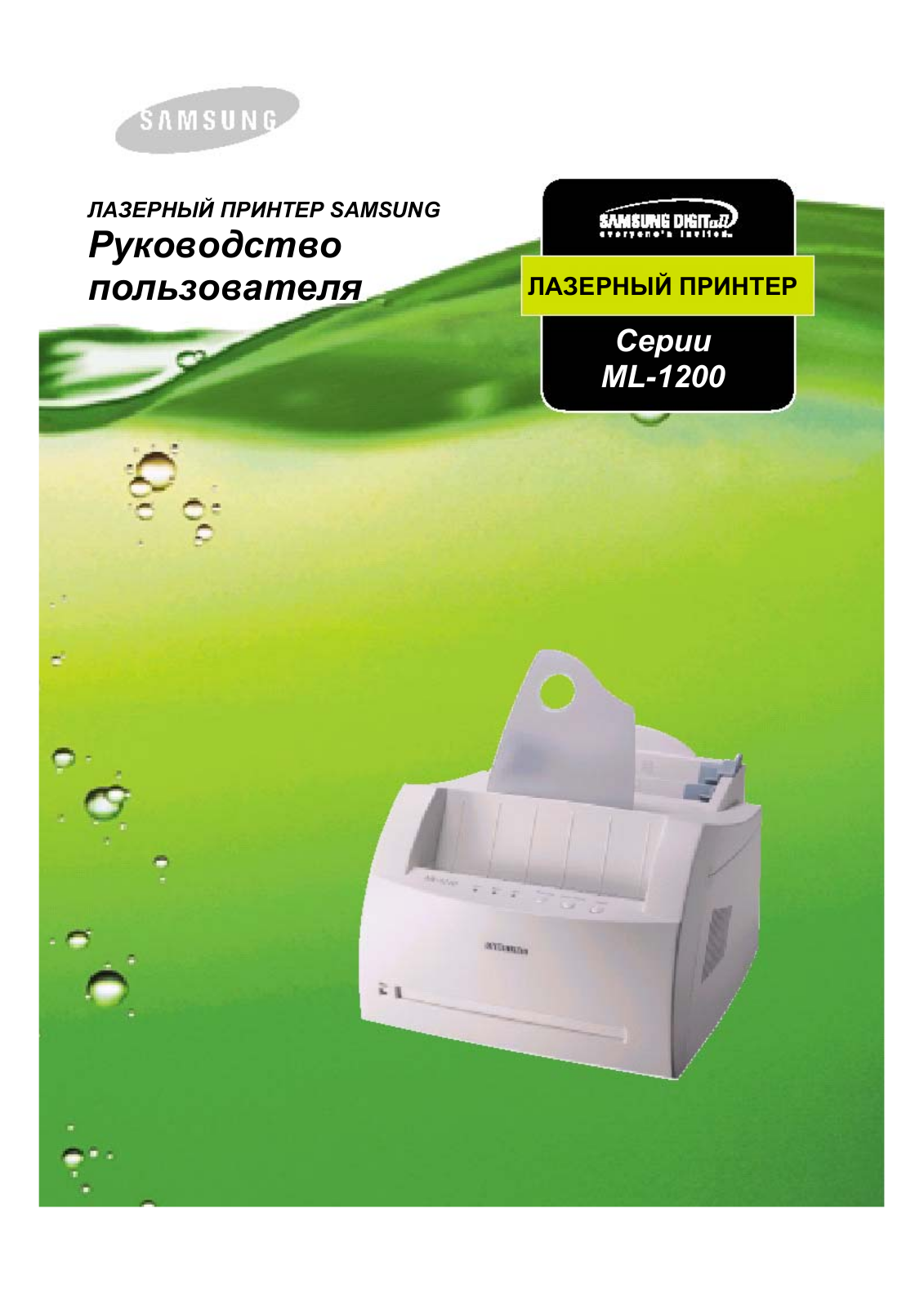
ЛАЗЕРНЫЙ ПРИНТЕР SAMSUNG
Руководство
пользователя
ЛАЗЕРНЫЙ ПРИНТЕР
Серии
ML-1200

Данное руководство предоставляется только в информационных целях. Вся информация, содержащаяся в этом
документе, может изменяться без предварительного уведомления. Компания Samsung Electronics Co., Ltd. не
несет ответственности за любой ущерб, прямой или косвенный, связанный с этим руководством или его
использованием.
© 2000 Samsung Electronics Co., Ltd. Авторские права защищены.
Воспроизведение в какой бы то ни было форме и какими бы то ни было средствами строго запрещено без
письменного разрешения от Samsung Electronics Co., Ltd.
• ML-1200 Series и логотип Samsung являются товарными знаками Samsung Electronics Co., Ltd.
• Centronics является товарным знаком Centronics Data Computer Corporation.
• IBM и IBM PC являются товарными знаками International Business Machines Corporation.
• Microsoft, Windows, Windows 9x, Windows ME, Windows NT и Windows 2000 являются зарегистрированными
товарными знаками Microsoft Corporation.
• Программное обеспечение GNU Ghostscript, авторские права © 1999 Alladin Enterprise, Menlo Park, California, и
другие авторы, как указано в документации.
• Apple, Macintosh, Power Macintosh, iMac и iBook являются товарными знаками Apple Computer, Inc.
• Adobe и Adobe Acrobat Reader являются товарными знаками Adobe Systems.
• Названия всех других марок или продуктов, упоминающиеся здесь, являются товарными знаками
соответствующих компаний или организаций.


III
Рассмотрение вопросов экологии и безопасности
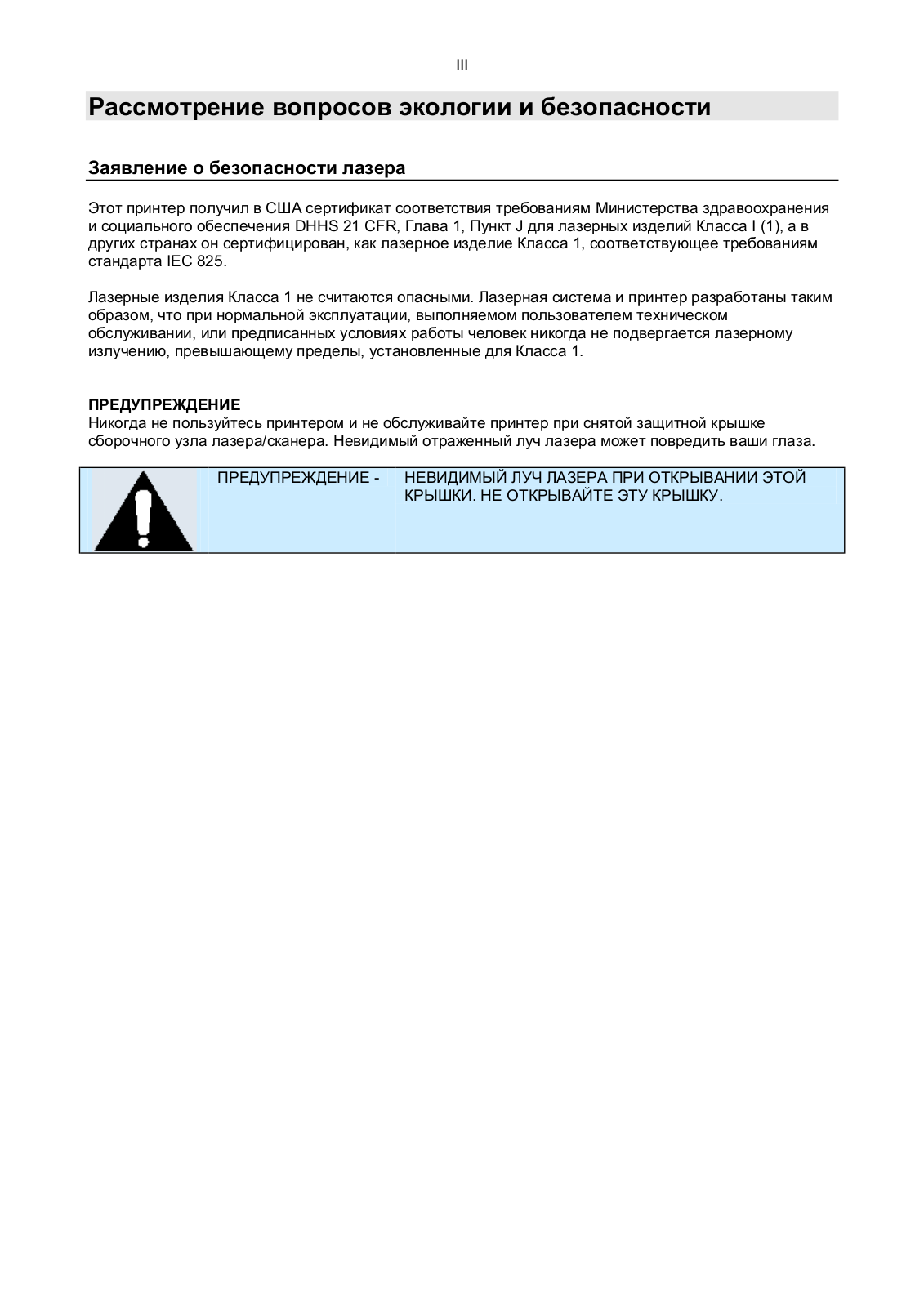
Заявление о безопасности лазера
Этот принтер получил в США сертификат соответствия требованиям Министерства здравоохранения
и социального обеспечения DHHS 21 CFR, Глава 1, Пункт J для лазерных изделий Класса I (1), а в
других странах он сертифицирован, как лазерное изделие Класса 1, соответствующее требованиям
стандарта IEC 825.
Лазерные изделия Класса 1 не считаются опасными. Лазерная система и принтер разработаны таким
образом, что при нормальной эксплуатации, выполняемом пользователем техническом
обслуживании, или предписанных условиях работы человек никогда не подвергается лазерному
излучению, превышающему пределы, установленные для Класса 1.
ПРЕДУПРЕЖДЕНИЕ
Никогда не пользуйтесь принтером и не обслуживайте принтер при снятой защитной крышке
сборочного узла лазера/сканера. Невидимый отраженный луч лазера может повредить ваши глаза.
ПРЕДУПРЕЖДЕНИЕ —
НЕВИДИМЫЙ ЛУЧ ЛАЗЕРА ПРИ ОТКРЫВАНИИ ЭТОЙ
КРЫШКИ. НЕ ОТКРЫВАЙТЕ ЭТУ КРЫШКУ.

IV
Рассмотрение вопросов экологии и безопасности
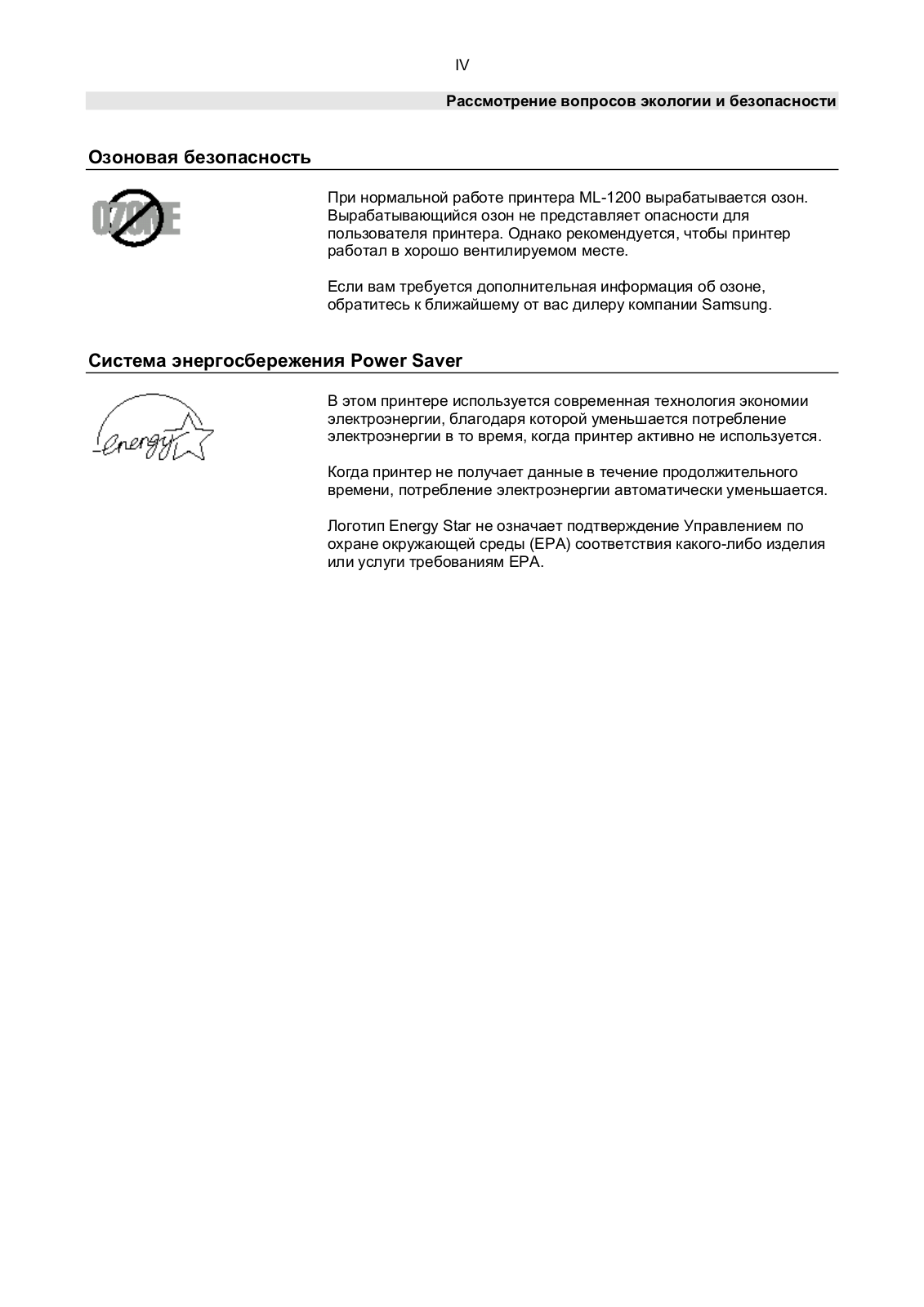
Озоновая безопасность
При нормальной работе принтера ML-1200 вырабатывается озон.
Вырабатывающийся озон не представляет опасности для
пользователя принтера. Однако рекомендуется, чтобы принтер
работал в хорошо вентилируемом месте.
Если вам требуется дополнительная информация об озоне,
обратитесь к ближайшему от вас дилеру компании Samsung.
Система энергосбережения Power Saver
В этом принтере используется современная технология экономии
электроэнергии, благодаря которой уменьшается потребление
электроэнергии в то время, когда принтер активно не используется.
Когда принтер не получает данные в течение продолжительного
времени, потребление электроэнергии автоматически уменьшается.
Логотип Energy Star не означает подтверждение Управлением по
охране окружающей среды (EPA) соответствия какого-либо изделия
или услуги требованиям EPA.

V
Рассмотрение вопросов экологии и безопасности
Высокочастотные излучения
Требования ФКС (Федеральной комиссии связи) США
Данное устройство прошло испытания, которые показали, что оно соответствует пределам,
установленным для цифровых устройств Класса B в соответствии с главой 15 Правил ФКС. Эти
ограничения установлены для обеспечения разумной защиты от вредных помех при установке
оборудования в жилых домах. Это оборудование генерирует, использует и может излучать
радиочастотную энергию и, если оно установлено и используется не в соответствии с инструкциями,
может создавать недопустимые помехи для радиосвязи. Однако, не гарантируется, что в конкретных
условиях эксплуатации не будут создаваться помехи.
Если данное устройство действительно создает недопустимые помехи приему радио и
телевизионных передач, в чем можно убедиться посредством выключения и включения устройства,
пользователю рекомендуется попытаться устранить помехи с помощью одного или нескольких из
перечисленных способов:
•
•
•
•
Изменение ориентации или перенос приемной антенны.
Увеличение расстояния между оборудованием и приемником.
Подсоединение оборудования к розетке сети переменного тока, подключенной к цепи питания,
отличной от той, к которой подсоединен телевизор или радиоприемник.
Получение консультации в магазине, в котором было куплено оборудование или у
квалифицированного специалиста по радио и телевизионной аппаратуре.
Не изменяйте и не модифицируйте данное оборудование, если подобные изменения и модификации
не указаны в инструкции. Если такие изменения или модификации должны быть внесены, вы должны
прекратить использование оборудования.
Для обеспечения соответствия пределам для класса B, указанным в Пункте B Главы 15 Правил ФКС
США, необходимо использовать экранированный кабель.
ПРЕДОСТЕРЕЖЕНИЕ: Изменения или модификации оборудования, выполненные без
получения официального разрешения от организации, отвечающей за его соответствие
Правилам ФКС, могут лишить пользователя права на эксплуатацию оборудования.
Соответствие канадским правилам по радиочастотным помехам
Это цифровое устройство не превышает пределов Класса B для радиочастотных помех от цифровых
устройств, указанных в стандарте для вызывающего помехи оборудования, называющемся
«Цифровое устройство» — стандарте ICES-003 Управления по промышленности и науке Канады.

VI
Рассмотрение вопросов экологии и безопасности
Заявление о соответствии (Для Европейских стран)
Аттестации и сертификаты
Маркировка СЕ, нанесенная на это изделие, символизирует Заявление компании Samsung Electronics
Co., Ltd. о соответствии данного изделия следующим директивам, соответствующим Директиве
Европейского Союза 93/68/EEC, на следующие даты:
1 января 1995 г.: Директива Совета Европы № 73/23/EEC об унификации законодательства стран-
участниц в области низковольтных устройств.
1 января 1996 г.: Директива Совета Европы № 89/336/EEC об унификации законодательства стран-
участниц в области электромагнитной совместимости.
9 марта 1999 г.: Директива Совета Европы № 1999/5/ЕС по радиотехническому оборудованию,
терминальному телекоммуникационному оборудованию и взаимному признанию их соответствия.
Полный текст Заявления, содержащий существенные условия Директив и соответствующие
стандарты, можно получить у вашего местного представителя Samsung Electronics Co., Ltd.
Сертификаты ЕС
Сертификат соответствия требованиям Директивы № 1999/5/ЕС по радиотехническому
оборудованию и терминальному телекоммуникационному оборудованию (FAX).
Это изделие Samsung сертифицировано самой компанией Samsung для условий общеевропейского
однотерминального соединения с аналоговой коммутируемой телефонной сетью общего пользования
в соответствии с Директивой № 1999/5/ЕС. Изделие разработано для использования с
коммутируемыми телефонными сетями общего пользования и телефонными системами для частного
пользования европейских стран:
В случае возникновения проблем, вам следует, прежде всего, обратиться в Европейскую
лабораторию контроля качества компании Samsung Electronics Co., Ltd.
Этот принтер был испытан на соответствие стандартам TBR 21 и TBR 38. Для облегчения
использования и подключения совместимого с этим стандартом терминального оборудования,
Европейский институт телекоммуникационных стандартов выпустил консультативный документ (EG
201 121), содержащий замечания и дополнительные требования по обеспечению сетевой
совместимости терминалов стандарта TBR 21. Это изделие было разработано согласно требованиям
и в полном соответствии со всеми существенными консультативными замечаниями, содержащимися
в этом документе.

Глава
1
Введение
Поздравляем вас с покупкой принтера серии Samsung ML-1200! В
этой главе приводится информация по следующим темам:
♦
Специальные возможности принтера
♦
Компоненты принтера

1.1 Введение
Специальные возможности принтера
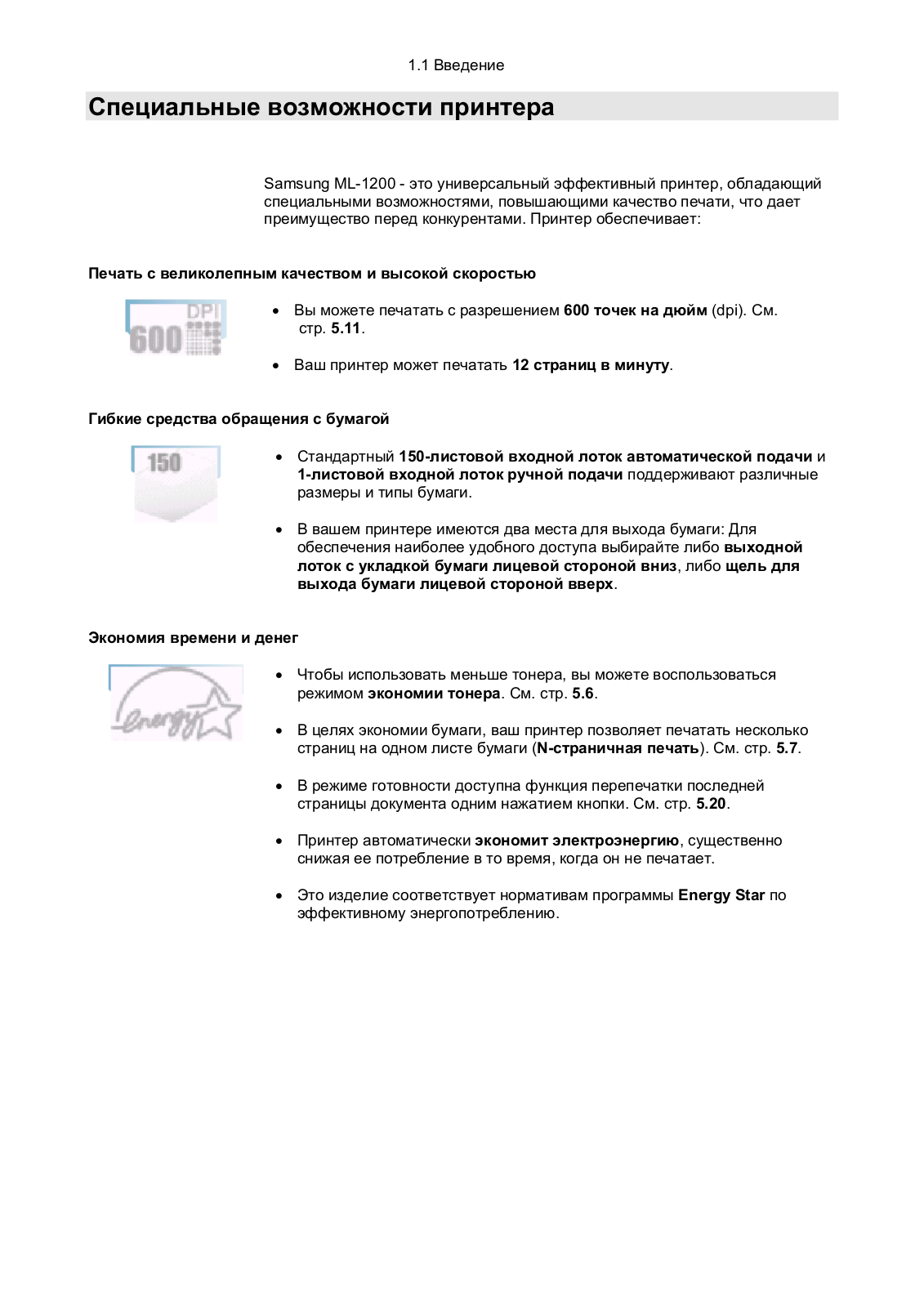
Samsung ML-1200 — это универсальный эффективный принтер, обладающий
специальными возможностями, повышающими качество печати, что дает
преимущество перед конкурентами. Принтер обеспечивает:
Печать с великолепным качеством и высокой скоростью
• Вы можете печатать с разрешением 600 точек на дюйм (dpi). См.
стр. 5.11.
• Ваш принтер может печатать 12 страниц в минуту.
Гибкие средства обращения с бумагой
• Стандартный 150-листовой входной лоток автоматической подачи и
1-листовой входной лоток ручной подачи поддерживают различные
размеры и типы бумаги.
• В вашем принтере имеются два места для выхода бумаги: Для
обеспечения наиболее удобного доступа выбирайте либо выходной
лоток с укладкой бумаги лицевой стороной вниз, либо щель для
выхода бумаги лицевой стороной вверх.
Экономия времени и денег
• Чтобы использовать меньше тонера, вы можете воспользоваться
режимом экономии тонера. См. стр. 5.6.
• В целях экономии бумаги, ваш принтер позволяет печатать несколько
страниц на одном листе бумаги (N-страничная печать). См. стр. 5.7.
• В режиме готовности доступна функция перепечатки последней
страницы документа одним нажатием кнопки. См. стр. 5.20.
• Принтер автоматически экономит электроэнергию, существенно
снижая ее потребление в то время, когда он не печатает.
• Это изделие соответствует нормативам программы Energy Star по
эффективному энергопотреблению.

09:59
Заправка картриджа samsung ml1210
06:22
Инструкция замена ролика захвата принтера Samsung ML-1210
11:32
Принтер Samsung ml-1210 захватывает по несколько листов
07:44
«Халтурный» ремонт принтера Самсунг.
08:47
Заправка картриджа Samsung ML-1210 // Cartridge refill Samsung ML-1210
01:27
Samsung ML — 1210 застревает бумага
05:33
Как самому заправить картридж Samsung ML-1210, инструкция
16:41
Ремонт принтера SAMSUNG ML2015
Нажмите на кнопку для помощи
- About
- Blog
- Projects
- Help
-
Donate
Donate icon
An illustration of a heart shape - Contact
- Jobs
- Volunteer
- People
Bookreader Item Preview
texts
Samsung ML-1210 Инструкция по использованию
- Addeddate
- 2021-09-06 23:46:44
- Identifier
- manualzz-id-4240090
- Identifier-ark
- ark:/13960/t34299s7c
- Ocr
- tesseract 5.0.0-beta-20210815
- Ocr_autonomous
- true
- Ocr_detected_lang
- ru
- Ocr_detected_lang_conf
- 1.0000
- Ocr_detected_script
- Cyrillic
- Ocr_detected_script_conf
- 1.0000
- Ocr_module_version
- 0.0.13
- Ocr_parameters
- -l rus+Cyrillic
- Page_number_confidence
- 61.71
comment
Reviews
There are no reviews yet. Be the first one to
write a review.
53
Views
DOWNLOAD OPTIONS
Temporarily Unavailable
DAISY
For users with print-disabilities
Temporarily Unavailable
EPUB
Uploaded by
chris85
on
SIMILAR ITEMS (based on metadata)
Samsung
Loading…
M
- MJC-940I
- MJC-950I
- MJC-965CE
- MJC-965CU
- MJC-965CY
- MJC-970ADE
- MJC-970ADU
- MJC-970ADY
- MJC-970SPE
- MJC-970SPU
- MJC-970SPY
- MJD127
- MJD127-1
- ML 00LA
- ML-10106
- ML-1010H6
- ML-1020M
- ML-12005
- ML-1200 Series4
- ML-121036
- ML-1210E6
- ML-1210H6
- ML-1210-LEX
- ML-1210SF6
- ML-1220M13
- ML-143019
- ML-145031
- ML-1450 Series2
- ML-1450-XAX
- ML-1450-XRH
- ML-1451N16
- ML-151035
- ML 1510 — B/W Laser Printer
- ML-15152
- ML-152012
- ML-1520P3
- ML-1600 Series
- ML-161029
- ML-1610 — B/W Laser2
- ML-1610 — B/W Laser Printer
- ML-1610R4
- ML-1610 Series3
- ML-1610XBH3
- ML-16158
- ML-1615P
- ML-1620
- ML-16252
- ML-1625R
- ML-163027
- ML 1630 — B/W Laser2
- ML 1630 — B/W Laser Printer2
- ML-1630S
- ML-1630 Series3
- ML-1630W24
- ML-1630W — Personal Wireless Mono Laser3
- ML-1630W/SEE
- ML-1630W Series2
- ML-1630W-XAA3
- ML-1630-XAA2
- ML-1631K2
- ML-1631KG3
- ML-164029
- ML-1640 ML-2240
- ML-1640 Series4
- ML-1640-XEV
- ML-16419
- ML-1642K
- ML-16454
- ML-1645-XEV
- ML-165015
- ML-1650P2
- ML-1650 Series
- ML 1710 — B/W Laser
- ML 1710 — B/W Laser Printer3
- ML 1740 — B/W Laser
- ML 1740 — B/W Laser Printer
- ML 2150 — B/W Laser
- ML 2150 — B/W Laser Printer2
- ML 2250 — B/W Laser Printer2
- ML 2250 TI
- ML 2510 — B/W Laser
- ML 2510 — B/W Laser Printer
- ML 2570 — B/W Laser Printer2
- ML 2571N — B/W Laser Printer2
- ML 2851ND — B/W Laser2
- ML 2851ND — B/W Laser Printer
- ML 3050 — B/W Laser
- ML 3050 — B/W Laser Printer2
- ML 3051N — B/W Laser Printer3
- ML 3051ND — B/W Laser Printer3
- ML 3471ND — B/W Laser2
- ML 3471ND — B/W Laser Printer
- ML 4050N — B/W Laser
- ML 4050N — B/W Laser Printer2
- ML ML-1630
- ML ML-1630W
- ML ML-2240
- ML ML-2510
- ML ML-4050N
- ML NWA65L
Loading…
Loading…
Nothing found
ML-1210
Block Diagram
2 pgs19.97 Kb0
Cover
2 pgs33.59 Kb0
Disassembly Reassembly
7 pgs996.02 Kb0
Exploded View Part List
8 pgs1.02 Mb0
Expoioded View [ENG]
17 pgs1.04 Mb0
Precautions
2 pgs221.34 Kb0
Product Manual
12 pgs734.68 Kb0
Schematics Diagram
26 pgs1.76 Mb0
Service manual
62 pgs2.3 Mb0
Service Manual
64 pgs3.2 Mb0
Service Manual
80 pgs4.31 Mb0
Service Manual
3 pgs108.05 Kb0
Specifications
1 pgs3.4 Kb0
Supplement 1
1 pgs3.9 Kb0
Troubleshooting
28 pgs283.62 Kb0
User Guide
128 pgs4.69 Mb0
User Guide
59 pgs1.54 Mb0
User Manual
80 pgs4.32 Mb0
User Manual
128 pgs4.27 Mb0
User Manual
128 pgs4.58 Mb0
User Manual
65 pgs1.97 Mb0
User Manual [da]
131 pgs5.84 Mb0
User Manual [de]
131 pgs4.28 Mb0
User Manual [es]
128 pgs4.29 Mb0
User Manual [fi]
131 pgs5.84 Mb0
User Manual [it]
128 pgs3.97 Mb0
User Manual [ko]
54 pgs4.43 Mb0
User Manual [nl, de, kk]
128 pgs3.45 Mb0
User Manual [no, de]
131 pgs5.82 Mb0
User Manual [ru]
127 pgs4.91 Mb1
User Manual [sv]
131 pgs6.03 Mb0
User Manual [zh]
131 pgs6.46 Mb0
User Manual [zh]
128 pgs35.76 Mb0
Users Manual
29 pgs1.25 Mb0
Users Manual
38 pgs1.5 Mb0
Wiring Diagram
2 pgs22.61 Kb0
Table of contents
Loading…
…
Samsung User Manual [ru]
Specifications and Main Features
Frequently Asked Questions
User Manual
Loading…
+ 97 hidden pages
You need points to download manuals.
1 point = 1 manual.
You can buy points or you can get point for every manual you upload.
Buy points
Upload your manuals
Предпросмотр документа
· инструкция (руководство, документация) для принтера Samsung ML-1210
·
13 декабря 2023 етырий
сервис мануал ( схема )
Файл: man3642-samsung_ml-1210-ml-1250-ml-1220m_sm.pdf
Размер: 4.12 Мб
Открыть файл
423 просмотра
добавить комментарий
View the manual for the Samsung ML-1210 here, for free. This manual comes under the category printers and has been rated by 1 people with an average of a 7.7.
This manual is available in the following languages: English. Do you have a question about the Samsung ML-1210 or do you need help?
Ask your question here
Samsung ML-1210 specifications
Below you will find the product specifications and the manual specifications of the Samsung ML-1210.
The Samsung ML-1210 printer is a monochrome laser printer with a print technology that delivers high-quality documents. With a black toner page yield of 2500 pages, this original type printer is suitable for personal or small office use. It does not print in color, making it ideal for users who primarily need to print black and white documents. The Samsung ML-1210 printer is compact and easy to use, fitting well in small workspaces. Its laser printing technology ensures sharp text and images on each page. The printer is designed to be reliable and efficient, providing consistent results with each use. The Samsung ML-1210 is a solid choice for those in need of a basic, no-frills printer that offers good performance for everyday printing needs. The printer is also known for its durability and longevity, making it a reliable option for those looking for a well-built machine.
General
| Brand | Samsung |
| Model | ML-1210 | ML-1210 |
| Product | printer |
| EAN | 8803821371951 |
| Language | English |
| Filetype | User manual (PDF) |
Other features
| Color | No |
| Print technology | Laser printing |
Features
| Printing colors | Black |
| Type | Original |
| Black toner page yield | 2500 pages |
show more
Frequently Asked Questions
Can’t find the answer to your question in the manual? You may find the answer to your question in the FAQs about the Samsung ML-1210 below.
Does the Samsung ML-1210 use laser printing technology?
Yes, the Samsung ML-1210 utilizes laser printing technology. This means that it offers high-quality prints with sharp and precise text and graphics.
Is the Samsung ML-1210 an original type printer?
Yes, the Samsung ML-1210 is an original type printer. This means that it is a genuine product manufactured by Samsung, ensuring reliability and compatibility.
What is the black toner page yield of the Samsung ML-1210?
The black toner page yield of the Samsung ML-1210 is 2500 pages. This indicates that it can print a considerable number of pages before requiring toner replacement, providing cost-effectiveness for the user.
How can I enable the toner-saving mode on the Samsung ML-1210 printer?
To enable the toner-saving mode on the Samsung ML-1210 printer, you can follow these steps:
1. From the printer:
— Make sure the printer is in Ready mode (the Rec. Info indicator is on).
— Press the Econ. Toner button on the control panel.
— If the button is backlit, the toner-saving mode is enabled, and the printer will use less toner when printing a page.
— If the button is not backlit, the toner-saving mode is disabled, and the document will be printed with normal quality.
2. From the software application:
— After modifying the print settings in the software application, access the printer properties.
— Go to the Graphics tab and select the Toner Saving Mode option.
— The available options are:
— Printer Settings: This option depends on the setting defined in the printer’s control panel.
— Standard: Select this option if toner saving is not required for the document.
— Save: Select this option to reduce toner consumption for each page.
3. Click OK to save the changes.
Please note that these steps are based on the information provided in the manual for the Samsung ML-1210 printer.
Why is the printer not printing at the expected resolution of 600 dpi?
The Samsung ML-1210 printer has a resolution of 600 dpi for printing. If the printer is not printing at the expected resolution, you can try the following steps:
1. Check the print settings: Ensure that the print settings on your computer or software application are set to 600 dpi. Access the printer properties or preferences and verify that the resolution is set correctly.
2. Check the printer driver: Make sure that the printer driver is installed correctly on your computer. If needed, reinstall the printer driver from the provided software or download the latest driver from the official Samsung website.
3. Check the connection: Ensure that the printer is properly connected to your computer. Check the USB or parallel cable connections and make sure they are secure.
4. Restart the printer and computer: Sometimes, restarting both the printer and computer can resolve any temporary issues. Turn off the printer and computer, wait for a few seconds, and then turn them back on.
5. Contact customer support: If the issue persists, it is recommended to contact Samsung customer support for further assistance. They can provide specific troubleshooting steps or guide you through the resolution process.
Please note that these steps are general troubleshooting suggestions and may vary depending on the specific situation.
What should I do if the printer is not feeding paper properly from the automatic input tray?
If the Samsung ML-1210 printer is not feeding paper properly from the automatic input tray, you can try the following steps:
1. Check the paper type and quality: Ensure that you are using the correct type and quality of paper recommended for the printer. Heat or humidity can cause paper to curl or warp, leading to feeding issues.
2. Flip the paper stack: Take the paper stack placed in the input tray and flip it over. Try rotating the paper 180 degrees in the input tray. This can help prevent paper feeding problems caused by uneven stacking.
3. Use the output slot: Press the output lever and try printing through the document output slot with the print side facing up. This can help in cases where the paper is not properly feeding from the input tray.
4. Check for paper wrinkles: If there are wrinkles on the printed pages, it is possible that the transfer roller is dirty. Refer to the manual for instructions on cleaning the inside of the printer. Additionally, check if the toner cartridge is leaking and clean the printer if necessary.
5. Reinstall the toner cartridge: If the printed pages have a dirty reverse side, the toner cartridge may not be installed correctly. Remove the cartridge and reinsert it properly. If the issue persists, consider replacing the toner cartridge.
If the problem continues, it is recommended to contact a service representative for further assistance.
Please note that these steps are based on the information provided in the manual for the Samsung ML-1210 printer.
How do I uninstall and reinstall the printer software on my computer?
To uninstall and reinstall the printer software for the Samsung ML-1210 printer on your computer, you can follow these steps:
1. Uninstall the printer software:
— Open the Control Panel on your computer.
— Navigate to «Programs» or «Programs and Features» (depending on your operating system).
— Locate the printer software in the list of installed programs.
— Select the printer software and click on the «Uninstall» or «Remove» button.
— Follow the on-screen prompts to complete the uninstallation process.
2. Restart your computer:
— After uninstalling the printer software, restart your computer to ensure that any remaining files or settings are cleared.
3. Reinstall the printer software:
— Insert the installation CD that came with the printer into your computer’s CD/DVD drive. If you don’t have the CD, you can download the latest software from the official Samsung website.
— Follow the on-screen instructions to install the printer software.
— Connect the printer to your computer when prompted or after the software installation is complete.
— Wait for the computer to detect the printer and follow any additional setup instructions.
4. Test the printer:
— Print a test page or any document to verify that the printer software is installed correctly and the printer is functioning properly.
Please note that these steps are general guidelines and may vary slightly depending on your operating system and specific printer model.
Where can I find the Linux driver for the Samsung ML-1210 printer?
To find the Linux driver for the Samsung ML-1210 printer, you can follow these steps:
1. Visit the official Samsung website: Open a web browser and go to the official Samsung website.
2. Navigate to the Support section: Look for a «Support» or «Customer Support» section on the website. This section usually provides drivers and software downloads for Samsung products.
3. Select your printer model: Search for the ML-1210 printer model in the list of available products. Click on the appropriate link to access the support page for the ML-1210 printer.
4. Locate the drivers: On the support page, look for a section specifically dedicated to drivers or software downloads. This section may be labeled as «Downloads,» «Drivers & Software,» or something similar.
5. Choose the Linux driver: Within the drivers or software downloads section, locate the Linux driver for the ML-1210 printer. It may be listed as a separate download or included in a package of drivers.
6. Download and install the driver: Click on the download link for the Linux driver and follow the on-screen instructions to download and install it on your computer.
Please note that these steps are general guidelines, and the exact process may vary slightly depending on the Samsung website’s layout and design.
Why is the printer not turning on or responding when I try to install it?
If the Samsung ML-1210 printer is not turning on or responding when you try to install it, you can try the following steps:
1. Check the power connection: Ensure that the printer is properly connected to a power source and that the power cable is securely plugged into both the printer and the electrical outlet. If necessary, try using a different power outlet.
2. Check the power switch: Verify that the power switch on the printer is in the «On» position. Some printers may have a separate power button or switch on the control panel or the back of the printer.
3. Reset the printer: Turn off the printer and disconnect the power cable from the electrical outlet. Wait for about 30 seconds, then reconnect the power cable and turn on the printer. This can help reset the printer’s internal components and resolve any temporary issues.
4. Check for error indicators: Look for any error indicators or error messages on the printer’s control panel. Refer to the manual or the manufacturer’s website for information on specific error codes and troubleshooting steps.
5. Contact customer support: If the printer still does not turn on or respond after trying the above steps, it is recommended to contact Samsung customer support for further assistance. They can provide specific troubleshooting steps or guide you through the resolution process.
Please note that these steps are general troubleshooting suggestions and may vary depending on the specific situation and printer model.
How can I check if my computer is compatible with the Samsung ML-1210 printer software?
To check if your computer is compatible with the Samsung ML-1210 printer software, you can follow these steps:
1. Visit the official Samsung website: Open a web browser and go to the official Samsung website.
2. Navigate to the Support section: Look for a «Support» or «Customer Support» section on the website. This section usually provides information about product compatibility and system requirements.
3. Select your printer model: Search for the ML-1210 printer model in the list of available products. Click on the appropriate link to access the support page for the ML-1210 printer.
4. Check system requirements: On the support page, look for a section that provides information about system requirements for the printer software. This section may include details about supported operating systems, processor requirements, and memory specifications.
5. Verify compatibility: Compare the system requirements listed on the support page with the specifications of your computer. Ensure that your computer meets or exceeds the minimum requirements mentioned for the ML-1210 printer software.
If your computer meets the specified system requirements, it should be compatible with the Samsung ML-1210 printer software. However, if your computer does not meet the requirements, it may not be compatible, and you may need to consider alternative options or contact Samsung customer support for further assistance.
Please note that these steps are general guidelines, and the exact process may vary slightly depending on the Samsung website’s layout and design.
How do I connect the Samsung ML-1210 printer to my computer?
To connect the Samsung ML-1210 printer to your computer, you can follow these steps:
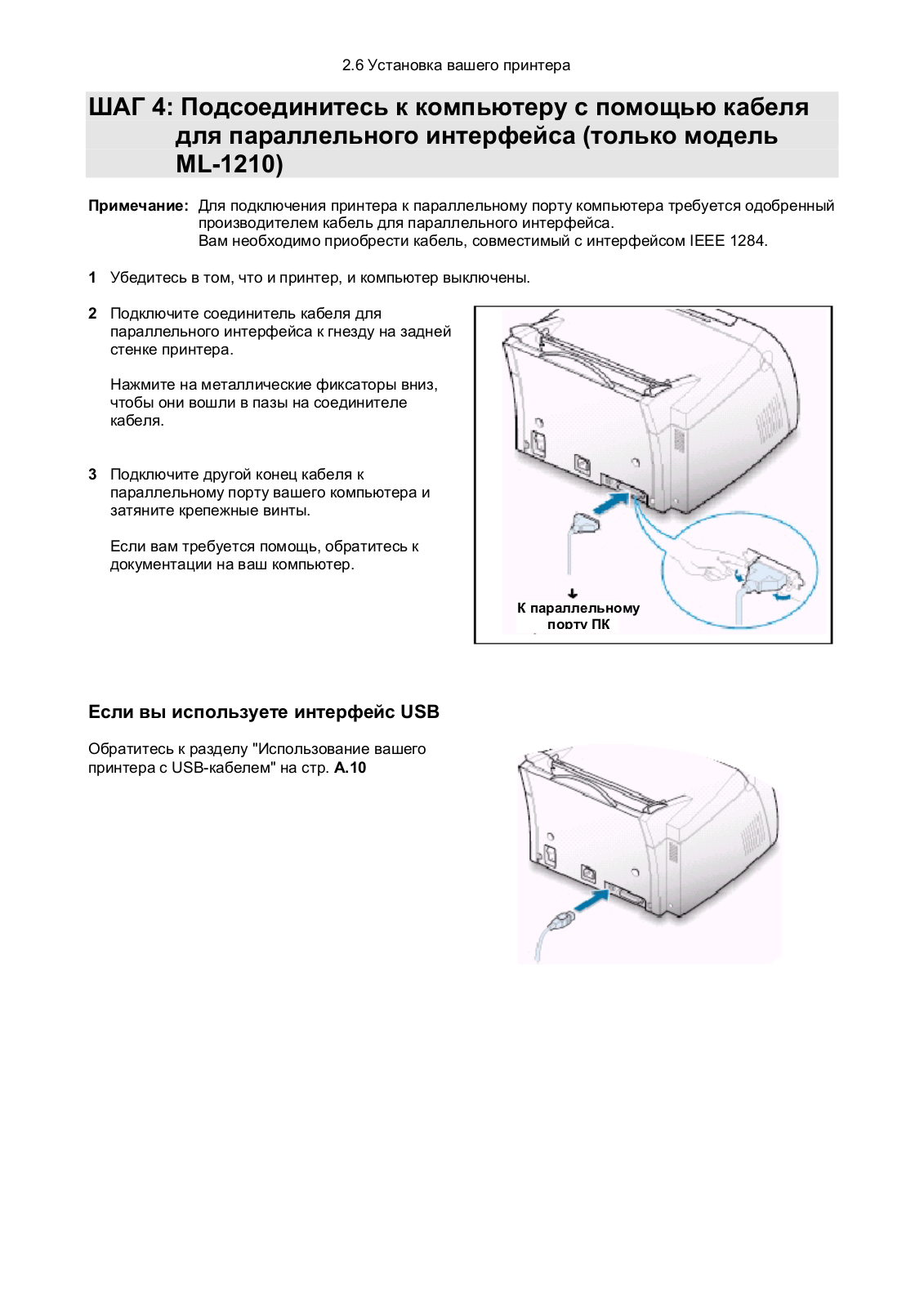
1. Check the printer’s connectivity options: The ML-1210 printer supports both USB and parallel connections. Determine which connection option you will use based on the available ports on your computer.
2. USB connection:
— Ensure that your computer is turned on.
— Connect one end of the USB cable to the USB port on the printer.
— Connect the other end of the USB cable to an available USB port on your computer.
— Wait for your computer to detect the printer and install the necessary drivers. Follow any on-screen prompts to complete the installation.
3. Parallel connection:
— Ensure that your computer is turned off.
— Connect one end of the parallel cable to the parallel port on the printer.
— Connect the other end of the parallel cable to the parallel port on your computer.
— Turn on your computer and wait for it to detect the printer.
— Install the necessary drivers by following the on-screen prompts.
4. Test the connection:
— Once the printer is connected, turn on the printer and wait for it to initialize.
— Print a test page or any document to verify that the printer is successfully connected to your computer.
Please note that these steps are general guidelines, and the exact process may vary depending on your computer’s operating system and the specific printer model.
Why is the printer not entering the energy-saving mode when not in use?
If the Samsung ML-1210 printer is not entering the energy-saving mode when not in use, you can try the following steps to troubleshoot the issue:
1. Check the power-saving settings: Access the printer’s control panel or settings menu and verify that the power-saving or energy-saving feature is enabled. Refer to the manual or the manufacturer’s website for instructions on accessing and adjusting these settings.
2. Adjust the sleep timer: If the printer has a sleep timer feature, make sure it is set to an appropriate duration. The sleep timer determines how long the printer remains idle before entering the energy-saving mode. Adjust the timer to a shorter duration if necessary.
3. Update the firmware: Check if there are any firmware updates available for the printer. Firmware updates can sometimes resolve issues and improve the printer’s performance, including the energy-saving functionality. Visit the manufacturer’s website and follow the instructions to download and install any available firmware updates.
4. Power cycle the printer: Turn off the printer and unplug it from the power source. Wait for a few minutes, then plug it back in and turn it on. Power cycling can help reset the printer’s internal settings and potentially resolve any temporary issues.
5. Contact customer support: If the printer still does not enter the energy-saving mode after trying the above steps, it is recommended to contact Samsung customer support for further assistance. They can provide specific troubleshooting steps or guide you through the resolution process.
Please note that these steps are general troubleshooting suggestions and may vary depending on the specific situation and printer model.
How do I print multiple pages on a single sheet of paper using the Samsung ML-1210 printer?
To print multiple pages on a single sheet of paper using the Samsung ML-1210 printer, you can follow these steps:
1. Modify print settings: Make the necessary changes to the print settings in your software application (e.g., Word, PDF reader). Specify the number of pages you want to print on each sheet of paper.
2. Access printer properties: After modifying the print settings, access the printer properties. Refer to the manual or the manufacturer’s website for instructions on how to access the printer properties.
3. Select multiple pages per sheet: In the printer properties, go to the «Output» or «Paper» tab. Look for the option to print multiple pages per sheet. This option may be labeled as «Multiple Pages per Sheet» or similar.
4. Choose the number of pages: Select the desired number of pages you want to print on each sheet. The available options may include 2, 4, 9, or 16 pages per sheet.
5. Adjust other settings: In the printer properties, you can also adjust other settings such as orientation, font, paper size, and paper type according to your needs.
6. Click «OK» or «Print»: Once you have made the necessary selections, click «OK» or «Print» to start the printing process.
Please note that these steps are based on the information provided in the manual for the Samsung ML-1210 printer.
What is the best way to remove jammed paper from my printer?
It is best to gently pull the paper out of the printer. Turn the printer off, and make sure that the printhead is not hanging over the paper and that no paper remains in the printer.
How come my prints are of poor quality?
There can be various reasons for poor print quality. Check if the cartridges or toners are full. If so, inkjet printers often require cleaning the printer, the cartridges have dried out, or the print head is broken. With laser printers, calibrating the laser printer is recommended.
How come my printer does not accept original cartridges?
Non-genuine cartridges may not be recognised by the printer. In that case you will receive a message that the cartridge is empty. The manual of the purchased cartridge usually contains the solution, if this does not work, it is advisable to contact the seller.
How come my inkjet printer has black stripes?
In most cases, the inkjet printer cartridge is broken and the cartridge needs to be replaced.
What is the difference between a laser printer and an inkjet printer?
A laser printer prints with a toner and an inkjet printer prints with ink.
What does DPI stand for?
DPI stands for Dots Per Inch and is the number of ink droplets (per inch) that end up on the paper when printing.
Is the manual of the Samsung ML-1210 available in English?
Yes, the manual of the Samsung ML-1210 is available in English .
Is your question not listed? Ask your question here