
Сведения о K400 Plus
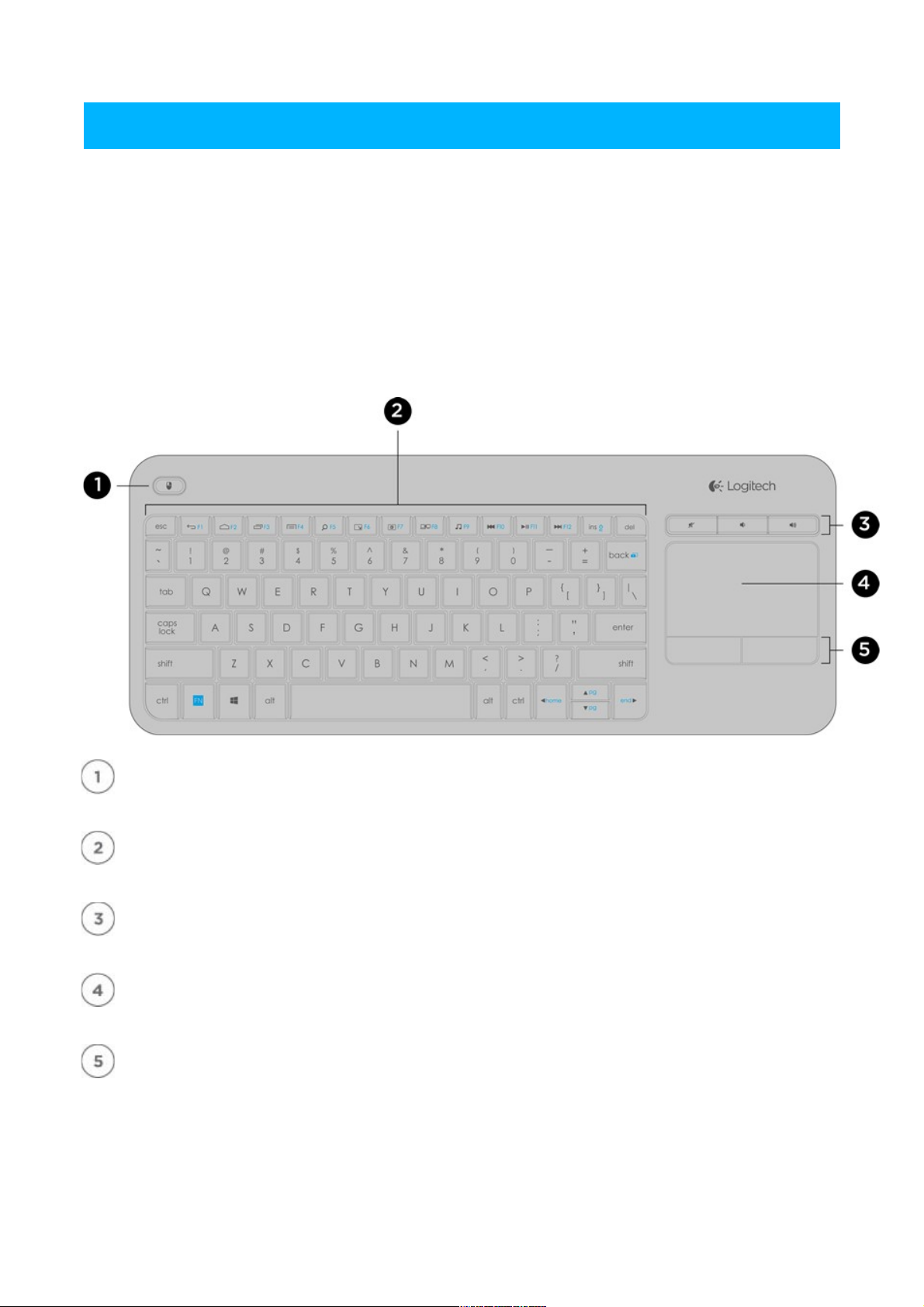
Беспроводная сенсорная клавиатура K400 Plus — это компактное устройство с полноразмерной раскладкой и
сенсорной панелью.
Благодаря изогнутой форме клавиш можно вводить текст «слепым методом», а нажатие необычайно мягкое и
практически бесшумное.
Полноразмерная сенсорная панель обеспечивает прокрутку и навигацию привычным движением руки.
Управлять клавиатурой легко и комфортно: для этого служат левая и правая кнопки, расположенные под
сенсорной панелью, и кнопки регулировки громкости над ней.
Для удобства пользователей, которые привыкли работать на клавиатуре обеими руками и осуществлять
навигацию с помощью больших пальцев, левая кнопка мыши находится слева на верхней панели клавиатуры.
Пользуйтесь правой рукой для навигации, левой — для выбора.
Левая кнопка мыши
Клавиши быстрого доступа и функциональные клавиши
Регулятор громкости
Сенсорная панель
Левая и правая кнопки мыши
Подключение
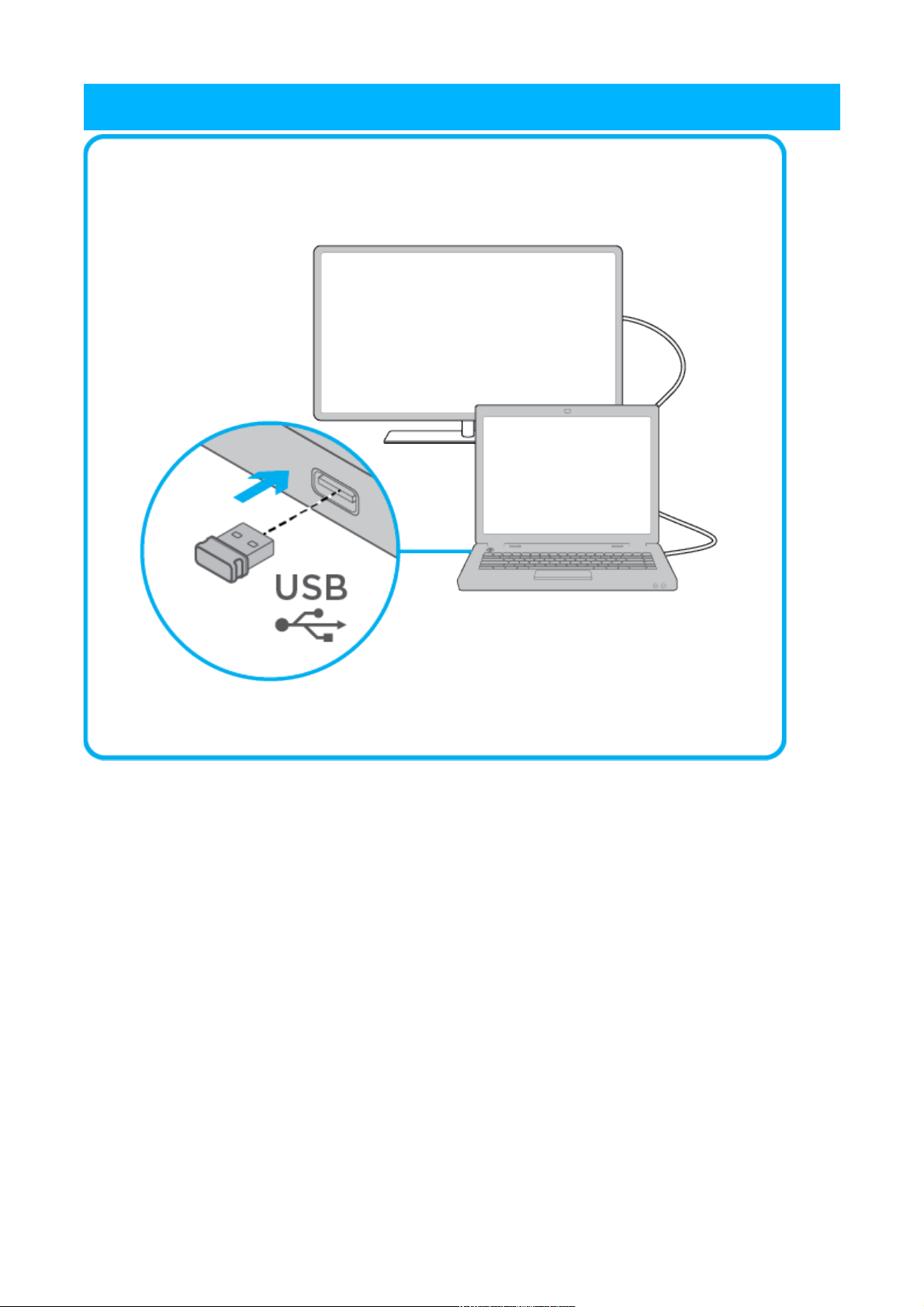
Шаг 1: вставьте приемник Unifying в порт USB компьютера.

Шаг 2: оттяните назад желтый ярлычок батареи и удалите его.
Примечание. Убедитесь, что переключатель клавиатуры установлен в положение ВКЛ. Переключатель
ВКЛ./ВЫКЛ. находится в верхней части клавиатуры.
Клавиатура готова к использованию.
Table of Contents
- Logitech K400 Plus Touchpad Keyboard
- Specs & Details
- Dimensions
- Technical Specifications
- Warranty Information
- Part Number
- FAQ – Frequently Asked Questions
- Read More About:
- Read User Manual Online (PDF format)
- Download This Manual (PDF format)
Logitech K400 Plus Touchpad Keyboard

User Manual
K400 is a quiet, easy-to-use keyboard with a built-in touchpad, plus all the
hotkeys Windows® and Android™ users know and love. Complete with media
controls that make navigating your PC-controlled TV a breeze.
Specs & Details
Dimensions
Overall
- Height : 5.51 in (139.9 mm)
- Width : 13.95 in (354.3 mm)
- Depth : 0.93 in (23.5 mm)
- Weight : 13.76 oz (390 g) (with batteries)
Touchpad
- Height : 2.99 in (76 mm)
- Width : 1.85 in (47 mm)
Technical Specifications
Connection Type
- Logitech Unifying protocol (2.4 GHz)
- Wireless range : >33 ft / 10m wireless range
Optional software
- Logitech Options
Battery
- Battery : 2 x AA (included)
- Battery : 18 months
Special Keys
- Mute, Volume Down, Volume Up
- Connect/Power : iPad mini® (5th gen)
Key Life
- Up to 5 million keystrokes
Typing noise
- Within 55 dBA for all keys
Warranty Information
1-Year Limited Hardware Warranty
Part Number
-
Black: 920-007119
-
Black US International (Qwerty) : 920-007119
-
-
FAQ – Frequently Asked Questions
Set up notifications on the K400 Plus keyboard with Logitech Options****
You can use Logitech Options to set up on-screen notifications for your K400
Plus keyboard:
1. Start Logitech Options:
Start > All Programs > Logitech > Logitech Options
2. If you have more than one product displayed in the Logitech Options
window, select Wireless Touch Keyboard K400 Plus.
3. In the lower left corner, click More.
4. In the More Settings window, under Notifications , you can
enable and disable on-screen notifications for when:
– a lock key is pressed
– the battery level is getting low
Set K400 Plus pointer speed and scrolling with Logitech Options****
You can use Logitech Options to set the pointer speed.
– Set pointer speed
– Adjust scrolling
If you don’t have Logitech Options, you can get the latest version of the
software from the Wireless Touch Keyboard K400 Plus
Download page.
To configure your pointer speed:
1. Start Logitech Options:
Start > All Programs > Logitech > Logitech Options
2. If you have more than one product displayed in the Logitech Options
window, select Wireless Touch Keyboard K400 Plus.
3. Click the Point and scroll tab in the upper left corner of the
window.
4. Under Pointer speed , adjust the slider to your preferred DPI value.
To adjust the scrolling:
1. Start Logitech Options:
Start > All Programs > Logitech > Logitech Options
2. If you have more than one product displayed in the Logitech Options
window, select Wireless Touch Keyboard K400 Plus.
3. Click the Point and scroll tab in the left hand corner of the
software window.
4. You can adjust the following options for scrolling:
– Scroll direction
– Smooth scrolling
– Vertical scrolling
– Horizontal scrolling
Set the scroll direction
There are two options for scrolling direction:
Traditional — the contents of the window scroll up and down, left and
right, depending on the direction you swipe
Content tracks fingers — the contents of the window scroll down when you
swipe your fingers up, and scroll up when you swipe your fingers down
Smooth scrolling
This option can be enabled or disabled based on your preference.
Vertical scrolling
The default for vertical scrolling is Swipe up and down with 2 fingers.
You can scroll up or down by swiping up and down on the touchpad with two
fingers. Select Disabled to turn off this feature.
Horizontal scrolling
By default, horizontal scrolling is set to Swipe left and right with 2
fingers. This lets you scroll left and right on a page by swiping left or
right with two fingers on the touchpad. Select Disabled to turn off this
feature.
Tap and scroll on the K400 Plus keyboard****
Touch tapping
Press the FN key and the left mouse button to disable and enable touch
tapping.
When touch tapping is enabled:
– tap on the touchpad once to generate a single click
– tap on the touchpad twice to generate a double-click
– tap once with two fingers to generate a right-click
NOTE: You can also use the left mouse-click button on the upper left side of
the keyboard. This lets you navigate on the touchpad with your right hand and
select with your left.
Scrolling
By default, swiping up and down on the touchpad with two fingers scrolls up
and down. Swiping left and right with two fingers scrolls left and right.
NOTE: You can also press the FN key and slide one finger anywhere on the
touchpad to simultaneously scroll in that direction.
Shortcut and function keys on the K400 Plus keyboard****
The Wireless Touch Keyboard K400 Plus keyboard comes with pre-assigned
shortcut and function keys. These streamline navigation, media control and
keyboard functions.
| Key | Shortcut / Function |
|---|---|
| Back | |
| Home | |
| Switch application | |
| Menu | |
| Search | |
| Show/hide desktop | |
| Maximize window | |
| Switch screen | |
| Media | |
| Previous track | |
| Play/Pause | |
| Next track | |
| Mute | |
| Volume down | |
| Volume up | |
| FN + ins: PC sleep | |
| FN + backspace: print screen | |
| FN + caps lock: scroll lock | |
| FN + left arrow: home | |
| FN + right arrow: end | |
| FN + up arrow: page up | |
| FN + down arrow: page down |
To select a function key, hold down the FN key, and then press one of the
keys listed in the table above.
For example, to use F5, hold down FN and then press the Search key
You can also set the keyboard to only use standard F1 – F12 functions. See
Set the K400 Plus keyboard to use standard function
keys for more
information.
Disable keys on the K400 Plus keyboard with Logitech Options****
You can disable some or all of the following keys on your K400 Plus keyboard:
– Caps Lock
– Scroll Lock
– Insert
– Windows logo key
To disable the keys:
1. Start Logitech Options:
Start > All Programs > Logitech > Logitech Options
2. If you have more than one product displayed in the Logitech Options
window, select Wireless Touch Keyboard K400 Plus.
3. In the lower left corner of the window, click More.
4. In the More Settings window, under Disabled keys , check the
keys you want to disable.
5. Click on the X to close the window. Your changes are automatically
saved.
Customize K400 Plus keyboard function keys****
You can use Logitech Options software to customize the actions that are
performed when you use the function keys on your keyboard. You can download
Logitech Options from the Wireless Touch Keyboard K400 Plus
Downloads page.
NOTE: Only the F1-F9 and Insert keys can be customized.
To customize your keyboard’s function keys:
1. Start Logitech Options:
Start > All Programs > Logitech > Logitech Options
2. Select the Keyboard tab in the upper left corner of the window.
3. Click on the function key that you want to assign a new function to. A
list of available options appears.
4. Click on More to expand the list. Select the action you want the key
to perform. Your selection is automatically saved.
You can also assign one of two different actions to a key:
– Launch an application
– Perform a keystroke combination
To launch an application
1. Select Launch Application from the list.
2. Click on Browse to locate the executable application on your
computer or enter the computer path and file name for the application in the
box.
To assign a custom keystroke
1. Select Keystroke assignment from the list.
2. Under Enter Keystroke , click inside the box and type the key
combination. It will be automatically saved.
Set the K400 Plus keyboard to use standard function keys****
By default, the top row of keys on your K400 Plus keyboard are assigned to
navigation and media controls. You can set the keyboard to only use standard
F1 – F12 functions using Logitech Options software.
NOTE: If you don’t have Logitech Options, you can download it from the
Wireless Touch Keyboard K400 Plus
Downloads page.
To set the function keys to use only standard functions:
1. Start Logitech Options:
Start > All Programs > Logitech > Logitech Options
2. Select the Keyboard tab in the upper left corner of the window.
3. In the bottom left hand corner of the window, check Use F1-F12 as
standard function keys. Your selection is automatically saved.
Backup device settings to the cloud in Logitech Options+****
INTRODUCTION
This feature on Logi Options+ allows you to backup the customization of your
Options+ supported device automatically to the cloud after creating an
account. If you are planning to use your device on a new computer or wish to
go back to your old settings on the same computer, log into your Options+
account on that computer and fetch the settings you want from a backup to set
up your device and get going.
HOW IT WORKS
When you are logged into Logi Options+ with a verified account, your device
settings are automatically backed up to the cloud by default. You can manage
the settings and the backups from the Backups tab under More settings of your
device (as shown):

Manage settings and backups by clicking on More > Backups:
AUTOMATIC BACKUP OF SETTINGS — if the Automatically create backups of
settings for all devices checkbox is enabled, any settings you have or
modify for all of your devices on that computer are backed up to the cloud
automatically. The checkbox is enabled by default. You can disable it if you
don’t want the settings of your devices to be backed up automatically.
CREATE A BACKUP NOW — this button allows you to backup your current
device settings now, if you need to fetch them later.
RESTORE SETTINGS FROM BACKUP — this button lets you view and restore all
the available backups you have for that device that are compatible with that
computer, as shown above.
The settings for a device are backed up for every computer that you have your
device connected to and have Logi Options+ that you are logged into. Every
time you make some modifications to your device settings, they get backed up
with that computer name. The backups can be differentiated based on the
following:
Name of the computer. (Ex. John’s Work Laptop)
Make and/or model of the computer. (Ex. Dell Inc., Macbook Pro (13-inch) and
so on)
The time when the backup was made
The desired settings can then be selected and restored accordingly.
WHAT SETTINGS GET BACKED UP
– Configuration of all the buttons of your mouse
– Configuration of all the keys of your keyboard
– Point & Scroll settings of your mouse
– Any application-specific settings of your device
WHAT SETTINGS ARE NOT BACKED UP
– Flow settings
– Options+ app settings
Read More About:
Logitech K400 Plus Touchpad Keyboard User Manual
Read User Manual Online (PDF format)
Read User Manual Online (PDF format) >>
Download This Manual (PDF format)
Download this manual >>
1
2
K400
Getting started with
Première utilisation
Logitech® Wireless
Touch Keyboard K400
Getting started with
Première utilisation
Logitech® Wireless
Touch Keyboard K400
AAAA
1 2 3 4 5
6
English
Touchpad gestures
Point and scroll
1. Point and slide one finger anywhere on
the touchpad to move the screen pointer.
2. Scroll with two fingers, up or down.
Left and right click
3. Press for left mouse click.*
4. Press for right mouse click.
*You can also tap the touchpad surface to perform
a click. To disable touchpad tap, press the Fn-key plus
the left mouse button. To re-enable touchpad tap,
press the Fn-key plus the left mouse button again.
Tips for a personalized experience!
To adjust your touchpad experience, download and
install software from www.logitech.com/support/K400.
The software allows you to modify the speed of
the on-screen pointer, adjust scrolling, and disable
touchpad tap.
Español
Gestos de touchpad
Señalar y desplazar
1. Señala y desliza un dedo en cualquier
parte del touchpad para mover el puntero
en pantalla.
2. Desplazar con dos dedos, hacia arriba o abajo.
Click izquierdo y derecho
3. Pulsa para realizar un click con el botón
izquierdo del mouse.*
4. Pulsa para realizar un click con el botón
derecho del mouse.
*También puedes puntear la superficie del touchpad
para hacer un click. Para desactivar el punteo
de touchpad, pulsa la tecla Fn más el botón izquierdo
del mouse. Para volver a activar el punteo de touchpad,
pulsa la tecla Fn más el botón izquierdo del mouse.
Sugerencias para una experiencia
personalizada.
Para ajustar la experiencia con el touchpad, descarga
e instala software de www.logitech.com/support/K400.
El software permite modificar la velocidad del puntero
en pantalla, ajustar el desplazamiento y desactivar
el punteo de touchpad.
Français
Gestes de contrôle du touchpad
Pointer et faire défiler
1. Pointez et glissez un doigt à n’importe quel
endroit du touchpad pour déplacer le pointeur
à l’écran.
2. Défilez vers le haut ou vers le bas en utilisant
deux doigts.
Cliquer avec le bouton droit
et le bouton gauche
3. Appuyez pour cliquer avec le bouton gauche
de la souris.*
4. Appuyez pour cliquer avec le bouton droit
de la souris.
*Vous pouvez également cliquer en tapant
brièvement sur la surface du touchpad. Pour désactiver
la commande de pression (Tapoter) du pavé tactile,
appuyez sur la touche Fn et le bouton gauche de
la souris. Pour réactiver la commande de pression,
appuyez à nouveau sur la touche Fn et le bouton
gauche de la souris.
Conseils pour personnaliser votre clavier:
Pour adapter le fonctionnement du touchpad
à vos besoins, téléchargez et installez le logiciel
à partir du site www.logitech.com/support/K400.
Le logiciel vous permet de modifier la vitesse
du pointeur à l’écran, d’ajuster le défilement
et yyyde désactiver le touchpad.
Português
Gestos de touchpad
Apontar e efetuar rolagem
1. Aponte e deslize um dedo em qualquer lugar
no touchpad para mover o ponteiro na tela.
2. Efetue rolagem com dois dedos, para cima
ou para baixo.
Clique esquerdo e direito
3. Pressione para obter o clique esquerdo
do mouse.*
4. Pressione para obter o clique direito
do mouse.
*Você também pode tocar a superfície do touchpad
para executar um clique. Para desativar o toque do
touchpad, pressione ao mesmo tempo a tecla Fn e botão
esquerdo do mouse. Para reativar o toque do touchpad,
pressione novamente a tecla Fn e botão esquerdo
do mouse.
Dicas para uma experiência personalizada!
Para ajustar sua experiência com o touchpad,
descarregue e instale o software em www.logitech.com/
support/K400. O software permite modificar a velocidade
do ponteiro na tela, ajustar a rolagem e desativar o toque
do touchpad.
English
Features
Hotkeys
1. Left mouse click
2. Mute
3. Volume down
4. Volume up
5. Internet home
Battery compartment
6. Nano receiver storage
Español
Funciones
Botones de acceso rápido
1. Click con el botón izquierdo
2. Silencio
3. Bajar volumen
4. Subir volumen
5. Inicio de Internet
Compartimento de las baterías
6. Compartimento del nano receptor
Français
Fonctions
Touches de raccourci
1. Bouton gauche de la souris
2. Muet
3. Volume —
4. Volume +
5. Page d’accueil Internet
Compartiment des piles
6. Boîtier du nano-récepteur
Português
Recursos
Teclas de atalho
1. Clique esquerdo do mouse
2. Sem áudio
3. Menos volume
4. Mais volume
5. Home da Internet
Compartimento das pilhas
6. Armazenamento do receptor nano
1
3 4
2
FAQ: Types of Manuals and Their Contents
Logitech K400 Plus Manuals come in various types, each serving a specific purpose to help users effectively operate and maintain their devices. Here are the common types of Logitech K400 Plus User Guides and the information they typically include:
- User Manuals: Provide comprehensive instructions on how to use the device, including setup, features, and operation. They often include troubleshooting tips, safety information, and maintenance guidelines.
- Service Instructions: Designed for technicians and repair professionals, these manuals offer detailed information on diagnosing and repairing issues with the device. They include schematics, parts lists, and step-by-step repair procedures.
- Installation Guides: Focus on the installation process of the device, providing detailed instructions and diagrams for proper setup. They are essential for ensuring the device is installed correctly and safely.
- Maintenance Manuals: Provide guidance on routine maintenance tasks to keep the device in optimal condition. They cover cleaning procedures, part replacements, and regular servicing tips.
- Quick Start Guides: Offer a concise overview of the essential steps needed to get the device up and running quickly. They are ideal for users who need immediate assistance with basic setup and operation.
Each type of Logitech K400 Plus instruction is designed to address specific needs, ensuring users have the necessary information to use, maintain, and repair their devices effectively.
Related Instructions for Logitech K400 Plus:
3
Revue
Setup manual PDF User Guide (@691Z3A), Logitech Revue TV Accessories (08.01.2025)
10
562
130
5
MX700
Setup Logitech Mouse Setup (File: logitech-mx700-setup-24, 24.10.2024)
24
775
140
6
C270
Getting started manual Logitech Webcam Getting started manual (File: logitech-c270-getting-started-manual-21, Sun 02.2025)
21
927
214
7
Ultrathin Keyboard Cover
Getting started with Logitech Ultrathin Keyboard Cover Guide (Getting started with), @TN9TKE
44
1212
291
9
Tablet Keyboard
9
923
167
10
V320
Installation V320 (Mouse ePDF User Guide, #3H37RG)
2
400
96
Keyboard Devices by Other Brands:
|
KeySonic ACK-3400U Quick Start Manual PDF Manual (@GX267G), KeySonic ACK-3400U Keyboard (29.09.2024) Introduction 29 Sep 2024 | 2 |
|
|
Bauhn AEK-0222 Operation & User’s Manual AEK-0222 Operation & user’s manual — 8V3KT6 Cannot connect 06 Sep 2024 | 2 |
|
|
Alphagrip AG5T Operation & User’s Manual AG5T Operation & user’s manual — E5P854 AlphaGrip AG5T(SKR-4300UT) Keyboard with Track-ball 04 Apr 2025 | 8 |
|
|
American Dynamics SensorRail AD1100 Operation & User’s Manual SensorRail AD1100 Operation & user’s manual — JV73X9 SensorRail™ IIIe 18 Dec 2024 | 2 |
Categories:
Network Router
Garbage Disposal
Kitchen Appliances
Home Automation
Wireless headset
Stereo headset