
View the manual for the MSI MAG B550 TOMAHAWK MAX WIFI here, for free. This manual comes under the category motherboards and has been rated by 2 people with an average of a 8.6. This manual is available in the following languages: English. Do you have a question about the MSI MAG B550 TOMAHAWK MAX WIFI or do you need help?
Ask your question here
Index
- Safety Information
- Specifications
- Package contents
- Rear I/O Panel
- Overview of Components
- Installing OS, Drivers & MSI Center
- UEFI BIOS
- BIOS Setup
Product Images (8)

MSI MAG B550 TOMAHAWK MAX WIFI specifications
Below you will find the product specifications and the manual specifications of the MSI MAG B550 TOMAHAWK MAX WIFI.
The MSI MAG B550 TOMAHAWK MAX WIFI is a motherboard designed for AMD processors and is equipped with the AMD B550 chipset family. The motherboard has four DIMM memory slots that support a maximum internal memory of 128 GB. The supported memory speed ranges from 2133 to 5100 MHz. For storage, the motherboard has six SATA III connectors and two M.2 slots with RAID support for levels 0, 1, and 10. Additionally, the motherboard also features one Ethernet LAN (RJ-45) port.
Designed for gaming and other demanding applications, this motherboard is built with quality materials to ensure reliability and durability over time. It offers advanced features aimed at maximizing performance, including support for higher memory speeds, PCIe 4.0, and advanced cooling solutions. The MAG B550 TOMAHAWK MAX WIFI also has a sleek and stylish design, with RGB lighting included.
In summary, the MSI MAG B550 TOMAHAWK MAX WIFI is a high-performance motherboard designed for demanding applications such as gaming. It supports a wide range of memory speeds, various storage options, and advanced cooling solutions. The motherboard is reliable and durable, constructed with quality materials.
Processor manufacturer
AMD
Motherboard chipset
AMD B550
Supported memory types
DDR4-SDRAM
Number of SATA III connectors
6
Number of M.2 (M) slots
2
General
| Brand | MSI |
| Model | MAG B550 TOMAHAWK MAX WIFI | 7C94-043R |
| Product | motherboard |
| Language | English |
| Filetype | User manual (PDF) |
Processor
| Processor manufacturer | AMD |
| Processor socket | Socket AM4 |
| Compatible processor series | AMD Ryzen 3 3rd Gen, AMD Ryzen 5, AMD Ryzen 5 5th Gen, AMD Ryzen 7 3rd Gen, AMD Ryzen 7 5th Gen, AMD Ryzen 9 5th Gen |
Features
| Motherboard chipset | AMD B550 |
| Motherboard chipset family | AMD |
| Audio chip | Realtek ALC897 |
| Motherboard form factor | ATX |
| Windows operating systems supported | Windows 10 x64, Windows 11 x64 |
| Audio output channels | 7.1 channels |
| Component for | PC |
Memory
| Supported memory types | DDR4-SDRAM |
| Number of memory slots | 4 |
| Memory slots type | DIMM |
| Memory channels | Dual-channel |
| Maximum internal memory | 128 GB |
| Supported memory clock speeds | 2133,2400,2666,2933,3000,3200,3300,3333,3400,3466,3600,3733,3866,4000,4133,4200,4266,4300,4400,4533,4600,4800,4866,5000,5100 MHz |
| Supported memory clock speed (max) | 5100 MHz |
Internal I/O
| Number of SATA III connectors | 6 |
| USB 3.2 Gen 1 (3.1 Gen 1) connectors | 3 |
| USB 2.0 connectors | 4 |
| ATX Power connector (24-pin) | Yes |
| EPS power connector (8-pin) | Yes |
| Peripheral (Molex) power connectors (4-pin) | 1 |
| TPM connector | Yes |
| RGB LED pin header | Yes |
| Chassis intrusion connector | Yes |
| Front panel connector | Yes |
| Front panel audio connector | Yes |
| Power fan connector | Yes |
| USB 3.2 Gen 2 (3.1 Gen 2) connectors | — |
Expansion slots
| Number of M.2 (M) slots | 2 |
| PCI Express x16 (Gen 4.x) slots | 1 |
| PCI Express x16 (Gen 3.x) slots | 2 |
| PCI Express x1 (Gen 3.x) slots | 2 |
Storage controllers
| RAID support | Yes |
| RAID levels | 0, 1,10 |
| Supported storage drive interfaces | — |
Rear panel I/O ports
| Ethernet LAN (RJ-45) ports | 1 |
| USB 3.2 Gen 2 (3.1 Gen 2) Type-C ports quantity | 1 |
| USB 3.2 Gen 2 (3.1 Gen 2) Type-A ports quantity | 1 |
| USB 3.2 Gen 1 (3.1 Gen 1) Type-A ports quantity | 2 |
| USB 2.0 ports quantity | 2 |
| S/PDIF out port | Yes |
| Digital audio optical out | 5 |
| HDMI ports quantity | 1 |
| DisplayPorts quantity | 1 |
| HDMI version | 2.1 |
| VGA (D-Sub) ports quantity | — |
| DVI-D ports quantity | — |
| USB 3.2 Gen 1 (3.1 Gen 1) Type-C ports quantity | — |
Network
| Ethernet LAN | Yes |
| Ethernet interface type | 2.5 Gigabit Ethernet |
| LAN controller | Realtek RTL8125B |
| Wi-Fi | Yes |
| Top Wi-Fi standard | Wi-Fi 6E (802.11ax) |
| Wi-Fi standards | 802.11a, 802.11b, 802.11g, Wi-Fi 4 (802.11n), Wi-Fi 5 (802.11ac), Wi-Fi 6 (802.11ax), Wi-Fi 6E (802.11ax) |
| Bluetooth | Yes |
| Bluetooth version | 5.2 |
Graphics
| DirectX version | 12.0 |
| Parallel processing technology support | Crossfire |
| HDCP | Yes |
BIOS
Weight & dimensions
Packaging content
show more
Frequently Asked Questions
Can’t find the answer to your question in the manual? You may find the answer to your question in the FAQs about the MSI MAG B550 TOMAHAWK MAX WIFI below.
How do I install the MSI MAG B550 TOMAHAWK MAX WIFI into my computer case?
Ensure that you properly align the motherboard with the standoffs in your case, securely fasten it with screws, and connect the required power cables and connectors.
What is the maximum RAM capacity supported by the motherboard?
The MSI MAG B550 TOMAHAWK MAX WIFI supports a maximum RAM capacity of 128GB across its 4 DIMM slots.
How do I connect my storage devices to the motherboard?
You can connect your storage devices, such as SSDs or HDDs, to the motherboard’s SATA ports using SATA cables. Make sure to connect the data cable to the corresponding SATA port and the power cable to the storage device.
What is the recommended power supply wattage for the motherboard?
It is advisable to use a power supply with a wattage of at least 500W to guarantee consistent power distribution to all components linked to the MSI MAG B550 TOMAHAWK MAX WIFI.
How do I update the BIOS of the MSI MAG B550 TOMAHAWK MAX WIFI motherboard?
Visit the official MSI website and download the latest BIOS version for the MSI MAG B550 TOMAHAWK MAX WIFI. Then, follow the provided instructions to update the BIOS using a USB flash drive. Make sure to carefully follow the steps to avoid any potential issues during the update process.
Does the MSI MAG B550 TOMAHAWK MAX WIFI support AMD processors?
Yes, the MSI MAG B550 TOMAHAWK MAX WIFI supports AMD processors. This means users can enjoy the compatibility and performance offered by AMD processors.
How many memory slots does the MSI MAG B550 TOMAHAWK MAX WIFI have?
The MSI MAG B550 TOMAHAWK MAX WIFI has 4 memory slots. This enables users to increase the memory capacity of their system and improve its performance.
What is the maximum internal memory supported by the MSI MAG B550 TOMAHAWK MAX WIFI?
The MSI MAG B550 TOMAHAWK MAX WIFI supports a maximum internal memory of 128 GB. This provides plenty of space for users to run demanding applications and multitask effectively.
Does the MSI MAG B550 TOMAHAWK MAX WIFI support RAID?
Yes, the MSI MAG B550 TOMAHAWK MAX WIFI supports RAID. This feature enables users to improve the reliability and performance of data storage by using different RAID configurations.
How fast is the Ethernet interface of the MSI MAG B550 TOMAHAWK MAX WIFI?
The MSI MAG B550 TOMAHAWK MAX WIFI features a 2.5 Gigabit Ethernet interface. This provides users with faster and more efficient wired network connectivity compared to standard Ethernet interfaces.
What is the width of the MSI MAG B550 TOMAHAWK MAX WIFI?
The MSI MAG B550 TOMAHAWK MAX WIFI has a width of 244 mm.
What is the depth of the MSI MAG B550 TOMAHAWK MAX WIFI?
The MSI MAG B550 TOMAHAWK MAX WIFI has a depth of 305 mm.
Is the manual of the MSI MAG B550 TOMAHAWK MAX WIFI available in English?
Yes, the manual of the MSI MAG B550 TOMAHAWK MAX WIFI is available in English .
Is your question not listed? Ask your question here
Manuals.eu
- Manuals.eu
- MSI (Microstar)
- Computers & Peripherals
- Mainboards
- MAG B550 TOMAHAWK MAX WIFI
- Manual
×
1
2
3
4
5
6
7
8
9
10
11
12
13
14
15
16
17
18
19
20
21
22
23
24
25
26
27
28
29
30
31
32
33
34
35
36
37
38
39
40
41
42
43
44
45
46
47
48
49
50
51
52
53
54
55
56
57
⟨
⟩
Copyright © Manuals.eu
Agreement
Privacy Policy
Contact us
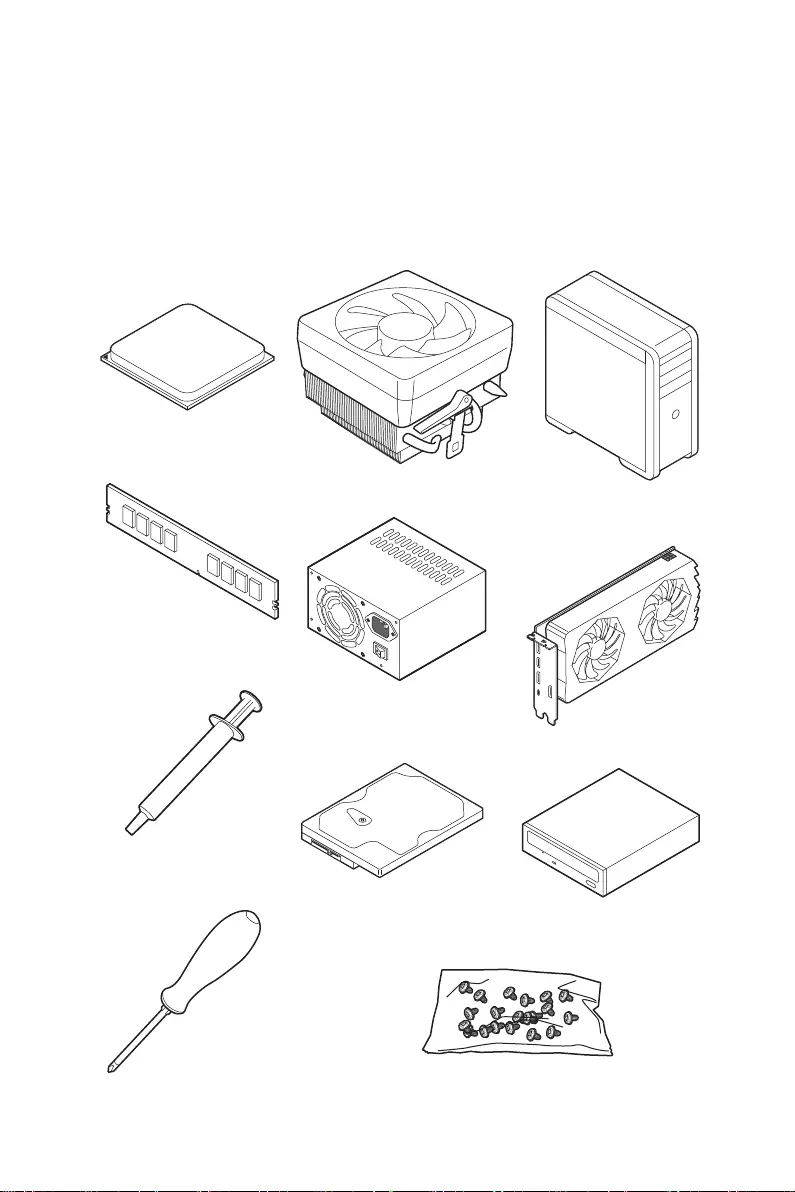
1
Quick Start
Quick Start
Thank you for purchasing the MSI® MAG B550 TOMAHAWK motherboard. This Quick
Start section provides demonstration diagrams about how to install your computer.
Some of the installations also provide video demonstrations. Please link to the URL to
watch it with the web browser on your phone or tablet. You may have even link to the
URL by scanning the QR code.
Preparing Tools and Components
DDR4 Memory
Graphics Card
SATA Hard Disk Drive SATA DVD Drive
Phillips Screwdriver
Chassis
Power Supply Unit
A Package of Screws
Thermal Paste
CPU Fan
AMD® AM4 CPU

2Quick Start
Safety Information
∙The components included in this package are prone to damage from electrostatic
discharge (ESD). Please adhere to the following instructions to ensure successful
computer assembly.
∙Ensure that all components are securely connected. Loose connections may cause
the computer to not recognize a component or fail to start.
∙Hold the motherboard by the edges to avoid touching sensitive components.
∙It is recommended to wear an electrostatic discharge (ESD) wrist strap when
handling the motherboard to prevent electrostatic damage. If an ESD wrist strap is
not available, discharge yourself of static electricity by touching another metal object
before handling the motherboard.
∙Store the motherboard in an electrostatic shielding container or on an anti-static
pad whenever the motherboard is not installed.
∙Before turning on the computer, ensure that there are no loose screws or metal
components on the motherboard or anywhere within the computer case.
∙Do not boot the computer before installation is completed. This could cause
permanent damage to the components as well as injury to the user.
∙If you need help during any installation step, please consult a certified computer
technician.
∙Always turn off the power supply and unplug the power cord from the power outlet
before installing or removing any computer component.
∙Keep this user guide for future reference.
∙Keep this motherboard away from humidity.
∙Make sure that your electrical outlet provides the same voltage as is indicated on
the PSU, before connecting the PSU to the electrical outlet.
∙Place the power cord such a way that people can not step on it. Do not place
anything over the power cord.
∙All cautions and warnings on the motherboard should be noted.
∙If any of the following situations arises, get the motherboard checked by service
personnel:
▪Liquid has penetrated into the computer.
▪The motherboard has been exposed to moisture.
▪The motherboard does not work well or you can not get it work according to user
guide.
▪The motherboard has been dropped and damaged.
▪The motherboard has obvious sign of breakage.
∙Do not leave this motherboard in an environment above 60°C (140°F), it may damage
the motherboard.
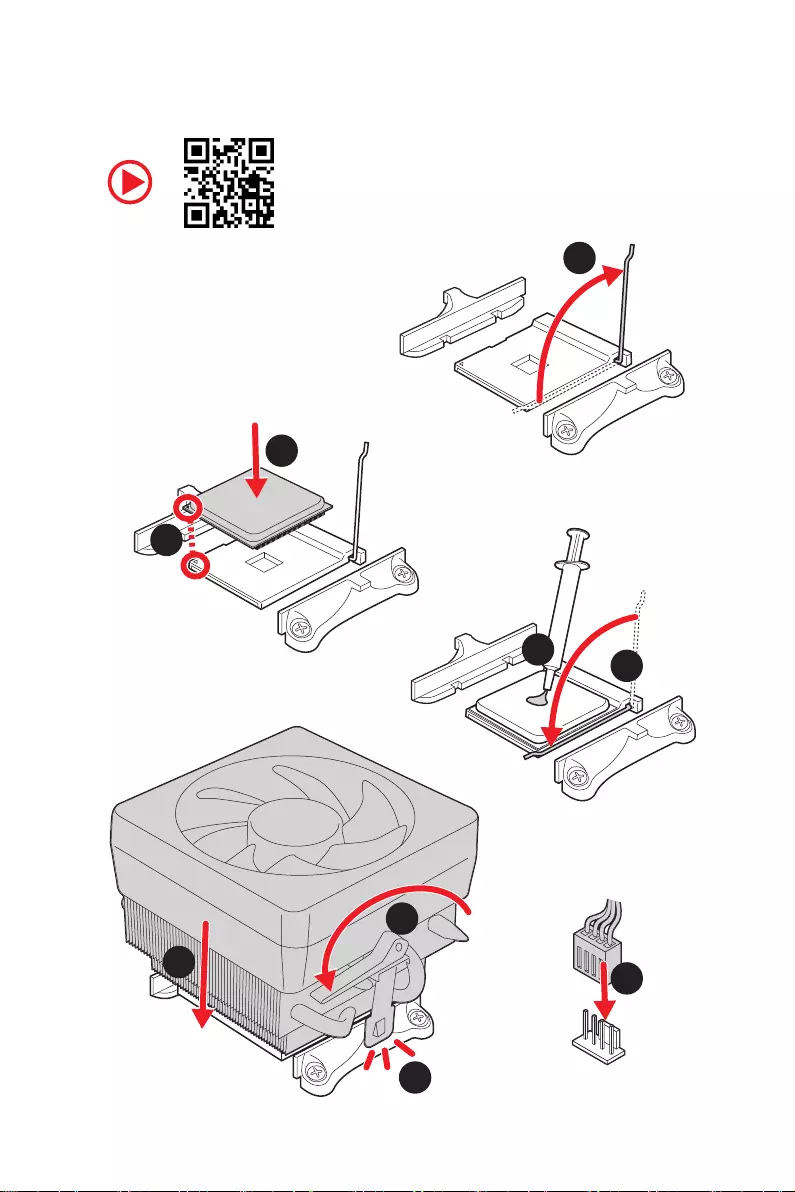
3
Quick Start
Installing a Processor
1
2
3
6
4
5
7
8
9
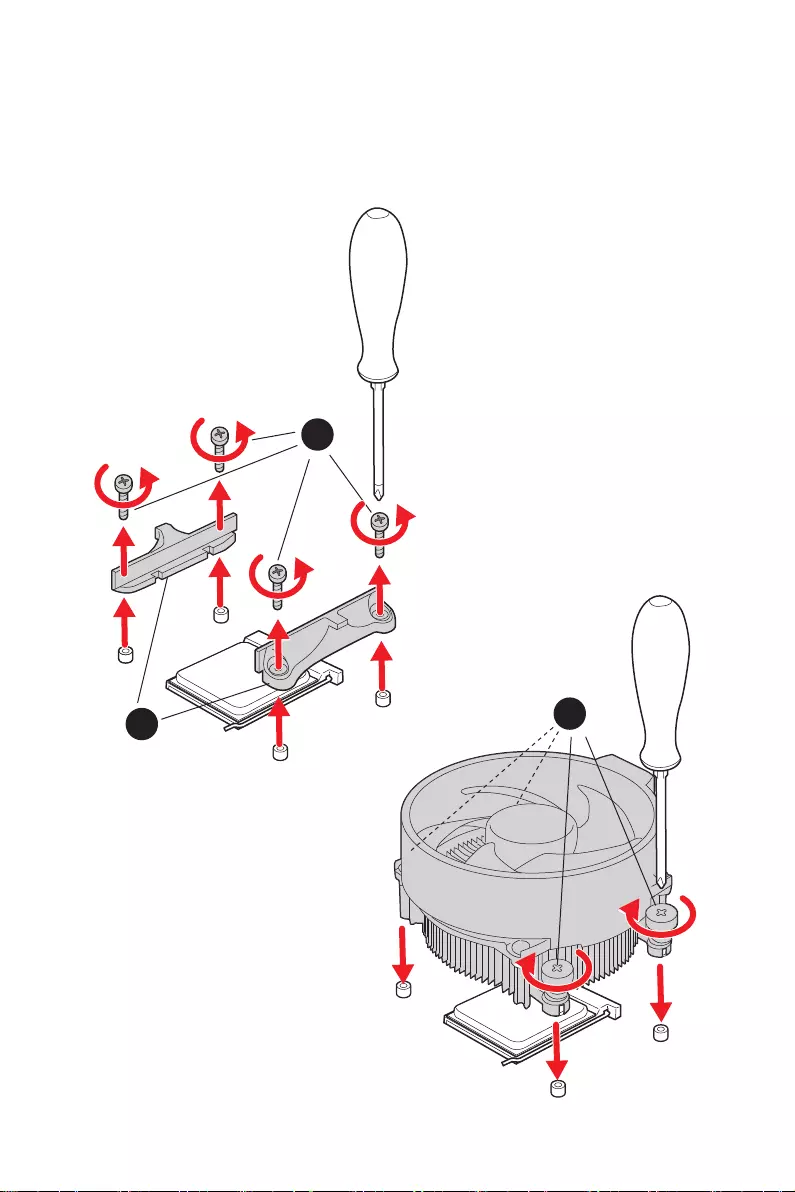
4Quick Start
1
23
⚠
Important
If you are installing the screw-type CPU heatsink, please follow the figure below to
remove the retention module first and then install the heatsink.
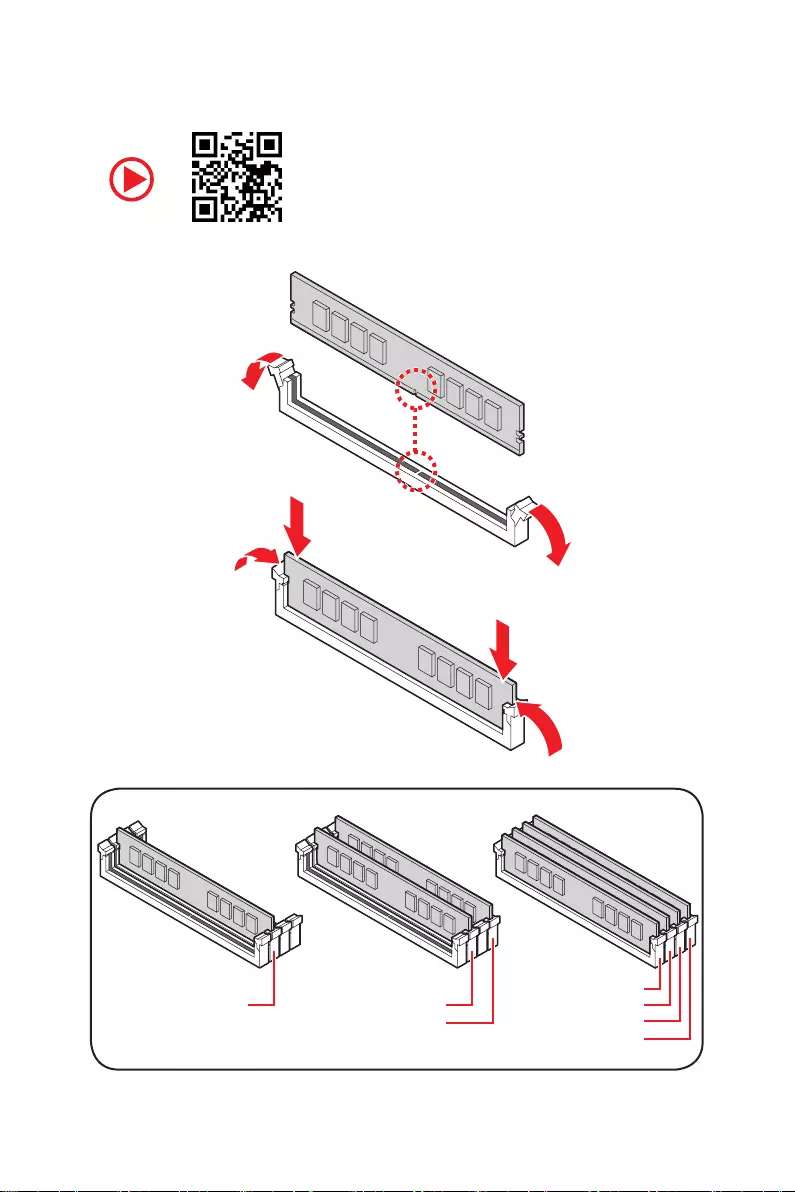
5
Quick Start
Installing DDR4 memory
DIMMA2 DIMMA2
DIMMB2
DIMMA1
DIMMA2
DIMMB1
DIMMB2
6Quick Start
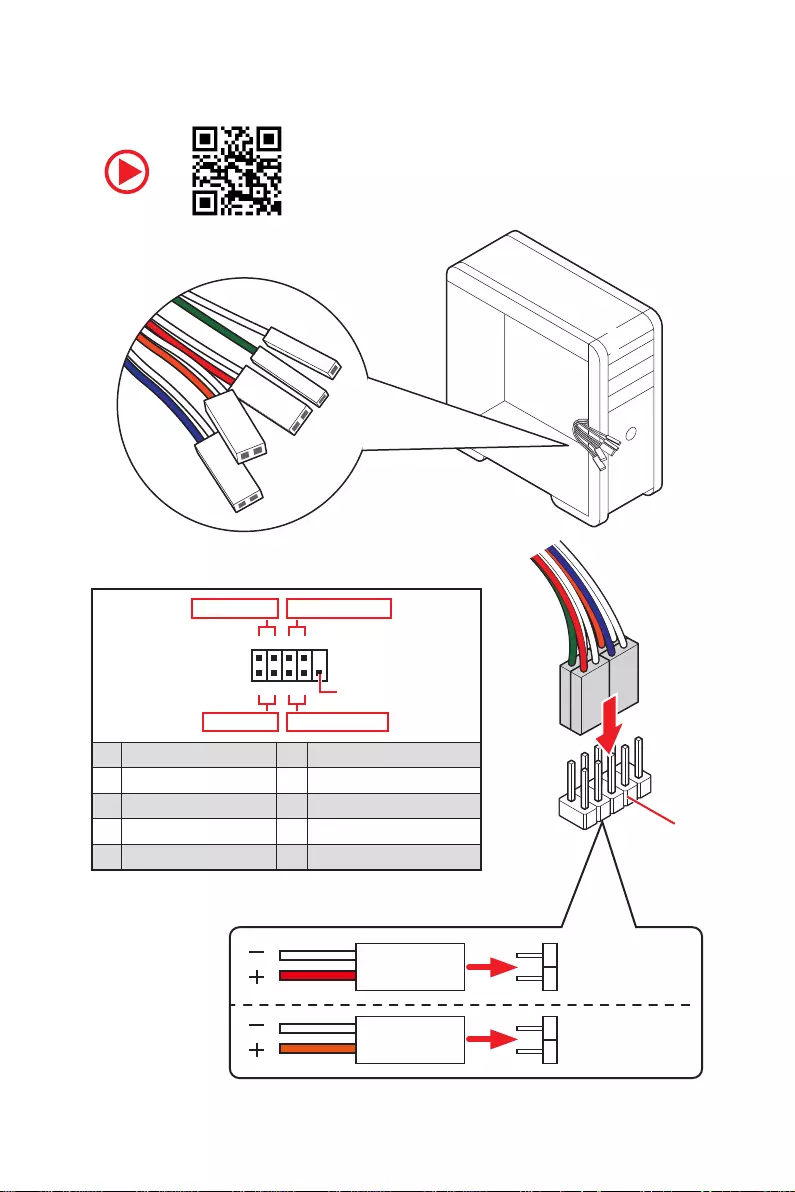
HDD LED
RESET SW
Connecting the Front Panel Header
JFP1
HDD LED HDD LED —
HDD LED +
POWER LED —
POWER LED +
POWER LED
1
2 10
9
+
+
+— ——
—
+
Power LED
HDD LED Reset Switch
Reserved
Power Switch
JFP1
1 HDD LED + 2 Power LED +
3 HDD LED — 4 Power LED —
5 Reset Switch 6 Power Switch
7 Reset Switch 8 Power Switch
9 Reserved 10 No Pin
RESET SW
POWER SW
POWER LED+
POWER LED-
HDD LED
7
Quick Start
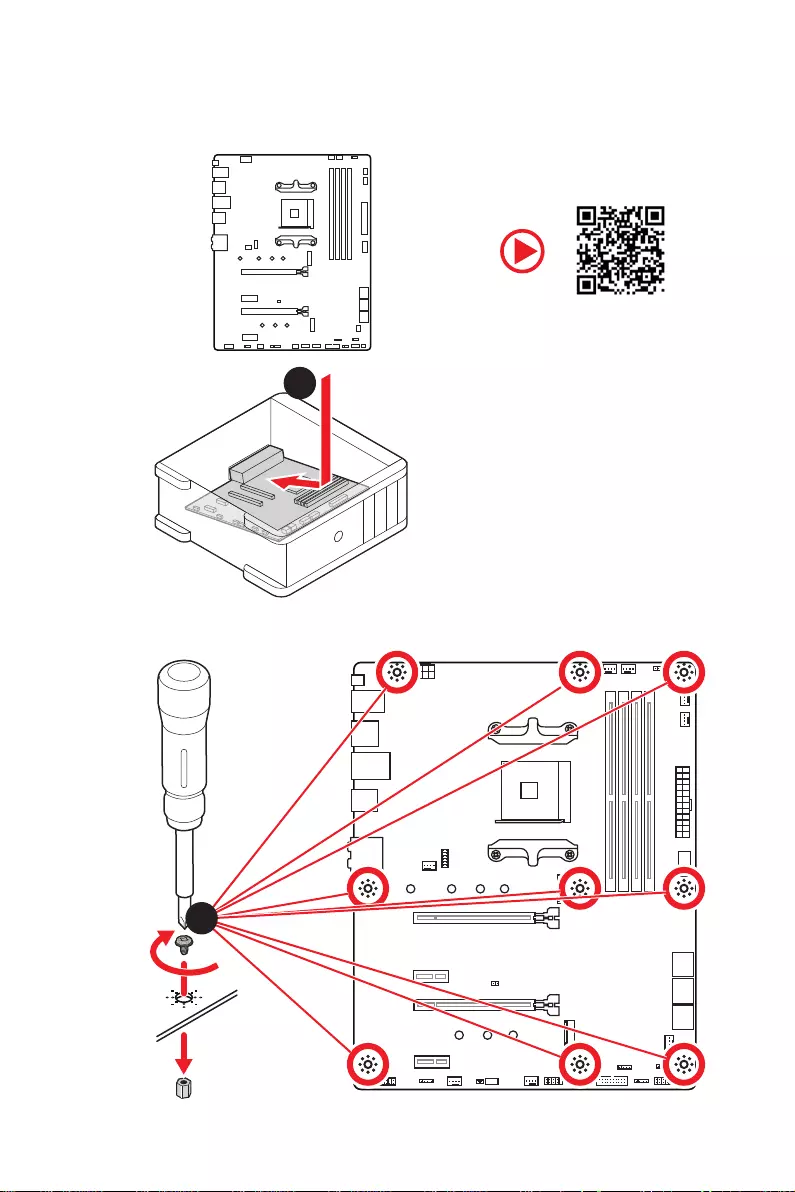
Installing the Motherboard
1
3
Torque:
3 kgf·cm*
*3 kgf·cm
= 0.3 N·m
= 2.6 lbf·in
8Quick Start
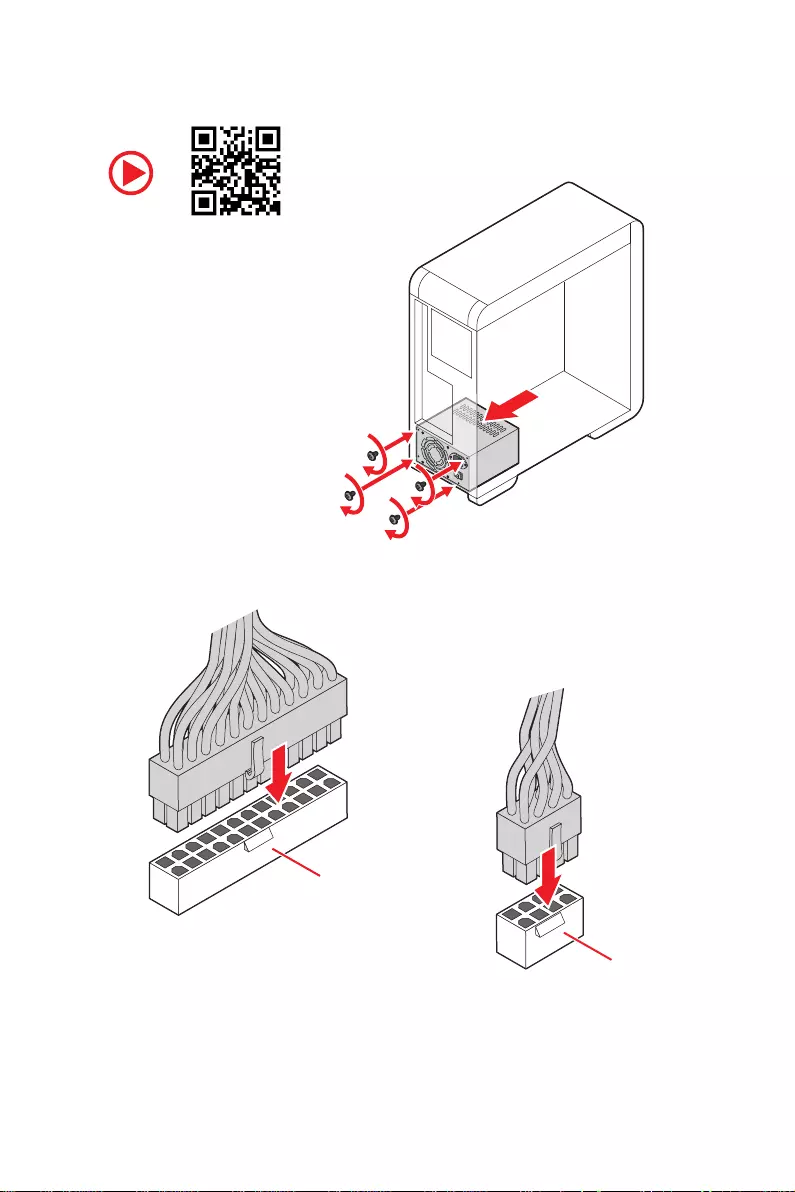
Connecting the Power Connectors
ATX_PWR1
CPU_PWR1
CPU_PWR2
9
Quick Start
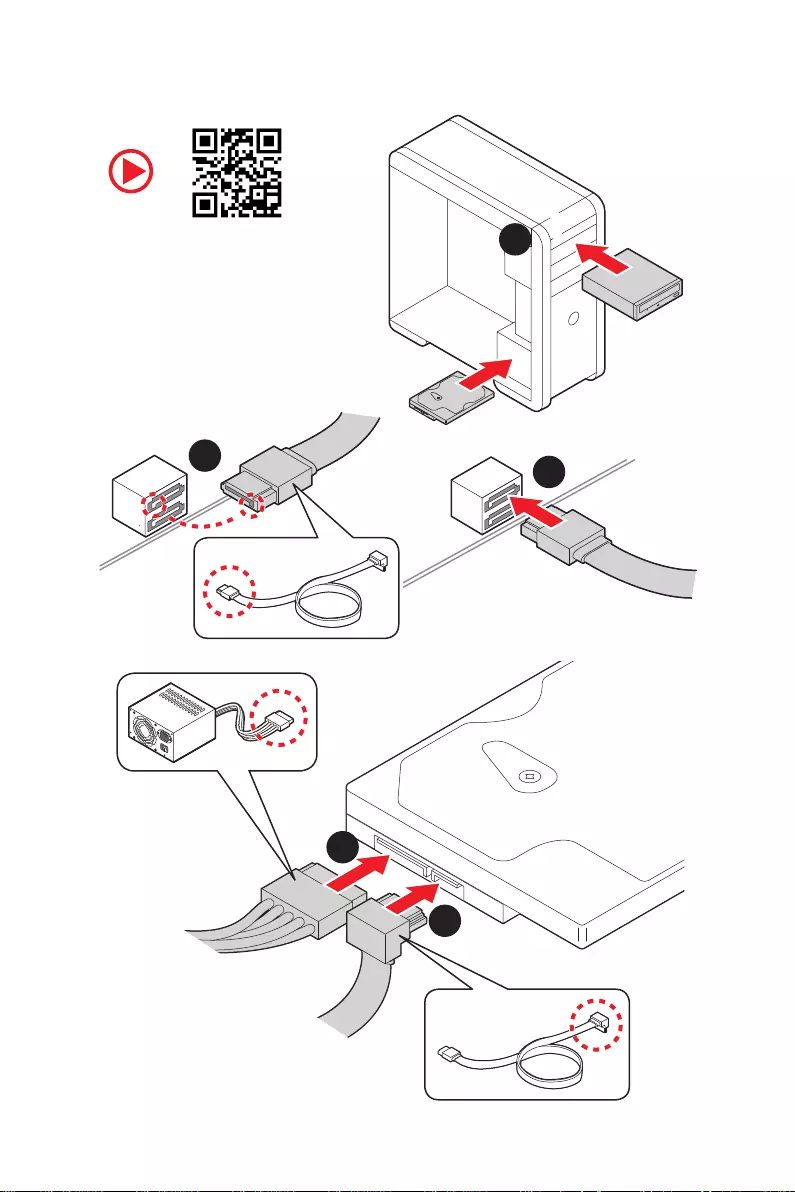
Installing SATA Drives
1
23
4
5
10 Quick Start
1
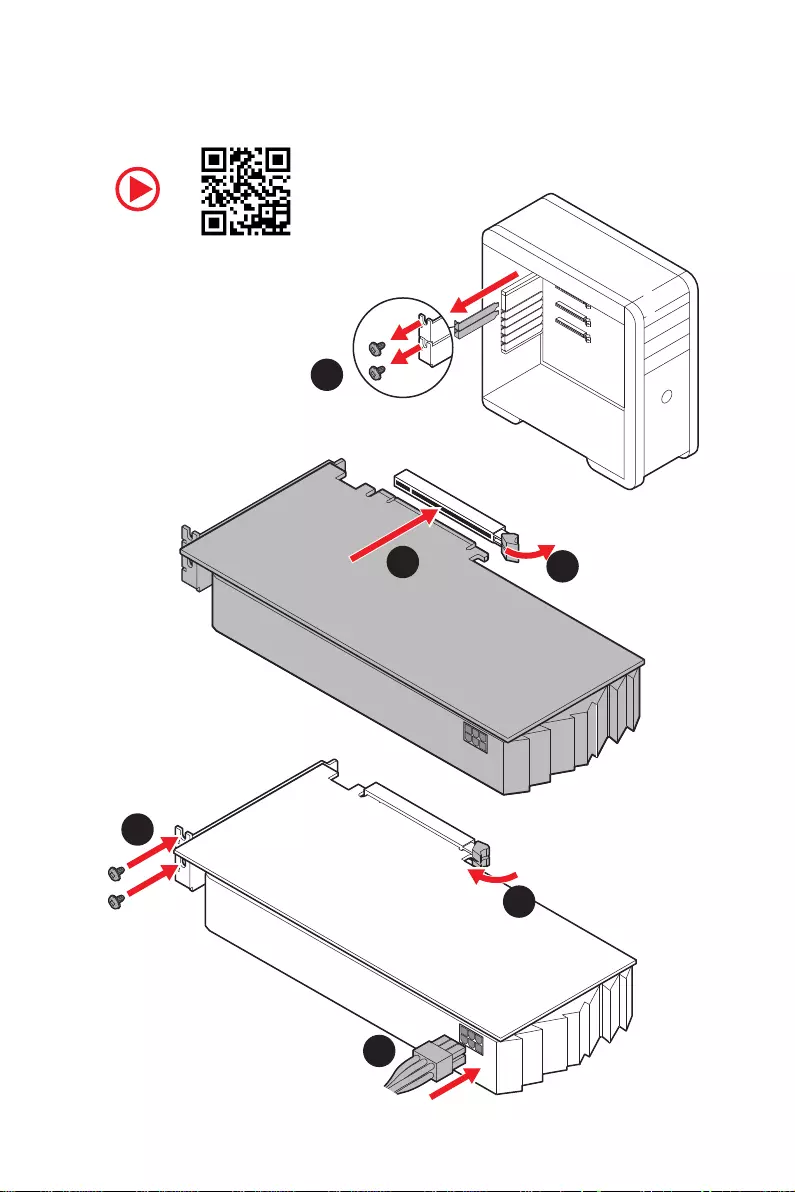
Installing a Graphics Card
2
3
4
5
6
11
Quick Start
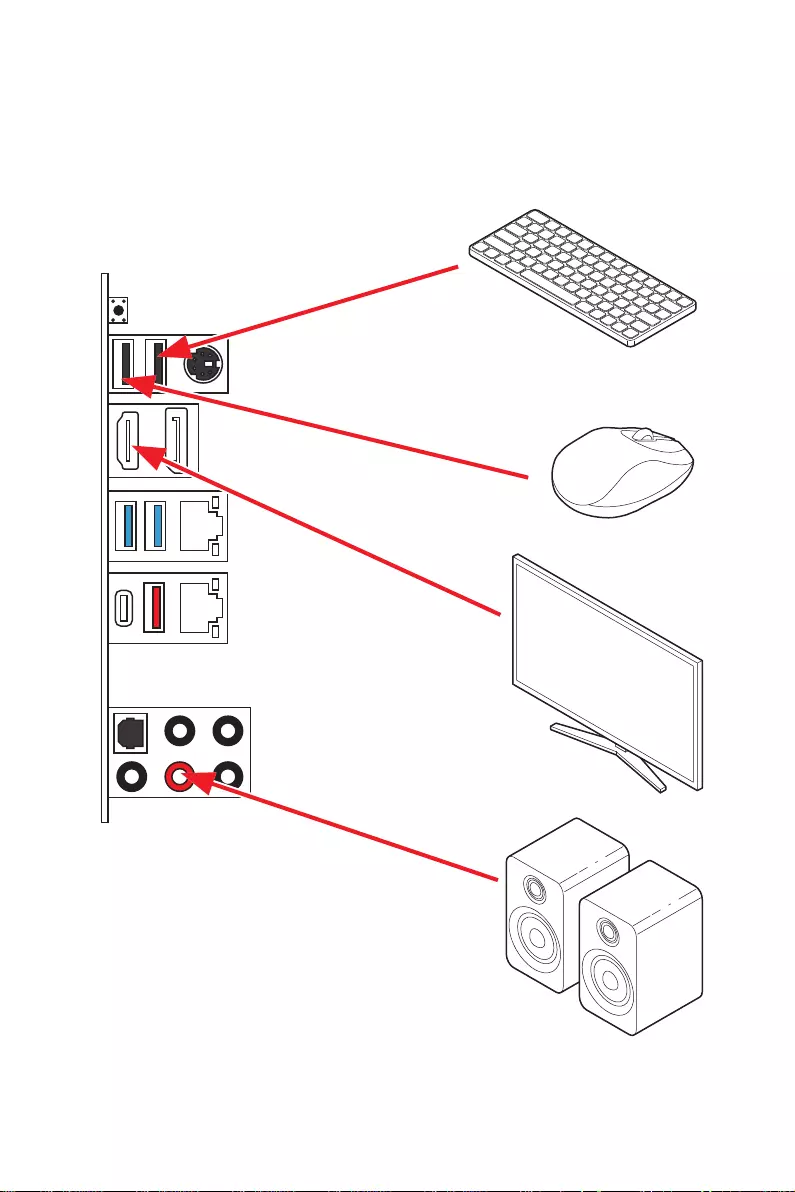
Connecting Peripheral Devices
Processor with integrated graphics
12 Quick Start
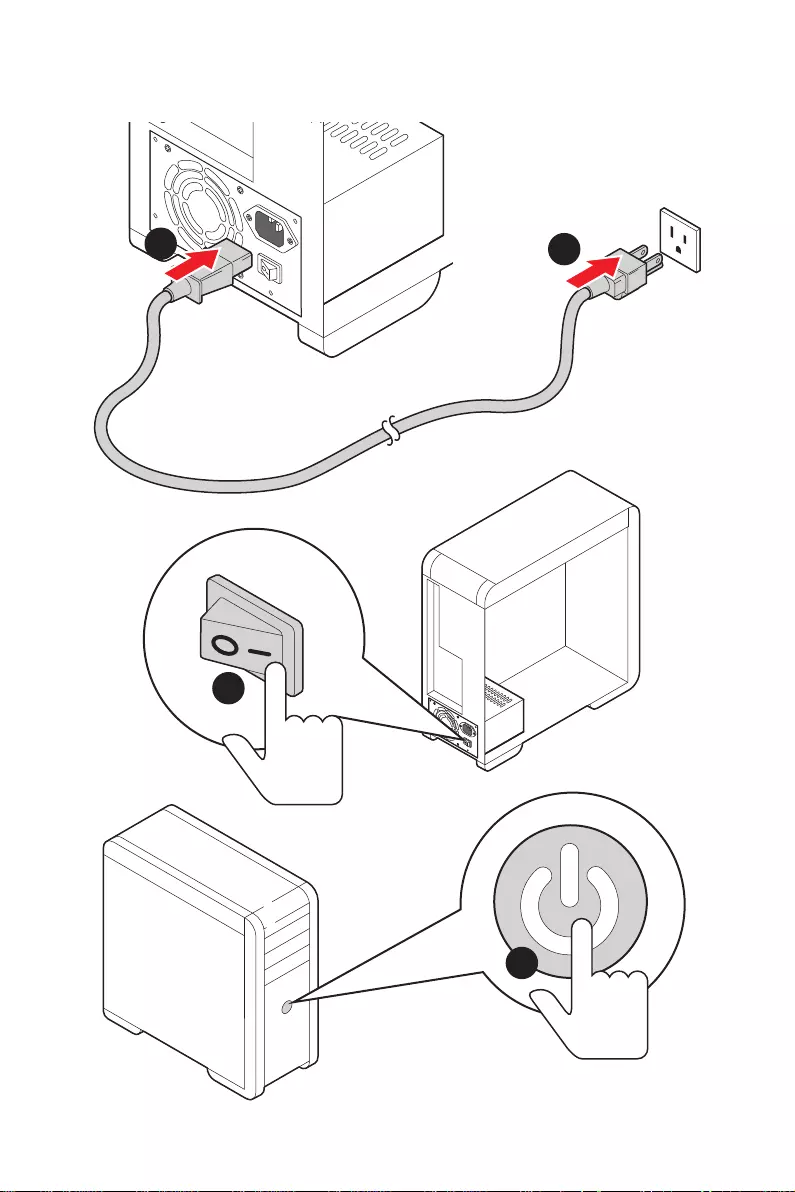
Power On
4
3
12

13
Contents
Contents
Quick Start ………………………………………………………………………………………………. 1
Preparing Tools and Components ……………………………………………………………….. 1
Safety Information …………………………………………………………………………………….. 2
Installing a Processor ………………………………………………………………………………… 3
Installing DDR4 memory ……………………………………………………………………………. 5
Connecting the Front Panel Header …………………………………………………………….. 6
Installing the Motherboard …………………………………………………………………………. 7
Connecting the Power Connectors ………………………………………………………………. 8
Installing SATA Drives………………………………………………………………………………… 9
Installing a Graphics Card ………………………………………………………………………… 10
Connecting Peripheral Devices …………………………………………………………………. 11
Power On………………………………………………………………………………………………… 12
Specifications …………………………………………………………………………………………. 15
Package contents……………………………………………………………………………………. 20
Block Diagram ………………………………………………………………………………………. 21
Rear I/O Panel ………………………………………………………………………………………… 22
LAN Port LED Status Table……………………………………………………………………….. 22
Audio Ports Configuration ………………………………………………………………………… 22
Realtek Audio Console …………………………………………………………………………….. 23
Overview of Components ………………………………………………………………………… 25
Processor Socket …………………………………………………………………………………….. 27
DIMM Slots ……………………………………………………………………………………………… 28
PCI_E1~4: PCIe Expansion Slots ……………………………………………………………….. 29
SATA1~6: SATA 6Gb/s Connectors …………………………………………………………….. 30
M2_1~2: M.2 Slots (Key M) ……………………………………………………………………….. 30
JFP1, JFP2: Front Panel Connectors …………………………………………………………. 32
JAUD1: Front Audio Connector …………………………………………………………………. 32
CPU_PWR1, ATX_PWR1: Power Connectors ………………………………………………. 33
JUSB4: USB 3.2 Gen 1 5Gbps Type-C Connector …………………………………………. 34
JUSB3: USB 3.2 Gen 1 5Gbps Connector ……………………………………………………. 34
JUSB1~2: USB 2.0 Connectors ………………………………………………………………….. 35
JTPM1: TPM Module Connector ………………………………………………………………… 35
CPU_FAN1, PUMP_FAN1, SYS_FAN1~6: Fan Connectors …………………………….. 36
JCI1: Chassis Intrusion Connector …………………………………………………………….. 37
JBAT1: Clear CMOS (Reset BIOS) Jumper ………………………………………………….. 38
JRGB1~2: RGB LED connectors ………………………………………………………………… 39

14 Contents
JRAINBOW1~2: Addressable RGB LED connectors ……………………………………… 40
EZ Debug LED …………………………………………………………………………………………. 41
LED_SW1: EZ LED Control ……………………………………………………………………….. 41
Installing OS, Drivers & Utilities ………………………………………………………………. 42
Installing Windows® 10 …………………………………………………………………………… 42
Installing Drivers …………………………………………………………………………………….. 42
Installing Utilities ……………………………………………………………………………………. 42
UEFI BIOS ………………………………………………………………………………………………. 43
BIOS Setup ……………………………………………………………………………………………… 44
Entering BIOS Setup ………………………………………………………………………………… 44
Resetting BIOS ………………………………………………………………………………………… 45
Updating BIOS …………………………………………………………………………………………. 45
EZ Mode …………………………………………………………………………………………………. 47
Advanced Mode ………………………………………………………………………………………. 50
SETTINGS Menu ……………………………………………………………………………………… 51
OC Menu…………………………………………………………………………………………………. 53
M-FLASH Menu ………………………………………………………………………………………. 55
OC PROFILE Menu …………………………………………………………………………………… 56
HARDWARE MONITOR Menu …………………………………………………………………….. 57
AMD RAID Configuration …………………………………………………………………………. 59
Enabling RAIDXpert2 Configuration Utility …………………………………………………. 59
Initializing Disks ……………………………………………………………………………………… 60
Creating Arrays ……………………………………………………………………………………….. 61
Deleting Arrays ……………………………………………………………………………………….. 62
Installing RAID Driver ………………………………………………………………………………. 63
Troubleshooting …………………………………………………………………………………….. 64
15
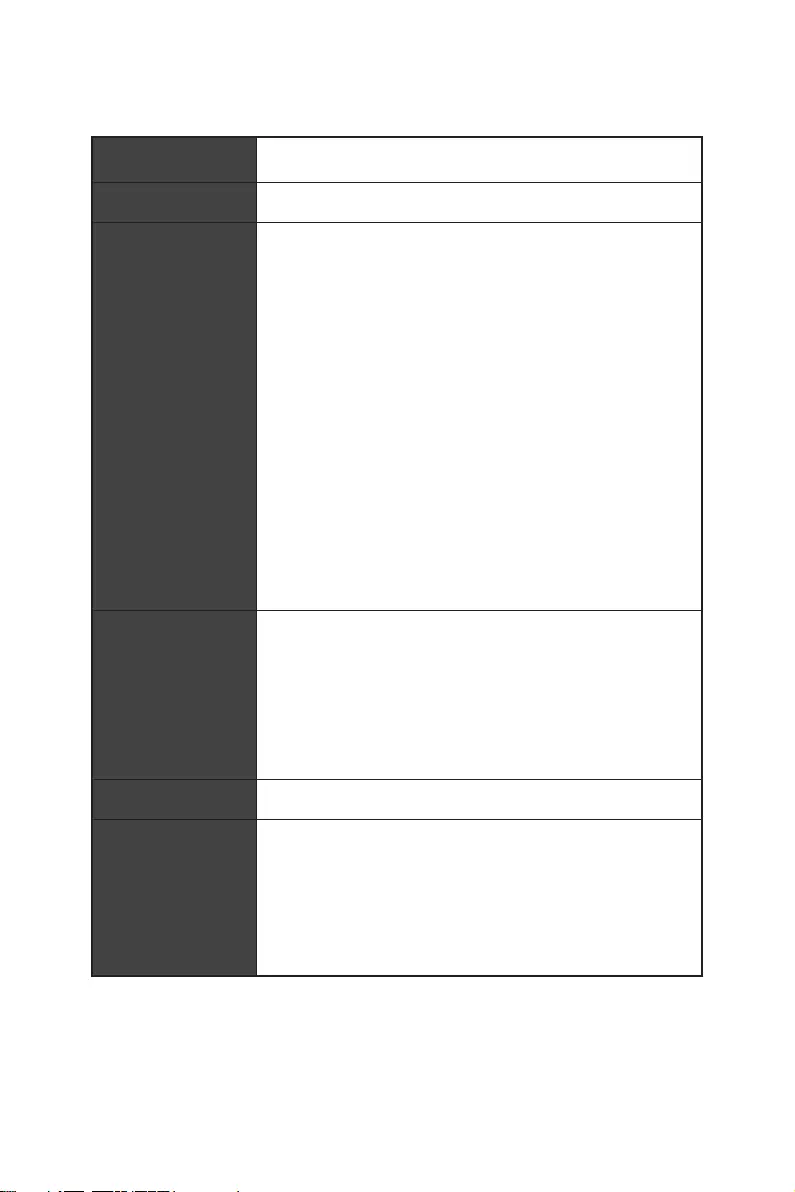
Specifications
Specifications
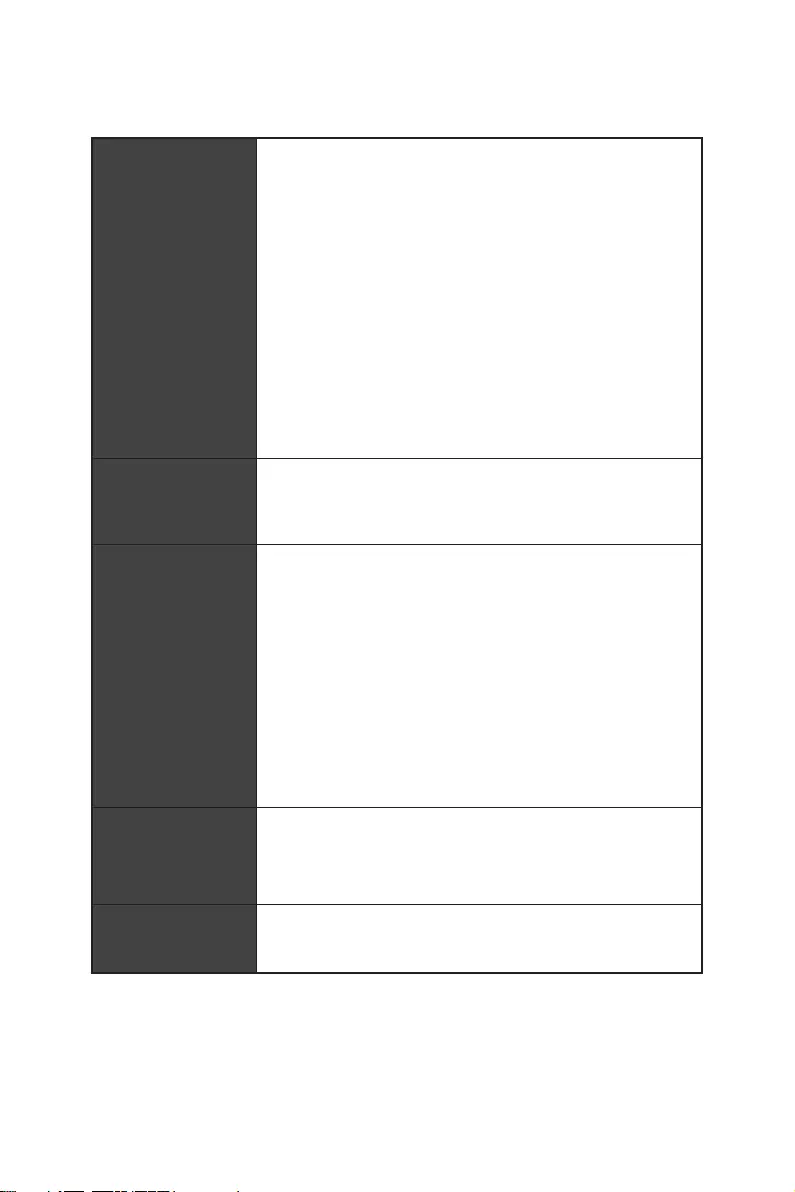
CPU Supports AM4 socket 3rd Gen AMD Ryzen™ processors, and
future AMD Ryzen™ processors with BIOS update
Chipset AMD B550 Chipset
Memory
∙4x DDR4 memory slots, support up to 128GB*
▪Supports DDR4 1866/ 2133/ 2400/ 2667/ 2800/ 2933/
3000/ 3066/ 3200 MHz by JEDEC
▪Supports DDR4 2667/ 2800 /2933 /3000 /3066 /3200
/3466 /3600/ 3733 /3866 /4000 /4133 /4266 /4400 /4533
/4600 /4733/ 4800/ 4866+ MHz by A-XMP OC MODE
▫1DPC 1R max speed 4866 MHZ
▫1DPC 2R max speed 3866 MHZ
▫2DPC 1R max speed 4000 MHZ
▫2DPC 2R max speed 3600 MHZ
∙Dual channel memory architecture
∙Supports non-ECC UDIMM memory
∙Supports ECC UDIMM memory (non-ECC mode)
∙Supports un-buffered memory
* Please refer www.msi.com for more information on compatible memory.
Expansion Slot
∙1x PCIe 4.0/ 3.0 x16 slot (PCI_E1)*
∙1x PCIe 3.0 x16 slot (PCI_E3), supports x4 speed**
∙2x PCIe 3.0 x1 slots
* The supported specification depends on installed processor.
** When installing devices in M.2_2, PCI_E2 & PCI_E3 slots at the same time,
PCI_E3 slot will be unavailable, and M2_2 slot only supports PCIe x2. Please
refer to page 29 for details.
Multi-GPU ∙Supports 2-Way AMD CrossFire™ Technology
Onboard Graphics
∙1x HDMI port, supports a maximum resolution of
4096×2160 @24Hz*
∙1x DisplayPort, supports a maximum resolution of
4096×2160 @60Hz*
∙Maximum shared memory of 2048 MB
* Available for the processor with integrated graphics.
Continued on next page
16 Specifications
Continued from previous page
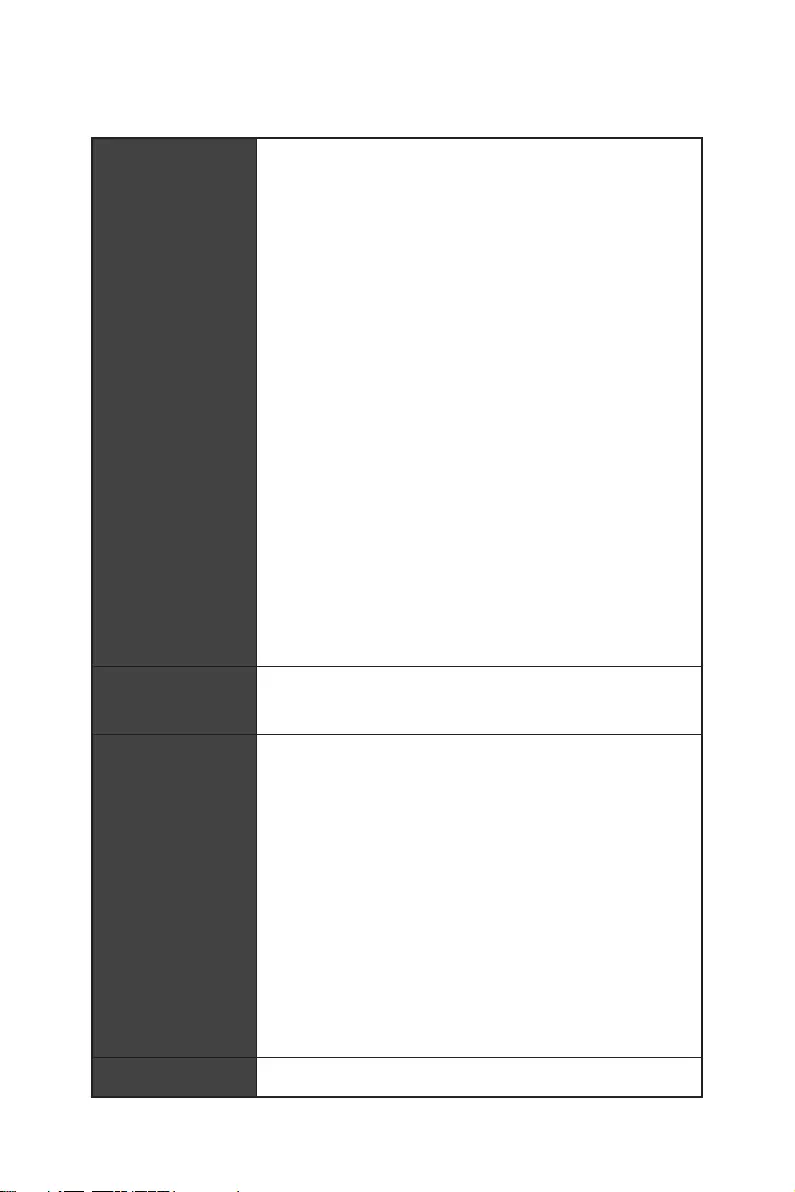
Storage
AMD B550 Chipset
∙6x SATA 6Gb/s ports
∙2x M.2 slots (Key M)
▪M2_1 slot (from AMD Processor)
▫Supports PCIe 4.0/ 3.0 x4*
▫Supports SATA 6Gb/s
▫Supports 2242/ 2260/ 2280/ 22110 storage devices
▪M2_2 slot (from AMD B550 chipset)
▫Supports PCIe 3.0×4
▫Supports 2242/ 2260/ 2280 storage devices
* The supported specification depends on installed processor.
RAID
∙Supports RAID 0, RAID 1 and RAID 10 for SATA storage
devices
∙Supports RAID 0 and RAID 1 for M.2 NVMe storage devices
USB
AMD B550 Chipset
▪3x USB 3.2 Gen 1 5Gbps ports (1 Type-C internal
connector, and 2 ports are available through the internal
USB 3.2 Gen 1 5Gbps connector)
▪6x USB 2.0 ports (2 Type-A ports on the back panel, 4
ports through the internal USB 2.0 connectors)
AMD Processor
▪2x USB 3.2 Gen 2 10Gbps ports (1 Type-C port and 1
Type-A port on the back panel)
▪2x USB 3.2 Gen 1 5Gbps Type-A ports on the back
panel
Audio
Realtek® ALC1200 Codec
▪7.1-Channel High Definition Audio
▪Supports S/PDIF output
LAN ∙1x Realtek® RTL8125B 2.5Gbps LAN controller
∙1x Realtek® RTL8111H 1Gbps LAN controller
Continued on next page
17
Specifications
Continued from previous page
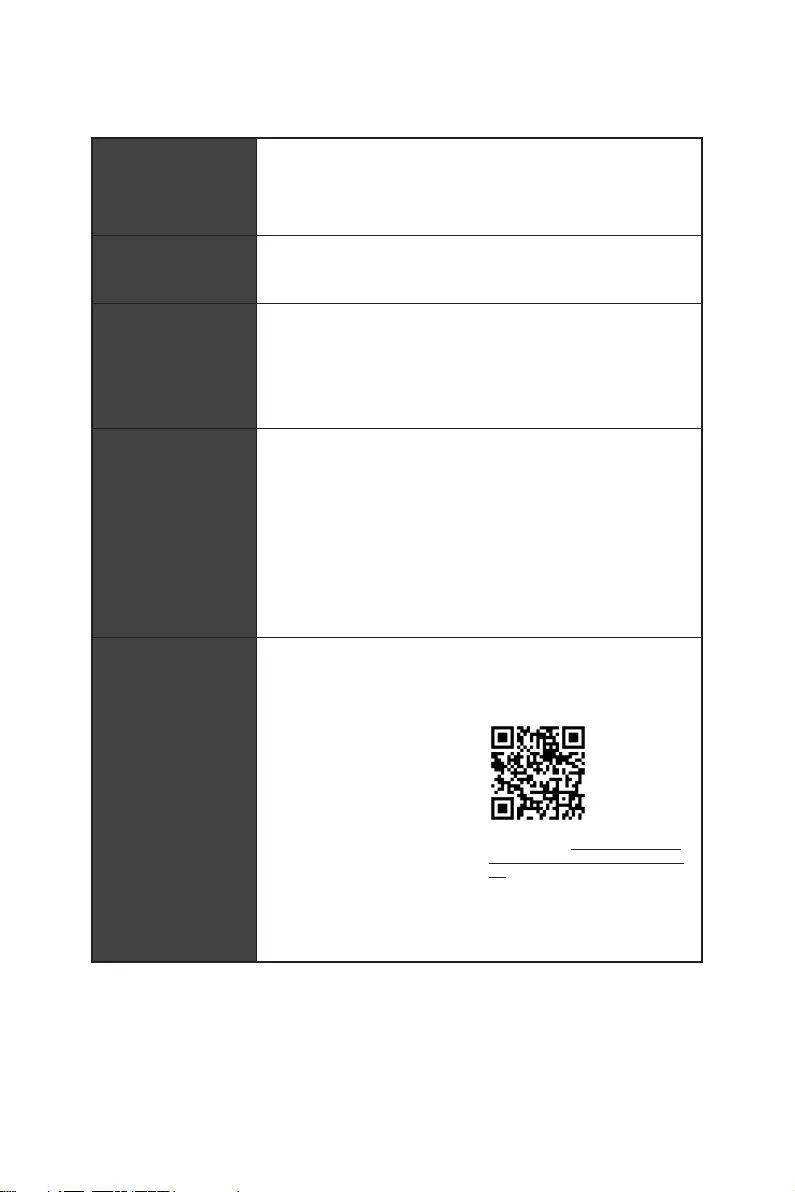
Internal Connectors
∙1x 24-pin ATX main power connector
∙1x 8-pin ATX 12V power connector
∙6x SATA 6Gb/s connectors
∙2x M.2 slots (M-Key)
∙1x USB 3.2 Gen 1 5Gbps Type-C port
∙1x USB 3.2 Gen 1 5Gbps connector (supports additional 2
USB 3.2 Gen 1 5Gbps ports)
∙2x USB 2.0 connectors (supports additional 4 USB 2.0
ports)
∙1x 4-pin CPU fan connector
∙1x 4-pin water-pump fan connector
∙6x 4-pin system fan connectors
∙1x Front panel audio connector
∙2x System panel connectors
∙1x Chassis Intrusion connector
∙2x 4-pin RGB LED connectors
∙2x 3-pin RAINBOW LED connectors
∙1x TPM module connector
∙1x Clear CMOS jumper
LED Features ∙1x EZ LED Control switch
∙4x EZ Debug LED
Back Panel
Connectors
∙1x Flash BIOS Button
∙1x PS/2 keyboard/ mouse combo port
∙2x USB 2.0 Type-A ports
∙1x Display port
∙1x HDMI port
∙2x LAN (RJ45) ports
∙2x USB 3.2 Gen 1 5Gbps Type-A ports
∙1x USB 3.2 Gen 2 10Gbps Type-A port
∙1x USB 3.2 Gen 2 10Gbps Type-C port
∙5x OFC audio jacks
∙1x Optical S/PDIF Out connector
I/O Controller NUVOTON NCT6687-R Controller Chip
Continued on next page
18 Specifications
Continued from previous page
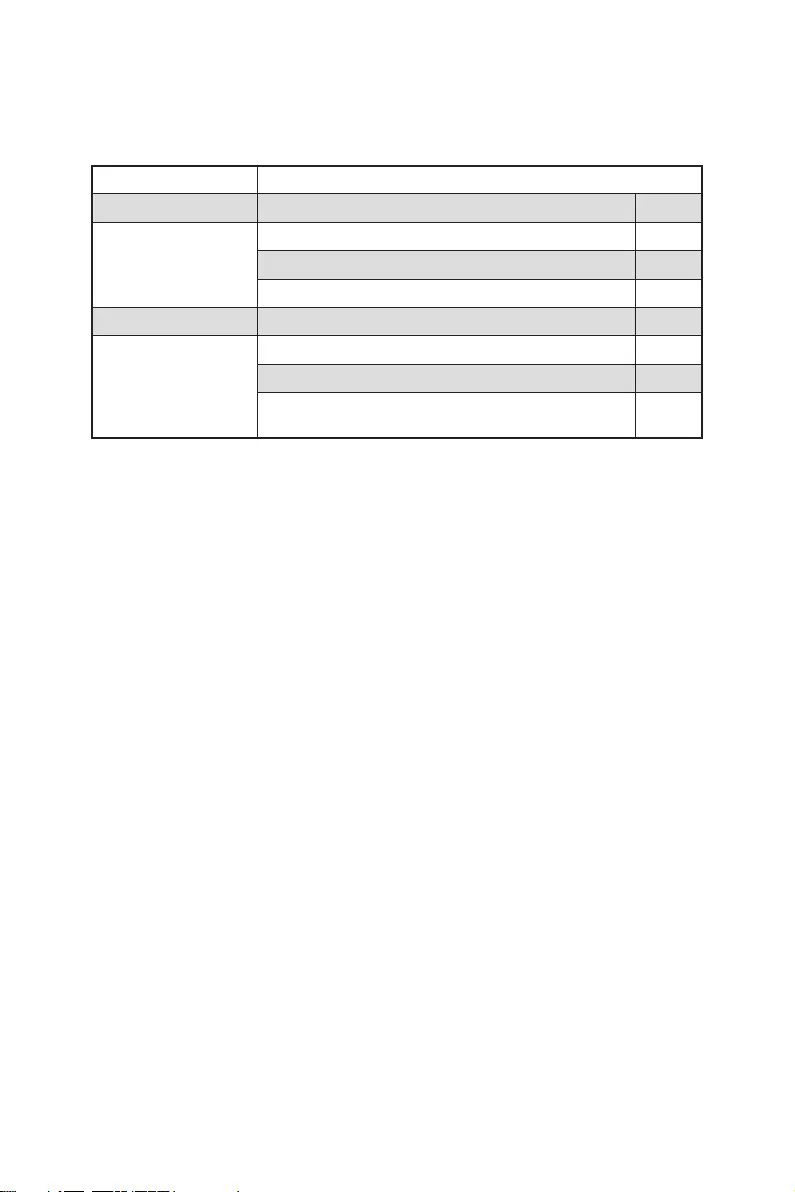
Hardware Monitor
∙CPU/ System/ Chipset temperature detection
∙CPU/ System/ Pump fan speed detection
∙CPU/ System/ Pump fan speed control
Form Factor ∙ATX Form Factor
∙12 in. x 9.6 in. (30.5 cm x 24.4 cm)
BIOS Features
∙1x 256 Mb flash
∙UEFI AMI BIOS
∙ACPI 6.0, SMBIOS 2.8
∙Multi-language
Software
∙Drivers
∙DRAGON CENTER
∙MSI APP Player (BlueStacks)
∙Open Broadcaster Software (OBS)
∙CPU-Z MSI GAMING
∙Google Chrome™, Google Toolbar, Google Drive
∙Norton™ Internet Security Solution
Dragon Center
Features
∙Gaming Mode
∙Gaming Hotkey
∙LAN Manager
∙Mystic Light
∙User Scenario
∙Hardware Monitor
∙True Color
∙Live Update
∙Speed Up
∙Smart Tool
∙Super Charger
Please refer to http://download.msi.
com/manual/mb/DRAGONCENTER2.
pdf for more details.
Continued on next page

19
Specifications
Continued from previous page
Special Features
∙Audio
▪Audio Boost
∙Network
▪2.5G LAN
▪LAN Manager with Realtek 8125B
∙Cooling
▪Extended Heatsink Design
▪M.2 Shield Frozr
▪Pump Fan
▪Smart Fan Control
∙LED
▪Mystic Light Extension (RAINBOW/RGB)
▪Mystic Light SYNC
▪EZ LED Control
▪EZ DEBUG LED
∙Performance
▪Multi GPU-CrossFire Technology
▪DDR4 Boost
▪Core Boost
▪GAME Boost
▪USB 3.2 Gen 2 10G
▪USB with Type A+C
▪Front USB Type-C
∙Protection
▪PCI-E Steel Armor
▪PCI-E Steel Slot
▪Pre-installed I/O Shielding
∙Experience
▪Dragon Center
▪Click BIOS 5
▪Flash BIOS Button
20 Package contents
Package contents
Please check the contents of your motherboard package. It should contain:
Motherboard MAG B550 TOMAHAWK
Cable SATA 6G cables (2 cables/pack) 1
Accessories
M.2 screws (3 pcs./pack) 1
Case badge 1
Product registration card 1
Application Driver DVD 1
Documentation
User manual 1
Quick installation guide 1
MSI components compatibility & reward program
card 1
⚠
Important
If any of the above items are damaged or missing, please contact your retailer.
21
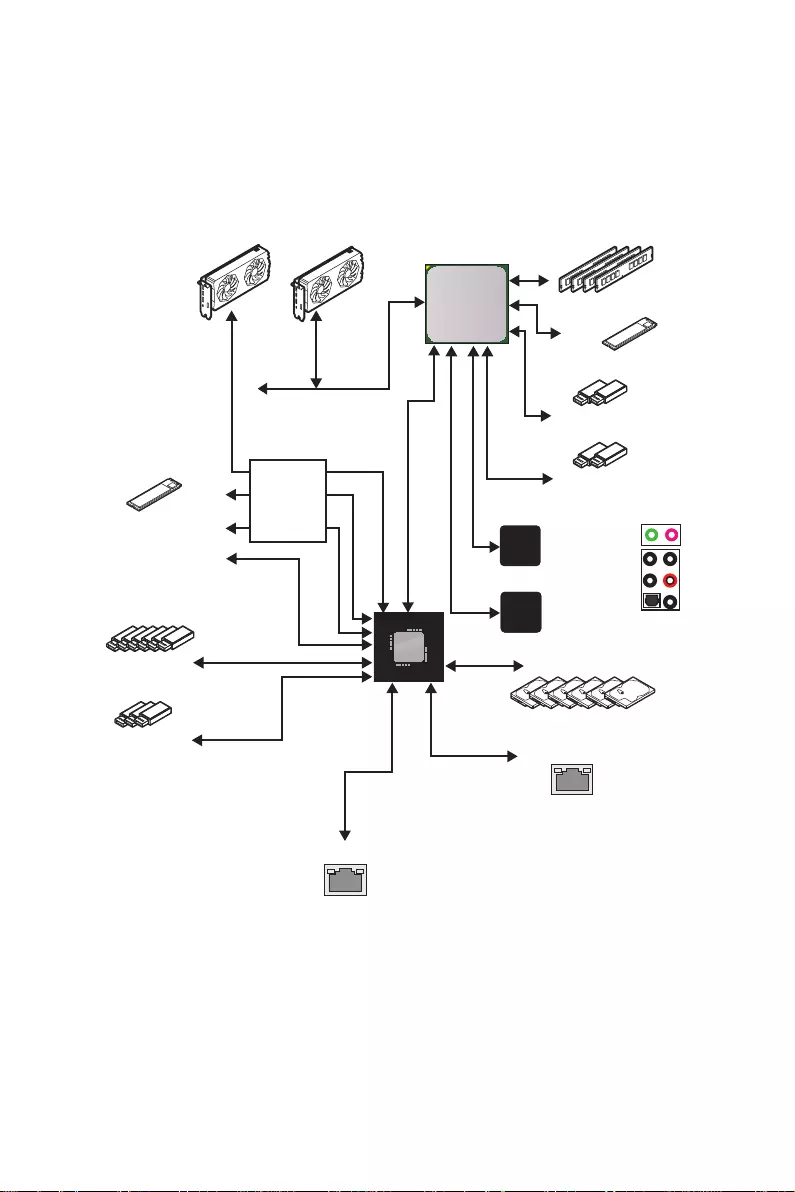
Block Diagram
Block Diagram
2 Channel DDR4 Memory
2x USB 3.2 Gen1
PCIE
PCI Express Bus
PCH
Processor
NUVOTON
6687
Realtek
ALC1200
3x USB 3.2 Gen1
6x USB 2.0
Rear Audio Jacks
Front Audio Jacks
1x M.2
6x SATA 6Gb/s
1x M.2 2x USB 3.2 Gen2
1x Realtek 8125B LAN
1x Realtek 8111H LAN
1x PCIe x1 slot
1x PCIe x1 slot
Switch
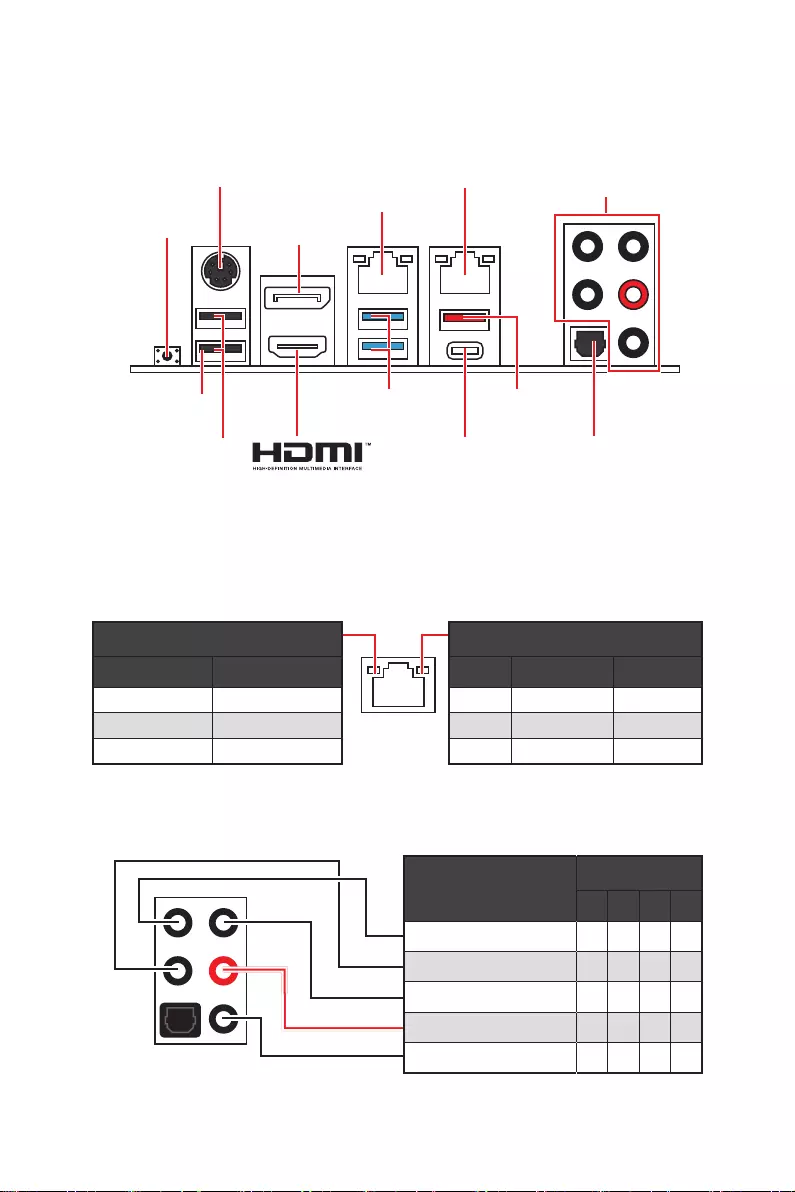
22 Rear I/O Panel
USB 3.2 Gen 1
(5Gbps) Type-A USB 3.2 Gen 2
(10Gbps) Type-A
Flash BIOS
Port
Rear I/O Panel
PS/2 Combo port
2.5 Gbps LAN
1 Gbps LAN
DisplayPort
USB 2.0
Type-A
Audio Ports
Optical
S/PDIF-Out
USB 3.2 Gen 2
(10Gbps) Type-C
Link/ Activity LED
Status Description
Off No link
Yellow Linked
Blinking Data activity
LAN Port LED Status Table
∙Flash BIOS Port/ Button — Please refer to page 48 for Updating BIOS with Flash
BIOS Button.
Flash BIOS
Button
Audio Ports Configuration
Audio Ports Channel
2468
Center/ Sub-woofer Out
Rear Speaker Out
Line-In/ Side Speaker Out
Line-Out/ Front Speaker Out
Mic In
Blank: empty)
Speed LED
Status 2.5 Gbps LAN 1 Gbps LAN
Off 10 Mbps 10 Mbps
Green 100/ 1000 Mbps 100 Mbps
Orange 2.5 Gbps 1 Gbps
23
Rear I/O Panel
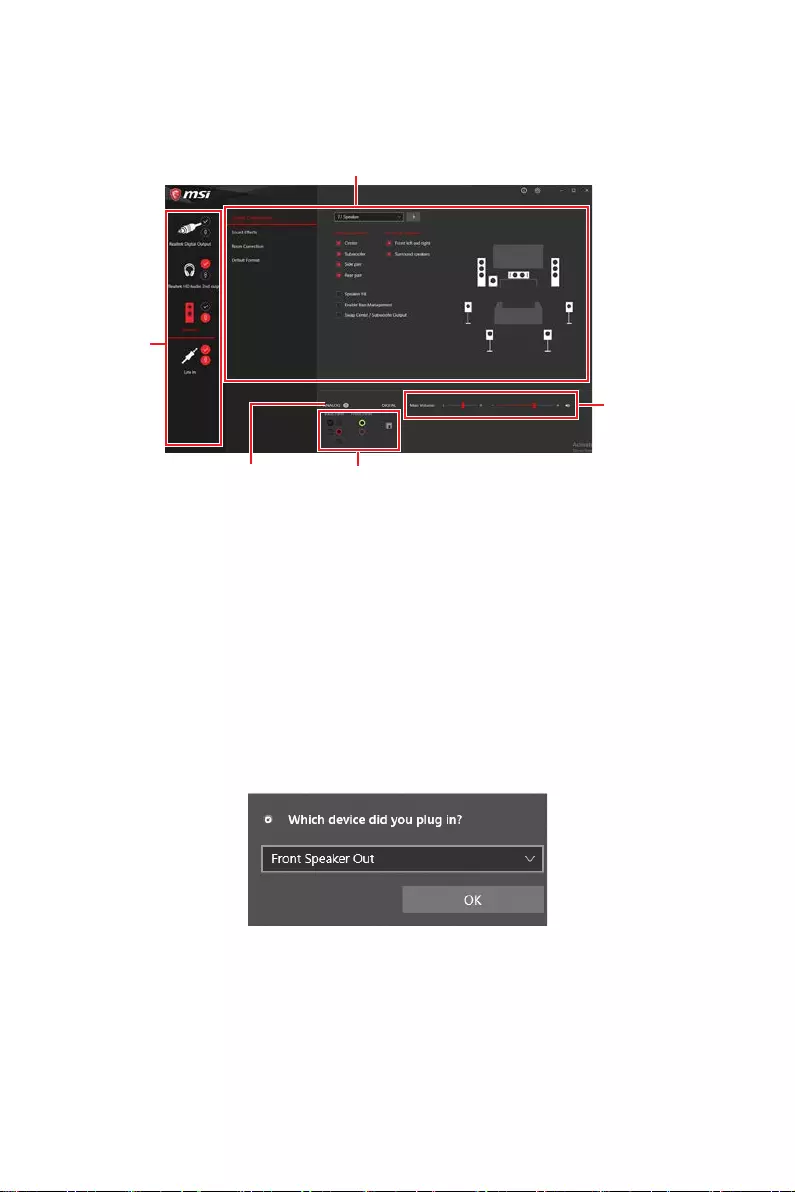
Realtek Audio Console
After Realtek Audio Console is installed. You can use it to change sound settings to get
better sound experience.
∙Device Selection — allows you to select a audio output source to change the related
options. The check sign indicates the devices as default.
∙Application Enhancement — the array of options will provide you a complete
guidance of anticipated sound effect for both output and input device.
∙Main Volume — controls the volume or balance the right/left side of the speakers
that you plugged in front or rear panel by adjust the bar.
∙Jack Status — depicts all render and capture devices currently connected with your
computer.
∙Connector Settings — configures the connection settings.
Auto popup dialog
When you plug into a device at an audio jack, a dialogue window will pop up asking you
which device is current connected.
Each jack corresponds to its default setting as shown on the next page.
⚠
Important
The pictures above for reference only and may vary from the product you purchased.
Jack Status
Connector Settings
Device
Selection
Main Volume
Application Enhancement
24 Rear I/O Panel
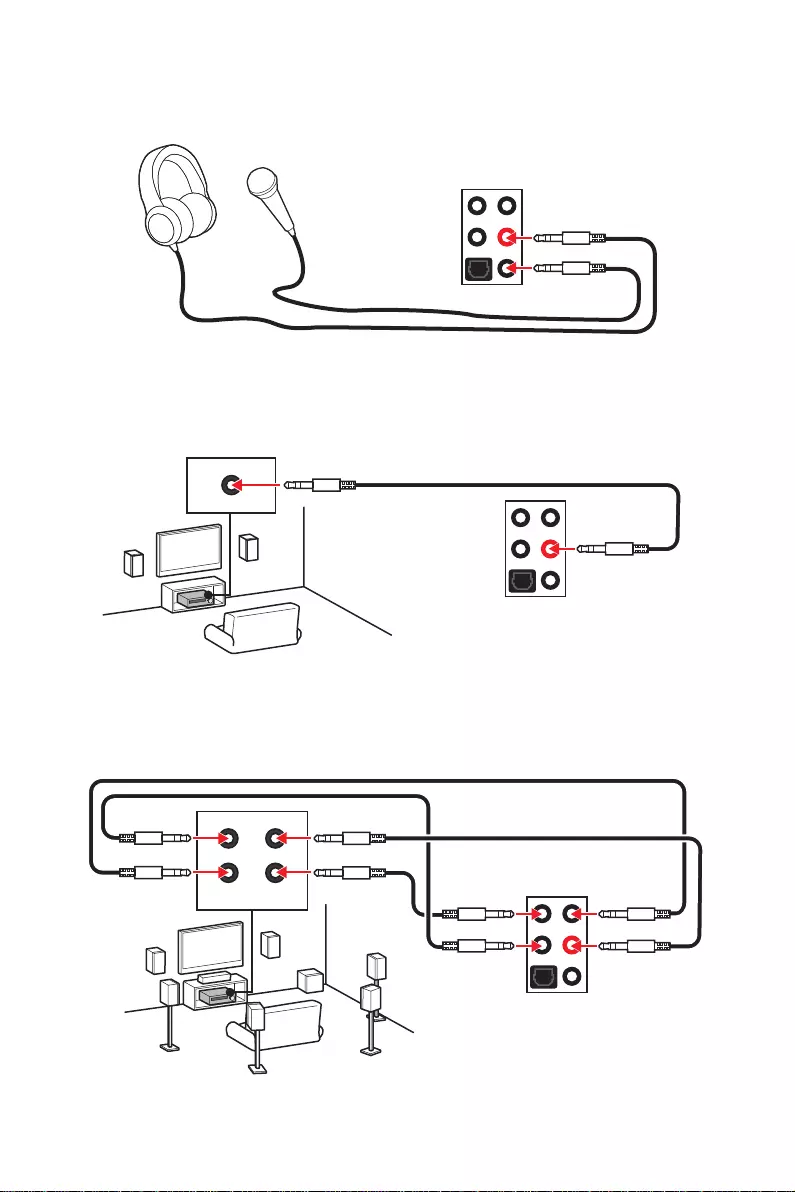
Audio jacks to headphone and microphone diagram
Audio jacks to stereo speakers diagram
Audio jacks to 7.1-channel speakers diagram
AUDIO INPUT
AUDIO INPUT
Rear Front
Side Center/
Subwoofer
25
Overview of Components
Overview of Components
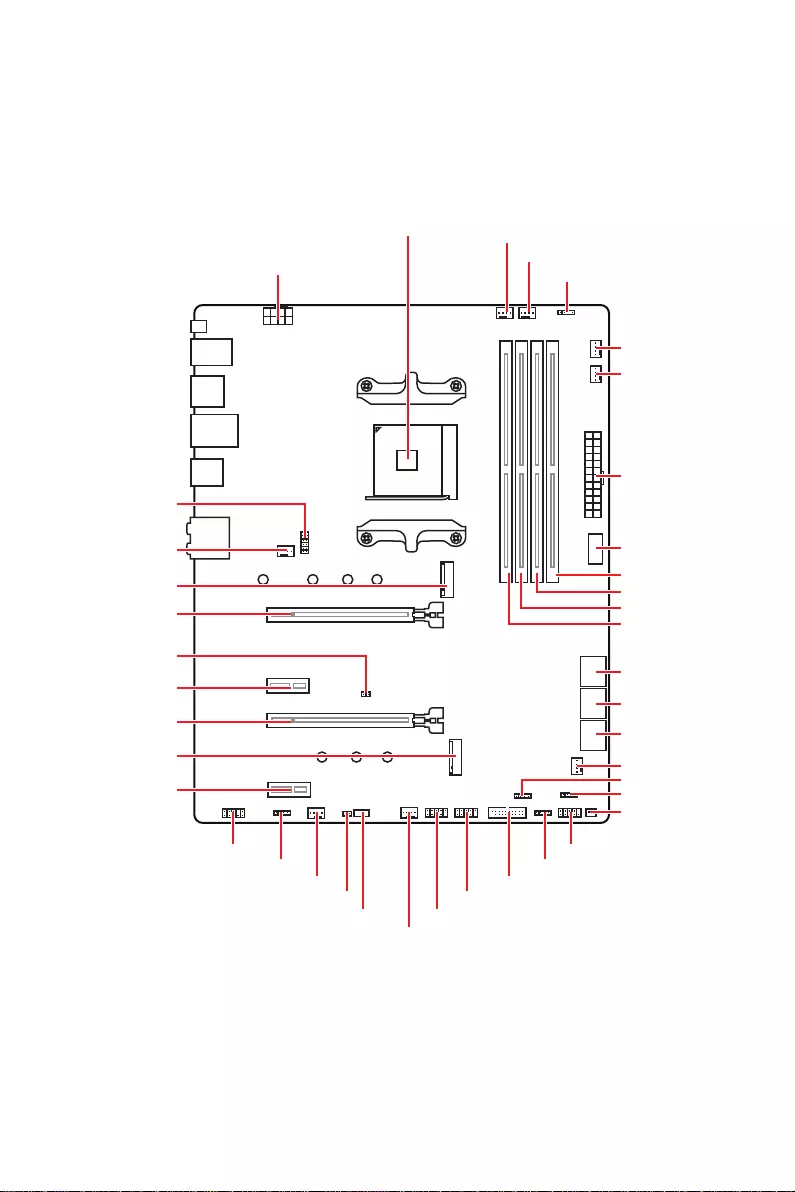
JUSB3
SYS_FAN3
JRGB2
JRGB1
M2_2
M2_1
SYS_FAN6
JTPM1
JUSB4
JUSB2
JUSB1
SYS_FAN4
SYS_FAN5
CPU_FAN1
SYS_FAN2
SYS_FAN1
PCI_E1
PCI_E2
PCI_E3
JBAT1
PCI_E4
Processor Socket
CPU_PWR1 PUMP_FAN1
JRAINBOW2
JAUD1
JCI1
JFP1
JRAINBOW1
JPWRLED1
LED_SW1
JFP2
ATX_PWR1
DIMMB1
DIMMB2
DIMMA1
DIMMA2
26 Overview of Components
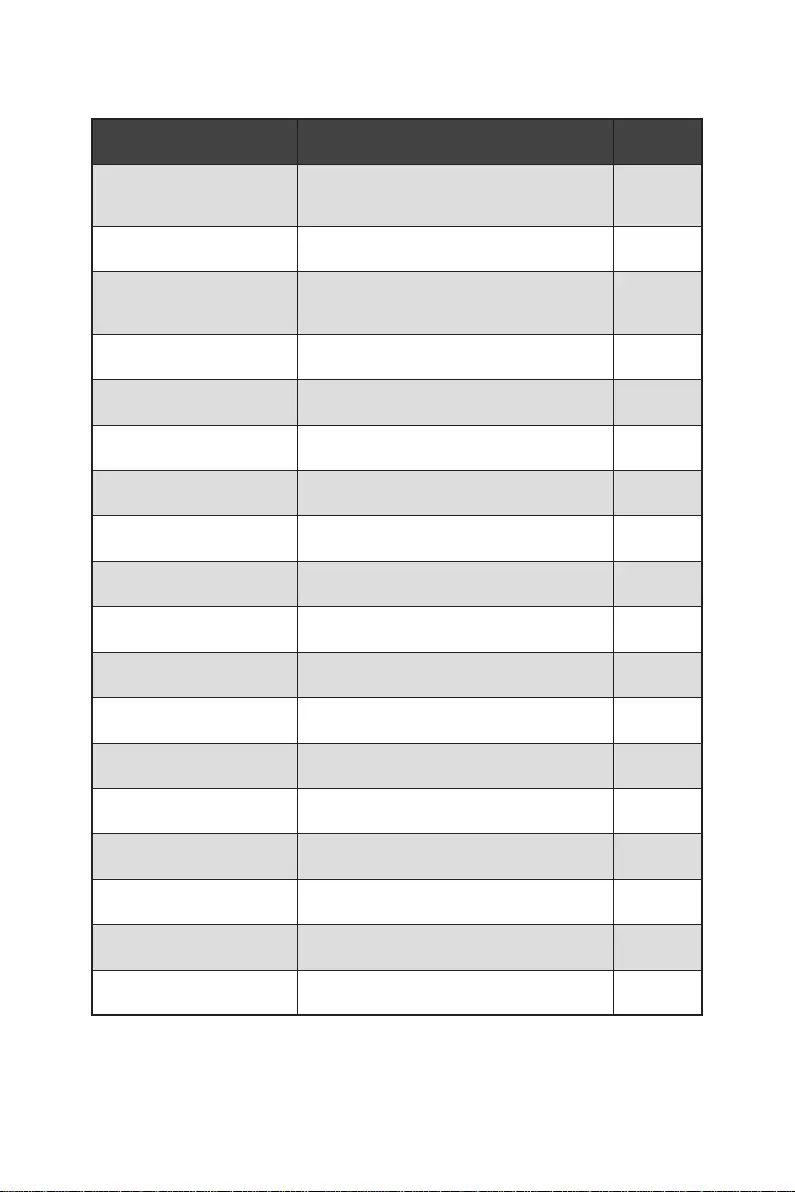
Component Contents
Port Name Port Type Page
CPU_FAN1, PUMP_FAN1,
SYS_FAN1~6 Fan Connectors 36
CPU_PWR1, ATX_PWR1 Power Connectors 33
DIMMA1, DIMMA2,
DIMMB1, DIMMB2 DIMM Slots 28
JAUD1 Front Audio Connector 32
JBAT1 Clear CMOS (Reset BIOS) Jumper 38
JCI1 Chassis Intrusion Connector 37
JFP1, JFP2 Front Panel Connectors 32
JRAINBOW1~2 Addressable RGB LED connectors 40
JRGB1~2 RGB LED connectors 39
JTPM1 TPM Module Connector 35
JUSB1~2 USB 2.0 Connectors 35
JUSB3 USB 3.2 Gen 1 5Gbps Connector 34
JUSB4 USB 3.2 Gen 1 5Gbps Type-C Connector 34
LED_SW1 EZ LED Control 41
M2_1~2 M.2 Slots (Key M) 30
PCI_E1~4 PCIe Expansion Slots 29
Processor Socket Socket AM4 27
SATA1~6 SATA 6Gb/s Connectors 30
27
Overview of Components
Processor Socket
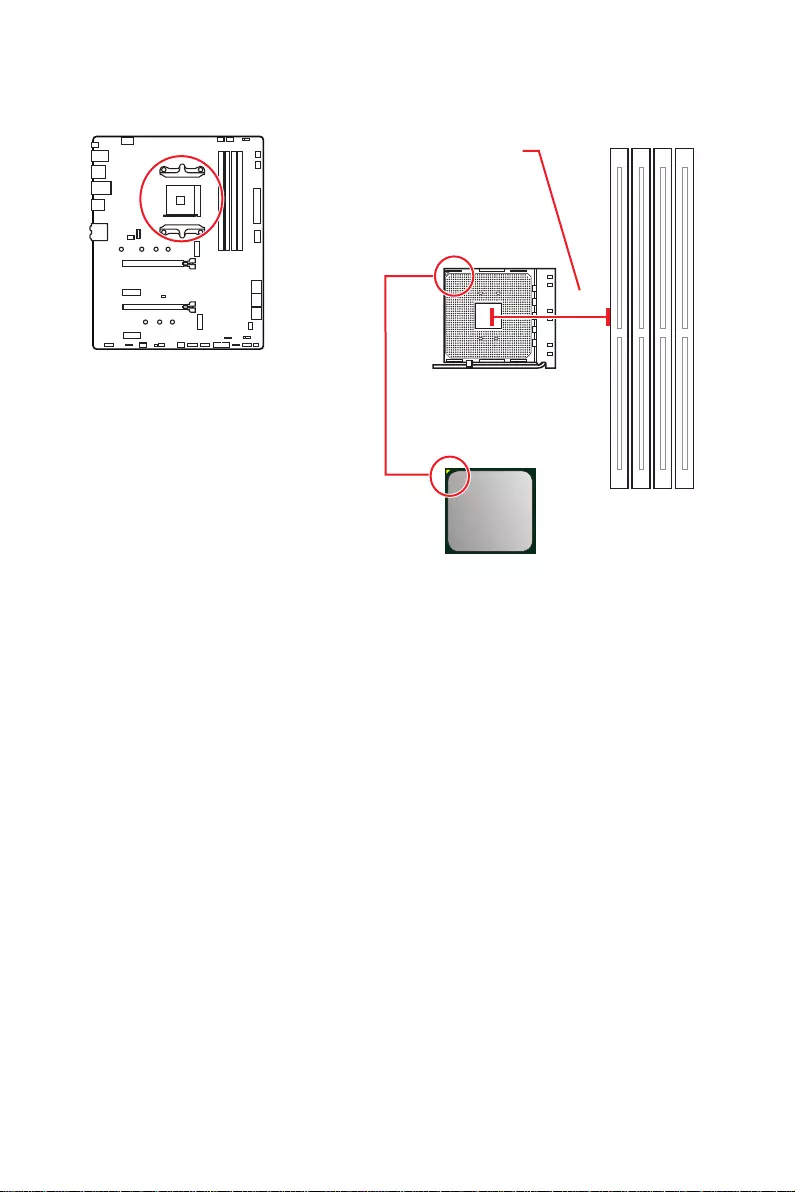
Introduction to the AM4 CPU
The surface of the AM4 CPU has a
yellow triangle to assist in correctly
lining up the CPU for motherboard
placement. The yellow triangle is
the Pin 1 indicator.
53.8 mm
Distance from the center of the
CPU to the nearest DIMM slot.
⚠
Important
∙
When changing the processor, the system configuration could be cleared and reset
BIOS to default values, due to the AM4 processor’s architecture.
∙
Always unplug the power cord from the power outlet before installing or removing
the CPU.
∙
When installing a CPU, always remember to install a CPU heatsink. A CPU heatsink
is necessary to prevent overheating and maintain system stability.
∙
Confirm that the CPU heatsink has formed a tight seal with the CPU before booting
your system.
∙
Overheating can seriously damage the CPU and motherboard. Always make sure
the cooling fans work properly to protect the CPU from overheating. Be sure to apply
an even layer of thermal paste (or thermal tape) between the CPU and the heatsink to
enhance heat dissipation.
∙
If you purchased a separate CPU and heatsink/ cooler, Please refer to the
documentation in the heatsink/ cooler package for more details about installation.
∙
This motherboard is designed to support overclocking. Before attempting to
overclock, please make sure that all other system components can tolerate
overclocking. Any attempt to operate beyond product specifications is not
recommended. MSI® does not guarantee the damages or risks caused by inadequate
operation beyond product specifications.
28 Overview of Components
DIMM Slots
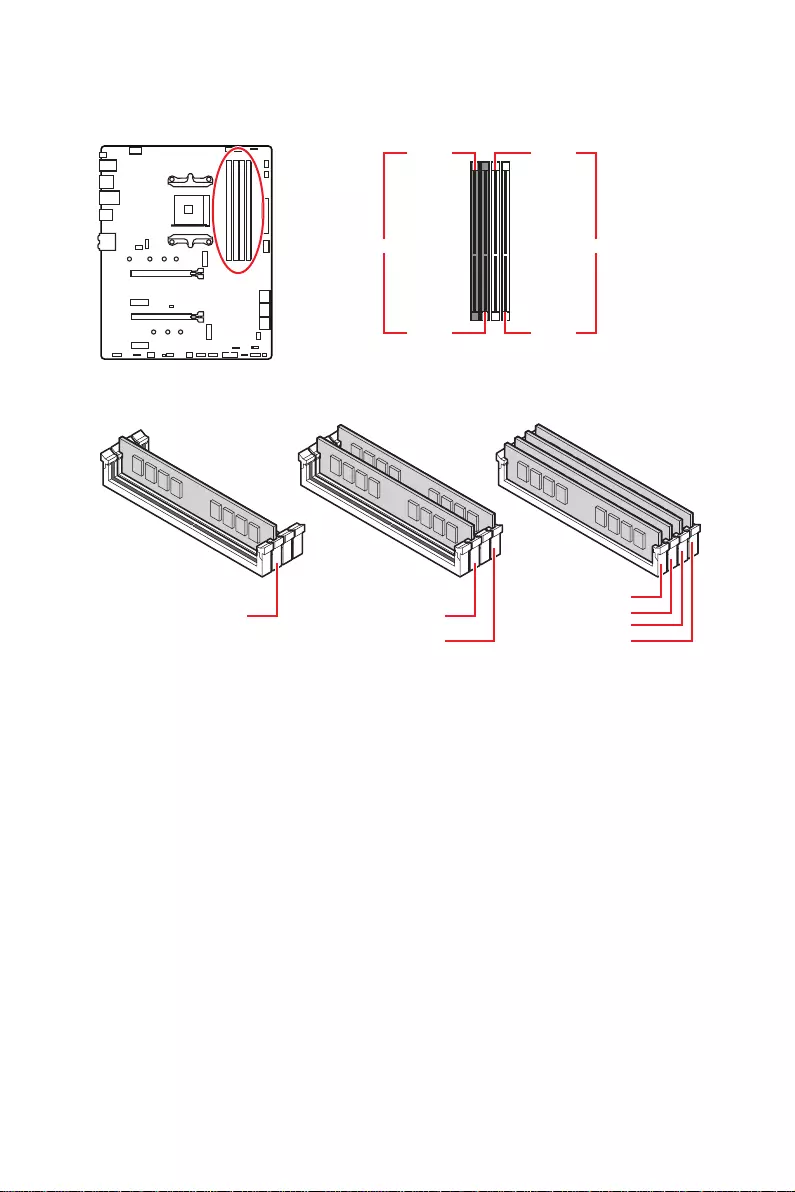
DIMMA1 DIMMB1
Channel A Channel B
DIMMA2 DIMMB2
Memory module installation recommendation
⚠
Important
∙
Always insert memory modules in the DIMMA2 slot first.
∙
Due to chipset resource usage, the available capacity of memory will be a little less
than the amount of installed.
∙
Based on CPU specification, the Memory DIMM voltage below 1.35V is suggested to
protect the CPU.
∙
To ensure system stability for Dual channel mode, memory modules must be of the
same type, number and density.
∙
Some memory modules may operate at a lower frequency than the marked value
when overclocking due to the memory frequency operates dependent on its Serial
Presence Detect (SPD). Go to BIOS and find the DRAM Frequency to set the memory
frequency if you want to operate the memory at the marked or at a higher frequency.
∙
It is recommended to use a more efficient memory cooling system for full DIMMs
installation or overclocking.
∙
The stability and compatibility of installed memory module depend on installed CPU
and devices when overclocking.
∙
Please refer www.msi.com for more information on compatible memory.
DIMMB2 DIMMB2
DIMMB1
DIMMA2 DIMMA2 DIMMA2
DIMMA1
29
Overview of Components
PCI_E1~4: PCIe Expansion Slots
⚠
Important
∙
If you install a large and heavy graphics card, you need to use a tool such as MSI
Gaming Series Graphics Card Bolster to support its weight to prevent deformation of
the slot.
∙
For a single PCIe x16 expansion card installation with optimum performance, using
the PCI_E1 slot is recommended.
∙
When adding or removing expansion cards, always turn off the power supply and
unplug the power supply power cable from the power outlet. Read the expansion
card’s documentation to check for any necessary additional hardware or software
changes.
∙
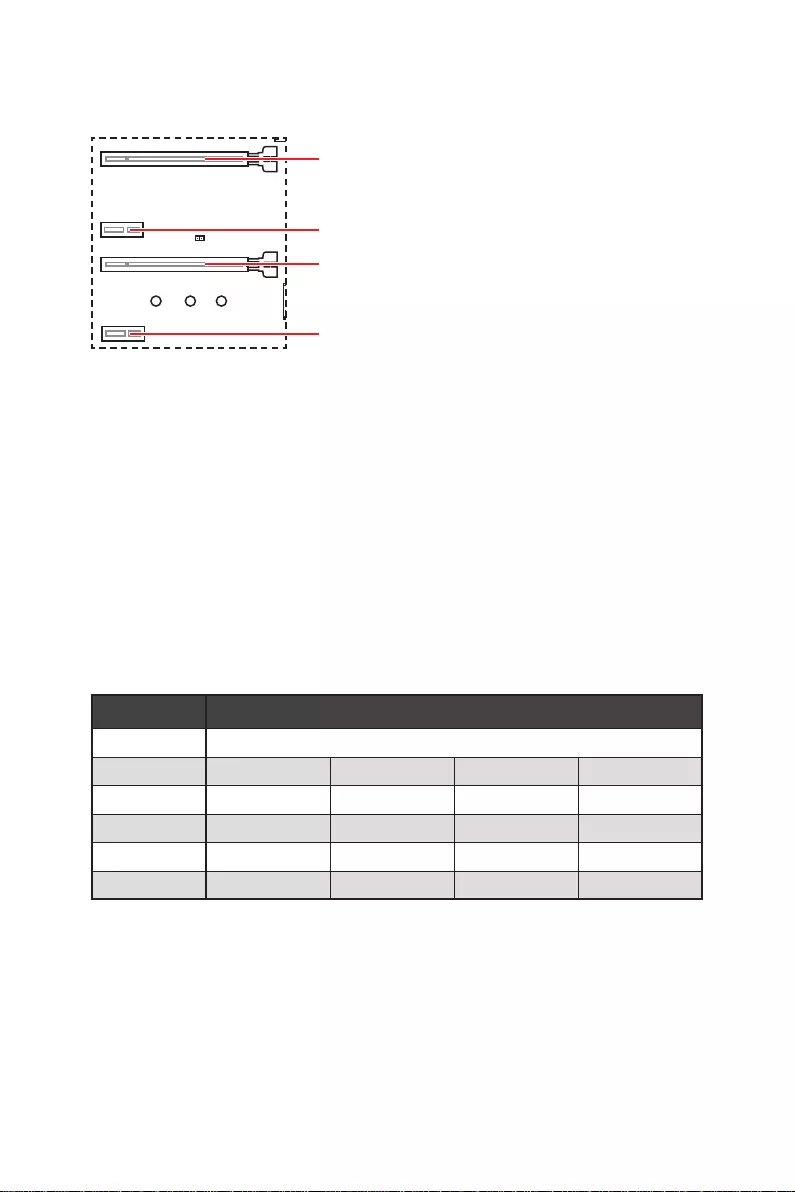
When installing devices in M.2_2, PCI_E2 & PCI_E3 slots at the same time, PCI_E3
slot will be unavailable, and M2_2 slot only supports PCIe x2.
M.2 slots and PCIe slots combination table
Slot Combination
M2_1 (CPU) PCIe/SATA
M2_2 (PCH) PCIe x2 PCIe x4 X X
PCI_E1 (CPU)
PCI_E2 (PCH) XX
PCI_E3 (PCH) X PCIe x2 PCIe x4
PCI_E4 (PCH)
PCI_E1: PCIe 3.0/ 4.0 x16 (CPU)
PCI_E3: PCIe 3.0 x4 (PCH)
PCI_E2: PCIe 3.0 x1 (PCH)
PCI_E4: PCIe 3.0 x1 (PCH)
30 Overview of Components
M2_1~2: M.2 Slots (Key M)
M2_1
M2_2
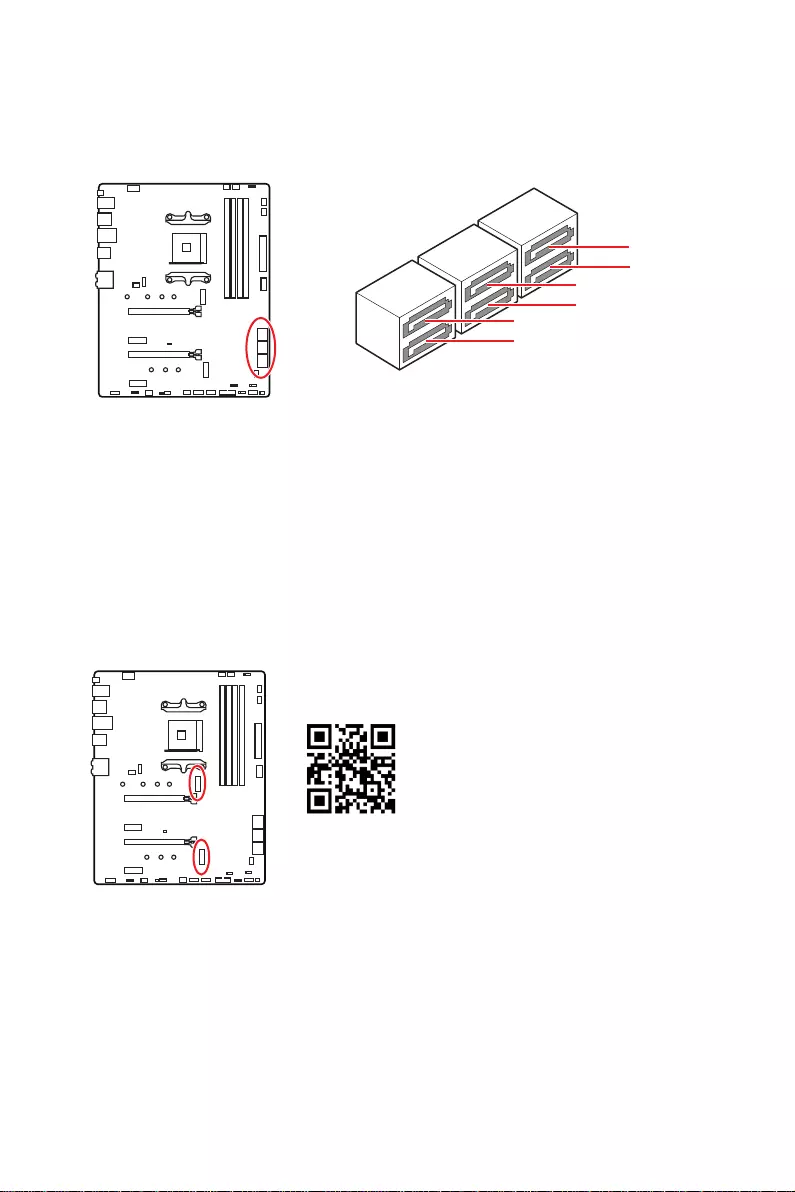
SATA1~6: SATA 6Gb/s Connectors
These connectors are SATA 6Gb/s interface ports. Each connector can connect to one
SATA device.
⚠
Important
∙
Please do not fold the SATA cable at a 90-degree angle. Data loss may result during
transmission otherwise.
∙
SATA cables have identical plugs on either sides of the cable. However, it is
recommended that the flat connector be connected to the motherboard for space
saving purposes.
SATA5
SATA1
SATA3
SATA6
SATA2
SATA4
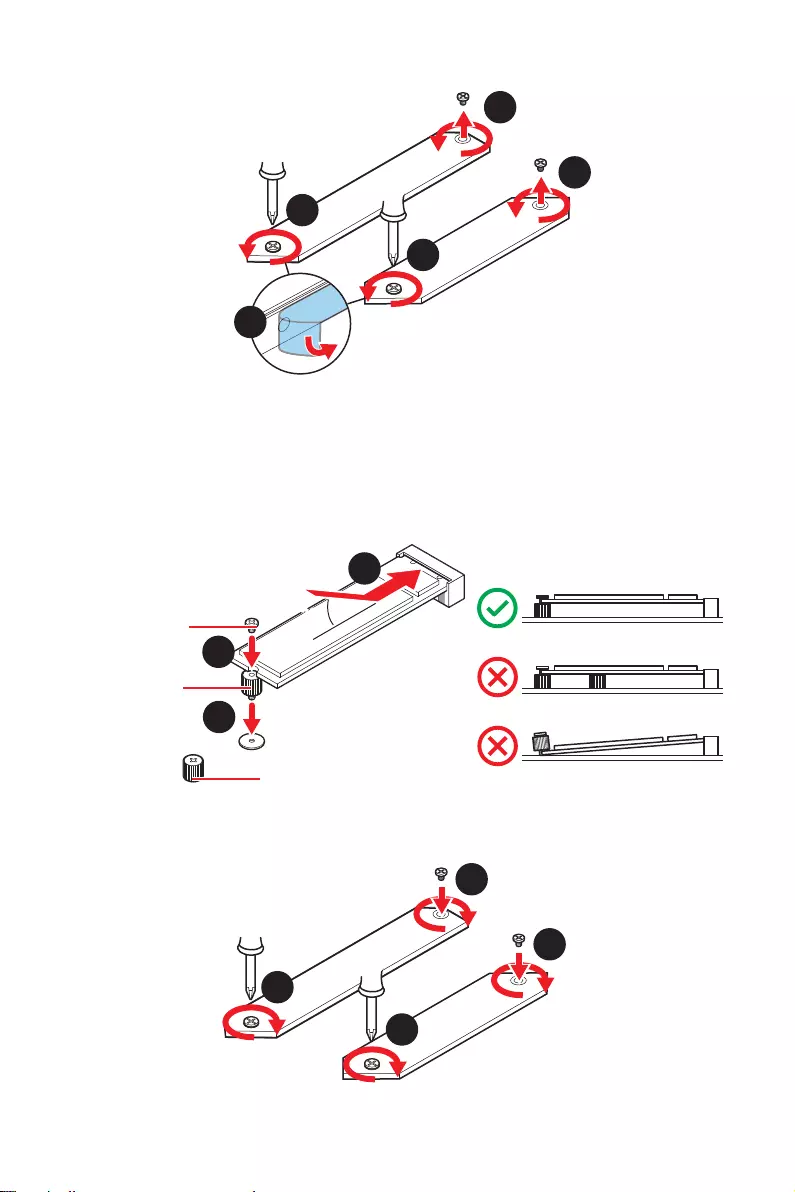
Installing M.2 module
1. Loosen the screws of M.2 SHIELD FROZR heatsink.
2. Remove the M.2 SHIELD FROZR and remove the protective films from the thermal
pads.
⚽
Video Demonstration
Watch the video to learn how to Install
M.2 module.
31
Overview of Components
6. Put the M.2 SHIELD FROZR heatsink back in place and secure it.
3. Move and fasten the M.2 standoff to the appropriate position for your M.2 SSD,
or remove the M.2 standoff if your M.2 SSD length is same as the length of M.2
heatsink to avoid damage to the M.2 SSD.
4. Insert your M.2 SSD into the M.2 slot at a 30-degree angle.
5. Secure the M.2 SSD in place with the M.2 screw, or skip this step if you remove the
M.2 standoff in step 3.
1
1
1
1
2
30º30º
M.2 standoff
heatsink standoff
3
5
4
M.2 screw
6
6
6
6
32 Overview of Components
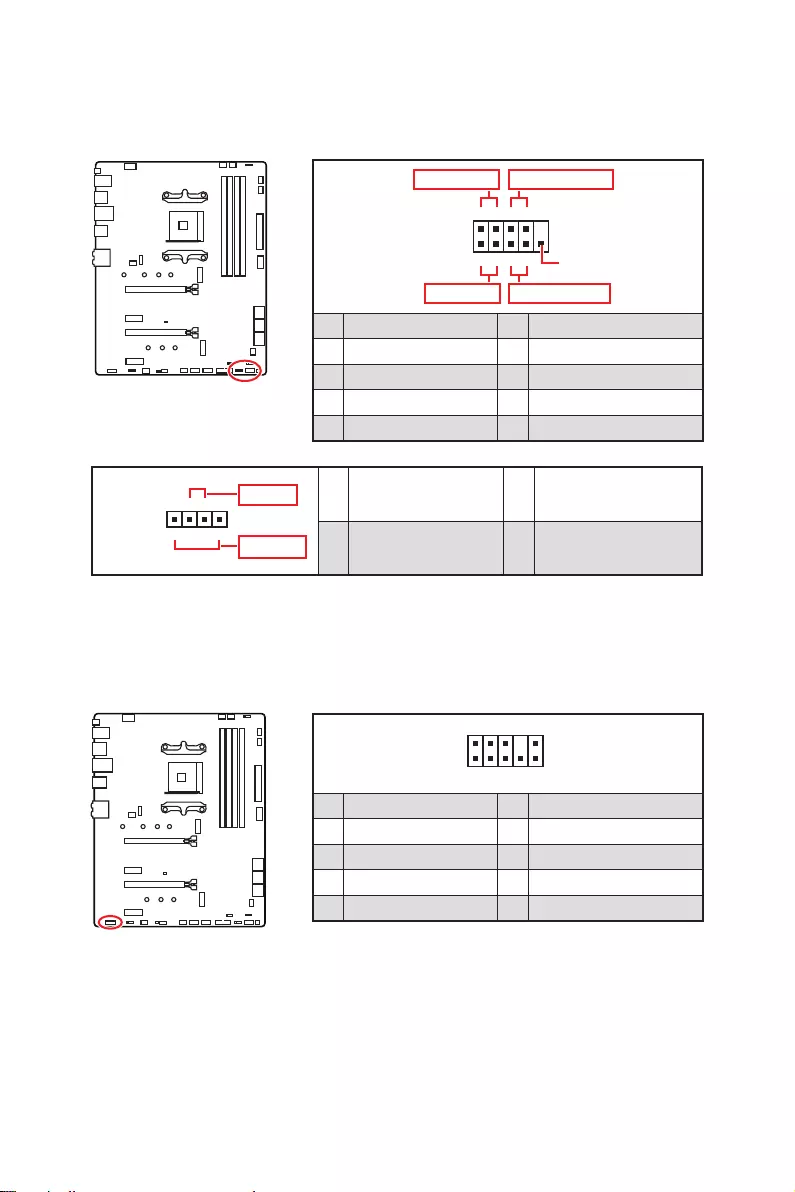
JAUD1: Front Audio Connector
This connector allows you to connect audio jacks on the front panel.
1
2 10
9
1 MIC L 2 Ground
3 MIC R 4 NC
5 Head Phone R 6 MIC Detection
7 SENSE_SEND 8 No Pin
9 Head Phone L 10 Head Phone Detection
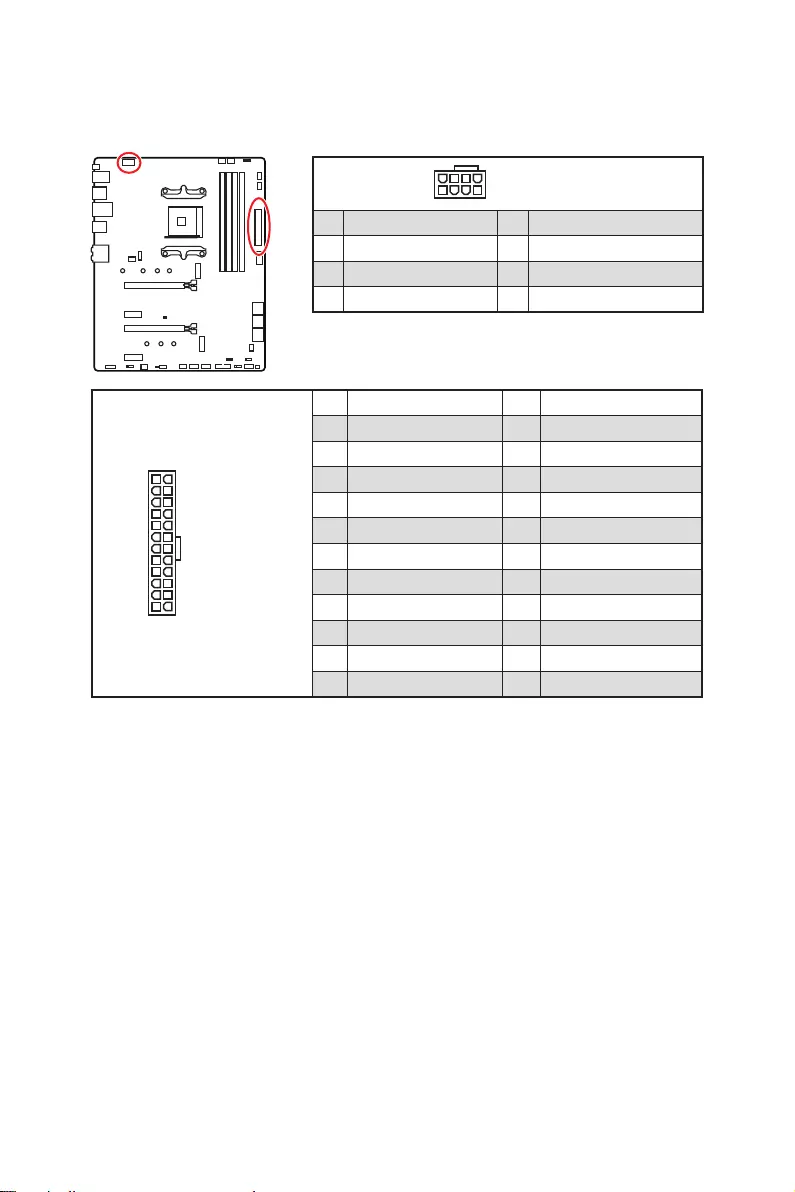
JFP1, JFP2: Front Panel Connectors
These connectors connect to the switches and LEDs on the front panel.
1
JFP2
+
+—
—
Speaker
Buzzer 1 Speaker — 2 Buzzer +
3 Buzzer — 4 Speaker +
1
2 10
9
+
+
+— ——
—
+
Power LED
HDD LED Reset Switch
Reserved
Power Switch
JFP1
1 HDD LED + 2 Power LED +
3 HDD LED — 4 Power LED —
5 Reset Switch 6 Power Switch
7 Reset Switch 8 Power Switch
9 Reserved 10 No Pin
33
Overview of Components
24
131
12
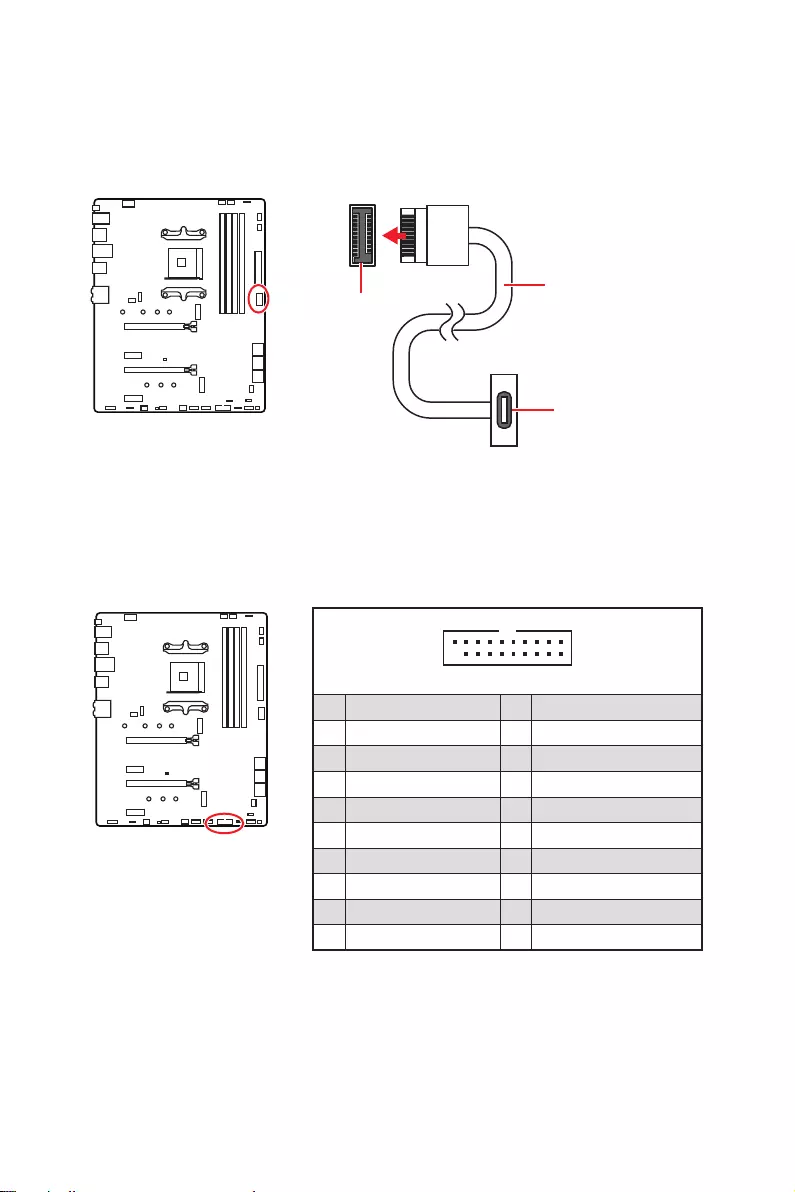
ATX_PWR1
1 +3.3V 13 +3.3V
2 +3.3V 14 -12V
3 Ground 15 Ground
4 +5V 16 PS-ON#
5 Ground 17 Ground
6 +5V 18 Ground
7 Ground 19 Ground
8 PWR OK 20 Res
9 5VSB 21 +5V
10 +12V 22 +5V
11 +12V 23 +5V
12 +3.3V 24 Ground
5
4 1
8CPU_PWR1
1 Ground 5 +12V
2 Ground 6 +12V
3 Ground 7 +12V
4 Ground 8 +12V
⚠
Important
Make sure that all the power cables are securely connected to a proper ATX power
supply to ensure stable operation of the motherboard.
CPU_PWR1, ATX_PWR1: Power Connectors
These connectors allow you to connect an ATX power supply.
34 Overview of Components
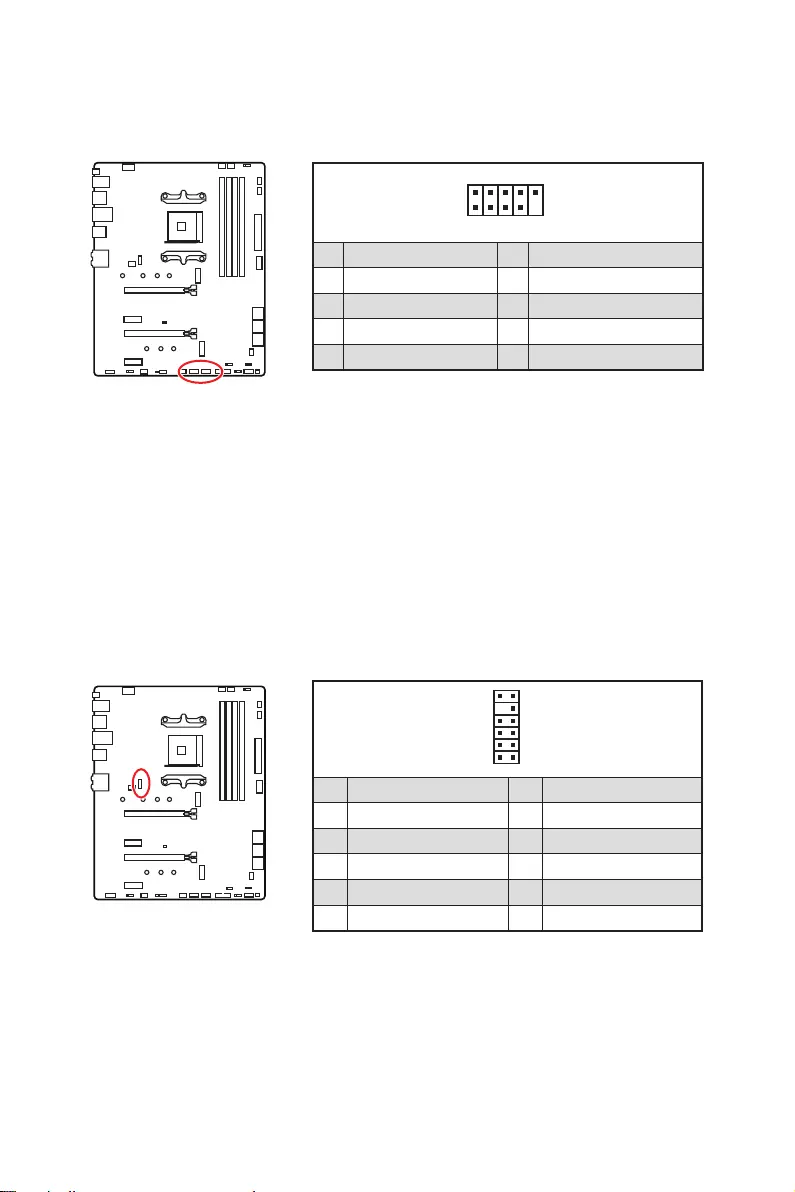
JUSB4: USB 3.2 Gen 1 5Gbps Type—C Connector
This connector allows you to connect USB 3.2 Gen 1 5Gbps Type-C connector on the
front panel. The connector possesses a foolproof design. When you connect the cable,
be sure to connect it with the corresponding orientation.
JUSB3: USB 3.2 Gen 1 5Gbps Connector
This connector allows you to connect USB 3.2 Gen 1 5Gbps ports on the front panel.
⚠
Important
Note that the Power and Ground pins must be connected correctly to avoid possible
damage.
110
11
20
1 Power 11 USB2.0+
2 USB3_RX_DN 12 USB2.0-
3 USB3_RX_DP 13 Ground
4 Ground 14 USB3_TX_C_DP
5 USB3_TX_C_DN 15 USB3_TX_C_DN
6 USB3_TX_C_DP 16 Ground
7 Ground 17 USB3_RX_DP
8 USB2.0- 18 USB3_RX_DN
9 USB2.0+ 19 Power
10 Ground 20 No Pin
JUSB4 USB Type-C Cable
USB Type-C port on
the front panel
35
Overview of Components
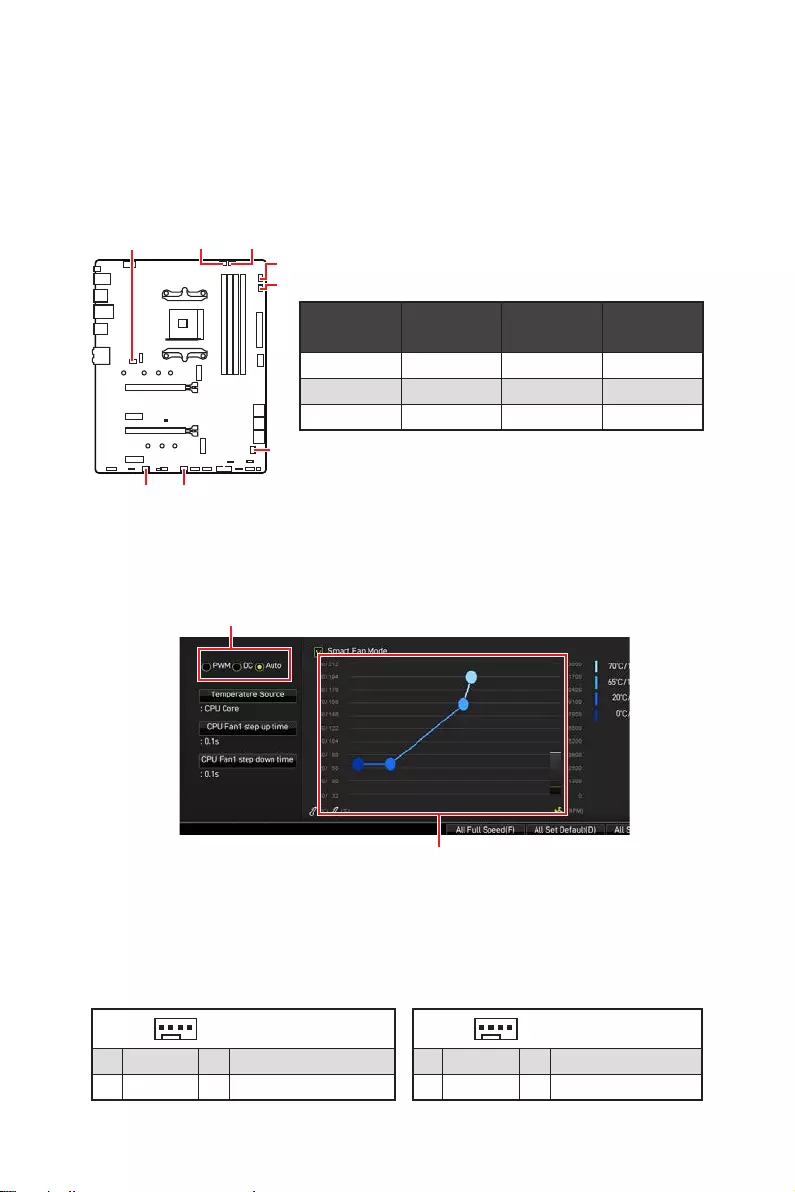
JUSB1~2: USB 2.0 Connectors
These connectors allow you to connect USB 2.0 ports on the front panel.
1
2 10
9
1 VCC 2 VCC
3 USB0- 4 USB1-
5 USB0+ 6 USB1+
7 Ground 8 Ground
9 No Pin 10 NC
⚠
Important
∙
Note that the VCC and Ground pins must be connected correctly to avoid possible
damage.
∙
In order to recharge your iPad,iPhone and iPod through USB ports, please install
MSI® DRAGON CENTER utility.
1
2
12 11
1 SPI Power 2 SPI Chip Select
3
Master In Slave Out (SPI Data)
4
Master In Slave In (SPI Data)
5 Reserved 6 SPI Clock
7 Ground 8 SPI Reset
9 Reserved 10 No Pin
11 Reserved 12 Interrupt Request
JTPM1: TPM Module Connector
This connector is for TPM (Trusted Platform Module). Please refer to the TPM security
platform manual for more details and usages.
36 Overview of Components
CPU_FAN1, PUMP_FAN1, SYS_FAN1~6: Fan Connectors
Fan connectors can be classified as PWM (Pulse Width Modulation) Mode or DC Mode.
PWM Mode fan connectors provide constant 12V output and adjust fan speed with
speed control signal. DC Mode fan connectors control fan speed by changing voltage.
The auto mode fan connectors can automatically detect PWM and DC mode. However,
you can follow the instruction below to adjust the fan connector to PWM or DC Mode
manually.
Switching fan mode and adjusting fan speed
You can switch between PWM mode and DC mode and adjust fan speed in BIOS >
HARDWARE MONITOR.
Select PWM mode or DC mode
⚠
Important
Make sure fans are working properly after switching the PWM/ DC mode.
There are gradient points of the fan speed that allow you to adjust
fan speed in relation to CPU temperature.
Pin definition of fan connectors
CPU_FAN1
SYS_FAN5 SYS_FAN4
SYS_FAN3
PUMP_FAN1
SYS_FAN1
SYS_FAN6
SYS_FAN2
Connector Default fan
mode Max.
current Max.
power
CPU_FAN1 Auto mode 2A 24W
PUMP_FAN1 PWM mode 3A 36W
SYS_FAN1~6 DC mode 1A 12W
1 PWM Mode pin definition
1 Ground 2 +12V
3 Sense 4 Speed Control Signal
1 DC Mode pin definition
1 Ground 2 Voltage Control
3 Sense 4 NC
37
Overview of Components
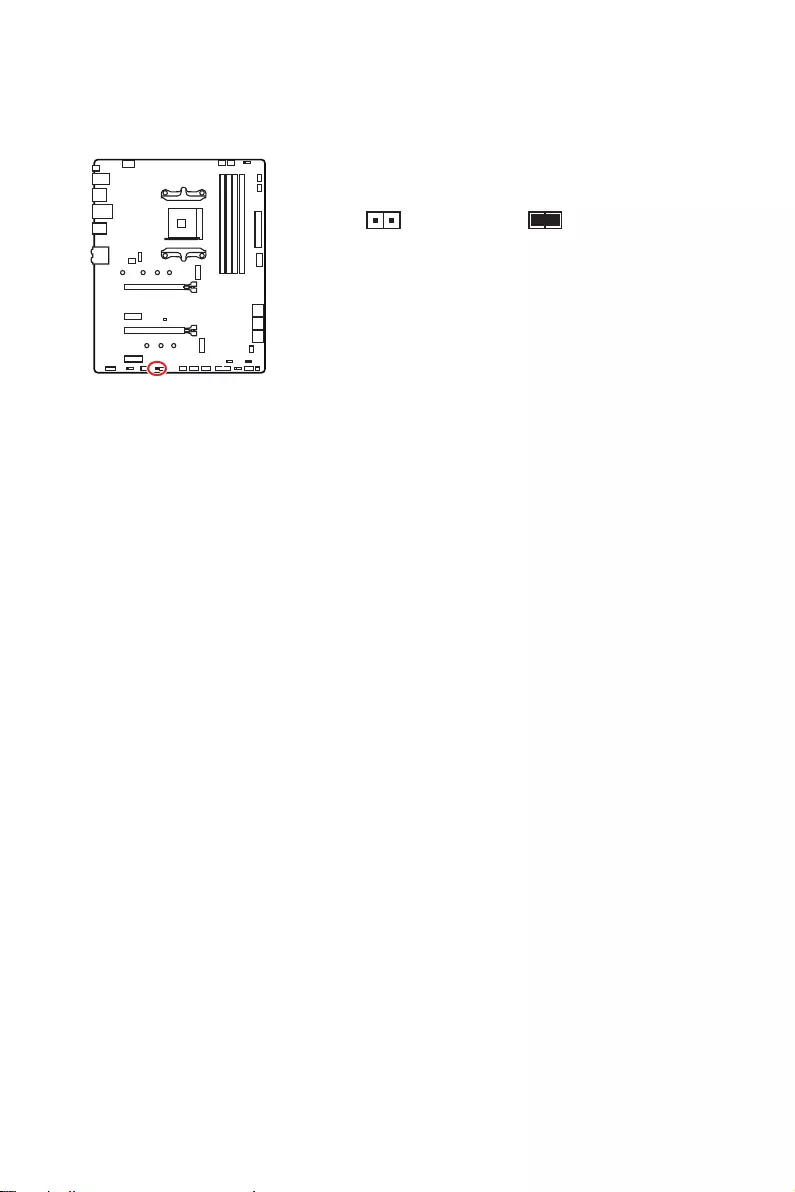
JCI1: Chassis Intrusion Connector
This connector allows you to connect the chassis intrusion switch cable.
Normal
(default) Trigger the chassis
intrusion event
Using chassis intrusion detector
1. Connect the JCI1 connector to the chassis intrusion switch/ sensor on the chassis.
2. Close the chassis cover.
3. Go to BIOS > SETTINGS > Security > Chassis Intrusion Configuration.
4. Set Chassis Intrusion to Enabled.
5. Press F10 to save and exit and then press the Enter key to select Yes.
6. Once the chassis cover is opened again, a warning message will be displayed on
screen when the computer is turned on.
Resetting the chassis intrusion warning
1. Go to BIOS > SETTINGS > Security > Chassis Intrusion Configuration.
2. Set Chassis Intrusion to Reset.
3. Press F10 to save and exit and then press the Enter key to select Yes.
38 Overview of Components
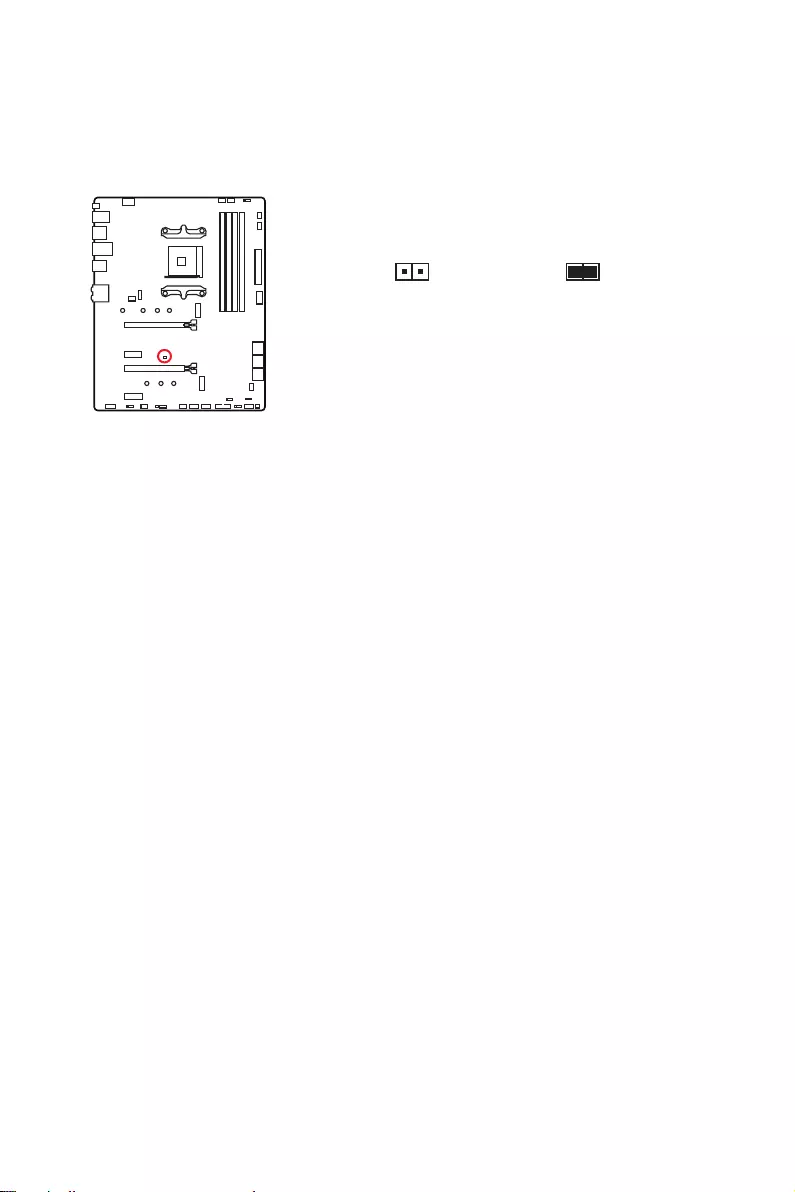
JBAT1: Clear CMOS (Reset BIOS) Jumper
There is CMOS memory onboard that is external powered from a battery located on
the motherboard to save system configuration data. If you want to clear the system
configuration, set the jumpers to clear the CMOS memory.
Keep Data
(default) Clear CMOS/
Reset BIOS
Resetting BIOS to default values
1. Power off the computer and unplug the power cord.
2. Use a jumper cap to short JBAT1 for about 5-10 seconds.
3. Remove the jumper cap from JBAT1.
4. Plug the power cord and Power on the computer.
39
Overview of Components
⚠
Important
∙
The JRGB connector supports up to 2 meters continuous 5050 RGB LED strips
(12V/G/R/B) with the maximum power rating of 3A (12V).
∙
Always turn off the power supply and unplug the power cord from the power outlet
before installing or removing the RGB LED strip.
∙
Please use MSI’s software to control the extended LED strip.
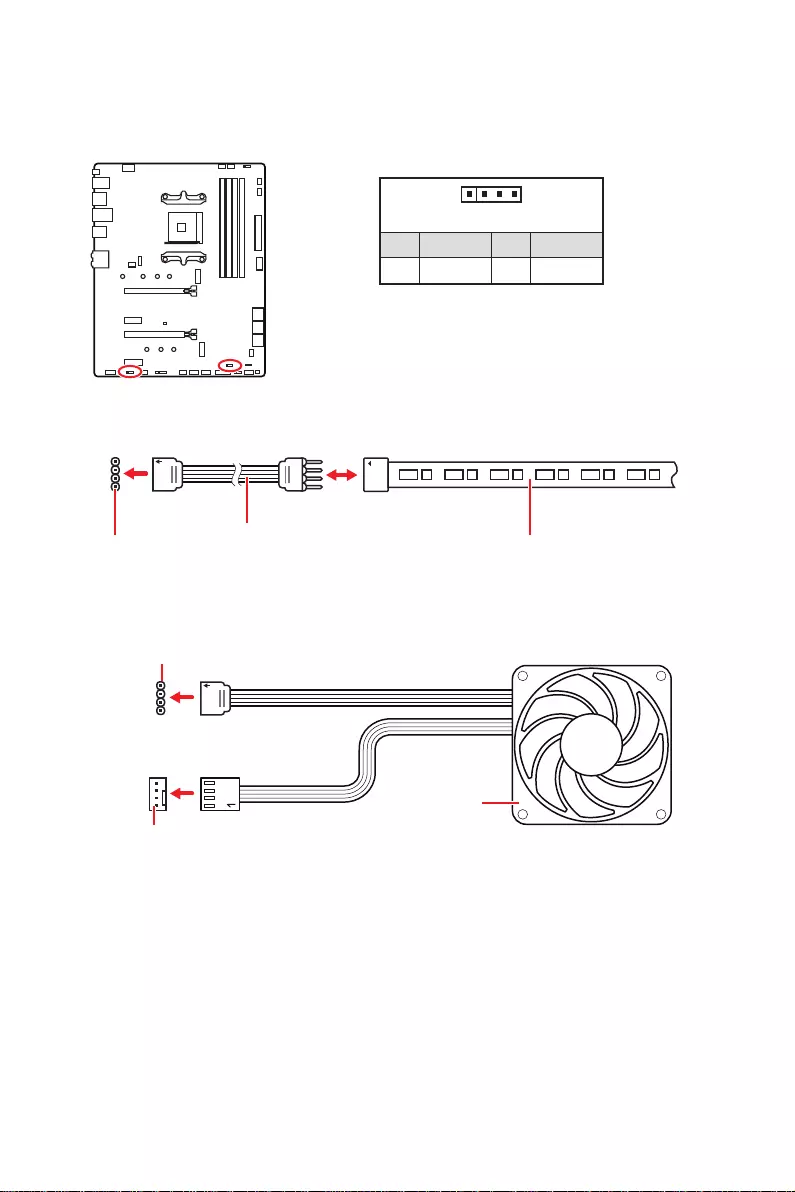
JRGB1~2: RGB LED connectors
These JRGB connectors allow you to connect the 5050 RGB LED strips 12V.
1
GRB
JRGB
connector
RGB extension
cable 5050 RGB LED strips 12V
1
1 +12V 2 G
3 R 4 B
RGB LED Strip Connection
1
1
GRB
JRGB connector
System Fan connector
RGB LED Fan Connection
RGB LED Fan
40 Overview of Components
1
1
1
D
+5V
⚠
CAUTION
Do not connect the wrong type of LED strips. The JRGB connector and the JRAINBOW
connector provide different voltages, and connecting the 5V LED strip to the JRGB
connector will result in damage to the LED strip.
⚠
Important
∙
The JRAINBOW connector supports up to 75 LEDs WS2812B Individually
Addressable RGB LED strips (5V/Data/Ground) with the maximum power rating of 3A
(5V). In the case of 20% brightness, the connector supports up to 200 LEDs.
∙
Always turn off the power supply and unplug the power cord from the power outlet
before installing or removing the RGB LED strip.
∙
Please use MSI’s software to control the extended LED strip.
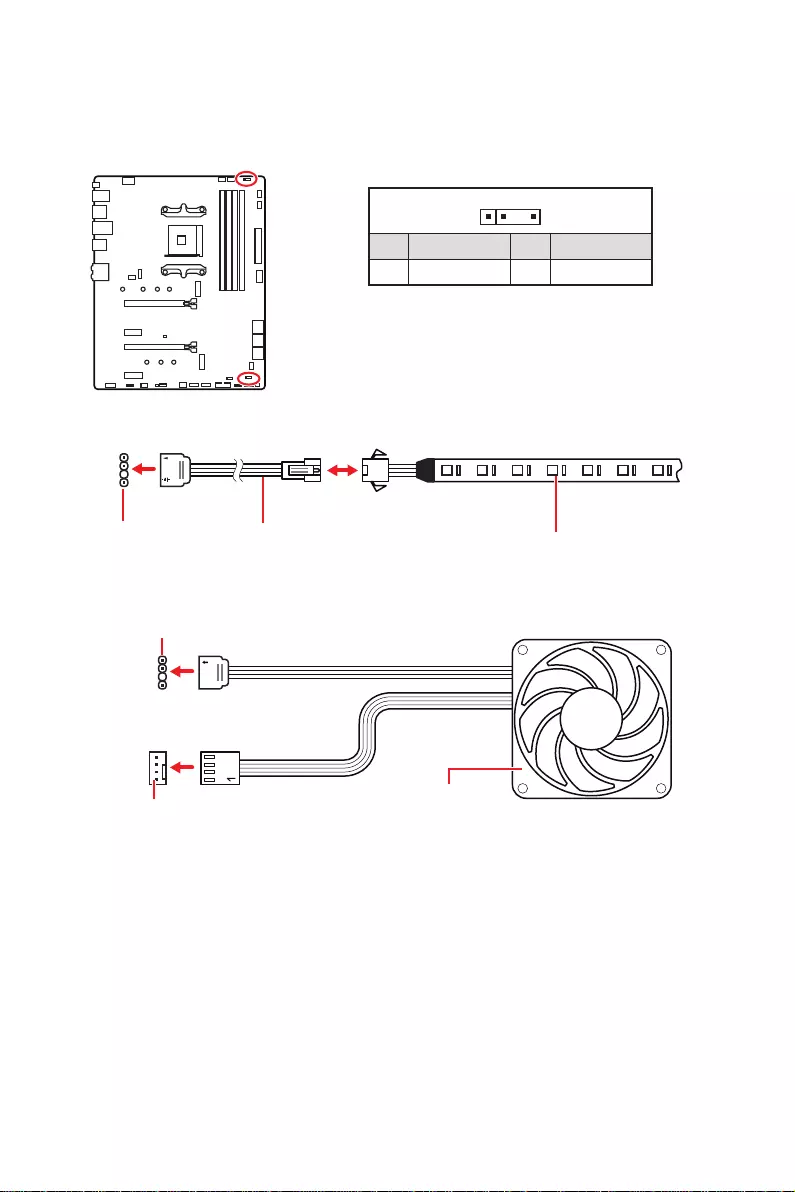
JRAINBOW1~2: Addressable RGB LED connectors
The JRAINBOW connectors allow you to connect the WS2812B Individually
Addressable RGB LED strips 5V.
JRAINBOW
connector
JRAINBOW connector
System Fan connector
Rainbow RGB LED
extension cable WS2812B Individually
Addressable RGB LED strips 5V
1
1 +5V 2 Data
3 No Pin 4 Ground
Addressable RGB LED Strip Connection
Addressable RGB LED Fan Connection
Addressable RGB LED Fan
41
Overview of Components
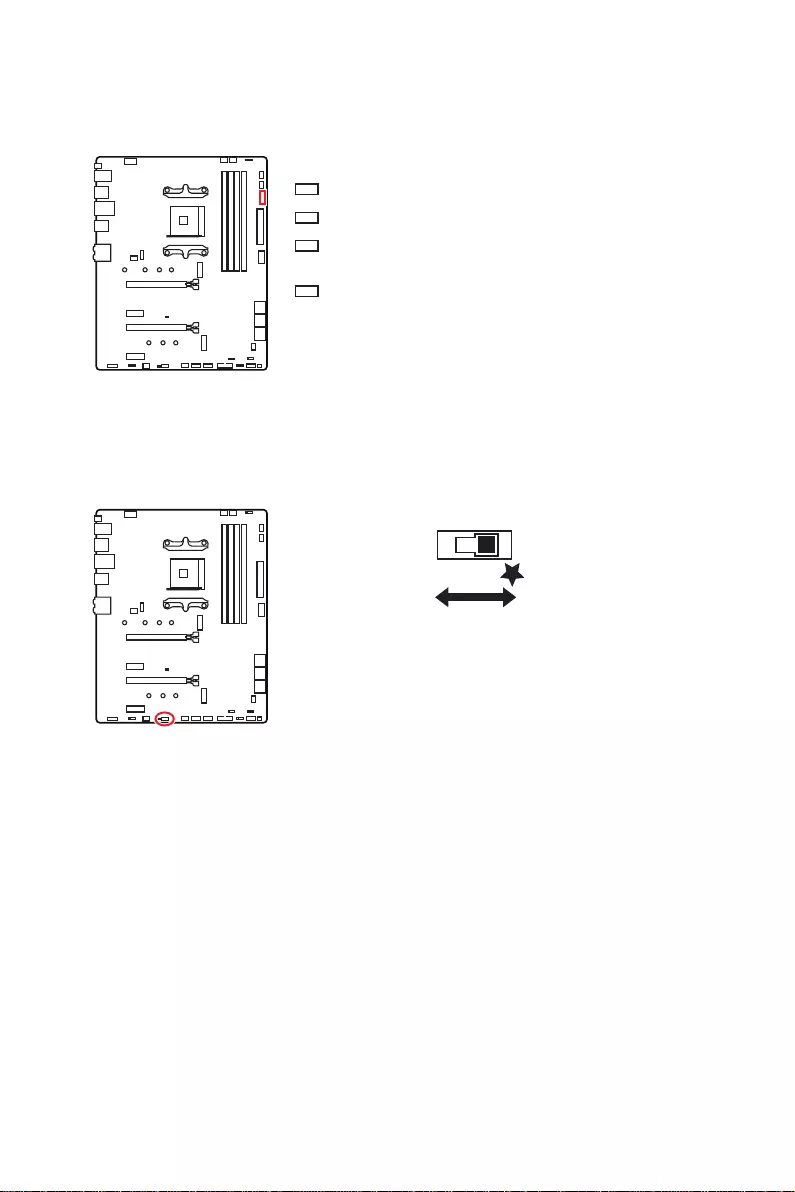
EZ Debug LED
These LEDs indicate the debug status of the motherboard.
CPU — indicates CPU is not detected or fail.
DRAM — indicates DRAM is not detected or fail.
VGA — indicates GPU/ PCIE/ M.2 device is not detected
or fail.
BOOT — indicates the booting device is not detected
or fail.
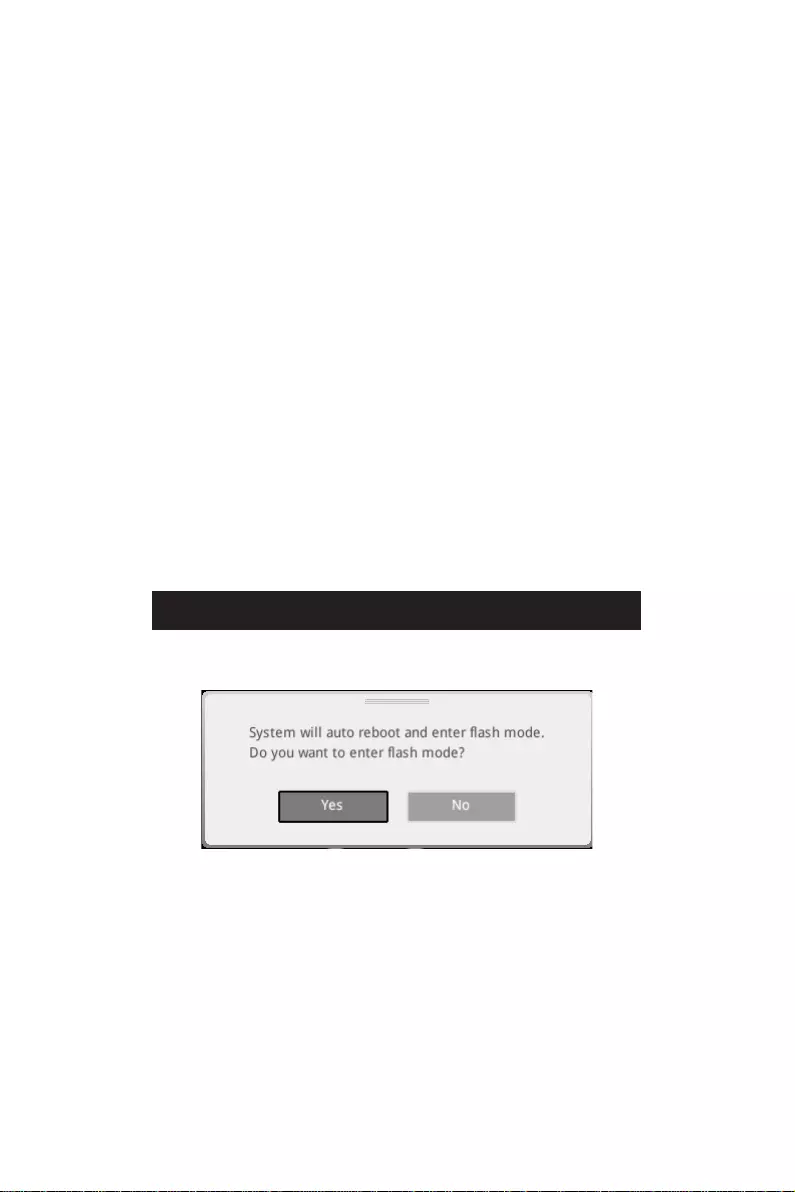
LED_SW1: EZ LED Control
This switch is used to switch on/ off all the LEDs of motherboard.
LED_OFF LED_ON
(Default)

42 Installing OS, Drivers & Utilities
Installing OS, Drivers & Utilities
Please download and update the latest utilities and drivers at www.msi.com
Installing Windows® 10
1. Power on the computer.
2. Insert the Windows® 10 installation disc/USB into your computer.
3. Press the Restart button on the computer case.
4. Press F11 key during the computer POST (Power-On Self Test) to get into Boot
Menu.
5. Select the Windows® 10 installation disc/USB from the Boot Menu.
6. Press any key when screen shows Press any key to boot from CD or DVD…
message.
7. Follow the instructions on the screen to install Windows® 10.
Installing Drivers
1. Start up your computer in Windows® 10.
2. Insert MSI® Drive Disc into your optical drive.
3. Click the Select to choose what happens with this disc pop-up notification, then
select Run DVDSetup.exe to open the installer. If you turn off the AutoPlay feature
from the Windows Control Panel, you can still manually execute the DVDSetup.exe
from the root path of the MSI Drive Disc.
4. The installer will find and list all necessary drivers in the Drivers/Software tab.
5. Click the Install button in the lower-right corner of the window.
6. The drivers installation will then be in progress, after it has finished it will prompt
you to restart.
7. Click OK button to finish.
8. Restart your computer.
Installing Utilities
Before you install utilities, you must complete drivers installation.
1. Open the installer as described above.
2. Click the Utilities tab.
3. Select the utilities you want to install.
4. Click the Install button in the lower-right corner of the window.
5. The utilities installation will then be in progress, after it has finished it will prompt
you to restart.
6. Click OK button to finish.
7. Restart your computer.

43
UEFI BIOS
UEFI BIOS
MSI UEFI BIOS is compatible with UEFI (Unified Extensible Firmware Interface)
architecture. UEFI has many new functions and advantages that traditional BIOS
cannot achieve, and it will completely replace BIOS in the future. The MSI UEFI
BIOS uses UEFI as the default boot mode to take full advantage of the new chipset’s
capabilities. However, it still has a CSM (Compatibility Support Module) mode to be
compatible with older devices. That allows you to replace legacy devices with UEFI
compatible devices during the transition.
⚠
Important
The term BIOS in this user guide refers to UEFI BIOS unless otherwise noted.
UEFI advantages
∙Fast booting — UEFI can directly boot the operating system and save the BIOS self-
test process. And also eliminates the time to switch to CSM mode during POST.
∙Supports for hard drive partitions larger than 2 TB.
∙Supports more than 4 primary partitions with a GUID Partition Table (GPT).
∙Supports unlimited number of partitions.
∙Supports full capabilities of new devices — new devices may not provide backward
compatibility.
∙Supports secure startup — UEFI can check the validity of the operating system to
ensure that no malware tampers with the startup process.
Incompatible UEFI cases
∙32-bit Windows operating system — this motherboard supports only Windows 10
64-bit operating system.
∙Older graphics card — the system will detect your graphics card. When display a
warning message There is no GOP (Graphics Output protocol) support detected in
this graphics card.
⚠
Important
We recommend that you to use a GOP/ UEFI compatible graphics card.
How to check the BIOS mode?
After entering the BIOS, find the BIOS Mode at the top of the screen.
CPU Temperature:
Motherboard Temperature:
VCore:
DDR Voltage:
BIOS Mode: UEFI
CPU Temperature:
Motherboard Temperature:
VCore:
DDR Voltage:
BIOS Mode: UEFI/Legacy
UEFI boot mode CSM boot mode

44 UEFI BIOS
BIOS Setup
The default settings offer the optimal performance for system stability in normal
conditions. You should always keep the default settings to avoid possible system
damage or failure booting unless you are familiar with BIOS.
⚠
Important
∙
BIOS items are continuously update for better system performance. Therefore, the
description may be slightly different from the latest BIOS and should be for reference
only. You could also refer to the HELP information panel for BIOS item description.
∙
The pictures in this chapter are for reference only and may vary from the product
you purchased.
∙
The BIOS items will vary with the processor.
Entering BIOS Setup
Press Delete key, when the Press DEL key to enter Setup Menu, F11 to enter Boot
Menu message appears on the screen during the boot process.
Function key
F1: General Help list
F2: Add/ Remove a favorite item
F3: Enter Favorites menu
F4: Enter CPU Specifications menu
F5: Enter Memory-Z menu
F6: Load optimized defaults
F7: Switch between Advanced mode and EZ mode
F8: Load Overclocking Profile
F9: Save Overclocking Profile
F10: Save Change and Reset*
F12: Take a screenshot and save it to USB flash drive (FAT/ FAT32 format only).
Ctrl+F: Enter Search page
* When you press F10, a confirmation window appears and it provides the modification
information. Select between Yes or No to confirm your choice.
45
UEFI BIOS
Resetting BIOS
You might need to restore the default BIOS setting to solve certain problems. There
are several ways to reset BIOS:
∙Go to BIOS and press F6 to load optimized defaults.
∙Short the Clear CMOS jumper on the motherboard.
⚠
Important
Be sure the computer is off before clearing CMOS data. Please refer to the Clear
CMOS jumper section for resetting BIOS.
Updating BIOS
Updating BIOS with M-FLASH
Before updating:
Please download the latest BIOS file that matches your motherboard model from MSI
website. And then save the BIOS file into the USB flash drive.
Updating BIOS:
1. Insert the USB flash drive that contains the update file into the USB port.
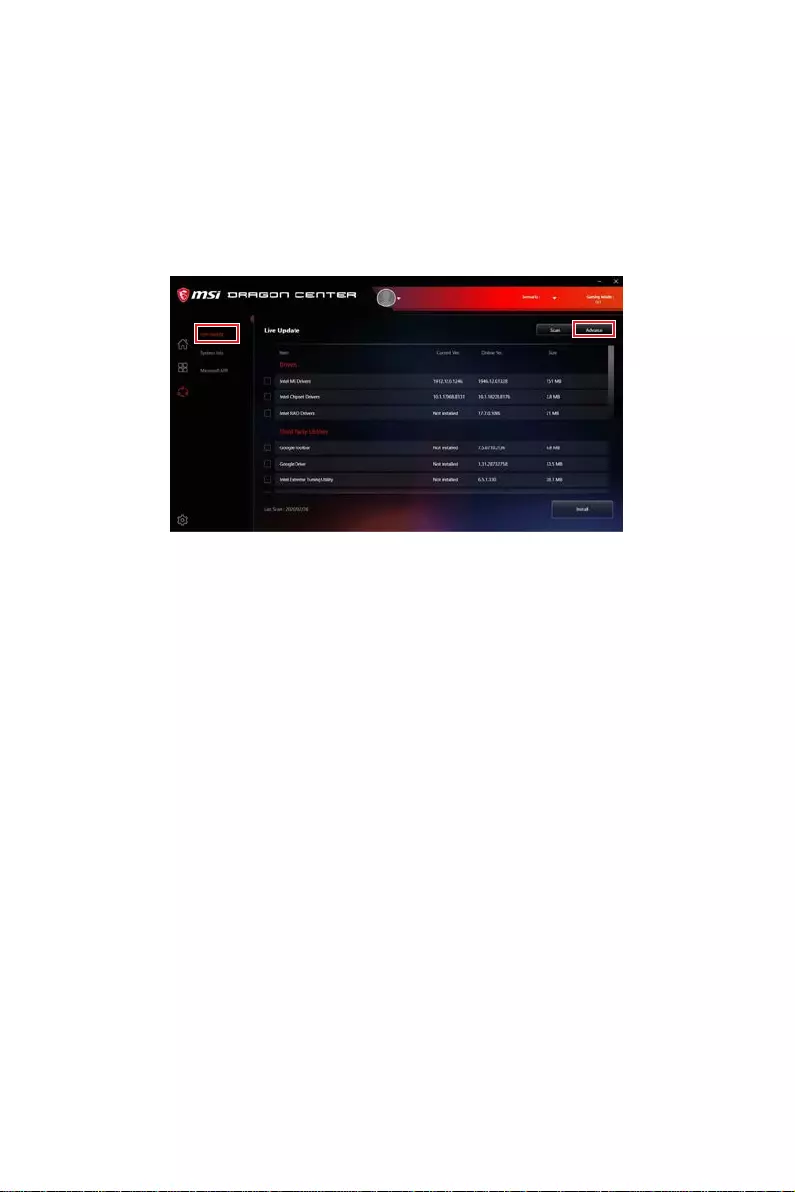
2. Please refer the following methods to enter flash mode.
▪Reboot and press Ctrl + F5 key during POST and click on Yes to reboot the
system.
Press <Ctrl+F5> to activate M-Flash for BIOS update.
▪Reboot and press Del key during POST to enter BIOS. Click the M-FLASH button
and click on Yes to reboot the system.
3. Select a BIOS file to perform the BIOS update process.
4. After the flashing process is 100% completed, the system will reboot
automatically.
46 UEFI BIOS
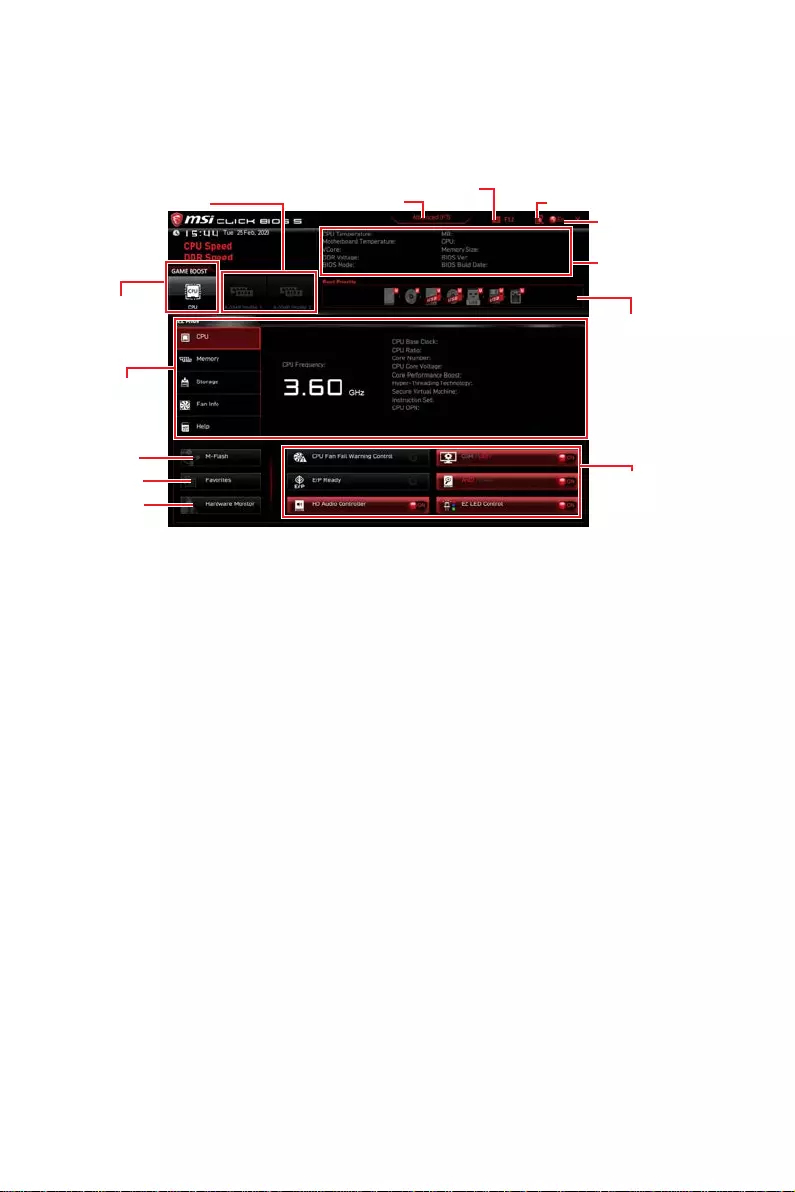
Updating the BIOS with MSI DRAGON CENTER
Before updating:
Make sure the LAN driver is already installed and the internet connection is set
properly.
Updating BIOS:
1. Install and launch MSI DRAGON CENTER and go to Support page.
2. Select Live Update and click on Advance button.
3. Click on Scan button to search the latest BIOS file.
4. Select the BIOS file and click on Download icon to download and install the latest
BIOS file.
5. Click Next and choose In Windows mode. And then click Next and Start to start
updating BIOS.
6. After the flashing process is 100% completed, the system will restart
automatically.
Updating BIOS with Flash BIOS Button
1. Please download the latest BIOS file that matches your motherboard model from
the MSI® website.
2. Rename the BIOS file to MSI.ROM, and save it to the root of your USB flash drive.
3. Connect the power supply to CPU_PWR1 and ATX_PWR1. (No need to install CPU
and memory.)
4. Plug the USB flash drive that contains the MSI.ROM file into the Flash BIOS Port
on the rear I/O panel.
5. Press the Flash BIOS Button to flash BIOS, and the LED starts flashing.
6. The LED will be turned off when the process is completed.
47
UEFI BIOS
EZ Mode
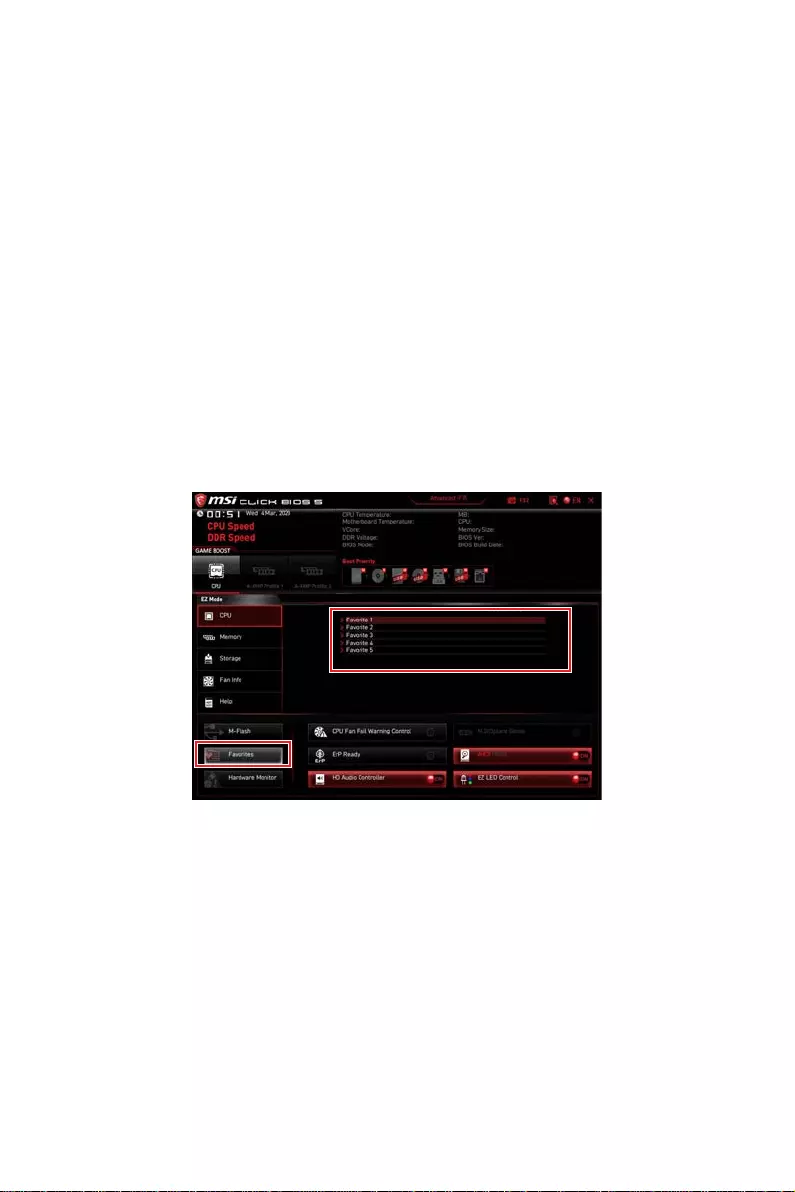
At EZ mode, it provides the basic system information and allows you to configure the
basic setting. To configure the advanced BIOS settings, please enter the Advanced
Mode by pressing the Setup Mode switch or F7 function key.
A-XMP Profile
Component
Information
System
information
Boot device
priority bar
Function
buttons
Language
GAME BOOST
Search
Screenshot
Setup Mode switch
M-Flash
Hardware
Monitor
Favorites
∙GAME BOOST — click on it to toggle the GAME BOOST for overclocking. This function
is only available when both of the motherboard and CPU are supporting this function.
⚠
Important
We don’t recommend you to adjust any BIOS item after activating the GAME BOOST
function for keeping the optimal performance and system stability.
∙A-XMP Profile — allows you to select the A-XMP profile for memory to overclock.
This function is only available when the system, memory and CPU are supporting this
function.
∙Setup Mode switch — press this tab or the F7 key to switch between Advanced mode
and EZ mode.
∙Screenshot — click on this tab or the F12 key to take a screenshot and save it to USB
flash drive (FAT/ FAT32 format only).
∙Search — click on this tab or the Ctrl+F keys to enter the search page. It allows you
to search by BIOS item name. Move the mouse over a blank space and right click the
mouse to exit the search page.
⚠
Important
In search page, only the F6, F10 and F12 function keys are available.
∙Language — allows you to select language of BIOS setup.
48 UEFI BIOS
∙System information — shows the CPU/ DDR speed, CPU/ MB temperature, MB/ CPU
type, memory size, CPU/ DDR voltage, BIOS version and build date.
∙Boot device priority bar — you can move the device icons to change the boot priority.
The boot priority from high to low is left to right.
∙Component Information — click on the CPU, Memory, Storage, Fan Info and Help
buttons to show the information of connected component.
∙Function buttons — enable or disable these functions by clicking on these buttons.
The function is enabled when the button shows ON .
⚠
Important
The function buttons will vary with the motherboard you purchased.
∙M-Flash — click on this button to enter the M-Flash menu that provides the way to
update BIOS with a USB flash drive.
∙Hardware Monitor — click on this button to enter the Hardware Monitor menu that
allows you to manually control the fan speed by percentage.
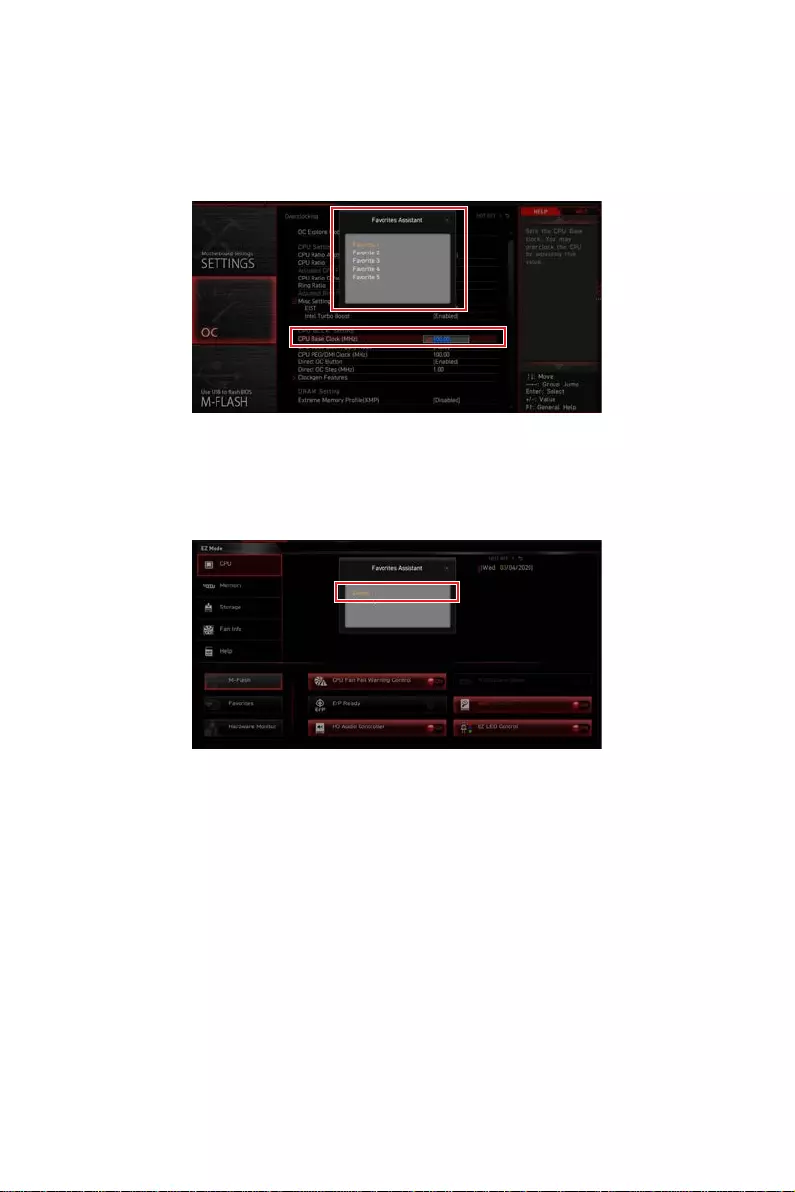
∙Favorites — click on this button or press the F3 key to show the Favorites window.
It provides 5 menus for you to create personal BIOS menu where you can save and
access favorite/ frequently-used BIOS setting items.
49
UEFI BIOS
▪To add a BIOS item to a favorite menu
1. Select a BIOS item not only on BIOS menu but also on search page.
2. Right-click or press F2 key.
3. Choose a favorite page and click on OK.
▪To delete a BIOS item from favorite menu
1. Select a BIOS item on favorite menu.
2. Right-click or press F2 key.
3. Choose Delete and click on OK.
50 UEFI BIOS
Advanced Mode
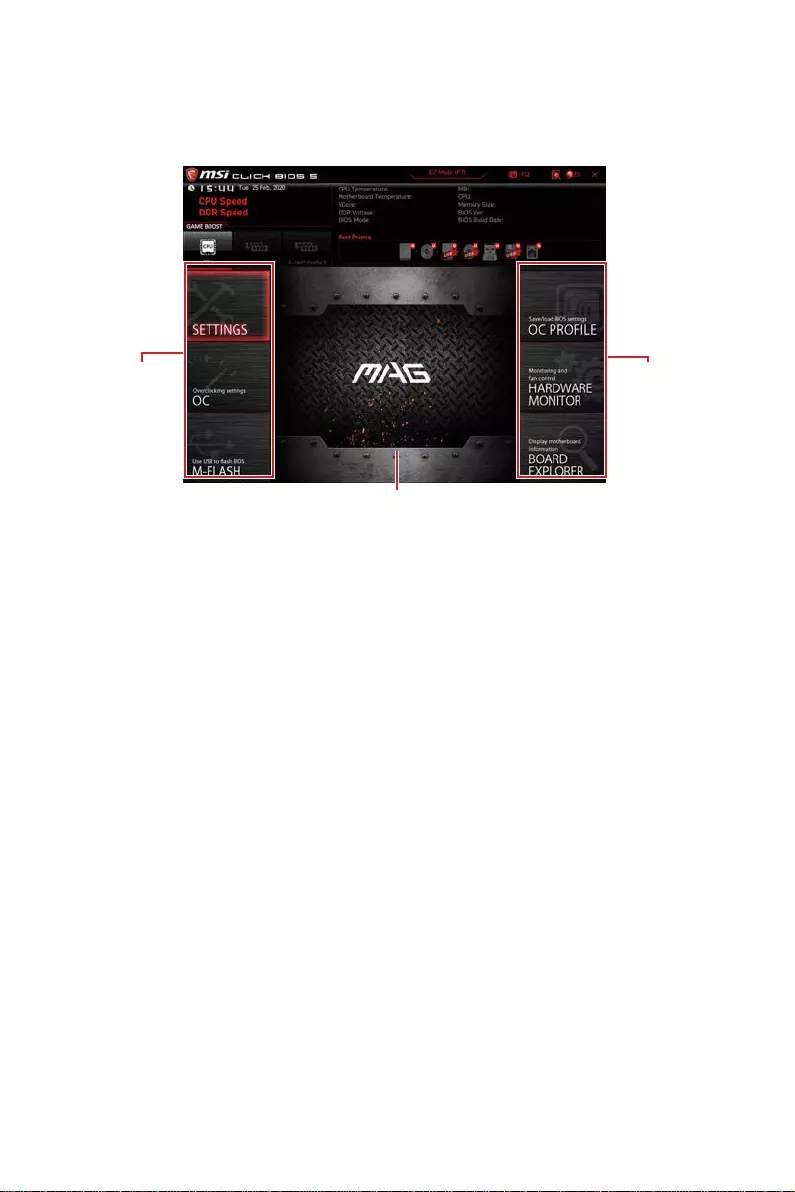
Press Setup Mode switch or F7 function key can switch between EZ Mode and
Advanced Mode in BIOS setup.
BIOS menu
selection
Menu display
BIOS menu
selection
∙BIOS menu selection — the following options are available:
▪SETTINGS — allows you to specify the parameters for chipset and boot devices.
▪OC — allows you to adjust the frequency and voltage. Increasing the frequency
may get better performance.
▪M-FLASH — provides the way to update BIOS with a USB flash drive.
▪OC PROFILE — allows you to manage overclocking profiles.
▪HARDWARE MONITOR — allows you to set the speeds of fans and monitor
voltages of system.
▪BOARD EXPLORER — provides the information of installed devices on this
motherboard.
∙Menu display — provides BIOS setting items and information to be configured.

51
UEFI BIOS
SETTINGS Menu
This menu allows you to specify the parameters for system, chipset and boot devices.
▶System Status sub-menu
The System Status sub-menu allows you to set the system clock and view system
information.
▶System Date
Sets the system date. Use tab key to switch between date elements.
The format is <day> <month> <date> <year>.
<day> Day of the week, from Sun to Sat, determined by BIOS. Read-only.
<month> The month from Jan. through Dec.
<date> The date from 1 to 31 can be keyed by numeric function keys.
<year> The year can be adjusted by users.
▶System Time
Sets the system time. Use tab key to switch between time elements.
The time format is <hour> <minute> <second>.
▶SATA PortX/ M2_X
Shows the information of connected SATA/ M.2 device.
⚠
Important
If the connected SATA/ M.2 device is not displayed, turn off computer and re-check
SATA/ M.2 cable and power cable connections of the device and motherboard.
▶System Information
Shows detailed system information, including CPU type, BIOS version, and Memory
(read only).
▶DMI Information
Shows system information, desktop board information and chassis information.
▶Advanced sub-menu
The Advanced sub-menu allows you to adjust and set the parameters and behaviors of
PCIe, ACPI, integrated peripherals, integrated graphics, USB, power management and
Windows .
▶PCI Subsystem Settings
Sets PCI, PCI express interface protocol and latency timer. Press Enter to enter
the sub-menu.
▶ACPI Settings
Sets ACPI parameters of onboard power LED behaviors.
▶Integrated Peripherals sub-menu
Sets integrated peripherals’ parameters, such as LAN, Wi-Fi, HDD, SSD, USB and
audio.

52 UEFI BIOS
▶Integrated Graphics Configuration sub-menu (optional)
Adjusts integrated graphics settings for optimum system. This sub-menu is only
available when using the CPU which integrate with IGP.
▶USB Configuration sub-menu
Sets the onboard USB controller and device function. Press Enter to enter the
sub-menu.
▶Power Management Setup sub-menu
Sets system Power Management of ErP and AC Power Loss behaviors. You can
optimize the system power consumption in this menu.
▶Windows OS Configuration
boot and control key management to prevent the unauthorized accessing for
system.
▶Wake Up Event Setup sub-menu
▶Secure Erase+
Enables or disables Secure Erase+ function. Secure Erase+ is the best way to
after enabling Secure Erase+.
▶Realtek PCIe GbE Family Controller (MAC sub-menu
controller parameter.
▶Boot sub-menu
Use this menu to set the system boot states and the sequence of system boot devices.
▶Security sub-menu
Use this menu to set the administrator password and the user password for system
security. This menu also allows you to set the TPM (Trusted Platform Module)
function.
⚠
Important
When selecting the Administrator / User Password items, a password box will appear
on the screen. Type the password then press Enter. The password typed now will
replace any previous set password from CMOS memory. You will be prompted to
confirm the password. You may also press Esc key to abort the selection.
To clear a set password, press Enter when you are prompted to enter a new
password. A message will confirm the password is being disabled. Once the password
is disabled, you can enter the setup and OS without authorization.
▶Save & Exit
This menu allows you to load the BIOS default values or factory default settings into
the BIOS and exit the BIOS setup utility with or without changes.

53
UEFI BIOS
OC Menu
This menu allows you to configure the frequencies and voltages for overclocking.
Please note that, higher frequency and voltage may benefit overclocking capability but
cause system un-stability.
⚠
Important
∙
Overclocking your PC manually is only recommended for advanced users.
∙
Overclocking is not guaranteed, and if done improperly, it could void your warranty
or severely damage your hardware.
∙
If you are unfamiliar with overclocking, we advise you to use GAME BOOST function
for easy overclocking.
∙
The BIOS items in OC menu will vary with the processor.
▶OC Explore Mode [Normal]
Enables or disables to show the normal or expert version of OC settings.
[Normal] Provides the regular OC settings in BIOS setup.
[Expert] Provides the advanced OC settings for OC expert to configure in BIOS
setup.
Note: We use * as the symbol for the OC settings of Expert mode.
▶CPU Ratio [Auto]
Sets the CPU ratio that is used to determine CPU clock speed. This item can only be
changed if the processor supports this function.
▶ Advanced CPU Conguration
Press Enter to enter the sub-menu. User can set the parameters about CPU
power/ current. The system may become unstable or unbootable after changing the
parameters. If it occurs, please clear the CMOS data and restore the default settings.
▶A-XMP [Disabled]
Please enable A-XMP or select a profile of memory module for overclocking the
memory. This item will be available when the installed processor, memory modules
and motherboard support this function.
▶DRAM Frequency [Auto]
Sets the DRAM frequency. Please note the overclocking behavior is not guaranteed.
▶Adjusted DRAM Frequency
Shows the adjusted DRAM frequency. Read-only.
▶FCLK Frequency [Auto]
Sets the FCLK frequency (Internal Data Fabric clock of DRAM). Please note the
overclocking behavior is not guaranteed.
▶UCLK DIV1 Mode [Auto]
Sets UCLK (Internal memory controller clock) mode.

54 UEFI BIOS
▶Memory Try It ! [Disabled]
It can improve memory compatibility or performance by choosing optimized memory
preset. This item will be available when the installed processor supports this function.
▶Memory Failure Retry [Enabled]
Enables or disables the system reboot function when the memory OC retry fails.
▶Memory Failure Retry Count [2]
Sets the count for memory OC retry. When memory OC retry fails reach the count,
the memory will restore the last available settings. This item will display when the
Memory Failure Retry sets to Enabled.
▶ Advanced DRAM Conguration
Press Enter to enter the sub-menu. User can set the memory timing for each/ all
memory channel. The system may become unstable or unbootable after changing
memory timing. If it occurs, please clear the CMOS data and restore the default
settings. (Refer to the Clear CMOS jumper section to clear the CMOS data, and enter
the BIOS to load the default settings.)
▶DigitALL Power sub-menu
Press Enter to enter the sub-menu. In the sub-menu, you can setup some protecting
conditions about voltage/ current/ temputure for CPU.
▶CPU Voltages control [Auto]
These options allows you to set the voltages related to CPU. If set to Auto, BIOS will
set these voltages automatically or you can set it manually.
▶DRAM Voltages control [Auto]
These options allows you to set the voltages related to memory. If set to Auto, BIOS
will set these voltages automatically or you can set it manually.
▶Memory Changed Detect [Enabled]*
Enables or disables the system to issue a warning message during boot when the
memory has been replaced.
[Enabled] The system will issue a warning message during boot and then you have
to load the default settings for new devices.
[Disabled] Disables this function and keeps the current BIOS settings.
▶ CPU Specications sub-menu
Press Enter to enter the sub-menu. This sub-menu displays the information of
installed CPU. You can also access this information menu at any time by pressing [F4].
Read only.
▶MEMORY-Z sub-menu
Press Enter to enter the sub-menu. This sub-menu displays all the settings and
timings of installed memory. You can also access this information menu at any time by
pressing [F5].
55
UEFI BIOS
M-FLASH Menu
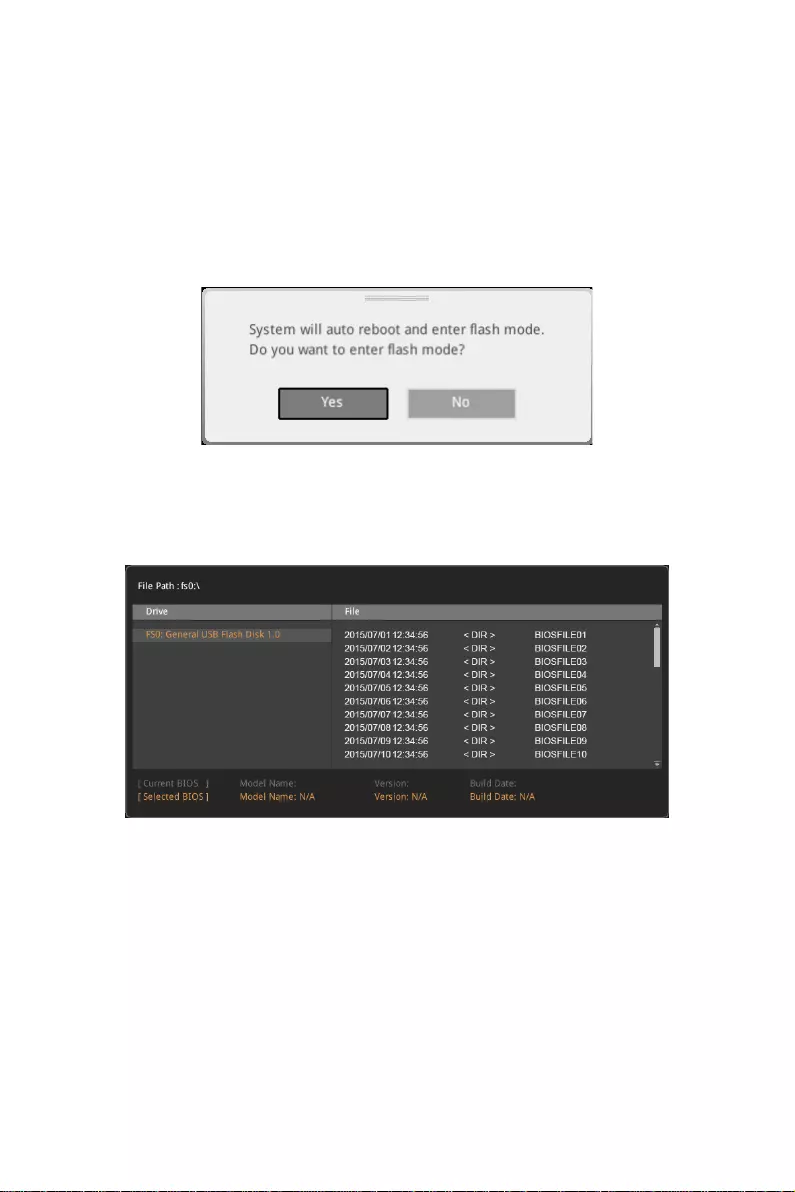
M-FLASH provides the way to update BIOS with a USB flash drive. Please download
the latest BIOS file that matches your motherboard model from MSI website, save the
BIOS file into your USB flash drive. And then follow the steps below to update BIOS.
1. Insert the USB flash drive that contains the update file into the computer.
2. Click on M-FLASH tab, a demand message will be prompted. Click on Yes to
reboot and enter the flash mode.
3. The system will enter the flash mode and a file selection menu will appear after
rebooting.
4. Select a BIOS file to perform the BIOS update process.
5. After the flashing process is 100% completed, the system will reboot
automatically.
56 UEFI BIOS
OC PROFILE Menu
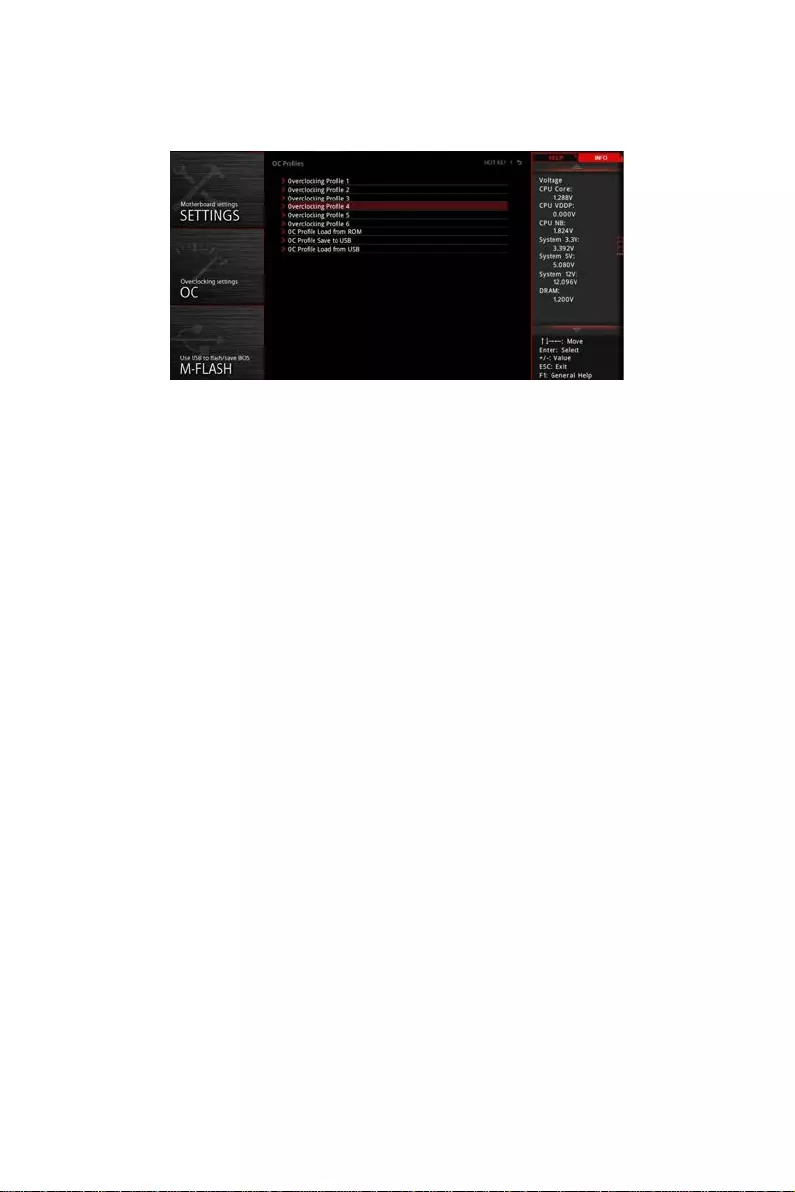
▶ Overclocking Prole 1/ 2/ 3/ 4/ 5/ 6
Overclocking Profile 1/ 2/ 3/ 4/ 5/ 6 management. Press Enter to enter the sub-menu.
▶Set Name for Overclocking Profile 1/ 2/ 3/ 4/ 5/ 6
▶Save Overclocking Profile 1/ 2/ 3/ 4/ 5/ 6
▶Load Overclocking Profile 1/ 2/ 3/ 4/ 5/ 6
▶Clear Overclocking Profile 1/ 2/ 3/ 4/ 5/ 6
▶ OC Prole Load from ROM
Load OC profile from BIOS ROM.
▶ OC Prole Save to USB
Save OC profile to the USB flash drive. The USB flash drive should be FAT/ FAT32
format only.
▶ OC Prole Load from USB
Load OC profile from the USB flash drive. The USB flash drive should be FAT/ FAT32
format only.
57
UEFI BIOS
HARDWARE MONITOR Menu
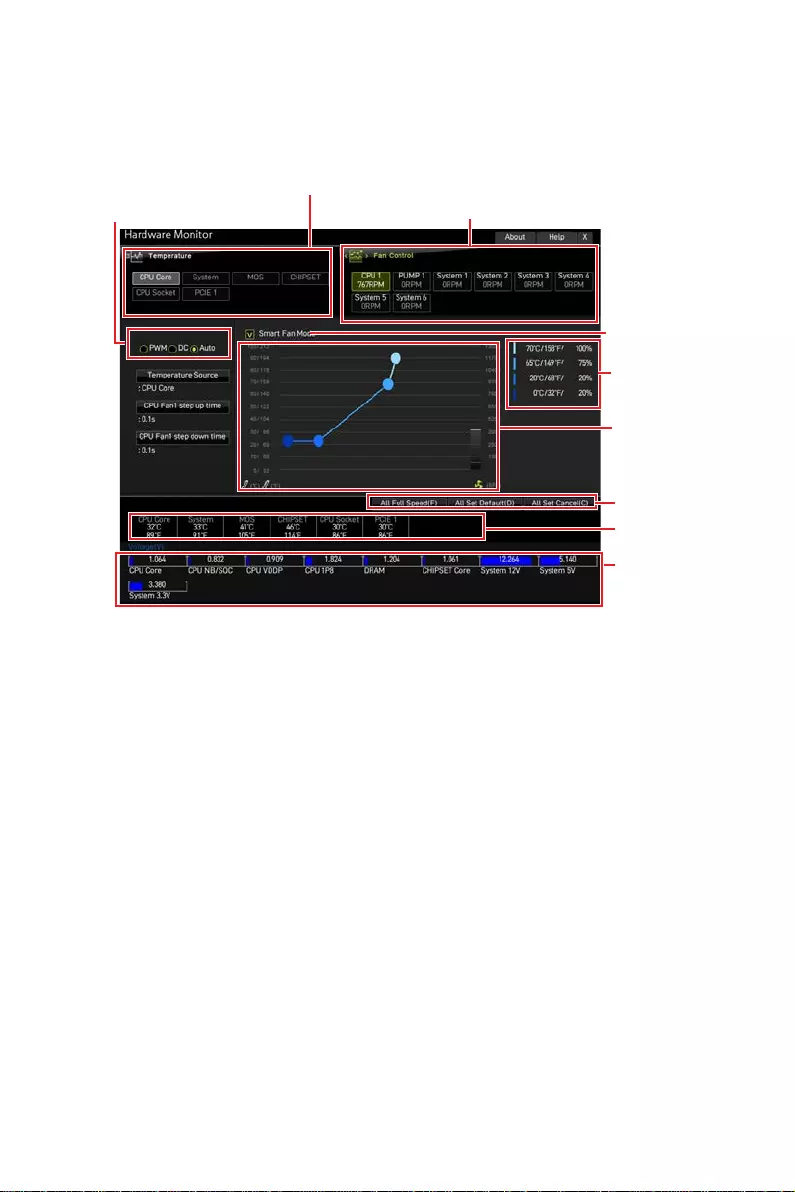
This menu allows you to adjust the fan speed manually and monitor CPU/ system
voltage.
Fan operating
window
Smart Fan duty
information
Click to enable
the Smart Fan
Temperature
information
Setting Buttons
Select a fan to be configured
Select a temperature curve line (white)
to be showed in Fan operating window
Select a fan mode for target fan
Voltage
information
∙Smart Fan — This setting enables/disables the Smart Fan function. Smart Fan is an
excellent feature which will adjust the CPU/system fan speed automatically depending
on the current CPU/system temperature, avoiding the overheating to damage your
system.
▶Settings Buttons
▪All Full Speed — configures all fans to run at full operating speed.
▪All Set Default — configures all fans’ speeds return the BIOS default values.
▪All Set Cancel — discards current changes and restores previous settings for all
fan .
⚠
Important
Make sure fans are working properly after adjusting the fan speed and switching the
fan mode.
58 UEFI BIOS
⚠
Important
The pictures in this section are for reference only and may vary from the motherboard
you purchased.
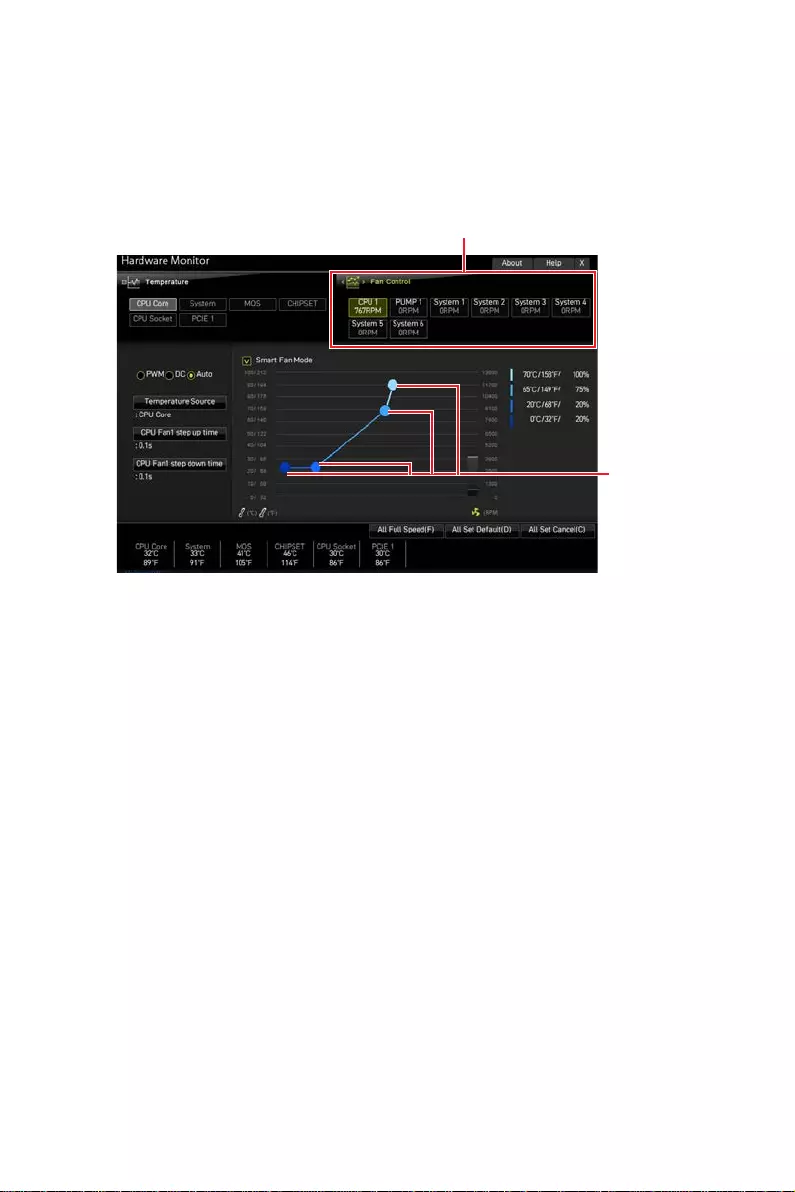
Adjusting fans
1. Selects a fan that you want to adjust and to display the fan duty curve line (yellow)
in fan operating windows.
2. Click and drag the duty points to adjust the fan speed.
Duty points
Select a fan to be adjusted
59
AMD RAID Configuration
AMD RAID Configuration
The following are the RAID levels supported by RAIDXpert2.
RAID 0 (Striping) breaks the data into blocks which are written to separate hard
drives. Spreading the hard drive I/O load across independent channels
greatly improves I/O performance.
RAID 1 (Mirroring) provides data redundancy by mirroring data between the hard
drives and provides enhanced read performance.
RAID 10 (Striped RAID1 Sets) uses four hard drives to create a combination of RAID 0
and 1 by forming a RAID 0 array from two RAID 1 arrays.
Volume (JBOD) provides the ability to link-together storage from one or several
disks, regardless of the size of the space on those disks. Useful in
scavenging space on disks unused by other disks in the array. Does not
provide performance benefits or data redundancy.
RAIDABLE (also known as RAID Ready) allows the user to add more storage space or
create a redundant array after a system is installed.
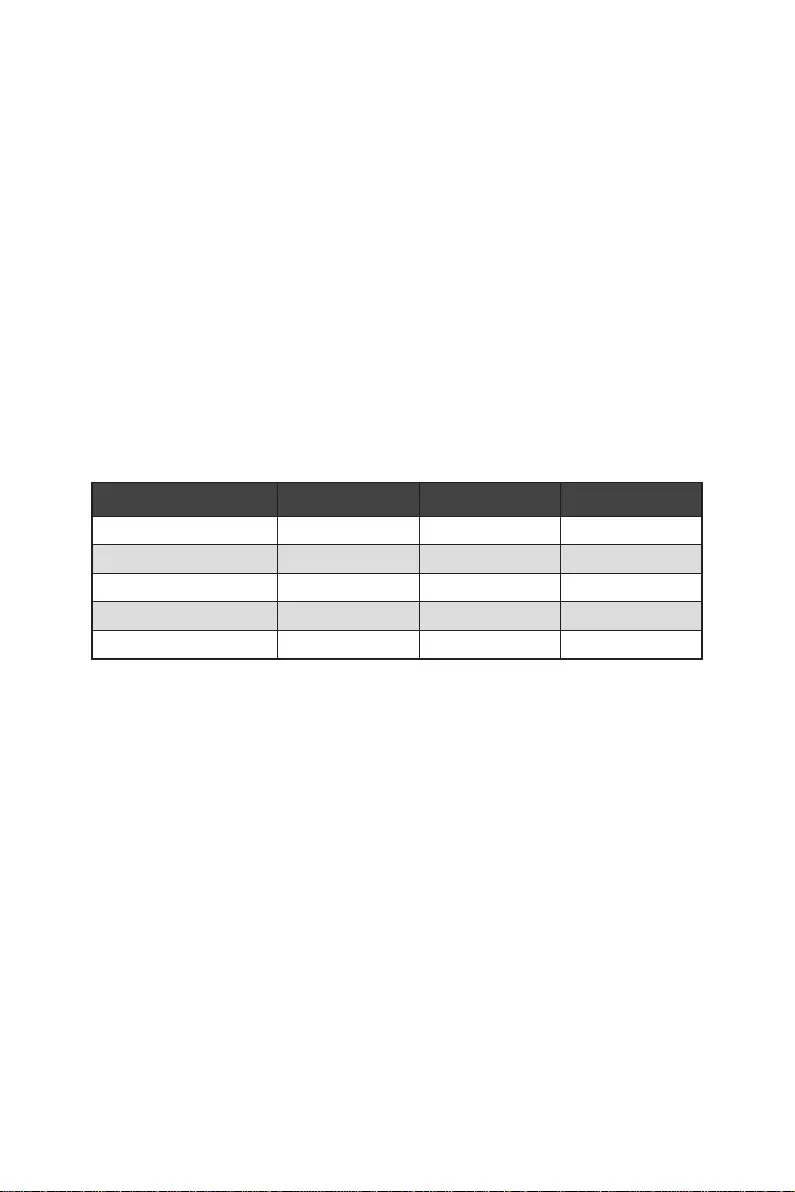
RAID level comparison
RAID 0 RAID 1 RAID 10
Minimum # drives 2 2 4
Data protection None Excellent Excellent
Read performance Excellent OK OK
Write performance Excellent Good Good
Capacity utilization 100% 50% 50%
⚠
Important
All the information/ volumes/ pictures listed in your system might differ from the
illustrations in this appendix.
Enabling RAIDXpert2 Configuration Utility
To enter the RAIDXpert2 Configuration Utility menu
1. Power on and press Delete key to enter BIOS Setup menu.
2. Press F7 to switch to Advanced mode from EZ mode.
3. Go to BIOS > SETTINGS > Advanced > Integrated Peripherals > SATA Mode and
change setting to RAID Mode.
4. Go to BIOS > SETTINGS > Advanced > Windows OS Configuration > BIOS UEFI/
CSM Mode and change setting to UEFI.
5. Press F10 to save configuration and exit, and then reboot and press Delete key to
enter BIOS Setup menu.
6. Go to BIOS > SETTINGS > Advanced > RAIDXpert2 Configuration Utility sub-
menu.
60 AMD RAID Configuration
Initializing Disks
New disks and legacy disks must be initialized before they can be used to create an
AMD-RAID array. Initialization writes AMD-RAID configuration information (metadata)
to a disk.
⚠
Important
∙
If a disk is part of an AMD-RAID array, the disk cannot be selected for initialization.
To initial the disk anyway, delete the AMD-RAID array. Data on the disk is deleted
during initialization so ensure the correct disks are chosen to initialize.
∙
A legacy disk can contain valid data. When a legacy disk is initialized, all data on the
disk is lost.
To initialize disks
1. As previously mentioned, enable RAIDXpert2 Configuration Utility.
2. Go to BIOS > SETTINGS > Advanced > RAIDXpert2 Configuration Utility > Physical
Disk Management > Select Physical Disk Operations > Initialize Disk sub-menu.
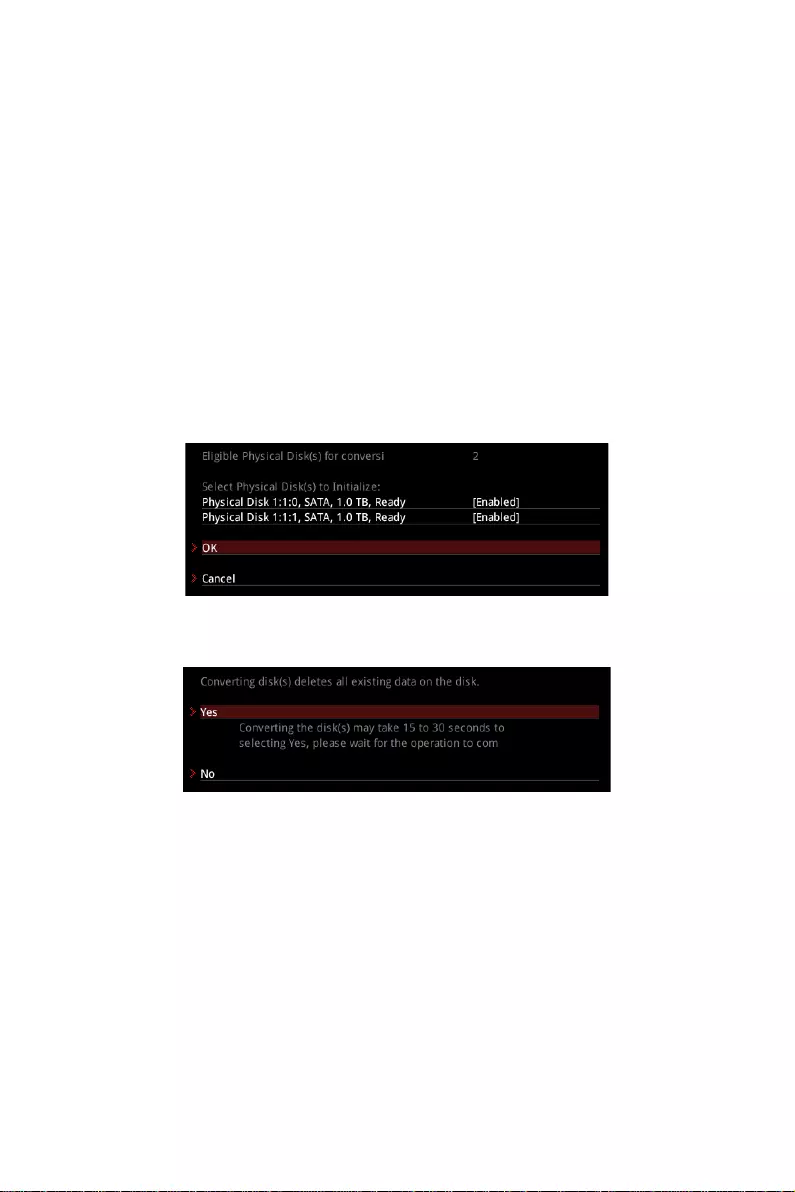
3. Select desired disks by changing the Physical Disk setting to Enabled.
4. Select OK, then press Enter.
5. Review the warning message, if you want to proceed, select YES, then press Enter.
6. Initialization takes 10 to 15 seconds per disk. During initialization, a complete
rescan of all channels is done automatically.
61
AMD RAID Configuration
Creating Arrays
Arrays can be created after the disks are initialized.
⚠
Important
∙
For redundant arrays, the Create process is not started until after the operating
system and AMD-RAID OS drivers have been installed and the system has booted to
the operating system. However, the arrays are immediately available to use for either
a bootable array or a data array.
∙
Array numbers are valid only for a given boot and might be different in the
RAIDXpert2 Configuration Utility and RAIDXpert2. If a permanent label is required, use
the RAIDXpert2 Web GUI Array Naming feature.
∙
At any point in the procedure, return to a prior window by pressing ESC.
∙
If the system is booted from an AMD-RAID bootable array, the first array in the
Arrays section must be the bootable array. The system boots only from the first array
in the Arrays section.
To create an array
1. As previously mentioned, enable RAIDXpert2 Configuration Utility.
2. Go to BIOS > SETTINGS > Advanced > RAIDXpert2 Configuration Utility > Array
Management > Create Array sub-menu.
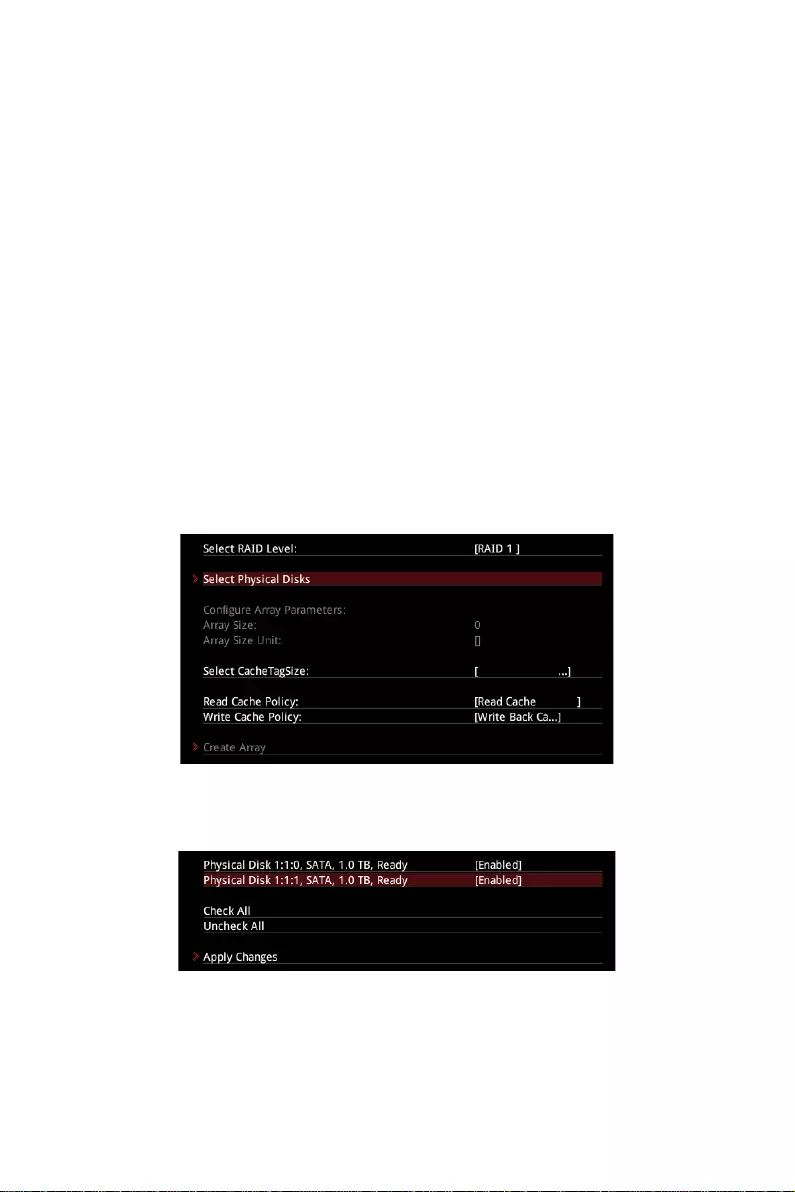
3. Select the RAID level from the Select RAID Level drop down menu.
4. Enter Select Physical Disks sub-menu, select member disks by changing the
Physical Disk setting to Enabled.
5. Select Apply Changes, then press Enter to apply and go back to previous sub-
menu.
6. Change the Select CacheTagSize, Read Cache Policy and Write Cache Policy
settings according to your needs.
7. Select Create Array, then press Enter.
62 AMD RAID Configuration
Deleting Arrays
⚠
Important
∙
Deleting an array permanently destroys all data that is on the array. This action
cannot be undone and it is very unlikely that the data can be recovered.
∙
Do not delete the first array listed in the Arrays section, if it is the AMD-RAID
bootable array. Doing this deletes the operating system and AMD-RAID files.
To delete an array
1. As previously mentioned, enable RAIDXpert2 Configuration Utility.
2. Go to BIOS > SETTINGS > Advanced > RAIDXpert2 Configuration Utility > Array
Management > Delete Array sub-menu.
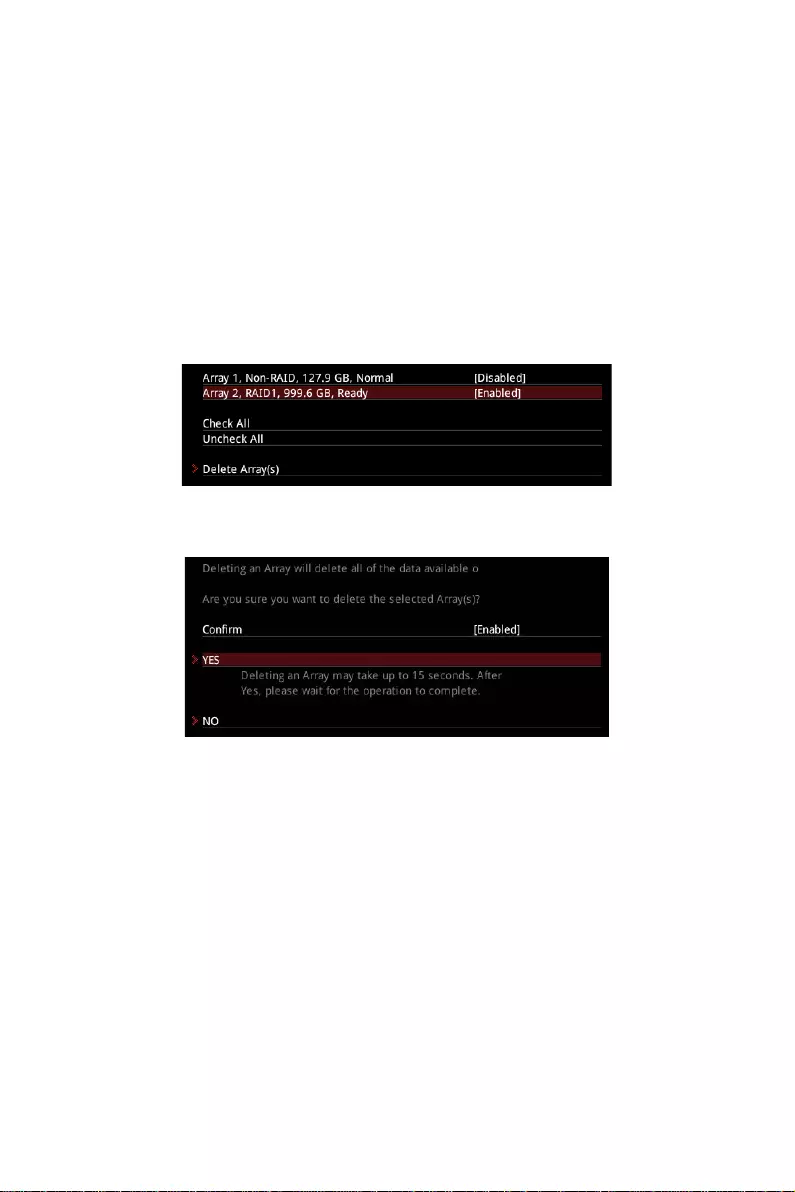
3. Select the desired array and change the setting to Enabled.
4. Enter Delete Array(s) sub-menu.
5. Review the warning message, if you want to proceed, Select Confirm and change
the setting to Enabled.
6. Select YES then press Enter.

63
AMD RAID Configuration
Installing RAID Driver
New Operating System Installation
The following details the installation of the drivers while installing operating system.
1. During the operating system installation, after selecting the location to install
Windows click on Load driver button to install a third party RAID driver.
2. When prompted, insert the USB flash drive with AMD RAID Drivers and then click
Browse.
▪To make an AMD RAID Drivers USB flash drive. Insert the MSI Driver Disc into
the optical drive. Copy all the contents in \\Storage\AMD\
3. Navigate to the directory containing the saved AMD RAID drivers, then click OK.
4. Select the (rcbottom.inf) driver, click Next.
5. When prompted, click OK.
6. Click Browse and navigate to the directory containing the saved AMD RAID drivers
again, then click OK.
7. Select the (rcraid.inf) driver, click Next.
8. You have successfully installed the RAID driver, and Windows setup should
continue.
9. Leave the disk/ USB drive in the computer until the system reboots itself.
Windows setup will need to copy the files after the RAID volume is formatted, and
Windows setup starts copying files.
AMD RAIDXpert2 Management Suite Installation
1. Set the SATA Mode to RAID Mode in BIOS
2. Insert the MSI Driver Disc into the optical drive.
3. Click the Select to choose what happens with this disc pop-up notification, then
select Run DVDSetup.exe to open the installer. If you turn off the AutoPlay feature
from the Windows Control Panel, you can still manually execute the DVDSetup.
exe from the root path of the MSI Driver Disc.
4. Under the Drivers/Software tab, check the AMD RAID Drivers check-box.
5. Click the Install button.
6. When prompt you to restart, click OK button to finish.
7. Restart your computer and enter the Windows operating system.
8. Double-click the RAIDXpert2 icon to open the RAIDXpert2 Web GUI.
▪Default credentials are:
▫Username — admin
▫Password — admin
9. Change the credentials:
▪Create new username and password
10. Re-log into the RAIDXpert2 Web GUI with the new credentials.

Troubleshooting
Before sending the motherboard for RMA
repair, try to go over troubleshooting
guide first to see if your got similar
symptoms as mentioned below.
The power is not on.
∙Connect the AC power cord to an
electrical outlet securely.
∙Check if all ATX power connectors
like ATX_PWR1, CPU_PWR1 are
connected from the power supply to the
motherboard?
∙Some power supply units have a power
button on the rear side, make sure the
button is turned on.
∙Check if the power switch cable is
connected to JFP1 pin header properly.
∙Verify the Clear CMOS jumper JBAT1 is
set to Keep DATA.
∙Test with another known working
power supply of equal or greater
wattage.
The power is on, but no signal to
monitor
∙Connect the monitor power cord to a
electrical outlet securely.
∙Make sure the monitor is turned on.
∙Select different inputs on the monitor.
∙If 3 long beeps are heard, remove all
memory modules and try to install only
one memory module in the DIMMA2 slot
first and then restart the computer.
∙If 1 long 2 short beeps are heard,
remove and reinstall the graphics card
and then restart the computer.
∙Test with another known working
graphics card.
The computer does not boot after
updating the BIOS
∙Clear the CMOS.
∙Use the secondary BIOS to bootup the
system (Only for motherboard with Dual
BIOS)
Lost BIOS password
∙Clear the CMOS, but that will cause
you to lose all customized settings in the
BIOS.
There is no audio
∙Adjust the volume.
∙Connect the speakers/headphones to
audio ports on the motherboard rear IO
panel.
∙Remove secondary speakers/
headphones, HDMI cables, USB audio
devices.
∙Test with another known working
speaker or headphone.
There is no network
∙Make sure the network chipset driver
has been installed.
∙Verify if the network cable is properly
connected and make sure the LAN port
LEDs are properly illuminated.
∙Verify your TCP/IP settings.
∙Restart or reset your router.
∙Test with another known working LAN
cable.
The USB device is not working
∙Make sure your USB drive driver has
been installed.
∙Verify if USB device is listed in
Windows® Device Manager.
∙Connect the USB device to other USB
port on the motherboard rear IO panel.
64 Troubleshooting
65
Regulatory Notices
Regulatory Notices
FCC Compliance Statement
Note: This equipment has been tested and found to
comply with the limits for a Class B digital device,
pursuant to part 15 of the FCC Rules. These limits are
designed to provide reasonable protection against
harmful interference in a residential installation. This
equipment generates, uses and can radiate radio
frequency energy and, if not installed and used in
accordance with the instructions, may cause harmful
interference to radio communications. However, there
is no guarantee that interference will not occur in a
particular installation. If this equipment does cause
harmful interference to radio or television reception,
which can be determined by turning the equipment
off and on, the user is encouraged to try to correct the
interference by one or more of the following measures:
yReorient or relocate the receiving antenna.
yIncrease the separation between the equipment
and receiver.
yConnect the equipment into an outlet on a circuit
different from that to which the receiver is
connected.
yConsult the dealer or an experienced radio/TV
technician for help.
Caution: Changes or modifications not expressly
approved by the party responsible for compliance could
void the user’s authority to operate the equipment.
Tested to comply with FCC standards
FOR HOME OR OFFICE USE
This device complies with part 15 of the FCC Rules.
Operation is subject to the following two conditions:
(1) This device may not cause harmful interference,
and (2) this device must accept any interference
received, including interference that may cause
undesired operation.
CE Conformity
Products bearing the CE marking comply
with one or more of the following EU
Directives as may be applicable:
RED 2014/53/EU; Low Voltage Directive 2014/35/EU;
EMC Directive 2014/30/EU; RoHS Directive 2011/65/EU.
Compliance with these directives is assessed using
applicable European Harmonized Standards.
The point of contact for regulatory matters is MSI,
MSI-NL Eindhoven 5706 5692 ER Son.
B급 기기 (가정용 방송통신기자재)
クラスB情報技術装置
VCCI-B
C-Tick Compliance
Battery Information
European Union:
Batteries, battery packs, and
accumulators should not be disposed of as
unsorted household waste. Please use the
public collection system to return, recycle,
or treat them in compliance with the local
regulations.
Taiwan:
For better environmental protection,
waste batteries should be collected
separately for recycling or special
disposal.
California, USA:
The button cell battery may contain
perchlorate material and requires special
handling when recycled or disposed of in
California.
For further information please visit:
http://www.dtsc.ca.gov/hazardouswaste/perchlorate/
CAUTION: There is a risk of explosion, if battery is
incorrectly replaced.
Replace only with the same or equivalent type
recommended by the manufacturer.
Chemical Substances Information
In compliance with chemical substances regulations,
such as the EU REACH Regulation (Regulation EC
No. 1907/2006 of the European Parliament and the
Council), MSI provides the information of chemical
substances in products at:
http://www.msi.com/html/popup/csr/evmtprtt_pcm.
html
Environmental Policy
yThe product has been designed to
enable proper reuse of parts and
recycling and should not be thrown
away at its end of life.
yUsers should contact the local
authorized point of collection for recycling and
disposing of their end-of-life products.
yVisit the MSI website and locate a nearby distributor
for further recycling information.
yUsers may also reach us at gpcontdev@msi.com for
information regarding proper Disposal, Take-back,
Recycling, and Disassembly of MSI products.
WEEE (Waste Electrical and
Electronic Equipment) Statement
ENGLISH
To protect the global environment and as
an environmentalist, MSI must remind
you that…
Under the European Union (“EU”) Directive
on Waste Electrical and Electronic
Equipment, Directive 2002/96/EC, which
takes effect on August 13, 2005, products of “electrical

66 Regulatory Notices
and electronic equipment” cannot be discarded as
municipal wastes anymore, and manufacturers of
covered electronic equipment will be obligated to take
back such products at the end of their useful life. MSI
will comply with the product take back requirements
at the end of life of MSI-branded products that are sold
into the EU. You can return these products to local
collection points.
DEUTSCH
Hinweis von MSI zur Erhaltung und Schutz unserer
Umwelt
Gemäß der Richtlinie 2002/96/EG über Elektro- und
Elektronik-Altgeräte dürfen Elektro- und Elektronik-
Altgeräte nicht mehr als kommunale Abfälle entsorgt
werden. MSI hat europaweit verschiedene Sammel-
und Recyclingunternehmen beauftragt, die in die
Europäische Union in Verkehr gebrachten Produkte,
am Ende seines Lebenszyklus zurückzunehmen.
Bitte entsorgen Sie dieses Produkt zum gegebenen
Zeitpunkt ausschliesslich an einer lokalen
Altgerätesammelstelle in Ihrer Nähe.
FRANÇAIS
En tant qu’écologiste et afin de protéger
l’environnement, MSI tient à rappeler ceci…
Au sujet de la directive européenne (EU) relative aux
déchets des équipement électriques et électroniques,
directive 2002/96/EC, prenant effet le 13 août 2005, que
les produits électriques et électroniques ne peuvent
être déposés dans les décharges ou tout simplement
mis à la poubelle. Les fabricants de ces équipements
seront obligés de récupérer certains produits en fin
de vie. MSI prendra en compte cette exigence relative
au retour des produits en fin de vie au sein de la
communauté européenne. Par conséquent vous pouvez
retourner localement ces matériels dans les points
de collecte.
РУССКИЙ
ESPAÑOL
MSI como empresa comprometida con la protección
del medio ambiente, recomienda:
Bajo la directiva 2002/96/EC de la Unión Europea
en materia de desechos y/o equipos electrónicos,
con fecha de rigor desde el 13 de agosto de 2005,
los productos clasificados como “eléctricos y
equipos electrónicos” no pueden ser depositados
en los contenedores habituales de su municipio, los
fabricantes de equipos electrónicos, están obligados
a hacerse cargo de dichos productos al termino de
su período de vida. MSI estará comprometido con los
términos de recogida de sus productos vendidos en
la Unión Europea al final de su periodo de vida. Usted
debe depositar estos productos en el punto limpio
establecido por el ayuntamiento de su localidad o
entregar a una empresa autorizada para la recogida de
estos residuos.
NEDERLANDS
Om het milieu te beschermen, wil MSI u eraan
herinneren dat….
De richtlijn van de Europese Unie (EU) met betrekking
tot Vervuiling van Electrische en Electronische
producten (2002/96/EC), die op 13 Augustus 2005 in
zal gaan kunnen niet meer beschouwd worden als
vervuiling. Fabrikanten van dit soort producten worden
verplicht om producten retour te nemen aan het
eind van hun levenscyclus. MSI zal overeenkomstig
de richtlijn handelen voor de producten die de
merknaam MSI dragen en verkocht zijn in de EU. Deze
goederen kunnen geretourneerd worden op lokale
inzamelingspunten.
SRPSKI
vas podesti da…
EC, koja stupa na snagu od 13. Avgusta 2005, proizvodi
proizvoda kojima je istekao vek trajanja, koji imaju MSI
vratiti na lokalnim mestima za prikupljanje.
POLSKI
odpadów produktów elektrycznych i elektronicznych
(sprzedawane na terenie Unii Europejskiej) wycofywane
wyznaczonych punktach zbiorczych.
TÜRKÇE

67
Regulatory Notices
ČESKY
EC platné od 13. srpna 2005 je zakázáno likvidovat
komunálním odpadu a výrobci elektronických
MAGYAR
Annak érdekében, hogy környezetünket megvédjük,
Önt, hogy …
Az Európai Unió („EU”) 2005. augusztus 13-án hatályba
hulladékairól szóló 2002/96/EK irányelve szerint
az elektromos és elektronikus berendezések
és az ilyen elektronikus berendezések gyártói
kötelessé válnak az ilyen termékek visszavételére
azok hasznos élettartama végén. Az MSI betartja a
termékvisszavétellel kapcsolatos követelményeket
az MSI márkanév alatt az EU-n belül értékesített
termékek esetében, azok élettartamának végén. Az
ITALIANO
Per proteggere l’ambiente, MSI, da sempre amica della
natura, ti ricorda che….
In base alla Direttiva dell’Unione Europea (EU) sullo
Smaltimento dei Materiali Elettrici ed Elettronici,
Direttiva 2002/96/EC in vigore dal 13 Agosto 2005,
prodotti appartenenti alla categoria dei Materiali
Elettrici ed Elettronici non possono più essere eliminati
come rifiuti municipali: i produttori di detti materiali
saranno obbligati a ritirare ogni prodotto alla fine
del suo ciclo di vita. MSI si adeguerà a tale Direttiva
ritirando tutti i prodotti marchiati MSI che sono stati
venduti all’interno dell’Unione Europea alla fine del
loro ciclo di vita. È possibile portare i prodotti nel più
vicino punto di raccolta
日本JIS C 0950材質宣言
http://www.msi.com/html/popup/csr/cemm_jp.html
http://tw.msi.com/html/popup/csr_tw/cemm_jp.html
India RoHS
This product complies with the “India E-waste
(Management and Handling) Rule 2011” and prohibits
use of lead, mercury, hexavalent chromium,
polybrominated biphenyls or polybrominated diphenyl
ethers in concentrations exceeding 0.1 weight % and
0.01 weight % for cadmium, except for the exemptions
set in Schedule 2 of the Rule.
Türkiye EEE yönetmeliği
Україна обмеження на наявність
небезпечних речовин
Việt Nam RoHS
68 Regulatory Notices
MS-7C91主板产品中有害物质的名称及含量
(Pb)
(Hg)
(Cd)
(Cr(VI))
(PBB)
(PBDE)
限用物質含有情況標示聲明書
(Pb)
(Hg)
(Cd)
(Cr+6)
(PBB)
(PBDE)
Copyright
Micro-Star Int’l Co.,Ltd.
Copyright © 2020 All rights reserved.
The MSI logo used is a registered trademark of
Micro-Star Int’l Co., Ltd. All other marks and names
mentioned may be trademarks of their respective
owners. No warranty as to accuracy or completeness is
expressed or implied. MSI reserves the right to make
changes to this document without prior notice.
Revision History
Version 2.0, 2020/05, First release.
Technical Support
If a problem arises with your system and no solution
can be obtained from the user guide, please
contact your place of purchase or local distributor.
Alternatively, please try the following help resources
for further guidance.
yVisit the MSI website for technical guide, BIOS
updates, driver updates, and other information:
http://www.msi.com
yRegister your product at: http://register.msi.com
MAG B550 Tomahawk Max Wifi Motherboard
MAG B550 TOMAHAWK MAX WIFI
Motherboard
User Guide Benutzerhandbuch Manuel d’utilisation
I
English Deutsch Français
II
Quick Start
Thank you for purchasing the MSI® motherboard. This Quick Start section
provides demonstration diagrams about how to install your computer. Some of
the installations also provide video demonstrations. Please link to the URL to
watch it with the web browser on your phone or tablet. You may have even link
to the URL by scanning the QR code.
Kurzanleitung
Danke, dass Sie das MSI® Motherboard gewählt haben. Dieser Abschnitt der
Kurzanleitung bietet eine Demo zur Installation Ihres Computers. Manche
Installationen bieten auch die Videodemonstrationen. Klicken Sie auf die URL,
um diese Videoanleitung mit Ihrem Browser auf Ihrem Handy oder Table
anzusehen. Oder scannen Sie auch den QR Code mit Ihrem Handy, um die URL zu
öffnen.
Présentation rapide
Merci d’avoir choisi la carte mère MSI®. Ce manuel fournit une rapide
présentation avec des illustrations explicatives qui vous aideront à assembler
votre ordinateur. Des tutoriels vidéo sont disponibles pour certaines étapes.
Cliquez sur le lien fourni pour regarder la vidéo sur votre téléphone ou votre
tablette. Vous pouvez également accéder au lien en scannant le QR code qui lui
est associé.
MSI®. , . . , – . , QR-.
MSI® PC URLQR URL
MSI® . . URL . QR URL .
MSI® URL QR code
MSI® QRURL
Quick Start III
Installing a Processor/ Installation des Prozessors/ Installer un processeur/
/ CPU/ / /
Youtube
1
http://v.youku.com/v_show/id_ XMTg2MjMwOTE2NA==.html
3
2
5 4
6 IV Quick Start
8 9
7
If you are installing the screw-type CPU heatsink, please follow the figure
below
to remove the retention module first and then install the heatsink. Wenn Sie
einen CPU-Kühler mit Schraubenbefestigung einsetzen, folgen Sie bitte den
Anweisungen unten um das Retention-Modul zu entfernen und den Kühler zu
installieren. Si vous voulez installer un ventirad pour processeur à vis,
veuillez suivre les instructions ci-dessous pour d’abord retirer le module de
rétention puis installer le ventirad. , . . CPU CPU CPU , . CPU CPU
1
3
2
Quick Start V
Installing DDR5 memory/ Installation des DDR5-Speichers/ Installer une mémoire
DDR5/ DDR5/ DDR5 / DDR5 / DDR5 / DDR5
Youtube
http://youtu.be/T03aDrJPyQs http://v.youku.com/v_show/id_XNzUyMTI5ODI4.html
DIMMA2
VI Quick Start
DIMMA2 DIMMB2
DIMMA1 DIMMA2 DIMMB1 DIMMB2
Connecting the Front Panel Header/ Anschließen der
Frontpanel-Stiftleiste/ Connecter un connecteur du panneau
avant/ /
/ /
/
Youtube
http://youtu.be/DPELIdVNZUI http://v.youku.com/v_show/id_XNjcyMTczMzM2.html
POPWOEWRELREHLDD-EDDL+ED
RESET SW POWER SW
Power LED Power Switch
–
-+
++
JFP1
2 1
–
10
9
Reserved
HDD LED Reset Switch
1
HDD LED +
2
3
HDD LED –
4
5
Reset Switch
6
7
Reset Switch
8
9
Reserved
10
Power LED + Power LED Power Switch Power Switch
No Pin
HDD LED POWER LED
HDD LED RESET SW
JFP1
HDD LED HDD LED + POWER LED POWER LED +
Quick Start VII
Installing the Motherboard/ Installation des Motherboards/ Installer la carte
mère/ / / / /
Youtube
1
https://v.youku.com/v_show/id_ XNDUwMDUyNTkwOA==.html
Torque:
3 kgf·cm*
3
*3 kgf·cm = 0.3 N·m = 2.6 lbf·in
VIII Quick Start
Connecting the Power Connectors/ Stromanschlüsse anschliessen/ Connecter les
câbles du module d’alimentation/ / / / /
Youtube
http://youtu.be/gkDYyR_83I4 http://v.youku.com/v_show/id_XNDkzODU0MDQw.html
ATX_PWR1
CPU_PWR1
Quick Start IX
Installing SATA Drives/ Installation der SATA-Laufwerke/ Installer le disque
dur SATA/ SATA/ SATA / SATA / SATA / SATA
Youtube
1
http://v.youku.com/v_show/ id_XNDkzODU5MTky.html
2 3
X Quick Start
5 4
Installing a Graphics Card/ Einbau der Grafikkarte/ Installer une carte
graphique/ / / / /
Youtube
1
http://v.youku.com/v_show/ id_XNDkyOTc3MzQ4.html
3
2
5 4
6 Quick Start XI
Connecting Peripheral Devices/ Peripheriegeräte/ Connecter un périphérique
anschliessen/ / / / /
Processor with integrated graphics
XII Quick Start
Power On/ Einschalten/ Mettre sous-tension/ / / / /
1
2
3
4 Quick Start XIII
Contents
Safety Information……………………………………………………………………………………. 3
Specifications…………………………………………………………………………………………… 4
Package contents …………………………………………………………………………………… 10
Rear I/O Panel ……………………………………………………………………………………….. 11 LAN Port LED Status
Table ………………………………………………………………………. 11 Audio Ports Configuration
………………………………………………………………………… 11 Realtek Audio Console
…………………………………………………………………………….. 12
Overview of Components ………………………………………………………………………… 15 Processor Socket
……………………………………………………………………………………. 16 DIMM
Slots……………………………………………………………………………………………… 17 PCI_E1~4: PCIe Expansion
Slots……………………………………………………………….. 18 SATA1~6: SATA 6Gb/s
Connectors…………………………………………………………….. 19 M2_1~2: M.2 Slots (Key M)
……………………………………………………………………….. 19 JFP1, JFP2: Front Panel
Connectors…………………………………………………………. 21 JAUD1: Front Audio Connector
…………………………………………………………………. 21 CPU_PWR1, ATX_PWR1: Power
Connectors………………………………………………. 22 JUSB4: USB 3.2 Gen 1 5Gbps Type-C
Connector…………………………………………. 23 JUSB3: USB 3.2 Gen 1 5Gbps Connector
……………………………………………………. 23 JUSB1~2: USB 2.0
Connectors………………………………………………………………….. 24 JTPM1: TPM Module
Connector………………………………………………………………… 24 CPU_FAN1, PUMP_FAN1, SYS_FAN1~6: Fan
Connectors……………………………. 25 JCI1: Chassis Intrusion
Connector…………………………………………………………….. 26 JBAT1: Clear CMOS (Reset BIOS)
Jumper………………………………………………….. 27 JRGB1~2: RGB LED connectors
………………………………………………………………… 28 JRAINBOW1~2: Addressable RGB LED connectors
…………………………………….. 29 EZ Debug LED…………………………………………………………………………………………. 30
LED_SW1: EZ LED Control ……………………………………………………………………….. 30
Installing OS, Drivers & Utilities ………………………………………………………………. 31 Installing
Windows® 10…………………………………………………………………………….. 31 Installing Drivers
…………………………………………………………………………………….. 31 Installing Utilities
……………………………………………………………………………………. 31
UEFI BIOS………………………………………………………………………………………………. 32 BIOS
Setup……………………………………………………………………………………………… 33 Entering BIOS
Setup………………………………………………………………………………… 33 Resetting
BIOS………………………………………………………………………………………… 34 Updating
BIOS…………………………………………………………………………………………. 34 EZ Mode
…………………………………………………………………………………………………. 36
Contents 1
Advanced Mode ………………………………………………………………………………………. 39 OC
Menu…………………………………………………………………………………………………. 40
2 Contents
Safety Information
The components included in this package are prone to damage from electrostatic
discharge (ESD). Please adhere to the following instructions to ensure
successful computer assembly. Ensure that all components are securely
connected. Loose connections may cause the computer to not recognize a
component or fail to start. Hold the motherboard by the edges to avoid
touching sensitive components. It is recommended to wear an electrostatic
discharge (ESD) wrist strap when handling the motherboard to prevent
electrostatic damage. If an ESD wrist strap is not available, discharge
yourself of static electricity by touching another metal object before
handling the motherboard. Store the motherboard in an electrostatic shielding
container or on an anti-static pad whenever the motherboard is not installed.
Before turning on the computer, ensure that there are no loose screws or metal
components on the motherboard or anywhere within the computer case. Do not
boot the computer before installation is completed. This could cause permanent
damage to the components as well as injury to the user. If you need help
during any installation step, please consult a certified computer technician.
Always turn off the power supply and unplug the power cord from the power
outlet before installing or removing any computer component. Keep this user
guide for future reference. Keep this motherboard away from humidity. Make
sure that your electrical outlet provides the same voltage as is indicated on
the PSU, before connecting the PSU to the electrical outlet. Place the power
cord such a way that people can not step on it. Do not place anything over the
power cord. All cautions and warnings on the motherboard should be noted. If
any of the following situations arises, get the motherboard checked by service
personnel:
Liquid has penetrated into the computer. The motherboard has been exposed to
moisture. The motherboard does not work well or you can not get it work
according to user guide. The motherboard has been dropped and damaged. The
motherboard has obvious sign of breakage. Do not leave this motherboard in an
environment above 60°C (140°F), it may damage the motherboard.
Safety Information 3
Specifications
CPU Chipset
Memory
Expansion Slot Multi-GPU Onboard Graphics
Supports AMD RyzenTM 5000 Series, 5000 G-Series, 4000 G-Series, and 3000
Series processors Supports Socket AM4
AMD B550 Chipset
4x DDR4 memory slots, support up to 128GB* Supports DDR4 1866/ 2133/ 2400/
2667/ 2800/ 2933/ 3000/ 3066/ 3200 MHz by JEDEC Supports DDR4 2667/ 2800 /2933
/3000 /3066 /3200 /3466 /3600/ 3733 /3866 /4000 /4133 /4266 /4400 /4533 /4600
/4733/ 4800/ 4866+ MHz by A-XMP OC MODE 1DPC 1R max speed 4866 MHz 1DPC 2R max
speed 3866 MHz 2DPC 1R max speed 4000 MHz 2DPC 2R max speed 3600 MHz
Dual channel memory architecture Supports non-ECC UDIMM memory Supports ECC
UDIMM memory (non-ECC mode) Supports un-buffered memory
- Please refer www.msi.com for more information on compatible memory.
1x PCIe 4.0/ 3.0 x16 slot (PCI_E1)* 1x PCIe 3.0 x16 slot (PCI_E3), supports x4
speed** 2x PCIe 3.0 x1 slots - The supported specification depends on installed processor. * When installing devices in M.2_2, PCI_E2 & PCI_E3 slots at the same time, PCI_E3 slot will be unavailable, and M2_2 slot only supports PCIe x2. Please refer to page 18 for details.
Supports 2-Way AMD CrossFireTM Technology
1x HDMI 2.1 port, supports a maximum resolution of 4096×2160 @60Hz 1x
DisplayPort, supports a maximum resolution of 4096×2160 @60Hz* Maximum shared
memory of 16 GB - Available for the processor with integrated graphics. ** Graphics specifications may vary depending on the CPU installed.
Continued on next page
4 Specifications
Storage
RAID USB Audio LAN
Continued from previous page
AMD B550 Chipset 6x SATA 6Gb/s ports 2x M.2 slots (Key M)
M2_1 slot (from AMD Processor) Supports PCIe 4.0/ 3.0 x4* Supports SATA 6Gb/s
Supports 2242/ 2260/ 2280/ 22110 storage devices
M2_2 slot (from AMD B550 chipset) Supports PCIe 3.0×4 Supports 2242/ 2260/
2280 storage devices
- The supported specification depends on installed processor.
Supports RAID 0, RAID 1 and RAID 10 for SATA storage devices Supports RAID 0
and RAID 1 for M.2 NVMe storage devices
AMD B550 Chipset 3x USB 3.2 Gen 1 5Gbps ports (1 Type-C internal connector,
and 2 ports are available through the internal USB 3.2 Gen 1 5Gbps connector)
6x USB 2.0 ports (2 Type-A ports on the back panel, 4 ports through the
internal USB 2.0 connectors)
AMD Processor 2x USB 3.2 Gen 2 10Gbps ports (1 Type-C port and 1 Type-A port
on the back panel) 2x USB 3.2 Gen 1 5Gbps Type-A ports on the back panel
Realtek® ALC897 Codec 7.1-Channel High Definition Audio Supports S/PDIF output
1x Realtek® RTL8125B 2.5Gbps LAN controller
Continued on next page
Specifications 5
Continued from previous page
Wireless LAN & Bluetooth®
AMD® Wi-Fi 6E* The Wireless module is pre-installed in the M.2 (Key-E) slot
Supports MU-MIMO TX/RX Supports 20MHz, 40MHz, 80MHz bandwidth in 2.4GHz/ 5GHz
or 6GHz bands Supports 802.11 a/ b/ g/ n/ ac/ ax Supports Bluetooth® 5.2**
- Wi-Fi 6E 6GHz may depend on every country’s regulations and will be ready in Windows 10 version 21H1 and Windows 11. ** Bluetooth 5.2 will be ready in Windows 10 version 21H1 and Windows 11.
1x 24-pin ATX main power connector 1x 8-pin ATX 12V power connector 6x SATA
6Gb/s connectors 2x M.2 slots (M-Key) 1x USB 3.2 Gen 1 5Gbps Type-C port 1x
USB 3.2 Gen 1 5Gbps connector (supports additional 2 USB 3.2 Gen 1 5Gbps
ports) 2x USB 2.0 connectors (supports additional 4 USB 2.0 ports) Internal
Connectors 1x 4-pin CPU fan connector 1x 4-pin water-pump fan connector 6x
4-pin system fan connectors 1x Front panel audio connector 2x System panel
connectors 1x Chassis Intrusion connector 2x 4-pin RGB LED connectors 2x 3-pin
RAINBOW LED connectors 1x TPM module connector 1x Clear CMOS jumper
LED Features
1x EZ LED Control switch 4x EZ Debug LED
Continued on next page
6 Specifications
Continued from previous page
Back Panel Connectors
I/O Controller Hardware Monitor Form Factor BIOS Features
Software
1x Flash BIOS Button 1x PS/2 keyboard/ mouse combo port 2x USB 2.0 Type-A
ports 1x Display port 1x HDMI port 1x LAN (RJ45) port 2x USB 3.2 Gen 1 5Gbps
Type-A ports 1x USB 3.2 Gen 2 10Gbps Type-A port 1x USB 3.2 Gen 2 10Gbps
Type-C port 2x Wi-Fi Antenna connectors 5x OFC audio jacks 1x Optical S/PDIF
Out connector
NUVOTON NCT6687-R Controller Chip
CPU/ System/ Chipset temperature detection CPU/ System/ Pump fan speed
detection CPU/ System/ Pump fan speed control
ATX Form Factor 12 in. x 9.6 in. (30.5 cm x 24.4 cm)
1x 256 Mb flash UEFI AMI BIOS ACPI 6.0, SMBIOS 2.8 Multi-language
Drivers MSI CENTER MSI APP Player (BlueStacks) Open Broadcaster Software (OBS)
CPU-Z MSI GAMING Google ChromeTM, Google Toolbar, Google Drive NortonTM
Internet Security Solution
Continued on next page
Specifications 7
MSI Center Features Special Features
8 Specifications
Continued from previous page
Gaming Mode Smart Priority Game Highlights LAN Manager Mystic Light Ambient
Devices Frozr AI Cooling User Scenario True Color Live Update Hardware
Monitoring Super Charger Devices Speed Up Smart Image Finder MSI Companion
System Diagnosis
Audio Audio Boost
Network 2.5G LAN LAN Manager with Realtek 8125B AMD WiFi
Cooling Extended Heatsink Design M.2 Shield Frozr Pump Fan Smart Fan Control
LED Mystic Light Extension (RAINBOW/RGB) Mystic Light SYNC Ambient Link EZ LED
Control EZ DEBUG LED
Continued on next page
Special Features
Continued from previous page
Performance Multi GPU-CrossFire Technology DDR4 Boost Core Boost GAME Boost
USB 3.2 Gen 2 10G USB with Type A+C Front USB Type-C
Protection PCI-E Steel Armor PCI-E Steel Slot Pre-installed I/O Shielding
Experience MSI Center Click BIOS 5 Flash BIOS Button
Specifications 9
Package contents
Please check the contents of your motherboard package. It should contain:
Motherboard Cable
Accessories
Application Documentation
MAG B550 TOMAHAWK MAX WIFI
SATA 6G cables (2 cables/pack)
1
Wi-Fi antenna
1
M.2 screws (3 pcs./pack)
1
MAG Sticker
1
Case badge
1
Product registration card
1
Driver DVD
1
Quick installation guide
1
MSI components compatibility & reward program card
1
Important
If any of the above items are damaged or missing, please contact your
retailer.
10 Package contents
Rear I/O Panel
PS/2 Combo port
Flash BIOS Button
2.5 Gbps LAN
DisplayPort
USB 3.2 Gen 2 (10Gbps) Type-A
Audio Ports
Flash BIOS Port
USB 2.0 Type-A
USB 3.2 Gen 1 (5Gbps) Type-A
Wi-Fi Antenna connectors
USB 3.2 Gen 2 (10Gbps) Type-C
Optical S/PDIF-Out
Flash BIOS Port/ Button – Please refer to page 35 for Updating BIOS with Flash
BIOS Button.
LAN Port LED Status Table
Link/ Activity LED
Status Off Yellow Blinking
Description No link Linked Data activity
Speed LED
Status Off Green Orange
2.5 Gbps LAN 10 Mbps 100/ 1000 Mbps 2.5 Gbps
Audio Ports Configuration
Audio Ports
Channel
2468
Center/ Sub-woofer Out Rear Speaker Out
Line-In/ Side Speaker Out
Line-Out/ Front Speaker Out Mic In
(: connected, Blank: empty)
Rear I/O Panel 11
Realtek Audio Console
After Realtek Audio Console is installed. You can use it to change sound
settings to get better sound experience.
Application Enhancement
Device Selection
Main Volume
Connector Settings Jack Status
Device Selection – allows you to select a audio output source to change the
related options. The check sign indicates the devices as default. Application
Enhancement – the array of options will provide you a complete guidance of
anticipated sound effect for both output and input device. Main Volume –
controls the volume or balance the right/left side of the speakers that you
plugged in front or rear panel by adjust the bar. Jack Status – depicts all
render and capture devices currently connected with your computer. Connector
Settings – configures the connection settings.
Auto popup dialog When you plug into a device at an audio jack, a dialogue
window will pop up asking you which device is current connected.
Each jack corresponds to its default setting as shown on the next page.
Important
The pictures above for reference only and may vary from the product you
purchased.
12 Rear I/O Panel
Audio jacks to headphone and microphone diagram
Audio jacks to stereo speakers diagram
AUDIO INPUT
Audio jacks to 7.1-channel speakers diagram
AUDIO INPUT Rear Front Side Center/
Subwoofer
Rear I/O Panel 13
Installing antennas 1. Screw the antennas tight to the antenna connectors as
shown below. 2. Orient the antennas.
1
2
14 Rear I/O Panel
Overview of Components
CPU_PWR1
Processor Socket
CPU_FAN1 PUMP_FAN1 JRAINBOW2
SYS_FAN1 SYS_FAN2
JTPM1
SYS_FAN6 M2_1
PCI_E1
JBAT1 PCI_E2 PCI_E3
M2_2 PCI_E4
JAUD1
JRGB1
SYS_FAN5 JCI1
JUSB2
LED_SW1 JUSB1
SYS_FAN4
JFP1 JFP2 JUSB3
ATX_PWR1
JUSB4 DIMMB2 DIMMB1 DIMMA2 DIMMA1
SATA56
SATA12 SATA34 SYS_FAN3 JRGB2 JRAINBOW1 JPWRLED1
Overview of Components 15
Processor Socket
Distance from the center of the CPU to the nearest DIMM slot.
53.8 mm
Introduction to the AM4 CPU The surface of the AM4 CPU has a yellow triangle
to assist in correctly lining up the CPU for motherboard placement. The yellow
triangle is the Pin 1 indicator.
Important
When changing the processor, the system configuration could be cleared and
reset BIOS to default values, due to the AM4 processor’s architecture. Always
unplug the power cord from the power outlet before installing or removing the
CPU. When installing a CPU, always remember to install a CPU heatsink. A CPU
heatsink is necessary to prevent overheating and maintain system stability.
Confirm that the CPU heatsink has formed a tight seal with the CPU before
booting your system. Overheating can seriously damage the CPU and motherboard.
Always make sure the cooling fans work properly to protect the CPU from
overheating. Be sure to apply an even layer of thermal paste (or thermal tape)
between the CPU and the heatsink to enhance heat dissipation. If you purchased
a separate CPU and heatsink/ cooler, Please refer to the documentation in the
heatsink/ cooler package for more details about installation. This motherboard
is designed to support overclocking. Before attempting to overclock, please
make sure that all other system components can tolerate overclocking. Any
attempt to operate beyond product specifications is not recommended. MSI® does
not guarantee the damages or risks caused by inadequate operation beyond
product specifications.
16 Overview of Components
DIMM Slots
DIMMA1
DIMMB1
Channel A
Channel B
DIMMA2
Memory module installation recommendation
DIMMB2
DIMMA2
DIMMA2 DIMMB2
DIMMA1 DIMMA2 DIMMB1 DIMMB2
Important
Always insert memory modules in the DIMMA2 slot first. Due to chipset resource
usage, the available capacity of memory will be a little less than the amount
of installed. Based on CPU specification, the Memory DIMM voltage below 1.35V
is suggested to protect the CPU. To ensure system stability for Dual channel
mode, memory modules must be of the same type, number and density. Some memory
modules may operate at a lower frequency than the marked value when
overclocking due to the memory frequency operates dependent on its Serial
Presence Detect (SPD). Go to BIOS and find the DRAM Frequency to set the
memory frequency if you want to operate the memory at the marked or at a
higher frequency. It is recommended to use a more efficient memory cooling
system for full DIMMs installation or overclocking. The stability and
compatibility of installed memory module depend on installed CPU and devices
when overclocking. Please refer www.msi.com for more information on compatible
memory.
Overview of Components 17
PCI_E1~4: PCIe Expansion Slots
PCI_E1: PCIe 3.0/ 4.0 x16 (CPU)
PCI_E2: PCIe 3.0 x1 (PCH) PCI_E3: PCIe 3.0 x4 (PCH)
PCI_E4: PCIe 3.0 x1 (PCH)
Important
If you install a large and heavy graphics card, you need to use a tool such as
MSI Gaming Series Graphics Card Bolster to support its weight to prevent
deformation of the slot. For a single PCIe x16 expansion card installation
with optimum performance, using the PCI_E1 slot is recommended. When adding or
removing expansion cards, always turn off the power supply and unplug the
power supply power cable from the power outlet. Read the expansion card’s
documentation to check for any necessary additional hardware or software
changes. When installing devices in M.2_2, PCI_E2 & PCI_E3 slots at the same
time, PCI_E3 slot will be unavailable, and M2_2 slot only supports PCIe x2.
M.2 slots and PCIe slots combination table
Slot
Combination
M2_1 (CPU) M2_2 (PCH) PCI_E1 (CPU) PCI_E2 (PCH) PCI_E3 (PCH) PCI_E4 (PCH)
PCIe x2
PCIe/SATA
PCIe x4
X
X
X
PCIe x2
X X PCIe x4
(SATA: M.2 SATA SSD, PCIe: M.2 PCIe SSD, X: no device, : available, :
unavailable)
18 Overview of Components
SATA1~6: SATA 6Gb/s Connectors
These connectors are SATA 6Gb/s interface ports. Each connector can connect to
one SATA device.
SATA6 SATA5 SATA2 SATA1 SATA4 SATA3
Important
Please do not fold the SATA cable at a 90-degree angle. Data loss may result
during transmission otherwise. SATA cables have identical plugs on either
sides of the cable. However, it is recommended that the flat connector be
connected to the motherboard for space saving purposes.
M2_1~2: M.2 Slots (Key M)
Video Demonstration
Watch the video to learn how to Install M.2 module.
M2_1
M2_2
Installing M.2 module 1. Loosen the screws of M.2 SHIELD FROZR heatsink. 2.
Remove the M.2 SHIELD FROZR and remove the protective films from the thermal
pads.
Overview of Components 19
1 2
1 1
1
3. Move and fasten the M.2 standoff to the appropriate position for your M.2
SSD, or remove the M.2 standoff if your M.2 SSD length is same as the length
of M.2 heatsink to avoid damage to the M.2 SSD.
4. Insert your M.2 SSD into the M.2 slot at a 30-degree angle. 5. Secure the
M.2 SSD in place with the M.2 screw, or skip this step if you remove the
M.2 standoff in step 3.
M.2 screw
5
M.2 standoff
3
4
30º
heatsink standoff 6. Put the M.2 SHIELD FROZR heatsink back in place and
secure it.
6
6 6
6
20 Overview of Components
JFP1, JFP2: Front Panel Connectors
These connectors connect to the switches and LEDs on the front panel.
Power LED Power Switch
–
-+
++
JFP1
2 1
–
10
9
Reserved
HDD LED Reset Switch
1
HDD LED +
2
3
HDD LED –
4
5
Reset Switch
6
7
Reset Switch
8
9
Reserved
10
Power LED + Power LED Power Switch Power Switch
No Pin
JFP2 1
- +-
Buzzer
1
Speaker –
2
Speaker 3
Buzzer –
4
Buzzer + Speaker +
JAUD1: Front Audio Connector
This connector allows you to connect audio jacks on the front panel.
2
10
1
9
1
MIC L
2
Ground
3
MIC R
4
NC
5
Head Phone R
6
MIC Detection
7
SENSE_SEND
8
No Pin
9
Head Phone L
10
Head Phone Detection
Overview of Components 21
CPU_PWR1, ATX_PWR1: Power Connectors
These connectors allow you to connect an ATX power supply.
8 4
5 1
CPU_PWR1
1
Ground
5
2
Ground
6
3
Ground
7
4
Ground
8
+12V +12V +12V +12V
1
+3.3V
13
2
+3.3V
14
3
Ground
15
12
24
4
+5V
16
5
Ground
17
6
+5V
18
ATX_PWR1
7
Ground
19
8
PWR OK
20
1
13
9
5VSB
21
10
+12V
22
11
+12V
23
12
+3.3V
24
+3.3V -12V Ground PS-ON# Ground Ground Ground Res +5V +5V +5V Ground
Important
Make sure that all the power cables are securely connected to a proper ATX
power supply to ensure stable operation of the motherboard.
22 Overview of Components
JUSB4: USB 3.2 Gen 1 5Gbps Type-C Connector
This connector allows you to connect USB 3.2 Gen 1 5Gbps Type-C connector on
the front panel. The connector possesses a foolproof design. When you connect
the cable, be sure to connect it with the corresponding orientation.
JUSB4
USB Type-C Cable USB Type-C port on the front panel
JUSB3: USB 3.2 Gen 1 5Gbps Connector
This connector allows you to connect USB 3.2 Gen 1 5Gbps ports on the front
panel.
1
10
20
11
1
Power
11
2
USB3_RX_DN
12
3
USB3_RX_DP
13
4
Ground
14
5
USB3_TX_C_DN
15
6
USB3_TX_C_DP
16
7
Ground
17
8
USB2.0-
18
9
USB2.0+
19
10
Ground
20
USB2.0+ USB2.0Ground USB3_TX_C_DP USB3_TX_C_DN Ground USB3_RX_DP USB3_RX_DN
Power No Pin
Important
Note that the Power and Ground pins must be connected correctly to avoid
possible damage.
Overview of Components 23
JUSB1~2: USB 2.0 Connectors
These connectors allow you to connect USB 2.0 ports on the front panel.
2
10
1
9
1
VCC
2
3
USB0-
4
5
USB0+
6
7
Ground
8
9
No Pin
10
VCC USB1USB1+ Ground
NC
Important
Note that the VCC and Ground pins must be connected correctly to avoid
possible damage. In order to recharge your iPad,iPhone and iPod through USB
ports, please install MSI® DRAGON CENTER utility.
JTPM1: TPM Module Connector
This connector is for TPM (Trusted Platform Module). Please refer to the TPM
security platform manual for more details and usages.
12
11
2
1
1
SPI Power
2
3 Master In Slave Out (SPI Data) 4
5
Reserved
6
7
Ground
8
9
Reserved
10
11
Reserved
12
SPI Chip Select Master In Slave In (SPI Data)
SPI Clock SPI Reset
No Pin Interrupt Request
24 Overview of Components
CPU_FAN1, PUMP_FAN1, SYS_FAN1~6: Fan Connectors
Fan connectors can be classified as PWM (Pulse Width Modulation) Mode or DC
Mode. PWM Mode fan connectors provide constant 12V output and adjust fan speed
with speed control signal. DC Mode fan connectors control fan speed by
changing voltage. The auto mode fan connectors can automatically detect PWM
and DC mode. However, you can follow the instruction below to adjust the fan
connector to PWM or DC Mode manually.
SYS_FAN6 CPU_FAN1 PUMP_FAN1 SYS_FAN1 SYS_FAN2
Connector
CPU_FAN1 PUMP_FAN1 SYS_FAN1~6
Default fan mode
Auto mode PWM mode DC mode
Max. current
2A 3A 1A
Max. power
24W 36W 12W
SYS_FAN3
SYS_FAN5 SYS_FAN4
Switching fan mode and adjusting fan speed You can switch between PWM mode and
DC mode and adjust fan speed in BIOS > HARDWARE MONITOR.
Select PWM mode or DC mode
There are gradient points of the fan speed that allow you to adjust fan speed
in relation to CPU temperature.
Important
Make sure fans are working properly after switching the PWM/ DC mode.
Pin definition of fan connectors
1
PWM Mode pin definition
1
Ground
2
+12V
3
Sense
4
Speed Control Signal
1 DC Mode pin definition
1
Ground
2
Voltage Control
3
Sense
4
NC
Overview of Components 25
JCI1: Chassis Intrusion Connector
This connector allows you to connect the chassis intrusion switch cable.
Normal (default)
Trigger the chassis intrusion event
Using chassis intrusion detector 1. Connect the JCI1 connector to the chassis
intrusion switch/ sensor on the chassis. 2. Close the chassis cover. 3. Go to
BIOS > SETTINGS > Security > Chassis Intrusion Configuration. 4. Set Chassis
Intrusion to Enabled. 5. Press F10 to save and exit and then press the Enter
key to select Yes. 6. Once the chassis cover is opened again, a warning
message will be displayed on
screen when the computer is turned on.
Resetting the chassis intrusion warning 1. Go to BIOS > SETTINGS > Security >
Chassis Intrusion Configuration. 2. Set Chassis Intrusion to Reset. 3. Press
F10 to save and exit and then press the Enter key to select Yes.
26 Overview of Components
JBAT1: Clear CMOS (Reset BIOS) Jumper
There is CMOS memory onboard that is external powered from a battery located
on the motherboard to save system configuration data. If you want to clear the
system configuration, set the jumpers to clear the CMOS memory.
Keep Data (default)
Clear CMOS/ Reset BIOS
Resetting BIOS to default values 1. Power off the computer and unplug the
power cord. 2. Use a jumper cap to short JBAT1 for about 5-10 seconds. 3.
Remove the jumper cap from JBAT1. 4. Plug the power cord and Power on the
computer.
Overview of Components 27
JRGB1~2: RGB LED connectors
These JRGB connectors allow you to connect the 5050 RGB LED strips 12V.
1
1
+12V
2
G
3
R
4
B
RGB LED Strip Connection
1
GR B
JRGB connector
RGB extension cable
RGB LED Fan Connection
JRGB connector
1
5050 RGB LED strips 12V
GR B
1
System Fan connector
RGB LED Fan
Important
The JRGB connector supports up to 2 meters continuous 5050 RGB LED strips
(12V/G/R/B) with the maximum power rating of 3A (12V). Always turn off the
power supply and unplug the power cord from the power outlet before installing
or removing the RGB LED strip. Please use MSI’s software to control the
extended LED strip.
28 Overview of Components
JRAINBOW1~2: Addressable RGB LED connectors
The JRAINBOW connectors allow you to connect the WS2812B Individually
Addressable RGB LED strips 5V.
1
1
+5V
2
Data
3
No Pin
4
Ground
Addressable RGB LED Strip Connection
1
+5V
D
JRAINBOW connector
Rainbow RGB LED extension cable
Addressable RGB LED Fan Connection
JRAINBOW connector
1
WS2812B Individually Addressable RGB LED strips 5V
1
System Fan connector
Addressable RGB LED Fan
CAUTION
Do not connect the wrong type of LED strips. The JRGB connector and the
JRAINBOW connector provide different voltages, and connecting the 5V LED strip
to the JRGB connector will result in damage to the LED strip.
Important
The JRAINBOW connector supports up to 75 LEDs WS2812B Individually Addressable
RGB LED strips (5V/Data/Ground) with the maximum power rating of 3A (5V). In
the case of 20% brightness, the connector supports up to 200 LEDs. Always turn
off the power supply and unplug the power cord from the power outlet before
installing or removing the RGB LED strip. Please use MSI’s software to control
the extended LED strip.
Overview of Components 29
EZ Debug LED
These LEDs indicate the debug status of the motherboard.
CPU – indicates CPU is not detected or fail. DRAM – indicates DRAM is not
detected or fail. VGA – indicates GPU/ PCIE/ M.2 device is not detected
or fail. BOOT – indicates the booting device is not detected
or fail.
LED_SW1: EZ LED Control
This switch is used to switch on/ off all the LEDs of motherboard.
LED_OFF
LED_ON (Default)
30 Overview of Components
Installing OS, Drivers & MSI Center
Please download and update the latest utilities and drivers at www.msi.com
Installing Windows 10/ Windows 11
1. Power on the computer. 2. Insert the Windows 10/ Windows 11 installation
disc/ USB into your computer. 3. Press the Restart button on the computer
case. 4. Press F11 key during the computer POST (Power-On Self Test) to get
into Boot
Menu. 5. Select the Windows 10/ Windows 11 installation disc/USB from the Boot
Menu. 6. Press any key if screen shows Press any key to boot from CD or DVD…
message.
If not please skip this step. 7. Follow the instructions on the screen to
install Windows 10/ Windows 11.
Installing Drivers
1. Start up your computer in Windows 10/ Windows 11. 2. Insert MSI® DVD Drive
disc into your optical drive. 3. Click the Select to choose what happens with
this disc pop-up notification, then
select Run DVDSetup.exe to open the installer. If you turn off the AutoPlay
feature from the Windows Control Panel, you can still manually execute the
DVDSetup.exe from the root path of the MSI USB Drive. 4. The installer will
find and list all necessary drivers in the Drivers/Software tab. 5. Click the
Install button in the lower-right corner of the window. 6. The drivers
installation will then be in progress, after it has finished it will prompt
you to restart. 7. Click OK button to finish. 8. Restart your computer.
MSI Center
MSI Center is an application that helps you easily optimize game settings and
smoothly use content creation softwares. It also allows you to control and
synchronize LED light effects on PCs and other MSI products. With MSI Center,
you can customize ideal modes, monitor system performance, and adjust fan
speed.
MSI Center User Guide If you would like to know more information about MSI
Center, please refer to http://download.msi.com/manual/mb/MSICENTER.pdf or
scan the QR code to access.
Important
Functions may vary depending on the product you have.
Installing OS, Drivers & MSI Center 31
UEFI BIOS
MSI UEFI BIOS is compatible with UEFI (Unified Extensible Firmware Interface)
architecture. UEFI has many new functions and advantages that traditional BIOS
cannot achieve, and it will completely replace BIOS in the future. The MSI
UEFI BIOS uses UEFI as the default boot mode to take full advantage of the new
chipset’s capabilities.
Important
The term BIOS in this user guide refers to UEFI BIOS unless otherwise noted.
UEFI advantages Fast booting – UEFI can directly boot the operating system and
save the BIOS selftest process. And also eliminates the time to switch to CSM
mode during POST. Supports for hard drive partitions larger than 2 TB.
Supports more than 4 primary partitions with a GUID Partition Table (GPT).
Supports unlimited number of partitions. Supports full capabilities of new
devices – new devices may not provide backward compatibility. Supports secure
startup – UEFI can check the validity of the operating system to ensure that
no malware tampers with the startup process. Incompatible UEFI cases 32-bit
Windows operating system – this motherboard supports only Windows 10 64-bit
operating system. Older graphics card – the system will detect your graphics
card. When display a warning message There is no GOP (Graphics Output
protocol) support detected in this graphics card.
Important
We recommend that you to replace with a GOP/UEFI compatible graphics card or
using integrated graphics from CPU for having normal function. How to check
the BIOS mode? 1. Power on your computer. 2. Press Delete key, when the Press
DEL key to enter Setup Menu, F11 to enter
Boot Menu message appears on the screen during the boot process. 3. After
entering the BIOS, you can check the BIOS Mode at the top of the screen.
BIOS Mode: UEFI
32 UEFI BIOS
BIOS Setup
The default settings offer the optimal performance for system stability in
normal conditions. You should always keep the default settings to avoid
possible system damage or failure booting unless you are familiar with BIOS.
Important
BIOS items are continuously update for better system performance. Therefore,
the description may be slightly different from the latest BIOS and should be
for reference only. You could also refer to the HELP information panel for
BIOS item description. The pictures in this guide are for reference only . The
BIOS screens, options and settings will vary depending on your system.
Entering BIOS Setup
Press Delete key, when the Press DEL key to enter Setup Menu, F11 to enter
Boot Menu message appears on the screen during the boot process. Function key
F1: General Help list F2: Add/ Remove a favorite item F3: Enter Favorites menu
F4: Enter CPU Specifications menu F5: Enter Memory-Z menu F6: Load optimized
defaults F7: Switch between Advanced mode and EZ mode F8: Load Overclocking
Profile F9: Save Overclocking Profile F10: Save Change and Reset F12: Take a
screenshot and save it to USB flash drive (FAT/ FAT32 format only). Ctrl+F:
Enter Search page When you press F10, a confirmation window appears and it
provides the modification information. Select between Yes or No to confirm
your choice.
BIOS User Guide
If you’d like to know more instructions on setting up the BIOS, please refer
to http:// download.msi.com/manual/mb/AMDX570BIOS.pdf or scan the QR code to
access.
BIOS Setup 33
Resetting BIOS
You might need to restore the default BIOS setting to solve certain problems.
There are several ways to reset BIOS: Go to BIOS and press F6 to load
optimized defaults. Short the Clear CMOS jumper on the motherboard. Press the
Clear CMOS button on the rear I/O panel. (optional)
Important
Be sure the computer is off before clearing CMOS data. Please refer to the
Clear CMOS section for resetting BIOS.
Updating BIOS
Updating BIOS with M-FLASH Before updating: Please download the latest BIOS
file that matches your motherboard model from MSI website. And then save the
BIOS file into the USB flash drive. Updating BIOS: 1. Insert the USB flash
drive that contains the update file into the USB port. 2. Please refer the
following methods to enter flash mode.
Reboot and press Ctrl + F5 key during POST and click on Yes to reboot the
system.
Press <Ctrl+F5> to activate M-Flash for BIOS update. Reboot and press Del key
during POST to enter BIOS. Click the M-FLASH button and click on Yes to reboot
the system.
3. Select a BIOS file to perform the BIOS update process. 4. When prompted
click on Yes to start recovering BIOS. 5. After the flashing process is 100%
completed, the system will reboot
automatically.
34 BIOS Setup
Updating the BIOS with MSI Center Before updating: Make sure the LAN driver is
already installed and the internet connection is set properly. Please close
all other application software before updating the BIOS. To update BIOS: 1.
Install and launch MSI Center and go to Support page. 2. Select Live Update
and click on Advance button. 3. Select the BIOS file and click on Install
button. 4. The installation reminder will appear, then click the Install
button on it. 5. The system will automatically restart to update BIOS. 6.
After the flashing process is 100% completed, the system will restart
automatically. Updating BIOS with Flash BIOS Button 1. Please download the
latest BIOS file that matches your motherboard model from
the MSI® website. 2. Rename the BIOS file to MSI.ROM, and save it to the root
of the USB storage
device. 3. Connect the power supply to CPU_PWR1 and ATX_PWR1. (No need to
install CPU
and memory.) 4. Plug the USB storage device that contains the MSI.ROM file
into the Flash BIOS
Port on the rear I/O panel. 5. Press the Flash BIOS Button to flash BIOS, and
the LED starts flashing. 6. The LED will be turned off when the process is
completed.
BIOS Setup 35
Regulatory Notices
FCC-B Radio Frequency Interference Statement
This equipment has been tested and found to comply with the limits for a Class
B digital device, pursuant to part 15 of the FCC rules. These limits are
designed to provide reasonable protection against harmful interference in a
residential installation. This equipment generates, uses and radiates radio
frequency energy, and, if not installed and used in accordance with the
instructions, may cause harmful interference to radio communications. However,
there is no guarantee that interference will not occur in a particular
installation. If this equipment does cause harmful interference to radio or
television reception, which can be determined by turning the equipment off and
on, the user is encouraged to try to correct the interference by one or more
of the following measures: Reorient or relocate the receiving antenna.
Increase the separation between the equipment and receiver. Connect the
equipment into an outlet on a circuit different from that to which the
receiver is connected.
NOTE The changes or modifications not expressly approved by the party
responsible for
compliance could void the user’s authority to operate the equipment. Shield
interface cables and AC power cord, if any, must be used in order to comply
with the emission limits.
FCC Conditions
This device complies with part 15 of the FCC Rules. Operation is subject to
the following two conditions: This device may not cause harmful interference.
This device must accept any interference received, including interference that
may
cause undesired operation.
MSI Computer Corp. 901 Canada Court, City of Industry, CA 91748, USA
(626)913-0828 www.msi.com
Regulatory Notices i
CE Conformity
Products bearing the CE marking comply with one or more of the following EU
Directives as may be applicable: RED 2014/53/EU Low Voltage Directive
2014/35/EU EMC Directive 2014/30/EU RoHS Directive 2011/65/EU ErP Directive
2009/125/EC Compliance with these directives is assessed using applicable
European Harmonized Standards. The point of contact for regulatory matters is
MSI, MSI-NL Eindhoven 5706 5692 ER Son.
Products with Radio Functionality (EMF)
This product incorporates a radio transmitting and receiving device. For
computers in normal use, a separation distance of 20 cm ensures that radio
frequency exposure levels comply with EU requirements. Products designed to be
operated at closer proximities, such as tablet computers, comply with
applicable EU requirements in typical operating positions. Products can be
operated without maintaining a separation distance unless otherwise indicated
in instructions specific to the product.
Restrictions for Products with Radio Functionality
CAUTION: IEEE 802.11x wireless LAN with 5.15~5.35 GHz frequency band is
restricted for indoor use only in all European Union member states, EFTA
(Iceland, Norway, Liechtenstein), and most other European countries (e.g.,
Switzerland, Turkey, Republic of Serbia). Using this WLAN application outdoors
might lead to interference issues with existing radio services.
Radio frequency bands and maximum power levels Features: Wi-Fi 6E, BT
Frequency Range:
2412~2484MHz 5150~5350MHz (RLAN 1) 5470~5725MHz (RLAN 2) 5725~5875MHz (RLAN 3)
5875~5925MHz (RLAN 4) 5925~6425MHz Max Power Level: 2.4 GHz: 20dBm; 5 GHz:
23dBm; 6 GHz: 23dBm
ii Regulatory Notices
Wireless Radio Use
This device is restricted to indoor use when operating in the 2.4GHz, 5GHz,
6GHz frequency band. Cet appareil doit être utilisé à l’intérieur.
.
2.4GHz, 5GHz, 6GHz
NCC
2.4GHz, 5GHz, 6GHz
Compliance Statement of Innovation, Science and Economic Development Canada
(ISED)
This device complies with with Innovation, Science and Economic Development
Canada’s licence-exempt RSS(s). Operation is subject to the following two
conditions: (1) this device may not cause interference, and (2) this device
must accept any interference, including interference that may cause undesired
operation of the device.
Operation in the band 5150-5250 MHz is only for indoor use to reduce the
potential for harmful interference to co-channel mobile satellite systems.
CAN ICES-003(B)/NMB-003(B)
Australia and New Zealand notice
This equipment incorporates a radio transmitting and receiving device. In
normal use, a separation distance of 20 cm ensures that radio frequency
exposure levels comply with the Australian and New Zealand Standards.
B
VCCI-B
KC
R-R-MSI-11-7C91
: () : : 11-7C91 : 2022 : MSI/
Regulatory Notices iii
Battery Information
European Union: Batteries, battery packs, and accumulators should not be
disposed of as unsorted household waste. Please use the public collection
system to return, recycle, or treat them in compliance with the local
regulations.
Taiwan:
For better environmental protection, waste batteries should be collected
separately for recycling or special disposal.
California, USA: The button cell battery may contain perchlorate material and
requires special handling when recycled or disposed of in California. For
further information please visit:
http://www.dtsc.ca.gov/hazardouswaste/perchlorate/
CAUTION: There is a risk of explosion, if battery is incorrectly replaced.
Replace only with the same or equivalent type recommended by the manufacturer.
Chemical Substances Information
In compliance with chemical substances regulations, such as the EU REACH
Regulation (Regulation EC No. 1907/2006 of the European Parliament and the
Council), MSI provides the information of chemical substances in products at:
https://storage-asset.msi.com/html/popup/csr/evmtprtt_pcm.html
Environmental Policy
The product has been designed to enable proper reuse of parts and recycling
and should not be thrown away at its end of life.
Users should contact the local authorized point of collection for recycling
and disposing of their end-of-life products.
Visit the MSI website and locate a nearby distributor for further recycling
information.
Users may also reach us at gpcontdev@msi.com for information regarding proper
Disposal, Take-back, Recycling, and Disassembly of MSI products.
WEEE (Waste Electrical and Electronic Equipment) Statement
ENGLISH To protect the global environment and as an environmentalist, MSI must
remind you that… Under the European Union (“EU”) Directive on Waste Electrical
and Electronic Equipment, Directive 2002/96/EC, which takes effect on August
13, 2005, products of “electrical and electronic equipment” cannot be
iv Regulatory Notices
discarded as municipal wastes anymore, and manufacturers of covered electronic
equipment will be obligated to take back such products at the end of their
useful life. MSI will comply with the product take back requirements at the
end of life of MSIbranded products that are sold into the EU. You can return
these products to local collection points.
DEUTSCH
Hinweis von MSI zur Erhaltung und Schutz unserer Umwelt
Gemäß der Richtlinie 2002/96/EG über Elektro- und Elektronik-Altgeräte dürfen
Elektro- und Elektronik-Altgeräte nicht mehr als kommunale Abfälle entsorgt
werden. MSI hat europaweit verschiedene Sammel- und Recyclingunternehmen
beauftragt, die in die Europäische Union in Verkehr gebrachten Produkte, am
Ende seines Lebenszyklus zurückzunehmen. Bitte entsorgen Sie dieses Produkt
zum gegebenen Zeitpunkt ausschliesslich an einer lokalen Altgerätesammelstelle
in Ihrer Nähe.
FRANÇAIS
En tant qu’écologiste et afin de protéger l’environnement, MSI tient à
rappeler ceci…
Au sujet de la directive européenne (EU) relative aux déchets des équipement
électriques et électroniques, directive 2002/96/EC, prenant effet le 13 août
2005, que les produits électriques et électroniques ne peuvent être déposés
dans les décharges ou tout simplement mis à la poubelle. Les fabricants de ces
équipements seront obligés de récupérer certains produits en fin de vie. MSI
prendra en compte cette exigence relative au retour des produits en fin de vie
au sein de la communauté européenne. Par conséquent vous pouvez retourner
localement ces matériels dans les points de collecte.
MSI , , ….
() ( WEEE 2002/96/EC), 13 2005 , , , , . MSI , MSI EC, . .
ESPAÑOL
MSI como empresa comprometida con la protección del medio ambiente,
recomienda:
Bajo la directiva 2002/96/EC de la Unión Europea en materia de desechos y/o
equipos electrónicos, con fecha de rigor desde el 13 de agosto de 2005, los
productos clasificados como “eléctricos y equipos electrónicos” no pueden ser
depositados en los contenedores habituales de su municipio, los fabricantes de
equipos electrónicos, están obligados a hacerse cargo de dichos productos al
termino de su período de vida. MSI estará comprometido con los términos de
recogida de sus productos vendidos en
Regulatory Notices v
la Unión Europea al final de su periodo de vida. Usted debe depositar estos
productos en el punto limpio establecido por el ayuntamiento de su localidad o
entregar a una empresa autorizada para la recogida de estos residuos.
NEDERLANDS
Om het milieu te beschermen, wil MSI u eraan herinneren dat….
De richtlijn van de Europese Unie (EU) met betrekking tot Vervuiling van
Electrische en Electronische producten (2002/96/EC), die op 13 Augustus 2005
in zal gaan kunnen niet meer beschouwd worden als vervuiling. Fabrikanten van
dit soort producten worden verplicht om producten retour te nemen aan het eind
van hun levenscyclus. MSI zal overeenkomstig de richtlijn handelen voor de
producten die de merknaam MSI dragen en verkocht zijn in de EU. Deze goederen
kunnen geretourneerd worden op lokale inzamelingspunten.
SRPSKI
Da bi zastitili prirodnu sredinu, i kao preduzee koje vodi racuna o okolini i
prirodnoj sredini, MSI mora da vas podesti da… Po Direktivi Evropske unije
(“EU”) o odbacenoj ekektronskoj i elektricnoj opremi, Direktiva 2002/96/EC,
koja stupa na snagu od 13. Avgusta 2005, proizvodi koji spadaju pod
“elektronsku i elektricnu opremu” ne mogu vise biti odbaceni kao obican otpad
i proizvoaci ove opreme bie prinueni da uzmu natrag ove proizvode na kraju
njihovog uobicajenog veka trajanja. MSI e postovati zahtev o preuzimanju
ovakvih proizvoda kojima je istekao vek trajanja, koji imaju MSI oznaku i koji
su prodati u EU. Ove proizvode mozete vratiti na lokalnim mestima za
prikupljanje.
POLSKI
Aby chroni nasze rodowisko naturalne oraz jako firma dbajca o ekologi, MSI
przypomina, e…Zgodnie z Dyrektyw Unii Europejskiej (“UE”) dotyczc odpadów
produktów elektrycznych i elektronicznych (Dyrektywa 2002/96/EC), która
wchodzi w ycie 13 sierpnia 2005, tzw. “produkty oraz wyposaenie elektryczne i
elektroniczne ” nie mog by traktowane jako mieci komunalne, tak wic producenci
tych produktów bd zobowizani do odbierania ich w momencie gdy produkt jest
wycofywany z uycia. MSI wypelni wymagania UE, przyjmujc produkty (sprzedawane
na terenie Unii Europejskiej) wycofywane z uycia. Produkty MSI bdzie mona
zwraca w wyznaczonych punktach zbiorczych.
TÜRKÇE
Çevreci özelliiyle bilinen MSI dünyada çevreyi korumak için hatirlatir: Avrupa
Birlii (AB) Kararnamesi Elektrik ve Elektronik Malzeme Atii, 2002/96/ EC
Kararnamesi altinda 13 Austos 2005 tarihinden itibaren geçerli olmak üzere,
elektrikli ve elektronik malzemeler dier atiklar gibi çöpe atilamayacak ve bu
elektonik cihazlarin üreticileri, cihazlarin kullanim süreleri bittikten sonra
ürünleri geri toplamakla yükümlü olacaktir. Avrupa Birlii’ne satilan MSI
markali ürünlerin kullanim süreleri bittiinde MSI ürünlerin geri alinmasi
istei ile ibirlii içerisinde olacaktir. Ürünlerinizi yerel toplama noktalarina
birakabilirsiniz.
CESKY
Zálezí nám na ochran zivotního prostedí – spolecnost MSI upozoruje…
Podle smrnice Evropské unie (“EU”) o likvidaci elektrických a elektronických
výrobk 2002/96/EC platné od 13. srpna 2005 je zakázáno likvidovat “elektrické
a elektronické
vi Regulatory Notices
výrobky” v bzném komunálním odpadu a výrobci elektronických výrobk, na které
se tato smrnice vztahuje, budou povinni odebírat takové výrobky zpt po
skoncení jejich zivotnosti. Spolecnost MSI splní pozadavky na odebírání výrobk
znacky MSI, prodávaných v zemích EU, po skoncení jejich zivotnosti. Tyto
výrobky mzete odevzdat v místních sbrnách.
MAGYAR
Annak érdekében, hogy környezetünket megvédjük, illetve környezetvédként
fellépve az MSI emlékezteti Önt, hogy …
Az Európai Unió (,,EU”) 2005. augusztus 13-án hatályba lép, az elektromos és
elektronikus berendezések hulladékairól szóló 2002/96/EK irányelve szerint az
elektromos és elektronikus berendezések többé nem kezelhetek lakossági
hulladékként, és az ilyen elektronikus berendezések gyártói kötelessé válnak
az ilyen termékek visszavételére azok hasznos élettartama végén. Az MSI
betartja a termékvisszavétellel kapcsolatos követelményeket az MSI márkanév
alatt az EU-n belül értékesített termékek esetében, azok élettartamának végén.
Az ilyen termékeket a legközelebbi gyjthelyre viheti.
ITALIANO
Per proteggere l’ambiente, MSI, da sempre amica della natura, ti ricorda che….
In base alla Direttiva dell’Unione Europea (EU) sullo Smaltimento dei
Materiali Elettrici ed Elettronici, Direttiva 2002/96/EC in vigore dal 13
Agosto 2005, prodotti appartenenti alla categoria dei Materiali Elettrici ed
Elettronici non possono più essere eliminati come rifiuti municipali: i
produttori di detti materiali saranno obbligati a ritirare ogni prodotto alla
fine del suo ciclo di vita. MSI si adeguerà a tale Direttiva ritirando tutti i
prodotti marchiati MSI che sono stati venduti all’interno dell’Unione Europea
alla fine del loro ciclo di vita. È possibile portare i prodotti nel più
vicino punto di raccolta
JIS C 0950
JIS C 0950200671
https://storage-asset.msi.com/html/popup/csr/cemm_jp.html
India RoHS
This product complies with the “India E-waste (Management and Handling) Rule
2011″ and prohibits use of lead, mercury, hexavalent chromium, polybrominated
biphenyls or polybrominated diphenyl ethers in concentrations exceeding 0.1
weight % and 0.01 weight % for cadmium, except for the exemptions set in
Schedule 2 of the Rule.
Türkiye EEE yönetmelii
Türkiye Cumhuriyeti: EEE Yönetmeliine Uygundur
, 3 2008 1057.
Regulatory Notices vii
Vit Nam RoHS
K t ngày 01/12/2012, tt c các sn phm do công ty MSI sn xut tuân th Thông t s
30/2011/TT-BCT quy nh tm thi v gii hn hàm lng cho phép ca mt s hóa cht c hi có
trong các sn phm in, in t”
MS-7C91
(Pb) (Hg) (Cd) (Cr(VI)) (PBB)
(PBDE)
**
SJ/T 11364
: GB/T 26572
: GB/T 26572 RoHS
- :
**
()MS-7C91
(Pb) (Hg) (Cd) (Cr+6) (PBB)
(PBDE)
1. “0.1 wt %” “0.01 wt %”
2. “”
3. “”
viii Regulatory Notices
Copyright and Trademarks Notice
Copyright © Micro-Star Int’l Co., Ltd. All rights reserved. The MSI logo used
is a registered trademark of Micro-Star Int’l Co., Ltd. All other marks and
names mentioned may be trademarks of their respective owners. No warranty as
to accuracy or completeness is expressed or implied. MSI reserves the right to
make changes to this document without prior notice.
Technical Support
If a problem arises with your system and no solution can be obtained from the
user guide, please contact your place of purchase or local distributor.
Alternatively, please try the following help resources for further guidance.
Visit the MSI website for technical guide, BIOS updates, driver updates, and
other
information: http://www.msi.com Register your product at:
http://register.msi.com
Revision History
Version 1.0, 2022/02, First release.
Regulatory Notices ix
References
- Welcome to MSI Member Account Login | MSI Member Center
- 优酷 — 为好内容全力以赴 — 海量正版高清视频在线观看
- 微星 如何安装前置面板接口(JFP1)
- v.youku.com/v_show/id_XNzUyMTI5ODI4.html
- dtsc.ca.gov/hazardouswaste/perchlorate/
- MSI — Redirect
- csr
- csr
Read User Manual Online (PDF format)
Read User Manual Online (PDF format) >>
Download This Manual (PDF format)
Download this manual >>
Quick Start
Thank you for purchasing the MSI® motherboard. This Quick Start section provides
demonstration diagrams about how to install your computer. Some of the installations
also provide video demonstrations. Please link to the URL to watch it with the web
browser on your phone or tablet. You may have even link to the URL by scanning the
QR code.
Kurzanleitung
Danke, dass Sie das MSI® Motherboard gewählt haben. Dieser Abschnitt der
Kurzanleitung bietet eine Demo zur Installation Ihres Computers. Manche
Installationen bieten auch die Videodemonstrationen. Klicken Sie auf die URL, um
diese Videoanleitung mit Ihrem Browser auf Ihrem Handy oder Table anzusehen. Oder
scannen Sie auch den QR Code mit Ihrem Handy, um die URL zu öffnen.
Présentation rapide
Merci d’avoir choisi la carte mère MSI®. Ce manuel fournit une rapide présentation
avec des illustrations explicatives qui vous aideront à assembler votre ordinateur.
Des tutoriels vidéo sont disponibles pour certaines étapes. Cliquez sur le lien fourni
pour regarder la vidéo sur votre téléphone ou votre tablette. Vous pouvez également
accéder au lien en scannant le QR code qui lui est associé.
Быстрый старт
Благодарим вас за покупку материнской платы MSI®. В этом разделе представлена
информация, которая поможет вам при сборке комьютера. Для некоторых этапов
сборки имеются видеоинструкции. Для просмотра видео, необходимо открыть
соответствующую ссылку в веб-браузере на вашем телефоне или планшете. Вы
также можете выполнить переход по ссылке, путем сканирования QR-кода.
クイ ックスタート
この度は MSI® マザーボードをお買い上げいただき 、 誠にありがとうございます 。 このクイッ
クスタートにはPCの組み立て方法のデモンストレーション図を掲載しています 。 いく つかの
組み立て手順に付きましては 、 実演ビデオを提供しています 。 スマートフ ォンやタブレッ ト端
末のウェブブラウザで本書に記載されたURLにアクセスしてご覧ください 。 QRコードをスキ
ャンすることでもURLのリンク先をご参照頂けます 。
퀵 스타트
MSI® 메인보드를 선택해주셔서 감사합니다. 이 부분에서는 컴퓨터를 설치하는 방법에 대한
데모 다이어그램과 일부 데모 동영상을 제공하고 있습니다. 휴대전화 또는 태블릿의 웹
브라우저를 통하여 URL에 링크한 후 설치 동영상을 감상하시기 바랍니다. 또는 QR 코드를
스캔하여 URL에 링크할 수도 있습니다.
快速指引
感謝您購買 MSI® 主機板 。 本快速指引章節提供您安裝電腦的示範圖解 , 亦提供部分組件
的安裝示範影片 ; 請您以智慧型手機或平板的瀏覽器連上 URL 網址進行觀看 。 您也可以
掃描 QR code 的方式快速連接至網址 。
快速入门
感谢您购买 MSI® 主板 。 本快速入门部分提供了有关如何安装计算机演示图 。 某些设施还
提供了视频演示 。 请使用您的手机或平板电脑上的网页浏览器链接至网址观看 。 您也可以
通过扫描QR码链接到URL 。
III
Quick Start