
View the manual for the Konica Minolta bizhub C227 here, for free. This manual comes under the category printers and has been rated by 18 people with an average of a 8.2. This manual is available in the following languages: English. Do you have a question about the Konica Minolta bizhub C227 or do you need help?
Ask your question here
Konica Minolta bizhub C227 specifications
Below you will find the product specifications and the manual specifications of the Konica Minolta bizhub C227.
The Konica Minolta bizhub C227 is a colour printer that uses laser technology to produce high-quality prints. It also offers colour scanning, copying and faxing capabilities. The printer has a maximum duty cycle of 19000 pages per month, making it suitable for office use.
While the printer does not have Wi-Fi capabilities, it can be connected to the internet via Ethernet LAN. It has a data rate of 10,100,1000 Mbit/s, allowing for fast data transfer. The printer comes with one USB 2.0 port, allowing for direct printing.
The Konica Minolta bizhub C227 has a maximum copy resolution of 600 x 600 DPI, ensuring that copies are clear and detailed. The printer also has standard interfaces for Ethernet and USB connections.
Overall, the Konica Minolta bizhub C227 is a reliable and durable printer that is suitable for office use. Its laser technology ensures high-quality prints, while its colour scanning, copying and faxing capabilities make it a versatile addition to any workplace.
Maximum duty cycle
19000 pages per month
General
Copying
| Copying | Colour copying |
| Maximum copy resolution | 600 x 600 DPI |
| Time to first copy (black, normal) | 6.8 s |
| Time to first copy (colour, normal) | 8.4 s |
| Stamp function | Yes |
| Duplex copying | Yes |
Printing
| Printing | Colour printing |
| Print technology | Laser |
| Maximum resolution | 1800 x 600 DPI |
| Print speed (black, normal quality, A4/US Letter) | 22 ppm |
| Print speed (black, draft quality, A4/US Letter) | 22 ppm |
| Print speed (colour, draft quality, A4/US Letter) | 22 ppm |
| Print speed (black, normal quality, A3) | 14 ppm |
| Print speed (colour, normal quality, A3) | 14 ppm |
| Duplex print speed (black, normal quality, A4/US Letter) | 22 ppm |
| Duplex print speed (colour, normal quality, A4/US Letter) | 22 ppm |
| Time to first page (black, normal) | 6.8 s |
| Time to first page (colour, normal) | 8.4 s |
| Warm-up time | 2 s |
| Secure printing | Yes |
| Booklet printing function | Yes |
Scanning
| Scanning | Colour scanning |
| Document formats supported | DOCX, PDF, XLSX, XPS |
| Optical scanning resolution | 600 x 600 DPI |
| Scan to | E-mail, FTP, SMB, TWAIN, USB |
| Image formats supported | JPG, TIF |
| Scanner type | — |
Fax
| Faxing | Colour faxing |
| Fax resolution (black) | 600 x 600 DPI |
| Fax coding methods | JBIG, MH, MMR (Fax coding method), MR |
| Modem speed | 33.6 Kbit/s |
| Fax forwarding to | E-mail, FTP, SMB |
| Fax forwarding | Yes |
| Secure fax reception | Yes |
Features
| Maximum duty cycle | 19000 pages per month |
| Digital sender | — |
| Page description languages | PCL 5c, PCL 6, PDF 1.4, PostScript 3, TIFF, XPS |
| Stapling capacity | 50 sheets |
| Recommended duty cycle | 10000 — 19000 pages per month |
| Printer fonts | PCL, PostScript |
| Number of PCL fonts | 80 |
| Number of PostScript fonts | 137 |
| Number of printer fonts | 217 |
Network
| Wi-Fi | No |
| Ethernet LAN | Yes |
| Ethernet LAN data rates | 10,100,1000 Mbit/s |
| Mobile printing technologies | Apple AirPrint, Mopria Print Service |
| Near Field Communication (NFC) | Yes |
| Supported network protocols (IPv4) | TCP/IP (FTP; SMB; SMTP; WebDAV) |
| Supported network protocols (IPv6) | TCP/IP (FTP; SMB; SMTP; WebDAV) |
| Cabling technology | 10/100/1000Base-T(X) |
Design
| Built-in display | — |
| Product colour | Black |
| Market positioning | Business |
Ports & interfaces
| USB 2.0 ports quantity | 1 |
| Direct printing | Yes |
| Standard interfaces | Ethernet, USB |
| Optional connectivity | Wireless LAN |
| USB port | Yes |
Other features
| Duplex | Yes |
| Fonts included | Yes |
System requirements
| Windows operating systems supported | Yes |
| Server operating systems supported | Windows Server 2008, Windows Server 2008 R2, Windows Server 2008 R2 x64, Windows Server 2008 x64, Windows Server 2012, Windows Server 2012 R2, Windows Server 2012 R2 x64, Windows Server 2012 x64 |
| Mac operating systems supported | Mac OS X 10.0 Cheetah, Mac OS X 10.1 Puma, Mac OS X 10.10 Yosemite, Mac OS X 10.11 El Capitan, Mac OS X 10.12 Sierra, Mac OS X 10.2 Jaguar, Mac OS X 10.3 Panther, Mac OS X 10.4 Tiger, Mac OS X 10.5 Leopard, Mac OS X 10.6 Snow Leopard, Mac OS X 10.7 Lion, Mac OS X 10.8 Mountain Lion, Mac OS X 10.9 Mavericks |
| Linux operating systems supported | Yes |
Input & output capacity
| Total input capacity | 1100 sheets |
| Paper input type | Paper tray |
| Maximum input capacity | 3600 sheets |
| Total number of input trays | 4 |
| Maximum number of input trays | 6 |
| Total output capacity | 250 sheets |
| Maximum output capacity | 3300 sheets |
Performance
| Internal memory | 2048 MB |
| Internal storage capacity | 250 GB |
| Card reader integrated | No |
Paper handling
| ISO A-series sizes (A0…A9) | A3, A3+, A3++, A4, A5, A6 |
| Maximum ISO A-series paper size | A4 |
| Paper tray media types | Banner, Thick paper |
Power
| Power consumption (average operating) | — W |
| AC input voltage | 220 — 240 V |
| AC input frequency | 50 — 60 Hz |
Weight & dimensions
| Weight | 72000 g |
| Width | 585 mm |
| Depth | 660 mm |
| Height | 787 mm |
Packaging content
| Cartridge(s) included | Yes |
show more
Frequently Asked Questions
Can’t find the answer to your question in the manual? You may find the answer to your question in the FAQs about the Konica Minolta bizhub C227 below.
Does the Konica Minolta bizhub C227 support colour copying?
Yes, the Konica Minolta bizhub C227 supports colour copying. This means that users can make colour copies of documents using this printer.
Can the Konica Minolta bizhub C227 print in colour?
Yes, the Konica Minolta bizhub C227 can print in colour. Users can produce high-quality colour prints with this printer.
Why is my Konica Minolta bizhub C227 not printing?
First, ensure that the power cable is securely connected to the printer and the power outlet. Check if the printer is powered on and displaying any error messages on the control panel. Also, make sure that there is paper loaded correctly in the paper tray and that there are no paper jams or empty toner cartridges.
How can I enhance the print quality of my Konica Minolta bizhub C227?
To improve the print quality, be sure to use the recommended paper type and size for your print job. You can adjust print settings, such as selecting a higher print resolution or adjusting colour settings, to enhance the output. Further, make sure to regularly clean the internal components of the printer, like the imaging unit and transfer belt, to uphold optimal print quality.
Why does my Konica Minolta bizhub C227 display an error code?
Error codes on the printer indicate specific issues that need attention. They can range from paper jams, low toner levels, to malfunctions in various printer components. To identify the problem, take note of the error code displayed on the control panel and refer to the troubleshooting section of the manual for the recommended solutions.
How can I connect my Konica Minolta bizhub C227 to my computer?
There are multiple ways to connect the printer to your computer. You can establish a direct connection using a USB cable, or connect the printer to your network using an Ethernet cable to enable printing over the network. To properly set up the connection, follow the instructions outlined in the manual, which will guide you through the necessary steps based on your preferred connection method.
How can I scan documents using my Konica Minolta bizhub C227?
To scan documents, ensure that the printer is connected to your computer or network. Place the document on the scanner glass or load multiple documents into the document feeder. Then, access the scanning function from the printer’s control panel or the accompanying software on your computer. Configure the appropriate scan settings, such as file format and resolution, before initiating the scan. The manual provides detailed instructions on how to scan using your specific printer model.
What type of technology does the Konica Minolta bizhub C227 use for printing?
The Konica Minolta bizhub C227 utilises laser print technology. This form of technology guarantees swift and accurate printing outcomes.
Is colour scanning supported by the Konica Minolta bizhub C227?
Yes, the Konica Minolta bizhub C227 supports colour scanning. Users can scan documents and images in colour with this printer.
Does the Konica Minolta bizhub C227 have Wi-Fi connectivity?
No, the Konica Minolta bizhub C227 is not equipped with Wi-Fi connectivity. Nevertheless, it does support Ethernet LAN connectivity, enabling fast network printing and scanning operations.
What is the weight of the Konica Minolta bizhub C227?
The Konica Minolta bizhub C227 has a weight of 72000 g.
What is the height of the Konica Minolta bizhub C227?
The Konica Minolta bizhub C227 has a height of 787 mm.
What is the width of the Konica Minolta bizhub C227?
The Konica Minolta bizhub C227 has a width of 585 mm.
What is the depth of the Konica Minolta bizhub C227?
The Konica Minolta bizhub C227 has a depth of 660 mm.
What is the best way to remove jammed paper from my printer?
It is best to gently pull the paper out of the printer. Turn the printer off, and make sure that the printhead is not hanging over the paper and that no paper remains in the printer.
How come my prints are of poor quality?
There can be various reasons for poor print quality. Check if the cartridges or toners are full. If so, inkjet printers often require cleaning the printer, the cartridges have dried out, or the print head is broken. With laser printers, calibrating the laser printer is recommended.
How come my printer does not accept original cartridges?
Non-genuine cartridges may not be recognised by the printer. In that case you will receive a message that the cartridge is empty. The manual of the purchased cartridge usually contains the solution, if this does not work, it is advisable to contact the seller.
How come my inkjet printer has black stripes?
In most cases, the inkjet printer cartridge is broken and the cartridge needs to be replaced.
How much storage capacity does the Konica Minolta bizhub C227 have?
The Konica Minolta bizhub C227 has 250 GB storage capacity.
What is the difference between a laser printer and an inkjet printer?
A laser printer prints with a toner and an inkjet printer prints with ink.
What does DPI stand for?
DPI stands for Dots Per Inch and is the number of ink droplets (per inch) that end up on the paper when printing.
Is the manual of the Konica Minolta bizhub C227 available in English?
Yes, the manual of the Konica Minolta bizhub C227 is available in English .
Is your question not listed? Ask your question here
bizhub C287/C227 Quick GuiDE
bizhub C287/C227 Contents-1
Table of contents
1 Introduction 1.1 Environmental information………………………………………………………………………………………………. 1-4
Environmental initiatives …………………………………………………………………………………………………….. 1-4 ENERGY STAR……………………………………………………………………………………………………………….. 1-4 What is an ENERGY STAR product? …………………………………………………………………………………. 1-4 Environmental benefits of power management ……………………………………………………………………… 1-4 Recycled paper…………………………………………………………………………………………………………………. 1-4 Duplex printing………………………………………………………………………………………………………………….. 1-4
1.2 Certification for USA, Canada, Mexico, Brazil and Europe area ………………………………………… 1-5 For U.S.A………………………………………………………………………………………………………………………….. 1-5 For Canada ………………………………………………………………………………………………………………………. 1-5 For Mexico ……………………………………………………………………………………………………………………….. 1-5 For Brazil ………………………………………………………………………………………………………………………….. 1-5 For Europe ……………………………………………………………………………………………………………………….. 1-5
1.3 Safety information…………………………………………………………………………………………………………… 1-6 Warning and precaution symbols ………………………………………………………………………………………… 1-6 These are some of major exemplary graphical symbols. ………………………………………………………… 1-6 Power source connection …………………………………………………………………………………………………… 1-6 Installation………………………………………………………………………………………………………………………… 1-8 Using the product ……………………………………………………………………………………………………………… 1-9 Consumables ………………………………………………………………………………………………………………….. 1-10
1.4 Regulation notices ………………………………………………………………………………………………………… 1-11 CE Marking (Declaration of Conformity) for users of the European Union (EU)…………………………. 1-11 USER INSTRUCTIONS FCC PART 15 — RADIO FREQUENCY DEVICES (for U.S.A. users)………… 1-11 INTERFERENCE-CAUSING EQUIPMENT STANDARD (ICES-003 ISSUE 5) (for Canada users) …. 1-12 For users in countries not subject to class B regulations………………………………………………………. 1-12 GS Certification……………………………………………………………………………………………………………….. 1-12 Laser safety…………………………………………………………………………………………………………………….. 1-12 Internal laser radiation………………………………………………………………………………………………………. 1-12 CDRH regulations ……………………………………………………………………………………………………………. 1-13 For European users………………………………………………………………………………………………………….. 1-13 Laser safety label …………………………………………………………………………………………………………….. 1-13 Ozone release …………………………………………………………………………………………………………………. 1-13 Acoustic noise (for European users only)…………………………………………………………………………….. 1-14 For EU member states only ………………………………………………………………………………………………. 1-14 Telephone cable (for users in countries subject to class B regulations)…………………………………… 1-14 USB Host ……………………………………………………………………………………………………………………….. 1-14 Graphic symbols used on this machine………………………………………………………………………………. 1-15
1.5 Caution notations and labels …………………………………………………………………………………………. 1-16 1.6 Special notice to user ……………………………………………………………………………………………………. 1-17
For Europe ……………………………………………………………………………………………………………………… 1-17
1.7 Space requirements………………………………………………………………………………………………………. 1-18 1.8 Operation precautions…………………………………………………………………………………………………… 1-19
Power source ………………………………………………………………………………………………………………….. 1-19 Operating environment …………………………………………………………………………………………………….. 1-19 Storage of copies…………………………………………………………………………………………………………….. 1-19 Data stored in this machine ………………………………………………………………………………………………. 1-19
1.9 Legal restrictions on reproduction…………………………………………………………………………………. 1-20 1.10 Trademark acknowledgements……………………………………………………………………………………… 1-21
Copyright ……………………………………………………………………………………………………………………….. 1-22 Note ………………………………………………………………………………………………………………………………. 1-22
1.11 SOFTWARE LICENSE AGREEMENT ………………………………………………………………………………. 1-23 1.12 i-Option LK-105 v4 (searchable PDFs) End User License Agreement ………………………………. 1-25
Contents-2 bizhub C287/C227
2 About This Machine 2.1 Intended use of office MFP devices…………………………………………………………………………………. 2-3
Intended use …………………………………………………………………………………………………………………….. 2-3 Impermissible operating conditions……………………………………………………………………………………… 2-3 Exclusion of liability……………………………………………………………………………………………………………. 2-3
2.2 Introduction to user’s guide…………………………………………………………………………………………….. 2-4 2.2.1 [Quick Guide] (This manual) ………………………………………………………………………………………………….2-4 2.2.2 User’s Guide DVD……………………………………………………………………………………………………………….2-4
Layout of top page…………………………………………………………………………………………………………….. 2-5 Operating environment ………………………………………………………………………………………………………. 2-5
2.2.3 Target groups……………………………………………………………………………………………………………………..2-6 2.2.4 Symbols and notations used in this manual ……………………………………………………………………………2-6
Procedural instruction………………………………………………………………………………………………………… 2-6 Symbols and notations ………………………………………………………………………………………………………. 2-6 Screens ……………………………………………………………………………………………………………………………. 2-7 Names and notations of applications …………………………………………………………………………………… 2-7
2.3 About this machine …………………………………………………………………………………………………………. 2-8 2.3.1 Optional components ………………………………………………………………………………………………………….2-8
List of optional components ……………………………………………………………………………………………….. 2-8 List of other optional components ……………………………………………………………………………………… 2-10
2.3.2 Name of parts (MFP) ………………………………………………………………………………………………………….2-12 Front………………………………………………………………………………………………………………………………. 2-12 Side/rear…………………………………………………………………………………………………………………………. 2-13
2.3.3 Name of parts (Optional units) …………………………………………………………………………………………….2-14 Finisher FS-533, Punch Kit PK-519 ……………………………………………………………………………………. 2-14 Job Separator JS-506………………………………………………………………………………………………………. 2-15 Finisher FS-534, Finisher FS-534 SD, Punch Kit PK-520………………………………………………………. 2-16
2.4 Power supply ………………………………………………………………………………………………………………… 2-18 2.4.1 Turning the power on and off………………………………………………………………………………………………2-18 2.4.2 Operating the Power key ……………………………………………………………………………………………………2-19 2.4.3 Power save function ………………………………………………………………………………………………………….2-20
Reducing power consumption…………………………………………………………………………………………… 2-20
2.5 Control Panel………………………………………………………………………………………………………………… 2-21 2.5.1 Name of parts …………………………………………………………………………………………………………………..2-21 2.6 Touch Panel………………………………………………………………………………………………………………….. 2-23 2.6.1 Main menu ……………………………………………………………………………………………………………………….2-23
Layout of main menu ……………………………………………………………………………………………………….. 2-23 Customizing the main menu ……………………………………………………………………………………………… 2-24
2.6.2 Slide menu ……………………………………………………………………………………………………………………….2-25 Customizing the slide menu………………………………………………………………………………………………. 2-25
2.6.3 Operating the Touch Panel …………………………………………………………………………………………………2-26 Tap ………………………………………………………………………………………………………………………………… 2-26 Double-tap ……………………………………………………………………………………………………………………… 2-26 Flick……………………………………………………………………………………………………………………………….. 2-26 Drag ………………………………………………………………………………………………………………………………. 2-27 Pan………………………………………………………………………………………………………………………………… 2-27 Long-tap ………………………………………………………………………………………………………………………… 2-27 Drag & Drop ……………………………………………………………………………………………………………………. 2-27 Pinch in/Pinch out……………………………………………………………………………………………………………. 2-28 Rotation………………………………………………………………………………………………………………………….. 2-28 Precautions on using the Touch Panel ……………………………………………………………………………….. 2-28
2.6.4 How to display the Keypad…………………………………………………………………………………………………2-29 How to move the Keypad …………………………………………………………………………………………………. 2-29 How to close the Keypad………………………………………………………………………………………………….. 2-29 To display the Keypad all the time……………………………………………………………………………………… 2-30
2.6.5 Entering characters……………………………………………………………………………………………………………2-30 When typing in «Group1»: …………………………………………………………………………………………………. 2-30
bizhub C287/C227 Contents-3
2.7 Jobs……………………………………………………………………………………………………………………………… 2-31 2.7.1 Job screen ……………………………………………………………………………………………………………………….2-31 2.7.2 Multi-job function………………………………………………………………………………………………………………2-32 2.8 Loading paper ………………………………………………………………………………………………………………. 2-33 2.8.1 Loading paper in Tray 1 to Tray 4………………………………………………………………………………………..2-33
Applicable paper types …………………………………………………………………………………………………….. 2-33 Applicable paper sizes……………………………………………………………………………………………………… 2-33 How to load paper …………………………………………………………………………………………………………… 2-33
2.8.2 LCT (built-in)……………………………………………………………………………………………………………………..2-35 Applicable paper types …………………………………………………………………………………………………….. 2-35 Applicable paper sizes……………………………………………………………………………………………………… 2-35 How to load paper …………………………………………………………………………………………………………… 2-35
2.8.3 Bypass Tray ……………………………………………………………………………………………………………………..2-36 Applicable paper types …………………………………………………………………………………………………….. 2-36 Applicable paper sizes……………………………………………………………………………………………………… 2-36 Paper not available ………………………………………………………………………………………………………….. 2-36 How to load paper …………………………………………………………………………………………………………… 2-37 Loading postcards …………………………………………………………………………………………………………… 2-38 Loading transparencies ……………………………………………………………………………………………………. 2-39 Loading envelopes…………………………………………………………………………………………………………… 2-40 Loading label sheets ………………………………………………………………………………………………………… 2-43 Loading index papers ………………………………………………………………………………………………………. 2-44
3 Basic Settings and Operations 3.1 Print function ………………………………………………………………………………………………………………….. 3-3 3.1.1 Required settings and basic operations (for Windows OS) ……………………………………………………….3-3
Preparation flow………………………………………………………………………………………………………………… 3-3 Operation flow…………………………………………………………………………………………………………………… 3-3 Checking the cable connection …………………………………………………………………………………………… 3-4 Checking network settings of this machine…………………………………………………………………………… 3-4 Installing the printer driver ………………………………………………………………………………………………….. 3-5 Printing data……………………………………………………………………………………………………………………… 3-5 Types of printer drivers ………………………………………………………………………………………………………. 3-6
3.1.2 Required settings and basic operations (for Mac OS) ………………………………………………………………3-6 Preparation flow………………………………………………………………………………………………………………… 3-6 Operation flow…………………………………………………………………………………………………………………… 3-7 Checking the cable connection …………………………………………………………………………………………… 3-7 Checking network settings of this machine…………………………………………………………………………… 3-7 Installing the printer driver ………………………………………………………………………………………………….. 3-9 Adding and configuring a printer driver ………………………………………………………………………………. 3-10 Printing data……………………………………………………………………………………………………………………. 3-10
3.2 Scan-to-Send function ………………………………………………………………………………………………….. 3-11 3.2.1 Various transmission methods…………………………………………………………………………………………….3-11
Sending data to your computer (SMB Send)……………………………………………………………………….. 3-11 Transmitting data as E-mail attachment (E-mail TX)……………………………………………………………… 3-11 Saving data to the USB memory device (External memory)…………………………………………………… 3-11 Various methods for transmitting and saving data ……………………………………………………………….. 3-12
3.2.2 Sending data to your Windows computer (SMB Send) …………………………………………………………..3-13 Preparation flow………………………………………………………………………………………………………………. 3-13 Operation flow…………………………………………………………………………………………………………………. 3-14 Checking the cable connection …………………………………………………………………………………………. 3-14 Checking network settings of this machine…………………………………………………………………………. 3-14 Checklist ………………………………………………………………………………………………………………………… 3-15 Checking computer information ………………………………………………………………………………………… 3-15 Configuring your computer ……………………………………………………………………………………………….. 3-16 Registering destinations …………………………………………………………………………………………………… 3-16 Sending the original …………………………………………………………………………………………………………. 3-19
3.2.3 Sending data to your Mac computer (SMB Send)………………………………………………………………….3-21 Preparation flow………………………………………………………………………………………………………………. 3-21 Operation flow…………………………………………………………………………………………………………………. 3-22 Checking the cable connection …………………………………………………………………………………………. 3-22 Checking network settings of this machine…………………………………………………………………………. 3-22
Contents-4 bizhub C287/C227
Configuring this machine ………………………………………………………………………………………………….. 3-23 Checklist ………………………………………………………………………………………………………………………… 3-24 Checking computer information ………………………………………………………………………………………… 3-24 Configuring your computer ……………………………………………………………………………………………….. 3-25 Registering destinations …………………………………………………………………………………………………… 3-25 Sending the original …………………………………………………………………………………………………………. 3-28
3.2.4 Transmit the scanned data via E-mail (E-mail TX) ………………………………………………………………….3-30 Preparation flow………………………………………………………………………………………………………………. 3-30 Operation flow…………………………………………………………………………………………………………………. 3-30 Checking the cable connection …………………………………………………………………………………………. 3-31 Checking network settings of this machine…………………………………………………………………………. 3-31 Configuring the E-mail transmission environment ………………………………………………………………… 3-32 Configuring administrator information ………………………………………………………………………………… 3-33 Sending the original …………………………………………………………………………………………………………. 3-34
3.3 Fax function ………………………………………………………………………………………………………………….. 3-37 3.3.1 Required settings and basic operations ……………………………………………………………………………….3-37
Preparation flow………………………………………………………………………………………………………………. 3-37 Operation flow…………………………………………………………………………………………………………………. 3-37 Checking the cable connection …………………………………………………………………………………………. 3-38 Registering transmission information …………………………………………………………………………………. 3-38 Selecting the dialing method …………………………………………………………………………………………….. 3-39 Sending the original …………………………………………………………………………………………………………. 3-40
3.3.2 Sending a fax directly from a PC (PC-FAX TX) ………………………………………………………………………3-42 Preparation flow………………………………………………………………………………………………………………. 3-43 Operation flow…………………………………………………………………………………………………………………. 3-43 Checking the cable connection …………………………………………………………………………………………. 3-43 Checking network settings of this machine…………………………………………………………………………. 3-44 Installing the fax driver ……………………………………………………………………………………………………… 3-45 Sending data…………………………………………………………………………………………………………………… 3-46
3.4 Copy function ……………………………………………………………………………………………………………….. 3-47 Basic operations ……………………………………………………………………………………………………………… 3-47 User authentication………………………………………………………………………………………………………….. 3-49
3.5 Registering a destination ………………………………………………………………………………………………. 3-50 3.5.1 Registering an address book ………………………………………………………………………………………………3-50
Using the Control Panel to register an address book — Registration from Utility……………………….. 3-50 Using the Control Panel to register an address book — Registration from Address book …………… 3-52 Using the Control Panel to register an address book — Registration in scan/fax mode ……………… 3-54 Using a computer to register a one-touch destination ………………………………………………………….. 3-57
3.5.2 Information required to register a destination………………………………………………………………………..3-58 3.5.3 Registering a group……………………………………………………………………………………………………………3-59
Registering a new group…………………………………………………………………………………………………… 3-59
3.5.4 Retrieving a registered destination ………………………………………………………………………………………3-61 Retrieving a destination ……………………………………………………………………………………………………. 3-61 Specifying a destination……………………………………………………………………………………………………. 3-63
3.6 Using a USB memory device …………………………………………………………………………………………. 3-64 3.6.1 Printing data in a USB memory device …………………………………………………………………………………3-64
Printing data……………………………………………………………………………………………………………………. 3-64
3.6.2 Saving the scanned data in the USB memory device (External memory) ………………………………….3-66 Specifying functions to be permitted for external memory…………………………………………………….. 3-66 Saving data in the USB memory device ……………………………………………………………………………… 3-68
3.7 Using the guidance function ………………………………………………………………………………………….. 3-71 3.7.1 Guidance screen……………………………………………………………………………………………………………….3-71
Getting help on the currently displayed screen: …………………………………………………………………… 3-71 Getting help on the desired function or procedure:………………………………………………………………. 3-73 Help Menu list …………………………………………………………………………………………………………………. 3-75
3.8 Using the [Quick Security] function………………………………………………………………………………… 3-76 3.8.1 [Quick Security]…………………………………………………………………………………………………………………3-76
Required settings…………………………………………………………………………………………………………….. 3-76
bizhub C287/C227 Contents-5
4 Advanced Functions 4.1 Using advanced functions……………………………………………………………………………………………….. 4-3 4.1.1 What are advanced functions? ……………………………………………………………………………………………..4-3 4.1.2 Association with application …………………………………………………………………………………………………4-4 4.1.3 Registering the i-Option license…………………………………………………………………………………………….4-4
Preparation flow………………………………………………………………………………………………………………… 4-4 Enabling the i-Option function …………………………………………………………………………………………….. 4-5 Registering the i-Option license…………………………………………………………………………………………… 4-6 Enabling the i-Option function using the license (Administrator)………………………………………………. 4-9 Configuring each function…………………………………………………………………………………………………. 4-10
4.2 Using the Web browser function ……………………………………………………………………………………. 4-11 4.2.1 Required settings and procedures……………………………………………………………………………………….4-11
Preparation flow………………………………………………………………………………………………………………. 4-11 Operation flow…………………………………………………………………………………………………………………. 4-12 Enabling the Web browser function……………………………………………………………………………………. 4-12 Registering the license……………………………………………………………………………………………………… 4-13 Enabling the Web browser using the license……………………………………………………………………….. 4-15 Starting the Web browser …………………………………………………………………………………………………. 4-19 Displaying Web pages ……………………………………………………………………………………………………… 4-19 Printing the currently displayed page or the linked file………………………………………………………….. 4-20
5 Troubleshooting 5.1 Main messages and remedies …………………………………………………………………………………………. 5-3 5.1.1 When a message appears to replace consumables or carry out cleaning…………………………………..5-3 5.1.2 When a paper jam message persists……………………………………………………………………………………..5-4 5.1.3 When an error message appears…………………………………………………………………………………………..5-4 5.1.4 When [Stabilizing image.] appears…………………………………………………………………………………………5-5 5.2 When printing quality has deteriorated…………………………………………………………………………….. 5-6 5.2.1 Cleaning the Print Head Glass………………………………………………………………………………………………5-6 5.3 When the machine cannot be powered on……………………………………………………………………….. 5-8 5.4 When the Touch Panel is not visible ………………………………………………………………………………… 5-9 5.5 When a message appears to replace consumables or carry out cleaning ……………………….. 5-10
When staples in the finisher have run out……………………………………………………………………………. 5-10 When the punch scrap box is full ………………………………………………………………………………………. 5-11 When toner is running out in the Toner Cartridge…………………………………………………………………. 5-11 When it is time to replace a Toner Cartridge ……………………………………………………………………….. 5-12 When it is time to replace a Drum Unit ……………………………………………………………………………….. 5-12 When it is time to replace a Developing Unit ……………………………………………………………………….. 5-13 When it is time to replace an Imaging Unit ………………………………………………………………………….. 5-13 When a Waste Toner Box is full …………………………………………………………………………………………. 5-14
5.5.1 Replacing a Toner Cartridge……………………………………………………………………………………………….5-15 5.5.2 Replacing a Waste Toner Box …………………………………………………………………………………………….5-16 5.5.3 Replacing a Drum Unit ……………………………………………………………………………………………………….5-17 5.5.4 Replacing a Staple Cartridge………………………………………………………………………………………………5-18
Finisher FS-534/Finisher FS-534 SD ………………………………………………………………………………….. 5-18 Finisher FS-533……………………………………………………………………………………………………………….. 5-19
5.5.5 Replacing a Saddle Staple Cartridge……………………………………………………………………………………5-20 Finisher FS-534 SD………………………………………………………………………………………………………….. 5-20
6 Index
Contents-6 bizhub C287/C227
bizhub C287/C227 1-3
1
1 Introduction This [Quick Guide] uses illustrations to describe operating procedures for the most commonly used functions in an easy-to-understand way.
Start by using this manual to become proficient with the useful functions that this machine offers.
For details on the various functions, refer to the Users Guides on the Users Guide DVD included with this machine.
In order to operate the machine safely and properly, be sure to read the safety information on page 1-6 of this manual before use.
In addition, this manual contains the following information. Be sure to read the manual before using the ma- chine.
— Items that must be observed to use the machine safely — Information regarding product safety
— Precautions when using the machine — Descriptions on trademarks and copyrights
The illustrations and screens used in this manual may appear slightly different from views of the actual equip- ment and screens.
Tips — Please keep this manual as well as the attached CD/DVD in a safe place where you can access them
easily.
1-4 bizhub C287/C227
Environmental information1 1.1
1.1 Environmental information
Environmental initiatives The company continuously strives to reduce the negative environmental impacts of all stages of its business operations.
As part of such activities, the company is implementing resource-saving steps by reducing the number of pages in the User’s Guide.
For the information necessary to operate the machine, please refer to the bundled User’s Guide DVD (HTML format). This guide has an excellent search function.
Functions such as keyword search and filtering by purpose are very useful to help users find what they need to know.
ENERGY STAR
As an ENERGY STAR Partner, this machine meets the ENERGY STAR Guidelines for energy efficiency.
What is an ENERGY STAR product? An ENERGY STAR product has a special feature that allows it to automatically switch to a «low-power mode» after a period of inactivity. An ENERGY STAR product uses energy more efficiently, saves you money on utility bills and helps protect the environment.
Environmental benefits of power management Electricity consumption of a device depends on both its properties and the way of using the device.
Suitable power management setting offers you resource saving usage way. By setting the time to go into power saving modes (e.g. sleep mode) shorter (or optimal), electricity consumption can be reduced.
Recycled paper This product can print on recycled paper and environmental stewardship initiatives certified paper which complies with European standard EN 12281 as well as virgin paper. In addition it can print on lighter paper, 64g/m2 for example. Using such light paper contributes to resources-saving.
Duplex printing With a product which has a duplex unit, you can print on both sides of paper automatically.
Using this function leads to reducing consumption of natural resources and your cost.
Attached printer driver provides this duplex printing function as initial setting in your computer (The setting can be changed after installation manually).
bizhub C287/C227 1-5
1.2 Certification for USA, Canada, Mexico, Brazil and Europe area 1
1.2 Certification for USA, Canada, Mexico, Brazil and Europe area
For U.S.A This product is certified by the following model name in U.S.A.
KONICA MINOLTA branded model C302200 (bizhub C287 and bizhub C227).
For Canada This product is certified by the following model name in Canada.
KONICA MINOLTA branded model C302200 (bizhub C287 and bizhub C227).
For Mexico This product is certified by the following model name in Mexico.
KONICA MINOLTA branded model C302200 (bizhub C287 and bizhub C227).
For Brazil This product is certified by the following model name in Brazil.
KONICA MINOLTA branded model C302200 (bizhub C287 and bizhub C227).
For Europe This product is certified by the following model name in Europe.
KONICA MINOLTA branded model C302200 (bizhub C287 and bizhub C227).
1-6 bizhub C287/C227
Safety information1 1.3
1.3 Safety information This section contains detailed instructions on the operation and maintenance of this machine. To achieve op- timum utility of this device, all operators should carefully read and follow the instructions in this manual.
Please read the following section before connecting the machine to the supply. It contains important infor- mation related to user safety and preventing equipment problems.
Make sure that you observe all of the precautions that appear in different sections of this manual.
KMI_Ver.02_E
Reference
— Some parts of the contents of this section may not correspond with the purchased product.
Warning and precaution symbols Be sure to observe the safety precautions.
This manual contains the instructions that should be strictly observed at all times to prevent injury to yourself and other persons as well as damage to property.
Injuries and damage that might be caused by using the product improperly are classified according to the following symbols.
These are some of major exemplary graphical symbols.
Power source connection
Pictorial indication Description
WARNING Improper handling can cause serious injury or death.
CAUTION Improper handling can cause minor injury or damage to houses and property.
Graphic symbols
Descriptions Graphic symbols
Descriptions Graphic symbols
Descriptions
General prohibition Do not disassemble Do not touch
General instruction Ground/Earth Unplug from outlet
General precaution High temperature Electrical shock hazard
WARNING
Do not use any power cord other than the one supplied in the package or attached on the products. If a power cord is not supplied, use only the power cord and plug that are specified in the user documentation. Fail- ure to use this cord could result in a fire or electrical shock. If the power cord supplied in the package cannot be used in the country where this product was sold, use a power cord that meets the following conditions or contact your Technical Representative. The power cord has voltage and current rating appropriate for the rating plate on this machine. The power cord meets regulatory requirements for the area. The power cord is provided with grounding pin/terminal.
Do not use the power cord to other products. Failure to do that could re- sult in a fire or electrical shock.
bizhub C287/C227 1-7
1.3 Safety information 1
Do not scratch, abrade, place a heavy object on, heat, twist, bend, step on, pull on, or damage the power cord. Use of a damaged power cord (exposed core wire, broken wire, etc.) could result in a fire or breakdown. Should any of these conditions be found, immediately turn OFF the pow- er switch, unplug the power cord from the power outlet, and then call your authorized service representative.
Do not use the power source voltage other than being specified on the machine. Failure to do that could result in a fire or electrical shock.
Do not use a multiple outlet adapter to connect any other appliances or machines. Use of a power outlet for more than the marked current value could result in a fire or electrical shock.
Do not use an extension cord. Use of an extension cord could cause a fire or electric shock. If the power cord furnished with the product is not long enough to be plugged into a wall outlet, contact your Technical Representative.
Do not unplug and plug in the power cord with a wet hand, as an electri- cal shock could result.
Plug the power cord all the way into the power outlet. Failure to do this could result in a fire or electrical shock.
Make sure to ground this product. (Connect the power cord to an elec- trical outlet that is equipped with a grounding terminal.) Failure to do so and an unlikely event of leakage could result in a fire or electrical shock.
CAUTION
The outlet must be near the equipment and easily accessible. Otherwise you can not pull out the power plug when an emergency occurs.
Do not place any objects around the power plug,
Report abuse
Libble takes abuse of its services very seriously. We’re committed to dealing with such abuse according to the laws in your country of residence. When you submit a report, we’ll investigate it and take the appropriate action. We’ll get back to you only if we require additional details or have more information to share.
Product:
Get your user manual by e-mail
Enter your email address to receive the manual of Konica Minolta Bizhub C227 in the language / languages: English as an attachment in your email.
The manual is 19,55 mb in size.
You will receive the manual in your email within minutes. If you have not received an email, then probably have entered the wrong email address or your mailbox is too full. In addition, it may be that your ISP may have a maximum size for emails to receive.
The manual is sent by email. Check your email
If you have not received an email with the manual within fifteen minutes, it may be that you have a entered a wrong email address or that your ISP has set a maximum size to receive email that is smaller than the size of the manual.
ВНИМАНИЕ!
1. Для начала работы МФУ Konica Minolta bizhub C227 (в том числе русификация устройства и постановка на официальную гарантию) необходим обязательный запуск устройства сертифицированным сервисным инженером Konica Minolta.
2. Цена указана за базовый блок. Данная позиция включает в себя:
- Базовый блок (копир-принтер-цветной сканер: формат A3, плотность бумаги — 256 г/кв.м, нагрузка 19 000 стр./мес.).
- Контроллер печати Emperon.
- Модуль двусторонней печати (дуплекс).
- Лоток ручной подачи.
- 2 лотка подачи бумаги по 500 листов.
- Память 2 ГБ.
- Жесткий диск 250 ГБ.
- 4 блока формирования изображения (по 1 на каждый цвет).
3. Для полноценной работы bizhub C227 необходимо также приобрести:
- Одну из следующих опций:
- Крышка оригинала Konica Minolta Original Cover OC-514.
- Автоподатчик документов реверсивный Konica Minolta Reverse Document Feeder DF-628.
- Шнур питания Konica Minolta Power Cable (1,8 м).
- Тонер Konica Minolta Toner TN-221 комплект (C,M,Y,K) 4шт.
4. Данная позиция имеет артикул A798027. Также данная модель ранее имела артикул A798021. Разные артикулы обозначают разные ревизии, которые, как правило, не имеют существенных различий.
Возможные опции Konica Minolta bizhub C227

На изображении представлены основные опции Konica Minolta bizhub C227. Для создания индивидуальной конфигурации и проверки выбранных модулей на взаимную совместимость.
Для подбора конфигурации под свои задачи вы всегда можете обратиться в отдел продаж Принтер-Плоттер.ру.
Описание МФУ Konica Minolta bizhub C227
Konica Minolta bizhub C227 — высококлассное полноцветное МФУ формата А3. Позволяет печатать 65 страниц в минуту в цвете и ч/б. Форматы бумаги: A6-SRA3, пользовательский, баннер до 1,2 м. Самый большой сенсорный экран в линейке Konica Minolta. Высокоскоростной однопроходный автоподатчик документов с загрузкой до 300 листов значительно облегчает сканирование больших объемов материалов, а дополнительные ультразвуковые датчики двойной подачи гарантируют, что каждая страница оригинала будет отсканирована или скопирована. Идеальная платформа для продуктивной офисной среды.
Преимущества Konica Minolta bizhub C227
- Сенсорная панель с мультитач. 7-дюймовая сенсорная панель делает работу с МФУ легкой и удобной благодаря интуитивно понятной навигации и структуре меню. Встроенный NFC модуль обеспечивает быструю связь с мобильными устройствами.
- Настройка интерфейса. Больше эффективности в подготовке как простых, так и более сложных заданий по копированию, печати, сканированию и отправке факсов благодаря возможности подстроить интерфейс МФУ под особенности вашего рабочего процесса.
- Мобильные технологии. Аутентификация и подключение смартфона благодаря новейшим встроенным мобильным технологиям.
- Различные финишные возможности. Разнообразные финишные возможности включают степлирование, перфорацию, складывание под конверт до 3 листов и изготовление буклетов объёмом до 20 листов (80 страниц) для повышения офисной производительности и подготовки профессиональных документов.
- Зеленые технологии. Сокращайте расходы и поддержите окружающую среду с новыми зелеными технологиями, которые снижают расход энергии и уменьшают экологическое воздействие.

Печать
- MyTab. Персонализация драйвера печати.
- Печать «под копирку». Печать одной страницы с подачей бумаги из нескольких лотков.
- Прямая печать. Прямая печать файлов PDF, XPS, DOCx, XLSx, PPTx, JPEG, TIFF, PS и PCL.
- «Умная» очередь печати. Задание не заблокирует очередь печати из-за отсутствия бумаги требуемого формата — ожидающие задания будут пропущены вперед.
- Режим экономии тонера. Позволяет снизить затраты на печать, в частности, на тонер, за счет печати в режиме экономии тонера черновых документов.
- Мобильная печать. Возможность печати напрямую с мобильных устройств.
Копирование
- Предпросмотр. Иллюстрирует на экране МФУ результат применения выбранных настроек.
- Настраиваемая панель. До 14 настраиваемых функциональных кнопок для быстрого доступа к настройкам копирования.
- Удаление пустых страниц. Автоматическое удаление пустых страниц при единовременном копировании смешанных оригиналов (односторонних и двусторонних).
- Копирование удостоверений. Предустановленные настройки для вывода на печать двух сторон удостоверения (карты) на одном листе.

Сканирование
- Scan-to-Me/Home. Прямое сканирование на собственный адрес e-mail (Me) или папку (Home) при работе с Active Directory.
- Предпросмотр результатов сканирования. Предпросмотр результатов сканирования на экране МФУ в режиме реального времени перед отправкой.
- Описание сканирования. В том числе дата/время, количество страниц и произвольный текст для целей архивирования документов.
- Программы сканирования. Предустановка настроек оригинала, формата файла и адресов сканирования для быстрого выполнения регулярных задач
- Сканирование на URL. Снижение нагрузки на сеть компании посредством отправки получателю URL-адреса вместо большого файла.
- Удаление пустых страниц. Автоматическое удаление пустых страниц при единовременном сканировании смешанных оригиналов (односторонних и двусторонних).
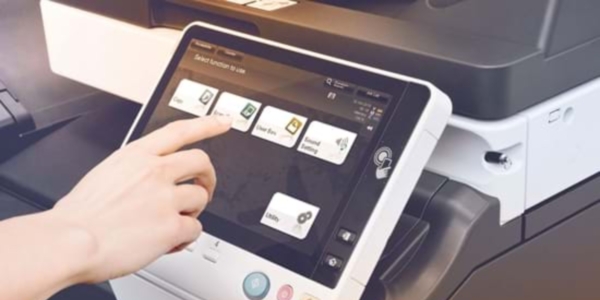
Факс
- IP-Факс. Отправка факс-сообщений по сети между МФУ Konica Minolta, поддерживается передача в цвете и ч/б.
- ПК-факс. Прямая передача факсов с компьютера.
- Пересылка факсов. Пересылка входящих факсов на электронную почту или сохранение в сетевой папке.
- Общая адресная книга. Внутренняя адресная книга МФУ может быть доступна в факсовом клиенте ПК.
- Выбор лотков. Возможность выбора носителей, лотка подачи и выходного лотка для удобной визуальной идентификации факсов.

Персональные ящики
- Персональные ящики. Хранение заданий печати, копирования, сканирования и факса для повторной отправки и печати — для наиболее часто используемых документов, таких как брошюры, формы, прайслисты и пр.
- Персональные, групповые и общие ящики. Разделение доступа пользователей к различным ящикам.
- Распределение документов. Копирование документов из одного персонального ящика в другой.
- Онлайн-доступ. Доступ к персональным ящикам может быть организован через веб-браузер или приложение.
- Автоматическое удаление. Возможность установки периода, по истечении которого файлы в персональных ящиках будут автоматически удаляться.

Безопасность
- Аутентификация. Доступ пользователей по паролю, имени пользователя + паролю, ID-карте или биометрической информации (капиллярный рисунок пальца).
- Права доступа. Права доступа могут быть назначены и разграничены на уровне пользователей (до 1000 аккаунтов на МФУ).
- Шифрование данных. Шифрование данных, хранимых на жестком диске и защита паролем доступа к жесткому диску.
- Удаление временных данных. Данные заданий печати, копирования, сканирования и факса автоматически удаляются после успешного выполнения задачи.
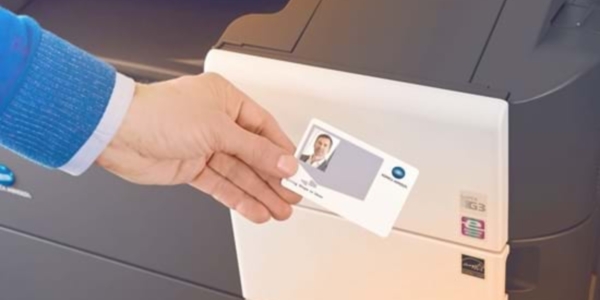
Зеленые технологии
- Динамический эко-таймер. Автоматически анализирует часы работы и перерыва для оптимизации графика ухода в спящий режим.
- Эко-сканирование. Сканирование документов осуществляется без прогрева основного печатного модуля системы.
- Эко-печать. При печати из режима сна, экран панели управления не будет подсвечен.
- Таймер. Настройка перехода в режим сна в зависимости от дня недели и времени.
- Эко-счетчики. Анализирует эко-показатели, в частности, данные по энергопотреблению.

Аппарат поддерживает современные функции мобильной и облачной печати, позволяя сотрудникам использовать все возможности цифрового документооборота даже при работе с мобильных устройств.
Купить МФУ Konica Minolta bizhub C227
Магазин Принтер-Плоттер.ру является официальным поставщиком продукции Konica Minolta. В магазине вы можете купить МФУ Konica Minolta bizhub C227 на выгодных условиях — звоните или напишите нам.
Специалисты Принтер-Плоттер.ру всегда будут рады помочь подобрать оптимальное оборудование для ваших задач!
Основные характеристики
Печать
22 стр/мин (A4), 14 стр/мин (A3)
Двусторонняя печать (дуплекс):
21 000 стр. (цветные), 24 000 стр. (черный)
6,8 сек (ч/б), 8,4 сек (цв.)
карточках, пленках, этикетках, глянцевой бумаге, конвертах, матовой бумаге
Емкость лотка вывода бумаги:
Емкость лотка для подачи бумаги:
Печать с мобильного устройства:
Сканирование
двусторонний реверсивный (RADF)
Двустороннее сканирование:
Сканирование на мобильные устройства:
Сканирование с компьютера:
Факс
Характеристики памяти
Процессор
Тактовая частота процессора:
Дисплей
цветной сернсорный ЖК-дисплей с диагональю 7″ (17,8 см)
Дополнительные
Нагрузка в месяц (средняя), стр.:
Нагрузка в месяц (пиковая), стр.:
22 стр/мин (A4), 14 стр/мин (A3)
PCL 5/6, Adobe PostScript3, XPS
A5–A3, пользовательские форматы (90 x 140 – 297 x 432 мм), банер
фильтрация IP и блокировка портов, SSL2, SSL3 и TSL1.0, IPsec, IEEE 802.1x, аутентификация пользователей, лог аутентификаций, безопасная печать, перезапись жёсткого диска (8 типов), шифрование данных на жёстком диске (AES 256), автоматическая очистка памяти, конфиденциальное получение факсов, шифрование данных пользователя, защита копирования
Требования к электросети:
Габариты, вес, комплектация
в стандарте: контроллер печати Emperon, дуплекс, лоток ручной подачи, 2 лотка подачи бумаги по 500 листов, память — 2 ГБ, жесткий диск — 250 ГБ, 4 блока формирования изображения; копир-принтер-цветной сканер (сетевой): ч/б-цвет — 22 стр./мин. (А4), формат А3, плотность бумаги — 256 г/кв.м, нагрузка 19 000 стр/мес
PageScope Net Care Device Manager, PageScope Data Administrator, PageScope Box Operator, PageScope Direct Print, Print Status Notifer, Driver Packaging Utility, Log Management Utility