
The hAP ac lite is a simple home wireless access point. It is configured out of the box, you can simply plug in your internet cable and start using wireless internet. We recommend you set up a password to secure your device, follow these steps.
Safety Warnings
Before you work on any equipment, be aware of the hazards involved with electrical circuitry, and be familiar with standard practices for preventing accidents.
Ultimate disposal of this product should be handled according to all national laws and regulations.
The Installation of the equipment must comply with local and national electrical codes.
This unit is intended to be installed in the rackmount. Please read the mounting instructions carefully before beginning installation. Failure to use the correct hardware or to follow the correct procedures could result in a hazardous situation to people and damage to the system.
This product is intended to be installed indoors. Keep this product away from water, fire, humidity or hot environments.
Use only the power supply and accessories approved by the manufacturer, and which can be found in the original packaging of this product.
Read the installation instructions before connecting the system to the power source.
We cannot guarantee that no accidents or damage will occur due to the improper use of the device. Please use this product with care and operate at your own risk!
In the case of device failure, please disconnect it from power. The fastest way to do so is by unplugging the power plug from the power outlet.
It is the customer’s responsibility to follow local country regulations, including operation within legal frequency channels, output power, cabling requirements, and Dynamic Frequency Selection (DFS) requirements. All Mikrotik radio devices must be professionally installed.
Exposure to Radio Frequency Radiation: This MikroTik equipment complies with the FCC, IC, and European Union radiation exposure limits set forth for an uncontrolled environment. This MikroTik device should be installed and operated no closer than 20 centimeters from your body, occupational user, or the general public.
Quickstart
Make sure that your ISP is allowing hardware change, please follow these quick steps to set up your device:
- Make sure your Internet service provider is allowing hardware change and will issue an automatic IP address;
-
Connect the service provider cable to the Internet port and connect the device to the power source (see «Powering«).;
- Open network connections on your computer and search for MikroTik… wireless network — connect to it;
- The configuration can be done through the wireless network using a web browser or mobile app (see «MikroTik mobile app«). Alternatively, you can use a WinBox configuration tool https://mt.lv/winbox;
- Open http://192.168.88.1 in your web browser to start configuration, user name: admin and there is no password by default (or, for some models, check user and wireless passwords on the sticker);
- Click the «Check for updates» button and update RouterOS to the latest version;
- For a manual update of the device, visit the products page at https://mikrotik.com/products to find your product. The required packages are accessible under the «Support&Downloads» menu;
- Upload downloaded packages to the WebFig or Winbox «Files» menu and reboot the device;
- By upgrading your RouterOS software to the latest version, you can ensure optimal performance, stability, and security updates;
- In the «QuickSet» menu set up the following: Choose your country, to apply country regulation settings;
- Set up your wireless network password in the left field;
- Set up your router password in the bottom field.
MikroTik mobile app
Use the MikroTik smartphone app to configure your router in the field, or to apply the most basic initial settings for your MikroTik home access point.
- Scan QR code and choose your preferred OS.
- Install and open application.
- By default, the IP address and user name will be already entered.
- Click Connect to establish a connection to your device through a wireless network.
- Choose Quick setup and application will guide you through all basic configuration settings in a couple of easy steps.
- An advanced menu is available to fully configure all necessary settings.
Powering
The device accepts power from the power jack or from the first Ethernet port (Passive PoE):
- Direct-input power jack (5.5 mm outside and 2 mm inside, female, pin positive plug) accepts 10-28 V DC.
- First Ethernet port accepts passive Power over Ethernet accepts 12-28 V DC.
The power consumption under maximum load can reach 5 W.
The Ether5 port supports PoE output for powering other RouterBOARD devices. The port has an auto-detection feature, so you can connect Laptops and other non-PoE devices without damaging them. The PoE on Ether5 outputs approximately 2 V below input voltage and supports up to 0.58A (So provided 24 V PSU will provide 22V/0.58 A output to the Ether5 PoE port).
Configuration
Once logged in, we recommend clicking the «Check for updates» button in the QuickSet menu, as updating your RouterOS software to the latest version ensures the best performance and stability. For wireless models, please make sure you have selected the country where the device will be used, to conform with local regulations.
RouterOS includes many configuration options in addition to what is described in this document. We suggest starting here to get yourself accustomed to the possibilities: https://mt.lv/help. In case IP connection is not available, the Winbox tool (https://mt.lv/winbox) can be used to connect to the MAC address of the device from the LAN side (all access is blocked from the Internet port by default).
For recovery purposes, it is possible to boot the device for reinstallation, see section Buttons and Jumpers.
Mounting
The device is designed to be used indoors and placed on a flat surface with all needed cables connecting to the front of the unit.
Alternatively, the unit can be mounted on the wall, mounting points are located on the bottom side of the device, screws are not included in the package. Screws with size 4×25 mm fit nicely, depending on your wall structure you can use dowels 6×30 mm and 6 mm drill bit if needed.
When mounting on the wall, please ensure that cable feed is pointing downwards.
Warning! This equipment should be installed and operated with a minimum distance of 20 cm between the device and your body. Operation of this equipment in the residential environment could cause radio interference.
Extension Slots and Ports
- Five individual 10/100 Ethernet ports, supporting automatic cross/straight cable correction (Auto MDI/X), so you can use either straight or cross-over cables for connecting to other network devices.
- Integrated Wireless 2.4 GHz and 5 GHz 802.11 a/b/g/n/ac, simultaneous dual-band radio with onboard PIF antennas, max gain 1.5 dBi.
Buttons and Jumpers
The reset button has the following functions:
- Hold this button during boot time until LED light starts flashing, release the button to reset RouterOS configuration (total 5 seconds).
- Keep holding for 5 more seconds, LED turns solid, release now to turn on CAP mode. The device will now look for a CAPsMAN server (total 10 seconds).
- Or Keep holding the button for 5 more seconds until LED turns off, then release it to make the RouterBOARD look for Netinstall servers (total 15 seconds).
Regardless of the above option used, the system will load the backup RouterBOOT loader if the button is pressed before power is applied to the device. Useful for RouterBOOT debugging and recovery.
Accessories
Package includes the following accessories that come with the device:
- EU Switching Power Supply 24 V.
Specifications
For more information about this product, specifications, pictures, downloads and test results please visit our web page: https://mikrotik.com/product/RB952Ui-5ac2nD
Operating system support
The device supports RouterOS software version 6. The specific factory-installed version number is indicated in the RouterOS menu /system resource. Other operating systems have not been tested.
To avoid pollution of the environment, please separate the device from household waste and dispose of it in a safe manner, such as in designated waste disposal sites. Familiarize yourself with the procedures for the proper transportation of the equipment to the designated disposal sites in your area.
Federal Communication Commission Interference Statement
FCC ID: TV7RB952-5AC2ND
This equipment has been tested and found to comply with the limits for a Class B digital device, pursuant to Part 15 of the FCC Rules. These limits are designed to provide reasonable protection against harmful interference in a residential installation.
This equipment generates, uses and can radiate radio frequency energy and, if not installed and used in accordance with the instructions, may cause harmful interference to radio communications. However, there is no guarantee that interference will not occur in a particular installation. If this equipment does cause harmful interference to radio or television reception, which can be determined by turning the equipment off and on, the user is encouraged to try to correct the interference by one of the following measures:
- Reorient or relocate the receiving antenna.
- Increase the separation between the equipment and receiver.
- Connect the equipment into an outlet on a circuit different from that to which the receiver is connected.
- Consult the dealer or an experienced radio/TV technician for help.
FCC Caution: Any changes or modifications not expressly approved by the party responsible for compliance could void the user’s authority to operate this equipment.
This device complies with Part 15 of the FCC Rules. Operation is subject to the following two conditions: (1) This device may not cause harmful interference, and (2) this device must accept any interference received, including interference that may cause undesired operation. This device and its antenna must not be co-located or operation in conjunction with any other antenna or transmitter.
IMPORTANT: Exposure to Radio Frequency Radiation.
This equipment complies with the FCC radiation exposure limits set forth for an uncontrolled environment. This equipment should be installed and operated with a minimum distance of 20 cm between the radiator and any part of your body.
Antenna Installation. WARNING: It is the installer’s responsibility to ensure that when using the authorized antennas in the United States (or where FCC rules apply); only those antennas certified with the product are used. The use of any antenna other than those certified with the product is expressly forbidden in accordance with FCC rules CFR47 part 15.204. The installer should configure the output power level of antennas, according to country regulations and per antenna type. Professional installation is required for equipment with connectors to ensure compliance with health and safety issues.
Innovation, Science and Economic Development Canada
IC: 7442A-9525AC
This device contains license-exempt transmitter(s)/receiver(s) that comply with Innovation, Science, and Economic Development Canada’s license-exempt RSS(s). Operation is subject to the following two conditions:
- This device may not cause interference;
- This device must accept any interference, including interference that may cause undesired operation of the device.
L’émetteur/récepteur exempt de licence contenu dans le présent appareil est conforme aux CNR d’Innovation, Sciences et Développement économique Canada applicables aux appareils radio exempts de licence. L’exploitation est autorisée aux deux conditions suivantes:
- L’appareil ne doit pas produire de brouillage;
- L’appareil doit accepter tout brouillage radioélectrique subi, mźme si le brouillage est.
This Class B digital apparatus complies with Canadian ICES-003.
Cet appareil numérique de la classe [B] est conforme à la norme NMB-003 du Canada.
CAN ICES-003 (B) / NMB-003 (B)
IMPORTANT: Exposure to Radio Frequency Radiation.
This equipment complies with the IC radiation exposure limits set forth for an uncontrolled environment. This equipment should be installed and operated with a minimum distance of 20 cm between the radiator and any part of your body.
Cet equipement est conforme aux limites d’exposition au rayonnement IC definies pour un environnement non controle. Cet equipement doit etre installe et utilise a une distance minimale de 20 cm entre le radiateur et toute partie de votre corps.
The device for operation in the band 5150–5250 MHz is only for indoor use to reduce the potential for harmful interference to co-channel mobile satellite systems.
les dispositifs fonctionnant dans la bande de 5150 ą 5250 MHz sont réservés uniquement pour une utilisation ą l’intérieur afin de réduire les risques de brouillage préjudiciable aux systčmes de satellites mobiles utilisant les mźmes canaux.
UKCA marking
Eurasian Conformity Mark
|
Частотный диапазон |
Мощность передатчика |
|---|---|
|
2400-2483.5 МГц, 5150-5350 МГц, 5650-5850 МГц |
≤100 мВт |
*Доступные частотные каналы могут различаться в зависимости от модели продукта и сертификации.
Информация о дате изготовления устройства указана в конце серийного номера на его наклейке через дробь. Первая цифра означает номер года (последняя цифра года), две последующие означают номер недели.
Изготовитель: Mikrotikls SIA, Aizkraukles iela 23, Riga, LV-1006, Латвия, support@mikrotik.com. Сделано в Китае, Латвии или Литве. Cм. на упаковке.
Для получения подробных сведений о гарантийном обслуживании обратитесь к продавцу. Информация об импортерах продукции MikroTik в Российскую Федерацию: https://mikrotik.com/buy/europe/russia
Продукты MikroTik, которые поставляются в Евразийский таможенный союз, оцениваются с учетом соответствующих требований и помечены знаком EAC, как показано ниже:
Norma Oficial Mexicana
Rango de frecuencia (potencia de salida máxima): 2400-2483.5 MHz (30 dBm), 5725-5850 MHz (30 dBm). Los canales de frecuencia disponibles pueden variar según el modelo y la certificación del producto.
EFICIENCIA ENERGETICA CUMPLE CON LA NOM-029-ENER-2017.
La operacion de este equipo esta sujeta a las siguientes dos condiciones:
- Es posible que este equipo o dispositivo no cause interferencia perjudicial y.
- Este equipo debe aceptar cualquier interferencia, incluyendo la que pueda causar su operacion no deseada.
Fabricante: Mikrotikls SIA, Brivibas gatve 214i, Riga, LV-1039, Latvia.
País De Origen: Letonia; Lituania; China (Republica Popular); Estados Unidos De America; Mexico.
Por favor contacte a su distribuidor local para preguntas regionales específicas. La lista de importadores se puede encontrar en nuestra página de inicio – https://mikrotik.com/buy/latinamerica/mexico.
The National Commission for the State Regulation of Communications and Informatization by Ukraine
Виробник: Mikrotikls SIA, Brivibas gatve 214i Рига, Латвія, LV1039.
Робоча частота (Максимальна вихідна потужність): 2480-2483.5 МГц (20 дБм), 5150-5250 МГц (23 дБм), 5250-5350 МГц (20 дБм), 5470-5725 МГц (27 дБм).
Справжнім Mikrotikls SIA заявляє, що маршрутизатор відповідає основним вимогам та іншим відповідним положенням директиви 2014/53/EC, а також суттєвим вимогам Технічного регламенту радіообладнання, затвердженого постановою Кабінету Міністрів України від 24 травня 2017 року № 355.
Для експлуатації в Україні необхідно отримати дозвіл на експлуатацію у порядку, затвердженому рішенням НКРЗІ від 01.11.2012 № 559, зареєстрованому в Міністерстві юстиції України 03.01.2013 за № 57/22589.
CE Declaration of Conformity
Manufacturer: Mikrotikls SIA, Brivibas gatve 214i Riga, Latvia, LV1039.
Hereby, Mikrotīkls SIA declares that the radio equipment type RB952Ui-5ac2nD is in compliance with Directive 2014/53/EU. The full text of the EU declaration of conformity is available at the following internet address: https://mikrotik.com/products
Frequency bands terms of use
|
Frequency range (for applicable models) |
Channels used |
Maximum Output Power (EIRP) |
Restriction |
|
2400-2483.5 MHz |
1 — 13 |
20 dBm |
Without any restriction to use in all EU Member States |
|
5150-5250 MHz |
26 — 48 |
23 dBm |
Restricted to indoor use only* |
|
5250-5350 MHz |
52 — 64 |
20 dBm |
Restricted to indoor use only* |
|
5470-5725 MHz |
100 — 140 |
27 dBm |
Without any restriction to use in all EU Member States |
* It is the customer’s responsibility to follow local country regulations, including operation within legal frequency channels, output power, cabling requirements, and Dynamic Frequency Selection (DFS) requirements. All Mikrotik radio devices must be professionally installed!
This MikroTik device meets Maximum WLAN transmit power limits per ETSI regulations. For more detailed information see Declaration of Conformity above / Dieses MikroTik-Gerät erfüllt die maximalen WLAN- Sendeleistung Grenzwerte gemäß ETSI-Bestimmungen. Weitere Informationen finden Sie oben unter Konformitätserklärung / Cet appareil MikroTik respecte les limites maximales de puissance de transmission WLAN conformément aux réglementations ETSI. Pour plus d’informations, voir la déclaration de conformité ci-dessus / Questo dispositivo MikroTik è conforme ai limiti massimi di potenza di trasmissione WLAN in conformità con le normative ETSI. Per ulteriori informazioni, consultare la dichiarazione di conformità sopra / Este dispositivo MikroTik cumple con los límites máximos de potencia de transmisión WLAN de acuerdo con las regulaciones ETSI. Para obtener más información, consulte la declaración de conformidad anterior / Это устройство MikroTik соответствует максимальным пределам мощности передачи WLAN в соответствии с правилами ETSI. Для получения дополнительной информации см. Декларацию соответствия выше.
The WLAN function for this device is restricted to indoor use only when operating in the 5150 to 5350 MHz frequency range. / Die WLAN-Funktion dieses Geräts ist nur für die Verwendung in Innenräumen im Frequenzbereich 5150 bis 5350 MHz beschränkt. / La fonction WLAN de cet appareil est limitée à une utilisation en intérieur uniquement lorsqu’il fonctionne dans la gamme de fréquences 5150 à 5350 MHz. / La funzione WLAN per questo dispositivo è limitata all’uso interno solo quando si opera nella gamma di frequenza da 5150 a 5350 MHz. / La función WLAN para este dispositivo está restringida al uso en interiores solo cuando se opera en el rango de frecuencia de 5150 a 5350 MHz. / Функция WLAN для этого устройства ограничена использованием внутри помещения только при работе в диапазоне частот от 5150 до 5350 МГц.
Note. The information contained here is subject to change. Please visit the product page on www.mikrotik.com for the most up to date version of this document.
111440
Честно признаюсь, что до недавней поры я вообще не был знаком с маршрутизаторами от MikroTik. Что-то слышал, читал, и все время думал, что это какие-то сетевые устройства для профессионалов. Сложная настройка, много функций и все такое. Но увидел в продаже недавно несколько моделей MikroTik. Решил купить MikroTik hAP Lite TC, чтобы самому посмотреть, настроить его, и рассказать об этом вам.
В этой инструкции я покажу как настроить MikroTik hAP Lite TC. Используя это руководство, вы сможете настроить практически любой маршрутизатор MikroTik RouterBOARD. Сама RouterOS, на которой работают устройства этого производителя на первый взгляд очень сложная. На самом деле, она сложная не только на первый взгляд 🙂 Там реального много разных разделов, настроек и т. д. На моем роутере сама система RouterOS на английском языке. Как я понимаю, там нет возможности сменить язык настроек на русский. Но, если разобраться, то понимаешь, что для обычной настройки MikroTik вообще не нужно лазить по каким-то там разделам, что-то искать и т. д. Там все самые необходимые и важные настройки находятся на одной странице. Которая открывается сразу после входа в панель управления. Сейчас мы все это рассмотрим подробнее.
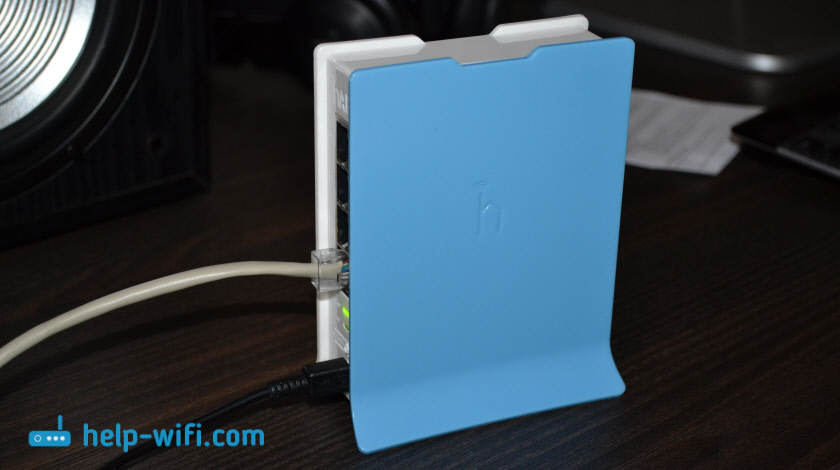
Хочу еще сказать несколько слов о самом роутере MikroTik hAP Lite TC. Устройство мне понравилось. Корпус из качественного пластика, хоть и немного воняет. Недорогой, прикольный, судя по всему мощный и очень функциональный. Но весь этот функционал не нужен большинству пользователей. Прикольно, что питание от microUSB. Можно записать даже от USB-порта компьютера, или повербанка. Или без проблем найти другой адаптер питания, если родной сломается. Не понравилась очень скучная упаковка, совсем непонятная инструкция по настройке (на английском языке), и что самое главное – отсутствие сетевого кабеля в комплекте. Такие они, маршрутизаторы MikroTik RouterBOARD. По крайней мере модель hAP Lite TC.
Судя по той инструкции, которая идет в комплекте, данное руководство должно пригодится многим. Что касается MikroTik, то здесь я полный чайник. Так что инструкция, как вы понимаете, для таких же чайников как я 🙂
Подключение роутера MikroTik и подготовка к настройке
Чтобы задать все необходимые параметры, нам сначала нужно подключится к маршрутизатору и подключить к нему интернет. Так как сетевого кабеля в комплекте нет, то вы скорее всего будете подключатся к нему по Wi-Fi сети. Настроить можно не только с ноутбука, или ПК. Можно использовать планшет, телефон, или другое устройство.
Сначала подключите адаптер питания и включите его в розетку. Так же сразу можете подключить к MikroTik интернет (сетевой кабель от провайдера, или модема). В порт Internet.

Если у вас есть сетевой кабель, и нет возможности подключится по Wi-Fi, то просто подключите один конец кабеля в LAN порт роутера, а второй в порт сетевой карты вашего компьютера.
Дальше просто подключаемся к открытой Wi-Fi сети, в названии которой есть «MikroTik».
Если в вашем случае сеть будет закрыта паролем, или при входе в настройки роутера будет появляться запрос пароля, то скорее всего его уже кто-то настраивал. Сделайте сброс настроек по инструкции: как сбросить пароль и настройки роутера MikroTik RouterBOARD.
Выглядит это вот так:
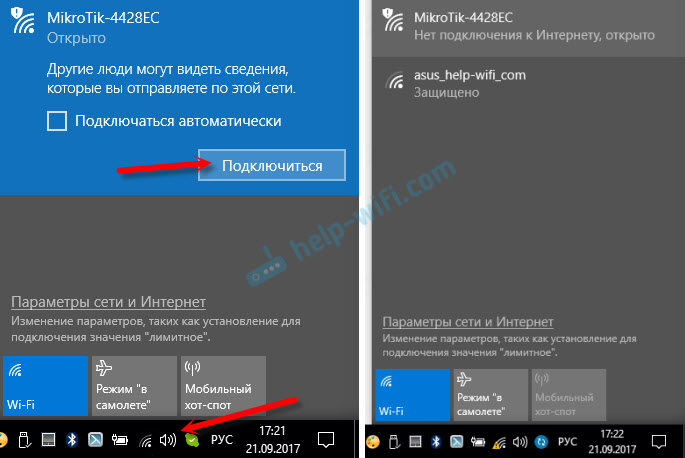
Доступа к интернету сразу может не быть. Мы еще не настроили подключение маршрутизатора к провайдеру. Это нормально. Переходим к настройке.
Настройка MikroTik на примере модели hAP Lite TC
Чтобы зайти в настройки роутера, нужно в любом браузере перейти по адресу 192.168.88.1. Подробнее об этом я писал в статье: 192.168.88.1 – вход на роутер MikroTik (RouterOS). Сразу должна открыться панель управления RouterOS (в моем случае версии v6.34.2). Проверьте, чтобы роутер работал в режиме «Home AP».

Как я уже писал выше, все базовые настройки можно задать прямо на главной странице «Quick Set». Она разделена на блоки. Настроить нам нужно следующее:
- Подключение к интернету (Internet).
- Wi-Fi сеть (Wireless).
- Установить пароль на защиту панели управления (System).

Этих настроек вполне достаточно в большинстве случаев.
Настройка интернета на MikroTik (Динамический IP, PPPoE)
Важный момент! Если интернет у вас уже работает через маршрутизатор, то скорее всего ваш провайдер использует тип подключения Динамический IP, и дополнительная настройка не нужна. Так как тип подключения «Automatic» стоит по умолчанию. Можете сразу настраивать Wi-Fi сеть.
У вас должна быть информация о типе подключения, которое использует ваш интернет-провайдер. А так же все необходимые данные для подключения к интернету (если у вас НЕ динамический IP). Так же желательно сразу выяснить, делает ли провайдер привязку по MAC-адресу.
Значит так, если у вас тип подключения «Динамический IP», без привязки по MAC-адресу, то все сразу должно работать. Если есть привязка по MAC-адресу, то вам нужно либо прописать у провайдера MAC-адрес роутера (он указан в поле MAC Address), или же посмотреть MAC-адрес компьютера к которому привязан интернет и прописать его в поле «MAC-адрес» в настройках роутера.

Не забудьте сохранить настройки, нажав на кнопку «Apply Configuration» (в правом нижнем углу).
Настройка PPPoE
Выделяем тип подключения PPPoE, задаем имя пользователя и пароль (их выдает провайдер) и нажимаем на кнопку «Reconnect». Роутер должен подключится к интернету. Если все хорошо, то переходите к настройке Wi-Fi сети. Об этом ниже в статье.

А вот подключения по PPTP почему-то не добавили в этот список. Наверное потому, что он не очень популярный. Но тем не менее, некоторые провайдеры его используют.
Настройка L2TP/PPTP
Сначала в разделе «PPP» нужно добавить «PPTP Client».

Дальше задаем адрес сервера (Connect To), имя пользователя (User) и пароль (Password). Эти данные выдает провайдер. Ставим галочку возле «Add Default Route». Затем сохраняем профиль нажав на кнопку «Apply» и «Ok».

Друзья, я не уверен, что инструкция по настройке PPTP правильная. К сожалению, нет возможности это проверить. Если я что-то написал не так, пожалуйста, поправьте меня в комментариях.
Настройка Wi-Fi сети и пароля на MikroTik hAP Lite TC
На этой же странице нас интересует раздел «Wireless». Он слева.
В поле «Network Name» меняем имя Wi-Fi сети. В выпадающем меню «Country» желательно указать свой регион, и в поле «WiFi Password» задаем пароль (минимум 8 символов), который будет использоваться при подключении к Wi-Fi сети.
Ниже можно настроить гостевую Wi-Fi сеть, и посмотреть список подключенных по Wi-Fi клиентов.
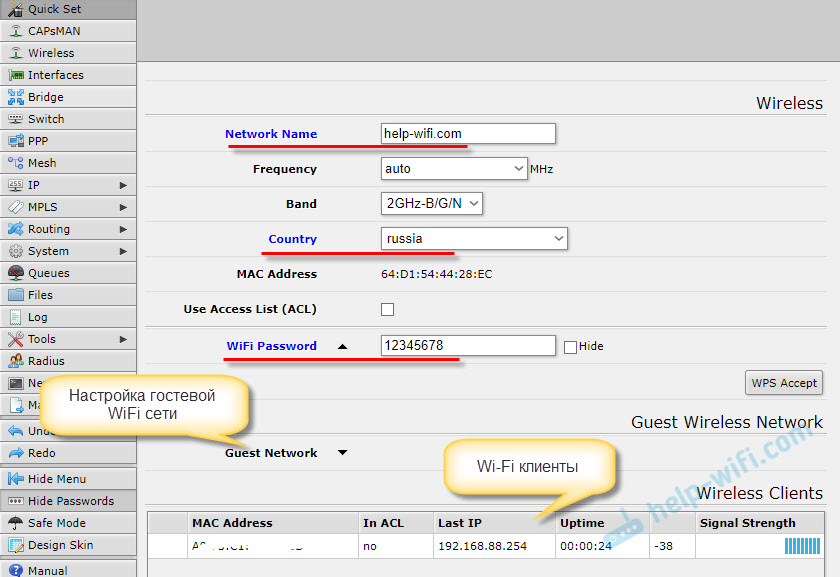
Запомните, или запишите пароль от Wi-Fi. Можете сохранить настройки кнопкой «Apply Configuration», или установите сразу пароль на защиту настроек.
Пароль на web-интерфейс RouterOS
Мы когда переходили по адресу 192.168.88.1, то панель управления открылась сразу. В нее сможет зайти каждый, кто подключен к роутеру по Wi-Fi сети, или по кабелю. Чтобы ее защитить, нужно установить пароль.
На главной странице, в правом нижнем углу, в разделе «System», в поле «Password» и «Confirm Password» придумайте и укажите пароль. Сохраните настройки нажав на «Apply Configuration» .
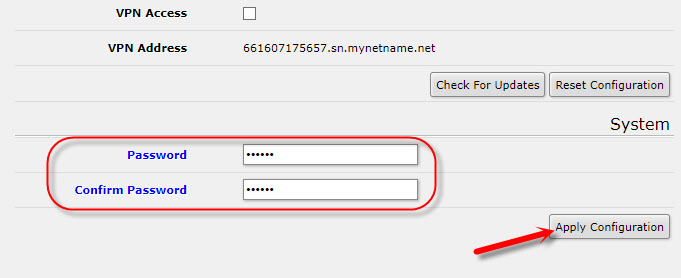
Вас «выкинет» из системы. И чтобы снова зайти в настройки, нужно указать пароль, который вы установили. Имя пользователя – admin. Теперь авторизоваться нужно будет при каждом входе в RouterOS.

Постарайтесь не забыть пароль, а то придется сбрасывать настройки своего роутера MikroTik и настраивать все заново.
Послесловие
Заранее извиняюсь, если где-то ошибся в инструкции. Нет возможности все проверить на себе. Например, подключение по PPPoE, или PPTP. Нужен провайдер, который использует определенный протокол.Сама настройка мне показалась даже проще, чем у популярных производителей с более дружелюбным интерфейсом. Соглашусь, что настроить например фильтрацию по MAC-адресам, блокировку сайтов, ограничение скорости и другие функции там будет сложновато. Нужно разбираться.
Долго не мог понять, как работает сама система RouterOS. И я понял. Она работает «четко». Да, настроек там много. Но все быстро открывается, сохраняется, удаляется и т. д. Ничего не висит, и не перезагружается по несколько раз.
Оставляйте комментарии, делитесь полезными советами и задавайте вопросы!
Привет! В этой статья я покажу правильную настройку Mikrotik hAP Lite – пожалуй, самого популярного бюджетного роутера у Mikrotik. До 1500 рублей вы получаете не просто домашнюю игрушку, но мощную машинку для решения всех популярных задач в сети.
Но есть и недостатки для жаждущих халявы – здесь всего 4 порта Ethernet (и WAN сюда включен), да и Wi-Fi модуль поддерживает только 802.11n без модных ныне 5 ГГц. Ну да ладно, лично мне хватает.
Внимание! Роутеры Mikrotik из-за их причудливости настройки редко использую в домашней сети. Так что не чураемся оставлять свои комментарии и помогать другим читателям!
Содержание
- Горячая настройка
- Дополнения и полная настройка
- Задать вопрос автору статьи
Горячая настройка
Этот раздел посвящен специально для тех, кто хочет быстро и без лишних телодвижений настроить свой маршрутизатор. В базовой комплектации роутер имеет неплохую конфигурацию на борту, так что быстрая настройка займет буквально пару минут. А большего и не надо, так что предлагаю сразу рассмотреть ее.
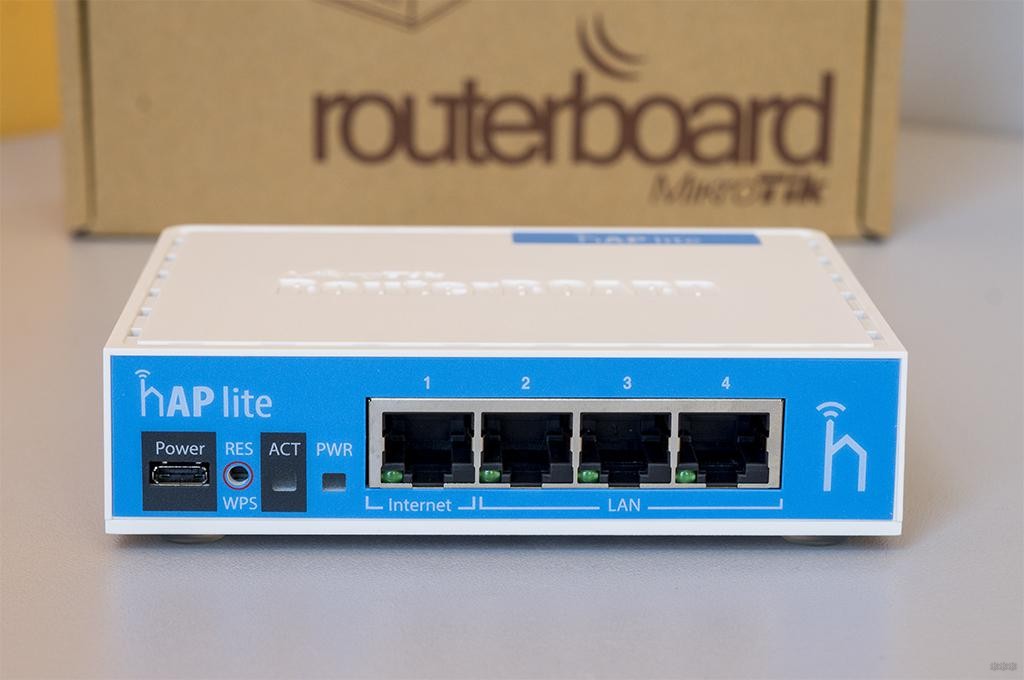
- Подключаем кабель провайдер в порт №1 (обозначен здесь как Internet и не отделен от других LAN портов):
- Подключаем наш компьютер или ноутбук по проводу в любой другой порт. В теории можно подключиться и по Wi-Fi, но лично мне первичную настройку делать сподручнее именно по проводу – меньше вылезает разных косяков.
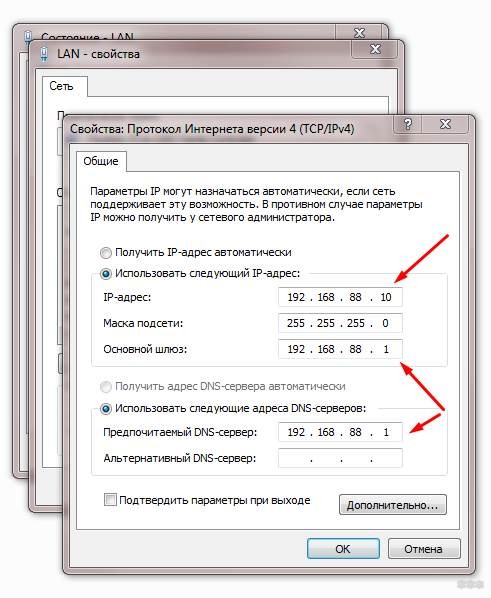
- По умолчанию DHCP сервер на Микротике работает, и должен раздать верный адрес. Но на всякий случай здесь на помню, что маршрутизаторы Mikrotik имеют немного непривычный адрес – 192.168.88.1, а значит и ваш адаптер должен получить настройки в этой подсети. Для примера можно все выставить и руками:
IP: 192.168.88.10
Маска: 255.255.255.0
Шлюз: 192.168.88.1
DNS: 192.168.88.1
- Заходим в конфигуратор роутера по адресу 192.168.88.1 (если запросит данные: логин – admin, пароль – пустой)
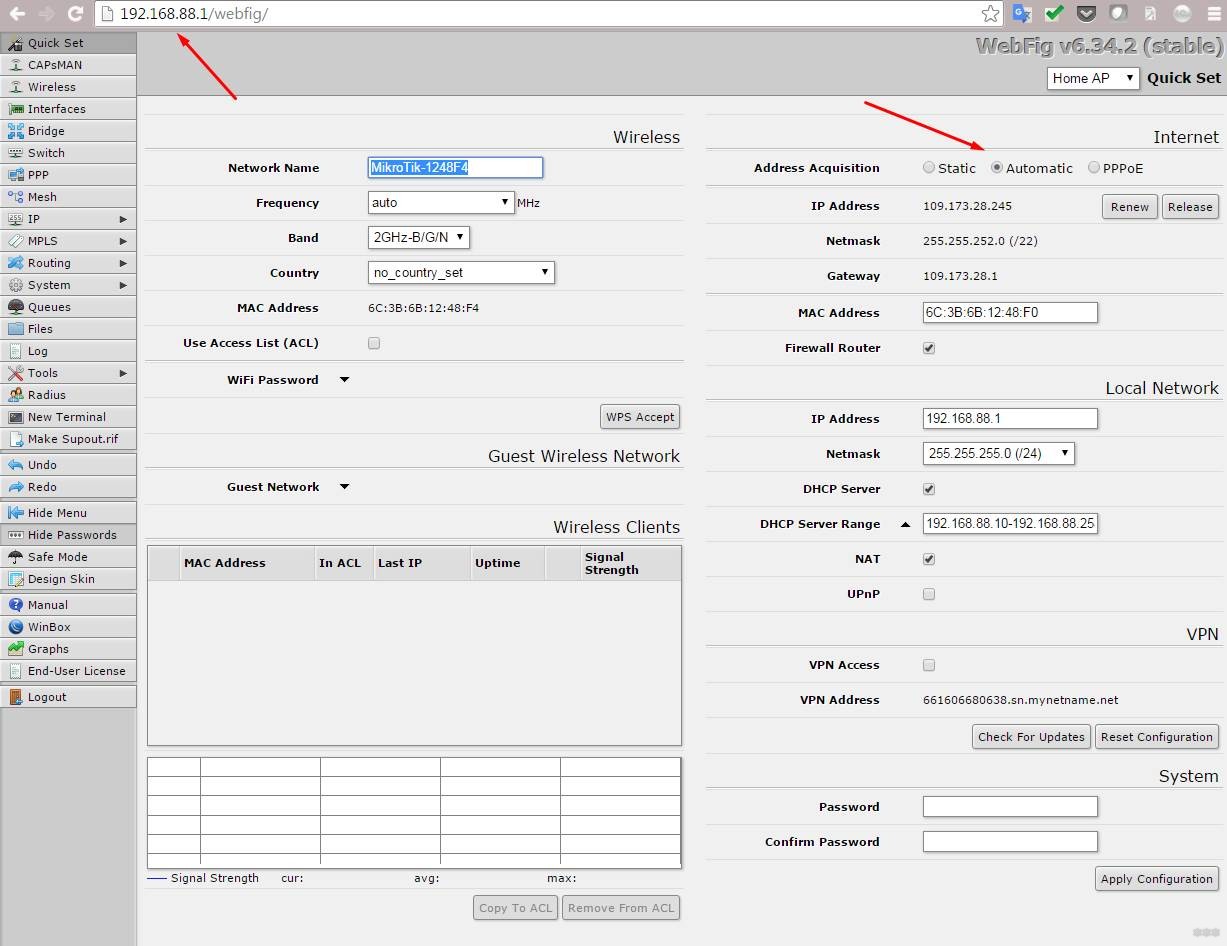
- Настраиваем интернет на вкладке Quick Set. Если у вас PPPoE – ставим переключатель в PPPoE и вводим логин и пароль. Если динамический IP – Automatic. Если статический IP – Static. Информацию о вашем подключении уточняйте у провайдера или смотрите в договоре, у всех оно может отличаться, под одну гребенку не подведешь.
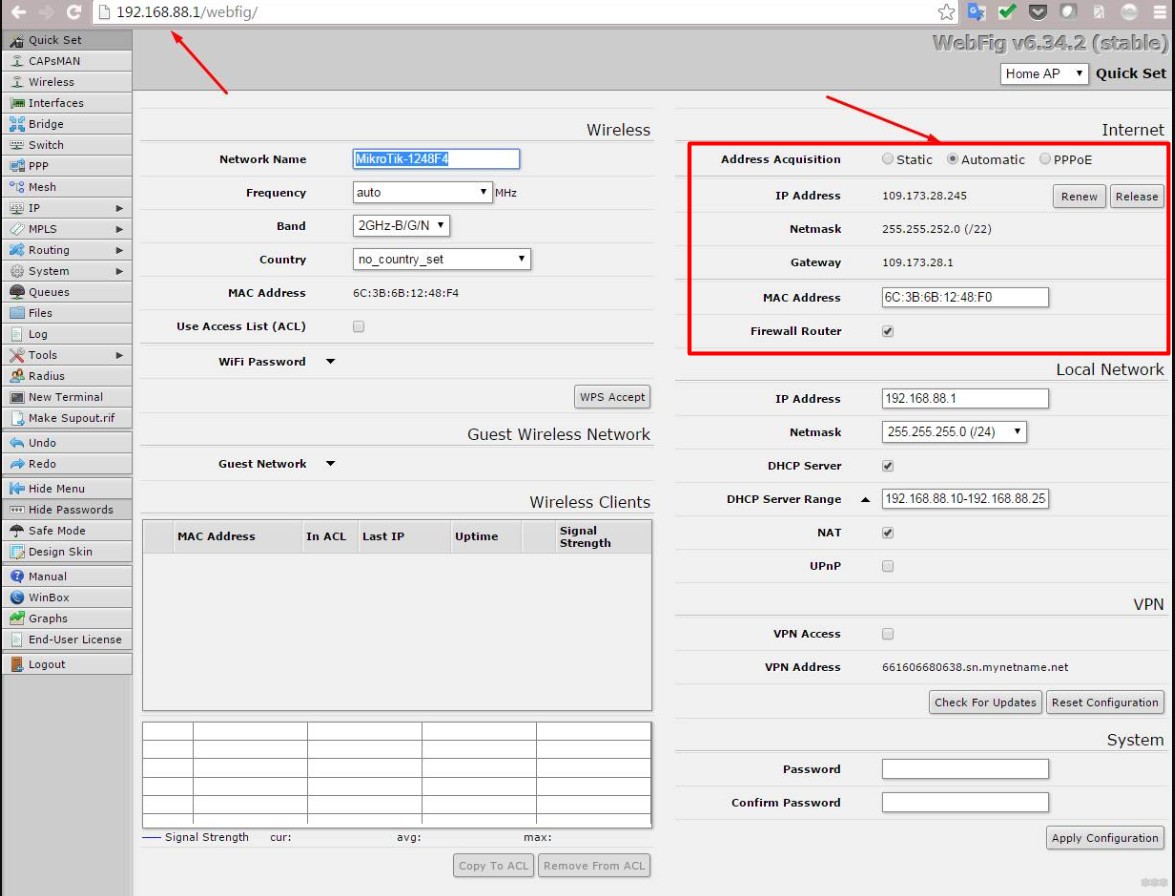
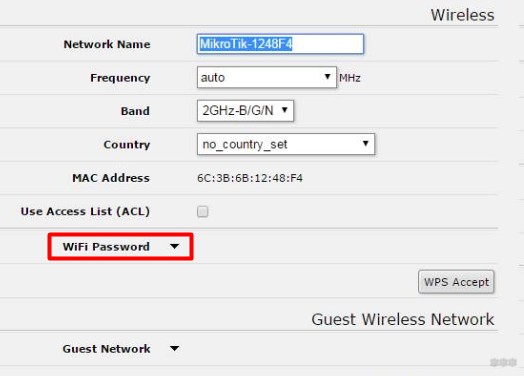
- Настраиваем Wi-Fi. Точее он уже настроен и отлично работает, но изначально на точке доступа нет пароля. Лучше ее запаролить. Для этого щелкаем по WiFi Password и в открывшееся поле вводим придуманный пароль. При желании в поле Network Name можно изменить название своей точки доступа, чтобы было понятно, что это именно ваша точка.
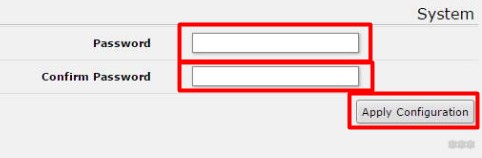
- Напоследок останется только задать пароль для панели администрирования, чтобы ни один злой сосед не смог разрушить ваш уютный интернет. Пишем его здесь 2 раза, а в конце не забываем сохранить изменения, нажав Apply Configuration:
Все, роутер настроен и готов к многолетней работе! Стандартный конфиг вдоль и поперек защищен для домашнего пользователя, так что можно работать и не переживать. Все остальные телодвижения исключительно для опытных пользователей, которые и додумают, и донастроят, и комментарий умный напишут со своей рекомендацией.
Дополнения и полная настройка
То, что не вошло в первую часть, но оказалось важным для читателей, выношу сюда, а вдруг пригодится в будущем:
- Если вдруг где-то запросит пароль: по умолчанию логин admin, а пароля нет. В Wi-Fi сети тоже изначально нет пароля.
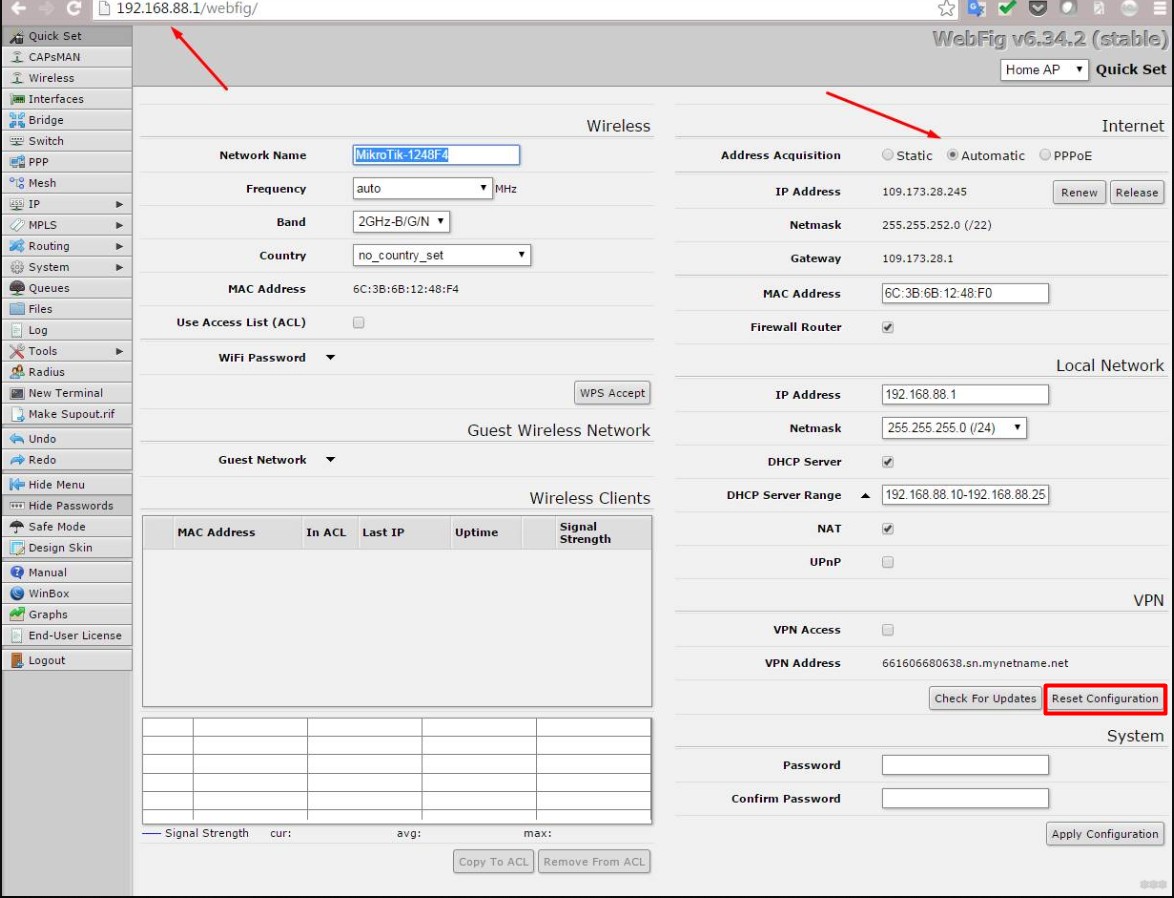
- Для сброса настроек да и вообще всей конфигурации на панели Quick Set есть кнопка Reset Configuration. Но будьте осторожны, полное уничтожение конфигурации снесет не только ее, но даже и IP адрес роутера, так что придется подключаться с помощью софта WinBox. Сама кнопка сброса:
- Те, кого интересует полная настройка роутера Mikrotik hAP Lite исключительно через WinBox, или те, кто убил конфигурацию, рекомендую к просмотру это видео:
А еще у нас есть статья про полную настройку роутеров Mikrotik – РЕКОМЕНДУЮ ПОЧИТАТЬ. Все RouterOS идентичны, так что пригодится.
- По поводу типа подключения к интернету. Обычно, если у вас есть логин и пароль – ставьте режим PPPoE (у самого такой). А вот видео по настройке роутера через PPPoE:
- Если вы перепутали эту модель с Mikrotik hAP AC Lite, то про нее мы уже писали ЗДЕСЬ. Про hAP AC2 информацию ищите через наш поиск, скорее всего она уже была добавлена.
Вот и все, что хотелось здесь написать. Безусловно, можно углубиться и здесь во все настройки, но мы их уже описывали ранее (смотри ссылку выше), да и видео по теме помогают. Все остальное упирается в конкретные задачи, но дома с ними все просто – чтобы интернет работал и раздавался по Wi-Fi. Именно с этим мы и справились. Так что пишите комментарии, делитесь своими советами, ваш WiFiGid!
1. Скачиваем с сайта http://www.mikrotik.com/ из раздела Download утилиту для настройки Winbox. Для коробочных версий из раздела mipsbe скачиваем последнюю прошивку Upgrade Package и дополнительные пакеты All packages (распаковываем в отдельную папку).
2. Делаем сброс (можно пропустить, если роутер на заводских настройках):
– Выключаем роутер из сети.
– Зажимаем кнопку Reset и держим.
– Включаем питание.
– Замигала кнопка АСТ (~6 cек.), отпускаем Reset.
Подключаем по схеме:
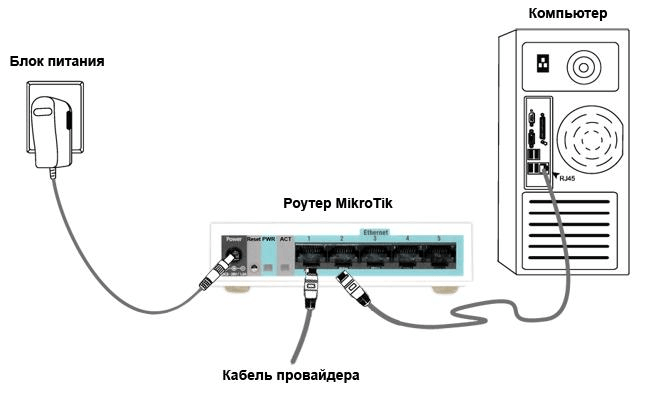
В настройках сетевой карты TCP/IP выставляем автоматически. Компьютер должен получить IP-адрес вида 192.168.88.*
Запускаем Winbox, нажимаем на пустую кнопку, из списка выбираем наш роутер, Login – admin, Password – оставляем пустым и нажимаем Connect (не путать с Connect to ROM). В появившемся окне нажимаем на Ok и попадаем в основное окно.
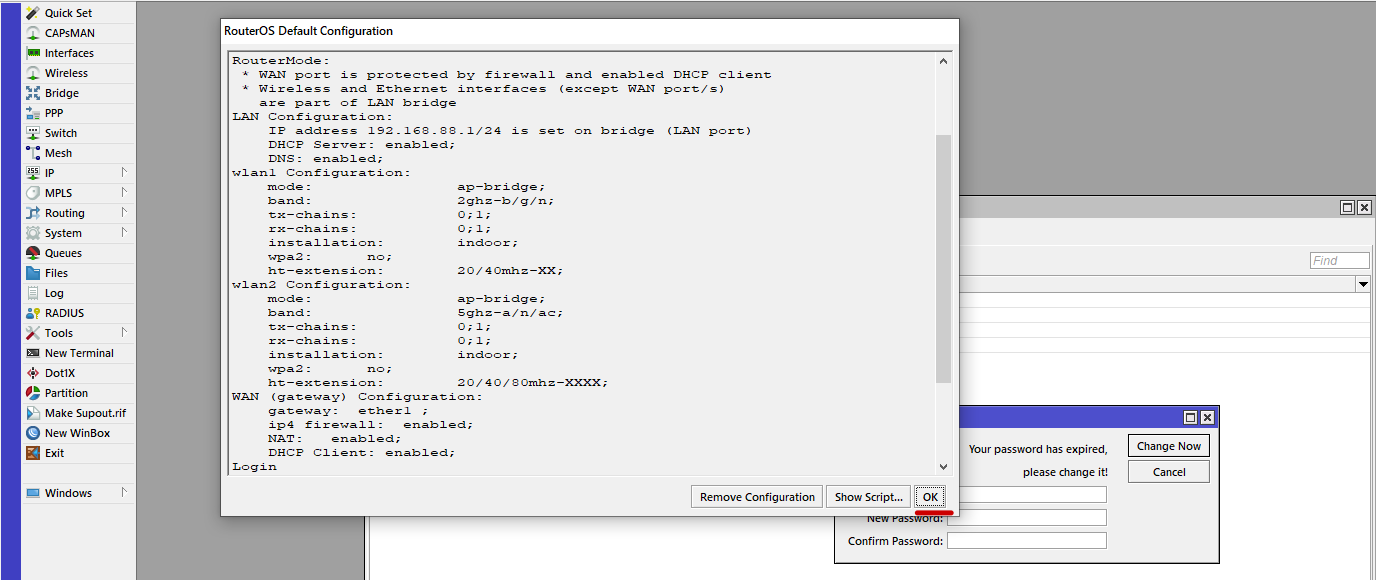
В итоге имеем преднастройку роутера:
– DHCP-Client на первом порту;
– Локальная сеть 192.168.88.0/24 на 4 порта и на Wi-Fi;
– DHCP-Server тоже включен для локальной сети (eth и Wi-Fi);
– Преднастроенный Wi-Fi без пароля.
3. Установим пароль для входа на роутер.
Заходим System Users, открываем пользователя admin, нажимаем на Password и вводим придуманный пароль, повторяем его. Рекомендуется поменять и имя, т.е. admin на что-то другое.
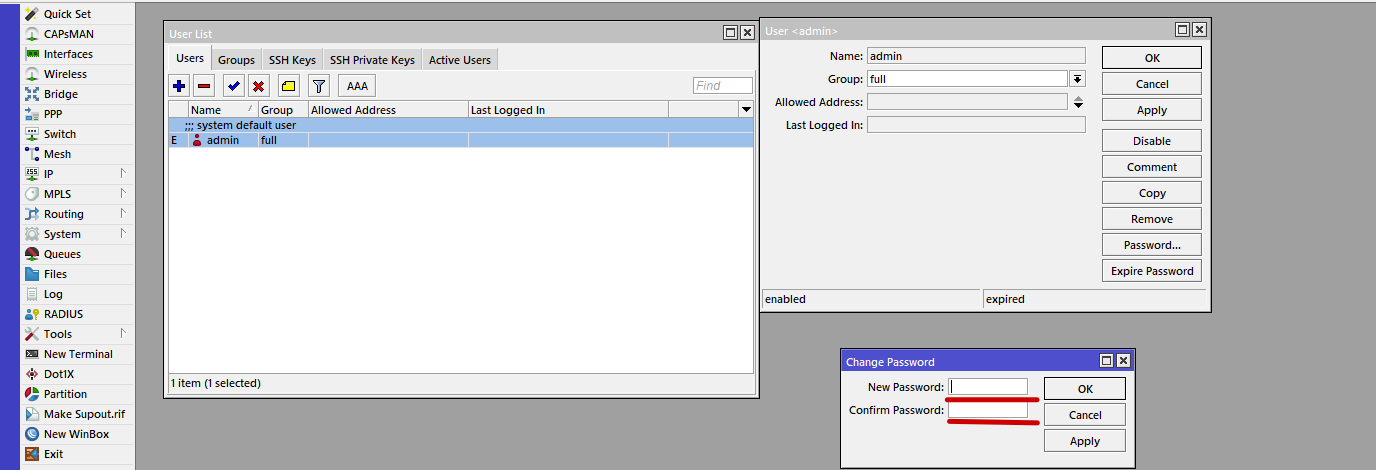
4. Прошиваем и добавляем нужные опции:
Нажимаем Files, в открывшееся окно перетаскиваем файл скачанной прошивки .npk
После загрузки она должна появиться в списке.
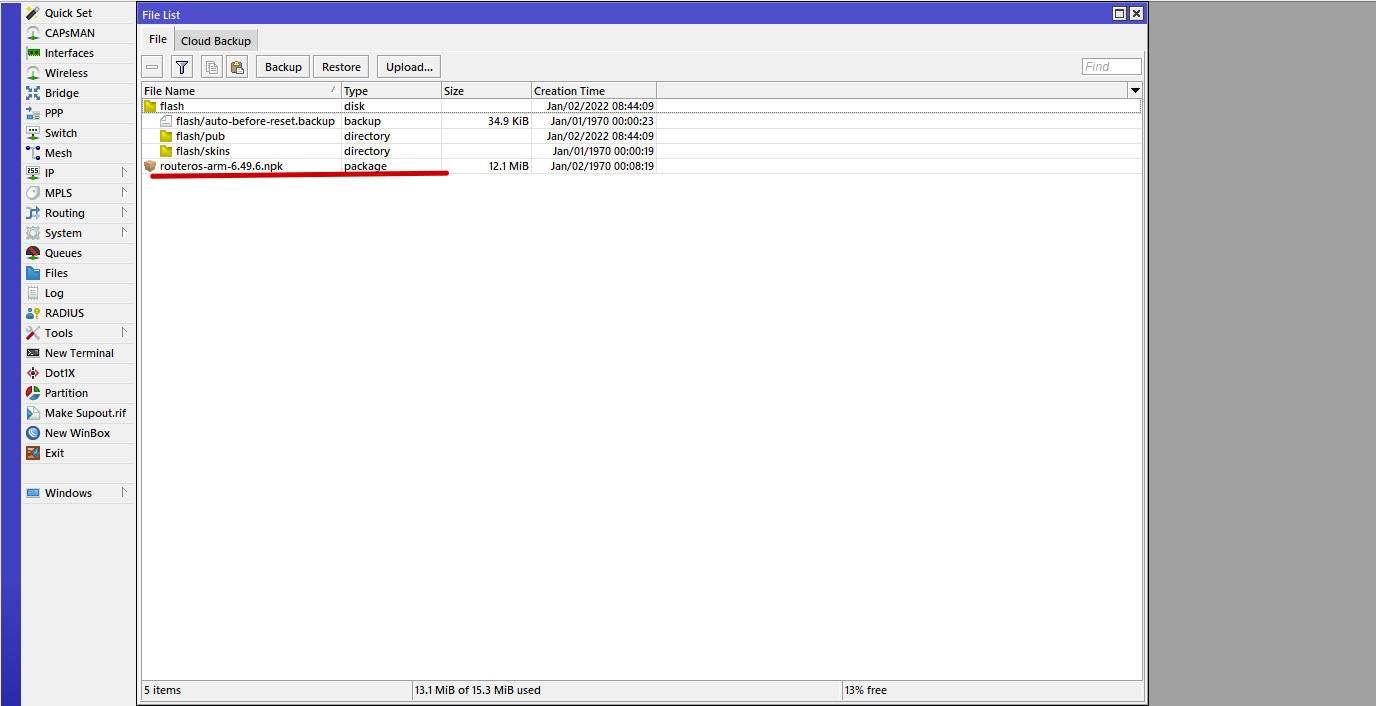
Затем выбираем System Reboot. После этого произойдет перезагрузка роутера и прошивка установится. Таким же образом нужно установить следующие пакеты: multicast-6.*-mipsbe.npk(для IPTV) ,&&nspb;ntp-6.*-mipsbe.npk (синхронизация времени), wireless-6.*-mipsbe.npk (для версий с Wi-Fi) и другие, если знаете, что они Вам нужны.
Необходимые пакеты можно добавить позже по тому же принципу – System Reboot.
5. Создаем правило NAT для локальной сети.
Открываем IP Firewall, выбираем вкладку NAT, нажимаем на знак + и добавляем новое правило. На вкладке General в поле Chain srcnat, Src. Address 192.168.88.0/24
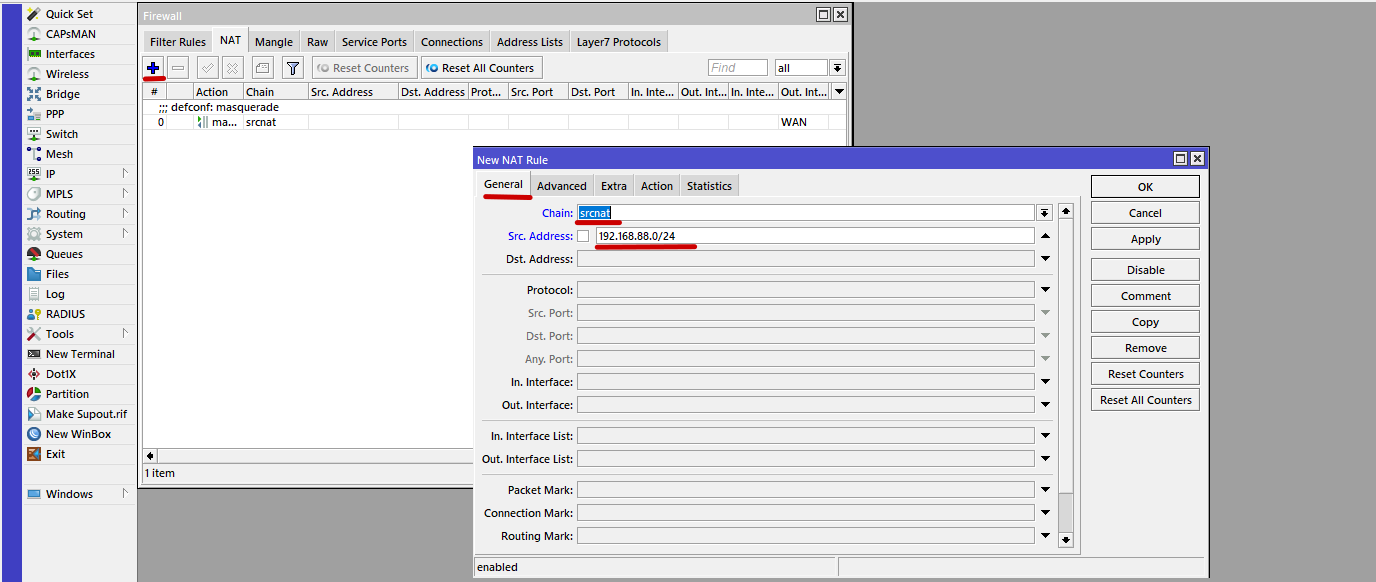
На вкладке Action masquerade. Нажимаем Apply и OK.
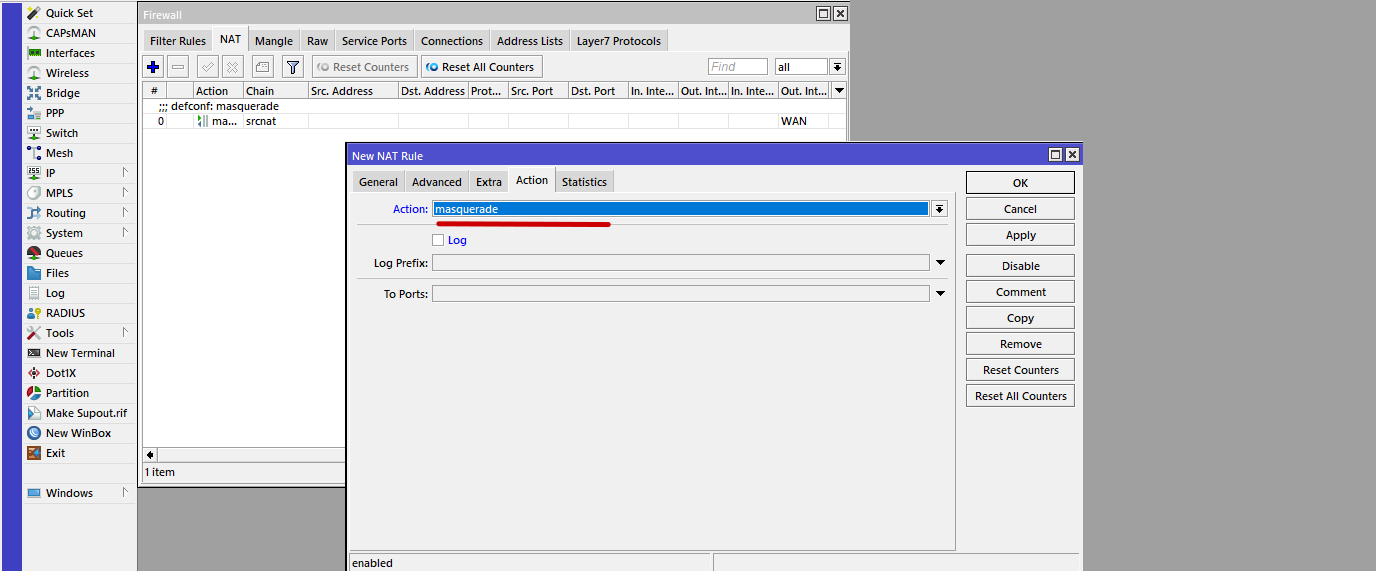
6. Открываем IP — Firewall, во вкладке Filter Rules нажимаем «+«, чтобы добавить новое правило:
Chain — input
Protocol 17(udp)
Dst. Port 53
Во вкладке Action выбираем Action drop, Нажимаем Apply — OK.
Перетягиваем наше правило вверх в списке.
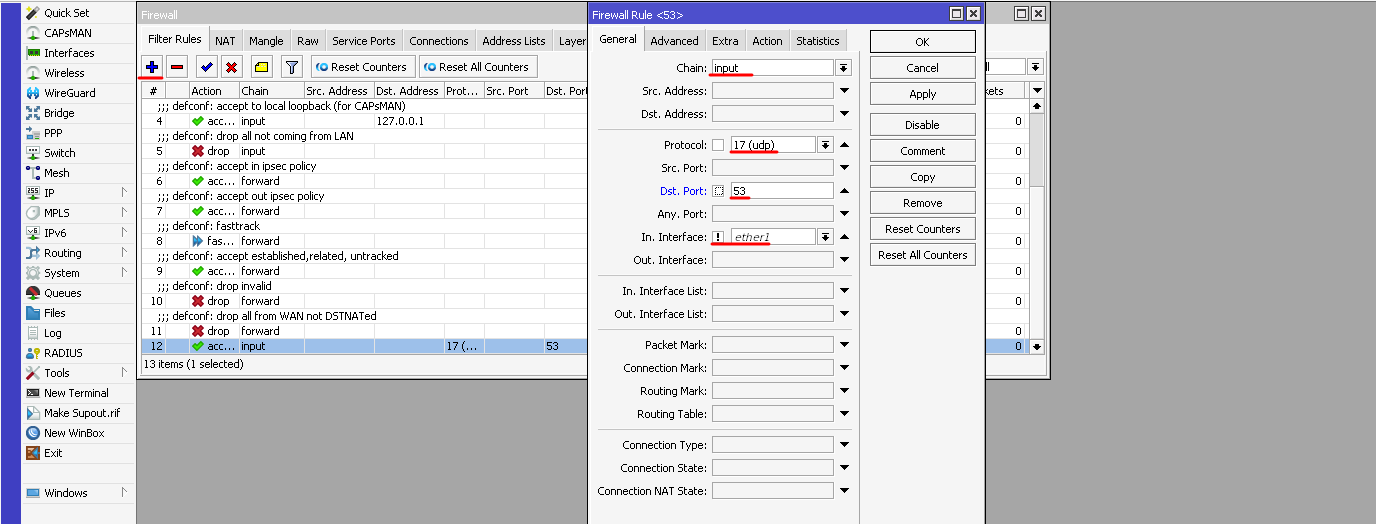
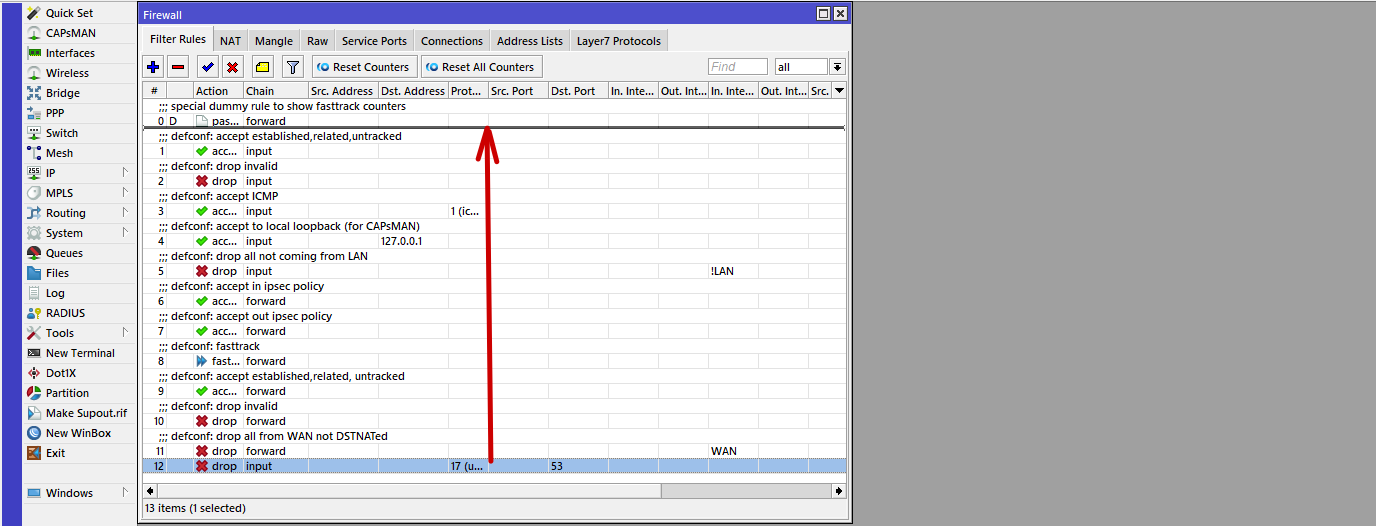
Настройка Wi-Fi на примере hAP ac lite 2
1. Выбираем опцию Wireless wlan1, на вкладке Wireless справа нажимаем Advanced Mode:
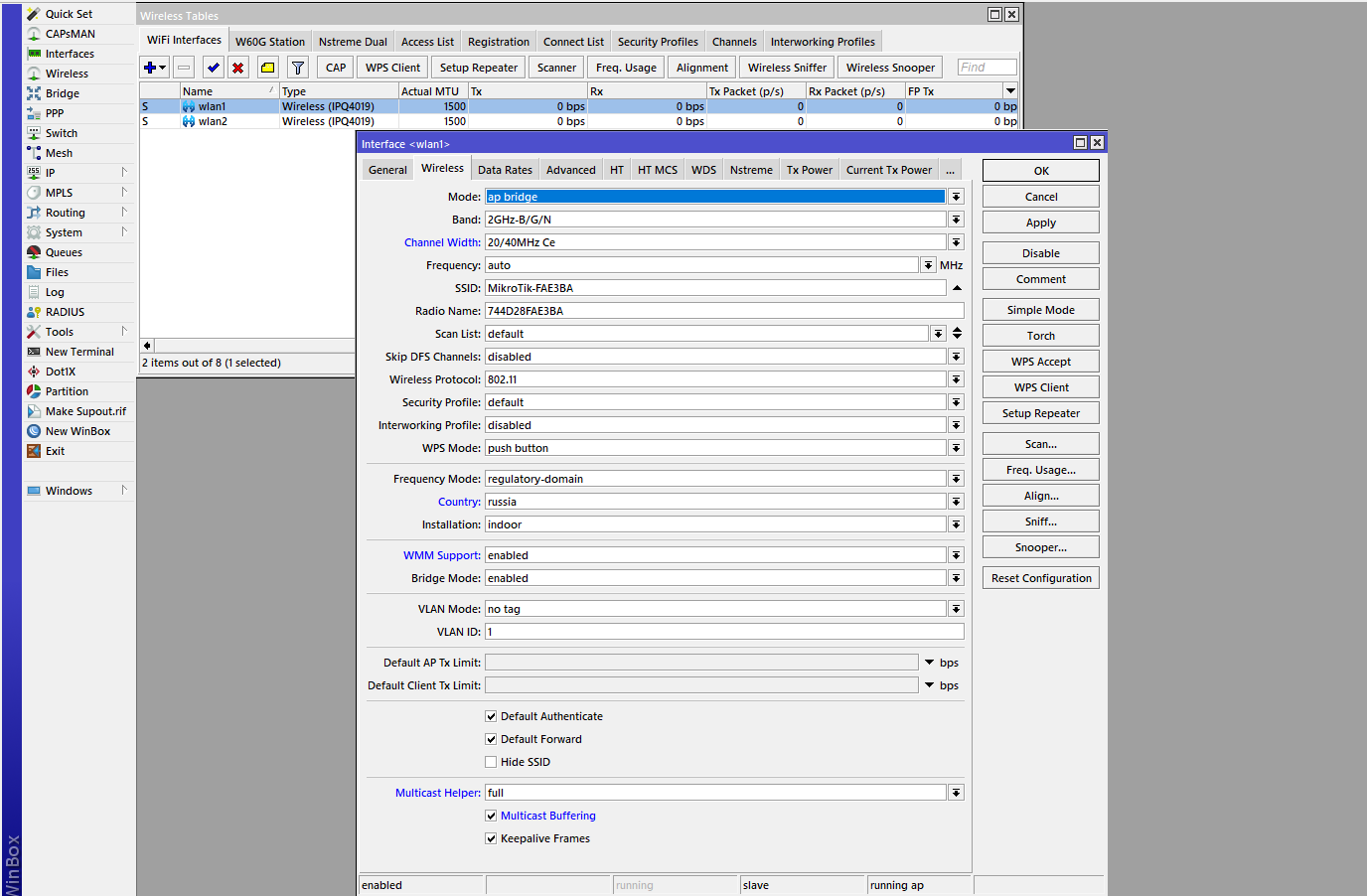
Mode ap bridge – режим работы в качестве точки доступа;
Band 2GHz-B/G/N – режим работы точки доступа;
Chanel Width 20/40MHz Ce – ширина рабочей полосы;
Frenquency Auto – рабочая частота (канал);
SSID hAP-2Ghz – имя сети (можно своё произвольное);
Wireless Protocol 802.11;
Security Profile default – настроенный выше профиль с шифрованием и паролем для доступа;
Frenquency Mode regulatory-domain – согласно разрешенному диапазону;
Country russia регион;
Antenna Gain усиление антенны, можно 0;
WMM Support enabled – передача мультимедиа;
Bridge Mode enabled – раздача Интернета в локальный бридж;
Multicast Helper full – раздача мультикаста тем клиентам, кто его запросил.
2. Переходим на вкладку Advanced
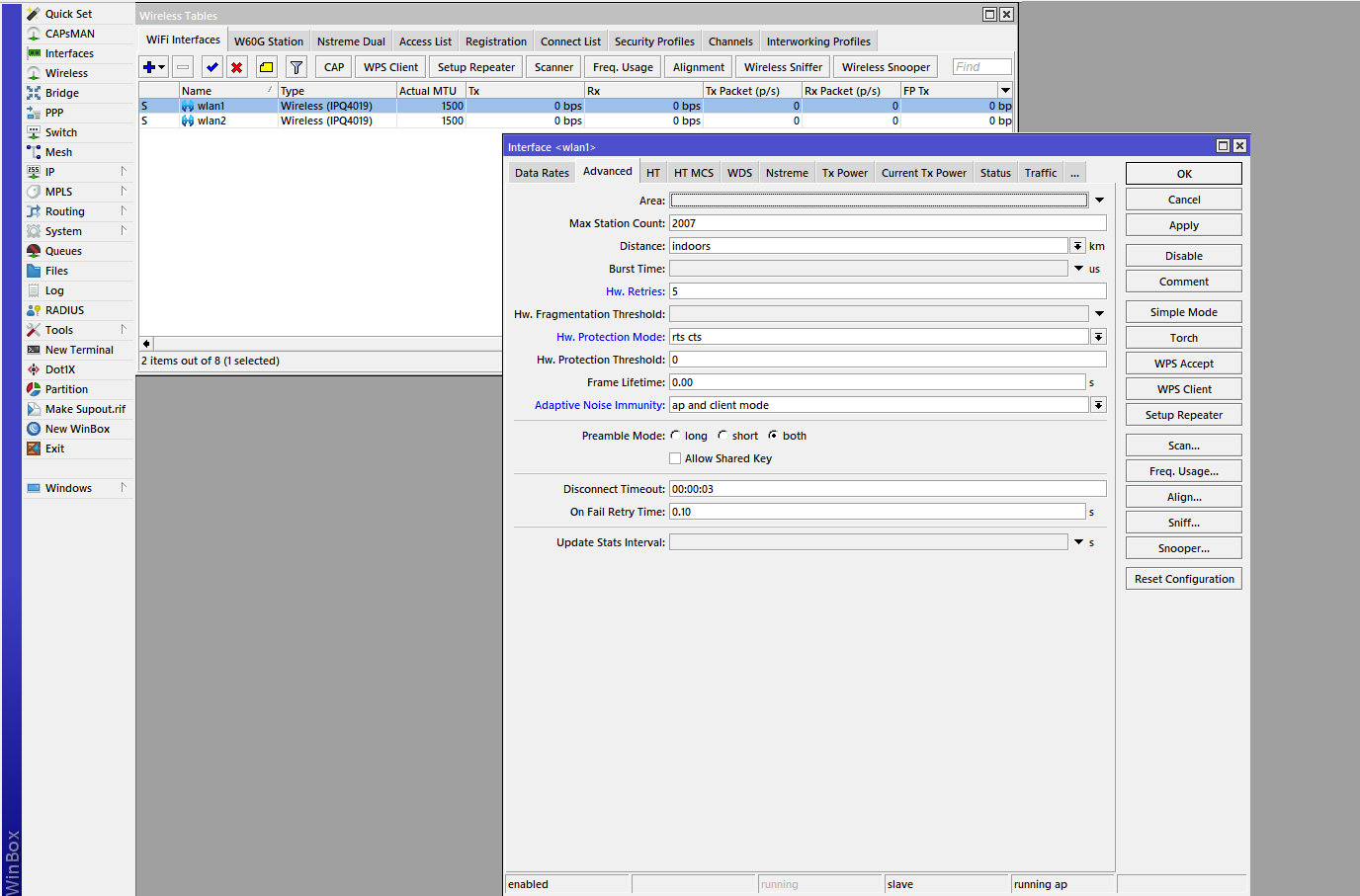
Distance indoors – внутри помещений;
Hw. Retries 5 – кол-во попыток повторной отправки потерянных пакетов по радиоканалу;
Hw. Protection Mode rts cts – механизм защиты сети;
Adaptive Noise Immunity ap and client mode – автоподстройка к собственному и клиентскому радиоканалу.
3. Переходим на вкладку HT:
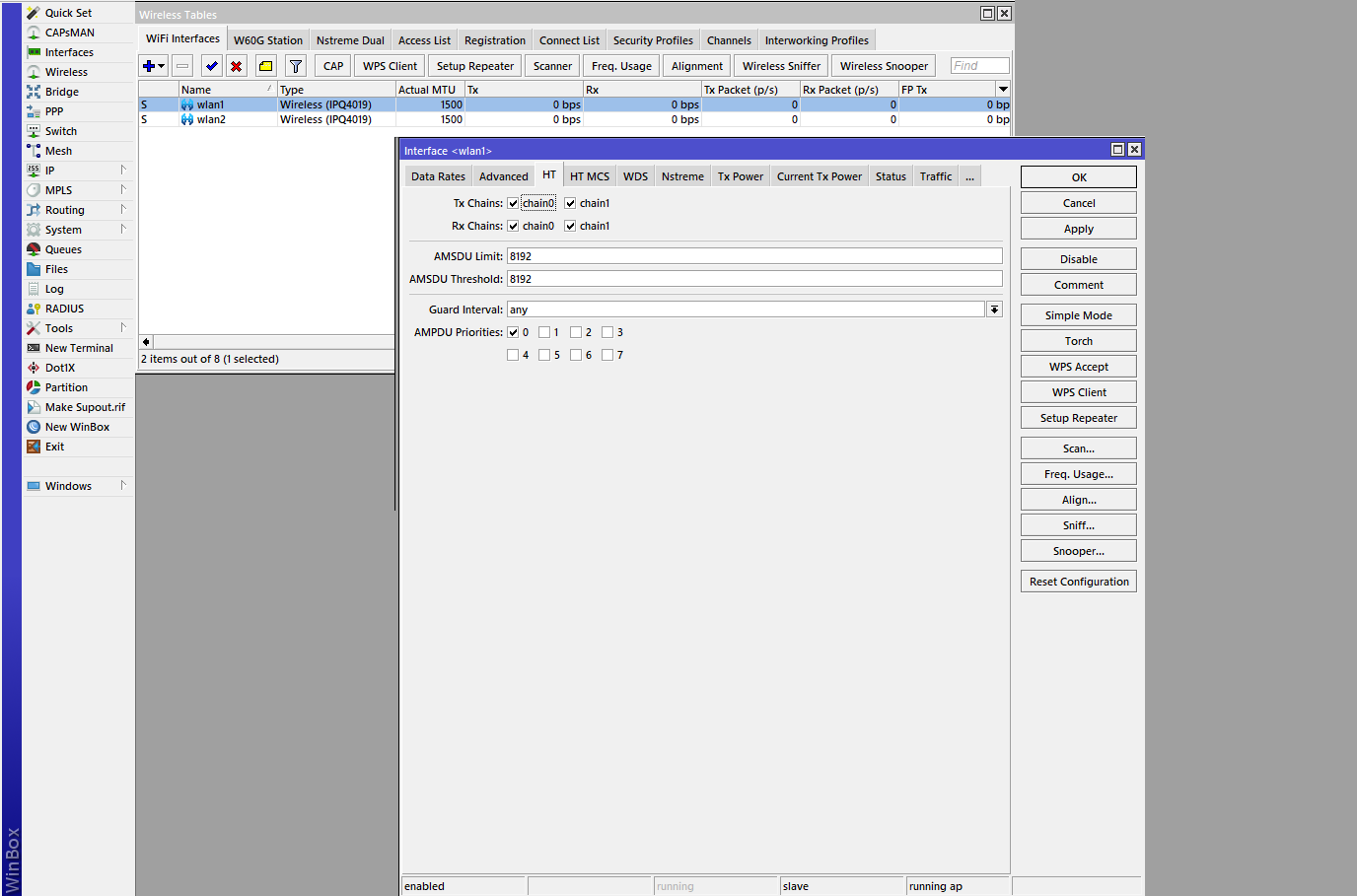
TX/RX Chains все галочки – chain0/1 – две антенны работают на приём/передачу;
AMPDU Priorities 0 – приоритет трафика по Wi-Fi (0 – без приоритетов).
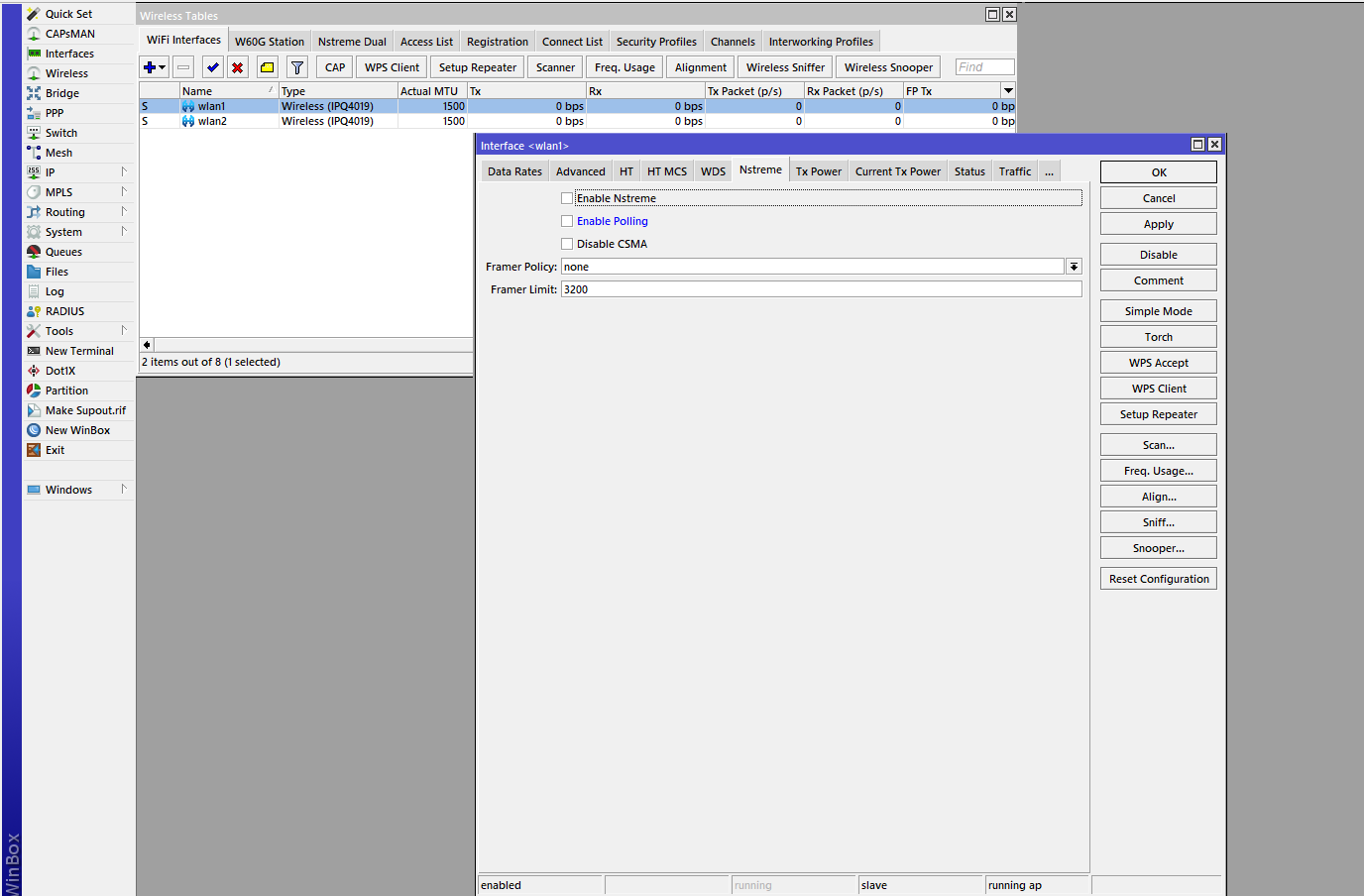
Enable Poling без галочки – полинговый протокол не используем;
Framer Policy dynamic size – метод упаковки больших пакетов.
5. Вкладка TX Power default – регулировка мощности сигнала согласно внутренней таблице параметров сети.
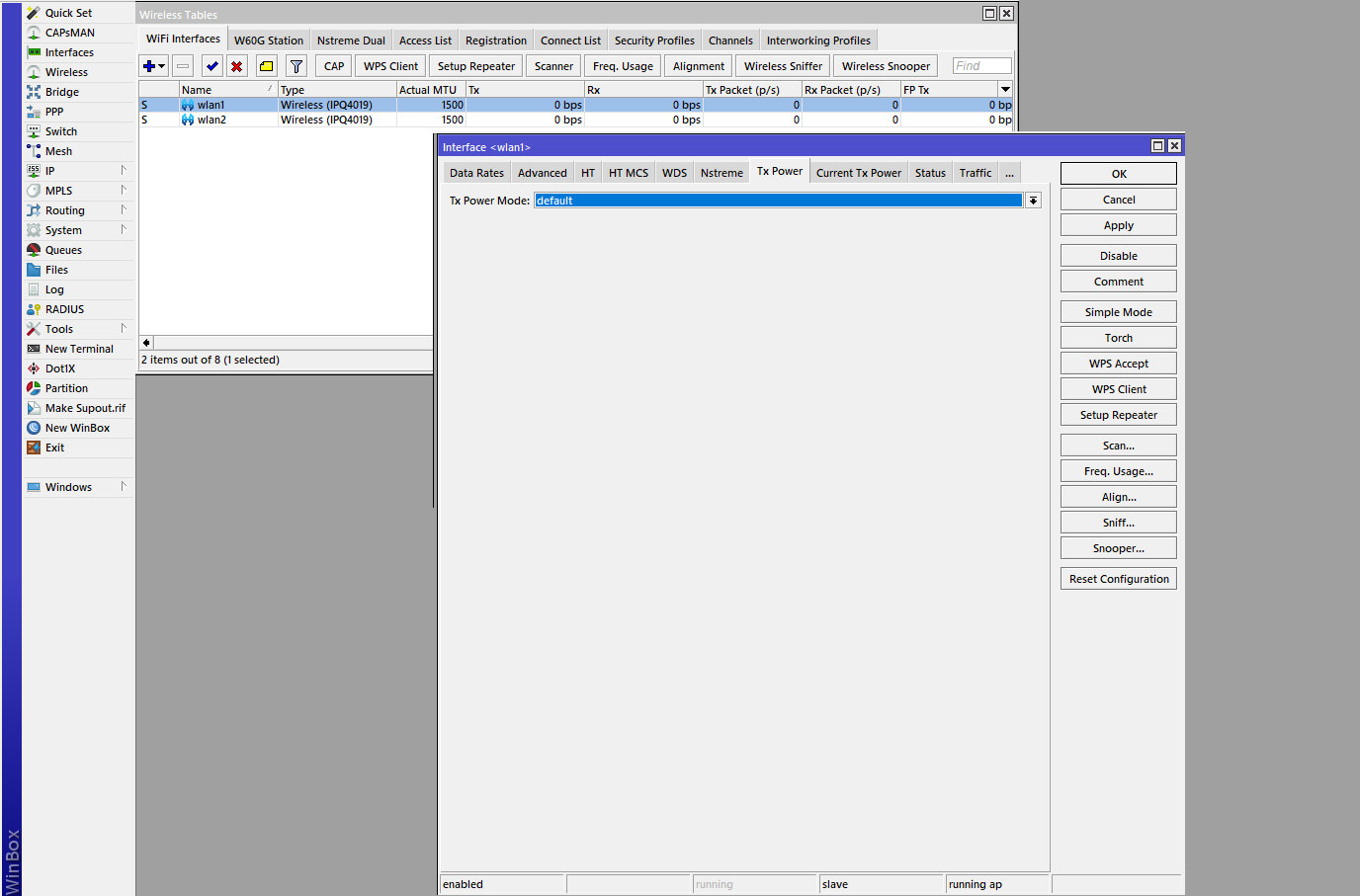
Дальше идут уже диагностические вкладки, по которым можно судить о мощности и качестве сигнала, оптимальности использования канала и проходящего трафика.
6. Установка пароля.
В опции Wireless на вкладке Security Profiles открываем дефолтный профиль:
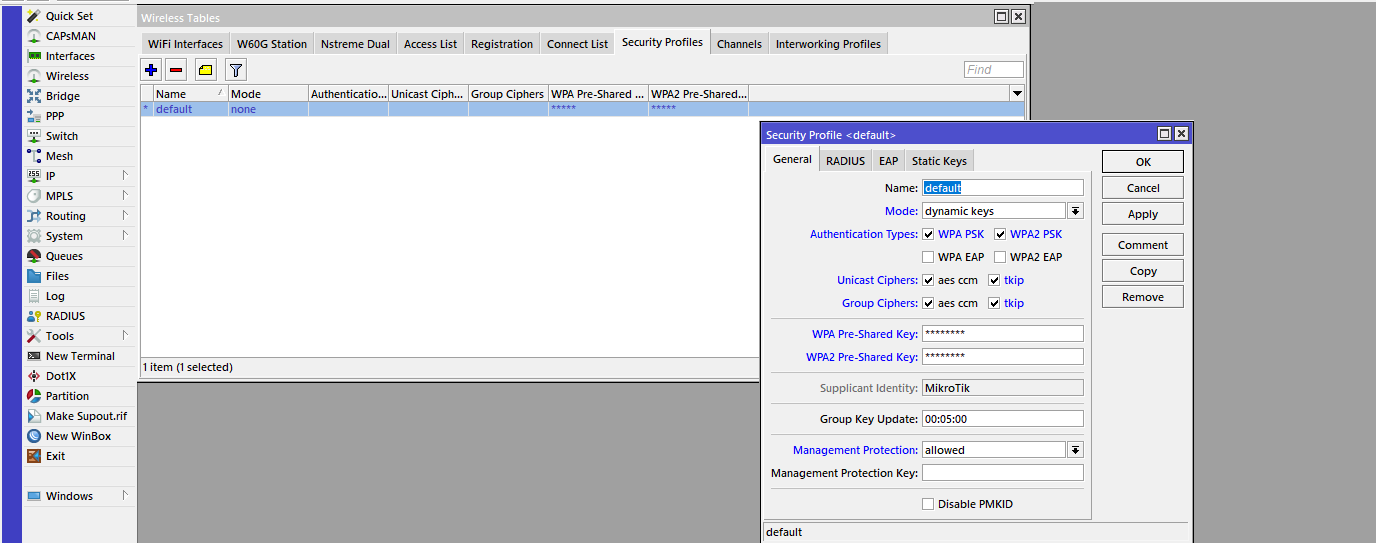
Mode dynamic keys
Authentication Types WPA PSK, WPA2 PSK – стандарты беспроводного шифрования;
Unicast и Group Ciphers tkip и aes ccm – первое программное шифрование, второе аппаратное. Если установить все галочки, то к сети смогут подключаться новые и старые устройства вне зависимости от поддерживаемого шифрования.
WPA и WPA2 Pre-Shared Key ****** – пароль.
Настройка завершена.
1. Скачиваем с сайта http://www.mikrotik.com/ из раздела Download утилиту для настройки – Winbox. Для коробочных версий из раздела mipsbe скачиваем последнюю прошивку Upgrade Package и дополнительные пакеты All packages (распаковываем в отдельную папку).
2. Делаем сброс (можно пропустить, если роутер на заводских настройках):
– Выключаем роутер из сети.
– Зажимаем кнопку Reset и держим.
– Включаем питание.
– Замигала кнопка АСТ (примерно 6 cек.), отпускаем Reset.
Подключаем по схеме:
В настройках сетевой карты TCP/IP выставляем автоматически. Компьютер должен получить IP-адрес вида 192.168.88.*
Запускаем Winbox, нажимаем на пустую кнопку, из списка выбираем наш роутер, Login – admin, Password – оставляем пустым и нажимаем Connect (не путать с Connect to ROM). В появившемся окне нажимаем на Ok и попадаем в основное окно.
3. Установим пароль для входа на роутер.
Заходим System Users, открываем пользователя admin, нажимаем на Password и вводим придуманный пароль, повторяем его. Рекомендуется поменять и имя, т.е. admin на что-то другое. Убедительная просьба — не игнорировать данный шаг в целях безопасности!
4. Прошиваем и добавляем нужные опции:
Нажимаем Files, в открывшееся окно перетаскиваем файл скачанной прошивки .npk
После загрузки она должна появиться в списке.
Затем выбираем System Reboot. После этого произойдет перезагрузка роутера и прошивка установится. Таким же образом нужно установить следующие пакеты: multicast-6.*-mipsbe.npk(для IPTV) , ntp-6.*-mipsbe.npk (синхронизация времени), wireless-6.*-mipsbe.npk (для версий с Wi-Fi) и другие, если знаете, что они Вам нужны.
Необходимые пакеты можно добавить позже по тому же принципу — System Reboot.
Настройка L2TP + Dynamic IP
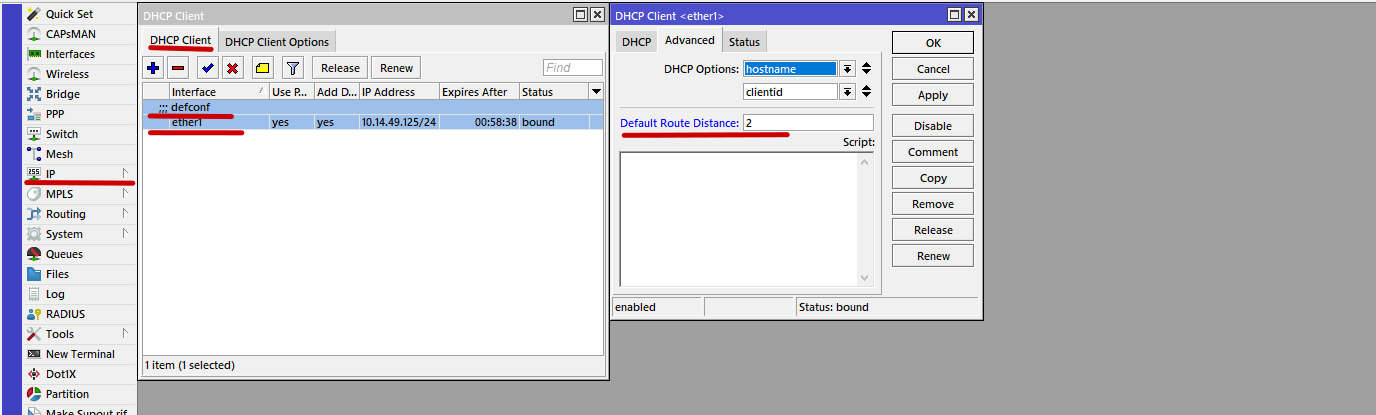
1. Заходим IP DHCP Client, открываем предустановленную конфигурацию, переходим на вкладку Advanced, в поле Default Route Distance, меняем значение на 2.
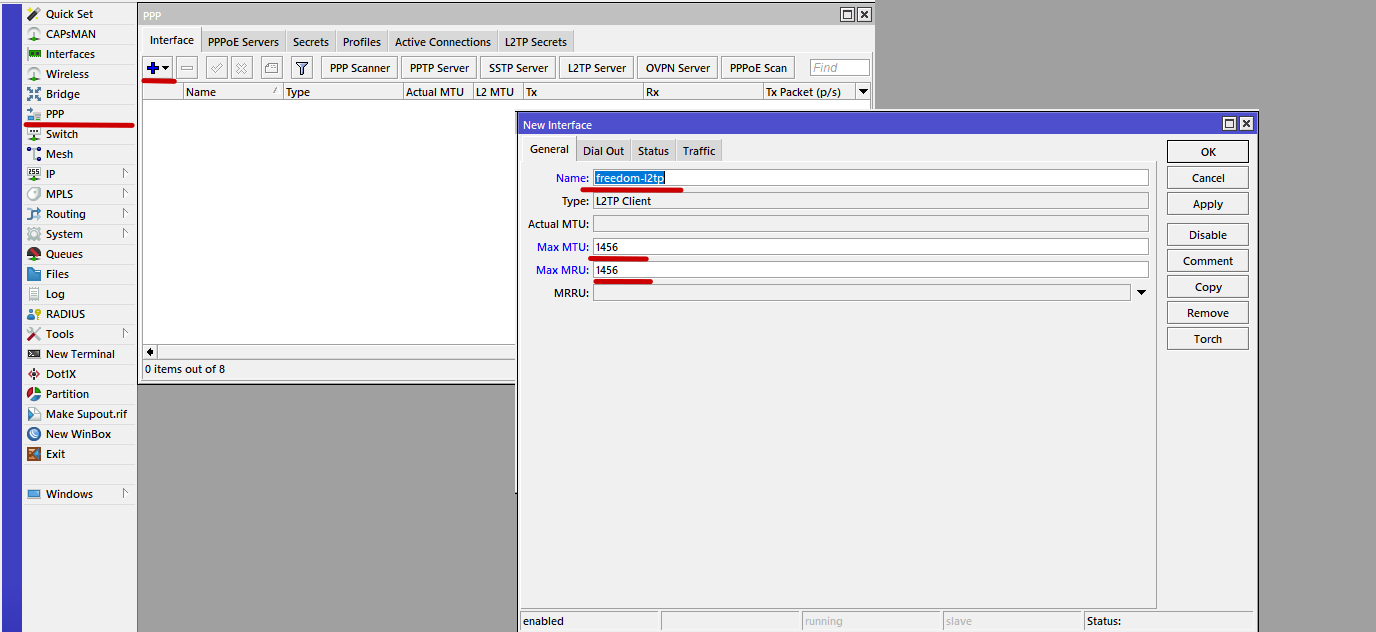
2. Заходим в опцию PPP и добавляем новый интерфейс, нажав на знак + и выбрав в списке L2TP Client. На вкладке General поле Name произвольно, например, freedom-l2tp. В поле Max MTU/MRU – 1456.
На вкладке Dial Out вносим параметры согласно регистрационной карточки абонента:
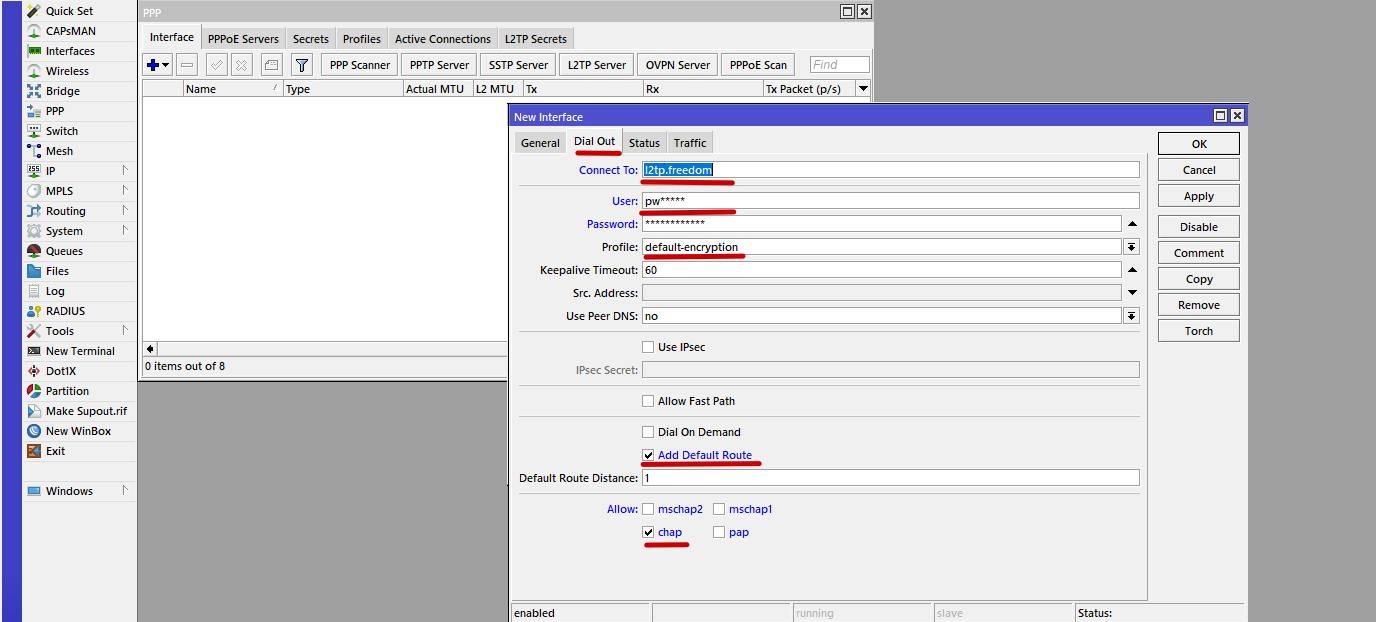
Не забудьте поставить галочку Add Default Route. Нажимаем Apply и OK, произойдет соединение.
3. Создаем правило NAT для локальной сети.
Открываем IP Firewall, выбираем вкладку NAT, нажимаем на знак + и добавляем новое правило. На вкладке General в поле Chain srcnat, Src. Address 192.168.88.0/24
На вкладке Action masquerade. Нажимаем Apply и OK.
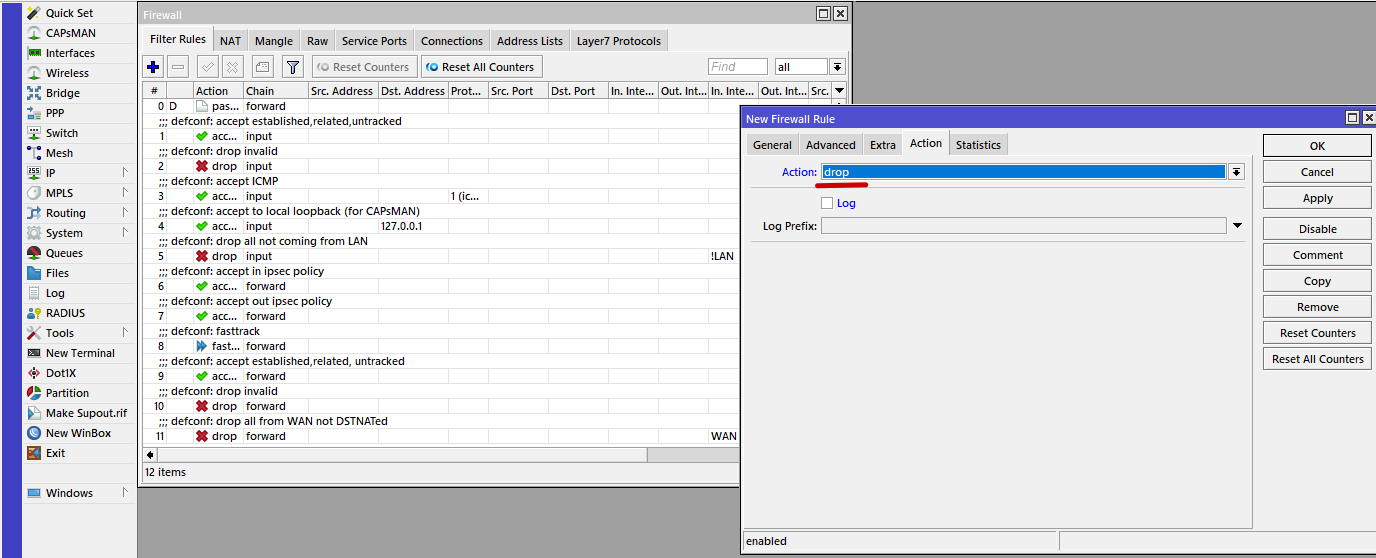
4. Открываем IP — Firewall, во вкладке Filter Rules нажимаем «+«, чтобы добавить новое правило:
Chain — input
Protocol 17(udp)
Dst. Port 53
Во вкладке Action выбираем Action drop, Нажимаем Apply — OK
Перетягиваем наше правило вверх в списке.
Настройка Wi-Fi на примере hAP ac lite 2
1. Выбираем опцию Wireless wlan1, на вкладке Wireless справа нажимаем Advanced Mode:
Mode ap bridge – режим работы в качестве точки доступа;
Band 2GHz-B/G/N – режим работы точки доступа;
Chanel Width 20/40MHz Ce – ширина рабочей полосы;
Frenquency Auto – рабочая частота (канал);
SSID hAP-2Ghz – имя сети (можно своё произвольное);
Wireless Protocol 802.11;
Security Profile default – настроенный выше профиль с шифрованием и паролем для доступа;
Frenquency Mode regulatory-domain – согласно разрешенному диапазону;
Country russia регион;
Antenna Gain усиление антенны, можно 0;
WMM Support enabled – передача мультимедиа;
Bridge Mode enabled – раздача интернета в локальный бридж;
Multicast Helper full – раздача мультикаста тем клиентам, кто его запросил.
2. Переходим на вкладку Advanced
Distance indoors – внутри помещений;
Hw. Retries 5 – кол-во попыток повторной отправки потерянных пакетов по радиоканалу;
Hw. Protection Mode rts cts – механизм защиты сети;
Adaptive Noise Immunity ap and client mode – автоподстройка к собственному и клиентскому радиоканалу.
3. Переходим на вкладку HT:
TX/RX Chains все галочки – chain0/1 – две антенны работают на приём/передачу;
AMPDU Priorities 0 – приоритет трафика по Wi-Fi (0 – без приоритетов).
Enable Poling без галочки – полинговый протокол не используем;
Framer Policy dynamic size – метод упаковки больших пакетов.
5. Вкладка TX Power default – регулировка мощности сигнала согласно внутренней таблице параметров сети.
Дальше идут уже диагностические вкладки, по которым можно судить о мощности и качестве сигнала, оптимальности использования канала и проходящего трафика.
6. Установка пароля.
В опции Wireless на вкладке Security Profiles открываем дефолтный профиль:
Mode dynamic keys
Authentication Types WPA PSK, WPA2 PSK – стандарты беспроводного шифрования;
Unicast и Group Ciphers tkip и aes ccm – первое программное шифрование, второе аппаратное. Если установить все галочки, то к сети смогут подключаться новые и старые устройства вне зависимости от поддерживаемого шифрования.
WPA и WPA2 Pre-Shared Key ****** – пароль.
Настройка завершена.
[pdf]
User Manual Quick Start Guide Instructions Specifications Documentation Guide Borchure Label
mikrotik hap ac quick start guide 2024 02 06 — This equipment is to be installed by trained and qualified personnel as per these installation instructions The socket outlet shall near the netxl docs |||
06/02/2024, 16:32 Pages / Quick Guides Quick Guide — hAP ac — Quick Guides — MikroTik Documentation Quick Guide — hAP ac EN — English — Quick Guide: This device needs to be upgraded to RouterOS v7.6 or the latest stable version, to ensure compliance with local authority regulations It is the e…
lang:en score:40 filesize: 174.24 K page_count: 2 document date: 2024-02-06
[pdf]
User Manual Instructions Guide Accessories Catalog
Quick Guide Chateau LTE18 ax odt pc Manuale dell utente MikroTik hAP ac Getic usermanualshapac 650adf79e1041 getic it files catalogue 1047 |||
User Manual hAP ac The hAP is a simple home wireless access point. It is configured out of the box, … stomed to the possibilities: . In case IP connection is not available, the Winbox tool to the MAC address of the device from the LAN side all access is blocked from the internet port by default…
lang:en score:37 filesize: 244.08 K page_count: 10 document date: 2023-09-20
[pdf]
User Manual Instructions Guide Accessories Catalog
Quick Guide Chateau LTE18 ax odt pc Manuale dell utente MikroTik hAP ac lite Getic usermanualshapaclite 650ad98759a86 getic it files catalogue 997 |||
User Manuals hAP ac lite The hAP ac lite is a simple home wireless access point. It is configured ou … connection is not available, the Winbox tool https://mt.lv/winbox can be used to connect to the MAC address of the device from the LAN side all access is blocked from the Internet port by default …
lang:en score:36 filesize: 221.95 K page_count: 10 document date: 2023-09-20
[pdf]
User Manual Instructions Guide Accessories Catalog
Quick Guide Chateau LTE18 ax odt pc Manuale dell utente MikroTik cAP XL ac Getic usermanualscapxlac 650ae6a30a9c6 getic it files catalogue 3699 |||
cAP XL ac RbcAPGi-5acD2nD-XL User Manual Safety Warnings Before you work on any equipment, be awar … connection is not available, the Winbox tool https://mt.lv/winbox can be used to connect to the MAC address of the device from the LAN side all access is blocked from the Internet port by default …
lang:en score:36 filesize: 210.05 K page_count: 12 document date: 2023-09-20
[pdf]
User Manual Instructions Guide Accessories Catalog
Quick Guide Chateau LTE18 ax odt pc Manuale dell utente MikroTik hAP ac lite tower Getic usermanualshapaclitetc 650adb200d76d getic it files catalogue 1233 |||
User Manuals — hAP ac lite TC The hAP ac lite is a simple home wireless access point. It is configur … connection is not available, the Winbox tool https://mt.lv/winbox can be used to connect to the MAC address of the device from the LAN side all access is blocked from the Internet port by default …
lang:en score:36 filesize: 196.21 K page_count: 10 document date: 2023-09-20
[pdf]
User Manual Quick Start Guide Instructions Documentation Guide Accessories
MikroTik Chateau 5G R16 Quick Start Guide Router NetXL mikrotik chateau 5g r16 quick start guide netxl docs |||
14/03/2024, 12:09 Chateau 5G R16 als / LTE products Chateau 5G R16 — User manuals — MikroTik Docume … Connect to the wireless network. SSID starts with MikroTik and has the last digits of the device s MAC address. Open application. By default, the IP address and user name will be already entered. Clic…
lang:en score:33 filesize: 373.04 K page_count: 5 document date: 2024-03-14
[pdf]
User Manual Specifications Guide Borchure Label
MikroTik RouterBOARD wAP R ac Quick guide 49106f97e0bc2431b57a794fed7dd4d14174 gzhls at blob ldb 4 5 |||
EN — English — Quick Guide: This device needs to be upgraded to RouterOS v6.46 or the latest version … E inndlingartki fylgir me umbunum . Fyrstu skrefin: Opnau hlfina og settu SIM korti . Fyrir wAP R AC lkani skaltu setja mtaldi miniPCIe raufina. Til a setja mtaldi upp, fjarlgu skrfuna sem er stase…
lang:en score:32 filesize: 1.28 M page_count: 23 document date: 0000-00-00
[pdf]
User Manual Specifications Guide Borchure Label
EN English Quick Guide Note MikroTik Wap ac LTE QuickGuide 4gon co uk documents |||
EN — English — Quick Guide: This device needs to be upgraded to RouterOS v7.2.3 or the latest versio … er gert WebFig Quickset valmyndinni. Fyrstu skrefin: Opnau hlfina og settu SIM korti . Fyrir wAP R AC lkani skaltu setja mtaldi miniPCIe raufina; Til a setja mtaldi upp, fjarlgu skrfuna sem er stase…
lang:en score:32 filesize: 1.43 M page_count: 26 document date: 0000-00-00
[pdf]
User Manual Specifications Guide Borchure Label
MikroTik RouterBOARD Disc Lite5 ac Quick guide 65f9435799ef34e92c1b0f552437a9dab7d7 gzhls at blob ldb a b 3 d |||
EN — English — Quick Guide: This device needs to be upgraded to RouterOS v7.3.1 or the latest versio … P: 192.168.88.1, user name: admin, no password, or use the Neighbors tab and connect to the device MAC address; Download the latest RouterOS software from https://mikrotik.com/download; Choose MIPSBE …
lang:en score:32 filesize: 1.38 M page_count: 24 document date: 0000-00-00
[pdf]
User Manual Specifications Guide Borchure Label
MikroTik routerboard hAP ac³ LTE6 kit Quick guide 5d05c4db737957d52be41620a982c777d54f gzhls at blob ldb 8 d b a |||
EN — English — Quick Guide: This device needs to be upgraded to RouterOS v6.46 or the latest version … otik.com. , MikroTik : https://mikrotik.com/buy/europe/russia MikroTik, , EAC, : UA — Y. : RouterOS v6.46 , , , , DFS . MikroTik …
lang:en score:31 filesize: 1.32 M page_count: 22 document date: 0000-00-00
[pdf]
User Manual Quick Start Guide Specifications Guide Borchure Label
Quick Start Guide for MikroTik hAP ac³ LTE6 kit wireless router WWAN 802 11a b g n ac desktop wall mountable Buy rout pp co nz FE1385A9 EF55 4319 BEE8 AD1D7C04D174 data63 QUICK START GUID |||
EN — English — Quick Guide: This device needs to be upgraded to RouterOS v6.46 or the latest version … otik.com. , MikroTik : https://mikrotik.com/buy/europe/russia MikroTik, , EAC, : UA — Y. : RouterOS v6.46 , , , , DFS . MikroTik …
lang:en score:31 filesize: 1.3 M page_count: 21 document date: 0000-00-00
[pdf]
User Manual Specifications Guide Borchure Label
MikroTik wireless Wire Cube 60G ac 2 pack Quick guide 06589806c492d1d4f1f5aca802f321f02aff gzhls at blob ldb 4 5 9 |||
EN — English — Quick Guide: This device needs to be upgraded to RouterOS v6.47.2 or the latest versi … otik.com. , MikroTik : https://mikrotik.com/buy/europe/russia MikroTik, , EAC, : UA — Y. : RouterOS v6.47.2 , , , , DFS . MikroTik…
lang:en score:30 filesize: 1.25 M page_count: 23 document date: 0000-00-00
[pdf]
User Manual Specifications Guide Borchure Label
MikroTik RouterBOARD wAP ac white Rev 2 Upgraded Version Quick guide 5aaa298e12af30b7221f3febddbd94e72f9b gzhls at blob ldb b 1 9 |||
EN — English — Quick Guide: This device needs to be upgraded to RouterOS v6.46 or the latest version … k : https://mikrotik.com/buy/europe/russia MikroTik, , MikroTik, , EAC, : UA — Y. : RouterOS v6.46 , , , , DFS . MikroTik …
lang:en score:30 filesize: 1.27 M page_count: 23 document date: 0000-00-00
[pdf]
User Manual Instructions Specifications Guide Borchure Catalog Label
Quick Guide Chateau LTE18 ax odt pc Guida rapida MikroTik hAP ac Getic quickguidehapac 651be32374d79 getic it files catalogue 1047 |||
Quick Guide — hAP ac EN — English — Quick Guide: This device needs to be upgraded to RouterOS v7.6 o … la 23, Riga, LV-1006, , support mikrotik.com. , . C. . . MikroTik, , EAC, : UA — Y. : RouterOS v7.6 , , , , DFS . MikroTik …
lang:en score:29 filesize: 1.04 M page_count: 60 document date: 2023-10-03
[pdf]
User Manual Instructions Specifications Guide Borchure Catalog Label
Quick Guide Chateau LTE18 ax odt pc Guida rapida MikroTik hAP ac lite Getic quickguidehapaclite 650ad978ba87a getic it files catalogue 997 |||
Quick Guide G9-b Models: RBD52G-5HacD2HnD-TC hAP ac , RBcAPGi-5acD2nD cAP ac , RB952Ui-5ac2nDTC h … la 23, Riga, LV-1006, , support mikrotik.com. , . C. . . MikroTik, , EAC, : : . UA — . : RouterOS v7.10 , , , , DFS . …
lang:en score:29 filesize: 1.01 M page_count: 59 document date: 2023-09-20
[pdf]
User Manual Specifications Guide Borchure Catalog Label
Quick Guide Chateau LTE18 ax odt pc Guida rapida MikroTik LHG XL 52 ac Getic quickguidelhgxl52ac 6513c399d818f getic it files catalogue 2030 |||
Quick Guide G9-a Models: RBLHGG-5HPacD2HPnD-XL LHG XL 52 ac , RBwsAP-5Hac2nD wsAP ac lite EN — En … P: 192.168.88.1, user name: admin, no password, or use the Neighbors tab and connect to the device MAC address or, for some models, check user and wireless passwords on the sticker ; Download the la…
lang:en score:29 filesize: 1011.62 K page_count: 58 document date: 2023-09-27
[pdf]
User Manual Instructions Specifications Guide Borchure Catalog Label
Quick Guide Chateau LTE18 ax odt pc Guida rapida MikroTik hAP ac lite tower Getic quickguidehapaclitetower 650adb00ef07c getic it files catalogue 1233 |||
Quick Guide G9-b Models: RBD52G-5HacD2HnD-TC hAP ac , RBcAPGi-5acD2nD cAP ac , RB952Ui-5ac2nDTC hAP ac lite TC , RB952Ui-5ac2nD hAP ac lite . EN — English — Quick Guide: This device needs to be upgraded to RouterOS v7.10 or the latest stable version, to ensure compliance with local authority reg…
lang:en score:29 filesize: 1 M page_count: 58 document date: 2023-09-20
[pdf]
User Manual Specifications Guide Borchure Catalog Label
Quick Guide Chateau LTE18 ax odt pc Guida rapida MikroTik Metal 52 ac Getic quickguidemetal52ac 6513ea5f36290 getic it files catalogue 1065 |||
Quick Guide G5 Models: RBGroove52HPn Groove 52 , RBGrooveGA-52HPacn GrooveA 52 ac , RBMetalG-52SHP … ce; Default IP: 192.168.88.1, user name: admin, no password, or use Neighbors tab and connect with MAC address; Download the latest RouterOS software from https://mikrotik.com/download; Choose MIPSBE …
lang:en score:28 filesize: 974.48 K page_count: 61 document date: 2023-09-27
[pdf]
User Manual Instructions Specifications Guide Borchure Catalog Label
Quick Guide Chateau LTE18 ax odt pc de démarrage rapide MikroTik cAP XL ac Acheter sur Getic fr quickguidecapxlac 650ae69613653 getic files catalogue 3699 |||
Quick Guide — cAP XL ac Models: RBcAPGi-5acD2nD-XL cAP XL ac EN — English — Quick Guide: This devi … . . . MikroTik : https://mikrotik.com/buy/europe/russia MikroTik, , EAC, : : . UA — Y. : RouterOS v6.48.2 , , , , DFS …
lang:en score:28 filesize: 1.06 M page_count: 61 document date: 2023-09-20
[pdf]
User Manual Documentation
wAP ac series User manuals MikroTik Documentation wifimag ro |||
Pages / User Manuals / Wireless for home and office wAP ac-series wAP ac RBwAPG-5HacD2HnD wAP ac … connection is not available, the Winbox tool https://mt.lv/winbox can be used to connect to the MAC address of the device from the LAN side all access is blocked from the internet port by default …
lang:en score:28 filesize: 637.17 K page_count: 5 document date: 2021-08-10
[pdf]
User Manual Quick Start Guide Documentation
MikroTik RouterOSŽ V2 7 Reference Manual RouterOS 2 ReferenceManual mikrotik 80 Documentation manual
MikroTik RouterOSTM V2.7 Reference Manual MikroTik MikroTik RouterOSTM V2.7 Reference Manual Table … …………………………………………………………………………………..432 MAC Telnet Server and Client………………………………………………………………….
lang:en score:28 filesize: 2.73 M page_count: 550 document date: 2003-09-07
[pdf]
User Manual Instructions Specifications Guide Borchure Label
EN English Quick Guide MikroTik This covers models RBD52G 5HacD2HnD TC hAP ac² RBcAPGi 5acD2nD cAP ac RB952Ui 5ac2nD lite QG QuickGuideG9 b 210422 1231 762 help mikrotik docs spaces flying pageexport action pageId 15302824 |||
EN — English — Quick Guide: This device needs to be upgraded to RouterOS v6.49.2 or the latest stabl … na upprunalegum umbum essa tkis. Hgt er a knja etta tki um DC-tengi ea nota PoE inndlingartki cAP AC er me PoE pakka . Fyrstu skrefin: Gakktu r skugga um a internetjnustan inn leyfi vlbnaarbreyting…
lang:en score:28 filesize: 1.22 M page_count: 22 document date: 0000-00-00
[pdf]
Instructions
PPPoE Support MikroTik For Windows some connection instructions may use the form where phone number such as AC mt1 is specified to indicate ROS 010623 0203 2896 help mikrotik docs export 20230601 2895 contentType application |||
PPPoE Overview Introduction PPPoE Operation Discovery phase Session phase MTU PPPoE Client Propertie … When the discovery stage is completed, both peers know PPPoE Session ID and other peer s Ethernet MAC address which together defines the PPPoE session. PPP frames are encapsulated in PPPoE session f…
lang:en score:27 filesize: 219.85 K page_count: 6 document date: 0000-00-00
[pdf]
User Manual Quick Start Guide Guide Configuration Guide Warranty
Normis SXT Lite5 ac Краткое руководство RBSXT5HacD2n Quick Guide discomp cz MikroTik QG i mt lv 80 routerboard files lantorg attachs 4netonline ws 2016 07
SXT Lite5 ac Quick Setup Guide and Warranty Information The SXT Lite5 ac comes as a complete set, a … and no password. In case IP connection is not available, Winbox can also be used to connect to the MAC address of the device. More information here: http://wiki.mikrotik.com/wiki/First_time_startup In…
lang:en score:27 filesize: 175.07 K page_count: 4 document date: 2015-07-17
[pdf]
User Manual Instructions Documentation Accessories
CCR2004 1G 12S 2XS User manuals MikroTik Documentation ccr2004 1g 12s 2xs user manual netxl mikrotik docs |||
17/06/2024, 13:58 CCR2004-1G-12S 2XS — User manuals — MikroTik Documentation Pages / User Manuals … he configuration tool https://mt.lv/winbox; Open the Neighbors tab and connect to the device using MAC address; The user name: admin, by the default there is no password or, for some models, check us…
lang:en score:27 filesize: 476.5 K page_count: 5 document date: 2024-06-17
[pdf]
User Manual Instructions Documentation
hAP ac lite 7 feb 2024 — User manuals MikroTik Documentation help mikrotik Keep this product away from water fire humidity or hot environments Use only routerboard hap router rb952ui 5ac2nd user manual netxl docs |||
07/02/2024, 15:35 hAP ac lite — User manuals — MikroTik Documentation Pages / User Manuals / Wirel … connection is not available, the Winbox tool https://mt.lv/winbox can be used to connect to the MAC address of the device from the LAN side all access is blocked from the Internet port by default …
lang:en score:27 filesize: 502.21 K page_count: 6 document date: 2024-02-07
[pdf]
Instructions
PPPoE Support MikroTik 10 hours ago — 0 no limitations For Windows some connection instructions may use the form where phone number such as AC mt1 is 531e6aa994144b31b1f9e5972d4afcd4 301123 0811 28076 help mikrotik docs export 20231130 28075 contentType application |||
PPPoE Overview Introduction PPPoE Operation Discovery phase Session phase MTU PPPoE Client Propertie … When the discovery stage is completed, both peers know PPPoE Session ID and other peer s Ethernet MAC address which together defines the PPPoE session. PPP frames are encapsulated in PPPoE session f…
lang:en score:27 filesize: 219.85 K page_count: 6 document date: 0000-00-00
[pdf]
User Manual Specifications Guide Borchure Label
EN English Quick Guide This hAP ac³ LTE6 series covers models RBD53GR 5HacD2HnD R11e kit is Wireless Network Device QG 15303224 250122 2225 1130 help mikrotik docs spaces flying pageexport action pageId |||
EN — English — Quick Guide: This device needs to be upgraded to RouterOS v6.49.1 or the latest versi … C. . . MikroTik : https://mikrotik.com/buy/europe/russia MikroTik, , EAC, : UA — Y. : RouterOS v6.49.1 , , , , DFS . MikroTi…
lang:en score:26 filesize: 1.31 M page_count: 22 document date: 0000-00-00
[pdf]
User Manual Instructions Specifications Guide Borchure Label
EN English Quick Guide This cAP XL ac series covers models RBcAPGi 5acD2nD is a wireless network device QG QuickGuide cAPXLac 280122 1235 2784 help mikrotik docs spaces flying pageexport action pageId 63406151 |||
EN — English — Quick Guide: This device needs to be upgraded to RouterOS v6.48.2 or the latest stabl … C. . . MikroTik : https://mikrotik.com/buy/europe/russia MikroTik, , EAC, : UA — Y. : RouterOS v6.48.2 , , , , DFS . MikroTi…
lang:en score:26 filesize: 1.32 M page_count: 22 document date: 0000-00-00
[pdf]
User Manual Instructions
MikroTik routerboard hAP ac³ LTE6 kit Manual b9d88b72219446140f28473d846b192a7d09 gzhls at blob ldb 2 8 |||
hAP ac3 LTE6 kit The hAP ac3 LTE6 kit is a simple home wireless access point. It is configured out o … P connection is not available, the Winbox tool http://mt.lv/winbox can be used to connect to the MAC address of the device from the LAN side all access is blocked from the Internet port by default …
lang:en score:25 filesize: 537.53 K page_count: 8 document date: 0000-00-00
[pdf]
User Manual Documentation
hAP ac² ac2 User manuals MikroTik Documentation docs mrwifi au Mikrotik Routers RBD52G 5HacD2HnD TC |||
Pages / User Manuals / Wireless for home and office hAP ac hAP ac The hAP is a simple home wireless … connection is not available, the Winbox tool https://mt.lv/winbox can be used to connect to the MAC address of the device from the LAN side all access is blocked from the internet port by default …
lang:en score:25 filesize: 379.87 K page_count: 4 document date: 2021-02-11
[pdf]
User Manual
MikroTik RouterBOARD wAP ac white Rev 2 Upgraded Version Manual 55a9ed4d37c3aced6d1c720385e4e5721ad2 gzhls at blob ldb 8 4 c 0 |||
wAP ac-series wAP ac RBwAPG-5HacD2HnD wAP ac RBwAPG-5HacD2HnD-BE Quickstart Make sure your Inter … connection is not available, the Winbox tool https://mt.lv/winbox can be used to connect to the MAC address of the device from the LAN side all access is blocked from the internet port by default …
lang:en score:24 filesize: 548.61 K page_count: 9 document date: 0000-00-00
[pdf]
User Manual
Manual de utilizare Router wireless dual band MikroTik hAP ac RB962UIGS 5HACT2HNT spy shop ro media custom upload |||
hAP ac hAP ac The hAP is a simple home wireless access point. It is configured out of the box, you c … connection is not available, the Winbox tool https://mt.lv/winbox can be used to connect to the MAC address of the device from the LAN side all access is blocked from the internet port by default …
lang:en score:24 filesize: 424.31 K page_count: 7 document date: 0000-00-00
[pdf]
User Manual Guide
Manual de utilizare Acces Point wireless MikroTik hAP ac lite RB952UI 5AC2ND spy shop ro media custom upload |||
hAP ac lite hAP ac lite The hAP ac lite is a simple home wireless access point. It is configured out … connection is not available, the Winbox tool https://mt.lv/winbox can be used to connect to the MAC address of the device from the LAN side all access is blocked from the Internet port by default …
lang:en score:24 filesize: 367.72 K page_count: 7 document date: 0000-00-00
[pdf]
Accessories SAR Rating
Manuale Mikrotik RBCAPGI 5ACD2ND XL Routerboard cAP ac AP Hotspot 2 4GHz 5GHz 802 11b g n 2xGbit Lan Segshop Man CAPXL iotivedo it schede tecniche MIKROTIK |||
Manuali — Manuali utente semplificati. home Privacy Manuale utente del punto di accesso wireless … IP, lo strumento Winbox https://mt.lv/winbox pu essere utilizzato per connettersi all indirizzo MAC del dispositivo dal lato LAN tutti gli accessi sono bloccati dalla porta Internet per impostazio…
lang:it score:24 filesize: 391.64 K page_count: 17 document date: 2023-03-02
[pdf]
User Manual Instructions Accessories Catalog
Manual del usuario MikroTik cAP ac versión para Estados Unidos Comprar en Getic es capac usermanual 665d78118e0bb getic files catalogue 2558 |||
cAP ac cAP ac The cAP RBcAPGi-5acD2nD ac is a ceiling mountable wireless access point. It is alrea … connection is not available, the Winbox tool https://mt.lv/winbox can be used to connect to the MAC address of the device from the LAN side all access is blocked from the Internet port by default …
lang:en score:24 filesize: 449.45 K page_count: 8 document date: 0000-00-00
[pdf]
User Manual
Manual de utilizare Acces Point wireless dual band MikroTik wAP ac RBWAPG 5HACD2HND BE spy shop ro media custom upload |||
wAP ac-series wAP ac RBwAPG-5HacD2HnD wAP ac RBwAPG-5HacD2HnD-BE Quickstart Make sure your Inter … connection is not available, the Winbox tool https://mt.lv/winbox can be used to connect to the MAC address of the device from the LAN side all access is blocked from the internet port by default …
lang:en score:24 filesize: 550.1 K page_count: 9 document date: 0000-00-00
[pdf]
User Manual Guide
Manual de utilizare Acces Point wireless MikroTik hAP ac lite RB952UI 5AC2ND TC spy shop ro media custom upload |||
hAP ac lite TC hAP ac lite TC The hAP ac lite is a simple home wireless access point. It is configur … connection is not available, the Winbox tool https://mt.lv/winbox can be used to connect to the MAC address of the device from the LAN side all access is blocked from the Internet port by default …
lang:en score:24 filesize: 214.57 K page_count: 7 document date: 0000-00-00
[pdf]
User Manual Instructions Accessories Catalog
Manual del usuario MikroTik hAP ac lite versión para Estados Unidos Comprar en Getic es hapaclite usermanual 665d76ba01f11 getic files catalogue 1908 |||
hAP ac lite hAP ac lite The hAP ac lite is a simple home wireless access point. It is configured out … connection is not available, the Winbox tool https://mt.lv/winbox can be used to connect to the MAC address of the device from the LAN side all access is blocked from the Internet port by default …
lang:en score:24 filesize: 335.3 K page_count: 6 document date: 0000-00-00
[pdf]
User Manual Instructions
Manual de utilizare Acces Point wireless dual band MikroTik cAP ac RBCAPGI 5ACD2ND spy shop ro media custom upload |||
cAP ac cAP ac The cAP RBcAPGi-5acD2nD ac is a ceiling mountable wireless access point. It is alrea … connection is not available, the Winbox tool https://mt.lv/winbox can be used to connect to the MAC address of the device from the LAN side all access is blocked from the Internet port by default …
lang:en score:24 filesize: 474.66 K page_count: 9 document date: 0000-00-00
[pdf]
User Manual
Manual de utilizare Acces Point wireless exterior MikroTik SXTsq 5 ac RBSXTSQG 5ACD spy shop ro media custom upload |||
SXTsq-series SXTsq series The SXTsq is an outdoor wireless router with a built-in directional antenn … is loaded by default. In case IP connection is not available, Winbox can be used to connect to the MAC address of the device. In case you wish to boot the device from the network, for example, to use …
lang:en score:24 filesize: 839.07 K page_count: 8 document date: 0000-00-00
[pdf]
User Manual Specifications
MikroTik RouterOS™ v2 9 Reference Manual Connect List 260 Access 261 refman2 ftp unpad ac id orari library sw hw mikrotik docs 80 testdocs ros 2
MikroTik RouterOSTM v2.9 Reference Manual Table Of Contents Specifications Sheet……………… … ………………………………………………………………………………….. 59 MAC Level Access Telnet and Winbox ………………………………….. 61 General Information …
lang:en score:23 filesize: 7.18 M page_count: 709 document date: 0000-00-00
[pdf]
Mikrotik manuale italiano 2 giorni fa — è disponibile nelle seguenti lingue Italiano Inglese Manuali disponibili in qui gratuitamente il per Wireless Wire Ha mikrotik zenodo org records 12890067 files |||
RouterBOARD series models: RBUi-2HnD. Il manuale rientra nella categoria punto di accesso ed stato valutato dapersone con una media diConsulta qui gratuitamente il manuale per il Mikrotik CRSP-4S-IN. Il manuale rientra nella categoria interruttori ed stato valutato dapersone con una media di Il m…
lang:it score:22 filesize: 37.5 K page_count: 2 document date: 2024-07-25
[pdf]
User Manual Instructions
LHG series MikroTik This manual covers models 2 RBLHG 2nD 5 5nD HP5 5HPnD ac RBLHGG 5acD Safety Warnings Before you work on any equipment be aware of the hazards involved with electrical circuitry and familiar standard practices for preventing UM 290122 0112 40 help mikrotik docs spaces flying pageexport action pageId 14221670 |||
LHG-series This manual covers LHG models: LHG 2 RBLHG-2nD LHG 5 RBLHG-5nD LHG HP5 RBLHG-5HPnD … 192.168.88.1, user name: admin and there is no password, or use Neighbors tab and connect through MAC address; Once connected configure the device, so it has an active Internet connection https://mt….
lang:en score:21 filesize: 1.83 M page_count: 8 document date: 0000-00-00
[pdf]
User Manual Specifications Borchure Label
mikrotik wsap ac lite trovaprezzi it manuali |||
Questo manuale d istruzione fornito da trovaprezzi.it. Scopri tutte le offerte per MikroTik wsAP ac … P: 192.168.88.1, user name: admin, no password, or use the Neighbors tab and connect to the device MAC address; Download the latest RouterOS software from https://mikrotik.com/download; Choose MIPSBE …
lang:en score:19 filesize: 1.29 M page_count: 23 document date: 0000-00-00
[pdf]
MIKROTIK RB911G 5HPACD QRT 5 AC Sklep internetowy stylem pl mikrotik rb911g 5hpacd qrt ac 154269 upload files product |||
MIKROTIK RB911G-5HPACD-QRT QRT 5 AC Indeks: 154269 Producent: MIKROTIK Kod producenta: RB911G-5HPND Cena: 267.12 zl Opis MIKROTIK RB911G-5HPACD-QRT QRT 5 AC Producent: MikroTik Procesor Poziom licencji: 3 Model procesora: AR9342 Liczba rdzeni procesora: 1 Taktowanie procesora: 600 Mhz Cechy Standard…
lang:pl score:19 filesize: 531.12 K page_count: 2 document date: 2022-08-03
[pdf]
Instructions Accessories
mikrotik lhg xl 52 ac trovaprezzi it manuali |||
Questo manuale d istruzione fornito da trovaprezzi.it. Scopri tutte le offerte per MikroTik LHG XL … connection is not available, the Winbox tool https://mt.lv/winbox can be used to connect to the MAC address of the device from the LAN side all access is blocked from the Internet port by default …
lang:en score:19 filesize: 520.58 K page_count: 8 document date: 0000-00-00
[pdf]
MIKROTIK RBOmniTikG 5HacD OmniTIK 5 ac Sklep internetowy stylem pl mikrotik rbomnitikg 5hacd omnitik 184228 upload files product |||
MIKROTIK RBOmniTikG-5HacD OmniTIK 5 ac Indeks: 184228 Producent: MIKROTIK Kod producenta: RBOMNITIKG-5HACD Cena: 521.94 zl Opis MIKROTIK RBOmniTikG-5HacD OmniTIK 5 ac Producent: MIKROTIK Produkt: Nazwa: MIKROTIK RBOmniTikG-5HacD OmniTIK 5 ac 5GHz 802.11a/n/ac Outdoor AP 7.5dBi 5GHz omni antennas Opi…
lang:pl score:18 filesize: 73.47 K page_count: 3 document date: 2022-08-03
[pdf]
Instructions
hAP ac lite mikrotik hap tower trovaprezzi it manuali |||
Questo manuale d istruzione fornito da trovaprezzi.it. Scopri tutte le offerte per MikroTik hAP ac … connection is not available, the Winbox tool https://mt.lv/winbox can be used to connect to the MAC address of the device from the LAN side all access is blocked from the Internet port by default …
lang:en score:18 filesize: 349.04 K page_count: 6 document date: 0000-00-00
[pdf]
MIKROTIK RB962UiGS 5HacT2HnT hAP ac AP Sklep internetowy stylem pl mikrotik rb962uigs 5hact2hnt hap ap 221223 upload files product |||
MIKROTIK RB962UiGS-5HacT2HnT hAP ac AP Indeks: 221223 Producent: MIKROTIK Kod producenta: RB962UIGS-5HACT2HNT Cena: 576.38 zl Opis MIKROTIK RB962UiGS-5HacT2HnT hAP ac AP Producent: MIKROTIK Produkt: Nazwa: MIKROTIK RB962UiGS-5HacT2HnT hAP ac Access Point Dual Band 5x RJ45 1000Mb/s 1x SFP 1x PoE Opis…
lang:pl score:18 filesize: 60.49 K page_count: 2 document date: 2023-02-04