
Оборудование SI2000 — документация
Оборудование SI2000 — малая АТС
Узел iCS — это классический узел коммутации и доступа с функциональностью IP на одной платформе. Операторам и поставщикам сетей и услуг предоставляет возможность перехода в архитектуру сетей следующего поколения. Он поддерживает несколько видов телекоммуникационных технологий, а именно: ISDN, H.323, SIP, VoiceXML, CSTA и т.п. Узел коммутации и доступа размещается на платформе MLC. Поскольку этот узел выполняет все функции узла коммутации (Switch Node), он также может управлять рядом узлов доступа, используя протокол V5.2. Этот тип узла пригоден для телефонных станций SI2000 малой емкости. Узел iCS предоставляет пользователям разнообразные услуги. Основные услуги TDM и IP, поддерживаемые узлом, обеспечивают пользователям классической и IP-телефонии услуги установления соединения, а также услуги шлюза сигнализации и медиа-шлюза. Центрекс — функциональность обеспечивает использование услуг для замкнутых групп пользователей. Многие дополнительные услуги относятся к: установлению соединения, завершению соединения, установлению запретов, передаче и тарификации вызова, а также к функции телеголосования и переносимости терминала. Услуги дополнительных серверов обеспечивают голосовые услуги на базе VoiceXML. Узел iCS обеспечивает низкое энергопотребление и экономию занимаемого пространства и может работать в широком температурном диапазоне. Технические характеристики и характеристики трафика соответствуют телекоммуникационным cтандартам.

Основные характеристики системы
Интерфейсы:
- Z1 — интерфейс подключения аналоговой абонентской линии a/b (МСЭ-Т Q.512, Q.551);
- S0 — интерфейс основного доступа (BRA) 4-проводной;
- Uk0 — интерфейс основного доступа (BRA), 2-проводной;
- A — интерфейс со скоростью передачи 2 Мбит/с (МСЭ-Т G.703, G.704);
- ASMI — сигнальный интерфейс;
- V5.1 — сигнальный интерфейс;
- V5.2 — сигнальный интерфейс;
- Ethernet — интерфейс с протоколом;
- RS232 — интерфейс с протоколом
Сигнализации:
- ASS — аналоговая абонентская сигнализация (в узле AN);
- DSS1 — цифровая абонентская сигнализация №1;
- SSN7/ISUP — система сигнализации № 7/подсистема пользователя ISDN (типа ОКС);
- SSN7/MTP — система сигнализации № 7/подсистема передачи сообщений (типа ОКС);
- SSN7/SCCP — система сигнализации № 7/подсистема контроля сигнальных соединений (типа ОКС);
- SSN7/TCAP — система сигнализации № 7/подсистема интерактивных прикладных программ (типа ОКС);
- R2/R2 — цифровая сигнализация R2/R2 — (тип ВСК);
- PT — ASS — аналоговая абонентская сигнализация для линии соединения с сетью ТфОП.;
- H.323 — сигнализация VoIP;
- SIP — сигнализация установления сеанса VoIP;
- SIP — T — сигнализация установления сеанса VoIP с передачей ISUP;
- QSIG — система сигнализацииQSIG
Cигнализация на линиях СЛ, СЛМ, ЗСЛ, СЛ/ЗСЛ и MГ:
- цифровая 2-битовая линейная сигнализация (типа ВСК);
- регистровая сигнализация — декадный код;
- декадный код + АОН — декадный код и автоматическое определение номера вызывающего абонента (номер и категория);
- МЧК-челнок — сигналы управления передаются кодом МЧК (многочастотным кодом) по методу «челнок»;
- МЧК-IP1 — сигналы управления передаются кодом МЧК по методу «импульсный пакет»;
- МЧК-IP2 — сигналы управления передаются кодом МЧК по методу «импульсный пакет»;
- МЧК-МГ — сигналы управления передаются кодом МЧК по методу передачи данных в пакете;
- R2/R2 — цифровая сигнализация R2/R2 — (тип CAS);
EUND — 1-битовая универсальная цифровая двусторонняя сигнализация:
- линейная сигнализация — 1-битовая,
- регистровая сигнализация — декадный код;
DUND — 2-битовая универсальная цифровая двусторонняя сигнализация:
- линейная сигнализация — 2-битовая,
- регистровая сигнализация — декадный код;
ESUD — 1-битовая универсальная двусторонняя аналоговая сигнализация:
- линейные сигналы передаются по сигнальным проводам,
- сигналы управления передаются декадным кодом;
Емкость узла доступа зависит от аппаратных средств.
Максимальные значения:
- Количество трактов 2 Мбит/с: до 32Е1
- Количество аналоговых абонентов: до 704 на центральном модуле и до 8000 совместно с узлами доступов
- Количество ISDN-абонентов: до 320 на центральном модуле и до 8000 совместно с узлами доступов
- Количество абонентов на IP доступах SIP или H323: до 2000. (до 400 одновременных полусоединений VoIP)
Аппаратные средства узла доступа могут быть монтированы в различные корпуса модуля MLC:
| 21-дюймовый корпус MLCAA с 24 вертикальными монтажными позициями | 19-дюймовые корпуса MLCDx с 12 горизонтальными монтажными позициями | корпус Compact MLC (настенный вариант) с 12 вертикальными монтажными позициями |
19-дюймовые корпуса MMBCx (высотой 1U) |
Возможно вам будут полезны шаблоны для системы мониторинга Zabbix — получение от УПАТС SI2000 по протоколу SNMP статуса для потоков E1. Ссылка для скачивания приведена ниже.
SI2000 MCA
SI3000
SI2000 и SI3000 является зарегистрированной торговой маркой компании ISKRATEL d.o.o. Названия компаний, изделий, торговых названий и эмблем, упомянутых на сайте mwtele.com, являются торговыми марками соответствующих владельцев.

SI2000 CALLISTO821+ ROUTER USERS
GUIDE
Copyright© 2005 Iskratel, Ltd.
ll rights reserved.

SI2000 Callisto821+ Router Users Guide
Index:
1 SI2000 Callisto821+ Router 6
1.1 Features of SI2000 Callisto821+ Router 6
1.2 Using SI2000 Callisto821+ Router 6
1.2.1 Internet access 6
1.2.2 Security 7
1.3 Package contents 7
2 Getting started 8
2.1 Installation of hardware 8
2.1.1 Ports 8
WAN 8
RES (Reset button) 8
Ethernet 10Base-T/100Base-T port 8
AC power socket 9
2.1.2 Light indicators 9
2.1.3 Ethernet (UTP) cables 10
2.2 Preliminary setup 11
2.2.1 LAN and TCP/IP setup 11
User defined IP address 11
Obtain an IP automatically 12
2.2.2 Telnet management connection 12
2.2.3 WEB management connection 13
3 Managing SI2000 Callisto821+ Router 17
3.1 Telnet management 17
3.1.1 CLI terminology 17
Transport 17
Interface 17
Object 18
List 18
Example: Attaching a transport to an interface 18
3.1.2 CLI command groups 18
3.1.3 CLI conventions 20
add 20
delete 20
clear 20
set 21
show 21
3.1.4 Help with completing CLI commands 21
3.1.5 User accounts 22
Adding new users 23
User passwords 23
Changing user settings 24
3.2 WEB management 24
3.2.1 About WEB management 24
Status 25
Quick start 25
System 25
Configuration 25
3.2.2 Status page 26
Status 26
Advanced Diagnostics 26
Port Connection Status 26
2/107

SI2000 Callisto821+ Router Users Guide
WAN Status 26
LAN Status 27
Hardware Status 27
Defined Interfaces 27
3.2.3 System page 27
Event Log 27
Remote Access 28
Firmware Update 29
Backup / Restore 29
Restart Router 29
3.2.4 Configuration page 30
Save Configuration 30
Authentication 31
LAN Connections 33
WAN Connections 36
Security 39
ZIPB 40
IP Routes 43
DHCP server 45
DHCP relay 49
DNS client 50
DNS relay 51
Bridge 52
3.3 Ports 52
3.3.1 ADSL Port 53
3.3.2 Ethernet ports 54
3.4 System (backup, restore, reset) 54
3.4.1 Backup / Restore 54
Backup configuration 54
Restore configuration 55
3.4.2 Restart 56
Restart 56
3.5 Firmware upgrade 57
3.5.1 Upgrade 57
Update 57
4 Bridged configurations 59
4.1 Creating new bridged connection 59
4.2 Changing ATM QoS parameters of the connection 61
4.3 Changing scheduler profile 61
4.4 Changing bridge interface settings 62
4.5 Bridge settings 63
4.6 Interface configuration 65
4.7 VLAN Configuration 65
4.7.1 Creating new VLAN 66
4.8 Forward All/Unregistered Configuration 67
5 Routed connections 69
5.1 About routed configurations 69
5.2 PPPoE routed 69
5.2.1 Computer configuration 69
5.2.2 Creating connection 70
5.2.3 Modifying connection 73
5.3 RFC1483 routed 74
5.4 PPPoA routed 76
5.5 IPoA routed 78
5.6 PPPoE over Ethernet/Bridge routed 79
3/107

SI2000 Callisto821+ Router Users Guide
6 Quality of Service 82
6.1 ATM Quality of Service 82
6.2 Ethernet based Quality of Service 82
6.2.1 Configuring Scheduler 83
Listing current scheduler profiles 83
Creating new scheduler profile 84
Difference between priority and wf2qplus scheduling 84
7 Internet Access 86
7.1.1 Encapsulation 86
IPoA 87
RFC1483 87
PPPoE 87
PPPoA 87
7.1.2 VPI and VCI 87
7.1.3 Multiplexing 88
VC-based multiplexing 88
LLC-based multiplexing 88
7.1.4 WAN IP Address 89
8 Security options 90
8.1 Security 90
8.1.1 Enabling security 91
Enabling security 91
Enabling Firewall and Intrusion Detection 91
Setting a default security level 91
8.1.2 Configuring security interfaces 91
Configuring security interfaces 91
8.2 NAT 92
Global IP Address Pools 93
Reserved Mappings 93
DMZ 93
8.2.1 Configuring NAT 93
Configuring NAT 93
8.2.2 NAT Global Address 94
Configuring NAT global addresses 94
8.2.3 NAT Reserved Mapping 96
Configuring NAT reserved mapping 96
8.3 Firewall 97
Port Filtering 98
Validators 98
Triggers 98
Intrusion Detection 98
8.3.1 Firewall policies 98
Configuring Firewall policies 98
Configuring Portfilters 99
Configuring Validators 101
8.3.2 Triggers 102
Configuring Triggers 102
8.3.3 Intrusion Detection Settings 104
Configuring Intrusion Detection Settings 104
9 Troubleshooting 106
9.1 Recovery mode 106
9.1.1 Flash memory 106
Main flash memory 106
Recovery flash memory 106
9.1.2 Updating main flash memory 106
4/107

SI2000 Callisto821+ Router Users Guide
Configuring LAN interface on PC 106
Updating flash memory 107
9.2 Dealing with difficulties 107
5/107

SI2000 Callisto821+ Router Users Guide
1 SI2000 CALLISTO821+ ROUTER
1.1 Features of SI2000 Callisto821+ Router
Your SI2000 Callisto821+ Router router features:
— high speed data transmission on single twisted copper pair for Internet access
— full rate operations up to 24 Mbit/s in downstream
— 10/100BaseT Ethernet port for LAN or PC connection
— PPPoE (RFC2516) connection support for accessing the Internet
— PPP over CHAP or PAP
— support for PPP over ATM
— support for IP over ATM
— RFC1483 bridged and routed support
— IEEE 802.1q VLAN support
— IEEE 802.1p Ethernet based quality of service
— DHCP server for easy IP address management including
— DHCP relay
— DNS client
— DNS relaying
— WEB management and Telnet management over CLI (Command Line Interface) for LAN users
— firmware upgrade over WEB management
— support for VC based and LLC based multiplexing
— NAT (Network Address Translation) for single IP address Internet connection, used by the whole LAN
community
— firewall filtering functions, allowing better network security and management
— intrusion detection
1.2 Using SI2000 Callisto821+ Router
1.2.1 Internet access
Your SI2000 Callisto821+ Router can also be used for high speed Internet connections. The TCP/IP
standards, most commonly used for using the Internet, are supported by the router. The PPPoE connections
in dial-up or dial-in mode are also possible. In order to use your SI2000 Callisto821+ Router for Internet
access, there must be a DSLAM installed at a provider company’s infrastructure near you. DSLAM is a rack
of ADSL line cards that links many customer ADSL connections to a single high speed ine. A typical Internet
access application is shown below on figure 2.
You can also use NAT (Network Address Translation) services that your SI2000 Callisto821+ Router
provides when setting up an Internet connection. This feature allows multiple users on LAN to use the
Internet connection, basing on one IP address. The DNS server and DNS relaying is also supported.
6/107

SI2000 Callisto821+ Router Users Guide
Figure 1: Example of Internet access connection
1.2.2 Security
Connecting your computer to the Internet exposes it to a wide range of risks. The SI2000 Callisto821+
Router comes with security functions to safeguard your system and data. Three types of interfaces can be
controlled by the Firewall: Internal (LAN), external (WAN) and DMZ (DeMilitarized Zone). A DMZ is usually
used by a company that wants to host its own Internet services without sacrificing unauthorized access to its
private network. Typically, the DMZ contains devices accessible to Internet traffic such as HTTP, FTP, DNS
and SMTP servers. You can configure the Firewall to allow or block access from one interface type to
another interface type.
You can configure the Firewall by using a default Security level, by Firewall port filters, by Firewall validators
and by Security triggers.
1.3 Package contents
SI2000 Callisto821+ Router package comes with following items:
1. SI2000 Callisto821+ Router unit
2. AC adapter
3. Ethernet UTP cord
4. CD-ROM containing user’s guide
7/107

SI2000 Callisto821+ Router Users Guide
2 GETTING STARTED
2.1 Installation of hardware
2.1.1 Ports
The following figure shows the rear panel of your SI2000 Callisto821+ Router.
Figure 2: The rear panel of the SI2000 Callisto821+ Router
WAN
This port is used for connecting the ADSL cable to your phone jack. Connect the SI2000 Callisto821+ Router
to the ADSL port to access the Internet.
RES (Reset button)
This button is used to reset the configuration of the router to factory default values. You must hold this button
while the router is starting-up until ALM led will start flashing fast (about 30 seconds). Callisto821+ will use
factory default settings only for the time it is running. If you want to preserve factory default settings save the
configuration.
Ethernet 10Base-T/100Base-T port
Use a straight-through or crossover ethernet cable (2.1.3Ethernet (UTP) cables) to connect your SI2000
Callisto821+ Router to a computer or any other device. It is possible to manage the settings of the router with
telnet connection using this port. The factory setting for IP address is 192.168.1.1.
8/107

SI2000 Callisto821+ Router Users Guide
AC power socket
Plug the power cable to ensure power to the SI2000 Callisto821+ Router.
2.1.2 Light indicators
Figure 3: The front panel of the SI2000 Callisto821+ Router
The following figure shows the front panel of your SI2000 Callisto821+ Router.
There are five LEDs on the front panel of the router that indicate the status of your SI2000 Callisto821+
Router. The description is given in table 1.
table 1: LEDs description
LED Status Description
PWR on Power on.
off Power off or fatal malfunction.
100M/10M on Ethernet link is established. No ethernet activity.
off No ethernet link established.
blinking Ethernet activity.
WAN on ADSL line is established.
off ADSL interface is not functional.
blinking slow ADSL interface is in handshake mode looking for DSLAM
blinking fast ADSL interface detected DSLAM on the other side and
negotiating link parameters.
ALM blinking malfunction
9/107

SI2000 Callisto821+ Router Users Guide
2.1.3 Ethernet (UTP) cables
It was earlier mentioned that you should use a straight-through Ethernet cable to connect your SI2000
Callisto821+ Router to a computer directly or use a crossover cable to connect to an external hub. The
explanation on what does that mean follows.
There are 8 contacts on UTP connector, described in the next table. The UTP connectors are shown on
figure 5 :
table 2: UTP contacts
Contact MDI signal
1 TD+
2 TD3 RD+
4 Not used by 10Base-T
5 Not used by 10Base-T
6 RD7 Not used by 10Base-T
8 Not used by 10Base-T
Figure 4: The UTP connectors
In case of straight-through cable, the contacts on both sides of the cable are connected in the same way, like
shown on the left side of figure 6.
In case of crossover cable, the contacts on both sides of the cable are connected cross-over, like shown on
the right side of figure 6.
Figure 5: Ethernet cable: straight-through connected cable (left) and crossover connected cable (right)
10/107

SI2000 Callisto821+ Router Users Guide
2.2 Preliminary setup
2.2.1 LAN and TCP/IP setup
This section of the manual provides important information to keep in mind when setting up the first
connection between your computer and SI2000 Callisto821+ Router.
The factory default settings of the SI2000 Callisto821+ Router have values listed bellow:
Local IP address: 192.168.1.1
Subnet mask: 255.255.255.0
DHCP server: Disabled
User defined IP address
The default option is to set up the connection by yourself. In this case you must specify the IP address of
your system. Be careful that the subnet values of your system and the router are the same, e.g. 192.168.1.0
(IP address 192.168.1.1 for router and IP address 192.168.1.2 for computer). Example is shown on the
picture bellow.
Figure 6: User defined IP address set up for Local Area Connection on
computer
The IP address of the router can also be changed, you can learn about that under the 2.2.2Telnet
management connection and 2.2.3W EB management connection sections of the Getting started chapter.
11/107

SI2000 Callisto821+ Router Users Guide
Obtain an IP automatically
If you enable DHCP server in Callisto821+, is the easiest way to set up a connection to configure the LAN
adapter on your system to obtain an IP automatically. This can be done in your operational system by
managing the Local Area Connection Properties. The TCP/IP protocol must be installed on your system and
set to obtain an IP address automatically. Example is shown on the figure 7.
Figure 7: IP obtain automatically set up for Local Area connection on computer
2.2.2 Telnet management connection
This section of the document describes the basic principles on how to manage the basic settings of the
SI2000 Callisto821+ Router using the Telnet client terminal connection. In order to set up the Telnet Client
connection, the router and the computer must reside in the same IP network (e.g. 192.168.1.0).
To establish a Telnet connection do the following:
1. Open the Command Prompt.
2. Type in the command for accessing certain IP address over Telnet Client connection:
telnet <ipaddress>
e.g. telnet 192.168.1.1 for default settings of the SI2000 Callisto821+ Router.
3. The initial screen of Command Line Interface (CLI) will appear:
12/107

SI2000 Callisto821+ Router Users Guide
Figure 8: The initial screen of the CLI window in Telnet Client
To login to the system for the first time, at Login prompt, enter the following user name and password:
Login: admin
Password: admin
To change Local IP address of the router, do next:
Type in the CLI prompt:
ip set interface iplan ipaddress <ipaddress>
where <ipaddress> is the desired IP address, e.g. 192.168.5.123.
Attention! When the IP address of the SI2000 Callisto821+ Router has been changed, the current terminal
session in the Telnet management will no longer be possible. You have to establish the new one using the IP
address you have given to the Callisto821+.
When changing the IP address of the SI2000 Callisto821+ Router be careful that the subnet values (for
example 192.168.2.0 and 192.168.2.) of the Callisto821+ and Personal Computer always stay the same! If
that is not the case, the LAN communication between both systems will not be possible. If you have set the
IP address with subnet different from the computer ones (the subnet value of the router and the PC do not
match) for the router, you have to change the IP settings of the Personal Computer, so that the subnet
values will match again!
2.2.3 WEB management connection
13/107

SI2000 Callisto821+ Router Users Guide
SI2000 Callisto821+ Router has embedded WEB server included in the firmware. This section of the
document describes the basic principles on how to manage the settings of the SI2000 Callisto821+ Router
using WEB management connection with any web browser.
To access Web management connection enter the URL at your web browser:
http://<ipaddress>
e.g. http://192.168.1.1
where <ipaddress> is the Local IP address of the SI2000 Callisto821+ Router, e.g. 192.168.1.1
for factory default settings. The IP addresses of router and computer must be parts of the same IP
network (e.g. 192.168.1.0).
You are asked to enter username and password:
Enter the user name admin and password admin.
14/107

SI2000 Callisto821+ Router Users Guide
The Status page is displayed:
To change Local IP address of the router, do next:
Click on LAN Settings below Status line in the Status page. The default IP address is not shown
in the table that appears. You can edit default IP address by using the Change default LAN port
IP address button below. The following page will appear:
15/107

SI2000 Callisto821+ Router Users Guide
Figure 10: Changing IP address with Web management
Now just type in the desired IP address in the Primary IP Address boxes and click on Apply
button. New IP address will be set.
Once you have changed the IP address of the router, make sure that the IP address of computer is a part of
the same network!
16/107

SI2000 Callisto821+ Router Users Guide
3 MANAGING SI2000 CALLISTO821+ ROUTER
3.1 Telnet management
Telnet Client uses the Telnet Protocol, part of the TCP/IP suite of protocols, to connect to a remote computer
over a network. In order to set up the Telnet Client connection, the router and the computer must be parts of
the same IP network (e.g. 192.168.1.0).
The CLI is the Command Line Interface for configuring SI2000 Callisto821+ Router, using the Telnet
Protocol.
This chapter provides you with basic CLI description. For further information refer to SI2000 Callisto821+
Router CLI Reference Manual.
3.1.1 CLI terminology
In order to use the Telnet Client with the CLI command prompt, you need to understand the following CLI
terms:
Transport
A transport is a layer 2 session and everything below it. You can create a transport and attach it to a bridge
or router so that data can be bridged or routed via the attached transport. For example, see Attaching a
transport to an interface in this chapter. Your SI2000 Callisto821+ Router supports following transports:
— PPPoA
— PPPoE
— RFC1483
— IPoA
— Ethernet
Interface
Bridges and routers both also have interfaces. A single transport is attached to a bridge or router via an
interface. For example, see Attaching a transport to an interface in this chapter.
17/107

SI2000 Callisto821+ Router Users Guide
Object
An object is anything that you can create and manipulate as a single entity, for example interfaces,
transports, static routes and NAT rules.
List
Objects are numbered entries in a list. For example if you have created more than one IP interface, the
following command:
ip list interfaces
produces a list of numbered interface objects. Object numbers are displayed in the first column under
heading ID. Example is shown in the next figure:
Figure 11: List of objects
Example: Attaching a transport to an interface
…To attach a transport to a bridge or router, you need to :
1. Create a transport. In the following command, an Ethernet transport is created and named ether1
and the port name is specified (ethernet):
ethernet add transport ether1 ethernet
2. Create an interface. In the following command, a bridge interface is created and called bridgeintf:
bridge add interface bridgeintf
3. Attach the transport to the interface. In the following command, the ether1 ethernet transport is
attached to the bridgeintf bridge interface:
bridge attach bridgeintf ether1
3.1.2 CLI command groups
18/107

SI2000 Callisto821+ Router Users Guide
Your SI2000 Callisto821+ Router has an associated group of commands available in the CLI for configuring
the device over Telnet Client. Each command in the group starts with the same command string, e.g. all
router configuration commands start with ip. The typical CLI command groups that are embedded in your
SI2000 Callisto821+ Router are listed in this chapter along with a simple explanation of the use. The bold
and italic part of text is the command string.
ald / Algorithmic dropper
Used for: add, configure and remove ALD profiles
ip / Router configuration
Used for: add, configure and remove IP interfaces.
bridge / Bridge configuration
Used for: add, configure and remove bridge interfaces.
ethernet /Ethernet configuration
Used for: create and remove ethernet transports and provide statistics.
rfc1483 / RFC1483 configuration
Used for: create, configure and remove RFC transports.
ipoa / IPoA configuration
Used for: create, configure and remove IP over ATM transports.
pppoa / PPPoA configuration
Used for: create, configure and remove PPP over ATM server and client transports.
pppoe / PPPoE configuration
Used for: create, configure and remove PPP over ethernet server and client transports.
dhcpserver / DHCP server configuration
Used for: define the DHCP network topology.
dhcpclient / DHCP client configuration
Used for: add, change and remove DHCP client interface declarations.
dhcprelay / DHCP relay configuration
Used for: add and remove DHCP server addresses for relaying.
dnsrelay / DNS relay configuration
Used for: add and remove DNS server addresses.
dnsclient / DNS client configuration
Used for: add and remove DNS client addresses.
igmp / IGMP configuration
Used for: configure igmp behavior for IP stack.
logger / Log to a remote host using syslog
Used for: configure syslog.
security / Security configuration
Used for: enable the security module, create, configure and remove security interfaces and create or
configure triggers.
nat / NAT configuration
19/107

SI2000 Callisto821+ Router Users Guide
Used for: enable/ disable NAT (Network Address Translation) objects, create, configure and remove global
address pools and reserve mappings.
scheduler / Configuration commands for scheduler
Used for: add and remove scheduler profiles.
sntpclient / DNS client Simple Network Time Protocol Client commands
Used for: add and remove SNTP server addresses.
firewall / Firewall configuration
Used for: create, configure and remove port filters and validators. Control Intrusion Detection.
transports / Transports configuration
Used for: display and delete existing transport configuration details.
port / Port configuration
Used for: configure and display port information.
system / System administration commands
Used for: perform system maintenance tasks.
user / User commands
Used for: add and remove users for accessing the device.
3.1.3 CLI conventions
The CLI of your SI2000 Callisto821+ Router uses standard, intuitive command names that can be used in
different instances:
add
Use this command to add and name objects (e.g. interfaces or transports). The add command requires
attributes to be specified as arguments in a certain order. For example, to create an Ethernet transport, you
need to specify the transport name and system port:
ethernet add transport <name> <port>
delete
The delete command deletes named objects or numbered objects, as displayed during using the list
command:
ethernet delete transport {<name> <number>}
clear
The clear command deletes all named entities that belong to an object, for example the following command:
20/107

SI2000 Callisto821+ Router Users Guide
firewall clear policies
deletes all of the policy objects that belong to the Firewall. You should use the clear command with caution,
as the above example also deletes all validators and portfilters that belong to the policies.
set
The set command changes a value or multiple values within the system, for example:
ip set interface {<name>|<number>} ipaddress <ipaddress>
show
The show command lists current configuration and statistics for an object or module. For example, the
command:
bridge show
may give the following response, depending on your bridge configurations:
—> bridge show
Global bridge configuration:
MAC Address: 0:1:38:2a:9f:bb
Number of Interfaces: 4
Type: TRANSPARENT
Filter Age: 300 seconds
Unicast-Learning: HYBRID
Multicast-Learning: HVM
Interface VLAN ID: ENABLED
Traffic Classes: ENABLED
Tagging: ENABLED
Acceptable Frame Type: ENABLED
Ingress Filtering: ENABLED
VLAN Bridge Configuration:
VLAN Version Number: 1
Maximum VLAN ID: 4094
Maximum Number of VLANS: 20
Current Number of VLANS: 1
figure 13: Example of show command.
3.1.4 Help with completing CLI commands
You can tab-complete unique keywords in CLI commands. For example, if you type the first few characters
of a keyword in a command, then press [Tab] key:
21/107

SI2000 Callisto821+ Router Users Guide
bridge s [Tab]
and the keyword is automatically completed:
bridge show
If you type a command keyword and want to find out what the next syntax options are, type ‘[Spacebar]?’.
For example:
bridge ?
which displays a list of valid keywords that you can use after bridge:
add Add an interface/VLAN/FDB entry/egress interfaces.
attach Attach an interface with a transport.
clear Clear interfaces/VLANs/FDB entries/egress interfaces.
delete Delete an interface/VLAN/FDB entry/egress interface.
detach Detach an interface from the transport it is attached
to.
flush Flush all the dynamic entries for an interface.
list List interfaces/VLANs/FDB entries/egress interfaces.
set Set bridge/interface level parameters.
show Show interface/VLAN/FDB entry/egress interface.
figure 14: A list of keywords that you can use after the bridge command.
You can also enter
help
which will display some general help information about the CLI.
3.1.5 User accounts
Admin is the only user account which is set up on the system by default. An admin user has super-user level
access, so you can create new user accounts and access permissions from this account.
To login to the system using admin username do as follows:
Login: admin
Password: admin
To log out of the system, enter the command:
user logout
and the initial screen of the CLI management will appear.
To display the information about the user accounts enter in the CLI prompt line:
system list users
22/107

SI2000 Callisto821+ Router Users Guide
and the following information is returned:
figure 15: The list of user accounts in the CLI system.
Adding new users
There are two types of users that you can add to the system:
1.1 a user that can access the system using dial-in connection, for example, using PPP connection.
To add dial-in user account, use the command:
system add user <name> [»comment»]
e.g. system add user tritonuser »dial-in user access»
1.2 a login user who can login to the system via a Telnet connection or WEB managment.
To add login user account, use the command:
system add login <name> [»comment»]
e.g. system add login tritonmng »login user access»
User passwords
To change the password for the user you are currently logged in as, use the command:
user password
and then enter the new password twice as the figure shows:
figure 16: Changing user account password.
To change the password for a different user, enter the command:
user change <name>
23/107

SI2000 Callisto821+ Router Users Guide
and the system will log you on as another user (<name>). Then you can use the user password
command to change the password of the desired user. Note that only admin user can use the
user change command!
Changing user settings
You may switch between one of the two types of user account (dial-in or login user), or enable both types of
user account. In order to do so you can use one of the next two commands. Once again, only the admin user
is allowed to change user settings.
To enable/disable the dial-in option for login user, enter the following command:
system set user <name> maydialin {enabled/disabled}
e.g. system set user tritonmng maydialin enabled
…To enable/disable the login option for dial-in user, enter the following command:
system set user <name> mayconfigure {enabled/disabled}
e.g. system set user tritonuser mayconfigure enabled
3.2 WEB management
Configuring your SI2000 Callisto821+ Router using WEB management has the same effect as configuring it
using Telnet Client with CLI but on many occasions it is much easier to do that using WEB management.
Throughout this chapter, you will see references to the Command Line Interface (CLI) commands that
provide the same functionality as the WEB management.
3.2.1 About WEB management
To access W EB management on your SI2000 Callisto821+ Router, you have to make sure that your
Callisto821+ router and the computer with ethernet adapter, with which you are connecting to the router, are
parts of the same network. How to establish your first connection is described in the Preliminary setup part of
the manual, in the WEB management connection
WEB management provides a series of web pages that you can use to setup and configure your SI2000
Callisto821+ Router. These pages are organized into four main topics. You can select each of the following
topics from the menu on the left hand side of the main window, which is shown in figure 17:
chapter.
24/107

SI2000 Callisto821+ Router Users Guide
figure 17: The main window of WEB management pages.
Status
Offers information about the current setup and status of the system.
Quick start
Allows you to set up some authentication and login details which may be required by your ISP.
System
Offers information about the system hardware and options or how to upgrade the firmware and restart the
system.
Configuration
Offers information about the current configuration of various system features with options to change
configuration.
Note that the exact information displayed on each web page depends on the specific configuration you are
using and that the following sections can give you only a general overview of the setup and configuration
details.
25/107

SI2000 Callisto821+ Router Users Guide
3.2.2 Status page
The status page contains information about the current configuration of your SI2000 Callisto821+ Router. It
provides an overview of the current session configuration. The page consists of the following sections:
Status
The Staus section displays the following items:
• PPPoE Connection status (connected or disconnected) and the time of duration of the current
connection.
• the current WAN IP Address configuration. It also provides a WAN settings hyperlink that allows you to
create, modify or delete your WAN configuration.
• the current Local IP Address configuration. It also provides a LAN Settings hyperlink that allows you to
create, modify or delete your LAN configuration.
Advanced Diagnostics
The Advanced Diagnostics section displays the following items:
• Connection Authentication details. These are details about your current ISP login settings. It also
provides a Login Settings hyperlink that allows you to create, modify or delete your existing login setup.
• PPPoE Dial-On-Demand status. This displays whether you can dial to the system using PPPoE. The IP
address of PPP server is also displayed.
Port Connection Status
The Port connection status section displays the following items about your port connections:
• Port. List of the ports available on your SI2000 Callisto821+ Router.
• Type. Displays the kind of traffic that can be transported on each port.
• Connected. Informs you which of the ports on your SI2000 Callisto821+ Router are currently
connected:
represents the port that is currently connected.
represents the port that is currently disconnected.
• Line State. Information about connection status.
WAN Status
The WAN status section displays the following status information about your WAN configuration:
• IP Address Type. Whether the WAN IP address is used or the address is obtained dynamically from
DHCP server.
• WAN Subnet Mask.
• Default Gateway. Whether the DHCP server has been configured to give out the WAN IP address as
the default Gateway address.
• Primary DNS. Whether a Primary DNS IP address has been set.
The WAN status section also provides two hyperlinks:
• IP Address Settings. This hyperlink allows you to create, modify or delete your WAN configuration.
• DNS Client Settings. This hyperlink allows you to create, modify or delete your DNS Client
configuration.
26/107

SI2000 Callisto821+ Router Users Guide
LAN Status
The LAN status section displays the following status information about your LAN settings on SI2000
Callisto821+ Router:
• LAN Subnet Mask.
• Act as Local DHCP Server (Yes/No).
• Link to DHCP server settings
• MAC Address. The actual MAC address for the Ethernet block in the communications processor
which is used in your SI2000 Callisto821+ Router is being displayed.
Hardware Status
The Hardware status section displays the following information about your SI2000 Callisto821+ Router:
1. Up-Time. Displays the length of time (in hours:minutes:seconds) that your current session has
been connected for.
2. Version. Information about the Firmware release version which has been used to build the image
running on your SI2000 Callisto821+ Router.
3. Vendor. Displays the name of the Vendor supplying your SI2000 Callisto821+ Router. The Vendor
is IskraTEL.
Defined Interfaces
The Defined Interfaces section lists LAN and W AN interfaces that have been defined on your SI2000
Callisto821+ Router.
Each interface listed has a Show Statistics hyperlink associated with it. Click on this for detailed information
about some/all of the following (depending on the interface type and configuration):
• the interface
• connection details
• port configuration
• service parameters
3.2.3 System page
The System menu contains options which describe the SI2000 Callisto821+ Router and allow low-level
changes to be made, such as updating the image on the system. From the left-hand menu, click on System.
The following sub-headings are displayed:
Event Log
The Event Log page is automatically displayed when a configuration error occurs. From the System menu,
click on Event Log. The following page is displayed:
27/107

SI2000 Callisto821+ Router Users Guide
Figure 20: The System Error Log page.
On the page there is a table displayed, containing all configuration errors experienced by your SI2000
Callisto821+ Router during a current session. The table also tells you:
• when the error occurred (in seconds since your system was restarted).
• which process the error occurred in.
• brief descriptions of the Error
Remote Access
This option allows you to enable temporary remote access to your SI2000 Callisto821+ Router using
Network Address Translation (NAT).
Attention! In order to configure remote access, you first need to enable the firewall and create an external to
internal firewall policy. For more information, see Security
Once you have configured your Security do as follows to enable Remote Access:
1. Click on Remote Access from the System menu to display the following page:
section.
28/107

SI2000 Callisto821+ Router Users Guide
figure 21: The Remote Access page.
2. Type in the length of time that you want to allow remote access for. Click on Enable.
3. The Remote Access page is displayed, confirming the number of seconds remaining for remote
access. There is also a Disable button that allows you to stop remote access before the specified
time ends.
Firmware Update
This option allows you to upload firmware images to the SI2000 Callisto821+ Router using HTTP. An .tar
archive is uploaded to the RAM of your SI2000 Callisto821+ Router. The archive is unpacked automatically,
files are validated and then written to Flash memory. The details are described in the chapter 3.5.1Upgrade
Attention! Be sure that the SI2000 Callisto821+ Router always has power supply during the Update in
progress. Interruptions of power supply during Update may severely damage your Callisto821+ router and
you will have to contact your Dealer or Product service. See 10.1Recovery mode
of malfunctions.
for troubleshooting in case
.
Backup / Restore
This option allows you to backup the configuration on your SI2000 Callisto821+ Router to the computer and
then restore it from the same place. The details are described in the chapter 3.4.1Backup / Restore
.
Restart Router
This option allows you to restart your SI2000 Callisto821+ Router. The details are described in the chapter
3.4.2Restart
29/107
.

SI2000 Callisto821+ Router Users Guide
3.2.4 Configuration page
The Configuration menu contains options for configuring features on SI2000 Callisto821+ Router including
basic LAN and WAN connections and DHCP and DNS settings.
Attention! Most of the features contain sensible default settings. You are unlikely to have to reconfigure
every feature included in the Configuration menu.
From the left-hand menu, click on Configuration. The following sub-headings are displayed:
Save Configuration
This option allows you to save your current configuration to flash memory:
1. From the Configuration menu, click on Save config. The following page is displayed:
figure 22: The Save configuration page.
2. Click on the Save button to save your current configuration in the im.conf file in FlashFS. The
Save button has the same effect as typing the following CLI command:
system config save
30/107
Loading…
Скачать
SI2000 CALLISTO821+ ROUTER USERS
GUIDE
Copyright
©
2005 Iskratel, Ltd.
All rights reserved.
6.7.1. ЦСК Si-2000
6.7.2. ЦСК EWSD
6.7.3. ЦСК АХЕ-10
6.7.4. ЦСК S-12 (Система 12)
6.7.1. ЦСК Si-2000
Коммутационная система Si-2000 разработана фирмой IskraTEL (Словения). ЦСК Si-2000 обеспечивает все основные телефонные функции (местные, исходящие, входящие и транзитные соединения), а также большое количество дополнительных услуг (ДВО). На базе системы Si-2000 можно организовать надежную связь на всех уровнях от сельской станции до АМТС средней емкости, а также в учрежденческих и ведомственных сетях. В настоящее время на ТФОП в эксплуатации находятся несколько версий системы. Версии Si 2000 до четвертой включительно не поддерживают функции ОКС и не позволяют вводить услуги ЦСИО. Пятая версия Si 2000 (Si 2000.V5) – это цифровая система коммутации с функциями ОКС№7 и ЦСИО, обеспечивающая предоставление телекоммуникационных услуг для аналоговых абонентов и абонентов ЦСИО, а также реализацию функций управления и технического обслуживания. Система поддерживает протоколы абонентской сигнализации EDSS1 и все виды межстанционной сигнализации ТфОП и ведомственных сетей.
Основные технические характеристики системы:
— максимальная емкость — до 40000 абонентских линий;
— количество аналоговых или цифровых – до 7200;
— способность системы – до 5000 Эрл;
— производительность – 300000 вызовов в ЧНН;
— потребляемая мощность – 0,5-0,7 Вт на абонентскую линию;
— возможность включения абонентов цифровой сети с интеграцией обслуживания (ЦСИО);
— количество сигнальных каналов ОЕС№7 – до 120;
— электропитание: -48 В постоянного тока.
ЦСК Si-2000.V5 функционально разделена на узлы доступа AN (Access Node) и узел коммутации SN (Switch Node). На рисунке 6.25 представлена базовая структура ЦСК Si-2000.V5 Узлы доступа и узел коммутации являются независимыми частями и могут поставляться как вместе, так и отдельно для работы с оборудованием других производителей (например, с ЦСК EWSD).
Узлы доступа — предназначены для обеспечения аналоговых и цифровых оконечных устройств к коммутационной системе. Подключение узла доступа к узлу коммутации производится посредством интерфейса V5.
Узлы доступа аппаратно реализованы модулями:
— MLB и MLC (Line Module version B или C), которые предназначены для подключения абонентских устройств, УПАТС посредством базового или первичного доступа и соединительных линий. В один модуль может быть подключено 640 аналоговых абонентов или до 320 ISDN-абонентов, или также их различные комбинации. Особенностью MLB(С) является возможность его использования (параллельно с выполнением основных функций) в качестве конвертора (преобразователя) потоков сигнализации.
— RMLB (Remote Line Module version B) – удаленный модуль доступа.
— АХМ – аналоговый абонентский концентратор, предназначенный для подключения 239 аналоговых АЛ.
— RАХМ — удаленный абонентский концентратор.
Узел коммутации аппаратно представлен модулем MCA (Module Central version A) и предназначен для использования в качестве ступени группового искания. Аналоговые и ISDN-абоненты подключаются к узлу коммутации только через узлы доступа с использованием интерфейса V5.2, в состав которого могут входить то 1 до 12 потоков Е1 (2048 кбит/с). Необходимое количество потоков выбирается, исходя из числа подключенных линий базового и первичного доступа и средней нагрузки на АЛ. Для подключения аналоговых концентраторов разработан упрощенный вариант интерфейса V5.2, который получил название ASMI. ASMI поддерживает только протокол управления соединения аналоговых абонентов и состоит из одного потока Е1.
Для включения в ТфОП узел коммутации имеет интерфейсы:
— сетевой интерфейс с ОКС№7;
— сетевые интерфейсы с процедурой автоматического определения номера (АОН), сигнализациями 1ВСК и 2ВСК, импульсный челнок и импульсный пакет.
Дополнительно узел коммутации имеет интерфейсы:
— интерфейс типа Internet для локального включения узла управления;
— интерфейс для подключения удаленных узлов управления;
— интерфейс для подключения пульта управления;
— интерфейс для подключения средств компьютерной телефонии.
Также в состав аппаратных средств ЦСК Si-2000 входит узел управления MN (Management Node), который базируется на ПК и может управлять одной или нескольким ЦСК.
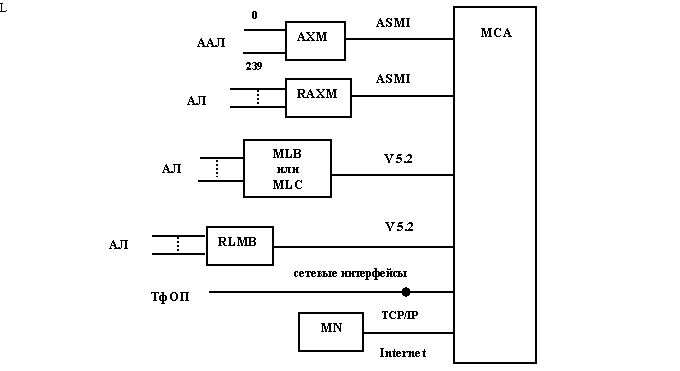
Рисунок 6.25 – Базовая структура ЦСК Si-2000.V5
6.7.2. ЦСК EWSD
Коммутационная система EWSD разработана фирмой Siemens (Германия). ЦСК EWSD может использоваться на всех уровнях иерархии телефонных сетей в качестве оконечной, транзитной, междугородной и международной. EWSD имеет модульную структуру программных и аппаратных средств, обеспечивает широкий спектр основных и дополнительных услуг для стационарных, мобильных и ISDN-абонентов, позволяет подключать различные типы учрежденческих АТС. EWSD может выполнять функции узла коммутации услуг интеллектуальной сети (SSP – Service Switching Point). EWSD поддерживает системы сигнализации по выделенным сигнальным каналам и по ОКС№7. Межстанционная связь осуществляется по стандартным ИКМ-трактам.
Базовая структура ЦСК EWSD показана на рисунке 6.26 [32].
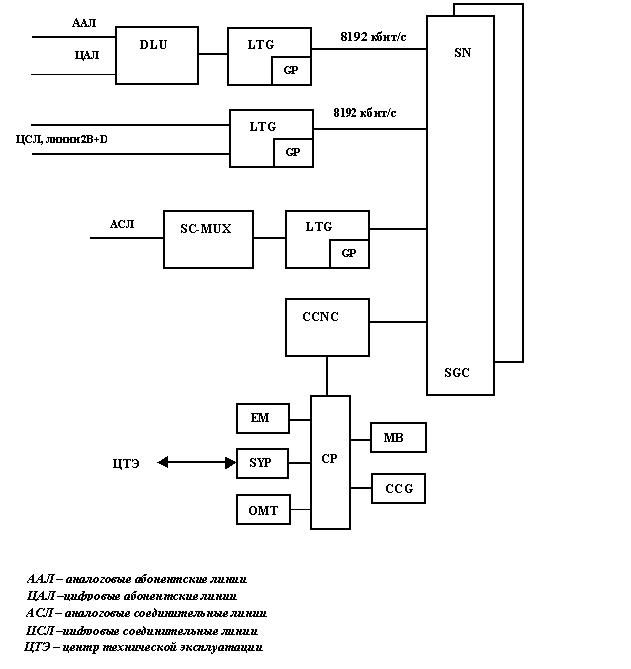
Рисунок 6.26 – Базовая структура ЦСК EWSD
ЦСК EWSD содержит 4 типа аппаратных средств:
1) Оборудование доступа:
— DLU (Digital Line Unit) – цифровой абонентский блок, который может использоваться в качестве абонентского оборудования в самой станции, а также в качестве удаленного концентратора. В блок может включаться: 952 ААЛ или 475 ЦАЛ на входах; 2 или 4 ИКМ-тракта на выходе. Блок выполняет следующие основные функции: BORSCHT (абонентский комплект),сканирование АЛ, выдача информации об изменении состояния АЛ в групповой процессор (GР в блоке LTG), преобразование импульсов набора номера в цифровую форму. Для надежности каждый блок подключается к двум линейным группам LTG.
— LTG (Line Trunk Group) – интерфейс к коммутационному полю SN. Выполняет функции мультиплексирования. Скорость передачи информации на участке LTG – SN 8192 кбит/с (128 каналов со скоростью 64 кбит/с). Каждая линейная группа подключается к обеим плоскостям дублированного коммутационного поля. К LTG могут подключаться: аналоговые АЛ и цифровые с доступом 2В+D; непосредственно цифровые СЛ и линии доступа 30В+D; через мультиплексоры (SC-MUX – Signaling Converter Multiplexer) аналоговые СЛ.
2) Групповое оборудование:
— SN (Switching Network) – цифровое коммутационное поле. Имеет модульную структуру и может строится по двум вариантам в зависимости от емкости: T — S — T (время – пространство – время) или T – S – S – S – T (время — пространство-пространство – пространство – время). Коммутационное поле осуществляет коммутацию между разными LTG, а также между LTG и координационным процессором СР (для обмена данными). Поле имеет две плоскости, каждое соединение устанавливается одновременно через обе плоскости, но информация используется только с одной. Установлением соединения управляет процессор SGC (Switch Group Control), который получает команды от координационного процессора СР.
3) Центральное управляющее устройство:
— CP (Coordination Processor) координационный процессор, который выполняет следующие функции:
— управление базой данных;
— управление всеми программами, станционными и абонентскими данными;
— обработка полученной информации для маршрутизации, выбора пути, учета стоимости вызовов;
— связь с центрами технической эксплуатации ЦТЭ;
— управление интерфейсом «человек-машина»;
— тестирование всех подсистем, обработка аварийной сигнализации.
Помимо координационного процессора в состав центрального управляющего устройства входят:
— МВ (Message Buffer) – буфер сообщений, который используется для координации внутреннего обмена сообщениями между координационным процессором, коммутационным полем, линейными группами и управлением сетью сигнализации по общему каналу;
— CCG (Central Clock Generation) – центральный генератор тактовых и синхроимпульсов, который используется для синхронизации генераторов тактовых импульсов отдельных устройств системы и , при необходимости, сети;
— SYP (System Panel) – системная панель, предназначенная для вывода внутрисистемных аварийных сигналов и непрерывного обзора состояния системы;
— EM (External Memory) – внешнее запоминающее устройство, используемое для хранения программ и данных, непостоянно присутствующих в координационном процессоре, а также для хранения данных по учету стоимости вызовов и измерению нагрузки;
— OMT (Operation and Maintenance Terminal) – терминал для эксплуатации и технического обслуживания.
4) Оборудование сети общеканальной сигнализации ОКС№7:
— CCNC (Common Channel Network Control) – управляющее устройство сети ОКС№7. CCNC подключается к SN с помощью ИКМ-трактов со скоростью передачи 8 Мбит/с. По каналам ОКС передаются данные сигнализации через обе плоскости SN к линейным группам со скоростью 64 кбит/с. Аналоговые сигнальные тракты подключаются с помощью модемов.
Дальнейшее развитие ЦСК EWSD происходит в двух направлениях: наращивание пропускной способности для предоставления традиционных видов услуг и адаптация к обслуживанию трафика данных. В настоящее время на базе существующей структуры EWSD разработаны новые платформы:
· EWSD для узкополосной ISDN (EWSD.V15);
· EWSD Internet Node, позволяющая создавать Internet-узел;
· EWSD Broadband Node для интеграции технологии АТМ и технологии узкополосной ISDN.
Обобщенные технические данные действующих систем EWSD.V10 и EWSD.V15 приведены в таблице 6.4.
Таблица 6.4 – Технические данные ЦСК EWSD
|
Параметр |
Значения параметров |
|
|
EWSD.V10 |
EWSD.V15 |
|
|
1 Количество абонентских линий |
до 250000 |
до 600000 |
|
2 Количество соединительных линий |
до 60000 |
до 240000 |
|
3 Пропускная способность |
до 25200 Эрл |
до 100000 Эрл |
|
4 Число попыток установления соединений в ЧНН |
до 1000000 |
до 4000000 |
|
5 Управляющее устройство сетью ОКС№7 |
до 254 сигнальных каналов |
до 1500 сигнальных каналов |
|
6 Координационный процессор: |
||
|
— емкость ЗУ |
до 64 Мбайт |
до 64 Мбайт |
|
— емкость адресации |
до 4 Гбайт |
до 4 Гбайт |
|
7 Рабочее напряжение |
— 48В или – 60В |
— 48В или – 60В |
|
8 Потребляемая мощность |
1,5 Вт/линию |
менее 1 Вт/линию |
|
9 Стабильность тактовых генераторов: |
||
|
— плезиохронно |
10-9 |
10-9 |
|
— принудительная синхронизация |
10-11 |
10-11 |
6.7.3. ЦСК АХЕ-10
Коммутационная система АХЕ-10 разработана фирмой Ericsson (Швеция). ЦСК АХЕ-10 может использоваться как международная, междугородная, городская (оконечная и транзитная), а также как центральная станция сотовой сети. Предусмотрена стыковка со всеми существующими системами и типами АТС, используются все стандарты систем сигнализации по соединительным и абонентским линиям.
Основные технические характеристики системы [6]:
— система управления иерархическая;
— количество абонентских линий – до 200000;
— количество соединительных линий – до 60000;
— пропускная способность 30000 Эрл;
— количество вызов в ЧНН – до 200000;
— емкость выносных концентраторов – до 2048 АЛ и до 480 СЛ;
— электропитание от –48В до –51В постоянного тока.
АХЕ-10 состоит из двух основных частей (рисунок 6.27): управляющей системы (APZ) и коммутационного оборудования(APT).
Рисунок 6.27 – Структура АХЕ-10
Системы APZ и APT структурно состоят из подсистем. Каждая подсистема делится на несколько частей, называемых функциональными блоками, которые, в свою, очередь, могут состоять из функциональных модулей. Состав подсистем АХЕ-10 показан на рисунке 6.28.
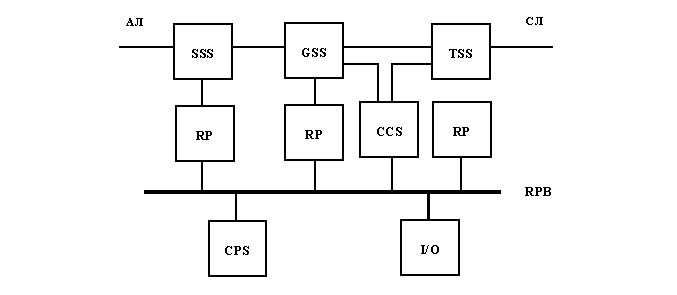
Рисунок 6.28 – Состав подсистем АХЕ-10
Подсистема SSS (subscriber switching subsystem) — подсистема абонентского искания (АИ) управляет нагрузкой от абонентов, подключенных к станции. Предназначена для выполнения индивидуальных функций BORSCHT,а также групповых функций, к которым относятся:
– концентрация нагрузки в сторону GSS;
– прием адресной информации от номеронабирателя декадным кодом и многочастотным кодом.
Подсистема АИ комплектуется из абонентских модулей LSM, в каждый из которых можно включить:
– 128 аналоговых абонентских линий;
– 64 линии базового доступа 2В+D;
– 4 линии первичного доступа 30В+D.
16 LSM объединяются в блок SSS с максимальной емкостью 2048 абонентов. Подсистема SSS может быть местной (SSS) и (RSS) удаленной.
Подсистема GSS (group switching subsystem) – подсистема группового искания (ГИ). Устанавливает, контролирует и разъединяет соединения через ступень ГИ. Выбор пути через эту ступень определяется программными средствами.
Существует 4 варианта построения GSS:
1) емкость 512 трактов;
2) емкость 1024 тракта;
3) емкость 1536 трактов;
4) емкость 2048.
Для надежности ступень GSS имеет 2 плоскости (плоскость А и плоскость В). Информация передается через обе плоскости, но используется только с плоскости А. Если какой-то прибор из плоскости выйдет из строя ,он будет заблокирован. Обслуживание нагрузки на себя возьмет соответствующий прибор другой плоскости.
Подсистема TSS (trunk and signaling subsystem) – подсистема соединительных линий и сигнализации. Управляет сигнализацией и контролем связей с другими станциями. Функции TSS:
1) адаптация системы к различным системам сигнализации:
— выделенный сигнальный канал;
— общий канал сигнализации;
2) контроль и тестирование соединительных линий;
5) передача сигналов между внешними и внутренними программными обеспечением.
Подсистема CCS (common channel signaling subsystem) – подсистема сигнализации ОКС№7. Выполняет функции сигнализации, маршрутизации и контроля передачи и приема сигнальных сообщений.
Подсистема CPS (central processor subsystem) – подсистема центрального процессора. В состав подсистемы входят два одинаковых процессора СР-А и СР-В. каждый из которых имеет собственное ЗУ (рисунок 6.29). Процессоры работают в синхронном режиме. Обнаружение неисправностей, контроль аппаратных средств, испытание неисправных блоков осуществляет подсистема MAS (maintenance subsystem).
Рисунок 6.29 – Структура подсистемы центрального процессора
ПодсистемаRPS (regional processorsubsystem) – подсистема региональных процессоров. Региональные процессоры помогают (центральный процессор) при выполнении часто проводимых задач и передают в центральный процессор информацию о важных событиях, которые происходят в системе. Взаимодействие между центральными и региональными процессорами осуществляется через шину регионального процессора RPB. Региональный процессор принимает команды, проверяет на четность, но выполняет команду ведущей стороны (ведущего процессора). Для надежности все региональные процессоры удвоены и работают по принципу разделения нагрузки.
Подсистема I/O – подсистема ввода/вывода выполняет следующие функции:
— подключение абонентов;
— изменение категорий абонентов;
— вывод данных о тарификации;
— измерения;
— сохранение резервного ПО;
— распечатка сообщений об авариях и неисправностях;
— связь с центрами и технической эксплуатации ЦТЭ.
6.7.4. ЦСК S-12 (Система 12)
Коммутационная система S-12 разработана фирмой Alcatel (Германия). ЦСК S-12 может использоваться на всех уровнях иерархии телефонных сетей в качестве оконечной, транзитной, междугородной и международной. Система обеспечивает широкий спектр основных и дополнительных услуг для стационарных, мобильных и ISDN-абонентов, позволяет подключать различные типы учрежденческих АТС. S-12 может выполнять функции узла коммутации услуг интеллектуальной сети (SSP – Service Switching Point). S-12 поддерживает системы сигнализации по выделенным сигнальным каналам и по ОКС№7. Межстанционная связь осуществляется по стандартным ИКМ-трактам. Оборудование S-12 позволяет организовывать на сети: центр технической эксплуатации ЦТЭ и центр тарификации (биллинг-центр).
Основные технические характеристики:
— количество абонентских линий – более 200000;
— количество соединительных линий – более 85000;
— выносной концентратор доступа до 1024 линий;
— пропускная способность – 35000 Эрл;
— количество вызовов в ЧНН – 2000000;
— электропитание — -48В и –60В постоянного тока.
Можно выделить следующие основные виды конфигурации системы:
1) Местные станции, включают в себя:
Средние/Большие станции: от 512 до 200 тыс. линий
Малые: от 256 до б тыс. линий
2) Удаленные концентраторы, включают в себя:
Выносной абонентский блок до 488 линий
Выносной коммутатор доступа до 1024 линий.
3) Станции с радиодоступом: от 250 до 320 абонентов
4) Оборудование сотовой сети подвижной связи.
5) Междугородние/международные станции: до 60 тыс. соединительных линий (трактов).
S-12 является многомодульной, программно управляемой системой с распределенным управлением. Аппаратные средства размещены в модулях различных типов (рисунок 6.30).
Каждый модуль выполняет определенные функции под управлением собственного процессора. Процессор управляет модулем по предварительно записанной программе. Модули взаимосвязаны посредством межмодульных трактов, которые централизованы в групповом переключателе (коммутационном поле).
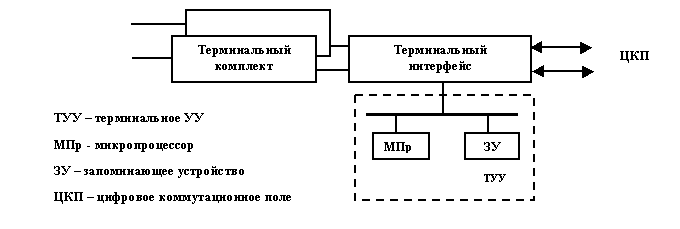
Рисунок 6.30 – Структура терминального модуля
Все типы конфигураций S-12 используют базовую структуру. На рисунке 6.31 показана базовая структура ЦСК S-12.
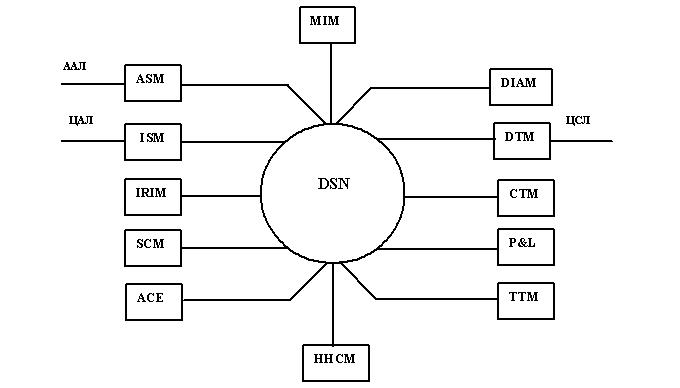
Рисунок 6.31 – Структурная схема ЦСК S-12
Терминальные модули S-12 разделены на четыре группы:
1) Модули доступа:
— ASM – аналоговый абонентский модуль, обеспечивает подключение аналоговых абонентских линий. Каждый модуль состоит из 8 печатных плат, на каждой из которых расположено 16 абонентских комплектов, следовательно, модуль обеспечивает подключение 128 абонентских линий. Модуль выполняет функции BORSCHT (абонентский комплект).
— Сканирование АЛ, концентрацию нагрузки.
— IRIM – модуль интерфейса для вынесенного абонентского блока, который поддерживает два интерфейса 2 Мбит/с (потоки Е1) к одному выносному блоку ISDN (IRSU).
— ISM – модуль ISDN-абонентов, который предназначен для обслуживания максимум 64 базовых доступа 2В+D. Абонент может подключить до 8 терминалов, таких как телефон, факс ПК и т. д.
— DTM – модуль цифровых трактов, который обслуживает один тракт ИКМ, а также может обрабатывать выделенный канал сигнализации ВСК.
— MIM – модуль взаимодействия подвижной связи, реализует согласование скоростей и преобразование протокола для вызовов данных к и от подвижных абонентов в центре коммутации подвижной связи.
2) Групповое оборудование:
— DSN – цифровое коммутационное поле, состоит из нескольких ступеней искания (звеньев) и плоскостей. Максимальный вариант комплектации предусматривает наличие четырех пространственно-временных звеньев и четырех плоскостей. Выбор комплектации поля зависит от емкости станции и величины нагрузки; нагрузка влияет на число плоскостей, а емкость на число звеньев. Коммутационное поле выполняет команды процессоров для установления соединения между абонентскими и соединительными линиями, для передачи речи и данных, и для передачи сообщений между процессорами.
3) Служебные модули:
— SCM — модуль служебных комплектов, обрабатывает сигналы многочастотной сигнализации и набора номера от телефонных аппаратов с многочастотной тастатурой.
— ННСМ – модуль ОКС№7, может обслуживать максимум 8 трактов ОКС.
— СТМ – модуль тактовых и тональных сигналов, управляет подсистемой синхронизации станции, генерирование тональных сигналов для абонентов и службы времени. Генерируемая частота синхронизации 8192 МГц. Для надежности используются два модуля.
— TTM – модуль тестирования трактов, используется для тестирования качества сигнализации, коммутации и передачи в исходящих направлениях.
— DIAM – модуль динамического интегрированного автоответчика, поддерживает следующие категории речевых сообщений: двухязычные сообщения, говорящие часы на фоне музыки и без музыки, сообщения дополнительных услуг (срочный вызов, побудка), длинные сообщения (погода, новости), заказные сообщения.
4) Модули управления:
— ТСЕ – терминальный элемент управления, осуществляет управление терминальным модулем, содержит логику управления и память (см. рисунок 5.30).
— ACE – дополнительный элемент управления, обеспечивает дополнительную вычислительную мощность для выполнения ряда функций: анализ префикса, централизованное хранение данных, выбор тракта и т. д.
— P&L – модуль периферийных устройств и загрузки, содержит копию системного ПО и системных данных. Для создания копии может использоваться накопитель на магнитной ленте или оптический диск. Для организации связи «человек-машина» используется ПК и принтер. Максимально возможно 10 подключений.
Описание презентации по отдельным слайдам:
-
1 слайд
Сервисная информация SI2000 V5
Михаил Соколов
УФМ Россия 2008, Иволга 01.- 02.10.2008 -
2 слайд
Фильтрация по номеру абонента А
Screening (фильтрация по номеру А), присвоение категории и группы маршрутизации.
При подключении УПАТС сигнализацией DSS1 нет возможности им передавать, а нам получать категорию абонента. В продуктах CS5083/LS5083/LS5092 появилась возможность на входе SI2000 по номеру вызывающего абонента (абонента А) присваивать ему категорию и дополнительно к этому группу маршрутизации. -
3 слайд
Фильтрация по номеру абонента А
Необходимо выполнить
настройку транк-группы -
4 слайд
Фильтрация по номеру абонента А
Выбрать “Screening”, как показано на рисунке -
5 слайд
Фильтрация по номеру абонента А
Далее следует создать список номеров -
6 слайд
Фильтрация по номеру абонента А
Для транк-группы,
для номера или префикса
определяется значение категории
и критерия маршрутизации
Найдите материал к любому уроку, указав свой предмет (категорию), класс, учебник и тему:
7 284 999 материалов в базе
- Выберите категорию:
- Выберите учебник и тему
- Выберите класс:
-
Тип материала:
-
Все материалы
-
Статьи
-
Научные работы
-
Видеоуроки
-
Презентации
-
Конспекты
-
Тесты
-
Рабочие программы
-
Другие методич. материалы
-
Найти материалы