

s
HiPath 3000
HiPath AllServe
Hicom 150 E /H
optiPoint 500 economy
optiPoint 500 basic
optiPoint 500 standard
optiPoint500 advance
Инструкция по
эксплуатации
Введение
Введение
В этой инструкции по эксплуатации описывается работа с телефонными аппаратами
optiPoint500 economy, optiPoint 500 basic, optiPoint 500 standardиoptiPoint 500 advance,
подключенными к
В инструкции описываются все функци телефонов.Возможно,некоторые функции
которыми вы захотите воспользоваться,будут недоступны на вашем телефоне.Это может
произойт и по сл еду ющ им пр ичина м
•
Функция не сконфигурирована на вашем телефоне—обратитесь в службу обслуживания
•
Ваша коммуникационная платформа не поддерживает эту функцию—обратитесь в
представительство фирмы
Рекомендации
HiPath 3000/HiPath AllServe.
,
:
Siemens
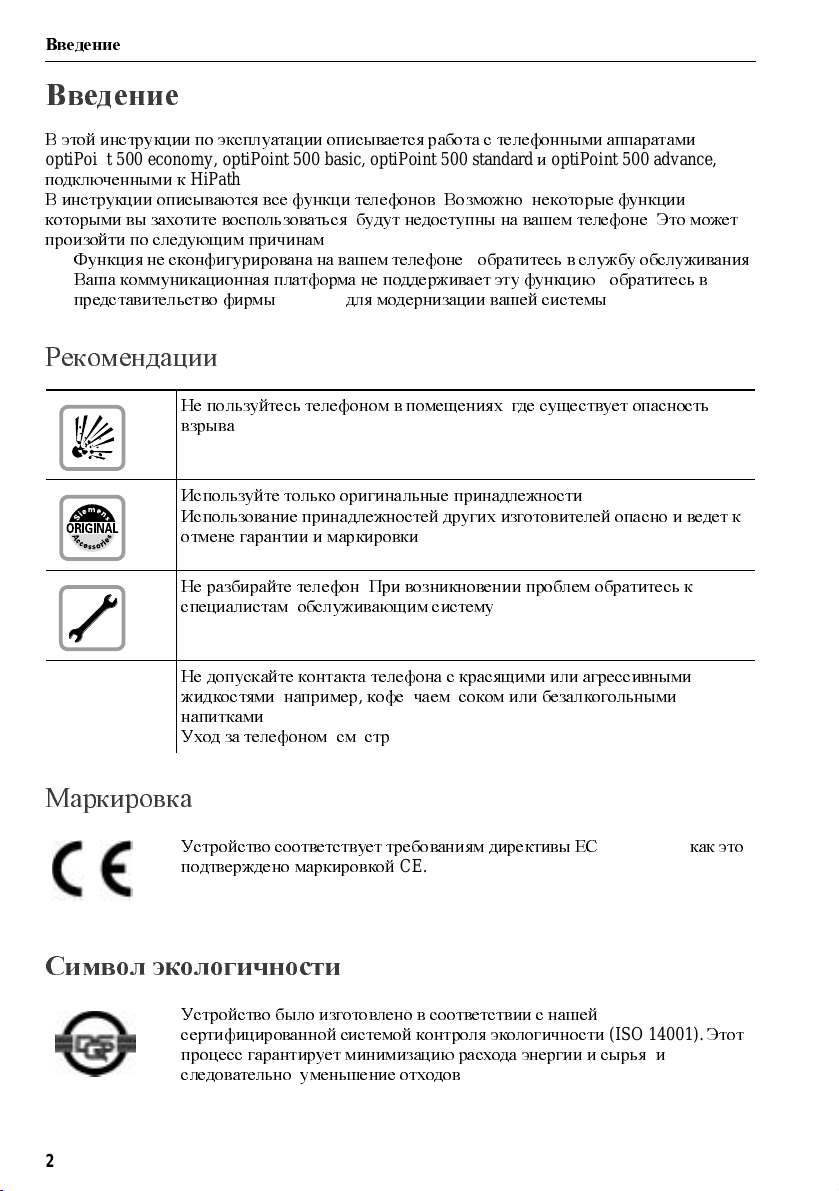
Не пользу йтесь телефоном в помещениях,где существует опасность
взрыва
!
для модернизации вашей системы
.
.
Используйте только оригинальные принадлежности
Использование принадлежностей других изготовителей опасно и ведет к
отмене гарантии и маркировки
Не разбирайте телефон.При возникновении проблем обратитесь к
Маркировка
специалистам
Не допускайте контакта телефона с красящими или агрессивными
жидкостями
напитками
Уход за телефоном,см.стр
CE
Устройство соответствует требованиям директивы ЕС
подтверждено маркировкой
,
обслуживающим систему
,
например,кофе,чаем,соком или безалкогольными
.
Символ экологичности
Устройство было изготовлено в соответствии с нашей
сертифицированной системой контроля экологичности
процесс гарантирует минимизацию расхода энергии и сырья
следовательно
,
уменьшение отходов
. 104.
CE.
CE.
Siemens.
.
1999/5/EG,
(ISO 14001).
.
как это
Этот
,
и
2
Содержание
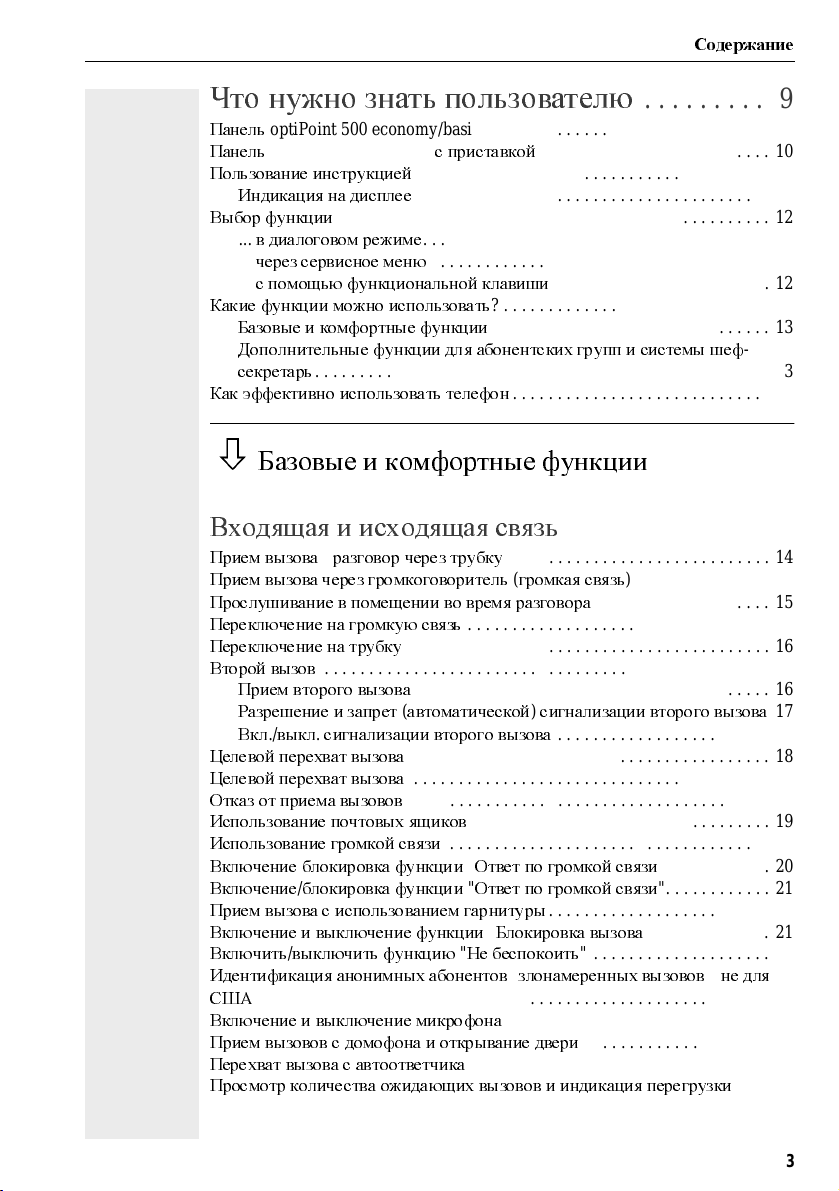
Что нужно знать пользователю
Панель
optiPoint500economy/basic/standard……………………..9
Панель
optiPoint 500 advance
Пользование инструкцией
Индикация на дисплее
Выбор функции
…
в диалоговом режиме
…
через сервисное меню
…
с помощью функциональной клавиши
Какие функции можно использовать
Базовые и комфортные функции
Допол ните льны е функции дл я або не нтс ких гр упп и сис те м ы ше ф
секретарь
Как эффективно использовать телефон
Базовые и комфортные функции
…………………………………………12
……………………………………………13
Входящая и исходящая связь
Прием вызова—разговор через трубку
Прием вызова через громкоговоритель(громкая связь
Прослушивание в помещении во время разговора
Переключение на громкую связь
Переключение на трубку
Второй вызов
Прием второго вызова
Разреше ние и запр ет(автоматической)сигнализации второго вызова
Вкл./выкл.сигнализации второго вызова
Целевой перехват вызова
Целевой перехват вызова
Отказ от приема вызовов
Использование почтовых ящиков
Использование громкой связи
Включение/блокировка функции«Ответ по громкой связи
Включение/блокировка функции«Ответ по громкой связи
Прием вызова с использованием гарнитуры
Включение и выключение функции«Блокировка вызова
Включить/выключить функцию«Не беспокоить
Идентификация анонимных абонентов(злонамеренных вызовов)(не для
США
)…………………………………………………22
Включение и выключение микрофона
Прием вызовов с домофона и открывание двери
Перехват вызова с автоответчика
Просмотр количества ожидающих вызовов и индикация перегрузки
…………………………………………..16
с приставкой
………………………………….11
………………………………….11
…………………………………12
………………………………..12
optiPointkeymodule……..10
……………………12
?…………………………13
…………………………. 13
………………………..13
……………14
…………………………14
……………………………. 16
…………………………………..16
………………………………….16
……………………18
………………………………….18
………………………………….19
…………………………………..19
…………………………….19
………………………………20
…………………….21
«………………..22
…………………………23
…………………………….25
……….9
—
)……………14
………………..15
«…………20
«…………21
«………….21
…………………24
….26
17
3
Содержание
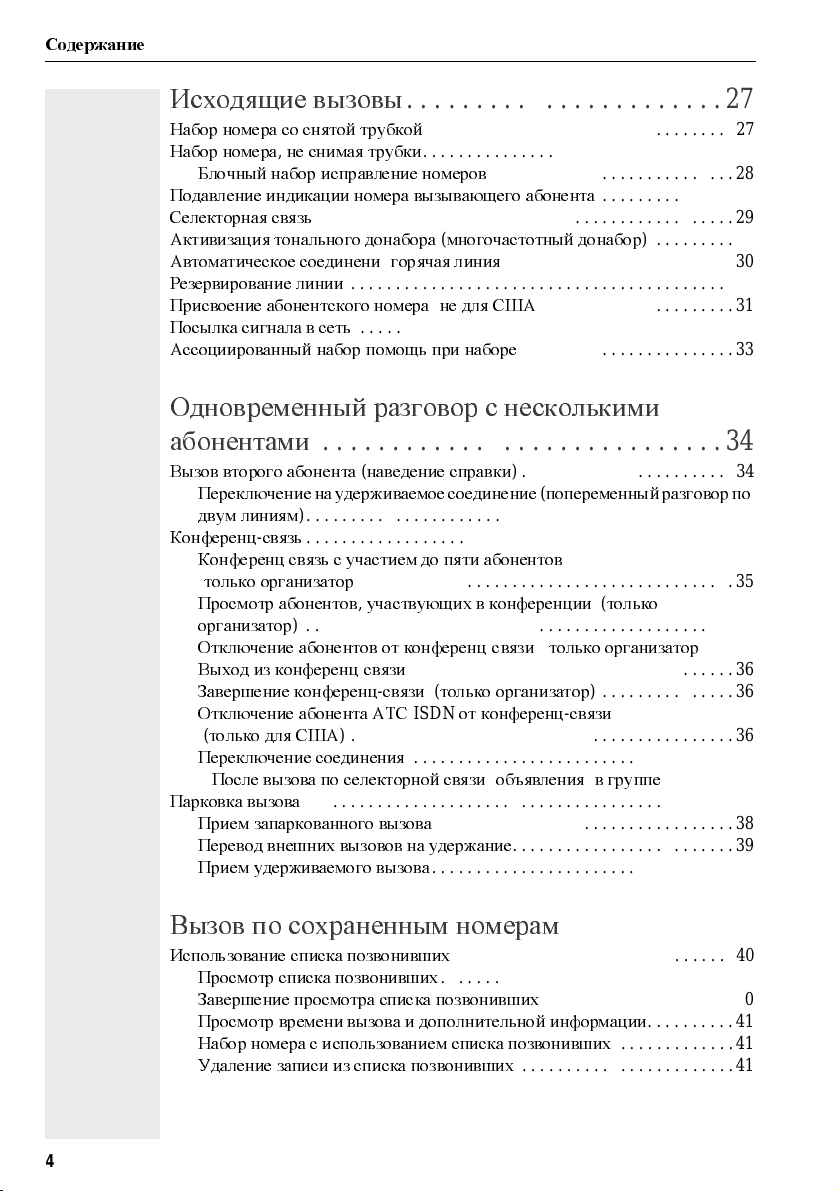
Исходящие вызовы
Набор номера со снятой трубкой
Набор номера,не снимаятрубки
Блочный набор/исправление номеров
Подавление индикации номера вызывающего абонента
Селекторная связь
Активизация тонального донабора(многочастотныйдонабор
Автоматическое соединени(горячая линия
Резервирование линии
Присвоение абонентского номера(не для США
Посылка сигнала в сеть
Ассоциированный набор/помощь при наборе
………………………………………..29
…………………..27
…………………………… 27
……………………………..27
………………………28
……………29
) ………30
)…………………….30
…………………………………….31
)…………………31
……………………………………32
……………………33
Одновременный разговор с несколькими
абонентами
Вызов второго абонента(наведение справки
Переключение на удерживаемое соединение(попеременный разговор по
двум линиям
Конференц—связь
Конференц связь с участием до пяти абонентов
(
только организатор
Просмотр абонентов,участвующих в конференции(только
организатор
Отключение абонентов от конференц—связи(только организатор
Выход из конференц—связи
Завершение конференц—связи(только организатор
Отключение абонента АТС
(
только для США
Переключение соединения
…
После вызова по селекторной связи(объявления)в группе
Парковка вызова
Прием запаркованного вызова
Перев о д внеш них в ызо во в на удержание
Прием удерживаемого вызова
………………………..34
)………………….. 34
)…………………………………………34
…………………………………………35
) …………………………………..35
)…………………………………………36
………………………………36
)……………36
ISDN
от конференц—связи
)…………………………………….36
………………………………37
……..37
…………………………………………38
……………………………38
…………………….39
…………………………….39
)…36
Вызов по сохраненным номерам
Использо ва ние с писк а позв о нивш их
Просм о тр с писк а позв о нивш их
Завершение просмотра списка позвонивших
Просмотр времени вызова и дополнительной информации
Набор ном е р а с испо л ьзов ан ием с пис ка по зво нивших
Удаление записи из спис ка позвонивших
4
………………………… 40
……………………………40
…………40
…………………40
……….41
………….41
……………………41
Содержание
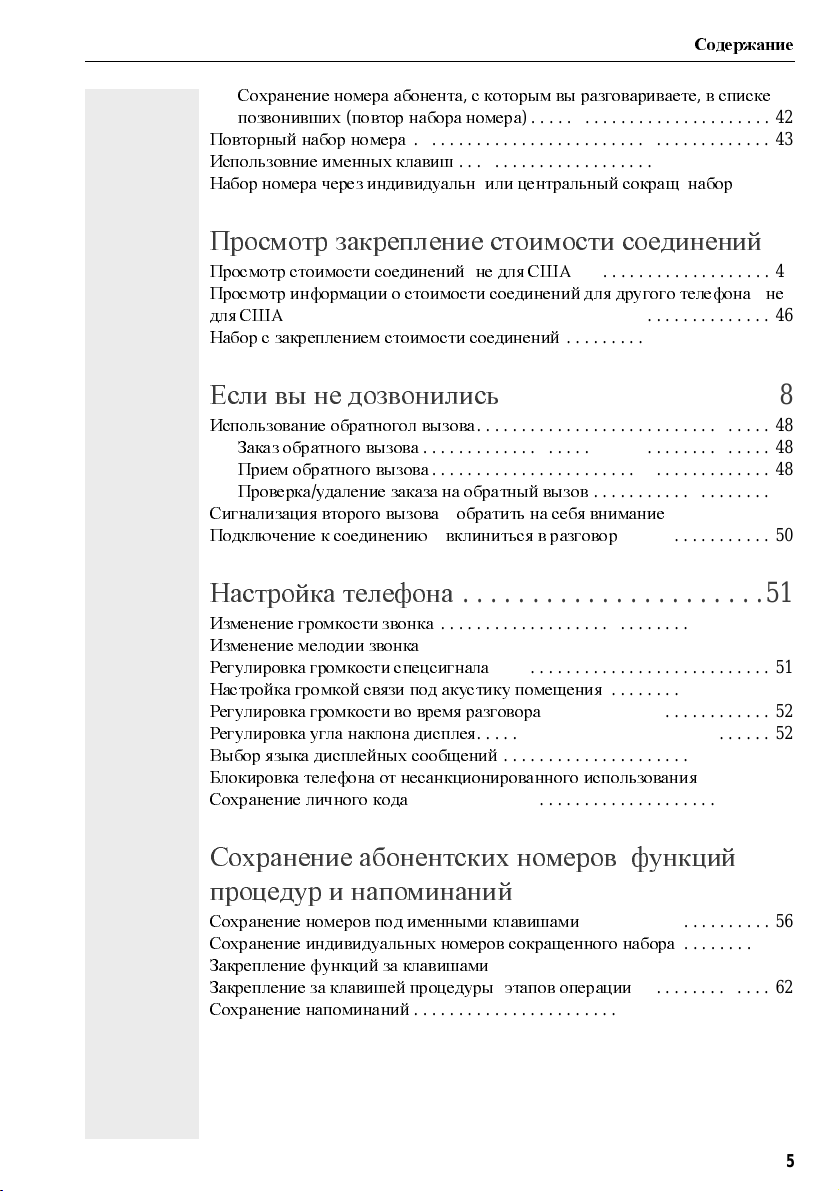
Сохранение номера абонента,с которым вы разговариваете,в списке
позвонивших
Повторный набор номера
Использовние именных клавиш
Набор номера через индивидуальн.или центральный сокращ.набор
(
повтор набора номера
………………………………….43
……………………………..44
)………………………42
….44
Просмотр/закрепление стоимости соединений
Просмотр стоимости соединений(не для США
Просмотр информации о стоимости соединений для другого телефона(не
для США
Набор с закреплением стоимости соединений
Если вы не дозвонились
Использование обратногол вызова
Сигнализация второго вызова–обратить на себя внимание
Подключение к соединению–вклиниться в разговор
Настройка телефона
Изменение громкости звонка
Изменение мелодии звонка
Регулировка громкости спецсигнала
Настройка громкой связи под акустику помещения
Регулировка громкости во время разговора
Регулировка у гла наклона дисплея
Выбор языка дисплейных сообщений
Блокировка телефона от несанкционированного использования
Сохранение личного кода
)……………………………………………..46
………………..48
…………………………… 48
Заказ обратного вызова
Прием обратного вызова
Проверка/удаление заказа на обратный вызов
…………………………………48
………………………………..48
………………….51
……………………………….51
…………………………………51
…………………………. 51
…………………………… 52
…………………………52
………………………………….55
)…………………45
…………………..47
………………..48
…………49
……………..50
………………52
…………………….52
……..54
45
Сохранение абонентских номеров,функций
процедур и напоминаний
Сохра нение но м ер о в по д именны ми кл ав иш ам и
Сохранение индивидуальных номеров сокращенного набора
Закрепле ние функций за клавиш ам и
Закрепле ние за кл ав иш е й проц едуры(этапов операции
Сохранение напоминаний
………………………………….64
………………56
…………………56
……….57
…………………………. 58
) …………..62
,
5
Содержание
Проверка телефона
Проверка работоспособности телефона
Проверка назначения клавиш
Переадресация вызовов
Использование временной переадресации
Использование ночного режима
Переадресация вызовов в сеть оператор а
переадресация множественных абонентских номеров
(MSN) (
не для США
) ……………………………………..68
Использование других функций
Передача сообщений
Просмотр и удаление отправленных сообщений
Ответ на сообщения
Оставить сообщение/текст ответа
Удаление текста ответа
Использование другого телефона как своего собственного
Поменять абонентский номер(замена аппарата
передислокация абонента
Info
при приеме телефакса/сообщения на автоответчик
Отмена услуг и функций(общесистемная отмена функций телефона
Скрытое прослушивание
Контроль помещения
Активизация функций для другого телефона
Блокировка другого телефона от использования другими лицами
Использо ва ние с ист ем ных ф у нк ций с внеш них т ел ефо но в
DISA(DirectInwardSystemAccess) …………………………..76
Использование функций в сетях
(
клавиш ный набо р
Управление подключенными компьютерами или программами/телефонная
служба данных
Управление реле
…………………………………….. 69
……………………………………..74
) ………………………………………78
(
только для
…………………………………………80
…………………..65
………………………. 65
……………………………….65
……………….66
…………………….. 66
……………………………..67
/
…………69
………………….69
……………………………………69
………………………….70
…………………………………66
………….71
/
)………………………………… 72
…………….73
)…73
…………………………………..74
……………………75
…….76
ISDN
с помощью набора кодов
HiPath 3500/3550/3700/3750) . …………79
6
Содержание
Датчики(только
Радиопейджинг(не для США
Простое оборудование для пейджинга
Расшир енно е о бор удование дл я пейджинга(только
Функции группы и системы шеф—секретарь
Группа
HiPath 3300/3350/3500/3550) …………………..80
)………………………………81
……………………..81
Hipath 3700/3750)81
/
шеф—секретарь с выделенными линиями
83
Использование линейных клавиш
Прием вызовов с помощью линейных клавиш
Вызовы с использованием линейных клавиш
Использование линейных клавиш для удержания и повторного приема
вызовов
Попеременный разговор по нескольким линиям
Переадресация вызовов для линии
Использование клавиш прямого вызова
Использование клавиш
Прямой вызов абонентов группы
Переключение соединения
Прием вызова для другого абонента
Подключение или отключение от группового вызова
(
не для телефона шефа в группе шеф—секретарь
Перекл ючение вы зов о в непо с ре дс тв енно на аппарат ш еф а(только в группе
—
шеф
…………………………………………….84
секретарь
)………………………………………….89
…………………………… 83
………………..84
…………………84
………………85
………………………..85
(DSS)…………………..87
DSS
для приема вызовов
…………………………. 87
…………………………………88
…………………………. 88
……………..87
))………………..88
Использование других функций в группе
Включение и выключение группового вызова
Прием вызова,адресо в анно г о другому абоненту ва ш ей гр уппы
Подключение вызова
Равномерное распределение вызовов
……………………………………..92
(UCD) ……………………93
…………………..90
….90
……..92
7
Содержание
Объединение систем в сеть
LAN (
сеть ПК
)
Специальные функции в компьютерной сети
(LAN)…………………………….95
Отключение от общего абонентского ввода/группы вызова
Переадресация«Следуй за мной
Использование ночного режима
Подключение вызова
Управление реле
Открывание двери
О телефоне
……………………………………..98
…………………………………………99
……………………………………….100
«…………………………….96
……………………………..97
……….. 95
Надписи для клавиш и документация
Надписи для клавиш
Крепление таблички с абонентскими номерами
Документация
Принадлежности
Рекомендации
Уход за телефоном
Устранение неисправностей
Сообщения об ошибках,выводимые на дисплей
Помощ ь в ре ш ении пр обл е м
Алфавитный указатель
……………………………………. 101
…………………102
………………………………………….102
………………………………………..103
……………………..104
…………………………………….. 104
……………………………….104
………………..105
……………………………….105
……………….106
……101
8
Что нужно знать пользователю
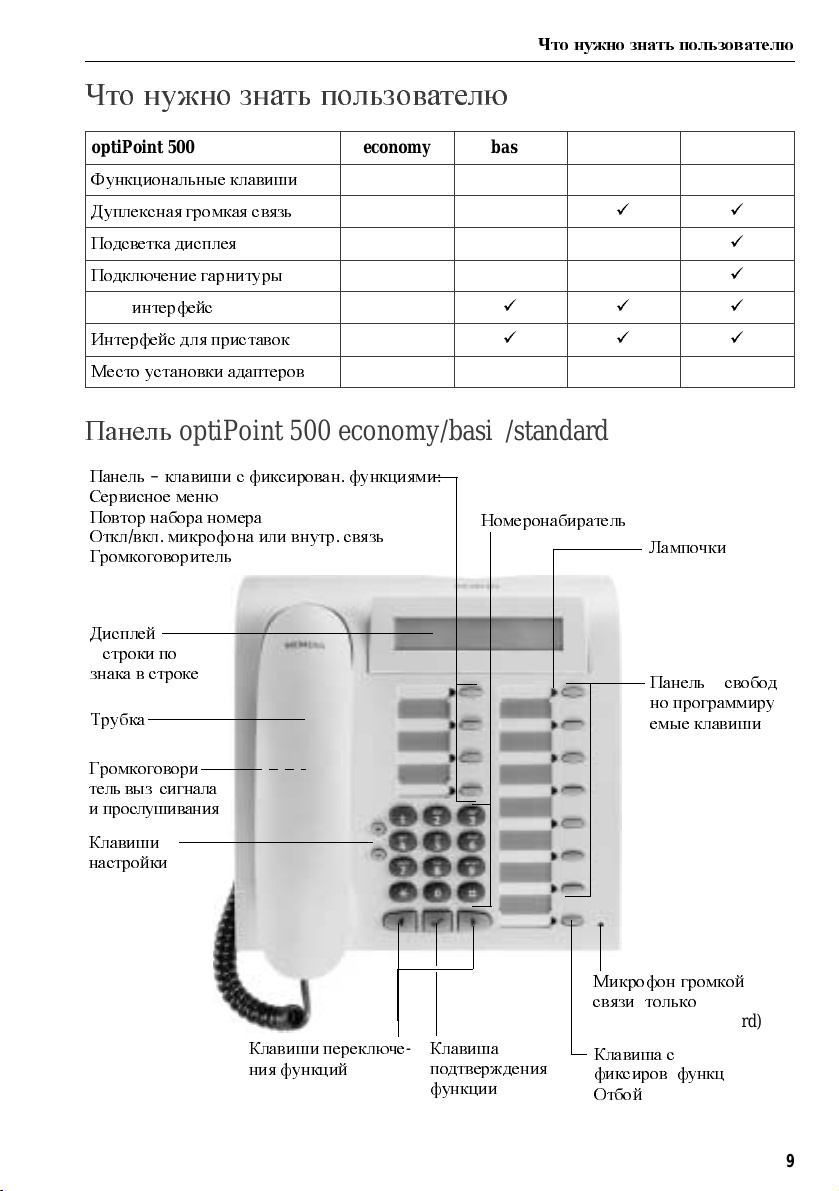
Что нужно знать пользователю
optiPoint 500 economy basic standard advance
Функциональные клавиши
Дуплексная громкая связь
Подсветка дисплея
Подключение гарнитуры
USB-
интерфейс
Интерфейс для приставок
Место установки адаптеров
12 12 12 19
—
—
—
—
—
0112
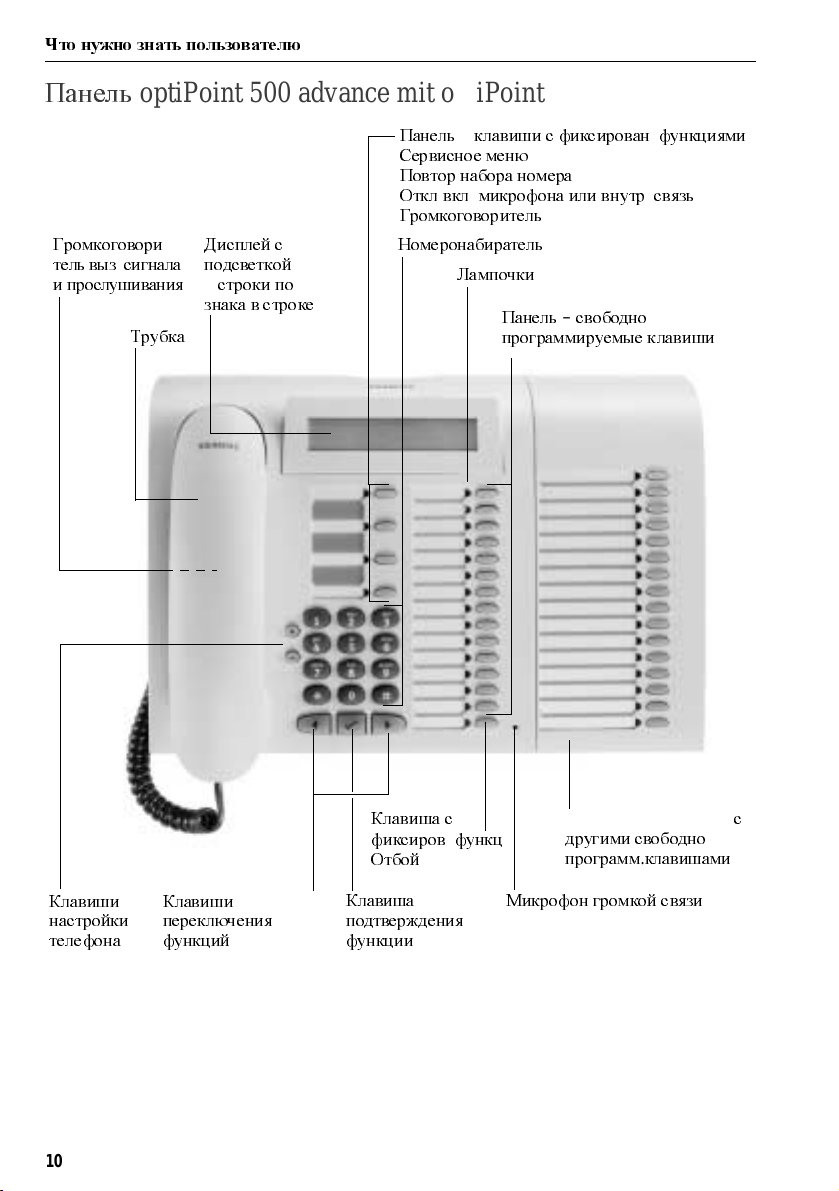
Панель
Панель
Сервисное меню
Повтор набора номера
Откл
Громкоговоритель
Дисплей
2
строкипо
знака в строке
Трубка
Громкоговори
тель выз.сигнала
и прослушивания
Клавиши
настройки
optiPoint 500 economy/basic/ standard
–
клавиши с фиксирован.функциями
/
вкл.микрофона или внутр.связь
,
24
—
Клавиши переключе
ния функций
:
Клавиша
—
подтверждения
функции
Номеронабиратель
Микрофон громкой
связи
optiPoint500 standard)
Клавиша с
фиксиров
Отбой
Лампочки
Панель
но программиру
емые клавиши
(
только
.
функц
–
свобод
:
—
—
9
Что нужно знать пользователю
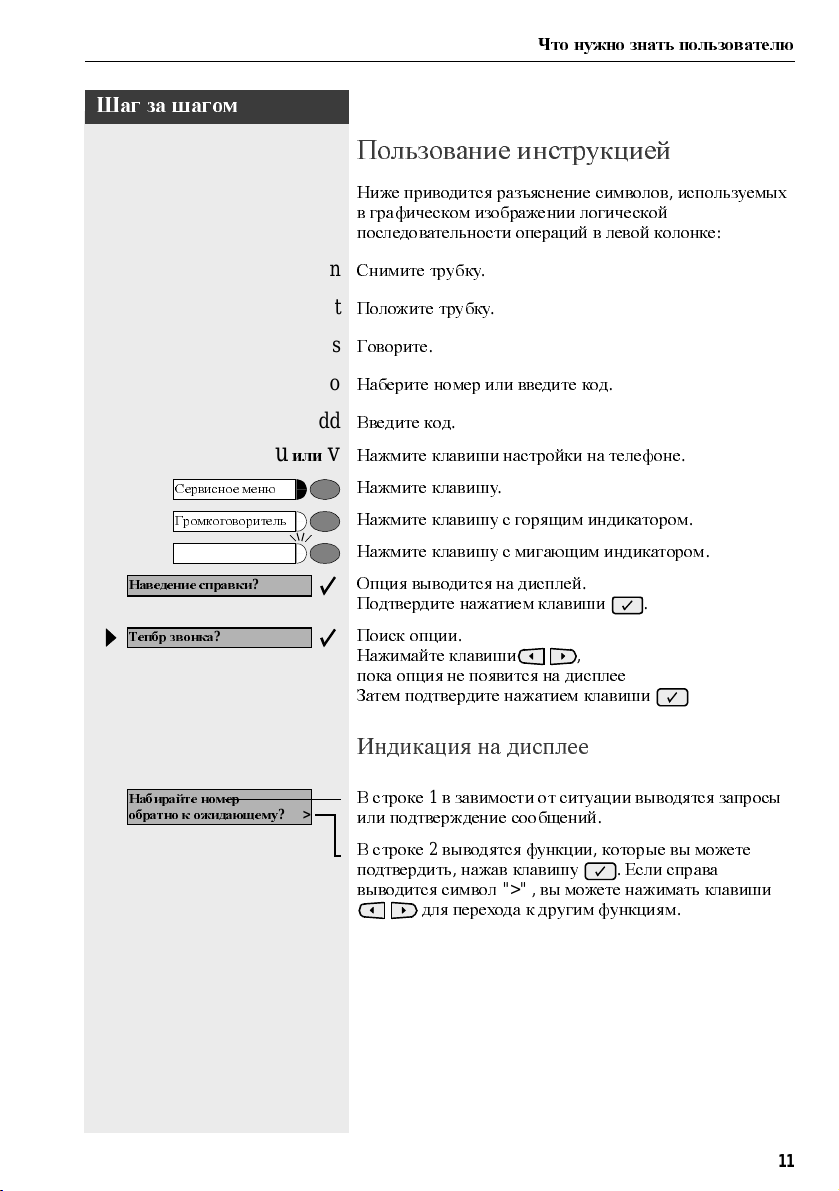
Панель
Громкоговори
тель выз.сигнала
и прослушивания
optiPoint 500 advance mit optiPoint key module
Трубка
Дисплей с
—
подсветкой
2
знака в строке
строки по
24
Панель
–
клавиши с фиксирован.функциями
Сервисное меню
Повтор набора номера
Откл
/
вкл.микрофона или внутр.связь
Громкоговоритель
Номеронабиратель
Лампочки
Панель–свободно
программируемые клавиши
:
Клавиши
настройки
телефона
10
Клавиши
переключения
функций
Клавиша с
фиксиров
Отбой
Клавиша
подтверждения
функции
.
optiPointkey module
функц
:
другими свободно
программ
Микрофон громкой связи
.
клавишами
с
Шаг за шагом
Сервисное меню
Громкоговоритель
Наведение справки
Тепбр звонка
?
Что нужно знать пользователю
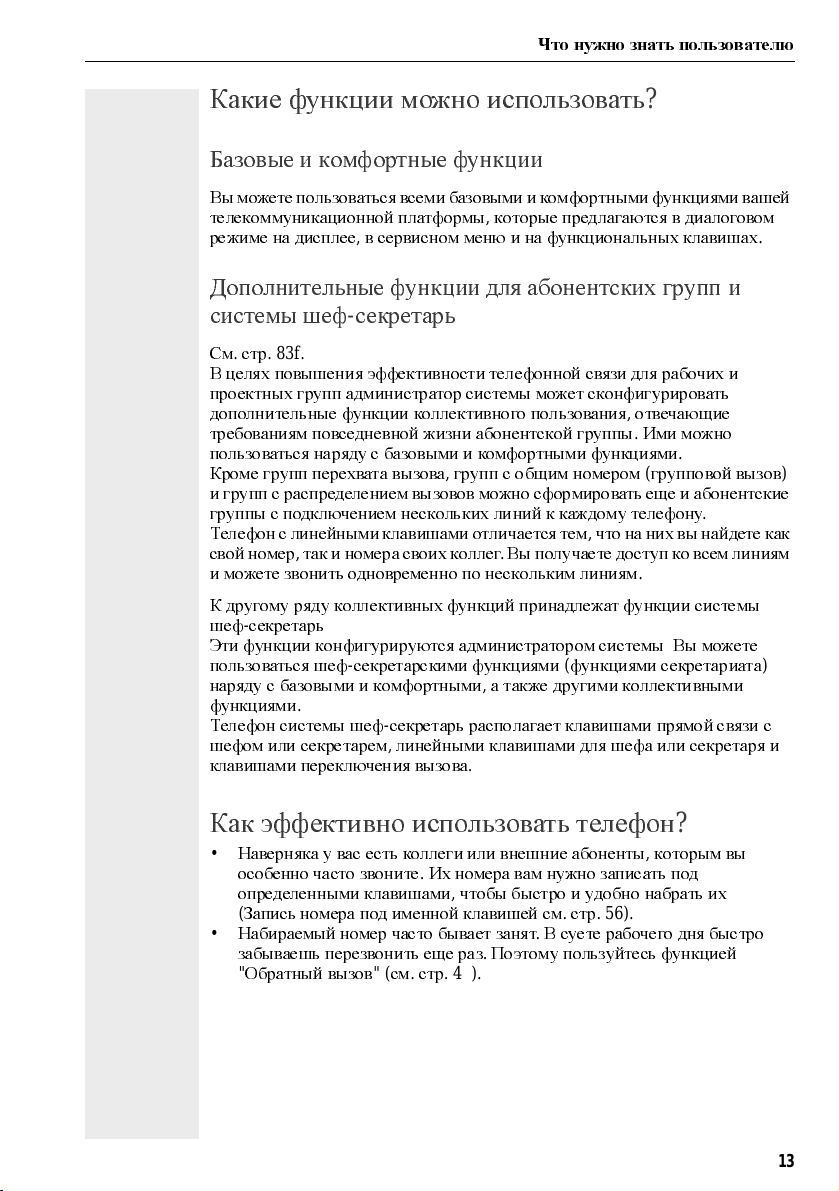
Пользование инструкцией
Ниже приводится разъяснение символов,используемых
в графическом изображении логической
последовательности операций в левой колонке
n
Снимите трубку
t
Положите трубку
s
Говорите
o
Наберите номер или введите код
dd
Введите код
u
илиvНажмите клавиши настройки на телефоне
Нажмите клавишу
Нажмите клавишу с горящим индикатором
Нажмите клавишу с мигающим индикатором
?
Опция выводится на дисплей
Подтвердите нажатием клавиши
Поиск опции
Нажимайте клавиши
пока опция не появится на дисплее
Затем подтвердите нажатием клавиши
.
.
.
.
.
.
.
,
:
.
.
.
.
.
.
.
Набирайте номер
обратно к ожидающему
? >
Индикация на дисплее
В строке1в завимости от ситуации выводятся запросы
или подтверждение сообщений
В строке2выводятся функции,которые вы можете
подтвердить
выводится символ
,
нажав клавишу
«>» ,
для перехода к другим функциям
.
.
Если справа
вы можете нажимать клавиши
.
11

Что нужно знать пользователю
Шаг за шагом
Выбор функции
…
в диалоговом режиме
Переадресация вкл
Обратный вызов
Послать
Info
Сервисное меню
#0=
Отключить службы
Некоторые функции
сотоянии
.
Выберите клавишами и подтвердите выбор
клавишей
Другие функции
установленного соединения
но линия занята
Подтвердите клавишей
или
Выберите клавишами и подтвердите клавишей
…
Dazu drьckenSiezuerstdieTaste»
schlie
z. B: «#0=Dienste zur
Нажмите клавишу
?
Выберите клавишами и подтвердите клавишей
или
rd
Введите код
Коды указаны в краткой инструкции,но они
отображаются также на дисплее вместе с названием
функции
,
напр
.
через сервисное меню
Я
end werden Ihnen Auswahlmцglichkeiten angeboten,
.
.
.
можно выбрать в исходном
.:
.
можно выбратьпо ситуации во время
:
ь
cksetzen» ‡ Seite 73.
.
Напр.вы набрали номер
.
Сервисное меню
,
«. An-
12
…
с помощью функциональной клавиши
Функцию,сохраненнную вами под клавишей(см.стр
58),
вы можете вызвать напрямую,напр
Нажмите клавишу«Вкл./выкл.блокировки вызова
Функция активизируется
.
.:
«.
.
Что нужно знать пользователю
Какие функции можно использовать
?
Базовые и комфортные функции
Вы можете пользоваться всеми базовыми и комфортными функциями вашей
телекоммуникационной платформы
режиме на дисплее
,
в сервисном меню и на функциональных клавишах
,
которые предлагаются в диалоговом
.
Дополнительные функции для абонентских групп и
системы шеф—секретарь
См.стр
.83f.
В целях повышения эффективности телефонной связи для рабочих и
проектных групп администратор системы может сконфигурировать
дополнительные функции коллективного пользования
требованиям повседневной жизни абонентской группы
пользоваться наряду с базовыми и комфортными функциями
Кроме групп перехвата вызова,групп с общим номером(групповой вызов
и групп с распределением вызововможносформировать еще и абонентские
группы с подключением нескольких линий к каждому телефону
Телефон с линейными клавишами отличается тем,что на них вы найдете как
свойномер
и можете звонить одновременно по нескольким линиям
К другому ряду коллективных функций принадлежат функции системы
шеф
Эти функции конфигурируются администратором системы.Вы можете
пользоваться шеф
наряду с базовыми и комфортными,а также другими коллективными
функциями
Телефон системы шеф—секретарь располагает клавишами прямой связи с
шефом или секретарем
клавишами переключения вызова
,
—
секретарь
.
таки номерасвоих коллег.Вы получаете доступ ко всем линиям
.
—
секретарскими функциями(функциями секретариата
,
линейными клавишами для шефа или секретаря и
.
,
отвечающие
.
Ими можно
.
.
.
)
)
Как эффективно использовать телефон
•
Наверняка у вас есть коллеги или внешние абоненты,которым вы
особенно часто звоните
определенными клавишами
(
Запись номера под именной клавишей см.стр
•
Набираемый номер часто бывает занят.В суете рабочего дня быс тро
забываешь перезвонить еще раз
«
Обратный вызов«(см.стр
Basis- und Komfortfunktionen
.
Их номера вам нужно записать под
,
чтобы быстро и удобн о набрать их
. 56).
.
Поэтому пользуйтесь функцией
. 48).
?
13
Входящая и исходящая связь
Шаг за шагом
Вхо д ящая и исх о дящая связь
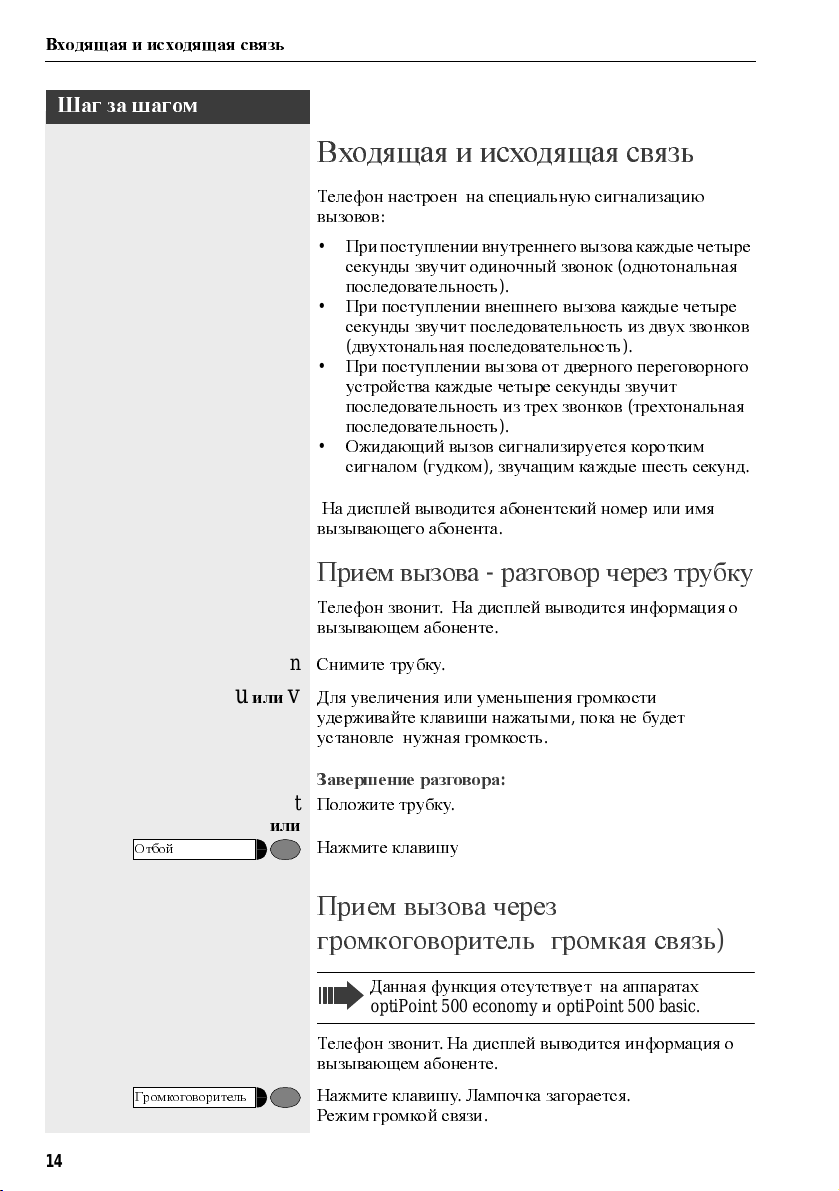
Телефон настроен на специальную сигнализацию
вызовов
•
•
•
•
вызывающего абонента
Прием вызова—разг овор через трубку
Телефон звонит.На дисплей выв одитс я информ ация о
вызывающем абоненте
:
При поступлении внутреннего вызова каждые четыре
секунды звучит одиночный звонок
последовательность
При поступлении внешнего вызова каждые четыре
секунды звучит последовательность из двух звонков
(
двухтональная последовательность
При поступлении вызова от дверного переговорного
устройства каждые четыре секунды звучит
последовательность из трех звонков
последовательность
Ожидающий вызов сигнализируется коротким
сигналом
На дисплей выв одится а боне нтс кий ном е р ил и имя
(
гудком),звучащим каждые шесть секунд
).
).
.
.
(
однотональная
).
(
трехтональная
.
14
Отбой
Громкоговоритель
n
Снимите трубку
u
илиvДля увеличения или уменьшения громкости
удерживайте клавиши нажатыми
ус та но вл е ну жна я гро м ко ст ь
Завершение разговора
t
Положите трубку
или
Нажмите клавишу
.
,
пока не будет
.
:
.
.
Прием вызова через
(
громкоговоритель
Данная функция отсутствует на аппаратах
optiPoint500 economyиoptiPoint500 basic.
Телефон звонит.На дисплей выводится информация о
вызывающем абоненте
Нажмите клавишу.Лампочка загорается
Режим громкой связи
.
громкая связь
.
)
.
Шаг за шагом
Входящая и исходящая связь
u
илиvНажмите для увеличения или у м е ньш ения гр о мк ос ти
Удержива йте кл ав иш и нажатым и,поканебудет
уст а нов л ена нужная гром ко ст ь
.
.
Громкоговоритель
Отбой
Завершение разговора
Нажмите кла в иш у.Лампочка га сне т
или
Нажмите кла в иш у
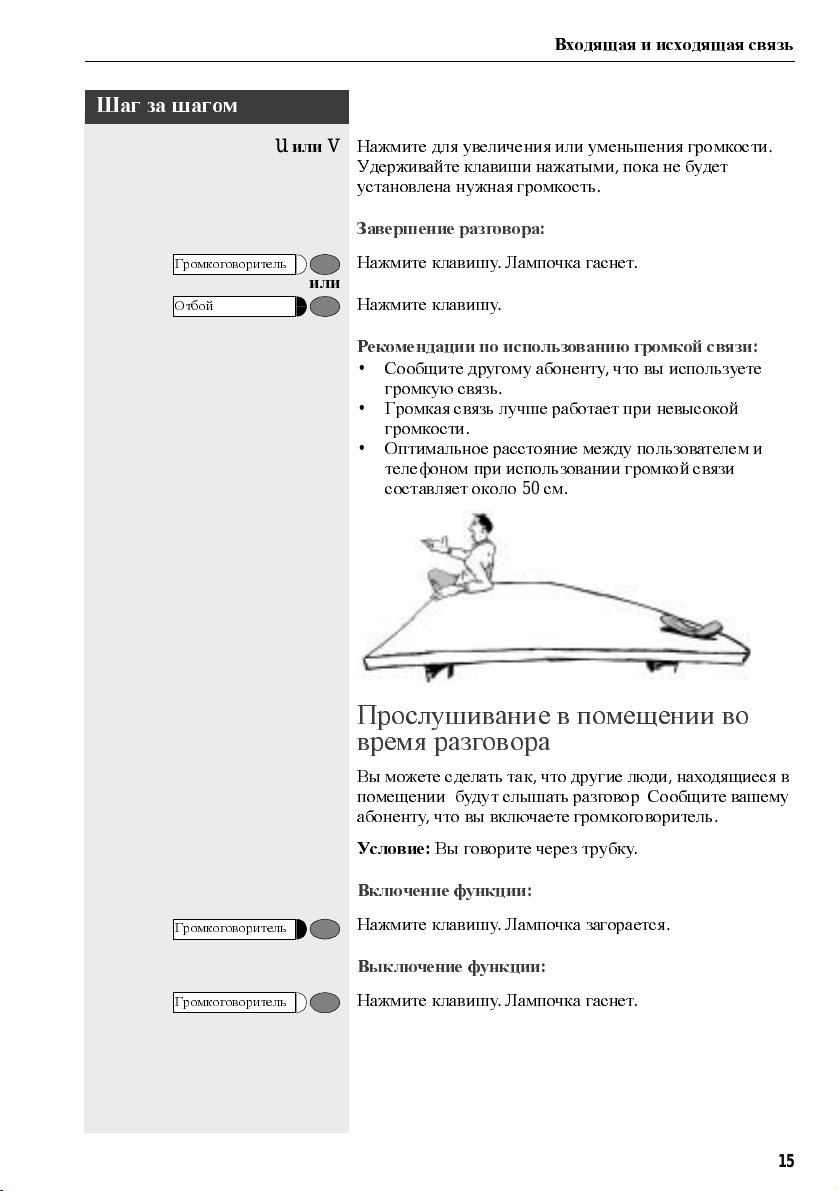
Рекомендации по использованию громкой связи
•
Сообщит е другому а бо нент у,что вы используете
громкую связь
•
Гром ка я связь лучше рабо та е т при нев ыс ок ой
громкости
•
Оптималь но е ра с ст ояние м ежду пользователем и
телефоном при использов ании гр ом ко й свя зи
составляет около
.
:
.
.
.
50см.
Прослушивание в помещении во
время разговора
Вы м ожете сде лать та к,что другие люди,находящиеся в
помещении
абоненту
Условие:Вы говорите через трубку
,
будут слышать разговор.Сообщит е ваш ем у
,
что вы включаете гр о м ко гово р ите л ь
.
:
.
Громкоговоритель
Громкоговоритель
Включение функции
Нажмите кла в иш у.Лампочка загор а ет ся
Выключение функции
Нажмите кла в иш у.Лампочка га сне т
:
:
.
.
15
Входящая и исходящая связь
Шаг за шагом
Переключение громкую связь
Данная функция отсутствует на аппаратах
optiPoint500 economyиoptiPoint500 basic.
Громкоговоритель
Условие:Вы говорите через трубку
иtУдерживая клавишу нажатой,положите трубку,затем
отпустите клавишу
положить трубку
Продолжайте разговор
(
вСША:только нажать клавишу и
).
.
.
Переключение трубку
Данная функция отсутствует на аппаратах
optiPoint500 economy und optiPoint500 basic.
Условие:вы говорите по телефону,используя функцию
гром ко й связи
nиs
Снимите трубку.Продолжайте разговор
.
.
Второй вызов
Вызывающие а боне нты м ог у т с о единит ься с ва ми,даже
если вы ведете другой телефонный разговор
ожидающем вызове вам сообщается специальным
сигналом
Вы можете проигнорировать или принять ожидающий
вызов
При приеме ожидающего вызова вы можете завершить
первый разговор или переве сти его удержание и
продолжить позже
функцию ожидания вызова или сигнализацию
поступления второго вызова
.
.
.
Также вы можете заблокировать
,см.
стр
. 17.
.
Об
16
Прием второго вызова
Условие:вы говорите по телефону и слышите гудок
(
каждые шесть секунд
Завершение первого разговора и прием второго
Положите трубку.Ваш телефон звонит
t
n
Ответьте на второй вызов.Снимите трубку
).
.
:
.
Шаг за шагом
Принять2-йвызов
Сервисное меню
Входящая и исходящая связь
Удержание1-го разговора и прием2-го вызова
?
Выберите и подтвердите
.
или
Нажмите кла в иш у.Лампочка загор а ет ся.Введите код
.
qii
Завершить и о братно
Сервисное меню
C
ервисное меню
#490=
авт.сигнализ.выкл
490=
авт.сигнализ.вкл
*
?
или
или
или
?
или
?
или
rhmd
qhmd
Осуществляется соединение со вторым абонентом
Первый абонент переводится удержание
.
Завершение2-го соединения и продолжение первого
Подтвердите
qd
Нажмите кла в иш у.Лампочка загор а ет ся.Введите код
tn
Положите трубку.На дисплее появляется«Повтор
набора
.
:…».
Снимите трубку
.
Разрешение и запрет(автоматической
сигнализации второго вызова
Если эта функция сконфигурирова(узнайте у
специалиста по обслуживанию
или разреш ать ав то м атиче с кую с игна л изацию вт ор о го
вызова
(см.
стр
. 16)
во время разговора по телефону
Нажмите кла в иш у.Лампочка загор а ет ся
и
Выберите и подтвердите
Введите код для«выкл.»или«вкл
),
вы можете запрещать
.
.
.».
.
:
.
)
.
17
Входящая и исходящая связь
Шаг за шагом
Сигнализация без тона
Сигнализация с тоном
rlk
C
ервисное меню
59=
Перехват,целевой
*
Возможно
Пролистать
?
?
?
или
?
Разрешение и запрет(автоматической
сигнализации второго вызова
Вы можете запретить сигнал второго вызова(через
каждые шесть секунд
поступает одиночный специальный с игнал приглашения
к набору
Выберите и подтвердите
или
или
qlk
Введите код для«без«или«с
.
).
В этом случае при второмвызове
.
«.
Целевой перехват вызова
Вы слышите,как звонит другой телефон
Нажмите клавишу.Лампочка загорается
Выберите и подтвердите
или
qim
Введите код
На дисплее появляется вызываемый абонент
Выберите и подтвердите как т олько появится нужный
абонент
.
.
.
.
.
)
.
Перехватить вызов
18
?
Подтвердите
или
o
Если изве ст ен ном е р зво нящ е го тел е фо на,то наберите
.
его
или
Нажмите мигающую клавишу
.
.
Перехват вызова в группе,см.стр
. 92.
Шаг за шагом
Отбой
Входящая и исходящая связь
Отказ от приема вызовов
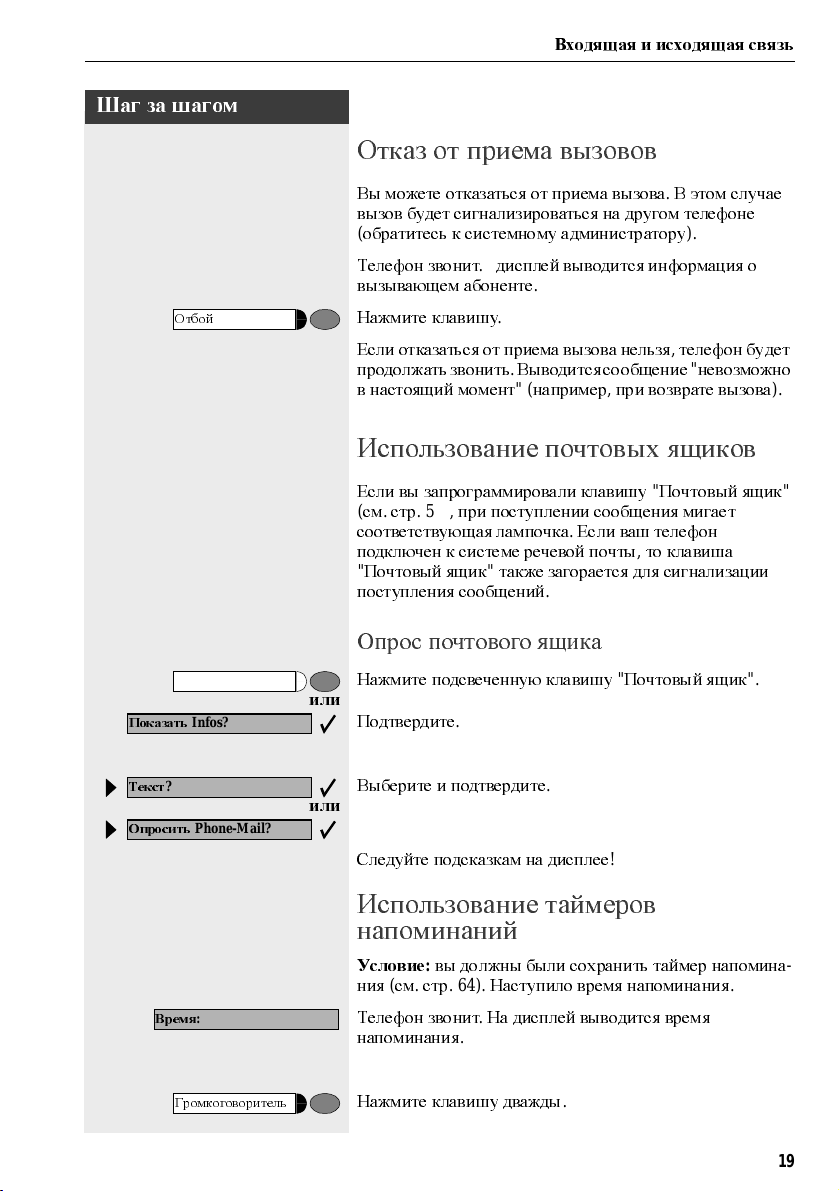
Вы м ожете о тк азатьс я от при ем а вызо ва.В этом случае
вызов будет сигнализироваться на другом телефоне
(
обратитесь к системному администратору
Телефон звонит.дисплей выв одитс я информ ация о
вызывающем абоненте
Нажмите кла в иш у
Если отказаться от приема вызова нельзя,телефон будет
продолжать звонить
в настоящий момент
.
.
.
Выводится сообщение«невозможно
«(
наприме р,при возврате вызова
).
).
Использование почтовых ящиков
Показать
Текст
?
Опросить
Время
Infos?
Phone-Mail?
:
Если вы запрограммировали клавишу«Почтовый ящик
(
см.стр
.58),
соотв ет ст вующая лам почка
подключен к системе речевой почты
«
Почтовый ящик«также загорается для сигнализации
поступления сообщений
при поступлении соо бщ е ния мига е т
.
Если ваш телефон
,
.
то клавиша
Опрос почтового ящика
Нажмите подсвечен ну ю кла в иш у«Почтовый ящик
или
Подтвердите
Выберите и подтвердите
или
Следуйте подсказкам на дисплее
.
.
!
Использование таймеров
напоминаний
Условие:вы должныбыли сохранить тайме р напо мина
ния(см.стр
Телефон звонит.На дисплей выв одитс я вр ем я
напоминания
.64).
Наступило врем я напо мина ния
.
«
«.
—
.
Громкоговоритель
Нажмите кла в иш у дважды
.
19
Входящая и исходящая связь
Шаг за шагом
Микрофон вкл
?
Микроф.вкл./выкл
или
nt
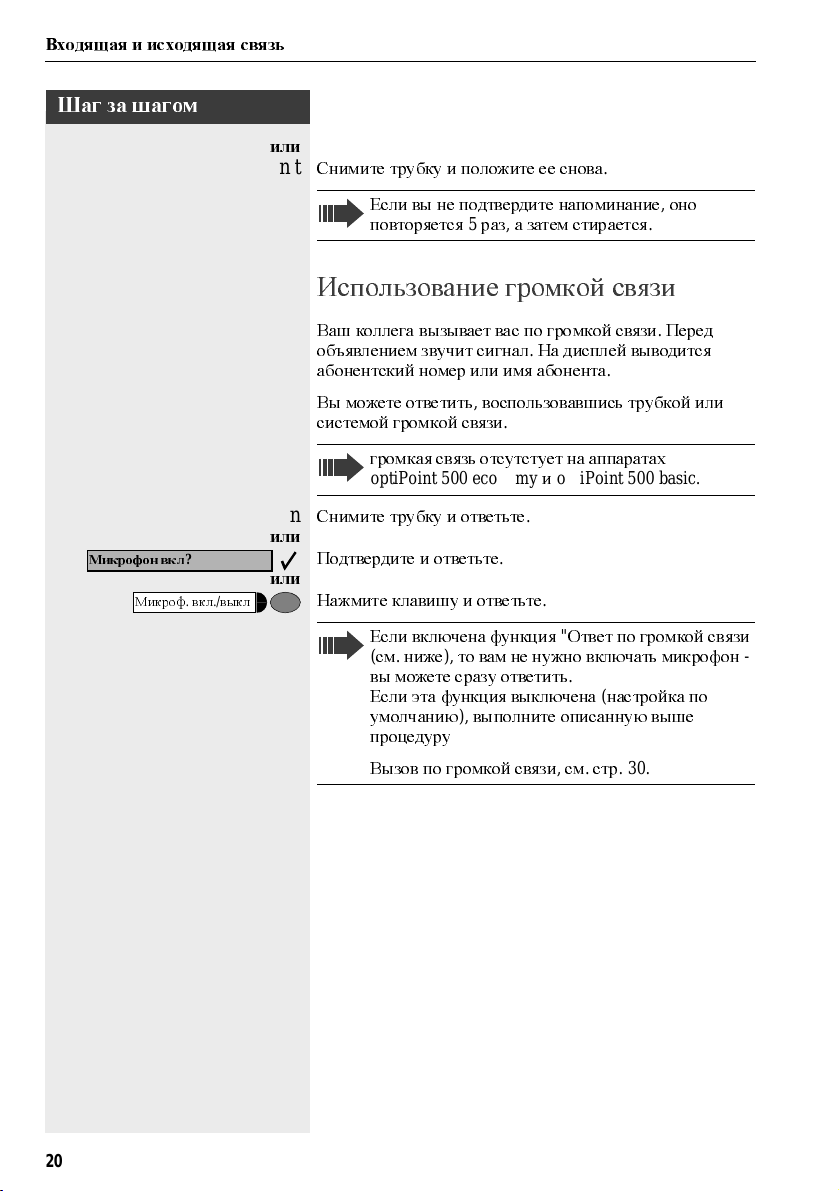
Снимите трубку и положите е е с нов а
Если вы не подтверди те напо м инание,оно
повторяется
5
раз,а затем стирается
.
Использование громкой связи
Ваш кол ле га в ызыва е т вас по г ро м ко й связи.Перед
объявлением звучит сигнал
абонентский номер или имя абонента
Вы можете ответить,воспользовавшись трубкой или
систем о й гро м ко й связи
гром ка я связь отсутстует на аппаратах
optiPoint500 economyиoptiPoint500 basic.
n
Снимите трубку и отве тьте
или
Подтвердите и ответьте
или
Нажмите клавишу и ответьте
.
На дисплей выводится
.
.
.
.
.
.
20
Если включена функция«Ответ по гром ко й связи
(см.
ниже),то вам не нужно включать микрофон
вы можете сразу ответить
Если эта функция выключена(настройка по
ум ол чан ию
процедуру
Вызов по гро м кой св язи,см.стр
),
выполните описанную выше
.
.
.30.
—
Шаг за шагом
Входящая и исходящая связь
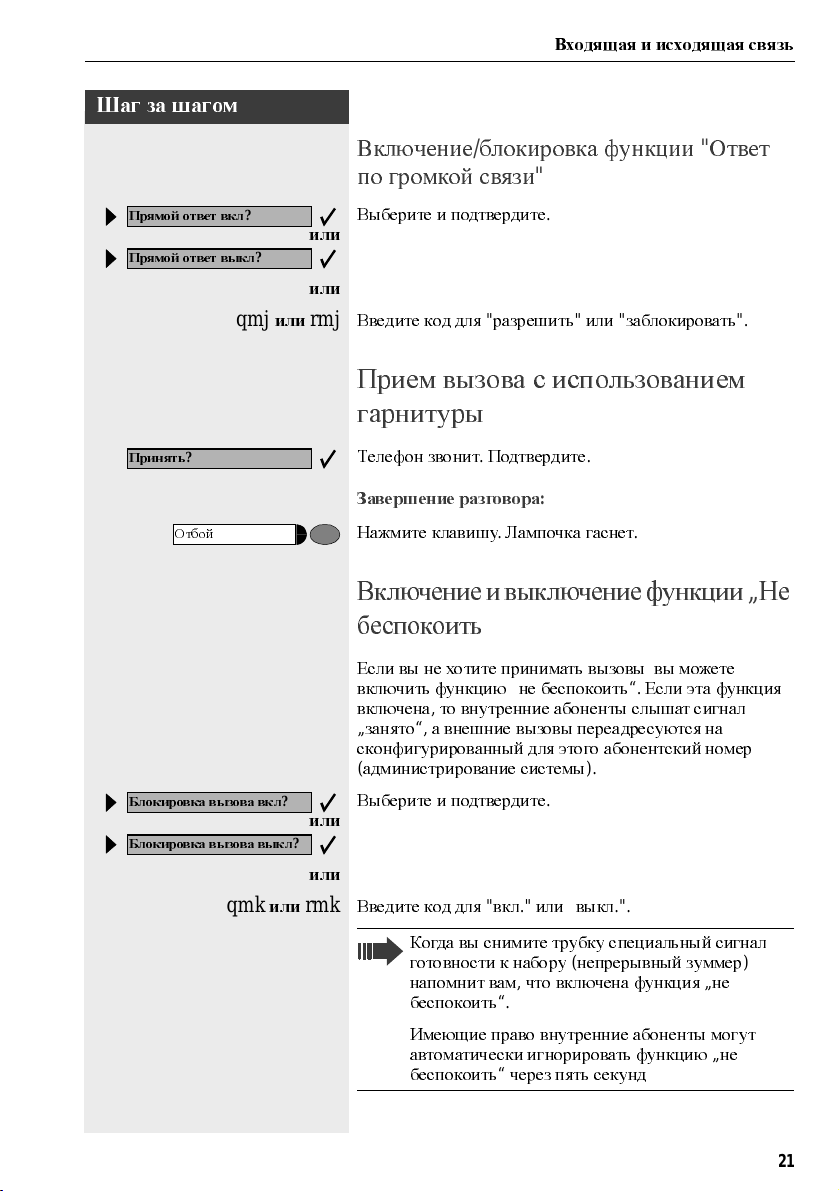
Включение/блокировка функции«Ответ
по громкой связи
«
Прямой ответ вкл
Прямой ответ выкл
Принять
Отбой
Блокировка вызова вкл
Блокировка вызова выкл
?
?
qmj
или
?
qmk
или
Выберите и подтвердите
или
или
rmj
Введите код для«разрешить«или«заблокировать
.
«.
Прием вызова с использованием
гарнитуры
Телефон звонит.Подтвердите
Завершение разговора
Нажмите кла в иш у.Лампочка га сне т
.
:
.
Включениеи выключениефункции„Не
беспокоить
Если вы не хотите приним ать вызо вы,вы можете
включить функцию
включена
„
занято“,а внешние вызовы переадресуются на
сконфигурирова нный для это го або не нтс кий ном ер
(
админист р иро ва ние с ист ем ы
?
?
Выберите и подтвердите
или
или
rmk
Введите код для«вкл.»или«выкл
,
то внутренние абоненты слышат сигнал
„
не беспокоить“.Если эта функция
).
.
.».
Когда в ы сним ите тр убку спе циа льны й сигна л
готовности к набору
напомнит вам,что включена функция„не
беспокоить
Имеющие пр ав о в нутренние або не нты мо гут
автом атиче с ки игно рир о вать функ цию
беспокоить
“.
“
черезпять секунд
(
непрер ыв ный зу м ме р
„
)
не
21
Входящая и исходящая связь
Шаг за шагом
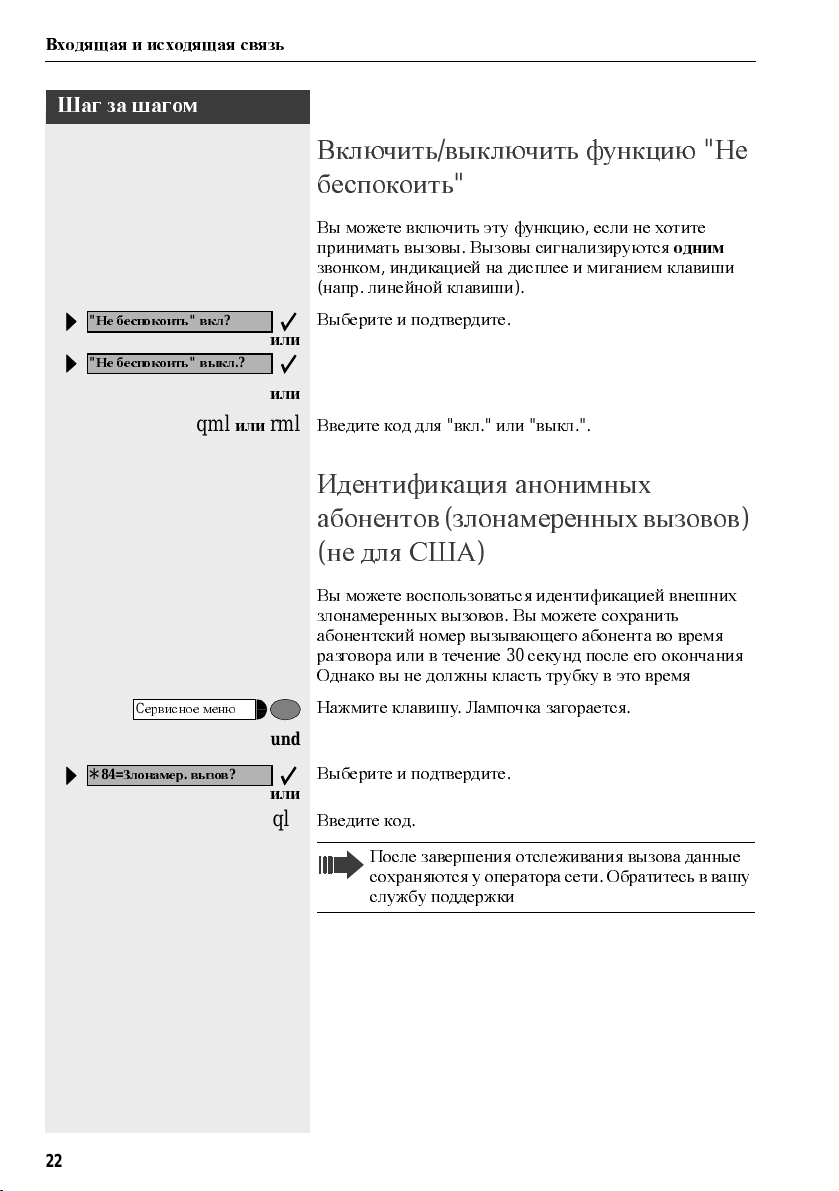
Включить/выкл ю ч ить функц ию«Не
«
Не беспокоить«вкл
«
Не беспокоить«выкл
qml
C
ервисное меню
84=
Злонамер.вызов
*
?
.?
или
?
беспокоить
Вы можете включить эту функцию,если не хотите
принимать вызов ы
звонком
(
Выберите и подтвердите
или
или
rml
Введите код для«вкл.»или«выкл
,
индикацией на диспле е и мига ние м кл ав иш и
напр.линейной клавиши
«
.
Вызовы сигнализируются
).
.
.».
Идентификация анонимных
(
абонентов
не для США
(
Вы можете воспользоваться идентификацией внешних
злонам ер е нных в ызов о в
абонентский номер вызывающего абонента во время
разговора или в течение
Однако вы не дол жны кла с ть трубку в это в ре м я
Нажмите клавишу.Лампочка загорается
und
Выберите и подтвердите
или
qlh
Введите код
злонамеренных вызовов
)
.
Вы можете сохранить
30
секунд после его окончания
.
.
.
одним
)
.
.
22
После завершения отслеживания вызова данные
сохраняются у оператора сети
службу поддержки
!
.
Обратитесь в вашу
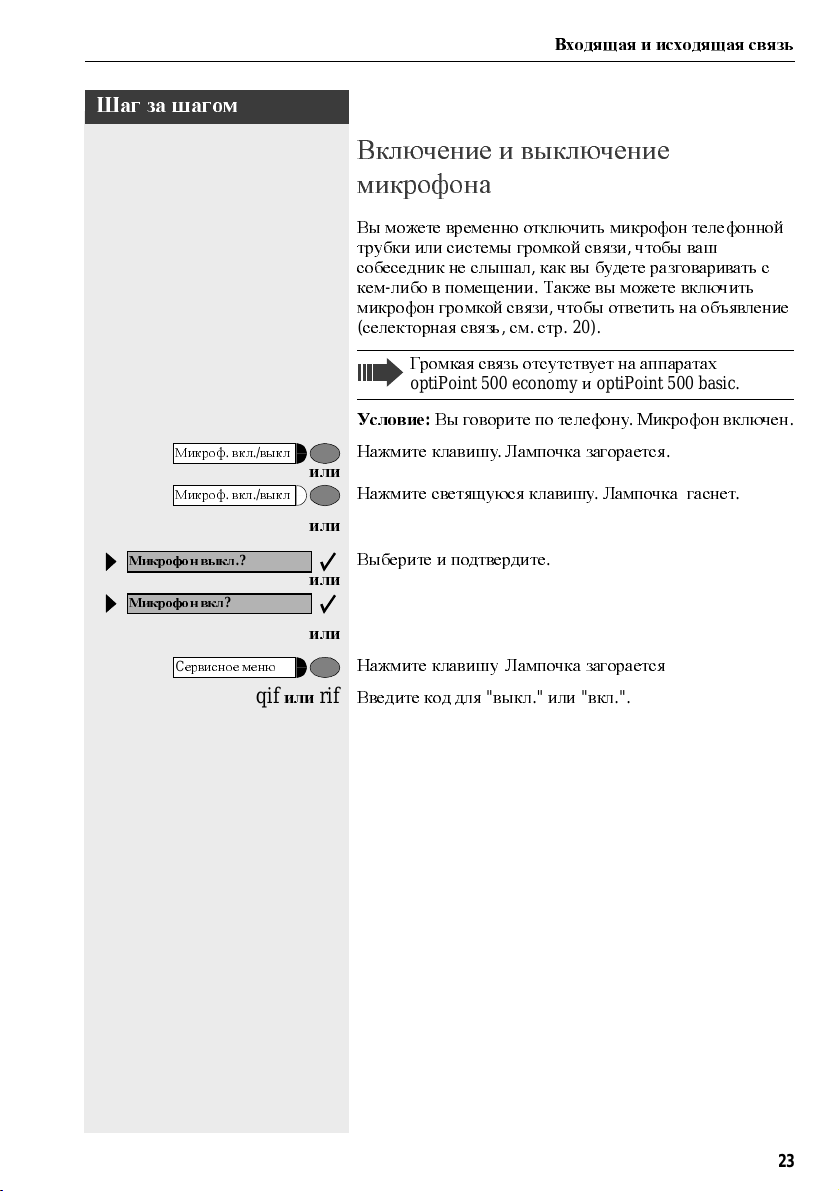
Шаг за шагом
Входящая и исходящая связь
Включение и выключение
микрофона
Вы м ожете в р ем е нно от кл ючить м икр оф он те лефонной
трубки или системы громкой связи
собеседник не слышал
кем
—
либо в помещении.Также вы можете вкл ючить
микроф он гро мк ой связи
(
селекторная связь,см.стр
Гром кая с вязь отсутствует на аппаратах
optiPoint 500 economyиoptiPoint500 basic.
,
как вы будете разговаривать с
,
чтобы ответить на объявление
.20).
,
чтобы ваш
Микроф.вкл./выкл
Микроф.вкл./выкл
Микрофон выкл
Микрофон вкл
C
ервисное меню
Условие:Вы говорите по телефону.Микрофон включен
Нажмите кла в иш у.Лампочка загор а ет ся
или
Нажмите св етящ уюся клавиш у
или
.?
?
qif
или
Выберите и подтвердите
или
или
Нажмите кла в иш у
rif
Введите код для«выкл.»или«вкл
.
Лампочка загор а ет ся
.
Лампочка гасне т
.
.
.
.».
.
.
23
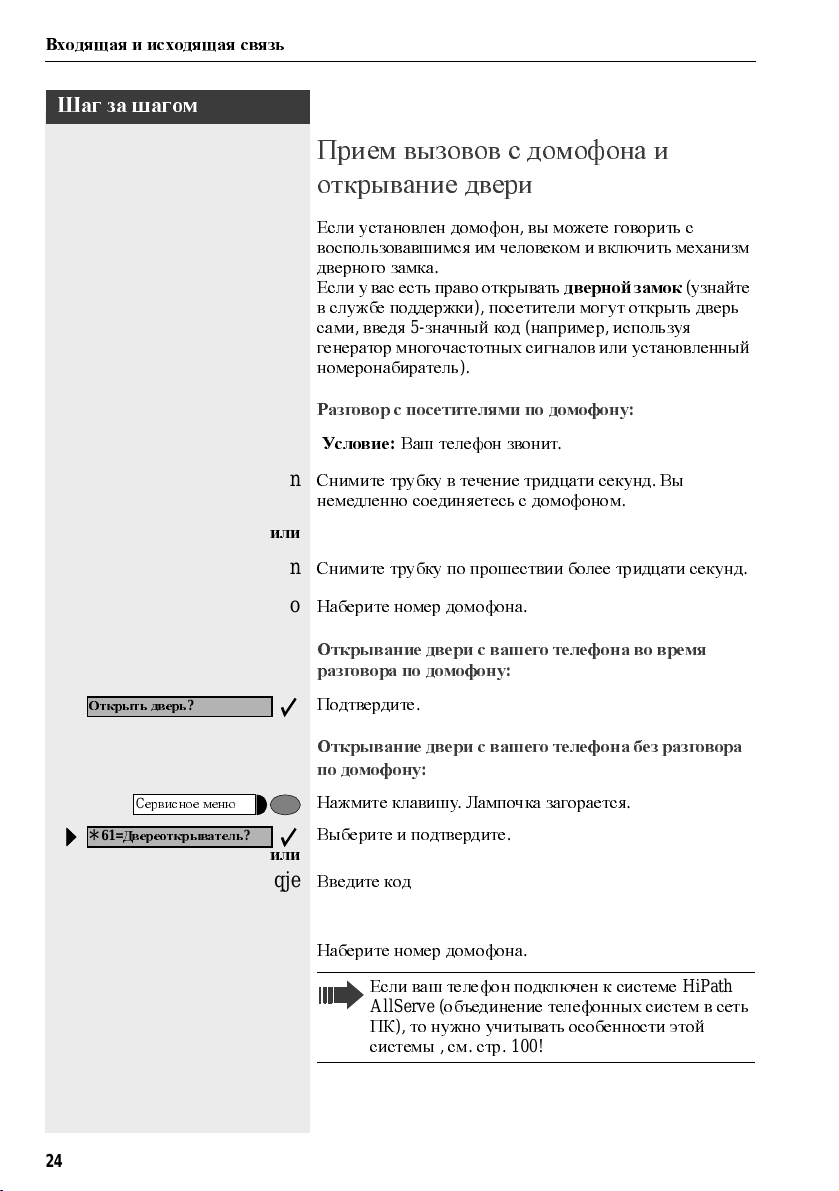
Входящая и исходящая связь
Шаг за шагом
Прием вызовов с домофона и
открывание двери
Если установлен домофон,вы можете говор ить с
воспользовавшимся им человеком и включить механизм
дверного замка
Если у вас есть право открывать
в службе поддержки
,
введя5-значный код(например,используя
сами
генерато р многочас то тных сиг на ло в или ус т ано в ле нный
номер о набир ате л ь
.
дверной замок(узнайте
),
посетители могут открыть дверь
).
Открыть дверь
C
ервисное меню
61=
Двереоткрыватель
*
Раз говор с посетител я ми по домофону
Условие:Ваш телефон звонит
n
Снимите трубку в течение тр идцати с ек у нд.Вы
немедле нно с о единя етесь с домофоном
или
n
Снимите трубку по про ш ествии бол е е тр идцати се кунд
o
Наберите но м ер домофона
Открывание двери с вашего телефона во время
разговора по домофону
?
?
Подтвердите
Открывание двери с вашего телефона без разговора
по домофону
Нажмите клавишу.Лампочка загорается
Выберите и подтвердите
или
qje
Введите код
o
Наберите но м ер домофона
.
:
.
Если ваш те лефон подключен к сис те м е
AllServe (
ПК
систем ы
объединение телефонных систем в сеть
),
то нужно учитывать особенности этой
,см.
стр
.
.
:
.
.
.100!
:
.
.
.
HiPath
24
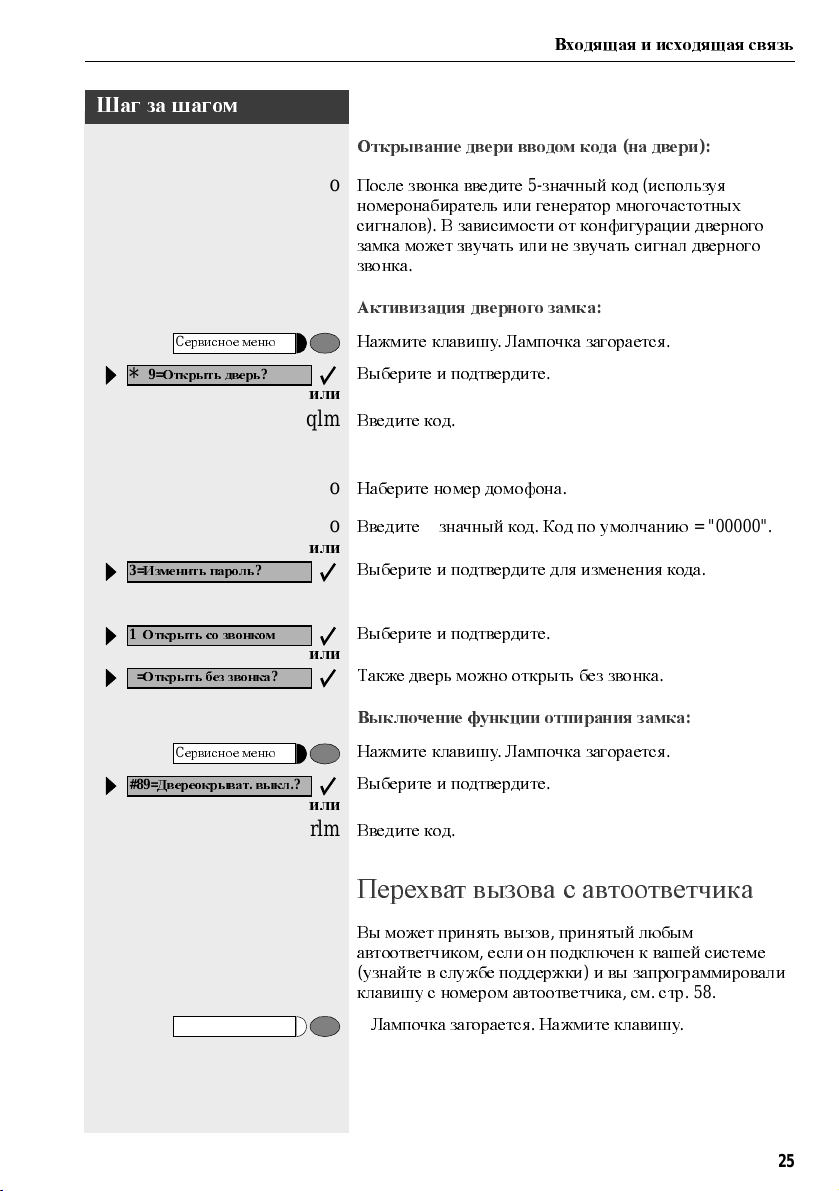
Шаг за шагом
Входящая и исходящая связь
C
ервисное меню
89=
Открыть дверь
*
3=
Изменить пароль
1=
Открыть со звонком
2=
Открыть без звонка
Открывание двери вводом кода(на двери
o
После звонка введите5-значный код(используя
):
номеронабиратель или генератор многочастотных
сигналов
).
В зависимо ст и от ко нфигурации двер ного
замка может звучать ил и не зву чать сиг на л две рн ого
звонка
.
Активизация дверного замка
Нажмите кла в иш у.Лампочка загор а ет ся
?
Выберите и подтвердите
:
.
.
или
qlm
Введите код
o
Наберите номер домофона
o
Введите5-значный код.Код по умолча нию
.
.
= «00000».
или
?
?
Выберите и подтвердите для изменения кода
Выберите и подтвердите
.
.
или
?
Также дверь можно от кр ыть без зво нка
.
Выключение функции отпирания замка
:
C
ервисное меню
#89=
Двереокрыват.выкл
Нажмите кла в иш у.Лампочка загор а ет ся
.?
Выберите и подтвердите
.
.
или
rlm
Введите код
.
Перехват вызова с автоответчика
Вы м ожет приня ть вызо в,принятый любым
автоответчиком
(
узнайте в службе поддержки)и вы запрограммировали
клавишу с номером автоответчика
Лампочка загорается.Нажмите клавишу
,
есл и он подключен к вашей сис те м е
,см.
стр
. 58.
.
25
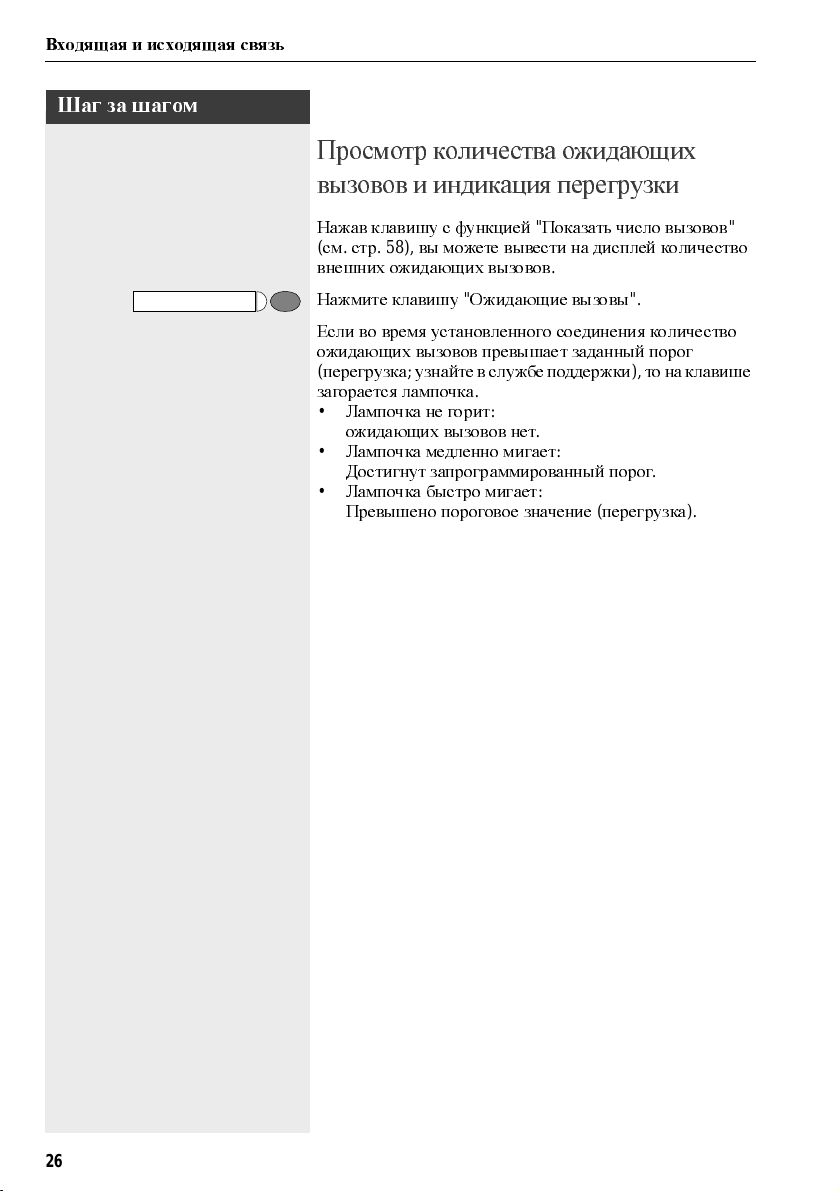
Входящая и исходящая связь
Шаг за шагом
Просмотр количества ожидающих
вызовов и индикация перегрузки
Нажав клавишу с функцией«Показать число вызовов
(
см.стр
. 58),
внешних ожидающих вызовов
Нажмите клавишу«Ожидающие вызовы
Если во время установленного соединения количество
ожидающих вызовов превышает заданный порог
(
перегрузка;узнайте в службеподдержки),то на клавише
загорается лампочка
•
Лампочка не гор ит
ожидающих вызовов нет
•
Лампочка ме дле нно м ига е т
Достигнут запрограммированный порог
•
Лампочка быс тр о м ига ет
Превышено пороговое значение(перегрузка
вы можете вывести на дисплей ко личество
.
.
«.
:
.
:
.
:
).
«
26
Шаг за шагом
Исходящие вызовы
Исходящие вызовы
Набор номера со снятой трубкой
n
Снимите трубку
o
Внутренние соединения:введите а боне нтс кий ном е р
Внешнее соединение:наберите код выхода в город и
абонентс кий ном е р
.
.
.
Громкоговоритель
Абонент не отвечает или занят
t
Положите трубку
.
:
Набор номера,не снимая трубки
o
Внутренние соединения:наберите но м ер
Внешнее соединение:наберите код выхода в город и
абонентс кий ном е р
Абонент отвечает через громкоговоритель
n
Снимите трубку
или
Не снимая трубки:гром кая с вязь(невозможно на
аппаратах
Абонент не отвечает или занят
Нажмите кла в иш у.Лампочка га сне т
optiPoint500 economyиoptiPoint 500 basic).
.
.
:
.
.
:
27

Исходящие вызовы
Шаг за шагом
Система может быть запрограммирована так,что
перед установлением внутреннего соединения
нужно будет нажать клавишу внутренней связи
При внешних соединениях вы должны ввести код
выхода в город перед абонентским номером
(
главная линия не активна;узнайте в службе
поддержки
).
.
28

Шаг за шагом
Исходящие вызовы
Блочный набор/исправление номеров
Если эта функция сконфигурирована(узнайте в службе
поддержки
после в вода а боне нтс ко го ном е ра
при необходимости можете исправить абонентский
номер
Або нент ск ий ном е р набирает ся по с пе циа льно й ко м анд е
o
Внутреннее соединение:наберите но м ер а бо нент а
Внешнее соединение:введите код выхода в город и
абонентс кий ном е р
),
соединение не устанавливается немедленно
.
Это означает,что вы
.
.
.
.
Набрать номер
Стереть цифру
Завершить
?
Громкоговоритель
Громкоговоритель
Набор введенных/выведенных на дисплей номеров
n
Снимите трубку
.
:
или
?
Подтвердите
Исправление набранного номера
?
Выберите и подтвердите
При каждом нажатии стирается последняя цифра
o
Введите нужную цифру(ы
Отмена блочного набора
Выберите и подтвердите
.
:
.
.
)..
:
.
или
Нажмите кла в иш у
.
Лампочка га сне т
.
или
Нажмите кла в иш у
.
29
Исходящие вызовы
Шаг за шагом
Подавить индикацию ном
Передать номер
?
C
ервисное меню
qlj
?
или
Подавление индикации номера
вызывающего абонента
Вы можете запретить индикацию вашего абонентского
номера или именина дисплее телефонов внешних
абонентов
пока вы ее не отключите
Выберите и подтвердите
или
или
rlj
Введите код для«подавить«или«передать
,
которым вы звоните.Эта функция активна
Слу жба поддержки систе м ы может включить или
отключить функцию подавления индикации
номера для всех телефонов
.
.
.
Селекторная связь
Вы можетеделать объявлениячерез громкоговоритель
(
если он подключен—узнайте в службе поддержки)или
обращаться к внутренним абонентам
телефонными аппаратами
действий с их стороны не требуется
Нажмите клавишу.Лампочка загорается
optiset E.
,
пользующимся
При этом никаких
.
.
,
«.
30
80=
Селекторная связь
*
?
Выберите и подтвердите
или
qld
Введите код
o
Наберите но м ер
Ответ на вызовы по селекторной связи см.стр
.
.
.
. 20.
Loading…
Скачать
Siemens
Communications
Siemens HiPath 1220
Simply a much better way to communicate
-
Page 1
HiPath 4000 Hicom 300 E/300 H Operating Instructions optiPoint 500 entry… -
Page 2: About These Operating Instructions
About these Operating Instructions These Operating Instructions describe the use of the optiPoint 500 entry telephone in con- junction with the HiPath 4000 Communication Server, Version 1.0 and Hicom 30 0 E/300 H, all Versions. They describe all functions you can use from your telephone. You may find that some func- tions you wish to use are not available on your telephone.
-
Page 3: Basic Operating Instructions
Basic operating instructions Basic operating instructions optiPoint 500 entry control panel Loudspeaker for Keys for open listening telephone settings Hand- Lamp function keys (variable) function keys (fixed) Dialling key- T wo keys with Six keys with variable functions: fixed functions:…
-
Page 4: How To Use These Operating Instructions
How to use these Operating Instructions Step by Step How to use these Operating Instructions T he o perat in g p ro ced ures are pres ented in a lo gic al s equ enc e in t he «co lo ured » c olumn . The s ymbo ls u sed h ave t he fo llow ing mean in gs: Lift the handset.
-
Page 5: How To Access A Function
The Appendix to these Operating Instructions contains an overview of the p ossib le cod es. If your optiPoint 500 entry does not have a «store» key, storage of a call forwarding destination can be initiated by lifting the handset and dialling the special code.
-
Page 6: Table Of Contents
Basic operating instructions ….3 optiPoint 500 entry control panel……. 3 Ø…
-
Page 7
Contents Last number redial ……… 18 Dialling with individual speed d ialling numbers . -
Page 8
Contents Using a different telephone in the same way as your own ….33 Logging on to a different telep hone ……33 Deactivating identification at the other telephone . -
Page 9: Taking Calls And Setting Up Calls
Taking calls and setting up calls Step by Step Taking calls and setting up calls Taking a call The telephone rings. Lift the handset. Terminating a call: Replace the hand set. Open listening within the room during a call You can allow other persons in the room to listen in on the call.
-
Page 10: Taking A Call On A Line Key (Keysystem Working)
Taking calls and setting up calls Step by Step Taking a call on a line key (keysystem working) Precondition: There is a line key with its own number on your telephone. The telephone rings. The line key lamp flashes rapidly. Lift the handset.
-
Page 11: Using The Mailbox (Not For Uk)
Taking calls and setting up calls Step by Step Using the mailbox (not for UK) Precondition: The «mailbox» and «output» keys have been configured on your telephone. Callers who dialled your number during your ab sence can leave a callback request in your mailbox. You will also find mail server voice/fax messages in your mailbox (if this facility is available).
-
Page 12: Activating/Deactivating Do Not Disturb
Taking calls and setting up calls Step by Step Activating/deactivating do not disturb Precondition: System Support has enabled the do not d isturb facility for all Hicom users in your system. If you d o not wish to receive incoming calls, you can ac- tivate the do not disturb facility.
-
Page 13: Setting Up Calls
Setting up calls Step by Step Setting up calls Dialling with the handset off-hook Lift the handset. Internal: Enter the number. External: Enter the external code and the number. The called party is busy or does not answer: Replace the hand set. Dialling with the line key (keysystem working) Precondition: There is a line key with its own number…
-
Page 14: Suppressing The Number Display At The Called Party
Setting up calls Step by Step The called party is busy or does not answer: Press the key. The lamp goes out. S peaker Suppressing the number display at the called party Suppression of the number indication only applies to the next call and is not stored together with the redial function.
-
Page 15: Calling Several Persons Simultaneously
Calling several persons simultaneously Step by Step Calling several persons simultaneously Making a second call (consultation) You can set up a second call during a call in progress. The first party waits. Press the key. The lamp lights up. Consultation Make your call to the second party.
-
Page 16
Calling several persons simultaneously Step by Step ýFB F< Enter the UK code or Standard code for conference. If your telephone d oes not have a «conference» key: Enter the code for conference. A tone indicates that all three users have been intercon- nected to form a conference circuit. -
Page 17: Extending A Call
Calling several persons simultaneously Step by Step Extending a call If the person you are conversing with wishes to be for- warded to another user, you can pass on the connection to this third person. The connection can be passed on with or without prior announcement.
-
Page 18: Using Stored Numbers To Make Calls
Using stored numbers to make calls Step by Step Using stored numbers to make calls Saved number redial Precondition: The «redial» key is configured on your telephone. If your telephone is configured for this type of redialling, you can store a number and then dial it at a later point in time (Æ…
-
Page 19: Dialling With Individual Speed Dialling Numbers
Using stored numbers to make calls Step by Step Dialling with individual speed dialling numbers Precondition: You have stored individual speed dialling numbers (Æ page 26). Lift the handset. F?< UK code or Standard code/Euro code Enter the code which has been programmed for you Ente r th e code ! Enter the special code (not for UK).
-
Page 20: If You Don’t Get Through
If you don’t get through… Step by Step If you don’t get through… Using the callback facility If an internal station which you have called is busy or there is no reply, you can place a request for callback. This also applies to external calls via ISDN switching centres.
-
Page 21: Cancelling A Stored Callback Request
If you don’t get through… Step by Step Cancelling a stored callback request Precondition: You have stored a callback request. Lift the handset. UK code or Standard code Enter the code which has been programmed for you. Ente r th e code ! Replace the hand set.
-
Page 22: Telephone Settings
Telephone settings Step by Step Telephone settings Adjusting the volume of the ringing tone Press one of the keys when the telephone is in the idle state. Press the key. To increase/decrease the volume: keep pressing the keys until the required volume level has b een reached. together Store.
-
Page 23: Setting The Volume Of The Alerting Tone
Telephone settings Step by Step Setting the volume of the alerting tone You hear aler ting tone if a call has not been picked up in your team. Press one of the keys when the telephone is in the idle state.
-
Page 24: Preventing Misuse Of The Telephone
Telephone settings Step by Step Preventing misuse of the telephone You can prevent unauthorised persons from using your telephone during your absence. Precondition: You have been assigned a personal iden- tification number (PIN) by System Support. Preventing unauthorised dialling: UK code or Stand ard code Euro code Enter the code which has b een programmed for you.
-
Page 25: Storing Numbers
Storing numbers Step by Step Storing numbers Storing a number for redialling Precondition: Your telephone is programmed for «Saved number redial» not «Last number redial». Storing a caller’s number or a number which has been dialled You have set up a call and are still engaged in this call. Or you have been called by — and are still conversing with — a user whose number has also been communi- cated to you.
-
Page 26: Storing Individual Speed Dialling Numbers
Storing numbers Step by Step Storing individual speed dialling numbers You can store a number on each of digit keys 0 to 9 and then dial these numbers at the push of a button (Æ page 19). An existing number is overwritten. Press the key.
-
Page 27: Forwarding Calls
Forwarding calls Step by Step Forwarding calls Using fixed call forwarding Fixed call forwarding can be activated in a matter of sec- onds. It is advisable to use this type of call forwarding in order to reroute calls to the mailbox or to a permanent deput y, for example.
-
Page 28: Deactivating Call Forwarding
Forwarding calls Step by Step Euro code. If the «store» and «call forwarding» keys are not config- ured on your telephone: Lift the handset and enter the UK code. G>? Special code (not for UK). Press the key. Disconnect/Clear Press the key. The lamp goes out. Store If you have already lifted the handset and entered the special code:…
-
Page 29: Forwarding Calls Automatically
Forwarding calls Step by Step Forwarding calls automatically A call is diver ted to the fixed call forward ing destination even if you have not activated fixed call forwarding (and provided that your system is configured for this facility). If «forwarding ring no answer» (transfer of ringing) has been programmed, calls are rerouted automatically if, for example, they are not answered after several rings or they arrive when you are already engaged in a call.
-
Page 30: Deactivating Call Forwarding
Forwarding calls Step by Step Deactivating call forwarding Press the key. The lamp goes out. Call forwarding If your telephone d oes not have a «call forward ing» key: Lift the handset and enter the UK code or St andard cod e Replace the handset.
-
Page 31: Storing A Destination For Fax, Pc Or «Busy»/Activating Call Forwarding
Forwarding calls Step by Step Press the key. The lamp goes out. Store Call forward ing is thus activated. Storing a destination for fax, PC or «busy»/activating call forwarding Press the key. The lamp lights up. Store Enter the code for the type of call forwarding required. The codes are defined by System Suppor t.
-
Page 32: Deactivating Call Forwarding For Fax, Pc Or «Busy
Forwarding calls Step by Step Press the square key only (if your own station has the «Call forwarding for remote terminal» class of service). Enter the number of the destination and confirm your inp ut with the square key. Press the square key only (the telephone on which you are storing call forwarding thus b ecomes the call forwarding d estination).
-
Page 33: Using A Different Telephone In The Same Way As Your Own
Using a different telephone in the same way as your own Step by Step Using a different telephone in the same way as your own You can log on to another telephone belonging to the Hi- com system by means of a personal identification num- ber (PIN) (as of software status HiPath 40 00, Version 1 .0 und Hicom 300 E/300 H, and also telephones of net- worked HiPath 40 00 systems, e.g .
-
Page 34: Deactivating Identification At The Other Telephone
Using a different telephone in the same way as your own Step by Step Dialling after (successful) identification: You hear dial tone. Press the key. The lamp goes out. Speaker ýE Enter a number immediately. Call forwarding — follow me after successful identi- fication Press the key.
-
Page 35: Relocating With The Telephone
Relocating with the telephone Step by Step Relocating with the telephone Enquire with System Support whether this is possible with your telep hone system. After consulting with System Support, you can de- register your telep hone from its present station line and then re-register it at the new station line.
-
Page 36: Making Calls In A Team
Making calls in a team Step by Step Making calls in a team Taking a call for a colleague If a member of a team d oes not answer a call within 15 seconds (depending on the system), the other mem- b ers of the team hear an alerting tone.
-
Page 37: Taking A Call In A Hunt Group
Making calls in a team Step by Step Taking a call in a hunt group Precondition: A hunt group has been configured in the team. You — and all the members of the team — can be accessed by way of a hunt group number. Your telephone rings.
-
Page 38: Labelling And Documentation
CD-ROM (ask System Supp ort) in HTML and PDF format. The CD-Rom (7 languages) or a printout of these operating instructions can be ordered from the details of the article number from Siemens’ Sales Or- ganisation of via the following Internet address.
-
Page 39: Advice For Users
Advice for users Advice for users Care of the telephone • Use either a damp cloth or an antistatic cloth to clean the telephone set. Never use a dry cloth! • If the telephone set needs to be cleaned thoroughly, use a neutral, di- luted, surface-active cleaning agent.
-
Page 40: Index
Index Index Lampen=Leuchdiode LED ……3 Add -on conference ……..15 Mailbox …………11 Automatic call forwarding ……29 callback request ……..11 retrieving ……….11 Malfunctions ……….39 Call pickup (team) ……..36 Callback …………20 answering ……….20 Number label ……….
-
Page 44
-43$643360+;7330%638040:94<- 1P A31003-H8400-B305-1-7619 The inform ation in this docum ent contains general descriptions of the technical options available, which do not always have to be present in individual cases. The required features should therefore be specified in each individual case at the time of closing the contract. -
Page 45
HiPath 4000 Hicom 300 E/300 H Quick-Reference Operating Instructions optiPoint 500 entry… -
Page 46
Quick-reference operating instructions (appendix) -
Page 47: Important Functions At A Glance
Important functions at a glance Making a call: Either: + when the other party answers Making a call with a line key: Line Redial (saved number): Store: Either: The connection has been set up: Redial Or: Any number: Store Redial Store Repeat: Redial…
-
Page 48
Without prior announcement: Consultation Setting up a conference call: First call Consultation Conference In the case of a telephone with no «conference» key: First call for UK or *3. Consultation Expanding conference (to includ e up to 8 users): Add-on conference for UK or *3 etc. -
Page 49
Dialling with individual speed dialling numbers: F?< for UK or *8 (not for UK) + (0..9). -
Page 50: List Of Codes
List of codes For information on the use of codes please refer to Æ page 5. Functio n UK code Stan dard code Euro co de Special code Camp-on/override * 6 0 * 1 9 * 1 9 Do not disturb on/off * 5 1 / # 5 1 * 4 0 / # 4 0 * 9 3 / # 9 3…
-
Page 1
HiPath 1200 optiPoint 500 economy optiPoint 500 basic optiPoint 500 standard optiPoint 500 advance User Guide… -
Page 2: Before You Begin
Before You Begin Before You Begin These operating instructions describe the optiPoint 500 economy, optiPoint 500 basic, optiPoint 500 standard, and optiPoint 500 advance telephones running on your HiPath 1200. They describe all functions you can use from your telephone. If you find that some func- tions you wish to use are not available on your telephone, they have not been configured for you and your telephone.
-
Page 3
Before You Begin All electrical and electronic products should be disposed of separately from the municipal waste stream via designated collection facilities appointed by the government or the local authorities. The correct disposal and separate collection of your old appliance will help prevent potential negative consequences for the environment and human health. -
Page 4: Table Of Contents
Characteristics and Ways to Connect Your optiPoint 500 … . 8 Control Panel optiPoint 500 economy/basic/standard ….9 Control Panel optiPoint 500 advance with optiPoint key module .
-
Page 5
Contents Saving Repertory Dialing Numbers on a Key….. 29 Using Repertory Dialing Keys ……. . 30 Telephone Settings . -
Page 6
Contents Operating/Setting the Voice Mailbox and AutoAttendants ……..57 Saving Functions and Procedures . -
Page 7
Contents System Administration/ Software Update ……83 Enable Remote Administration and Software Update……..83 Service Call . -
Page 8: Basic Operating Instructions
Basic Operating Instructions Basic Operating Instructions Characteristics and Ways to Connect Your optiPoint 500 optiPoint 500 economy basic standard advance function keys Full-duplex speakerphone fea- ture Display backlight Headset page 93 connected with • built-in interface • adapter • handset interface USB interface Interface for add-on equip- ment…
-
Page 9: Control Panel Optipoint 500 Economy/Basic/Standard
Basic Operating Instructions Control Panel optiPoint 500 economy/basic/standard Key field fixed function keys: Program/Service Redial Mute or Internal Speaker Speaker Display, Keypad for open listening 2 lines with LEDs and ring tones 24 chars – Key field Handset freely programmable keys…
-
Page 10: Control Panel Optipoint 500 Advance With Optipoint Key Module
Basic Operating Instructions Control Panel optiPoint 500 advance with optiPoint key module Key field fixed function keys: Program/Service Redial Mute or Internal Speaker Speaker Illuminated Dis- Keypad for open listening play, LEDs and ring tones 2 lines with 24 chars –…
-
Page 11: How To Use These Operating Instructions
Basic Operating Instructions Step by Step How to Use these Operating Instruc- tions This symbol indicates special notices and addi- tional information. You will find a graphic representation of the steps in log- ical sequence in the left column. Below is an explana- tion of the symbols: Lift the handset.
-
Page 12: Service Personnel
Basic Operating Instructions Step by Step Service personnel References to service personnel usually mean the per- son responsible for programming your HiPath 1200. Service personnel have access to appropriate PC tools.
-
Page 13: Accessing Functions
Basic Operating Instructions Step by Step Accessing Functions … Interactively You can select some functions while the telephone is idle, for example: > < > Forwarding on? to scroll to a function and press to ex- ecute it. You can select other functions directly depending on the situation.
-
Page 14: With Function Keys
Basic Operating Instructions Step by Step … With Function Keys If you saved a function on a key page 59, you can ac- cess it directly as follows: Press the Mute key to execute the function.
-
Page 15: Making Calls — Basic Functions
Making Calls – Basic Functions Step by Step Making Calls – Basic Functions Answering Calls Special default ring signaling is set for your telephone: • When you receive an internal call or callback, your telephone rings once every four seconds (single- tone sequence).
-
Page 16: Answering A Call With The Speaker (Speakerphone Mode)
Step by Step Answering a Call with the Speaker (Speaker- phone Mode) This function is not available with optiPoint 500 economy and optiPoint 500 basic. The telephone rings. The caller is displayed. Press the key. The LED lights up. Speaker Speakerphone mode.
-
Page 17: Dialing/Making Calls
Making Calls – Basic Functions Step by Step Dialing/Making Calls You can make free internal calls to all users who are con- nected to the HiPath 1200. If authorized, you can also make external calls to users in the public telephone network. You can get the internal station numbers and ex- ternal trunk access codes from the service per- sonnel.
-
Page 18: Switching To Speakerphone Mode
The other party answers with speaker: Lift the handset. or On-hook dialing: use speakerphone mode (not available with optiPoint 500 economy and optiPoint 500 basic). The called party does not answer or is busy: Press the key. The LED goes out.
-
Page 19: Open Listening
Making Calls – Basic Functions Step by Step Open Listening You can let other people in the room join in on the call. Let the other party know that you have turned on the speaker. Precondition: You are conducting a call with the hand- set.
-
Page 20: Redialing A Number
Making Calls – Basic Functions Step by Step Redialing a Number The last ten telephone numbers dialed are stored auto- matically. You can redial them simply by pressing a key. The station number appears on your screen for two se- conds and is then dialed.
-
Page 21: Turning The Microphone On And Off
(speaker call, page 34). Speakerphone mode is not available with optiPoint 500 economy and optiPoint 500 basic. Precondition: You are conducting a call. The micropho- ne is switched on. Press the key. The LED lights up.
-
Page 22: Calling A Second Party (Consultation Hold)
Making Calls – Basic Functions Step by Step Calling a Second Party (Consultation Hold) You can call a second party while engaged in a call. The first party is placed on hold. Consult? Confirm. Call the second party. Return to the first party: Return to held call? Confirm.
-
Page 23: Transferring A Call
Making Calls – Basic Functions Step by Step Transferring a Call If the person you are speaking to wants to talk to ano- ther colleague of yours, you can transfer the call that colleague. Consult? Confirm. > Start transfer? Enter the number of the party to which you want to transfer the call.
-
Page 24: Call Forwarding
Making Calls – Basic Functions Step by Step Call Forwarding Using Variable Call Forwarding You can forward calls immediately to different internal or external telephones (destinations). > Forwarding on? Select and confirm. Enter the code. Enter the destination number. • For internal destinations, enter the internal station number.
-
Page 25: Call Forwarding In The Carrier Network And Forwarding Multiple Subscriber Numbers (Msn)
Making Calls – Basic Functions Step by Step Call Forwarding in the Carrier Network and Forwarding Multiple Subscriber Num- bers (MSN) If this function has been configured (consult service personnel), you can forward calls to your HiPath 1200 multiple subscriber numbers (MSN) (DID number) di- rectly within the carrier network.
-
Page 26: Using Call Forwarding — No Answer (Cfna)
Making Calls – Basic Functions Step by Step Save? Confirm. When call forwarding is active, a special dial tone sounds when you lift the handset and «MSN to:…» appears in the display. Using Call Forwarding — No Answer (CFNA) Calls that you do not answer after six rings (=default, can be set by service personnel) or that arrive while you are busy can be forwarded to a telephone of your choice.
-
Page 27: Using Callback
Making Calls – Basic Functions Step by Step Using Callback If a user is busy or is not answering, you can store an automatic callback. This feature saves you from having to make repeated attempts to reach the user. You receive a callback, •…
-
Page 28: Checking And Canceling A Saved Callback
Making Calls – Basic Functions Step by Step Checking and Canceling a Saved Callback > View callbacks? Select and confirm. Enter the code. Deleting a displayed entry: Delete? Confirm. Ending callback display: > Exit? Select and confirm. Press the key. The LED goes out. Program/Service Press the key.
-
Page 29: Saving Repertory Dialing Numbers On A Key
Making Calls – Basic Functions Step by Step Saving Repertory Dialing Numbers on a Key You can save a frequently dialed number on any free key of your phone or accompanying equipment. Press the key. The LED lights up. Program/Service >…
-
Page 30: Using Repertory Dialing Keys
Making Calls – Basic Functions Step by Step Simply press the key to dial a stored telephone number page 30. If you have saved an internal station number, the corresponding LED signals various states page 60 You can do this while a call is in progress. Using Repertory Dialing Keys Precondition: You have saved a station number on a re- pertory dialing key…
-
Page 31: Telephone Settings
Adjusting the Speakerphone to the Room Acoustics This function is not available with optiPoint 500 economy and optiPoint 500 basic. To help the other party understand you clearly while you are talking into the microphone, you can adjust the tele- phone to the acoustics in your environment: «Quiet…
-
Page 32: Adjusting The Receiving Volume During A Call
Making Calls – Basic Functions Step by Step Adjusting the Receiving Volume During a Call Precondition: You are conducting a call. To raise or lower the volume, keep pressing the keys un- til the desired volume is set. simultaneously Save. Adjusting the Display to a Comfortable Rea- ding Angle You can swivel the display unit.
-
Page 33: Making Calls — Convenience Functions
Making Calls – Convenience Functions Step by Step Making Calls – Convenience Functions Answering Calls Accepting a Specific Call for Your Colleague You hear another telephone ring. Press the key. The LED lights up. Program/Service > *59=Pickup — directed? Select and confirm. Enter the code.
-
Page 34: Using The Speakerphone
You can conduct the call with the handset or in speaker- phone mode. Speakerphone mode is not available with optiPoint 500 economy and optiPoint 500 basic. Lift the handset and answer the call. Mute off? Press the «OK» key to confirm your selection and answer the call.
-
Page 35: Answering A Call With A Headset
The following procedures require that the entran- ce telephone be connected via a Siemens TFE adapter. If you use other adapters, consult their manufac- turer’s documentation.
-
Page 36: Accepting A Call From An Answering Machine
Making Calls – Convenience Functions Step by Step Accepting a Call From an Answering Machi- You can accept a call from any answering machine if the machine is connected to your system (consult service personnel) and you have programmed the answering machine number on a key page 59.
-
Page 37: Dialing/Making Calls
Making Calls – Convenience Functions Step by Step Dialing/Making Calls Using a Caller List If this feature is activated, the following calls will be stored in three caller lists: • 1=Not answered calls • 2=Answered calls • 3=Originated calls The service personnel can specify if only external or ex- ternal and internal calls are saved.
-
Page 38
Making Calls – Convenience Functions Step by Step Ending retrieval > Exit? Select and confirm. Press the key. The LED goes out. Program/Service Press the key. The LED goes out. Speaker Displaying the call time and additional call informa- tion Precondition: You have retrieved the caller list and the selected call is displayed. -
Page 39: Using Speed-Dial
Making Calls – Convenience Functions Step by Step Using Speed-Dial You can assign station or system speed-dial numbers to frequently called destinations. • You can set up your own station speed-dialing num- bers (max. 10) which are available only from your te- lephone.
-
Page 40
Making Calls – Convenience Functions Step by Step Saving/changing/deleting station speed-dial num- bers and associated names You can store the ten numbers which you use the most and dial them using your own station speed-dial num- bers: 0 through 9 (see above). Press the key. -
Page 41
Making Calls – Convenience Functions Step by Step If applicable You can enter a name for the number you have entered. This will be displayed when you dial the speed-dial num- ber, and added to the internal directory page 42. >… -
Page 42: Select From Directory (Alphanumeric Search)
Making Calls – Convenience Functions Step by Step Select from Directory (Alphanumeric Search) The internal directory contains all station numbers, and the station and system speed-dial numbers assigned to a name (consult service personnel). Precondition: Names have been assigned to the stati- on/speed-dial numbers stored.
-
Page 43: Talking To Your Colleague With A Speaker Call
Making Calls – Convenience Functions Step by Step To enter a space, press «0». Pressing «1» automatically displays the first entry in the internal directory. The «*» and «#» keys have no function here. If applicable > Delete Character? Select and confirm each letter to be deleted. The last letter entered is deleted.
-
Page 44: Automatic Connection Setup/Immediate Connection/Hotline
Making Calls – Convenience Functions Step by Step Automatic Connection Setup/Immediate Con- nection/Hotline If this feature is activated (consult service personnel), a connection to a specified internal or external destination will be set up when you lift the handset. Lift the handset. Depending on the setting, the connection is either set up immediately or only after a preset period of time.
-
Page 45: Assigning A Station Number/Msn
Making Calls – Convenience Functions Step by Step Assigning a Station Number/MSN You can selectively assign a specific multiple subscriber number MSN (DID number) to your telephone before making an external call. The assigned MSN then ap- pears instead of the default MSN on the called party’s display.
-
Page 46: During A Call
Making Calls – Convenience Functions Step by Step During a Call Using Call Waiting Callers can still reach you while you are engaged in ano- ther call. A signal alerts you to the waiting call. You can either ignore or accept the waiting call. When you accept the waiting call, you can either end the first call or place it on hold and resume the call later You can also bar call waiting or the call waiting tone…
-
Page 47: Preventing And Allowing Call Waiting (Automatic Camp-On) (Data Transmission Protection/Camp-On Protection)
Making Calls – Convenience Functions Step by Step Press the key. The LED lights up. Enter the code. The Program/Service LED goes out. Combining the calling parties into a three-party conference > Conference? Select and confirm. Press the key. The LED lights up. Enter the code. The Program/Service LED goes out.
-
Page 48: Turning The Call Waiting Tone On And Off
Making Calls – Convenience Functions Step by Step Turning the Call Waiting Tone On and Off You can suppress the call waiting tone (emitted appro- ximately every six seconds) for second calls. Waiting calls are then only indicated on the display (Call waiting?) or, if configured, by the flashing «Ringer cutoff»…
-
Page 49: Parking A Call
Making Calls – Convenience Functions Step by Step Parking a Call You can park up to ten calls, either internal, external, or both. Parked calls can be displayed on and picked up from another telephone. This feature is useful if you want to continue a call at another phone.
-
Page 50: Conducting A Conference
Making Calls – Convenience Functions Step by Step Conducting a Conference In a conference call, you can talk to as many as two other parties at the same time. These may be internal or external users. Call the first party. >…
-
Page 51: Activating Tone Dialing/Dtmf Suffix Dialing
Making Calls – Convenience Functions Step by Step Activating Tone Dialing/DTMF Suffix Dialing You can transmit dual-tone multifrequency (DTMF) sig- nals to control devices such as an answering machine or automatic information system. You can use the keys «0» through «9», «*», and «#» to trans- mit DTMF signals.
-
Page 52: If You Cannot Reach A Destination
Making Calls – Convenience Functions Step by Step If You Cannot Reach a Destination Call Waiting (Camp-On) Precondition: You have dialed an internal number and hear a busy signal. It is important that you reach the called party. Camp-on Wait (approx. 6 seconds) until «Camp-on» appears on the display and the busy tone is followed by the ring tone.
-
Page 53: Using Night Answer
Making Calls – Convenience Functions Step by Step Using Night Answer When night answer mode is active, for example during a lunch break or after office hours, all external calls are immediately forwarded to a specific internal telephone (night station). The night station and the password for activating/deac- tivating it can be set by the service personnel.
-
Page 54: Entry Voice Mail (Evm)
Making Calls – Convenience Functions Step by Step Entry Voice Mail (EVM) Your HiPath 1200 features an integrated voice memory system called «Entry Voice Mail». Your service personnel can configure up to 24 voice mailboxes and four AutoAttendants for you. If the voice mailbox auto-configuration feature was en- abled by the service personnel, you can also configure your voice mailbox yourself.
-
Page 55: Configuring The Personal Voice Mailbox
Making Calls – Convenience Functions Step by Step Configuring the Personal Voice Mailbox If your service personnel has not configured a personal voice mailbox for you, you can easily do it yourself. Precondition: Service personnel enabled auto-configu- ration for voice mailboxes. Enter the code for «Entry Voice Mail»…
-
Page 56
Making Calls – Convenience Functions Step by Step Press the flashing «Mailbox» key. Enter the code for «Entry Voice Mail» (default = 790). > Call Voice Mail? Select and confirm. Enter the personal voice mailbox code number. Follow the acoustic user prompts. Checking the personal voice mailbox from another internal telephone Enter the code for «Entry Voice Mail»… -
Page 57: Activating Autoattendants
Making Calls – Convenience Functions Step by Step Activating AutoAttendants If configured (consult your service personnel), you can forward calls to AutoAttendants. Configure call forwarding page 24 or call forwarding — no answer page 26 on your telephone to the destina- tion 741, 742, 743 or 744 (=default destinations for Au- toAttendants, consult service personnel).
-
Page 58
Making Calls – Convenience Functions Step by Step • Greeting control, «manual» or «automatic day/night program». Use «manual» to specify that the last greeting liste- ned to/recorded under Greeting 1/2 is active. With «automatic day/night program», greeting 1 (=day) or 2 (=night) is active depending on the day and night answer feature in your HiPath 1200. -
Page 59: Saving Functions And Procedures
Saving Functions and Procedures Step by Step Saving Functions and Procedures You can save a frequently-dialed number page 29, or frequently-used functions/procedures (comprising se- veral operating steps) to any free key on your telephone or add-on device. Assigning Functions to Keys Press the key.
-
Page 60
Saving Functions and Procedures Step by Step Meaning of LED Signals for Saved Functions: Call forwarding, Forwarding — trunk, Call Fwd No Reply, Night answer, Do not disturb, Changeover, HF answerback on/off, Campon prot. on, Caller ID suppression, Busy by Busy: Saved function is not active. -
Page 61
Saving Functions and Procedures Step by Step Active call on assigned multiple subscriber number MSN. Flashing rapidly – A call has arrived for me on this MSN; press the key to pick up the call. Flashing normally – A call has arrived on this MSN; press the key to pick up the call. -
Page 62: Assigning A Procedure (Operating Steps) To A Key
Saving Functions and Procedures Step by Step Assigning a Procedure (Operating Steps) to a Key Station numbers and functions which require additional inputs, i.e. comprise several operating steps, can be sa- ved to a single key on your telephone. Using the «Account code» page 74 function, for ex- ample, you can save all the remaining required inputs (station number of the calling party + the station num-…
-
Page 63: Checking The Key Assignments
Saving Functions and Procedures Step by Step Select the stored procedure by pressing a key. Procedures containing functions which can be switched on/off can be activated by pressing the key, and deactivated by pressing the same key again. You can also press a procedure key during a call. The stored digits are automatically sent as DTMF signals page 51.
-
Page 64: Using Other Team Functions
Using Other Team Functions Step by Step Using Other Team Functions Turning Group Call On and Off If this function has been configured (consult service personnel), you belong to one or more groups of users who can each be reached under a hunt group or group call number.
-
Page 65
Using Other Team Functions Step by Step You belong to a hunt group or a group call: > Leave group? Select and confirm. > Join group? Enter the code for «leave» or «join». Press the «Hunt group join/leave» key. You belong to several groups: >… -
Page 66
Using Other Team Functions Step by Step > #=Leave all groups? Select and confirm. This turns off the audible tone for all groups. Enter the code for «Leave all groups». > *=Rejoin all groups? Select and confirm. This turns off the audible tone for all groups. Enter the code for «Join all groups». -
Page 67: Accepting A Call For Another Member Of Your Team
Using Other Team Functions Step by Step Accepting a Call for Another Member of Your Team You can accept calls for other telephones in your team from your telephone. To do this, consult your service personnel to find out if a pickup group has been confi- gured.
-
Page 68: Privacy/Security
Privacy/Security Step by Step Privacy/Security Turning Do Not Disturb On and Off To avoid any interruptions, you can activate the Do Not Disturb feature. Callers then hear the busy tone. > DND on? Select and confirm. > DND off? Enter the code for «on» or «off». When you lift the handset, a special dial tone (continuous buzzing tone) reminds you that do not disturb is active…
-
Page 69: Monitoring A Room
Privacy/Security Step by Step Monitoring a Room A telephone can be used to monitor a room. The func- tion must be activated on the telephone that you want to monitor. Calling this telephone from outside lets you hear what is going on in the room. Activating the telephone to be monitored: Press the key.
-
Page 70: Trace Call: Identifying Anonymous Callers
Privacy/Security Step by Step Trace Call: Identifying Anonymous Cal- lers You can have the carrier identify malicious external cal- lers. You can save the caller’s station number during the call or for 30 seconds after the call ends. However, it is essential that you do not replace your handset during this time.
-
Page 71
Privacy/Security Step by Step While the telephone is locked, a special dial tone sounds when you lift the handset. You can conti- nue to dial internal numbers as usual. -
Page 72: Saving Your Pin
Privacy/Security Step by Step Saving Your PIN To prevent unauthorized persons from using your tele- phone, you need to enter a personal identification num- ber, which you can save yourself. Press the key. The LED lights up. Program/Service > *93=Change PIN? Confirm.
-
Page 73: Checking And Assigning Call Charges
Checking and Assigning Call Charges Step by Step Checking and Assigning Call Charges Displaying Call Charges For the current call: The display usually shows call charges at the end of a call (default setting). If you wish to display charges continuously during a call in progress, the service personnel must request the AOCD feature (Advice of Charge, During the Call) from your carrier.
-
Page 74: Dialing With Call Charge Assignment
Checking and Assigning Call Charges Step by Step Dialing with Call Charge Assignment You can assign external calls to certain projects. Precondition: The service personnel has set up ac- count codes for you. Press the key. The LED lights up. Program/Service >…
-
Page 75: Using Other Functions/Services
Using Other Functions/Services Step by Step Using Other Functions/Services Appointments Function You can tell your telephone to give you a call when you want to be reminded of an appointment page 76 .To do this, you need to save the time when you want to be called.
-
Page 76: Using Timed Reminders
Using Other Functions/Services Step by Step Save? Confirm. If you make a mistake: > Previous? Select and confirm. This deletes all entered digits. Deleting and checking a saved appointment: Press the key. The LED lights up. Program/Service > #46=Timed reminder off? Confirm.
-
Page 77: Music On Hold
Using Other Functions/Services Step by Step Music on Hold If Music on Hold has been set up for your HiPath 1200, waiting callers will hear the selected music. You can listen to this music (as background music, for example) using the speaker in your telephone. >…
-
Page 78
Using Other Functions/Services Step by Step If this function has been configured (consult service personnel), you can set up external outgoing calls from outside the system, just like an internal user. You can also activate and deactivate the following functions in your system: •… -
Page 79: Using Functions In Isdn Via Code Dialing (Keypad Dialing)
Contact your network provider to find out which ISDN functions can be code-controlled in your country (contact the service personnel). Siemens AG shall not be liable for damages/ costs which may be incurred by fraudulent activi- ties or remote operation (e. g. toll fraud).
-
Page 80: Operating A Switch (Relay)
Using Other Functions/Services Step by Step Operating a Switch (Relay) If this feature is configured (consult service personnel), you can activate/deactivate certain devices (e.g. door opener) via switches (relays, max. 2 ).Depending on their programming, the switches can be activated/deactivated manually or automatically (accor- ding to time).
-
Page 81: Confirming/Deactivating An Alarm
Using Other Functions/Services Step by Step Confirming/Deactivating an Alarm If the service personnel have activated the alarm feature on your telephone, you will receive an alarm call when your HiPath 1200 recognizes an alarm situation .To acknowledge the alarm call, you must answer it. If you do not answer the alarm call, it will be repeated (de- pending on how it is programmed).
-
Page 82: Reject On Busy, Switching Telephone To Busy
Using Other Functions/Services Step by Step Reject on Busy, Switching Telephone to Busy All telephones in a specified group are automatically set to busy when a member is engaged in a call. External calls cause no ring tone (caller hears busy signal) and are rejected.
-
Page 83: System Administration
System Administration/ Software Update Step by Step System Administration/ Software Update The following sections describe features for system ad- ministration that you can use from your telephone. Enable Remote Administration and Software Update Your HiPath 1200 can be configured remotely. To allow that, you must enable remote administration for your HiPath 1200.
-
Page 84: Software Update
System Administration/ Software Update Step by Step Software Update If you are authorized, you can start a software update. Press the key. The LED lights up. Program/Service > More features? Select and confirm. > Remote update ? Select and confirm. qmhei Enter the code.
-
Page 85: Setting The Language/Country
System Administration/ Software Update Step by Step Setting the Language/Country Enter the corresponding country code to make the country-specific settings for your HiPath 1200. The cor- responding language and currency unit will also be set for your telephone display. Precondition: You must have authorization to use this function on your telephone.
-
Page 86: Setting Date And Time
System Administration/ Software Update Step by Step Czech Republic 98385917 Setting Date and Time If authorized, you can set the date and time for your HiPath 1200. The date and time are always shown on your telephone’s display. Press the key. The LED lights up. Program/Service >…
-
Page 87: Configuring System Speed-Dial Numbers
System Administration/ Software Update Step by Step Configuring System Speed-Dial Num- bers If appropriately authorized, you can administer your HiPath 1200’s system speed-dial numbers (000-499) from your telephone. Saving/changing/deleting system speed-dial num- bers and associated names Press the key. The LED lights up. Program/Service >…
-
Page 88
System Administration/ Software Update Step by Step First enter the external code and then the external sta- tion number. You can insert dial pauses and switch to tone di- aling for checking the answering machine. Use the key to program a Redial dial pause between two digits. -
Page 89: Terminal Mode — Optipoint Application Module
Terminal Mode — optiPoint application module The optiPoint application module cannot be ope- rated in conjunction with optiPoint 500 economy. If your optiPoint 500 features an optiPoint application module, “Terminal Mode” is auto- matically activated when you initiate the following func- tion.
-
Page 90
Terminal Mode — optiPoint application module Step by Step Delete and Cancel key Deletes the character on the left or, in combination with key, enters the «*» character. Deletes the character on the right. Cancels the current input or action. Hotkeys Jumps to the next element, for example, on the system and application bar. -
Page 91: Labeling, Documentation And Accessories
• with a computer via the Internet: You will find the “Online Key Labelling Tool“ along with the user inter- face under http://www.siemens.com/hipath (Downloads/Software) . Put the labeled strips in the rele- vant key pad on your optiPoint and place the transparent cover over…
-
Page 92: Attaching A Station Number Label
Using PC-based Telephony Applications A PC can be connected using the optiPoint 500 system telephone’s (not optiPoint 500 economy) built-in USB interface and a USB cable. The TAPI driver on the HiPath 1200 system CD lets you run many of the telephone applications currently available on the market on your PC.
-
Page 93: Accessories
For detailed information about these and other products and their availability for your telephone, see the data sheets for your optiPoint 500 telephone and accessories in the Internet at http://www.siemens.com/hipath (Downloads/Data sheets). For a summary describing ways to connect them to your telephone,…
-
Page 94: Fixing Problems
Fixing Problems Fixing Problems Telephone Maintenance • Always use a damp or antistatic cloth to clean the telephone. Never use a dry cloth. • If the telephone is very dirty, clean it with a diluted neutral cleaner con- taining surfactants, such as a dish detergent. Afterwards remove all traces of the cleaner with a damp cloth (using water only).
-
Page 95: Responding To Error Messages On The Screen
Fixing Problems Step by Step Responding to Error Messages on the Screen Invalid entry Possible cause: Wrong number/code. Possible response: Enter the correct number/code. Not authorized Possible cause: You tried to use a disabled function. Possible response: Ask the service personnel to enable the function. Not possible Possible cause: Wrong number/code.
-
Page 96
Fixing Problems Step by Step Vacant Possible cause: No number or function is assigned to a key. Possible response: Program the key for the number or function page 29 page 59. No names entered Possible cause: The internal phone book has no entries. Possible response: Store the name with station and speed-dial number page 42. -
Page 97: Index
Index Index call charge assignment ……74 call charge limit ……….. 73 call charges for another telephone ..73 call charges for your telephone ….73 call forwarding ……….24 accessories ……….93 MSN in CO ……….25 account code ……….
-
Page 98
Index data transmission protection fax details ….47 ………… 82 date forwarding ………….. 86 ……….. 24 delete key multiple subscriber number MSN ………… 90 ..25 desk microphone forwarding multiple subscriber number ……..93 details, fax ……….. 82 …………. 25 dial pause function keys ………… -
Page 99
Index labeling key fields parking a call ……9, 10, 91 ……….49 LCR Least Cost Routing password ……17 Least Cost Routing reset system password ……..17 ……84 LED (light-emitting diode) PDF format ….. 9, 10 ……….92 LED indications, meaning of personal identification number …. -
Page 100
Index saving a PIN telephone ……….72 service call cleaning ……….. 83 ………… 94 service personnel locking ……..12 …………70 set country locking/unlocking ……..70 country code maintaining ……….. 85 ……….94 set language operating ……….85 ……….13 setting your telephone settings …… -
Page 101: Overview Of Functions And Codes
Overview of Functions and Codes Overview of Functions and Codes The table below lists all available functions as they appear on the display. Functions that have been configured (consult service personnel) can be activated interactively (select + confirm) via the Program/Service menu (select + confirm or enter a code), or by pressing function keys.
-
Page 102
Overview of Functions and Codes Functions … inter- … using the … via (display) actively Program/Service function Program/Service < > < > Code Headset Answer call Hotline Fax details Keypad dialing Conference Start conference End conference View conf parties Show call charges Use speed dialing Change Speed Dial (station) Speed-dial list (system) -
Page 103
Overview of Functions and Codes Functions … inter- … using the … via (display) actively Program/Service function Program/Service < > < > Code Callback View callbacks/Delete Suppress call ID Restore caller ID Temporary MSN Forw. No Reply on Forw. No Reply off Control Relay On Control Relay Off Reset system passw. -
Page 104
An obligation to provide the respective characteristics shall only exist if expressly agreed in the terms of contract. Subject to availability. Right of modification reserved. The trademarks used are owned by Siemens AG or their respective own- Printed in the Federal Republic of Germany. ers.
- Обзор
- Характеристики
- Отзывы (0)
Siemens Optipoint 500 entry arctic системный телефон ( L30250-F600-A110 ) — базовая модель системного телефона для АТС серии HiPath/HiCom.
Технические характеристики OptiPoint 500 entry:
— отсутствие дисплея;
— 8 функциональных клавиш со светодиодами;
— 12 клавишный номеронабиратель;
— громкоговоритель;
— 2 клавиши (+/-) настойки громкости/мелодии вызывного сигнала;
— возможность настенного монтажа с помощью специального крепления;
— габариты (ширина*глубина*высота) — 159x220x64 мм.
| Телефоны серии | entry | economy | basic | standard | advance |
| optiPoint 500 | |||||
| Функциональные клавиши с СИД | 8 | 12 | 12 | 12 | 19 |
| 12-клавишный номеронабиратель | + | + | + | + | + |
| 2 клавиши настройки (плюс, минус) | + | + | + | + | + |
| Громкоговоритель | + | + | + | + | + |
| Дуплексная громкая связь | — | — | — | + | + |
| Место установки адаптеров | — | — | 1 | 1 | 2 |
| Интерфейс USB 1.1 | — | — | + | + | + |
| Порт телефонной гарнитуры (121TR9-5) | — | — | — | — | + |
| 3 диалоговые клавиши | — | + | + | + | + |
| Число знаков на дисплее | — | 2 x 24 | 2 x 24 | 2 x 24 | 2 x 24 |
| Фоновая подсветка дисплея | — | — | — | — | + |
| Интерфейс для макс. 2 приставок | |||||
| 2 key module или | — | — | + | + | + |
| 1 key module и 1 signature module | — | — | + | + | + |
| Настенный монтаж | + | + | + | + | + |
| Габариты в мм | |||||
| ширина | 159 | 214 | 214 | 214 | 214 |
| глубина | 220 | 220 | 220 | 220 | 220 |
| высота | 64 | 68 | 68 | 68 | 68 |
| Маркет | DBS 10% |
| Вид телефона, аксессуар | Системный телефон |
| Бренд товара | Siemens |
| Цвет товара | Светло-серый |
| Дисплей | Без дисплея |
| Блок питания | Уточнить |
Siemens Optipoint 500 entry arctic системный телефон ( L30250-F600-A110 ) отзывы
Артикул: L30250-F600-C135