

User Manual
COBRA X

V1.3 202011
Specifications
| Model | Cobra X |
| Screen | LCD |
| Resolution | 1280X720 |
| FOV(Diagonal) | 50° |
| Aspect Ratio | 4:3/16:9 |
| Receiver | 5.8Ghz 48 CH SteadyView Receiver |
| Language | 10 Language |
| Power Supply | 1Cell 18650/DC 6.5-25.2V/USB 5V |
| ower Consumption | 12V 0.63A 5V 1.5A |
| DVR | H264, 30fps,MOV 6Mbps, SD up to 128Gb |
| Head Tracker | 3-axis Accelerometer, 3-axis gyroscope |
| Dimensions | 122*165*100mm |
| Weight | 332g |
BAND/CHANNEL table
BAND/CH table
| BAND/CH | CH 1 | CH2 | CH3 | CH4 | CH5 | CH6 | CH7 | CH8 |
| A | 5865M | 5845M | 5825M | 5805M | 5785M | 5765M | 5745M | 5725M |
| B | 5733M | 5752M | 5771M | 5790M | 5809M | 5828M | 5847M | 5866M |
| E | 5705M | 5685M | 5665M | 5645M | 5885M | 5905M | 5925M | 5945M |
| F | 5740M | 5760M | 5780M | 5800M | 5820M | 5840M | 5860M | 5880M |
| R | 5658M | 5695M | 5732M | 5769M | 5806M | 5843M | 5880M | 5917M |
| L | 5362M | 5399M | 5436M | 5473M | 5510M | 5547M | 5584M | 5621M |
| Sensitivity | -98dBm±1 dBm | |||||||
| Antenna port | 2 X SMA-K,50ohm |
Package Included
| 1. Goggles*1 2. Receiver Module*1 3. Head Strap *1 4. Power cable*1 5. Headtracker cable*1 |
6.5.8GHz 2dD antennas*2 7.Video/Audio Cable*1 8. USB-C Cable*1 9. User Manual*1 |
Diagram
| 1. Power/Fan 2. System Menu/Headtracker reset 3.CH/BAND/Search 4.Record/Delete 5. Mode 6. USB C port |
7.3.5mm Head tracker port 8. DC PORT(5.5*2.1mm) 9. SD card slot 10. AV IN/OUTPUT 11. HDMI input |
Introduction
The SKYZONE Cobra X is an FPV goggle with a 1280*720 high-resolution LCD screen, the screen has vivid color and high luminance, the pilot can see more details in the racing. With SteadyView receiver, the receiver merges two signal to one, avoid image tearing and rolling when the signal is weak, make the image more stable and clear in challenging condition. The goggle support pilot wears glass while flinging. The new OS with 10 languages to set select, the pilot has no trouble with the menu system, with shuttle wheel and new user interface, the pilot can set all the settings just by rolling the wheel without taking off the goggle. the goggles can be power by 1 cell 18650 battery or a 2~6s lipo battery, the USB charging and DC charging make goggles simple to use in the filed.

DO NOT EXPOSE THE LENS DIRECT TO SUNLIGHT, OTHERWISE, THE SCREEN WILL BURN IN.
Quick Start Guide
- Install the receiver and antenna.
- Plug the battery into the battery bay or use the power cable to connect the battery to the goggle, Goggle can
power by 2~6cells lipo battery, hold the power button to turn on.
Band and Chanel setting
- Press the right wheel, then roll the right wheel to change the channel, press the wheel again switch to Band setting mode, then roll the wheel to change the Band.
- No wheel operation for 3 seconds,RF setting will back to the channel setting mode.
- Hold the right wheel to pop up the search menu, press the right wheel to start the auto search, after searching all the frequencies, the receiver will work on the strongest signal. roll the right wheel to manually select the channels, short press the right wheel to quit the search.
Sometimes the auto search channel is not accurate, the user may need to manually select the channel.
MODE MENU
- Short press the left wheel to pop up the mode menu.
- RF normal: this mode is normal 48 CH receive mode.
- RF Racing: this mode will make the receiver only working on RaceBand.
- RF Third-Party: in this mode, the goggles button cant control the external receiver, also the OSD of the goggles cant read the band/channel of the receiver, third party receiver must plug into the left module bay.
- AVIN: when enabling the AV IN mode. The NTSC and PAL system format can be supported to be automatically switched. The receiver module will be automatically turned off to save the power.
- HDMI IN: the receiver module and the video recording module will be automatically turned off to save the power.
- It is recognized that the screen and the corresponding resolution information will be automatically displayed in the supported resolution format.
- Playback: in this mode, customers can review the DVR files.
SYSTEM MENU
- Short press the right button to pop up or quit the system menu.
- Rol I right shuttle wheel to navigate. press the wheel into the sub-menu.
- In the image setting menu, customers have standard, fright, vivid, soft, and 3 customized files to select, customer can adjust Brightness. Contrast, Saturation, Km, and Sharpness to suit different environments. ‘System language can select Eng list. French. German. Russian. Italian, Spanish. Chinese, Japanese, Korean.
- In the power supply menu, the user can choose battery type (2S-65) to make sure goggles shown the real capacity of the battery.
- Voltage calibration gives the user -20.9V range to adjust the voltage. when calibrating the voltage. use a multimeter to measure the loaded voltage of the battery, then use a shuttle wheel to adjust the voltage on OSO to match the real voltage.
- Factory Reset: user can reset all the functions and settings them in this menu.
- OVA FW upgrades: user can upgrade DVR Firmware from the SD card in this menu.
- Firmware version: Goggles Firmware OVA Firmware version and Serial Number will be shown in this menu.
The function of the wheel and buttons can be swapped from the left side to the right side, makes to adapt to left-handed users. when rotary switch is enabled, all the function in manual is changed from left to right.
DVR
- Left button is the recording button and the stops button.
- Build-in OVR H264 encoding. SD card recommends Class10. SD card can support up to 128GB.
- SO card must be formatted into FAT32, user can get into the system menu to select the Format SO.
- The video recording function can be used in both the RF Mode and the AV IN Mode.
- By default. when recording the video ( including recording the sound)the ‘sound record inc’ function can be turned off in the system menu, but the video signal can be recorded coy.
- Automatic recording: enable this function, if the video signal has been detected, the recording function will be activated automatically. The recording function can also manually be stopped by press the AEC button.
- Cyclic recording: Overwriting of older recordings on or off (in case of storage space is wasted).
- The video recording file will be automatically divided into multiple files. In the menu system, the video length can be set as 5minutes, 10 minutes, 20 minutes, and 30 minutes. The default video length can be set as 30 minutes / each
- If the power has been suddenly disconnected in the video recording process, the OVR will be damaged. The goggles have a repairing function. After entering into the playback mode the last OVR will be automatically checked. If it is damaged. the OVR will be automatically repaired.
PLAYBACK
- In playback mode, roll the right wheel to choose the OVR, short press the right wheel to play, and pause.
- Left whee I to adjust the volume.
- When playing the OVA, roll the right wheel to Fast Forward or Fast backward
- Press the R fight button to quit OVR.
- Press the Left button to delete OVR.
DISPLAY
- In-Display setting menu, the customer can change the aspect ratio(4:3 or 16:9), the default is 4:3.
- In-Display menu, the customer can set the RSSI icon: icon + percentage, Icon, Percentage, disable, also adjust the vertical position of the RSSI.
- The luminance of the screen and adjust in the menu (3 stages, default Is 2). Normally do not set the brightness too high unless the image is dim.
Image Mode
- image setting menu, customer have standard, bright, vivid, soft and 3 customized s to adjust.
- Customers can adjust Brightness, contrast, saturation, Hue, and Sharpness to suit different environments in 3 users 1/2/3, the image set can not change in 4 Pre-set files.
Head Tracking
- The head tracking button is on the right side of the goggles.
- The gyro is required an initialization time. When it is powered on, goggles must be kept horizontal and stable as long as possible. When hearing the sound of a «beep», the initialization is done.
- Hold the HT button to reset the PPM signal to the center, goggles will beep when pressing the button.
Disable the Headracker can save the gyro initialization time to speed up the goggles boot time.
FAN
- The built-in fan can not only be mainly used for defogging but also can be used to dissipate the heat within the product. The speed can be set in the system menu.
- Press the POWER button to start up/stop the fan from defogging.
- Users can manually set the fan speed to adjust the fan noise.
The fan will auto turn on when the temperature is over a certain point.
Firmware Update
Goggles
- Connect goggles to the computer.
- Hold the left wheel when turn on the goggles, the USB cable will power the goggles, release the left button, the computer will automatically install the driver, the computer will show new removable storage.
- Copy the Firmware File to the folder(Not the SD card). goggles will install the update at the same time.
Even enabled the rotary switch function, the boot button is still the left button. when the copy process is done, the firmware upgrade is done.
DVR
- Take an SD card and format the card to FAT32.
- Copy the DVR Firmware to the SD card, insert it in the goggles and turn it on.
- Go to the system menu and choose DVR FM upgrade.
Receiver Firmware
- Take the receiver out, hold the boot button when connecting the receiver to the computer.
- The computer will automatically install the driver, the computer will show new removable storage.
- Copy the Firmware File to the folder(Not the SD card). goggles will install the update at the same time. when the copy process is done, the firmware upgrade is done.
Charging
- The goggles are integrated with the charging module, user can choose a USB charge or use a barrel connector charge.
- when goggles are powered via barrel connector ,the external power is also charging the internal 18650 battery.
- DC and Type C can both charge the internal 18650 battery.
- For safety, , do not charge the battery unattended.
- The 18650 battery bay has a protection circuit, if remove the battery without turn off the goggle, the battery will in protection status, to quit protection, the goggle needs to use a DC cable or USB cable to charge the battery to quit this mode.
This content is subject to change, download the latest version from:
www.skyzonehobbies.com
Documents / Resources
Documents — skyzone – COBRA X
| [pdf] User Manual Specifications COBRA User Manual 2 days ago — The recording function can also manually be stopped by press the REC button 5 on DVR will auto start when video signal is and *1 1 BAND CHANNEL table CH CH2 CH3 CH4 * SKYZONE Cobra S have 800*480 resolution UI only languages Page Quick skyzone cobra x manual eng bezpeka shop manuals ||| ||| COBRA User Manual V1.5 202111 Specifications Model Screen Resolution FOV Diagonal Aspect Ratio Receiver Language Power Supply Power Consumption DVR Head Tracker Dimentions Weight Cobra X V2 LCD 1280X720 50 4:3/16:9 5.8Ghz 48 CH SteadyView R COBRA User Manual V1.5 202111 Specifications Model Screen Resolution FOV Diagonal Aspect Ratio R … ding when signal is on. press rec button agian can manully stop rec to save SD card space. * * only COBRA X have this feature. 5 Cyclic recordingOverwriting of older recordings on or off in case of… lang:en score:34 filesize: 749.01 K page_count: 8 document date: 2024-03-27 |
|
| [pdf] User Manual COBRA X USER MANUAL CN cdr Daniel 20220426012210COBRAXUSERMANUALCN20211223 myos 3 banggood products 20220426 ||| COBRA FPV V1.5 202111 DVR Cobra X V2 LCD 1280X720 50 4:3/16:9 5.8Ghz 48 CH SteadyVi … ss10, 128GB. RFAVIN Auto Follow 30 Follow REC 30 REC * 5 10 20 30 30 * COBRA SMJPEG COBRA X OSDOSD , : , ,, , 32 16:9/4:3, 169* COBRA S4:3 5 2-6SOSD 0.9V OSD R … lang:tl score:32 filesize: 1.34 M page_count: 8 document date: 2021-12-23 |
|
| [pdf] User Manual COBRA X USER MANUAL CN cdr Daniel FPV视频眼镜用户手册 Skyzone BAND CH 1 CH2 CH3 CH4 CH5 CH6 CH7 CH8 A 5865M 5845M 5825M 5805M 5785M 5765M 5745M 5725M B 5733M 5752M 5771M 5790M 5809M 5828M skyzonehobbies ||| COBRA FPV V1.4 202104 DVR Cobra X LCD 1280X720 50 4:3/16:9 5.8Ghz 48 CH SteadyView … ss10, 128GB. RFAVIN Auto Follow 30 Follow REC 30 REC * 5 10 20 30 30 * COBRA SMJPEG COBRA X OSDOSD , : , ,, , 32 16:9/4:3, 169* COBRA S4:3 5 2-6SOSD 0.9V OSD R … lang:tl score:30 filesize: 1.46 M page_count: 8 document date: 2021-04-29 |
|
| [pdf] User Manual Specifications COBRA USER MANUAL EN SKYZONE版本XS cdr Daniel Download skyzonehobby COBRAUSERMANUALENSKYZONEXS20211123 v 1660200058 cdn shopifycdn net s files 1 0597 9668 4956 ||| COBRA User Manual V1.5 202111 Specifications Model Screen Resolution FOV Diagonal Aspect Ratio R … ding when signal is on. press rec button agian can manully stop rec to save SD card space. * * only COBRA X have this feature. 5 Cyclic recordingOverwriting of older recordings on or off in case of… lang:en score:29 filesize: 745.34 K page_count: 8 document date: 2022-08-11 |
|
| [pdf] User Manual Specifications COBRA USER MANUAL ENS KYZONE版本XS cdr Daniel SKYZONE EN v 1610592658 cdn shopifycdn net s files 1 0377 3051 7125 ||| COBRA User Manual V1.3 202011 Specifications Model Screen Resolution FOV Diagonal Aspect Ratio Receiver Language Power Supply Power Consumption DVR Head Tracker Dimentions Weight Cobra X LCD 1280X720 50 4:3/16:9 5.8Ghz 48 CH RapidMix Receiver 10 Language 1Cell 18650/DC 6.5-25.2V/USB 5V 12V 0.63… lang:en score:29 filesize: 733.95 K page_count: 8 document date: 2020-11-27 |
|
| [pdf] User Manual Specifications COBRA USER MANUAL ENS KYZONE版本XS cdr Daniel User Manual Skyzone Cobra S English Chinese 1Cell 18650 DC 6 5 25 2V USB 5V 12V 0 59A 1 4A MJEPG 30FPS 3 axis Accelerometer gyroscope BAND CH CH2 CH3 CH4 CH5 CH6 CH7 CH8 A 5865M 5845M 5825M 5805M 5785M 5765M 5745M 5725M B 5733M 5752M 5771M 5790M 5809M 5828M EN SKYZONE版本XS skyzonehobbies ||| COBRA User Manual V1.4 202104 Specifications Model Screen Resolution FOV Diagonal Aspect Ratio R … ding when signal is on. press rec button agian can manully stop rec to save SD card space. * * only COBRA X have this feature. 5 Cyclic recordingOverwriting of older recordings on or off in case of… lang:en score:28 filesize: 14.46 M page_count: 8 document date: 2021-04-29 |
|
| [pdf] User Manual Specifications COBRA USER MANUAL ENS KYZONE版本XS cdr Daniel FlyMod BAND CH 1 CH2 CH3 CH4 CH5 CH6 CH7 CH8 A 5865M 5845M 5825M 5805M 5785M 5765M 5745M 5725M B 5733M 5752M 5771M 5790M 5809M 5828M skyzone cobra s manual flymod net COBRA User Manual V1.3 202011 Specifications Model Screen Resolution FOV Diagonal Aspect Ratio Receiver Language Power Supply Power Consumption DVR Head Tracker Dimentions Weight Cobra X LCD 1280X720 50 4:3/16:9 5.8Ghz 48 CH RapidMix Receiver 10 Language 1Cell 18650/DC 6.5-25.2V/USB 5V 12V 0.63… lang:en score:28 filesize: 743.95 K page_count: 8 document date: 2021-01-06 |
|
| [pdf] User Manual Quick Start Guide Installation Guide Specifications Guide Diagram COBRA USER MANUAL EN cdr Daniel Quick Start Guide Banggood User Manual X 1 Install the receiver and antenna 3 Hold right wheel to pop up search menu press start auto after searching 5 Headtracker cable*1 6 8GHz 2dD antennas*2 7 Video Audio Cable*1 8 USB C 9 Manual*1 BAND CHANNEL table CH CH2 CH3 CH4 CH5 CH6 CH7 CH8 A 5865M 5845M 5825M 5805M 5785M 5765M 5745M 5725M B 5733M 5752M 5771M 5790M DVR ·Left button is recording stop ·Build in H264 encoding SD card recommend Class10 can support 128GB ·SD must be formatted into FAT32 20201125215035COBRAXUSERMANUALEN myos banggood products 20201125 User Manual COBRA X V1.3 202011 Specifications Model Screen Resolution FOV Diagonal Aspect Ratio Receiver Language Power Supply Power Consumption DVR Head Tracker Dimentions Weight Cobra X LCD 1280X720 50 4:3/16:9 5.8Ghz 48 CH SteadyView Receiver 10 Language 1Cell 18650/DC 6.5-25.2V/USB 5V 12V 0… lang:en score:26 filesize: 12.72 M page_count: 8 document date: 2020-11-23 |
|
| [pdf] User Manual Specifications 607aae data2 manualslib c 43 214 21312 ||| Manualslib.com — The Ultimate Manuals Library Manuals / Brands / SkyZone Manuals / 3D Glasses / Cobra X / User manual / PDF SKYZONE COBRA X USER MANUAL Table of Contents Specifications Package Included MODE MENU SYSTEM MENU Firmware Upgrade COBRA User Manual V1.3 202011 Specifications Model Scr… lang:en score:17 filesize: 776.37 K page_count: 9 document date: 2024-09-16 |
tags: COBRA X, LCD FPV Goggles, SkyZone,
SKYZONEFPV
- Regular price
-
$239.00
- Regular price
-
$269.00
- Sale price
-
$239.00
In stock
Couldn’t load pickup availability
Refresh
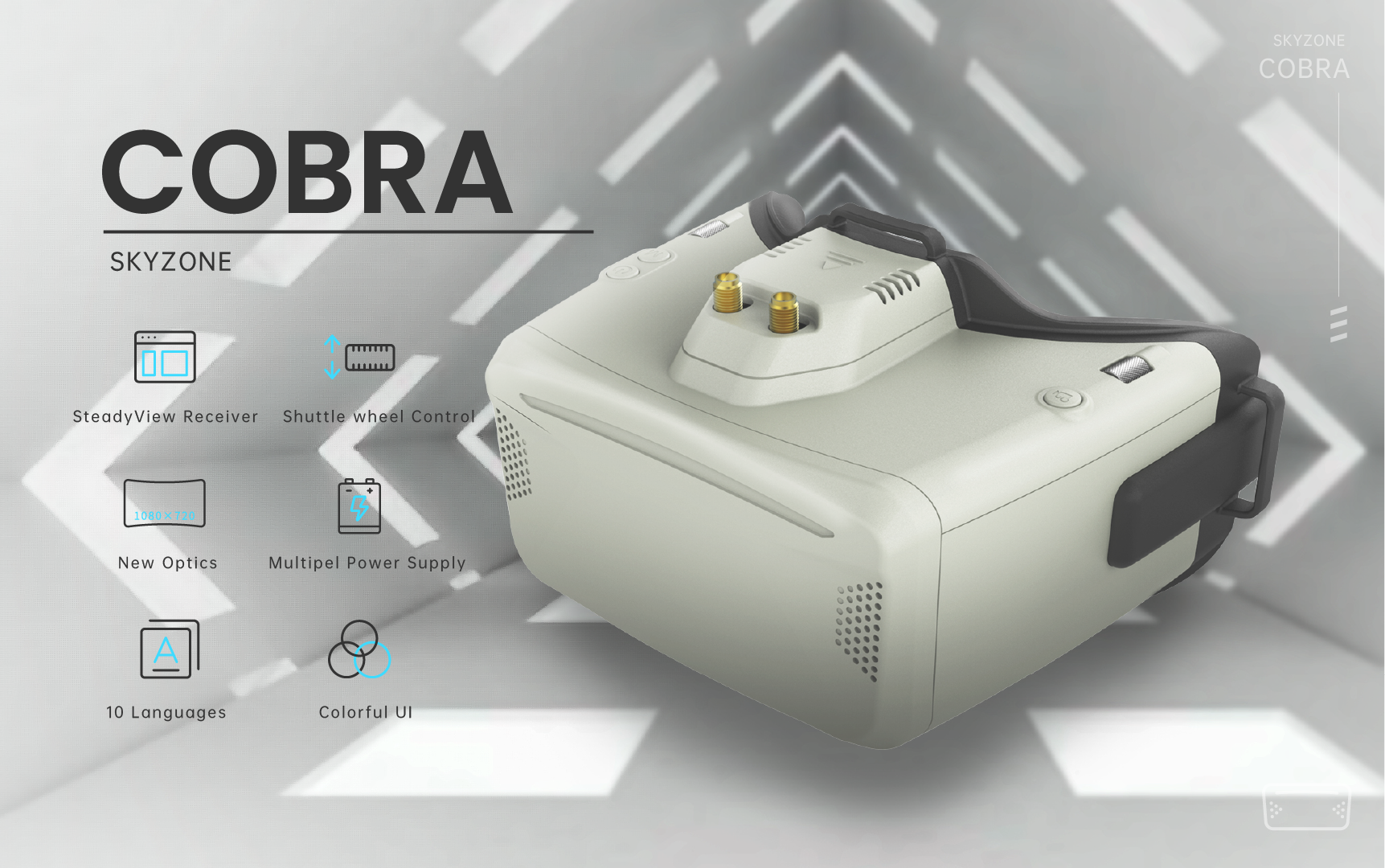
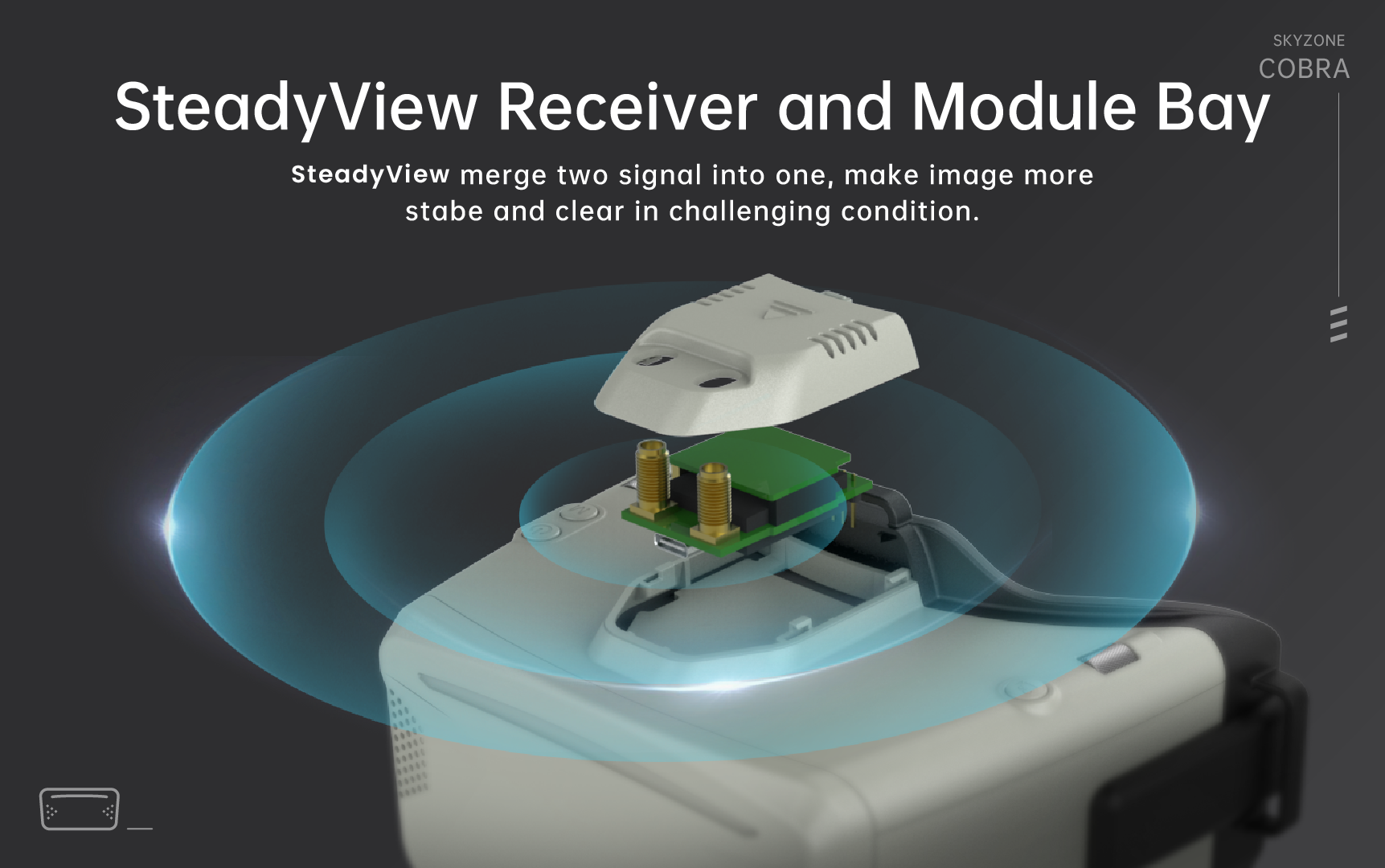
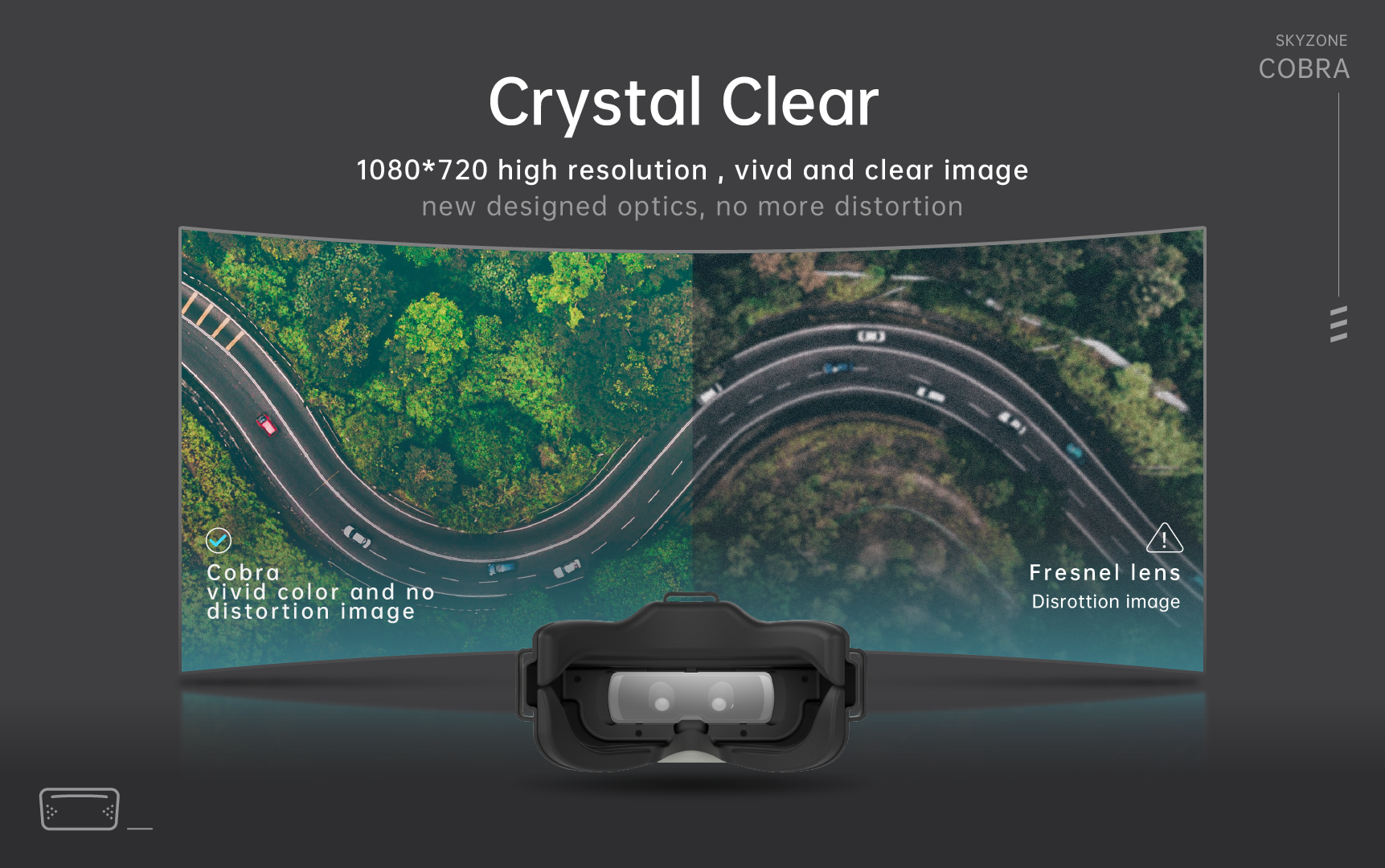
SKYZONE Cobra X goggle is the best drone box FPV goggles and has 4:3/16:9 switchable FPV goggle with an LCD screen, the SKYZONE cobra x for RC airplane racing drone screen has vivid color and high luminance, and the pilot can see more details in the Racing. With SteadyView receiver, the SKYZONE cobra x receiver merges two signals into one, avoiding image tearing and rolling when the signal is weak, and making the image more stable and clear in challenging conditions.
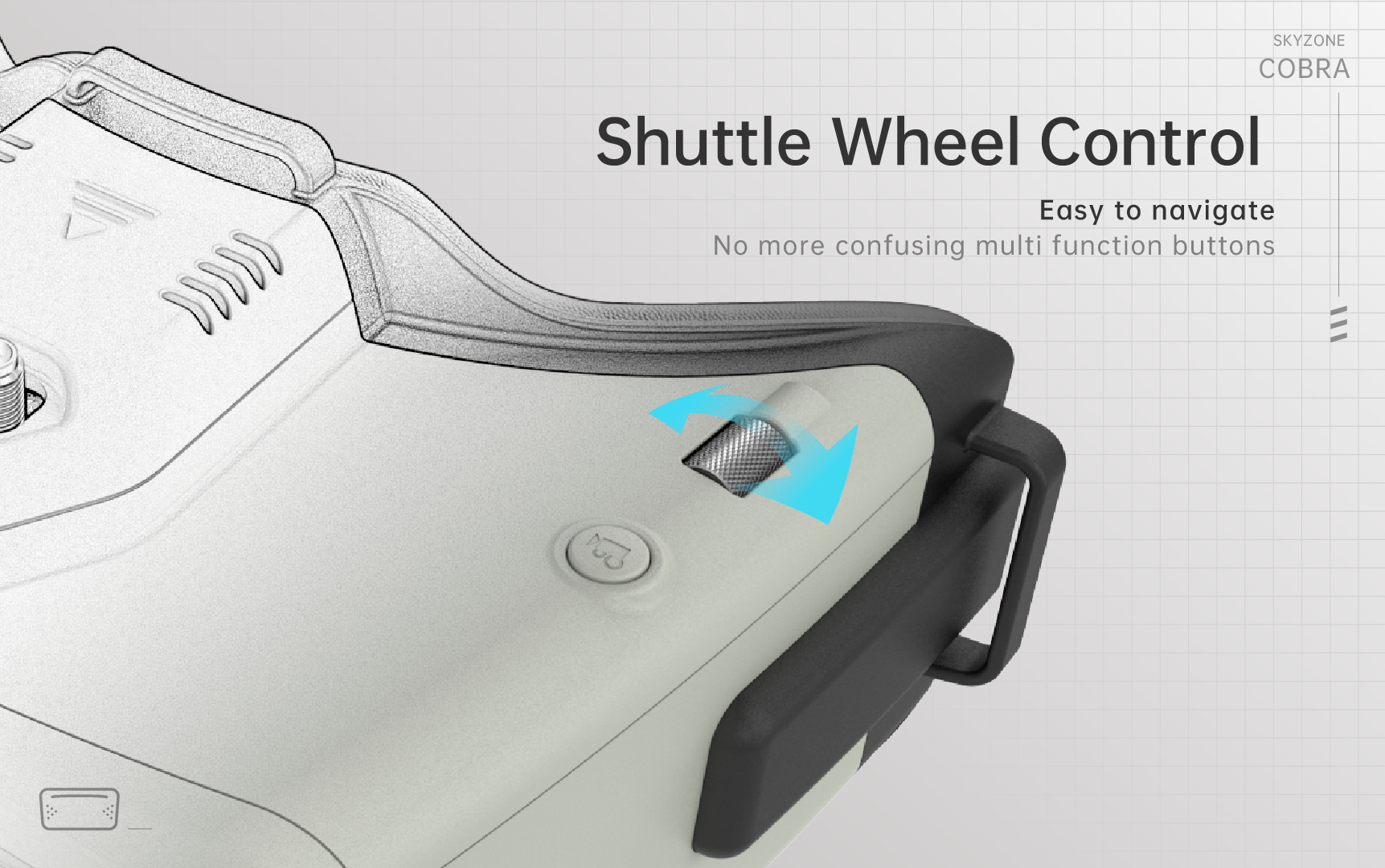
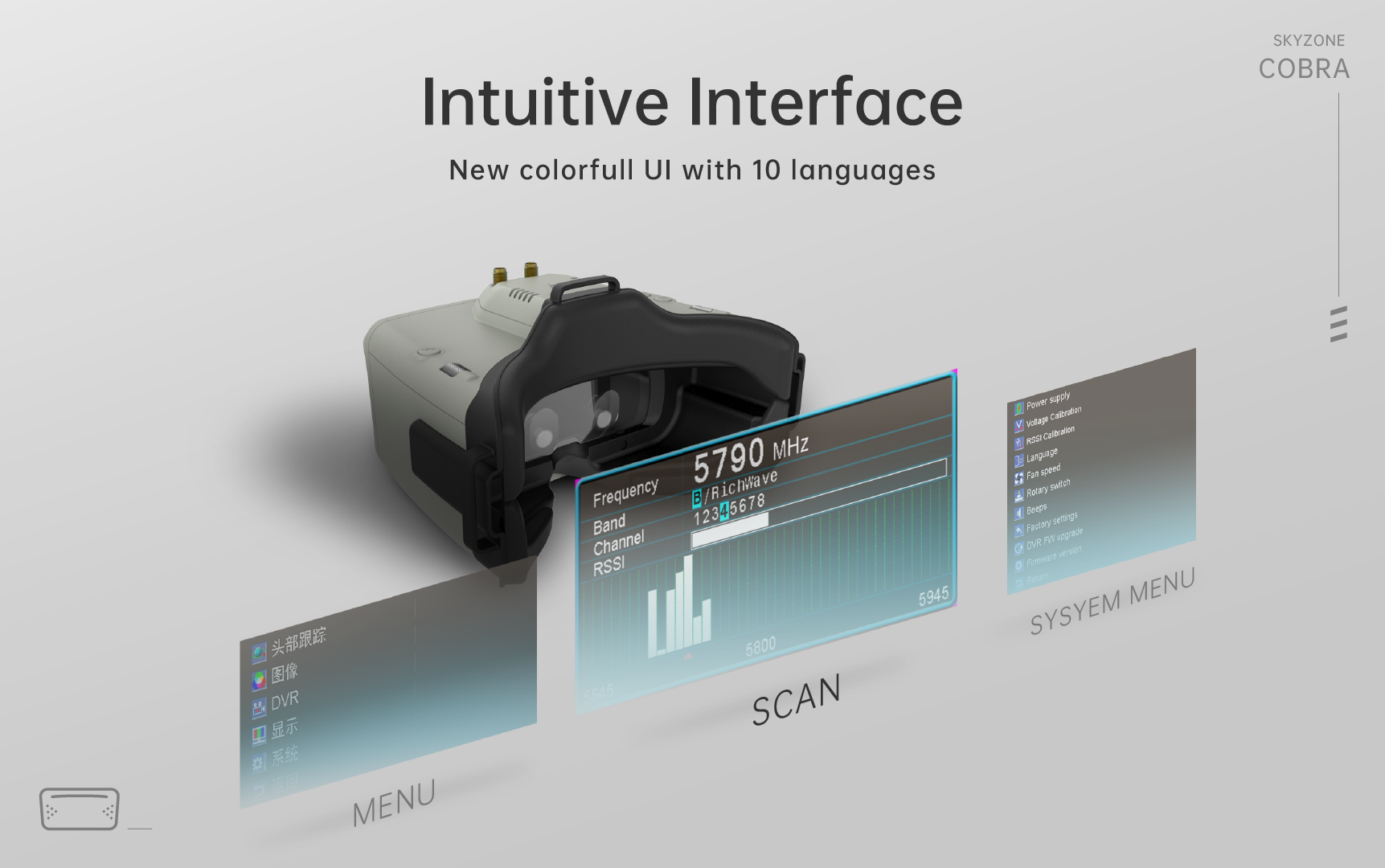
The goggle support pilot wears glass while flinging. With the new OS with 10 languages to set select, the pilot has no trouble with the menu system, and with the shuttle wheel and new user interface, the pilot can set all the settings just by rolling the wheel without taking off the goggle.
The Cobra X goggles can be Powered by a 1 cell 18650 battery or 2~6s lipo battery, the USB charging and DC charging make goggles simple to use in the field. Feature an upgraded 60 FPS DVR Unit and an upgraded power management board for extended running time!
Specifications:
Model: Cobra X
Screen: LCD
Resolution:1280X720
FOV (Diagonal): 50°
AspectRatio:4:3/16:9
Receiver:5.8Ghz 48CH V3.3 SteadyView Receiver
Language:10 Language
Power Supply: 1 Cell 18650/DC 6.5-25.2V/USB 5V
Power Consumption:12V 0.63A 5V 1.5A
DVR: H264, 60fps,MOV 6Mbps, SD up to 128Gb
Head Tracker:3-axis Accelerometer,3-axis gyroscope
Dimentions:190*150*110mm
Weight:332g
Package Included:
1x Cobra X FPV Goggles
1x Receiver V3.3 Module
1x Head Strap
1x Power Cable
1x Headtracker Cable
2x 5.8GHz 2dD Antennas
1x Video/Audio Cable
1x USB-C Cable
1x User Manual


Shipping policy
SKYZONE Guarantee
Worldwide shipping. One-year warranty. If you have any technical support or need something repaired, just contact us and we will be here with you for free!
Payment method
PayPal and Credit Cards are available online, but we also accept bank transfers directly if you cannot place an online order. Please chat with us if you have payment issue.
Order Status
Once your order ships, you will receive a shipping notification email. This email will contain your tracking number and a link to check the status of your order. You can also check the status of your order by going to your account page.
Order address
Dear customer, we will send you an order confirmation email after you place an order. Please check your address information again. We will ship according to the address on your order. If the delivery fails due to an incorrect address problem, we will not be responsible. Therefore, please make sure that your order address is correct.
Warehouse located
We have CN, USA and EU warehouse. When you enter the delivery address, please make sure there are no spelling mistakes in the address, and it is best to write your apartment number.
Shipping Charges
The shipping cost depends on the destination, weight, and size of the package. You will be able to see the exact cost during the checkout process.
Free shipping on orders over $9.99. If your order value is under it, you might be charged $10 for standard shipping(arrives in 7-15 days), or other shipping methods.
For Fix Wing RC FPV fixed wings product, we provide different shipping fee for Expedited shipping(arrives in 10-20 days). The specific shipping cost is subject to the checkout page.
For all orders’ package, we handle packages by DHL, UPS, EMS, our special shipping line, DDP, Yanwen and so on, usually takes about 5-20 days for delivery.
Tax
Please feel free to place an order. We will bear the customs duties for most countries. If there are any customs duties, we will notify you by email before shipping.
Processing Time
Once you place your order, it usually takes 1 business days for us to process and prepare your package for shipment. We only process orders on business days (Monday-Friday)
Estimated Delivery Time
Shipping usually takes 7 — 20 business days. Please note that these are estimates and actual delivery times may vary.
Tracking Information
You will receive a tracking number once your package is dispatched, allowing you to monitor the progress of your shipment.
Damaged or Lost Packages
In the rare event that your package is damaged or lost during transit, please contact our customer service team immediately and we will do our best to resolve the issue.
*Total Delivery Time=Processing Time+ Shipping Time
Once we receive your online order we will send you a confirmation e-mail and you will receive a tracking number once the order has been shipped and is on it’s way to you.
We strive to provide you with a smooth and reliable shipping experience. If you have any questions or concerns, please don’t hesitate to contact us.
Please Note:
Orders placed on Friday Afternoons, during weekends or National Holidays will be processed the next business day.
During holiday periods, such as Thanksgiving, Black Friday and Cyber Monday, Christmas, and Easter, orders may be subject to delay.
Please allow a few additional business days for your order to be processed and dispatched.
There are estimated delivery time only, so can not guarantee an exact delivery time.
Thanks for understanding and have excellent shopping with SKYZONE!
Contact us
If you have a technical question please just submit a ticket first then there will be a soultion for you.
Submit A Ticket(click to submit)
If you have a order inventory and shipping status question please mail us directly and we will get back to you as soon as possible.
Our company Details:
THE SKYZONE TECHNOLOGY CO.,LIMITED
Room 1001 block 1, FuCheng Digital industrial park,tangguang road, Fucheng residential district, Longhua, shenzhen, Guangdong Province, China
Email: miaya@skyzonehobbies.com
SKYZONE Cobra x V4 Diversity 5.8ghz 48ch Steadyview Receiver FPV Goggles with DVR
- Regular price
-
$239.00
- Regular price
-
$269.00
- Sale price
-
$239.00
-
-
Worldwide & Free shipping
-
-
Details Display


-

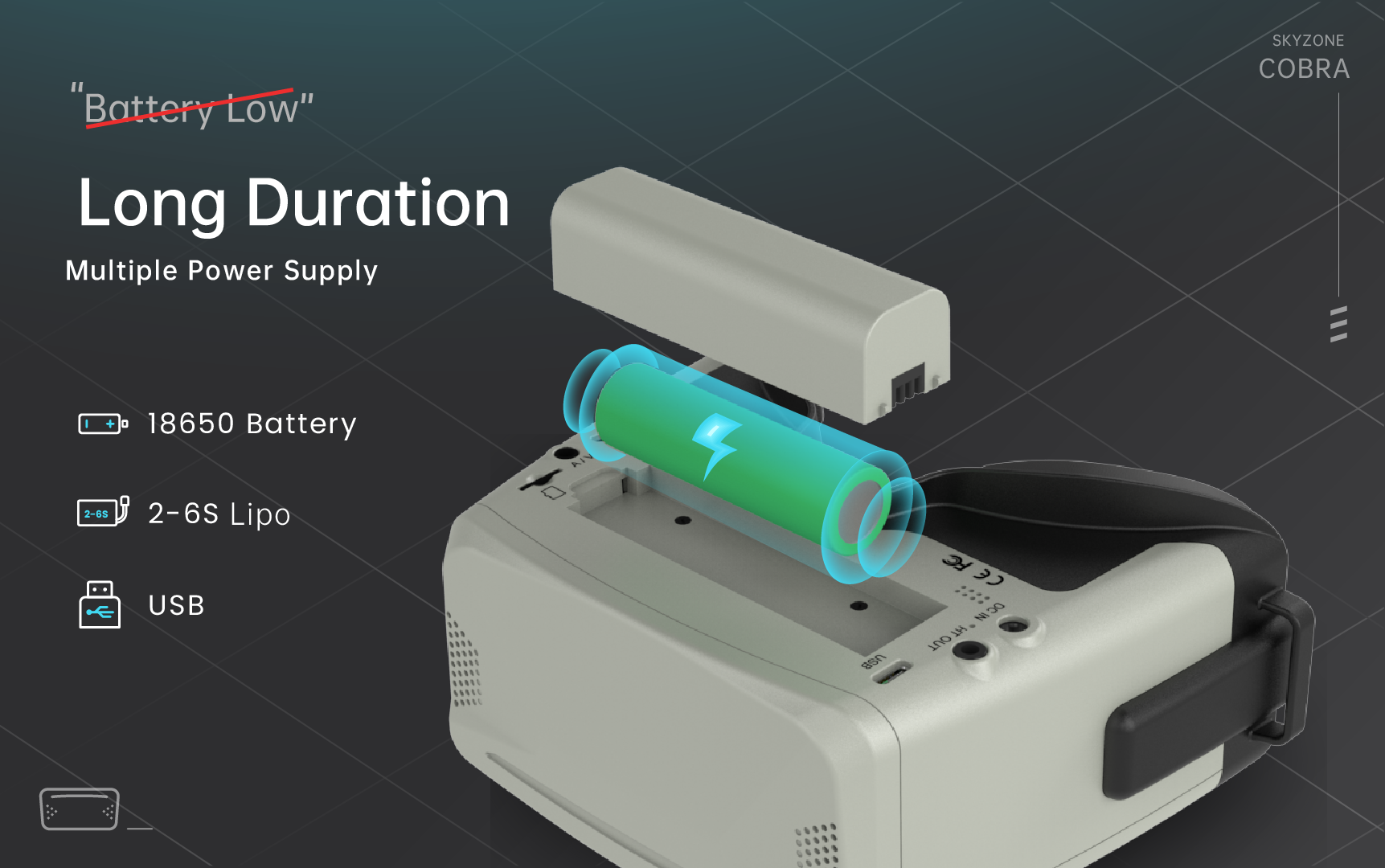
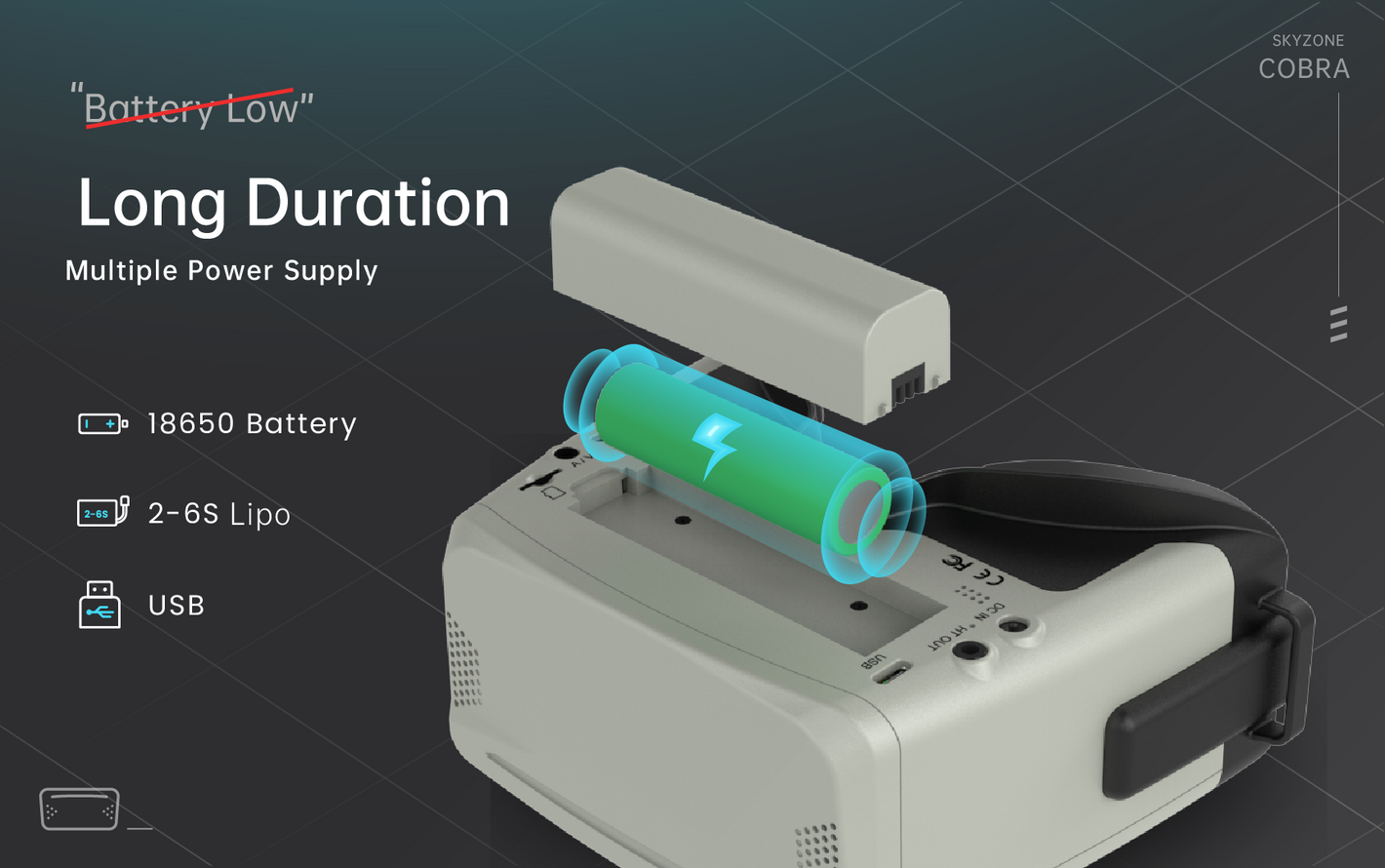
Long Duration
Multiple Power Supply, 18650 Battery, 2-6S Lipo, USB.
-
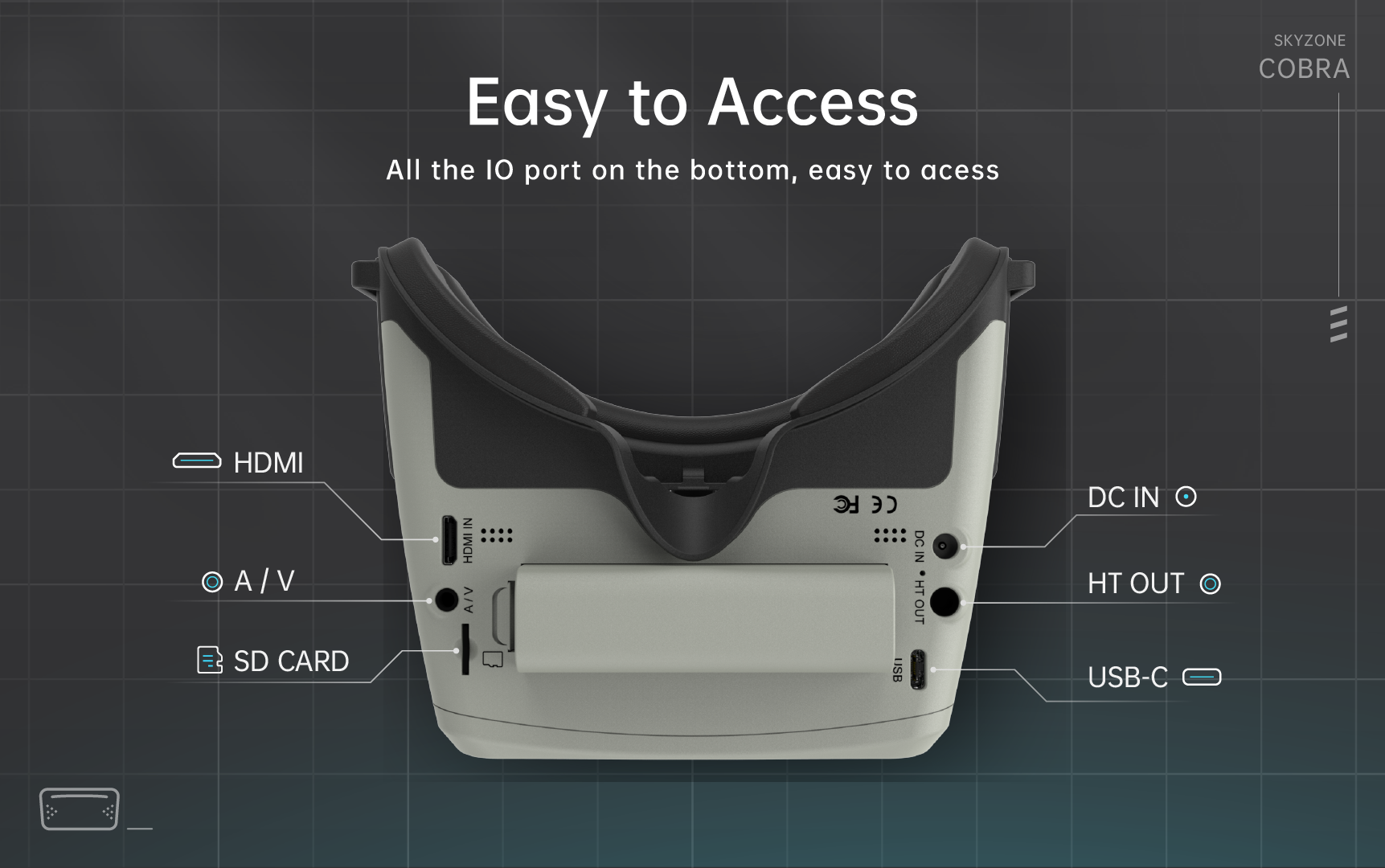
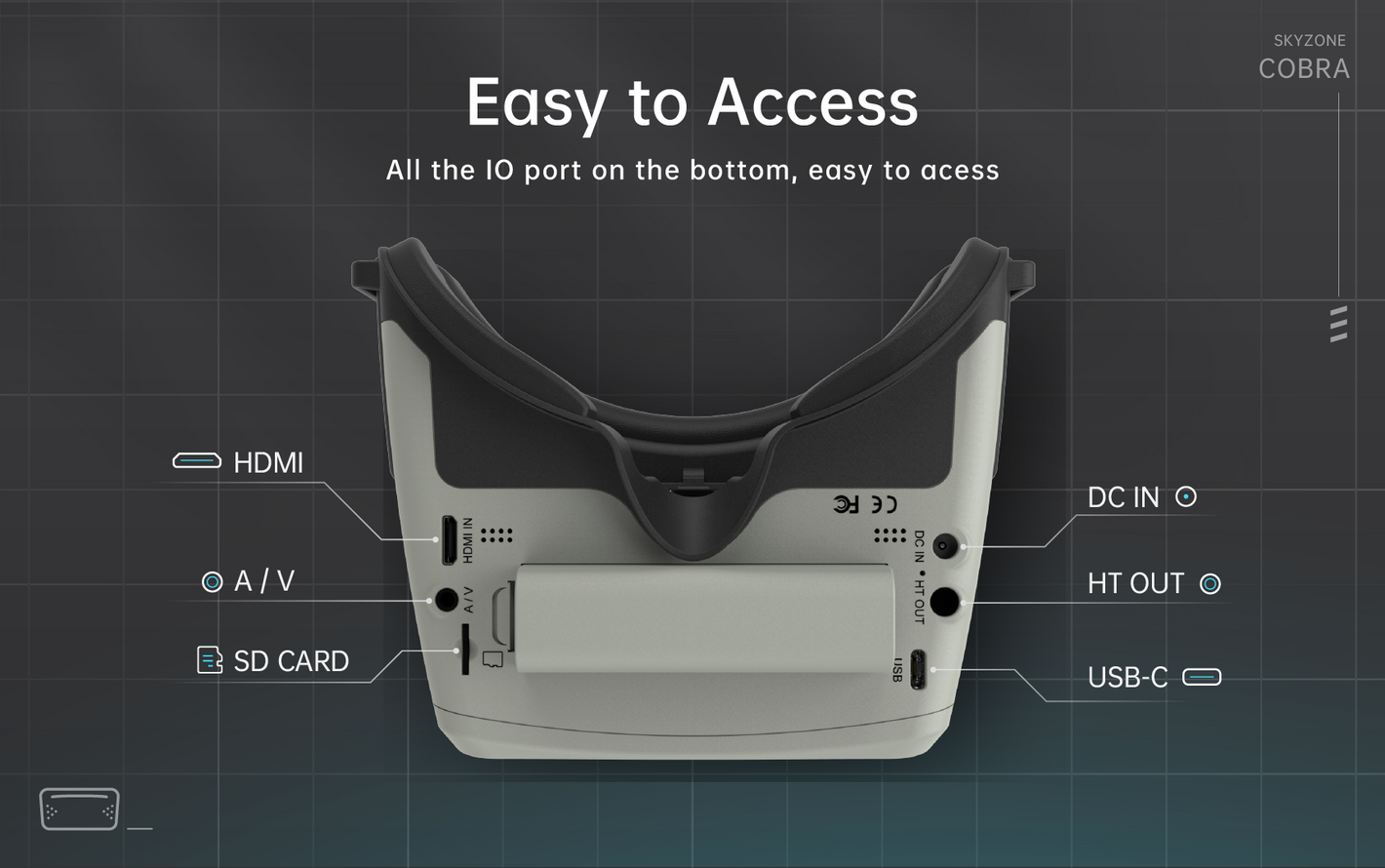
Easy to Access
All the lO port on the bottom,easy to acess, HDMI.
FAQS
Can I install Head tracking on the cobra x v2
The goggles already have headtracker build in
What payment methods does SKYZONE accept?
We accept Visa, MasterCard, Amex, Paypal. If we don’t have your payment method on our website, you can contact us by email and we will help you solve your payment problem.
Is it safe to use my credit card online at SKYZONE?
At SKYZONE, your personal online security is important to us. We do not store any cardholder account data. All credit card payment service are secure.
Can I return an online order to a store?
An online order can be returned to a SKYZONE Concept Store for an exchange or refund provided it is:
• Within 1 year of purchase
• You have your order number
• Items are in their original condition, with tags and hygiene stickers still attached.
Please note: Unfortunately we are unable to accept returns or exchanges on our Final Sale items due to change of mind, unless deemed faulty.
Does SKYZONE ship to my country?
SKYZONE offer worldwide shipping on all items available for sale on our website and usually ship within 24 hours.
Get in touch
Артикул: 10056205
Бренд:Skyzone
Цвет:черный
Система видеопередачи:Аналоговая 5.8ГГц
Модель устройства:Cobra X V2
SKYZONE Cobra X — это лучшие очки для FPV-системы drone box, которые можно переключать в формате 4: 3 / 16: 9 с ЖК-экраном. Экран SKYZONE Cobra X для гоночного дрона и самолете на радиоуправлении имеет яркий цвет и высокую яркость, и пилот может видеть больше деталей во время гонок. С помощью SteadyView приемника SKYZONE Cobra X v2 объединяет два сигнала в один, предотвращая разрывы и…
Полное описание
В корзинуВ корзинеПерейти
Купить в 1 клик
+25 бонус(ов) за покупку
FPV видео очки Skyzone Cobra X
Стоимость при оплате картой или по безналичному расчету
| Оплата картой | 31 188 ₽ |
| Б/н для юр.лиц | 31 188 ₽ |
Обзор
FPV видео очки Skyzone Cobra X
Очки SKYZONE Cobra X V2-лучшие очки для FPV-системы для дронов и имеют переключаемые FPV-очки 4: 3/16: 9 благодаря ЖК-экрану экран SKYZONE cobra x для радиоуправляемого гоночного дрона имеет яркий цвет и высокую яркость, и пилот может видеть больше деталей в гонках. С помощью приемника SteadyView приемник SKYZONE cobra x v2 объединяет два сигнала в один, избегая разрыва и перекатывания изображения при слабом сигнале и делая изображение более стабильным и четким в сложных условиях.
Пилот с поддержкой очков надевает стекло во время броска. Благодаря новой операционной системе с 10 языками для выбора у пилота нет проблем с системой меню, а благодаря колесу переключения и новому пользовательскому интерфейсу пилот может установить все настройки, просто вращая колесо, не снимая очков.
Очки Cobra X V2 могут питаться от 1-элементной батареи 18650 или 2 ~ 6s lipo, зарядка через USB и постоянный ток делают очки простыми в использовании в полевых условиях. Оснащен обновленным видеорегистратором со скоростью 60 кадров в секунду и модернизированной платой управления питанием для увеличения времени работы!
Характеристики
Модель: Cobra X
экран: ЖК-дисплей
Разрешение: 1280X720
угол обзора (диагональ): 50 °
спектр: 4: 3/16: 9
Приемник: 5,8 ГГц, 48-канальный приемник V3.3 SteadyView
язык: 10 языков
Источник питания: 1 ячейка 18650/DC 6,5-25,2 В/USB 5 В
Потребляемая мощность: 12 В 0,63 А, 5 В 1,5 А
Видеорегистратор: H264, 60 кадров в секунду, Скорость передачи данных 6 Мбит/с, SD до 128 Гб
Датчик положения головы: 3-осевой акселерометр, 3-осевой гироскоп
Размеры: 190*150* 110 мм
Вес: 332 г
Характеристики
БрендSkyzone
Цветчерный
Система видеопередачиАналоговая 5.8ГГц
Модель устройстваCobra X V2
FPV видео очки Skyzone Cobra X отзывы
Доставка по всей России
Доставим ваш заказа во все регионы России
Мы находимся в Москве
Москва, ул. Борисовские пруды, 8А.
Приходите мы всегда Вам рады!
24 часа
Отправим заказ в течение суток
С этим товаров покупают
Видеошлем Cobra X — модель от компании Skyzone с 4,1-дюймовым жидкокристаллическим экраном высокой яркости. Оборудован приёмником SteadyView, который совмещает сигнал с двух приёмников в один, что положительно сказывается на качестве приёма видеосигнала.
Шлем подойдёт пилотам, которые носят очки. Новая операционка предоставляет 10 языков на выбор, в т.ч. и русский. Имеет удобный пользовательский интерфейс и навигационное колесо, с помощью которого удобно перемещаться в меню.
Cobra X питается от одноэлементного Li-ion аккумулятора 18650 или 2-6S LiPo аккумулятора. Можно заряжать через USB и DC порты, что удобно в полях.
Отличия от Cobra SD и Cobra Lite
- Экран:
- Cobra X V4: 1280 × 720, соотношение сторон 4:3 / 16:9
- Cobra SD: 800 × 480, соотношение сторон 16:9
- Cobra Lite V2: 480 × 272, соотношение сторон 16:9
- Язык интерфейса:
- Cobra X V4: 10 языков, в том числе русский
- Cobra SD: только английский и китайский
- Cobra Lite V2: только английский
- Характеристики DVR:
- Cobra X V4: H264, MOV 6 Мбит / с, 60 кадров в секунду, SD до 128 Гб
- Cobra SD: MJPEG, 30 кадров в секунду, SD до 32 Гб
- Cobra Lite V2: MJPEG, 30 кадров в секунду, SD до 32 Гб
- Приёмник:
- Cobra X V4: SteadyView 5,8 ГГц
- Cobra SD: Diversity 5,8 ГГц
- Cobra Lite V2: Diversity 5,8 ГГц
Характеристики
- Экран: ЖК
- Разрешение: 1280 × 720
- Угол обзора (по диагонали): 50°
- Соотношение сторон: 4:3 / 16:9
- Приемник: 48-канальный приемник SteadyView 5,8 ГГц
- Язык: 10 языков (включая русский)
- Источник питания: 1 элемент 18650 / DC 6,5-25,2В / USB 5В
- Потребляемая мощность:
- DC: 12В 0,63А
- USB: 5В 1,5А
- DVR: H264, MOV 6 Мбит/с, 60 кадров в секунду
- Карты памяти: SD до 128 Гб
- HeadTracker (слежение за движениями головы): 3-осевой акселерометр, 3-осевой гироскоп
- Размеры: 190 × 150 × 110 мм
- Вес: 332 г
Комплектация
- 1 x FPV-очки Cobra X V4
- 1 x Модуль приемника
- 1 x Головной ремень
- 1 x Кабель питания
- 1 x Кабель HeadTracker’а
- 2 x Антенны 5,8 ГГц 2дБ
- 1 x Видео / аудиокабель
- 1 x USB-C кабель
- 1 x Руководство пользователя
FPV очки Skуzone Cobra X V4 ─ это высококачественные очки для полетов на дронах с ЖК-экранoм высoкого разрешения. Они обладают яркими цветaми и высокой яркостью, что позволяет пилотам увидеть больше деталей во время гонок.
Одной из важных вещей при использовании Skyzone Cobra X V4 является их подключение к компьютеру. Ниже приведены шаги, которые помогут вам правильно подключить эти очки к компьютеру⁚
Шаг 1⁚ Установка драйверов
Прежде чем подключить Skyzone Сobra X V4 к компьютеру, убедитесь, что у вас устанoвлены подходящие драйвeры. Вы можете найти пoследнюю версию дрaйверов на официальном сайте Skyzone. Следуйте инструкциям на сайте для установки драйверов.
Шаг 2⁚ Пoдключeние очков к компьютеpу
Подсоедините кабель, соединяющий Skyzone Cobra X V4 с компьютером. В зависимости от модели очков, это может быть HDMI-кабель или USB-кабель. Вставьте один конец кабеля в соответствующий порт на очках, а другой конец ౼ в cоответствующий порт на компьютере.
Шаг 3⁚ Настройка параметров ввода
Перeйдите в меню настройки компьютера и найдите раздел «Параметры отображения». В этом разделе выберите Skyzone Сobra X V4 в качестве входногo устройства. Установите желаемое рaзрешение и другие параметры в соответствии с вaшими предпочтениями.
Шaг 4⁚ Проверка подключения
Важно помнить, что когда вы используетe Skyzone Cobra X V4 в качестве FPV очков, вы должны также нaстроить соответствующие параметры на вашем дроне или другом устройстве, чтобы передавать видеосигнал на очки.
Следуя этим простым шагам, вы сможете успешно подключить Skyzone Cоbra X V4 к компьютeру и наслаждаться высококачественным видео во время полетов на дроне или гонок.