
When you purchase through links on our site, we may earn an affiliate commission. Here’s how it works.
If you own a Samsung smart TV and enjoy watching your favorite shows or web series or playing immersive games, you might be wondering about the 3D capabilities of your device. Here’s how you can enhance your viewing experience with 3D glasses for Samsung TVs.
Types of 3D Glasses for Samsung TV and How to Charge Them
There are two main types of 3D glasses available for Samsung TVs:
- Rechargeable
- Battery-operated
Rechargeable Samsung 3D Glasses
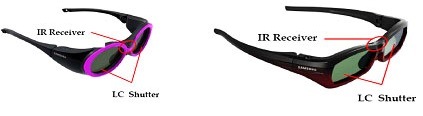
Rechargeable 3D glasses come with a cable for easy recharging. The infrared receiver between the liquid crystal shutters at the top-middle of the glasses ensures seamless connectivity with your TV.
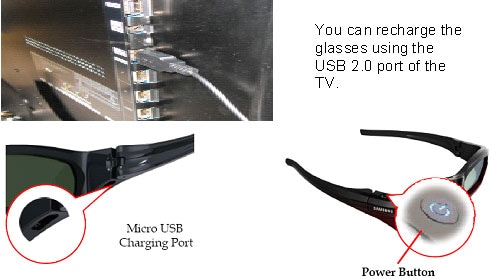
To charge these glasses, connect one end of the provided cable to a USB port on your TV or computer and the other to the micro USB port on the glasses. Use a USB 2.0 port for optimal charging efficiency.
Battery Operated Samsung 3D Glasses
Battery-operated 3D glasses feature an LED indicator on the power button to signal battery levels. A continuously blinking LED indicates a low battery, prompting you to replace the batteries soon. If there’s no light after pressing the power button, replace the batteries immediately. Use Lithium Manganese Dioxide batteries for replacements.
Using 3D Glasses with Your Samsung TV
To activate the 3D feature on your Samsung Smart TV, switch the TV to 3D mode. Then, press and hold the power button on the 3D glasses for 2-3 seconds until the LED remains lit, indicating they’re ready to use. The glasses’ lenses will slightly darken. If you forget to switch your TV to 3D mode, the glasses’ power-saving feature will activate to conserve battery life.
To turn off the glasses, hold the power button for 2-3 seconds until the LED blinks thrice. If you switch off the 3D function on your TV, the glasses will automatically turn off after 2-3 minutes of inactivity.
Setting Up 3D Glasses for Samsung Smart TV
Pairing Samsung 3D Glasses
If your 3D glasses aren’t working, they may need to be paired with your TV. To pair them:
- Turn on your Samsung Smart TV and ensure the 3D glasses are within 19.5 inches of the TV.
- Press the power button on the glasses to turn them on. They should automatically start pairing with your TV.
- A message will appear on the TV screen confirming the glasses are connected. If you don’t see this message, turn off both the glasses and the TV, then try again.
If the glasses don’t work after pairing, they may need repair.
Checking the View Range of Your Samsung 3D Glasses
Ensure nothing blocks the emitter on the TV to maintain clear communication with the glasses. The optimal distance between the glasses and the emitter is less than 6 meters.
Checking the Emitter’s Functionality on Samsung 3D Glasses
The emitter’s LED is in the TV’s bottom left corner. Although invisible to the naked eye due to its wavelength, you can use a digital camera to check for a red dot, indicating proper function.
This article covers the essentials of setting up and using 3D glasses with your Samsung TV. For additional information, visit Samsung’s official website.
See Also
How to Connect Samsung TV to WiFi
3D Glasses Operating Guide
Two types of 3D glasses are available: Rechargable and Battery-operated.
Rechargable Glasses. A cable is provided with all rechargeable glasses.
Charging (Rechargeable Glasses)
Connect one end of the lead provided to either the USB port on TV or a PC, then connect the other end of the lead to the Micro USB socket on the glasses.
Low Battery (Battery Glasses)
1
If the power indicator LED on the glasses are blinking continuously, then this indicates that the battery needs replacing.
2
Press the power button, and check whether the power indicator LED blinks either once or several times. If the LED doesn’t blink, then the batteries are depleted.
Please use only Lithium Managnese Dioxide Batteries

Switching the Glasses on and off
Powering on
Set the TV to 3D mode and press the power-on button on the 3D glasses. Press and hold this button for approximately 2-3 seconds.
The power indicator LED will blink once, then remain on. The glasses lens will darken.
If the TV is not set to receive 3D content, then the glasses go into power-saving mode, to conserve battery power.
Switching Off
Press the power-on button continuously for approximately 2-3 seconds. When powering down the power indicator LED will blink 3 times, before switching off.
Please note The 3D glasses will automatically power off after a few minutes after the TV’s 3D function is turned off.
Pairing the glasses
Pairing is a process of connecting two devices so that they can exchange data. If your glasses are not working, you may need to pair them.
1
Turn on the TV, and move the glasses within 19.5 inches of the TV
2
Press the Power button on the glasses briefly. The 3D glasses will power on and the pairing will begin.
3
If the pairing is successful, you will see the message «3D glasses are connected to TV’ on the screen. If the pairing has failed, please power off the TV and repeat step 1 and 2.
Note that you will need to repair your glasses, if they do not function after the power button is pressed on the TV after pairing, or if you want to view a 3D video on a different Samsung 3D TV.
Checking the viewing range of the glasses
The 3D Emitter on the TV communicates with the glasses, as shown below:
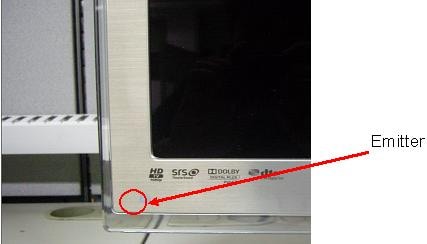
Avoid placing obstacles between the emitter and 3D active glasses. This will inhibit synchronisation between the glasses and television. The distance from the emitter from the glasses should not be more than 6 metres.
Checking the emitter
The emitter LED is located at the bottom left-hand side of the television. When the emitter is transmitting, the LED status is RED. However, the red LED on the TV is not visible to the human eye, due to the wavelength of the signal.
You can check whether the emitter is emitting by using a digital camera (including one on your phone). Aim the camera at the emitter and view the screen. If the emitter is working, you should see a red dot on your screen as per the below images.
Emitter LED = RED: Communicating with glasses
Thank you for your feedback!
Если вы видите это сообщение, значит, произошла проблема с загрузкой файлов в стилей (CSS) нашего сайта. Попробуйте сбросить кэш браузера (Ctrl+F5).
Если это не поможет, а вы находитесь в регионе, где возможны ограничения интернет-трафика с российских серверов — воспользуйтесь VPN.
|
Как смотреть 3D на телевизоре Samsung? У нас смарт ТВ Самсунг с функцией 3Д. Для включения функции 3D есть специальная кнопка на дистанционном пульте. В комплекте к ТВ шли очки. Перед первым использованием их необходимо было «подключить» к ТВ, сделать что-то вроде калибровки. Обычные телевизионные каналы смотрятся в 3D так себе. Но специальное адаптированное видео выглядит очень и очень неплохо (даже на такой простенькой бюджетной модели как у нас, что уж говорить о более «навороченных» ТВ). Саяны 10 лет назад Сам телевизор должен иметь функцию 3Д, нужен источник 3Д сигнала (например, компьютер, домашний кинотеатр), диск с трехмерным фильмом или игрой и 3Д очки. Телевизор с источником нужно соединить с помощью кабеля HDMI.. Знаете ответ? |
In order to use your 3D glasses with your Samsung TV, you need to pair them with the TV. To do this, turn on the TV and hold the power button for about two seconds. Once paired, the red and green LEDs on the glasses will alternately blink for about 2 seconds. If pairing fails, power off the TV and try again.
When you first set up your 3D glasses, it may ask you to pair them with your TV. When the pairing process is complete, the 3D glasses will power on. When you’re finished, you’ll see the message “3D glasses connected to TV”. This is when you’re ready to enjoy 3D movies.
To turn on your 3D glasses, press the power button for two seconds and wait for the indicator to blink green or yellow. Your 3D glasses should now light up and the screen should display the message “3D” for at least five seconds.
Will Any 3D Glasses Work with Samsung TV?
To enjoy 3D movies and television, you will need a pair of 3D glasses. There are several types of these glasses. You should choose the right type according to your Samsung TV’s specifications. A good pair of 3D glasses should last at least 150 hours. To pair your 3D glasses with your Samsung TV, simply turn on the Samsung TV and hold the power button for two seconds. Once the registration is complete, you should see a green and yellow light come on. After you’ve done this, you should be ready to watch 3D movies and shows on your new TV.
Samsung TVs support full HD 3D, but not all types of 3D glasses are compatible with this television model. Sony, for example, does not offer compatible 3D glasses. Samsung makes several models that support 3D movies and current-generation active shutter glasses. Samsung 3D Active Glasses are wireless, rechargeable, and work with all Samsung 3D HDTVs. These glasses are best for 3D movies and are designed to fit most adults comfortably.
How Do I Use 3D on My Samsung Smart TV?
The first step to using 3D content on your Samsung smart TV is to turn on the 3D glasses. To do this, press and hold the power button on the 3D glasses for about 2 seconds. After that, you should see a registration message. After five seconds, the green LED will blink three times. If it fails, the 3D glasses will turn off automatically.
You can use your Samsung 3D Smart TV to view 3D movies. To get started, just press the power button on the TV and wait for two seconds until the 3D switch is enabled. Once the 3D switch is enabled, select the type of 3D that you want to watch. If you’re not using 3D glasses, you will see blurry double images.
In addition to 3D content, your smart TV supports picture-in-picture (PIP) technology. It also features 3D Mode options that enable you to view any normal image as 3D.
How Do I Work My Samsung 3D Glasses?
First, you should turn on the 3D glasses by pressing and holding the power button for two seconds. Next, wait a few seconds until the registration message appears and the green LED blinks three times. The glasses will automatically turn off after a few minutes. If you move them outside of their working range, you may not be able to see the 3D image.
Next, pair the 3D glasses with your Samsung 3D television. The glasses communicate with your TV via the 2.4GHz RF band. They may not work with other wireless communication products. If you’re experiencing problems, you can try resetting your glasses by turning the TV off and on again. You should also try moving any objects that may block the signal of the TV. This is to ensure that the glasses will work properly.
To start watching 3D movies, you’ll need the Samsung 3D glasses and a 3D Blu-ray player. The glasses come with a remote control and are wireless. They are rechargeable and work with any Samsung 3D HDTV. The glasses are small enough for most adults to wear and have a rechargeable battery. If you want to use the glasses for watching movies, you should choose the Samsung 3D Active Glasses. The glasses are lightweight and can work for up to 150 hours.
How Do I Connect My 3D to My TV?
When you are watching a movie on your Samsung TV, you may wonder, “How do I connect my 3D glasses?” First, you need to turn your TV on. Press and hold the power button for 2 seconds. After this, the power indicator will blink three times and then turn off. The 3D glasses will automatically turn off after a few minutes.
The Samsung Smart TV will allow you to switch on 3D by choosing the 3D setting from the picture menu. Once you’ve done so, you’ll find a menu that allows you to toggle between active and passive 3D. To turn the 3D mode on or off, press and hold the power button for 2 seconds. If the pairing fails, try powering off and on the TV again.
If you have an active 3D glasses, you’ll want to connect them to the Samsung Smart TV as well. You can also use these with other 3D TVs. Some Samsung TVs are compatible with these 3D glasses, but not all. You can also use a standard pair of glasses to watch 3D movies on your Samsung TV. Just make sure you’re wearing the right glasses.
Do 3D Glasses Work with Any TV?
While 3D content will work on most 3D Blu-ray players, not every TV is compatible with 3D glasses. Some models of TVs are only compatible with passive 3D glasses, while others require active 3D glasses. The type of glasses you choose will depend on the type of TV and refresh rate.
If you’re using 3D glasses at home, you’ll need a 3D-capable TV or laptop. Most newer models of LED and LCD TVs support 3D. You’ll also need 3D glasses and an HDMI cable to enjoy 3D content.
The types of 3D glasses that are compatible with different TVs differ. Some TVs require an HDMI 1.4 connection. Others require an IR-capable receiver or a polarizing filter for passive polarization. And some TVs even need a polarizing filter for frame-sequential 3D. You can learn more about the specific technology and compatibility of your TV by checking out the manufacturers’ websites.
Some active shutter glasses are compatible with most types of 3D televisions, but they need to be prescribed for the model of your TV. Plasma and projectors, which don’t use pixels, require active shutter glasses, while OLED and LCD TVs work with passive shutter glasses. If you don’t have a 3D TV, don’t worry – many companies are developing universal glasses and making them affordable for consumers.
Why 3D TVs are Discontinued?
The 3D TV industry is experiencing a slow death. While it was popular for a while, manufacturers found it difficult to convince consumers to spend the extra money for 3D content. In addition, many consumers in the U.S. had just switched over to digital television, so many were less interested in spending extra money on a 3D TV set. The end result is that most companies have stopped producing 3D TVs.
While the 3D TV concept has potential, it hasn’t been well marketed. The technology was misunderstood by manufacturers, which led to a poor product experience. There was also a shortage of content in 3D, which discouraged consumers from upgrading to this technology. Many manufacturers have also recalled 3D TVs, which has a negative effect on the industry as a whole.
While 3D technology was once deemed to be the best technology for televisions, it failed to live up to expectations. The price of 3D glasses was high and brand-specific, and the 3D images were dim. In addition, 3D TVs had a very narrow viewing angle. Earlier this year, Sony and LG discontinued their support of 3D TVs. Today, only Vizio and Samsung offer 3D support. Sharp and TCL did not even announce 3D TVs at CES 2017.
How Do I Watch 3D on My Smart TV?
If you want to watch 3D movies on your Samsung TV, you need to set it up correctly. Ensure that the correct cables are plugged in, and then turn on the 3D mode. Some 3D content may not automatically detect the format, so you should check the manual before starting the process.
To enable 3D, you need to connect your TV via HDMI. Make sure that your television has an HDMI 2 jack. Once you have the cable connected, open the menu and click 3D. Once the menu opens, navigate to the 3D settings menu. In some cases, cable providers broadcast 3D content in two formats; the TVs may not automatically detect the correct format.
The main difference between the two formats is how the images are displayed. Active 3D technology uses two frames to display the image, one for each eye. Passive 3D, on the other hand, uses the same image but divides the vertical resolution between two frames.
Learn More Here:
1.) Samsung Smart TVs
2.) Samsung Official Support
3.) Samsung TV – Wikipedia
4.) Samsung TV Models
Для того чтобы посмотреть 3D фильм не обязательно идти в кинотеатр. Благодаря современным технологиям, практически у каждого есть возможность смотреть качественное кино у себя дома. Для этого можно купить и установить телевизор samsung smart tv с 3D очками.
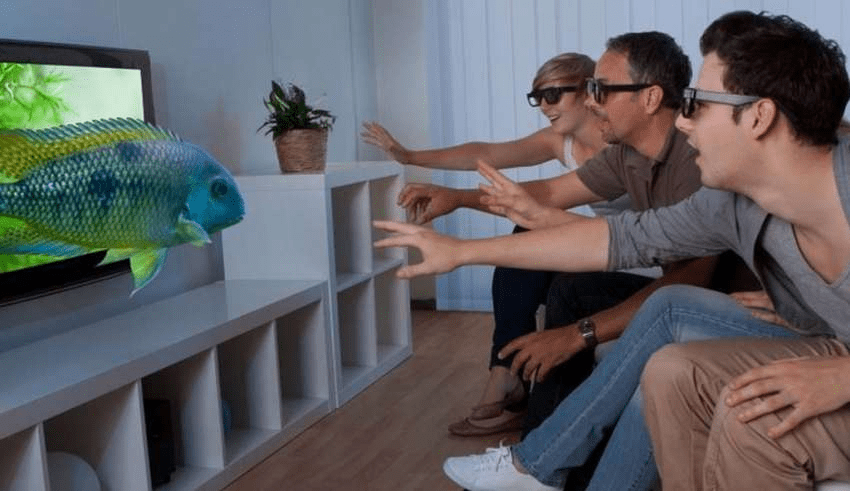
Особенности 3D очков
Для получения объемного изображения кадры подаются к человеческому глазу по – отдельности. В этом случае используются специальные 3Д очки, работа которых основана на поочередном закрытии глаз и создании 3D эффекта либо при одновременной передаче картинки.
Пользоваться такими атрибутами сможет каждый, для этого в комплектации к товару присутствует подробная инструкция. На верхней стороне аксессуара есть кнопка для включения, возле которой располагаются индикаторы функционирования. После запуска оборудование автоматически сопряжается с техникой. Подзарядить приспособление можно от розетки или беспроводным зарядным устройством.
Последняя версия 3Д оборудования характеризуется комфортом и удобством в применении.
Она оснащена Bluetooth и сенсором движения. Если у пользователя имеются проблемы со зрением, то в очки можно вставить линзы.
Какими бывают
В настоящее время на рынке электротехники можно встретить два вида 3D аксессуаров:
- Активный. Данный 3D аксессуар работает на основе быстрого переменного закрытия и открытия линзовых затворов. В этом случае каждый орган зрения видит разную картинку. Активные приспособления оснащены инфракрасным датчиком, который синхронизирован с телевизионным передатчиком.
- Пассивный. Аксессуары данного вида передают изображение на оба человеческих глаза одновременно. При этом картинка поступает по отдельности из нескольких углов. Глаз видит кадры, но воссоединяет их в общую картину. Такие очки не нуждаются в источнике питания, поэтому он особенно востребованы в кинотеатрах. Пассивные приспособления бывают анаглифными и поляризационными. При работе они не мерцают, что исключает усталость глаз и их чрезмерное напряжение.
На что обратить внимание при покупке
Покупая 3Д очки для Смарт телевизора Самсунг, стоит запомнить следующие моменты:
- оборудованием с аккумулятором можно будет пользоваться дольше;
- приборы от батареек держат заряд непродолжительно;
- аксессуар должен быть совместимым с телевизором и лучше, если производитель будет один;
- не обходить вниманием комплектацию устройства и срок его эксплуатации;
- определиться с необходимой дальностью использования приспособлений и учитывать ее при выборе.
Правила подключения
Для соединения 3Д очков и телевизора Самсунг потребуется спроектировать их активную систему.
Это делается путем нажатия кнопки и направления аксессуара на дисплей. После этого происходит автоматическая настройка и оборудование сопрягается.
Читайте также:
- Обзор Samsung QE55Q90T – флагманский 4к телевизор.
В случае использования пассивного вида оборудования подключение происходит намного проще. Для этого пользователю нужно надеть приспособление и нажать на контроллере клавишу с необходимым режимом. В активации и настройке пассивные очки не нуждаются.
3D оборудование для samsung smart tv – это сравнительно недорогой аксессуар, который не создает трудностей в подключении и применении. Благодаря им, пользователю получает качественную захватывающую картинку в 3Д качестве и массу положительных эмоций.