
Руководства

Ознакомьтесь с правилами эксплуатации вашего автомобиля Toyota, изучив электронную версию руководства.
На данной странице представлены следующие типы руководств:
- Общее руководство для владельца
- Руководство по мультимедиа и навигации
- Руководство по вождению в условиях бездорожья
Corolla
- Руководство для владельца
- Руководство по эксплуатации навигационной и мультимедийной систем
Camry
- Руководство для владельца
- Руководство по эксплуатации навигационной и мультимедийной систем
Toyota C-HR
- Руководство для владельца
- Руководство по эксплуатации навигационной и мультимедийной систем
RAV4
- Руководство для владельца
- Руководство по эксплуатации навигационной и мультимедийной систем
Highlander
- Руководство для владельца
- Руководство по эксплуатации навигационной и мультимедийной систем
Fortuner
- Руководство для владельца
- Руководство по эксплуатации навигационной и мультимедийной систем
Land Cruiser Prado
- Руководство для владельца
- Руководство по эксплуатации навигационной и мультимедийной систем
- Руководство по вождению в условиях бездорожья
Land Cruiser 300
- Руководство для владельца
Land Cruiser 200
- Руководство для владельца
- Руководство по эксплуатации навигационной и мультимедийной систем
Hilux
- Руководство для владельца
- Руководство по эксплуатации навигационной и мультимедийной систем
Alphard
- Руководство для владельца
- Руководство по эксплуатации навигационной и мультимедийной систем
Hiace
- Руководство для владельца
- Руководство по эксплуатации навигационной и мультимедийной систем
Руководства по эксплуатации платформы Яндекс.Авто
Яндекс.Авто* — это несколько полезных сервисов с единым интерфейсом и голосовым управлением.
Руководство для Camry (PDF) Руководство для RAV4 (PDF)
*ООО «ЯНДЕКС» является правообладателем товарного знака «Яндекс» и программы «Яндекс.Авто» (0+).
Платформа Яндекс.Авто доступна на автомобилях Toyota Camry, произведенных с 23.08.2016 по 08.06.2018 и Toyota RAV4, произведенных с 29.11.2016 по 22.11.2019.
Найти дилера Записаться на сервис Заказать обратный звонок
СМОТРИТЕ ТАКЖЕ
МОДЕЛЬНЫЙ РЯД
Узнавайте больше о моделях Toyota, ознакомившись со справочными материалами по модели.

РЕГЛАМЕНТ ТО
Узнайте подробнее о регламенте и записи на ТО, а также о возможности провести первое техническое обслуживание для вашего автомобиля Toyota бесплатно.
УСЛОВИЯ ГАРАНТИИ
Узнайте про гарантийный срок на новый автомобиль Toyota у Официального дилера. Гарантийный срок составит 3 года или 100 000 км пробега.
- Машины
- Toyota
- Camry
- XV50
- Toyota Camry ★ Perlmutter
8 мая 2018
OHimich
Была 1 день назад
Олег, 41 год
Я езжу на Toyota Camry 3.5 V6 (до этого — 5 машин)
Москва, Россия
Подписаться
Сообщение

Всем привет!
Сегодня решил закинуть в БЖ электронную версию мануала, так как с машиной еще на стадии знакомства, то периодически полезно туда заглядывать. Мануал взят с официального сайта Toyota. Ничего особенного, просто для удобства. Да и бумажной версии у меня почему то нет.
1. Руководство для владельца Toyota Camry XV55
2. Руководство мультимедиеа Touch 2 WIth GO (2016) Toyota Camry XV55
3. Руководство для владельца по системе навигации Toyota Camry XV55
4. Руководство по эксплуатации навигационной и мультимедийной системы на платформе Android Toyota Camry XV55
5. Руководство по эксплуатации навигационной и мультимедийной системы на платформе Яндекс. Авто Toyota Camry XV55
6. Ссылка на инструкции для других моделей Toyota
Ну вот и всё! Как говориться подписываемся, жмём на репост, ставим лайки… ))
Всех с праздником и хорошего выходного!
Цена вопроса: 0 $
Пробег: 51 200 км
8 мая 2018
Метки: другое
10
Ранее §2. OEM Toyota — брызговики!
Далее §4. Сеточка топливного фильтра Camry V55!
Разместить рекламу
Реклама
Машины в продаже
Комментарии
10
Войдите или зарегистрируйтесь, чтобы писать комментарии, задавать вопросы и участвовать в обсуждении.
Войти
Зарегистрироваться
JohnPrim
Я езжу на Toyota Camry (XV50)
Народ, если есть у кого на V55 в pdf поделитесь плиз!
2 года
OHimich
Автор
Я езжу на Toyota Camry (XV70)
(до этого — Toyota Camry (XV50))
Посмотрите по этой ссылке, манул для вашей машины!
2 года
OHimich
Автор
Я езжу на Toyota Camry (XV70)
(до этого — Toyota Camry (XV50))
JohnPrim
Народ, если есть у кого на V55 в pdf поделитесь плиз!
carmanuals2.com/toyota/camry-2015-55526
2 года
JohnPrim
Я езжу на Toyota Camry (XV50)
Большое спасибо!
2 года
JohnPrim
Я езжу на Toyota Camry (XV50)
Первая ссылка не открывается.
2 года
OHimich
Автор
Я езжу на Toyota Camry (XV70)
(до этого — Toyota Camry (XV50))
myportalcontent.toyota-eu…oyota/CAMRY_GR_33C26R.pdf
2 года
Neegoumaa
Я езжу на Suzuki Jimny (4G)
Спасибо!
4 года
777sham
Я езжу на Toyota Camry (XV50)
👍
4 года
uchka
Я езжу на Skoda Kodiaq (1G)
(до этого — Toyota Camry (XV50))
однозначно скачано, спасибо!
7 лет
Potap3838
Я езжу на Toyota Camry (XV50)
В закладки.👍👍👍
7 лет

1 QUICK GUIDE 11
2 BASIC FUNCTION 31
3 AUDIO SYSTEM 71
4 VOICE COMMAND SYSTEM 131
5 INFORMATION 141
6 PERIPHERAL MONITORING SYSTEM 147
7 PHONE 157
8 NAVIGATION SYSTEM 197
9 Entune App Suite 265
INDEX 281
About the following equipment, see the “Owner’s Manual”.
Fuel consumption
Energy monitor (CAMRY HYBRID)
Vehicle customization settings
1

Introduction
NAVIGATION AND MULTIMEDIA SYSTEM OWNER’S MANUAL
This manual explains the operation of this system. Please read this manual
carefully to ensure proper use. Keep this manual in your vehicle at all times.
The screen shots in this document and the actual screens of this system differ
depending on whether the functions and/or a contract existed and the map data
available at the time of producing this document.
Please be aware that the content of this manual may be different from this system in some cases, such as when the system’s software is updated.
NAVIGATION AND MULTIMEDIA SYSTEM (WITH NAVIGATION
FUNCTION)
The Navigation System is one of the most technologically advanced vehicle accessories ever developed. The system receives satellite signals from the Global
Positioning System (GPS) operated by the U.S. Department of Defense. Using
these signals and other vehicle sensors, the system indicates your present position and assists in locating a desired destination.
The navigation system is designed to select efficient routes from your present
starting location to your destination. The system is also designed to direct you
to a destination that is unfamiliar to you in an efficient manner. The system uses
AISIN AW maps. The calculated routes may not be the shortest nor the least
traffic congested. Your own personal local knowledge or “short cut” may at
times be faster than the calculated routes.
The navigation system’s database includes Point of Interest categories to allow
you to easily select destinations such as restaurants and hotels. If a destination
is not in the database, you can enter the street address or a major intersection
close to it and the system will guide you there.
The system will provide both a visual map and audio instructions. The audio instructions will announce the distance remaining and the di rection to turn in when
approaching an intersection. These voice instructions will help you keep your
eyes on the road and are timed to provide enough time to allow you to maneuver, change lanes or slow down.
Please be aware that all current vehicle navigation systems have certain limitations that may affect their ability to perform properly. The accuracy of the vehicle’s position depends on satellite conditions, road configuration, vehicle
condition or other circumstances. For more information on the limitations of the
system, refer to page 260.
2
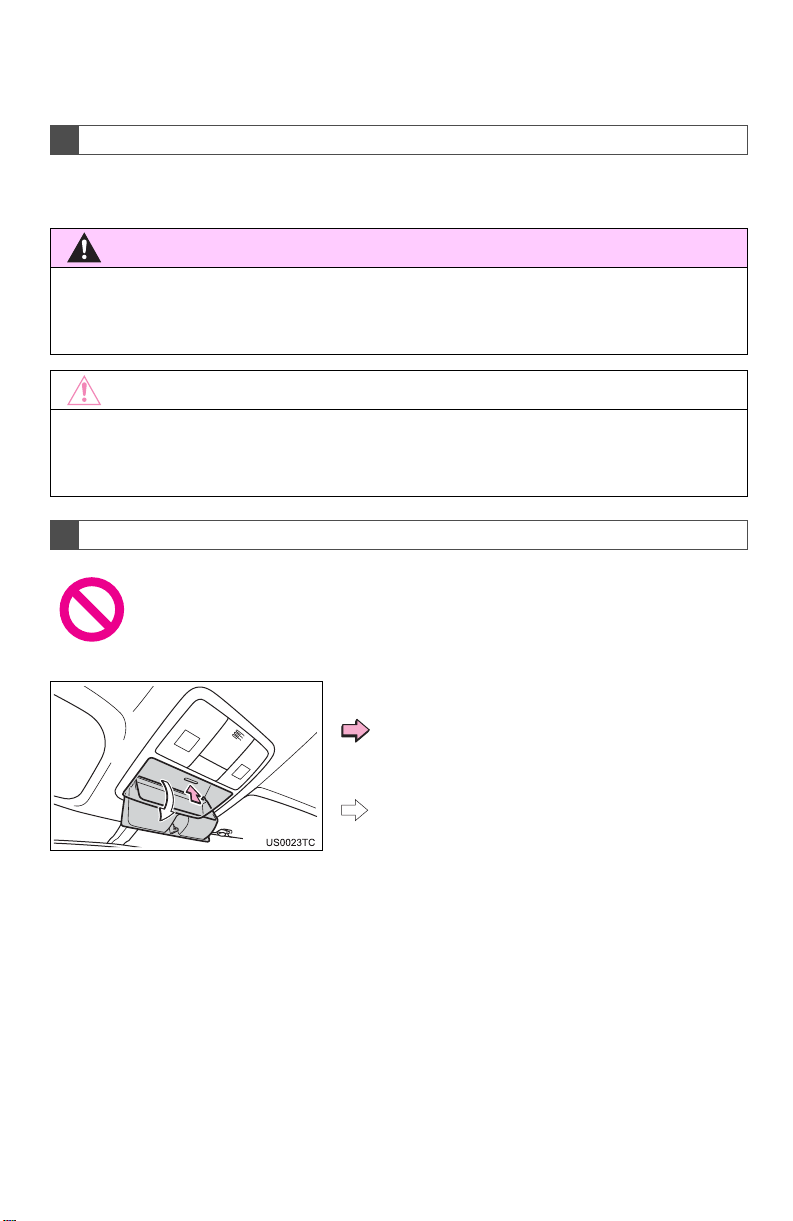
IMPORTANT INFORMATION ABOUT THIS MANUAL
For safety reasons, this manual indicates items requiring particular attention
with the following marks.
● This is a warning against anything w hich may cause injury to people if the warning is
ignored. You are informed about what you must or must not do in order to reduce the risk
of injury to yourself and others.
● This is a warning against anythi ng which may cau se damage t o the vehicle or its eq uip-
ment if the warning is i gnored. You are informed about wha t you must or must not do in
order to avoid or reduce th e ri sk of dam age to your vehicle and its equ ip m ent .
SYMBOLS USED IN ILLUSTRATIONS
Safety symbol
The symbol of a circl e with a s lash th rough it means “Do not”, “D o not do
this” or “Do not let this happen”.
Arrows indicating operations
Indicates the action (p ush ing, turning, etc.)
used to operate switches and other devices.
Indicates the outcome of an operati on (e.g.
a lid opens).
3
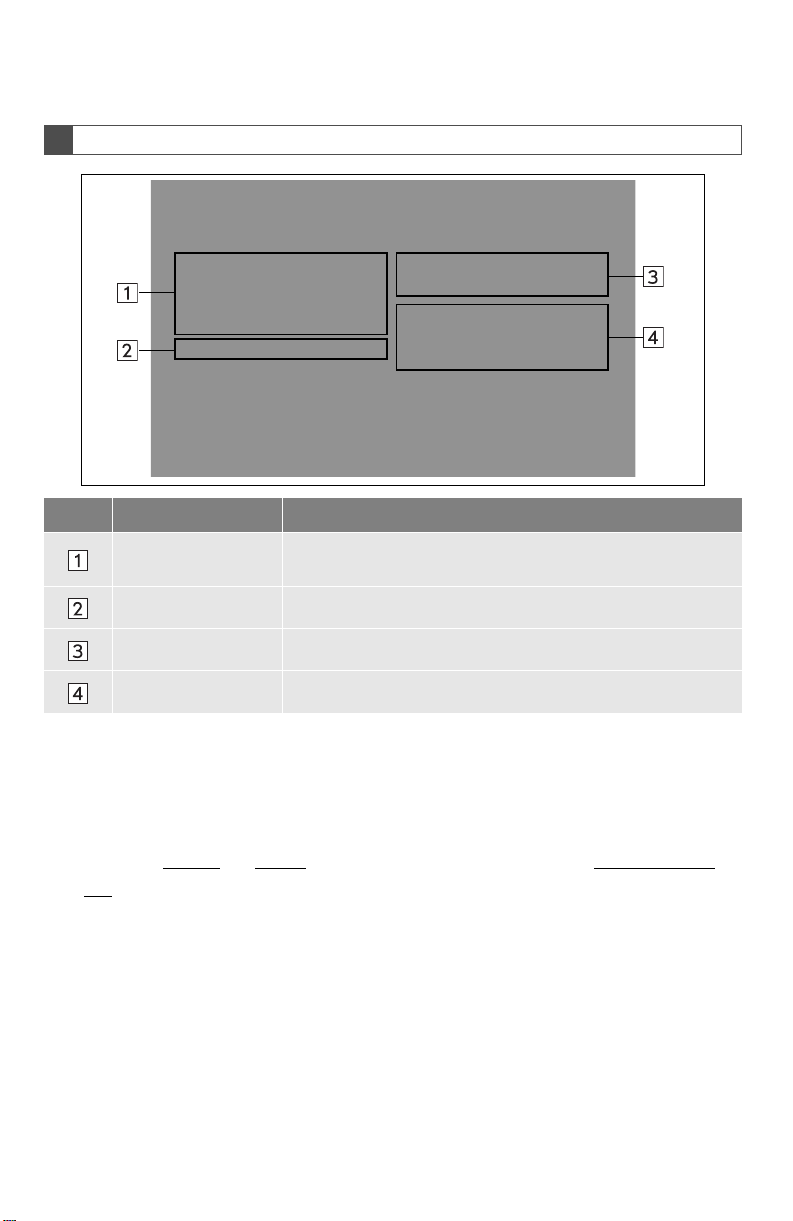
HOW TO READ THIS MANUAL
No. Name Description
Operational
Outlines
Main Operations The steps of an operation are explained.
Related Operations A main operation’s supplementary operations are described.
Information Useful information for the user is described.
An outline of the operation is explained.
■INFORMATION FOR HYBRID VEHICLES IS WRITTEN IN BRACKETS
NEXT TO THE INFORMATION FOR GASOLINE VEHICLES
Different writing styles for gasoline and hybrid vehicles
Example
When the engine*1 <power>*2 switch is in ACCESSORY or IGNITION ON*
<ON>*2 mode, the initial screen will be displayed and the system will begin op-
erating.
*1: Vehicles with gasoline engine
2
: Vehicles with hybrid system
*
4
1

SAFETY INSTRUCTION
(WITHOUT NAVIGATION
FUNCTION)
To use this system in the safest possible
manner, follow all the safety tips shown
below.
Do not use any feature of this system to
the extent it becomes a distraction and
prevents safe driving. The first priority
while driving sho uld alway s be the safe operation of the vehicle. While driving, be
sure to observe all traffic regulations.
Prior to the actual use of th is system, learn
how to use it and be come thoroughly familiar with it. Read the enti re m an ual to m ak e
sure you understand the system. Do not
allow other people to use this system until
they have read and understood the instructions in this manual.
For your safety, some functions may become inoperable when driving. Unavailable screen buttons are dimmed.
● For safety, the driver should not operate
the system while he/she is driving. Insufficient attention to the road and traffic
may cause an accident.
SAFETY INSTRUCTION (WITH
NAVIGATION FUNCTION)
To use this system in the safest possible
manner, follow all the safety tips shown
below.
This system is intended to assist in reaching the destination and, if used properly,
can do so. The driver is solely responsible
for the safe operation of your vehicle and
the safety of your passengers.
Do not use any feature of this system to
the extent it becomes a distraction and
prevents safe driving. The first priority
while driving sho uld always be the safe operation of the vehicle. While driving, be
sure to observe all traffic regulations.
Prior to the actual use of this system, learn
how to use it and be come thoroughly familiar with it. Read t he enti re manual to make
sure you understand the system. Do not
allow other people to use this system until
they have read and understood the instructions in this manual.
For your safety, some functions may become inoperable when driving. Unavailable screen buttons are dimmed. Only
when the vehicle is not moving, can the
destination and route selection be done.
5

● For safety, the driver should not operate
the system while he/she is driving. Insufficient attention to the road and traffic
may cause an accident.
● While driving, be sure to o bey the traffic
regulations and maintain awareness of
the road conditions. If a traffic sign on
the road has been changed, route guidance may not have the updated information such as the direction of a one way
street.
While driving, listen to the voice instructions as much as possible and glance at
the screen briefly and only when it is safe.
However, do not totally rely on voice guidance. Use it just for reference. If the system cannot determine the current position
correctly, ther e is a poss ib i li ty of in co rr ec t,
late, or non-voice guidance.
The data in the system may occasionally
be incomplete. Road conditions, including
driving restrictions (no left turn s, street closures, etc.) frequently change. Therefore,
before following any instructions from the
system, look to see whet her the instru ction
can be done safely and legally.
This system cannot warn about such
things as the safety of a n area, con dition of
streets, and av ailab ility of emerge ncy services. If unsure about the safety of an area, do not drive into it. Under no
circumstance s is this system a su bstitute
for the driver’s personal judgement.
Use this system only in locations where it
is legal to do so. Some states/provinces
may have laws prohibiting the use of video
and navigation screens next to the driver.
6

7

TABLE OF CONTENTS
QUICK GUIDE
1
1. BASIC FUNCTION……………………… 12
OVERVIEW BUTTONS …… .. .. …………. .. 12
“Apps” SCREEN……………………………… 14
HOME SCREEN…………………. ………….. 16
2. QUICK REFERENCE………………….. 20
“Setup” SCREEN…………………………….. 20
3. NAVIGATION OPERATION ………… 22
REGISTERING HOME …………………….. 22
REGISTERING PRESET
DESTINATIONS……………………….. ….. 24
OPERATION FLOW: GUIDING
THE ROUTE…………………………………. 26
SETTING HOME AS
THE DESTINATION………………………. 27
4. FUNCTION INDEX……………………… 28
FUNCTION INDEX ………………………….. 28
BASIC FUNCTION
2
1. BASIC INFORMATION
BEFORE OPERATION……………… 32
INITIAL SCREEN…………………………….. 32
TOUCH SCREEN GESTURES………….. 34
TOUCH SCREEN OPERATION…. …….. 35
HOME SCREEN OPERATION………….. 36
ENTERING LETTERS AN D
NUMBERS/LIS T SC REEN
OPERATION……. …………… ……………… 37
SCREEN ADJUSTMENT ………………….. 40
2. Bluetooth® SETTINGS………………. 42
REGISTERING/CONNECTING
Bluetooth
SETTING Bluetooth
®
DEVICE………………… …….. 42
®
DETAILS …………. 49
3. OTHER SETTINGS……………………. 57
GENERAL SETTINGS……………………… 57
VOICE SETTINGS…………………………… 64
DRIVER SETTINGS…………………………. 65
MAINTENANCE………………………………. 6 6
8

AUDIO SYSTEM
3
INFORMATION
5
1
1. BASIC OPERATION…………………… 72
QUICK REFERENCE………………………. 72
SOME BASICS……………………………….. 74
2. RADIO OPERATION ………………….. 80
AM/FM RADIO………………………………… 80
XM Satellite Radio…………………………… 90
INTERNET RADIO………………………….. 96
3. MEDIA OPERATION ………………….. 97
CD ………………………………………………… 97
USB MEMORY……………………………… 100
iPod …………………………………………….. 104
Bluetooth
AUX…………………………………………….. 114
®
AUDIO…………………………. 108
4. AUDIO REMOTE
CONTROLS …………………………… 116
STEERING SWITCHES…………………. 116
5. SETUP ……………………………………. 119
AUDIO SETTINGS………………………… 119
6. TIPS FOR OPERATING
THE AUDIO SYSTEM……………… 121
OPERATING INFORMATION…………. 121
VOICE COMMAND SYSTEM
4
1. VOICE COMMAND SYSTEM
OPERATION………………………….. 132
VOICE COMMAND SYSTEM………….. 132
CASUAL SPEECH
RECOGNIZATION………………………. 138
COMMAND LIST…………………………… 139
1. USEFUL INFORMATION………….. 142
RECEIVING WEATHER
INFORMATION…………………………… 142
RECEIVING TRAFFIC MAP
INFORMATION…………………………… 144
DATA SERVICES SETTINGS…………. 145
PERIPHERAL MONITORING
6
SYSTEM
1. REAR VIEW MONITOR
SYSTEM……………………………….. 148
REAR VIEW MONITO R SYSTEM……. 148
REAR VIEW MONITO R SYSTEM
PRECAUTIONS ………………………….. 150
THINGS YOU SHOULD KNOW………. 155
PHONE
7
1. PHONE OPERATION
(HANDS-FREE SYSTEM
FOR CELLULAR PHONES)…….. 158
QUICK REFERENCE …………………….. 158
SOME BASICS……………………………… 159
CALLING ON THE Blue tooth
PHONE……. .. ………… . .. ………… .. …….. 162
RECEIVING ON THE Bluetooth
PHONE……. .. ………… . .. ………… .. …….. 167
TALKING ON THE Bluetooth
PHONE……. .. ………… . .. ………… .. …….. 168
®
Bluetooth
FUNCTION …………………………………. 171
PHONE MESSAGE
®
®
®
2. SETUP……………………………………. 176
PHONE/MESSAG E SETTINGS ……. .. . 176
3. WHAT TO DO IF… ………………….. 188
TROUBLESHOOTING……………………. 188
2
3
4
5
6
7
8
9
9

TABLE OF CONTENTS
NAVIGATION SYSTEM
8
1. BASIC OPERATION…………………. 198
QUICK REFERENCE …………………….. 198
MAP SCREEN OPERATION…………… 201
MAP SCREEN IN FO R MATION……….. 207
TRAFFIC INF ORMATION……. .. ……….. 211
2. DESTINATION SEARCH…………… 214
DESTINATION SEARCH
SCREEN …….. …………… ………….. …… 214
SEARCH OPERATION…………………… 216
STARTING ROUTE GUIDANCE……… 226
3. ROUTE GUIDANCE………………….. 230
ROUTE GUIDANCE SCREEN ………… 230
TYPICAL VOICE GUIDANCE
PROMPTS………………………………….. 235
EDITING ROUTE…………………………… 236
4. MEMORY POINTS……………………. 241
MEMORY POINTS SETTINGS ……….. 241
5. SETUP ……………………………………. 250
DETAILED NAVIGATION
SETTINGS……………… ………….. …….. 250
TRAFFIC SETTINGS……………………… 254
6. TIPS FOR THE NAVIGATION
SYSTEM………………………………… 260
GPS (GLOBAL POSITIONING
SYSTEM)………………………… ………… 260
MAP DATABASE VERSION AND
COVERED AREA………………………… 262
Entune App Suite
9
1. Entune App Suite
OVERVIEW……………………………. 266
Entune App Suite SERVICE. ……………. 266
2. Entune App Suite
OPERATION………………………….. 271
Entune App Suite………………….. ………. 271
3. SETUP……………………………………. 278
Entune App Suite SETTINGS………….. 278
INDEX
ALPHABETICAL INDEX………………. 282
10

1
QUICK GUIDE
BASIC FUNCTION
1
1. OVERVIEW BUTTONS…………….. 12
2. “Apps” SCREEN …………………….. 14
1
2
3
4
3. HOME SCREEN………………………. 16
STATUS DISPLAY…………………………… 18
QUICK REFERENCE
2
1. “Setup” SCREEN ……………………. 20
NAVIGATION OPERATION
3
1. REGISTERING HOME ……………… 22
2. REGISTERING PRESET
DESTINATIONS…………………….. 24
3. OPERATION FLOW:
GUIDING THE ROUTE……………. 26
4. SETTING HOME AS
THE DESTINATION……………….. 27
FUNCTION INDEX
4
1. FUNCTION INDEX …………………… 28
5
6
7
8
9
11
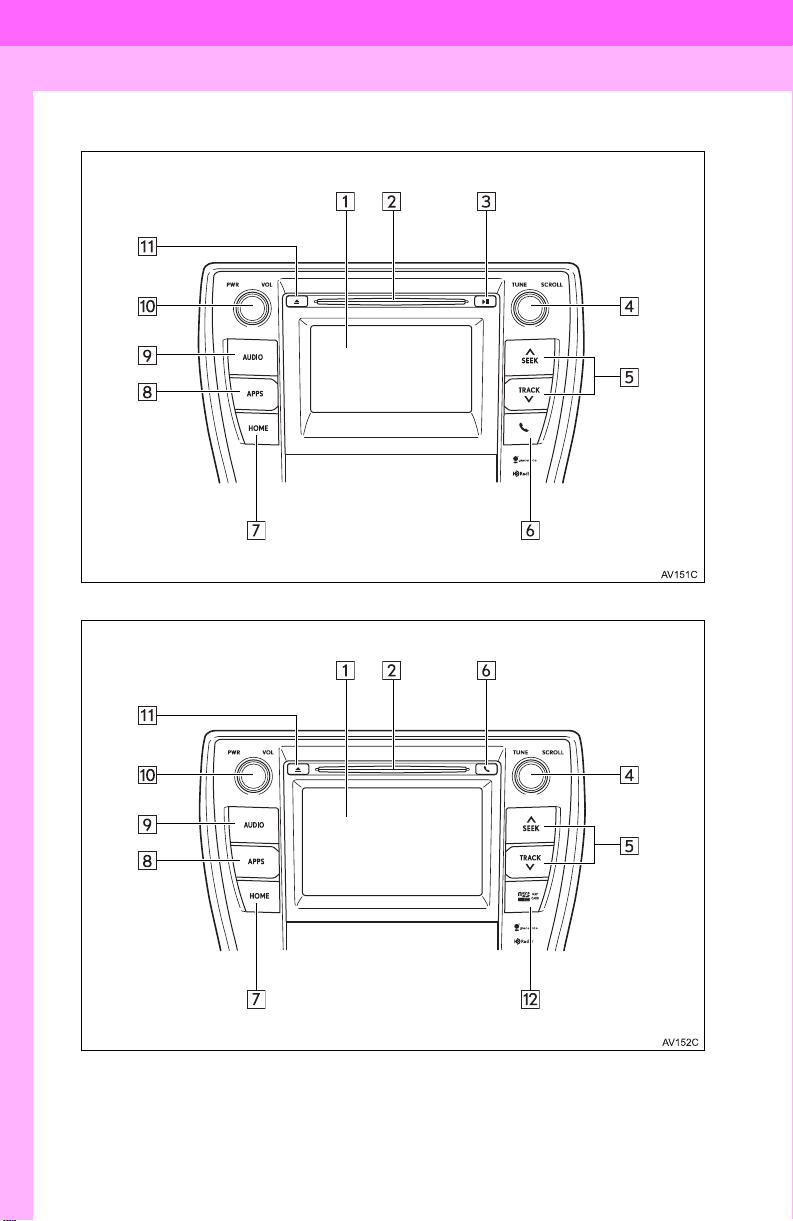
1. BASIC FUNCTION
1. OVERVIEW BUTTONS
Without navigation function
With navigation function
12
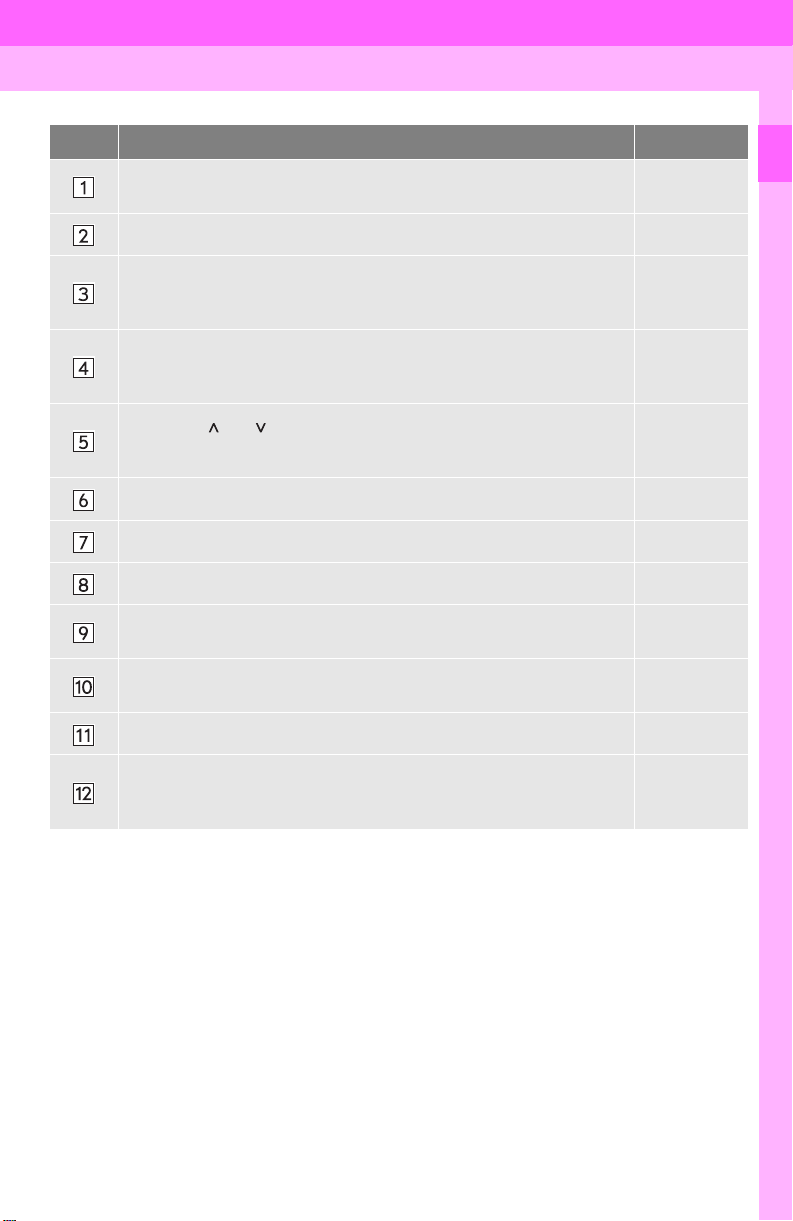
1. BASIC FUNCTION
No. Function Page
By touching the screen with your finger, you can control the selected
functions.
34, 35
Insert a disc into this slot. The CD player turns on immediately. 76
80, 90, 97,
Press to play/pause.
100, 104,
108, 114
Turn the tune/scroll knob to select a radio station or skip to the next or
previous track/file.
Press the “ ” or “ ” button to seek up or down for a radio station or to
access a desired track/file.
80, 90, 97,
100, 104,
108
80, 90, 97,
100, 104,
108
Press to access the Bluetooth® hands-free system. 158
Press to display the home screen. 16, 36
Press to display the “Apps” screen. 14
Press to access the audio system. The audio system turn s on in the
last mode used.
Press the “PWR/VOL” knob to turn the s yst em on and off, and turn it
to adjust the volume.
72, 75
75
1
QUICK GUIDE
Press to eject a disc. 76
MAP card slot
Do not eject the SD card, as doing so may deactivate the navigation
263
system.
13
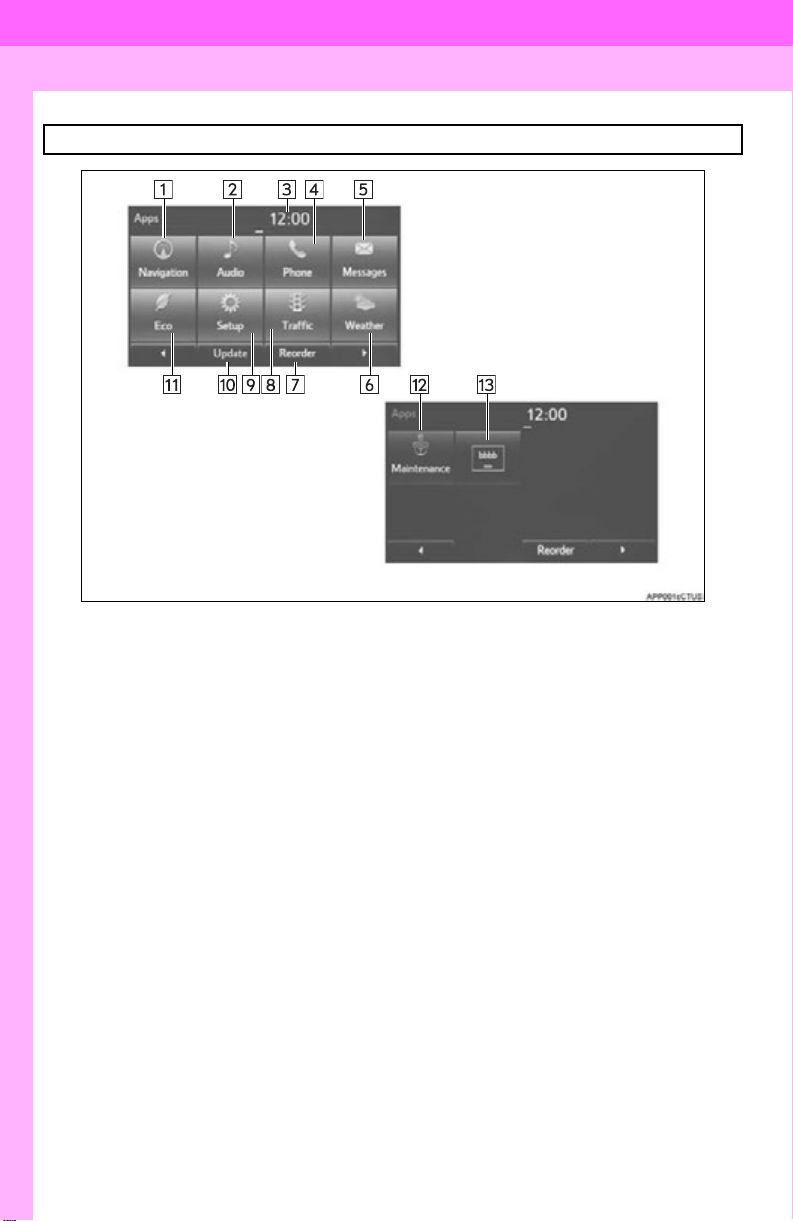
1. BASIC FUNCTION
2. “Apps” SCREEN
Press the “APPS” button to display the “Apps” screen.
14
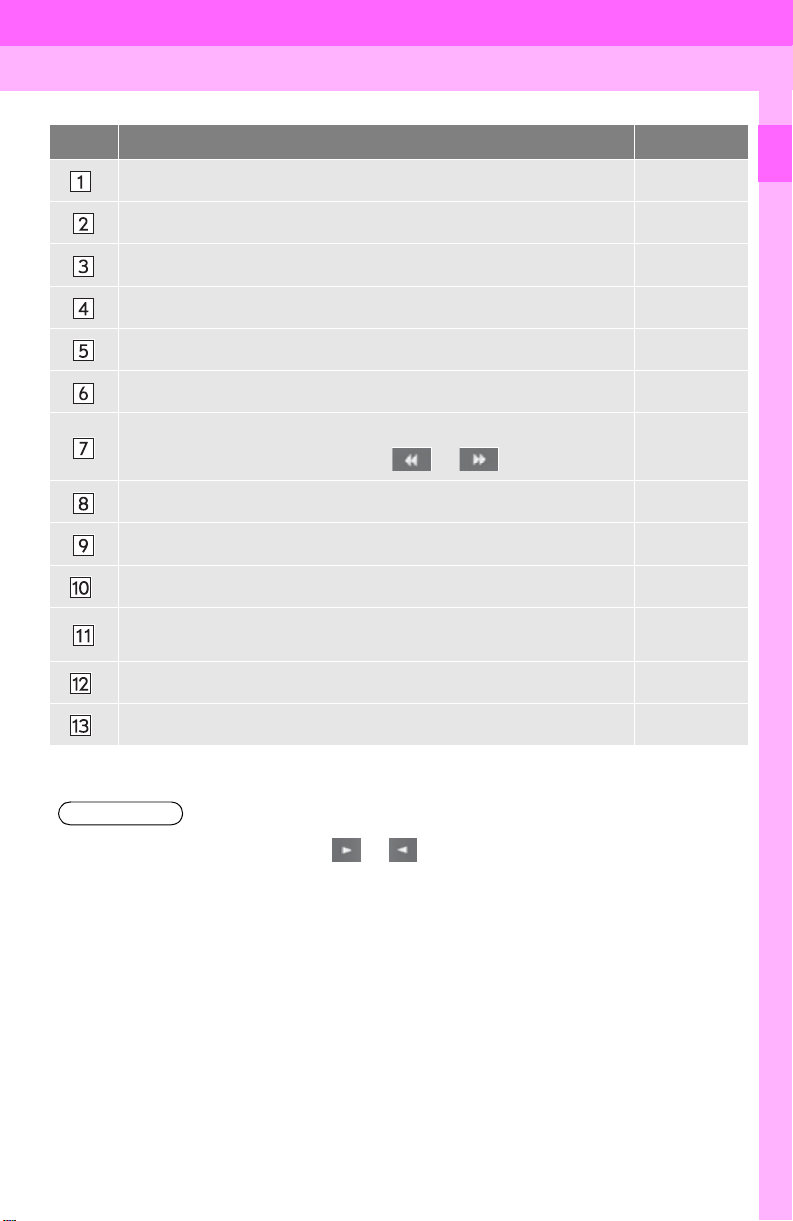
1. BASIC FUNCTION
No. Function Page
Select to display the map screen. 198
*
Select to display the audio control screen. 72
Display the clock. 59
Select to display the hands-free operation screen. 158
Select to display the “Message Inbox” screen. 171
Select to display weather information. 142
Select to reorder the applications.
273
Select the desired application then or to reorder.
Select to dis pl a y tra ffic informa tion. 144, 211
Select to display the “Setup” screen. 20
Select to update the applications. 272
*
Select to display the fuel consumption and energy monitor screen.
Select to display the “Maintenance” screen. 66
*
“Owner’s
Manual”
1
QUICK GUIDE
Select to display the application screen. 266
*
*: With navigation function
● When there are two pages, select or to change the page.
15
1. BASIC FUNCTION
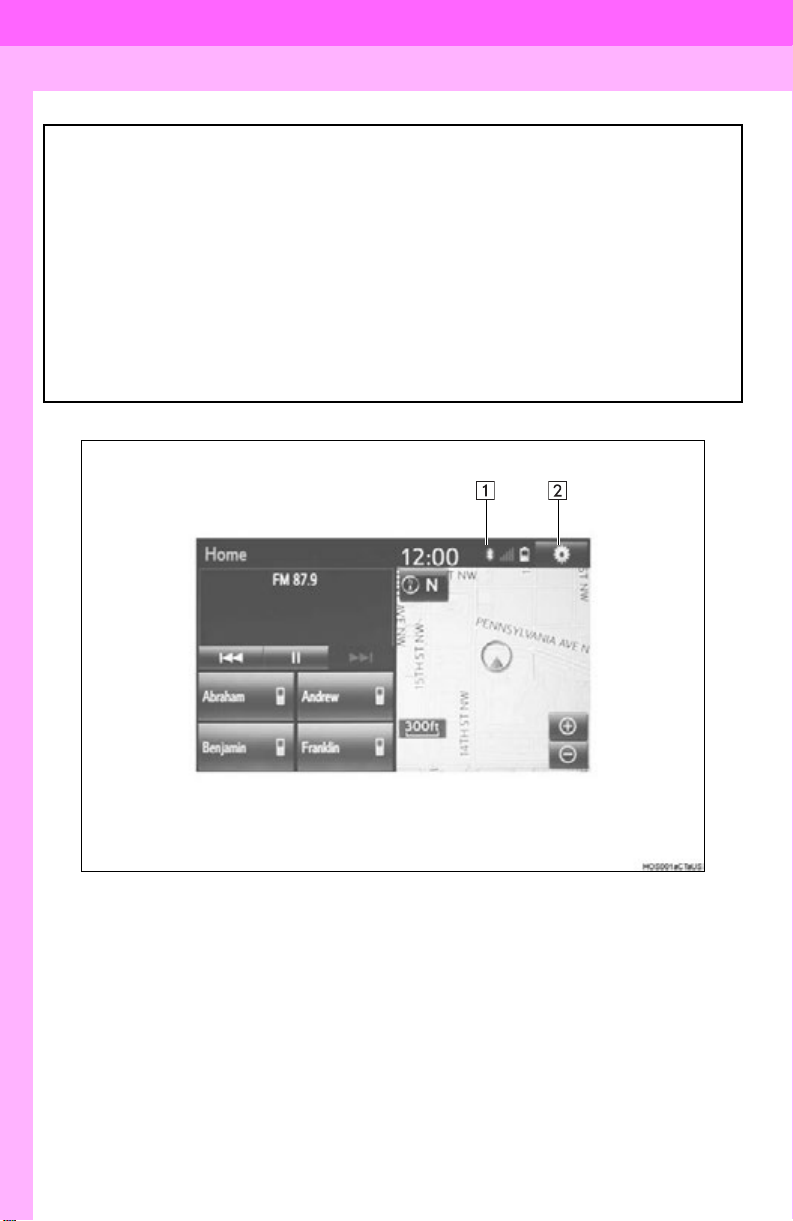
3. HOME SCREEN
Press the “HOME” button to display the home screen.
The home screen can display multiple information screens, such as the audio sy s-
tem screen, hands-free screen and navigation screen, simultaneously. When
hands-free mode is selected, it is possible to make a call on the home screen if the
desired telephone number is registered to one of the 4 displayed buttons. In order
to register the contact, select and hold the desired button and register the desired
contact by obey displayed messages on the screen. (P.166)
When a screen is selected, the selected screen is switched to a full-screen display .
The home screen can be set to either a three- way split screen or a two-way split
screen.
For details about setting the home screen: P.36
Three-way split screen
16
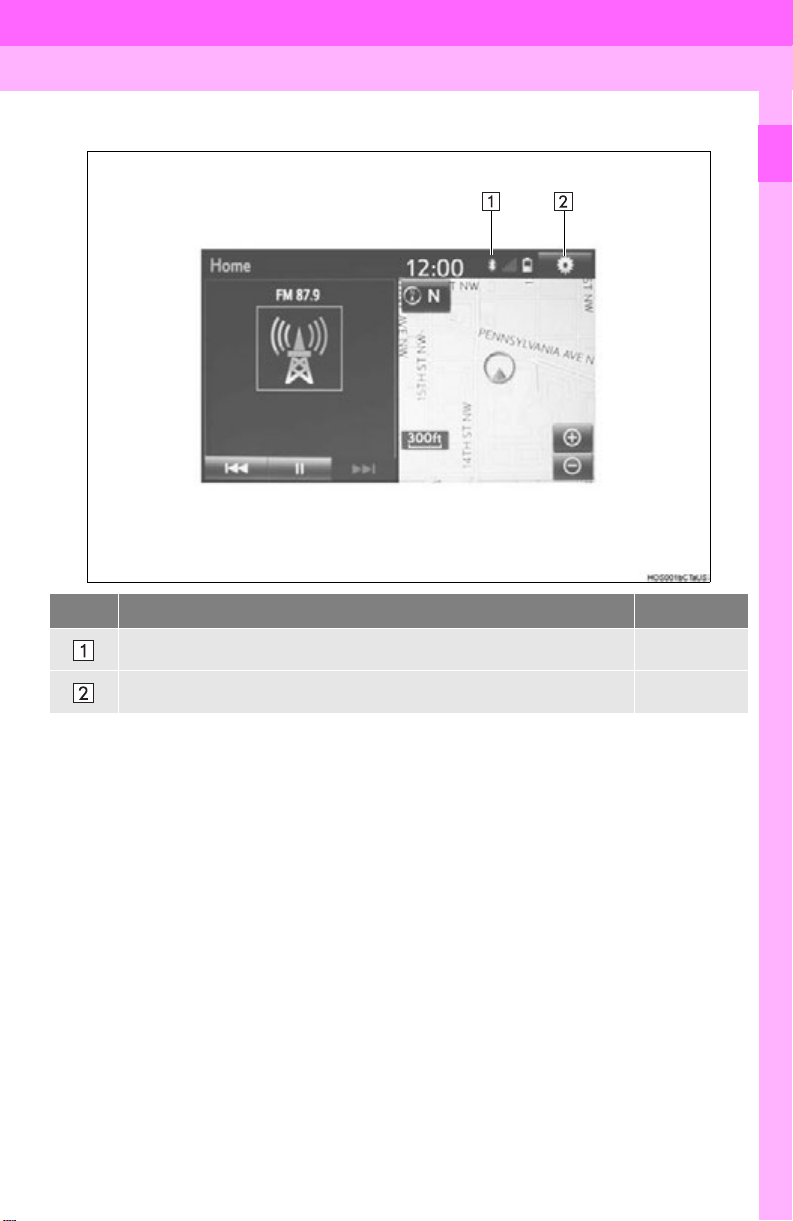
Two-way split screen
1. BASIC FUNCTION
1
QUICK GUIDE
No. Function Page
Displays the condition of the Bluetooth® connection 18
Select to display the “Setup” screen. 20
17
1. BASIC FUNCTION
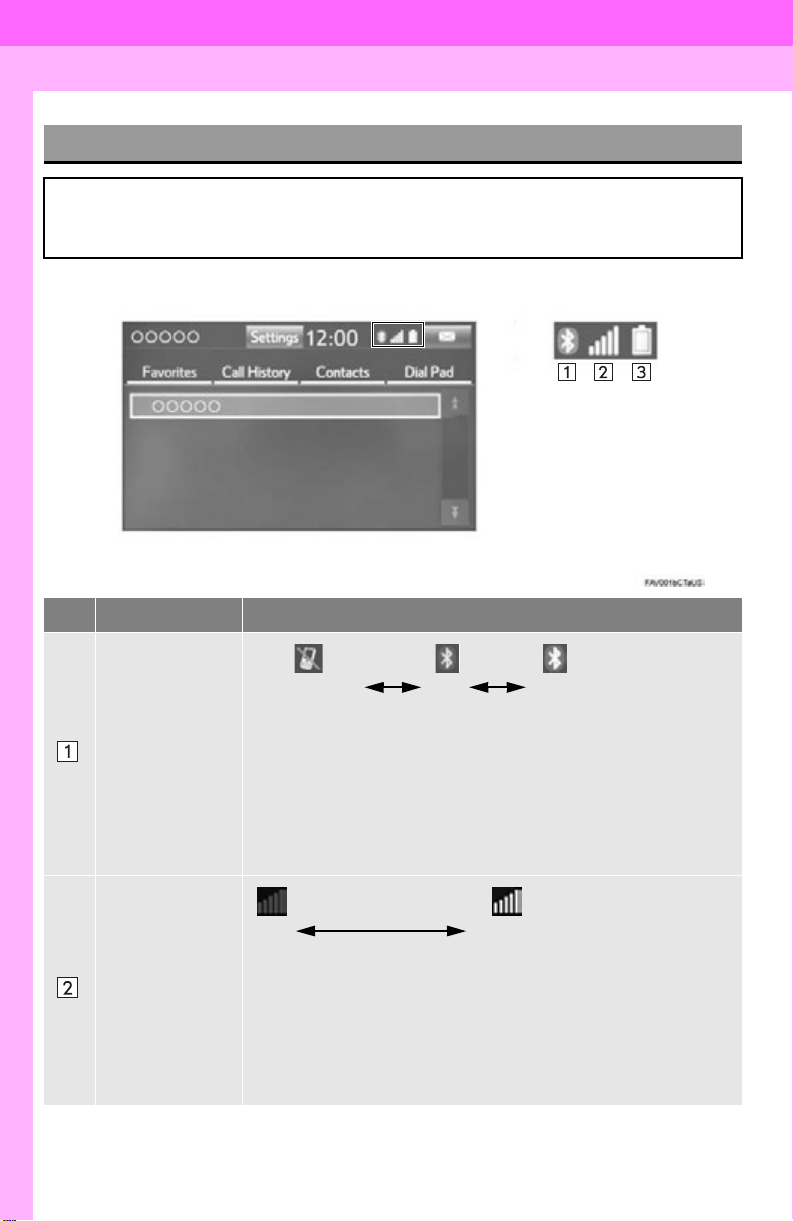
STATUS DISPLAY
The condition of the Bluetooth® connection, as well as the level of reception and
the amount of cellular phone battery charge left, are displayed on the status display.
No. Indicators Conditions
(Gray) (Blue)
No connection Poor Good
®
The condition of
the Bluetooth
connection
An antenna for the Bluetooth
ment panel. The condition of the Bluetooth
®
riorate and the system may not function when a Bluetooth
is used in the following conditions and/or places:
The cellular phone is obstructed by certain objects (such as when
it is behind the seat or in the glove box or console box).
The cellular phone is touching or is covered with metal materials.
Leave the Bluetooth
Bluetooth
®
connection is good.
®
phone in a place where the condition of the
connection is built into the instru-
Poor Excellent
The level of reception does not always correspond with the level
The level of reception
displayed on the cellular phone. The level of reception may not be
displayed depending on the phone you have.
When the cellular phone is out of the service area or in a place
inaccessible by radio waves, “No Service” is displayed.
“Rm” is displayed when receiving in a r oaming area. W hile roam-
ing, display “Rm” top-left on the icon.
The receiving area may not be displayed depending on the type of
phone you have.
18
®
connection may dete-
®
phone

1. BASIC FUNCTION
No. Indicators Conditions
The amount of
battery charge
left
Empty Full
The amount displayed does not always correspond with the
amount displayed on the Bluetooth
The amount of battery charge left may not be displayed depend-
ing on the type of the Bluetooth
®
®
device connected.
This system does not have a charging function.
1
QUICK GUIDE
device.
19
2. QUICK REFERENCE
2. QUICK REFERENCE
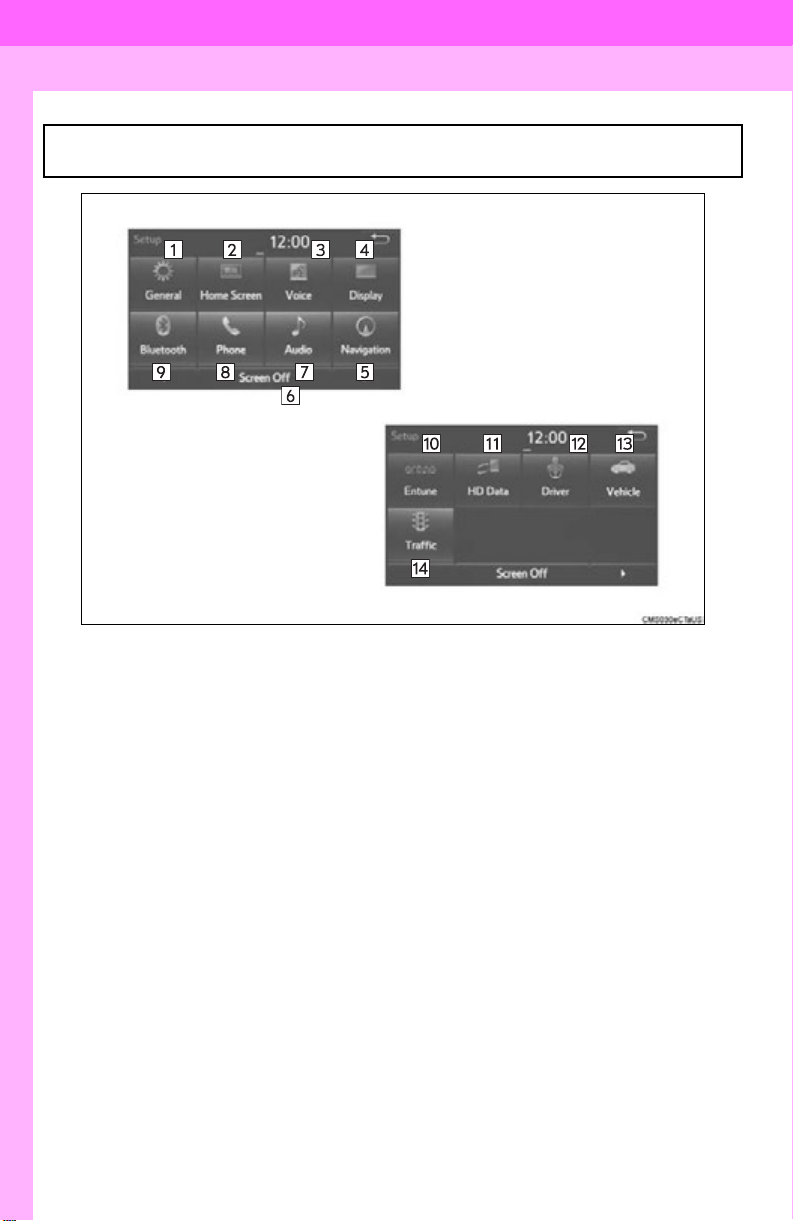
1. “Setup” SCREEN
The items shown on the “Setup” screen can be set. Press the “APPS” button, then
select “Setup” to display the “Setup” screen.
20
2. QUICK REFERENCE
No. Function Page
Select to change the selected language, operation sound, automatic
screen change settings, etc.
57
Select to customize the home screen. 36
Select to set the voice settings. 64
Select to adjust the contrast and brightness of the screens. 40
Select to set memory points (home, preset destinations, address book
entries, areas to avoid), navigation details or to delete previous desti-
*
241, 250
nations.
Select to turn the screen off.
Select to set audio settings. 119
Select to set the phone sound, contacts, message settings, etc. 176
Select to set Bluetooth® phones and Bluetooth® audio devices. 49
Select to set Entune App Suite settings. 278
*
Select to set data services settings. 145
*
Select to link the driver’s cellular phone settings. (audio pres ets, language, etc.)
65
1
QUICK GUIDE
Select to set vehicle information.
Select to set traffic information. 254
*
*: With navigation function
“Owner’s
Manual”
21
3. NAVIGATION OPERATION
*: With navigation function
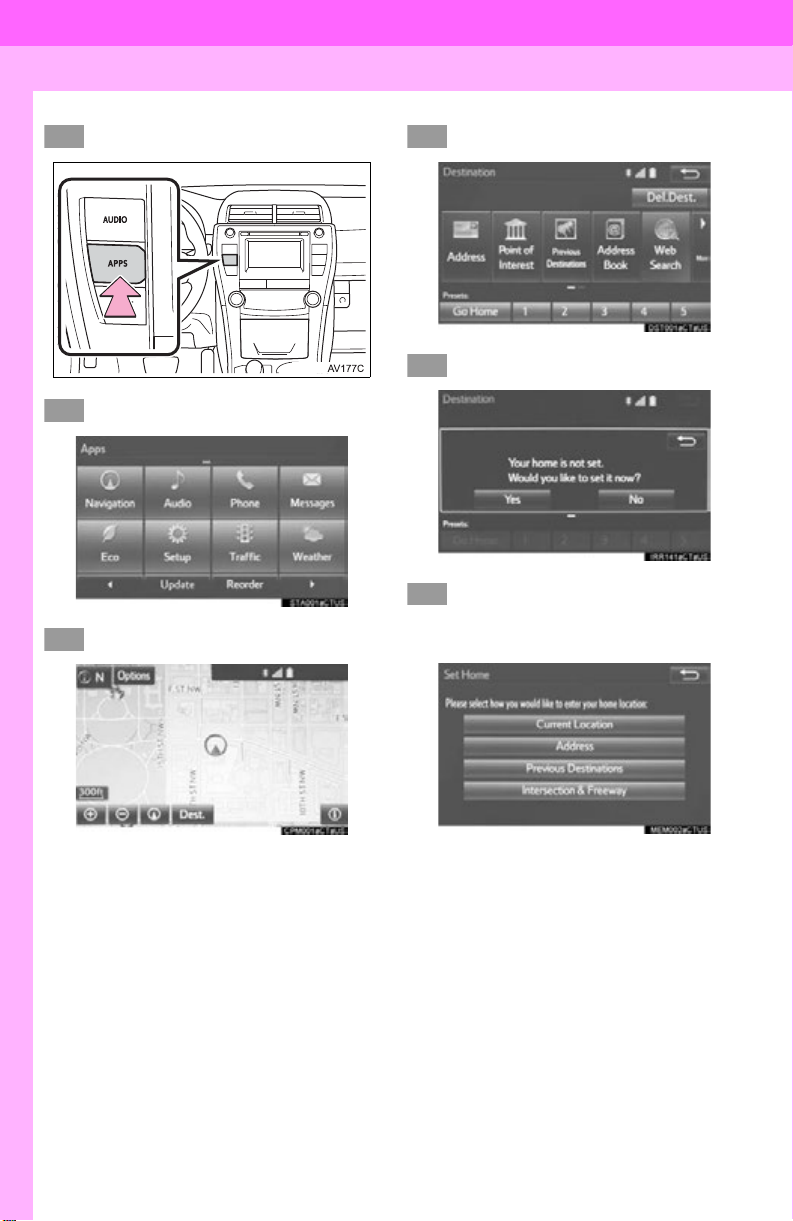
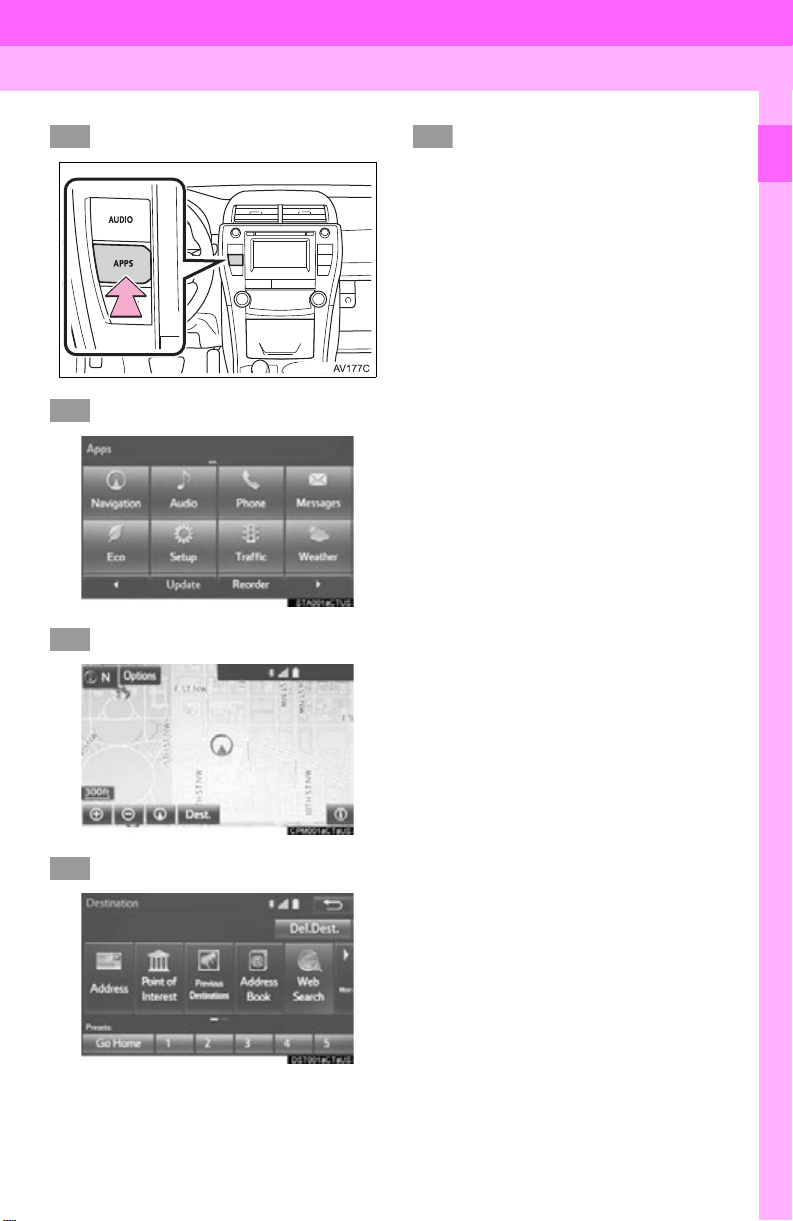
3. NAVIGATION OPERATION
1. REGISTERING HOME*
Press the “APPS” button.
Select “Navigation”.
Select “Dest.”.
Select “Go Home”.
Select “Yes”.
There are different kinds of methods to search for your home.
(P.214)
22

3. NAVIGATIO N OPERATION
Select “Enter”.
Select “OK”.
Registration of home is complete.
Registering home in a different way
P.242
Editing the name, location, phone num-
ber and icon
P.242
Setting home as the destination
P.217
1
QUICK GUIDE
23
3. NAVIGATION OPERATION
*: With navigation function
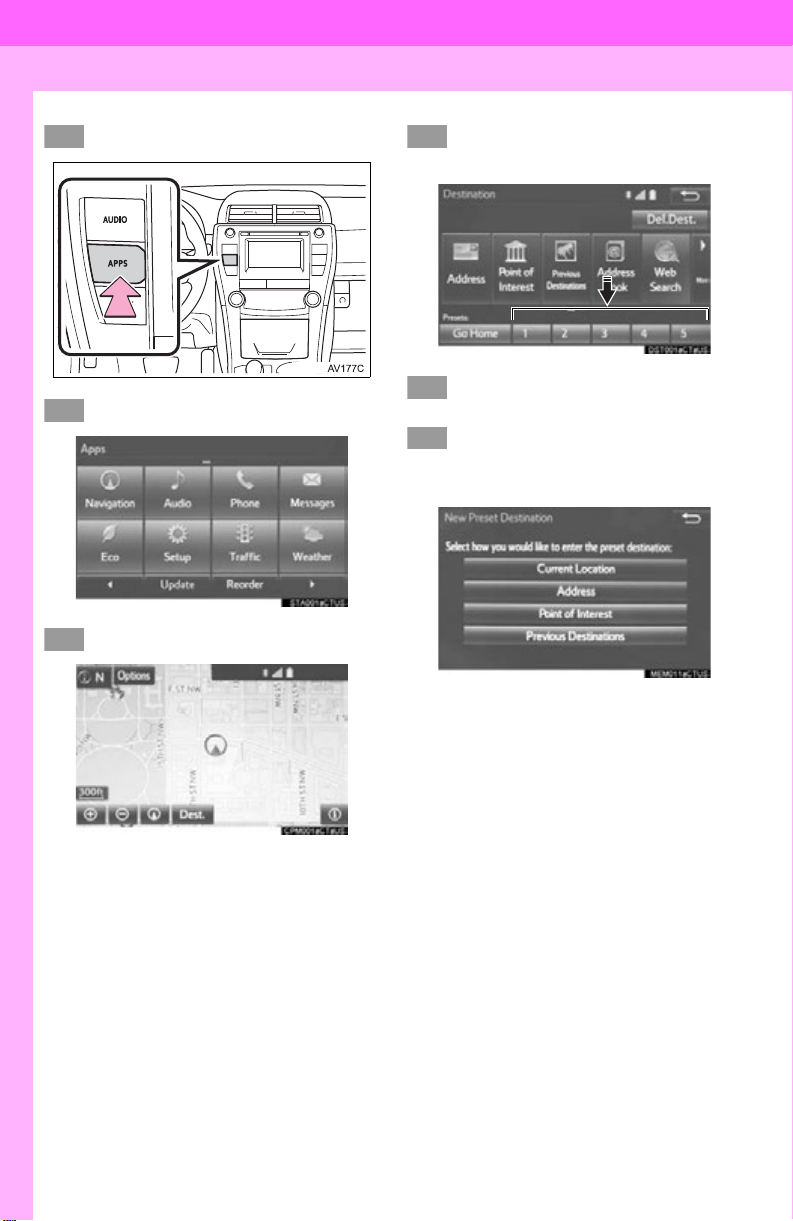
2. REGISTERING PRESET DESTINATIONS*
Press the “APPS” button.
Select “Navigation”.
Select “Dest.”.
Select one of the preset destination buttons.
Select “Yes”.
There are different kinds of methods to search for a destination.
(P.214)
24

3. NAVIGATIO N OPERATION
Select “Enter”.
Select a position for this preset
destination.
Select “OK”.
Registration of preset destinations is
complete.
Registering preset destinations in a dif-
ferent way
P.243
Editing the name, location, phone num-
ber and icon
P.244
S etti ng pre set des tinat ion s as the des ti-
nation
P.217
1
QUICK GUIDE
25
3. NAVIGATION OPERATION
*: With navigation function
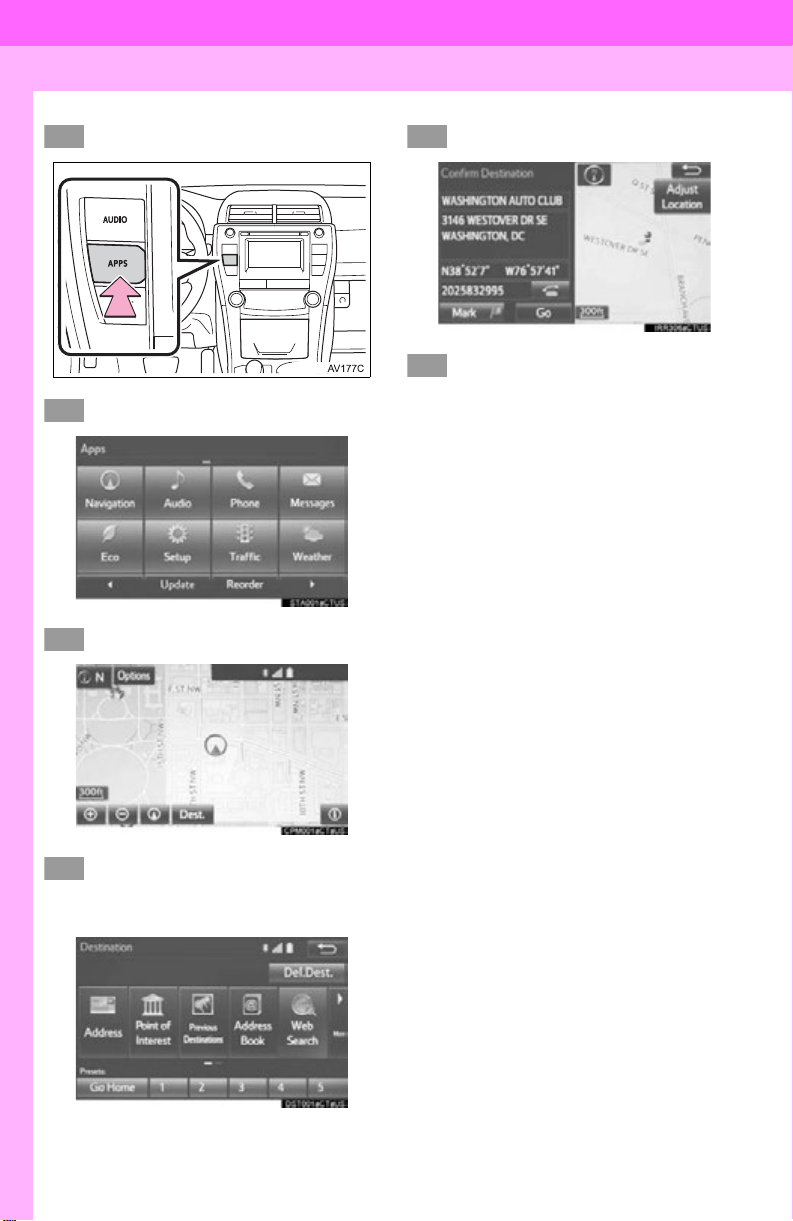
3. OPERATION FLOW: GUIDING THE RO UTE*
Press the “APPS” button.
Select “Navigation”.
Select “Dest.”.
Select “Go”.
Select “OK”.
Selecting routes other than the one recommended. (P.226)
Guidance to the destination is displayed
on the screen and can be heard via
voice guidance.
There are different kinds of m ethods to search for a destination.
(P.214)
26
3. NAVIGATION OPERATION
*: With navigation function
4. SETTING HOME AS THE DESTINATION*
Press the “APPS” button.
Select “Navigation”.
Select “Dest.”.
Select “OK”.
Selecting routes othe r than the o ne recommended. (P.226)
Guidance to the destination is displayed
on the screen and can be heard via
voice guidance.
1
QUICK GUIDE
Select “Go Home”.
27

4. FUNCTION INDEX
1. FUNCTION INDEX
Map*
Displaying maps Page
Viewing the map screen 198
Displaying the current position 201
Viewing the current position vicinity map 205
Changing the scale 201
Changing the map orientation 202
Displaying map information 207
Displaying the estimated travel/arrival time to the destination 230
Selecting the map mode 203
Displaying traffic information 211
Searching for destinations Page
Searching for the destination 216
Changing the search area 217
Route guidance*
Before starting or during route guidance Page
Starting route guide 226
Editing the route 236
Viewing the entire route map 231
Pausing guidance 229
Adjusting route guidance volume 64
Deleting the destination 237
Address book Page
Registering address book entries 245
Marking icons on the map 246
*: With navigation function
28

4. FUNCTION INDEX
Useful functions
Information Page
Displaying vehicle maintenance* 66
Hands-free system (for cellular phone) Page
Registering/connecting Bluetooth® phone 42
Making a call on a Bluetooth® phone 162
Receiving a call on the Bluetooth® phone 167
Voice command system Page
Operating the system with your voice 132
Peripheral monitoring system Page
Viewing behind the rear of the vehicle 148
*: With navigation function
1
QUICK GUIDE
29

4. FUNCTION INDEX
30
Loading…

16
Указатель иллюстраций
■
Приборная панель
Замок запуска двигателя . . . . . . . . . . . . . . . . . . . . . . . . . . стр. 164, 166
Пуск двигателя/изменение положений или режимов. . . . . . стр. 164, 167
Аварийное выключение двигателя . . . . . . . . . . . . . . . . . . . . . . . . стр. 367
Когда двигатель не запускается . . . . . . . . . . . . . . . . . . . . . . . . . . стр. 399
Предупреждающие сообщения
*
1
. . . . . . . . . . . . . . . . . . . . . . . . . стр. 380
Рычаг переключения передач . . . . . . . . . . . . . . . . . . . . . . . . . . стр. 171
Переключение включенной передачи. . . . . . . . . . . . . . . . . . . . . . стр. 171
Меры предосторожности при буксировке. . . . . . . . . . . . . . . . . . . стр. 369
Когда рычаг переключения передач не перемещается. . . . . . . . стр. 401
Приборы. . . . . . . . . . . . . . . . . . . . . . . . . . . . . . . . . . . . . . . . . . . . . . стр. 76
Показания приборов/регулировка подсветки панели
приборов . . . . . . . . . . . . . . . . . . . . . . . . . . . . . . . . . . . . . . . . . . . . . . стр. 76
Сигнальные лампы/индикаторы . . . . . . . . . . . . . . . . . . . . . . . . . . . стр. 72
Когда загораются сигнальные лампы . . . . . . . . . . . . . . . . . . . . . . стр. 377
Многофункциональный информационный дисплей. . . . . . . . стр. 80
Дисплей . . . . . . . . . . . . . . . . . . . . . . . . . . . . . . . . . . . . . . . . . . . . . . . стр. 80
Когда отображается предупреждающее сообщение
или индикатор . . . . . . . . . . . . . . . . . . . . . . . . . . . . . . . . . . . . . . . . . стр. 380
1
2
3

17
Указатель иллюстраций
Стояночный тормоз . . . . . . . . . . . . . . . . . . . . . . . . . . . . . . . . . . . стр. 175
Затягивание/отпускание. . . . . . . . . . . . . . . . . . . . . . . . . . . . . . . . . стр. 175
Меры предосторожности зимой . . . . . . . . . . . . . . . . . . . . . . . . . . стр. 222
Сигнальная лампа/зуммер/сообщение. . . . . . . . . . . . . . . . . стр. 377, 381
Рычаг переключателя указателей поворота . . . . . . . . . . . . . . стр. 174
Переключатель фар. . . . . . . . . . . . . . . . . . . . . . . . . . . . . . . . . . . стр. 176
Фары/передние габаритные фонари/задние фонари/
дневные ходовые фонари . . . . . . . . . . . . . . . . . . . . . . . . . . . . . . . стр. 176
Передние противотуманные фары/
задние противотуманные фонари. . . . . . . . . . . . . . . . . . . . . . . . . стр. 186
Переключатель передних стеклоочистителей
и омывателя . . . . . . . . . . . . . . . . . . . . . . . . . . . . . . . . . . . . . . . . . стр. 187
Использование . . . . . . . . . . . . . . . . . . . . . . . . . . . . . . . . . . . . . . . . стр. 187
Добавление жидкости омывателя . . . . . . . . . . . . . . . . . . . . . . . . . стр. 335
Выключатель ламп аварийной сигнализации . . . . . . . . . . . . стр. 366
Механизм открывания багажника . . . . . . . . . . . . . . . . . . . . . . . стр. 105
Привод лючка топливного бака. . . . . . . . . . . . . . . . . . . . . . . . . стр. 193
Рычаг разблокировки капота . . . . . . . . . . . . . . . . . . . . . . . . . . . стр. 320
Рычаг регулировки угла наклона и вылета рулевой
колонки
*
1
. . . . . . . . . . . . . . . . . . . . . . . . . . . . . . . . . . . . . . . . . . . . стр. 135
Переключатель регулировки угла наклона
и вылета рулевой колонки
*
1
. . . . . . . . . . . . . . . . . . . . . . . . . . . стр. 135
Функция памяти положения сиденья водителя
*
1
. . . . . . . . . . . . стр. 128
Система кондиционирования воздуха . . . . . . . . . . . . . . . . . . . стр. 260
Использование . . . . . . . . . . . . . . . . . . . . . . . . . . . . . . . . . . . . . . . . стр. 260
Обогреватель заднего стекла . . . . . . . . . . . . . . . . . . . . . . . . . . . . стр. 263
Аудиосистема
*
1
. . . . . . . . . . . . . . . . . . . . . . . . . . . . . . . . . . . . . . стр. 226
Мультимедийная система
*
1, 2
Система навигации
*
1, 2
Перчаточный ящик . . . . . . . . . . . . . . . . . . . . . . . . . . . . . . . . . . . . стр. 276
Часы . . . . . . . . . . . . . . . . . . . . . . . . . . . . . . . . . . . . . . . . . . . . . . . . стр. 284
*
1
: При наличии
*
2
: См. “Руководство для владельца по системе навигации и мультимедийной
системе”.
4
5
6
7
8
9
10
11
12
13
14
15
16

18
Указатель иллюстраций
■
Переключатели
Переключатель AFS OFF
*
1
. . . . . . . . . . . . . . . . . . . . . . . . . . . . . стр. 178
Регулятор корректора фар
*
1
. . . . . . . . . . . . . . . . . . . . . . . . . . . стр. 177
Переключатель датчика системы помощи при парковке
Toyota
*
2
. . . . . . . . . . . . . . . . . . . . . . . . . . . . . . . . . . . . . . . . . . . . . стр. 201
Переключатель очистителя фар
*
1
. . . . . . . . . . . . . . . . . . . . . . стр. 192
Главный переключатель системы BSM (система контроля
мертвых зон)
*
1
. . . . . . . . . . . . . . . . . . . . . . . . . . . . . . . . . . . . . . . стр. 213
Переключатель VSC OFF. . . . . . . . . . . . . . . . . . . . . . . . . . . стр. 209, 210
Переключатели функции памяти положения сиденья
водителя
*
1
. . . . . . . . . . . . . . . . . . . . . . . . . . . . . . . . . . . . . . . . . . . стр. 128
Переключатели наружных зеркал заднего вида . . . . . . . . . . стр. 139
Функция памяти положения сиденья водителя
*
1
. . . . . . . . . . . . стр. 128
Переключатель блокировки стекол . . . . . . . . . . . . . . . . . . . . . стр. 142
Переключатели блокировки дверей . . . . . . . . . . . . . . . . . . . . . . стр. 99
Переключатели управления
электростеклоподъемниками . . . . . . . . . . . . . . . . . . . . . . . . . . стр. 142
1
2
3
4
5
6
7
8
9
10
11

19
Указатель иллюстраций
Переключатели дистанционного управления
аудиосистемой
*
2
. . . . . . . . . . . . . . . . . . . . . . . . . . . . . . . . . . . . . стр. 227
Переключатели управления приборами . . . . . . . . . . . . . . . . . . стр. 81
Переключатель круиз-контроля
*
1
. . . . . . . . . . . . . . . . . . . . . . . стр. 197
Переключатели телефона
*
1, 2
Переключатель голосового управления
*
1, 2
*
1
: При наличии
*
2
: См. “Руководство для владельца по системе навигации и мультимедийной
системе”.
Тип A
Тип B
1
2
3
4
5
Где я могу найти номер VIN для моего Toyota?
Положение номера VIN различается среди марок автомобилей и моделей. Он может быть отпечатан на кузове автомобиля или указан на табличке. Рекомендуется обратиться к руководству по эксплуатации Toyota Camry Hybrid (2015) для точной информации о месте нахождения номера VIN.
Как проверить давление в шинах моего Toyota Camry Hybrid (2015)?
Вы можете проверить давление в шинах вашего Toyota Camry Hybrid (2015) с помощью манометра для измерения давления в шинах. Рекомендуемое давление в шинах обычно указано на наклейке внутри двери водителя или в руководстве владельца.
Какое масло нужно моему Toyota Camry Hybrid?
Тип масла, необходимого вашему Toyota Camry Hybrid, зависит от типа двигателя. Обратитесь к руководству владельца для рекомендуемой вязкости и спецификации масла.
Что такое номер VIN?
Номер VIN, также известный как идентификационный номер автомобиля, служит уникальным идентификатором для каждого автомобиля. Для точного местоположения номера VIN рекомендуется обратиться к руководству по эксплуатации Toyota Camry Hybrid (2015).
Где я могу найти информацию о гарантийном покрытии моего Toyota Camry Hybrid?
Информацию о гарантийном покрытии вашего Toyota Camry Hybrid (2015) можно найти в гарантийном буклете, поставляемом с автомобилем. Обычно в нем содержится информация о сроке действия и охвате различных компонентов.
Когда мне следует запланировать техобслуживание для моего Toyota Camry Hybrid?
Регулярное техническое обслуживание необходимо для оптимальной производительности автомобиля. Подробности о частоте техобслуживания и конкретных задачах можно найти в инструкциях по техническому обслуживанию. Обычно крупное техобслуживание должно производиться каждые два года или после пробега 30 000 километров.
Как сбросить индикатор технического обслуживания на панели приборов моего Toyota Camry Hybrid?
Чтобы сбросить индикатор технического обслуживания на панели приборов вашего Toyota Camry Hybrid (2015), следуйте инструкциям, описанным в руководстве по эксплуатации. Обычно это требует нажатия определенной комбинации кнопок в определенном режиме работы автомобиля.
С каким интервалом мне следует рассмотреть замену тормозной жидкости для моего Toyota Camry Hybrid?
Рекомендуется заменять тормозную жидкость в вашем Toyota Camry Hybrid (2015) каждые два года.
Что делать, если загорается лампа контроля двигателя моего Toyota Camry Hybrid?
Если загорается лампа контроля двигателя вашего Toyota Camry Hybrid (2015), это указывает на потенциальную проблему с автомобилем. Рекомендуется обратиться к квалифицированному механику для диагностики причины проблемы.
Как часто мне следует переключать шины на моем Toyota Camry Hybrid?
Периодическая перестановка шин помогает обеспечить равномерный износ и продлить срок службы шин. Обычно рекомендуется переключать шины каждые 6 000-8 000 километров или по указаниям в руководстве владельца Toyota Camry Hybrid (2015).
Что делать, если разряжается аккумулятор моего Toyota?
Если разряжается аккумулятор вашего Toyota Camry Hybrid, вы можете запустить автомобиль, используя провода для запуска двигателя и другой автомобиль с заряженным аккумулятором. В противном случае вы можете вызвать помощь на дороге.
Что делать, если одна или несколько дверей отказываются открываться изнутри?
Если у вас возникают проблемы с открыванием дверей изнутри, вероятно, включена детская защелка. Способ отключения детской защелки зависит от марки и модели автомобиля.
Как программировать новый ключ для моего Toyota Camry Hybrid?
Для программирования нового ключа для вашего Toyota Camry Hybrid обычно требуется следовать определенным инструкциям, описанным в руководстве пользователя, или обратиться за помощью в дилерский центр или к слесарю.
Какой рекомендуемый интервал для замены воздушного фильтра в моем Toyota Camry Hybrid?
Рекомендуемый интервал для замены воздушного фильтра в вашем Toyota Camry Hybrid (2015) зависит от условий езды. Обычно рекомендуется проверять воздушный фильтр каждые 12 000-15 000 километров и заменять его при необходимости.
Доступно ли руководство для Toyota Camry Hybrid (2015) на русском языке?
Нет, руководство для Toyota Camry Hybrid (2015) доступно на английском языке.