
Найди любой мануал:
Например: Sony VGN-FW460J/T
Вы можете бесплатно скачать Руководство по эксплуатации для Yamaha PSR-740.
Также вы сможете прочесть онлайн этот документ без скачивания.
Скачать Руководство по эксплуатации для Yamaha PSR-740
Тип файла
PDF
Размер
3.23 Mb
Кол-во страниц
188
Просмотров
4713
Читать онлайн Руководство по эксплуатации для Yamaha PSR-740 (Страница 1)

Другие Музыкальные инструменты Yamaha PSR-740
Топ Yamaha Музыкальные инструменты
Ранее вы смотрели
Эта страница полезна для вас? Поделитесь ссылкой:
Скачать файл PDF «Yamaha PSR-740 Руководство по эксплуатации» (3.23 Mb)
Популярность:
4713 просмотры
Подсчет страниц:
188 страницы
Тип файла:
Размер файла:
3.23 Mb
Google Ads:


SPECIAL MESSAGE SECTION
This product utilizes batteries or an external power supply
(adapter). DO NOT connect this product to any power supply or adapter other than one described in the manual, on
the name plate, or specifically recommended by Yamaha.
This product should be used only with the components
supplied or; a cart, rack, or stand that is recommended by
Yamaha. If a cart, etc., is used, please observe all safety
markings and instructions that accompany the accessory
product.
SPECIFICATIONS SUBJECT TO CHANGE:
The information contained in this manual is believed to be
correct at the time of printing. However, Yamaha reserves
the right to change or modify any of the specifications without notice or obligation to update existing units.
This product, either alone or in combination with an amplifier and headphones or speaker/s, may be capable of producing sound levels that could cause permanent hearing
loss. DO NOT operate for long periods of time at a high
volume level or at a level that is uncomfortable. If you experience any hearing loss or ringing in the ears, you should
consult an audiologist.
IMPORTANT: The louder the sound, the shorter the time
period before damage occurs.
NOTICE:
Service charges incurred due to a lack of knowledge relating to how a function or effect works (when the unit is operating as designed) are not covered by the manufacturer’s
warranty, and are therefore the owners responsibility.
Please study this manual carefully and consult your dealer
before requesting service.
ENVIRONMENTAL ISSUES:
Yamaha strives to produce products that are both user safe
and environmentally friendly. We sincerely believe that our
products and the production methods used to produce
them, meet these goals. In keeping with both the letter and
the spirit of the law, we want you to be aware of the following:
This product may also use “household” type batteries.
Some of these may be rechargeable. Make sure that the
battery being charged is a rechargeable type and that the
charger is intended for the battery being charged.
When installing batteries, do not mix batteries with new, or
with batteries of a different type. Batteries MUST be installed correctly. Mismatches or incorrect installation may
result in overheating and battery case rupture.
Warning:
Do not attempt to disassemble, or incinerate any battery.
Keep all batteries away from children. Dispose of used
batteries promptly and as regulated by the laws in your
area. Note: Check with any retailer of household type batteries in your area for battery disposal information.
Disposal Notice:
Should this product become damaged beyond repair, or for
some reason its useful life is considered to be at an end,
please observe all local, state, and federal regulations that
relate to the disposal of products that contain lead, batteries, plastics, etc. If your dealer is unable to assist you,
please contact Yamaha directly.
NAME PLATE LOCATION:
The name plate is located on the bottom of the product.
The model number, serial number, power requirements,
etc., are located on this plate. You should record the model
number, serial number, and the date of purchase in the
spaces provided below and retain this manual as a permanent record of your purchase.
Model
Serial No.
Purchase Date
Battery Notice:
This product MAY contain a small non-rechargeable battery
which (if applicable) is soldered in place. The average life
span of this type of battery is approximately five years.
When replacement becomes necessary, contact a qualified
service representative to perform the replacement.
92-BP (bottom)
PLEASE KEEP THIS MANUAL
2

PRECAUTIONS
PLEASE READ CAREFULLY BEFORE PROCEEDING
* Please keep these precautions in a safe place for future reference.
WARNING
Always follow the basic precautions listed below to avoid the possibility of serious injury or even death from electrical shock,
short-circuiting, damages, fire or other hazards. These precautions include, but are not limited to, the following:
• Do not open the instrument or attempt to disassemble the internal parts or
modify them in any way. The instrument contains no user-serviceable parts.
If it should appear to be malfunctioning, discontinue use immediately and
have it inspected by qualified Yamaha service personnel.
• Do not expose the instrument to rain, use it near water or in damp or wet
conditions, or place containers on it containing liquids which might spill into
any openings.
• If the AC adaptor cord or plug becomes frayed or damaged, or if there is a
sudden loss of sound during use of the instrument, or if any unusual smells or
smoke should appear to be caused by it, immediately turn off the power
switch, disconnect the adaptor plug from the outlet, and have the instrument
inspected by qualified Yamaha service personnel.
• Use the specified adaptor (PA-6 or an equivalent recommended by Yamaha)
only. Using the wrong adaptor can result in damage to the instrument or
overheating.
• Before cleaning the instrument, always remove the electric plug from the
outlet. Never insert or remove an electric plug with wet hands.
• Check the electric plug periodically and remove any dirt or dust which may
have accumulated on it.
CAUTION
Always follow the basic precautions listed below to avoid the possibility of physical injury to you or others, or damage to the
instrument or other property. These precautions include, but are not limited to, the following:
• Do not place the AC adaptor cord near heat sources such as heaters or radiators, and do not excessively bend or otherwise damage the cord, place heavy
objects on it, or place it in a position where anyone could walk on, trip over, or
roll anything over it.
• When removing the electric plug from the instrument or an outlet, always hold
the plug itself and not the cord.
• Do not connect the instrument to an electrical outlet using a multiple-connector. Doing so can result in lower sound quality, or possibly cause overheating
in the outlet.
• Unplug the AC power adaptor when not using the instrument, or during electrical storms.
• Before connecting the instrument to other electronic components, turn off the
power for all components. Before turning the power on or off for all components, set all volume levels to minimum. Also, be sure to set the volumes of all
components at their minimum levels and gradually raise the volume controls
while playing the instrument to set the desired listening level.
• Do not expose the instrument to excessive dust or vibrations, or extreme cold
or heat (such as in direct sunlight, near a heater, or in a car during the day) to
prevent the possibility of panel disfiguration or damage to the internal components.
• Do not use the instrument near other electrical products such as televisions,
radios, or speakers, since this might cause interference which can affect proper
operation of the other products.
• Do not place the instrument in an unstable position where it might accidentally fall over.
• Before moving the instrument, remove all connected adaptor and other cables.
• When cleaning the instrument, use a soft, dry cloth. Do not use paint thinners,
solvents, cleaning fluids, or chemical-impregnated wiping cloths. Also, do
not place vinyl, plastic or rubber objects on the instrument, since this might
discolor the panel or keyboard.
• Do not rest your weight on, or place heavy objects on the instrument, and do
not use excessive force on the buttons, switches or connectors.
• Use only the stand/rack specified for the instrument. When attaching the stand
or rack, use the provided screws only. Failure to do so could cause damage to
the internal components or result in the instrument falling over.
• Do not operate the instrument for a long period of time at a high or uncomfortable volume level, since this can cause permanent hearing loss. If you experience any hearing loss or ringing in the ears, consult a physician.
■SAVING USER DATA
• Always save data to a floppy disk frequently, in order to help prevent the
loss of important data due to a malfunction or user operating error.
Yamaha cannot be held responsible for damage caused by improper use or modifications to the instrument, or data that is lost or destroyed.
Always turn the power off when the instrument is not in use.
(3)-5
3
1

Congratulations!
You are the proud owner of a fine electronic keyboard. The Yamaha PSR-740/640
PortaTone combines the most advanced tone generation technology with state-of-theart digital electronics and features to give you stunning sound quality with maximum
musical enjoyment. A large graphic display and easy-to-use interface also greatly
enhance the operability of this advanced instrument. In order to make the most of your
PortaTone’s features and extensive performance potential, we urge you to read the
manual thoroughly while trying out the various features described. Keep the manual in
a safe place for later reference.
Packing List
Please check that these items have been packed with your PSR-740/640.
• PSR-740/PSR-640
• Sample Disk • Owner’s Manual
• Music Stand (page 14)
This product (PSR-740) is manufactured under license of U.S.Patents
No.5231671, No .5301259, No.5428708, and No.5567901 of IVL Technologies Ltd.
4
2

How to use the manual
Setting Up
Important Features
Basic Operation
Contents
Panel Controls
page 12
Before going on to any other part of the manual, we strongly suggest
you read this section first. It shows you how to get started playing and
using your new PSR-740/640.
page 8
Once you’ve set up the PSR-740/640, you should read through this section
— and explore the relevant page references — to familiarize yourself with
the enormous variety of features and functions of the PSR-740/640.
page 17
This section introduces you to the basic operating conventions of the
PSR-740/640, such as editing values and changing settings, and shows
you how to use the convenient Help and Direct Access functions.
page 6
All topics, features, functions, and operations are listed here in the order
they appear in the manual, for easy reference.
page 10
Use this section to find out about all of the buttons and controls of the
PSR-740/640.
Panel Display Indications
Function T ree
Appendix
Troubleshooting
Index
page 16
This section explains the display indications of the PSR-740/640 and
how to read them for optimum oper ation.
page 22
This lists all functions of the PSR-740/640 according to their hierarchical
structure, letting you easily see the relationship of the various functions
and quickly locate desired information.
page 140
This contains various important lists such as the Voice List, Preset Style
List, Effect List, MIDI Data Format, and MIDI Implementation Chart.
page 162
If the PSR-740/640 does not function as expected or you have some
problem with the sound or operation, consult this section before calling
your Yamaha dealer or service center. Most common problems and
their solutions are covered here in a very simple and easy-to-understand way.
page 181
This section alphabetically lists virtually all topics, features, functions,
and operations with their respective page numbers, letting you quickly
and easily find the information you need.
The illustrations and LCD screens as shown in this owner’s manual are for instructional purposes only, and may be different from your instrument. The screens from the PSR-740 are used
for the instructions and descriptions in this manual.
5
3

Contents
Packing List 4
How to use the manual 5
Important Features 8
Panel logos…………………………………………… 9
Panel Controls and Terminals 10
Top Panel Controls ………………………………. 11
Rear Panel Controls …………………………….. 11
Setting Up 12
Power supply connections ………………………………. 12
Connecting a footswitch………………………………….. 12
Audio equipment connections………………………….. 13
Connecting a microphone (PSR-740)……………….. 13
Connecting external MIDI devices ……………………. 14
Music stand ………………………………………… 14
Demo Song Playback 15
Panel Display Indications 16
Playing Voices 26
Selecting a Voice …………………………………………… 26
Playing Two Voices (R1, R2) Simultaneously……… 27
Playing Different Voices
with the Left and Right Hands …………………….. 28
Functions of the Keyboard………………………………. 29
Transpose …………………………………………………….. 30
Pitch Bend Wheel ………………………………………….. 30
Modulation Wheel (PSR-740) ………………………….. 30
Sustain…………………………………………………………. 31
Keyboard Percussion ……………………………………… 31
Organ Flutes (PSR-740) 32
Organ Flutes Editing ………………………………………. 33
Auto Accompaniment 34
Using Auto Accompaniment (rhythm track only) …. 34
Using Auto Accompaniment (all tracks)…………….. 35
Accompaniment Sections ……………………………….. 36
Tempo/Tap ……………………………………………………. 38
Accompaniment T rac k Muting ………………………….. 39
Accompaniment V olume Control………………………. 39
Chord Fingerings …………………………………………… 40
Accompaniment Split Point……………………………… 42
Synchro Stop ………………………………………………… 43
One T ouch Setting …………………………………………. 44
Basic Operation 17
Calling up the Operation Displays…………………….. 17
Help — How to Read the Help/Operation Guide … 18
Menu Selection ……………………………………………… 19
Changing (Editing) Values ………………………………. 20
Naming ………………………………………………………… 21
Direct Access………………………………………………… 21
Function Tree 22
Direct Access Chart …………………………….. 24
Mode 25
Style Mode……………………………………………………. 25
Song Mode …………………………………………………… 25
Record Mode ………………………………………………… 25
Disk Mode…………………………………………………….. 25
Groove (PSR-740) 45
Applying Groove & Dynamics ………………………….. 45
Editing the Groove and Dynamics Effect …………… 46
The Multi Pads 48
Playing the Multi Pads ……………………………………. 48
Chord Match …………………………………………………. 48
Selecting a Multi Pad Bank……………………………… 49
Turning Chord Match On/Off……………………………. 49
Digital Effects 50
Reverb …………………………………………………………. 50
Chorus …………………………………………………………. 52
DSP (PSR-640) …………………………………………….. 53
System Effects and Insertion Effects ………………… 54
Multi Effects (DSP1-3) (PSR-740) ……………………. 54
Harmony/Echo ………………………………………………. 56
Master EQ (PSR-740)…………………………………….. 59
Registration Memory 62
Registering the Panel Settings ………………………… 63
Recalling the Registered Panel Settings …………… 63
Selecting a Registration Bank………………………….. 64
Naming the Registration Banks ……………………….. 64
6
4

Contents
Disk Operations 65
Using the Floppy Disk Drive (FDD) and
Floppy Disks ………………………………….. 66
Sample Disk………………………………………………….. 67
Format …………………………………………………………. 68
Save…………………………………………………………….. 68
Load…………………………………………………………….. 70
Song Copy ……………………………………………………. 72
Delete ………………………………………………………….. 75
Disk Song Playback 76
Song Playback………………………………………………. 76
Song T rac k Muting …………………………………………. 78
Song Volume Control ……………………………………… 78
Playing from a Specified Measure ……………………. 79
Repeat Play ………………………………………………….. 80
Song T ranspose…………………………………………….. 81
Vocal Harmony (PSR-740) 82
Setting up……………………………………………………… 82
Using the Vocal Harmony effect……………………….. 83
Changing the harmony settings ……………………….. 84
Talk Setting …………………………………………………… 86
MIDI Functions 122
What’s MIDI? ………………………………………………. 122
What You Can Do With MIDI………………………….. 124
MIDI Data Compatibility ………………………………… 125
Connecting to a Personal Computer……………….. 126
MIDI Template……………………………………………… 128
MIDI Transmit Setting……………………………………. 130
MIDI Receive Setting ……………………………………. 131
Local Control……………………………………………….. 132
Clock………………………………………………………….. 132
Initial Setup Send…………………………………………. 133
Other Functions (Utility) 134
Metronome………………………………………………….. 134
Part Octave…………………………………………………. 135
Master Tuning ……………………………………………… 135
Scale T uning ……………………………………………….. 135
Split Point……………………………………………………. 135
Touch Sensitivity ………………………………………….. 136
Voice Set…………………………………………………….. 136
Footswitch…………………………………………………… 137
Foot V olume………………………………………………… 138
Pitch Bend Range………………………………………… 139
Modulation Wheel (PSR-740) ………………………… 139
Part Settings 88
Voice Change ……………………………………………….. 89
Mixer ……………………………………………………………. 90
Parameter Edit………………………………………………. 91
Song Recording 92
Quick Recording ……………………………………………. 94
Multi Track Recording …………………………………….. 96
Re-recording — Punch In/Out and Start Measure … 98
Quantize …………………………………………………….. 100
Editing Setup Data……………………………………….. 102
Naming User Songs……………………………………… 104
Clearing User Song Data………………………………. 105
Multi Pad Recording 106
Multi Pad Recording……………………………………… 106
Chord Match ……………………………………………….. 108
Naming User Pads……………………………………….. 108
Clearing User Pad Data………………………………… 109
Style Recording 110
Style Recording — Rhythm Track …………………… 112
Style Recording —
Bass/Phrase/Pad/Chord Tr acks…………………. 114
Quantize …………………………………………………….. 116
Naming User Styles ……………………………………… 118
Clearing User Style Data ………………………………. 118
CTAB Parameters ………………………………………… 119
Appendix
Voice List ……………………………………………………. 140
PSR-740 Panel Voice List……………………. 140
PSR-640 Panel Voice List……………………. 143
PSR-740/640 XG Voice List ………………… 145
Drum Kit List ……………………………………………….. 148
Style List …………………………………………………….. 150
Multi Pad Bank List ………………………………………. 151
About the Digital Effects (Reverb/Chorus/DSP)… 152
Reverb Type List (PSR-740/640) ………….. 154
Chorus Type List (PSR-740/640)………….. 154
DSP Type List (PSR-640)……………………. 154
DSP Type List (PSR-740)……………………. 155
DSP 1-4 Type List (PSR-740)………………. 156
Harmony/Echo T ype List ……………………………….. 157
Vocal Harmony Type List (PSR-740) ………………. 158
Data Backup & Initialization …………………………… 159
Alert Message List ……………………………………….. 160
Troubleshooting …………………………………………… 162
MIDI Data Format ………………………………………… 163
MIDI Implementation Chart……………………………. 178
Index ………………………………………………………….. 181
Specifications………………………………………………. 184
7
5

Important Features
Since the PSR-740/640 has such a wealth of advanced f eatures and functions , you may be at a loss as to
how to explore its capabilities and how to best use them for your music. You needn’t worry. The PSR-740/
640 is very easy to play and use, and each function — no matter how adv anced — can be mastered easily.
That’s what this section is designed for. It will help you master the PSR-740/640. It introduces you to the
important features of the PSR-740/640 with short explanations and page references. Read through the
features you’ re interested in, then turn to the relev ant pages in the manual f or instructions and other details.
Basic operations
• The PSR-740/640 is packed
with sophisticated feature and
functions, yet it’s also exceptionally
easy to use. Panel operations are exceptionally
quick and easy, especially with the aid of relevant
“online” help messages that automatically appear
in the display. (→ Page 17)
• A convenient Direct Access function lets you
instantly call up the specific menu or display you
need. (→ Page 21)
Listening to the PSR-740/640
• The PSR-740/640 features a
wide variety of songs in various
musical genres. (→ Page 15)
• In addition, 10 songs are provided in the included
disk. (→ Page 76)
• The powerful auto accompaniment function gives
you a total of 160 styles (rhythm and accompaniment patterns), providing professional sounding
backing parts for your performance. (→ Page 34)
• Special Multi Pads let you instantly and easily play
short rhythmic and melodic sequences for adding
impact and variety to your performance. (→ Page
48)
Playing the PSR-740/640
• The PSR-740/640 keyboard has
61 keys with full touch-response
capability that lets you play with
extraordinary expressiveness and dynamic control.
(→ Page 136)
• The PSR-740/640 lets you perform with a huge
variety of musical instrument voices. (→ Page
26)
There are two different types of voices: panel
voices (the original PSR-740/640 voices) and XG
voices.
* The PSR-740 features 267 panel voices, 13 drum
kits, and 480 XG voices
* The PSR-640 features 223 panel voices, 12 drum
kits, and 480 XG voices
• With the R1, R2, and L voices, you can play two
different voices in a layer, and even play two
different voices with your right and left hands. (
Pages 27, 28)
8
→
Auto accompaniment (styles)
• The auto accompaniment feature puts a full backing band
at your fingertips, with a total of 160 styles (rhythm and
accompaniment patterns). (→ Page 34)
• The One Touch Setting feature lets you instantly call up the
appropriate voice, effect, and other settings for the selected
accompaniment style — with the touch of a single button.
(→ Page 44)
• The advanced Groove function gives you the power to
customize the preset styles of the PSR-740 by changing
the basic “feel” of the rhythm and accompaniment patterns.
(PSR-740) (→ Page 45)
• You can also create your original accompaniment styles by
recording them directly from the keyboard. (→ Page 110)
Multi Pads
• By simply pressing one of the Multi Pads, you can play
short rhythmic or melodic phrases.
• You can also create your original Multi Pad phrases by
recording them directly from the keyboard. (→ Page 106)
Registration Memory
• The convenient Registration Memory feature lets you save
virtually all panel settings to one of 128 Registration
Memory settings, and then instantly recall all your custom
panel settings by pressing a single button. (→ Page 62)
Song Recording
• Use the powerful song recording features create your own
complete, fully orchestrated compositions and save them
floppy disk as a User song. Each User song lets you record
up to sixteen independent tracks. (→ Page 92)
* To quickly and easily mold your musical ideas into
complete songs, use the Quick Recording method.
(→ Page 94)
* To build up a song part-by-part and track-by-track, use
the Multi Track Recording method. (→ Page 96)
* You can also “fine tune” the recorded song data with the
PSR-740/640’s comprehensiv e song editing functions .
(→ Pages 98-105)
Organ Flutes (PSR-740)
• This special function not only gives you a full set of rich and
luscious organ sounds, it also lets you create your own
original organ voices, just as on a traditional organ, by
increasing and decreasing the flute footages, and adding
percussive sounds. (→ Page 32)
Digital Effects
• A comprehensive set of professional-sounding digital
effects are built into the PSR-740/640, letting you enhance
the sound of your performance in a wide variety of ways.
These include Reverb, Chorus, DSP, Harmony/Echo, and
(on the PSR-740) Master EQ. (→ Page 50)
* Reverb recreates the rich spacial ambiance of various
performance environments, such as a concert hall or a
night club. (→ Page 50)
6

Important Features
* Chorus enriches the voices by making them sound
warmer and thicker — as if several instruments were
playing together at the same time. (→ Page 52)
* The DSP effects let you process the sound in special,
unusual ways — such as applying distortion or tremolo to
a specific part. (The PSR-640 has one DSP system; the
PSR-740 features three DSP systems that can be used
simultaneously.) (→ Pages 53-55)
* Harmony/Echo lets you enhance your right-hand melo-
dies with a variety of harmony and echo effects. (→ Page
56)
* Master EQ (on the PSR-740) gives you fine control over
the overall sound by letting you adjust the tone in five
separate frequency bands. (→ Page 59)
Disk Drive
• The PSR-740/640 also features a built-in disk drive that lets
you save all your important original data (such as User
songs, User styles, User Multi P ads, Registration Memory,
etc.) to floppy disk for future recall. (→ Page 65)
Vocal Harmony (PSR-740)
• The amazing Vocal Harmony feature (on the PSR-740)
automatically produces backup vocal harmonies for lead
Panel logos
vocals that you sing into a microphone. You can even
change the gender of the harmony voices — for example,
letting you add female backup to your own male voice (or
vice versa). (→ Page 82)
MIDI
• MIDI (Musical Instrument Digital Interface) is a worldwide
standard interface that allows various electronic music
instruments, computers and other devices to communicate
with each other. The MIDI features let you seamlessly
integrate the PSR-740/640 into a variety of systems and
applications:
* Play other instruments from the PSR-740/640. (→ Page
124)
* Play the sounds of the PSR-740/640 (including the auto
accompaniment) from a connected keyboard. (→ Page
124)
* Connect the PSR-740/640 directly to a computer, for
advanced recording, editing and playing back of song
data. (→ Page 126)
* Use pre-programmed templates to instantly configure the
PSR-740/640 for your specific MIDI system/application.
(→ Page 128)
The logos printed on the PSR-740/640 panel indicate standards/formats it supports and special features it includes.
GM System Level 1
“GM System Level 1” is an addition to the MIDI standard which guarantees that any data conforming to the standard will play accurately on any GM-compatible tone generator or synthesizer
from any manufacturer.
XG
XG is a new Yamaha MIDI specification which significantly expands and improves on the GM
System Level 1 standard with greater voice handling capacity, expressive control, and effect
capability while retaining full compatibility with GM. By using the PSR-740/640’s XG voices, it
is possible to record XG-compatible song files.
XF
The Yamaha XF format enhances the SMF (Standard MIDI File) standard with greater functionality and open-ended expandability for the future. The PSR-740/640 is capable of displaying lyrics
when an XF file containing lyric data is played.
Vocal Harmony
Vocal Harmony employs state-of-the-art digital signal processing technology to automatically add
appropriate vocal harmony to a lead vocal line sung by the user. Vocal Harmony can even change
the character and gender of the lead voice as well as the added voices to produce a wide range of
vocal harmony effects.
DOC
The DOC voice allocation format provides data playback compatibility with a wide range of
Yamaha instruments and MIDI devices, including the Clavinova series.
Style File Format
The Style File Format — SFF — is Yamaha’s original style file format which uses a unique
conversion system to provide high-quality automatic accompaniment based on a wide range of
chord types. The PSR-740/640 uses the SFF internally, reads optional SFF style disks, and creates
SFF styles using the Style Recording feature.
9
7

Panel Controls and Terminals
PSR-740
$6 $7
$9
%0
PSR-640
C1
D138E1
36T37S39F141
CLICK
t
q
w
#4 #5
START/STOP MEMORY
SONG
ACMP
$1 $2 $4
G1
43
42 44A145
40 46 49
R
L
B1
C2
47
48
L
M
H
COUNT
INTRO
D2
50
M
yur
e
SYNC STARTSYNC STOP
INTRO
E2
F2
52
51
H
!2
BACK NEXT
i
o
!0
!4 !5
!1
#6 #7
FINGERING
ACMP ON/OFF
MAIN/AUTO FILL
A B C D
G2
53
5554 56A257
L
H
L
$8
!3
1 2 3 4 5 6 7 8 9 10 11 12 13 14 15 16
1234567891011
#8
GROOVE ON/OFF
B2
C3
59
58 61
M
M
L
H
SIMPLE
ENDING
60
REVERB DSP4 TALK
ON/OFF
#9
ENDING FREEZE
D3
E364F3
62
63
C
1
65R66G367S68 70C472H73
R
H
1
VOICE L VOICE R1 VOICE R2
PART
ON/OFF
ONE TOUCH SETTING
B3
71
R
2
!6
D4
L
12 13 14 15 16
$3
REGISTRATION MEMORY
1234
A3
69
C
2
!7
EXIT
74 75
H
!8 #0
$0
STOP MULTI PAD
E4
F4
G4
76
77H78
L
L
LOAD SAVE
DISK IN USE
#3
DISK
UTILITY
#2
$5
1234
A4
B4
81 82
H
83
C5
84L85S87D586
79H80
L
#1
E5
F5
G5
88
89
90
L
91A59392
H
L M
O
$6
PHONES
$9
PSR-740/640
C1
D138E1
36T37S39F141
CLICK
q
w
#4 #5
START/STOP
SONG
ACMP
$1 $2 $4
G1
43
42 44A145
40 46 49
R
L
B1
C2
47
48
L
M
H
D2
50
M
yur
e
SYNC STARTSYNC STOP
INTRO
E2
F2
52
51
H
!2
BACK NEXT
o
!0
!4 !5
!1
#6 #7
FINGERING
ACMP ON/OFF
MAIN/AUTO FILL
A B C D
G2
53
5554 56A257
L
H
L
$8
!3
1 2 3 4 5 6 7 8 9 10 11 12 13 14 15 16
RHYTHM
RHYTHM
CHORD1CHORD
BASS
SUB
MAIN
12345678910111213141516
$0
$3
ENDING
B2
C3
59
60
58 61
M
M
L
H
D3
E364F3
62
63
C
1
65R66G367S68 70C472H73
R
H
1
REGISTRATION MEMORY
MEMORY
1234
A3
69
C
2
PHRASE1PHRASE
PAD
2
VOICE L VOICE R1 VOICE R2
PART
ON/OFF
ONE TOUCH SETTING
B3
71
R
2
2
!6
L
!7
EXIT
ACCOMPANIMENT
SONG
D4
74 75
FREEZE
H
E4
L
F4
76
@2 #0
G4
77H78
L
A4
LOAD SAVE
$5
MULTI PADSTOP
81 82
DISK
DISK IN USE
B4
83
H
#3
UTILITY
C5
84L85S87D586
#2
1234
79H80
L
#1
E5
F5
G5
88
89
90
L
91A59392
H
L M
O
10
%4 %5 %6 %7%3%2%1
8

Panel Controls and Terminals
94B595C696
Top Panel Controls
q STANDBY/ON switch ……………………………12
w MASTER VOLUME control ……………………15
e DEMO/LANGUAGE button…………………….15
r HELP/DIRECT ACCESS button………..18, 21
t INPUT VOLUME control (PSR-740)………..82
y RECORD button………….17, 25, 92, 106, 110
u DSP……………………………………………………50
DSP1, DSP2, DSP3 buttons (PSR-740)
DSP button (PSR-640)
FAST/SLOW button
i MASTER EQ button (PSR-740)……………..50
o HARMONY/ECHO button ……………………..50
!0 TOUCH button …………………………………..136
!1 SUSTAIN button …………………………………..31
!2 BACK button, NEXT button ……………………17
!3 LCD display…………………………………………16
!4 VOICE CHANGE button………………………..89
!5 MIXER button………………………………………90
!6 TRACK 1 — 16 buttons……………………..39, 78
!7 EXIT button …………………………………………17
#4 SYNC STOP button ……………………………..43
#5 SYNC START button…………………………….35
#6 ACMP ON/OFF button …………………….25, 35
#7 FINGERING button ………………………………40
#8 GROOVE ON/OFF button (PSR-740) ……..45
#9 VOCAL HARMONY
ON/OFF button (PSR-740)………………..83
REVERB button (PSR-740) ………………83
DSP4 button (PSR-740)……………………83
TALK button (PSR-740)…………………….83
$0 PART ON/OFF
VOICE L button……………………………….28
VOICE R1 button …………………………….28
VOICE R2 button …………………………….28
$1 START/STOP button ……………………….34, 76
$2 Auto Accompaniment Section………………..36
INTRO button
COUNT INTRO button (PSR-740)
MAIN A, B, C, D buttons
ENDING button
SIMPLE ENDING button (PSR-740)
94B595C696
!8 ORGAN FLUTES button (PSR-740) ……….32
!9 GROOVE button (PSR-740)…………………..45
@0 MULTI EFFECT button (PSR-740)………….54
@1 VOCAL HARMONY button (PSR-740)…….82
@2 VOICE L button ……………………………………28
@3 VOICE R1 button …………………………………26
@4 VOICE R2 button …………………………………27
@5 FUNCTION button……………………17, 91, 134
@6 SONG button…………………………….17, 25, 76
@7 STYLE button……………………………17, 25, 34
@8 TEMPO/TAP button………………………………38
@9 TRANSPOSE button…………………………….30
#0 ACMP/SONG V OLUME button …………39, 78
#1 Number buttons
[1]-[0], [-/NO], [+/YES] ………………………20
#2 Data dial……………………………………………..20
#3 DISK
SAVE button………………………………17, 68
LOAD button ……………………………..17, 70
UTILITY button……………………..17, 72, 75
$3 REGISTRATION MEMORY buttons………..62
$4 ONE TOUCH SETTING buttons …………….44
$5 MULTI PAD buttons ………………………………48
$6 PITCH BEND wheel……………………………..30
$7 MODULATION wheel (PSR-740) ……………30
$8 Disk Drive……………………………………………65
$9 PHONES jack………………………………………13
%0 MIC/LINE IN jack (PSR-740)………………….13
Rear Panel Controls
%1 FOOT V OLUME jack …………………………….12
%2 TO HOST connector …………………………….14
%3 HOST SELECT switch ………………………..126
%4 MIDI IN/OUT connectors……………………….14
%5 FOOT SWITCH jack……………………………..12
%6 AUX OUT R, L/L+R jacks………………………13
%7 DC IN 10-12V jack ……………………………….12
11
9

Setting Up
This section contains information about setting up your PSR-740/640 and preparing to play.
Be sure to go through this section carefully before turning the power on.
CAUTION
Power supply connections
1
Make sure that the STANDBY/ON switch of the
PSR-740/640 is set to STANDBY.
• Never interrupt the power
supply (e.g. unplug the AC
adaptor) during any PSR740/640 record operation!
Doing so can result in a
loss of data.
2
Connect the optional AC adaptor (PA-6 or other
adaptor specifically recommended by Yamaha) to
the power supply jack.
3
Plug the AC adaptor into an AC outlet.
When turning the power OFF, simply reverse the
procedure.
Connecting a footswitch
■ FOOT SWITCH jack
The sustain function lets you produce a natural sustain as you play by pressing a
footswitch. Plug an optional Yamaha FC4 or FC5 footswitch into this jack and use it to
switch sustain on and off. The footswitch connected to this jack can also be set to
replicate the functions of some panel buttons, doing things like starting and stopping
accompaniment (page 137).
WARNING
• Use ONLY a Yamaha PA-6
AC Power Adaptor (or
other adaptor specifically
recommended by Yamaha)
to power your instrument
from the AC mains. The
use of other adaptors may
result in irreparable
damage to both the
adaptor and the PSR-740/
640.
• Unplug the AC Power
Adaptor when not using
the PSR-740/640, or during
electrical storms.
• Recorded data is retained in
memory even when the
STANDBY switch is turned
off if an AC adaptor is
connected. For details, see
page 159.
• Be sure that you do not
press the footswitch while
turning the power on. If you
do, the ON/OFF status of the
footswitch will be reversed.
• When the sustain or
sostenuto pedal functions
are being used (page 137),
some voices may sound
continuously or have a long
decay after the notes have
been released while the
pedal is held.
■ FOOT VOLUME jack
Connecting an optional Yamaha FC7 foot controller lets you use your foot to change
the volume as you play the PSR-740/640 (expression function). The foot controller
connected to this jack can also be set to replicate the functions of the main volume
controls, such as accompaniment or song volume (page 138).
12
10

Audio equipment connections
Setting Up
■ AUX OUT R and L/L+R jacks
The rear-panel AUX OUT R and L/L+R jacks deliver the output of the PSR-740/640
for connection to a keyboard amplifier, stereo sound system, a mixing console, or tape
recorder. If you will be connecting the PSR-740/640 to a monaural sound system, use
only the L/L+R jack. When a plug is inserted into the L/L+R jack only, the left- and
right-channel signals are combined and delivered via the L/L+R jack so you don’t lose
any of the PSR-740/640 sound (use phone plugs).
Stereo System
■ PHONES jack
A standard pair of stereo headphones can be plugged in here for private practice or
late-night playing. The internal stereo speaker system is automatically shut off when a
pair of head phones is plugged into the PHONES jack.
Do not listen with the headphones at high volume for long periods of time. Doing so
may cause hearing loss.
CAUTION
• Connect the PSR-740/640
to external equipment only
after turning off power for
all devices. To prevent
damage to the speakers,
set the volume of the
external devices at the
minimum setting before
connecting them. Failure
to observe these cautions
may result in electric
shock or equipment
damage.
Connecting a microphone (PSR-740)
• The Y amaha MZ106s
microphone is recommended
■ MIC/LINE IN jack
The PSR-740 includes a microphone/line input jack into which just about any standard
microphone or line-level source with a 1/4″ phone plug can be plugged (a dynamic
microphone with an impedance of 250 ohms is recommended). The microphone or line
input can be used with the PSR-740’s vocal harmony function (pages 82). The panel
MIC/LINE switch should be set according to the type of source used and the INPUT
VOLUME control can be used to adjust the level of the microphone or line input
signal. The SIGNAL and OVER indicators on the panel aid in setting the ideal input
level: the green SIGNAL indicator should light when an input signal is present, but if
the red OVER indicator lights the level should be reduced by using the INPUT VOLUME control, and if this is not sufficient, by reducing the level of the source signal
itself.
11
for use with the PSR-740.
• The level of the microphone
sound may vary considerably
according to the type of
microphone used.
• Turn the INPUT VOLUME
control all the way down
when connecting or
disconnecting a microphone.
• Placing a microphone which
is connected to the PSR-740
too close to the PSR-740
speakers (or those of an
external sound system
connected to the
PSR-740) can cause
feedback. Adjust the
microphone position and the
INPUT VOLUME level or
MASTER VOLUME control
level if necessary, so that
feedback does not occur.
13

Setting Up
Connecting external MIDI devices
For more information on using MIDI, refer to page 123.
14
Music stand
The PSR-740/640 is supplied with a music stand that can be attached to the instrument by inserting it into the slot at the rear of the control panel.
12

Demo Song Playback
Once you’ve set up your PSR-740/640, try listening to the pre-programmed demonstration songs. A total
of 10 demo songs (8 demo songs for PSR-640) are provided.
Turn the power ON by pressing the [STANDBY/ON] switch.
1
Press the [STANDBY/ON] switch again to turn the power OFF.
Press the [DEMO/LANGUAGE] button.
2
Select a demo song.
3
Use the data dial, the [+/YES] button, the [-/NO] button or the number buttons
[1]-[0] to scroll to the desired demo song.
CAUTION
• Even when the switch is in
the “STANDBY” position,
electricity is still flowing to
the instrument at the
minimum level. When you
are not using the PSR-740/
640 for a long time, make
sure you unplug the AC
power adaptor from the
wall AC outlet.
Press the [START/STOP] button to start the selected demo
4
song.
COUNT
START/STOP
SONG
ACMP
Set a volume level with the [MASTER VOLUME] control.
5
Press the [START/STOP] button again to stop the demo song.
6
13
INTRO
INTRO
15

Panel Display Indications
4/4 time 3/4 time
1st beat
2nd beat
3rd beat
4th beat
The PSR-740/640 features a large multi-function display that shows all important settings for the instrument. The section below briefly explains the various icons and indications in the display.
q Menu/message
display
w Chord
e Transpose
12345678910111213141516
u Song tracks / Accompaniment tracks
r Tempo t Measure
y Beat indicators
16
q Menu/message display
This shows the menu for each function of the PSR-740/
640. It also displays the relevant messages for the
current operation.
See the “Basic Operation” section (page 17) for details
on the menu/message display.
w Chord
Displays the current chord name during AUTO ACCOMPANIMENT playback or SONG recording/
playback (page 35).
Cm
Chord typeRoot
e T ranspose
Shows the current transpose value (page 30).
r Tempo
Shows the current tempo of accompaniment/ song
playback (page 38).
t Measure
Indicates the current measure number during song
recording and playback.
y Beat indicators
Flashes at the current tempo and indicates the current
beat during accompaniment and song playback.
u Song tracks/Accompaniment tracks
• In the Song mode (page 25) and the Demo Song
mode (page 15):
The icons of all tracks indicate the on/off status and
volume/velocity settimgs.
• In the Style mode (page 25):
The icons of tracks 9 — 16 indicate the on/off status
and volume/velocity settings for each of the eight
accompaniment tracks.
• In the Record mode (page 25):
The icons of all tracks indicate the on/off status and
volume/velocity settimgs. The “REC” marks indicate the recording status.
14

Basic Operation
This section introduces you to the basic operations common to the various functions of the PSR-740/640.
In particular, you’ll learn how to use the menu/message display at the center of the front panel.
• Calling up the Operation Displays …………………………………………………………… page 17
• Help ……………………………………………………………………………………………………. page 18
• Menu Selection…………………………………………………………………………………….. page 19
• Changing (Editing) Values ………………………………………………………………………page 20
• Naming ……………………………………………………………………………………………….. page 21
• Direct Access………………………………………………………………………………………..page 21
Calling up the Operation Displays
Press the buttons listed below in order to call up the appropriate displays for the
various functions of the PSR-740/640.
• DEMO/LANGUAGE button …………………… pages 15, 18
• VOICE R1 button ……………………………………….. page 26
• VOICE R2 button ……………………………………….. page 27
• VOICE L button ………………………………………….. page 28
• STYLE button……………………………………… pages 25, 34
• SONG button ……………………………………… pages 25, 76
• MIXER button……………………………………………..page 90
• VOICE CHANGE button………………………………. page 89
• FUNCTION button …………………………….. pages 91, 134
• ACMP/SONG VOLUME button ……………….. page 39, 78
• TRANSPOSE button …………………………………… page 30
/OFF
FINGERING
GROOVE O
• TEMPO/TAP button…………………………………….. page 38
• FINGERING button……………………………………..page 40
• DISK LOAD button…………………………………….. page 70
• DISK SAVE button …………………………………….. page 68
• DISK UTILITY button ………………………….. pages 72, 75
• RECORD button …………………… pages 25, 92, 106, 110
• ORGAN FLUTES button (PSR-740) ………………page 32
• GROOVE button (PSR-740) ………………………… page 45
• MULTI EFFECT button (PSR-740)………………… page 54
• VOCAL HARMONY button (PSR-740)…………… page 82
DISK
LOAD SAVE
DISK IN USE
UTILITY
* The panel illustrations here are of the PSR-740.
Pressing one of these buttons instantly calls up the relev ant display for the selected function.
See the function tree chart for details (page 22).
If you’ve selected several different functions’ displays in succession, you can “retrace your
BACK NEXT
steps” and revisit each display by using the [BACK] and [NEXT] buttons at the left side of
the display. Of course you can also directly select the desired displays by pressing the
appropriate buttons (as listed above).
How to leave the current display
As shown in the function tree chart (page 22), there is a wide varierty of functions on the
PSR-740/640, each with its own corresponding display. In order to leave the display of
each function press the [EXIT] button.
Since the PSR-740/640 has so many different displays, you may occasionally find yourself
confused as to which operation’s display is currently shown. If this happens, you can
return to “home base” by pressing the [EXIT] button several times. This returns the PSR-
740/640 to the default display — the same display that appears when the power is turned
on.
15
EXIT
17

Basic Operation
Help — How to Read the Help/Operation Guide
Depending on the selected function or operation, the PSR-740/640 shows a variety of
displays and indications. Included in these are “help” messages that guide you
through the various operations.
There are two types of messages as shown below.
● Help
Pressing and holding the [HELP/DIRECT ACCESS] button shows a “balloon” to help you to
understand the currently selected function or find an appropriate operation.
How to read
This message means “Select a
voice with the data dial, the [+/
YES] button, the [-/NO] button or
the Number buttons [0]-[9].”
● Operation Guide
This gives relevant information for the current operation and remains displayed until you
execute the next operation.
How to read
This message means “Press the
[+/YES] button to execute the
SAVE operation.”
Selecting the desired language of the Help messages
You can select the desired language of the Help messages from the following:
English, Japanese, German, French, Spanish, and Italian.
Press the [DEMO/LANGUAGE] button.
1
Press the [NEXT] button.
2
BACK NEXT
• Note that the example
Operation Guide displays
shown in this manual are in
English.
18
Select the desired Language.
3
Use the data dial, the [+/YES] button or the [-/NO] button.
16
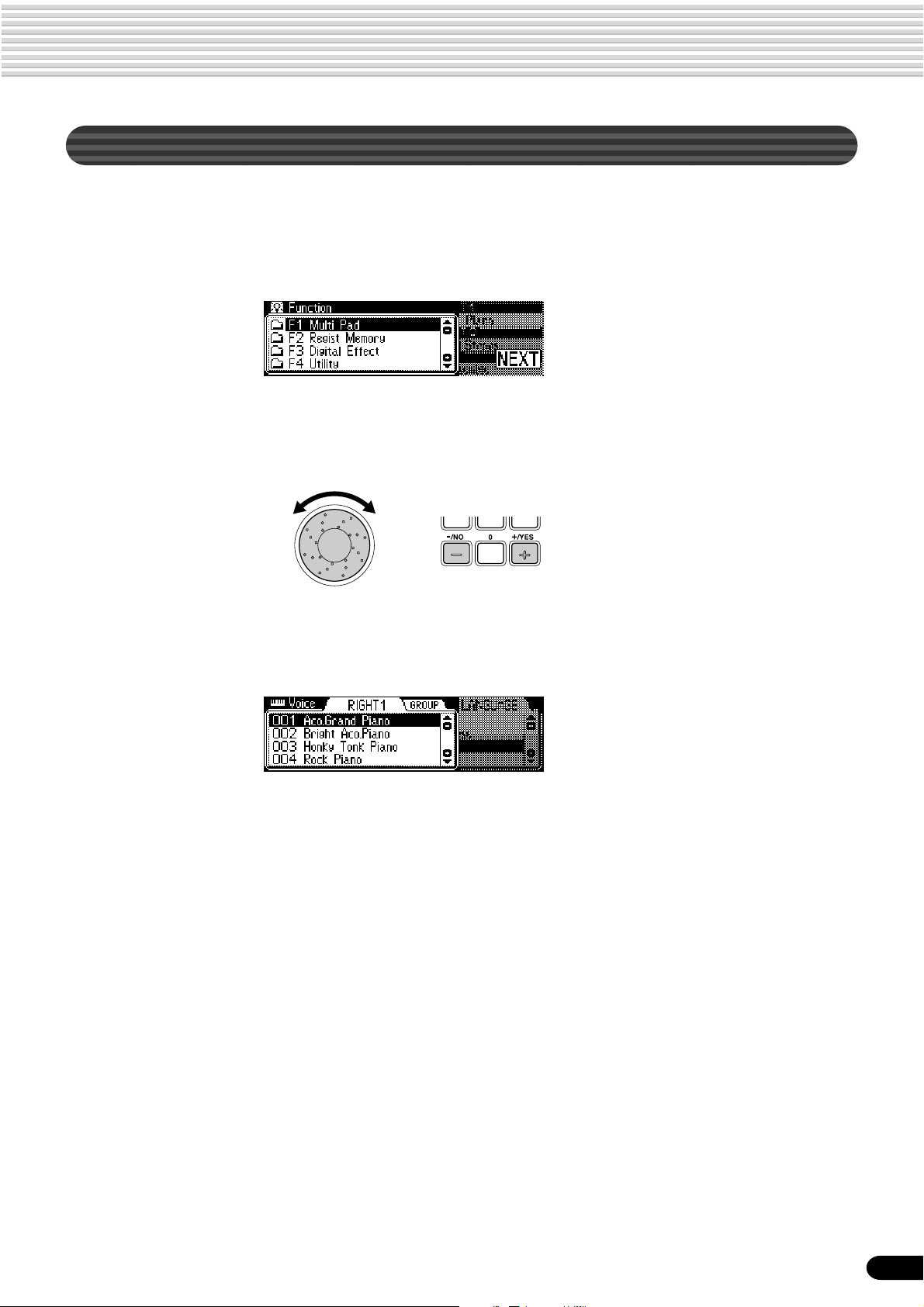
Menu Selection
For certain operations on the PSR-740/640 (such as selecting voices, demo songs and
styles), you’ll need to select different menus in the display.
For example, the display below (for selecting the function) appears when you press the
[FUNCTION] button.
In this case you can select the desired function by turning the data dial or move the
cursor by pressing the [+/YES]/[-/NO] buttons.
Basic Operation
Rotating the data dial to the right
(clockwise) moves the cursor
downward, while rotating it to the
left (counter-clockwise) moves the
cursor upward.
Pressing the [+/YES] button moves
the cursor downward, while
pressing the [-/NO] button moves
the cursor upward.
The display below (for selecting voices) appears when you press the [VOICE R1]
button.
In this case you can also select the voice by using the data dial or the [+/YES]/[-/NO]
buttons as above; you can also input the voice number directly by using the number
buttons [1]—[0] (See the next page).
19
17

Basic Operation
Changing (Editing) Values
This section shows you how to set numeric values on the PSR-740/640, such as voice
number, song/style number and various parameters. Input the values by using the
number buttons [1]-[0] or the [+/YES]/[-/NO] buttons.
Number buttons [1]-[0]
described below.
Rotating the data dial
to the right (clockwise)
increases the value,
while rotating it to the
left (counter-clockwise) decreases it.
Pressing the [+/YES] button increases the displayed
value by 1. Pressing the [-/NO] button decreases the
displayed value by 1. Pressing and holding either button
causes a continuous increase and decrease.
For items that have initial default values, pressing the
[+/YES] and the [-/NO] buttons together at the same time
will return the setting to the initial value.
Numeric entry
The explanations here apply only to numbers that have a maximum of three digits, such
as those for voices and styles.
• Entering one- or two-digit numbers
One- or two-digit voice numbers can be entered with leading zeroes: e.g. “12” can be
entered as “012” by pressing the [0], [1] and [2] buttons in sequence.
• One- or two-digit numbers
can also be entered without
leading zeroes.
To select number “12,” for
example, simply press the [1]
button and then the [2]
button. The bars below the
number on the display will
flash for a few seconds, and
then disappear when the
selected number has been
recognized by the PSR-740/
640.
• On some occasions, “- — -”
may appear in the parameter
value part of the display.
This indicates that the
parameter is unavailable or
cannot be changed (due to
the current panel settings).
• Entering three-digit numbers
The number buttons can be used to directly enter the number of the desired voice,
thereby immediately selecting that voice without having to step through a number
of other voices. To select voice number 106, for example, press the [1], [0] and [6]
number buttons in sequence.
20
18

Naming
The allows you to create your own original data such as songs, styles and registration
memory settings. You can also freely name the data as desired.
The following data types can be named.
• Disk files (User songs, etc) ………. pages 69, 73, 74, 104
• User Styles ……………………………………………… page 118
• User Pad banks ……………………………………….. page 108
• Registration Memory banks …………………………. page 64
The example display below appears when naming a song on a floppy disk (page 69).
To enter an original name, use the keyboard.
Basic Operation
Letters and characters
are marked above the
corresponding keys.
C1
Entering a character Each key on the keyboard enters a different character, as
marked directly above the key.
Moving the cursor The A#5 and B5 keys move the cursor backward and
forward within the file name.
Entering a lower-case character The C1 key functions as a shift key that shifts between
lower- and upper-case characters: hold the Shift key
while pressing a character key to enter the lower-case
character.
Delete The Delete key (C6) deletes the character at the cursor
position.
• Lowercase letters cannot be
used for disk file names.
Direct Access
By using the [HELP/DIRECT ACCESS] button, you can instantly call up the desired
display. For example, pressing the [REGISTRATION MEMORY] button while
holding the [HELP/DIRECT ACCESS] button automatically selects the display for
inputting the Registration Memory bank name.
MEMORY
See page 24 for the Direct Access Chart.
21
19

Function Tree
Button Screen title Function See page
DEMO/LANGUAGE DEMO……………………………………….. Demo song selection ………………………………………………………………. 15
LANGUAGE……………………………….. Language of the Help selection ………………………………………………… 18
VOICE R1 VOICE RIGHT1 ………………………….. Voice R1 selection ………………………………………………………………….. 26
VOICE GROUP RIGHT1 ……………… Voice group R1 selection …………………………………………………………. 26
DSP
TYPE ……………………………….. DSP type selection (PSR-740, only in the Style Record mode) …….. 50
RETURN LEVEL ……………….. DSP return level setting (PSR-740, only in the Style Record mode) . 50
DEPTH …………………………….. DSP depth setting (PSR-740, only in the Style Record mode)………. 50
VOICE R2 VOICE RIGHT2 ………………………….. Voice R2 selection ………………………………………………………………….. 27
VOICE GROUP RIGHT2 ……………… Voice group R2 selection …………………………………………………………. 27
VOICE L VOICE L…………………………………….. Voice L selection…………………………………………………………………….. 28
VOICE GROUP L ……………………….. Voice group L selection……………………………………………………………. 28
STYLE STYLE ………………………………………. Accompaniment Style selection………………………………………………… 34
STYLE GROUP ………………………….. Accompaniment Style group selection ………………………………………. 34
SONG SONG ……………………………………….. Song selection ……………………………………………………………………….. 76
SONG UTILITY
SONG PLAY MODE …………… Song play method selection……………………………………………………… 77
SONG START MEASURE …… Song measure from which to start playback……………………………….. 79
SONG REPEAT …………………. Song repeat setting ………………………………………………………………… 80
SONG TRANSPOSE………….. Song transpose setting ……………………………………………………………. 81
VOICE CHANGE VOICE……………………………………….. Voice selection of the R1/R2/L/Style/Song track …………………………. 89
VOICE GROUP ………………………….. Voice group selection of the R1/R2/L/Style/Song track ………………… 89
MIXER R1/R2/L …………………………………….. Volume adjustment of Voice R1/R2/L ……………….. 1, 2, 3……… 90
STYLE ………………………………………. Volume adjustment of the accompaniment track …………………………. 90
SONG ……………………………………….. Volume adjustment of the song track…………………………………………. 90
VOCAL HARMONY ……………………..
Volume adjustment of the Vocal Harmony part (PSR-740) ……………………………..
90
ORGAN FLUTES FOOTAGE………………………………….. Footage setting (PSR-740) ………………………………………………………. 32
ATTACK MODE…………………………… Attack mode setting (PSR-740) ………………………………………………… 32
ORGAN TYPE ……………………………. Organ type setting (PSR-740) ………………………………………………….. 32
SPEED ……………………………………… Speed setting (PSR-740) …………………………………………………………. 32
GROOVE GROOVE TYPE ………………………….. Groove type selection (PSR-740) ………………………………………………45
GROOVE SWING……………………….. Groove swing setting (PSR-740) ………………………………………………. 45
DYNAMICS TYPE……………………….. Dynamics type selection (PSR-740) ………………………………………….. 45
DYNAMICS DEPTH …………………….. Dynamics depth setting (PSR-740) …………………………………………… 45
MULTI EFFECT MULTI EFFECT CONNECTION ……. Multi Effect connection setting (PSR-740)………………………………….. 54
MULTI EFFECT BLOCK SETTING .. Multi Effect block setting (PSR-740) ………………………………………….. 54
MULTI EFFECT TYPE …………………. Multi Effect type selection (PSR-740) ……………….. 4, 5, 6, 7….. 54
MULTI EFFECT DRY/WET…………… Multi Effect dry/wet setting (PSR-740)……………………………………….. 54
VOCAL HARMONY
ACMP/SONG V OLUME
VOCAL HARMONY TYPE ……………. Vocal Harmony type selection (PSR-740) …………. 8…………….. 85
VOCAL HARMONY LEAD GENDER TYPE ….
VOCAL HARMONY LEAD PITCH CORRECTION …..
VOCAL HARMONY PITCH TO NOTE ….
VOCAL HARMONY PART ……………. Part setting (PSR-740) ……………………………………………………………. 85
VOCAL HARMONY SONG TRACK.. Song track setting (PSR-740) …………………………………………………… 85
ACMP V OLUME …………………………. Accompaniment Volume setting ……………………………………………….. 39
SONG VOLUME …………………………. Song Volume setting ……………………………………………………………….. 78
Gender type selection (PSR-740)……………………………………………… 85
Lead Pitch Correction (PSR-740) ……………………………………………… 85
Pitch to note setting (PSR-740) ………………………………………………… 85
TRANSPOSE TRANSPOSE …………………………….. Transpose setting……………………………………………………………………. 30
TEMPO/TAP TEMPO……………………………………… Tempo setting ………………………………………………………………………… 38
FINGERING FINGERING……………………………….. Fingering selection …………………………………………………………………. 40
22
DISK LOAD DISK LOAD ……………………………….. Loading data from a disk …………………………………………………………. 70
DISK SAVE DISK SAVE………………………………… Saving data to a disk ………………………………………………………………. 68
DISK UTILTY DISK UTILTY
FORMAT…………………………… Formatting a disk ……………………………………………………………………. 68
COPY ………………………………. Copying a song in a disk………………………………………………………….. 72
DELETE …………………………… Deleting a file in a disk …………………………………………………………….. 75
20

Function Tree
Button Screen title Function See page
FUNCTION F1 MULTI PAD
BANK ………………………………. Multi pad bank selection …………………………………. 9…………….. 49
CHORD MATCH ………………… Chord match on/off setting ……………………………… 10…………… 49
F2 REGISTRATION MEMORY
BANK ………………………………. Registration Memory bank selection ……………….. 11…………… 64
NAME ………………………………. Namimg Registration Memory bank ………………… 12…………… 64
F3 DIGITAL EFFECT
REVERB
CHORUS
DSP
HARMONY/ECHO
EQ TYPE LOAD ………………… Master EQ type selection/loading (PSR-740) ……………………………… 60
EQ GAIN ………………………….. Master EQ gain setting (PSR-740) …………………… 15…………… 61
F4 UTILITY
METRONOME…………………… Metronome on/off setting ………………………………… 16………….. 134
PART OCTAVE ………………….. Part octave setting…………………………………………. 17, 18, 19.. 135
MASTER TUNING……………… Master tuning setting ……………………………………………………………… 135
SCALE TUNING………………… Scale tuning setting ……………………………………………………………….. 135
SPLIT POINT ……………………. Split point setting …………………………………………… 20 ………….. 135
TOUCH SENSITIVITY………… Touch sensitivity setting ………………………………….. 21………….. 136
VOICE SET ………………………. Voice set on/off setting……………………………………………………………. 136
FOOT SWITCH …………………. Selecting footswitch function …………………………… 22………….. 137
FOOT VOLUME…………………. Selecting foot volume function…………………………. 23………….. 138
PITCH BEND RANGE………… Pitch bend range setting …………………………………. 24 ………….. 139
MODULATION WHEEL ………. Selecting modulation wheel function (PSR-740) … 25 ………….. 139
F5 MIDI
TEMPLATE……………………….. MIDI template vselection ………………………………………………………… 128
TRANSMIT ……………………….. MIDI transmit channel setting ………………………………………………….. 130
RECEIVE………………………….. MIDI receive channel setting …………………………………………………… 131
LOCAL CONTROL …………….. Local control on/off setting ………………………………………………………. 132
CLOCK …………………………….. External/Internal clock selection ………………………………………………. 132
INITIAL SETUP SEND ……….. Initial Setup data send ……………………………………………………………. 133
F6 PARAMETER EDIT
OCTAVE R1/R2/L……………… Octave setting of voice R1/R2/L ……………………………………………….. 91
OCTAVE SONG………………… Octave setting of song track …………………………………………………….. 91
PAN R1/R2/L ……………………. Pan setting of voice R1/R2/L ……………………………………………………. 91
PAN STYLE ……………………… Pan setting of accompaniment track………………………………………….. 91
PAN SONG ………………………. Pan setting of song track …………………………………………………………. 91
PAN VOCAL HARMONY ……. Pan setting of vocal harmony part (PSR-740) …………………………….. 91
REVERB DEPTH R1/R2/L …. Reverb depth setting of voice R1/R2/L ……………………………………… 91
REVERB DEPTH STYLE …… Reverb depth setting of accompaniment track…………………………….. 91
REVERB DEPTH SONG……. Reverb depth setting of song track ……………………………………………. 91
REVERB DEPTH VOCAL HARMONY ..
CHORUS DEPTH R1/R2/L…. Chorus depth setting of voice R1/R2/L ……………………………………… 91
CHORUS DEPTH STYLE ….. Chorus depth setting of accompaniment track ……………………………. 91
CHORUS DEPTH SONG …… Chorus depth setting of song track……………………………………………. 91
CHORUS DEPTH VOCAL HARMONY ..
DSP DEPTH R1/R2/L………… DSP depth setting of voice R1/R2/L (PSR-640) …………………………. 91
DSP DEPTH STYLE …………. DSP depth setting of accompaniment track (PSR-640)……………….. 91
DSP DEPTH SONG ………….. DSP depth setting of song track (PSR-640) ………………………………. 91
F7 T ALK SETTING
TALK VOLUME ………………….. Talk volume adjustment (PSR-740) ………………….. 27…………… 86
TOTAL VOLUME A TTENU ATER ..
DSP TYPE………………………… Vocal harmony DSP type selection (PSR-740) …………………………… 86
VOCAL HARMONY TYPE…… Vocal harmony type selection (PSR-740)…………………………………… 86
PARAMETER EDIT ……………. Vocal harmony parameter editing (PSR-740) ……………………………… 86
TYPE………………………. Reverb type selection ……………………………………………………………… 50
RETURN LEVEL ………. Reverb return level setting ……………………………………………………….. 51
TYPE………………………. Chorus type selction ……………………………………………………………….. 52
RETURN LEVEL ………. Chorus return level setting……………………………………………………….. 52
TYPE………………………. DSP type selection (PSR-640) ………………………… 13…………… 53
RETURN LEVEL ………. DSP return level setting (PSR-640)…………………………………………… 53
TYPE………………………. Harmony/Echo type selection………………………….. 14…………… 56
VOLUME …………………. Harmony /Echo volume setting…………………………………………………. 57
PART ………………………. Harmony part setting ………………………………………………………………. 58
Reverb depth setting of vocal harmony part (PSR-740)…………
Chorus depth setting of vocal harmony part (PSR-740)……………….. 91
Overall sound (not MIC.) volume adjustment (PSR-740)……………… 86
26…………… 91
23
21

Function Tree
Button Screen title Function See page
RECORD SONG
STYLE
PAD
QUICK ……………………………… User Song Quick recording………………………………………………………. 94
MULTI TRACK …………………… User Song Multi track recording ……………………………………………….. 96
PUNCH IN/OUT ……….. Punch in/out setting ………………………………………………………………… 98
START MEASURE ……. Measure from which to start playback ……………………………………….. 98
EDIT
QUANTIZE ………………. Quantize ………………………………………………………………………………. 100
SETUP DATA……………. Setup data editing ………………………………………………………………….. 102
NAME……………………… Naming User Songs ………………………………………………………………. 104
CLEAR ……………………. Clearing user song data …………………………………………………………. 105
RECORD ………………………….. User Style recording ………………………………………………………………. 112
EDIT
QUANTIZE ………………. Quantize ………………………………………………………………………………. 116
NAME……………………… Namimg User Styles ……………………………………………………………… 118
CLEAR ……………………. Clearing user style data ………………………………………………………….. 118
CTAB EDIT………………. CTAB setting …………………………………………………………………………. 119
NOTE LIMIT ……………………………………………………………………………………………………… 119
HIGH KEY ………………………………………………………………………………………………………… 119
SOURCE CHORD ……………………………………………………………………………………………… 119
RECORD ………………………….. User Pad recording………………………………………………………………… 106
EDIT
CHORD MATCH ……….. Chord match on/off setting ……………………………………………………… 108
NAME……………………… Naming user pads …………………………………………………………………. 108
CLEAR ……………………. Clearing user pad data …………………………………………………………… 109
24
Direct Access Chart
Function Tree number/function Operation: + button listed below
1 Volume adjustment of Voice L PART ON/OFF [VOICE L]
2 Volume adjustment of Voice R1 PART ON/OFF [VOICE R1]
3 Volume adjustment of Voice R2 PART ON/OFF [VOICE R2]
4 Multi Effect type selection (DSP1) PSR-740 [DSP1]
5 Multi Effect type selection (DSP2) PSR-740 [DSP2]
6 Multi Effect type selection (DSP3) PSR-740 [DSP3]
7 Multi Effect type selection PSR-740 VOCAL HARMONY [DSP4]
(DSP4 for the microphone sound)
8 Vocal Harmony type selection PSR-740 VOCAL HARMONY [ON/OFF]
9 Multi pad bank selection MULTI PAD [STOP]
10 Chord match on/off setting MULTI PAD [1]-[4]
11 Registration Memory bank selection REGISTRATION MEMORY [1]-[4]
12 Namimg Registration Memory bank REGISTRATION MEMORY [MEMORY]
13 DSP type selection PSR-640 [DSP]
14 Harmony/Echo type selection [HARMONY/ECHO]
15 Master EQ gain setting PSR-740 [MASTER EQ]
16 Metronome on/off setting [TEMPO/TAP]
17 Part octave setting of Voice L [VOICE L]
18 Part octave setting of Voice R1 [VOICE R1]
19 Part octave setting of Voice R2 [VOICE R2]
20 Split point setting [ACMP ON/OFF]
21 Touch sensitivity setting [TOUCH]
22 Selecting footswitch function Footswitch
23 Selecting foot volume function Foot Volume
24 Pitch bend range setting Pitch bend wheel
25 Selecting modulation wheel function PSR-740 Modulation wheel
26 Reverb depth setting of vocal harmony part PSR-740 VOCAL HARMONY [REVERB]
27 Talk volume adjustment PSR-740 VOCAL HARMONY [TALK]
22

Mode
Depending on the panel operation used, the PSR-740/640 has several fundamentally different conditions
(or methods of operation). Each of these conditions is called a mode. This section explains the main
modes of the instrument.
Style Mode page 34
Select this mode by pressing the [STYLE] button. (This is
the default mode when the power is turned on.)
The Style mode is used for playing the full keyboard
normally, and when using the auto accompaniment.
Styles are the rhythm/accompaniment pattterns which are
played by the auto accompaniment feature.
ACMP ON/OFF
SYNC START
● Auto accompaniment (ACMP) on/off……………………………………………….. page 35
The [ACMP ON/OFF] lamp switches on and off.
When auto accompaniment is on, the left side of the keyboard is used for playing/
indicating chords.
● Synchronized Start standby (SYNC START) on/off ……………………………page 35
The [SYNC START] lamp switches on and off.
When Synchronized Start standby is on, the auto accompaniment starts as soon
as you play a key on the keyboard.
SONG
ACMP
START/STOP
COUNT
INTRO
INTRO
Song Mode page 76
Select this mode by pressing the [SONG] button or
inserting the disk that contains song data into the disk
SONG
ACMP
START/STOP
INTRO
INTRO
COUNT
drive. The Song mode is used for playing the full keyboard normally, and for playing back the songs.
Record Mode
Select this mode by pressing the [RECORD] button.
In the Record mode you can record your own original performances and songs, create
original styles and Multi Pad phrases.
● Song record mode………………… page 92
• Rehearsal mode (Sync Start off)
• Record (Synchronized Start) standby
• Recording
● Style record mode ………………. page 110
• Record (Synchronized Start on/off)
standby
• Recording
When Record (Synchronized Start) standby is on, the recording starts as soon as you play
a key on the keyboard. If the [SYNC START] button is pressed, it will be canceled (the
beat indicator dots will go out) and the PSR-740/640 will enter Rehearsal mode.
● Pad record mode ………………… page 106
• Rehearsal mode (Sync Start off)
• Record (Synchronized Start) standby
• Recording
Disk Mode
DISK
LOAD SAVE
DISK IN USE
23
UTILITY
Select this mode by pressing the [LOAD] button, [SAVE] button or the [UTILITY]
button.
In the Disk mode you can save and load important data (page 65).
In the Disk mode, no panel operations can be executed (except for disk operations).
25

Playing Voices
The PSR-740/640 has a huge selection of various musical instrument voices which you can play. Try out
the different voices referring to the voice list at the end of this manual (page 140).
Select and play the voices of different musical instruments
• Selecting a Voice………………………………………………………………………………page 26
• Keyboard Percussion ………………………………………………………………………..page 31
Assign three different voices to the keyboard and play them
• Playing Two Voices (R1, R2) Simultaneously ………………………………………..page 27
• Playing Different Voices with the Left (L) and Right (R1, R2) Hands ……….. page 28
• Functions of the Keyboard …………………………………………………………………page 29
Other voice-related functions
• Pitch Bend Wheel …………………………………………………………………………….page 30
• Modulation Wheel (PSR-740) ……………………………………………………………. page 30
• T ranspose……………………………………………………………………………………….. page 30
• Sustain ……………………………………………………………………………………………page 31
• T ouch Sensitivity …………………………………………………………………………….page 136
Selecting a Voice
Press the [VOICE R1] button.
1
Select a voice.
2
Use the data dial, the [+/YES] button, the [-/NO] button or the number buttons
[1]-[0].
Refer to the Voice List (page 140).
The voices of the PSR-740/640 are divided into different groups or basic
categories. You can select different voice groups in succession by pressing the
[NEXT] button. Selecting a specific voice group makes it easier to select a
desired voice, since it lets you narrow down your search to just the voices of a
certain category.
BACK NEXT
• The voice selected here is
called voice R1 (RIGHT 1).
See page 29 for more
information on voice R1.
26
Press the [BACK] button to return back to the VOICE RIGHT1 diaplay.
Play & adjust the volume.
3
24

Playing Two Voices (R1, R2) Simultaneously
Press the [PART ON/OFF VOICE R2] button.
1
VOICE R1 VOICE R2
VOICE L
PART
ON/OFF
Play the voices.
2
Two different voices are sounded simultaneously in a layer.
Voice R1 (RIGHT 1) is the first voice of the layer and is meant to be played
with the right hand. The second voice is called voice R2 (RIGHT 2) and is also
played with the right hand.
Playing Voices
Selecting a voice for VOICE R2
Press the [VOICE R2] button.
1
Select a voice.
2
Use the data dial, the [+/YES] button, the [-/NO] button or the number buttons
[1]-[0].
To indicate the voice group, press the [NEXT] button. To return to the previ-
ous display, press the [BACK] button.
Refer to the Voice List (page 140).
The voices available for selection here (VOICE R2) are the same as those
available for VOICE R1 (selected on page 26).
Play the voice.
3
27
25

Playing Voices
Playing Different Voices with the Left and Right Hands
Press the [PART ON/OFF VOICE L] button.
1
VOICE L
PART
ON/OFF
Play the voices.
2
The notes you play with your right and left hands sound two different voices.
VOICE R1 VOICE R2
Split Point
• The point on the keyboard
that separates voice L and
voice R1 is called the “split
point” (page 29).
Voice L
Voice R1 (RIGHT 1) is meant to be played with the right hand. Voice L
(LEFT) is played with the left hand.
Voice R1
Selecting a voice for VOICE L
Press the [VOICE L] button.
1
Select a voice.
2
Use the data dial, the [+/YES] button, the [-/NO] button or the number buttons
[1]-[0].
Refer to the Voice List (page 140).
28
The voices available for selection here (VOICE L) are the same as those
available for VOICE R1 (selected on page 26).
Play the voices.
3
Split Point
Voice L
Voice R1
26

Split Point
The point on the keyboard that separates voice L and voice R1/R2 is called the “split
point”.
The split point is set to F#2/G2 at the factory setting, however you can set this to any
key you wish. Refer to page 135 for instructions on setting the split point.
Split Point (F#2/G2)
Playing Voices
• Each key has a note name;
for example, the lowest
(farthest left) key on the
keyboard corresponds to C1
and the highest (farthest
right) key to C6 (See below
for details).
Voice L
Voice R1/R2
Functions of the Keyboard
As explained above, the keyboard of the PSR-740/640 can sound three different voices. Here’s a short summary of
the various ways of playing voices.
VOICE L
VOICE L
VOICE L
VOICE L
VOICE R1 VOICE R2
VOICE R1 VOICE R2
VOICE R1 VOICE R2
VOICE R1 VOICE R2
● Playing a Single Voice
● Playing Two V oices
● Playing Separate Voices
with the Right and Left
Hands
Voice L
Voice L
Voice R1
Voice R1 + R2
Voice R1
Voice R1 + R2
PART
ON/OFF
PART
ON/OFF
PART
ON/OFF
PART
ON/OFF
In addition, the keyboard of the PSR-740/640 has other important functions besides playing voices (as shown below).
● Auto Accompaniment Section
When the auto accompaniment is set to on (page 35), the key range of voice L becomes the range for playing/
indicating chords.
Auto Accompaniment
section
Split Point
Voice R1/R2
FINGERINGACMP ON/OFF
GROOVE ON/OFF
● Naming
The keyboard can also be used to name song files on a floppy disk, User Styles,
User Pad banks and Registration Memory banks (page 21).
Each key has a note name; for example, the lowest (farthest left) key on the keyboard corresponds to C1 and the
highest (farthest right) key to C6.
C#1D#1F#1G#1A#1
C1
D1 E1 F1 G1 A1 B1
C1 — B1
C2 — B2 C3 — B3 C4 — B4 C5 — B5 C6
29
27
Loading…
Как использовать наш сайт инструкций OnlineManuals.ru
Наша цель состоит в том, чтобы предоставить вам быстрый доступ к содержанию инструкции для синтезатора, цифрового пианино Yamaha PSR-640_PSR-740.
С помощью онлайн просмотра, Вы можете быстро просмотреть содержимое инструкции и найти решение проблемы с синтезатора, цифрового пианино Yamaha PSR-640_PSR-740.
Для Вашего удобства
Если листать руководство пользователя синтезатора, цифрового пианино Yamaha PSR-640_PSR-740 прямо на сайте, не очень удобно для Вас, есть два возможных решения:
• Просмотр в полноэкранном режиме — легко просмотреть руководство пользователя (без загрузки его на свой компьютер), Вы можете использовать режим полноэкранного просмотра.
Для просмотра инструкции пользователя синтезатора, цифрового пианино Yamaha PSR-640_PSR-740 на полном экране, используйте кнопку «Открыть в Pdf-viewer».
• Загрузка на компьютер — Вы можете также скачать Руководство пользователя синтезатора, цифрового пианино Yamaha PSR-640_PSR-740 на свой компьютер и сохранить его в файлах.
Многие люди предпочитают читать документы не на экране, а в печатной версии.
Возможность печати руководства пользователя также была предусмотрена на нашем сайте,
и вы можете использовать ее, нажав на иконку «печать» в Pdf-viewer.
Нет необходимости печатать все руководство синтезатора, цифрового пианино Yamaha PSR-640_PSR-740, можно выбрать только нужные страницы инструкции.