
USER’S GUIDE
GUÍA DEL USUARIO
P
CTK671-ES-1
CTK671escover.p65 01.8.1, 3:53 PMPage 1 AdobePageMaker6.5J/PPC

GUIDELINES LAID DOWN BY FCC RULES FOR USE OF THE UNIT IN THE U.S.A. (not applicable to other areas).
NOTICE
This equipment has been tested and found to comply with the limits for a Class B digital device, pursuant to Part 15
of the FCC Rules. These limits are designed to provide reasonable protection against harmful interference in a
residential installation. This equipment generates, uses and can radiate radio frequency energy and, if not installed
and used in accordance with the instructions, may cause harmful interference to radio communications. However,
there is no guarantee that interference will not occur in a particular installation. If this equipment does cause harmful
interference to radio or television reception, which can be determined by turning the equipment off and on, the user
is encouraged to try to correct the interference by one or more of the following measures:
• Reorient or relocate the receiving antenna.
• Increase the separation between the equipment and receiver.
• Connect the equipment into an outlet on a circuit different from that to which the receiver is connected.
• Consult the dealer or an experienced radio/TV technician for help.
FCC WARNING
Changes or modifications not expressly approved by the party responsible for compliance could void the user’s
authority to operate the equipment.
703A-E-002A

Welcome…
To the happy family of satisfied CASIO electronic musical instrument owners! To get the most
out of the many features and functions of the keyboard, be sure to carefully read this manual
and keep it on hand for future reference.
Important!
Please note the following important information before using this product.
• Before using the optional AD-5 Adaptor to power the unit, be sure to check the AC Adaptor for any damage first. Carefully check the power cord for breakage, cuts, exposed wire
and other serious damage. Never let children use an AC adaptor that is seriously damaged.
• Never attempt to recharge batteries.
• Do not use rechargeable batteries.
• Never mix old batteries with new ones.
• Use recommended batteries or equivalent types.
• Always make sure that positive (+) and negative (–) poles are facing correctly as indicated
near the battery compartment.
• Replace batteries as soon as possible after any sign they are getting weak.
• Do not short-circuit the battery terminals.
• The product is not intended for children under 3 years.
• Use only CASIO AD-5 adaptor.
• The AC adaptor is not a toy.
• Be sure to disconnect the AC adaptor before cleaning the product.
703A-E-003A
CASIO ELECTRONICS CO., LTD.
Unit 6, 1000
North Circular Road
London NW2 7JD, U.K.
This mark is valid in the EU countries only.
Please keep all information for future reference.
E-1

Introduction
Congratulations upon your selection of this CASIO musical instrument. This keyboard
provides you with the following features and functions.
❐ 348 tones, including 100 “Advanced Tones”
A total of 238 standard tones including piano, organ, brass, and other presets provide
you with the sounds you need, while memory for 10 user tones lets you store your
own original creations. 100 of the preset tones are “Advanced Tones,” which are variations of standard tones created by programming in effects (DSP) and other settings.
❐ 100 Preset Rhythms + 4 User Rhythms
A selection of 100 rhythms includes accompaniments for everything from rock to
pops and jazz.
You can also transfer accompaniment data from your computer and store up to four
of them as user rhythms in keyboard memory.
❐ Auto Accompaniment
Simply play a chord and the corresponding rhythm, bass and chord parts play automatically. One-touch Presets instantly recalls the most suitable tone and tempo settings to match the rhythm you are using.
❐ Big, Information-packed Display
A big built-in display shows chord names, tempo setting, keyboard information, staff
notation of notes played, and more for full support of all your keyboard play. A builtin backlight keeps the display easy to read, even in total darkness.
❐ Song Memory
Record up to six parts in memory, along with their tone, volume, pan position, and
other parameters for later playback. Realistic ensemble play can also be created using the Auto Accompaniment function.
❐ Synthesizer Mode
Edit built in sounds to produce your own original creations. Up to 10 of your own
sounds can be stored in memory for recall just like the built-in tones.
E-2
703A-E-004A

❐ General MIDI compatibility
The General MIDI tones of this keyboard let you connect to a personal computer to
enjoy “desktop music” capabilities. This keyboard can be used as a desktop music
input device or sound source, and it’s just the thing for playback of commercially
available pre-recorded General MIDI music software.
❐ Powerful effects
A collection of powerful effects, such as reverb, chorus, and more, give you total
control over the type of sound you want. You can even change the parameters of an
effect to create your own, original effects. A 4-band equalizer is also included.
❐ Mixer
You can specify tone, volume, pan position, and other parameters for each built-in
Auto Accompaniment part. You can also control the same parameters for each channel during MIDI input.
❐ Registration Memory
Keyboard setups can be stored in memory for later recall and instant settings whenever you need them. Up to 16 setups (4 setups x 4 banks) can be stored in registration
memory.
❐ Data download from your computer
You can use your computer to download data from the CASIO MUSIC SITE.
703A-E-005A
E-3
Safety Precautions
Symbols
Various symbols are used in this user’s guide
and on the product itself to ensure that the
product is used safely and correctly, and to
prevent injury to the user and other persons
as well as damage to property. Those symbols along with their meanings are shown
below.
DANGER
This symbol indicates information that, if
ignored or applied incorrectly, creates the
danger of death or serious personal injury.
WARNING
This indication stipulates matters that have
the risk of causing death or serious injury
if the product is operated incorrectly while
ignoring this indication.
CAUTION
Symbol Examples
This triangle symbol ( ) means
that the user should be careful.
(The example at left indicates
electrical shock caution.)
This circle with a line through it
(
) means that the indicated action must not be performed. Indications within or nearby this
symbol are specifically prohibited. (The example at left indicates that disassembly is prohibited.)
The black dot (
indicated action must be performed. Indications within this
symbol are actions that are specifically instructed to be performed. (The example at left indicates that the power plug must be
unplugged from the electrical
socket.)
) means that the
This indication stipulates matters that have
the risk of causing injury as well as matters for which there is the likelihood of
occurrence of physical damage only if the
product is operated incorrectly while ignoring this indication.
E-4
703A-E-006A
DANGER
Alkaline Batteries
Perform the following steps immediately if fluid leaking from alkaline batteries ever gets into your
eyes.
1. Do not rub your eyes! Rinse them
with water.
2. Contact your physician immediately.
Leaving alkaline battery fluid in
your eyes can lead to loss of sight.
AC Adaptor
Misuse of the AC adaptor’s electric
cord can damage or break it, creating the risk of fire and electric shock.
Always make sure you observe the
following precautions.
• Never place heavy objects on the
cord or subject it to heat.
• Never try to modify the cord or
subject it to excessive bending.
• Never twist or stretch the cord.
• Should the electric cord or plug
become damaged, contact your
original retailer or authorized
CASIO Service Provider.
WARNING
Smoke, Strange Odor, Overheating
Continued use of the product while
it is emitting smoke, a strange odor,
or heat creates the risk of fire and
electric shock. Take the following
steps immediately.
1. Turn off power.
2. If you are using the AC adaptor
for power, unplug it from the wall
outlet.
3. Contact your original retailer or
an authorized CASIO Service Provider.
AC Adaptor
Misuse of the AC adaptor creates
the risk of fire and electric shock.
Always make sure you observe the
following precautions.
• Be sure to use only the AC adaptor that is specified for this product.
• Use only a power source whose
voltage is the within the rating
marked on the AC adaptor.
• Do not overload electrical outlets
and extension cords.
AC Adaptor
Never touch the AC adapter while
your hands are wet.
Doing so creates the risk of electric
shock.
Batteries
Misuse of batteries can cause them
to leak, resulting in damage to
nearby objects, or to explode, creating the risk of fire and personal injury. Always make sure you observe
the following precautions.
• Never try to take batteries apart
or allow them to become shorted.
• Never expose batteries to heat or
dispose of them by incineration.
• Never mix old batteries with new
ones.
• Never mix batteries of different
types.
• Do not charge the batteries.
• Make sure the positive (+) and
negative (–) ends of the batteries
are facing correctly.
703A-E-007A
E-5
Do not incinerate the product.
Never throw the product into fire.
Doing so can cause it to explode,
creating the risk of fire and personal
injury.
Water and Foreign Matter
Water, other liquids, and foreign
matter (such as pieces of metal) getting into the product create the risk
of fire and electric shock. Take the
following steps immediately.
1. Turn off power.
2. If you are using the AC adaptor
for power, unplug it from the wall
outlet.
3. Contact your original retailer or
an authorized CASIO Service Provider.
Disassembly and Modification
Never try to take this product apart
or modify it in any way. Doing so
creates the risk of electric shock,
burn injury, or other personal injury. Leave all internal inspection,
adjustment, and maintenance up to
your original retailer or authorized
CASIO Service Provider.
Plastic Bags
Never place the plastic bag the product comes in over your head or in
your mouth. Doing so creates the
risk of suffocation.
Particular care concerning this precaution is required where small children are present.
Keep off of the product and stand.*
Climbing onto the product or stand
can cause it to tip over or become
damaged. Particular care concerning this precaution is required
where small children are present.
Location
Avoid locating the product on an
unstable stand, on an uneven surface, or any other unstable location.
An unstable location can cause the
product to fall over, creating the risk
of personal injury.
Dropping and Impact
Continued use of this product after
it has been damaged by dropping
or subjecting it to strong impact creates the risk of fire and electric
shock. Take the following steps immediately.
1. Turn off power.
2. If you are using the AC adaptor
for power, unplug it from the wall
outlet.
3. Contact your original retailer or
an authorized CASIO Service Provider.
E-6
703A-E-008A
CAUTION
AC Adaptor
Misuse of the AC adaptor creates
the risk of fire and electric shock.
Always make sure you observe the
following precautions.
• Do not locate the electric cord
near a stove or other sources of
heat.
• Never pull on the cord when unplugging from the electrical outlet. Always grasp the AC adaptor when unplugging.
AC Adaptor
Misuse of the AC adaptor creates
the risk of fire and electric shock.
Always make sure you observe the
following precautions.
• Insert the AC adaptor into the
wall outlet as far as it will go.
• Unplug the AC adaptor from the
wall outlet during lightening
storms or before leaving on a trip
or other long-term absence.
• At least once a year, unplug the
AC Adaptor from the wall outlet
and wipe away any dust that is
built up in the area around the
prongs of the plug.
Relocating the Product
Before relocating the product, always unplug the AC adaptor from
the wall outlet and disconnect all
other cables and connecting cords.
Leaving cords connected creates the
risk of damage to the cords, fire,
and electric shock.
Cleaning
Before cleaning the product, always
unplug the AC adaptor from the
wall outlet first. Leaving the AC
adaptor plugged in creates the risk
of damage to the AC adaptor, fire,
and electric shock.
Batteries
Misuse of batteries can cause them
to leak resulting in damage to
nearby objects, or to explode, creating the risk of fire and personal injury. Always make sure you observe
the following precautions.
• Use only batteries that are specified for use with this product.
• Remove batteries from the product if you do not plan to use it for
a long time.
Connectors
Connect only the specified devices
and equipment to the product’s connectors. Connection of a non-specified device or equipment creates the
risk of fire and electric shock.
Location
Avoid the following locations for
this product. Such locations create
the risk of fire and electric shock.
• Areas subject to high humidity
or large amounts of dust
• In food preparation areas or other
areas subject to oil smoke
• Near air conditioning equipment,
on a heated carpet, in areas exposed to direct sunlight, inside of
a vehicle parked in the sun, or
any other area that subjects the
product to high temperatures
703A-E-009A
E-7
Display Screen
• Never push on the display
screen’s LCD panel or subject it
to strong impact. Doing so can
cause the LCD panel’s glass to
crack, creating the risk of personal
injury.
• Should the LCD panel ever crack
or break, never touch the liquid
inside of the panel. LCD panel
liquid can cause skin irritation.
• Should LCD panel liquid ever get
inside your mouth, immediately
wash out your mouth with water
and contact your physician.
• Should LCD panel liquid ever get
into your eyes or onto your skin,
rinse with clear water for at least
15 minutes, and then contact a
physician.
Sound Volume
Do not listen to music at very loud
volumes for long periods. Particular care concerning this precaution
is required when using headphones.
High volume settings can damage
your hearing.
IMPORTANT!
When using batteries, be sure to replace them or shift to one
of the alternate power sources whenever you notice any of
the following symptoms.
• Dim power indicator
• Instrument does not turn on
• Display that is flickering, dim, or difficult to read
• Abnormally low speaker/headphone volume
• Distortion of sound output
• Occasional interruption of sound when playing at high volumes
• Sudden power failure when playing at high volumes
• Flickering or dimming of the display when playing at high
volume
• Continued sound output even after you release a key
• A tone that is totally different from the one that is selected
• Abnormal rhythm pattern and demo tune play
• Loss of power, sound distortion, or low volume when playing from a connected computer or MIDI device
Heavy Objects
Never place heavy object on top of
the product.
Doing so can make the product top
heavy, causing the product to tip
over or the object to fall from it,
creating the risk of personal injury.
Correct Stand* Assembly
An incorrectly assembled stand can
tip over, causing the product to fall
and creating the risk of personal injury.
Make sure you assemble the stand
correctly, following the assembly
instructions that come with it. Make
sure you mount the product on the
stand correctly.
* Stand is available as an option.
E-8
703A-E-010A

Care of your Instrument
Avoid heat, humidity or direct sunlight.
Do not overexpose the instrument to direct sunlight, or place it near an air conditioner, or in any extremely hot place.
Do not use near a TV or radio.
This instrument can cause video or audio interference with TV and radio reception. If this happens, move the instrument away
from the TV or radio.
Do not use lacquer, thinner or similar chemicals for cleaning.
Clean the instrument with a soft cloth dampened in a weak solution of water and a neutral detergent. Soak the cloth in the
solution and squeeze until it is almost dry.
Avoid use in areas subjected to temperature extremes.
Extremely high or low temperature can cause figures on the LCD screen to become dim and difficult to read. This condition
should correct itself when the instrument is brought back to normal temperature.
❚
NOTE
• You may notice lines in the finish of the case of this instrument. These lines are a result of the molding process used to shape the plastic
of the case. They are not cracks or breaks in the plastic, and are no cause for concern.
703A-E-011A
E-9
Contents
Welcome……………………………E-1
Introduction ………………………E-2
Safety Precautions …………….E-4
Care of your keyboard ………. E-9
Contents………………………….E-10
General Guide ………………….E-12
About the display ……………………………….E-14
Playing a Demo Tune …………………………E-15
Power Supply…………………..E-16
Using batteries …………………………………..E-16
Using the AC Adaptor …………………………E-17
Auto Power Off ………………………………….. E-17
Memory Contents ……………………………… E-18
Auto Accompaniment ………E-28
Selecting a Rhythm…………………………….E-28
Playing a Rhythm ……………………………….E-28
Adjusting the Tempo ………………………….. E-28
Using Auto Accompaniment …………………E-29
Using an Intro Pattern ………………………… E-31
Using a Fill-in Pattern ………………………… E-32
Using a Rhythm Variation ……………………E-32
Synchro Starting Accompaniment
with Rhythm Play ……………………………….E-32
Finishing with an Ending Pattern ………….E-33
Using One-touch Preset …………………….. E-33
Using Auto Harmonize ………………………..E-33
Adjusting the Accompaniment Volume …. E-34
Mixer Function …………………E-35
What you can do with the Mixer ………….. E-35
Turning Channels On and Off ………………E-35
Connections…………………….E-19
Basic Operations …………….. E-21
To play the keyboard …………………………..E-21
Selecting a Tone ………………………………..E-21
Using an Advanced Tone …………………….E-22
Applying Effects to Tones …E-23
Effect Blocks ……………………………………..E-23
Selecting REVERB and CHORUS ………. E-23
Selecting a DSP type …………………………. E-25
Using the Equalizer ………….E-27
Using the Parameter Edit Mode ………….. E-36
How Parameters Work ………………………..E-37
Synthesizer Mode ……………. E-38
Synthesizer Mode Functions ……………….E-38
Creating a User Tone ………………………….E-40
Storing a User Tone In Memory ……………E-42
Registration Memory……….. E-44
Registration Memory Features …………….E-44
To Save a Setup in Registration Memory …E-45
To Recall a Setup from Registration
Memory …………………………………………….E-45
E-10
703A-E-012A
Song Memory Function ……E-46
Appendix …………………………. A-1
Tracks ………………………………………………E-46
Basic Song Memory operations ……………E-46
Using Real-time Recording …………………. E-47
Mixer Mode Settings …………………………..E-48
Playing Back from Song Memory …………E-49
Recording Melody and Chords
with Step Recording……………………………E-49
Recording Multiple Tracks …………………..E-52
Correcting Mistakes While Step
Recording………………………………………….E-54
Editing Memory Contents …………………… E-55
Editing a Song …………………………………..E-57
Keyboard Settings…………… E-59
Using Layer ………………………………………. E-59
Using Split ………………………………………… E-59
Using Layer and Split Together ……………E-60
Using Touch Response ……………………….E-61
Tone list ………………………………………………A-1
Drum Assignment List …………………………..A-8
Fingered Chord Chart …………………………..A-9
Effect List ………………………………………….A-10
DSP Algorithm List …………………………….. A-12
MIDI Implementation Chart
Transposing the Keyboard…………………..E-62
Tuning the Keyboard …………………………. E-62
Changing Other Settings ……………………. E-63
MIDI………………………………… E-66
What is MIDI? …………………………………… E-66
General MIDI …………………………………….E-66
Sending and Receiving MIDI Messages ….E-67
MIDI Settings ……………………………………. E-67
Using the Data Download Service ……….. E-68
Troubleshooting ………………E-69
Specifications ………………….E-71
703A-E-013A
E-11
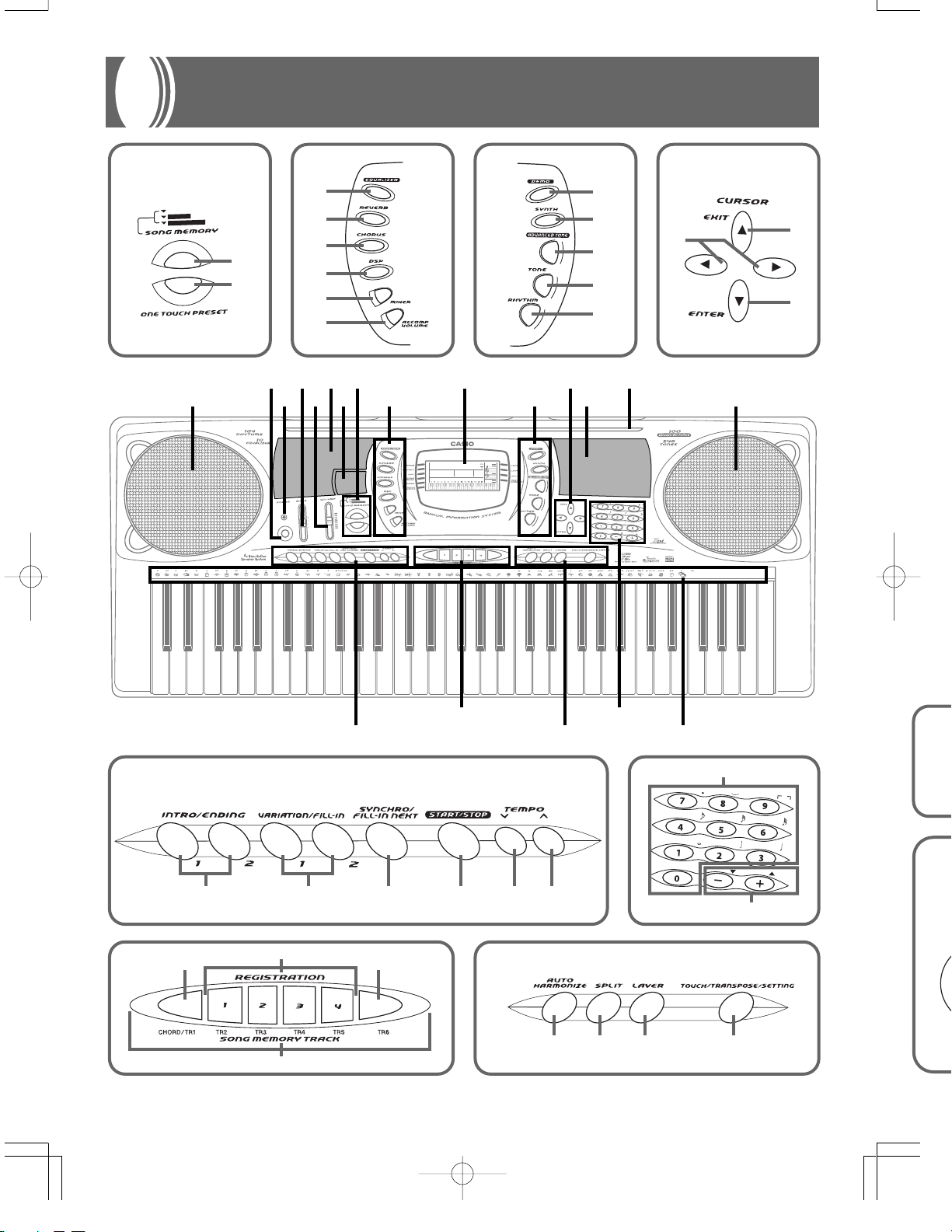
General Guide
REST
/YES
/NO
(
TIE
)
3
FULL RANGE
MAX
MIN
PLAY
RECORD
STEP RECORD
CHORD
FINGERED
CASIO CHORD
NORMAL
BANK STORE
89AB
D
EF
G
H
D
E
G
F
H
1
23456
8 0 B
7
9 AC
*
1
BANK STORE
PLAY
RECORD
STEP RECORD
REST
/YES
/NO
(
TIE
)
3
a
b
a
b
c
d
e
f
a
b
c
d
e
b
c
a
b
a c
d
a
b
a
fedca b
b c d
E-12
703A-E-014A
• Key, button, and other names are indicated in the text of this manual using bold type.
1 Speaker
2 POWER button
3 Power indicator
4 MODE switch
5 VOLUME slider
6 Rhythm list
7 Equalizer list
8 a) SONG MEMORY button
b) ONE TOUCH PRESET button
9 a) EQUALIZER button
b) REVERB button
c) CHORUS button
d) DSP button
e) MIXER button
f) ACCOMP VOLUME button
0 Display
A a) DEMO button
b) SYNTH button
c) ADVANCED TONE button
d) TONE button
e) RHYTHM button
B a) [왗] / [왘] CURSOR buttons
b) [왖] EXIT button
c) [왔] ENTER button
C Tone list
D a) INTRO/ENDING 1/2 buttons
b) VARIATION/FILL-IN 1/2 buttons
c) SYNCHRO/FILL-IN NEXT
button
d) START/STOP button
e) TEMPO buttons
E a) BANK button
b) REGISTRATION buttons
c) STORE button
d) SONG MEMORY TRACK
buttons
F a) AUTO HARMONIZE button
b) SPLIT button
c) LAYER button
d) TOUCH/TRANSPOSE/SET-
TING button
G a) Number buttons
• For input of numbers to
change displayed settings.
b) [+]/[–] buttons (YES/NO)
• Negative values can be
changed only by using [+] and
[–] to increment and decrement the displayed value.
H a) CHORD root names
b) Chord types name
c) Percussion instrument list
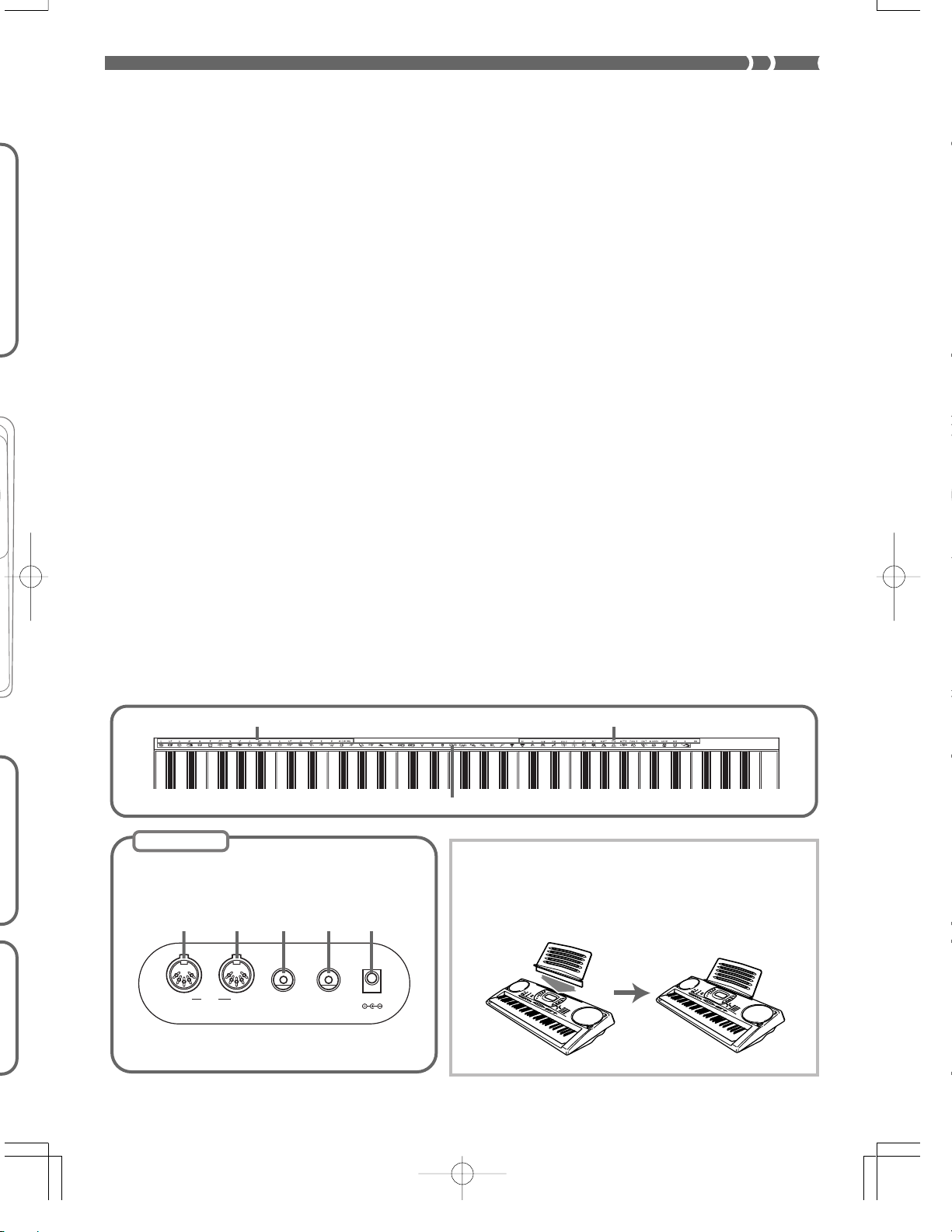
I MIDI OUT terminal
J MIDI IN terminal
K SUSTAIN/ASSIGNABLE JACK
terminal
L PHONES/OUTPUT terminal
M DC 9V jack
H
703A-E-015A
Rear Panel
I
OUT IN
MIDI
ab
c
Attaching of the Score Stand
*
Firmly press the music stand provided with the keyboard
all the way into the groove on the top of the keyboard.
J K L M
PHONES/
SUSTAIN/
ASSIGNABLE JACK
OUTPUT
DC 9V
E-13

About the display
1
2
3
4
57
6
G r a n d P n o
15
14
10
111213
9
1. Indicators appear here to show when reverb, chorus, DSP, the Mixer Mode, Song Memory, or
Touch Response is being used.
2. The TONE indicator appears when you are selecting or viewing the TONE setting, while RHYTHM
appears for the RHYTHM setting. The AD and TONE indicators both appear when you are selecting or viewing an Advanced Tone.
•“AD TONE” stands for “ADVANCED TONE.”
3. Tone number/Tone name
• The tone number/tone name area is also used to indicate the rhythm number and rhythm name,
and to indicate various functions in the Synthesizer Mode, Mixer Mode, Registration Mode, and
Song Memory Mode.
8
4. Indicated keys are those that are operational for the function you are currently performing.
5. Octave Symbol
Appears when the note produced by the keyboard is one octave higher than the note indicated on
the staff.
6. Notes you play on the keyboard, notes being played back from Song Memory, chord forms, and
received MIDI data* are shown in the staff on the display.
7. Indicators appear here to show when the synthesizer, layer, split, or auto harmonize is being used.
8. This display shows the note played on the keyboard, notes being played back from Song Memory,
chord forms, and received MIDI data*.
9. The beat number is indicated while a rhythm, Auto-accompaniment, or Song Memory Mode is
being used.
10. The measure number is indicated while a rhythm, Auto-accompaniment, or Song Memory Mode
is being used.
E-14
703A-E-016A
11. The number of beats per minute are indicated while a rhythm, Auto-accompaniment, or Song
Memory Mode is being used.
• The tempo area is also used to indicate the Song Memory function’s clock.
12. REC flashes on the display during Song Memory record standby. REC remains on the display
without flashing while recording is in progress. STEP is displayed during step recording.
13. You can turn on the metronome to provide a reference beat for your keyboard play.
14. Level Meter
The velocity of each channel is indicated as one of three levels. This display also shows the Mixer
channel’s on/off status.
15. The name of the chord being played is shown on the display while Auto Accompaniment is being
used.
* These items do not appear when a note outside the display range (C2 to C7) is received.
❚
NOTE
• Display examples shown in this User’s Guide are intended for illustrative purposes only. The actual text and values that appear on the
display may differ from the examples shown in this User’s Guide.
Playing a Demo Tune
Pressing the DEMO button starts demo tune play. There are two demo tunes, which continuously play in sequence. To
stop demo tune play, press either the DEMO button or the START/STOP button.
❚
NOTE
• Pressing the [+]/[–] buttons skips to the next demo tune.
• MIDI, Layer, and Split are disabled while a demo tune is playing.
703A-E-017A
E-15
Power Supply
This keyboard can be powered by current from a standard
household wall outlet (using the specified AC adaptor) or by
batteries. Always make sure you turn the keyboard off whenever you are not using it.
Using batteries
Always make sure you turn off the keyboard before loading
or replacing batteries.
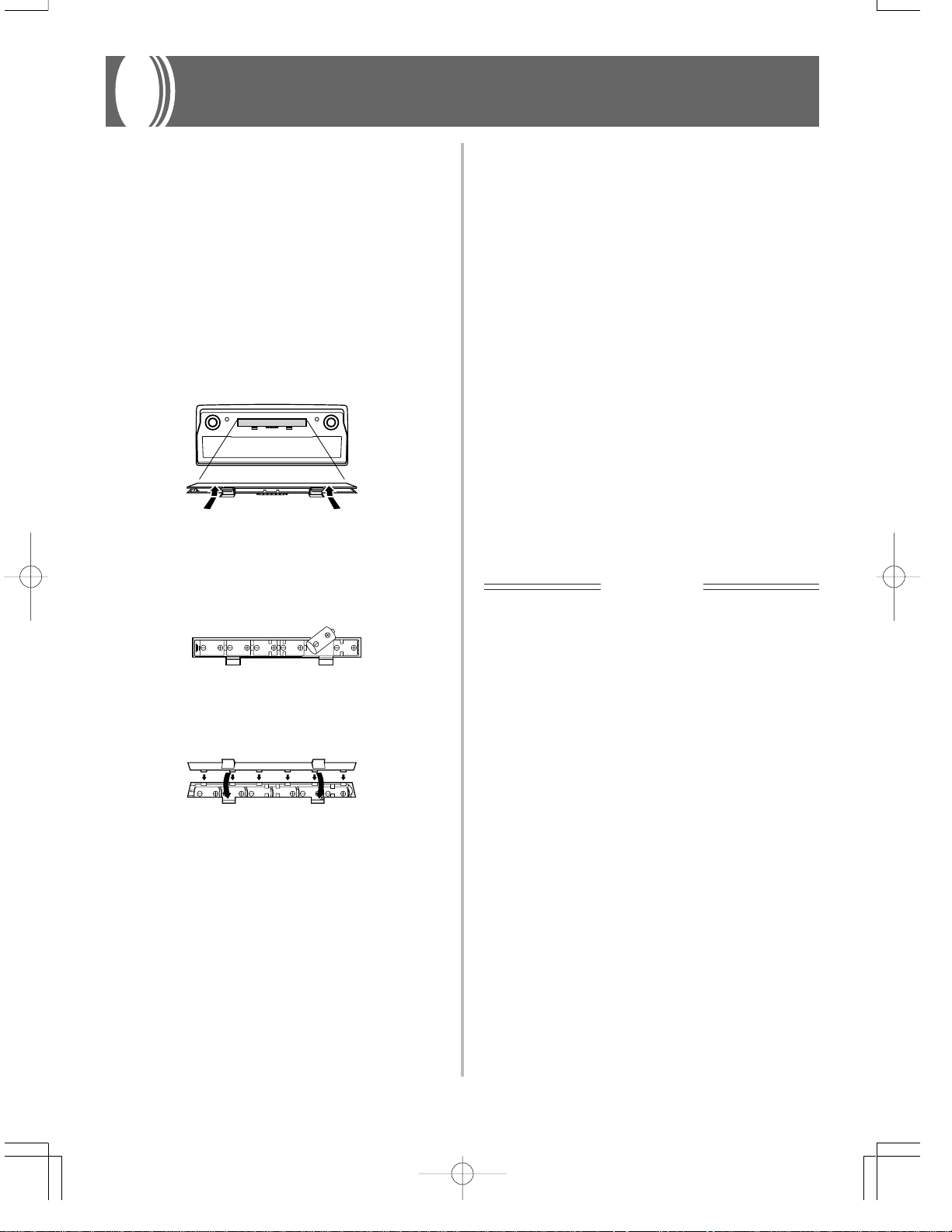
To load batteries
1. Remove the battery compartment cover.
2. Load six D-size batteries into the battery com-
partment.
• Make sure that the positive (+) and negative (–) ends are
facing correctly.
3. Insert the tabs on the battery compartment cov-
er into the holes provided and close the cover.
The keyboard may not function correctly if you load or replace batteries with power turned on. If this happens, turning the keyboard off and then back on again should return
functions back to normal.
Important Battery Information
■
The following shows the approximate battery life.
• Manganese batteries ………Approximately 4 hours
The above value is standard battery life at normal temperature, with the keyboard volume at a medium setting.
Temperature extremes or playing at very loud volume
settings can shorten battery life.
■
Any of the following symptoms indicate low battery
power. Replace batteries as soon as possible whenever
any of the following occurs.
• Dim power indicator
• Instrument does not turn on
• Display that is flickering, dim, or difficult to read
• Abnormally low speaker/headphone volume
• Distortion of sound output
• Occasional interruption of sound when playing at high
volumes
• Sudden power failure when playing at high volumes
• Flickering or dimming of the display when playing at
high volume
• Continued sound output even after you release a key
• A tone that is totally different from the one that is se-
lected.
• Abnormal rhythm pattern and demo tune play
• Loss of power, sound distortion, or low volume when
playing from a connected computer or MIDI device
IMPORTANT!
Improper handling of batteries can cause them to burst and
leak, which creates the danger of personal injury or damage
due to contact with battery acid. Be sure to note the following
important precautions.
• Always make sure that the positive (+) and negative (–)
poles are facing correctly as indicated near the battery
compartment.
• To avoid damage caused by leaking batteries, be sure to
remove batteries from the keyboard whenever you leave it
unattended for long periods (such as when leaving on a
trip).
• Never mix batteries of different types.
• Never mix old batteries with new ones.
• Never discard batteries by incinerating them, do not allow
their poles to be shorted (connected to each other), never
take batteries apart, and do not expose batteries to direct
heat.
• Replace batteries as soon as possible after any sign they
are getting weak.
• Never attempt to recharge batteries.
E-16
703A-E-018A
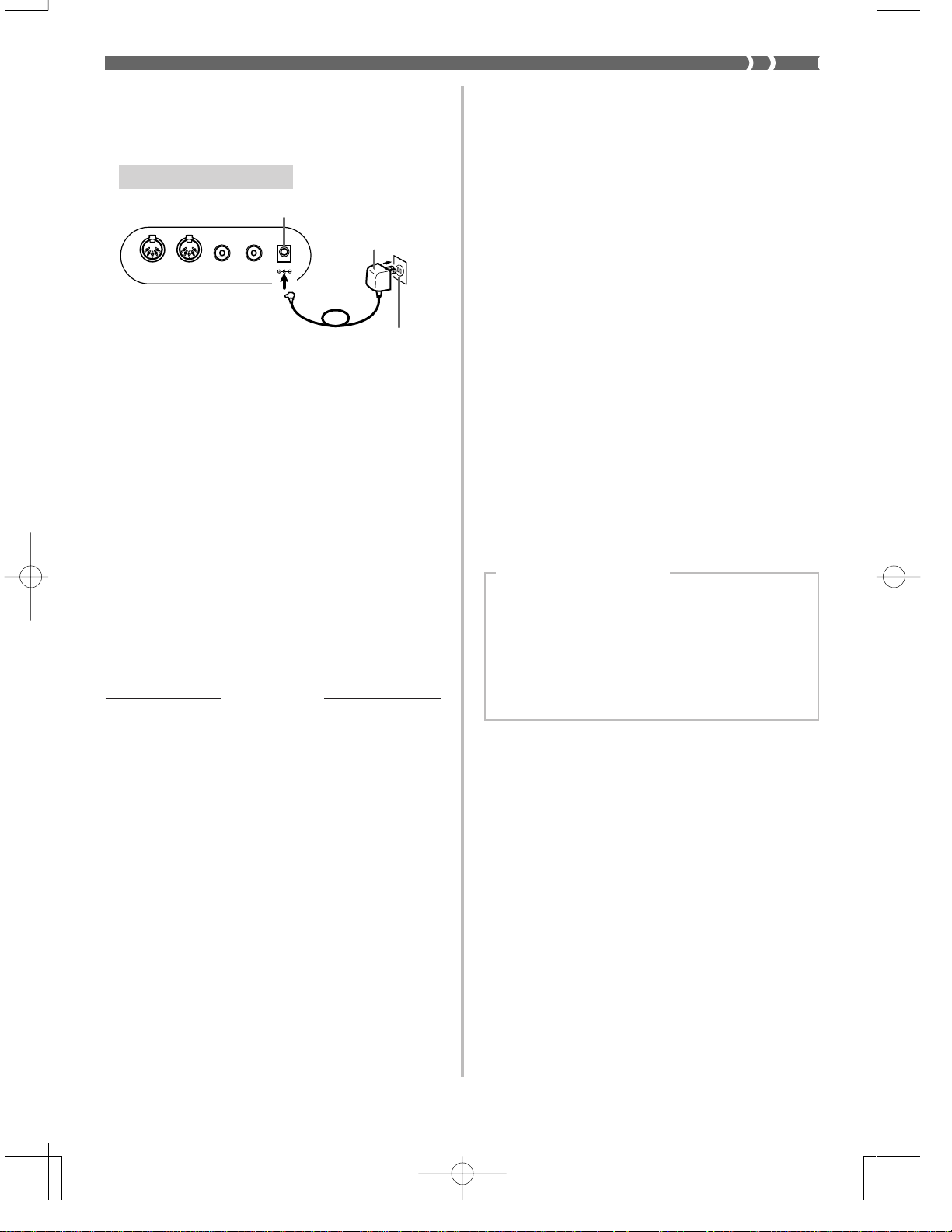
Using the AC Adaptor
Make sure that you use only the AC adaptor specified for
this keyboard.
Specified AC Adaptor: AD-5
DC 9V jack
AC adaptor AD-5
PHONES/
OUTPUT
DC 9V
AC outlet
OUT IN
SUSTAIN/
MIDI
ASSIGNABLE JACK
Also note the following important warnings and precautions
when using the AC adaptor.
WARNING!
• Take care to avoid any damage to or breakage of the power
cord. Never place any heavy objects on the power cord or expose it to direct heat. Doing so creates the danger of power
cord damage, fire, and electrical shock.
• Use only the specified AC adaptor. Use of another type of adaptor creates the danger of fire and electrical shock.
Auto Power Off
When you are using battery power, keyboard power turns
off automatically whenever you leave it on without performing any operation for about 6 minutes. When this happens,
press the POWER button to turn power back on.
❚
NOTE
• Auto Power Off is disabled (it does not function) when you are
using the AC adaptor to power the keyboard.
To disable Auto Power Off
Hold down the TONE button while turning on the keyboard
to disable Auto Power Off.
• When Auto Power Off is disabled, the keyboard does not
turn off automatically no matter how long it is left with no
operation being performed.
• Auto Power Off is automatically enabled whenever you
turn on keyboard power.
Settings
Tone, rhythm, and other “main keyboard settings” in effect
when you turn off the keyboard manually by pressing POWER or when Auto Power Off turns off power are still in effect
the next time you turn power back on.
CAUTION!
• For safety sake, be sure to unplug the AC adaptor from the wall
outlet whenever leaving the keyboard unattended for a long
time (such as when leaving on a trip).
• Always turn off the keyboard and unplug the AC adaptor from
the wall outlet when you are not using the keyboard.
IMPORTANT!
• Make sure that the keyboard is turned off before connecting or disconnecting the AC adaptor.
• Using the AC adaptor for a long time can cause it to become warm to the touch. This is normal and does not indicate malfunction.
Main Keyboard Settings
Tone number, layer, split, split point, touch response,
reverb, chorus, DSP, equalizer, rhythm number, tempo,
Mixer Mode settings (channel on/off, tone number, volume, pan pot), keyboard channel, MIDI In Chord Judge
on/off, accomp MIDI out on/off, assignable jack setting,
accompaniment volume, user area tones (Synthesizer
Mode), user area accompaniments, user area DSP
703A-E-019A
E-17

Memory Contents
In addition to the above settings, data stored in the Registration Mode and Song Memory Mode is also retained when
keyboard power is turned off.
Electrical Power
The settings and memory data described above are retained
as long as the keyboard is being supplied with electrical power. Unplugging the AC adaptor when batteries are not loaded or when loaded batteries are dead cuts off the keyboard’s
electrical power supply. This causes all settings to be initialized to their factory defaults and clears all data stored in
memory.
Power Requirements
Note the following precautions whenever you want to ensure that current keyboard settings and memory contents are
not lost.
• Make sure the keyboard is being supplied power through
the AC adaptor before replacing its batteries.
• Before unplugging the AC adaptor, make sure that fresh
batteries are loaded in the keyboard.
• Make sure that keyboard power is turned off before replacing batteries or unplugging the AC adaptor.
Initializing the Keyboard
Use the procedure on page E-65 to initialize the keyboard,
which clears all memory data and returns settings to their
initial factory defaults.
E-18
703A-E-020A

Connections
Phones/Output Terminal
Before connecting phones or other external equipment, be
sure to first turn down the volume settings of the keyboard
and the connected equipment. You can then adjust volume
to the desired level after connections are complete.
Rear Panel
PHONES/OUTPUT Terminal
Audio connection
SUSTAIN/
PHONES/
OUT IN
MIDI
ASSIGNABLE JACK
3
Keyboard amp,
guitar amp, etc.
Connecting Phones 1
Connecting phones cuts off output from the keyboard’s builtin speakers, so you can play even late at night without disturbing anyone.
OUTPUT
Stereo standard
plug
DC 9V
White
2
LEFT
AUX IN or similar terminal
of audio amplifier
RIGHT
Red
1
PIN plug
When connected to a musical instrument amplifier, set the
volume of the keyboard to a relatively low level and make
output volume adjustments using the amplifier’s controls.
Connection Example
To keyboard’s
PHONES/OUTPUT
terminal
Stereo standard plug
❚
NOTE
PIN plug (red)
PIN plug (white)
PIN jack
Standard plug
INPUT 1
INPUT 2
Keyboard or
guitar amp
• You can also connect the keyboard to a computer or sequencer. See “MIDI” on page E-66 for details.
Audio Equipment 2
Connect the keyboard to a audio equipment using a commercially available connecting cord with a standard plug on
one end and two PIN plugs on the other end. Note that the
standard plug you connect to the keyboard must be a stereo
plug, otherwise you will be able to output only one of stereo
channels. In this configuration, you normally set the input
selector of the audio equipment to the terminal (usually
marked AUX IN or something similar) where the cord from
the keyboard is connected. See the user documentation that
comes with your audio equipment for full details.
Musical Instrument Amplifier 3
Use a commercially available connecting cord to connect the
keyboard to a musical instrument amplifier.
❚
NOTE
• Be sure to use a connecting cord that has a stereo standard
plug on the end you connect to the keyboard, and a connector
that provides dual channel (left and right) input to the amplifier
to which you are connecting. The wrong type of connector at
either end can cause one of the stereo channels to be lost.
703A-E-021A
E-19

Sustain/Assignable jack Terminal
You can connect an optional sustain pedal (SP-2 or SP-10) to
the SUSTAIN/ASSIGNABLE JACK terminal to enable the capabilities described below.
For details on how to select the pedal function you want, see
“Changing Other Settings” on page E-63.
SUSTAIN/ASSIGNABLE JACK Terminal
SUSTAIN/
PHONES/
OUT IN
MIDI
ASSIGNABLE JACK
SP-10
Sustain Pedal
• With piano tones, depressing the pedal causes notes to linger, much like a piano’s damper pedal.
• With organ tones, depressing the pedal causes notes to continue to sound until the pedal is released.
OUTPUT
DC 9V
Accessories and Options
Use only the accessories and options specified for this keyboard. Use of non-authorized items creates the danger of fire,
electrical shock, and personal injury.
Sostenuto Pedal
• As with the sustain pedal function described above, depressing the sostenuto pedal causes notes to be sustained.
• This difference between a sostenuto pedal and sustain pedal
is the timing. With a sostenuto pedal, you press the keys
and then depress the pedal before you release the keys. Only
the notes that are sounding when the pedal is depressed
are sustained.
Soft Pedal
Depressing the pedal softens the sound of the notes being
played.
Rhythm Start/Stop Pedal
In this case, the pedal performs the same functions as the
START/STOP button.
E-20
703A-E-022A
Basic Operations
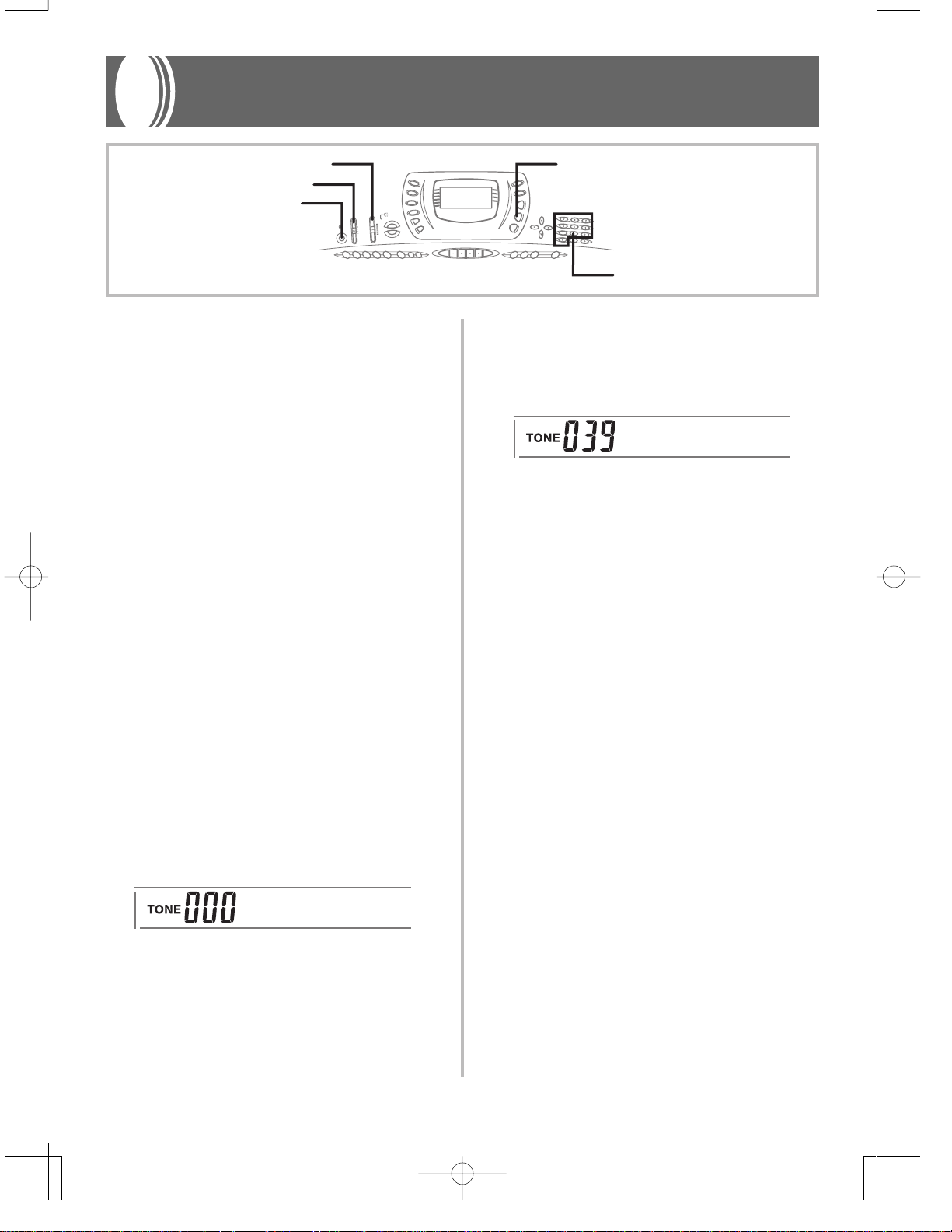
VOLUME
MODE
POWER
This section provides information on performing basic keyboard operations.
To play the keyboard
1. Press the POWER button to turn the keyboard
on.
2. Set the MODE switch to NORMAL.
3. Use the VOLUME slider to set the volume to a
relatively low level.
4. Play something on the keyboard.
Selecting a Tone
This keyboard comes with 348 built-in tones. Use the following procedure to select the tone you want to use.
TONE
Number buttons
3. Use the number buttons to input the three digit
tone number for the tone you want to select.
Example: To select “039 ACOUSTIC BASS”, input 0,
3 and then 9.
A c o . B a s s
❚
NOTE
• Always input all three digits for the tone number, including leading zeros (if any).
• You can also increment the displayed tone number by pressing [+] and decrement it by pressing [–].
• When one of the drum sets is selected (tone numbers 228
through 237), each keyboard key is assigned a different percussion sound. See page A-8 for details.
• The names of tone number 100 through 227 are not marked
on the keyboard console. Refer to the “Tone List” at the back of
this User’s Guide when selecting a tone within this range.
To select a tone
1. Find the tone you want to use in the keyboard’s
tone list and note its tone number.
2. Press the TONE button.
G r a n d P n o
703A-E-023A
E-21
TONE
ADVANCED TONE
Using an Advanced Tone
100 of the preset tones are “Advanced Tones,” which are variations of standard tones created by programming in effects
(DSP) and other settings. For example, PIANO is modified
into STEREO PIANO, ORGAN becomes ROTARY SPEAKER ORGAN, and so on.
To select an Advanced Tone
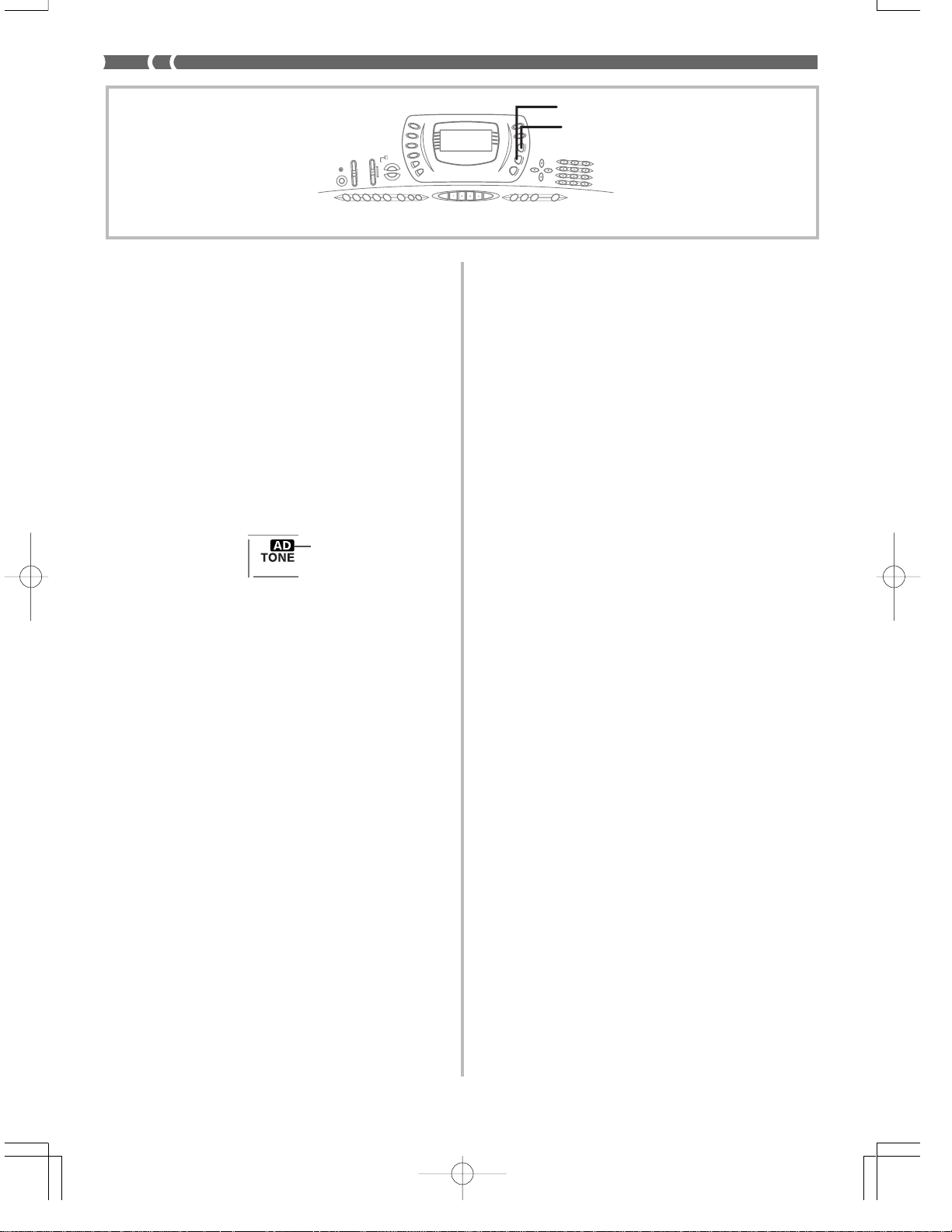
1. Press the ADVANCED TONE button.
• This causes “AD” to appear on the display, and causes the currently selected tone to change to its Advanced Tone version.
Lit
•“AD TONE” stands for “ADVANCED TONE.”
2. Press the TONE button.
• This causes “AD” to disappear from the display, and
returns to the tone to its standard preset.
❚
NOTE
• Preset tone numbers 000 to 099 have Advanced Tone versions.
• Anytime “AD” is on the display indicating that an Advanced Tone
is selected, you can use [+] and [–] to scroll the tone number
on the display.
• If any tone number outside the range of 000 to 099 is selected
when you press the ADVANCED TONE button, the tone automatically changes to the Advanced Tone version of tone number
00.
• Only one of the channels (1 to 16) can have an Advanced Tone
assigned to it at one time. Assigning an Advanced Tone to another channel causes the currently assigned channel to change
automatically to its standard (non-Advanced) version.
Polyphony
The term polyphony refers to the maximum number of notes
you can play at the same time. The keyboard has 32-note polyphony, which includes the notes you play as well as the
rhythms and auto-accompaniment patterns that are played
by the keyboard. This means that when a rhythm or autoaccompaniment pattern is being played by the keyboard, the
number of notes (polyphony) available for keyboard play is
reduced. Also note that some of the tones offer only 16-note
polyphony.
Digital Sampling
A number of the tones that are available with this keyboard
have been recorded and processed using a technique called
digital sampling. To ensure a high level of tonal quality, samples are taken in the low, mid, and high ranges and then combined to provide you with sounds that are amazingly close to
the originals. You may notice very slight differences in volume or sound quality for some tones when you play them at
different positions on the keyboard. This is an unavoidable
result of multiple sampling, and it is not a sign of malfunction.
E-22
703A-E-024A
Applying Effects to Tones
REVERB
CHORUS
DSP
Number buttons
[+]/[–]
This keyboard provides you with a selection of effects that
you can apply to tones.
The built-in effects include a wide variety of variations that
give you access to a selection of general digital effects.
Effect Blocks
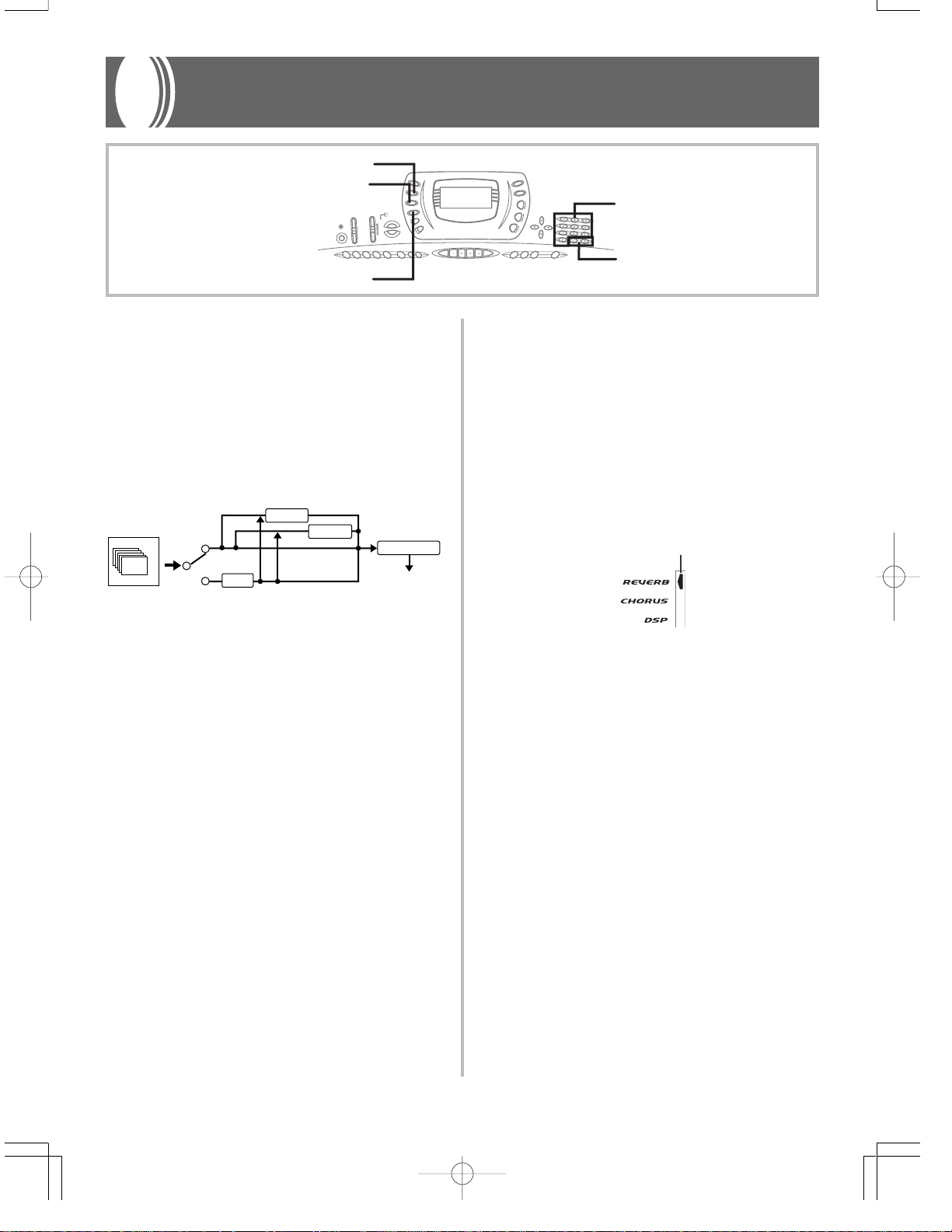
The following shows how the effects of this keyboard are organized.
REVERB
Sound Source
off
16ch
on
DSP Line
DSP
REVERB
Reverb simulates the acoustics of specific types of environments. You can choose from among 16 different reverb effects, including “Room” and “Hall.”
CHORUS
The chorus effect gives sound greater depth by causing it to
vibrate. You can choose from among 16 different chorus effects, including “Chorus” and “Flanger.”
DSP
DSP effects are applied to the connection between the sound
source and output. You can select distortion and modulation
effects. You can create DSP effect setups and also transfer
downloaded DSP data from your computer. The keyboard
has memory for up to 10 DSP effect setups, which you can
store. See “Using the Data Download Service” on page E-68
and “Saving the Settings of DSP Parameters” on page E-26
for more information.
CHORUS
EQUALIZER
Output
Selecting REVERB and CHORUS
Perform the following steps to select REVERB or CHORUS.
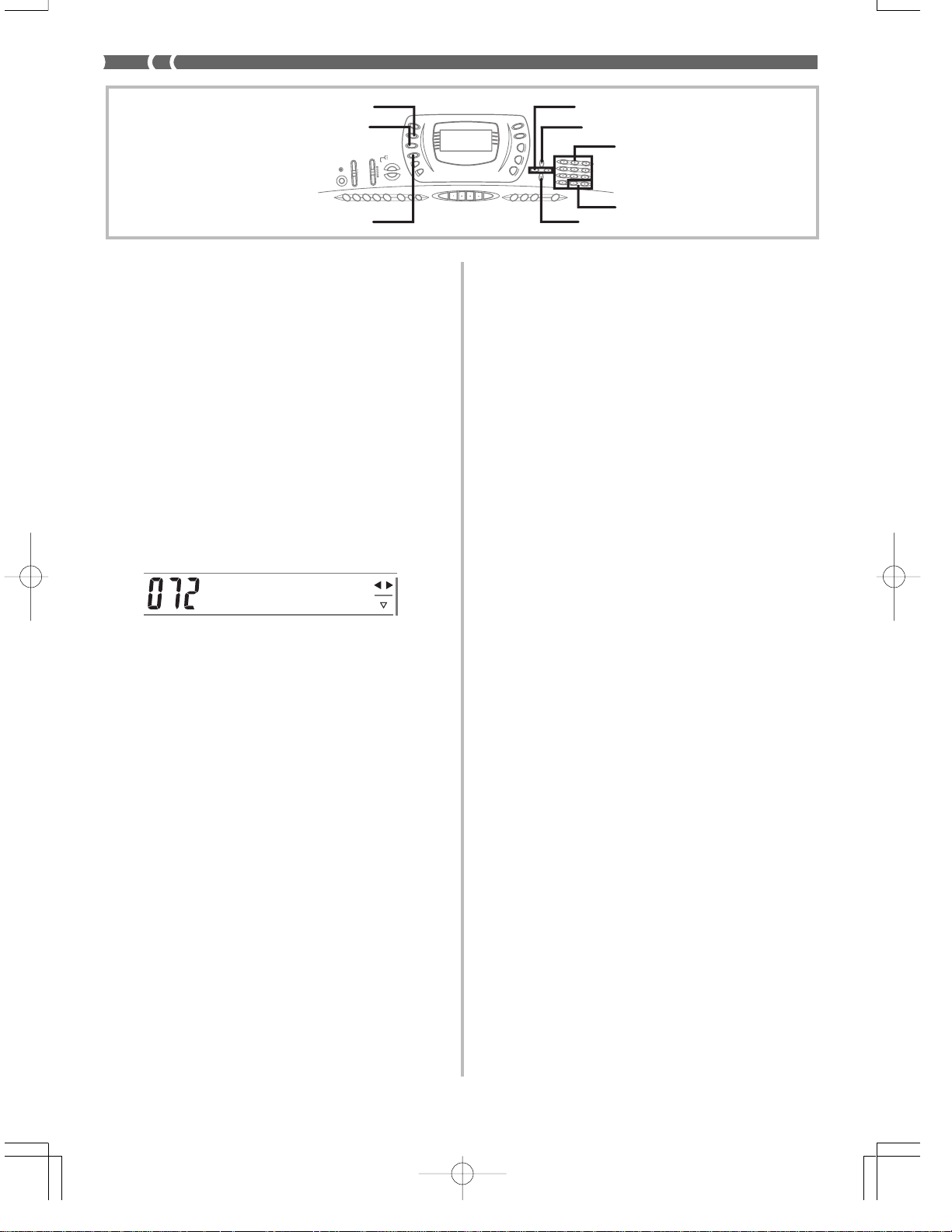
1. Press the button (REVERB or CHORUS) for the
effect you want to select, so the button’s indicator is shown on the display screen.
• An indicator is on the display next to REVERB or
CHORUS when the effect is turned on. The indicator
is not displayed when the corresponding effect is
turned off.
Example: Indicator after the REVERB button is pressed
Lit
2. Use the [+] and [–] buttons or the number but-
tons to scroll through the effects until the one
you want is displayed, or use the number buttons to input the effect number you want to select.
• See the list on page A-10 for information about the
types of CHORUS and REVERB effects that are available.
• Here you could also change the parameters of the effect you selected, if you want. See “Changing the Settings of REVERB and CHORUS Parameters” for more
information.
703A-E-025A
E-23
REVERB
CHORUS
[왗] / [왘] CURSOR
[왖] EXIT
Number buttons
DSP [왔] ENTER
Changing the Settings of REVERB and
CHORUS Parameters
You can control the relative strength of an effect and how it is
applied. The parameters you can control depend on the effect. See the following section titled “REVERB and CHORUS
Parameters” for more information.
1. After selecting the effect you want, press the [왔]
(ENTER) button.
• This displays the parameter setting screen.
2. Use the [왗] and [왘] (CURSOR) buttons to dis-
play the parameter whose setting you want to
change.
Example: To set the Reverb Time parameter
R v b T i m e
3. Use the [+] and [–] buttons or the number but-
tons to input the parameter setting you want.
4. Press the [왖] (EXIT) button.
• This returns to the effect selection screen.
[+]/[–]
■
ER Level (Initial Echo Sound) (Range: 000 to 127)
This parameter controls the initial reverb volume. The
initial echo sound is the first sound reflected from the
walls and ceiling when a sound is output by this keyboard. A larger value specifies a larger echo sound.
■
High Damp (Range: 000 to 127)
Adjusts the damping of high frequency reverberation
(high sound). A smaller value damps high sounds, creating a dark reverb. A larger value does not damp high
sounds, for a brighter reverb.
● Delay Type (No. 6, 7, 14, 15)
■
Delay Level (Range: 000 to 127)
Specifies the size of the delay sound. A higher value produces a larger delay sound.
■
Delay Feedback (Range: 000 to 127)
Adjusts delay repeat. A higher value produces a greater number of repeats.
■
ER Level
Same as Reverb Type
■
High Damp
Same as Reverb Type
CHORUS
REVERB and CHORUS Parameters
The following describes the parameters for each effect.
REVERB
Reverb effects are associated with either a reverb type or delay type. Parameter settings depend upon the associated type.
● Reverb Type (No. 0 to 5, 8 to 13)
■
Reverb Level (Range: 000 to 127)
Controls the reverb size. A larger number produces larger reverb.
■
Reverb Time (Range: 000 to 127)
Controls how long reverb continues. A larger number
produces longer reverb.
E-24
■
Chorus Level (Range: 000 to 127)
Specifies the size of the chorus sound.
■
Chorus Rate (Range: 000 to 127)
Specifies the undulation speed of the chorus sound. A
higher value produces faster undulation.
■
Chorus Depth (Range: 000 to 127)
Specifies the undulation depth of the chorus sound. A
higher value produces deeper undulation.
❚
NOTE
• Whether or not an effect is applied to the parts that are sounding also depends on Mixer Mode Reverb Send, Chorus Send,
and DSP on/off settings. See “Mixer Function” on page E-35
for more information.
703A-E-026A
Selecting a DSP Type
PerformthefollowingstepstoselectaDSPtype.
4. Press the [왖] (EXIT) button.
• This exits the tone or rhythm setting screen.
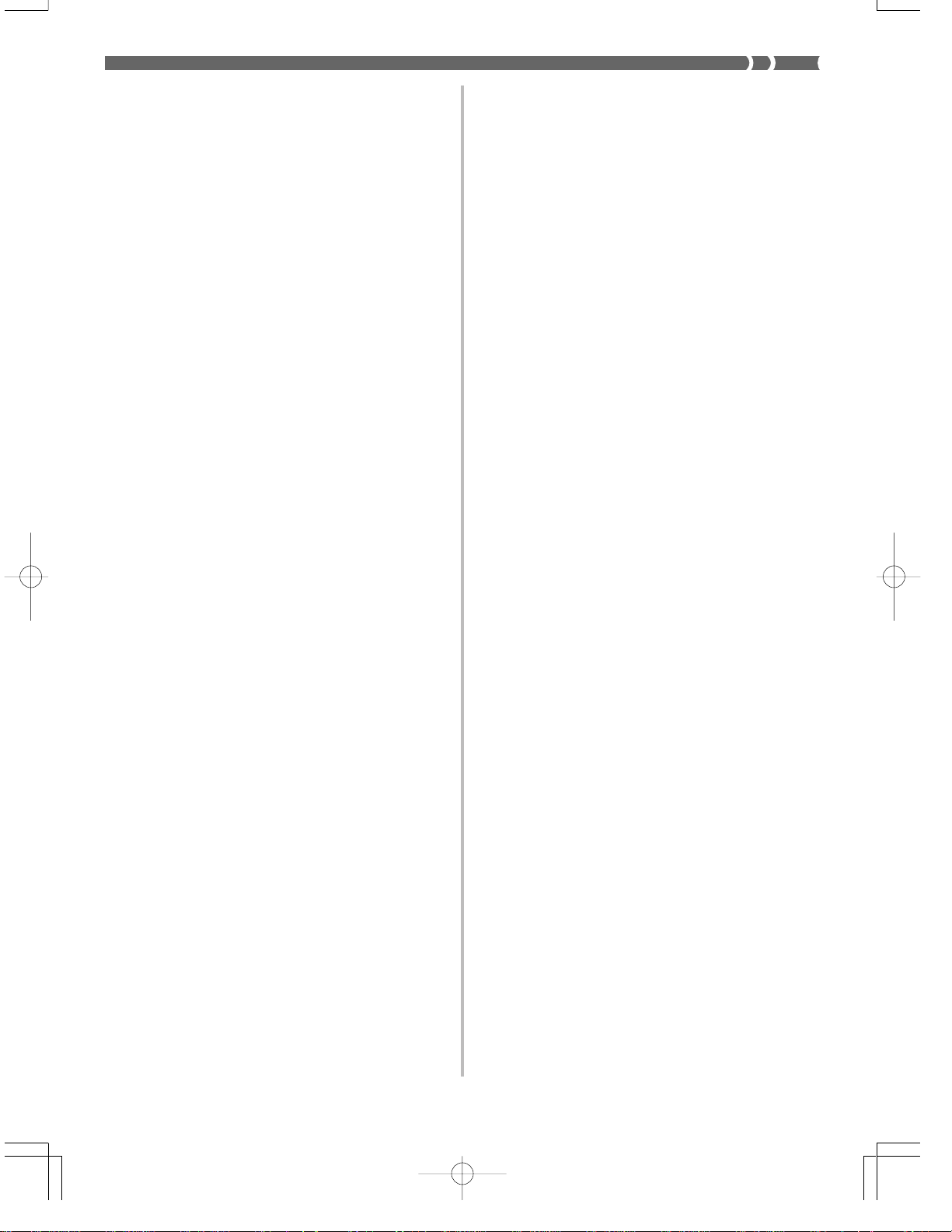
1. Press the DSP button so the indicator appears
next to DSP on the display.
2. Use the [+] and [–] buttons or number buttons
to select the type of DSP you want.
• See the “Effect List” on page A-10 for information
about the DSP types that can be selected.
• Here you could also change the parameters of the effect you selected, if you want. See “Changing the Settings of DSP Parameters” for more information.
❚
NOTE
• When using a DSP effect, you should use the Mixer to confirm
that the DSP lines of the required parts are turned on. See
“Mixer Function” on page E-35 for more information.
• The DSP type display area shows the DSP number (000 to
109), Ad (Advance tone), or USr (user tone created using DSP).
Setting Basic DSP Parameters
The following are the basic DSP parameters whose settings
you can change.
■
DSP Volume (Range: 000 to 127)
Sets the post-DSP volume.
■
DSP Pan (Range: -64 to 00 to +63)
Sets the post-DSP stereo pan.
■
DSP Hold (Settings: on, oFF)
on: Current DSP line setting is maintained, even when
the tone is changed.
• In the case of an Advance tone, however, changing the
tone causes all DSP line settings except for those of the
selected channel to turn off. See the note on page E-26
for more information.
oFF: Changing the tone switches to the DSP line setting
of the new tone.
Changing the Settings of DSP Parameters
You can control the relative strength of a DSP and how it is
applied. See the following section titled “DSP Parameters”
for more information.
1. After selecting the DSP type you want, press the
[왔] (ENTER) button.
• This displays the parameter setting screen.
2. Use the [왗] and [왘] (CURSOR) buttons to dis-
play the parameter whose setting you want to
change.
3. Use the [+] and [–] buttons or the number but-
tons to make the parameter setting you want.
4. Press the [왖] (EXIT) button.
• This exits the DSP type setting screen.
DSP Parameters
The following describes the parameters for each DSP.
DSP
■
Parameter 0 to 7
This parameter differs in accordance with the algorithm*
of the selected DSP type. See the “Effect List” on page A10 and the “DSP Algorithm List” on page A-12 for more
information.
* Effector structure and operation type
■
DSP Reverb Send (Range: 000 to 127)
Specifies how much of the post-DSP sound should be sent
to reverb.
1. Press the DSP button so the on-screen DSP indi-
cator appears.
2. Use the [왗] and [왘] (CURSOR) buttons to dis-
play the parameter whose setting you want to
change.
3. Use the [+] and [–] buttons or the number but-
tons to make the parameter setting you want.
703A-E-027A
■
DSP Chorus Send (Range: 000 to 127)
Specifies how much of the post-DSP sound should be sent
to chorus.
E-25
❚
NOTE
• Whether or not an effect is applied to the parts that are sounding also depends on Mixer Mode Reverb Send, Chorus Send,
and DSP on/off settings. See “Mixer Function” on page E-35
for more information.
• Playing a demo tune (page E-15) automatically changes the
effect to the one that is assigned to the tune. You cannot change
or cancel a demo tune effect.
• Changing the effect setting while sound is being output by the
keyboard causes a slight break in the sound when the effect
changes.
• A number of tones, called “Advanced tones,” automatically turn
on the DSP line for more effective tones. If you assign an Advanced tone to a keyboard part (Channels 1 through 4), the
DSP line turns on automatically and the DSP selection changes in accordance with the settings of the Advanced tone. Also,
the Mixer Mode DSP line on/off setting for the keyboard part to
which the Advanced tone is assigned is turned on.*
* The Mixer DSP line setting is automatically turned off for each
part that does not have an Advanced Tone assigned.
Because of this, DSP effects previously applied to these parts
are cancelled, which can make their tone sound different. In
this case, display the Mixer screen and turn DSP back on.
[+]/[–]
[왔] ENTER
Saving the Settings of DSP Parameters
You can save up to 10 modified DSPs in the user area for
later recall when you need them.
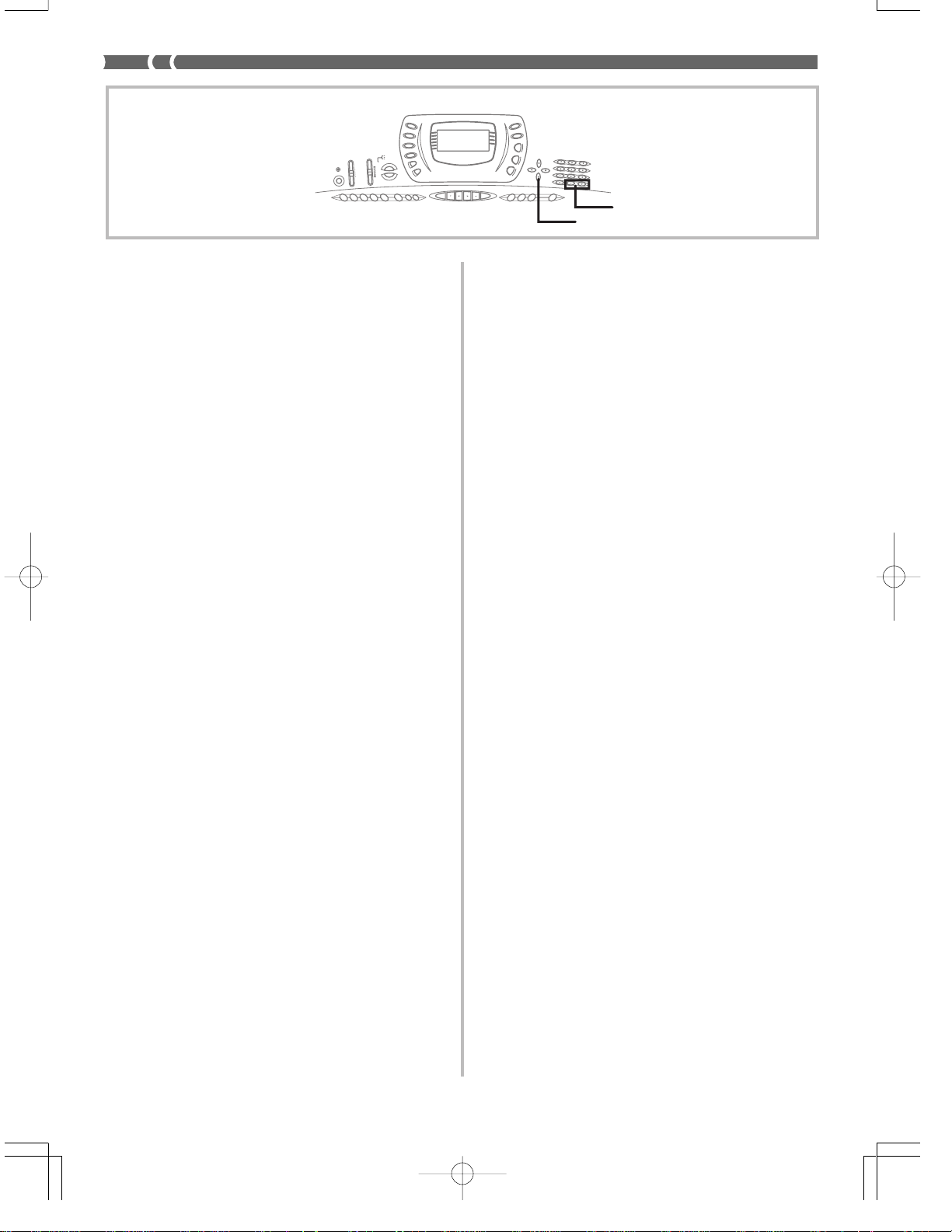
1. After making the DSP parameter settings you
want, press the [왔] (ENTER) button.
• This causes the DSP number of the user area where
the DSP will be saved to flash on the display.
2. Use the [+] and [–] buttons to select the user
area DSP number where you want to save the
new DSP.
• You can select a user area DSP number in the range of
100 to 109 only.
3. After everything is the way you want, press the
[왔] (ENTER) button to store the effect.
• The message “Save OK” appears momentarily on the
display, followed by the tone or rhythm selection
screen.
E-26
703A-E-028A
Using the Equalizer
[왗] / [왘] CURSOREQUALIZER
Number buttons
[+]/[–]
[왔] ENTER
The equalizer is another type of effect that you can use to
make adjustments in tone quality. Frequencies are divided
among a number of bands, and raising and lowering the level of each frequency band alters the sound.
You can reproduce the optimal acoustics for the type of music you are playing (classics, for example) by selecting the
applicable equalizer setting.
This keyboard has a built-in four-band equalizer and 10 different settings from which you can choose. You can adjust
the gain (volume) of all four equalizer bands within the range
of -12 to 0 to +12.
To select the equalizer type
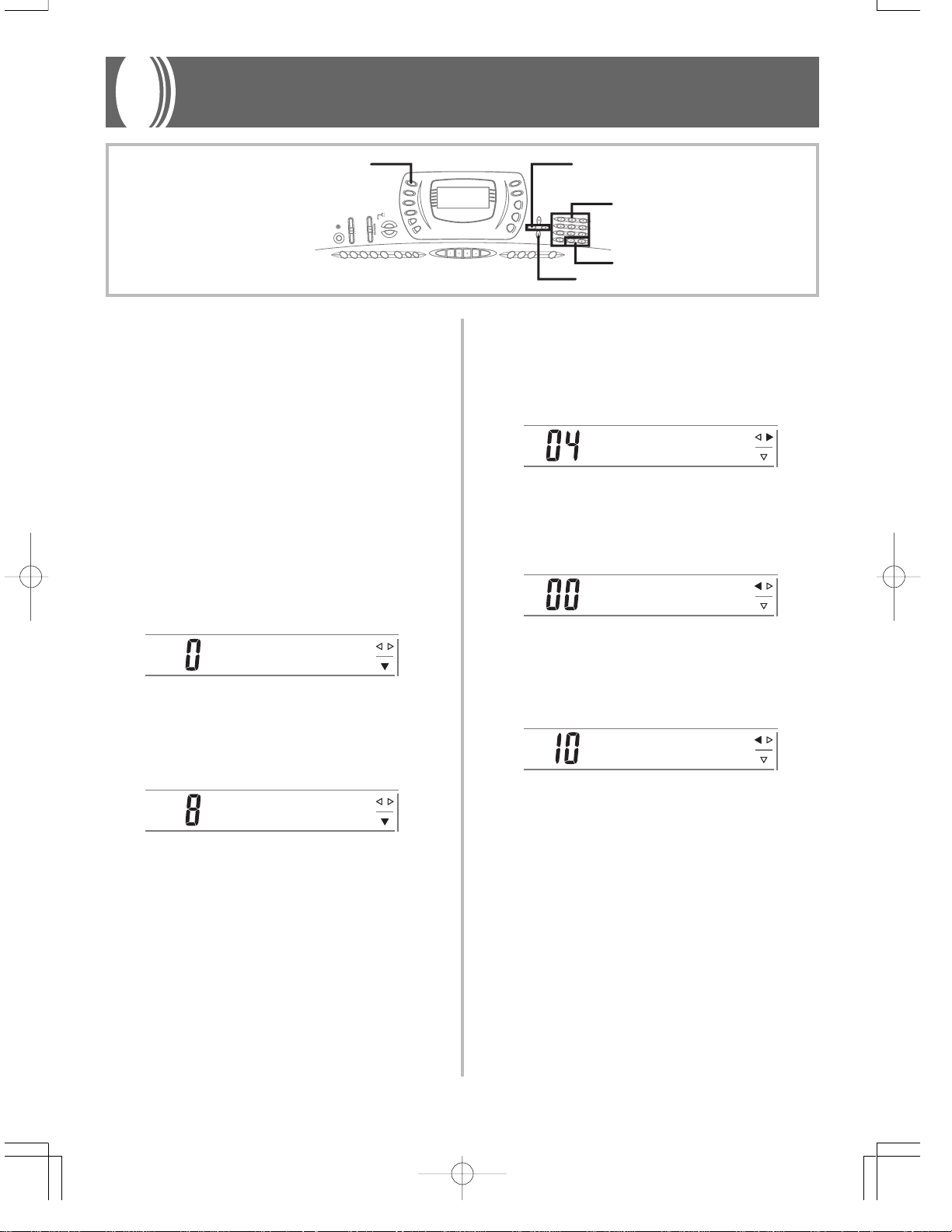
1. Press the EQUALIZER button.
• This causes the currently selected equalizer type to
appear on the display.
S t a n d a r d
2. Use the [+] and [–] buttons or the number but-
tons to select the equalizer type you want.
Example: To select Jazz
To adjust the gain (volume) of a band
1. After selecting the equalizer type you want, press
the [왔] (ENTER) button.
L o w
2. Use the [왗] and [왘] (CURSOR) buttons to se-
lect the band whose gain you want to adjust.
Example: To adjust the HIGH band
H igh
3. Use the [+] and [–] buttons or the number but-
tons to adjust the band gain.
Example: To adjust the gain to 10
H igh
J a z z
• Pressing the [왖] (EXIT) button or the EQUALIZER
button exits the equalizer setting screen.
703A-E-029A
• Pressing the [왖] (EXIT) button displays the equalizer
type setting screen.
• Pressing the EQUALIZER button exits the gain (volume) setting screen.
❚
NOTE
• Changing to another equalizer type causes the band gain settings to change to the initial settings for the newly selected
equalizer type automatically.
E-27
Auto Accompaniment
MODE
VARIATION/FILL-IN 1/2 TEMPO
START/STOP
This keyboard automatically plays bass and chord parts in
accordance with the chords you finger. The bass and chord
parts are played using sounds and tones that are automatically selected to select the rhythm you are using. All of this
means that you get full, realistic accompaniments for the
melody notes you play with your right hand, creating the
mood of a one-person ensemble.
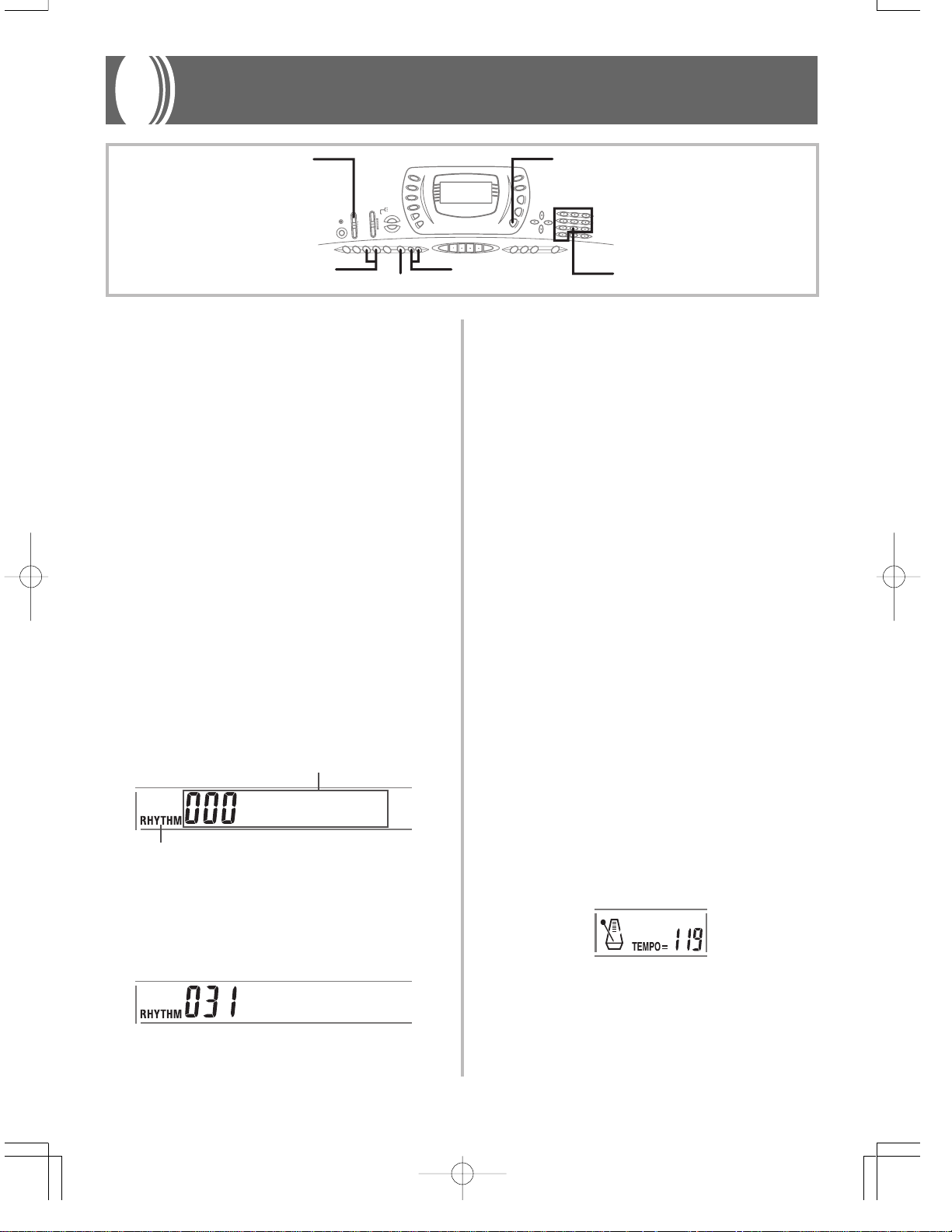
Selecting a Rhythm
This keyboard provides you with 100 exciting rhythms that
you can select using the following procedure.
You can also transfer accompaniment data from your computer and store up to four of them as user rhythms in keyboard memory. See “Using the Data Download Service” on
page E-68 for more information.
To select a rhythm
RHYTHM
Number buttons
❚
NOTE
• You can also increment the displayed rhythm number by pressing [+] and decrement it by pressing [–].
Playing a Rhythm
To play a rhythm
1. Set the MODE switch to NORMAL.
2. Press VARIATION/FILL-IN button 1 or 2.
• This starts the play of the selected rhythm.
• To stop rhythm play, press the START/STOP button.
❚
NOTE
• All of the keyboard keys are melody keys while the MODE switch
is set to NORMAL.
1. Find the rhythm you want to use in the keyboard’s
rhythm list and note its rhythm number.
2. Press the RHYTHM button.
Number and name of selected rhythm
8 B e a t 1
Appears when RHYTHM button is pressed
3. Use the number buttons to input the three digit
rhythm number for the rhythm you want to select.
Example: To select “031 ROCK”, input 0, 3 and then 1.
R o c k 2
E-28
Adjusting the Tempo
You can adjust the tempo of rhythm play within a range of 30 to
255 beats per minute. The tempo setting is used for Auto Accompaniment chord play, and song memory operations.
To adjust the tempo
Press one of the TEMPO buttons (왖 or 왔).
왖 : Increments displayed value (increases tempo)
왔 : Decrements displayed value (decreases tempo)
703A-E-030A
Loading…
Как использовать наш сайт инструкций OnlineManuals.ru
Наша цель состоит в том, чтобы предоставить вам быстрый доступ к содержанию инструкции для синтезатора, цифрового пианино Casio CTK-671.
С помощью онлайн просмотра, Вы можете быстро просмотреть содержимое инструкции и найти решение проблемы с синтезатора, цифрового пианино Casio CTK-671.
Для Вашего удобства
Если листать руководство пользователя синтезатора, цифрового пианино Casio CTK-671 прямо на сайте, не очень удобно для Вас, есть два возможных решения:
• Просмотр в полноэкранном режиме — легко просмотреть руководство пользователя (без загрузки его на свой компьютер), Вы можете использовать режим полноэкранного просмотра.
Для просмотра инструкции пользователя синтезатора, цифрового пианино Casio CTK-671 на полном экране, используйте кнопку «Открыть в Pdf-viewer».
• Загрузка на компьютер — Вы можете также скачать Руководство пользователя синтезатора, цифрового пианино Casio CTK-671 на свой компьютер и сохранить его в файлах.
Многие люди предпочитают читать документы не на экране, а в печатной версии.
Возможность печати руководства пользователя также была предусмотрена на нашем сайте,
и вы можете использовать ее, нажав на иконку «печать» в Pdf-viewer.
Нет необходимости печатать все руководство синтезатора, цифрового пианино Casio CTK-671, можно выбрать только нужные страницы инструкции.
View the manual for the Casio CTK-671 here, for free. This user manual comes under the category keyboards and has been rated by 7 people with an average of a 7.5. This manual is available in the following languages: English. Do you have a question about the Casio CTK-671?
Ask your question here
Frequently asked questions
Can’t find the answer to your question in the manual? You may find the answer to your question in the FAQs about the Casio CTK-671 below.
How can I best clean my keyboard?
A slightly damp cleaning cloth or soft, dust-free cloth works best to remove fingerprints. Dust in hard-to-reach places is best removed with compressed air.
Is the manual of the Casio CTK-671 available in English?
Yes, the manual of the Casio CTK-671 is available in English .
Is your question not listed? Ask your question here
Casio CTK-671 user guide recommended for: MA-120, CTK-495, CTK-485, LK-35, CTK-850in.
The Casio CTK-671 Electronic Keyboard manual (Casio Service manual, 18 pages) is completely safe to download (last scan date: 12/11/2024). You can rest assured of your safety when interacting with Casio CTK-671 document.
2
PA 600 QT
Manual Electronic Keyboard #1EFJ5S
96
1107
233
3
Spectrum Bass
Operation & user’s manual Peavey Electronic Keyboard Operation & user’s manual (File: peavey-spectrum-bass-operation-user-s-manual-20, 25th Oct 2024)
20
959
221
4
RD-170
Owner’s manual PDF User Manual (@125221), Roland RD-170 Electronic Keyboard (26.02.2025)
36
920
230
5
VISION KEY-10
Operation & user’s manual Gear4music Electronic Keyboard Operation & user’s manual (File: gear4music-vision-key-10-operation-user-s-manual-32, Monday 06-01-2025)
32
617
105
6
MOTIF XS6
Data list Electronic Keyboard #1E1WW4
76
421
64
7
Portatone PSR A1000
Service manual Yamaha Amplifier Service manual (File: yamaha-portatone-psr-a1000-service-manual-21, 29/01/2025)
21
642
110
8
Fantom G6
Workshop manual PDF Manual (@B1526Z), Roland Fantom G6 Keyboard (01.02.2025)
21
455
110
10
PSR-2
Owner’s manual PSR-2 (Electronic Keyboard ePDF Manual, #8NMOIP)
11
816
204
- Addeddate
- 2021-02-17 13:57:02
- Identifier
- manuallib-id-2629717
- Identifier-ark
- ark:/13960/t7gr7dk97
- Ocr
- tesseract 5.0.0-alpha-20201231-10-g1236
- Ocr_autonomous
- true
- Ocr_detected_lang
- la
- Ocr_detected_lang_conf
- 1.0000
- Ocr_detected_script
-
Latin
Cyrillic
- Ocr_detected_script_conf
-
0.9886
0.0114
- Ocr_module_version
- 0.0.12
- Ocr_parameters
- -l rus+kaz+srp+kir+lat+eng+Latin+Cyrillic
- Ppi
- 300
comment
Reviews
There are no reviews yet. Be the first one to
write a review.
87
Views
DOWNLOAD OPTIONS
Temporarily Unavailable
DAISY
For users with print-disabilities
Temporarily Unavailable
EPUB
Uploaded by
chris85
on