
DES—1228/ME Metro Ethernet Managed Switch CLI Reference Guide

DES-1228/ME Metro Ethernet Managed Switch CLI Reference Guide
Information in this document is subje c t to change without notice.
© 2012 D-Link Corporation. All rights reserved.
Reproduct ion in any ma nner whatsoever without the written permission of D-Link Corporation is strictly forbidden.
Trademarks us ed in thi s text: D-Link and the D-LINK logo are trademarks of D-Link Corporation; Microsoft and Windows are
registered trademarks of Microsoft Corporation.
Other trademarks and trade names may be used in this document to refer to either the entities claiming the marks and names o r
their products. D-Link Corporation disclaims any proprietary interest in trademarks and trade names other than its own.
April 2012 P/N 651ES1228015G

DES-1228/ME Metro Ethernet Managed Switch CLI Reference Guide
TABLE OF CONTENTS
INTRODUCTION ……………………………………………………………………………………………………………………………………………. 1
USING THE CONSOLE CLI ……………………………………………………………………………………………………………………………. 3
COMMAND SYNTAX ……………………………………………………………………………………………………………………………………… 7
BASIC SWITCH COMMANDS ………………………………………………………………………………………………………………………. 10
MODIFY BANNER AND PROMPT COMMANDS …………………………………………………………………………………………… 34
SWITCH PORT COMMANDS ……………………………………………………………………………………………………………………….. 37
PORT SECURITY COMMANDS ……………………………………………………………………………………………………………………. 41
NETWORK MANAGEMENT (SNMP) COMMANDS ………………………………………………………………………………………. 47
SWITCH UTILITY COMMANDS …………………………………………………………………………………………………………………… 73
NETWORK M ONITORING COMMANDS ……………………………………………………………………………………………………… 88
MULTIPLE SPAN NING TREE PROTOCOL (MSTP ) COMMANDS ………………………………………………………………. 105
FORWARDING DATABASE COMMANDS …………………………………………………………………………………………………… 121
PACKET STORM CONTROL COMMANDS …………………………………………………………………………………………………. 129
QOS COMMANDS ………………………………………………………………………………………………………………………………………. 133
PORT MIRRORING COMMANDS ………………………………………………………………………………………………………………. 148
VLAN COMMANDS …………………………………………………………………………………………………………………………………….. 151
LINK AGGREGATION COMMANDS ………………………………………………………………………………………………………….. 160
BASIC IP COMMANDS ……………………………………………………………………………………………………………………………….. 165
IGMP SNOOPING COMMANDS ………………………………………………………………………………………………………………….. 172
DHCP RELAY COMMANDS ……………………………………………………………………………………………………………………….. 185
802.1X COMMANDS ……………………………………………………………………………………………………………………………………. 192
ACCESS CONTROL LIST (ACL) COMMANDS ……………………………………………………………………………………………. 213
CPU FILTERING COMMANDS …………………………………………………………………………………………………………………… 228
SAFEGUARD ENGINE COMMANDS …………………………………………………………………………………………………………… 230
TRAFFIC SEGMEN TA TIO N COMMANDS ………………………………………………………………………………………………….. 233
TIME AND SNTP COMMANDS …………………………………………………………………………………………………………………… 235
ARP COMMANDS……………………………………………………………………………………………………………………………………….. 241
ROUTING TABLE COMMANDS …………………………………………………………………………………………………………………. 245
MAC NOTIFICATION COMMANDS ……………………………………………………………………………………………………………. 249
ACCESS AUTHENTICATION CONTROL COMMANDS ………………………………………………………………………………. 253
SSH COMMANDS ……………………………………………………………………………………………………………………………………….. 277
SMTP COMMANDS …………………………………………………………………………………………………………………………………….. 285
CABLE DIAGNO STICS COMMANDS ………………………………………………………………………………………………………….. 290
DHCP LOCAL RELAY COMMANDS …………………………………………………………………………………………………………… 292
GRATUITOUS ARP COMMANDS ……………………………………………………………………………………………………………….. 296
VLAN TRUNKING COMMANDS …………………………………………………………………………………………………………………. 301

DES-1228/ME Metro Ethernet Managed Switch CLI Reference Guide
ASYMMETRIC VLAN COMMANDS ……………………………………………………………………………………………………………. 305
IGMP SNOOPING MULTICAST VLAN COMM ANDS ………………………………………………………………………………….. 307
LLDP COMMANDS …………………………………………………………………………………………………………………………………….. 313
DOS PREVENTION COMMANDS ……………………………………………………………………………………………………………….. 334
IP-MAC-PORT BINDING COMM ANDS ……………………………………………………………………………………………………….. 340
LOOPBACK DETECTION COMMANDS ……………………………………………………………………………………………………… 347
FLOW METER COMMANDS ………………………………………………………………………………………………………………………. 354
ARP SPOOFING PREVENTION COMMANDS ……………………………………………………………………………………………… 357
TECHNICAL SUP PORT COMMANDS …………………………………………………………………………………………………………. 360
COMMAND HISTORY COMMANDS …………………………………………………………………………………………………………… 363
BPDU ATTACK PROTECTION COMMANDS ……………………………………………………………………………………………… 367
PPPOE CIRCUIT ID INSERTION COMMANDS …………………………………………………………………………………………… 374
DHCP SERVER SCREENING SETTINGS …………………………………………………………………………………………………….. 377
IPV6 NEIGHBOUR DISCOVERY COMMANDS ……………………………………………………………………………………………. 380
DEBUG SOFTWARE COMMANDS ……………………………………………………………………………………………………………… 384
BPDU TUNNEL COMMANDS ……………………………………………………………………………………………………………………… 395
APPENDIX A – PASSWORD RECOVERY PROCEDURE ……………………………………………………………………………… 398
APPENDIX B – SYSTEM LOG ENTRIES ……………………………………………………………………………………………………… 399
APPENDIX C – TRAP ENTR IES ………………………………………………………………………………………………………………….. 406
APPENDIX D — RADIUS ATTRIBUTES ASSIGNMENT …………………………………………………………………………………. 408

DES-1228/ME Metro Ethernet Managed Switch CLI Reference Guide
1
INTRODUCTION
The Switch can be managed through the Switch’s serial port, Telnet, or the Web-based management age nt. The Co mmand Line
Interface (CLI) can be used to configure and manage the Switch via the serial port or Telnet interfaces.
This manual p ro vides a re fere nce fo r al l of t he co mma nds co ntaine d i n the CLI. Con figur at ion a nd ma nage ment of t he S witc h via
the Web-based manage ment agent is d iscussed in the Manual. Configuration and management of the Switch via the Web-based
management agent is di s cussed in the User’s Guide.
Accessing the Switch via the Serial Port
The Switch’s serial port’s default set tings are as follows:
• 9600 baud
• no parity
• 8 data bits
• 1 stop bit
A computer running a terminal emulation program capable of emulating a VT-100 terminal and a serial port configured as above
are then connected to the Switch’s serial port via an RJ-45 console cable.
With the serial port properly connected to a management computer, the following screen should be visible. If this screen does not
appear, try pressing Ctrl+R to refresh the console screen.
DES-1228/ME Metro Ethernet Switch
Command Line Interface
Firmware: Build 2.01.001
Copyright(C) 2012 D-Link Corporation. All rights reserved.
UserName:
PassWord:
Figure 1 — 1. Initial CLI screen
There is no initial username or password. Just press the Enter key twice to display the CL I inp ut cur sor − DES-1228/ME:5#. This
is the command line where all commands are input.
Setting the Switch’s IP Address
Each Switch must be assigned its own IP Address, which is used for communication with an SNMP network manager or other
TCP/IP application (for example BOOTP, TFTP). The Switch’s default IP address is 10.90.90.90. Users can change the default
Switch IP address to meet the specification of your networking address scheme.
The Switch is also assigned a unique MAC address by the factory. This MAC address cannot be changed, and can be found on the
initial boot console screen – shown below.
Boot Procedure V2.00.001
——————————————————————————-
Power On Self Test …………………………………. 100%
MAC Address : 00-12-28-8E-77-00
H/W Version : B1
Please wait, loading V2.01.001 Runtime image ………….. 100%
Figure 1 — 2. Boot screen
The Switch’s MAC address can also be found in the Web management program on the Switch Information (Basic Settings)
window in the Configuration folder.
The IP address for the Switch must be set before it can be managed with the Web-based manager. The Switch IP address can be
automatically set using BOOTP or DHCP protocols, in which case the actual address assigned to the Switch must be known.
The IP address may be set using the Command Line Interface (CLI) over the console serial port as follows:
1

DES-1228/ME Metro Ethernet Managed Switch CLI Reference Guide
DES-1228/ME:5#config ipif System ipaddress 10.73.21.11/8
Starting at the command line prompt, enter the command config ipif System ipaddress xxx.xxx.xxx.xxx/yyy.yyy.yyy.yyy. Where
the x’s represent the IP address to be assigned to the IP interface named System and the y’s represent the corresponding subnet
mask.
Alternatively, users can enter config ipif System ipaddress xxx.xxx.xxx.xxx/z. Where the x’s represent the IP address to be
assigned to the IP interface named System and the z represents the corresponding number of subnets in CIDR notation.
The IP interface named System on the Switch can be assigne d a n I P ad d r ess a nd sub ne t ma sk which can the n be u sed to c o nnec t a
management station to the Switc h’s Telnet or Web-based management agent.
Command: config ipif System ipaddress 10.73.21.11/8
Success.
DES-1228/ME:5#
Figure 1 — 3. Assigning an IP Address
In the above example, the Switch was assigned an IP address of 10.73.21.11 with a subnet mask of 255.0.0.0. The system message
Success indicates that the command was executed successfully. The Switch can now be configured and managed via Telnet,
SNMP MIB browser and the CLI or via the Web-based management agent using the above IP address to connect to the Switch.
2

DES-1228/ME Metro Ethernet Managed Switch CLI Reference Guide
DES-1228/ME Metro Ethernet Switch
2
USING THE CONSOLE CLI
The Switch supports a console management in terface that allows the user to connect to the Switch’s management agent via a serial
port and a terminal or a computer running a terminal emulation program. The console can also be used over the network using the
TCP/IP Telnet protocol. The console program can be used to configure the Switch to use an SNMP-based net work ma nagement
application over the network.
This chapter describes how to use the console interface to access the Switch, change its settings, and monitor its operation.
Note: Switch configuration settings are saved to non-volatile RAM using the s ave command . The curr ent
configuration will then be retained in the Switch’s NV-RAM, and reloaded when the Switch is reboote d. If
the Switch is rebooted without using the save command, the last configuration s aved to NV-RAM will be
loaded.
Connecting to the Switch
The console interface is used by connecting the Switch to a VT100-compatible terminal or a computer running an ordinary
terminal emulator program (e.g., the HyperTerminal program included with the Windows operating system) using an RJ-45
console cable. Your terminal parameters will need to be set to:
• VT-100 compatible
• 9600 baud
• 8 data bits
• No parity
• One stop bit
• No flow control
Users can also access the same functions over a Telnet interface. Once users have set an IP address for your Switch, users can use
a Telnet program (in VT-100 compatible terminal mode) to access and control the Switch. All of the screens are identical, whether
accessed from the console port or from a Telnet interface.
After the Switch reboots and users have logged in, the console loo ks like this:
Command Line Interface
Firmware: Build 2.01.001
Copyright(C) 2012 D-Link Corporation. All rights reserved.
UserName:
PassWord:
Figure 2 — 1. Initial Console Screen after logging in
Commands are entered at the command prompt, DES-1228/ME:5#.
There are a number of helpful features included in the CLI. Entering the ? command will display a list of all of the top-level
commands.
3

DES-1228/ME Metro Ethernet Managed Switch CLI Reference Guide
CTRL+C ESC q Quit SPACE n Next Page ENTER Next Entry a All
?
cable_diag ports
clear
clear arptable
clear counters
clear dos_prevention counters
clear fdb
clear flood_fdb
clear igmp_snooping data_driven_group
clear log
clear port_security_entry port
config 802.1p default_priority
config 802.1p user_priority
config 802.1x auth_mode
config 802.1x auth_parameter ports
config 802.1x auth_protocol
config 802.1x capability ports
config 802.1x guest_vlan ports
config 802.1x init
config 802.1x reauth
config access_profile profile_id
Figure 2 — 2. The ? Command
When users enter a command without its required parameters, the CLI will prompt users with Next possible completions:
message.
DES-1228/ME:5#config account
Command: config account
Next possible completions:
<username>
DES-1228/ME:5#
Figure 2 — 3. Example Command Parameter Help
In this case, the command config account was entered without the parameter <username>. The CLI will then prompt user s to enter
the <username> with the message, Next possible completions:. Every command in the CLI has this feature, and complex
commands have several layers of parameter prompting.
In additio n, after typin g any give n command p lus one spa ce, users can see all of the next possible sub-co mmands, in sequential
order, by repeatedly pressing the Tab key.
To re-enter the previous command at the command prompt, press the up arrow cursor key. The previous command will appear at
the command prompt.
4

DES-1228/ME Metro Ethernet Managed Switch CLI Reference Guide
DES-1228/ME:5#config account
Command: config account
Next possible completions:
<username>
DES-1228/ME:5#config account
Command: config account
Next possible completions:
<username>
Figure 2 — 4. Using the Up Arrow to Re-enter a Command
In the above example, the command config account was entered without the required parameter <username>, the CLI returned the
Next possible completions: <username> prompt. The up arrow cursor control key was pressed to re-enter the pr evious command
(config account) at the command prompt. Now the appropriate username can be entered and the config account command reexecuted.
All comma nds in the CLI function in this way. In additio n, the syn t ax of the help prompts are the sa me as present ed in this manual
− angle brackets < > indicate a numerical value or character string, braces { } indicate optional parameters or a choice of
parameters, and brackets [ ] indicate required parameters.
If a command is entered that is unrecognized by the CLI, the top-level commands will be displayed under the Available
commands: prompt.
Available commands:
.. ? cable_diag clear
config create delete dir
disable download enable login
logout ping reboot reset
save show smtp telnet
traceroute upload
The top-level commands consist of commands such as show or config. Most of these commands require one or more parameters
to narrow the top-level command. This is equivalent to show what? or config what? Where the what? is the next parameter.
For example, if users enter the show command with no additional parameters, the CLI will then display all of the possible next
parameters.
Figure 2 — 5. The Next Available Commands Prompt
5

DES-1228/ME Metro Ethernet Managed Switch CLI Reference Guide
Command: show
Next possible completions:
802.1p 802.1x access_profile account
acct_client address_binding arp_spoofing_prevention
arpentry asymmetric_vlan auth_client auth_diagnostics
auth_session_statistics auth_statistics authen
authen_enable authen_login authen_policy auto_fdb
autoconfig bandwidth_control bpdu_protection bpdu_tunnel
command command_history config cos
cpu_access_profile cpu_filter dhcp_local_relay
dhcp_relay dos_prevention dscp_mapping error
fdb filter firmware flood_fdb
flow_meter gratuitous_arp greeting_message gvrp
igmp igmp_snooping ipif iproute
jumbo_frame lacp_ports link_aggregation lldp
log log_save_timing loopdetect mac_notification
mirror multicast multicast_fdb packet
per_queue port_security ports pppoe
pvid radius router_ports safeguard_engine
scheduling scheduling_mechanism serial_port
session smtp snmp sntp
ssh stp switch syslog
tech_support terminal_line time traffic
traffic_segmentation trusted_host utilization
vlan vlan_trunk
DES-1228/ME:5#
In the above example, all of the possible next parameters for the show command are displayed. At the next command prompt, the
up arrow was used to re-enter the show command, followed by the account parameter. The CLI then displays t he user a ccounts
configured on the Switch.
Figure 2 — 6. Next possible completions: Show Command
6
DES-1228/ME Metro Ethernet Managed Switch CLI Reference Guide
3
COMMAND SYNTAX
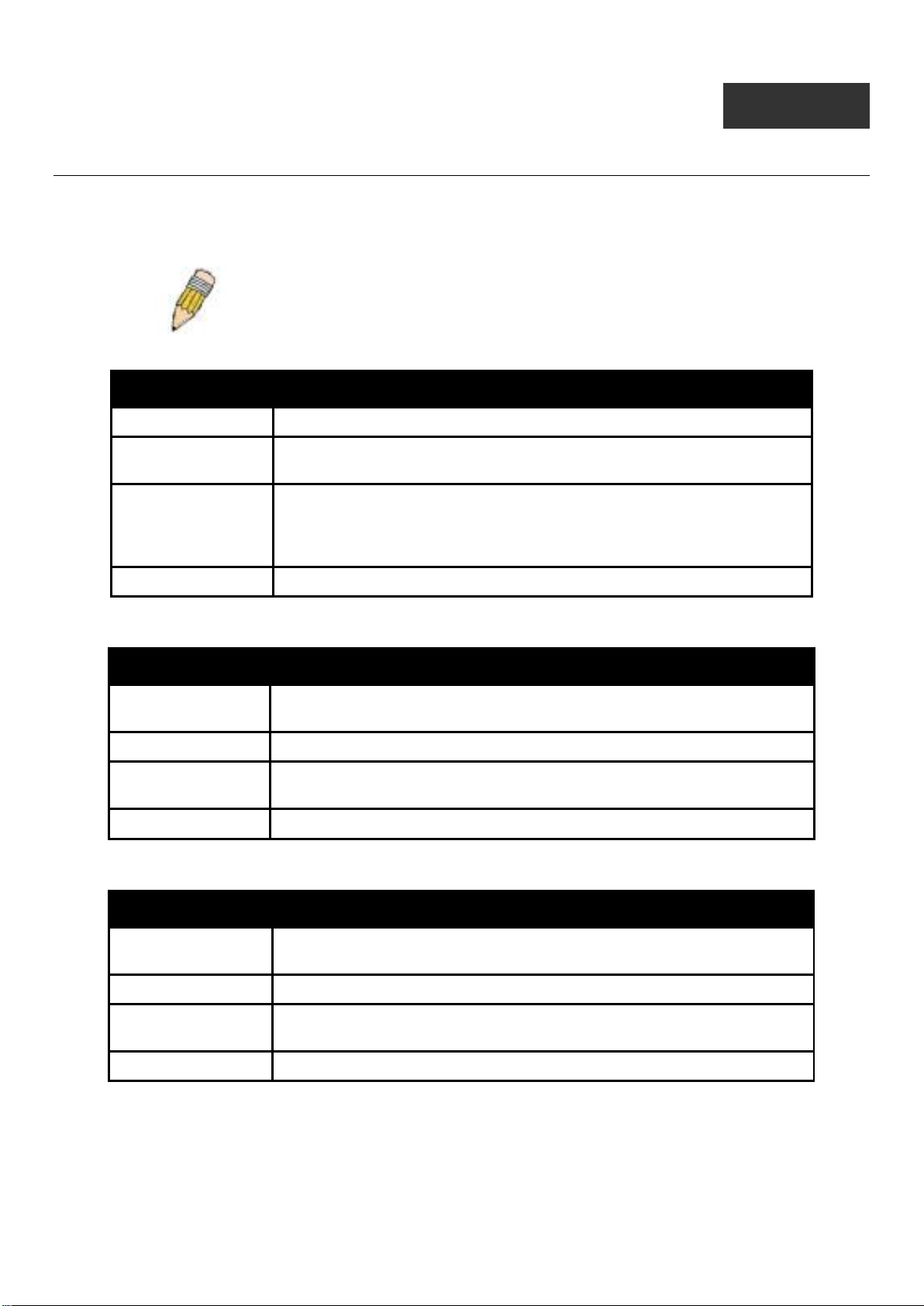
The following symbols are used to describe how command entries are made and values and arguments are specified in this
manual.
Note: All commands are case-sensitive. Be sure to disable Caps Loc k or any
other unwanted function that changes text case.
<angle brackets>
Purpose
Syntax
Description
Example Command
Encloses a variable or value that must be specified.
config ipif <System> [{ipaddress <network_address> | vlan <vlan_name
32> | state [enable | disable}] | bootp | dhcp]
In the above syntax example, users must supply an IP interface name in the
<System> space, a VLAN name in the <vlan_name 32> space, and the
network address in the <network_address> space. Do not type the angle
brackets.
config ipif System ipaddress 10.24.22.5/8 vlan Design state enable
[square brackets]
Purpose
Syntax
Description
Example Command
Encloses a required value or set of required arguments. One value or
argument can be specified.
create account [admin | operator| Power User|user] <username 15>
In the above syntax example, users must specify either an admin or a user
level account to be created. Do not type the square brackets.
create account admin ctsnow
| vertical bar
Purpose
Syntax
Description
Example Command
Separates two or more mutually exclusive items in a list, one of which must
be entered.
create account [admin | operator| Power User|user] <username 15>
In the above syntax example, users must specify either admin, or user. Do
not type the vertical bar.
create account admin ctsnow
7
DES-1228/ME Metro Ethernet Managed Switch CLI Reference Guide
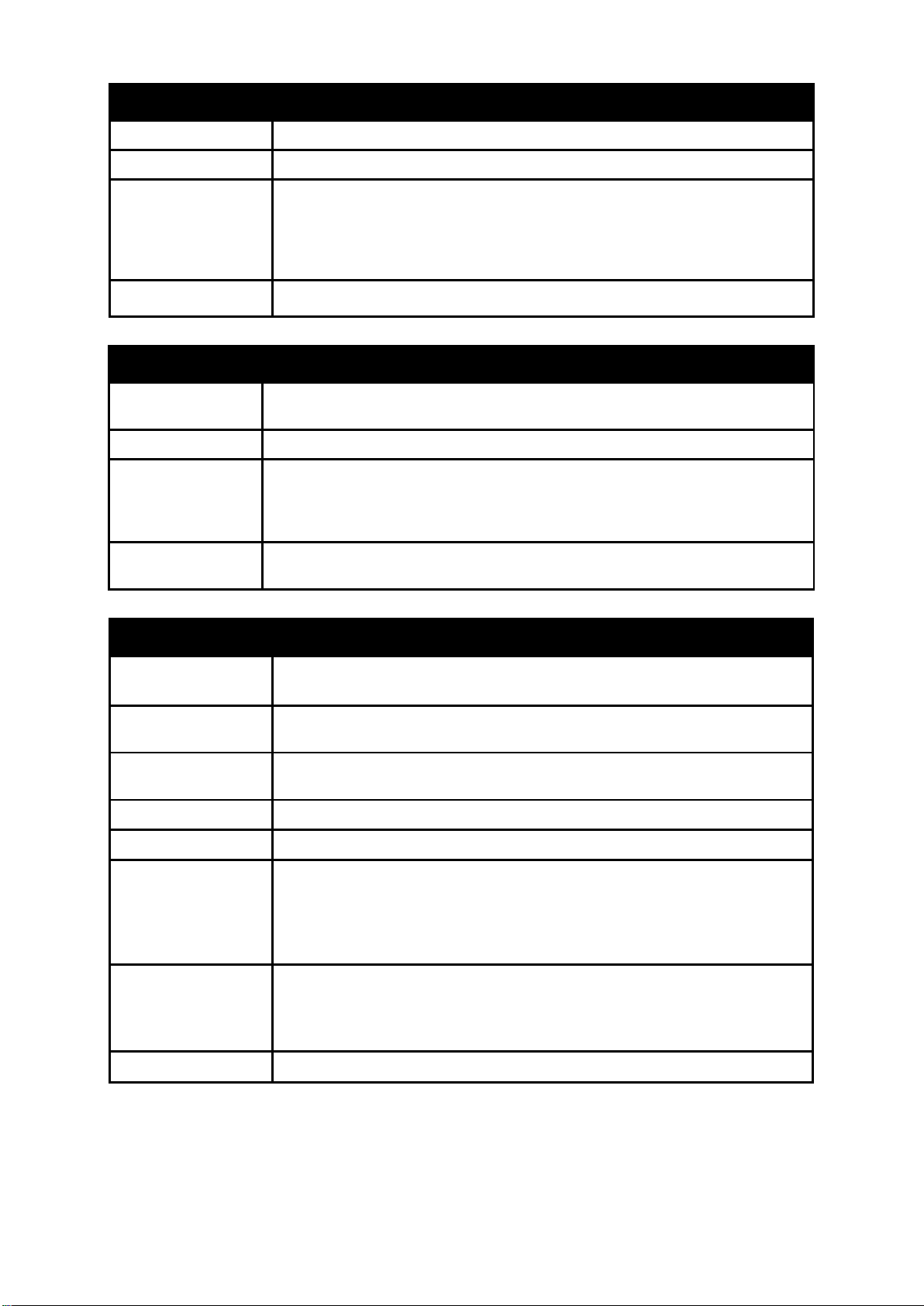
{braces}
Purpose
Syntax
Description
Example command
Encloses an optional value or set of option al arguments.
reset {[config | system]} {force_agree}
In the first part of the above syntax example, users have the option to
specify config or system. It is not necessary to specify either optional value,
however the effect of the system reset is dependent on which, if any, value
is specified. Therefore, with this example there are three possible outcomes
of performing a system reset. Do not type the braces.
reset config
(parentheses)
Purpose
Syntax
Description
Example
command
Indicates at least one or more of the values or arguments in the preceding
syntax enclosed by braces must be specified.
config dhcp_relay {hops <value 1-16> | time <sec 0-65535>}(1)
In the above syntax example, users have the option to specify hops or time or
both of them. The «(1)» following the set of braces indicates at least one
argument or value within the braces must be specified. Do not type the
parentheses.
config dhcp_relay hops 3
Line Editing Key Usage
Delete
Backspace
Insert or Ctrl+R
Left Arrow
Right Arrow
Up Arrow
Down Arrow
Deletes the character under the cursor and then shifts the remaining
characters in the line to the left.
Deletes the character to the left of the cursor and then shifts the remaining
characters in the line to the left.
Toggle on and off. When toggled on, inserts text and shifts previous text to
the right.
Moves the cursor to the left.
Moves the cursor to the right.
Repeats the previously entered command. Each time the up arrow is
pressed, the command previous to that displayed appears. This way it is
possible to review the command history for the current session. Use the
down arrow to progress sequentially forward through the command history
list.
The down arrow will display the next command in the command history
entered in the current session. This displays each command sequentially as
it was entered. Use the up arrow to review previous commands.
Tab
Shifts the cursor to the next field to the left.
8
DES-1228/ME Metro Ethernet Managed Switch CLI Reference Guide
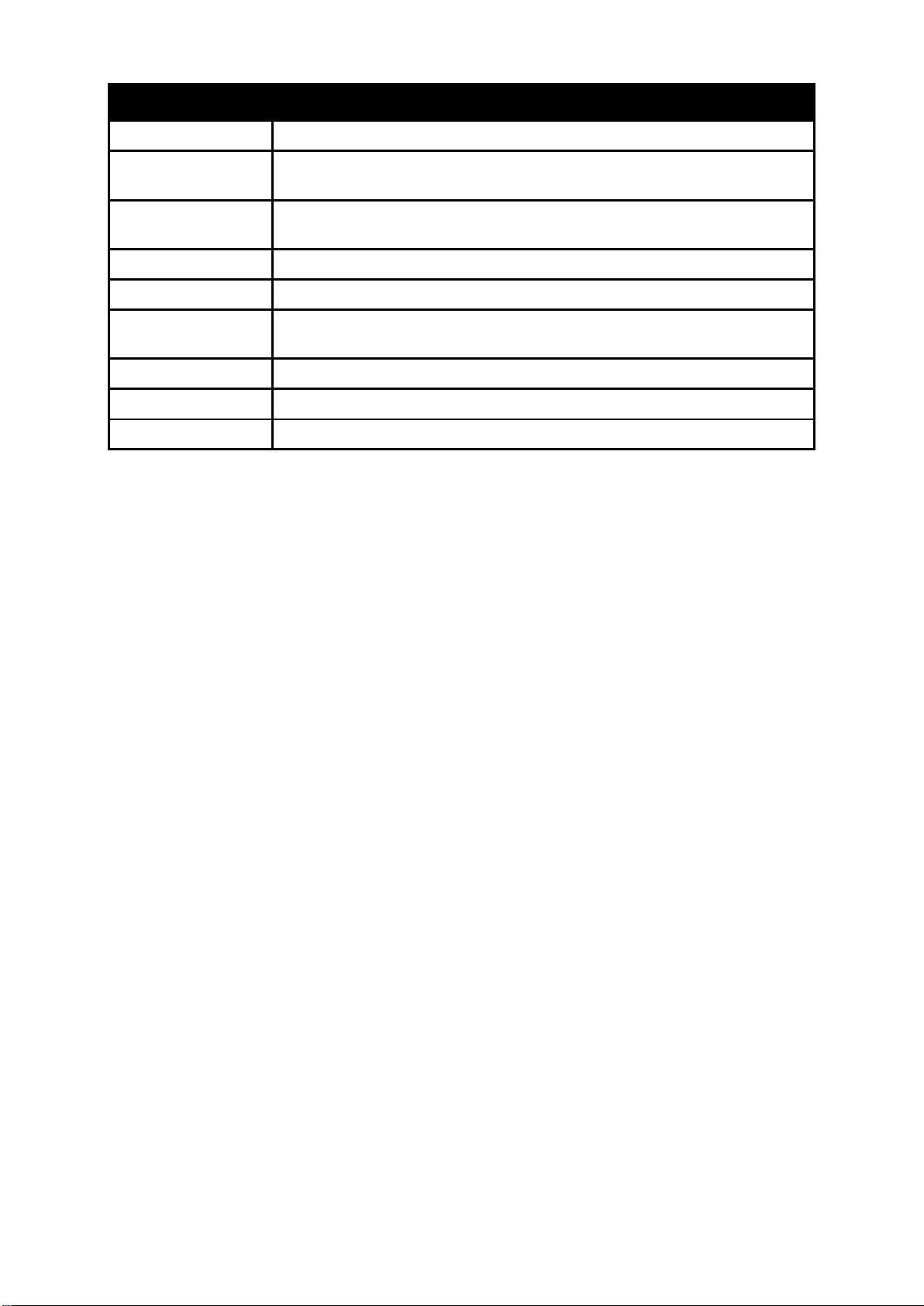
Multiple Page Displa y Control Keys
Space
CTRL+c
ESC
n
p
q
r
a
Enter
Displays the next page.
Stops the display of remaining pages when multiple pages are to be
displayed.
Stops the display of remaining pages when multiple pages are to be
displayed.
Displays the next page.
Displays the previous page.
Stops the display of remaining pages when multiple pages are to be
displayed.
Refreshes the pages currently displayed.
Displays the remaini ng pag es without pausing between pages.
Displays the next line or table entry.
9

DES-1228/ME Metro Ethernet Managed Switch CLI Reference Guide
[<ipaddr> | <domain_name 255>] {times <value 1-255> | timeout <sec 1-99 > |
4
BASIC SWITCH COMMANDS
The Basic Switch commands in the Command Line Interface (CLI) are listed (along with the appropriate parameters) in the
following table:
Command Parameters
enable password encryption
disable password encryption
create account [admin|operator|Power User|user] <username 15>
config account <username> {encrypt [plain_text|sha_1] <password>}
show account
delete account <username>
show session
show switch
show serial_port
config serial_port {baud_rate [9600 | 19200 | 38400 | 115200] | auto_ log out [ne ver | 2_m inutes |
5_minutes | 10_minutes | 15_m inutes ]} (1)
enable clipaging
disable clipaging
enable telnet {<tcp_port_number 1-65535>}
disable telnet
telnet <ipaddr> {tcp_port <value 0 -65535>}
ping
source_ip <ipaddr>}
enable web {<tcp_port_number 1-65535>}
disable web
save { [config {config_id <value 1-2>} | log | all]}
reboot {force_agree}
reset {[config | system ]} { force_agree}
login
logout
show config [ current_config | config_in _nvram <conf ig_id 1-2> ] {[include | exclude | begin]
<filter_string 80> {<filter_string 80> {<filter_string 80>}} {[include | exclude |
begin] <filter_string 80> {<filter_string 80> {<filter_string 80>}}
{[include | exclude | begin] <filter_str ing 80 > {<filter _string 80> {<filter_string
80>}}}}}
config terminal_line [default | <value 20-80>]
show terminal_line
enable jumbo_frame
disable jumbo_frame
10
DES-1228/ME Metro Ethernet Managed Switch CLI Reference Guide
Command Parameters
show jumbo_frame
clear
config configuration config_id
config configuration trap { save [ enable | disable ] | upload [ enable | disable ] | download [ enable |
disable ] }(1)
show config information
Each command is listed, in detail, in the following sections:
enable password encryption
Purpose
Syntax
Description
Parameters
Restrictions
Example usage :
To enable password encryption on the Switch.
DES-1228/ME:5#enable password encryption
Command: enable password encryption
Success.
Used to enable password encryption on a user account.
enable password encryption
The user account configuration information will be stored in the
configuration file, and can be applied to the system at a time in the
future. If the password encryption is enabled, the password will be in
encrypted form. If password encryption is disabled and the user
specifies the password in encrypted form, or if the password has
been converted to encrypted form by the last enabled password
encryption command, the password will still be in encrypted form. It
can not revert back to plain text.
None.
Only Administrator level users can issue this command.
Example usage :
To disable password encryption on the Switch.
disable password encryption
Purpose
Syntax
Description
Parameters
Restrictions
Used to disable password encryption on a user account.
disable password encryption
The user account configuration information will be stored in the
configuration file, and can be applied to the system at a time in the
future. If the password encryption is enabled, the password will be in
encrypted form. If password encryption is disabled and the user
specifies the password in encrypted form, or if the password has
been converted to encrypted form by the last enabled password
encryption command, the password will still be in encrypted form. It
can not revert back to plain text.
None.
Only Administrator level users can issue this command.
11

DES-1228/ME Metro Ethernet Managed Switch CLI Reference Guide
DES-1228/ME:5#disable password encryption
Command: disable password encryption
Success.
DES-1228/ME:5#
12
DES-1228/ME Metro Ethernet Managed Switch CLI Reference Guide
create account
Purpose
Syntax
Description
Used to create user accounts.
create [admin|operator|Power User|user] <usernam e 15>
This command is used to create user accounts that consist of a
username of 1 to 15 characters and a password of 0 to 15
characters. Up to eight user accounts can be created.
Parameters
admin <username> – Name of the administrator account.
operator <username>- Specify an operator level account.
Power User <username> — Specify a power user level account, The
power user level is lower than the operator level and higher than the
user level.
user <username> – Name of the user account.
username — The user name, with a minimum of 1 character and a
maximum of 15 characters
Restrictions
Only Administrator level users can issue this command.
Usernames can be between 1 and 15 characters.
Passwords can be between 0 and 15 characters.
Example usage :
To create an operator-level user account with the username “dlink”.
DES-1228/ME:5#create account operator dlink
Command: create account operator dlink
Enter a case-sensitive new password:*****
Enter the new password again for confirmation:*****
Success.
DES-1228/ME:5#
NOTICE: In the case of lost passwords or password corruption, please refer to
Appendix C Pass word Recover y Proced ure, at t he end of this m anual which will
guide you through the steps necessary to resolve this issue.
13
DES-1228/ME:5#config account dlink
config account
DES-1228/ME Metro Ethernet Managed Switch CLI Reference Guide
Purpose
Syntax
Description
Used to configure user accounts.
config account <username> {encrypt [plain_text|sha_1] <password>}
This command is used to configure a user account that has been created using the
create account command. When the password information is not specified in the
command, the system will prompt the user to input the password interactively. For
this case, the user can only input the plain text password.
If the password is present in the command, the user can select to input the
password in the plain text form or in the encrypted form. The encryption algorithm is
based on SHA-1.
Parameters
<username> – The name of the account. The account must already be defined.
plain_text – Select to specify the password in plain text form.
sha_1 – Select to specify the password in the SHA-1 encrypted form.
password – The password for the usefr account. The length of the password in plain
text form and in encrypted form are different. For the plain text form, passwords must
have a minimum of 0 character and can have a maximum of 15 characters. For the
encrypted form password, the length is fixed to 35 bytes long. The password is casesensitive.
Restrictions
Only Administrator level users can issue this command.
Usernames can be between 1 and 15 characters.
Passwords can be between 0 and 15 characters.
Example usage :
To configure the user password of “dlink” account:
Command: config account dlink
Enter a old password:****
Enter a case-sensitive new password:*****
Enter the new password again for confirmation:*****
Success.
DES-1228/ME:5#
14

DES-1228/ME Metro Ethernet Managed Switch CLI Reference Guide
DES-1228/ME:5#show account
show account
Purpose
Syntax
Description
Used to display user accounts.
show account
This command is used to display all user accounts created on the
Switch. Up to eight user accounts can exist at one time.
Parameters
Restrictions
None.
Only Administrator level users can issue this command.
Example usage :
To display the accounts that have been created:
Command: show account
Current Accounts:
Username Access Level
—————— ————admin Admin
dlink Operator
beta Power User
guest User
Total Entries : 4
DES-1228/ME:5#
delete account
Purpose
Syntax
Description
Parameters
Restrictions
Example usage :
To delete the user account “dlink”:
DES-1228/ME:5#delete account dlink
Command: delete account dlink
Success.
DES-1228/ME:5#
Used to delete an existing user account.
delete account <usernam e>
This command is used to delete a user account that has been
created using the create account command.
<username> – The name of the account to be deleted.
Only Administrator level users can issue this command.
15
DES-1228/ME Metro Ethernet Managed Switch CLI Reference Guide
DES-1228/ME:5#show session
show session
Purpose
Syntax
Description
Used to display a list of currently logged-in users.
show session
This command is used to display a list of all the users that are
logged-in at the time the command is issued.
Parameters
Restrictions
None.
None.
Example usage :
To display the way that t he users lo gged in:
Command: show session
ID Live Time From Level Name
— ———— ————————————— —— —————8 0:2:27.60 Serial Port 5 dlink
Total Entries: 1
CTRL+C ESC q Quit SPACE n Next Page p Previous Page r Refresh
16

DES-1228/ME Metro Ethernet Managed Switch CLI Reference Guide
DES-1228/ME:5#show switch
show switch
Purpose
Syntax
Description
Parameters
Restrictions
Example usage :
To display the Switch’s information:
Command: show switch
Device Type : DES-1228/ME Metro Ethernet Switch
MAC Address : 00-12-28-8E-77-00
IP Address : 10.90.90.90 (Manual)
VLAN Name : default
Subnet Mask : 255.0.0.0
Default Gateway : 0.0.0.0
Boot PROM Version : Build 2.00.001
Firmware Version : Build 2.01.001
Hardware Version : B1
System Name :
System Location :
System Uptime : 0 days, 1 hours, 46 minutes, 17 seconds
System Contact :
Spanning Tree : Disabled
GVRP : Disabled
IGMP Snooping : Disabled
VLAN Trunk : Disabled
802.1X : Disabled
Telnet : Enabled (TCP 23)
Web : Enabled (TCP 80)
RMON : Disabled
SSH : Disabled
CLI Paging : Enabled
Syslog Global State: Disabled
Dual Image : Supported
Password Encryption Status : Disabled
Used to display general information about the Switch.
show switch
This command is used to display information about the Switch.
None.
None.
17
DES-1228/ME Metro Ethernet Managed Switch CLI Reference Guide
DES-1228/ME:5#show serial_port
show serial_port
Purpose
Syntax
Description
Parameters
Restrictions
Example usage :
To display the serial port setting:
Command: show serial_port
Baud Rate : 9600
Data Bits : 8
Parity Bits : None
Stop Bits : 1
Auto-Logout : 10 mins
Used to display the current serial port settings.
show serial_port
This command is used to display the current serial port settings.
None.
None
18

DES-1228/ME Metro Ethernet Managed Switch CLI Reference Guide
DES-1228/ME:5#config serial_port baud_rate 115200
config serial_port
Purpose
Syntax
Description
Parameters
Restriction
s
Example usage :
To configure the baud rate:
Used to configure the serial port.
config serial_port { baud_rate [9600 | 19200 | 38400 | 115200] | auto_logout [never |
2_minutes | 5_minutes | 10_minutes | 15_minutes] } (1)
This command is used to configure the serial port’s baud rate and auto logout
settings.
baud_rate [9600 | 19200 | 38400 | 115200] − The serial bit rate that will be used to
communicate with the management host. There are four options: 9600, 19200,
38400, and 115200.
never − No time limit on the length of time the console can be open with no user
input.
2_minutes − The console will log out the current user if there is no user input for 2
minutes.
5_minutes − The console will log out the current user if there is no user input for 5
minutes.
10_minutes − The console will log out the current user if there is no user input for 10
minutes.
15_minutes − The console will log out the current user if there is no user input for 15
minutes.
Only Administrator level and Operator level users can issue this command.
Command: config serial_port baud_rate 115200
Success.
DES-1228/ME:5#
19

DES-1228/ME Metro Ethernet Managed Switch CLI Reference Guide
DES-1228/ME:5#enable clipaging
DES-1228/ME:5#disable clipaging
enable clipaging
Purpose
Used to pause the scrolling of the console screen when a command
displays more than one page.
Syntax
Description
enable clipaging
This command is used when issuing a command which causes the
console screen to rapidly scroll through several pages. This
command will cause the console to pause at the end of each page.
The default setting is enabled.
Parameters
Restrictions
None.
Only Administrator level users, Operator level and Power User level
users can issue this command.
Example usage :
To enable pausing of the s creen display when the show command output reaches the end of the pa ge:
Command: enable clipaging
Success.
DES-1228/ME:5#
disable clipaging
Purpose
Syntax
Description
Parameters
Restrictions
Example usage :
To disable pausing of the screen display when s how command output reaches the end of the page:
Command: disable clipaging
Success.
Used to disable the pausing of the console screen scrolling at the
end of each page when a command displays more than one screen
of information.
disable clipaging
This command is used to disable the pausing of the console screen
at the end of each page when a command would display more than
one screen of information.
None.
Only Administrator level users, Operator level and Power User level
users can issue this command.
20
DES-1228/ME Metro Ethernet Managed Switch CLI Reference Guide
ES-1228/ME:5#enable telnet
DES-1228/ME:5#disable telnet
enable telnet
Purpose
Used to enable communication with and management of the Switch
using the Telnet protocol.
Syntax
Description
enable telnet {<tcp_port_number 1-65535>}
This command is used to enable the Telnet protocol on the Switch.
The user can specify the TCP port number the Switch will use to
listen for Telnet requests.
Parameters
<tcp_port_number 1-65535> − The TCP port number. TCP ports
are numbered between 1 and 65535. The “well-known” TCP port for
the Telnet protocol is 23.
Restrictions
Only Administrator level and Operator level users can issue this
command.
Example usage :
To enable Telnet and configure port number:
Command: enable telnet
Success.
disable telnet
Purpose
Syntax
Description
Parameters
Restrictions
Example usage :
To disable the Telnet proto col on the Switc h:
Command: disable telnet
Success.
Used to disable the Telnet protocol on the Switch.
disable telnet
This command is used to disable the Telnet protocol on the Switch.
None.
Only Administrator level and Operator level users can issue this
command.
21

DES-1228/ME Metro Ethernet Managed Switch CLI Reference Guide
DES-1228/ME:5#telnet 10.53.13.99 tcp_port 23
ping [<ipaddr> | <domain_name 255>] {times <value 1-255 > |
telnet
Purpose
Syntax
Description
Parameters
Restrictions
Example usage :
To connect to a device through telnet with an IP address of 10.53.13.99:
Command: telnet 10.53.13.99 tcp_port 23
Used to Telnet another device on the network.
telnet <ipaddr> {tcp_port <value 0-65535>}
This command is used to connect to another device’s managem ent
through Telnet.
<ipaddr> − Enter the IP address of the device to connect through,
using Telnet.
tcp_port <value 0-65535> − Enter the TCP port number used to
connect through. The common TCP port number for telnet is 23.
Only Administrator level, Operator level and Power User level users
can issue this command.
ping
Purpose
Syntax
Used to ping a remote IP address on the network.
timeout <sec 1-99> | source_ip <ipaddr>}
Description
Parameters
Restrictions
This command is used to send Internet Control Message Protocol
(ICMP) echo messages to a remote IP address. The remote IP
address will then “echo” or return the message. This is used to
confirm connectivity between the switch and the remote device.
<ipaddr> − Specifies the IP address of the host.
<domain_name 255> — Specifies the domain name of the host. This
name can be up to 255 characters long.
times — (Optional) Specify the number of individual ICMP echo
messages to be sent.
value 1-255 — Specify the number of individual ICMP echo
messages to be sent. A value of 0 will send an infinite ICMP echo
messages. The maximum value is 255. The default is 0.
timeout – Specify the timeout period while waiting for a response
from the remote device. A value of 1 to 99 seconds can be
specified. The default is 1 second.
<sec 1-99> — Specify the time-out period while waiting for a
response from the remote device. A value of 1 to 99 seconds can
be specified. The default is 1 second.
source_ip — Specifies the source IP address of the ping packets. If
specified, the IP address will be used as the packets’ source IP
address that ping send to remote host.
<ipaddr> — Enter the source IP address used here.
None.
22

DES-1228/ME Metro Ethernet Managed Switch CLI Reference Guide
DES-1228/ME:5#ping 10.51.17.1 times 4
DES-1228/ME:5#enable web 80
To send ICMP echo message to “10.51.17.1” for 4 times:
Command: ping 10.51.17.1 times 4
Reply from 10.51.17.1, time<10ms
Reply from 10.51.17.1, time<10ms
Reply from 10.51.17.1, time<10ms
Reply from 10.51.17.1, time<10ms
Ping Statistics for 10.51.17.1
Packets: Sent =4, Received =4, Lost =0
enable web
Purpose
Used to enable the HTTP-based management software on the
Switch.
Syntax
Description
enable web {<tcp_port_number 1-65535>}
This command is used to enable the Web-based management
software on the Switch. The user can specify the TCP port number
the Switch will use to listen for Telnet requests.
Parameters
<tcp_port_number 1-65535> − The TCP port number. TCP ports are
numbered between 1 and 65535. The “well-known” port for the Webbased management software is 80.
Restrictions
Only Administrator level and Operator level users can issue this
command.
Example usage :
To enable HTTP and configure port number:
Command: enable web 80
Success.
disable web
Purpose
Syntax
Description
Parameters
Restrictions
Used to disable the HTTP-based management software on the
Switch.
disable web
This command disables the Web-based management software on
the Switch.
None.
Only Administrator level and Operator level users can issue this
command.
23
DES-1228/ME:5#disable web
Example usage :
To disable HTTP:
Command: disable web
Success.
DES-1228/ME:5#
save
DES-1228/ME Metro Ethernet Managed Switch CLI Reference Guide
Purpose
Used to save changes in the Switch’s configuration to non-volatile
RAM.
Syntax
Description
save {[config {config_id < value 1-2>} | log | all]}
This command is used to enter the current switch configuration into
non-volatile RAM. The saved switch configuration will be loaded into
the Switch’s memory each time the Switch is restarted.
Parameters
config – Used to save the current configuration to a file.
config_id — Specifies which cfg file ID. if cfg ID is not specified, it
refers to the boot_up CFG file.
log – Used to save the current log to a file. The log file cannot be
deleted.
all – Save changes to currently activated configurations and save
log. If no keywords are specified, save the changes to the
configuration. If there are no keywords specified, the changes will be
saved to the configuration.
Restrictions
Only Administrator level,Operator level or Power User level users
can issue this command.
Example usage :
To save the Switch’s current configuration to non-volatile RAM:
DES-1228/ME:5#save config
Command: save config
Saving all configurations to NV-RAM…… Done.
Success.
DES-1228/ME:5#
To save the Switch’s current log to non-volatile RAM:
Command: save log
Saving all log information to NV-RAM…… Done.
Success.
24
DES-1228/ME Metro Ethernet Managed Switch CLI Reference Guide
Please wait, the switch is rebooting…
DES-1228/ME:5#reboot force_agree
To save the Switch’s the current configuration and log to non-volatile RAM:
Command: save all
Saving all configurations and log information to NV-RAM…… Done.
Success.
DES-1228/ME:5#
reboot
Purpose
Syntax
Description
Parameters
Restrictions
Example usage :
To restart the Switch:
Command: reboot
Are you sure you want to proceed with the system reboot?(y/n) y
To force the Switch to restart:
Command: reboot force_agree
Please wait, the switch is rebooting…
Used to restart the Switch.
reboot {force_agree}
This command is used to restart the Switch.
force_agree – When force_agree is specified, the Switch will be
forced to restart immediately without further confirmation.
Only Administrator level users can issue this command.
25
DES-1228/ME Metro Ethernet Managed Switch CLI Reference Guide
reset
Purpose
Syntax
Description
Used to reset the Switch to the factory default settings.
reset {[config | system]} {force_agree}
This command is used to restore the Switch’s configuration to the
default settings assigned from the factory.
Parameters
config − If the keyword ‘config’ is specified, all of the factory default
settings are restored on the Switch including the IP address, user
accounts, and the switch history log. The Switch will not save or
reboot.
system − If the keyword ‘system’ is specified all of the factory default
settings are restored on the Switch. The Switch will save and reboot
after the settings are changed to default. Rebooting will clear all
entries in the Forwarding Data Base.
force_agree – When force_agree is specified, the reset command
will be executed immediately without further confirmation.
If no parameter is specified, the Switch’s current IP address, user
accounts, and the switch history log are not changed. All other
parameters are restored to the factory default settings. The Switch
will not save or reboot.
Restrictions
Only Administrator level users can issue this command.
Example usage :
To restore all of the Switch’s parameters to their default values except the IP address, user accounts, and Switch logs:
Command: reset
Are you sure you want to proceed with system reset
except IP address, log and user account?(y/n) y
Success.
To restore all of the Switch’s pa r a meters to their default values:
DES-1228/ME:5#reset config
Command: reset config
Are you sure you want to proceed with system reset?(y/n) y
Success.
DES-1228/ME:5#
26
Loading…
Эта публикация скрыта. Она доступна только по прямой ссылке.
Hard: switch D-Link DES-1228, DES-1210-28.
Доступ к указанным выше коммутаторам D-Link возможен только с «web»-интерфейса; весьма раздражающего, надо заметить, своей медленной работой и отказами загружать часть содержимого на медленных каналах. Мало того, что интерфейс м-м-м… не очень хорош, так он ещё и забавляет отказом в доступе в течении десяти-пятнадцати секунд после того, как измениться состояние какого либо из физических портов. Так что, если в процессе работы «web»-интерфейс вдруг перестанет отвечать на запросы, велика вероятность того, что в сети кто-то просто перезагружает свой компьютер.
В общем, поделка та ещё, но приходится с «этим» работать.
Базовая конфигурация любого коммутатора поддержки VLAN достаточно проста:
Определение места расположения устройства в управляемой сетевой инфраструктуре;
Определение способа доступа к устройству для обслуживания его во время рабочего процесса;
Регистрация на коммутаторе идентификаторов VLAN, которые он будет обслуживать на клиентских портах или пропускать транзитом;
Привязывание физических портов коммутатора к идентификаторам VLAN;
Определение типа обслуживания портом VLAN, таких как пропуск «тегируемого» (Tagged) или «освобождаемого от тегирования» (Untagged) трафика;
Группирование («агрегирование») портов в «транки», достигая большей пропускной способности и надёжности направления.
И так, для начала устанавливаем параметры подключения устройства с помощью протокола TCP/IP. Всё просто: IP, маска, шлюз. Понятно, что адрес устройства и адреса клиентов, обслуживаемых таковым — две большие разницы. Устройство может и должно иметь адрес в выделенной зоне, доступной только администраторам сети, но никак не пользователям. Нужно это для того, чтобы пользователи сети своими шалостями не смогли повлиять на работу коммуникационного оборудования, хотя бы даже и путём занятия IP адресов устройств и попытками взлома системы аутентификации таковых. В общем — коммутатор должен располагаться в под сети с адресацией, отличной от обслуживаемой:

1017×525 • Параметры подключения TCP/IP для D-Link 1228.
Далее задаём пароль. Упомянуто лишь потому, что очевидные вещи — самые забываемые:

1016×526 • Задание пароля для D-Link 1228.
Теперь о разделении сети на сегменты с помощью тегирования трафика на портах устройств (VLAN). Теорию здесь читать считаю излишним. Однако, обозначить опорные точки понятий и нюансы практической работы с D-Link считаю необходимым.
Интерфейс коммутаторов D-Link в описании режима работы портов оперирует двумя состояниями (не считая выключения из работы, разумеется):
«Не тегируемый» — означает то, что при выходе из порта устройства по направлению к клиенту сетевой пакет освобождается от назначенного ему ранее тега (идентификатора) VLAN. При входе в порт от клиента пакету прикрепляется тот тег (идентификатор), что назначен физическому порту;
«Тегируемый» — означает то, что весь проходящий через порт коммутатора трафик должен быть явно помечен тегом (идентификатором) зарегистрированным на данном устройстве.
Можно представить для себя следующее:
«Не тегируемый» порт может и будет принимать любой трафик, считая, что он чист от каких либо идентификаторов; мало того, если я верно понял, он будет ещё и освобождать его от тегов, буде таковые имеются, замещая его своим собственным идентификатором при передачи на обработку внутреннему процессору;
«Тегируемый» порт оперирует только с трафиком, ранее уже помеченным идентификаторами; мало того, он отвергнет любой пакет, идентификатор которого не входит в перечень зарегистрированных на данном коммутирующем устройстве для данного физического или виртуального порта.
По общим понятиям — всё.
Теперь подумаем о том, каким образом нам получить доступ к активно работающему коммутатору, все порты которого заняты клиентскими подключениями а само устройство находится в паре сотен километров от нас.
Традиционно, в управлении разного рода устройствами управления VLAN, для доступа к таковым используется трафик с идентификатором VLAN «1». В устройствах Cisco Systems, конфигурируя произвольный порт, можно указать считать весь трафик произвольного VLAN — внутренним. Это означает то, что пакеты с идентификатором «1» будут уходить не только на порты с соответствующим тегированием, но и на внутренний интерфейс устройства, позволяя получить к нему доступ для управления. Что-то в этом роде есть и у D-Link:

1017×524 • Определение Management VLAN для D-Link 1228.
Если я правильно понял, предполагается то, что указывая произвольный VLAN в качестве «Management VLAN» мы предоставляем ему доступ к устройству. Это хорошо. Только оно не работает. Ясное дело, что оно работает, иначе зачем бы оно тут было. Только вот у меня оно не заработало. Вот не заработало и всё.
Так или иначе, а доступ к оборудованию нужно как-то обеспечивать, и сделать это мне пришлось следующим образом:

1017×525 • Точка входа VLAN 1 для D-Link 1228.
На самом первом коммутаторе в каскаде (или «пуле», если так больше нравится) выделяем один порт для VLAN «1» (порт 25). Таким образом мы, через этот порт, входим в среду передачи тегированного трафика на общих основаниях. Учитывая то, что ранее мы договорились выносить IP оборудования в зоны отличные от клиентской адресации и то, что в «Spanning Tree» мы пока не нуждаемся — это вполне себе ход. Далее, указанный VLAN пропускаем уже в виде тегированного трафика по всей управляемой среде (порты 26 и 28). На следующем в «пуле» коммутаторе VLAN «1» мы принмаем уже на других произвольных «тегируемых» портах (например: 25 и 27):

1015×522 • Передача тегируемого VLAN 1 коммутаторам каскада для D-Link 1228.
Конфигурация VLAN «1» транзитного коммутатора будет выглядеть следующим образом (здесь при приняли трафик «тегированный» VLAN «1» на портах 25 и 27, а отдали следующему коммутатору на портах 26 и 28, например):

1017×525 • Транзитная передача тегируемого VLAN 1 между коммутаторам каскада для D-Link 1228.
Грязно — согласен, но другого способа справится с этими дешёвенькими и слабосильненькими коммутаторчиками я не нашёл.
С управлением устройством разобрались. Собственно, после понимания сути механизма доступа к устройству, способ распределения портов по VLAN должен быть уже совершенно ясен. Просто добавляем идентификатор VLAN, привязываем свободные физические порты к этому идентификатору и указываем, через какие порты пойдёт «тегированный» трафик:

1015×527 • Распределение VLAN коммутаторов каскада для D-Link 1228.
Если коммутатор для каких то VLAN является транзитным, то для таковых указываются только порты «тегированного» трафика:

1015×526 • Конфигурация транзитного VLAN коммутаторов каскада для D-Link 1228.
Теперь об «агрегировании каналов». В интерфейсе D-Link это называется как «Trunking». Для увеличения пропускной способности и надёжности условной магистрали между коммутаторами каскада («пула») следует применять объединение ряда портов в единое передающее пространство. Есть несколько методов обработки трафика при «агрегировании», но у D-Link пока поддерживается только «статический», применяемый по умолчанию — стало быть и выбирать тут нечего. Просто сводим в именованную группу (на примере: 01) ряд «тегированных» интерфейсов, которые будут использоваться в дальнейшем как один виртуальный порт:

1018×526 • Агрегирование каналов коммутаторов для D-Link 1228.
На следующем коммутаторе так же создаём именованные группы «агрегированных каналов» для приёма «тегированного» трафика:

1016×525 • Агрегирование каналов коммутаторов каскада для D-Link 1228.
Насколько я заметил, именование «агрегированных каналов» — условность, и на работе никак не сказывается, достаточно просто верно группировать физические порты. Естественно, группирование следует производить «снизу-вверх», начиная от самых последних коммутаторов в цепочке каскада. Понятно, что после того, как несколько физических интерфейсов объединены в один виртуальный, есть вероятность, что часть трафика пойдёт по тем физическим интерфейсам, что ещё не готовы к приёму на других устройствах и будет потеряно.
-
Page 1: D-Link DES-1228
DES-1228 24-Port 10 /100Mbps Web-Sma rt Switch with 4-Port 10/100/1000Base-T and 2-Port Combo SFP User Manual V1.00[…]
-
Page 2: D-Link DES-1228
i i TABLE OF CO NT E NTS About This Guide. …… …………………… ……………………………. ……………. 1 Purpose ……………………………….. ……………………………………………… 1 Terms/Usage …………. …………………………………………………………….. 1 Introductio n …[…]
-
Page 3: D-Link DES-1228
i i i i SmartConsole Utility Features ………………………. …………… ………… 20 Menu Toolbar……….. …………………. ………………………….. ………… 20 Discovery List ………………………….. ………………………….. ………… 22 Monitor List ……………… ……………………..[…]
-
Page 4: D-Link DES-1228
i i i i i i Monitoring > Statisti cs ……. …………………………………….. ………… 54[…]
-
Page 5: D-Link DES-1228
[…]
-
Page 6: D-Link DES-1228
1 1 ABOUT THIS GUIDE Thank you and congratulati ons on your purchase of the DE S-1228 24 — Port 10/100Mbps Fast Ethernet with 4-P ort 10/ 100/1000 Base-T and 2- Port Combo SFP Web- Smart Sw itch. This dev ice integrates 1000Mb ps Gigabi t Ethernet , 100Mbps Fast Ethernet and 10Mb ps Ethern et network capabilities in a high ly flexible pack age. Pur[…]
-
Page 7: D-Link DES-1228
2 2 INTRODUCTION This chapt er will descri be the feat ur es of the DES-122 8 and provide some background i nformati on about Et hernet/Fast Ethernet/Gi gabit Ethernet s witching technol ogy. Gigabit Ethernet Technology Gigabit Ethe rnet is an ext ension o f IEEE 802.3 Et hernet ut ilizing the same packet structure, format, a nd support f or CSMA/ […]
-
Page 8: D-Link DES-1228
3 3 In additio n, the phe nomenal ban dwidth delivere d by Giga bit Ether net is the most cost-effective method to take advantag e of today and tomorrow’s rapidly i mprovi ng swi tching a nd routing i nternetworkin g technologies. And with expected advances in the comin g year s in silicon tec hnology and di gital signal pr ocessing that will ena[…]
-
Page 9: D-Link DES-1228
4 4 packets at the MAC address level of the Ethernet prot ocol trans mitting among connected Ethe rnet or Fast Ethe rnet LAN segm e nt s . Switching is a cost-effective way of increasing t he total network capacity available to user s on a local area networ k. A switch increases capacity and decreases net work load ing by dividi ng a local area net[…]
-
Page 10: D-Link DES-1228
5 5 ♦ Supports St atic MAC sett ing ♦ D-Lin k Safeguard Engine suppor t ♦ Supports Simpl e Networ k Manage ment Pr otocol (SNM P) ♦ MIB suppo rt for: RFC121 3 MI B II, Privat e MIB ♦ Supports D HCP client ♦ Supports Port s etting f or Spee d, Dupl ex Mod e ♦ Easy confi guration via Web Browser ♦ Easy setting via Sma rtConsol e Utili[…]
-
Page 11: D-Link DES-1228
6 6 SDRAM for CPU 8M Bytes Flash Memory Prom 2M Bytes Port Functions LAN — 24 x 10/100BaseT ports — Comp liant with th e following standar ds: 1. IEEE 802.3 compliance 2. IEEE 802.3u complianc e 3. Support Full and Half Duplex operations Combo ports in the front panel — 2 Combo 1000Base-T/SFP po rts -1000Base-T/SFP ports compliant to the following […]
-
Page 12: D-Link DES-1228
7 7 6. DEM-211 (100BASE-F X), up to 2km, Multi- Mod e 7. DEM-210 (100BASE-F X), up to 15km , Single-Mode -WDM Transceivers Supported: 1. DEM-330T (TX-1550 /RX-1310nm), up to 10km, Single-Mode 2. DEM-330R (TX-1310/RX-1550n m), up to 10km, Single-Mode 3. DEM-331T (TX-1550 /RX-1310nm), up to 40km, Single-Mode 4. DEM-331R (TX-1310/RX-1550n m), up to 40[…]
-
Page 13: D-Link DES-1228
8 8 AC input 100~240 VAC, 50/ 60Hz Internal univer sal power su ppl y Operation Temperature 0~40°C Storage Temperature -10~70°C Humidit y Operation: 10%~90% RH Storag e: 5%~90% RH Power consumption 18.35(watts) Heat Dissipation 62.57(bt u/hr) MTBF 326647 (h ours) Emission (E M I) an d Safe ty Ce rtific ations EMI-EMC Compliance: FCC class A, CE C[…]
-
Page 14: D-Link DES-1228
9 9 UNPACKING AND INSTALLATION This chapter provides unpacking an d installa tion informat ion for the Web-Sma rt Switch. Unpacking Carefully unpack the contents of t he Web-Smart Switch from the box and locate the fo llow ing items: One DES-122 8 Web-Smart Switch One AC power cord, suitable for t h e local electrical power voltage requirements Fou[…]
-
Page 15: D-Link DES-1228
1 1 0 0 Install th e Switch in a site free from str ong electroma gnetic field generat ors (such as motors), vib r ation, d ust, and di rect expos ure to sunlight . Leave at least 10cm of sp ace to the front and r ear of the Switch for ventilation. Install the Switch on a sturdy, le vel surface that can support its weight, or in an EIA standa rd-si[…]
-
Page 16: D-Link DES-1228
1 1 1 1 Figure 2 – Attach the mount ing brackets to the Switch Use the scre ws provide d with the eq uipment rack or chassi s to mount the Switch in the rack. Figure 3 – Mount the Switch in the rack or chassis Con nect ing Net wo rk Ca ble The DES-1228 has 24 po rts that sup port 10/100Mbp s Fast E thern et; it also has 4 10/100/ 1000Base-T Por[…]
-
Page 17: D-Link DES-1228
1 1 2 2 AC Power The DES-12 28 can be used with AC power supp ly 100~240V A C, 50~60Hz. The power switc h is located at the rear of the unit ad jacent to the AC power conn ector and th e system fan. The switch’s power suppl y will ad just to t he local power source automatically and may be turne d on witho ut having any or all LAN segment cables […]
-
Page 18: D-Link DES-1228
1 1 3 3 IDENTIFYING EXTER NAL COMPONENTS This cha pter describes the front panel, rear pa nel, and LED indicat ors of the Switch. Front Panel The figure below sh ows the front panel of t he Switch. Figure 4 – Front panel of th e 28-port Web-Smart Switch Reset butt on: The Reset butt on resets all confi gurat ion settings back to the fact ory defa[…]
-
Page 19: D-Link DES-1228
1 1 4 4 MDI/MD IX cr ossover detection. A ll these 24 ports ca n operate in half- and f ull — duplex mode s. 10/100/1 000 B ASE-T / Mini GBI C Combo Ports (Option Port 25~2 6) The Switch is also equippe d with two combo 10/100/ 1000 Base-T / Mini GBIC ports, which support s 1000BASE-SX/LX and 100Base- FX Mini GBIC module f or fiber uplinks. 10/100/[…]
-
Page 20: D-Link DES-1228
1 1 5 5 connector, and the male into a power outlet. Suppor ted input voltages range from 100- 240V AC, and 50-60Hz. Understandin g LE D Indicators The front pane l LEDs provi des instant stat us feedback and simpli fies monitoring and troubleshooting tas ks. Figure 6 – LED indicato rs of the Switch Power and System LEDs Power LEDs On When the Po[…]
-
Page 21: D-Link DES-1228
1 1 6 6 Ports 1 ~ 24 Status LEDs Link/Act On When the Link/Act LED light is on , the resp ective port is successfully connect ed to an Ethernet network. Blinking When the Li nk/Act LE D is blinki ng, the port is transmitting or receiving data on the Ethernet network. Off No link. 100Mbps On Wh en the 100M bps LED ligh t is on, the resp ective port […]
-
Page 22: D-Link DES-1228
1 1 7 7 Link/Act On When the respective comb o port is connected to a network, the Li nk/Act LED light is on. Blinking When the LED is blinki ng, the respective combo port is transmitting or receiving data on a network. Off No link. 100 0Mb ps On When the 1000Mbps LED li ght ’s on, the respective port is connected to a 1000Mbps Giga bit Ethernet […]
-
Page 23: D-Link DES-1228
1 1 8 8 Blinking When the Li nk/Act LED is bli nking, the port is transmitting or receiving data on the Ethernet network. Off No link. 100 0Mb ps On When t he 1000Mbps LE D ligh t is on, the respectiv e port is connected to a 1000Mbps Giga bit Ethernet ne twork. Off When the respective port is connected to a 10Mbps Ethernet or 10 0M b ps Fast Ether[…]
-
Page 24: D-Link DES-1228
1 1 9 9 CONFIGURATION Through a web browser, the feat ures and functions of the D ES-1228 Switch can be configure d f or opt im um use. Supported web browsers The embed ded Web- based Utility cur r entl y supports t he following web browsers: • Microsoft Inte rnet E xpl ore r v er. 6.0, 5.5 • Mozilla ver. 1. 7. 12 , 1.6 • Firefox ve r. 1. 5, […]
-
Page 25: D-Link DES-1228
2 2 0 0 SmartConsole Uti lity Features The Sma rtConsol e Utility is divide d into four parts, a Menu Toolbar of fu nctions at t he top, Discovery Li st , Monito r List , and Device Setting . Figure 7 – SmartConsole Utility Menu Toolb ar The Men u Toolbar i n the SmartCo nso le Utility has f our main tabs, File, View, Op tion, and Hel p . File in[…]
-
Page 26: D-Link DES-1228
2 2 1 1 • Monitor Load : To manually load a M o nitor List setting file. • Exit: To exit the Smart Console U tility. View includes: View log and Clear Log functions, which provide trap setti ng list ope rations. • View Lo g: To show the event of the SmartConsole Utility and the device. • Clea r Log: To clear all log e ntries. Option include[…]
-
Page 27: D-Link DES-1228
2 2 2 2 Help includes: in formation Ab out th e SmartConso le Utility, such as the softwa re versio n. Discovery List This is the list where all Web-Sma rt de vices on t he networ k are discovered. By pressing the Discovery button, all the We b-Smart devices are listed in the di scover y list. Double click or press the Add to mo nitor lis t button […]
-
Page 28: D-Link DES-1228
2 2 3 3 DHCP: uses a client/server model to obtain lease of an IP address from a DH CP server as pa rt of the net work boot process. Locati on: Shows the a ppointed descript ion for the device l ocation. Trap IP: Shows the IP where the Trap i n formation will be se nt. Subnet Mas k: Shows the Su bnet Mask set of the device . Gatew a y: Shows the Ga[…]
-
Page 29: D-Link DES-1228
2 2 4 4 Group Interval : Shows the Group Inte rval of the device. View Trap: The view trap function receiv es trap events from the Web-Sma rt Switch. There is a light indicator to the left of the “View Trap” button. A green light indicates that the monitor has not received any new traps, while a red light i ndicates that th ere are new traps re[…]
-
Page 30: D-Link DES-1228
2 2 5 5 Delete Item: Deletes the device from the Monitor List. Device Setting Function b uttons of the Device Setting secti on provi de several o p tions. Configuration Setting: In the Confi guration Setting , the following settings are available: Pro duct Name, MAC Address, IP Address, Subne t Mask, Gateway , Set Trap to (Trapping IP Address), Sys[…]
-
Page 31: D-Link DES-1228
2 2 6 6 Firmware Up grade: To update the device firmware, enter the firmware path and password (if n ecessary), and cl ick “Start”.). Figure 12 – Firmware Upgrade Web Access: Double click the device in th e Monitor List or select a device in the Monitor List and press the “Web Access” button to open the Web-base d Utility. To see the list[…]
-
Page 32: D-Link DES-1228
2 2 7 7 Web-based Management The DES-1228 Web-Sma r t Switch has a w eb browser G UI interface for config uring the Switc h through a we b browser. To see t he list of web browsers the Web-based Uti lity su pports, see Su pported web brows ers on page 19. A network admini strator can manage, control and monitor t he switch from the local LAN. This […]
-
Page 33: D-Link DES-1228
2 2 8 8 Figure 15 – Log in screen Once you have successfully logged in, the device status page will appear. In th e top rig ht co rner the user nam e (default ‘adm in’) is displayed with the IP address of the Switch. Below this is a Logout option for use when the session is complete. Figure 16 – Device Status[…]
-
Page 34: D-Link DES-1228
2 2 9 9 Tool Menu The Tool Me nu offers global func tion cont rols such as Reset, Configuring Backup & Restoration, Firmw are Back up and Upload, and System Reboot. Figure 17 – Tool Menu Reset: Provi des a safe reset option fo r the S witch. All confi gurations will be reset to default. Figure 18 – Tool Menu > Reset Configure Ba ckup and[…]
-
Page 35: D-Link DES-1228
3 3 0 0 Firmware Backup and Upload: Allows for the firmware to be saved , or for an existing firmware file to be uploaded to the Swit ch. Figure 20 – Tool Menu > Firmwar e Backup and Upload System R eboot: Provides a safe way to reboot t he system. Ensure the configuratio n has been saved, or all the change s you just made may be lost after sy[…]
-
Page 36: D-Link DES-1228
3 3 1 1 Figure 22 –Setup Menu System > S ystem Settin g The System Se tting includ es IP Info rmation and System information. There are two ways for the switch to attain IP: Static and DHCP DH C P When usi ng static mode, the IP Addre ss , Subnet Ma sk a nd Gateway can be manual ly configure d . When usin g DHCP mode, the Switch will first l o[…]
-
Page 37: D-Link DES-1228
3 3 2 2 protocol , zero mea ns disabl e Group Interval , and 120~122 5 means send IGMP v1 rep ort accordi n g the value whi ch unit is seconds. Figure 23 – System > System Setting System > Tr ap Setting By configuri ng the Tra p Setting, it allows SmartCons ole Utility to monitor spec ified eve nts on this We b-Smart Switch. By default, Tra[…]
-
Page 38: D-Link DES-1228
3 3 3 3 Figure 24 – System > Trap Setting System Even t: M onitors the system’s trappi ng information. Device Bootup: Tra ps system b oot-up information. Illegal Login: Traps events of inco rrect pass word logins, recording the IP of t h e originating PC. Fiber Port Events: Monitors the fi b er port status. Link Up/Link Down: Tra ps fiber co[…]
-
Page 39: D-Link DES-1228
3 3 4 4 (“ From Port” and “ To Por t ” ), t h e Speed ca n be set for all such ports, by clicki ng Apply . To refresh the in formation table to view the latest Link Status a nd Priority, pres s the Refre sh button. Figure 25 – System > Port Setting Speed: Gigabit Fiber con n ections ca n operate in Fo rced Mode settings (1000M Full), A[…]
-
Page 40: D-Link DES-1228
3 3 5 5 Priority: Disp lays each port ’s 802.1p QoS priority level for recei ved data packe t handling. Def aul t setting for all ports is Middl e . You can change the pri ority setti ngs in Qos > 802.1p Default Pr iority NOTE: When the Combo Gigabi t Fiber po rt and the Cop p er port s are both connected, the Fiber port will take precede nce […]
-
Page 41: D-Link DES-1228
3 3 6 6 Figure 26 – System > SNMP Setting Enab led / Disabled: Default setting is Dis abled . Click En able , th en Apply, to set Community Settin g s. The defa ult commu nity strings for the Switch used f or SNMP v.1 manageme nt access are: Public: The community with read -only pri v ilege allows authorize d ma nagement stations to retrie ve […]
-
Page 42: D-Link DES-1228
3 3 7 7 reboot (someone acci dent ally turned the Switch OFF), or less serious events such as a port status cha nge . The Switch can generate traps and send them to the trap recipien t (i . e. ne tw ork ad min i s tra to r). Setting up a Trap : Select Enable , enter a Trap Name (i.e. Trap Name must be selected from a Community Name), a dd the IP of[…]
-
Page 43: D-Link DES-1228
3 3 8 8 (multimedi a applicati ons such as video c onferenci ng), and t herefore help t o simplify netw ork manageme nt by allowing users to move devices to a new VLAN without ha ving to change any physical connections. The IEEE 80 2.1Q VLAN Confi gurati on page provide s powerful VID manage ment f unctions. The original settings have the VID as 01[…]
-
Page 44: D-Link DES-1228
3 3 9 9 Figure 29 – Configuration > 80 2.1Q VLAN > Add VID Figure 280 – Configuration > 80 2.1Q VLAN > Exa mple VIDs Figure 291 – Configuration > 802 .1Q VLAN > VID Assignments[…]
-
Page 45: D-Link DES-1228
4 4 0 0 Configuratio n > Trun king The Tru nking function e n abl es the cas cading of tw o or more ports fo r a combined l arger band width. Up to si x Trunk grou ps may be c reated, each supporting up to 8 ports. Add a Trunking Name and select the ports t o be trunked to gether, an d click Ap ply to activate the selected Trunking gr oups. Figu[…]
-
Page 46: D-Link DES-1228
4 4 1 1 decisions by examining t he conten ts of each frame’s La yer 2 MAC hea der. IGMP snoopi ng can hel p reduce cluttered traffi c on the LAN . With IGMP snoop ing enabled globally , th e We b-Smart Switch will forward multicast traffic only to connect ions that have group members attached. Please note that IGMP wi ll not alter or route IP mu[…]
-
Page 47: D-Link DES-1228
4 4 2 2 Max Response Time (10-25 sec): The Max Resp onse Time specifies the maximum allowed time before sending a responding report. Adjusting this setting ef fects the «leave latency» , or the time betw een the moment the l ast host leaves a group an d when the routing protocol is notified that there are no more me mbers. It also allows […]
-
Page 48: D-Link DES-1228
4 4 3 3 ‘RouterPortPurgeInterval’ tim e, the learnt rou ter port entry will be purged. Default is 125 seconds. Leave Ti mer (0-25 sec): This is the interval a fter which a Leave message is forwarde d on a port. Wh e n a leave message from a host for a group is recei v ed , a group-specific query is sent to the port on whic h the leave mes[…]
-
Page 49: D-Link DES-1228
4 4 4 4 Figure 324 – Configuration > I GMP Router port Settings To view t he Multi cast Entry Table for a giv en VLAN, press the Vi ew butto n. Figure 335 – Configuration > I GMP Multicast Entry Table[…]
-
Page 50: D-Link DES-1228
4 4 5 5 Configuration > 802. 1D Spanning T ree 802.1D Spann ing Tree P rotocol (STP) implementation is a backu p link(s) between swit ches, bridges or route rs designed to prevent network loops that could cause a broadca st storm. When phy sical links forming a loop pr ovide redundanc y, only a single path wi ll be forwarding f rames. If t he li[…]
-
Page 51: D-Link DES-1228
4 4 6 6 After Enabling STP, setting the STP Gl obal Se tting includes the following opt i ons: Bridge Priority: This value betwee n 0 and 65535 specifie s the priority for fo rwarding pac kets: th e low er the v alue , the higher the prio rity. The default is 3 2768. Bridge Max Age: This value may be set to ensure that old information does not en d[…]
-
Page 52: D-Link DES-1228
4 4 7 7 greater the probability the port will be chosen to forw ard packets. The defaul t value i s 19. Path Priorit y: Select a value between 0 and 255 to specify the priority for a specified port for forwa rding pac kets: the lower the value, the hi gher the prio ri ty. The defa ult is 128. Configuration > Port Mirroring Port Mirrorin g is a m[…]
-
Page 53: D-Link DES-1228
4 4 8 8 TX (tran smit) mode : Duplicates the data tran smitted from the s ource por t and forw ard s it to the Target Port. RX (receive) mode: Duplicates the data that gets sent to t he source and forwards it to the Target Port. Both (tran smit and rec eive) mode : Duplicate both t h e data transmitted fr om and data sent to the source port, a nd f[…]
-
Page 54: D-Link DES-1228
4 4 9 9 Security > Safeguard Engine D-Link ’s Safegu ard Engi ne is a ro bust and inno vative technolo gy that automatically throttl es the impact of pack et flooding into the switch’s CPU. This funct ion helps protect the Web-Sm art Switch from being interr upted by malicious viruses or worm attacks. By default this is Enabled . Figure 3[…]
-
Page 55: D-Link DES-1228
5 5 0 0 configuratio n also allow s u nauthoriz ed person nel to easily int rude an d possibly gain access to sensitive data. IEEE-80 2. 1X provides a security standard for network access control, especially in Wi -Fi wireless netwo r ks. 80 2.1X hol ds a net wo rk po rt disconnected until auth entication is comp lete d. The switch uses Extensibl e[…]
-
Page 56: D-Link DES-1228
5 5 1 1 By default, 802.1X is Di sabled . To use EAP for security, select Enable d and set the 80 2.1X Global S ettings fo r the Radi us Server and applicable authentication information. Authentication Port: sets primary port fo r security monitori ng. Default is 1812. Key: Masked passwo rd mat ching the Rad ius Server Key. Confirm Key : Enter the […]
-
Page 57: D-Link DES-1228
5 5 2 2 To establ ish 802.1X port- speci fic assignments, select t he From an d To Ports and select Enable . Security > Mac Ad dress Table > Static Mac This page provides two distinct feat ures. The top tabl e provides the ability to turn off auto learning M ac address if a port isn’t connected to an uplink Switch (i.e. DHC P Server ). B[…]
-
Page 58: D-Link DES-1228
5 5 3 3 The Static Mac Address Setting table displa ys the static Mac addresses connected, as we ll as the VID. Press Dele te to re move a device. T o add a new Mac address assi gnment, pres s Add Mac , then select the assigned Port number, e nter bot h the Mac Addre ss and VID and press Apply . Security > Mac Address Table > Dynamic Fo rward[…]
-
Page 59: D-Link DES-1228
5 5 4 4 Monitoring > Statistics The Statistics sc reen dis pl ays the status of ea ch po rt packet count. Figure 414 – Monitoring > Statistics Refresh: To renew t he details collect ed and displayed . Clear Counter: To reset the details displayed. TxOK: Number of packets transmitt ed s uccessfull y. RxOK: Number of pac kets received success[…]
-
Page 60: D-Link DES-1228
5 5 5 5 Figure 425 – Monitoring > Port Sta tistics[…]
D-Link
DES-1228 Инструкция по эксплуатации
Популярность:
2727 просмотры
Подсчет страниц:
60 страницы
Тип файла:
Размер файла:
1.68 Mb