
Displayed below is the user manual for Archer T4U Plus by TP-Link which is a product in the Network Cards category.
This manual has pages.

©2020 TP-Link REV1.0.0 1910012840
User Guide
AC1300 Dual Antennas High Gain Wireless USB Adapter
Archer T4U Plus

Contents
About This Guide . . . . . . . . . . . . . . . . . . . . . . . . . . . . . . . . . . . . . . . . . . . . . . . .1
Chapter 1. Get to Know About Your Adapter . . . . . . . . . . . . . . . . . . . . .2
1. 1. Product Overview . . . . . . . . . . . . . . . . . . . . . . . . . . . . . . . . . . . . . . . . . . . . . . . . . . . . . 3
1. 2. LED Status . . . . . . . . . . . . . . . . . . . . . . . . . . . . . . . . . . . . . . . . . . . . . . . . . . . . . . . . . . . . 3
Chapter 2. Connect to a Computer . . . . . . . . . . . . . . . . . . . . . . . . . . . . . .4
Chapter 3. Windows. . . . . . . . . . . . . . . . . . . . . . . . . . . . . . . . . . . . . . . . . . . . .6
3. 1. Install Driver. . . . . . . . . . . . . . . . . . . . . . . . . . . . . . . . . . . . . . . . . . . . . . . . . . . . . . . . . . . 7
3. 2. Join a Wireless Network . . . . . . . . . . . . . . . . . . . . . . . . . . . . . . . . . . . . . . . . . . . . . . . 7
3. 3. Uninstall Driver . . . . . . . . . . . . . . . . . . . . . . . . . . . . . . . . . . . . . . . . . . . . . . . . . . . . . . . . 7
Chapter 4. macOS . . . . . . . . . . . . . . . . . . . . . . . . . . . . . . . . . . . . . . . . . . . . . .9
4. 1. Install Driver and Utility . . . . . . . . . . . . . . . . . . . . . . . . . . . . . . . . . . . . . . . . . . . . . . .10
4. 2. Join a Wireless Network . . . . . . . . . . . . . . . . . . . . . . . . . . . . . . . . . . . . . . . . . . . . . .12
4. 2. 1. TP-Link Utility. . . . . . . . . . . . . . . . . . . . . . . . . . . . . . . . . . . . . . . . . . . . . . . . .12
4. 2. 2. WPS (Wi-Fi Protected Setup) . . . . . . . . . . . . . . . . . . . . . . . . . . . . . . . . . .13
4. 3. Management . . . . . . . . . . . . . . . . . . . . . . . . . . . . . . . . . . . . . . . . . . . . . . . . . . . . . . . . .16
4. 4. Uninstall Driver and Utility . . . . . . . . . . . . . . . . . . . . . . . . . . . . . . . . . . . . . . . . . . . .17
Appendix: Troubleshooting . . . . . . . . . . . . . . . . . . . . . . . . . . . . . . . . . . . . 19
1
About This Guide
This guide is a complement to Quick Installation Guide. The Quick Installation
Guide instructs you on quick installation, and this guide provides the product
overview and detailed instructions for each steps.
When using this guide, please notice that features available of the adapter may
vary by model and software version. It may also vary by region or ISP. All images,
steps, and descriptions in this guide are only examples and may not reflect your
actual experience.
Conventions
In this guide, the following conventions are used:
Convention Description
Underlined Underlined words or phrases are hyperlinks. You can click to redirect to a
website or a specific section.
Teal Contents to be emphasized and texts on the web page are in teal, including
the menus, items, buttons, etc.
Note: Ignoring this type of note might result in a malfunction or damage to the
device.
Tips: Indicates important information that helps you make better use of your
device.
*Maximum wireless signal rates are the physical rates derived from IEEE Standard 802.11 specifications.
Actual wireless data throughput and wireless coverage, and number of connected devices are not
guaranteed and will vary as a result of network conditions, AP limitations, and environmental factors,
including building materials, obstacles, volume and density of traffic, and AP location.
*To ensure compatibility, you may need to update the adapter’s drivers after an OS update. You can find our
latest drivers in the download center at tp-link.com/en/download—center.
*Use of MU-MIMO requires AP to also support MU-MIMO.
More Info
• The latest driver can be found at Download Center
at https://www.tp-link.com/support.
• The Quick Installation Guide can be found where you find this guide or inside
the package of the router.
• Specifications can be found on the product page at https://www.tp-link.com.
• A TP-Link Community is provided for you to discuss our products at
https://community.tp-link.com.
• Our Technical Support contact information can be found at the Contact
Technical Support page at https://www.tp-link.com/support.

Chapter 1
Get to Know About Your
Adapter
This chapter introduces what the adapter can do and shows its appearance.
This chapter contains the following sections:
• Product Overview
• LED Status

3
Chapter 1 Get to Know about Your Adapter
1. 1. Product Overview
TP-Link Wireless USB Adapter connects your computer to a Wi-Fi network for
smooth HD video, voice streaming and online gaming.
• The high-gain antennas greatly enhance the reception and transmission signal
strength of the USB adapter
• Utilizes 802.11ac standard and is backward compatible with 802.11a/b/g/n
• Supports WEP, WPA/WPA2, WPA-PSK/ WPA2-PSK
• Supports Windows and macOS
1. 2. LED Status
You can check the adapter’s working status by following the LED explanation
table.
Status Indication
On The driver has been installed successfully.
Off The driver is not installed.
The adapter is not detected.
Tips:
If the LED is off, try these troubleshooting tips:
1. Check if the adapter is recognized and enabled or not. Refer to Troubleshooting-T2 for detailed
instructions.
2. Remove and reinsert the adapter.
3. Reinstall the software, if necessary.

Chapter 2
Connect to a Computer
This chapter introduces how to connect the adapter to your computer.

5
Chapter 2 Connect to a Computer
Before you start using your adapter, insert the adapter into a USB port on your
computer via the provided USB cable.
After connecting your adapter to the computer, please follow the instructions in
the appropriate chapter for your operating system: Windows, macOS.

Chapter 3
Windows
This chapter introduces how to install your adapter’s driver, use your adapter
to join a wireless network, and uninstall your adapter in a Windows system.
The adapter is equipped with a Setup Wizard, which can guide you through the
installation process.
This chapter includes the following sections:
• Install Driver
• Join a Wireless Network
• Uninstall Driver

7
Chapter 3 Windows
3. 1. Install Driver
1. Insert the resource CD into your CD drive and run the Autorun.exe from the
pop-up Autoplay window.
Note:
1. You can also download the driver or check the new release at
https://www.tp-link.com/download—center.
2. In some operating systems, the CD screen will pop up automatically. Otherwise, run the CD manually.
2. Select Archer T4U Plus and follow the instructions to complete the
installation.
Note:
1. For Windows 7, if the message “Windows can’t verify the publisher of this driver software” pops
up, click Install this driver software anyway.
2. If you can’t install the driver successfully, disable the antivirus software and firewall, then try again.
3. 2. Join a Wireless Network
You can join a wireless network via Windows built-in wireless utility. Follow the
instructions below to use your computer system’s built-in wireless utility:
1. Click , or (Network icon) on the taskbar. Select the Wi-Fi network you
want to join, and click Connect. Enter the network password when prompted.
2. When the network icon changes to or , it indicates a successful network
connection.
3. 3. Uninstall Driver
The software uninstallation steps vary a bit from different systems. Please follow
the appropriate instructions for your Windows operating system: Windows
8/8.1/10, Windows 7.
• Windows 8/8.1/10

8
Chapter 3 Windows
Go to Start menu to find the TP-Link application. Click
Uninstall TP-Link
Archer
T4U Plus Driver, then follow the on-screen instructions to complete the
uninstallation.
• Windows 7
Go to Start > All Programs > TP-Link > Uninstall
TP-Link
Archer T4U Plus Driver.
Follow the on-screen instructions to complete the uninstallation.

Chapter 4
macOS
This chapter introduces how to install your adapter’s driver and utility, use your
adapter to join a wireless network, manage your adapter and uninstall your
adapter in the Macintosh operating system.
This chapter includes the following sections:
• Install Driver and Utility
• Join a Wireless Network
• Management
• Uninstall Driver and Utility

10
Chapter 4 macOS
4. 1. Install Driver and Utility
We take the steps in Mac OS X 10.10 as an example — the steps may vary slightly
for other versions of Macintosh operating systems.
1. Download the driver and utility at https://www.tp-link.com/download-center.
Note:
The CD is included in the package. If your computer has a CD drive, you can also run the included CD
to install the driver and utility.
2. Double click to unzip the downloaded folder and run the Install.pkg.
3. The Install TP-Link Wireless USB Adapter Utility and Driver Wizard window
will appear. Click Continue and follow the instructions to complete the
installation.

11
Chapter 4 macOS
4. When the following screen appears, the driver and utility have been installed
successfully. Click Restart to finish the installation.
5. After restarting the computer, the TP-Link Utility icon will appear on the
menu bar in the upper-right corner of the screen. To use the utility to join a
Wi-Fi network with your adapter, refer to Join a Wireless Network.
Note:
If the TP-Link Utility icon does not appear on the menu bar, make sure the USB wireless network
adapter is connected properly and its LED is on.

12
Chapter 4 macOS
4. 2. Join a Wireless Network
There are two options of using the adapter to join a Wi-Fi network.
Option 1: TP-Link Utility
TP-Link Utility lets you easily connect the adapter to a Wi-Fi network and manage
the adapter.
Option 2: WPS (Wi-Fi Protected Setup)
WPS (Wi-Fi Protected Setup) is a network security standard for easily adding
computers and other devices to a home network. Use this method if your
wireless router or access point supports WPS.
4. 2. 1. TP-Link Utility
Option 1
Click the TP-Link Utility icon on the menu bar, and choose a Wi-Fi network
from the list. Enter the password when prompted.
When you are connected to the internet, the network icon will change to .
Option 2
1. Click the TP-Link Utility icon on the menu bar, and then click Open
Wireless Utility at the bottom of the network list.
2. Select the network you want to join from the list and enter the password
when prompted. Click Join.
13
Chapter 4 macOS
Note:
If your Wi-Fi network is not displayed in the list, you can try to join it by WPS or by clicking Join Other on the
above screen, and then follow the on-screen instructions to join the network.
4. 2. 2. WPS (Wi-Fi Protected Setup)
WPS can be activated via PBC (Push Button Configuration) and PIN code on the
TP-Link Utility. Please refer to PBC or PIN below.
• PBC
1. Press the WPS/QSS button on your router or AP.
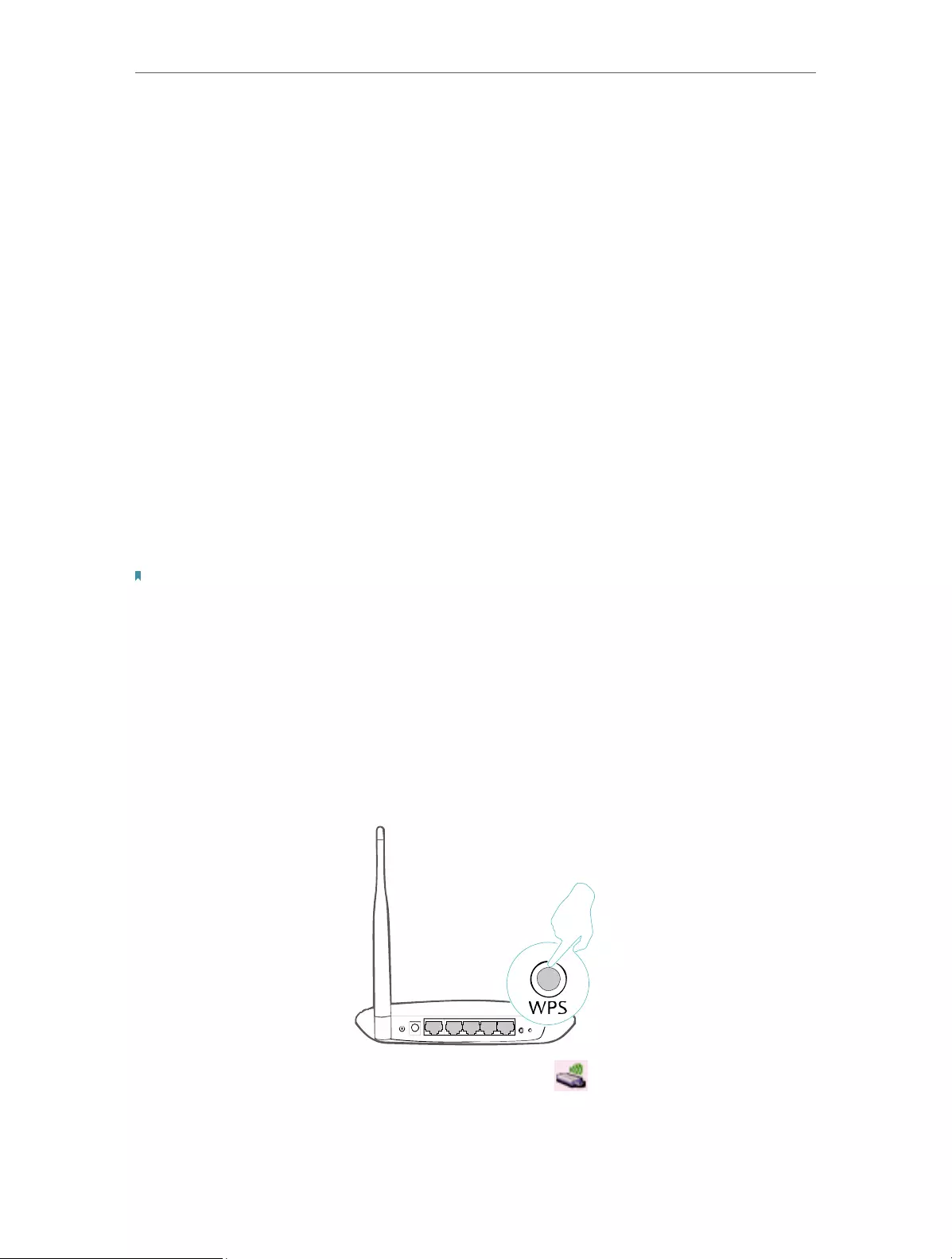
2. Within 2 minutes, click the TP-Link Utility icon on the menu bar, and then
click WPS at the bottom of the network list.

14
Chapter 4 macOS
3. Click PBC.
4. The following screen indicates a successful connection by WPS. Click OK.
• PIN
1. Click the TP-Link Utility icon on the menu bar, and then click WPS at the
bottom of the network list.

15
Chapter 4 macOS
2. Click PIN.
3. Within 2 minutes, log in to the web management page of your router or AP. Go
to its WPS page, enter the PIN of the adapter in the corresponding field and
click Connect.
4. The following screen indicates a successful connection by WPS. Click OK.

16
Chapter 4 macOS
4. 3. Management
TP-Link Utility provides you with an easy way to manage various connection
settings of your Wi-Fi network.
1. Click the TP-Link Utility icon on the menu bar, and then click Open
Wireless Utility at the bottom of the network list.
2. TP-Link Utility will pop up. Click the Profiles button to open the Profiles
screen.
3. The Profiles screen lets you manage different Wi-Fi connection settings as
profiles so that you can connect to your network easily.

17
Chapter 4 macOS
Preferred Networks displays the networks that you once connected to. The
networks’ status and information are displayed in the table.
• To join a Wi-Fi network
If you want to join a Wi-Fi network that is listed on the profile screen, select the
profile and click Apply in the bottom right corner.
• To manage an existing profile
If you want to change the wireless settings of an existing profile, select it and
then you can edit its Security and Password. If you want to delete a profile, select
it and click Remove.
4. 4. Uninstall Driver and Utility
1. Double click Uninstall.command in the downloaded folder.

18
Chapter 4 macOS
2. Enter the password of you computer and when the “Uninstall Complete”
message appears, the uninstallation is complete.

19
Appendix: Troubleshooting
T1. What should I do if the adapter is not detected?
• Make sure the adapter is securely connected to the computer.
• Make sure you meet the minimum system requirements for the adapter and that the
latest Windows and system updates are installed on your computer.
• Make sure you use the latest driver for your specific adapter. The latest drivers can
be found at https://www.tp-link.com/download-center.
• Try a different USB port on the computer.
• Try restarting the computer or try using the adapter on a different computer.
T2. How to check if I have installed the driver for my adapter successfully
or not?
1. On your computer, please right click Computer icon and go to Manage;
2. Open the Device Manager and go to Network adapters, and then find the
corresponding TP-Link adapter, right click it and then go to Properties;

20
3. If you can see “This device is working properly.” in the red box, you have already
installed the driver successfully.
T3. What should I do if can’t connect to the Wi-Fi after installing the
driver?
• Refer to T2 to check if you have installed the driver for your adapter successfully .
• Make sure the adapter is securely connected to the computer.
• Disable the antivirus software and firewall, then try again.
• Try a different USB port on the computer.
• Restart your computer and try again.

21
• Re-install the driver and try again.
T4. How to find the hardware version of the adapter?
• The hardware version is printed on the product label on the package or the adapter.
There is a character string “Ver:X.Y” (for example, Ver:2.0) in the Serial Number field,
and the number X is the hardware version of the adapter.
• Visit https://www.tp-link.com/faq-46.html and follow the second method to find the
hardware version of the adapter.
For more detailed instructions:
• Can’t find the hardware version of the adapter: https://www.tp-link.com/faq-46.html
• Can’t find or join the wireless networks: https://www.tp-link.com/faq-2253.html
• Can’t install the driver: https://www.tp-link.com/faq-2252.html

FCC compliance information statement
Product Name: AC1300 Dual Antennas High Gain Wireless USB Adapter
Model Number: Archer T4U Plus
Responsible party:
TP-Link USA Corporation, d/b/a TP-Link North America, Inc.
Address: 145 South State College Blvd. Suite 400, Brea, CA 92821
Website: https://www.tp-link.com/us/
Tel: +1 626 333 0234
Fax: +1 909 527 6803
E-mail: sales.usa@tp-link.com
This equipment has been tested and found to comply with the limits for a Class
B digital device, pursuant to part 15 of the FCC Rules. These limits are designed
to provide reasonable protection against harmful interference in a residential
installation. This equipment generates, uses and can radiate radio frequency
energy and, if not installed and used in accordance with the instructions, may
cause harmful interference to radio communications. However, there is no
guarantee that interference will not occur in a particular installation. If this
equipment does cause harmful interference to radio or television reception,
which can be determined by turning the equipment off and on, the user is
encouraged to try to correct the interference by one or more of the following
measures:
• Reorient or relocate the receiving antenna.
• Increase the separation between the equipment and receiver.
• Connect the equipment into an outlet on a circuit different from that to which
the receiver is connected.
• Consult the dealer or an experienced radio/ TV technician for help.
This device complies with part 15 of the FCC Rules. Operation is subject to the
following two conditions:
1 ) This device may not cause harmful interference.
2 ) This device must accept any interference received, including interference
that may cause undesired operation.
Any changes or modifications not expressly approved by the party responsible
for compliance could void the user’s authority to operate the equipment.

Note: The manufacturer is not responsible for any radio or TV interference
caused by unauthorized modifications to this equipment. Such modifications
could void the user’s authority to operate the equipment.
FCC RF Radiation Exposure Statement:
This equipment complies with FCC radiation exposure limits set forth for
an uncontrolled environment. End users must follow the specific operating
instructions for satisfying RF exposure compliance. This transmitter must not
be co-located or operating in conjunction with any other antenna or transmitter.
This equipment has been SAR—evaluated for use in hand. SAR measurements
are based on a 5mm spacing from the body and that compliance is achieved at
that distance.
We, TP-Link USA Corporation, has determined that the equipment shown as
above has been shown to comply with the applicable technical standards, FCC
part 15. There is no unauthorized change is made in the equipment and the
equipment is properly maintained and operated.
Issue Date: 2020.06.23

CE Mark Warning
This is a class B product. In a domestic environment, this product may cause
radio interference, in which case the user may be required to take adequate
measures.
OPERATING FREQUENCY (the maximum transmitted power)
2400 MHz -2483.5 MHz(20dBm)
5150 MHz -5250 MHz(23dBm)
5250 MHz -5350 MHz (23dBm)
5470 MHz -5725 MHz (23dBm)
EU declaration of conformity
TP-Link hereby declares that the device is in compliance with the essential
requirements and other relevant provisions of directives 2014/53/EU, 2011/65/
EU and (EU)2015/863. The original EU declaration of conformity may be found at
https://www.tp-link.com/en/ce
RF Exposure Information
This device meets the EU requirements (2014/53/EU Article 3.1a) on the
limitation of exposure of the general public to electromagnetic fields by way of
health protection.
This device has been tested and meets the ICNIRP exposure guidelines and
the European Standard EN 62209-2. SAR is measured with this device at a
separation of 0.5 cm to the body, while transmitting at the highest certified
output power level in all frequency bands of this device. Carry this device at
least 0.5 cm away from your body to ensure exposure levels remain at or below
the as-tested levels.
National restrictions
Attention: This device may only be used indoors in all EU member states and
EFTA countries.
AT BE BG CH CY CZ DE DK
EE EL ES FI FR HR HU IE
IS IT LI LT LU LV MT NL
NO PL PT RO SE SI SK UK

Canadian Compliance Statement
This device contains licence-exempt transmitter(s)/receiver(s) that comply with
Innovation, Science and Economic Development Canada’s licence-exempt
RSS(s). Operation is subject to the following two conditions:
1 ) This device may not cause interference.
2 ) This device must accept any interference, including interference that may
cause undesired operation of the device.
L’émetteur/récepteur exempt de licence contenu dans le présent appareil est
conforme aux CNR d’Innovation, Sciences et Développement économique
Canada applicables aux appareils radio exempts de licence. L’exploitation est
autorisée aux deux conditions suivantes:
1 ) l’appareil ne doit pas produire de brouillage;
2 ) l’utilisateur de l’appareil doit accepter tout brouillage radioélectrique subi,
meme si le brouillage est susceptible d’en compromettre le fonctionnement.
Caution:
1 ) The device for operation in the band 5150–5250 MHz is only for indoor
use to reduce the potential for harmful interference to co-channel mobile
satellite systems;
DFS (Dynamic Frequency Selection) products that operate in the bands 5250-
5350 MHz, 5470-5600MHz, and 5650-5725MHz.
Avertissement:
1 ) Le dispositif fonctionnant dans la bande 5150-5250 MHz est réservé
uniquement pour une utilisation à l’intérieur afin de réduire les risques de
brouillage préjudiciable aux systèmes de satellites mobiles utilisant les
mêmes canaux;
Les produits utilisant la technique d’atténuation DFS (sélection dynamique des
fréquences) sur les bandes 5250- 5350 MHz, 5470-5600MHz et 5650-5725MHz.
Radiation Exposure Statement:
This EUT is compliance with SAR for general population/uncontrolled exposure
limits in RSS-102 and had been tested in accordance with the measurement
methods and procedures specified in IEEE 1528 and IEC 62209. This equipment
should be installed and operated with minimum distance 1.0 cm between the
radiator and your body. This device and its antenna(s) must not be co-located or
operating in conjunction with any other antenna or transmitter.
Industry Canada Statement
CAN ICES-3 (B)/NMB-3(B)

Korea Warning Statements
당해 무선설비는 운용중 전파혼신 가능성이 있음.
NCC Notice
注意!
依據 低功率電波輻射性電機管理辦法
第十二條 經型式認證合格之低功率射頻電機,非經許可,公司、商號或使用者均
不得擅自變更頻率、加大功率或變更原設計之特性或功能。
第十四條 低功率射頻電機之使用不得影響飛航安全及干擾合法通行;經發現有干
擾現象時,應立即停用,並改善至無干擾時方得繼續使用。前項合法通信,指依
電信規定作業之無線電信。低功率射頻電機需忍受合法通信或工業、科學以及醫
療用電波輻射性電機設備之干擾。
4.7.9.1應避免影響附近雷達系統之操作。
4.7.9.2高增益指向性天線只得應用於固定式點對點系統。
BSMI Notice
安全諮詢及注意事項
•請使用原裝電源供應器或只能按照本產品注明的電源類型使用本產品。
•清潔本產品之前請先拔掉電源線。請勿使用液體、噴霧清潔劑或濕布進行清
潔。
•注意防潮,請勿將水或其他液體潑灑到本產品上。
•插槽與開口供通風使用,以確保本產品的操作可靠並防止過熱,請勿堵塞或覆
蓋開口。
•請勿將本產品置放於靠近熱源的地方。除非有正常的通風,否則不可放在密閉
位置中。
•請不要私自拆開機殼或自行維修,如產品有故障請與原廠或代理商聯繫。
限用物質含有情況標示聲明書
產品元件
名稱
限用物質及其化學符號
鉛
Pb
鎘
Cd
汞
Hg
六價鉻
CrVI
多溴聯苯
PBB
多溴二苯醚
PBDE
PCB ○ ○ ○ ○ ○ ○
外殼 ○ ○ ○ ○ ○ ○
USB線 ○ ○ ○ ○ ○ ○
天線 ○ ○ ○ ○ ○ ○
備考1.“超出0.1wt%”及“超出0.01wt%”系指限用物質之百分比含量超出百分比含量基準
值。
備考2. “○”系指該項限用物質之百分比含量未超出百分比含量基準值。
Продукт сертифіковано згідно с правилами системи УкрСЕПРО
на відповідність вимогам нормативних документів та вимогам, що
передбачені чинними законодавчими актами України.
Safety Information
• Keep the device away from water, fire, humidity or hot environments.
• Do not attempt to disassemble, repair, or modify the device. If you need service,
please contact us.
• Do not use the device where wireless devices are not allowed.
• This USB Adapter can be powered only by computers that comply with Limited
Power Source(LPS).
Please read and follow the above safety information when operating the device.
We cannot guarantee that no accidents or damage will occur due to improper
use of the device. Please use this product with care and operate at your own risk.
Explanation of the symbols on the product label
Symbol Explanation
For indoor use only
RECYCLING
This product bears the selective sorting symbol for Waste electrical
and electronic equipment (WEEE). This means that this product must
be handled pursuant to European directive 2012/19/EU in order to be
recycled or dismantled to minimize its impact on the environment.
User has the choice to give his product to a competent recycling
organization or to the retailer when he buys a new electrical or
electronic equipment.
User Guide
AC1300 Dual Antennas High Gain Wireless USB Adapter
Archer T4U Plus
About This Guide
This guide is a complement to Quick Installation Guide. The Quick Installation Guide instructs you on quick installation, and this guide provides the product overview and detailed instructions for each steps.
When using this guide, please notice that features available of the adapter may vary by model and software version. It may also vary by region or ISP. All images, steps, and descriptions in this guide are only examples and may not reflect your actual experience.
Conventions
In this guide, the following conventions are used:
*Maximum wireless signal rates are the physical rates derived from IEEE Standard 802.11 specifications.
Actual wireless data throughput and wireless coverage, and number of connected devices are not guaranteed and will vary as a result of network conditions, AP limitations, and environmental factors, including building materials, obstacles, volume and density of traffic, and AP location.
*To ensure compatibility, you may need to update the adapter’s drivers after an OS update. You can find our latest drivers in the download center at tp-link.com/en/download-center.
*Use of MU-MIMO requires AP to also support MU-MIMO.
More Info
- The latest driver can be found at Download Center at https://www.tp-link.com/support.
- The Quick Installation Guide can be found where you find this guide or inside the package of the router.
- Specifications can be found on the product page at https://www.tp-link.com.
- A TP-Link Community is provided for you to discuss our products at https://community.tp-link.com.
- Our Technical Support contact information can be found at the Contact Technical Support page at https://www.tp-link.com/support.
Chapter 1 Get to Know About Your Adapter
This chapter introduces what the adapter can do and shows its appearance.
This chapter contains the following sections:
- Product Overview
- LED Status
1 1 Product Overview
TP-Link Wireless USB Adapter connects your computer to a Wi-Fi network for smooth HD video, voice streaming and online gaming.
- The high-gain antennas greatly enhance the reception and transmission signal strength of the USB adapter
- Utilizes 802.11ac standard and is backward compatible with 802.11a/b/g/n
- Supports WEP, WPA/WPA2/WPA3, WPA-PSK/ WPA2-PSK, WPA3-SAE
- Supports Windows
1 2 LED Status
You can check the adapter’s working status by following the LED explanation table.
| Status | Indication |
| On | The driver has been installed successfully. |
| Off | The driver is not installed. The adapter is not detected. |
Tips:
If the LED is off, try these troubleshooting tips:
- Check if the adapter is recognized and enabled or not. Refer to Appendix: Troubleshooting for detailed instructions.
- Remove and reinsert the adapter.
- Reinstall the software, if necessary.
Chapter 2 Use the Adapter
This chapter introduces how to install your adapter’s driver, use your adapter to join a wireless network, and uninstall your adapter in a Windows system. The adapter is equipped with a Setup Wizard, which can guide you through the installation process.
This chapter includes the following sections:
- Install Driver
- Join a Wireless Network
- Uninstall Driver
Before you start using your adapter, insert the adapter into a USB port on your computer via the provided USB cable.
2 1 Install Driver
- Insert the resource CD into your CD drive and run the Autorun.exe from the pop-up Autoplay window.
Note:
- You can also download the driver or check the new release at https://wwwtp-link.com/download-center.
- In some operating systems, the CD screen will pop up automatically. Otherwise, run the CD manually.
- Select Archer T4U Plus and follow the instructions to complete the installation.

Note:
- If you can’t install the driver successfully, disable the antivirus software and firewall, then try again.
- In Windows 7, if a Windows Security message pops up, refer to How to fix Windows 7 Security issue: https://www.tp-link.com/faq-2760.html.
- If an unknown publisher message pops up, select Yes to continue.
- If Windows User Account Control requires admin credentials, type user name and password of your Windows administrator account. .
2 2 Join a Wireless Network
You can join a wireless network via Windows built-in wireless utility. Follow the instructions below to use your computer system’s built-in wireless utility:
Click (Network icon) on the taskbar. Select the Wi-Fi network you want to join, and click Connect. Enter the network password when prompted.
2 3 Uninstall Driver
The software uninstallation steps vary a bit from different systems. Please follow the appropriate instructions for your Windows operating system:
- Windows 8/8 1/10/11
Go to Start menu to find the TP-Link application. Click Uninstall TP-Link Archer T4U Plus Driver, then follow the on-screen instructions to complete the uninstallation. - Windows 7
Go to Start > All Programs > TP-Link > Uninstall TP-Link Archer T4U Plus Driver.
Follow the on-screen instructions to complete the uninstallation.
Appendix: Troubleshooting
T1 What should I do if the adapter is not detected?
- Make sure the adapter is securely connected to the computer.
- Make sure you meet the minimum system requirements for the adapter and that the latest Windows and system updates are installed on your computer.
- Make sure you use the latest driver for your specific adapter. The latest drivers can be found at https://www.tp-link.com/download-center.
- Try a different USB port on the computer.
- Try restarting the computer or try using the adapter on a different computer.
T2 How to check if I have installed the driver for my adapter successfully or not?
- On your computer, please right click Computer icon and go to Manage;

- Open the Device Manager and go to Network adapters, and then find the corresponding TP-Link adapter, right click it and then go to Properties;

- If you can see “This device is working properly.” in the red box, you have already installed the driver successfully.


T3 What should I do if can’t connect to the Wi-Fi after installing the driver?
- Refer to T2 to check if you have installed the driver for your adapter successfully .
- Make sure the adapter is securely connected to the computer.
- Disable the antivirus software and firewall, then try again.
- Try a different USB port on the computer.
- Restart your computer and try again.
- Re-install the driver and try again.
T4 How to find the hardware version of the adapter?
- The hardware version is printed on the product label on the package or the adapter. There is a character string “Ver:X.Y” (for example, Ver:2.0) in the Serial Number field, and the number X is the hardware version of the adapter.

- Visit https://www.tp-link.com/faq-46.html and follow the second method to find the hardware version of the adapter.

For more detailed instructions:
- Can’t find the hardware version of the adapter: https://www.tp-link.com/faq-46.html
- Can’t find or join the wireless networks: https://www.tp-link.com/faq-2253.html
- Can’t install the driver: https://www.tp-link.com/faq-2252.html
FCC compliance information statement
Product Name: AC1300 Dual Antennas High Gain Wireless USB Adapter
Model Number: Archer T4U Plus
Responsible party:
TP-Link USA Corporation
Address: 10 Mauchly, Irvine, CA 92618
Website: https://www.tp-link.com/us/
Tel: +1 626 333 0234
Fax: +1 909 527 6804
E-mail: [email protected]
This equipment has been tested and found to comply with the limits for a Class B digital device, pursuant to part 15 of the FCC Rules. These limits are designed to provide reasonable protection against harmful interference in a residential installation. This equipment generates, uses and can radiate radio frequency energy and, if not installed and used in accordance with the instructions, may cause harmful interference to radio communications. However, there is no guarantee that interference will not occur in a particular installation. If this equipment does cause harmful interference to radio or television reception, which can be determined by turning the equipment off and on, the user is encouraged to try to correct the interference by one or more of the following measures:
- Reorient or relocate the receiving antenna.
- Increase the separation between the equipment and receiver.
- Connect the equipment into an outlet on a circuit different from that to which the receiver is connected.
- Consult the dealer or an experienced radio/ TV technician for help.
This device complies with part 15 of the FCC Rules. Operation is subject to the following two conditions:
- This device may not cause harmful interference.
- This device must accept any interference received, including interference that may cause undesired operation.
Any changes or modifications not expressly approved by the party responsible for compliance could void the user’s authority to operate the equipment.
Note: The manufacturer is not responsible for any radio or TV interference caused by unauthorized modifications to this equipment. Such modifications could void the user’s authority to operate the equipment.
FCC RF Radiation Exposure Statement:
This equipment complies with FCC radiation exposure limits set forth for an uncontrolled environment. End users must follow the specific operating instructions for satisfying RF exposure compliance. This transmitter must not be co-located or operating in conjunction with any other antenna or transmitter. This equipment has been SAR-evaluated for use in hand. SAR measurements are based on a 5mm spacing from the body and that compliance is achieved at that distance.
We, TP-Link USA Corporation, has determined that the equipment shown as above has been shown to comply with the applicable technical standards, FCC part 15. There is no unauthorized change is made in the equipment and the equipment is properly maintained and operated.
CE Mark Warning
This is a class B product. In a domestic environment, this product may cause radio interference, in which case the user may be required to take adequate measures.
OPERATING FREQUENCY (the maximum transmitted power)
2400 MHz -2483.5 MHz(20dBm)
5150 MHz -5250 MHz(23dBm)
5250 MHz -5350 MHz (23dBm)
5470 MHz -5725 MHz (23dBm)
EU declaration of conformity
TP-Link hereby declares that the device is in compliance with the essential requirements and other relevant provisions of directives 2014/53/EU, 2011/65/ EU and (EU)2015/863. The original EU declaration of conformity may be found at https://www.tp-link.com/en/ce
TP-Link hereby declares that the device is in compliance with the essential requirements and other relevant provisions of the Radio Equipment Regulations 2017.
The original UK declaration of conformity may be found at https://www.tp-link.com/support/ukca/
RF Exposure Information
This device meets the EU requirements (2014/53/EU Article 3.1a) on the limitation of exposure of the general public to electromagnetic fields by way of health protection.
This device has been tested and meets the ICNIRP exposure guidelines and the European Standard EN 62209-2. SAR is measured with this device at a separation of 0.5 cm to the body, while transmitting at the highest certified output power level in all frequency bands of this device. Carry this device at least 0.5 cm away from your body to ensure exposure levels remain at or below the as-tested levels.
National restrictions
Frequency band: 5150 — 5250 MHz:
Indoor use: Inside buildings only. Installations and use inside road vehicles and train carriages are not permitted. Limited outdoor use: If used outdoors, equipment shall not be attached to a fixed installation or to the external body of road vehicles, a fixed infrastructure or a fixed outdoor antenna. Use by unmanned aircraft systems (UAS) is limited to within the 5170 — 5250 MHz band.
Frequency band: 5250 — 5350 MHz:
Indoor use: Inside buildings only. Installations and use in road vehicles, trains and aircraft are not permitted. Outdoor use is not permitted.
Frequency band: 5470 — 5725 MHz:
Installations and use in road vehicles, trains and aircraft and use for unmanned aircraft systems (UAS) are not permitted.
| AT | BE | BG | CH | CY | CZ | DE | DK | |
| EE | EL | ES | Fl | FR | HR | HU | IE | |
| IS | IT | LI | LT | LU | LV | MT | NL | |
| NO | PL | PT | RO | SE | SI | SK | UK(NI) |
Attention: This device may only be used indoors in Great Britain.
| UK |
Canadian Compliance Statement
This device contains licence-exempt transmitter(s)/receiver(s) that comply with Innovation, Science and Economic Development Canada’s licence-exempt RSS(s). Operation is subject to the following two conditions:
- This device may not cause interference.
- This device must accept any interference, including interference that may cause undesired operation of the device.
Caution:
- The device for operation in the band 5150–5250 MHz is only for indoor use to reduce the potential for harmful interference to co-channel mobile satellite systems;
DFS (Dynamic Frequency Selection) products that operate in the bands 5250- 5350 MHz, 5470-5600MHz, and 5650-5725MHz.
Radiation Exposure Statement:
This EUT is compliance with SAR for general population/uncontrolled exposure limits in RSS-102 and had been tested in accordance with the measurement methods and procedures specified in IEEE 1528 and IEC 62209. This equipment should be installed and operated with minimum distance 5 mm between the radiator and your body. This device and its antenna(s) must not be co-located or operating in conjunction with any other antenna or transmitter.
Safety Information
- Keep the device away from water, fire, humidity or hot environments.
- Do not attempt to disassemble, repair, or modify the device. If you need service, please contact us.
- Do not use the device where wireless devices are not allowed.
- This USB Adapter can be powered only by computers that comply with Limited Power Source(LPS).
Operating Temperature: 0°C~40°C (32°F~104°F)
Please read and follow the above safety information when operating the device.
We cannot guarantee that no accidents or damage will occur due to improper use of the device. Please use this product with care and operate at your own risk. Attention: This device may only be used indoors in all EU member states and EFTA countries.
This product uses radios and other components that emit electromagnetic fields. Electromagnetic fields and magnets may interfere with pacemakers and other implanted medical devices. Always keep the product and its power adapter more than 15 cm (6 inches) away from any pacemakers or other implanted medical devices. If you suspect your product is interfering with your pacemaker or any other implanted medical device, turn off your product and consult your physician for information specific to your medical device.
Explanation of the symbols on the product label
Issue Date: 2023.02.24
Documents / Resources
| tp-link AC1300 Dual Antennas High Gain Wireless USB Adapter Archer T4U Plus [pdf] User Guide T4UPLUSV2, 2AXJ4T4UPLUSV2, AC1300 Dual Antennas High Gain Wireless USB Adapter Archer T4U Plus, AC1300, Dual Antennas High Gain Wireless USB Adapter Archer T4U Plus, Dual Antennas High Gain Wireless USB Adapter, Wireless USB Adapter, Archer T4U Plus, Dual Antennas Wireless USB Adapter, Antennas Wireless USB Adapter, USB Adapter, Wireless Adapter, Adapter |
References
-
TP-Link: Your Smart Home, Simplified
-
CE Regulatory Compliance | TP-Link
-
Update System Patches if Windows 7 cannot verify the digital signature of TP-Link driver software
-
Download Center | TP-Link
-
TP-Link: Your Smart Home, Simplified
Documents — tp-link – AC1300,T4UPLUSV2,2AXJ4T4UPLUSV2
| [pdf] Decleration of Conformity 郭 嘉 Archer T4U Plus FCC Declaration of Authorization TP Link Corporation Limited T4UPLUSV2 2AXJ4T4UPLUSV2 t4uplusv2 Declaration of Authorization We Name: TP-Link Corporation Limited Address: Room 901, 9/F., New East … authorized to apply for Certification of the following product s : Product: FCC ID: Model: Brand: AC1300 Dual Antennas High Gain Wireless USB Adapter 2AXJ4T4UPLUSV2 Archer T4U Plus tp-link Sincerel… lang:tl score:45 filesize: 526.17 K page_count: 1 document date: 2023-01-13 |
|
| [pdf] Guide 郭 嘉 Archer T4U Plus Non SDR letter TP Link Corporation Limited T4UPLUSV2 2AXJ4T4UPLUSV2 t4uplusv2 Non-SDR Software Defined Radio Cover Letter Refer to KDB 442812 D01 SDR apps Guide v02r03. The fol … SDR No Conclusion: According to the above questions reply, we can confirm this device FCC ID: 2AXJ4T4UPLUSV2 IC: 26583-T4UPLUSV2 must be a Non-SDR device. __________________ Name: Sarah Wang Posit… lang:en score:45 filesize: 660.62 K page_count: 2 document date: 2023-01-13 |
|
| [pdf] Guide tp link Whole Home Wi Fi System Deco M5 User Guide AC1300 637cc8216cd511c302de2464 manualfiles yappe in manuals ||| Paint Your Home in Wi-FiTM User Guide AC1300 Whole-Home Wi-Fi System Deco M5 1910012013 REV1.0.0 Contents About This Guide 1 Appearance 2 Set Up Your Deco 3 Dashboard 5 Wi-Fi Settings 6 Parental Controls 7 Antivirus 8 QoS 9 Advanced Features 10 Online Upgrade 11 Managers 12 Authentication … lang:en score:45 filesize: 450.26 K page_count: 20 document date: 2021-06-29 |
|
| [pdf] User Manual Installation Guide Troubleshooting Guide Guide Archer T4U Plus User Manual Rev01 TP Link Corporation Limited T4UPLUSV2 2AXJ4T4UPLUSV2 t4uplusv2 User Guide AC1300 Dual Antennas High Gain Wireless USB Adapter Archer T4U Plus 2023 TP-Link 1910013362 REV2.0.1 Contents About This Guide . . . . . . . . . . . . . . . . . . . . . . . . . . . . . . . . . . . . . . . . . . . . . . . . 1 Chapter 1. Get to Know About Your Adapter . . . . . . . . . …. lang:en score:42 filesize: 1.22 M page_count: 18 document date: 2023-02-27 |
|
| [pdf]
|
|
| [pdf] Test Report 2211RSU036 U3 FCC DFS Test Report Rev01 TP Link Corporation Limited T4UPLUSV2 2AXJ4T4UPLUSV2 t4uplusv2 MRT Technology Suzhou Co., Ltd Phone: 86-512-66308358 Web: www.mrt-cert.com Report No.: 2211RSU036-U3 Report Version: V01 Issue Date: 2023-01-31 DFS MEASUREMENT REPORT FCC ID: 2AXJ4T4UPLUSV2 Applicant: TP-Link Corporation Limited Product: AC1300 Dual Antennas High Gain Wireless USB Ada… lang:en score:41 filesize: 776.4 K page_count: 26 document date: 2023-02-22 |
|
| [pdf] Installation Guide Guide User Guide trovaprezzi it REV1 0 1910012477 AC1300 Mini Wireless MU MIMO USB Adapter Archer T3U Questo manuale d istruzione è fornito da tp link archer t3u manuali ||| Questo manuale d istruzione fornito da trovaprezzi.it. Scopri tutte le offerte per TP-Link Archer T3U o cerca il tuo prodotto tra le migliori offerte di Schede di Rete User Guide AC1300 Mini Wireless MU-MIMO USB Adapter Archer T3U REV1.0.0 1910012477 Contents About This Guide . . . . . . . . . . … lang:en score:39 filesize: 3.23 M page_count: 32 document date: 2018-09-27 |
|
| [pdf] Installation Guide Guide User Guide Tradeinn The latest driver can be found at Download Center tp-link support • Quick Installation (QIG) where you find this guide eng_tp-link_manu_ARCHERT6E cache tradeinn images pdf manuales 1910012788_Archer T6E_UG_REV2 0 1 static 2020 202011 20201116 TP-Link AC1300 Wireless Dual Band PCI Express Adapter Archer T6E ©2020 REV2 1910012788 User Guide AC1300 Wireless Dual Band PCI Express Adapter Archer T6E 2020 TP-Link REV2.0.1 1910012788 Contents About This Guide . . . . . . . . . . . . . . . . . . . . . . . . . . . . . . . . . . . . . . . . . . . . . . . . . . 1 Chapter 1. Get to Know About Your Adapter . . . . . . . . . . . . . …. lang:en score:39 filesize: 1021.15 K page_count: 18 document date: 2020-09-28 |
|
| [pdf] User Manual Guide User Guide Whole Home Mesh Wi-Fi System Seamless Roaming | Parental Controls Antivirus AC1300 Deco M5 1910012954 REV3 0 ©2020 TP-Link d2b48e05-0161-49e6-b934-f83ec1dd012b cdn productreview au document entry-product-manual 1910012954_Deco M5_UG_V1 static tp-link 2021 202104 20210429 This guide provides a brief introduction to and the app as well regulatory information Whole Home Mesh Wi-Fi System Seamless Roaming Parental Controls Antivirus User Guide AC1300 Whole Home Mesh Wi-Fi System Deco M5 1910012954 REV3.0.0 2020 TP-Link Contents About This Guide 1 Appearance 2 Set Up Your Deco 3 Add More Decos 6 Dashboard 7 Check Deco Status 8 Manage Connected D… lang:en score:38 filesize: 6.72 M page_count: 41 document date: 2021-04-28 |
|
| [pdf] Test Report 2211RSU036 U1 FCC DTS Test Report Part1 TP Link Corporation Limited T4UPLUSV2 2AXJ4T4UPLUSV2 t4uplusv2 MRT Technology Suzhou Co., Ltd Phone: 86-512-66308358 Web: www.mrt-cert.com Report No.: 2211RSU036-U1 Report Version: V01 Issue Date: 2023-01-31 RF MEASUREMENT REPORT FCC ID: 2AXJ4T4UPLUSV2 Applicant: TP-Link Corporation Limited Product: AC1300 Dual Antennas High Gain Wireless USB Ada… lang:en score:37 filesize: 5.31 M page_count: 45 document date: 2023-02-08 |
|
| [pdf] Guide Untitled 2019 SOHO TP Link Guide English static tp link 201911 20191129 ||| Contents Whole Home Mesh Wi-Fi System / 01 04 / Deco X60 04 / Deco X20 05 / Deco M9 Plus 06 / Deco M5 06 / Deco P9 06 / Deco M4 07 / Deco E4 07 / Deco E3 08 / Deco M3 08 / Deco M3W AX3000 Whole Home Mesh Wi-Fi System AX1800 Whole Home Mesh Wi-Fi System AC2200 Smart Home Mesh Wi-Fi System AC1300 … lang:de score:36 filesize: 13.24 M page_count: 57 document date: 2019-11-29 |
|
| [pdf] Test Report 2211RSU036 U2 FCC NII Test Report Part1 TP Link Corporation Limited T4UPLUSV2 2AXJ4T4UPLUSV2 t4uplusv2 MRT Technology Suzhou Co., Ltd Phone: 86-512-66308358 Web: www.mrt-cert.com Report No.: 2211RSU036-U2 Report Version: V01 Issue Date: 2023-01-31 RF MEASUREMENT REPORT FCC ID: 2AXJ4T4UPLUSV2 Applicant: TP-Link Corporation Limited Product: AC1300 Dual Antennas High Gain Wireless USB Ada… lang:en score:35 filesize: 5.44 M page_count: 52 document date: 2023-02-08 |
|
| [pdf] Test Report SAR Rating 2211RSU036 U4 FCC SAR Test Report Rev01 TP Link Corporation Limited T4UPLUSV2 2AXJ4T4UPLUSV2 t4uplusv2 MRT Technology Suzhou Co., Ltd Phone: 86-512-66308358 Web: www.mrt-cert.com Report No.: 2211RSU036-U4 Report Version: V01 Issue Date: 2023-01-31 SAR MEASUREMENT REPORT FCC ID: 2AXJ4T4UPLUSV2 Applicant: TP-Link Corporation Limited Product: AC1300 Dual Antennas High Gain Wireless USB Ada… lang:en score:35 filesize: 2.01 M page_count: 75 document date: 2023-02-08 |
|
| [pdf] Instructions Specifications Guide Decleration of Conformity Archer T4U Bol the instructions may cause harmf ul interference to radio communications However there is no guarantee that will not occur in a particular installation If this equipment does harmful or television reception which can be determined by turning Follow on screen complete uninstallation Page 25 AC1300 Wireless Dual Band USB Adapter User Guide 17 5054230928608 EU V2 UG 847e63bddd73659a834e4180511e4a38801a s bol imgbase0 imagebase3 bijsluiter static tp link res down doc gzhls at blob ldb 8 f 6 9 80 Archer T4U AC1300 Wireless Dual Band USB Adapter REV3.0.0 1910011666 COPYRIGHT TRADEMARKS Specifications are subject to change without notice. is a registered trademark of TP-LINK TECHNOLOGIES CO., LTD. Other brands and product names are trademarks or registered trademarks of their respectiv… lang:en score:34 filesize: 1.93 M page_count: 43 document date: 2016-04-11 |
|
| [pdf] Guide Paint Your Home in Wi Fi TP Link User Guide ™ AC1300 Whole System Deco M5 1910012209 REV1 1 0 This guide provides a brief introduction to and the app as well regulatory information Please note that features of V1 UG 1605012495 static tp link lancentrum eu tovar Paint Your Home in Wi-FiTM User Guide AC1300 Whole-Home Wi-Fi System Deco M5 1910012209 REV1.1.0 Contents About This Guide 1 Appearance 2 Set Up Your Deco 3 Dashboard 5 Wi-Fi Settings 6 Parental Controls 7 Antivirus 8 QoS 9 Advanced Features10 Online Upgrade13 Managers14 Authentication13 About… lang:en score:34 filesize: 5.92 M page_count: 23 document date: 2017-07-14 |
|
| [pdf] Guide Catálogos SOHO TP Link España 8392501152 2022 Product Guide English 2203 online static tp link upload soho 202209 20220906 ||| CORPORATE PROFILE TP-Link serves as the network backbone for homes and businesses worldwide. With h … e Cover up to 4,500 ft2 / 420 m2 3-pack Fast Ethernet Ports 2 10/100 Mbps Ethernet Ports Deco M5 AC1300 Whole Home Mesh Wi-Fi System AC1300 Dual Band Wi-Fi 867 Mbps 5GHz 400 Mbps 2.4 GHz Broad… lang:en score:34 filesize: 11.04 M page_count: 53 document date: 2022-04-13 |
|
| [pdf] Installation Guide Guide Catalog User Guide nowraelectronics au ©2018 TP Link REV1 0 1910012477 AC1300 Mini Wireless MU MIMO USB Adapter Archer T3U 4348 product catalog ||| User Guide AC1300 Mini Wireless MU-MIMO USB Adapter Archer T3U 2018 TP-Link REV1.0.0 1910012477 Contents About This Guide . . . . . . . . . . . . . . . . . . . . . . . . . . . . . . . . . . . . . . . . . . . . . . . . . . . 1 Chapter 1. Get to Know About Your Adapter . . . . . . . . . . . . . . . … lang:en score:34 filesize: 3.23 M page_count: 31 document date: 2020-09-28 |
|
| [pdf] Confidentiality Request Letter 郭 嘉 Archer T4U Plus FCC Confidentiality Request Letter TP Link Corporation Limited T4UPLUSV2 2AXJ4T4UPLUSV2 t4uplusv2 Confidentiality Request Letter Federal Communications Commission Authorization and Evaluation Division FCC ID: 2AXJ4T4UPLUSV2 Confidentiality Request Pursuant to Sections 0.457 and 0.459 of the Commission s Rules, we hereby request confidential treatment of information accompanying this application … lang:en score:32 filesize: 525.27 K page_count: 1 document date: 2023-01-13 |
|
| [pdf] Guide Accessories Wi-Fi Routers TP-Link has always been committed to researching the world’s cutting-edge emerging technologies We strive 【Small Size】2020 SOHO Product Guide static tp-link 2020 202011 20201125 CORPORATE PROFILE Founded in 1996, TP-Link is a global provider of reliable networking devices and … igabit Ports Per Unit Built-in Smart Hub Connects and Controls All Your Smart Home Devices Deco M5 AC1300 Whole Home Mesh Wi-Fi System AC1300 Dual Band Wi-Fi 867 Mbps 5GHz 400 Mbps 2.4 GHz Broad… lang:en score:31 filesize: 7.95 M page_count: 54 document date: 2020-11-24 |
|
| [pdf] Installation Guide Guide Usmerjevalnik brezžični mrežni sistem TP Link Deco P9 WiFi5 802 11ac AC1300 867Mbps dualband 2xLAN 4x notranja antena 3 pack ponudba izdelka 4 days ago — · 1 Quick Installation Guide OTHERS System Requirements Android or later usmerjevalnik brezzicni mrezni tp link deco p9 wifi5 ac1300 867mbps 2xlan de molek si srsltid AfmBOoorGxz6Fo83Avv rf1LTi5m6VjBHjKutUc ETCgyWhttjI7h4Xr ||| Datum: 28.01.2025 slika je simbolicna MOLEK.SI d.o.o. Vrtnarija 3, 1360 Vrhnika Davcna st.: SI67074499 Telefon: 070 260 000 E-mail: prodaja molek.si WWW: www.www.molek.si Usmerjevalnik brezzicni mrezni sistem TP-Link Deco P9 WiFi5 802.11ac AC1300 867Mbps dualband 2xLAN 4x notranja antena Deco P9… lang:en score:30 filesize: 180.48 K page_count: 2 document date: 2025-01-28 |
|
| [pdf] User Manual Guide Manual Deco M5 AC1300 TP Link 1 pack Wi Fi 5 ▻ Mesh система купить в GEEK MD geek md index route product lang ru id 2395 ||| Whole Home Mesh Wi-Fi System Seamless Roaming Parental Controls Antivirus User Guide AC1300 Whole Home Mesh Wi-Fi System Deco M5 1910012954 REV3.0.0 2020 TP-Link Contents About This Guide 1 Appearance 2 Set Up Your Deco 3 Add More Decos 6 Dashboard 7 Check Deco Status 8 Manage Connected Device… lang:en score:29 filesize: 1003.79 K page_count: 41 document date: 2022-06-22 |
|
| [pdf] User Manual Installation Guide Guide Manual Archer T3U TP Link AC1300 Wi Fi 5 ▻ адаптер USB купить в GEEK MD geek md index route product lang ru id 1650 ||| User Guide AC1300 Mini Wireless MU-MIMO USB Adapter Archer T3U REV1.0.0 1910012477 Contents About This Guide . . . . . . . . . . . . . . . . . . . . . . . . . . . . . . . . . . . . . . . . . . . . . . . . . . . 1 Chapter 1. Get to Know About Your Adapter . . . . . . . . . . . . . . . . . . . . . …. lang:en score:29 filesize: 533.01 K page_count: 32 document date: 2022-06-09 |
|
| [pdf] User Manual Installation Guide Guide Manual T3U Plus TP Link Archer AC1300 Wi Fi 5 ▻ адаптер USB купить в GEEK MD geek md index route product lang ru id 1651 ||| User Guide AC1300 High Gain Wireless Dual Band USB Adapter Archer T3U Plus REV1.0.0 1910012742 Contents About This Guide . . . . . . . . . . . . . . . . . . . . . . . . . . . . . . . . . . . . . . . . . . . . . . . . 1 Chapter 1. Get to Know About Your Adapter . . . . . . . . . . . . . . . . . . …. lang:en score:29 filesize: 420.17 K page_count: 30 document date: 2022-06-09 |
|
| [pdf] User Manual 14 Users Manual part2 TP Link Technologies Co Ltd M5V32 AC1300 Whole Home Mesh Wi Fi System TE7M5V32 m5v32 Parental Controls Parental Controls allows you to filter content, limit time spent online and check … to or disconnect from Deco 31 Authentication FCC compliance information statement Product Name: AC1300 Whole Home Mesh Wi-Fi System Model Number: Deco M5 Component Name I.T.E. POWER SUPPLY Mode… lang:en score:29 filesize: 2.91 M page_count: 18 document date: 2021-07-30 |
|
| [pdf] User Manual Installation Guide Guide 14 Users Manual Rev1 TP Link Corporation Limited T3UNANO AC1300 Nano Wireless MU MIMO USB Adapter 2AXJ4T3UNANO t3unano User Guide AC1300 Nano Wireless MU-MIMO USB Adapter Archer T3U Nano 2021 TP-Link REV1.0.0 1910012968 Contents About This Guide . . . . . . . . . . . . . . . . . . . . . . . . . . . . . . . . . . . . . . . . . . . . . . . . 1 Chapter 1. Get to Know About Your Adapter . . . . . . . . . . . . . . . … lang:en score:29 filesize: 2.94 M page_count: 29 document date: 2021-09-08 |
|
| [pdf] User Manual Installation Guide Guide User Manual Rev01 TP Link Corporation Limited T4UV5 AC1300 High Gain Wireless Dual Band USB Adapter 2AXJ4T4UV5 t4uv5 User Guide AC1300 High Gain Wireless Dual Band USB Adapter Archer T4U REV1.0.0 1910013290 Contents Chapter 1. About This Guide . . . . . . . . . . . . . . . . . . . . . . . . . . . . . . . . . . . . .1 Chapter 2. Get to Know About Your Adapter . . . . . . . . . . . . . . . . . . . . . .2 1. 1. Pro… lang:en score:29 filesize: 2.38 M page_count: 29 document date: 2023-03-18 |
|
| [pdf] User Manual Guide User Manual TP Link Technologies Co Ltd P7 AC1300 AV600 Whole Home Hybrid Mesh Wi Fi System TE7P7 p7 Whole Home Hybrid Mesh Wi-Fi System Seamless Roaming Parental Controls Antivirus Powerline User Guide AC1300 AV600 Whole Home Hybrid Mesh Wi-Fi System Deco P7 1910012360 REV1.0.0 Contents About This Guide1 Appearance 2 Set Up Your Deco3 Dashboard 5 Wi-Fi Settings6 Parental Controls7 Antivi… lang:en score:29 filesize: 977.36 K page_count: 24 document date: 2019-03-12 |
|
| [pdf] User Manual Guide User Manual TP Link Technologies Co Ltd P7 AC1300 AV600 Whole Home Hybrid Mesh Wi Fi System TE7P7 p7 Whole Home Hybrid Mesh Wi-Fi System Seamless Roaming Parental Controls Antivirus Powerline User Guide AC1300 AV600 Whole Home Hybrid Mesh Wi-Fi System Deco P7 1910012360 REV1.0.0 Contents About This Guide1 Appearance 2 Set Up Your Deco3 Dashboard 5 Wi-Fi Settings6 Parental Controls7 Antivi… lang:en score:29 filesize: 977.36 K page_count: 24 document date: 2019-03-12 |
|
| [pdf] User Manual Installation Guide Guide 14 User Manual Rev1 TP Link Technologies Co Ltd T6EV2 AC1300 Wireless Dual Band PCI Express Adapter TE7T6EV2 t6ev2 User Guide AC1300 Wireless Dual Band PCI Express Adapter Archer T6E REV2.0.1 1910012788 Contents About This Guide . . . . . . . . . . . . . . . . . . . . . . . . . . . . . . . . . . . . . . . . . . . . . . . . . . . 1 Chapter 1. Get to Know About Your Adapter . . . . . . . . . . . . . . . . . . . … lang:en score:29 filesize: 1.68 M page_count: 22 document date: 2020-05-15 |
|
| [pdf] User Manual Installation Guide Guide 14 User Manual TP Link Technologies Co Ltd T3UPLUS AC1300 High Gain Wireless Dual Band USB Adapter TE7T3UPLUS t3uplus User Guide AC1300 High Gain Wireless Dual Band USB Adapter Archer T3U Plus REV1.0.0 1910012742 Contents Chapter 1. About This Guide . . . . . . . . . . . . . . . . . . . . . . . . . . . . . . . . . . . . 1 Chapter 2. Get to Know About Your Adapter . . . . . . . . . . . . . . . . . . . . 2 1. 1. P… lang:en score:28 filesize: 3.08 M page_count: 30 document date: 2020-01-09 |
|
| [pdf] User Manual Installation Guide Guide 14 User Manual TP Link Technologies Co Ltd T4UPLUS AC1300 Dual Antennas High Gain Wireless USB Adapter TE7T4UPLUS t4uplus User Guide AC1300 Dual Antennas High Gain Wireless USB Adapter Archer T4U Plus REV1.0.0 1910012840 Contents About This Guide . . . . . . . . . . . . . . . . . . . . . . . . . . . . . . . . . . . . . . . . . . . . . . . . 1 Chapter 1. Get to Know About Your Adapter . . . . . . . . . . . . . . . . …. lang:en score:28 filesize: 2.82 M page_count: 29 document date: 2020-07-01 |
|
| [pdf] User Manual Installation Guide Troubleshooting Guide Guide User Manual Part 2 TP Link Systems Inc T5UPLUS AC1300 Dual Antennas High Gain Wireless USB Adapter 2BH7FT5UPLUS t5uplus User Guide AC1300 Dual Antennas High Gain Wireless USB Adapter Archer T5U Plus 2025 TP-Link 1910013916 REV1.0.0 Contents Chapter 1. About This Guide . . . . . . . . . . . . . . . . . . . . . . . . . . . . . . . . . . . . 1 Chapter 2. Get to Know About Your Adapter . . . . . . . . . . . . . . . …. lang:en score:28 filesize: 1.55 M page_count: 19 document date: 2025-01-20 |
|
| [pdf] User Manual Guide 5 Users Manual User TP Link Technologies Co Ltd M5V3 AC1300 Whole Home Mesh Wi Fi System TE7M5V3 m5v3 Whole Home Mesh Wi-Fi System Seamless Roaming Parental Controls Antivirus User Guide AC1300 Whole Home Mesh Wi-Fi System Deco M5 1910012596 REV2.1.0 Contents About This Guide 1 Appearance 2 Set Up Your Deco 3 Dashboard 5 Overview 6 Shortcut 8 Automation 9 Wi-Fi Settings10 Internet Speed Te… lang:en score:28 filesize: 1.37 M page_count: 35 document date: 2019-10-25 |
|
| [pdf] User Manual Instructions Specifications manual TP LINK AC1300 Wireless Dual Band PCI Express Adapter Internal WLAN 867 Mbit s Online Hardware mmo 79344021 1590050991 1277 7577 onlinehardware net 2022 12 ||| Archer T6E AC1300 Wireless Dual Band PCI Express Adapter Archer T8E AC1750 Wireless Dual Band PCI Express Adapter Archer T9E AC1900 Wireless Dual Band PCI Express Adapter Rev: 1.1.0 1910011548 COPYRIGHT TRADEMARKS Specifications are subject to change without notice. is a registered trademark o… lang:en score:28 filesize: 2.44 M page_count: 59 document date: 2023-01-27 |
|
| [pdf] User Manual Installation Guide Guide Archer T3U User Manual Rev01 TP Link Technologies Co Ltd AC1300 Mini Wireless MU MIMO USB Adapter TE7T3U t3u User Guide AC1300 Mini Wireless MU-MIMO USB Adapter Archer T3U REV1.0.0 1910012477 Contents About This Guide . . . . . . . . . . . . . . . . . . . . . . . . . . . . . . . . . . . . . . . . . . . . . . . . . . . 1 Chapter 1. Get to Know About Your Adapter . . . . . . . . . . . . . . . . . . . . . …. lang:en score:28 filesize: 3.35 M page_count: 32 document date: 2019-04-04 |
|
| [pdf] User Manual Installation Guide Guide 14 FCC Users Manual TP Link Technologies Co Ltd T4UV32 AC1300 High Gain Wireless MU MIMO USB Adapter TE7T4UV32 t4uv32 User Guide AC1300 High Gain Wireless MU-MIMO USB Adapter Archer T4U REV3.2.0 1910012228 Contents About This Guide . . . . . . . . . . . . . . . . . . . . . . . . . . . . . . . . . . . . . . . . . . . . . . . . 1 Chapter 1. Get to Know About Your Adapter . . . . . . . . . . . . . . . . . . . . 2 1…. lang:en score:28 filesize: 1.51 M page_count: 36 document date: 2019-08-13 |
|
| [pdf]
|
|
| [pdf] User Manual Guide Untitled User Manual TP Link Technologies Co Ltd M5 AC1300 Whole Home Wi Fi System TE7M5 m5 User Guide AC1300 Whole Home Wi-Fi System Deco M5 REV1.0.0 1910012013 Contents About This Guide 1 Chapter 1 Get to Know Your Deco 2 1. 1. Product Overview. . . . . . . . . . . . . . . . . . . . . . . . . . . . . . . . . . . . . . . . . . . . . . . . . . . . . . . . . . . . 3 1. 2. Physical Ap… lang:nl score:28 filesize: 1.56 M page_count: 23 document date: 2017-12-23 |
|
| [pdf] User Manual Guide Untitled User Manual TP Link Technologies Co Ltd M5 AC1300 Whole Home Wi Fi System TE7M5 m5 User Guide AC1300 Whole Home Wi-Fi System Deco M5 REV1.0.0 1910012013 Contents About This Guide 1 Chapter 1 Get to Know Your Deco 2 1. 1. Product Overview. . . . . . . . . . . . . . . . . . . . . . . . . . . . . . . . . . . . . . . . . . . . . . . . . . . . . . . . . . . . 3 1. 2. Physical Ap… lang:nl score:28 filesize: 1.56 M page_count: 23 document date: 2017-12-23 |
|
| [pdf] User Manual Guide 14 Users Manual part1 TP Link Technologies Co Ltd M5V32 AC1300 Whole Home Mesh Wi Fi System TE7M5V32 m5v32 Whole Home Mesh Wi-Fi System Seamless Roaming Parental Controls Antivirus User Guide AC1300 Whole Home Mesh Wi-Fi System Deco M5 1910012954 REV3.0.0 2020 TP-Link Contents About This Guide 1 Appearance 2 Set Up Your Deco 3 Add More Decos 6 Dashboard 7 Check Deco Status 8 Manage Connected Device… lang:en score:28 filesize: 4.89 M page_count: 23 document date: 2021-07-30 |
|
| [pdf]
|
|
| [pdf]
|
|
| [pdf] Installation Guide Datasheet Guide AC1300 Mini Wireless MU MIMO USB Adapter Batna24 TP Link The Archer T3U receives Wi Fi signals on two separate bands for all your online needs Choose the 2 4GHz band up to 400Mbps of surfing Much smaller than a flash drive enjoy stable and fast wherever Quick Installation Guide Resource CD Missing 2020 10 19 — Size Big Performance Design 3 0 867Mbps Dual Band EU US 1 datasheet batna24 products DNXGFQPKLRMNGL discomp cz LINK Datasheets AC1300 Mini Wireless MU-MIMO USB Adapter Mini Size Big Performance Archer T3U 400Mbps 867Mbps Dual Band Wi-Fi MU-MIMO Mini Design USB 3.0 Highlights AC1300 Dual Band Wi-Fi The Archer T3U receives Wi-Fi signals on two separate bands for all your online needs. Choose the 2.4GHz band for up … lang:en score:27 filesize: 2.74 M page_count: 5 document date: 2020-09-28 |
|
| [pdf] Datasheet Обзор продукции Archer T4U RU TP Link AC1300 Беспроводной двухдиапазонный Wi‑Fi USB‑адаптер EU US 3 0 datasheet static tp link product overview 2021 202107 20210719 ||| Archer T4U AC1300 WiFi MU-MIMO USB Wi-Fi 400 867 / USB 3.0 Beamforming Wi-Fi AC1300 400 / 2,4 -, , 867 / 5 — -, . Beamforming , Beamforming Wi-Fi . 300 / 2,4 Archer T4U 400 / 2,4 867 / 5 Archer T4U AC1300 WiFi MU-MIMO USB TP-… lang:de score:26 filesize: 7.64 M page_count: 4 document date: 2021-07-19 |
|
| [pdf] Datasheet Datasheet TP LINK Sistema Wi Fi de malla para todo el hogar AC1300 DECO M5 1 Deco 2 0 static tp link 2020 202001 20200108 ||| Whole Home Mesh Wi-Fi System Seamless Roaming Parental Controls Antivirus AC1300 Whole Home Mesh Wi-Fi System Deco M5 Internet Highlights Fast. Stable. Everywhere. Deco is the simplest way to guarantee a strong Wi-Fi signal in every corner of your home. Enjoy fast, stable connections for an a… lang:en score:26 filesize: 826.91 K page_count: 4 document date: 2020-01-06 |
|
| [pdf] Installation Guide AC1300 Whole-Home Wi-Fi System Deco M5 1 0 static tp-link 2020 202010 20201021 Paint Your Home in Wi-FiTM AC1300 Whole-Home Wi-Fi System Deco M5 Highlights Wi-Fi, pure and simple. Your home is uniquely yours, and that includes how you use your Wi-Fi. With a Deco Whole-Home Wi-Fi System, you can connect wherever and however you like. Every corner in every room is covered plu… lang:en score:25 filesize: 1.53 M page_count: 4 document date: 2020-10-12 |
|
| [pdf]
|
|
| [pdf]
|
|
| [pdf] Datasheet Обзор продукции Archer T3U RU TP Link Nano AC1300 Мини Wi Fi MU MIMO USB‑адаптер EU US 1 0 datasheet static tp link 2020 202011 20201127 ||| Archer T3U AC1300 Wi-Fi MU-MIMO USB Wi-Fi 400 / 867 / MU-MIMO USB 3.0 Wi-Fi AC1300 Archer T3U : 2,4 400 / -, 5 867 / -, HD- . 400 / 2,4 867 / 5 Archer T3U , AC1300 Wi-Fi , . 40,5 VS 65 AC1300 Wi-Fi MU-MIMO USB Archer T3U MU-MIMO MU-M… lang:i-klingon score:25 filesize: 5.05 M page_count: 5 document date: 2020-11-13 |
|
| [pdf] Datasheet EC225 G5 1 0 datasheet V1 AC1300 MU MIMO Wi Fi Router Datasheet static tp link upload product overview 2024 202408 20240812 ||| AC1300 MU-MIMO Wi-Fi Router Upgrade to Fast AC Wi-Fi and gigabit connections EC225-G5 400 867 Mbps Dual Band Wi-Fi Gigabit Ports MU-MIMO Technology Remote Management Highlights MU-MIMO for 2 x Faster Connections MU-MIMO technology serves up to two devices at once, reducing wait time, increa… lang:en score:25 filesize: 2.71 M page_count: 7 document date: 2022-12-14 |
Related FCC IDs:
- 2AXJ4T3UNANO — TP-Link Corporation Limited AC1300 Nano Wireless MU-MIMO USB Adapter [T3UNANO]
- 2AXJ4T4UPLUSV2 — TP-Link Corporation Limited AC1300 Dual Antennas High Gain Wireless USB Adapter [T4UPLUSV2]
- 2AXJ4T4UV5 — TP-Link Corporation Limited AC1300 High Gain Wireless Dual Band USB Adapter [T4UV5]
- 2BH7FT5UPLUS — TP-Link Systems Inc. AC1300 Dual Antennas High Gain Wireless USB Adapter [T5UPLUS]
- TE7M5 — TP-Link Technologies Co., Ltd. AC1300 Whole Home Wi-Fi System [M5]
- TE7M5V3 — TP-Link Technologies Co., Ltd. AC1300 Whole Home Mesh Wi-Fi System [M5V3]
- TE7M5V32 — TP-Link Technologies Co., Ltd. AC1300 Whole Home Mesh Wi-Fi System [M5V32]
- TE7P7 — TP-Link Technologies Co., Ltd. AC1300+AV600 Whole Home Hybrid Mesh Wi-Fi System [P7]
- TE7T3U — TP-Link Technologies Co., Ltd. AC1300 Mini Wireless MU-MIMO USB Adapter [T3U]
- TE7T3UPLUS — TP-Link Technologies Co., Ltd. AC1300 High Gain Wireless Dual Band USB Adapter [T3UPLUS]
- TE7T4UPLUS — TP-Link Technologies Co., Ltd. AC1300 Dual Antennas High Gain Wireless USB Adapter [T4UPLUS]
- TE7T4UV32 — TP-Link Technologies Co., Ltd. AC1300 High Gain Wireless MU-MIMO USB Adapter [T4UV32]
- TE7T6EV2 — TP-Link Technologies Co., Ltd. AC1300 Wireless Dual Band PCI Express Adapter [T6EV2]
tags: 2AXJ4T4UPLUSV2, AC1300, AC1300 Dual Antennas High Gain Wireless USB Adapter Archer T4U Plus, Adapter, Antennas Wireless USB Adapter, Archer T4U Plus, Dual Antennas High Gain Wireless USB Adapter, Dual Antennas High Gain Wireless USB Adapter Archer T4U Plus, Dual Antennas Wireless USB Adapter, T4UPLUSV2, TP-Link, USB Adapter, Wireless Adapter, Wireless USB Adapter,
Table of Contents
- Archer T4U Plus AC1300 Dual Antennas High Gain Wireless USB Adapter
- Chapter 1 Get to Know About Your Adapter
- Chapter 2 Connect to a Computer
- Chapter 3 Windows
- Chapter 4 macOS
- Appendix: Troubleshooting
- CE Mark Warning
- Safety Information
- References
- Read User Manual Online (PDF format)
- Download This Manual (PDF format)

Archer T4U Plus AC1300 Dual Antennas High Gain Wireless USB Adapter
User Guide

Archer T4U Plus AC1300 Dual Antennas High Gain Wireless USB Adapter
About This Guide
This guide is a complement to the Quick Installation Guide. The Quick
Installation Guide instructs you on quick installation, and this guide
provides the product overview and detailed instructions for each step.
When using this guide, please notice that features available of the adapter
may vary by model and software version. It may also vary by region or ISP. All
images, steps, and descriptions in this guide are only examples and may not
reflect your actual experience.
Conventions
In this guide, the following conventions are used:
| Convention | Description |
|---|---|
| Underlined | Underlined words or phrases are hyperlinks. You can click to |
redirect to a website or a specific section.
Teal| Contents to be emphasized and texts on the web page are in teal,
including the menus, items, buttons, etc.
Note:| Contents to be emphasized and texts on the web page are in teal,
including the menus, items, buttons, etc.
Tips:| Indicates important information that helps you make better use of your
device.
Maximum wireless signal rates are the physical rates derived from IEEE Standard 802.11 specifications.
Actual wireless data throughput and wireless coverage, and a number of
connected devices are not guaranteed and will vary as a result of network
conditions, AP limitations, and environmental factors, including building
materials, obstacles, volume and density of traffic, and AP location.
To ensure compatibility, you may need to update the adapter’s drivers after an OS update. You can find our latest drivers in the download center at tp-link.com/en/download-center.
*Use of MU-MIMO requires AP to also support MU-MIMO.
More Info
- The latest driver can be found at Download Center at https://www.tp-link.com/support.
- The Quick Installation Guide can be found where you find this guide or inside the package of the router.
- Specifications can be found on the product page at https://www.tp-link.com.
- A TP-Link Community is provided for you to discuss our products at https://community.tp-link.com.
- Our Technical Support contact information can be found at the Contact
Technical Support page at https://www.tp-link.com/support.
Chapter 1 Get to Know About Your Adapter
This chapter introduces what the adapter can do and shows its appearance.
This chapter contains the following sections:
- Product Overview
- LED Status
1.1 Product Overview
TP-Link Wireless USB Adapter connects your computer to a Wi-Fi network for
smooth HD video, voice streaming, and online gaming.
- The high-gain antennas greatly enhance the reception and transmission signal strength of the USB adapter
- Utilizes 802.11ac standard and is backward compatible with 802.11a/b/g/n
- Supports WEP, WPA/WPA2, WPA-PSK/ WPA2-PSK
- Supports Windows and macOS
1.2 LED Status
You can check the adapter’s working status by following the LED explanation
table.
| Status | Indication |
|---|---|
| On | The driver has been installed successfully. |
| Off | The driver is not installed. The adapter is not detected. |
Tips:
If the LED is off, try these troubleshooting tips:
- Check if the adapter is recognized and enabled or not. Refer to Troubleshooting-T2 for detailed instructions.
- Remove and reinsert the adapter.
- Reinstall the software, if necessary.
Chapter 2 Connect to a Computer
This chapter introduces how to connect the adapter to your computer.
Before you start using your adapter, insert the adapter into a USB port on
your computer via the provided USB cable.
After connecting your adapter to the computer, please follow the instructions
in the appropriate chapter for your operating system: Windows, and macOS.
Chapter 3 Windows
This chapter introduces how to install your adapter’s driver, use your adapter
to join a wireless network, and uninstall your adapter in a Windows system.
The adapter is equipped with a Setup Wizard, which can guide you through the
installation process.
This chapter includes the following sections:
- Install Driver
- Join a Wireless Network
- Uninstall Driver
3.1 Install Driver
-
Insert the resource CD into your CD drive and run the Autorun.exe from the pop-up Autoplay window.
Note:
You can also download the driver or check the new release at https://www.tp-
link.com/download-center.
2. In some operating systems, the CD screen will pop up automatically.
Otherwise, run the CD manually. -
Select Archer T4U Plus and follow the instructions to complete the installation.

Note:
- For Windows 7, if the message “Windows can’t verify the publisher of this driver software” pops up, click Install this driver software anyway.
- If you can’t install the driver successfully, disable the antivirus software and firewall, then try again.
3.2 Join a Wireless Network
You can join a wireless network via Windows built-in wireless utility. Follow
the instructions below to use your computer system’s built-in wireless
utility:
- Click , or (Network icon) on the taskbar. Select the Wi-Fi network you want to join, and click Connect. Enter the network password when prompted.
- When the network icon changes to or, it indicates a successful network connection.
3.3 Uninstall Driver
The software uninstallation steps vary a bit from different systems. Please
follow the appropriate instructions for your Windows operating system: Windows
8/8.1/10, and Windows 7.
• Windows 8/8 1/10
Go to the Start menu to find the TP-Link application. Click Uninstall TP-Link
Archer
T4U Plus Driver, then follow the on-screen instructions to complete the
uninstallation.
• Windows 7
Go to Start > All Programs > TP-Link > Uninstall TP-Link Archer T4U Plus
Driver.
Follow the on-screen instructions to complete the uninstallation.
Chapter 4 macOS
This chapter introduces how to install your adapter’s driver and utility, use
your adapter to join a wireless network, manage your adapter and uninstall
your adapter in the Macintosh operating system.
This chapter includes the following sections:
- Install Driver and Utility
- Join a Wireless Network
- Management
- Uninstall Driver and Utility
4.1 Install Driver and Utility
We take the steps in Mac OS X 10.10 as an example – the steps may vary
slightly for other versions of Macintosh operating systems.
-
Download the driver and utility at https://www.tp-link.com/download-center.
Note:
The CD is included in the package. If your computer has a CD drive, you can
also run the included CD to install the driver and utility. -
Double click to unzip the downloaded folder and run the Install.pkg.

3. The Install TP-Link Wireless USB Adapter Utility and Driver Wizard window
will appear. Click Continue and follow the instructions to complete the
installation.

4 . When the following screen appears, the driver and utility have been
installed successfully. Click Restart to finish the installation.

5 After restarting the computer, the TP-Link Utility icon will appear on the
menu bar in the upper-right corner of the screen. To use the utility to join a
Wi-Fi network with your adapter, refer to Join a Wireless Network.
Note:
If the TP-Link Utility icon does not appear on the menu bar, make sure the USB
wireless network adapter is connected properly and its LED is on.
4. 2 Join a Wireless Network
There are two options of using the adapter to join a Wi-Fi network.
Option 1: TP-Link Utility
TP-Link Utility lets you easily connect the adapter to a Wi-Fi network and
manage the adapter.
Option 2: WPS (Wi-Fi Protected Setup)
WPS (Wi-Fi Protected Setup) is a network security standard for easily adding
computers and other devices to a home network. Use this method if your
wireless router or access point supports WPS.
4.2.1 TP-Link Utility
Option 1
Click the TP-Link Utility icon on the menu bar, and choose a Wi-Fi network
from the list. Enter the password when prompted.
When you are connected to the internet, the network icon will change to .

Option 2-
Click the TP-Link Utility icon on the menu bar and then click Open
Wireless Utility at the bottom of the network list. -
Select the network you want to join from the list and enter the password when prompted. Click Join.
-

Note:
If your Wi-Fi network is not displayed in the list, you can try to join it by
WPS or by clicking Join Other on the above screen, and then follow the on-
screen instructions to join the network.
4.2.2 WPS (Wi-Fi Protected Setup)
WPS can be activated via PBC (Push Button Configuration) and PIN code on the
TP-Link Utility. Please refer to PBC or PIN below.
• PBC
1. Press the WPS/QSS button on your router or AP.
2. Within 2 minutes, click the TP-Link Utility icon on the menu bar and then
click WPS at the bottom of the network list.

3. Click PBC.

4. The following screen indicates a successful connection by WPS. Click OK.

PIN- Click the TP-Link Utility icon on the menu bar, and then click WPS at the bottom of the network list.

- Click PIN.
-
Within 2 minutes, log in to the web management page of your router or AP. Go to its WPS page, enter the PIN of the adapter in the corresponding field and click Connect.
- The following screen indicates a successful connection by WPS. Click OK.
- Click the TP-Link Utility icon on the menu bar, and then click WPS at the bottom of the network list.


4.3 Management
TP-Link Utility provides you with an easy way to manage various connection
settings of your Wi-Fi network.
-
Click the TP-Link Utility icon on the menu bar and then click Open Wireless Utility at the bottom of the network list.
-
TP-Link Utility will pop up. Click the Profiles button to open the Profiles screen.
-
The Profiles screen lets you manage different Wi-Fi connection settings as profiles so that you can connect to your network easily.

Preferred Networks displays the networks that you once connected to. The
networks’ status and information are displayed in the table.
-
To join a Wi-Fi network
If you want to join a Wi-Fi network that is listed on the profile screen,
select the profile and click Apply in the bottom right corner. -
To manage an existing profile
If you want to change the wireless settings of an existing profile, select it
and then you can edit its Security and Password. If you want to delete a
profile, select it and click Remove.
4.4 Uninstall Driver and Utility
1 Double click Uninstall. command in the downloaded folder.

2 . Enter the password of your computer and when the “Uninstall Complete” a
message appears, the uninstallation is complete.

Appendix: Troubleshooting
T1 What should I do if the adapter is not detected?
- Make sure the adapter is securely connected to the computer.
- Make sure you meet the minimum system requirements for the adapter and that the latest Windows and system updates are installed on your computer.
- Make sure you use the latest driver for your specific adapter. The latest drivers can be found at https://www.tp-link.com/download-center.
- Try a different USB port on the computer.
- Try restarting the computer or try using the adapter on a different computer.
T2 How to check if I have installed the driver for my adapter successfully or
not?
1. On your computer, please right click Computer icon and go to Manage;

2. Open the Device Manager and go to Network adapters, and then find the
corresponding TP-Link adapter, right-click it, and then go to Properties;

3. If
you can see “This device is working properly.” in the red box, you have
already installed the driver successfully.

T3 What should I do if can’t connect to the Wi-Fi after installing the
driver?- Refer to T2 to check if you have installed the driver for your adapter successfully.
- Make sure the adapter is securely connected to the computer.
- Disable the antivirus software and firewall, then try again.
- Try a different USB port on the computer.
- Restart your computer and try again.
- Re-install the driver and try again.
T4 How to find the hardware version of the adapter?
-
The hardware version is printed on the product label on the package or the adapter.
There is a character string “Ver: X.Y” (for example, Ver:2.0) in the Serial
Number field, and the number X is the hardware version of the adapter. -
Visit https://www.tp-link.com/faq-46.html and follow the second method to find the hardware version of the adapter.
For more detailed instructions:
- Can’t find the hardware version of the adapter: https://www.tp-link.com/faq-46.html
- Can’t find or join the wireless networks: https://www.tp-link.com/faq-2253.html
- Can’t install the driver: https://www.tp-link.com/faq-2252.html
FCC compliance information statement
Product Name: AC1300 Dual Antennas High Gain Wireless USB Adapter
Model Number: Archer T4U Plus
Responsible party:
TP-Link USA Corporation, d/b/a TP-Link North America, Inc
Address: 145 South State College Blvd. Suite 400, Brea, CA 92821
Website: https://www.tp-link.com/us/
Tel: +1 626 333 0234
Fax: +1 909 527 6803
E-mail: sales.usa@tp-link.com
This equipment has been tested and found to comply with the limits for a Class
B digital device, pursuant to part 15 of the FCC Rules. These limits are
designed to provide reasonable protection against harmful interference in a
residential installation. This equipment generates, uses and can radiate radio
frequency energy and, if not installed and used in accordance with the
instructions, may cause harmful interference to radio communications. However,
there is no guarantee that interference will not occur in a particular
installation. If this equipment does cause harmful interference to radio or
television reception, which can be determined by turning the equipment off and
on, the user is
encouraged to try to correct the interference by one or more of the following
measures:
- Reorient or relocate the receiving antenna.
- Increase the separation between the equipment and receiver.
- Connect the equipment into an outlet on a circuit different from that to which the receiver is connected.
- Consult the dealer or an experienced radio/ TV technician for help.
This device complies with part 15 of the FCC Rules. Operation is subject to
the following two conditions:
- This device may not cause harmful interference.
- This device must accept any interference received, including interference that may cause undesired operation.
Any changes or modifications not expressly approved by the party responsible
for compliance could void the user’s authority to operate the equipment.
Note: The manufacturer is not responsible for any radio or TV interference
caused by unauthorized modifications to this equipment. Such modifications
could void the user’s authority to operate the equipment.
FCC RF Radiation Exposure Statement:
This equipment complies with FCC radiation exposure limits set forth for an
uncontrolled environment. End users must follow the specific operating
instructions for satisfying RF exposure compliance. This transmitter must not
be co-located or operating in conjunction with any other antenna or
transmitter. This equipment has been SAR-evaluated for use in hand. SAR
measurements are based on a 5mm spacing from the body and that compliance is
achieved at that distance.
We, TP-Link USA Corporation, has determined that the equipment shown as above
has been shown to comply with the applicable technical standards, FCC part 15.
There is no unauthorized change is made in the equipment and the equipment is
properly maintained and operated.
Issue Date: 2020.06.23
CE Mark Warning
This is a class B product. In a domestic environment, this product may cause
radio interference, in which case the user may be required to take adequate
measures.
OPERATING FREQUENCY (the maximum transmitted power)
2400 MHz -2483.5 MHz(20dBm)
5150 MHz -5250 MHz(23dBm)
5250 MHz -5350 MHz (23dBm)
5470 MHz -5725 MHz (23dBm)
EU declaration of conformity
TP-Link hereby declares that the device is in compliance with the essential
requirements and other relevant provisions of directives 2014/53/EU, 2011/65/
EU and (EU)2015/863. The original EU declaration of conformity may be found at
https://www.tp-link.com/en/ce
RF Exposure Information
This device meets the EU requirements (2014/53/EU Article 3.1a) on the
limitation of exposure of the general public to electromagnetic fields by way
of health protection. This device has been tested and meets the ICNIRP
exposure guidelines and the European Standard EN 62209-2. SAR is measured with
this device at a separation of 0.5 cm to the body while transmitting at the
highest certified output power level in all frequency bands of this device.
Carry this device at least 0.5 cm away from your body to ensure exposure
levels remain at or below the as-tested levels.
National restrictions
Attention: This device may only be used indoors in all EU member states and
EFTA countries.
Canadian Compliance Statement
This device contains license-exempt transmitter(s)/receiver(s) that comply
with Innovation, Science and Economic Development Canada’s license-exempt
RSS(s). Operation is subject to the following two conditions:
- This device may not cause interference.
- This device must accept any interference, including interference that may cause undesired operation of the device.
Caution:
- The device for operation in the band 5150–5250 MHz is only for indoor use to reduce the potential for harmful interference to co-channel mobile satellite systems;
DFS (Dynamic Frequency Selection) products that operate in the bands 5250-
5350 MHz, 5470-5600MHz, and 5650-5725MHz.
Radiation Exposure Statement:
This EUT is compliant with SAR for general population/uncontrolled exposure
limits in RSS-102 and had been tested in accordance with the measurement
methods and procedures specified in IEEE 1528 and IEC 62209. This equipment
should be installed and operated with a minimum distance of 1.0 cm between the
radiator and your body. This device and its antenna(s) must not be co-located
or operating in conjunction with any other antenna or transmitter.
Industry Canada Statement
CAN ICES-3 (B)/NMB-3(B)
Safety Information
- Keep the device away from water, fire, humidity or hot environments.
- Do not attempt to disassemble, repair, or modify the device. If you need service, please contact us.
- Do not use the device where wireless devices are not allowed.
- This USB Adapter can be powered only by computers that comply with Limited Power Source(LPS).
Please read and follow the above safety information when operating the device.
We cannot guarantee that no accidents or damage will occur due to improper use
of the device. Please use this product with care and operate at your own risk.
Explanation of the symbols on the product label
| Symbol | Explanation |
|---|---|
| **** | For indoor use only |
| RECYCLING |
This product bears the selective sorting symbol for Waste electrical and
electronic equipment (WEEE). This means that this product must be handled
pursuant to European directive 2012/19/EU in order to be recycled or
dismantled to minimize its impact on the environment.
User has the choice to give his product to a competent recycling organization
or to the retailer when he buys a new electrical or electronic equipment.
References
- Link: Simple, secure one-click payments
- Download Center | TP-Link
- TP-Link Community
- TP-Link Australia — WiFi Networking Equipment for Home & Business
- Difficulties Experienced While Installing a TP-Link Wireless Adapter
- Why cannot I connect to my wireless network | TP-Link
- How to find the hardware version on a TP-Link device
- TP-Link Product Support — Wireless Networking Equipment Support
- WiFi Networking Equipment for Home & Business | TP-Link
Read User Manual Online (PDF format)
Read User Manual Online (PDF format) >>
Download This Manual (PDF format)
Download this manual >>
Wi-Fi адаптер TP-LINK Archer T4U Plus USB 3.0
- Стандарт передачи данных: Wi-Fi
- Интерфейс: USB 3.0
- Диапазоны Wi-Fi: 2.4ГГц / 5ГГц
- Стандарты Wi-Fi: 802.11a, 802.11b, 802.11g, 802.11n, 802.11ac
- Класс WiFi: AC1300
- Антенны: внешняя, несъемная, 2шт
Появились вопросы о товаре?
- Стандарт передачи данных: Wi-Fi
- Интерфейс: USB 3.0
- Диапазоны Wi-Fi: 2.4ГГц / 5ГГц
- Стандарты Wi-Fi: 802.11a, 802.11b, 802.11g, 802.11n, 802.11ac
- Класс WiFi: AC1300
- Антенны: внешняя, несъемная, 2шт
Появились вопросы о товаре?
Мы используем файлы cookie. Подробнее
Мы используем файлы cookie для вашего удобства пользования сайтом и повышения качества рекомендаций. Подробнее